 Transfer WhatsApp Swiftly between iOS and Android.

 100% Security Verified | No Subscription Required | No Malware

 :
: 
 ChatGPT
 Perplexity
 Gemini
 Claude
 Grok
Grok
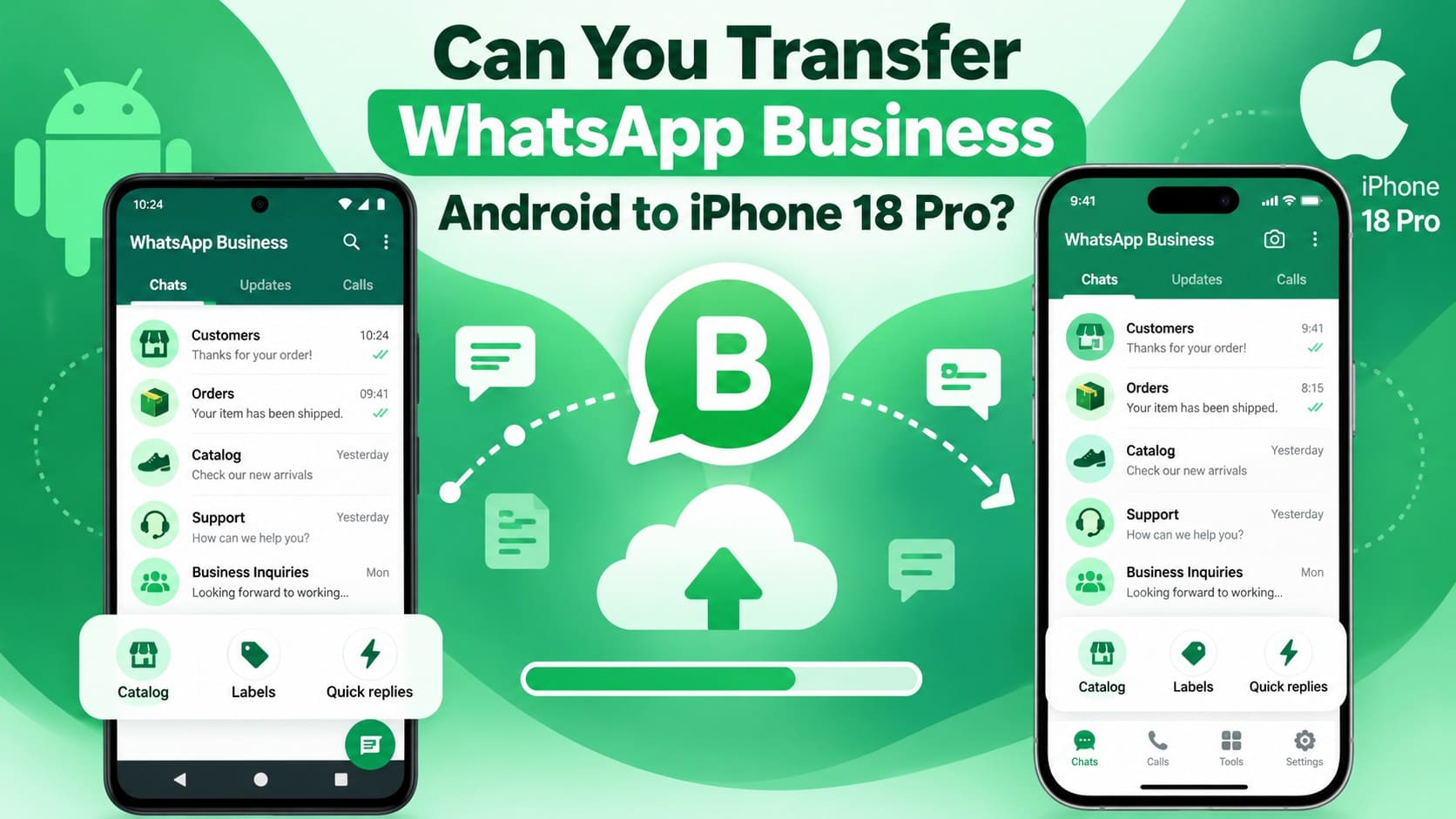
Most guides about moving WhatsApp to an iPhone focus on the regular WhatsApp app. WhatsApp Business operates as a separate application, and official migration tools currently exclude it from Android-to-iPhone transfers. Business users who reach Apple’s setup screen will find the chat transfer option unavailable rather than seeing the process fail partway.
This process differs from regular WhatsApp migration because the free route is not available for WhatsApp Business. This is where Dr.Fone - WhatsApp Business Transfer provides a practical desktop solution to transfer WhatsApp Business from Android to iPhone 18 Pro. Review this guide to learn how to use the tool and what happens to your existing data.
In this article
- Part 1. Can You Transfer WhatsApp Business from Android to iPhone 18 Pro?
- Part 2. How to Transfer WhatsApp Business from Android to iPhone 18 Pro with Dr.Fone
- Part 3. What WhatsApp Business Data Can Be Transferred to iPhone 18 Pro?
- Part 4. What Happens to Existing WhatsApp Business Data on iPhone 18 Pro?
- Part 5. What to Do If Some WhatsApp Business Data Is Missing After Transfer
- Frequently Asked Questions
Part 1. Can You Transfer WhatsApp Business from Android to iPhone 18 Pro?
Yes, you can move WhatsApp Business to iPhone 18 Pro, but the process differs from regular WhatsApp migration. Dr.Fone - WhatsApp Business Transfer provides a desktop-based solution designed specifically for this cross-platform transfer. Instead of relying on Apple’s setup process, it uses a computer to transfer WhatsApp Business data directly between Android and iPhone devices.
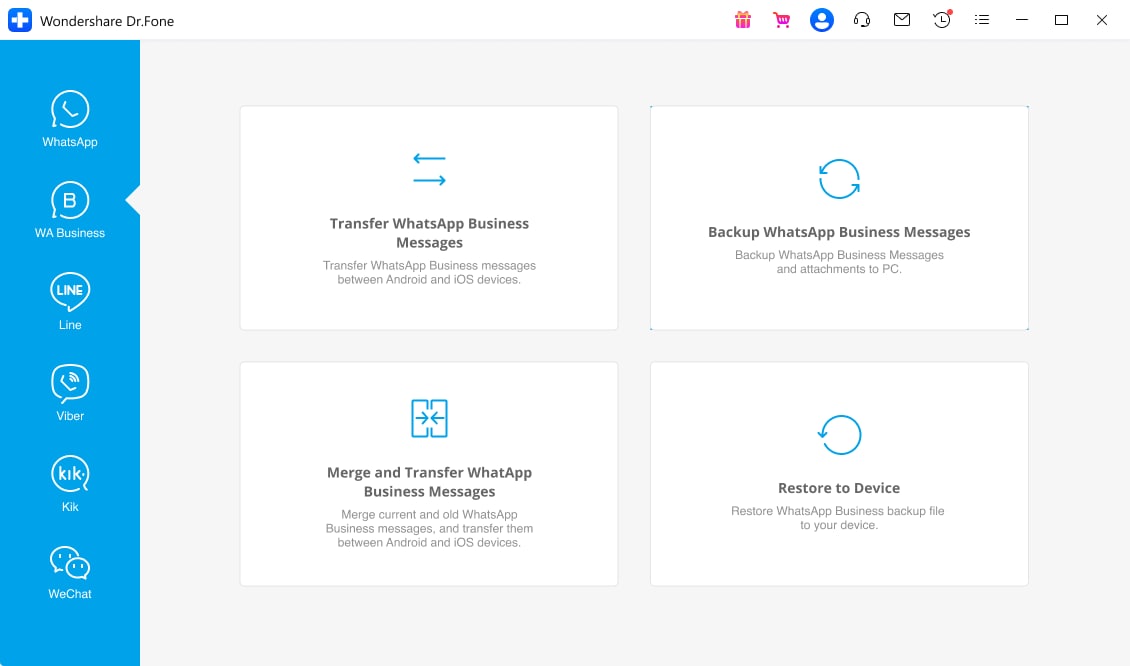
Before starting the transfer, it is important to understand the limitations around backups, supported migration methods, and existing data. The following points explain why WhatsApp Business migration works differently from regular WhatsApp transfers:
- Incompatibility of Android Backups on iOS: Android Google Drive backups cannot be restored directly in WhatsApp Business for iPhone. Cross-platform migration requires another transfer method instead of a direct cloud restore.
- No Native Cross-Platform Transfer: WhatsApp Business does not provide the same built-in Android-to-iPhone chat migration available for regular WhatsApp. Business users need an alternative transfer solution for moving their chat history.
- Limitations of Move to iOS: Apple’s Move to iOS does not currently support transferring WhatsApp Business data from Android to iPhone. This limitation makes the standard migration process unsuitable for Business chat transfers.
Part 2. How to Transfer WhatsApp Business from Android to iPhone 18 Pro with Dr.Fone
Since the official Move to iOS route does not support WhatsApp Business, you need another way to move WhatsApp Business data to iPhone 18 Pro. Dr.Fone - WhatsApp Business Transfer uses a computer-based connection to transfer WhatsApp Business data between Android and iPhone. It also supports backing up WhatsApp Business chats and attachments locally to a Windows PC or Mac.
Beyond direct transfer and backup, Dr.Fone lets you select specific WhatsApp Business data when restoring a backup to a mobile device. You can also export chat records in formats such as PDF, HTML, CSV, and Excel for easier access or record-keeping. For businesses handling multiple devices, Dr.Fone offers plans covering 10, 20, 50, or unlimited devices on one computer.
Move WhatsApp Business from Android to iPhone 18 Pro Using Dr.Fone
Both phones stay connected throughout, so a dropped connection means restarting rather than resuming. The iPhone may ask you to trust the computer before it appears. 3 steps can transfer WhatsApp Business chats to iPhone 18 Pro and are listed below:
 Transfer WhatsApp across Android & iOS.
- Backup & restore WhatsApp to PC securely.
- Preview & export chats selectively.
- Works with all iPhone & Android models.
-
Step 1. Choose Transfer WhatsApp Business Messages
Open the “WhatsApp Business” tab in Dr.Fone and select “Transfer WhatsApp Business Messages.” Connect the Android phone and iPhone 18 Pro to the computer.
-
Step 2. Set the Source and Destination Devices
Confirm the Android phone as the source and iPhone 18 Pro as the destination. In A2I transfer mode, select the required data types and click “Transfer.”

-
Step 3. Choose How to Handle Existing Data
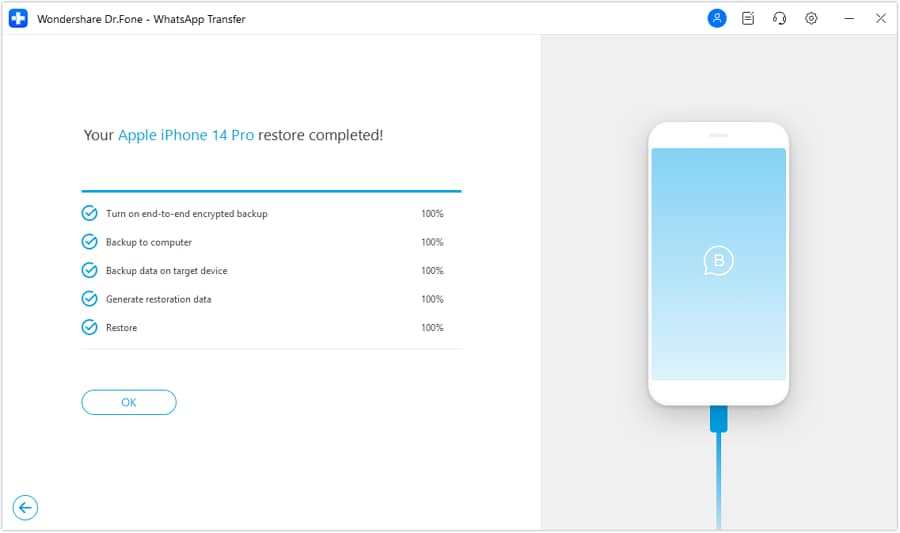
Select "Keep" or "Remove" for the existing WhatsApp Business data on the iPhone 18 Pro, then press "Next." Wait for the transfer to complete, then click "OK" to finish.




Part 3. What WhatsApp Business Data Can Be Transferred to iPhone 18 Pro?
This section explains what data Dr.Fone supports when you transfer WhatsApp Business chats to iPhone 18 Pro. The table below covers messages, individual and group chats, media, voice notes, files, and other supported content. Use it to understand what can be transferred and what you should verify after completing the migration.
| Data Type | Dr.Fone Transfer Support | After Transfer |
|---|---|---|
| Individual & Group Chats | Yes | Confirm older conversations retain their history |
| Community Messages | Yes | Ensure Community conversations appear with their messages |
| Photos, Videos, & GIFs | Yes | Make sure media displays and plays normally |
| Voice Notes & Audio Files | Yes | Ensure audio remains playable after migration |
| Documents & Files | Yes | Confirm important attachments remain accessible |
| Stickers | Yes | Make sure transferred stickers display within conversations |
| Instant Video Messages | Yes | Ensure video messages load and play normally |
| Starred Messages | Yes | Confirm starred items remain marked and accessible |
| Polls | Yes | Ensure poll questions and options remain visible |
| Broadcast Lists | Yes | Confirm transferred broadcast lists remain available |
| Call Logs | Yes | Ensure previous call records appear correctly |
Which WhatsApp Business Settings Should You Check Manually?
Chat history is only one part of a WhatsApp Business account. After you transfer WhatsApp Business from Android to iPhone 18 Pro, review important business settings separately. Current transfer information does not clearly confirm that every WhatsApp Business feature moves with your chats and media.
Review your business profile, product catalog, labels, quick replies, and greeting messages on the iPhone 18 Pro. Make sure these features are available and configured correctly after migration, especially if you rely on them for regular customer communication.
Part 4. What Happens to Existing WhatsApp Business Data on iPhone 18 Pro?
If you already use WhatsApp Business on the iPhone 18 Pro, it may contain customer chats, media, and other business data from before the transfer. When you move WhatsApp Business data to iPhone 18 Pro, protecting this existing information is important. Dr.Fone’s Android-to-iPhone workflow provides a keep-or-remove option for destination data, so review your choice carefully before starting the transfer.
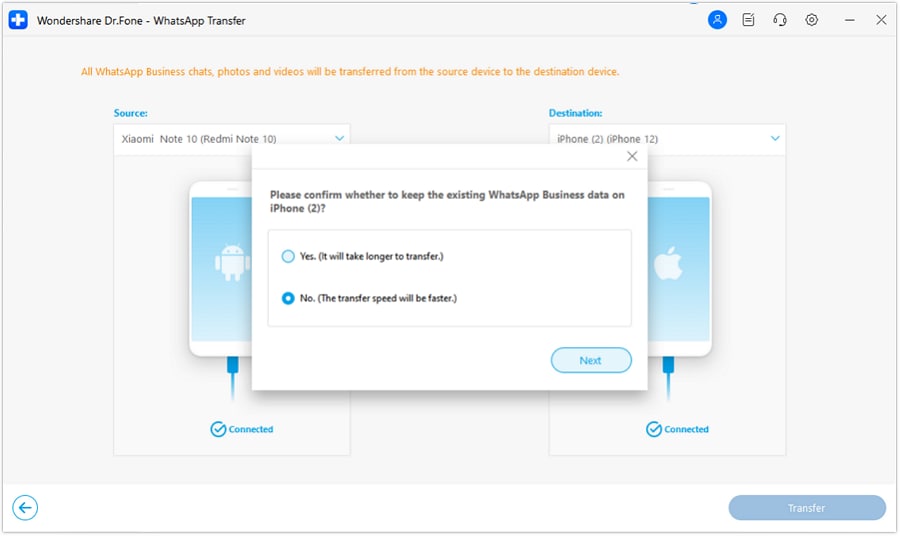
Choose the Keep option when you want to preserve WhatsApp Business data already stored on the iPhone 18 Pro. Select Remove only when that existing data is no longer needed. Back up important business conversations beforehand, then verify the transferred and retained data after migration before changing anything on the Android phone.
Part 5. What to Do If Some WhatsApp Business Data Is Missing After Transfer
After completing the migration, finding some WhatsApp Business data missing after transfer to iPhone 18 Pro does not necessarily mean the entire transfer failed. Certain data may need additional checking or may fall outside the supported transfer scope. Here is what you should do next:
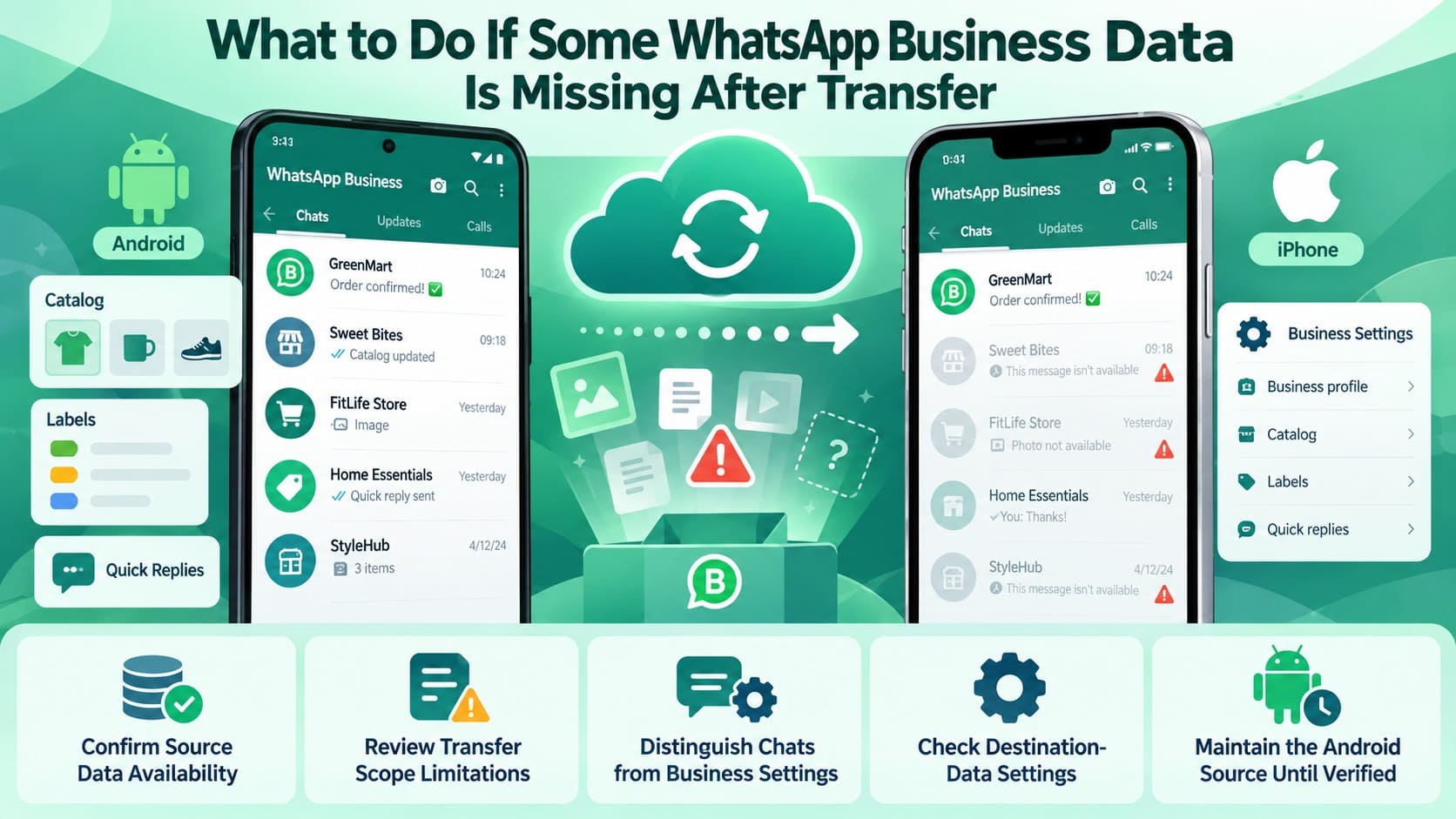
- Verify the Missing Data on Android: Open WhatsApp Business on the original Android phone and locate the missing chats, media, or files. Make sure the content is still available on the source device before trying the transfer again.
- Match Missing Items with Transfer Support: Check whether Dr.Fone supports the specific data type that did not appear on the iPhone. Unsupported WhatsApp Business content may remain missing even after another transfer attempt.
- Check Business Features Separately: Chats and media are different from business features such as catalogs, labels, quick replies, and automated messages. Review these features individually and reconfigure anything that was not carried over.
- Review the Keep or Remove Selection: Missing chats that previously existed on the iPhone may relate to the destination-data option selected during migration. Review whether you chose to keep or remove existing WhatsApp Business data.
- Before Changing the Android Phone: If supported data is still missing, retry the transfer while the original WhatsApp Business data remains intact. Avoid uninstalling WhatsApp Business, clearing its storage, or resetting the Android phone until everything is verified.
Conclusion
Transferring WhatsApp Business from Android to iPhone requires a different approach when official migration options do not support the Business app. Dr.Fone - WhatsApp Business Transfer provides a practical desktop solution to transfer WhatsApp Business from Android to iPhone 18 Pro while giving you control over existing destination data. Before leaving the Android phone behind, verify your transferred chats, media, and important business settings.
Frequently Asked Questions
-
1. Can I keep the same WhatsApp Business number after moving to iPhone 18 Pro?
Keeping the same WhatsApp Business number is recommended when transferring your account and chat history to the iPhone 18 Pro. If you want to use a different number, change your WhatsApp Business number on the Android phone before starting the migration. -
2. Will customers know that I transferred my WhatsApp Business account to another phone?
Customers are not normally notified when you move your WhatsApp Business account to another phone. They can continue messaging the same business number as usual. However, some contacts may receive a security code change notification if they have security notifications enabled. -
3. Do linked WhatsApp Business devices stay connected after changing phones?
Linked devices may need to be connected again after moving WhatsApp Business to the new iPhone. Open Linked Devices on the iPhone 18 Pro and review your connections. Re-link any missing devices, including WhatsApp Web or Desktop sessions your team uses. -
4. Should I recreate my WhatsApp Business catalog after transferring to iPhone?
Check the catalog on your iPhone 18 Pro before recreating it. If all products, prices, descriptions, and images are available, no action is needed. Recreate or update only the catalog information that is missing after the transfer.
 Add Wondershare Dr.Fone as a preferred source on Google



