Transfer WhatsApp Swiftly between iOS and Android.

 100% Security Verified | No Subscription Required | No Malware

 :
: 
 ChatGPT
 Perplexity
 Gemini
 Claude
 Grok
Grok
Missing WhatsApp chats after a transfer can result from an incomplete migration, account mismatch, insufficient storage, or missing backup data. Some conversations may also be archived, or media may take longer to appear. Identifying the cause first helps you choose the right solution without risking the WhatsApp data still available on either phone.
This guide explains how to check your existing chats, storage, account details, backups, and transfer method. You will find 8 practical fixes for WhatsApp chats missing after transferring to iPhone 18 Pro, including Dr.Fone - WhatsApp Transfer for re-transferring missing data without resetting an already-set-up iPhone.
In this article
- Part 1. Protect Your WhatsApp Chats Before Trying Another Transfer
- Part 2. Why Are WhatsApp Chats Missing After Transfer to iPhone 18 Pro?
- Part 3. 8 Ways to Fix WhatsApp Chats Missing After Transfer to iPhone 18 Pro
- Part 4. What Happens to Existing WhatsApp Chats If You Transfer Again?
- Part 5. When Missing WhatsApp Chats Cannot Be Recovered
- Part 6. How to Verify Recovered WhatsApp Chats on iPhone 18 Pro
- Frequently Asked Questions
Part 1. Protect Your WhatsApp Chats Before Trying Another Transfer
Before troubleshooting WhatsApp messages on an iPhone 18 Pro, protect any chat history that is still available. Check these 5 things first to prevent an incomplete transfer or another attempt from causing permanent data loss:
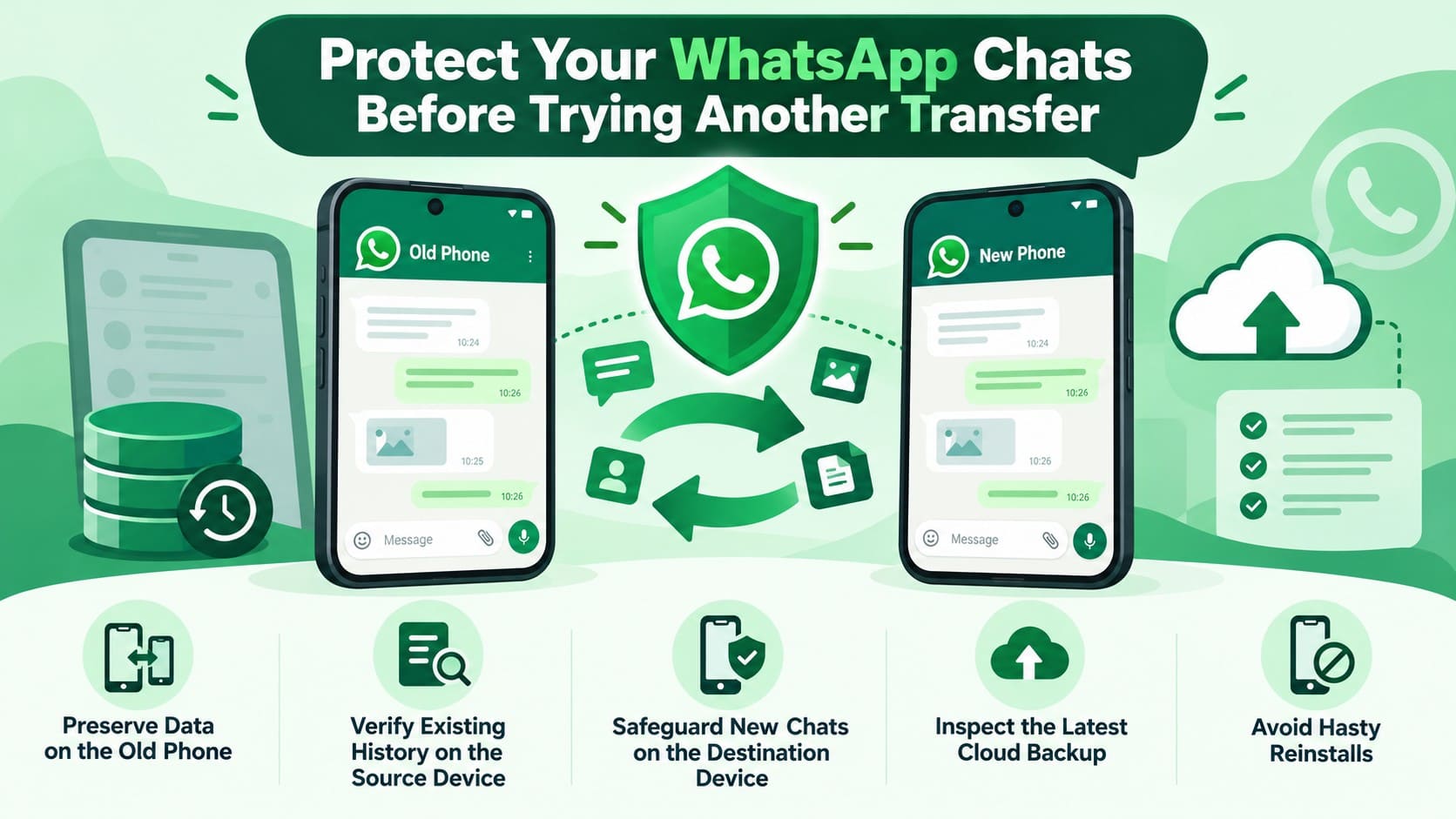
- Preserve Data on the Old Phone: Do not erase the source device, uninstall WhatsApp, or trade it in. WhatsApp recommends keeping the old phone until you confirm that the complete chat history transferred successfully.
- Verify Existing History on the Source Device: Open WhatsApp on the original phone and check the conversations missing from the iPhone 18 Pro. Confirming those chats are still available gives you a reliable source for another transfer attempt.
- Safeguard New Chats on the Destination Device: Check for new conversations or media created on the iPhone 18 Pro since the initial migration. Protect important data because some transfer methods may require resetting the destination or affect existing WhatsApp history.
- Inspect the Latest Cloud Backup: Open “WhatsApp Settings > Chats > Chat Backup” and review the latest backup date and size. Compare the backup date with the missing conversations to determine whether it could contain the required chat history.
- Avoid Hasty Reinstalls: Determine whether the old phone or an available backup contains the most complete WhatsApp history before reinstalling the app. Choosing the best available source first reduces the risk of losing recoverable chats.
Part 2. Why Are WhatsApp Chats Missing After Transfer to iPhone 18 Pro?
Once your original chat history is protected, identify what caused the transfer problem before trying another method. If not all WhatsApp chats transferred to iPhone 18 Pro, what is missing can help narrow down the issue. Use the table below to match each symptom with its likely cause and the most suitable fix:
| Missing WhatsApp Symptom | Likely Cause | Transfer Method Involved | Best Next Action |
|---|---|---|---|
| All Android Chats Missing | WhatsApp activated before the import ran | Move to iOS | Fix 5 or Fix 8 |
| Only Some Android Chats Arrived | Migration stopped partway | Move to iOS | Fix 4, then Fix 8 if needed |
| Import Stopped Before Completion | Connection problem during transfer | Move to iOS | Fix 4, then Fix 8 if needed |
| Recent Messages Missing | They postdate the last backup | iCloud restore | Fix 8 if still on old phone |
| Old iPhone Chats Missing | Destination conditions not met | Chat Transfer | Fix 6 or Fix 8 |
| Text Arrived, Media Didn't | Media still downloading or excluded | Move to iOS / iCloud restore | Wait, then Fix 7 or Fix 8 |
| WhatsApp Used Before Importing | Registration closed the import window | Move to iOS | Fix 5 or Fix 8 |
| iPhone Ran Out of Storage | Destination filled mid-transfer | Any | Fix 3, then Fix 8 if needed |
| Different Number Used | Transfer requires original number | Any | Fix 2 first |
| Call History or Community Messages Missing | Official transfer did not carry the data | Move to iOS | Fix 8 if still on old phone |
| Reported Success, Chats Absent | Incomplete or failed import | Any | Fix 8, or Part 5 |
Part 3. 8 Ways to Fix WhatsApp Chats Missing After Transfer to iPhone 18 Pro
If WhatsApp chats are missing after transfer to iPhone 18 Pro, begin with checks that keep your existing data safe. The 8 fixes below progress from simple troubleshooting to transfer and recovery methods, helping you choose the right solution based on what caused your chats to go missing.
Fix 1. Search WhatsApp and Check Archived Chats
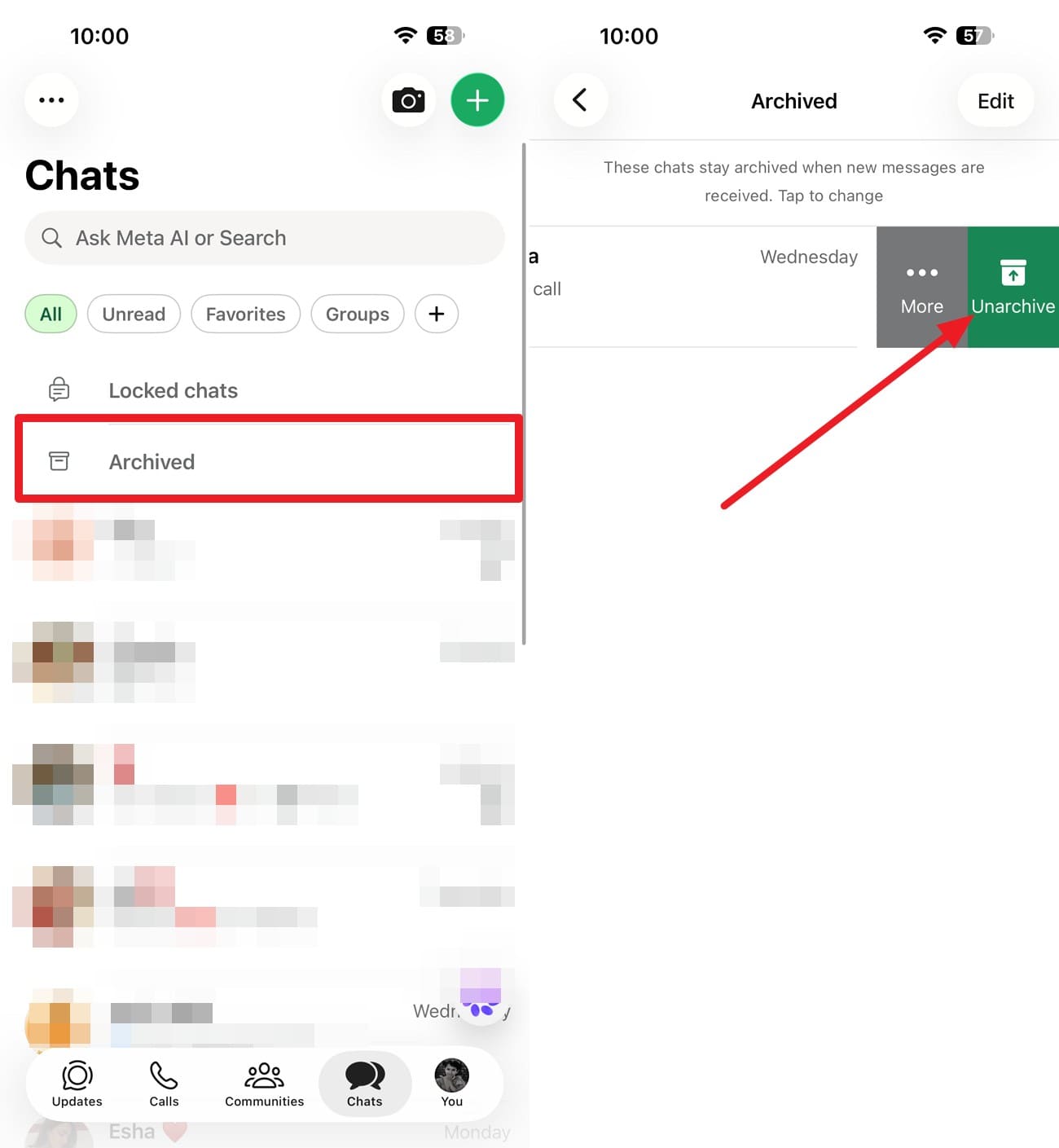
This check is most useful when only a few WhatsApp messages are missing on iPhone 18 Pro rather than the entire chat history. WhatsApp notes that chats may appear out of order on iOS, so check for the conversation before retrying the transfer. Search WhatsApp using the contact name, group name, or a phrase from the missing chat. To check whether the conversation is in the Archived section, follow the steps below:
Instructions. Go to the “Chats” tab and swipe down to access the “Archived” folder. See whether the conversation was moved out of the main Chats list. If so, swipe left on the chat and select the “Unarchive” option.
Fix 2. Confirm the Same WhatsApp Number and Account Details
WhatsApp requires the phone number associated with the chat history for backup restoration and supported transfers. Check the registered WhatsApp number on both the old phone and iPhone 18 Pro to make sure the required account details match.
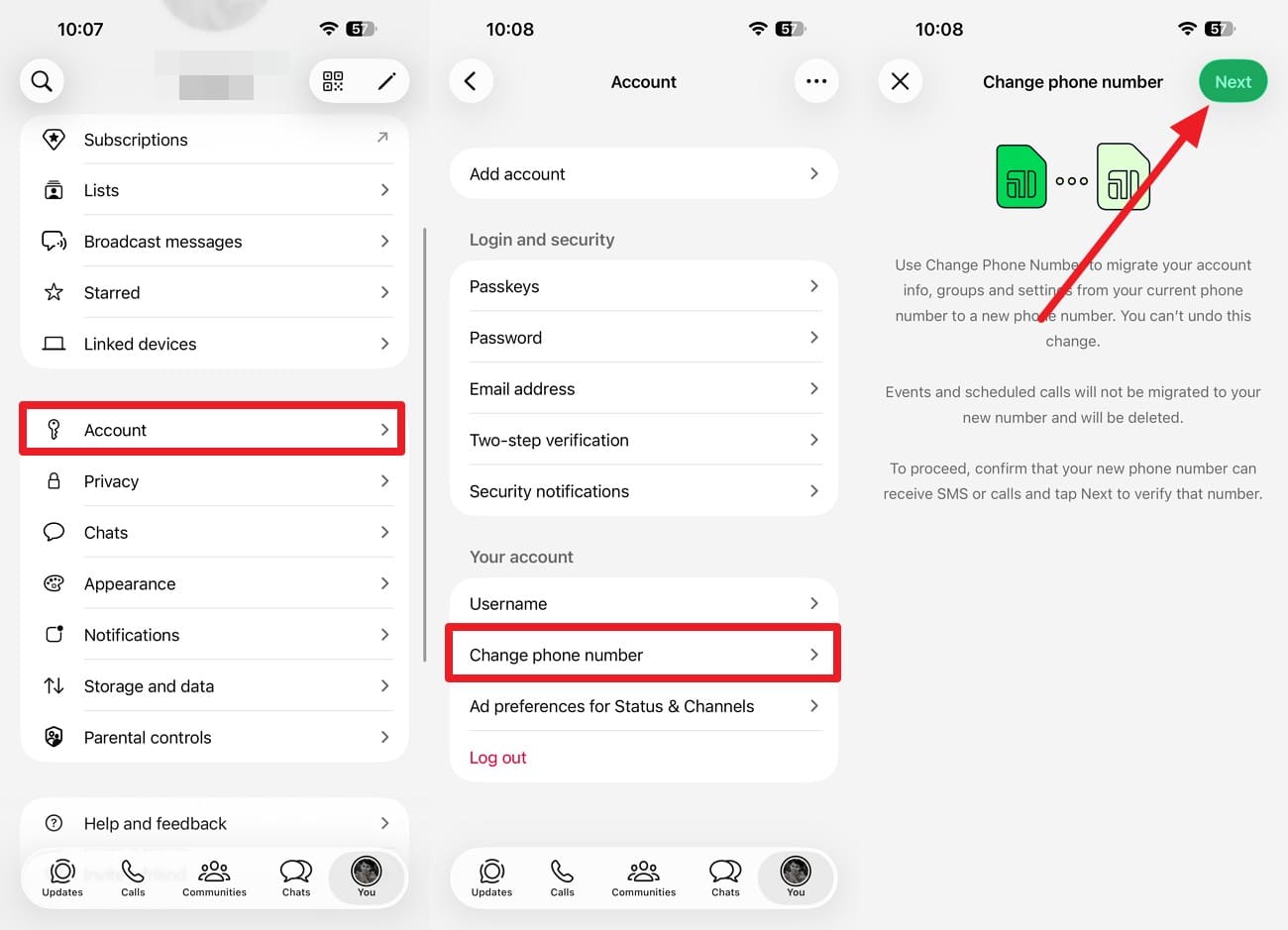
A different number may explain why not all WhatsApp chats transferred to iPhone 18 Pro or why the expected backup cannot be restored. If you are changing your number while switching phones, use WhatsApp’s Change Number feature on the old phone first. Follow these steps:
-
Step 1. Go to "Settings > Account > Change Number > Next" on the old phone.
-
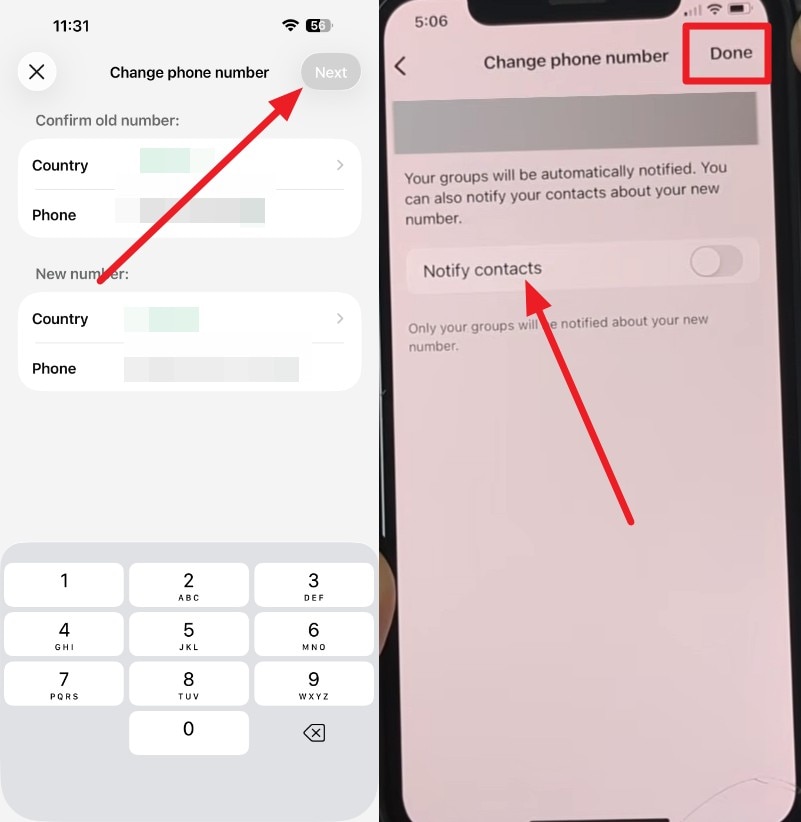
Step 2. Enter the old phone number in the first field and the new number in the second, and choose “Next.” Choose to toggle on the “Notify Contacts” option and tap on “Done.”
Fix 3. Check iPhone Storage Before Retrying the Transfer
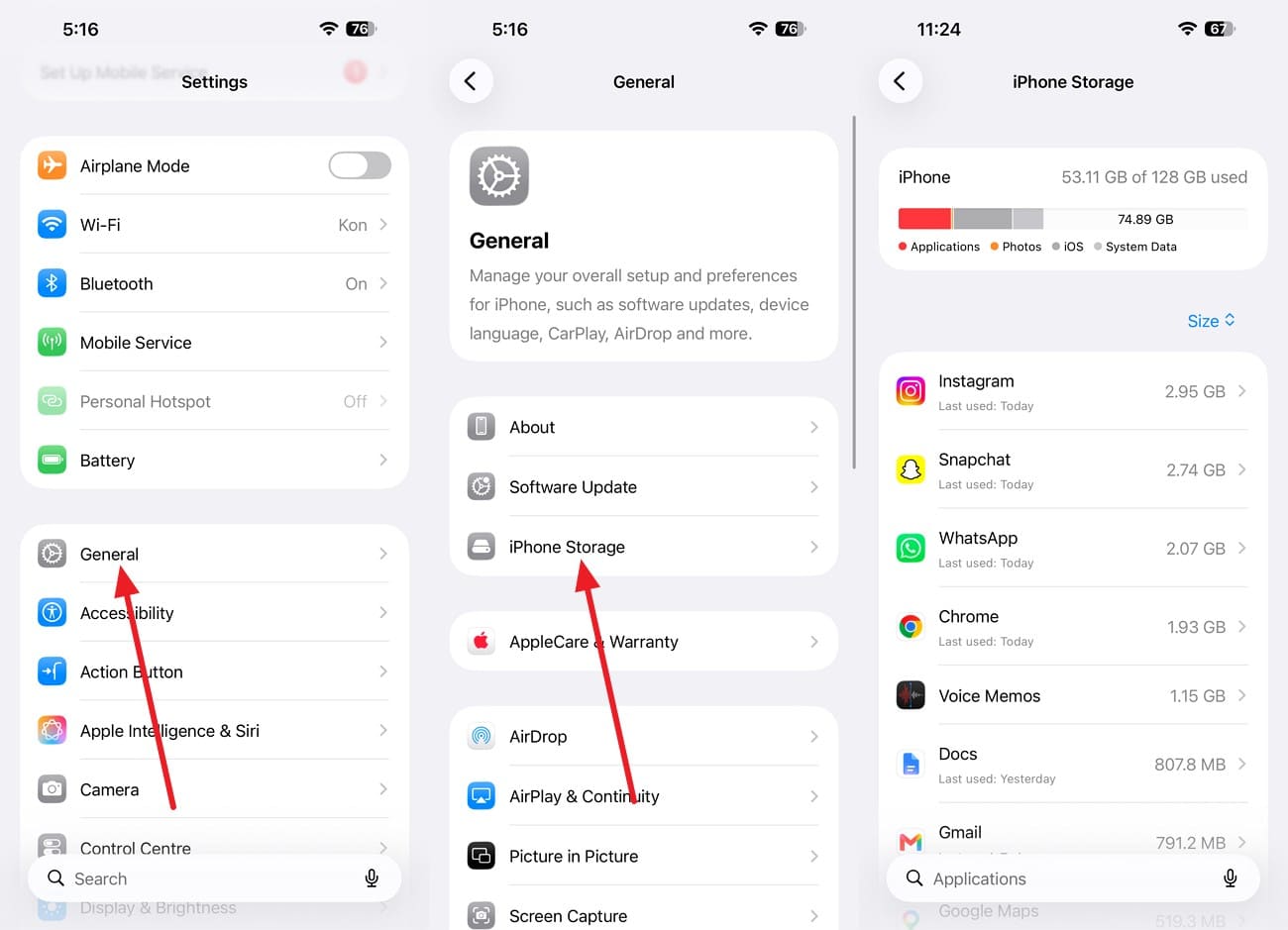
If WhatsApp messages disappeared after the transfer or only part of the chat history arrived, check the available iPhone 18 Pro storage first. Move to iOS requires resetting the iPhone before another migration. Third-party transfer tools can work with an already-set-up device, so free up enough storage before using one. To check the available storage and free up space for another transfer method, follow these steps:
-
Step 1. Go to “Settings > General > iPhone Storage” and see how much free space remains.
-
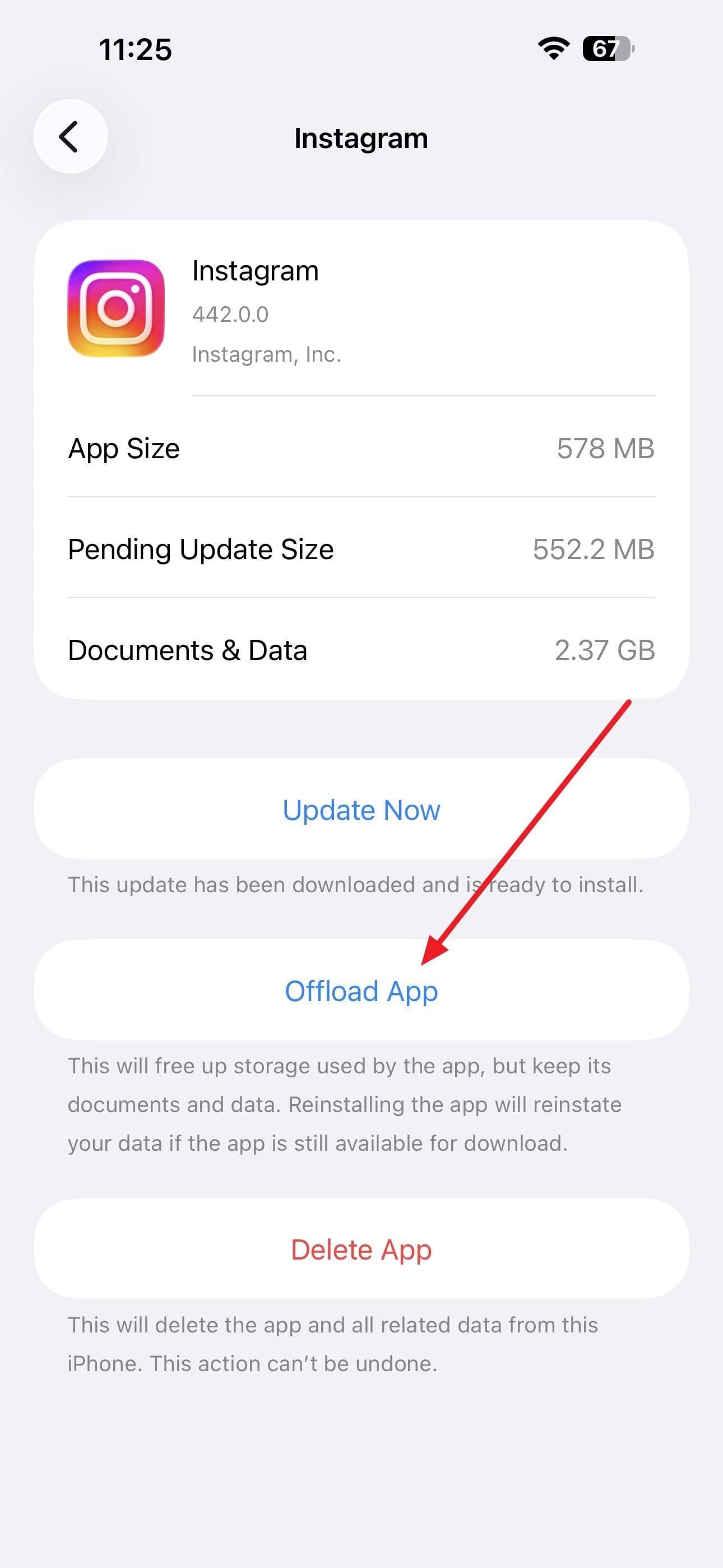
Step 2. Choose any app and press the “Offload App” option, or remove downloads or other large files.

Fix 4. Correct an Interrupted WhatsApp Transfer and Retry
If a WhatsApp transfer is incomplete on iPhone 18 Pro, check the connection before attempting the migration again. WhatsApp notes that connection problems can interrupt the import process. Keep both phones nearby and connected to power throughout the transfer. With Move to iOS, the Android phone must remain connected to the temporary Wi-Fi network created by the iPhone.
Keep Move to iOS open on the Android phone until the iPhone loading bar finishes. If the transfer fails again, Apple recommends restarting both devices before another attempt.
Fix 5. Retry Move to iOS When Android WhatsApp Chats Are Missing
If Move to iOS is missing WhatsApp chats on iPhone 18 Pro, retry only while the complete chat history remains on the Android phone. Move to iOS requires a new or factory-reset iPhone for another Android-to-iPhone migration. If the iPhone is already set up, protect any important new data before erasing it and starting again.
Once your important iPhone data is protected and the Android chats are still available, follow these steps to retry the WhatsApp transfer:
-
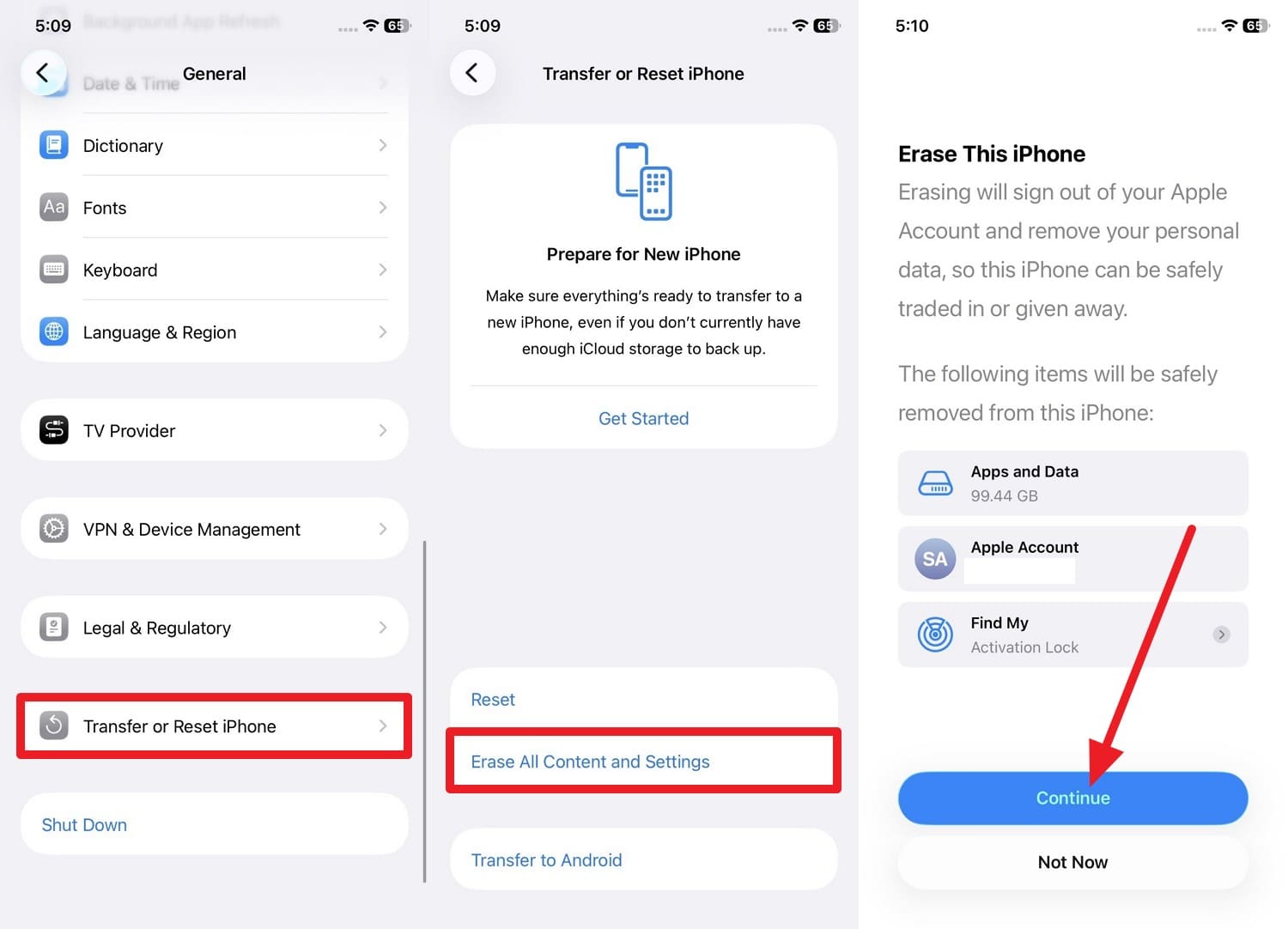
Step 1. Erase the iPhone 18 Pro in “Settings > General > Transfer or Reset iPhone > Erase All Content and Settings > Continue.”
-
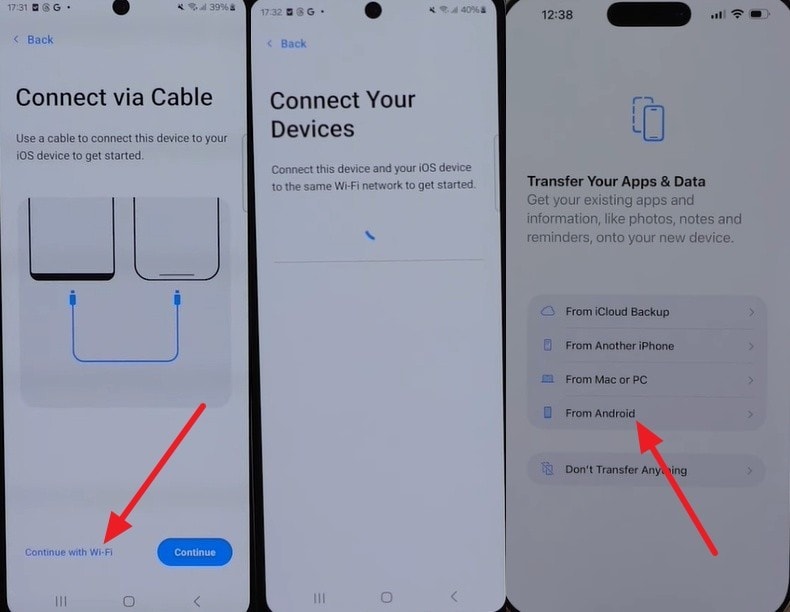
Step 2. Set up the iPhone 18 Pro and access the “Transfer Your Apps & Data > From Android” option. Meanwhile, choose “Continue with Wi-Fi” on the Move to iOS App on Android, or connect the devices with a cable.
-
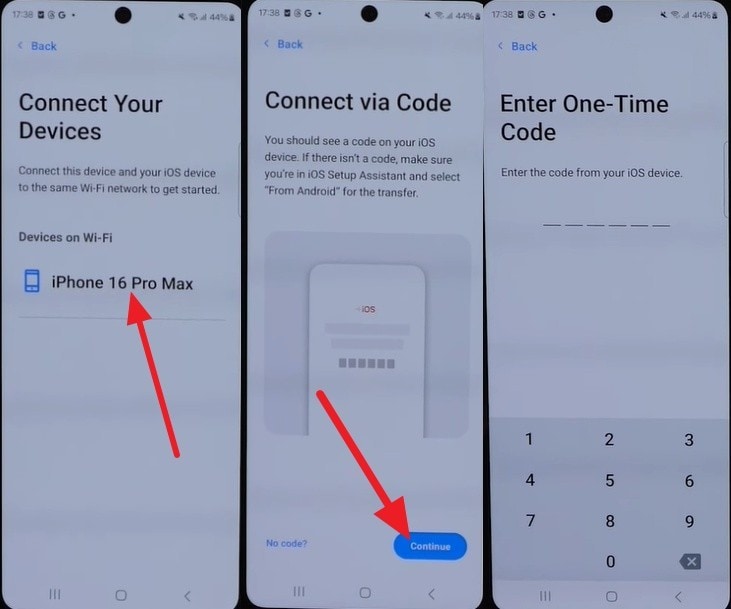
Step 3. Choose iPhone 18 Pro in the app > Select “Continue” > Get the one-time code interface.
-
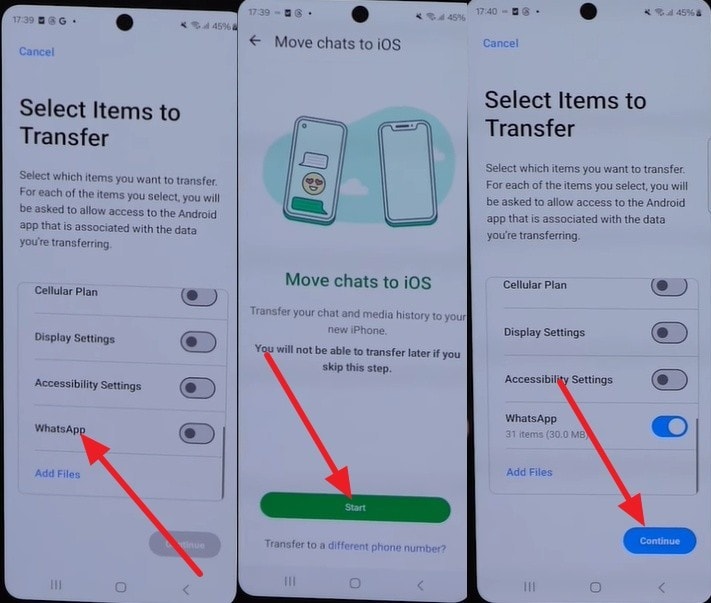
Step 4. Enter the code on Android and select “WhatsApp > Start” to prepare the data. Then, return to Move to iOS and tap “Continue” to transfer it. Keep both phones connected to power until the migration finishes.
Fix 6. Retry WhatsApp Chat Transfer from the Old iPhone
If WhatsApp chats are missing after transferring to iPhone 18 Pro and your old device is another iPhone, retry WhatsApp’s direct Chat Transfer feature. This method transfers your chat history directly between the two iPhones without relying on an iCloud backup. Keep the old iPhone available and ensure both devices meet WhatsApp’s transfer requirements. Then, follow these steps to retry the transfer:
-
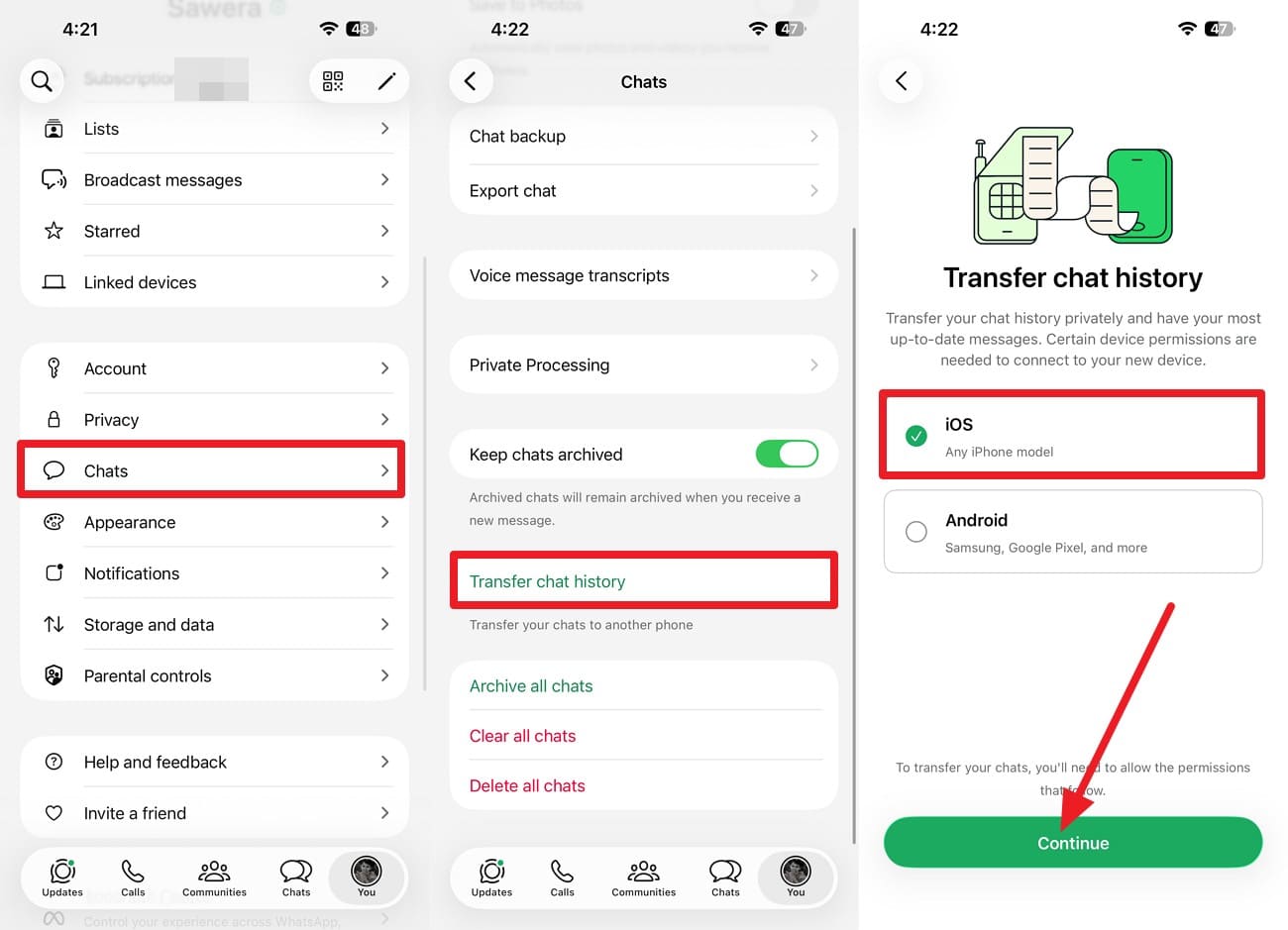
Step 1. Restart both iPhones before retrying if the first attempt failed partway. After that, go to the “Settings > Chat > Transfer Chat History > iOS” option on the old iPhone WhatsApp.
-
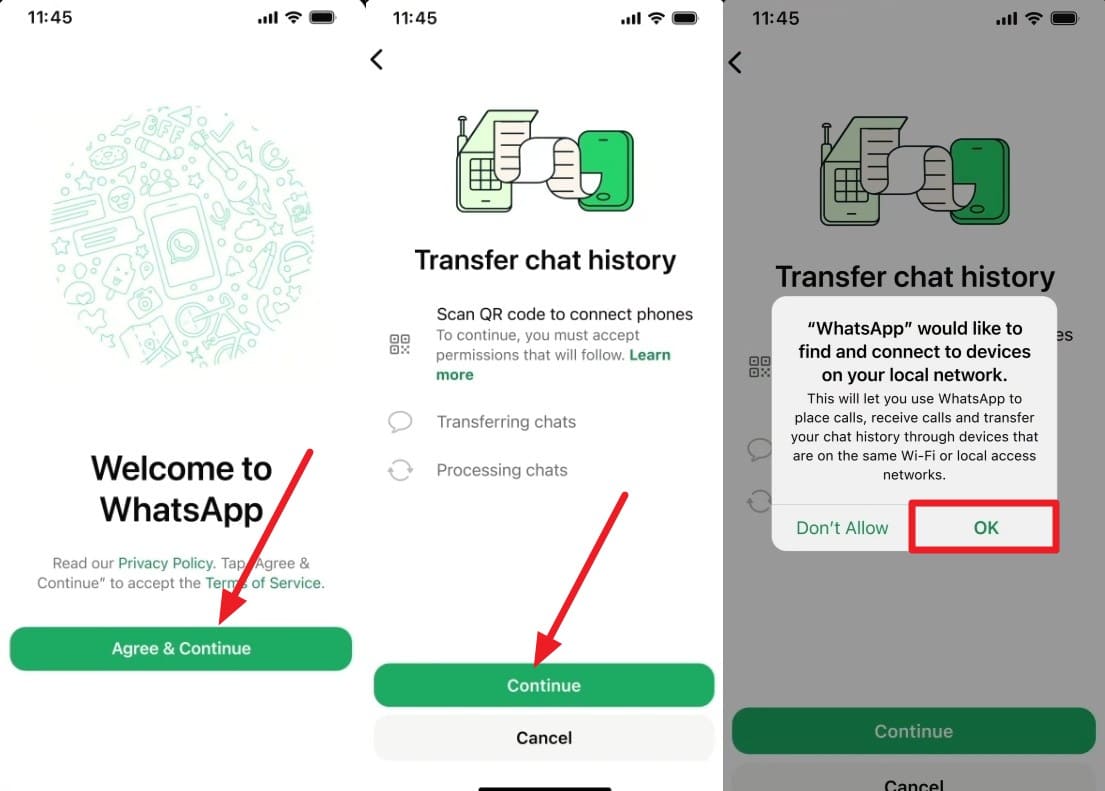
Step 2. With WhatsApp installed on the new iPhone 18 Pro, press “Agree & Continue” > Add Phone Number > Verify. Then choose “Continue > OK” to connect to the local network.
-
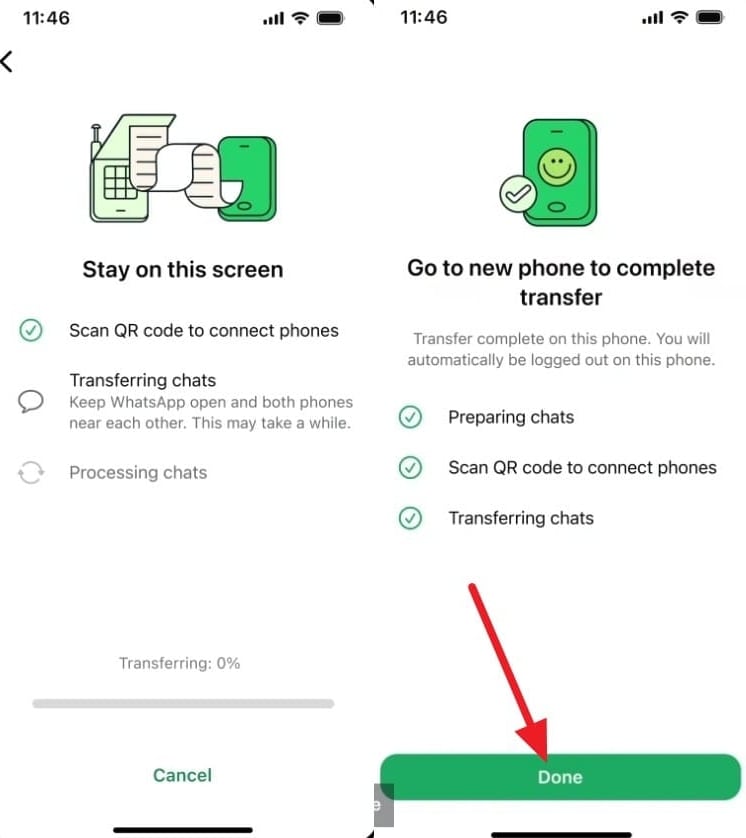
Step 3. Scan the QR code on the iPhone 18 Pro using the old iPhone, then follow the prompts to complete the transfer. Once finished, check several recent and older chats on the new iPhone. Keep WhatsApp and its data on the old iPhone until you confirm the missing chats transferred successfully.
Fix 7. Restore Missing WhatsApp Chats from the Latest iCloud Backup
If WhatsApp messages are missing on iPhone 18 Pro, an iCloud Backup can restore them only if they were included in that backup. Check the backup date and size first to confirm it may contain the missing chat history. If you find a suitable backup, follow these steps to restore it:
-
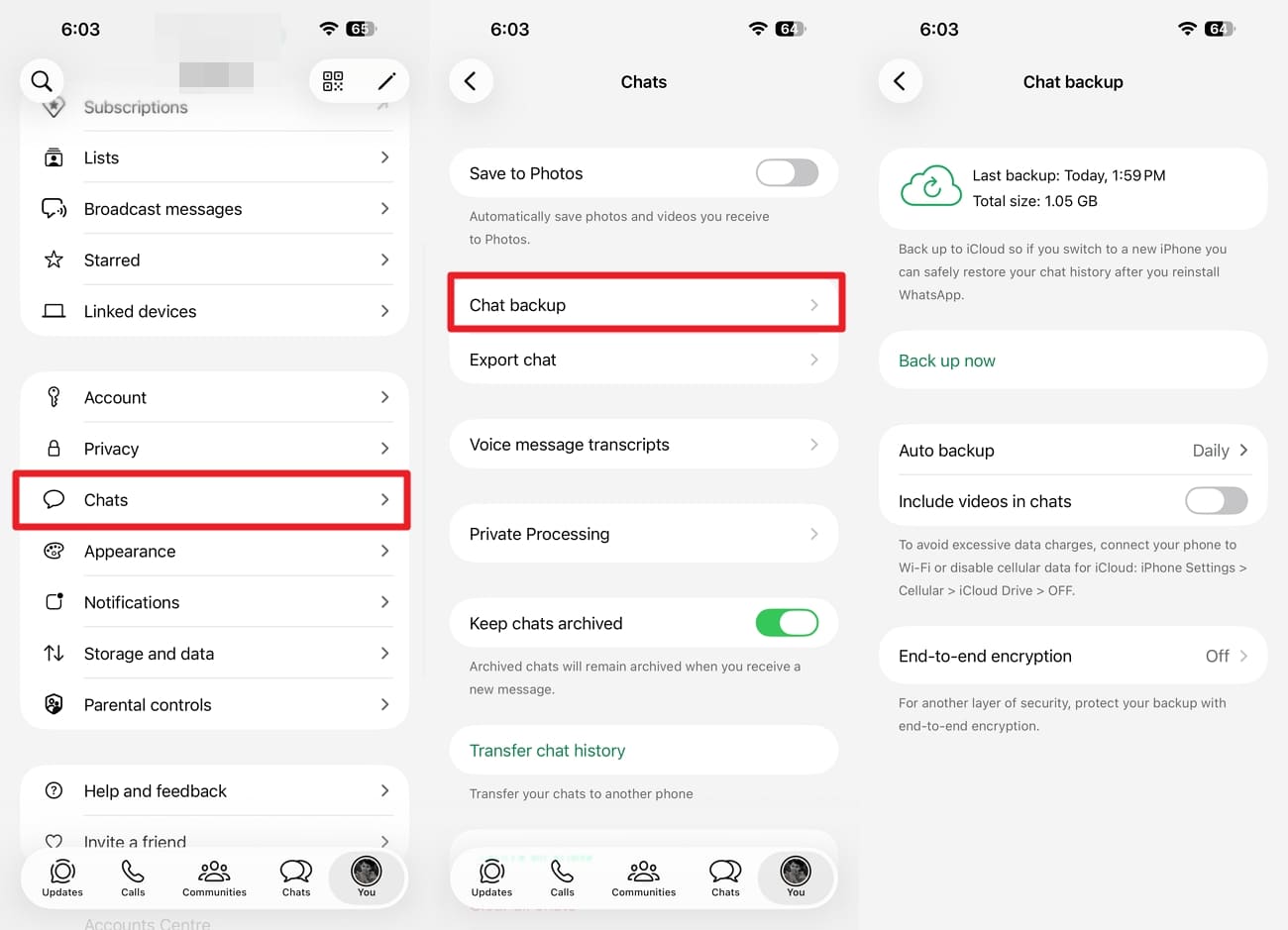
Step 1. On the old iPhone, go to “WhatsApp > Settings > Chats > Chat Backup” and check the latest backup details. Confirm that the backup was created after the missing messages existed, so those chats could be included in the backup.
-
Step 2. Now, install the app on iPhone 18 Pro and select “Agree & Continue” > Add the same number > Choose “Next.” Add the code to verify > Tap “Continue > Allow.”
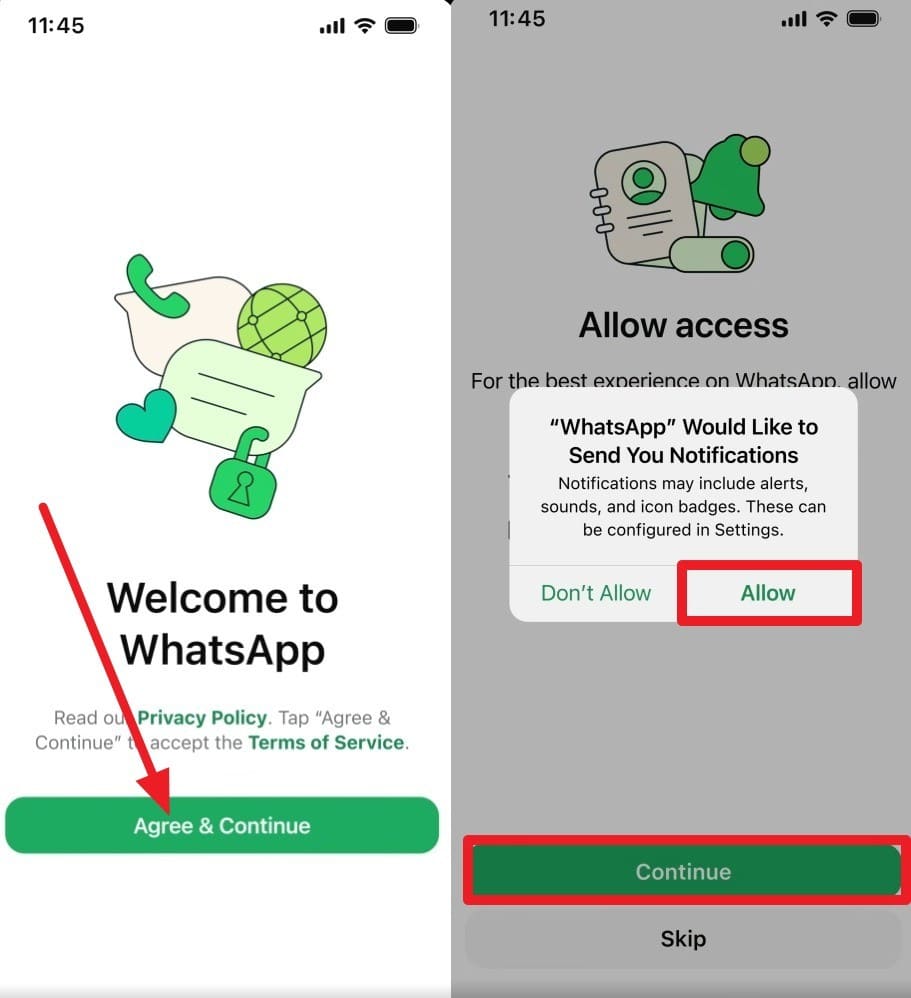
-
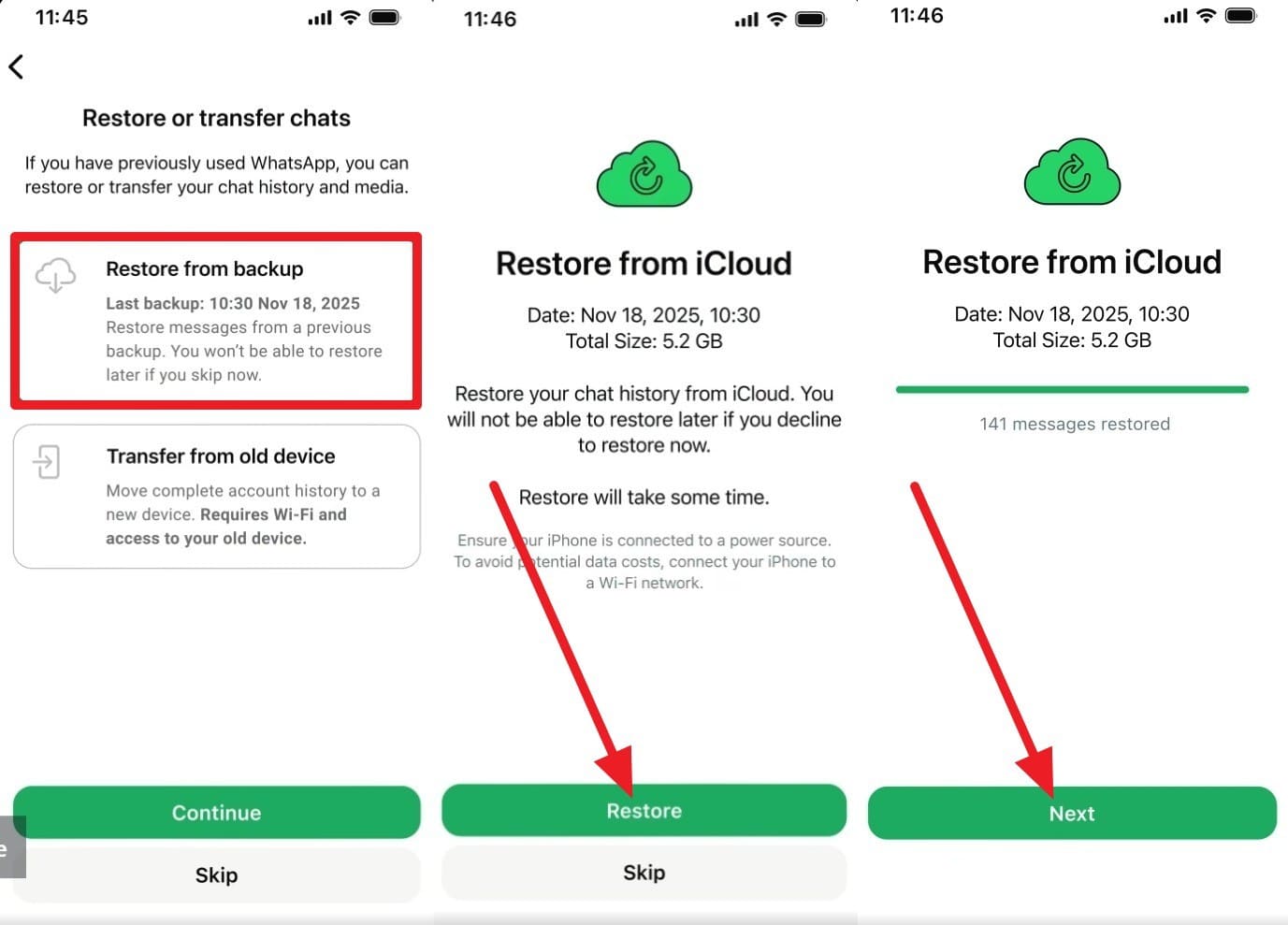
Step 3. Next, choose “Restore from Backup > Continue > Restore > Next.” Once the restore finishes, open the missing conversations and confirm the messages and media are present.
Fix 8. Re-Transfer Missing WhatsApp Chats with Dr.Fone - WhatsApp Transfer
In cases where the old phone still holds the complete history and WhatsApp chats are missing after transfer to iPhone 18 Pro, use Dr.Fone - WhatsApp Transfer. This tool gives you another way to move the missing chats without resetting an already-set-up iPhone. Unlike Move to iOS, it runs from a computer and does not depend on Apple’s initial setup screen.
For the Android-to-iPhone workflow, it can keep existing WhatsApp data on the destination iPhone when you select the appropriate option. In A2I Transfer Mode, you can also select specific data types for a partial transfer. The Flip icon makes it easy to set the Source and Target devices, and the transfer can be completed quickly. You can also export chat logs and backups into readable formats like PDF, HTML, CSV, or Excel.
Re-Transfer WhatsApp Chats to iPhone 18 Pro with Dr.Fone
If WhatsApp messages disappeared after transfer and you have already set up the iPhone, follow this guide to move the missing data with Dr.Fone without resetting the device:
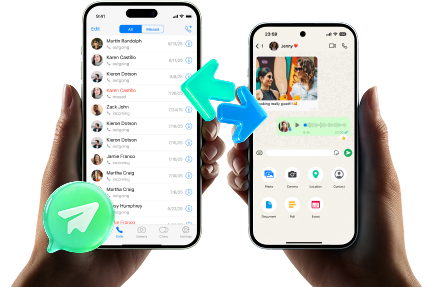
 Transfer WhatsApp across Android & iOS.
- Backup & restore WhatsApp to PC securely.
- Preview & export chats selectively.
- Works with all iPhone & Android models.
-
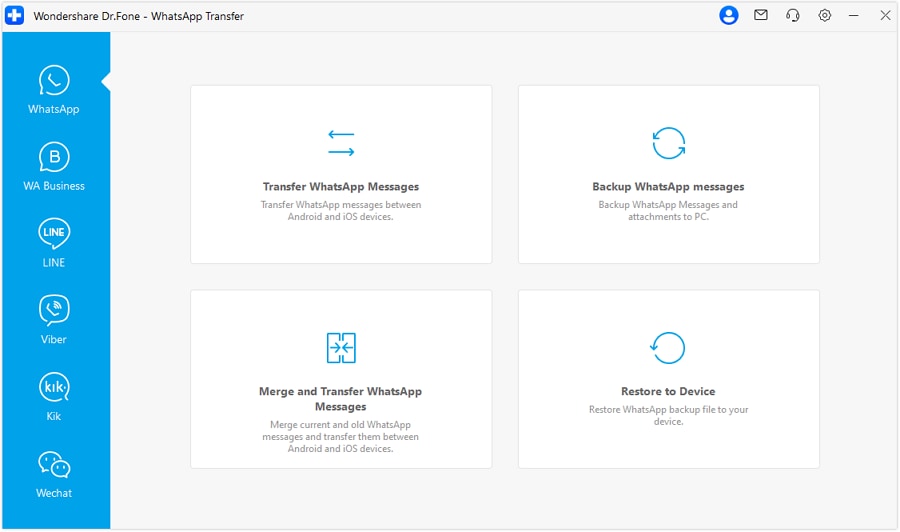
Step 1. Choose Transfer WhatsApp Messages
Open Dr.Fone, go to the “Toolbox” tab, and access the “WhatsApp Transfer” tool. Connect your Android and iPhone 18 Pro, select “WhatsApp,” and choose “Transfer WhatsApp Messages.”
-
Step 2. Select Data in A2I Transfer Mode
Set your Android as the Source and iPhone 18 Pro as the Target. In A2I Transfer Mode, choose the required data types and click “Transfer.”

-
Step 3. Keep Existing WhatsApp Data and Complete the Transfer
When prompted, select “Yes” to keep the existing WhatsApp data on your iPhone 18 Pro. Once the transfer finishes, click “OK” and verify the missing chats.




Part 4. What Happens to Existing WhatsApp Chats If You Transfer Again?
If WhatsApp chats are missing after transferring to iPhone 18 Pro, first protect any conversations created on the new device. Retrying Move to iOS requires resetting an already-set-up iPhone and does not merge new iPhone chats with the older Android history. WhatsApp’s direct Chat Transfer also has destination requirements that can affect how you retry the migration.
Dr.Fone - WhatsApp Transfer offers another option when you want to preserve the WhatsApp data already on the iPhone 18 Pro. During an Android-to-iPhone transfer, you can choose to keep existing destination WhatsApp data while moving the old history. This makes it useful when you have already started using WhatsApp after the initial transfer.
Part 5. When Missing WhatsApp Chats Cannot Be Recovered
Some WhatsApp messages missing on iPhone 18 Pro may be unrecoverable if they no longer exist on the old phone or in a usable backup. The table below explains the situations where another transfer or backup restore cannot bring the missing chats back:
| When Recovery Is Not Possible | Why the Chats Cannot Be Restored |
|---|---|
| Chats No Longer Exist on the Old Phone | No source copy remains for another transfer unless the missing chats are available in a usable backup. |
| Chats Are Missing from Every Usable Backup | A backup cannot restore conversations that were never captured before the chats disappeared. |
| The Latest Backup Was Created After the Chats Disappeared | The backup reflects the WhatsApp history after the missing chats were already lost. |
| No Available Method Supports the Missing Data | Recovery may not be possible when neither the official method nor another transfer tool supports the missing data type. |
Part 6. How to Verify Recovered WhatsApp Chats on iPhone 18 Pro
Finally, verify that the WhatsApp chats missing after transfer to iPhone 18 Pro have returned completely and are accessible. Check older and recent conversations along with important media, attachments, and other transferred data using the table below:
| Verification Area | What to Check |
|---|---|
| Recent and Older Chats | Open conversations from different dates and confirm that both recent and older messages are present. |
| Individual, Group, and Community Chats | Check important one-to-one chats, groups, and Communities to ensure no conversations or message sections are missing. |
| Photos, Videos, and Voice Messages | Open several photos and videos, then play voice messages to confirm the transferred media works correctly. |
| Files and Documents | Open important PDFs, documents, and other attachments from different chats to confirm they are accessible. |
| Call History and Other Transferred Data | Check WhatsApp call history and other expected data to confirm everything supported by your chosen transfer method arrived successfully. |
Conclusion
Protect your original WhatsApp chats before attempting another migration. If WhatsApp chats are missing after transferring to iPhone 18 Pro, some official retry methods may require resetting the device. Dr.Fone - WhatsApp Transfer provides another option for re-transferring missing data without resetting an already-set-up iPhone. Whichever method you choose, verify the transferred chat history before erasing or clearing your old phone.
Frequently Asked Questions
-
1. Can WhatsApp media appear later even if chats have already transferred?
Yes, some WhatsApp media may continue loading after the chat history appears. Keep the iPhone connected to a stable Wi-Fi network and allow time for media to load before assuming photos, videos, or other attachments are missing. -
2. Why are some WhatsApp group chats missing while individual chats transferred correctly?
An interrupted or incomplete transfer can leave some group chats missing even when individual conversations appear correctly. Search for the missing groups and check Archived chats first. If they are still absent, verify available storage and consider retrying the transfer. -
3. Does reinstalling WhatsApp on iPhone 18 Pro bring back missing transferred chats?
Reinstalling WhatsApp can restore missing chats only if they exist in an available iCloud backup. If the backup does not contain those conversations, reinstalling the app will not recover them.
 Add Wondershare Dr.Fone as a preferred source on Google