Transfer WhatsApp Swiftly between iOS and Android.

 100% Security Verified | No Subscription Required | No Malware

 :
: 
 ChatGPT
 Perplexity
 Gemini
 Claude
 Grok
Grok
Moving WhatsApp chats to an iPhone 18 Pro is not the same for everyone. Your old phone, available backup, and the new iPhone’s setup status determine which transfer method works best. WhatsApp Chat Transfer, iCloud, and Move to iOS each have different requirements.
This guide explains the right method for each situation and what to do when official options are unavailable. You will also learn how Dr.Fone - WhatsApp Transfer offers a desktop-based way to transfer WhatsApp to iPhone 18 Pro, including when the new iPhone is already set up.
In this article
- Part 1. Best Ways to Transfer WhatsApp to iPhone 18 Pro
- Part 2. How to Transfer WhatsApp from Old iPhone to iPhone 18 Pro
- Part 3. How to Transfer WhatsApp from Android to iPhone 18 Pro?
- Part 4. Transfer WhatsApp to iPhone 18 Pro with Dr.Fone - WhatsApp Transfer
- Part 5. WhatsApp Chat Transfer vs. iCloud vs. Move to iOS vs. Dr.Fone
- Part 6. What WhatsApp Data Can Be Transferred to iPhone 18 Pro?
- Part 7. What to Check Before Moving WhatsApp to iPhone 18 Pro
- Part 8. How to Verify WhatsApp After Transfer to iPhone 18 Pro?
- Frequently Asked Questions
Part 1. Best Ways to Transfer WhatsApp to iPhone 18 Pro
The best way to transfer WhatsApp to iPhone 18 Pro depends on your old phone and the new iPhone’s setup status. Different methods work for iPhone and Android, while some require a new or reset iPhone. The table below helps you quickly choose the right transfer method for your situation:
| Source Phone | iPhone 18 Pro Status | Recommended Method | Main Requirement | Best For |
|---|---|---|---|---|
| Old iPhone | Both phones available | WhatsApp Chat Transfer | Same number and both devices nearby | Fast direct transfer |
| Old iPhone | iCloud backup available | iCloud Restore | Same number and Apple Account | Restoring without old iPhone |
| Old iPhone | Already set up | Dr.Fone - WhatsApp Transfer | Windows or Mac and cables | Direct transfer after setup |
| Android | New or factory-reset | Move to iOS | Complete transfer during iPhone setup | Free official transfer |
| Android | Already set up | Dr.Fone - WhatsApp Transfer | Windows or Mac and cables | Transfer without factory reset |
| Android | Existing WhatsApp data | Dr.Fone - WhatsApp Transfer | Destination data options | Keeping existing WhatsApp chats |
Part 2. How to Transfer WhatsApp from Old iPhone to iPhone 18 Pro
To move WhatsApp from an old iPhone to iPhone 18 Pro, you can use WhatsApp Chat Transfer or restore an iCloud backup. The right method depends on whether you still have the old iPhone or only its backup available. Start with the option that matches your situation below:
Method 1. Use WhatsApp Chat Transfer
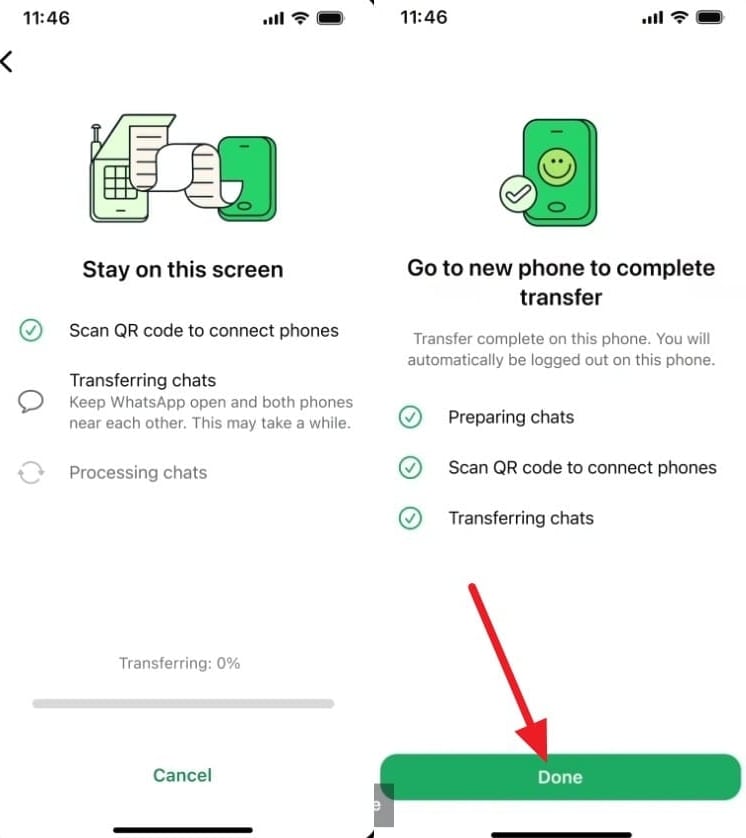
If both iPhones are available, WhatsApp Chat Transfer lets you transfer WhatsApp chats to iPhone 18 Pro directly without an iCloud backup. Both iPhones must use the same phone number, and WhatsApp should not already be registered on the new iPhone 18 Pro. Once everything is ready, follow these steps to start the direct WhatsApp transfer:
-
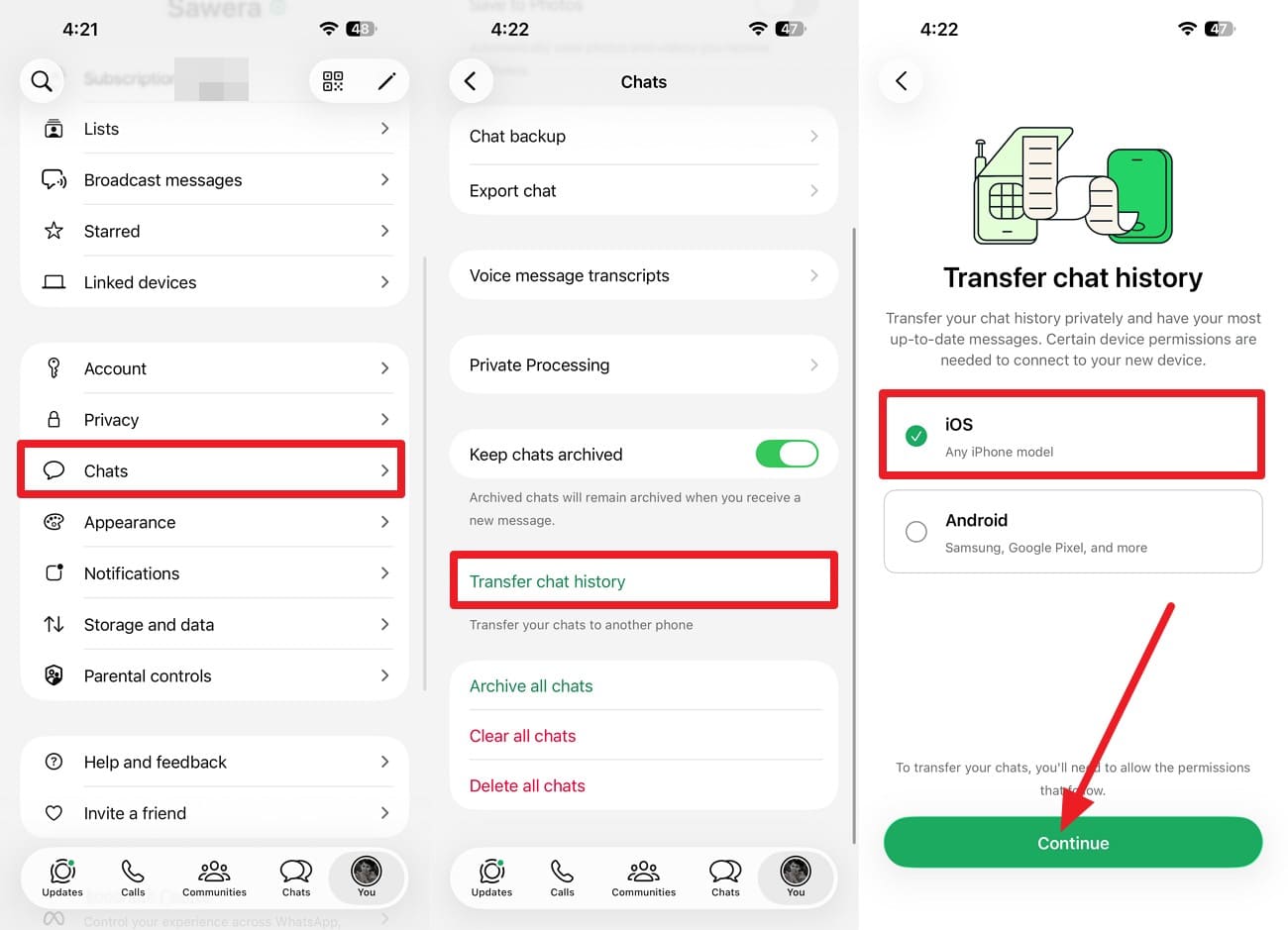
Step 1. On the old iPhone, open WhatsApp settings > Go to “Chats > Transfer Chats History > iOS > Continue.”
-
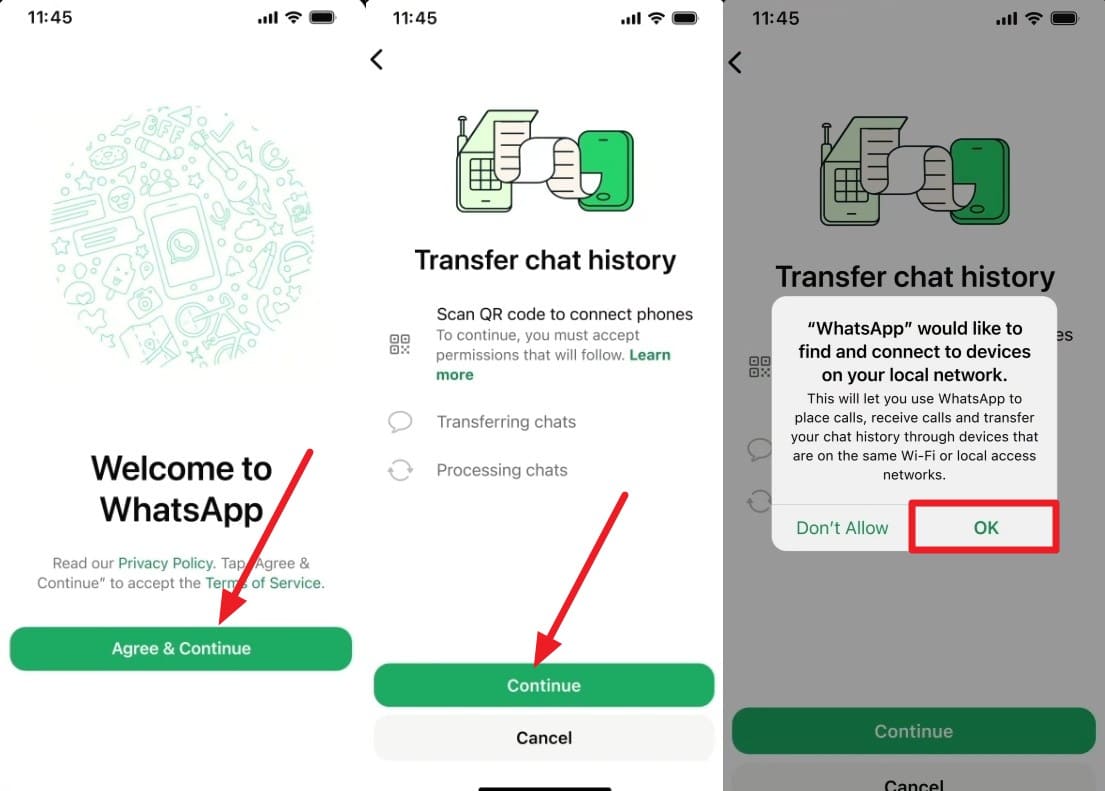
Step 2. Install WhatsApp on iPhone 18 Pro and tap “Agree & Continue” > Add the phone number > Verify. Press “Continue” > Allow local-network access.
-
Step 3. Use the old iPhone to scan the QR code shown on the iPhone 18 Pro. Tap “OK” on the old iPhone, wait for the transfer to complete, then select “Done.”
Method 2. Restore WhatsApp from iCloud Backup
An existing iCloud backup can help transfer WhatsApp to iPhone 18 Pro even when you no longer have access to the old iPhone. Only chats and media included in the latest successful backup can return, so newer WhatsApp data may be missing. Follow these iCloud restore steps to restore your available chat history:
-
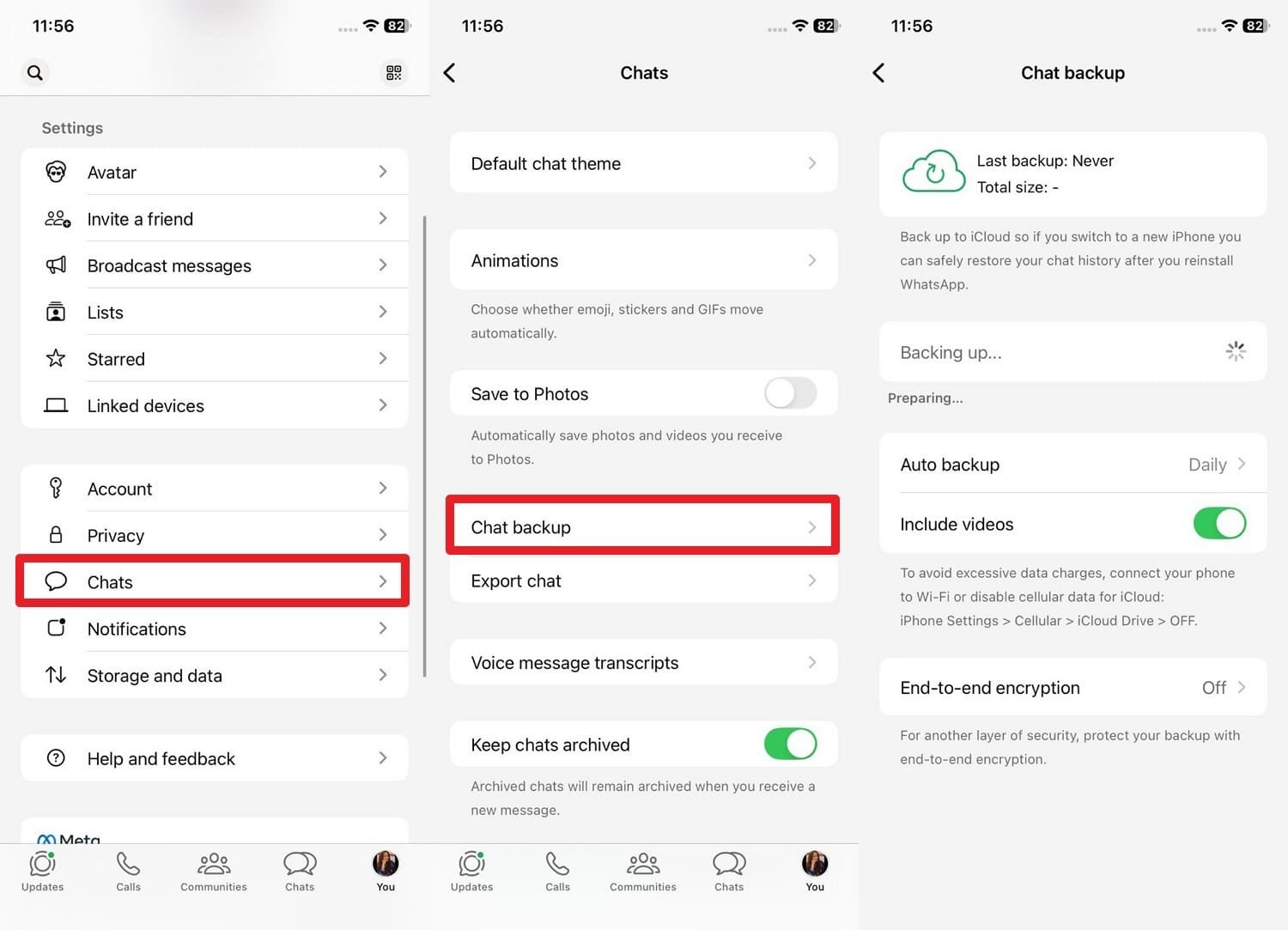
Step 1. Check that a recent backup exists in “Settings > Chats > Chat Backup” on the old iPhone.
-
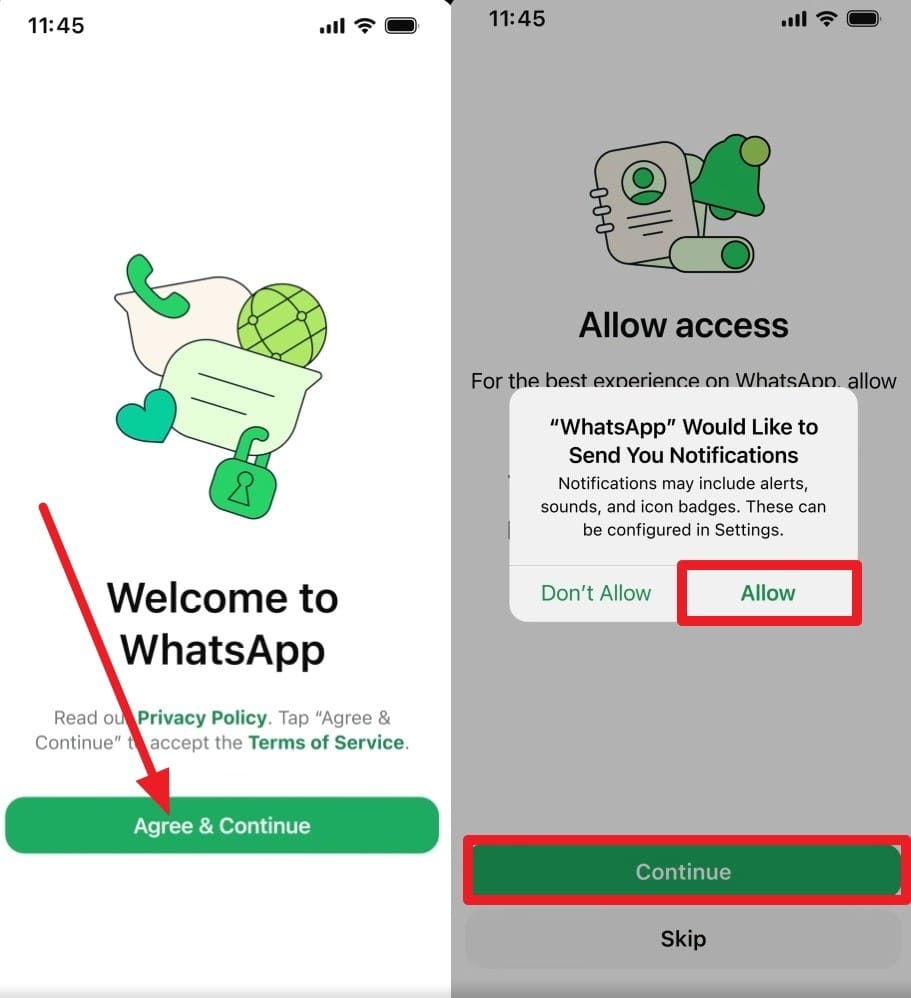
Step 2. Install or reinstall the app on iPhone 18 Pro, then choose “Agree & Continue.” Add the same phone number as the old iPhone > Choose “Next” > Add the code > Press “Continue > Allow.”
-
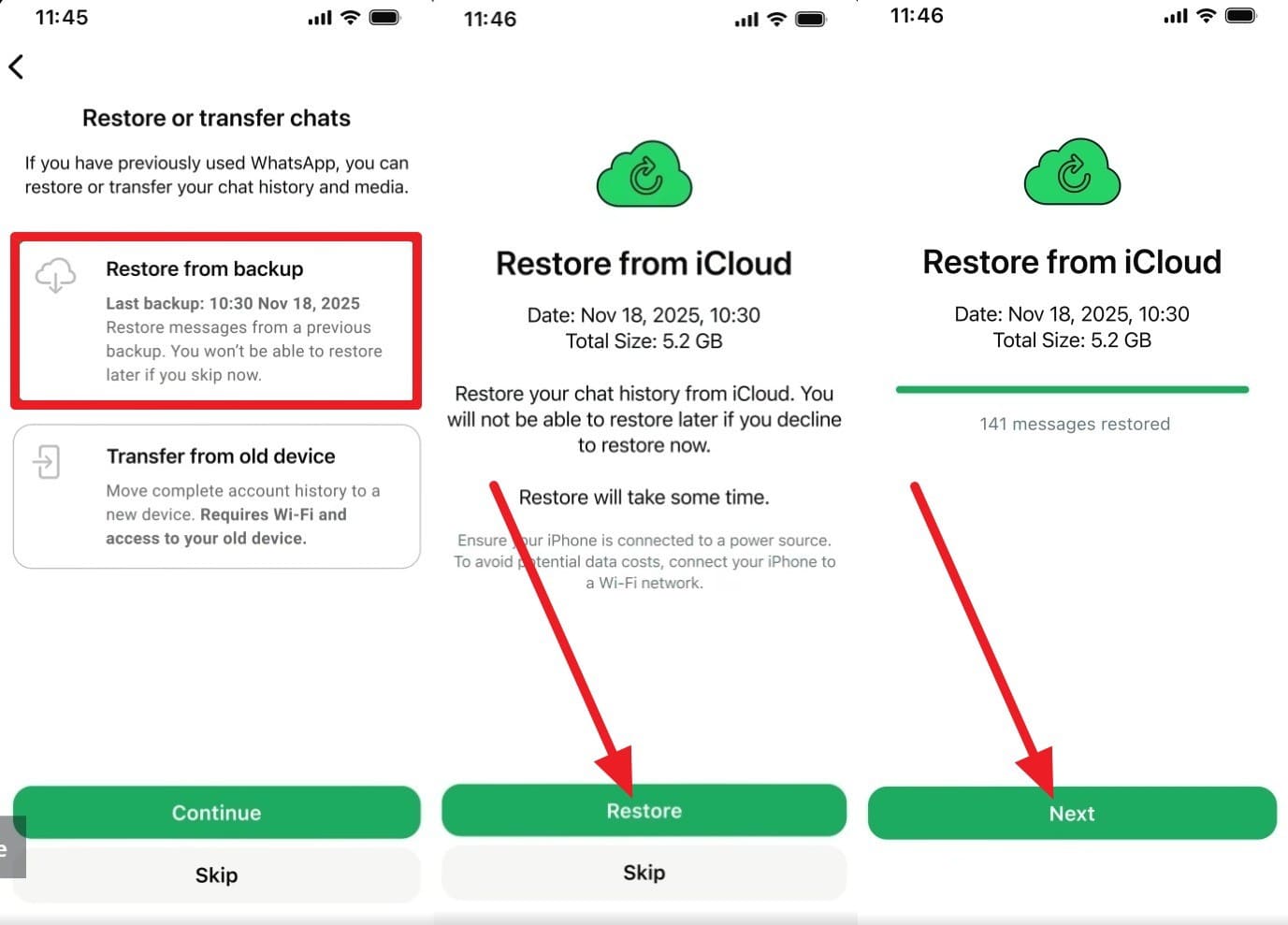
Step 3. Choose “Restore from Backup” after WhatsApp finds the iCloud backup, then press “Continue > Restore > Next.” Videos return only if “Include Videos” was enabled during backup. Media may continue restoring after messages appear, so keep the iPhone 18 Pro connected to Wi-Fi.
Part 3. How to Transfer WhatsApp from Android to iPhone 18 Pro?
To transfer Android WhatsApp to iPhone 18 Pro, Apple’s Move to iOS method works during the new iPhone’s initial setup. If the iPhone is already configured, you must erase it and restart setup before using Apple’s Android-to-iPhone migration process.
Before starting, keep both phones nearby and connected to power. Move to iOS can transfer supported WhatsApp chats and media along with other selected data. Follow these steps to complete the WhatsApp transfer:
Before You Start:
- Android 5+ and iOS 15.5+ are required.
- Use the same phone number on both devices.
- Connect both phones to power and the same Wi-Fi.
- Factory-reset the iPhone to the Hello screen.
-
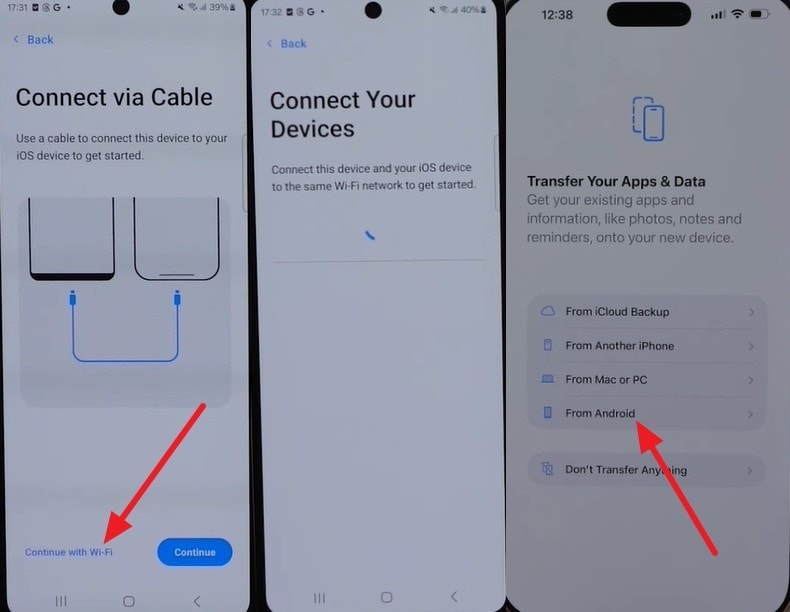
Step 1. Open Move to iOS on the Android phone and choose “Continue with Wi-Fi.” Next, on the iPhone 18 Pro, go to “Transfer Your Apps & Data > From Android.”
-
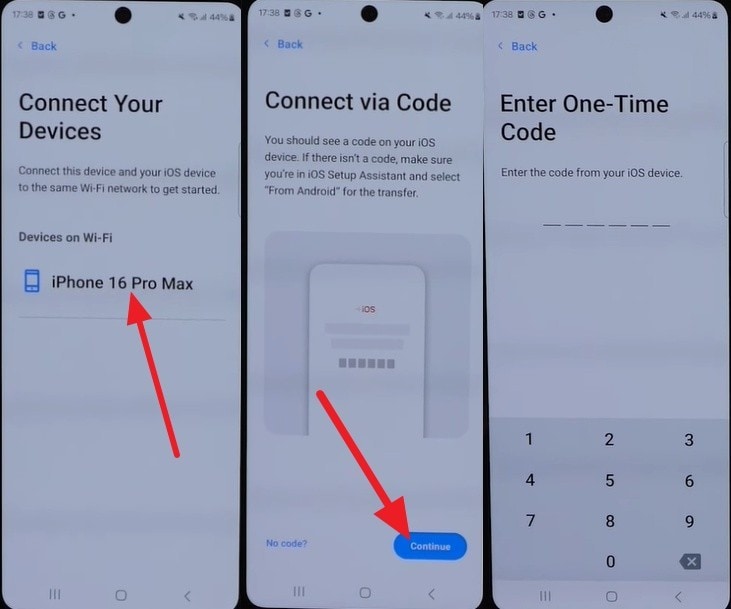
Step 2. Select iPhone 18 Pro on the Android device, then tap “Continue” to access the one-time code interface.
-
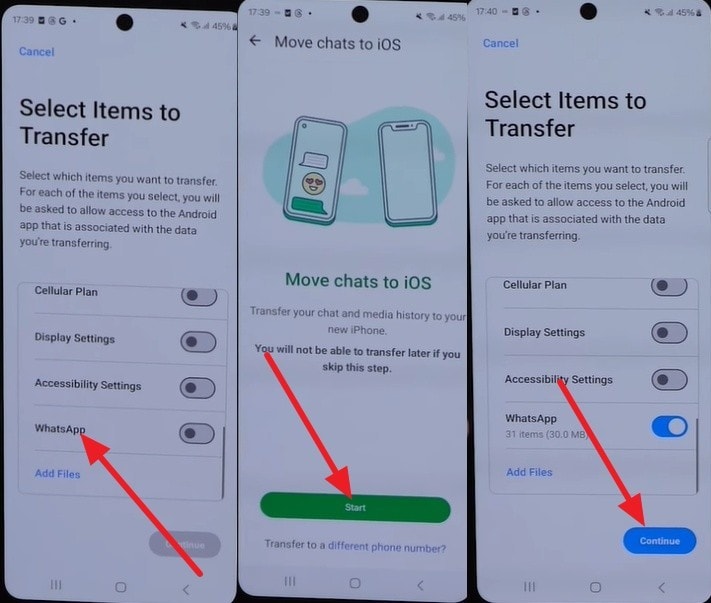
Step 3. Enter the code displayed on the iPhone 18 Pro. Select “WhatsApp > Start > Continue” on Android and complete the transfer. Finish setting up the iPhone, install WhatsApp, and sign in using the same phone number.
-
Part 4. Transfer WhatsApp to iPhone 18 Pro with Dr.Fone - WhatsApp Transfer
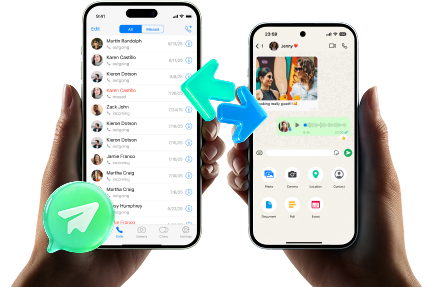
Dr.Fone - WhatsApp Transfer provides a desktop-based option to transfer WhatsApp to a new iPhone 18 Pro, including after the device is already set up. Unlike Move to iOS, it does not depend on Apple’s initial setup process. The tool supports iPhone-to-iPhone and Android-to-iPhone transfers through Windows or Mac. It can also back up WhatsApp messages, photos, videos, and other supported data to a computer.
Beyond direct transfer, Dr.Fone can restore supported WhatsApp backups to compatible iOS or Android devices. It also lets you export backed-up chats and attachments into readable formats, including PDF and HTML. These transfer, backup, restore, and export options make Dr.Fone a flexible choice for managing both WhatsApp and WhatsApp Business data.
 Transfer WhatsApp across Android & iOS.
- Backup & restore WhatsApp to PC securely.
- Preview & export chats selectively.
- Works with all iPhone & Android models.
Transfer WhatsApp from Old iPhone to iPhone 18 Pro with Dr.Fone
This method suits users who want a high-speed, computer-based transfer after setting up their iPhone 18 Pro. To move WhatsApp from an old iPhone to the iPhone 18 Pro using Dr.Fone, follow these steps:
-
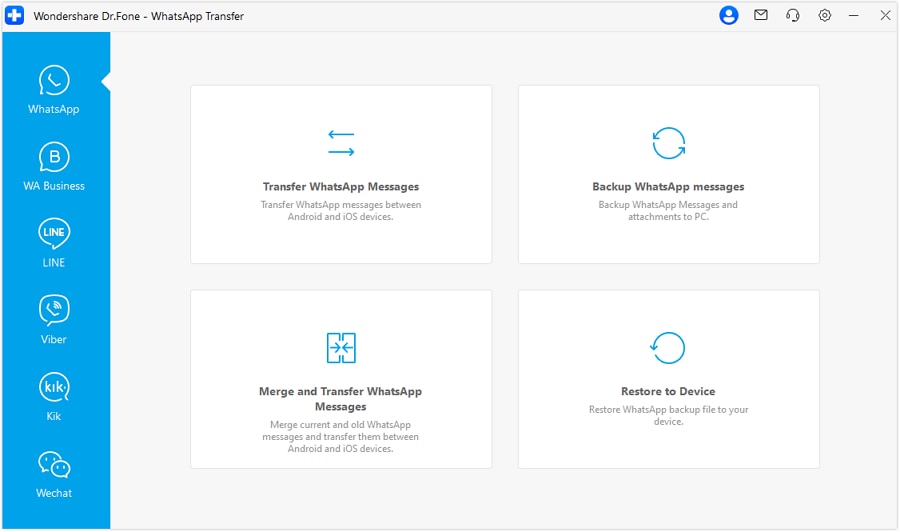
Step 1. Choose Transfer WhatsApp Messages
Plug the old iPhone and iPhone 18 Pro into the computer. Launch Dr.Fone, enter “WhatsApp Transfer,” and click “Transfer WhatsApp Messages.”
-
Step 2. Confirm the iPhone to iPhone 18 Pro Transfer
Make sure the old iPhone is the source and the iPhone 18 Pro is the destination, using "Flip" if needed. Click "Transfer," then choose "Continue" to proceed.





Transfer WhatsApp from Android to iPhone 18 Pro with Dr.Fone
Dr.Fone does not require a factory reset for this transfer, so you can keep the iPhone 18 Pro already configured with your apps, accounts, and personal files. This makes it useful when Move to iOS is no longer available after setup. To transfer WhatsApp to a new iPhone 18 Pro from Android without resetting the device, follow these steps:
-
Step 1. Set the Source and Target Devices
Open "WhatsApp Transfer" and select "Transfer WhatsApp Messages." Set the Android phone as the source and the iPhone 18 Pro as the destination. In A2I transfer mode, choose the WhatsApp data types you want to move, then click "Transfer" to continue.

-
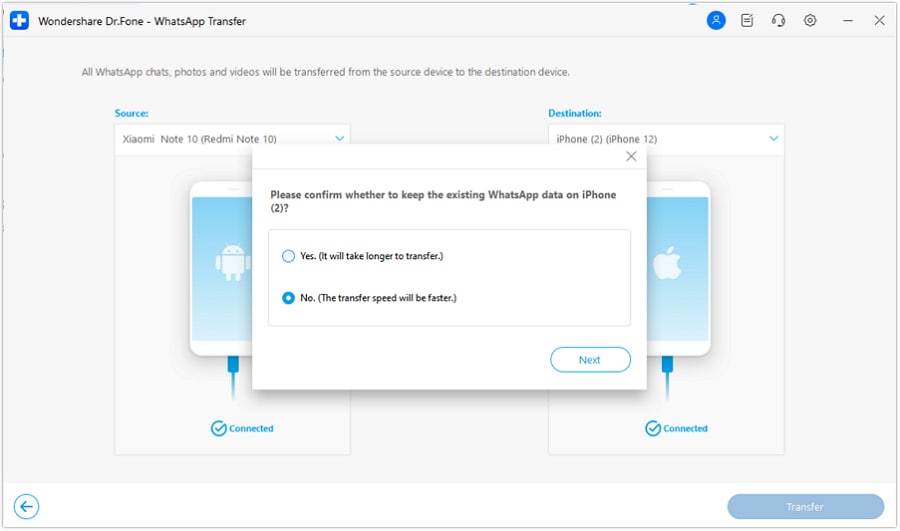
Step 2. Choose Whether to Keep Existing WhatsApp Data
In the pop-up, select “Yes” to keep the existing WhatsApp data on the iPhone 18 Pro, then click “Next.” Choosing “No” provides a faster transfer but does not keep the existing destination WhatsApp data.
Part 5. WhatsApp Chat Transfer vs. iCloud vs. Move to iOS vs. Dr.Fone
Each method for transferring WhatsApp to iPhone 18 Pro has different requirements and limitations. Some work only during setup, while others support an already-configured iPhone. Compare the options below to find the method that best matches your transfer needs:
| Method | Source Platform | Needs Factory Reset | Computer Needed | Existing Destination Data | Transfer Scope | Best Use Case |
|---|---|---|---|---|---|---|
| WhatsApp Chat Transfer | iPhone only | No | No | WhatsApp must be unregistered | Chats and media | Direct iPhone transfer |
| iCloud Restore | iPhone only | No | No | Restored from backup | Backup contents | Old iPhone unavailable |
| Move to iOS | Android only | Yes, if already set up | No | Erased during reset | Chats and media | New or reset iPhone |
| Dr.Fone - WhatsApp Transfer | iPhone or Android | No | Yes | Keep or backup options | Supported WhatsApp data | Already-set-up iPhone |
Part 6. What WhatsApp Data Can Be Transferred to iPhone 18 Pro?
Before you transfer WhatsApp chats to iPhone 18 Pro, check which data each method can carry over. Chats and media are commonly supported, while call logs, stickers, communities, and channel content may differ between transfer methods.
| Data Type | WhatsApp Chat Transfer | iCloud Restore | Move to iOS | Dr.Fone |
|---|---|---|---|---|
| Individual Chats | Yes | Yes | Yes | Yes |
| Group Chats | Yes | Yes | Yes | Yes |
| Community Messages | Not explicitly listed | Yes | Yes | Yes |
| Photos | Yes | Yes | Yes | Yes |
| Videos | Yes | Yes | Yes | Yes |
| Voice Notes | Yes | Yes | Yes | Yes |
| Documents | Yes | Yes | Yes | Yes |
| Stickers | Not explicitly listed | Not explicitly listed | Not explicitly listed | Yes |
| Polls | Not explicitly listed | Not explicitly listed | Not explicitly listed | Yes |
| Starred Messages | Not explicitly listed | Not explicitly listed | Not explicitly listed | Yes |
| Call Logs | No | Not explicitly listed | No | Yes |
| Broadcast Lists | Not explicitly listed | Not explicitly listed | Not explicitly listed | Yes |
| Other Attachments | Yes | Yes | Yes | Yes |
Part 7. What to Check Before Moving WhatsApp to iPhone 18 Pro
Before you move WhatsApp to iPhone 18 Pro, a few checks can help prevent transfer problems or missing data. Use the table below to review your WhatsApp account, backup, available storage, destination chats, and other important requirements before starting:
| Check | What to Confirm | Why It Matters |
|---|---|---|
| WhatsApp Account | Confirm the expected chats are available on the source phone and linked to the correct number. | Prevents transferring the wrong or incomplete WhatsApp history. |
| App and Device Updates | Update WhatsApp and both phones to supported software versions before starting. | Helps prevent compatibility issues or transfer failures. |
| Phone Number Access | Keep access to the phone number associated with the WhatsApp account. | The number may be required to verify WhatsApp on the iPhone 18 Pro. |
| iPhone Storage | Make sure the iPhone has enough free space for the transferred chats and media. | Large WhatsApp media libraries may require considerable storage. |
| Backup Status | For iCloud restore, check the latest backup date and size under Settings > Chats > Chat Backup. | Only data included in the available backup can be restored. |
| Existing Destination Chats | Check whether WhatsApp already contains chats on the iPhone 18 Pro. | Transfer methods handle existing WhatsApp data differently and may replace it. |
| Battery and Connection | Keep both phones powered and maintain the connection required by your chosen method. | Helps prevent interruptions before the transfer finishes. |
Part 8. How to Verify WhatsApp After Transfer to iPhone 18 Pro?
After you transfer WhatsApp chats to iPhone 18 Pro, verify that your important data arrived correctly before erasing, resetting, or handing over the old phone. Check these 5 key areas to confirm the transfer was successful:
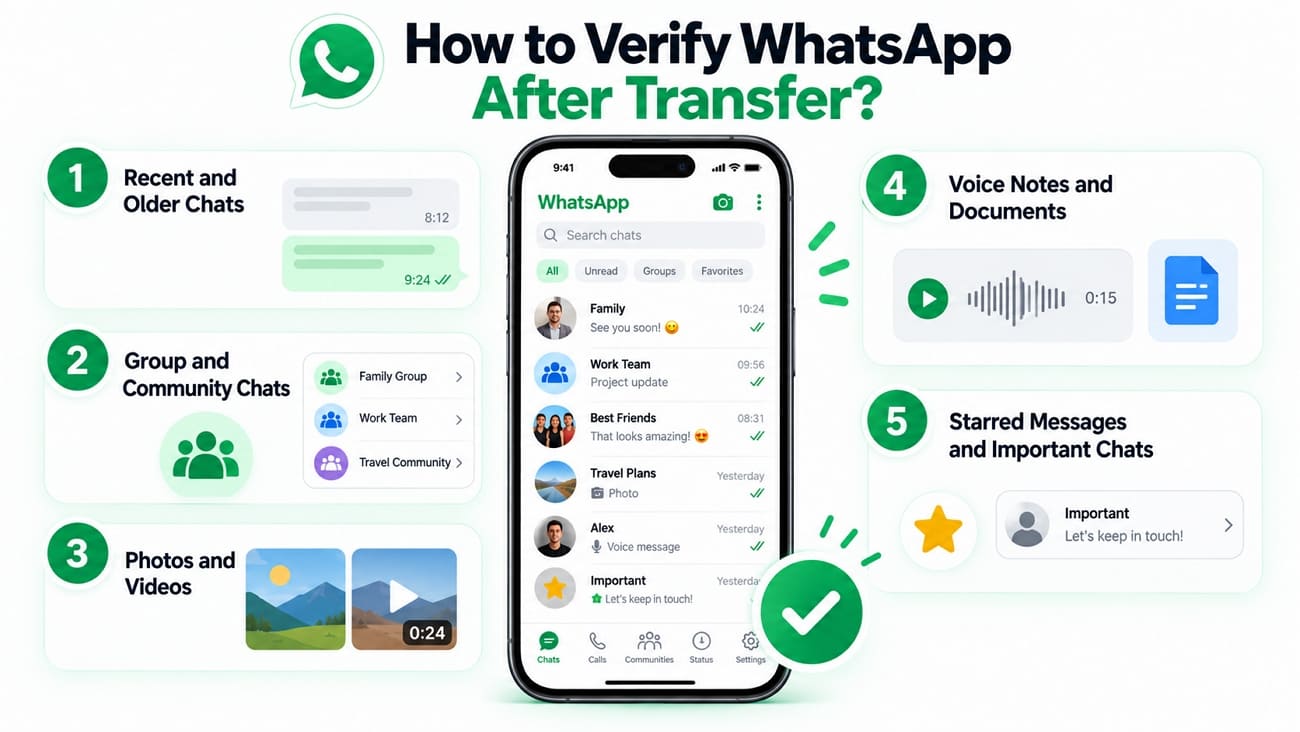
- Review Recent and Older Chats: Open several conversations and review both recent and older messages. Confirm that important chat history appears complete and in the correct conversations.
- Verify Group and Community Chats: Open important groups and communities to confirm their messages transferred correctly. Review both recent activity and older conversations you expect to find.
- Test Photos and Videos: Open photos and play videos from several conversations instead of checking thumbnails alone. Confirm that important media loads correctly and remains accessible.
- Play Voice Notes and Open Documents: Test several voice notes, documents, and other attachments. Make sure the transferred files load properly without errors or missing content.
- Review Starred Messages and Important Chats: Open starred messages and other important conversations you regularly use. Confirm that essential messages and chat content remain available after the transfer.
Conclusion
Choose your transfer method based on the source phone and iPhone 18 Pro setup status. Official options work well in supported situations, while desktop tools provide more flexibility when those methods do not fit. Dr.Fone - WhatsApp Transfer offers a computer-based way to transfer WhatsApp to iPhone 18 Pro without resetting an already-configured iPhone. Keep the old phone unchanged until you verify the transferred data.
Frequently Asked Questions
-
1. How do I transfer WhatsApp from an old iPhone to iPhone 18 Pro?
Use WhatsApp Chat Transfer when both iPhones are available. If only an iCloud backup remains, restore WhatsApp from that backup. Dr.Fone - WhatsApp Transfer provides another option when you need a computer-based and fast transfer method. -
2. Can Dr.Fone transfer WhatsApp from iPhone to iPhone 18 Pro?
Yes. Dr.Fone - WhatsApp Transfer supports transferring WhatsApp data between iPhones using a Windows or Mac computer. It provides a direct desktop-based option for moving supported chats, media, and other WhatsApp data. -
3. How do I move Android WhatsApp to iPhone 18 Pro?
Use Move to iOS when the iPhone 18 Pro is new or factory-reset. For an already-configured iPhone, Dr.Fone - WhatsApp Transfer provides a desktop-based alternative that can transfer supported WhatsApp data without resetting the device. -
4. Can Dr.Fone transfer Android WhatsApp to an already-set-up iPhone 18 Pro?
Yes, Dr.Fone works through a computer rather than Apple’s setup assistant, so you can use it after the iPhone has been configured. Review how it will handle existing destination WhatsApp data before starting the transfer. -
5. Which WhatsApp transfer method is best for a new iPhone 18 Pro?
For a new iPhone 18 Pro, use WhatsApp Chat Transfer when moving from an iPhone or Move to iOS from Android. Dr.Fone - WhatsApp Transfer is more suitable when the iPhone is already configured or official methods do not fit your situation.
 Add Wondershare Dr.Fone as a preferred source on Google