Transfer WhatsApp Swiftly between iOS and Android.


 100% Security Verified | No Subscription Required | No Malware

 :

 ChatGPT
 Perplexity
 Gemini
 Claude
 Grok
If your WhatsApp verification code is not received, it can be hard to tell whether the problem is the app or the receiving phone line, especially when other texts arrive normally. You may be setting up a new phone, reinstalling the app, or trying to regain access to an existing account.
Start by identifying the code WhatsApp wants, then test the number you are registering before requesting another code or removing the app.
In this article
WhatsApp Verification Code Not Received? Check the Code and Number
Before troubleshooting delivery, check which screen you are on. Different codes can contain six digits while serving different purposes.
Six-Digit Registration Code or Two-Step Verification PIN?
| What is being requested? | What it does | Appropriate next step |
|---|---|---|
| WhatsApp registration code | Confirms control of the phone number during registration. | Check the number, receiving line, and offered verification options below. |
| Two-step verification PIN | Adds account authentication beyond the registration code. | Use WhatsApp’s PIN recovery instructions rather than repeatedly requesting an SMS. |
| An OTP from another service, delivered through WhatsApp | Verifies an account with that other service. | Check that service’s verification process. |
An email used to reset a two-step PIN is not the same as an email registration code. If you have reached a PIN prompt after entering an SMS code, you have moved to a different authentication step.
Check Your Phone Number and Country Code
On the number-entry screen, check the selected country and the complete number. For a US number, select United States (+1) and enter its ten-digit number without adding another +1. For another country, use the international format appropriate to that number rather than copying a US example.
Confirm that this is a number you own and can receive calls or SMS on. WhatsApp Messenger does not support certain number types, including VoIP and toll-free numbers. Landline registration is a separate WhatsApp Business case.
Correct an actual mistake when you can return to the number screen. Once a valid request is pending, leave the number unchanged and follow the timer. Re-entering it repeatedly does not establish whether the receiving line works.
WhatsApp Not Sending a Code? Test SMS and Calls
Start with a test you can observe: can the number you entered receive an ordinary text and a phone call? WhatsApp also needs internet access to register, so a working Wi-Fi connection alone does not answer that question.
Confirm the Correct SIM or eSIM Is Active
-
1. Ask another phone to send an ordinary SMS to the exact number entered in WhatsApp. An iMessage or RCS conversation alone is not an SMS test.
-
2. Check whether it arrives on the target phone, including filtered-message folders.
-
3. Call the same number and check whether the target handset receives the call.
-
4. On a dual-SIM phone, open its cellular or SIM settings and confirm that the line associated with that number is enabled. Do not assume the default mobile-data line is the receiving line, and do not delete an eSIM profile.
| Test result | Next useful check |
|---|---|
| Ordinary SMS or calls fail | Ask the carrier to check activation, reception, roaming, porting, or blocking. |
| Ordinary SMS and calls work, but WhatsApp does not | Continue with filtering, the actual retry timer, and available verification options. |
| Only specific verification messages fail | Ask the carrier about verification-message routing or filtering too. |
A successful ordinary SMS test does not rule out a problem affecting a particular verification sender. Note recent SIM changes, number transfers, or roaming when contacting your carrier. Test calls or texts may incur charges.
Check SMS Filters and Call Blocking on iPhone or Android
On iPhone, open Messages and check Filters > Unknown Senders, plus a Spam folder if your version provides one. A filtered message may arrive without a notification. The absence of an alert is not proof that no SMS reached the phone.
On Android using Google Messages, open your profile or menu and check Spam & blocked. Other messaging apps have different labels, so inspect their actual blocked or filtered lists rather than following an iPhone menu.
Before requesting a voice code, check call-blocking apps, carrier spam filtering, and settings that silence or reject unfamiliar callers. Temporarily adjust a setting if it prevents the verification call from reaching you, then restore your preferred protection afterward.
Try Wi-Fi Calling If Your Carrier Supports It
If cellular coverage is weak, carrier-supported Wi-Fi Calling may provide another way for your existing number to receive calls or messages. It requires active service on the correct SIM or eSIM, a Wi-Fi connection, and a supported carrier and device.
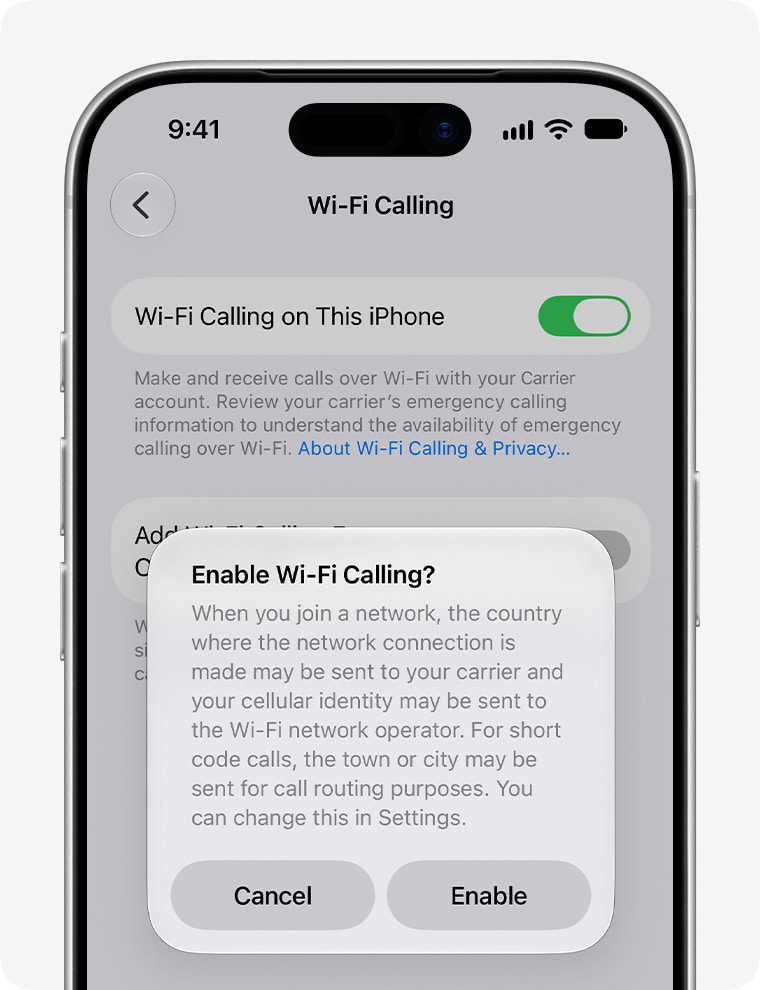
On iPhone: Open Settings > Cellular, choose the relevant line if necessary, then open Wi-Fi Calling. Turn on Wi-Fi Calling on This iPhone, tap Enable, and complete any emergency-address prompt.
On a supported Samsung Galaxy: Open Settings > Connections > Wi-Fi Calling, turn it on, and complete any requested emergency information. Other Android phones may use a different path.
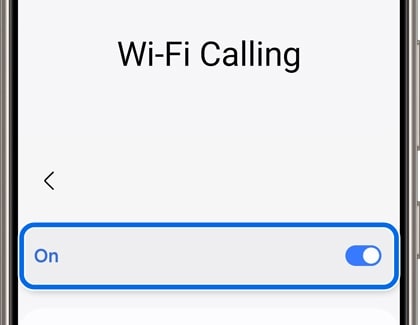
Test an ordinary call to that number before returning to WhatsApp’s offered verification option. If the control is missing or activation fails, contact the carrier. Connecting to ordinary Wi-Fi alone does not enable carrier Wi-Fi Calling or remove WhatsApp’s waiting period.
Still Not Receiving a WhatsApp Code? Follow the Retry Timer
If the number is correct and the receiving line works, let the registration screen determine when and how you can try again.
Stop Repeated WhatsApp Verification Requests
Read the current countdown and any message about too many attempts. Wait until the app permits another request. There is no single five-minute, ten-minute, or 24-hour rule that overrides the time shown for your account.
Do not guess six-digit codes or use code generators or rented numbers to recover your existing account. Repeated incorrect entries can cause a lockout. Changing the phone’s clock, switching Wi-Fi networks, clearing cache, or reinstalling WhatsApp cannot make a server-imposed waiting period expire sooner.
Try Voice Verification When “Call Me” Is Available
-
1. After the timer finishes, open Didn’t receive a code? or the equivalent option shown on your screen.
-
2. Choose the available Phone call, Call me, or Voice Call option. If it is unavailable, keep following the displayed wait requirement.
-
3. Keep the target line ready to receive a call. Answer the automated call and note the registration code it reads.
-
4. Enter that code in the official WhatsApp verification screen. Do not send it to a support agent or another person.
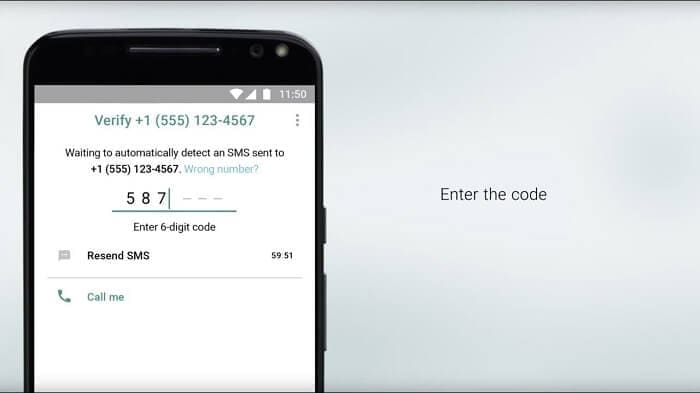
On Android, WhatsApp may separately offer Missed call verification. That is a different process: follow its own on-screen permission prompts. Do not apply the missed-call instructions to iPhone or assume you must answer it like a voice-code call.
If a voice request fails, record the exact error and whether ordinary calls work. These details help distinguish the next support route without assuming that the account is banned.
Use Email Verification Only for an Eligible Existing Account
Email can be an option when you are re-registering an existing account and previously added and verified an email address in WhatsApp. First-time registration uses SMS or a phone call; you cannot substitute an arbitrary email address.
If the registration screen offers email verification, select it, open the associated inbox, and check spam or junk if necessary. Enter the received registration code in WhatsApp’s current verification screen.
A previously added address does not guarantee that an email option will appear for this registration. If it is absent, use the options actually offered or contact support. Do not confuse this with a PIN-reset email, and do not try to force the option by repeatedly reinstalling.
Update WhatsApp and Refresh the Registration Screen
If ordinary SMS and calls work but the app still cannot complete registration, try the reversible app checks first. Avoid interrupting an active chat transfer or restore while it is writing messages.
Update and Restart Before Requesting Again
Open App Store on iPhone or Google Play Store on Android, find WhatsApp, and install an available update. Close and reopen the app. If necessary, restart the phone normally and wait for the target line to reconnect.
Check that a web page loads over the internet connection you intend to use. Switching between working Wi-Fi and mobile data can test whether WhatsApp’s registration request can connect. It does not establish whether a carrier SMS was delivered.
If you try an Airplane Mode refresh, turn it on and then off, wait for the target line to reconnect, and repeat the ordinary SMS and call tests. Return to the same number and retry only when the app allows it.
Android Only: Clear WhatsApp Cache Without Clearing Data
If your Android phone offers this control:
-
1. Open Settings > Apps > WhatsApp > Storage or Storage & cache.
-
2. Tap Clear cache only. Do not select Clear data or Clear storage.
-
3. Reopen WhatsApp, confirm the same number, and use only the verification option currently allowed.
Cache clearing removes temporary app files. It cannot repair carrier SMS delivery or bypass a retry limit. iPhone does not provide this same Android system control. If cache clearing makes no difference, check the backup requirements below before deciding whether to reinstall, or contact support.
Reinstall WhatsApp Only After Checking Your Chat Backup
Reinstallation is an optional later check for an app problem. Uninstalling can delete local chats, and reinstalling still requires account verification. If important chats are not safely backed up, skip this step and contact support.
Before deleting the app, confirm that a usable backup exists. If you can still open WhatsApp on the relevant device, check Settings > Chats > Chat backup for the last completed backup. Make sure you can access the corresponding Google or iCloud account and any password, encryption key, or passkey required for that backup.
If WhatsApp still opens on your old phone, use Dr.Fone – WhatsApp Transfer to save a copy of your chats and media to your computer before reinstalling or switching phones. You can preview supported messages and attachments in the backup to check that the conversations you care about are there.
Keep that copy while you sort out registration. You’ll still need to verify the number through WhatsApp before using your account on the new phone.
 Transfer WhatsApp across Android & iOS.
- Backup & restore WhatsApp to PC securely.
- Preview & export chats selectively.
- Works with all iPhone & Android models.
If you are locked at registration and cannot confirm the backup, do not assume it exists. Messages received after the last backup may be lost. If you are trying to recover chats that are already missing, do not create a new empty backup over the one that may contain them.
Once those conditions are satisfied, or there is no chat history to preserve:
-
1. On Android, open Settings > Apps > WhatsApp > Uninstall and confirm. On iPhone, touch and hold WhatsApp, choose Remove App > Delete App, then confirm Delete. Removing it only from the Home Screen does not uninstall it.
-
2. Reinstall the official app from Google Play or App Store.
-
3. Register the same phone number, following the existing timer and available verification methods.
-
4. If the appropriate backup is found after verification, choose Restore. Do not tap Skip if you want those chats restored.
Keep the matching backup account available. An Android Google backup is not interchangeable with an iPhone iCloud backup. If verification still fails or the backup cannot be restored, stop repeating the uninstall cycle and retain the error details for support.
When to Contact Your Carrier or WhatsApp About Missing Codes
If ordinary SMS or calls do not reach the target number, contact your carrier about the line, recent activation or porting, roaming, and filtering. Even when ordinary messages work, the carrier may still need to check delivery from specific verification senders.
If the number and receiving tests are correct but WhatsApp registration keeps failing after the permitted retries and app checks, use the official WhatsApp Help or Contact option available to you. Prepare:
- The exact error text, its time, and the waiting period displayed.
- Phone model, operating system, and WhatsApp version.
- Results of ordinary SMS and call tests.
- Recent SIM, eSIM, carrier, number-porting, or roaming changes.
Provide the full number only through an official private support channel. Redact personal information in screenshots, and never share a registration code or PIN. A specific banned-account message requires the account-review route; missing codes alone do not establish a ban or guarantee a resolution time.
Conclusion
If your WhatsApp verification code is not received after these checks, use the test results to choose your next step: carrier help for reception or routing issues, or WhatsApp support for a persistent registration problem. Preserve your existing chats and backup while you wait. Use only the verification options offered to your account, and confirm your backup before agreeing to delete the app.




 Add Wondershare Dr.Fone as a preferred source on Google