Transfer WhatsApp Swiftly between iOS and Android.


 100% Security Verified | No Subscription Required | No Malware

 :

 ChatGPT
 Perplexity
 Gemini
 Claude
 Grok
Before you switch phones or reinstall Viber, it helps to know where your conversations are saved. The right Viber backup and restore method depends on your phone, whether you still have the old device, and whether a usable backup already exists. Start with those details so you don't accidentally replace the messages you want to keep.
In this article
- Choose the right Viber backup or transfer route
- Back up Viber chats on Android or iPhone
- Restore a Viber cloud backup on the same platform
- Transfer Viber history directly between two same-platform phones
- Keep and restore an iPhone Viber backup with Dr.Fone
- Troubleshoot a missing or failed Viber restore
- Conclusion
- FAQs
Choose the right Viber backup or transfer route
Android, iPhone, and computer backups are different
Start with what you have available, rather than installing or resetting anything right away.
| Your situation | Route to consider | What you need |
| You have an Android Viber backup | Restore from Google Drive | The same phone number and Google account on an Android phone |
| You have an iPhone Viber backup | Restore from iCloud | The same phone number and iCloud account on an iPhone |
| Both old and new phones are available | Transfer directly over Wi-Fi | Two phones on the same platform, both running Viber 25.0 or later |
| You want an iPhone copy on a computer | Use Dr.Fone – WhatsApp Transfer | A supported iPhone, a computer, and a connection between them |
| You already have a Dr.Fone Viber backup | Restore the saved computer backup | The backup file and a supported iOS destination |
Viber's native chat history doesn't transfer between Android and iOS. A Google Drive backup isn't an iCloud backup, and syncing Viber Desktop is not the same as creating a restorable phone backup.
Check the phone number, cloud account, and backup date
Before restoring, check which phone number and cloud account were used for the backup. If the old phone still works, look at its Viber Backup screen for the last backup date. Also have your Viber two-step verification PIN ready if you enabled it.
The date matters: Viber says restoring returns your chat list to the state of the last backup. Messages received after that backup and before you restore won't be saved in the restored chat list. Save anything important from the current state before proceeding; don't assume Viber will merge the two histories.
If you're trying to recover an older snapshot, don't immediately start a fresh or automatic backup from a phone with missing chats. First check whether that could replace the copy you intend to restore.
Back up Viber chats on Android or iPhone
These steps require access to Viber on the phone that currently has the conversations. Connect to a reliable network and check that the cloud account has enough available storage.
Back up Viber to Google Drive on Android
-
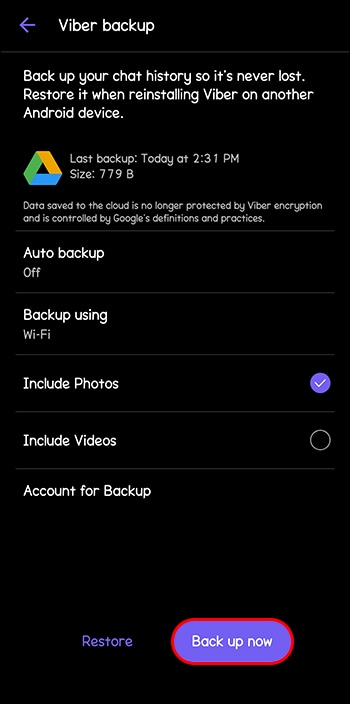
Open Viber and tap More > Settings > Account > Viber Backup.
-
If Google Drive isn't connected, tap Settings in the connection section and select the Google account you want to use.
-
Choose whether to include Photos and Videos.
-
Tap Back Up and keep the phone connected while the backup finishes.
-
Check the displayed backup status or date, and remember which Google account you selected.
If the backup doesn't finish, check the selected Google account, network connection and available cloud storage before trying again. A backup schedule alone isn't proof that a usable copy was saved.
Back up Viber to iCloud on iPhone
-
Open the iPhone's Settings, tap your name, and open iCloud. Check that Viber is enabled for iCloud; the precise settings layout can vary.
-
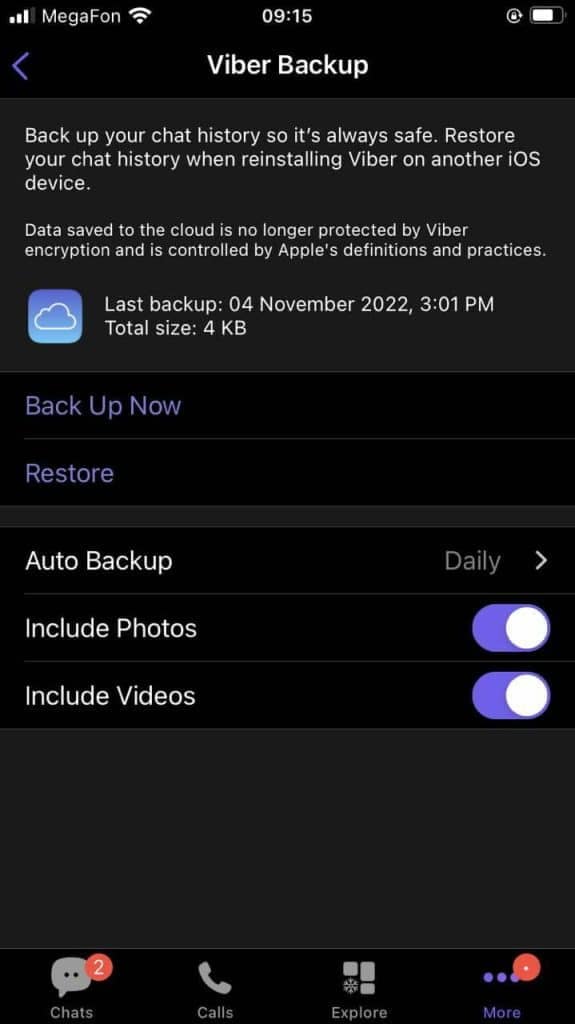
In Viber, tap More > Settings > Account > Viber Backup.
-
Choose the photos and videos you want to include, then tap Back Up.
-
Wait for the process to finish and check the backup date or status before switching phones.
If the backup fails, check your Apple account, Viber's iCloud access, network connection and iCloud storage. Keep any existing backup you may need until you know which copy you want to preserve.
Set an automatic schedule and choose media
In the Viber Backup screen, choose Auto Backup and select Daily, Weekly or Monthly. Select the photo and video options if you want those files included. Automatic backups are useful for ongoing protection, but check the actual backup date before you rely on one for a move.
Restore a Viber cloud backup on the same platform
Use this route if a successful Viber cloud backup already exists. An Android backup restores to Android, while an iPhone backup restores to iPhone. Make sure the new or reinstalled app uses the same phone number and cloud account as the backup.
Restore when you activate Viber on the new phone
Before choosing restore, save any current conversations you need to keep separately. Viber's restore returns the chat list to the backup state; newer messages received since that backup won't be retained in the restored list.
-
Sign in to the Google or iCloud account used for the backup on the same-platform phone.
-
Install and activate Viber with the same phone number. Enter your two-step verification PIN if prompted.
-
When Viber offers to restore your history, tap Restore Now.
-
Keep the phone connected while it restores. Check representative conversations and any selected media afterward.
If Viber can't find the backup, stop before creating another one. Recheck the phone number, cloud account and platform, then confirm that a completed backup exists.
Restore later from Viber Backup settings
If you skipped the prompt, you can start a restore from inside Viber:
-
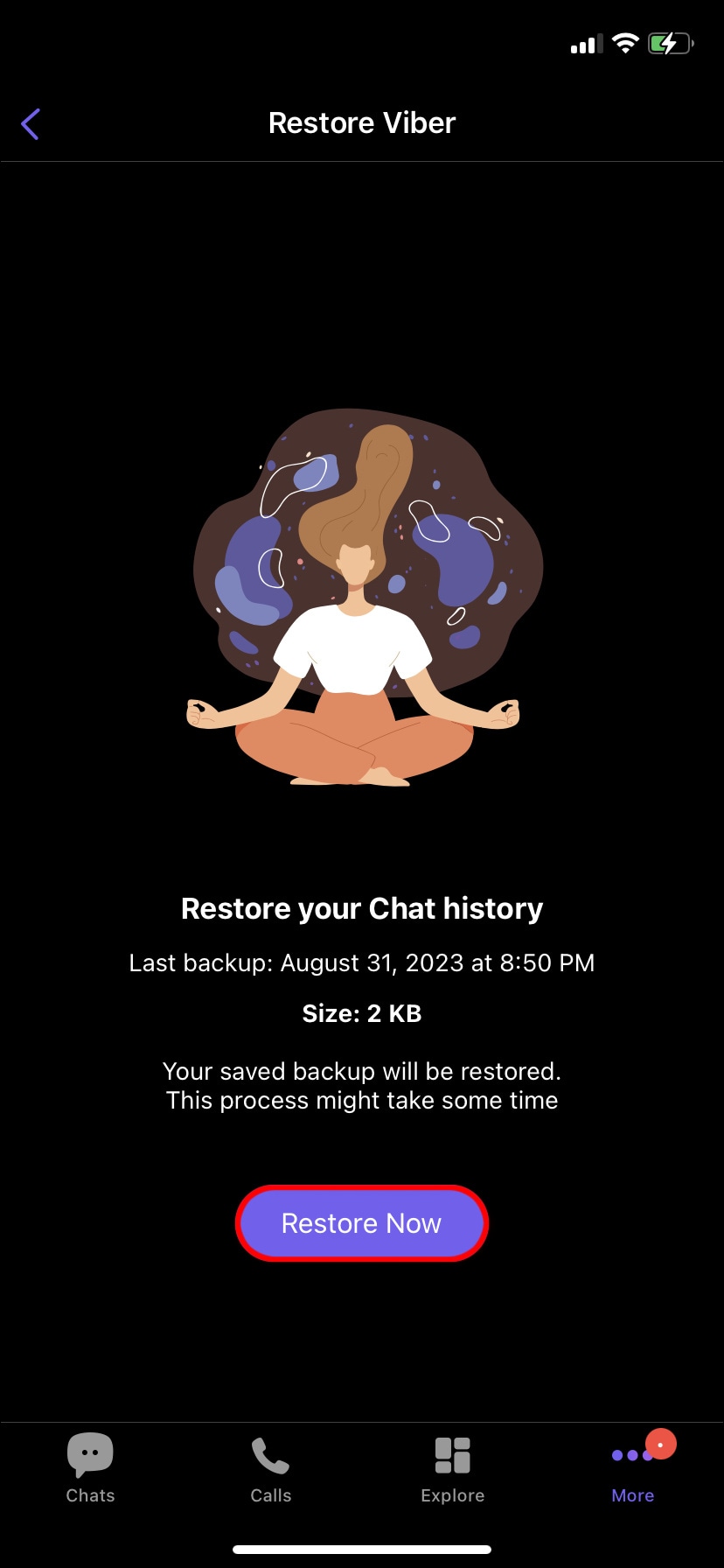
Open More > Settings > Account > Viber Backup.
-
Tap Restore, then Restore Now.
-
Wait for the restore and check the conversations you expected to recover.
The same rollback warning applies here: save any newer messages you need before tapping Restore Now. If the correct backup still doesn't appear after you check the account and number, contact Viber support rather than repeatedly changing accounts or reinstalling.
Transfer Viber history directly between two same-platform phones
If your old phone still works and your new phone uses the same operating system, Viber's direct transfer gives you another option. This route moves the history between the phones over Wi-Fi without requiring a cloud backup.
Check the Viber 25.0+ and connection requirements
Both phones must be Android or both must be iPhones, and each must have Viber 25.0 or later. Turn on Wi-Fi and Bluetooth on both devices, keep them close together, and be ready to activate Viber on the new phone using your existing number.
Follow the QR-code transfer prompts
-
Activate Viber on the new phone using the phone number from the old phone.
-
When the history transfer prompt appears, tap Get Started on both devices.
-
Use the new phone to scan the QR code shown on the old phone. On some Android devices, approve the connection in a pop-up if prompted.
-
Keep the phones close together and connected to Wi-Fi until the transfer finishes.
-
Open Viber on the new phone and check a few conversations.
If the option doesn't appear or the transfer fails, check the version, platform, phone number and connections on both devices. If you have a completed cloud backup, you can use the same-platform restore route instead, provided the account and number match.
Keep and restore an iPhone Viber backup with Dr.Fone
If you'd like a Viber copy on your computer, Dr.Fone – WhatsApp Transfer provides a guided backup and restore workflow for iOS. You can check a completed backup through View It and choose a saved copy later when restoring to a supported iPhone.
Create and check an iPhone Viber backup
 Transfer WhatsApp across Android & iOS.
- Backup & restore WhatsApp to PC securely.
- Preview & export chats selectively.
- Works with all iPhone & Android models.
-
Connect your iPhone to your computer with a cable and complete any device authorization prompts.
-
Open Dr.Fone and select Toolbox > WhatsApp Transfer.
-
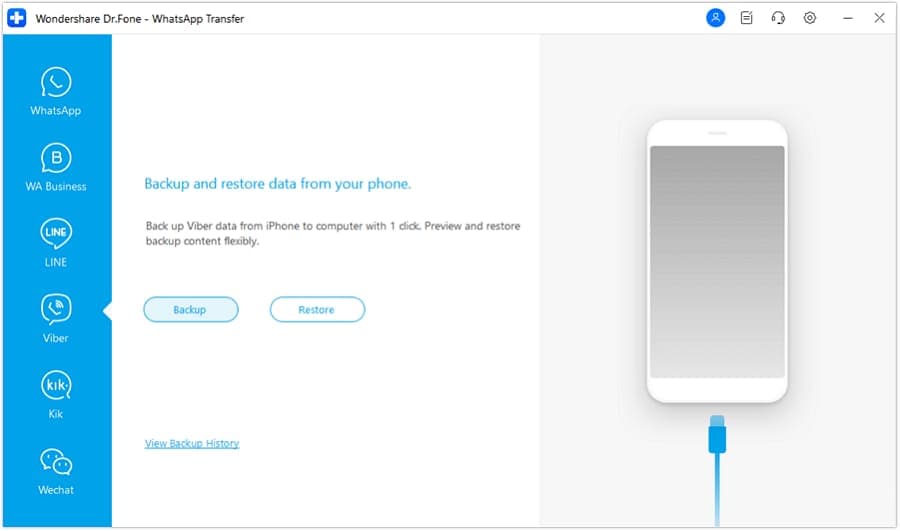
Choose Viber in the left panel, then select Backup.
-
Keep the iPhone connected while the backup runs.
-
When it finishes, select View It to inspect the saved backup.




If the backup doesn't finish, check the cable, device authorization and current device compatibility. A new computer backup captures what's available through the supported workflow; it doesn't retrieve a cloud backup that was never restored to the phone.
Restore a saved Viber backup to iOS
You need a previously saved Dr.Fone Viber backup and a supported iOS destination. The destination's existing Viber content will be wiped during this restore. Before continuing, save the content you need; the on-screen prompt offers a Backup option.
- Transfer WhatsApp across Android & iOS.
- Backup & restore WhatsApp to PC securely.
- Preview & export chats selectively.
- Works with all iPhone & Android models.
-
Connect the destination iPhone and open Toolbox > WhatsApp Transfer > Viber > Restore.
-
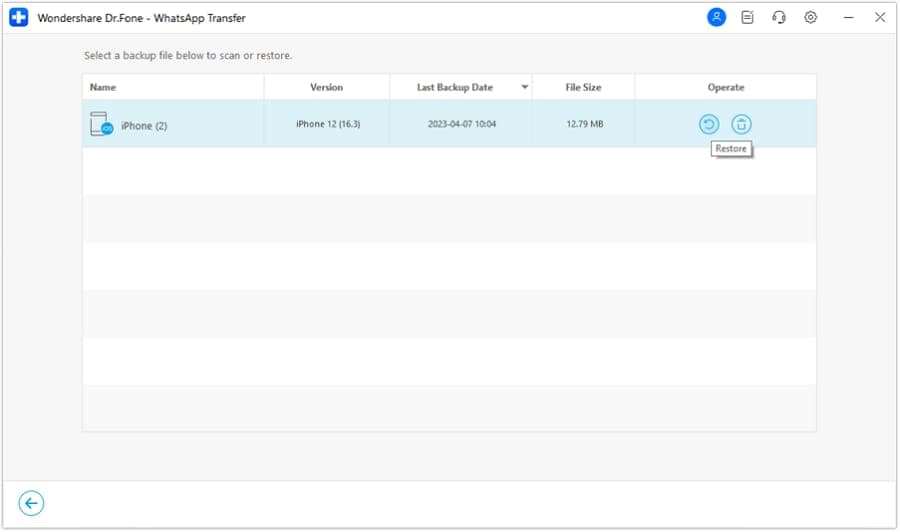
Find the saved backup you want and select the Restore icon beside it.
-
On the next screen, choose Restore.
-
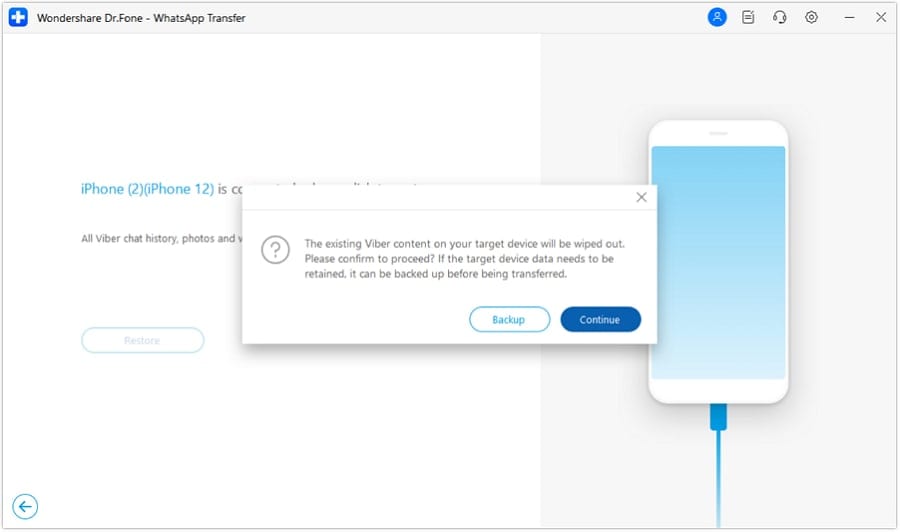
At the destination-data prompt, choose Backup if you need to save the existing Viber content first. Choose Continue only if you're ready to proceed without that backup.
-
Keep the phone connected while the restore runs. When it finishes, select OK and check your conversations.
If the saved file isn't listed or the restore fails, stop and check the backup location, connection and device support. Contact Dr.Fone support if you still can't proceed. The workflow doesn't establish that separate histories will be merged.
Troubleshoot a missing or failed Viber restore
When a backup isn't showing up, work through these checks before making changes that could affect the copy you need:
- Phone number: Activate Viber with the number associated with the backup. If two-step verification is enabled, have the PIN available.
- Cloud account: Confirm that the phone is signed in to the Google or iCloud account used for the backup and that Viber can access it.
- Platform: A native Android backup won't restore on an iPhone, or vice versa. Direct Wi-Fi transfer also requires both phones to use the same platform.
- Backup date: Check whether a completed backup exists and whether it predates the messages you're looking for. A backup created after messages disappeared may not contain them.
- Connection and storage: Check network access and available storage, then retry only when you understand which backup and current messages could be affected.
- Direct transfer eligibility: Confirm both devices run Viber 25.0 or later, have Wi-Fi and Bluetooth on, and remain close together.
If you can't locate a suitable backup, avoid assuming that an exported conversation or desktop sync can be restored into the phone. Keep the old phone and any existing copies intact, and contact Viber support for account or backup problems.
Conclusion
For Viber backup and restore, start with the copy you already have: use the matching cloud account for an existing same-platform backup, or try direct Wi-Fi transfer when both eligible phones are available. If you want an iPhone backup on your computer, Dr.Fone – WhatsApp Transfer offers a separate Viber backup and restore option; check the destination-data warning before restoring.
FAQs
-
1. Can Viber Desktop restore my phone’s chat history?
Viber's native backup and transfer features require a phone; Viber Desktop isn't a substitute restore source for your phone. The official guide notes an exception for a tablet used as a primary device, but the phone routes above are the focus of this guide.
-
2. Can I import an emailed chat archive into Viber?
Don't rely on an emailed archive as a restorable Viber backup. Viber's current official instructions describe cloud backup and same-platform Wi-Fi transfer, not an email-archive import process. An archive can still be useful as a separate record to read.
-
3. Are stickers and purchases restored with chat history?
Viber provides a separate purchase-sync option. After restoring chats, open More > Settings > Account > Purchases. On Android, select Restore subscriptions and Restore sticker packs; on iPhone, select Restore to sync purchases.
 Add Wondershare Dr.Fone as a preferred source on Google