Transfer WhatsApp Swiftly between iOS and Android.


 100% Security Verified | No Subscription Required | No Malware

 :

 ChatGPT
 Perplexity
 Gemini
 Claude
 Grok
When WhatsApp storage is full on your iPhone, a video that won’t download may be the first sign. The storage comparison below helps you work out what’s full and which files you can clear. If keeping your chats and attachments is your priority, start with the backup section so you know what you can save before removing anything.
In this article
- WhatsApp Storage Full on iPhone: Check Local and iCloud Space
- Back Up Important WhatsApp Chats Before Clearing Storage
- How to Clear WhatsApp Storage on iPhone with Manage Storage
- Check WhatsApp Photos Saved Separately on Your iPhone
- Reduce WhatsApp Media Auto-Downloads and Saved Photos
- WhatsApp Still Taking Up Too Much iPhone Storage?
- Conclusion
- FAQs About WhatsApp Storage on iPhone
WhatsApp Storage Full on iPhone: Check Local and iCloud Space
Compare iPhone Storage and WhatsApp Manage Storage
Keep both storage screens handy. The iPhone screen shows how much room you have. WhatsApp’s screen helps you find specific media to remove.
-
Open iPhone Settings → General → iPhone Storage. Check the space available on the phone, then tap WhatsApp to see App Size and Documents & Data.
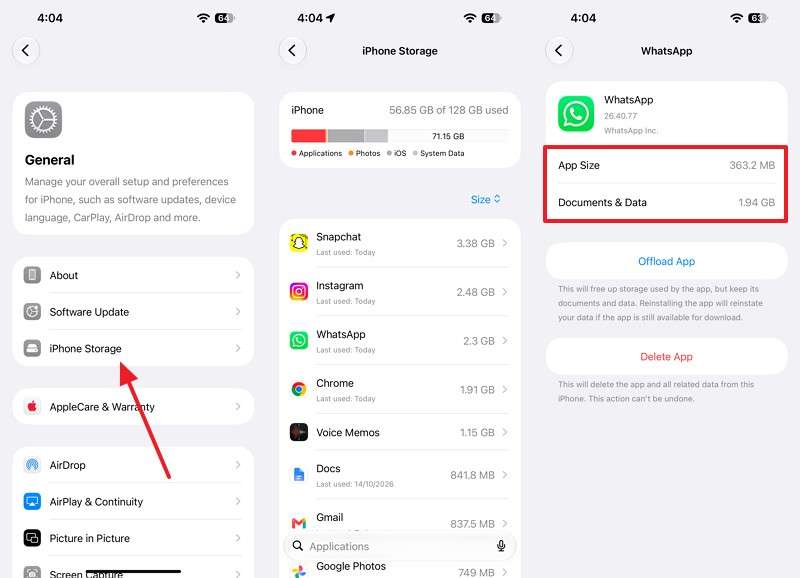
iPhone Settings shows the app size and its documents and data. The WhatsApp screen below is a separate example.
-
In WhatsApp, tap your profile picture or open Settings, then go to Storage and data → Manage storage or Free up storage, whichever appears. Look at the media estimate and the chats that take up the most space.
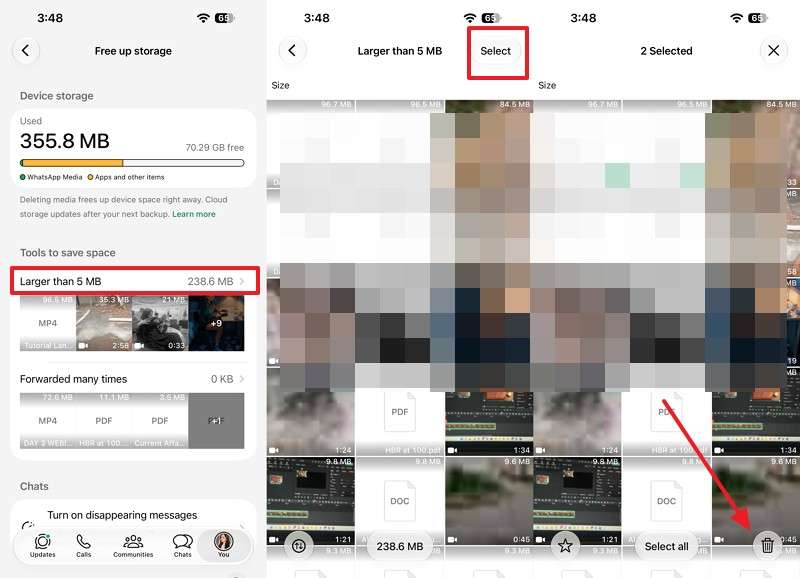
In this version, WhatsApp calls its media screen Free up storage. The storage figures are examples.
| If you see this | Start here |
|---|---|
| Low storage in iPhone Settings, or WhatsApp won’t open | iPhone Storage. Look for large downloads you can remove outside WhatsApp. |
| A large chat or media collection in WhatsApp | Manage storage. Check which attachments are taking up space. |
| A backup warning | Chat backup. Read the message, then check the amount of room on the phone and in the backup account. |
| A video is still in Photos after you removed it in WhatsApp | Photos. Decide whether you still want the saved copy. |
Check iCloud Backup Space Separately
If a WhatsApp backup says there isn’t enough space, open WhatsApp → Chats → Chat backup and check the error. For iCloud backups, open iPhone Settings → [your name] → iCloud to see how much cloud storage is left. WhatsApp may also need temporary room on the iPhone to prepare the backup. If it tells you how much space to free on the device, use that amount as your target.
Adding iCloud storage can help when the backup account is full. Your iPhone’s physical capacity stays the same. If Chat backup offers WhatsApp cloud storage on your account, check the quota for whichever backup service you use.
If WhatsApp Will Not Open, Free Space Elsewhere First
-
In iPhone Storage, look for large downloads or an app you rarely use.
-
Remove offline shows, podcasts or music from the app that downloaded them. If you want to keep the documents or data in another app, choose Offload App for that app.
-
Recheck the available space and try WhatsApp again. Once it opens, verify your backup before deleting media. If it still won’t open, keep the app installed and contact WhatsApp support if you still can’t access your chats.
Back Up Important WhatsApp Chats Before Clearing Storage
Check What Your Backup or Archive Actually Contains
If you want to restore chats later, start with WhatsApp’s own backup. A computer backup you can preview is useful if you need to verify a particular attachment. An exported PDF or HTML file is for reading and archiving. To put chats back in WhatsApp, use a compatible backup and its matching restore option.
If a conversation has already disappeared, check your existing backup before making a new one. A new iCloud backup can replace the older copy that contains the missing chat.
-
In WhatsApp, open Settings or tap your profile picture. Go to Chats → Chat backup.
-
Check the latest backup time and size. If your chats are still on the phone and you want to save the current version, check Include videos if needed, then tap Back Up Now.
-
Wait for the backup to finish. Confirm that Last backup shows the new time and check the reported size before you begin deleting media. If it fails, try a stable connection and follow the storage notice before retrying.
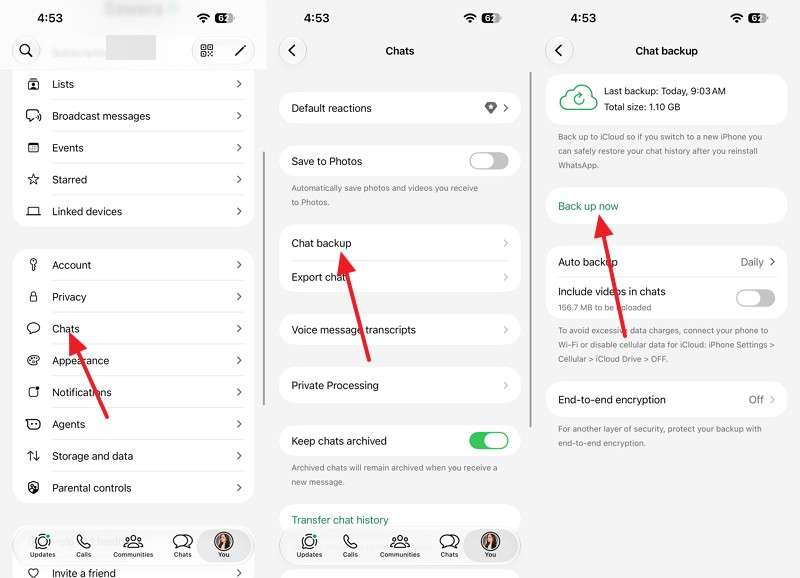
Check the last backup time and size at the top of Chat backup after the backup finishes.
Use Dr.Fone for a Computer Backup When It Fits
If you’re clearing out a group chat but need to keep a few conversations or attachments, save a copy you can open on your computer first. Dr.Fone WhatsApp Transfer backs up supported WhatsApp chats and media to a Windows PC or Mac. Preview the items you care about before you delete anything. You can also export supported records as PDF or HTML if you want a copy you can read outside the app.
 Transfer WhatsApp across Android & iOS.
- Backup & restore WhatsApp to PC securely.
- Preview & export chats selectively.
- Works with all iPhone & Android models.
-
Connect your unlocked iPhone to the computer with USB. If prompted, trust the computer. Open Dr.Fone and go to Toolbox → WhatsApp Transfer.
-
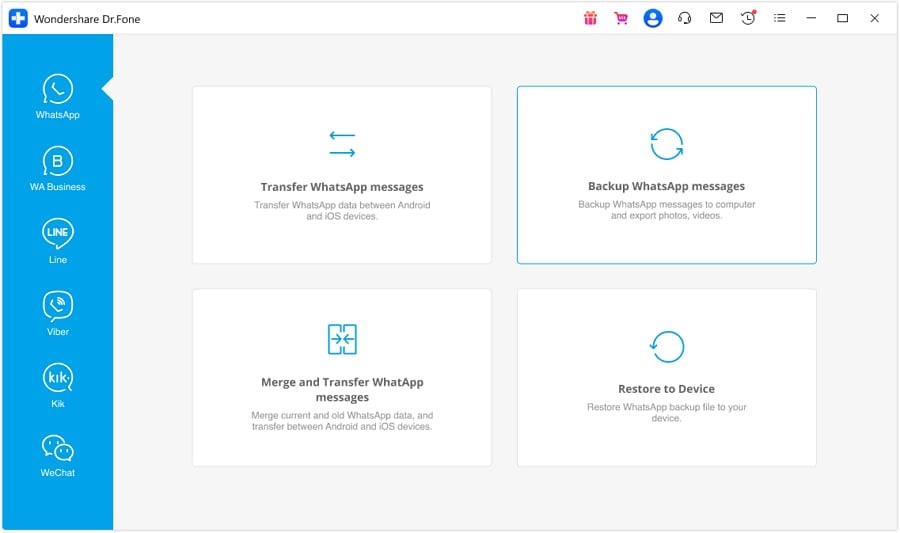
In the WhatsApp tab, choose Backup WhatsApp messages.
-
Keep the iPhone connected until the backup finishes. The Mac layout may look different, so follow the backup option shown in your version.
-
When Dr.Fone confirms the backup, select View It. Open the chat and check the specific attachments you need.
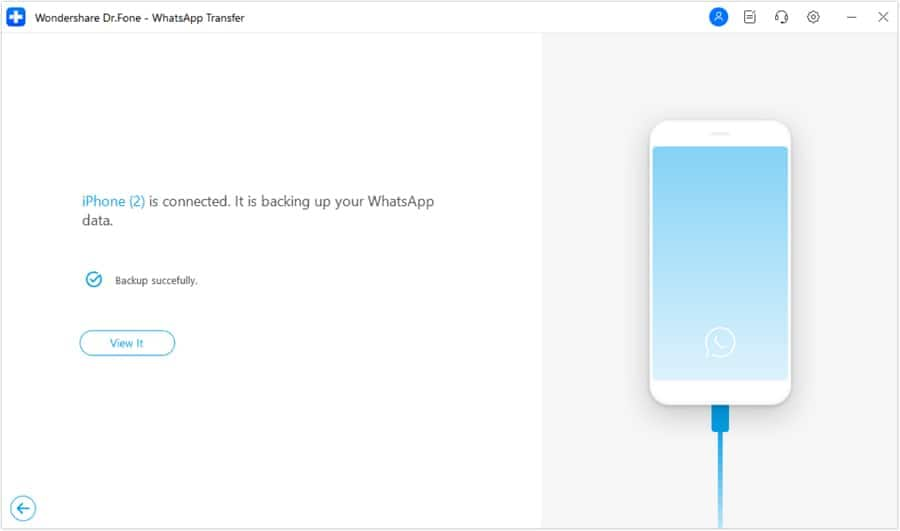




If a file you wanted to keep is missing from the preview, leave that file on the phone until you can save another copy. When you’ve checked what you need, return to WhatsApp to clear space.
How to Clear WhatsApp Storage on iPhone with Manage Storage
Review Large Items or a Specific Chat
-
Tap your WhatsApp profile picture or open Settings. Under Storage and data, open Manage storage or Free up storage, whichever appears. You can also tap the name at the top of an individual chat and choose Manage storage if that shortcut appears.
-
If your account shows Chats → Chat backup → Manage your storage → Review and delete media, check whether you’re viewing media on the phone or in cloud storage. To make room on the iPhone, work in the phone’s media list.
-
Open a chat that uses a lot of storage. If you see a large-file category, you can start there instead. Sort by Largest if available and preview the biggest files. An old video you recognize is usually easier to make a decision about than a whole thread.
Delete Selected Items After Checking Them
You won’t be able to download an item from its original chat after permanently deleting it from storage. Check that you have a separate copy of anything you still need.
-
Tap Select and mark only the items you intend to remove.
-
Tap the trash icon. If WhatsApp offers to keep starred items or delete duplicate copies, choose what to keep. When the confirmation shows only the items you intend to remove, tap Delete items or the delete button shown.
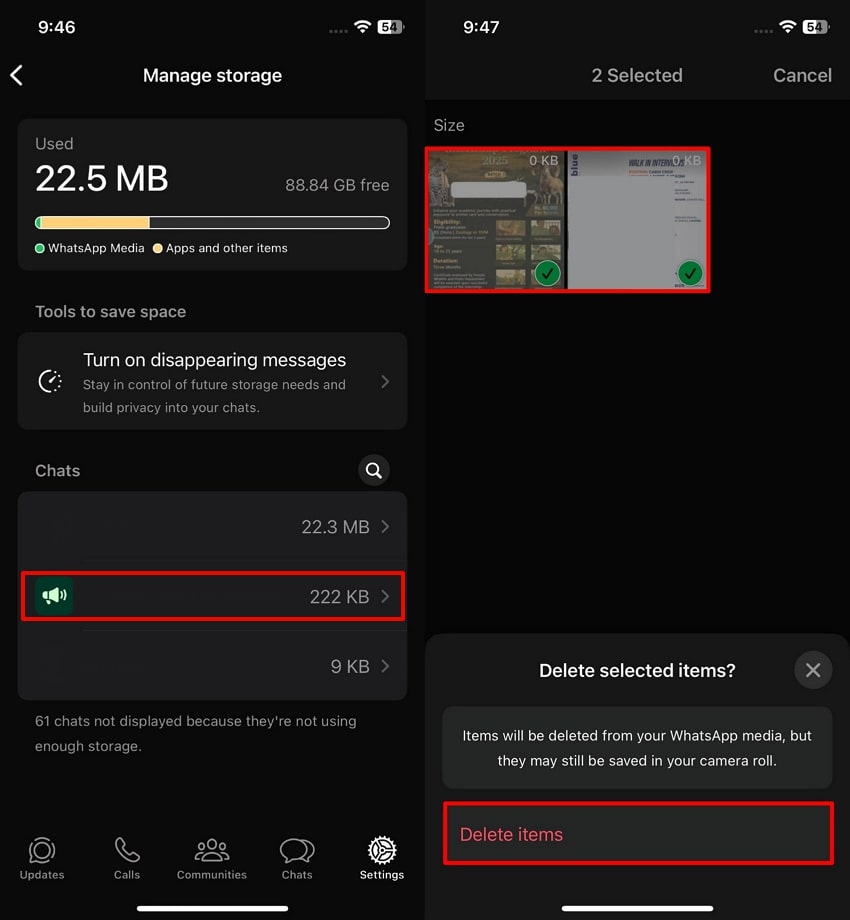
Check the number of selected items before confirming deletion. This example uses the Manage storage label.
-
Return to iPhone Storage and compare the available space with what you saw earlier. Try downloading one small attachment. If the phone is still short on room, check Photos for copies before deleting more from WhatsApp.
Check WhatsApp Photos Saved Separately on Your iPhone
Review Saved WhatsApp Media
If WhatsApp saved a photo or video to your iPhone library, that copy may still be there after you delete the file in a chat. Open Photos and find the saved item. If you have iCloud Photos turned on, deleting it from your library also deletes it on other devices using the same Apple Account with iCloud Photos enabled. Keep a separate copy first if you need the item. To remove the Photos copy, select it, tap the trash icon and confirm the deletion.
Understand Recently Deleted and iCloud Photos
Deleted photos normally stay in Recently Deleted for up to 30 days. If you’re sure you’ll never need a particular file and want to remove it immediately, go to Photos → Collections → Utilities → Recently Deleted. If your version has an Albums tab, look under Albums → Utilities. Tap View Album if shown, unlock it, select the specific item, then use More → Delete and read the final prompt. That removal is permanent.
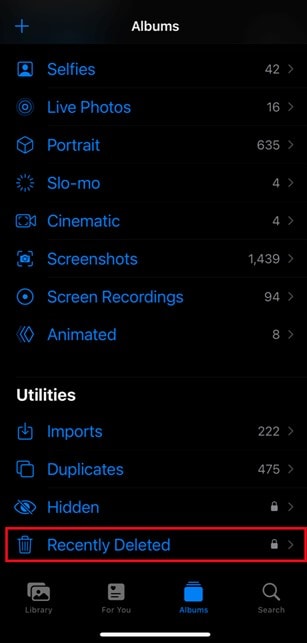
In this older Photos layout, Recently Deleted appears under Albums. Current versions may show it under Collections.
Reduce WhatsApp Media Auto-Downloads and Saved Photos
To reduce future downloads, open WhatsApp Settings → Storage and data → Media auto-download. Choose a file type such as videos or documents and pick Never if you prefer to download files when you open them. Choose Wi-Fi for types you still want to load automatically on that connection.
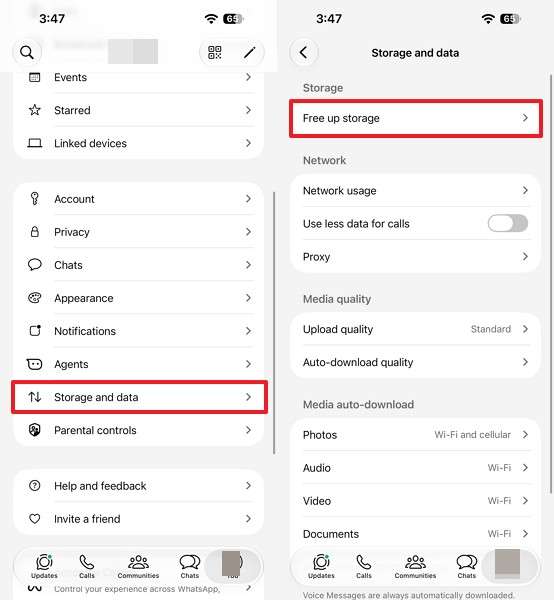
The media categories are listed in Storage and data. Available choices can vary by WhatsApp version.
To limit new copies in the iPhone photo library, open WhatsApp Settings → Chats and turn off Save to Photos. You can still save important items manually. Check the next incoming item to see whether it waits for a manual download or stays out of Photos, depending on the setting you changed. Existing media stays where it is unless you remove it.
WhatsApp Still Taking Up Too Much iPhone Storage?
Why WhatsApp and iPhone Storage Totals Differ
WhatsApp estimates space inside its own storage tool. iPhone Settings tracks the app and its data using a different calculation. A WhatsApp backup has its own total, too. Focus on the available space in iPhone Settings and whether WhatsApp now works. The gap between the totals alone doesn’t tell you how much data you can safely remove.
If you’re looking for a way to clear the WhatsApp cache on iPhone, Offload App keeps the app’s documents and data. It can free the space used by the app itself. Delete App removes its local data, which makes it a different decision.
What to Check Before Deleting and Reinstalling WhatsApp
Consider reinstalling only if normal cleanup leaves the app unusable and you’ve confirmed a route to restore your chats. Check each of these first.
- Backup time and contents. Verify the most recent successful backup. Save anything important that arrived afterward.
- Phone number and account. Make sure you can verify the number used for the backup. For iCloud, check that you can access the same Apple Account and that iCloud Drive and WhatsApp syncing are on.
- Room to restore. Check available space on the device and, for iCloud, in the account. Restoring media may need temporary room on the iPhone.
- Encrypted backup access. Have the passkey, password or recovery key you set up, if required.
Leave WhatsApp installed until you can confirm you can restore the chats you need. Use the official iPhone chat restoration instructions when you have confirmed that you can access the backup.
Conclusion
Open the chats and attachments you wanted to keep, then check your iPhone’s available space and try saving a new attachment. If WhatsApp storage is full on your iPhone again after a busy week of group chats, review the video downloads and adjust what the app saves automatically. Dr.Fone WhatsApp Transfer gives you a way to check a computer copy of important conversations before the next cleanup.
FAQs About WhatsApp Storage on iPhone
-
1. Does deleting a WhatsApp video remove it for everyone in the chat?
When you delete a video through WhatsApp’s storage management, it disappears from your media. Other people in the chat can still see their copy.
-
2. Will my next WhatsApp backup keep the media I just deleted?
A previously backed-up file may remain in the existing backup until you back up again. The next successful backup reflects the media that’s still in WhatsApp. Save a separate copy if you need access after the next backup.
-
3. Can WhatsApp restore messages sent after my last successful backup?
WhatsApp can only restore what was included in your latest successful backup. Save any important messages sent or received since then before you reinstall.
 Add Wondershare Dr.Fone as a preferred source on Google