Recover photos, messages, WhatsApp, and more — no backup
needed.
Recover photos, messages, WhatsApp, and more — no backup
needed.

 100% Security Verified | No Subscription Required | No Malware

 :
: 
 ChatGPT
 Perplexity
 Gemini
 Claude
 Grok
Grok
What if you try to open the phone as you travel to the World Cup to get ticket details and suddenly can’t remember your password? In most cases, you might see the “SIM Not Supported” alert when you land in Mexico to watch the Czech vs. Mexico matches because your phone is carrier-locked.
Users can face screen and SIM/carrier/network lock on the trip, which makes them wonder how to recover important data. So, if you are locked out of a device or your phone is broken during the World Cup trip, this guide has you sorted. Learn how official methods and Dr.Fone - Screen Unlock or Online Unlock can handle different lock situations and recover data with Dr.Fone - Data Recovery.
In this article
Part 1. Why Phone Lock Issues Happen During the World Cup?
Review these reasons to know why lock issues happen before you try to recover data from a broken phone while traveling:
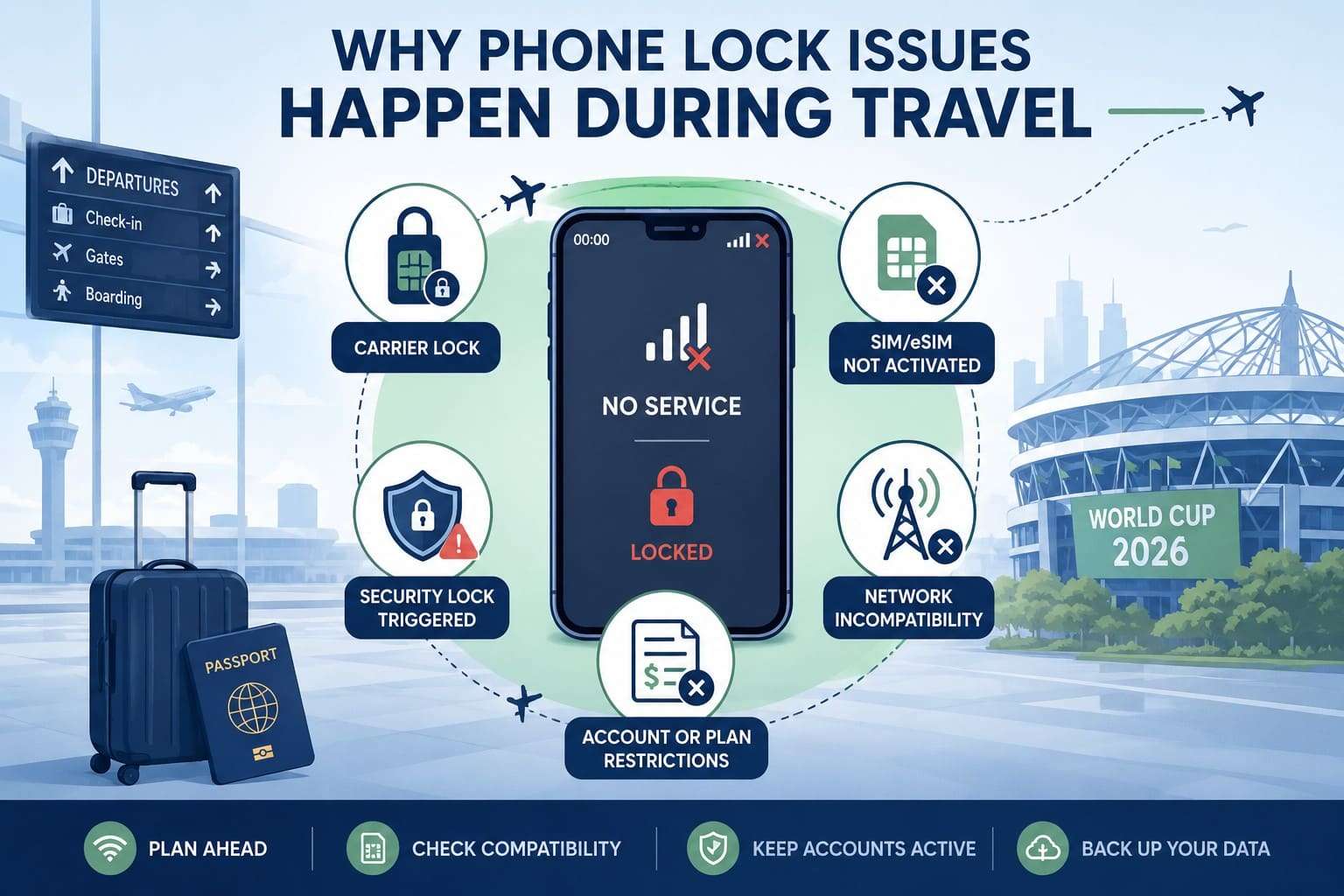
- Carrier-Locked Phone: The Scottish Sun reports that fans were kept in the stadium due to weather issues after the Netherlands and Sweden in Houston. If your phone is carrier-locked due to contract restrictions, you cannot use local SIMs abroad or stay connected in urgent situations.
- SIM/eSIM Not Activated: If you did not activate international roaming or properly set up an eSIM before travel, you may have no network access upon arrival. Even if the phone is unlocked, it cannot connect abroad until the service is activated correctly.
- Security Lock Triggered: Too many wrong PINs or password attempts can block phone and SIM access and require a PUK code from the carrier. In addition, device or app security may also lock access when it detects unusual foreign logins or repeated failures.
- Network Incompatibility: Some phones cannot connect abroad because they do not support the LTE or 5G bands used in the destination country. As a result, they may display a “No Service” alert even with a working SIM and be mistaken for carrier-locked devices.
- Account or Plan Restriction: Carriers may suspend services due to unpaid bills, expired plans, or usage limits on travel SIMs. This cuts off calls, data, and SMS, and makes it seem like the phone is locked when it is not.
Part 2. Identify the Type of Phone Lock You Are Facing
If you are locked out of your phone during a trip, determine whether you are facing a screen lock, a SIM/carrier/network lock. Review the mentioned table for this and plan your next move for a safe and stable connection throughout tournaments:
| Lock Type | What Happens | Quick Fix |
|---|---|---|
| Screen Lock | Forgot password, PIN, or tried too many wrong attempts | Use password/biometrics or reset with Find My tools |
| SIM PIN/PUK Lock | SIM asks for PIN or PUK; no calls or data | Enter the correct PIN or get the PUK code from the carrier |
| Carrier Lock | Local SIM shows “Invalid SIM” or doesn't work | Contact the carrier to unlock the phone |
| eSIM/Roaming Issue | No Service or Emergency Calls Only | Enable roaming, reactivate eSIM, or restart phone |
| Account Restriction | Calls, texts, or data suddenly stop working | Check plan status, renew pass, or contact the carrier |
| Hardware Damage | The screen is broken and cannot be unlocked | Repair the screen or use recovery tools to access data |
Part 3. Still Locked? Advanced Solutions for Different Scenarios
When the issue is SIM, carrier, or screen lock, review this section to unlock the phone with a broken screen travel or to use local SIMs.
Scenario 1. Locked Screen with Forgotten Password
For the locked Android and iPhone screens, here are 2 options you can consider:
1. Dr.Fone – Screen Unlock | One-Click Screen Lock Remover for iPhone & Android
Dr.Fone - Screen Unlock (iOS) & Dr.Fone - Screen Unlock (Android) by Wondershare lets you remove basic screen locks from 29 Android brands. If you reset the device and encounter an FRP lock, you can also use its desktop and online tools (Samsung only) to bypass FRP for 18 Android brands. Nonetheless, the guides are detailed and include clear prompts, and the tool is compatible with Android 16 and Samsung S26/S25 devices.
As for iOS users, Dr.Fone can remove the iCloud Activation Lock and Apple ID without any jailbreak. Accessible on iOS 27 and earlier, it can remove SIM and MDM locks and bypass Screen Time passcodes. So, if you have a locked or broken screen, you can regain access in just 2-3 steps, with most of the process automated on most Android models.
 Unlock Android phone in seconds.
- Remove PIN, pattern, password, fingerprint.
- Bypass Google FRP lock easily.
- Works on all Android brands & models.
- No tech skills required – user-friendly.

Quick Guide to Unlock Android Lock Screen with Dr.Fone
When you are locked out of your phone during a trip, here is the tested guide for most Android models:
-
Step 1 Access Dr.Fone Unlock Android Screen Option
Take Redmi as an example, then tap the “Unlock Android Screen” option in the Screen Unlock tool for Android.

-
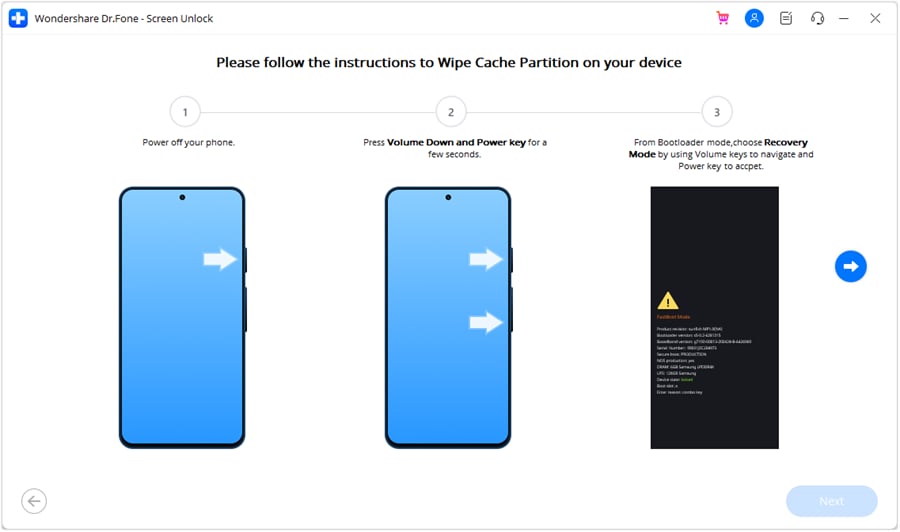
Step 2 Enter Special Mode to Screen Unlock Redmi
Choose Redmi from the brands list, and Dr.Fone will direct you to Special Mode to remove the screen lock.




2. Use Google Find My or iCloud Find My
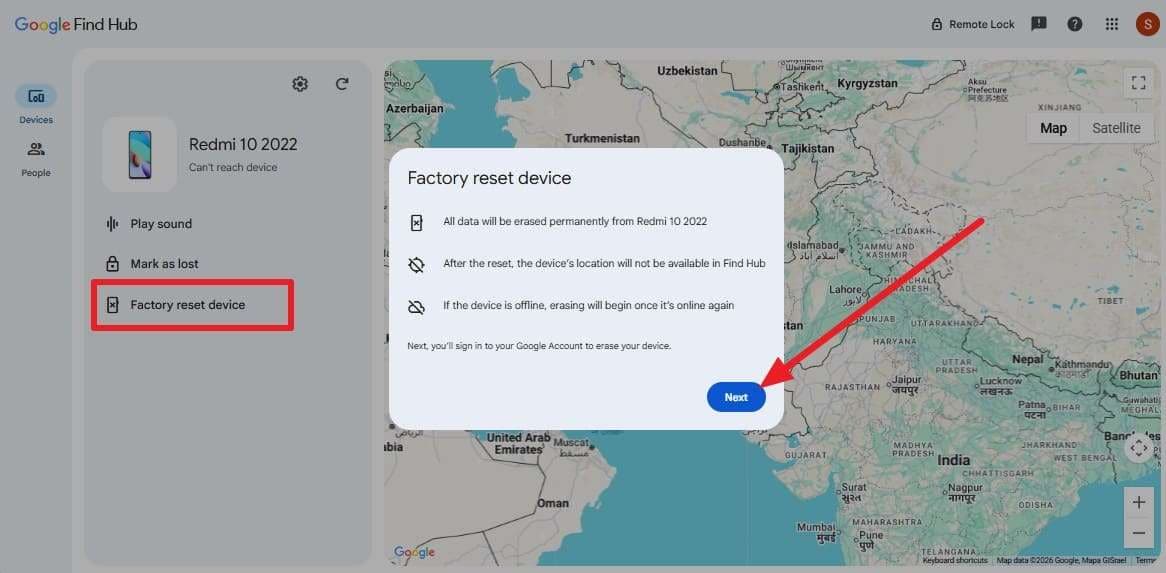
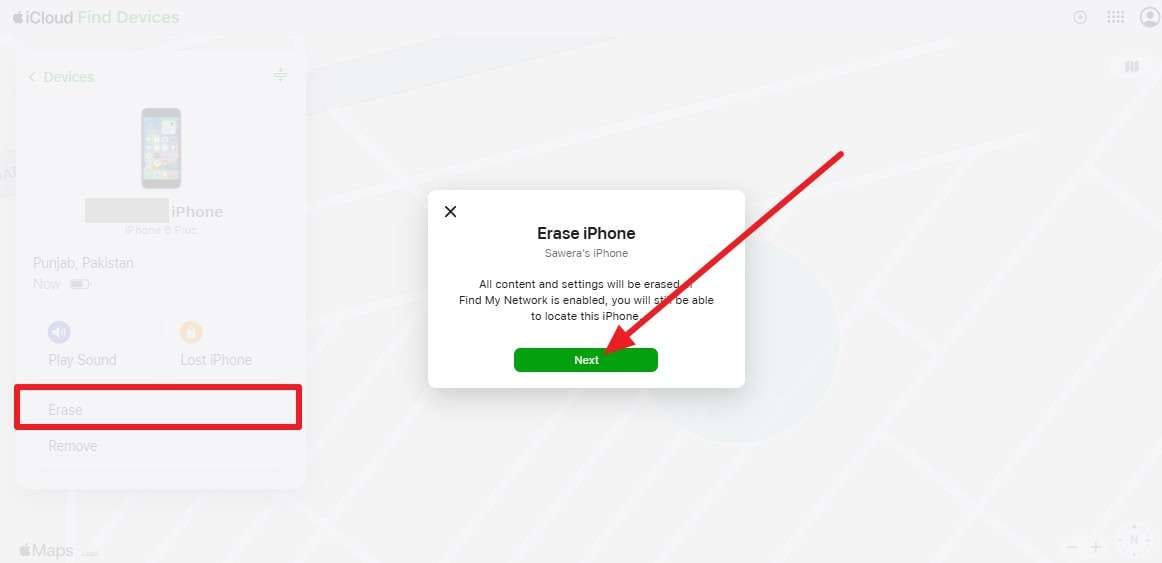
As the official tools from Google and Apple, you can sign in from another device to erase the locked phone remotely. Once done via the mentioned steps, you can restore synced data later from your Google or Apple Accounts:
For Android [Google Find My]
Instructions. Sign in to Find My Hub > Choose the locked Android phone > Select “Factory Reset Device” > Press “Next” to follow the instructions.
For iPhone [iCloud Find My]
Instructions. On iCloud Find My, sign in > Choose your locked iPhone > Tap “Erase” > Press “Next” to continue.
Scenario 2. Carrier or SIM Restrictions
When you are carrier locked out of your phone during a trip, try the mentioned ways to see if they are helpful:
1. Contact Carrier for Official Unlock
If your account is in good standing, the device is not reported as lost/stolen, and all the dues are paid, you are eligible for unlocking. Nonetheless, you need to meet the mentioned prepaid and postpaid carrier activation policies to begin the SIM unlock method:
| Carrier | Postpaid Requirements | Prepaid Requirements |
|---|---|---|
| AT&T | Active for at least 60 days | At least 6 months of paid service |
| Verizon | Usually unlocks after 60 days (if purchased before Jan 27, 2026). | Some plans require up to 365 days of service |
| T-Mobile | Active on the network for at least 40 days | $100 in refills or 365 days of active service |
Once the conditions are met, here are 3 ways to remove the carrier restrictions on Android and iOS:
Option 1: Call the carrier directly
Try the mentioned numbers based on the carrier you are locked to:
- Verizon: Dial *611 from your device, or call 888-294-6804 or 888-258-0939.
- AT&T: Call 1-800-331-0500 and provide the IMEI details when asked.
- T-Mobile: Contact on 1-800-937-8997 or 1-833-800-0323 for Business accounts.
Option 2: Submit Request Online
-
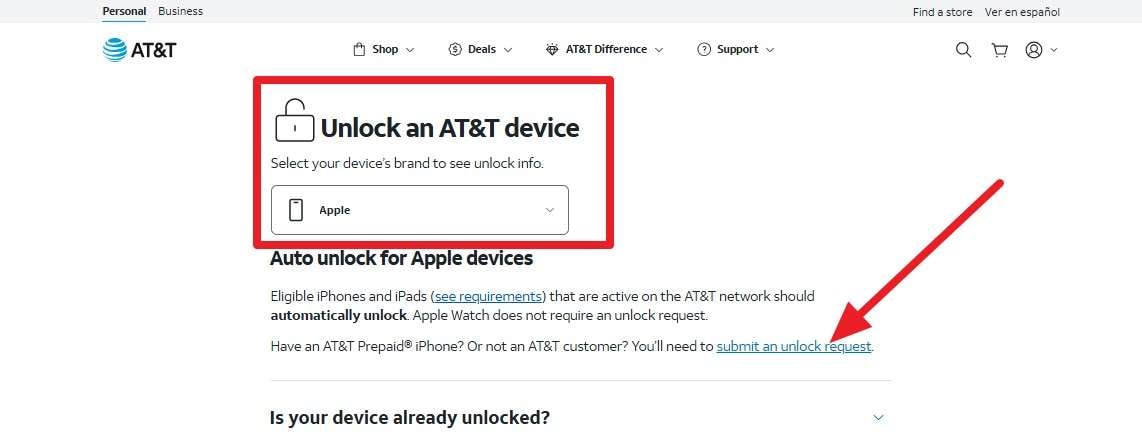
Step 1 Take the AT&T Device Unlock site as an example and pick the device under the “Unlock An AT&T Device > Submit an Unlock Request.”
-
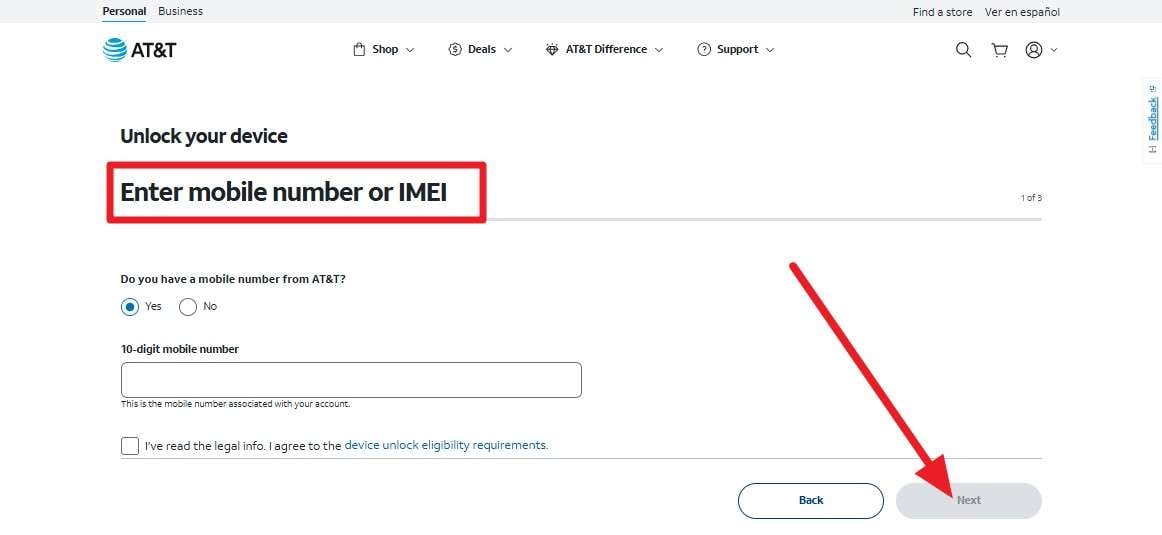
Step 2 Fill in the “Enter Mobile Number or IMEI” section > Press “Next” > Add Email > Wait for approval.
-
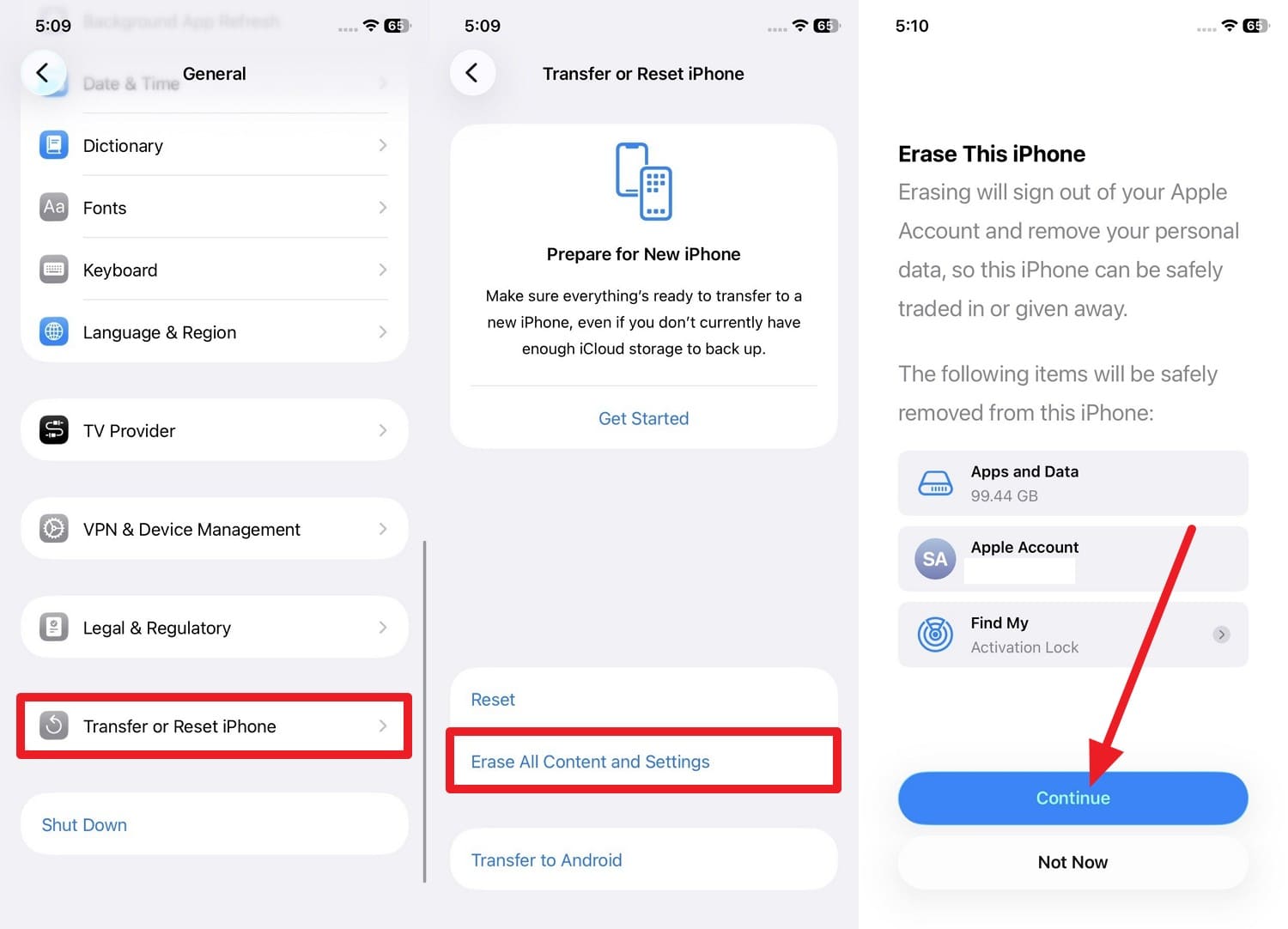
Step 3 Once unlocked, swap the old SIM with the new one or reset the device (iPhone) if you don't have one. To do so, go to “General > Transfer or Reset iPhone > Erase All Content and Settings > Continue.”
Option 3: Use Device Unlock App
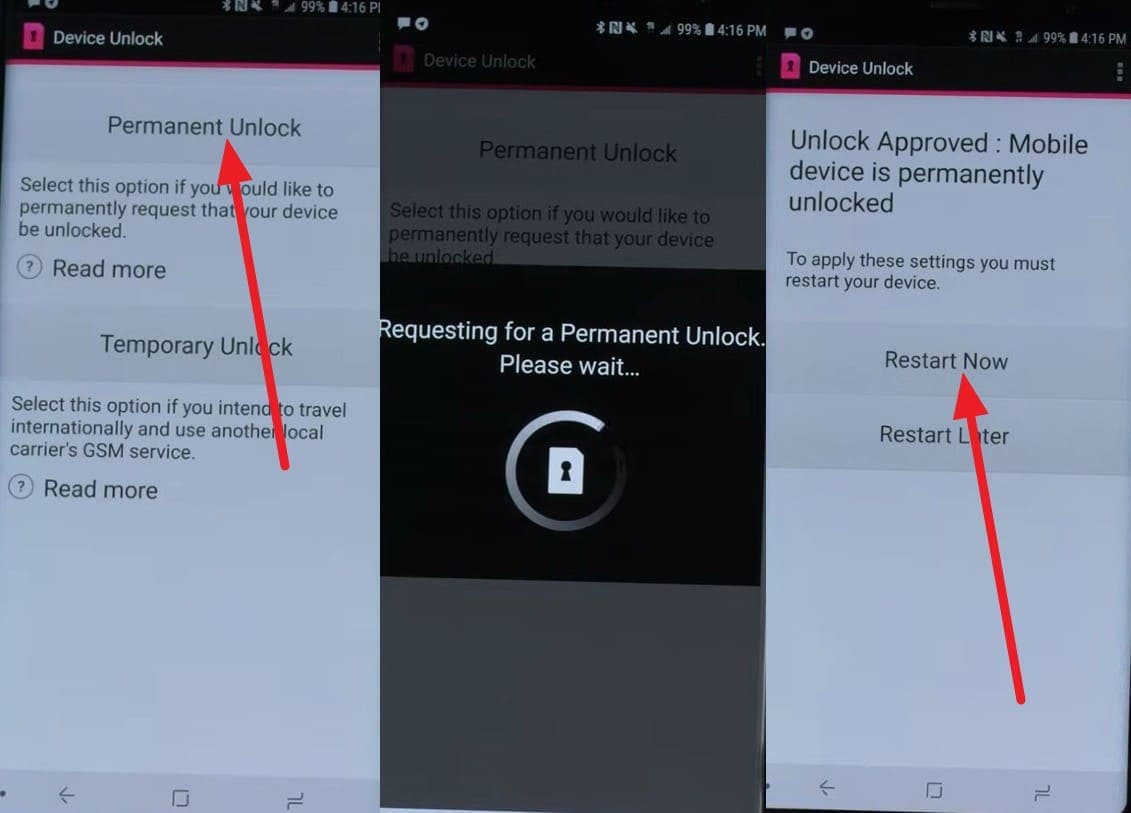
T-Mobile, MetroPCS, AT&T, or Cricket has a preinstalled app on the phones; use it with a stable connection to unlock the SIM via the listed ways:
-
Step 1 Tap "Allow" and select "Permanent Unlock" to let the app verify your account status and contact the carrier. Choose “Restart Now,” insert a non-carrier SIM, and follow the prompts if an activation code is required.
-
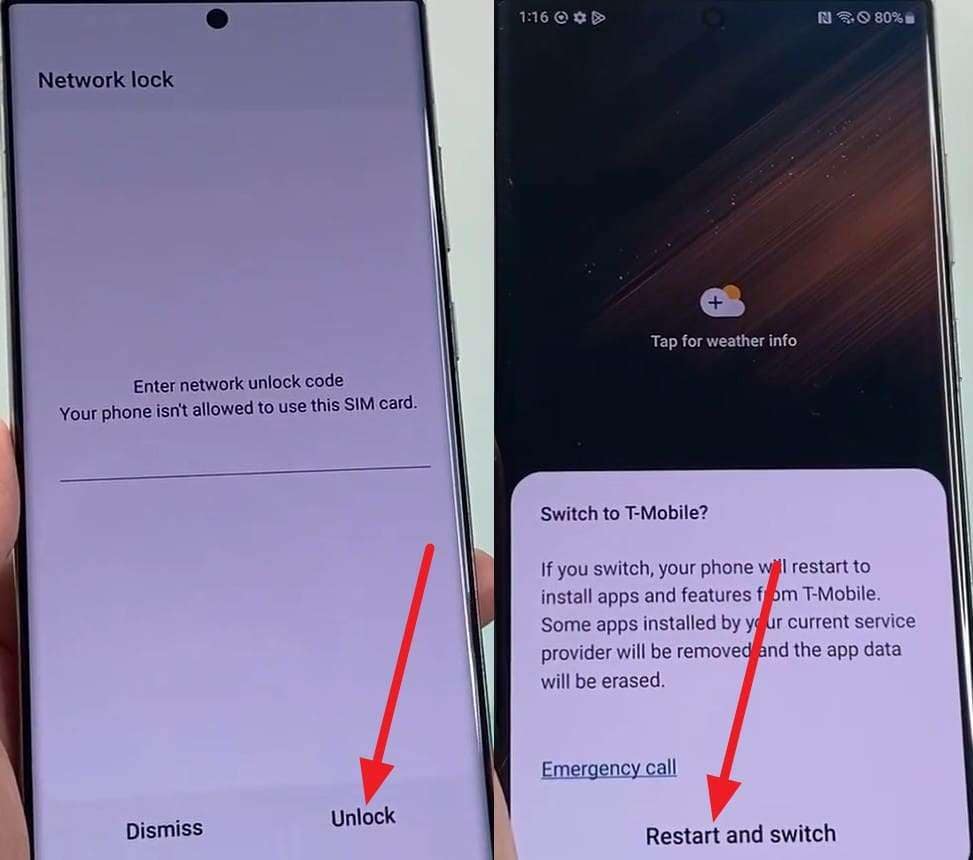
Step 2 As you add the SIM, add the code > Press “Unlock” > Choose “Restart and Switch” to use the local SIM in the World Cup.
2. Use Unlock Services If Applicable
Official methods can take 2-3 days and are tied to accounts, which is why they might not be ideal to use during the World Cup. So, if you want to fix the SIM locked out of the phone during a trip problem within 24 hours, Dr.Fone Online Unlock can help. This tool can submit the cloud request and unlock the SIM lock, which remains permanent even after the device modifications.
In addition, no data is shared with other servers, and users can track the progress of requests via email. Later, you can review the unlock history to monitor completed requests and manage future unlocks more easily. Since it's accessible on any platform, it needs only IMEI and carrier details and is guided ahead:
-
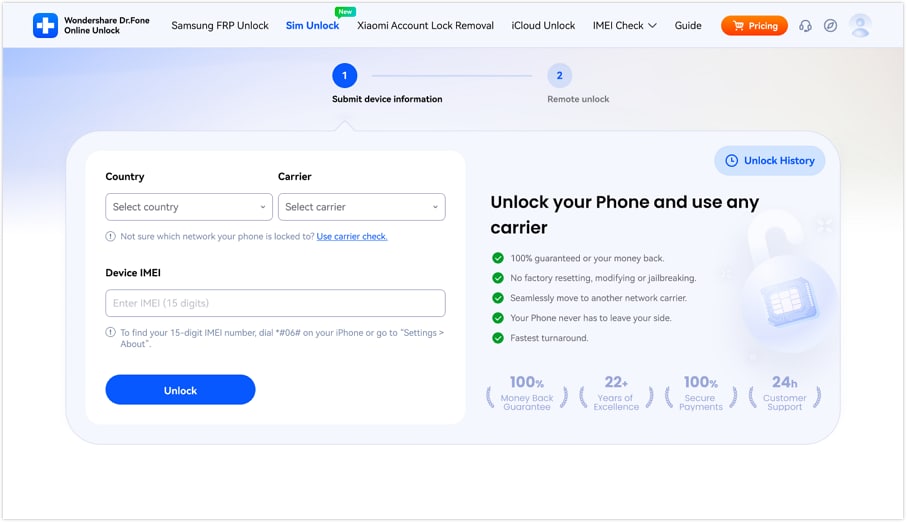
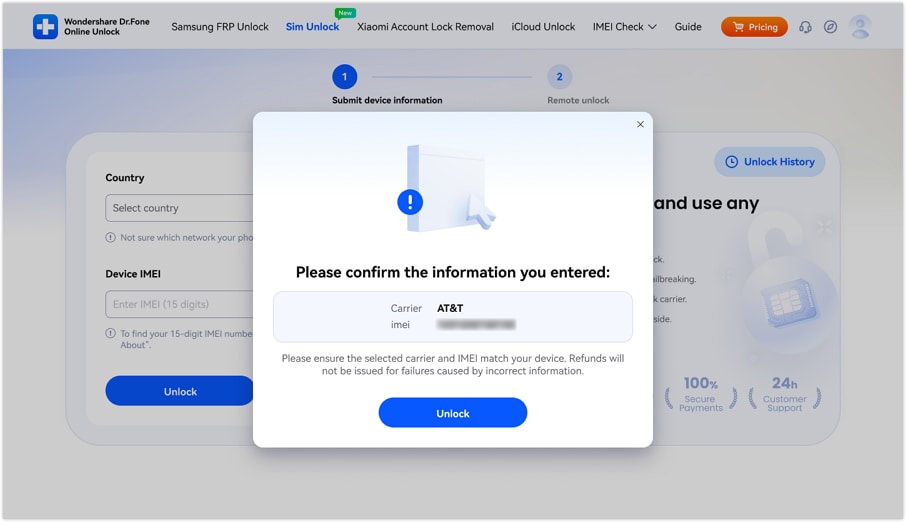
Step 1 Add Details on Dr.Fone SIM Unlock Page
Add the carrier details and choose the “Unlock” button on the Dr.Fone SIM Unlock web page.
-
Step 2 Confirm Details to Submit SIM Unlock Request
Confirm the details when prompted to submit the cloud request via the “Unlock” button, and the SIM will be unlocked within 0-24 hours.
Part 4. Recover Important World Cup Data After Regaining Access
Now that you have regained access, you may still need to recover data from a broken phone while traveling if important files remain missing. In this case, you can use Dr.Fone - Data Recovery (Android) & Dr.Fone - Data Recovery (iPhone) to recover 35+ data types from iPhone and 14+ from Android. You can easily extract data from your device, iCloud, iTunes, or local backups through the read-only scan.
This scan also protects our existing data from being overwritten to keep all the World Cup memories safe. Nonetheless, the tool is compatible with iOS 27 and over 8,000 Android devices, and ensures that data recovery is selective and controlled. So, whether your phone got broken or became unresponsive during the World Cup, Dr.Fone can handle it all.
- Recovers files from iTunes, iCloud, or directly from phone.
- Recovers data after device damage, crash, or accidental deletion.
- Fully compatible with all popular iOS devices and models.
- Quickly restore specific data types without full data load.

Guide to Recover Lost Data from a Locked Android Phone
For the phone that broke during the World Cup trip, here is how you can retrieve your data from your Android devices:
-
Step 1 Pick Dr.Fone Recover Android Data
Choose the “Recover Android Data” option in the Data Recovery tool for Android, then connect the broken Android device when prompted.

-
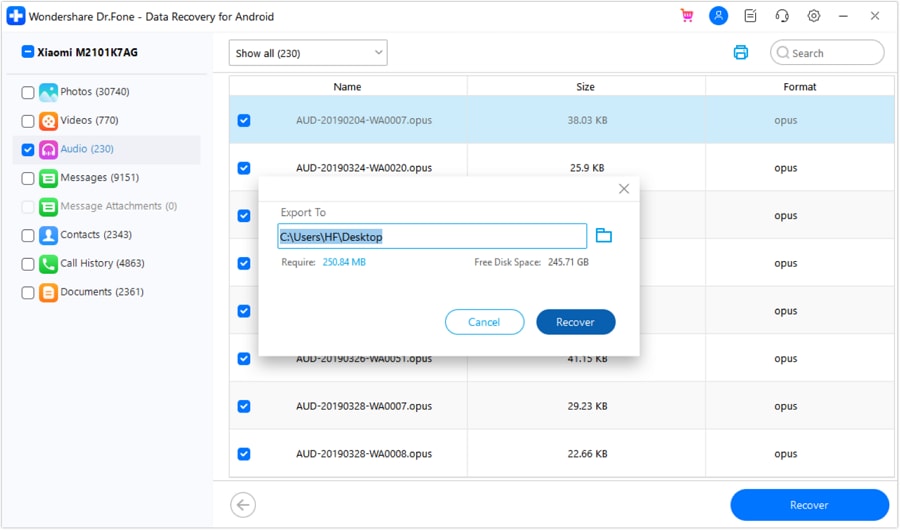
Step 2 Choose Android Data and Export
Select the 14+ data types you want to recover, then tap the “Start Scan” button to search the phone's storage in detail. Preview the retrieved data, select from the given export options, and export to the specified location.
Part 5. What to Do If You Cannot Recover Access
If you cannot recover data from a broken phone while traveling or access a locked phone, here’s what you can do:
| Option | When to Use It | What to Do |
|---|---|---|
| Use a Backup Device | You have access to another phone or tablet. | Transfer your SIM or eSIM, install essential apps, and continue managing travel activities. |
| Access Tickets Elsewhere | Tickets are stored in email, apps, or cloud accounts. | Sign in on another device and download, print, or save copies of your tickets. |
| Contact Your Carrier | You suspect a SIM, roaming, or account-related issue. | Use another device to verify roaming settings, unlock status, and service restrictions. |
| Retrieve Cloud Data | Important files were backed up before the lockout. | Sign in to your cloud accounts and access the needed photos, documents, contacts, or tickets. |
| Replace and Restore | The phone is lost, stolen, or severely damaged. | Set up a replacement device and restore available data from backups or cloud services. |
Conclusion
Most users either get locked out of their phones, face carrier locks, or get their phones broken during the World Cup trip. Since official carrier contacts can take days and repair is not possible, you can use Dr.Fone - Data Recovery (Android) to recover your data. As for the screen and carrier lock, Dr.Fone - Screen Unlock (Android) and Dr.Fone Online Unlock are suggested choices by experts.
FAQ
-
1. Will a local SIM work in every unlocked phone?
Not always. The phone must also support the local carrier's network bands and technology. -
2. How can I access World Cup tickets if my phone is locked?
Sign in to your email or ticketing account on another device and retrieve the tickets. -
3. What should I do if my phone screen is broken but still turns on?
Try using Dr.Fone - Data Recovery (Android & iOS) to recover accessible files and backed-up World Cup data from your device.
 Add Wondershare Dr.Fone as a preferred source on Google