Recover photos, messages, WhatsApp, and more — no backup
needed.
Recover photos, messages, WhatsApp, and more — no backup
needed.

 100% Security Verified | No Subscription Required | No Malware

 :
: 
 ChatGPT
 Perplexity
 Gemini
 Claude
 Grok
Grok
Mistakenly deleting vital texts or losing essential iMessages can instantly trigger panic—especially if those conversations contain work-related data, crucial legal documents, or irreplaceable personal memories. Many users mistakenly believe that retrieving these texts is a simple search query. However, on an iPhone, figuring out how to look up deleted messages on iPhone is fundamentally a data recovery process, rather than a basic keyword search.
Fortunately, heading into 2026, it is important to understand that not all deleted messages disappear permanently in the same manner. Apple's iOS manages message storage through several distinct stages. Depending on how the texts were originally deleted and the precise amount of time that has elapsed, your precious data might still be fully recoverable. Time remains the most critical factor here—once deleted data lingers on your iPhone's internal storage, it exists invisibly only until new activity completely overwrites it. Quick action can make the critical difference between 100% recovery and permanent data loss. Let's explore the proven, step-by-step methods detailing how to look up deleted messages on iPhone efficiently!
In this article
Part 1. Before Recovery: What "Deleted Messages" Really Mean on iPhone
Wondering how to search deleted text messages on iPhone? Before diving headfirst into data recovery, you must first comprehend what "deleted messages" actually signifies within the Apple ecosystem. A frequent misconception among device owners learning how to look up deleted messages on iPhone is that deleted texts vanish entirely the very second you press delete. In reality, iOS deletes messages across several structural stages.
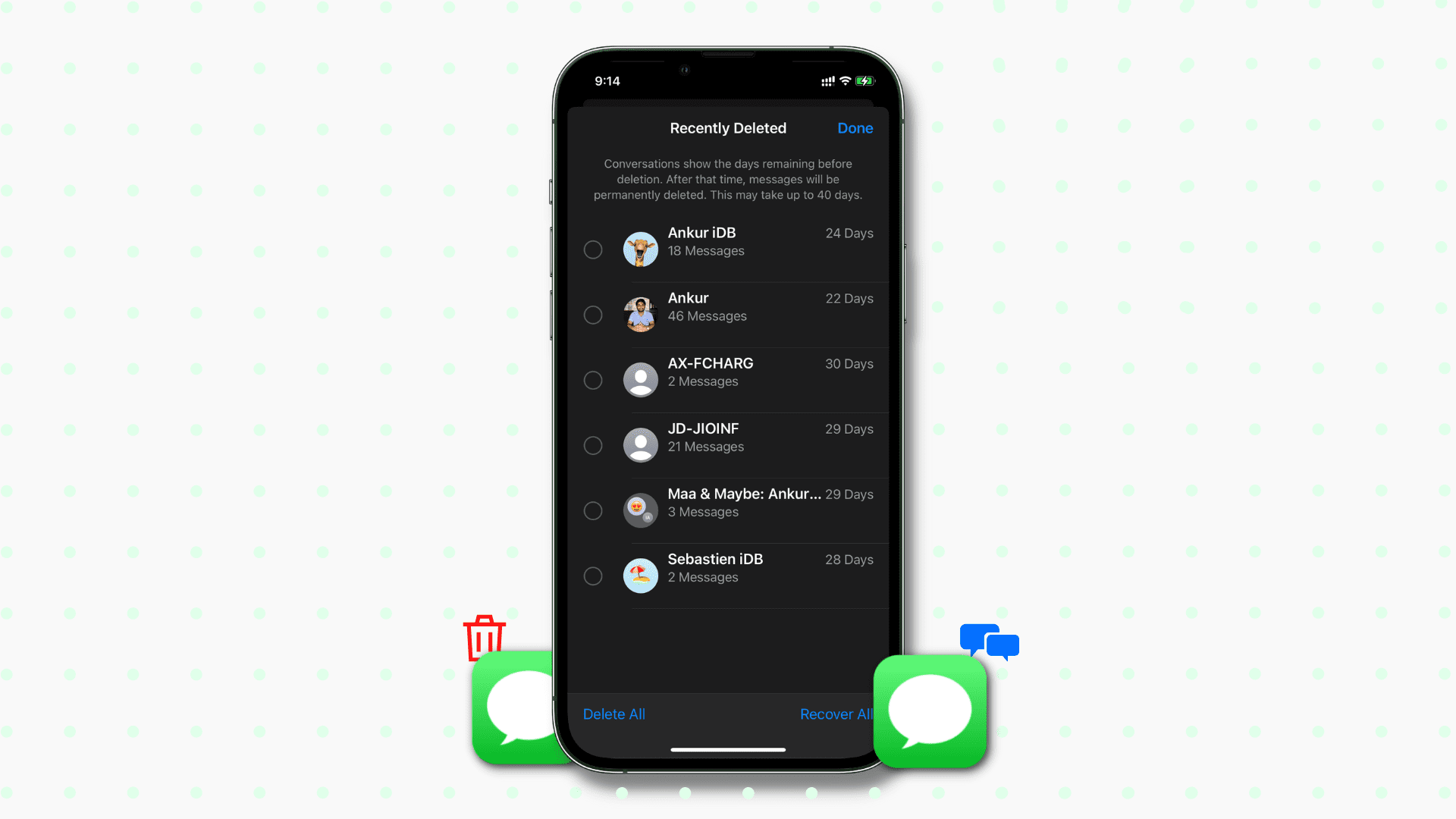
The term "newly deleted messages" simply refers to texts that have been removed from your main inbox but are still temporarily preserved by the iOS operating system. Apple introduced a critical safety mechanism starting from iOS 16 that retains these deleted messages in a dedicated "Recently Deleted" directory within the Messages app for a grace period of 30 days. Within this specific time window, the lost messages can be resurrected quite effortlessly without ever requiring an external backup or third-party desktop tools.
Conversely, permanently deleted messages are those that have completely bypassed this 30-day retention limit, or those removed using manual deletion methods that explicitly prevented temporary storage. Once your messages transition to this permanent stage, they completely disappear from the native Messages application and absolutely cannot be recovered utilizing straightforward iOS features alone.
How iOS handles message storage
iOS architecture doesn't physically scrape deleted messages off your flash storage right away. On the contrary, it merely flags that specific storage sector as "available" to host new data. Until fresh files—such as new photos, apps, or incoming messages—are physically written to that same location, the original deleted messages still reside silently on the device. Understanding this specific method of storage allocation is exactly why deleted messages can still be aggressively recovered if you act within a short timeframe.
How do you look up old messages on iPhone (if they're not deleted)?
In scenarios where your target messages are merely buried and not actually deleted, revisiting older historical conversations is quite easy utilizing the built-in search feature within the Messages app. On the other hand, this basic search logic completely loses its effectiveness the moment the messages have been tagged as deleted. By that point, successfully grasping how do you look up deleted messages on an iPhone requires pivoting toward dedicated recovery frameworks rather than leaning on standard keyword lookup tools.
Part 2. The Proven Methods to Look Up Deleted Messages on iPhone
Once you fundamentally grasp how modern iOS handles erased communications, your next logical step is selecting the most suitable recovery avenue. The best approach depends heavily on the time elapsed since the accidental deletion occurred, whether you maintained a routine cloud or local backup, and exactly how swiftly you execute the recovery. Below, we break down the most highly effective strategies for retrieving missing messages on iPhone, sequenced from native built-in Apple tools directly to advanced third-party data recovery solutions.
Method 1: How to Look Up Deleted Messages on iPhone via Recently Deleted
Apple drastically simplified text retrieval when it added a built-in safety net alongside iOS 16, a feature that significantly modernizes the recovery of freshly erased conversations. When you remove text messages, they aren't eradicated instantly. Rather, they are automatically diverted into a concealed Recently Deleted folder natively housed inside your Messages application, securely lingering there for up to 30 days before systematic permanent deletion. Here is exactly how do you look up old messages on iPhone via this feature:
-
Step 1 Launch the Messages App
Navigate to your Home Screen and launch the native Messages application on your iPhone device.
-
Step 2 Access the Edit or Filter Menu
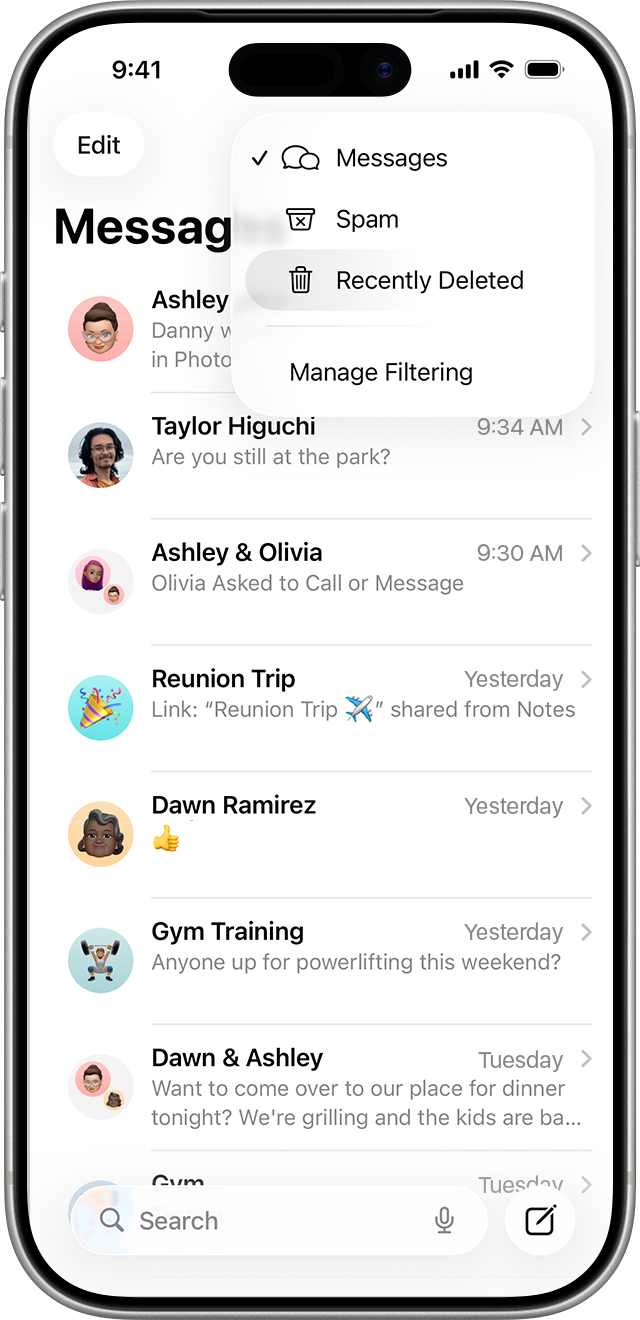
On your primary Messages inbox screen, tap the 'Edit' button situated conveniently at the upper-left corner. Depending on your current layout settings or if you have specific message filters active, you might need to tap 'Filters' first to reveal the menu.
-
Step 3 Open the Recently Deleted Folder
Tap firmly on 'Recently Deleted' to instantly display a comprehensive list of all the individual messages and complete threads you have deleted over the previous 30-day window.
-
Step 4 Select the Target Conversations
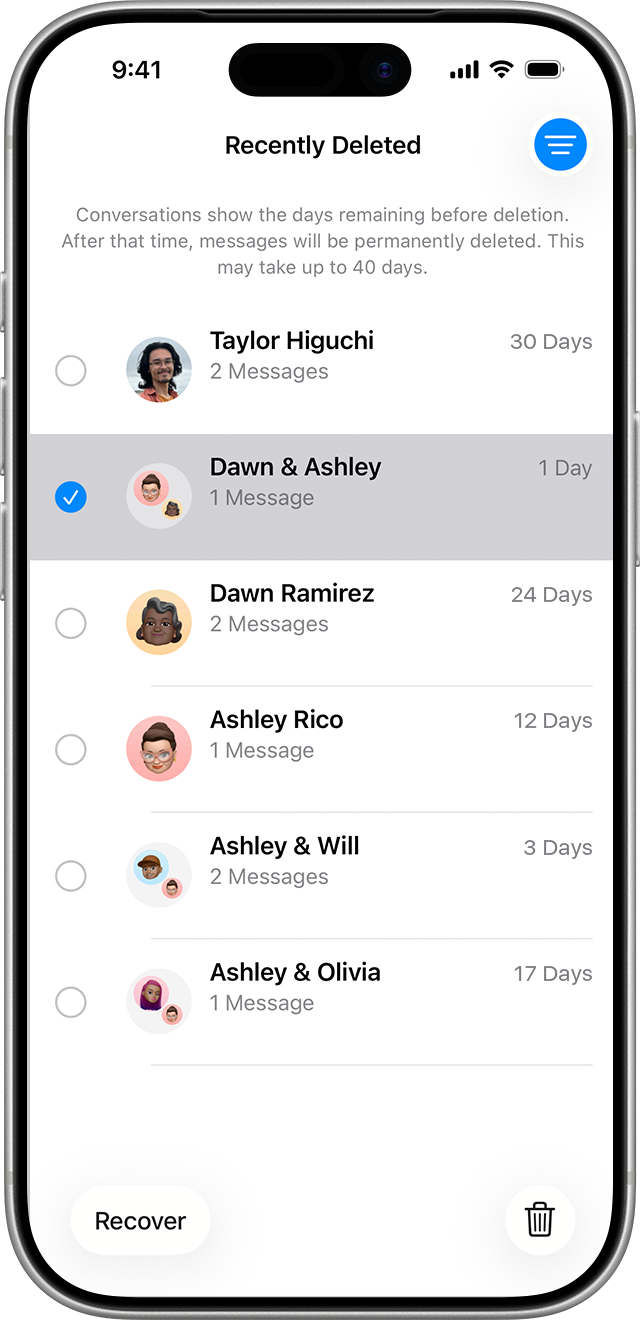
Carefully scroll through this recovery list. Tap to checkmark and highlight one or multiple messages, or even entire conversation logs you desire to salvage. You can easily select multiple items simultaneously to batch restore. This is effectively how to look up old iMessages seamlessly.
-
Step 5 Recover to Inbox
Hit the 'Recover' button located at the bottom corner and then securely confirm your executive decision on the prompt. The individually chosen messages will teleport back into your main Messages inbox immediately, perfectly restoring their original conversation chronologies.
Method 2: How to Look Up Deleted Messages on iPhone Using Backup
Historically, one of the most rigorously reliable pathways to get back ancient, deleted communications is leveraging an existing device backup. However, this carries a massive logistical drawback. Whenever you trigger a holistic backup restoration, the protocol strictly mandates erasing all the current contents occupying your iPhone. This means any new photos, installed applications, adjusted settings, and recent chats that materialized after your historical backup date will be completely annihilated. You should exclusively deploy this strategy if the vanished messages hold immense value and you are entirely comfortable sacrificing your most recent data, or if you have preemptively synced current files elsewhere.
Restore from iCloud backup
This workflow is exclusively viable if your iCloud Backup mechanism was fully toggled on and synced prior to the precise moment the messages were erased.
-
Step 1 Initiate Device Reset
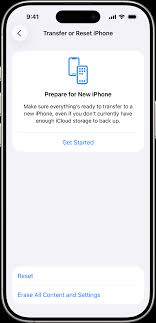
Navigate deeply into your device by going to Settings > General > Transfer or Reset iPhone, and formally select 'Erase All Content and Settings'.
-
Step 2 Reach the Apps & Data Screen
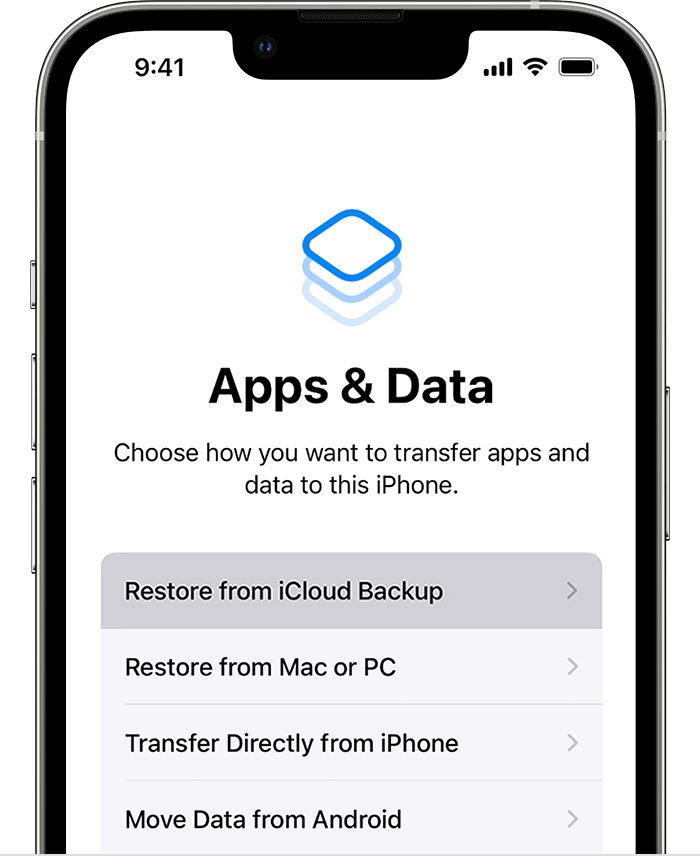
During the automated reboot and setup sequence, carefully follow the on-screen configuration prompts until you arrive directly at the 'Apps & Data' migration screen.
-
Step 3 Authenticate iCloud Recovery
Select the option labeled 'Restore from iCloud Backup' and securely sign in using your designated Apple ID credentials to access your historical archives.
-
Step 4 Select the Optimal Backup Timestamp
Meticulously choose an archived backup file that was definitively created prior to the exact date and time the vital messages were permanently deleted.
Once the intensive download process concludes, your resurrected messages from that specific backup era will seamlessly reappear populated inside your Messages app.
Restore from iTunes or Finder backup
This localized option directly applies if you actively maintained the habit of physically backing up your iPhone onto a trusted Mac or Windows PC.
-
Step 1 Connect the Hardware
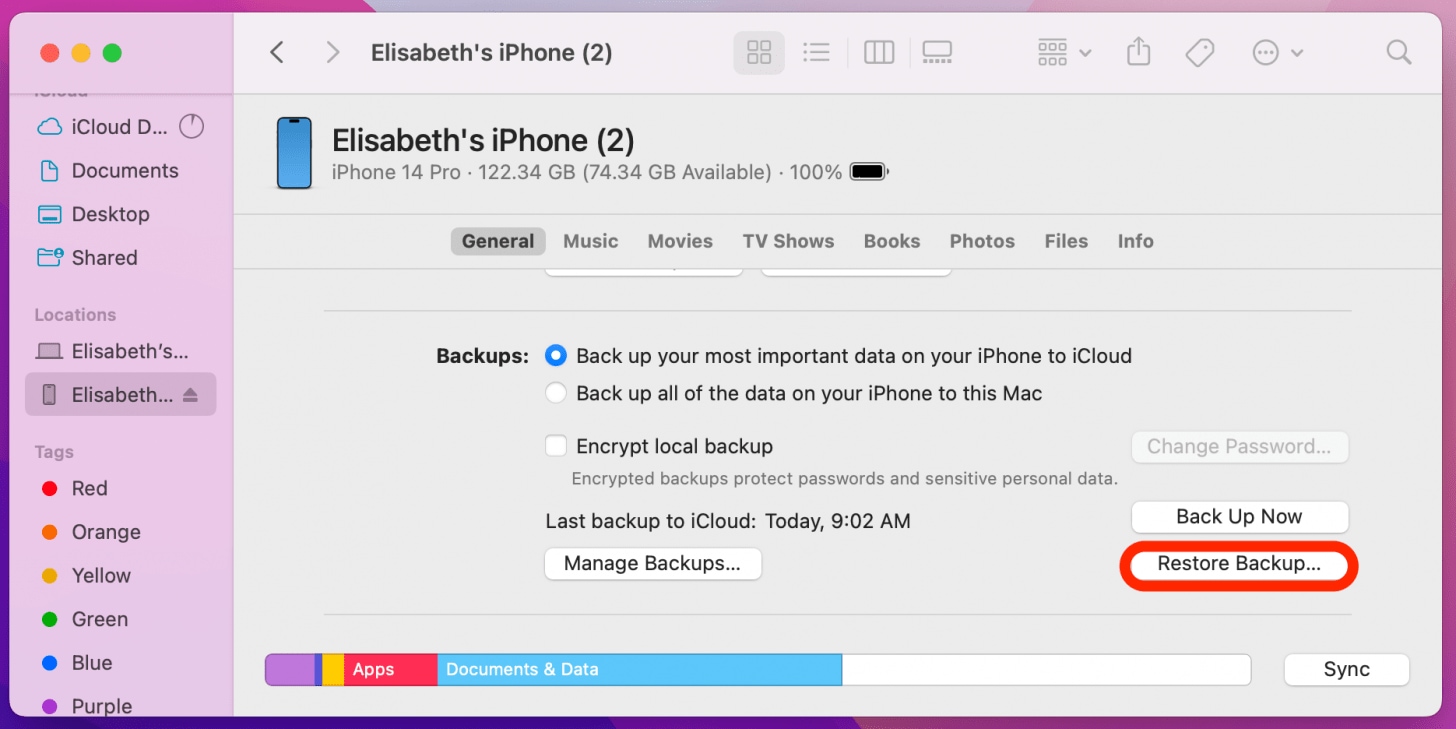
Physically connect your iPhone hardware to the trusted computer system previously utilized to construct the localized backup files.
-
Step 2 Launch the Apple Directory Interface
Open up the Finder application on operating systems running macOS Catalina or later. For older macOS builds or traditional Windows setups, launch the standard iTunes application.
-
Step 3 Access the Restore Protocol
Select your identified iPhone icon the moment it registers on the interface and decisively click the 'Restore Backup' command button.
-
Step 4 Choose Your Localized Backup
Carefully choose a historical backup date definitively stamped prior to when the messages were originally wiped out.
-
Step 5 Allow System Restoration
Patiently allow the full data restoration process to be securely completed. Under absolutely no circumstances should you unplug your device until the final reboot strictly finishes.
Method 3: How to Look Up Deleted Messages on iPhone Without Backup
If your desperately needed messages are frustratingly absent from the Recently Deleted folder, and you are understandably reluctant to gamble with wiping your phone to load an ancient backup, utilizing Dr.Fone – Data Recovery provides a phenomenally reliable, hazard-free, and expedited alternative. This highly specialized desktop program possesses the immense capability to surgically extract deleted text messages straight from the iPhone hardware itself—without ever overwriting or compromising any piece of your current data.
One of the primary engineering marvels determining how Dr.Fone can skillfully identify deleted text threads, missing photos, vanishing contacts, and other isolated lost data is by executing a forensic deep scan of the underlying device storage. This essentially targets the microscopic fragments of deleted data that have miraculously not been overwritten yet. Consequently, the software routinely succeeds in retrieving invisible files long after a catastrophic factory reset, a botched iOS upgrade, an accidental device wipe, or a physically shattered device. Consistently updated to reflect the evolving 2026 tech landscape, Dr.Fone flawlessly interfaces with all robust iOS frameworks, effortlessly encompassing the latest iOS iterations and current flagship iPhone hardware models.
 Recovers data after deletion, crashes, or device damage.
- Supports photos, messages, contacts, WhatsApp, and more.
- Supports all major iPhone, iPad, and iPod models.
- Preview and recover only what you need.

You can dynamically utilize the program's interface to intelligently preview exclusively the files you actively wish to recover, subsequently restoring them selectively without ever disturbing your current photo library or installed applications. In addition to retrieving raw text communications, this advanced suite can seamlessly rescue over 35+ discrete types of metadata, ranging natively from social networking cache files and sprawling iWork documents to localized voice memos, Safari bookmarks, and profoundly much more.
How to use Dr.Fone - Data Recovery to restore deleted messages on iPhone
-
Step 1 Launch Dr.Fone and Connect Your iPhone
Successfully download and systematically run the Dr.Fone software suite on your designated computer workstation. Fluidly navigate to Toolbox > Data Recovery, then precisely pick the 'iOS' operational module and firmly click 'Recover Data from iOS Device'. Proceed to physically connect your iPhone directly to the computer via a reliable USB connection, and Dr.Fone will immediately and automatically detect your synchronized device.

-
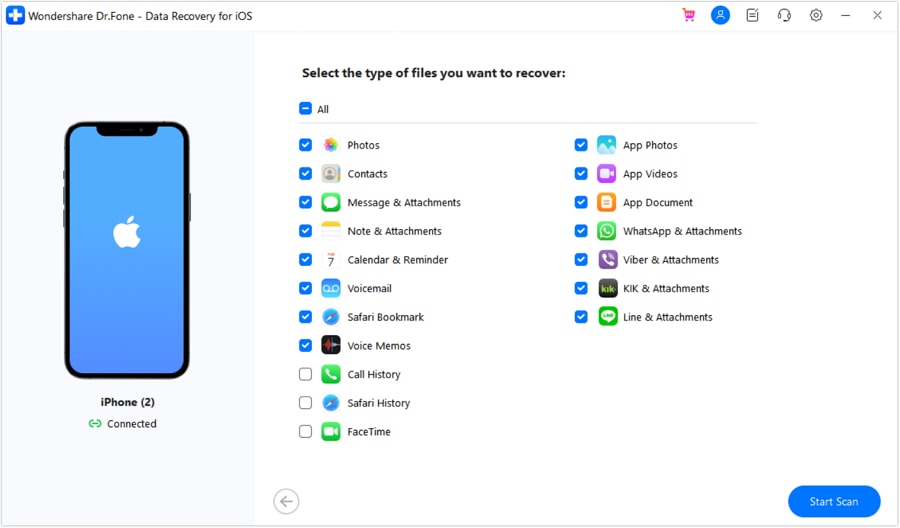
Step 2 Select Messages for Forensic Recovery
Immediately after your device is successfully registered by the system, intentionally pick 'Messages' (or any supplemental file framework you urgently want to restore) natively from the robust list of file typologies that can be forensically recovered. Aggressively hit 'Start Scan' to authorize Dr.Fone to comb through your device's raw architecture for unallocated, deleted file fragments.
-
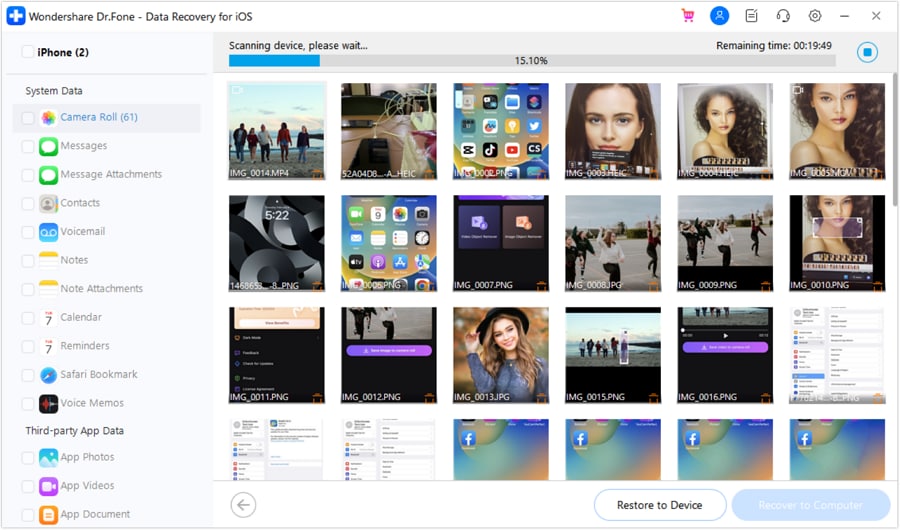
Step 3 Preview and Choose Individual Messages
Once the intensive computational scan has been successfully completed, Dr.Fone seamlessly permits you to meticulously pick the specific messages you actively require to recover. Select the rich preview option, and visually only those explicit messages you flag to recover will be prominently highlighted. For added visual efficiency, you can swiftly toggle a setting to strictly display newly deleted messages, omitting existing text logs entirely.
-
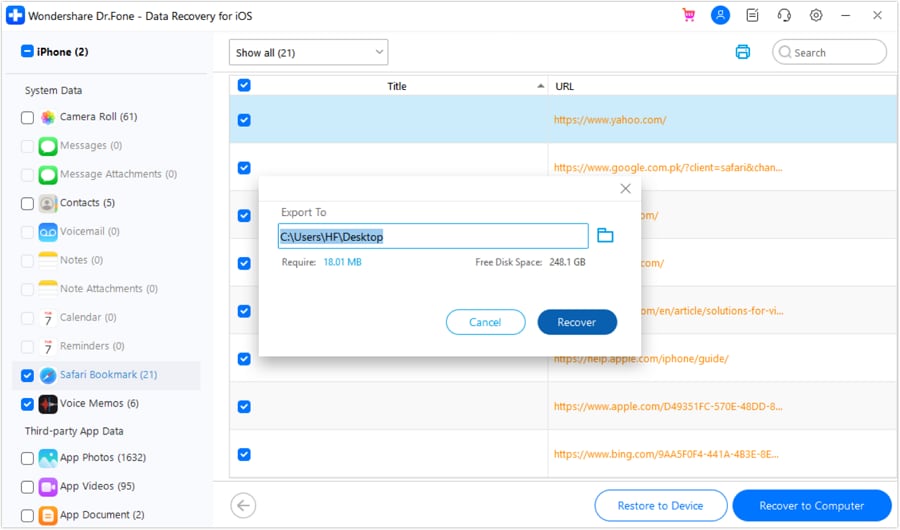
Step 4 Restore Targeted Messages to iPhone or Computer
Expertly recovering these messages back directly to your local iPhone ecosystem can be accomplished smoothly by simply clicking 'Restore to Device' (critically ensure that your 'Find My iPhone' security feature is temporarily disabled during this step), or alternatively by carefully choosing 'Recover to Computer' for offline reading. Your recently deleted messages are now systematically and completely recovered.




Part 3. Which Method Is Best for Looking Up Deleted Messages on iPhone?
There are multiple variable parameters that you should seriously evaluate when you are strategizing how to recover iPhone messages that have suddenly been deleted, moving far beyond simply selecting a random method. Crucial factors include exactly how long the messages have practically been deleted, whether an authenticated cloud or local backup actually exists, and precisely how much fragmented data needs to be safely restored. The detailed structural table below yields a short yet comprehensive comparison spanning the most commonly utilized recovery frameworks, which should immediately help you decisively determine the absolute right solution tailored exactly for your specific crisis:
| Recovery Method | Best For | Backup Needed? | Overwrites Current Data? | Difficulty Level |
|---|---|---|---|---|
| Recently Deleted Folder | Messages mistakenly deleted very recently ( strictly within a 30-day window ) | No | No | Very Easy |
| iCloud / iTunes Restore | Aggressively recovering massive datasets of much older messages via an established archive | Yes – strictly required | Yes – Entire active device is thoroughly reset | Moderate |
| Dr.Fone – Data Recovery | Critical situations when absolutely no backup exists, and the missing messages are missing from "Recently Deleted" | No | No – Uniquely allows highly selective, targeted recovery | Moderate |
In disastrous cases where vital messages are abruptly lost and there remarkably aren't any automated system backups available, Dr.Fone – Data Recovery stands resolutely as a profoundly reliable and aggressively safe desktop tool that can instantly come to your rescue. Thanks explicitly to its signature feature dictating highly selective data recovery, you get to expertly pick out exclusively only those specific text messages you wish to actively recover, operating entirely without disturbing any other operational data housed currently on your iPhone. This definitively makes it a flawlessly perfect option for executing a drastically quick and remarkably stress-free iPhone message recovery operation in 2026.
Conclusion
You might find it exceptionally terrifying and quite frustrating when you inevitably lose critically important text messages deep inside your iPhone's history. And yet, understanding that an array of distinct, robust recovery options exists can make mitigating this disaster quite manageable. By thoroughly knowing how to search deleted text messages on iPhone across various system levels and subsequently recovering them accurately, you might easily salvage critical professional or personal relationships. If the devastating deletion happened just recently, you can simply pivot directly into the native 'Recently Deleted' folder and securely check for temporary ghosts; if it is a historically older deletion event, you can decisively attempt to restore complete iCloud or iTunes system backups, but strictly remember that this destructive action may irreversibly overwrite your current daily device data.
Whenever there are frustratingly no automated system backups on file, or the desperately desired deleted messages have unfortunately expired completely out of the 'Recently Deleted' holding zone, turning toward Dr.Fone – Data Recovery represents the absolute best choice yielding the most dependable, surgical solution. This robust desktop environment essentially grants you the unparalleled freedom to independently recover the erased text messages purely selectively and completely without violently losing any of your existing daily data logic. Thus, it seamlessly provides an exceptionally quick, highly safe, and phenomenally convenient diagnostic method of permanently bringing back all your most crucial, vanished conversation histories.
FAQ
-
1. How far back can I look up deleted messages on my iPhone natively?
If you are relying solely on native iOS features, you can look up and recover deleted messages for exactly 30 days after they are initially erased. This is managed entirely by the 'Recently Deleted' folder introduced in iOS 16. Beyond this strict 30-day window, messages are systematically wiped from Apple's temporary storage, mandating the use of a system backup or specialized third-party desktop tools to extract the overwritten fragments. -
2. Will restoring an iCloud backup to view older deleted texts erase my new photos?
Yes, it absolutely will. When you trigger an iCloud or iTunes backup restoration strictly to recover an isolated deleted message, iOS executes a full-device override. This process thoroughly deletes all current data on your hardware—including brand-new photographs, freshly installed applications, and newly formed chat histories—replacing everything entirely with the historical data snapshot frozen on the precise day the backup was originally created. -
3. Can I locate a permanently deleted text message using the standard iPhone Spotlight search?
No, you cannot. While the native Spotlight feature and the internal Messages search bar are highly effective at surfacing hidden, buried, or archived text strings that technically still exist in your active inbox, they completely lose their tracking ability the very moment a message is formally flagged as deleted. A deleted conversation instantly vanishes from Apple's indexed search registry. -
4. Is it technically possible to recover text messages if they were deleted months ago without an active backup?
Yes, it remains technically possible, but it relies entirely on physical storage dynamics rather than software settings. When a text is deleted, iOS flags the tiny space it occupied as 'empty' rather than physically shredding the underlying code immediately. By directly utilizing advanced recovery software like Dr.Fone, you can perform a deep storage scan. As long as your heavy daily usage hasn't yet randomly saved new data directly over those specific raw storage sectors, the older text fragments can often still be reconstructed.
 Add Wondershare Dr.Fone as a preferred source on Google