Recover photos, messages, WhatsApp, and more — no backup
needed.
Recover photos, messages, WhatsApp, and more — no backup
needed.

 100% Security Verified | No Subscription Required | No Malware

 :
: 
 ChatGPT
 Perplexity
 Gemini
 Claude
 Grok
Grok
Most of the time, an iPhone stuck on "Restore from iCloud – Time Remaining: Estimating" can frustrate many users during setup or data recovery. The restore process may run for hours without any clear progress, creating concern about lost data or a failed backup. Since this issue can stem from weak Wi-Fi, large backup size, low storage, or Apple server delays, users need quick solutions in 2026. Therefore, this guide explains whether this issue is normal and how to fix it using 10 practical, effective ways. When the pause remains after trying all ways, learn how Dr.Fone - Data Recovery can be the best choice to restore multiple data types.
In this article

Part 1. Is "Time Remaining: Estimating" Normal or Stuck?
When your new iPhone is stuck on restore from iCloud, having the thought of whether this is normal or not is evident. To know that, review the mentioned table and determine the situation severity for yourself:
| Situation | Likely Status | What It Usually Means |
|---|---|---|
| Shows "Estimating" For A Few Minutes | Normal | iPhone is checking the backup size and network |
| "Estimating" With a Progress Bar Slowly Moving | Mostly normal | Restore is in early stages, or the network is slow |
| Stuck on "Estimating" For 1–2 Hours, No Change | Probably stuck | Network, backup size, or server issue |
| "Estimating" For Several Hours, No Progress | Stuck | Restore is failing or frozen |
| Keeps Failing or Looping After Multiple Tries | Stuck | Persistent problem with backup or device |
How Long Does iCloud Restore Take on iPhone?
Based on the situation you are having, note that a new iPhone restore from iCloud stuck usually ranges from 15 minutes to a few hours. This is based on the backup size and internet speed, as small backups take about 15-30 minutes on fast Wi-Fi.
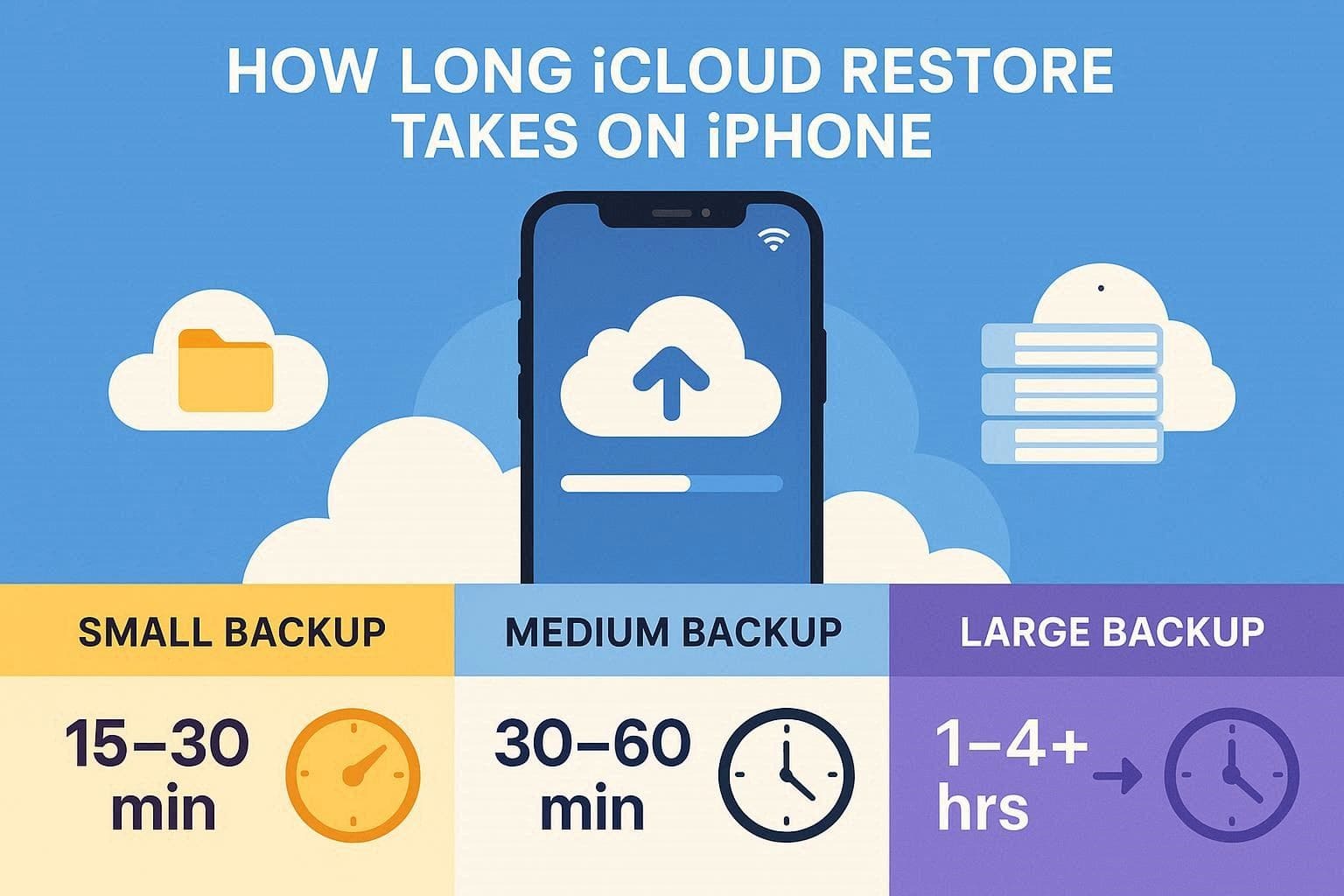
However, medium backups of 5-10GB take around 30-60 minutes. For large backups over 10GB, this can often take 1-4 hours or longer if Wi-Fi is slow or unstable.
Part 2. 10 Quick Fixes for iPhone Stuck on iCloud Restore
To get your iPhone out of the restore from iCloud stuck on estimating loop, this section offers 10 possible solutions.
Try These First (Fast Fixes)
As a quick fix, try the 4 mentioned ways and determine how effective they can be:
Fix 1. Force Restart Your iPhone
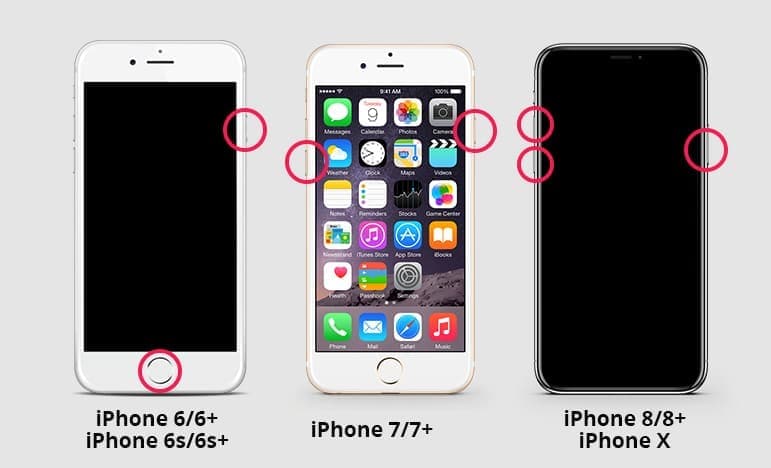
This simple solution fixes minor system issues without deleting data or permanently stopping the restore. Additionally, it refreshes iOS and removes minor glitches that can freeze the restore bar or "Time Remaining: Estimating" status. So, as you force restart the iPhone via the listed steps, the iPhone reconnects to Wi-Fi and iCloud servers and resumes the restore:
- iPhone 8 or Latest Models: Press "Volume Up," then "Volume Down," then hold the "Side" button until the Apple logo appears.
- iPhone 7 and 7 Plus: Hold the "Side and Volume Down" buttons together until the Apple logo appears.
- iPhone 6s or Earlier: Press and hold the "Home" and "Top or Side" buttons together until the Apple logo appears.
Fix 2. Check Wi‑Fi and Switch Network
When the issue stems from network problems, checking Wi-Fi or switching networks can resolve the iPhone restore from iCloud stuck issue. A stable connection allows iCloud to download backup data without interruptions. Furthermore, it prevents switching between Wi-Fi and mobile data, which can break the restore process.
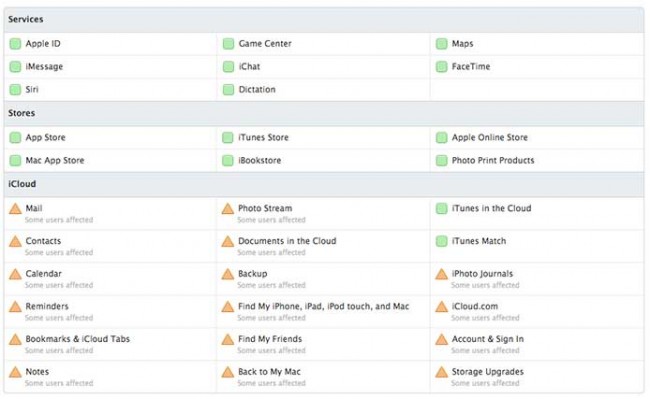
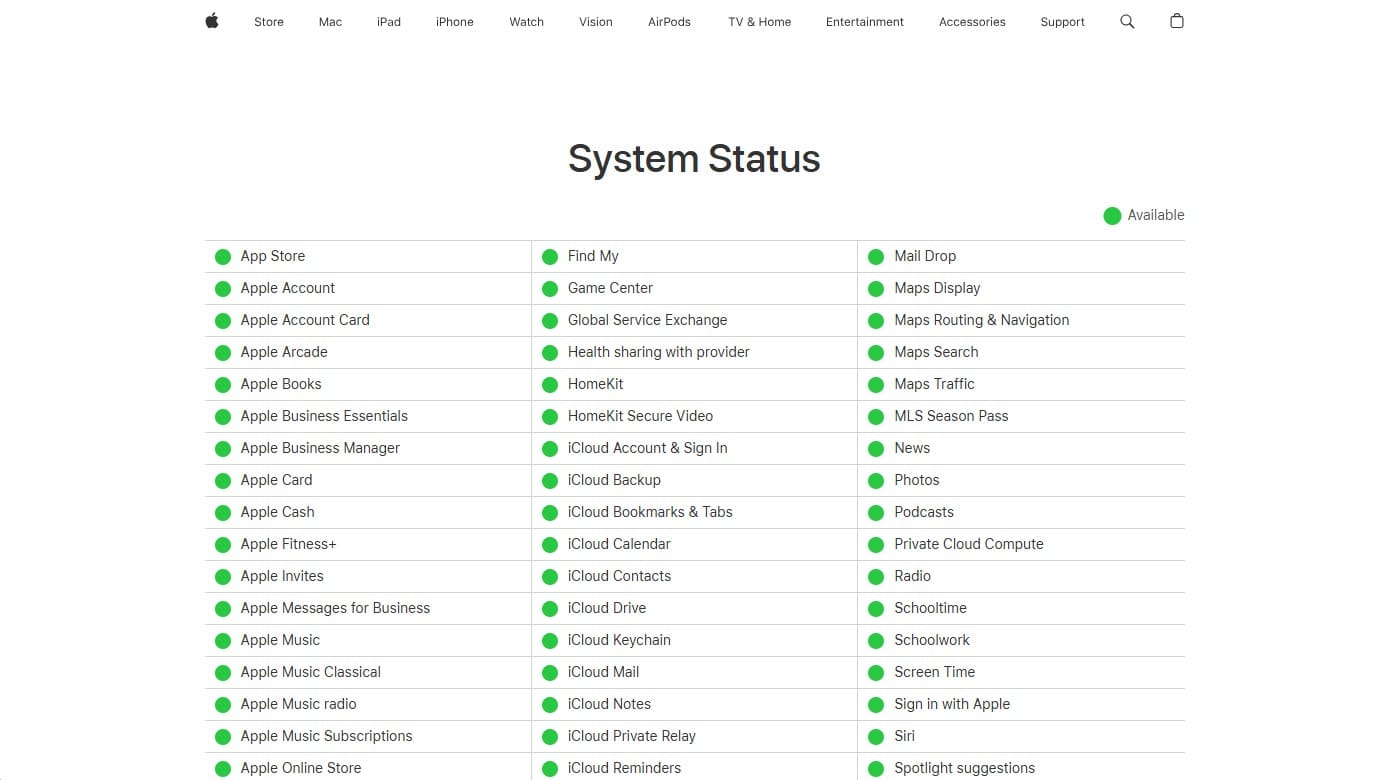
Fix 3. Check Apple System Status
It is also suggested to check the Apple server status to determine whether the problem is on the server or on your iPhone or Wi-Fi. This simple check shows if iCloud Backup or Restore is down or under maintenance, which can freeze the "Time Remaining: Estimating" screen even when your device is fine.
Fix 4. Update iOS to the Latest Version
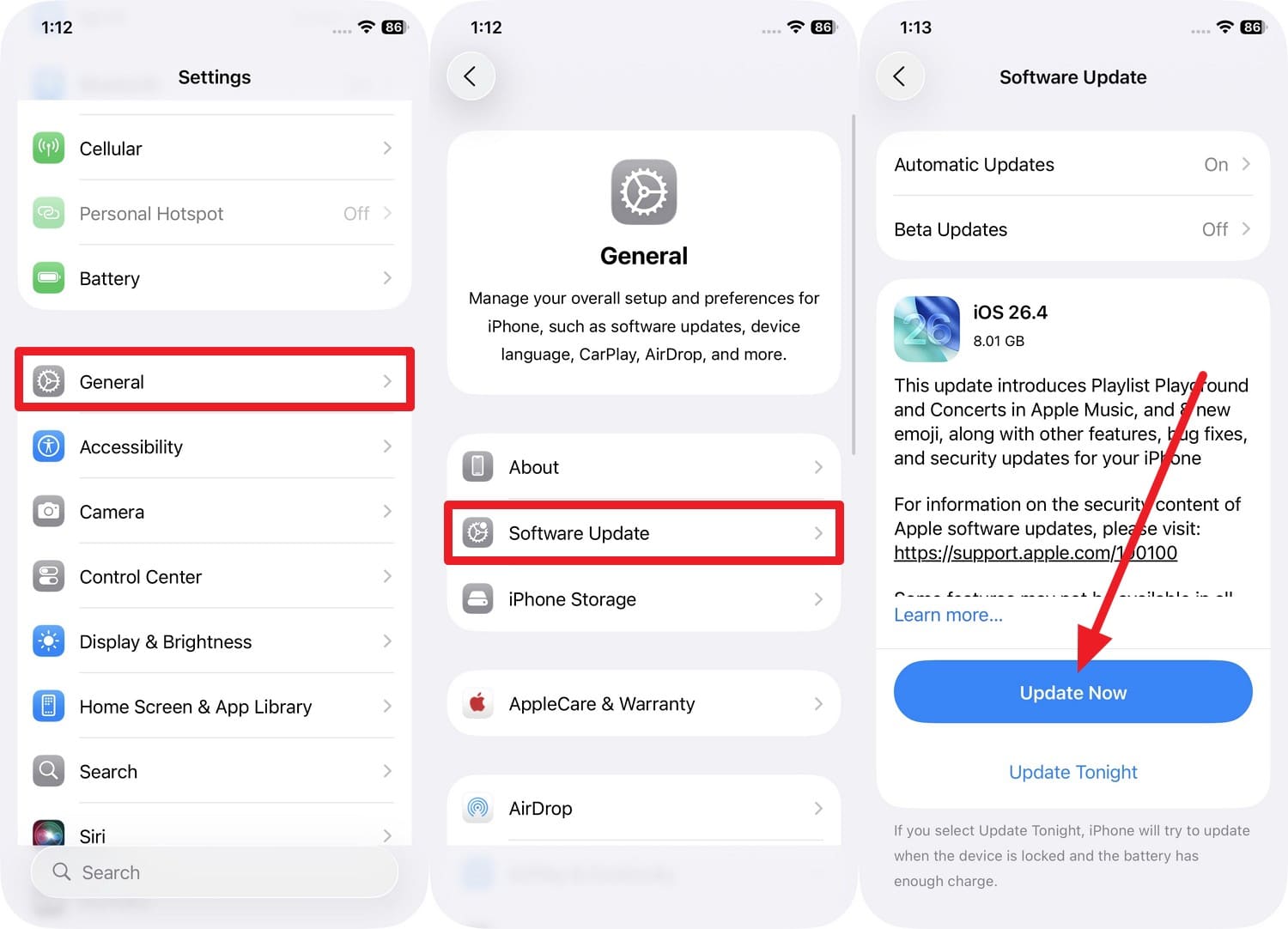
For the constant iPhone stuck in restore from iCloud issue, updating the iOS version can be an effective solution. It ensures better compatibility with iCloud backups, especially when newer backup formats need the latest iOS version. Additionally, new updates can fix known iCloud restore and network issues that may cause freezes, once you update it through the given instructions: Instructions. In the settings, tap "General," then select "Software Update." With an update available, choose the "Update Now" button, and once it completes, determine whether the iPhone is still stuck on iCloud restore.
Advanced Fixes (If Still Stuck)
In many cases, when the quick solutions fail to resolve the iPhone stuck restoring from iCloud loop, 4 given ways might help:
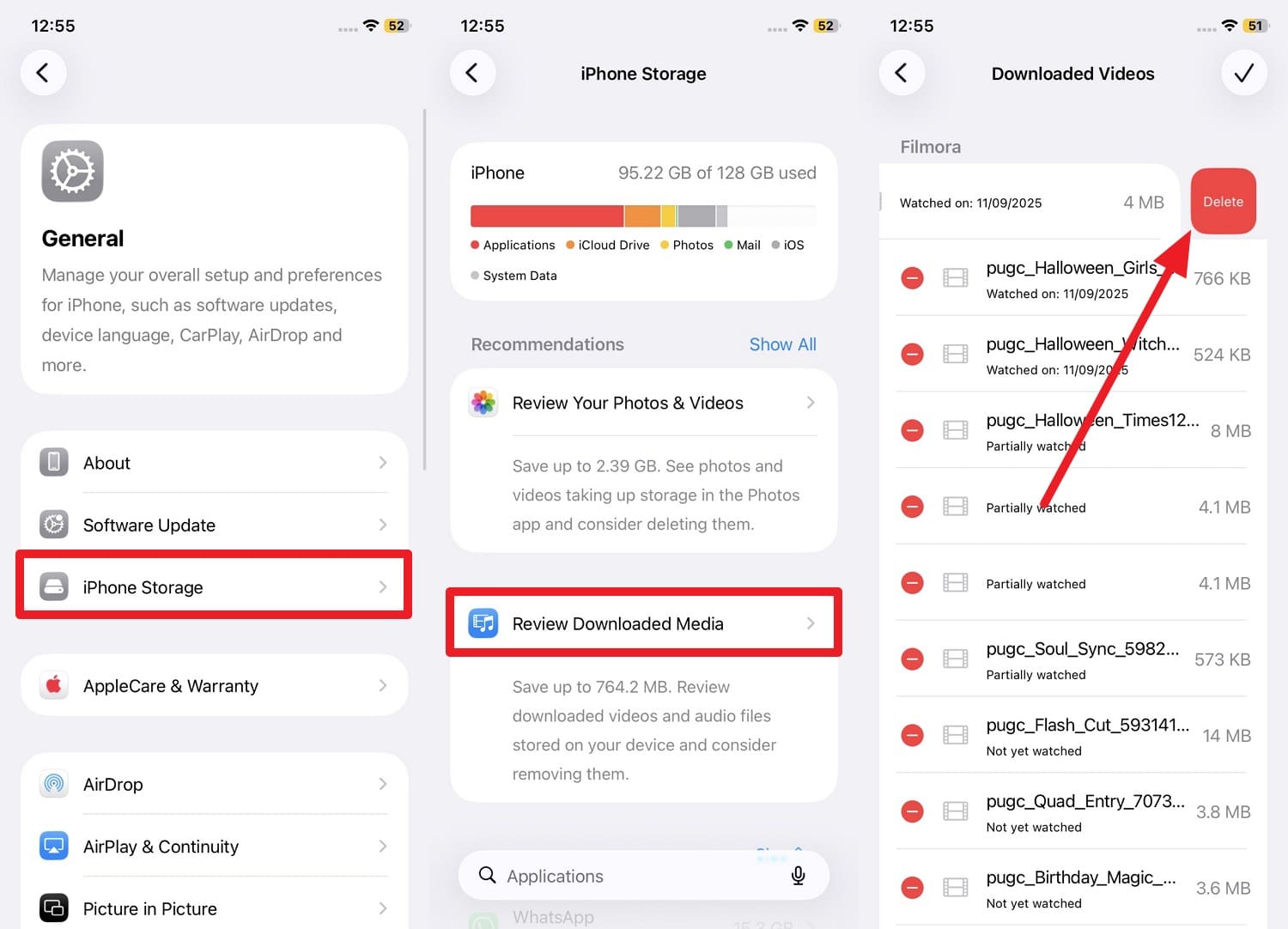
Fix 1. Free Up Local Storage Space
Know that iCloud needs enough space on your iPhone to download and unpack the backup. Thus, making more free space allows the system to handle backup data smoothly and avoids slow performance during the restore. In addition, the kit prevents incomplete or failed restores when one frees up the space through the following guidelines:
Step 1
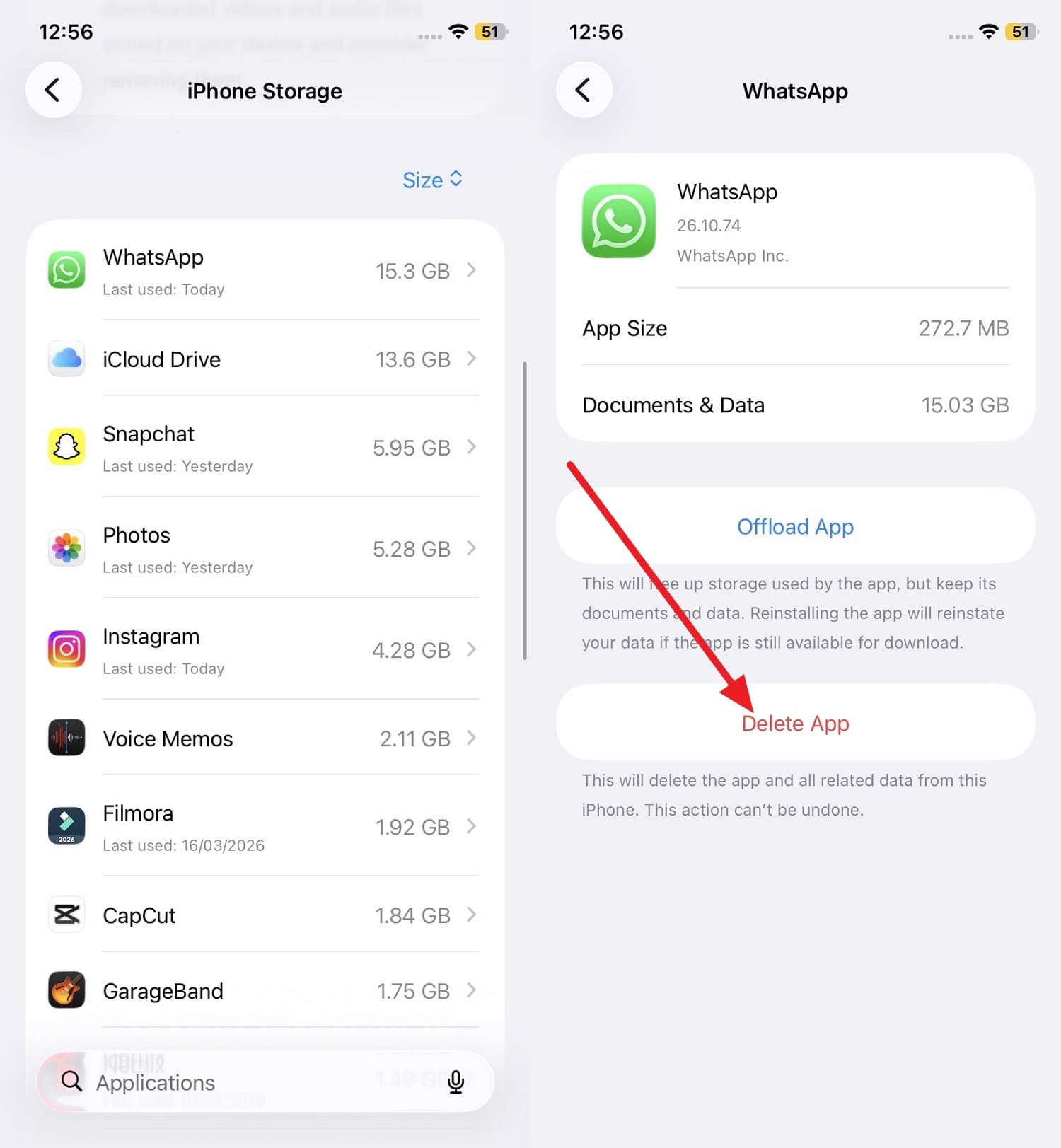
In the General settings, tap on the "iPhone Storage" option and locate the data you seek to remove. Tap on "Reviews Downloaded Media" if it's taking up more space, then press the "Edit" button in the new interface. Once highlighted red, simply swipe left and choose the "Delete" option to make space.
Step 2
Likewise, go back to the iPhone Storage interface and scroll down to choose the unnecessary apps. Here, select the "Delete App" button and see if the iCloud restore resumes.
Fix 2. Reduce Backup Size Before Restoring
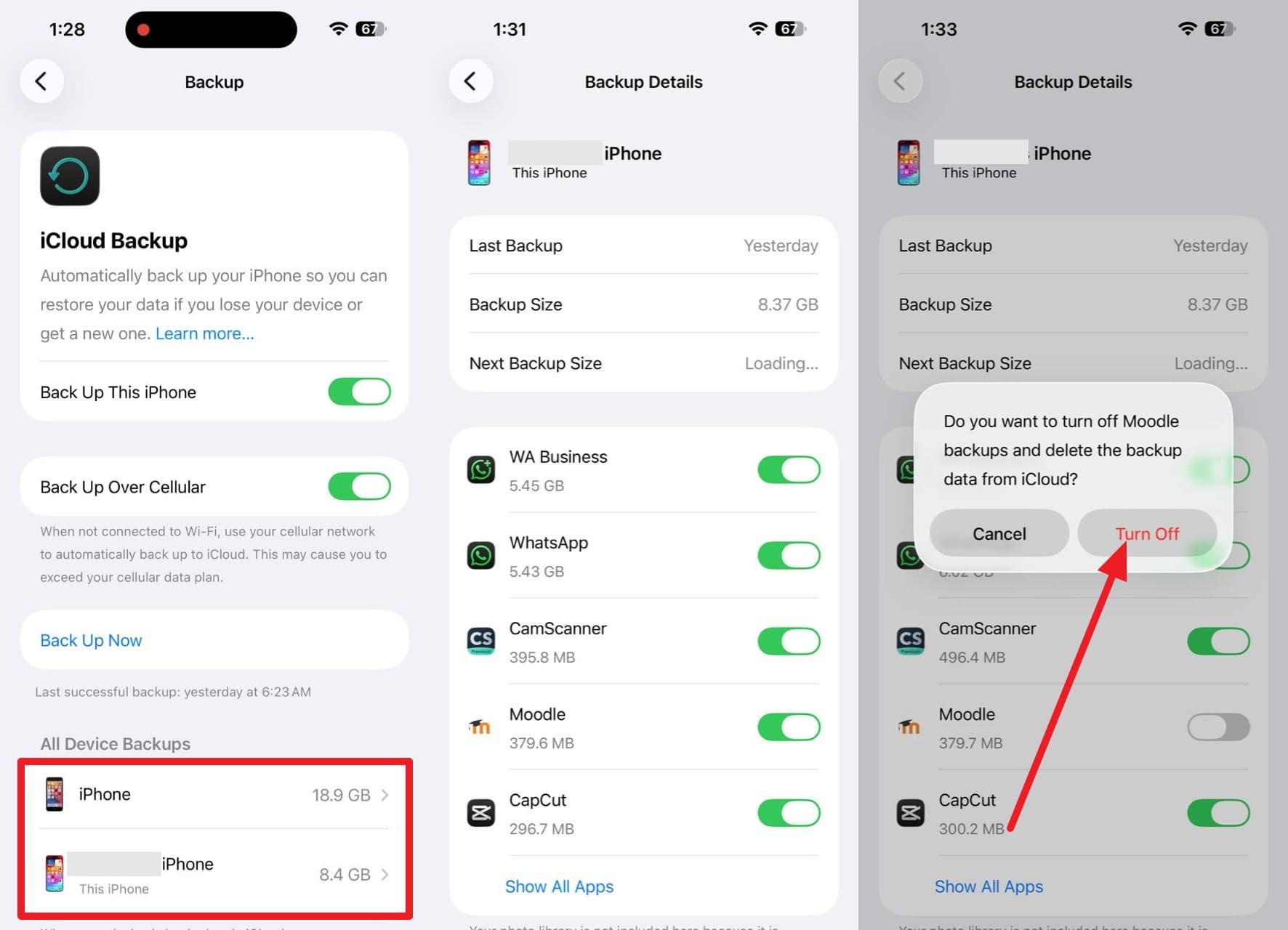
If you still face the iPhone stuck on restoring from iCloud, this solution can help because a small backup restores faster and more smoothly. Additionally, smaller backups lower the chance of network timeouts that can freeze the restore process. It also avoids iCloud storage limit issues that can stop progress, so here is how you can perform this action: Instructions. Tap on the Apple ID in settings to choose the "iCloud > iCloud Backups" option. There, choose the backup you created and toggle off the options for unnecessary data to free up space. When prompted, tap in the "Turn Off" option to confirm.
Fix 3. Sign Out and Back into Apple ID
When nothing resolves, the new iPhone restores from iCloud, time remaining, estimating, signing out, and back into Apple ID. This step clears small sync problems that may not show clear error messages. Moreover, it is useful after changing the Apple ID password to update all services. Since it's safe and simple, as you can sign in again with the same account, here is the guide:
Step 1
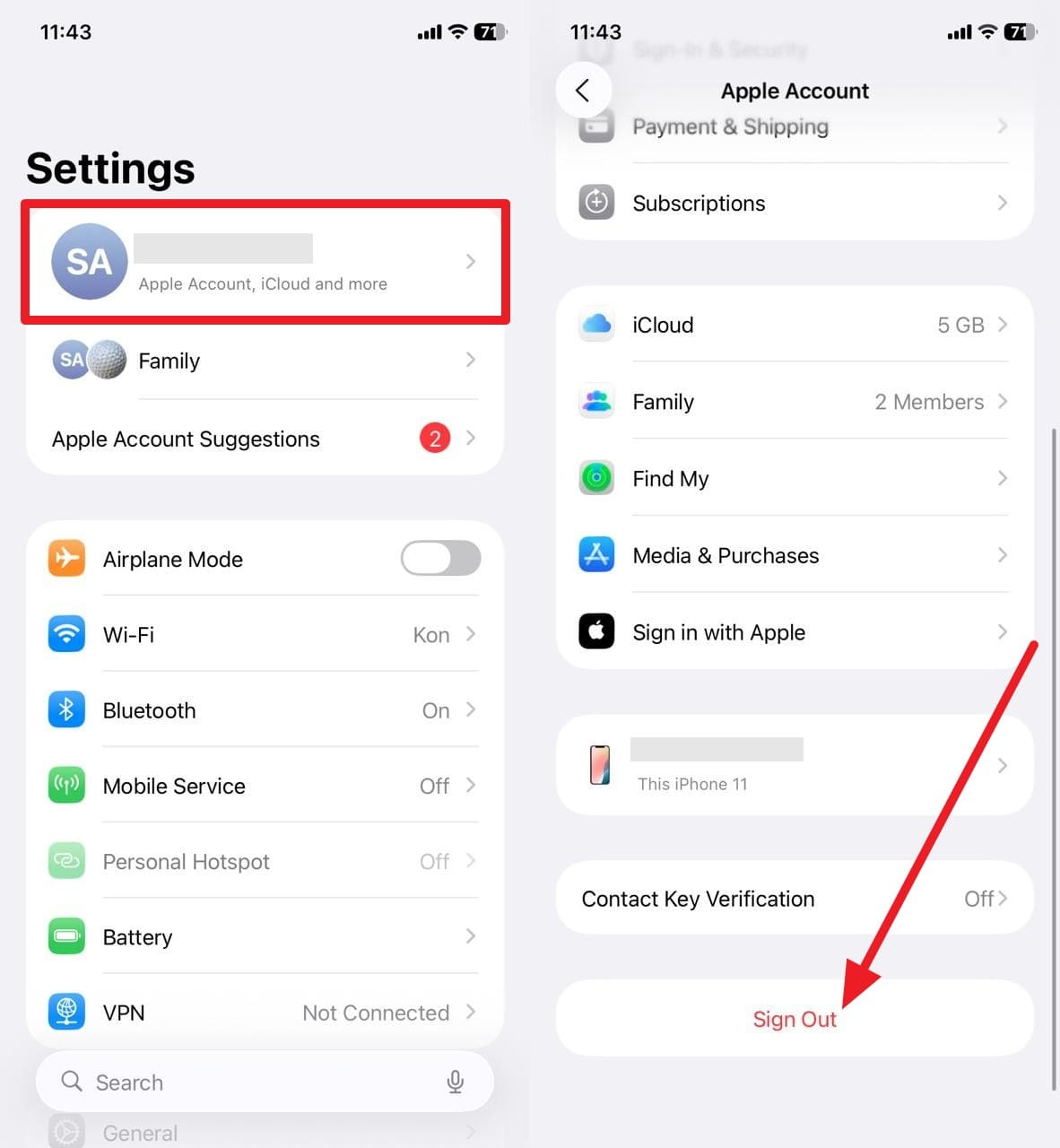
As you press the Apple ID, scroll down on the new interface and choose the "Sign Out" option.
Step 2
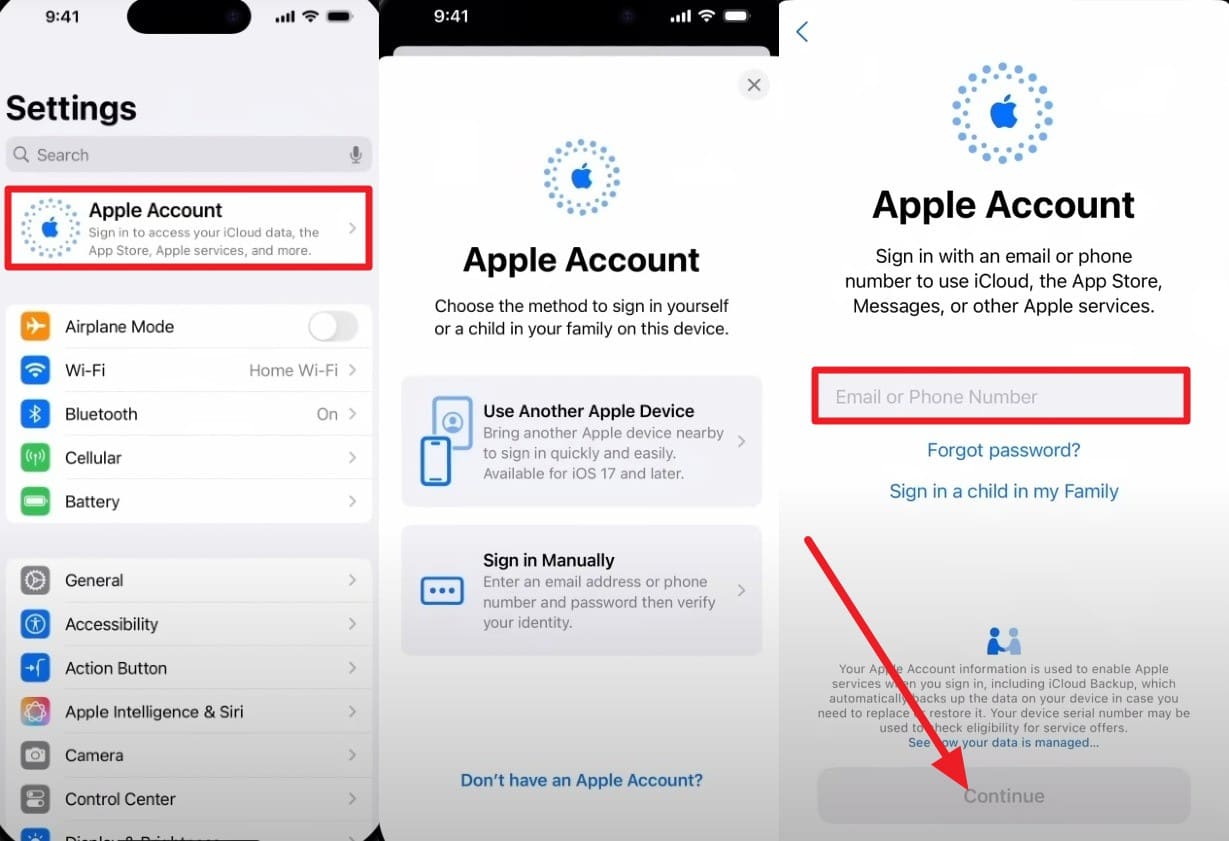
After that, press the "Apple Account" option and choose the method to sign in. When asked to add the Apple ID details, add the code you received, and press "Continue" to follow the given instructions.
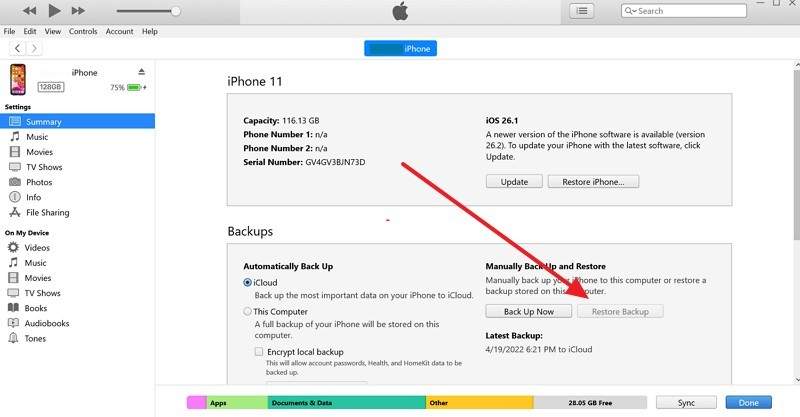
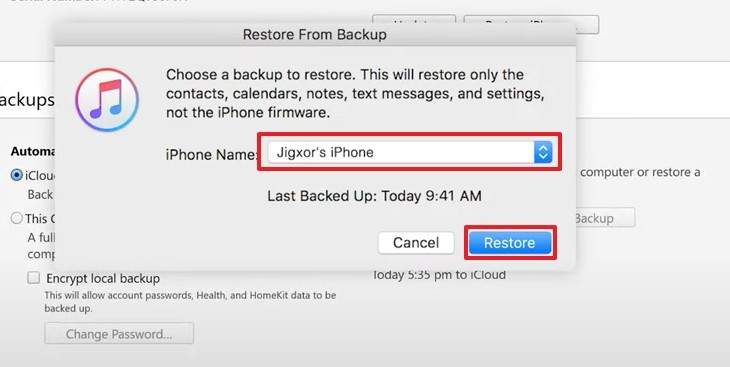
Fix 4. Try Restoring via Computer [iTunes/Finder]
Last but not least, restore via computer because it gives a more stable and direct way than iCloud restore on iPhone. It uses a wired USB connection, which avoids Wi-Fi drops and reduces the chances of freezing or delays. Furthermore, it restores from local Finder or iTunes backup, so no need for a slow iCloud download or restore from iCloud stuck on estimating issue, as demonstrated:
Step 1
Launch iTunes on Windows and tap on the "iPhone" icon at the top left as you choose "Trust" on the iPhone. After that, head to the "Summary" tab and select the "Restore Backup" option.
Step 2
On the popup menu, choose the most recent backup by stretching the "iPhone Name" menu and pressing "Restore" to confirm.
Last Resort
Users who are still stuck in the iPhone stuck on restore from iCloud loop, it's suggested to try the last 2 option given ahead:
Fix 1. Cancel and Wait, Then Restart Restore
You can restart your iPhone and improve Wi-Fi, storage, or settings before trying again. Hence, this helps avoid errors or incomplete restores caused by a broken session. Not just that, it allows better conditions for a smoother restore next time.
Fix 2. Contact Apple Support for Help
Contacting Apple Support helps when all fixes fail, and the restore still stays stuck. They can check your Apple ID and iCloud backup on Apple servers for hidden issues you cannot see. In addition, they access internal error codes and logs to identify the root cause of the stuck restore. If the issue is on the Apple side, they confirm it and tell you whether to wait or try other options.
Part 3. What If iCloud Restore Is Too Slow or Keeps Failing?
Let's say you can't wait until Apple supports reply back, or are tired of cancelling and waiting to fix iPhone restore from iCloud stuck. Here, it's best to opt for a reputable data recovery solution, and this section will introduce you to one.
Faster Alternative to Restore iPhone Data
Dr.Fone - Data Recovery is a well-known data recovery solution optimized for iOS 26 & iPhone 17 Series. This iPhone data recovery software allows you to restore data from iOS, iTunes, and iCloud and claims not to overwrite the data. In addition, the recovery in 100% local and over 35+ data types is retrieved without sharing it with third parties. In terms of usage, it functions on Real-Only scans that arrange the recovered data types categorically, which one can filter as per preferences. Users can selectively restore data types and request iCloud verification upon use to ensure authorized data retrieval. Unlike other tools, you can then export the restored iCloud data to a device or computer and preview it to verify data integrity.
 Recovers data after deletion, crashes, or device damage.
- Supports photos, messages, contacts, WhatsApp, and more.
- Supports all major iPhone, iPad, and iPod models.
- Preview and recover only what you need.

Guide to Recover iCloud Data to Device or Computer via Dr.Fone
Instead of wasting time resolving the iPhone stuck on restore from iCloud issue, if you have decided to use Dr.Fone, here is the detailed guide:
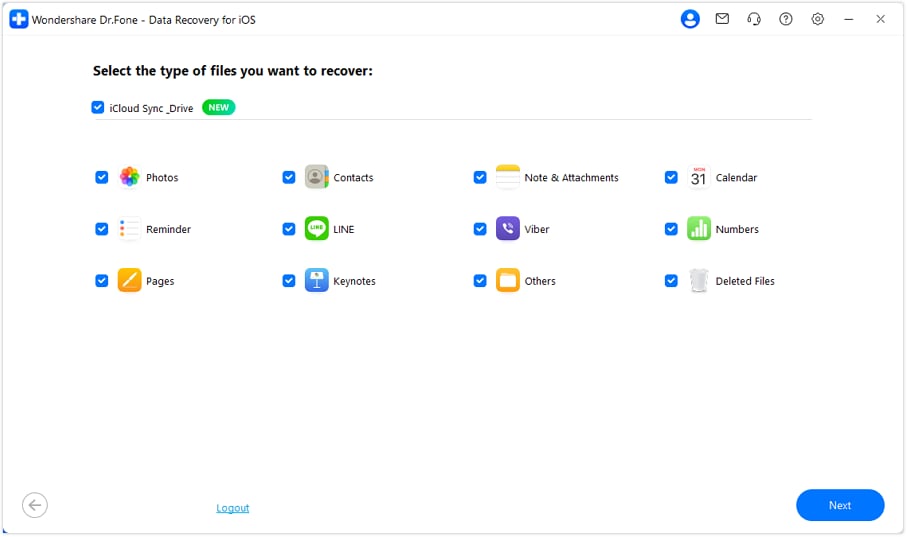
Step 1Locate Data Recovery for iOS to Recover iCloud Data
Tap on the "Recover Data From iCloud" option as you access the Dr.Fone - Data Recovery tool for iOS from the toolbox. When asked, sign in to the iCloud and choose the data types you seek to recover from the backup.
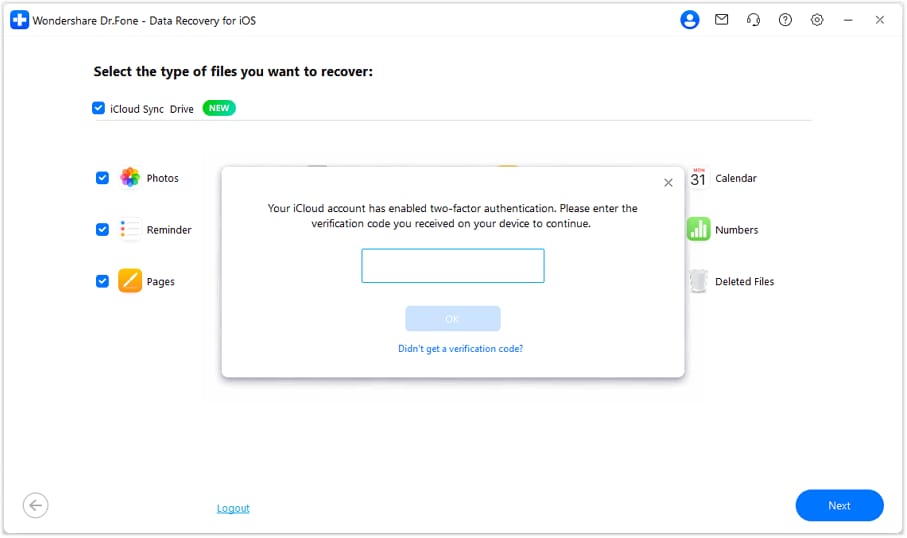
Step 2Add the iCloud Details to Start Scan
Add the verification code you receive after pressing the "Next" button, then tap "Next" again to let Dr.Fone start the scan.
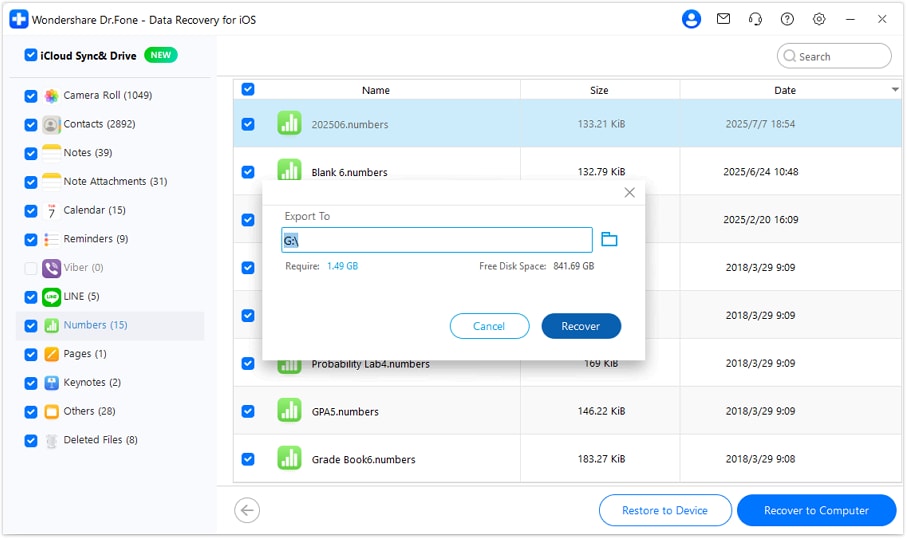
Step 3Choose Export Options and Desired Location to Save
As the data is displayed, choose between "Restore to Device" and "Restore to Computer" based on preferences. After that, pick the "Restore To" location in the popup and press the "Continue" button to save data. If you choose to "Restore to Device," connect the device when prompted, then tap the "Recover" button.




Conclusion
To sum up, having the "Restore from iCloud – Time Remaining: Estimating" issue is concerning, or you just have to sit back and wait. To answer that, this guide has explained the severity of this loop and has provided the 10 simple and advanced ways to fix it. However, if the problem persists, usage of Dr.Fone - Data Recovery is suggested for local, safe, and effortless data retrieval of 35+ data types.
FAQs
-
1. Does "Estimating" mean the restoration has stopped?
No, it does not mean restore stops, but it shows the system is still preparing data for the next restore step. However, a long delay without change may show a problem, so you need to check the network or device condition. -
2. Will I lose data if it stays on "Estimating"?
No, you do not lose data, because your iCloud backup stays safe on Apple servers during the restore process. However, if you cancel and overwrite the backup, data loss may occur, so always act with care. -
3. Does backup size affect this issue?
Yes, a large backup size takes more time, so the estimating stage may stay longer before the actual restore progress starts. Moreover, larger files require more data transfer, so slow internet can increase latency and cause longer waiting times.
 Add Wondershare Dr.Fone as a preferred source on Google