 Recover photos, messages, WhatsApp, and more — no backup
needed.
Recover photos, messages, WhatsApp, and more — no backup
needed.

 100% Security Verified | No Subscription Required | No Malware

 :
: 
 ChatGPT
 Perplexity
 Gemini
 Claude
 Grok
Grok
What happens if you are casually scrolling through your Twitter (now X) timeline, spot a fascinating post you want to read later, but when you refresh the page, it has suddenly vanished? Countless users face this frustrating digital disappearing act and constantly wonder how to view deleted tweets that no longer populate public profiles or search feeds. While Twitter effectively scrubs these removed posts from its live servers to protect user privacy, the internet rarely forgets entirely.
Depending on the account's visibility and how quickly the post was removed, there are several viable workarounds to uncover erased content. From leveraging massive online internet archives and search engine cached pages to utilizing advanced third-party tools that track digital footprints, recovering this information is often possible.
To help you navigate this complex digital landscape and understand exactly how to see deleted tweets, we have compiled this comprehensive and practical guide. We will explore both native methods for your own account and external archives for other people's posts. Furthermore, if you need to recover local media files associated with those tweets, you will discover how Dr.Fone - Data Recovery makes recovering phone data remarkably straightforward and secure.
In this article
Part 1. Can You See Deleted Tweets on Twitter?
Before diving into the technical mechanics of how to read deleted tweets, it is crucial to understand how Twitter's backend system operates regarding data deletion. For the average user, the moment a tweet is actively deleted, it immediately disappears from timelines, user profiles, hashtag searches, and entirely from the public view. Twitter systematically removes the content from its active hosting servers.
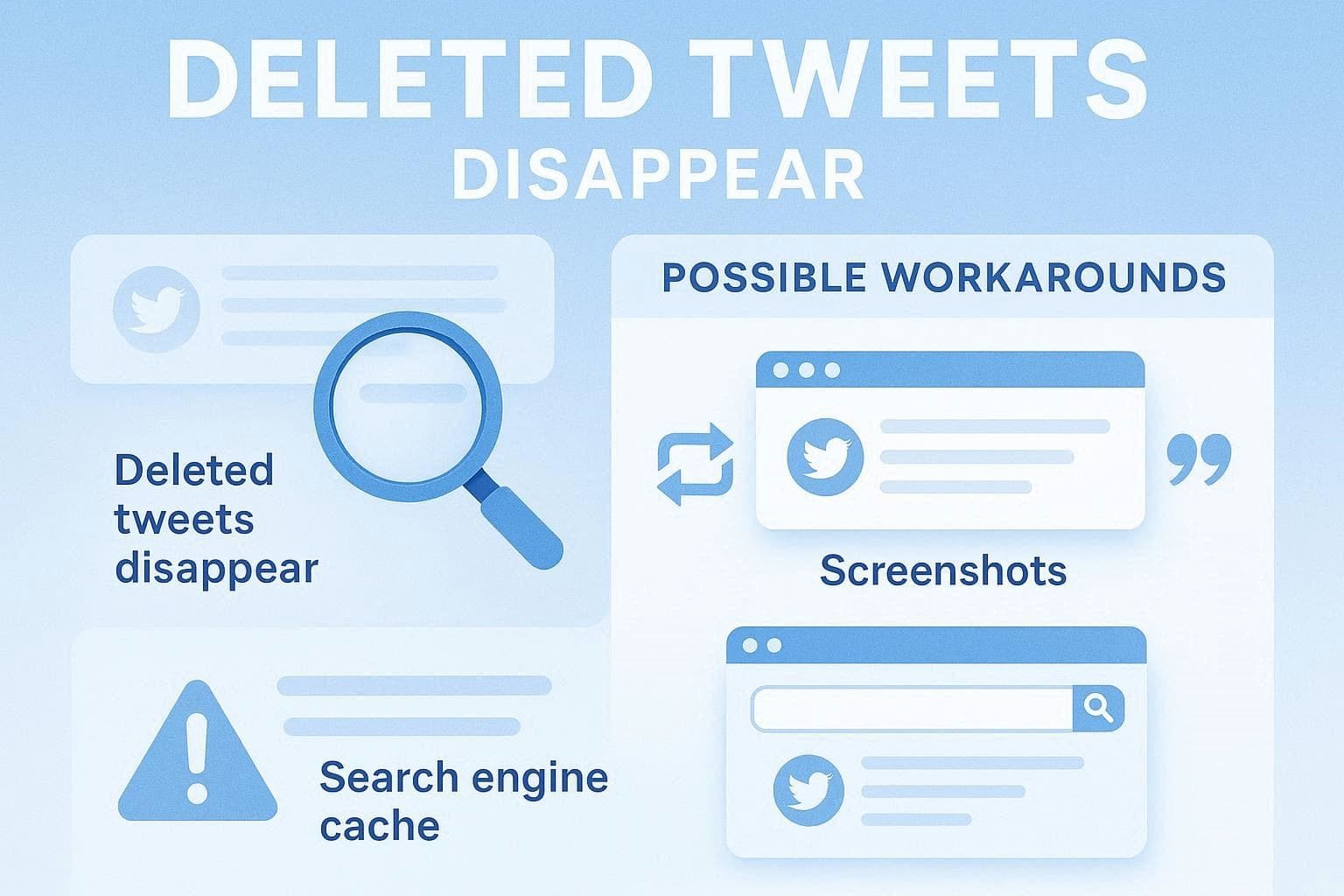
However, temporary system logs might retain fragmented metadata for a brief period. Consequently, while the platform itself won't show the post, you can often find remnants of it trapped in user-taken screenshots, quote tweets that retain text, large third-party archival websites, or deep search engine caches. It is important to note that these external traces are entirely outside of Twitter's direct jurisdiction and control.

Why Do Tweets Get Deleted?
Understanding the underlying motivations for post removal can often explain why certain content is harder to find. If you are desperate to know how to see deleted Twitter posts, consider these common scenarios that trigger users or the platform to erase content:
- Immediate Regret: The most common reason is second-guessing. People frequently delete tweets after realizing a joke fell flat, an opinion was too controversial, or fearing potential damage to their professional reputation, personal relationships, or future job opportunities.
- Typographical Errors: Users routinely remove tweets simply because they contain glaring typos, incorrect factual statements, or awkwardly phrased sentences. Since editing features are restricted or limited by time, deleting and republishing a corrected version is the standard practice.
- Offensive or Harmful Content: Tweets containing explicit hate speech, harassment, severe threats, or extremely harsh language are prime candidates for removal. The original author might delete them out of sudden remorse, or Twitter's moderation algorithms may forcefully remove them for violating community guidelines.
- False Information and Spam: Posts pushing unverified rumors, dangerous medical claims, or relentless spam links frequently face deletion. Authors might realize their mistake upon being corrected, or platform administrators may step in to sanitize the timeline.
- Account Status Changes: Sometimes tweets vanish not because they were individually deleted, but because the entire account's status shifted. If an account is switched to private, suspended by Twitter, or fully deactivated by the user, all historical posts are hidden from public view instantly.
Part 2. How to See Deleted Twitter Posts: Your Own Account
If you are trying to figure out how to find deleted tweets that you personally authored and subsequently removed, there is a dedicated native method you can explore. This section will guide you through navigating Twitter's internal archiving system to see if locating your own removed content is still a viable option.
Does Twitter Archive Include Deleted Tweets?
Ideally, Twitter's personal data download feature can serve as a lifeline, but it comes with severe limitations. Your requested data archive may include very specific, limited details about your recently deleted tweets, but this window of opportunity is exceedingly short. When you request a comprehensive data archive from X, it does not typically show deleted tweets as fully readable, visual posts. Instead, it presents them as raw IDs containing basic background details.
This stripped-down data usually includes the original date of publication, exact timestamp, internal link ID, and basic engagement metrics (likes/retweets). Furthermore, this metadata usually only persists within Twitter's backend servers for roughly 14 days post-deletion. Once that two-week grace period expires, the internal records are permanently purged and will not populate in any newly generated archive files. Importantly, this archive is strictly private and tied to your credentials; you cannot use this method to uncover how to find deleted tweets from other users.
-
Step 1 Access Your Account Settings
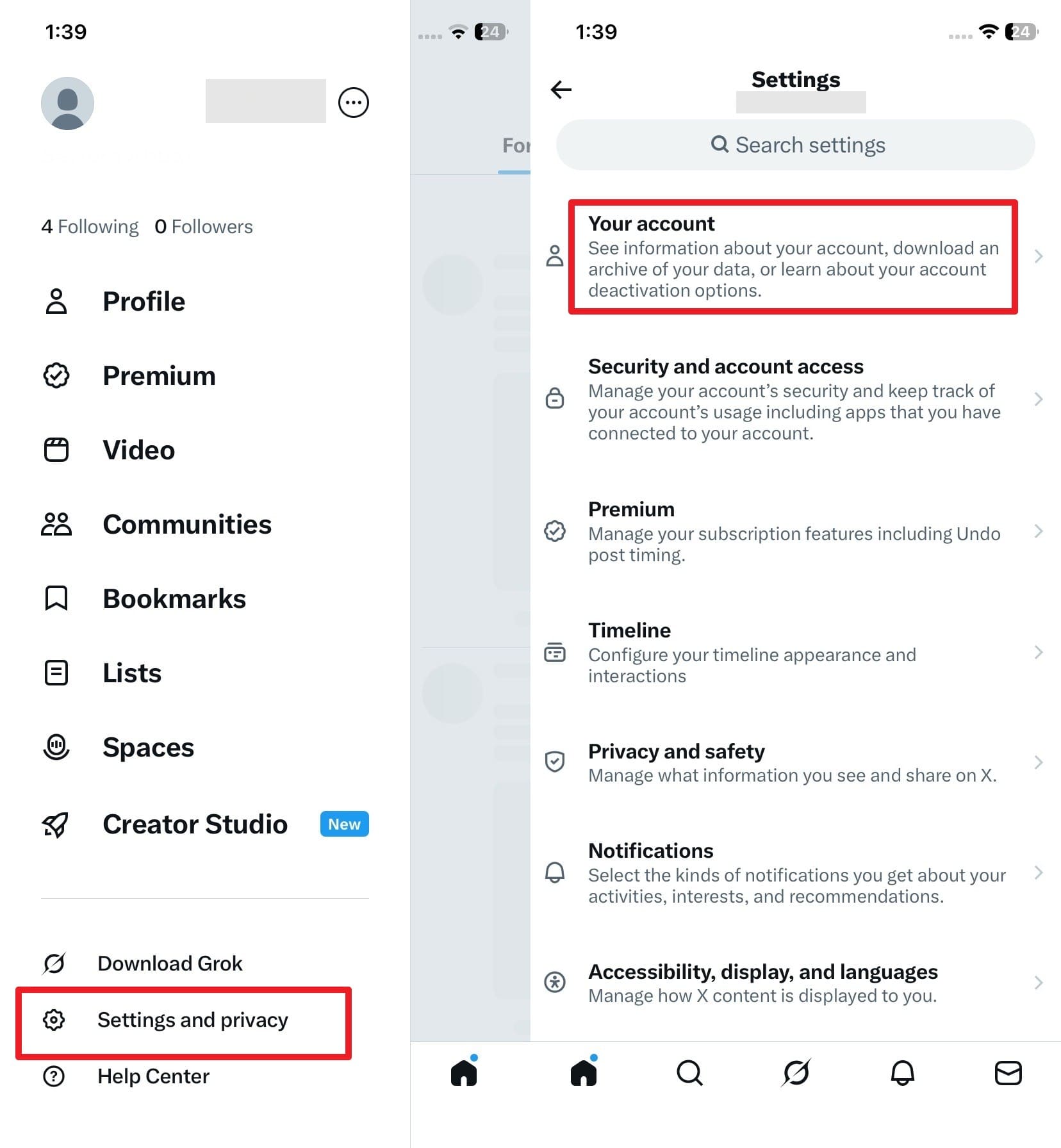
Open the Twitter/X application or website. Tap or click on your "Profile" icon located in the navigation menu. Scroll down and choose the "Settings and Privacy" option, then proceed to select the "Your Account" menu to view your data options.
-
Step 2 Request and Download Your Archive
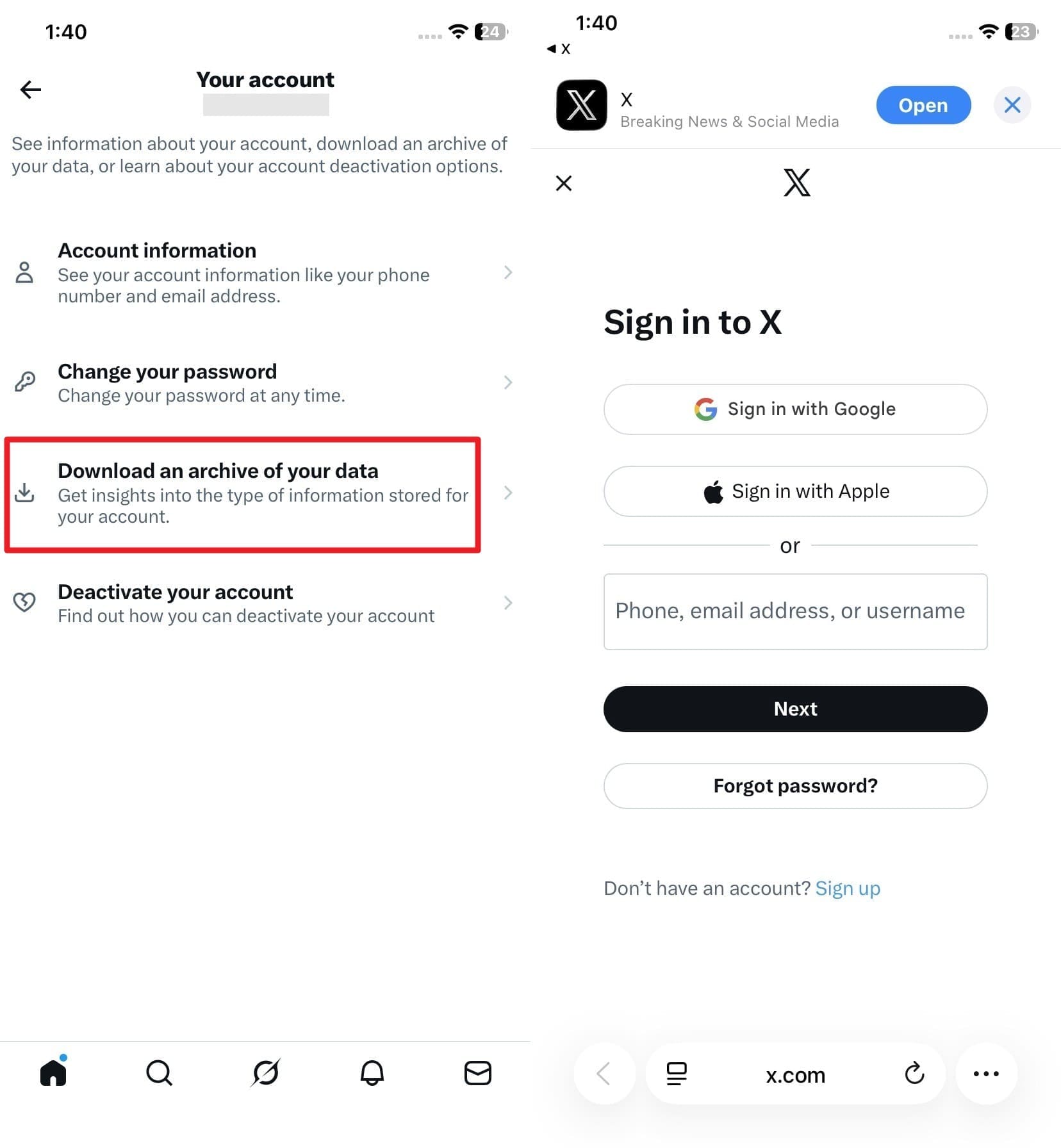
Within the account menu, tap on "Download an Archive of Your Data." You will be prompted to re-enter your password to sign in to your X account securely. Submit the request and wait patiently. Twitter requires time to compile this extensive ZIP file. You will receive an email notification (usually within 24 hours). Once notified, click the "Download Archive" button, save the .zip file to your PC, extract it, and navigate through the HTML/JSON files to locate your deleted tweet metadata.
Part 3. How to Read Deleted Tweets: Others' Posts
When faced with the challenge of learning how to view deleted tweets published by someone else—such as a celebrity, politician, or public figure—you cannot rely on native account settings. Instead, you must turn to external internet sleuthing techniques. Here are the most effective workarounds:
1. The Wayback Machine
The Internet Archive's Wayback Machine is a phenomenal digital library. While it isn't designed specifically to restore deleted tweets dynamically, it excels at providing historical references and conducting reputation checks. The Wayback Machine actively crawls the web and takes snapshots of public profiles, freezing them in time. If a tweet was visible during a crawl but deleted weeks later, that specific snapshot will still display the tweet exactly as it appeared.
This tool is invaluable for reviewing historical discourse, verifying controversial quotes, or confirming exactly what a high-profile account shared on a specific date, complete with accurate timestamps. To leverage this archive and see deleted tweets from a public account, follow these logical steps:
-
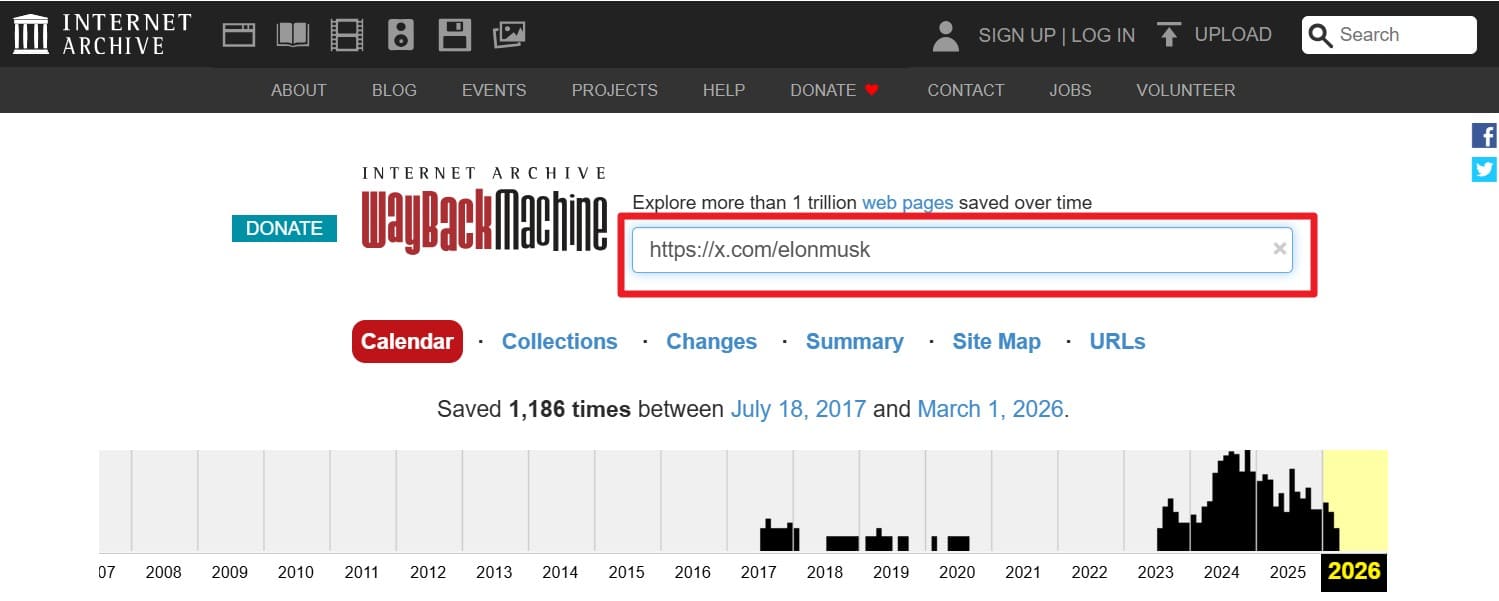
Step 1 Enter the Target Twitter URL
Open your preferred web browser and navigate to the Wayback Machine website. In the prominent text box at the top of the page, paste the full URL of the specific Twitter profile (e.g., https://twitter.com/username) and press the "Enter" key to initiate the search.
-
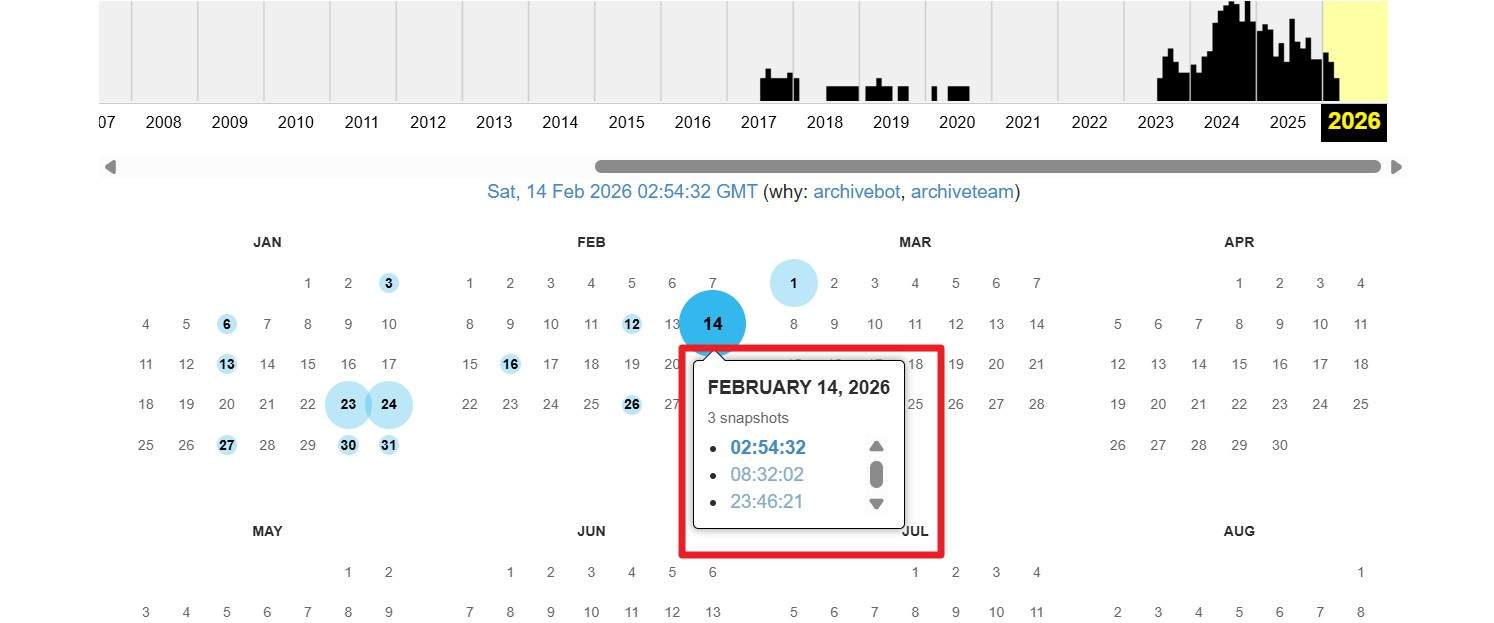
Step 2 Navigate the Historical Timeline
Once the system processes the URL, it will present a timeline spanning several years, accompanied by a calendar. Look for dates highlighted with colored circles (usually green or blue), indicating that a snapshot was successfully captured on that day. Hover over a specific date to view the exact times snapshots were recorded.
-
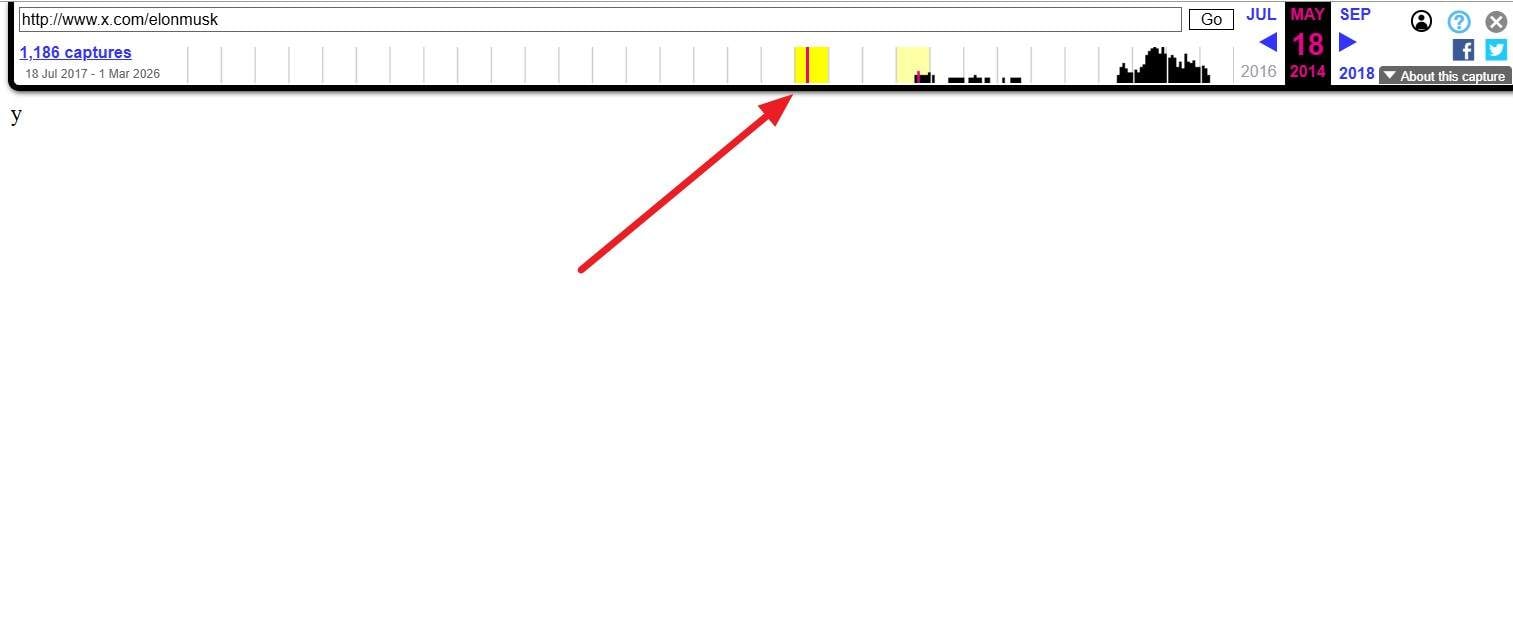
Step 3 Analyze the Snapshot
Click on a specific timestamp to load the archived page. Use the slider tool situated at the very top of the interface to seamlessly move back and forth between different captured time periods, scanning the timeline to locate the specific deleted tweet you are hunting for.
- Completely free to use with no account registration required.
- Highly effective for finding old archived tweets from prominent public figures.
- Maintains visual layouts and accurate timestamps for historical proof.
- Archiving is sporadic; it rarely captures posts deleted within minutes.
- Site rules allow account owners to request exclusion, blocking stored pages.
- Media files, embedded videos, and deep comment threads are frequently broken or missing.
2. Using Google Cache
If you are still asking yourself how I can see deleted tweets that were wiped out just moments ago, checking the Google Cache might yield immediate results. This functions as a temporary stopgap to view content that was public and successfully indexed by Google's bots shortly before the user initiated the removal.
If Google's crawler stored the profile page during its most recent pass, the text-only or cached visual copy may still openly display the tweet for a short duration even after Twitter has deleted it. A successfully cached page can also serve as credible third-party proof validating what was visible online at that precise moment.
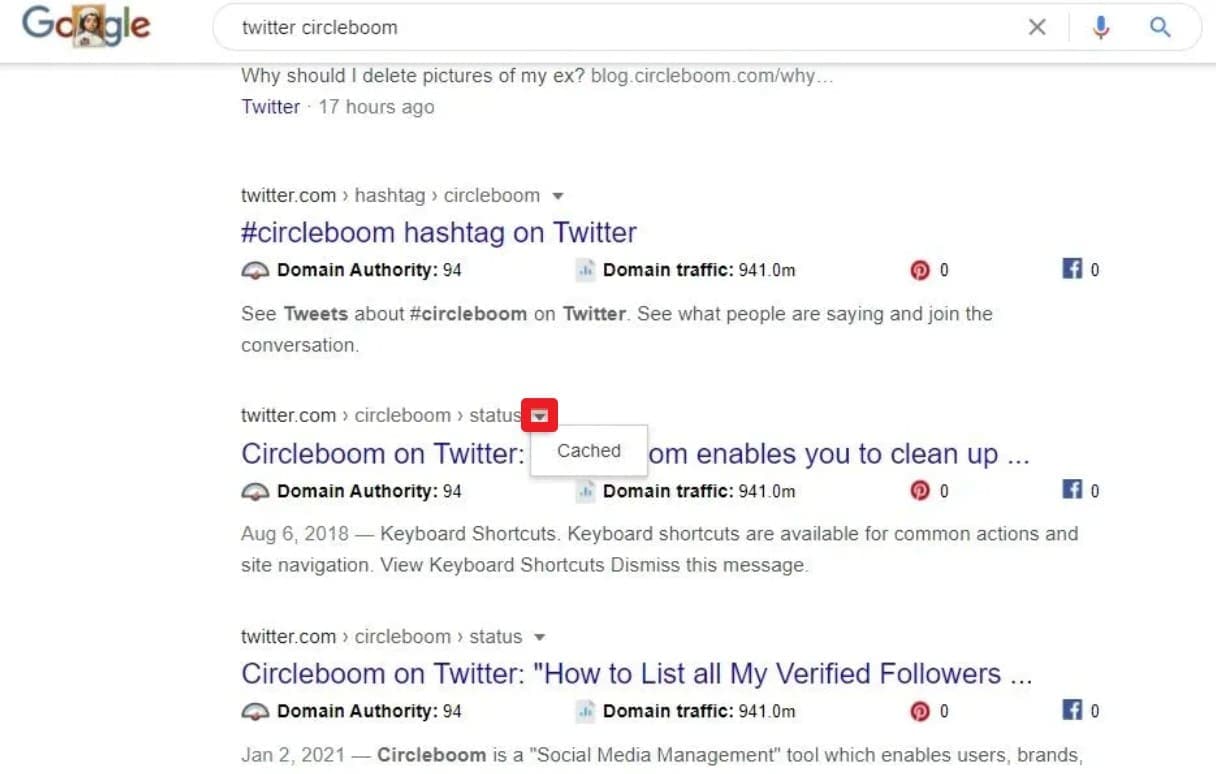
Instructions: In the standard Google search bar, type in the specific Twitter account name or exact phrasing of the suspected tweet. If a relevant result appears, locate the small "Three Dots" icon next to the URL, click it, and look for a "Cached" button in the pop-up panel. Scan the resulting frozen page for the post you seek.
Pro Tip: Use Dr.Fone to Recover Deleted Twitter Data from Your Android or iPhone
While exploring the various methods of how to see deleted Twitter posts online, it's easy to forget that evidence of these tweets often resides closer to home. You might desperately want to restore content—such as downloaded tweet images, screen recordings of controversies, or saved screenshots—that was stored locally on your smartphone but was accidentally wiped. In such critical data loss scenarios, robust recovery software is your best defense.
The Dr.Fone - Data Recovery toolkit, featuring dedicated modules for both Android Recovery and iOS Recovery, enables you to safely retrieve over 14 different data types in massive bulk or selective batches. Whether you need to resurrect old photos, crucial videos, or document caches related to a deleted timeline, this tool ensures deep-level local recovery. It maintains pristine compatibility with the latest iOS 26 and iPhone 17 Series, as well as spanning across 6000+ distinct Android models.
Beyond standard device scanning, users can effortlessly retrieve data buried within iTunes and iCloud backups, rendering it an exceptionally versatile choice for the entire Apple ecosystem. For Android users, Dr.Fone operates smoothly without demanding complex root access or confusing USB debugging setups in many scenarios. It can even restore lost files linked to X (Twitter) from severely broken or unresponsive Android devices, boasting an industry-leading success rate. Users also benefit from an intuitive preview feature, allowing you to meticulously filter retrieved media content before executing a final export to your computer.
 Scan Android phones and tablets directly.
- Preview and recover only what you want.
- Supports WhatsApp, photos, videos, contacts, and more.
- Works with 6000+ Android devices.

Guide to Recover the Deleted Phone Data from Android Using Dr.Fone
Now that you possess the core answers regarding how to view deleted tweets online, follow these clear steps to learn how to recover related X media and data locally using Dr.Fone's intuitive interface:
-
Step 1 Opt for the Android Data Recovery Tool
Launch the main Dr.Fone application on your computer and select the "Data Recovery" module from the home dashboard. Choose the "Recover Android Data" option specifically. When prompted by the software, use a reliable USB cable to securely connect your Android device to the computer.

-
Step 2 Pick the Data Types to Recover
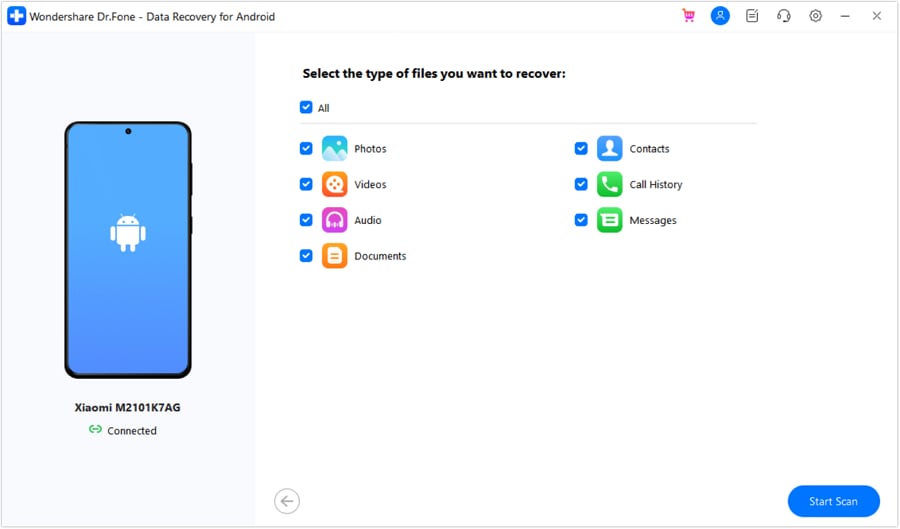
Once the device is successfully recognized, the screen will present various file categories. Choose the specific types of media you seek to recover (e.g., Photos, Videos, or Documents that might contain saved Twitter data) and confidently press the "Start Scan" button to initiate the deep search process.
-
Step 3 Pick the Recover Option & Export To Location
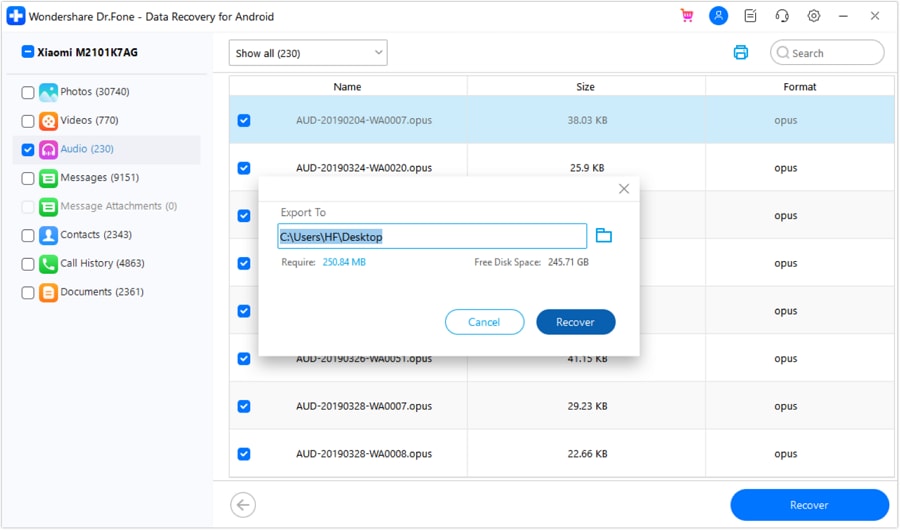
After the comprehensive scan concludes, the interface will populate with recoverable files. Expand the side menus to filter the retrieved media carefully. Check the boxes next to the items you wish to save, and press the prominent "Recover" button at the bottom right. In the subsequent popup dialog, designate a safe "Export To" location on your computer's hard drive and tap "Recover" once more to permanently save the recovered data.




Conclusion
To sum up the complexities of social media persistence, numerous users frequently find themselves desperately asking how to see deleted tweets whenever they miss out on critical context or important digital details. Therefore, this detailed guide has systematically shared the most seamless and effective ways to locate vanished tweets from both public and private accounts utilizing tools like the Wayback Machine and built-in data archives.
However, when the solution requires retrieving lost screenshots or downloaded media related to Twitter from your own device, employing Dr.Fone - Data Recovery is the most highly recommended approach. This exceptionally powerful software empowers you to seamlessly retrieve over 14 distinct data types across both Android and iOS ecosystems, complete with a vital option to thoroughly preview and safely export those crucial media files back into your possession.
FAQ
-
1. Can deleted tweets negatively affect someone's public reputation later?
Absolutely. Deleted tweets can still severely harm a reputation if other observant users have proactively taken screenshots, saved, or broadly shared the text before it was removed. Therefore, highly controversial old posts can easily resurface on alternative platforms and permanently affect public image, career prospects, or general trust. -
2. Can law enforcement agencies legally access deleted tweets?
In specific and serious legal cases, law enforcement entities may compel Twitter (X) to hand over platform data through formal legal subpoenas. However, their ultimate success and access depend heavily on the prevailing regional laws, the specificity of court orders, and the strict technical limitations of Twitter's internal data retention timeframe. -
3. Can deleted tweets still appear visibly in screenshots shared by others?
Yes, the most common way deleted content survives is through screen captures. Anyone can quickly take a screenshot mere seconds before the original tweet gets permanently deleted. Consequently, that static image file can spread virally online and cause significant reputational danger, entirely independent of the tweet's removal from the active platform. -
4. Are third-party websites claiming to recover deleted tweets safe to use?
You should exercise extreme caution. While established archival tools like the Wayback Machine are completely safe and secure, many obscure third-party websites claiming to "reveal deleted tweets" are often scams designed to harvest your login credentials, inject malware, or spam you with invasive ads. Always avoid services that demand your Twitter password or mandate downloading suspicious software.
 Add Wondershare Dr.Fone as a preferred source on Google



