Recover photos, messages, WhatsApp, and more — no backup
needed.
Recover photos, messages, WhatsApp, and more — no backup
needed.

 100% Security Verified | No Subscription Required | No Malware

 :
: 
 ChatGPT
 Perplexity
 Gemini
 Claude
 Grok
Grok
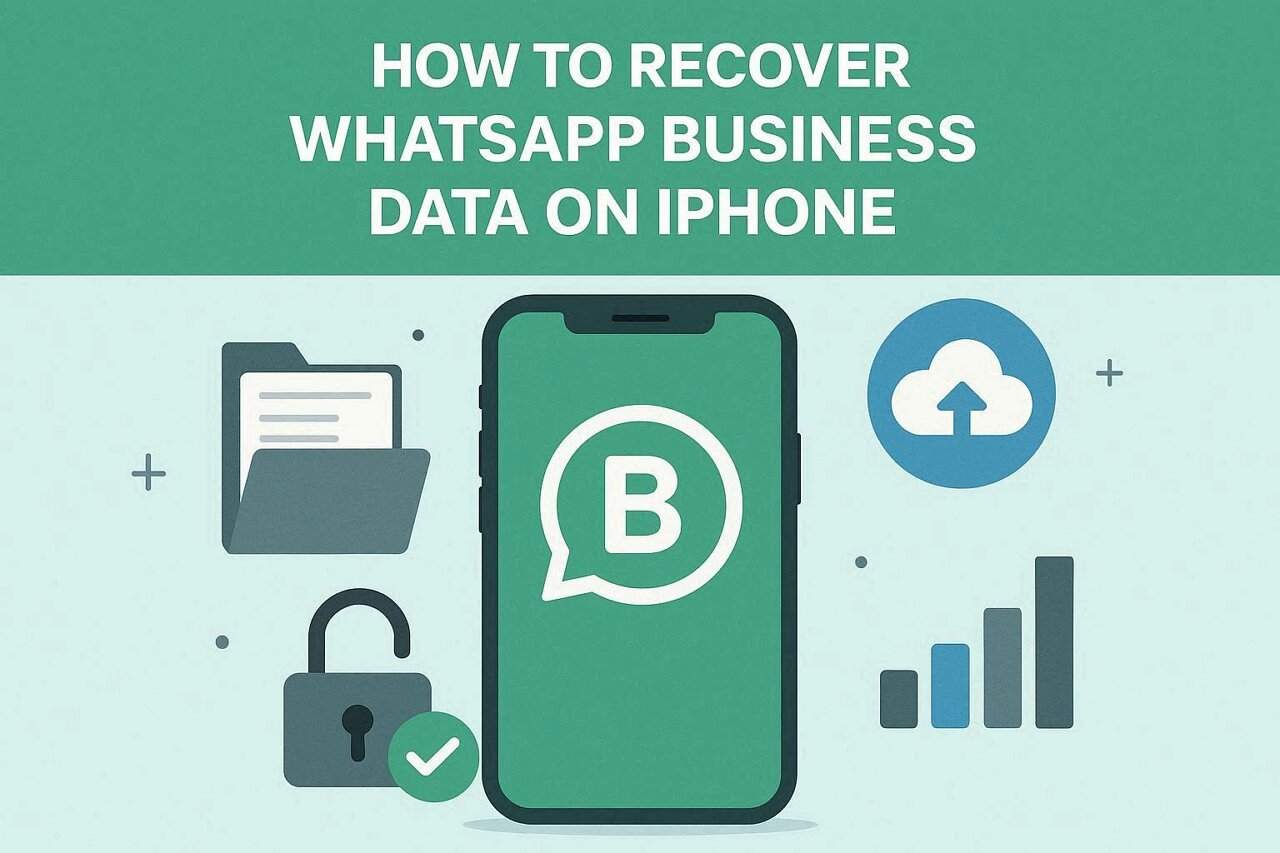
Imagine opening your WhatsApp Business app to finalize a client deal, only to find your entire chat history has vanished after a botched iOS update or an accidental tap. Losing critical invoices, project requirements, or customer leads can be devastating when no recent backup exists.
Therefore, this guide explains how to recover WhatsApp Business data from an iPhone to reclaim your professional data. Learn how standard iCloud restorations or advanced recovery tools like Dr.Fone are designed to dig deeper into your iPhone's storage when all else fails.
In this article

Part 1. How to Recover Deleted WhatsApp Business Chats on iPhone
On an iPhone, your primary options depend on whether you have an existing backup in iCloud or on a computer. To recover deleted WhatsApp Business messages on iPhone, this section offers 2 simple methods with detailed guidance:
Method 1: Restore from iCloud Backup (Official)
This is the safest and most reliable way to recover deleted WhatsApp Business messages iPhone, provided they are in the backup. It uses Apple and WhatsApp's built-in systems, so no third-party tools are needed, and it usually restores full chats and media. Additionally, it helps maintain business conversations, supports encrypted backups for security, and offers a simple one-tap restore on the same Apple ID and phone number, as guided:
What You Need:
- Use the exact phone number used for the backup.
- Sign in with the Apple ID linked to backup.
- Enable iCloud Drive in your iPhone's system settings.
- Ensure that free space is at least twice the backup file size.
- Your iPhone must run iOS 12 or a newer version.
- Provide your 64-digit key if end-to-end encryption was enabled.
-
Step 1
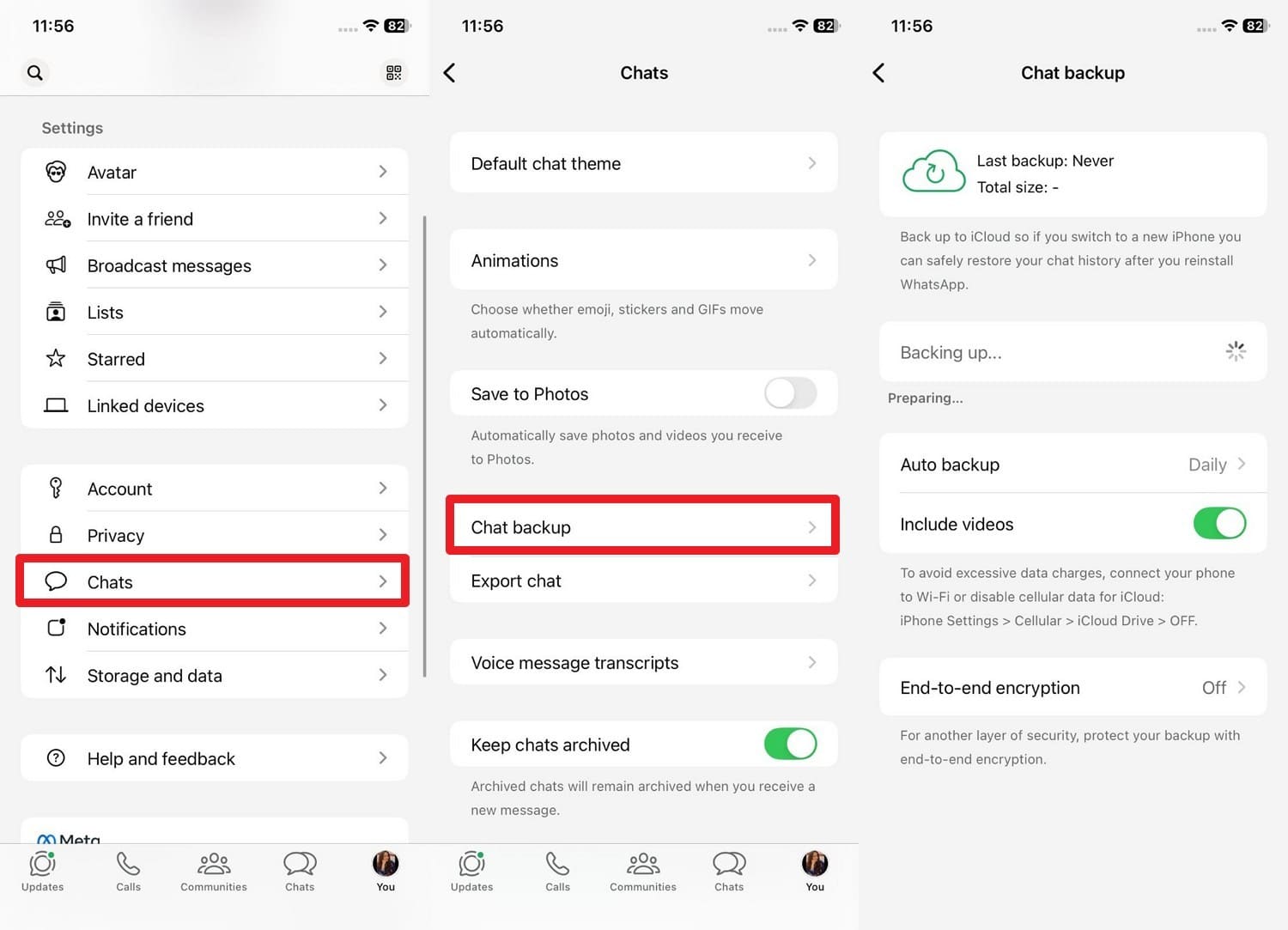
Open WhatsApp Business and go to settings to choose "Chat" and "Chat backup" option to see the "Last Backup" detail. Ensure it was created before the chats were deleted, then reinstall the app.
-
Step 2
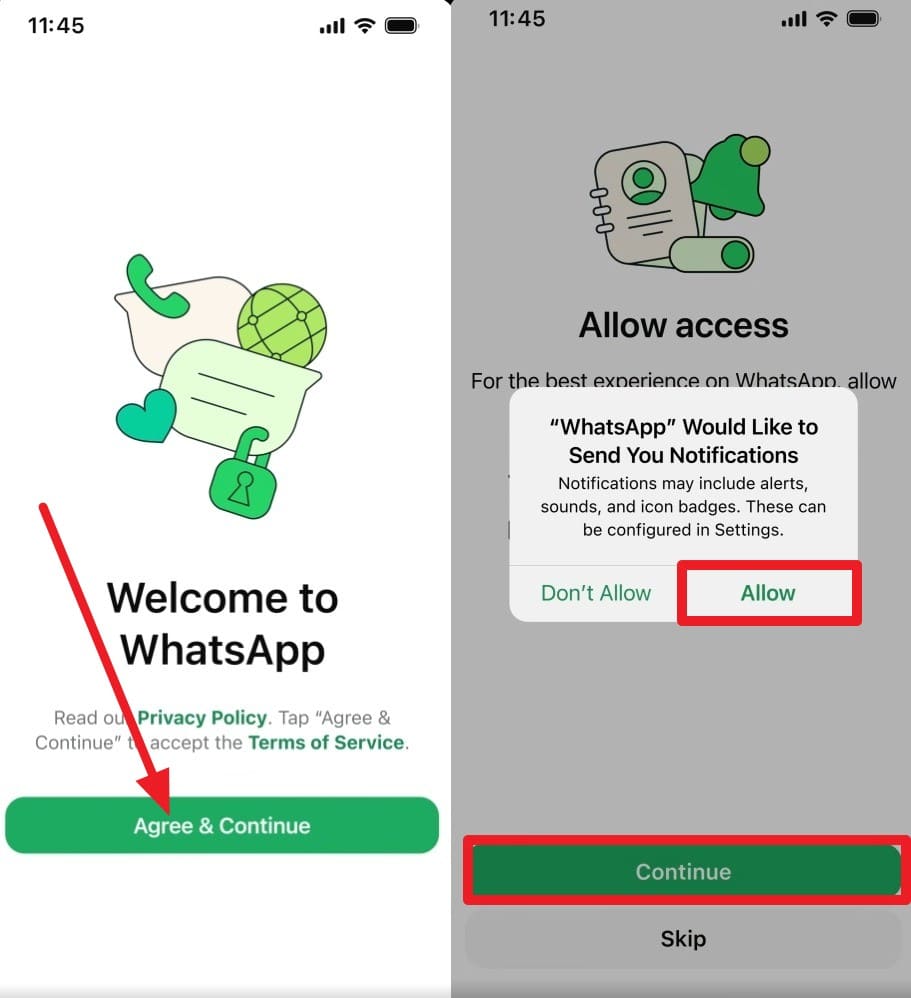
Start the setup on WhatsApp Business and press the "Agree & Continue" button. Tap the "Continue" and " Allow" options.
-
Step 3
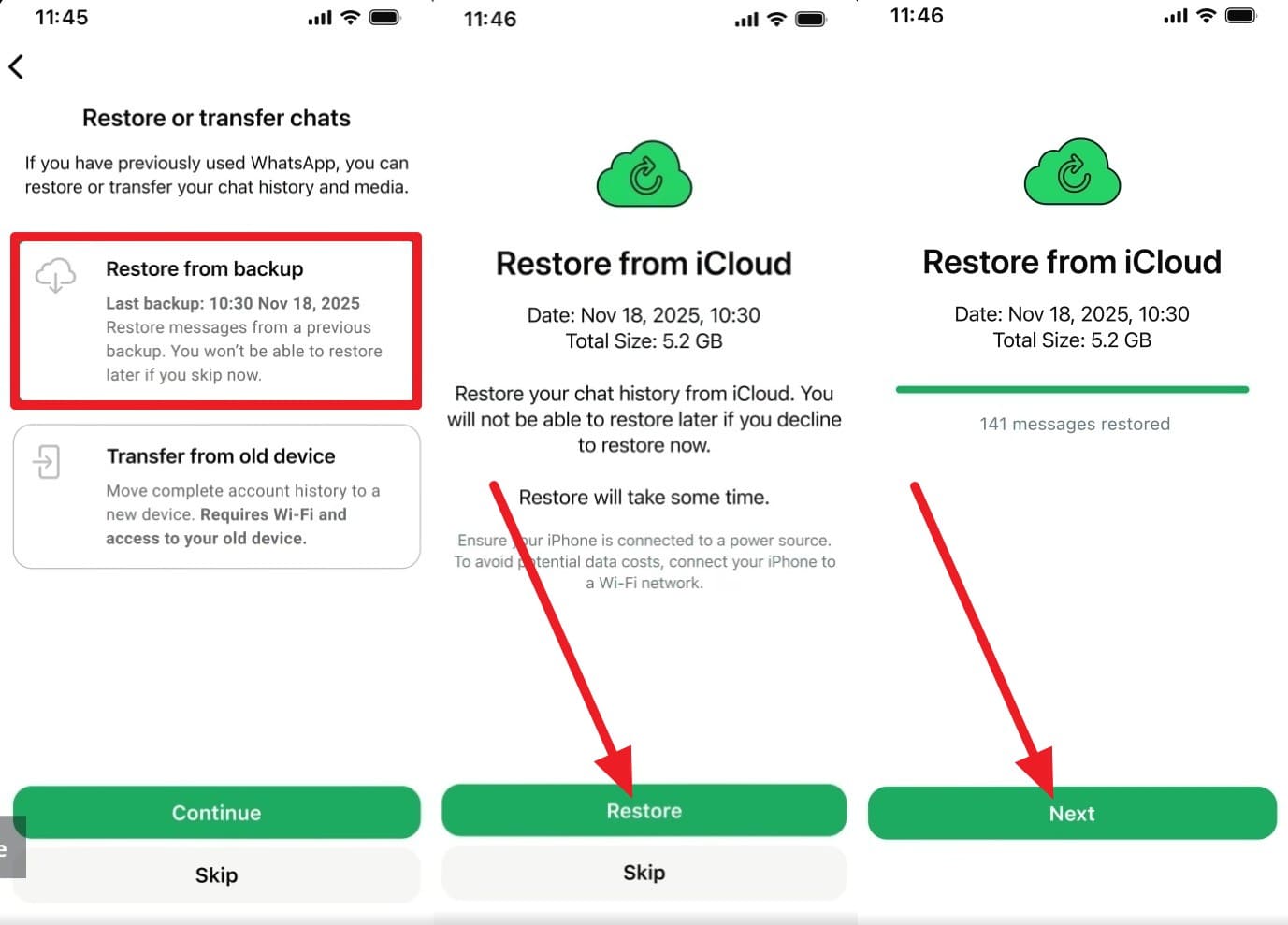
As the app detects the backup, select the "Restore from Backup" option. Then, check the backup details and press the "Restore" and "Next" buttons. After some time, you will see the Restoring Media progress bar on the screen and also locate the lost chat.
Method 2: Restore from an iPhone (iTunes/Finder) backup
As another option to recover WhatsApp Business chats without backup iPhone, use iTunes or Finder. When you do not have an iCloud WhatsApp backup or need to bring your whole iPhone back to an earlier state with your chats, this option comes in handy. It can recover WhatsApp Business data iPhone as part of a full device restore, does not rely on iCloud storage, and is guided below:

-
Step 1
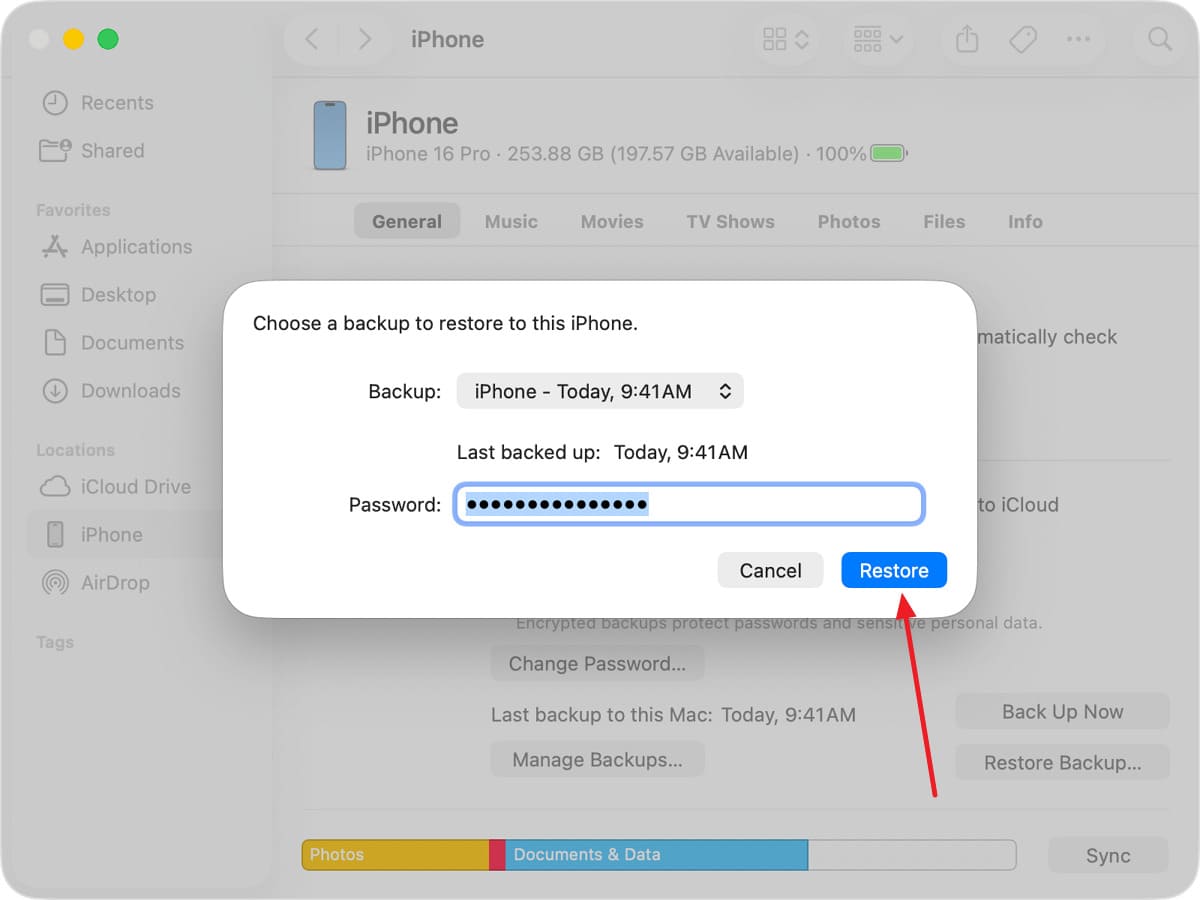
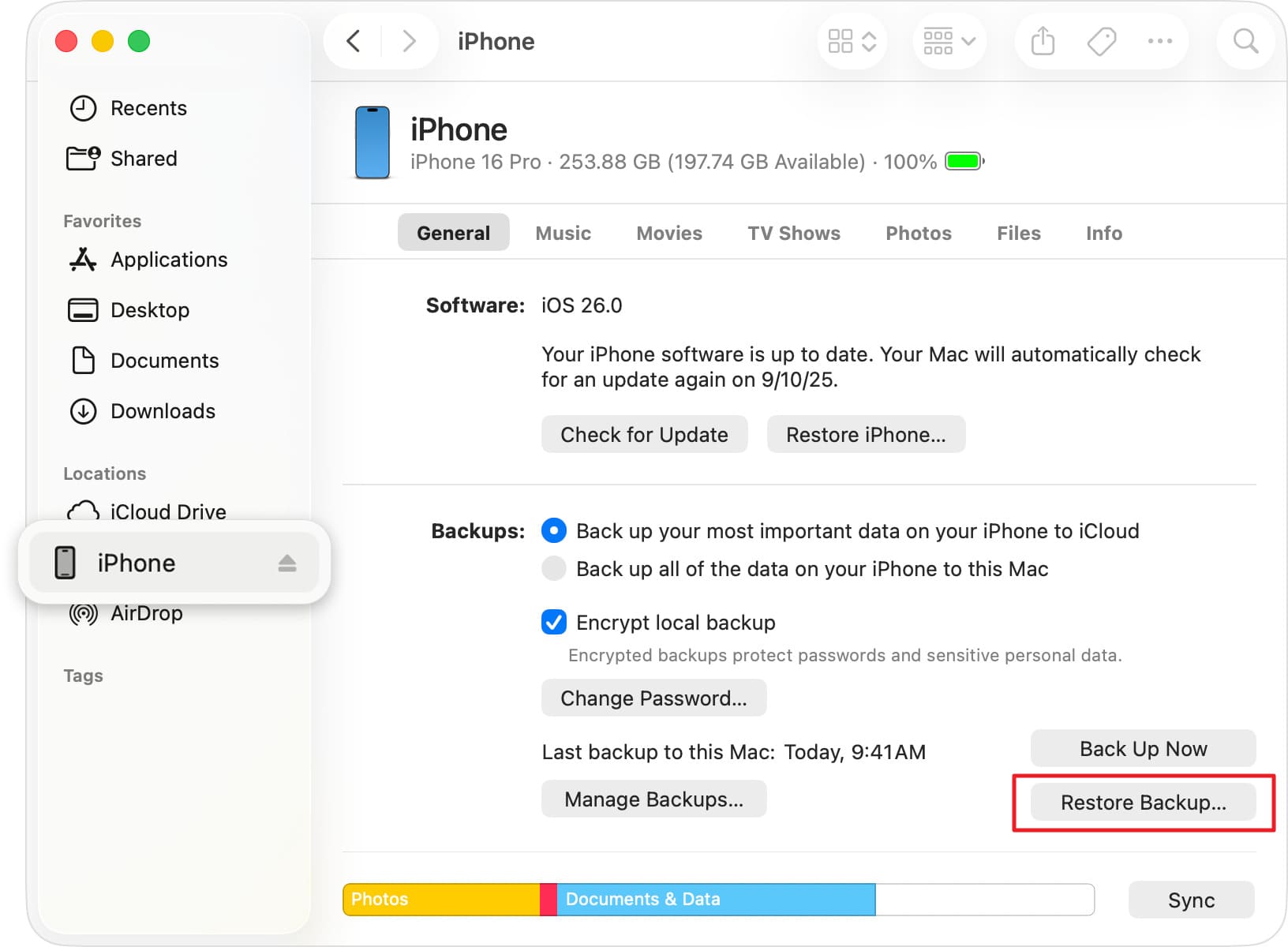
Connect your iPhone to your computer and open iTunes (Windows/older macOS) or Finder (macOS Catalina or later). Choose "Trust" on the iPhone. If you are using Finder, select your iPhone under "Locations," go to the "Backups" section, and click "Restore Backup."
-
Step 2
From the "iPhone Name" menu in the popup, select the backup you want to restore. Enter the passcode if it's encrypted. Then, choose the "Restore" button, and as it ends, your iPhone will restart, and your old WhatsApp Business chats should reappear.
Part 2. Can You Recover WhatsApp Business Chats Without an iPhone Backup?
While learning how to recover deleted WhatsApp Business chats iPhone, note that WhatsApp Business chat recovery on iPhone is not guaranteed and often not possible without a backup. iPhone does not keep local WhatsApp backups like Android, so there is no simple way to restore deleted chats unless you already have iCloud or iTunes backups. This means there is no official copy of your old chats to recover from.
Part 3. Alternative Recovery Using Dr.Fone - Data Recovery (iOS)
As the alternate option to recover WhatsApp Business chats without backup iPhone, you can use recovery tools like Dr.Fone - Data Recovery. It offers recovery for messaging platforms such as WhatsApp, WhatsApp Business, LINE, Viber, and Kik. This tool can recover data directly from the device, iTunes backups, or iCloud-synced files without overwriting existing data.
Additionally, users can preview lost WhatsApp Business messages before recovery, allowing you to restore only what you need. In addition, recovery tools like Dr.Fone support iOS/iPadOS versions and the newest iPhone models and operate via the Read-Only scan. Effective in various data-loss situations, including accidental deletion and system crashes, the WhatsApp Business chat recovery can be done in 2-3 simple steps.
 Recovers data after deletion, crashes, or device damage.
- Supports photos, messages, contacts, WhatsApp, and more.
- Supports all major iPhone, iPad, and iPod models.
- Preview and recover only what you need.

Guide to Recover WhatsApp Business Data on iPhone via Dr.Fone
To know how you can use this tool to recover WhatsApp Business data from an iPhone, the tool is tested in detail in this section. So, if you don't want to use iCloud, iTunes, or the Finder method, review the mentioned guide to determine if it's worth trying:
-
Step 1Access the Data Recovery Tool for iOS
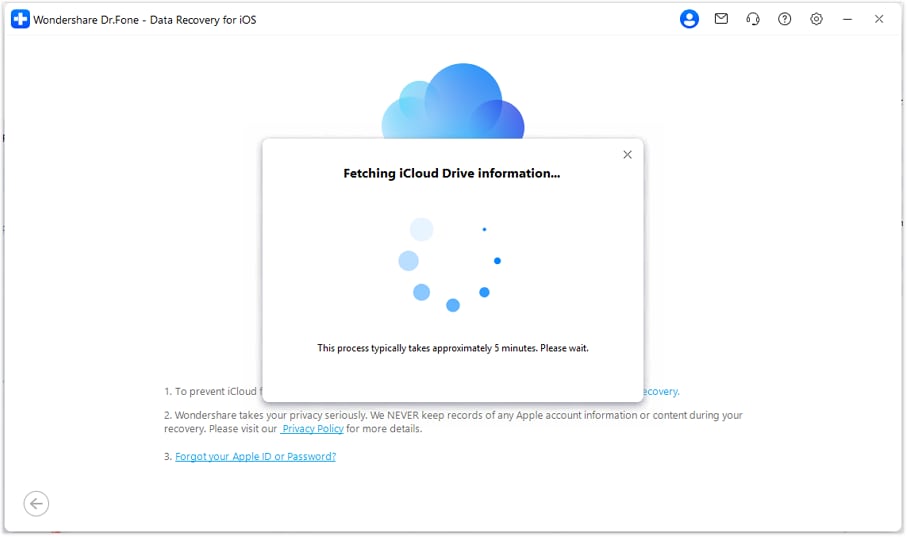
On the Data Recovery tool for iOS, pick the "Recover WhatsApp Data" option and wait for the tool to get iCloud Drive information.
-
Step 2Add the iCloud Details and Verify
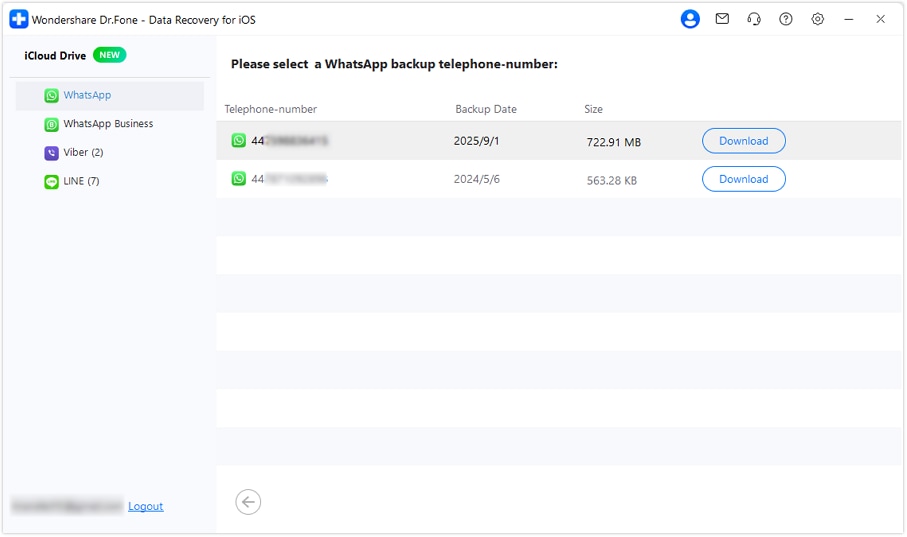
Enter the iCloud details to confirm the two-factor verification code and select "Verify." Here, tap the "WhatsApp Business" option to restore the chat, then tap the "Download" button when the backup list appears.
-
Step 3Preview the Restore WhatsApp Business Chats
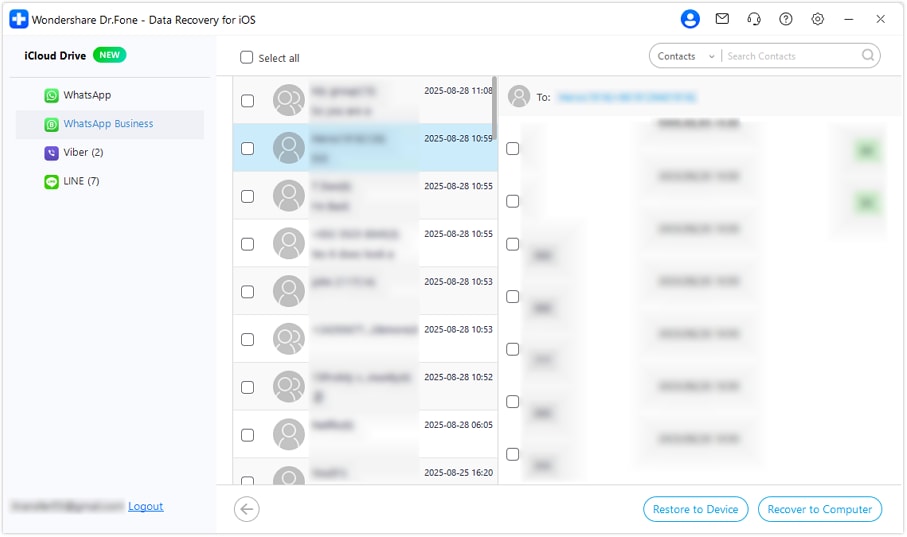
Add the country code and phone number, then click the "Verify" button to enter the code received via SMS. Now that the tool has restored the data, select the desired WhatsApp Business chats and choose the available export options.




When to Use It
To recover WhatsApp Business chats without backup iPhone, recovery tools like Dr.Fone can help in many situations. To know what they can be and what features make them better than iCloud and iTunes backups, review the mentioned points:
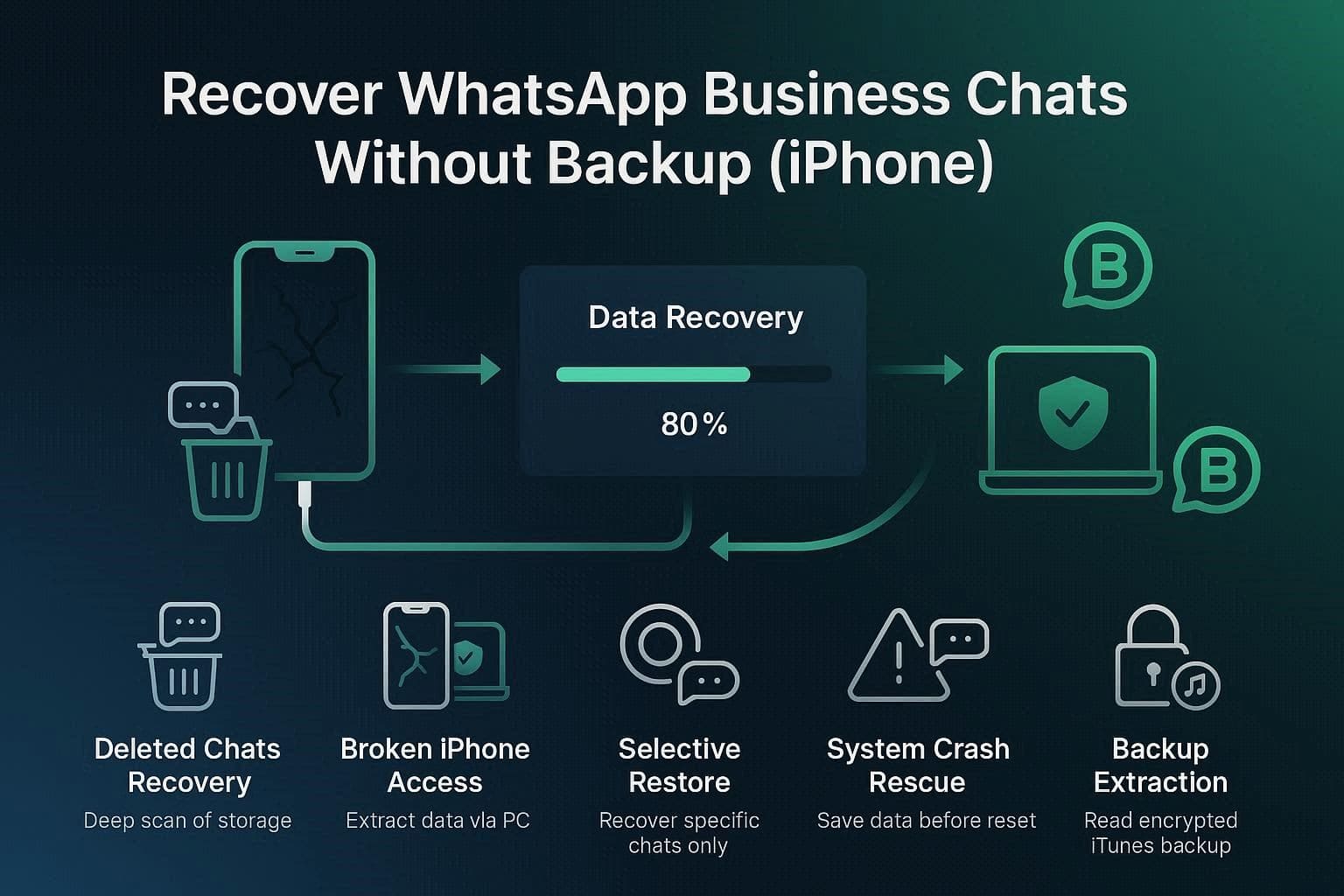
- Accidental Deletion Without a Recent Cloud Backup: Use Dr.Fone - Data Recovery (iOS) when you've accidentally deleted vital client messages but realized your iCloud backup is outdated or turned off. The tool performs a deep scan to find and reconstruct fragmented chat data that hasn't yet been overwritten.
- Recovering Chats from a Physically Damaged or Broken iPhone: This situation arises when your iPhone's screen is smashed or unresponsive, preventing you from tapping "Restore" in WhatsApp. By connecting the device to a PC, Dr.Fone can bypass the broken interface to extract your Business conversations and media directly from the hardware while offering a detailed preview.
- Selective Recovery to Avoid Overwriting Current Data: Use this when you only need a single specific conversation from a past backup, but don't want to perform a factory reset to get it. Unlike the official iTunes/iCloud methods, Dr.Fone allows you to preview and pick only the Business chats you need, keeping your current phone data exactly as it is
- System Crash or "White Screen of Death" During iOS Update: If an incompetent 2026 iOS update leaves your phone stuck on the Apple logo, your Business data is at risk of being wiped during a repair. Dr.Fone acts as a safety net, allowing you to pull your WhatsApp Business database off the device before you attempt a system restore or factory reset.
- Extracting Data from an Encrypted iTunes Backup Without a Phone: Choose this if your iPhone is lost or stolen and you need to access your business leads stored in an old, encrypted iTunes backup on your computer. Dr.Fone can open that backup file, let you search through the messages, and export them, so you can keep working while you wait for a replacement phone.
Conclusion
To recover WhatsApp Business data iPhone, it's important to choose a reliable recovery strategy, and this guide has introduced you to 2 official methods. While iCloud is the standard, it often fails due to storage limits or hardware damage.
In these critical gaps, Dr.Fone - Data Recovery meets the need by offering selective restoration and deep-scan technology. Such tools ensure that accidental deletions or system crashes never jeopardize your essential business communications.
FAQs
-
1. Is it possible to retrieve chats from a lost or stolen iPhone?
Yes, provided you had iCloud or iTunes backups enabled before the device disappeared. You can sign into a new iPhone with the same Apple ID to restore via iCloud. Alternatively, use a recovery tool like Dr.Fone on your computer to extract specific data from an old iTunes/Finder backup without needing the physical phone. -
2. Does restoring from iTunes delete my current iPhone data?
When you use the official Apple method to recover WhatsApp Business data on iPhone via iTunes or Finder, it performs a full image restore. This means your phone is rolled back to the exact state it was in on the backup date, erasing any new messages, photos, or apps added since then. -
3. How do I recover deleted WhatsApp Business messages on iPhone without a full reset?
To avoid a factory reset, you must use a third-party tool such as Dr.Fone. Unlike the official all-or-nothing restore process, these tools allow you to preview individual chats and media. You can then choose to restore only the specific business leads or invoices you need while keeping your current phone data intact.
 Add Wondershare Dr.Fone as a preferred source on Google