 Recover photos, messages, WhatsApp, and more — no backup
needed.
Recover photos, messages, WhatsApp, and more — no backup
needed.

 100% Security Verified | No Subscription Required | No Malware

 :
: 
 ChatGPT
 Perplexity
 Gemini
 Claude
 Grok
Grok
You click on an old tutorial, favorite song, or long vlog you saved months ago in a playlist, only to be greeted by the dreaded message: "This video is unavailable." It is incredibly frustrating, especially when you urgently needed to reference that specific content again. Entering 2026, millions of users are consistently searching for how to watch deleted YouTube videos after content creators unexpectedly remove their uploads or hide them without any prior warning.
These videos disappear for a multitude of different reasons: sudden creator deletion, strict copyright strikes, privacy concerns, or even an entire channel getting permanently terminated. While the platform itself does not provide any official "restore" button or native feature for accessing removed content, you can still view past versions, cached snapshots, and hidden traces of these removed videos by leveraging external internet archives and specialized data tools.
In this article
Part 1: Why YouTube Videos Get Deleted or Removed
Before diving into the recovery methods, it is essential to understand why YouTube videos disappear in the first place. Sometimes creators simply change their minds about their content strategy, sometimes strict copyright owners file an aggressive legal complaint, and other times an entire channel violates terms of service and gets completely shut down. When any of these scenarios occur, the affected video may become private, unlisted, or entirely removed from global search results.
Common reasons videos get removed:
- The original creator manually deletes the video from their dashboard.
- The channel gets abruptly terminated, making all uploaded videos vanish simultaneously.
- Copyright claims or DMCA strikes force a video offline immediately.
- YouTube policy violations, such as misleading content or harmful activities.
- Creators switch older videos to private or unlisted mode to curate their feeds.
Understanding these underlying reasons will help you determine the most effective strategy for finding out how to watch a removed YouTube video successfully.

Part 2: Working Ways on How to Watch Deleted YouTube Videos
Below are several simple, highly effective methods for those wondering how can i watch deleted youtube videos using web archives, browser caches, and community re-uploads. These strategic approaches often work flawlessly even when the original source upload is long gone.
Method 1: Use Wayback Machine to View Removed YouTube Videos
The Wayback Machine is a renowned internet archive that systematically stores older versions of websites across the globe. If you are lucky enough to have the original YouTube URL saved, you can frequently view historical snapshots that perfectly display thumbnails, video descriptions, user comments, and sometimes even a fully playable version of the video file itself.
Step 1 Copy the deleted URL
Locate and copy the exact original URL of the deleted YouTube video from your browsing history or saved messages.
Step 2 Search the Archive
Paste the copied link into the Wayback Machine search bar at archive.org and press enter.
Step 3 Browse Snapshots
Browse through the calendar interface and select an older archived snapshot that displays the video page before it was removed.
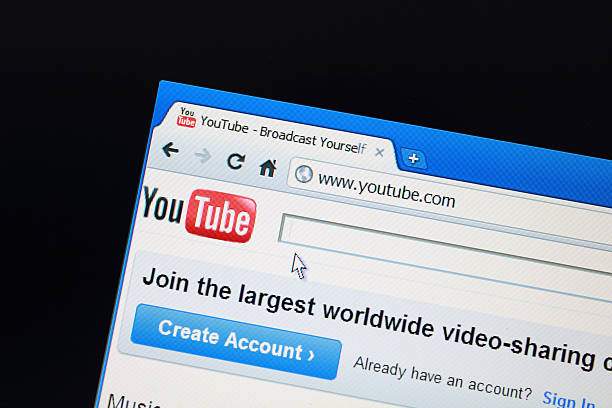
This powerful web technique is widely considered one of the most reliable answers for users searching how to watch terminated youtube videos, especially if the content was highly popular or existed untouched for several years.
Method 2: Check Your Watch History or Playlist Caches
If you consumed the video relatively recently, your personal YouTube watch history or browser playlist cache may still hold critical partial details. Even if the main media player displays an error, sometimes the core title, the original uploader's name, and the high-resolution thumbnail remain fully visible on your screen.
This method is highly beneficial for those asking how can you watch deleted youtube videos utilizing existing history links, particularly for content that was removed within the last 48 hours. By noting down the exact video title, channel name, or upload date, you gather the precise clues needed to successfully hunt for mirrored copies across the web.
Method 3: Search Re-uploaded Versions on Alternative Platforms
Popular, educational, or culturally trending videos rarely disappear forever. Dedicated fans and data hoarders frequently re-upload them, especially highly requested software tutorials, rare music edits, or viral meme clips. If you want to know how to watch youtube videos that are deleted, you must learn to search efficiently.
Start by searching the exact original video title, the uploader's handle, or specific description keywords natively on YouTube. If the platform has wiped all traces, pivot your search to alternative video hosting platforms. Sites like Dailymotion, Vimeo, Reddit community archives, and dedicated fan preservation sites are absolute goldmines for recovering lost media.
Method 4: Use Web Cache Tools (Google Cache or Archive Sites)
Google Cache acts as an automatic backup, sometimes storing older, fully rendered versions of YouTube pages, even days after the actual video is permanently removed. While you might not be able to press play, cached HTML pages often display full descriptions, meta tags, user comments, and static thumbnail images.
This method provides a strong solution for how to view remove content metadata. To attempt this, simply search the exact video URL or its precise title directly on Google search. If available, click the small three-dot menu or dropdown arrow beside the search result and carefully select "Cached." This snapshot can give you the definitive title needed to search for a re-upload on another site.
Part 3: Bonus Tip: Recover Video Files or Links Stored on Your Device with Dr.Fone
Sometimes the absolute only remaining trace of a deeply missed, removed YouTube video is quietly sitting inside your smartphone's stored data—such as saved link messages, old screenshots, forgotten downloads, or clipboard notes. If any of these digital fragments existed before the creator deletion, Dr.Fone - Data Recovery can expertly help retrieve them from both iOS and Android devices.
 Scan Android phones and tablets directly.
- Preview and recover only what you want.
- Supports WhatsApp, photos, videos, contacts, and more.
- Works with 6000+ Android devices.

Even if a YouTube video is terminated online forever, your mobile device may stubbornly hold onto crucial traces of it—like browser history logs, clipboard memos containing the URL, or messaging app previews. Dr.Fone scans these deep internal data sources to bring those critical fragments back to the surface. Here is how you can use this robust tool to reclaim those lost links:
Step 1 Install and Launch Dr.Fone
Download and appropriately install Dr.Fone from the official Wondershare website. Open the main program interface and seamlessly choose the Data Recovery module, which specializes in retrieving lost files and hidden device traces.

Step 2 Connect Your Mobile Device
Connect your Android phone or tablet to the computer securely using a standard USB cable. Once fully detected by the software, click Data Recovery to continue forward. (For iPhone users, simply select the dedicated iOS Data Recovery module instead).

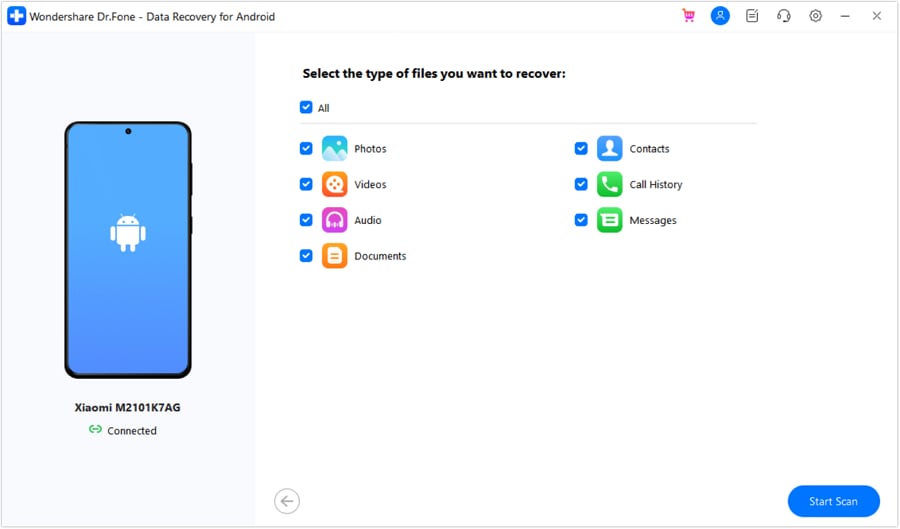
Step 3 Choose Target Data Types
Carefully select the exact file categories that might potentially store YouTube-related information. You should focus on categories like Browser History for lost links, Notes or Memos for saved titles, Photos for cached thumbnails, and general App Documents.
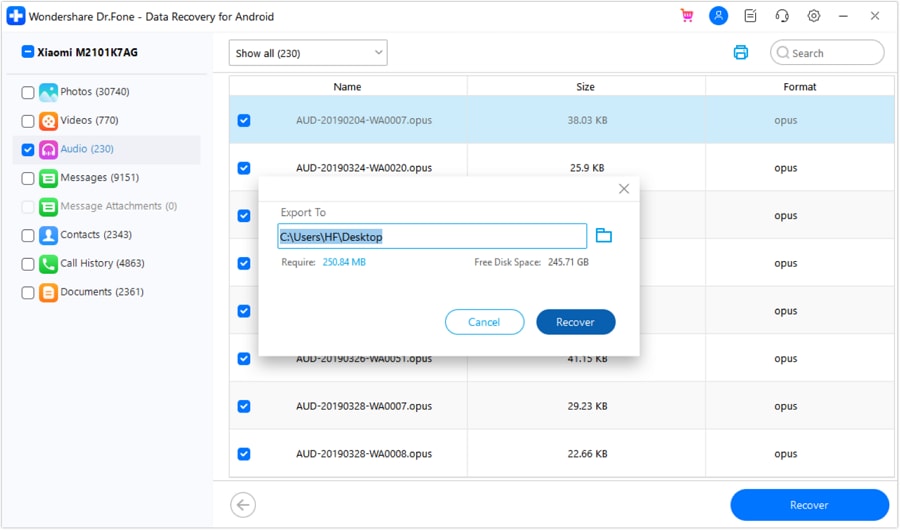
Step 4 Scan and Recover Items
Allow Dr.Fone to deeply scan your device storage. It will elegantly display all recoverable data in a structured preview list. Look specifically for recovered URLs, screenshots, or saved notes directly related to the deleted YouTube video, select them, and click Recover to firmly save them back to your computer.




Conclusion
In summary, while YouTube officially does not offer any built-in way to seamlessly view deleted or private videos, numerous external web tools can help you comprehensively recover vital information or watch alternative fan versions. By mastering how to watch deleted youtube videos utilizing the robust Wayback Machine, checking browser cached playlists, or hunting for community re-uploaded copies, there are almost always smart ways to trace removed content. Furthermore, if you are positive that older files, thumbnail screenshots, or textual links existed on your smartphone, Dr.Fone - Data Recovery can confidently pull those digital fragments back, ensuring you can continue your search armed with all the exact details you need.
FAQ
1. How can I watch deleted YouTube videos from a terminated channel?
You can expertly utilize the Wayback Machine, Google Cache, or strategically search for re-uploaded versions across alternative video platforms using the exact channel name and primary video title.2. Is there a way to view removed YouTube videos without a link?
Yes. If you lack the original URL link, you can rigorously search the web by exact title, unique keywords, or image match via old screenshots. You can also proactively recover accidentally lost browser links using Dr.Fone Data Recovery on your mobile phone.3. Can Dr.Fone recover video downloads or screenshots related to deleted YouTube videos?
Absolutely. Dr.Fone specializes in deeply scanning internal storage, meaning it can expertly retrieve forgotten notes, deleted browser history, old thumbnails, or cached screenshots previously stored on your mobile device.4. Is it legal to watch deleted YouTube videos?
Viewing archived web pages or publicly re-uploaded content on other domains is generally perfectly legal for personal consumption. However, downloading and then personally re-uploading heavily copyrighted material without permission may strictly violate digital copyright laws.
 Add Wondershare Dr.Fone as a preferred source on Google



