 Recover photos, messages, WhatsApp, and more — no backup
needed.
Recover photos, messages, WhatsApp, and more — no backup
needed.

 100% Security Verified | No Subscription Required | No Malware

 :
: 
 ChatGPT
 Perplexity
 Gemini
 Claude
 Grok
Grok
Imagine you opened Instagram and noticed your posts were gone from the ones you just posted. You might feel confused and worried, as many users do, after accidental deletion, app reset, or account changes. The good news is that you can now find deleted posts in most cases, which can vary from Instagram's built-in options to third-party solutions, depending on timing and backups.
Thus, dive into this detailed guide and learn how to find deleted Instagram posts before and after the platform's time limits. While reviewing the details, understand how Dr.Fone - Data Recovery can restore your files with its quick, secure read-only scan.
In this article

Part 1. Can You Recover Deleted Instagram Posts?
Prior to knowing how to recover deleted Instagram photos, it's important to know whether it's possible or not. Well, you can sometimes recover deleted Instagram posts/photos, but in limited cases. This platform keeps deleted posts, reels, and some content in a "Recently Deleted" folder for up to 30 days. Within this time, you can access the deleted data and restore the post to the profile.
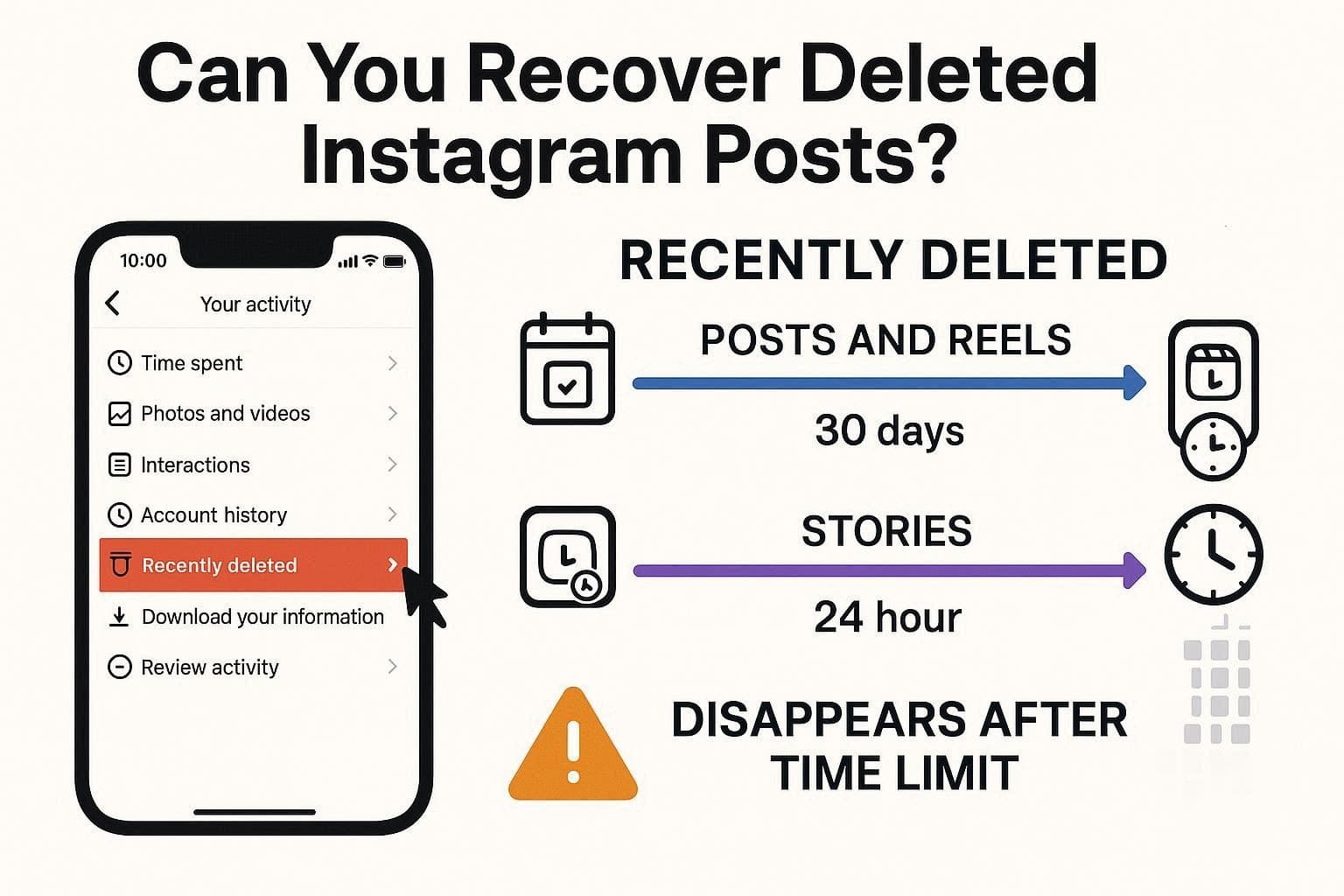
After 30 days, Instagram removes the data from its system, so recovery inside the app is not possible. Feed posts and Reels follow the same 30-day rule, while Stories follow a shorter limit. Deleted Instagram Stories stay in "Recently Deleted" for 24 hours, or up to 30 days if saved in Archive.
Part 2. How to Recover Deleted Posts (Within 30 Days)
If you ask how can I recover deleted photos on Instagram within 30 days, try the 2 mentioned ways mentioned with detailed steps:
Way 1. Use "Recently Deleted" Folder (Main Method)
This is the fastest and most reliable solution because it is built into Instagram and allows easy post recovery. Additionally, it requires no extra tools, and the restored post retains its original quality, captions, and its likes and comments. So, if you want to know how to access this option, follow the simple guide mentioned below:
-
Step 1
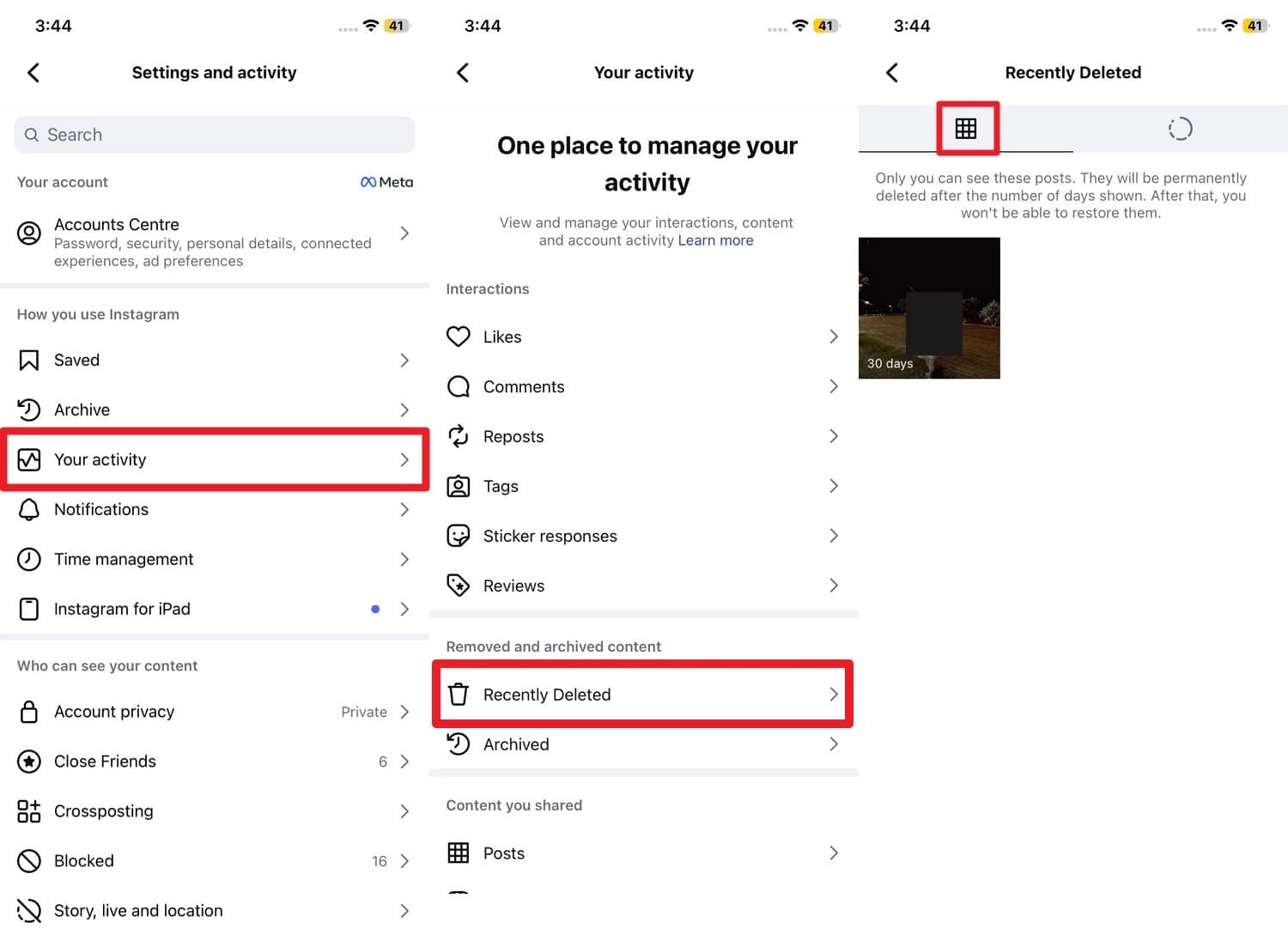
Tap the "Hamburger" icon in the profile section and choose the "Your Activity" option under the "How To Use Instagram" section. After that, choose the "Recently Deleted" option and head to the "Posts" tab.
-
Step 2
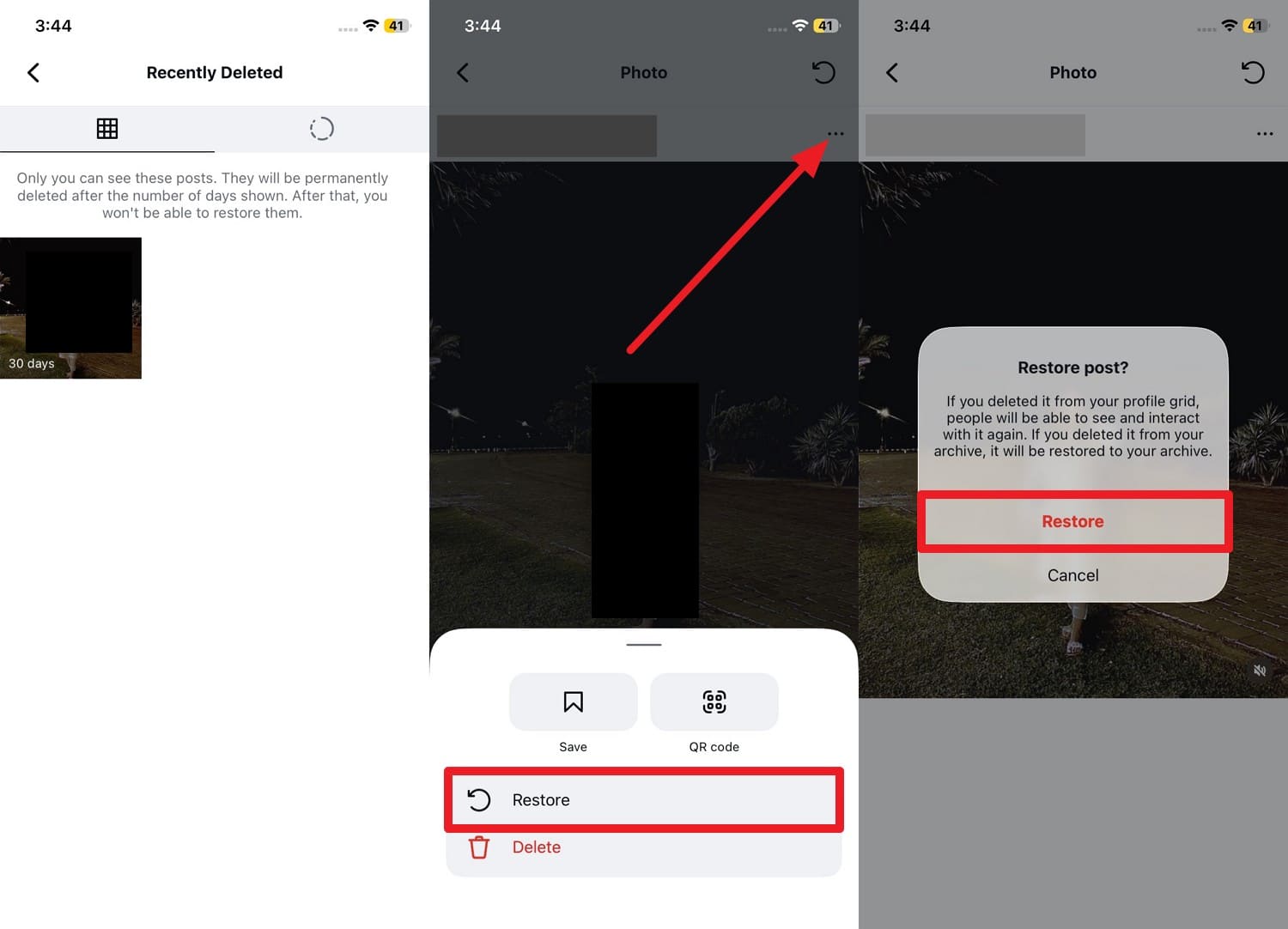
There, tap on the post you seek to recover, tap on the "Three Dots" and in the bottom popup menu, choose the "Restore" button. Confirm this action by pressing the "Restore" button as it appears in the popup.
Way 2. Check Your Phone's Gallery/Camera Roll
Know that your gallery keeps deleted items in a "Recently Deleted" or "Trash" folder for up to 30 days. This method is fast because you open Photos or Gallery and check albums without any extra tools or login. Additionally, it offers a good chance of recovery, since the original file remains on the phone even after deletion from the app. So once restored without internet via the mentioned ways, you can repost it:
For Android
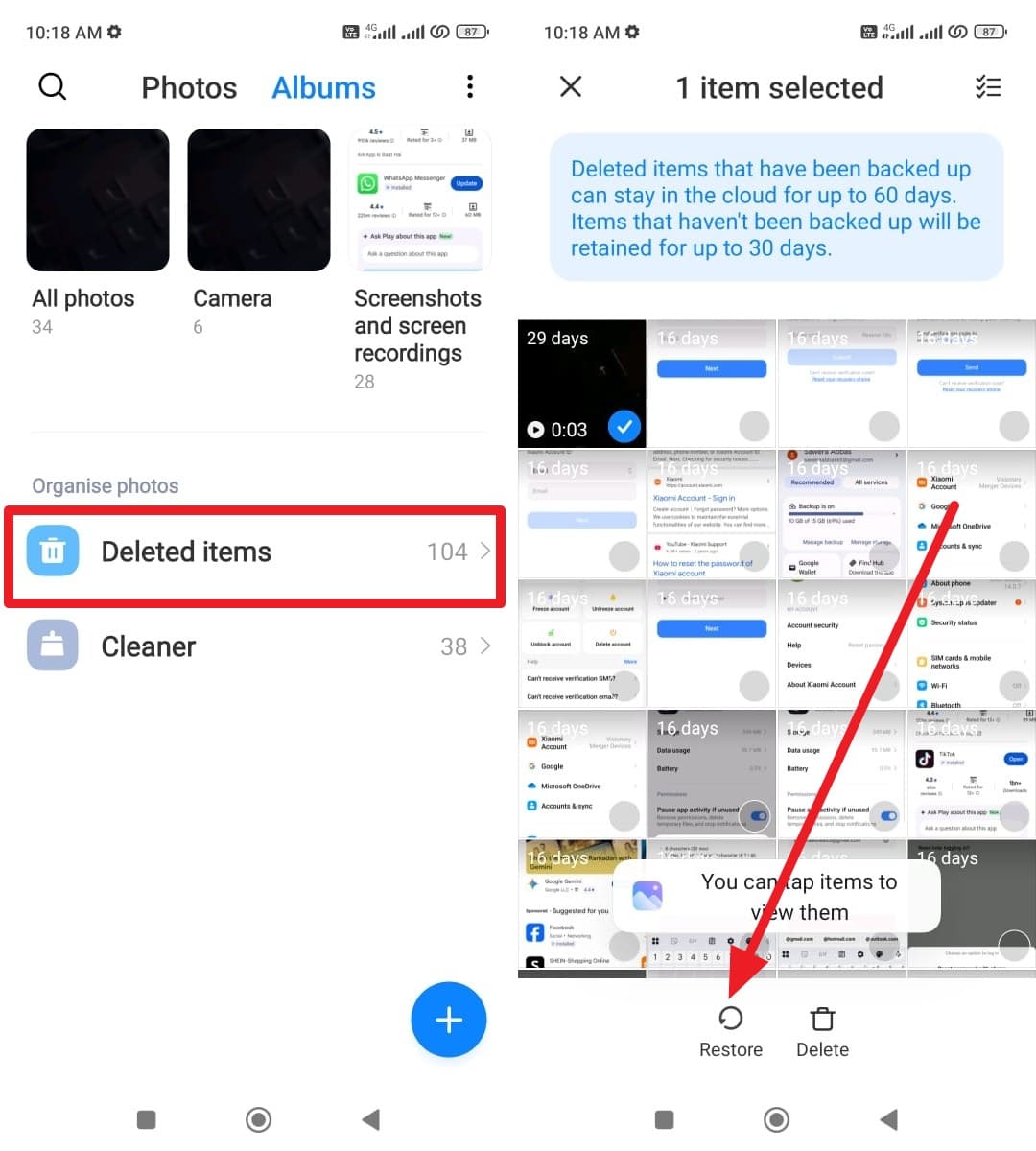
Instructions: To learn how to find deleted Instagram pictures, go to the "Albums" section, tap "Delete Items," and locate the original image you lost on Instagram. Once accessed, long-press to select it, then tap the "Restore" button at the bottom.
For iPhone
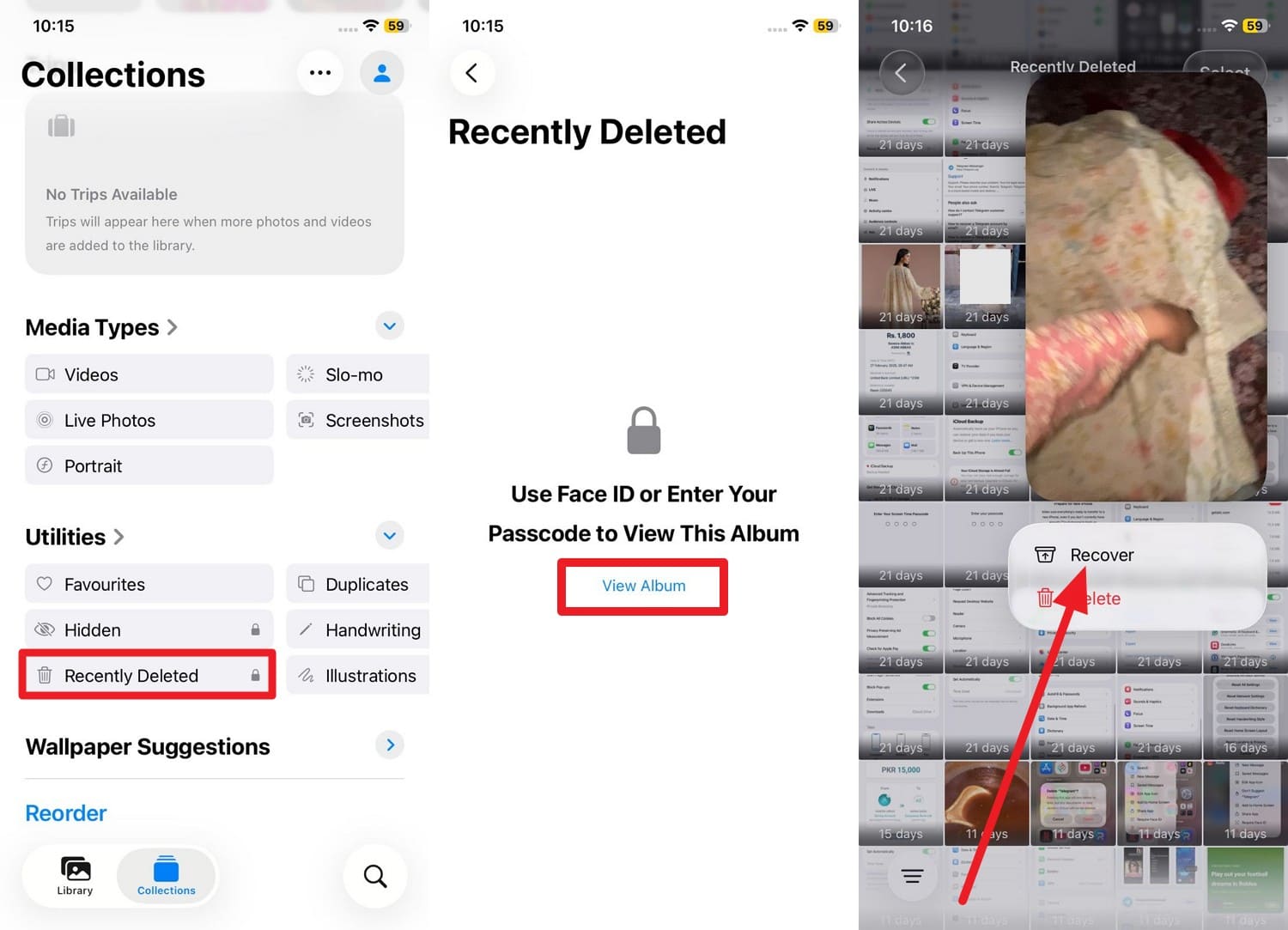
Instructions: Under Collection > Utilities, choose the "Recently Deleted" folder and pick the "View Album" option to enter the Face ID. After that, locate the original Instagram post image, long-press, and choose the "Recover" option.
Part 3. How to Find Deleted Instagram Photos After 30 Days
Those who seek to explore ways on how to recover deleted Instagram posts from years ago (After 30 days), here are 5 options:
Way 1. Check "Archive" Instead of Deleted
While knowing how to find deleted Instagram photos or posts, check the Archive when posts are not deleted, only hidden from the profile. You can bring them back instantly with all likes, comments, and captions still saved. This works after 30 days because archived posts stay in the system until you delete them. As it's fully safe since it uses only Instagram's built-in feature, here is how you can access it:
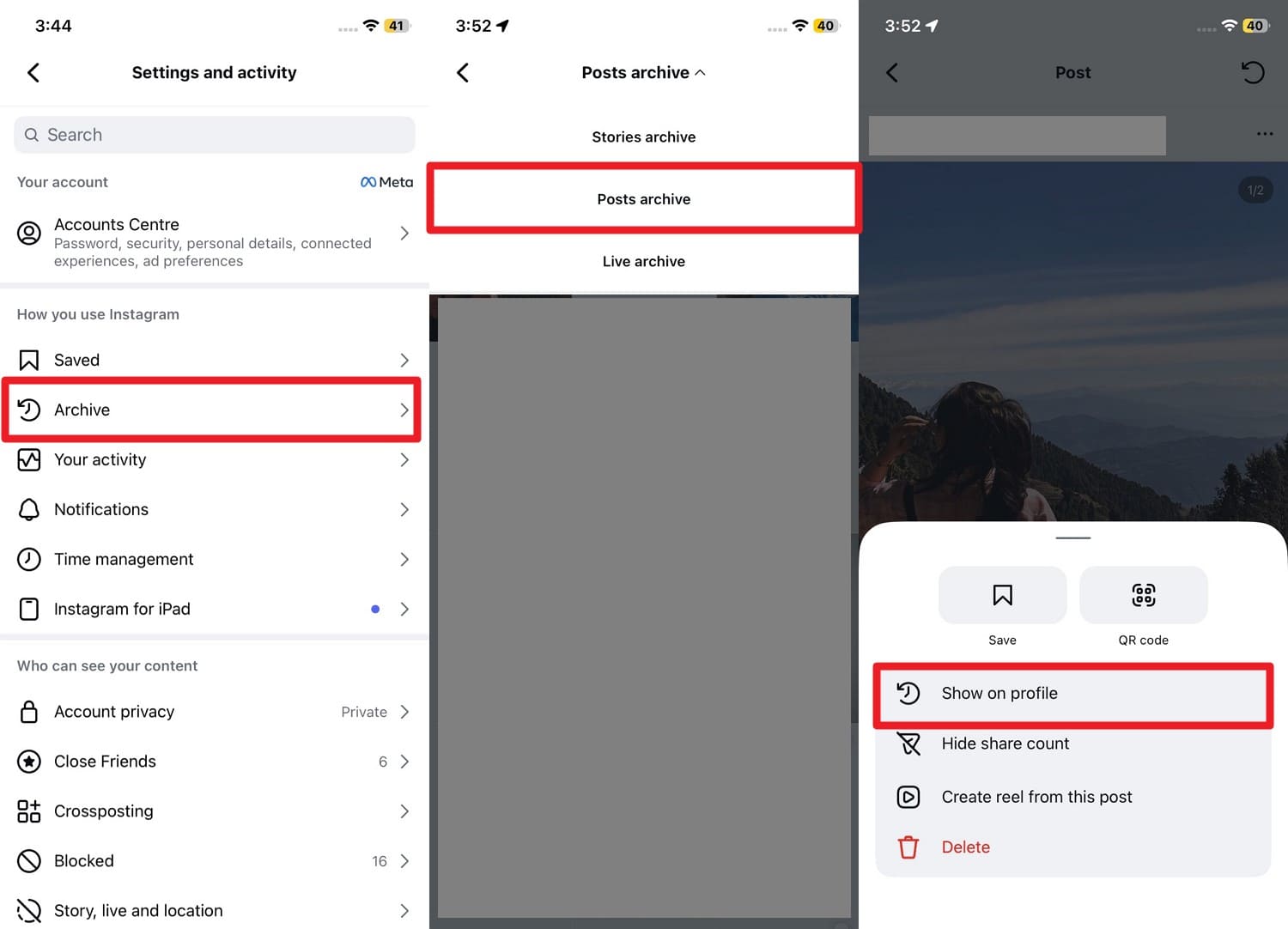
Instructions: In Settings and Activity, select the "Archive" option, then drag the menu at the top to choose "Post Archive." When the archived posts appear, pick one, tap the "Three Dots" icon, then tap "Show on Profile" to restore.
Way 2. Check Cloud Backups (Google Photos/iCloud)
To understand how to bring back a deleted Instagram post after 30 days, it is also suggested to check cloud backups like Google Photos or iCloud. It's an effective choice, as these services often save copies beyond Instagram's own limits. Since Google Photos keeps images in Trash for about 60 days, and iCloud for about 30 days, here is how Android and iOS users can use these:
For Android/iPhone (Google Photos)
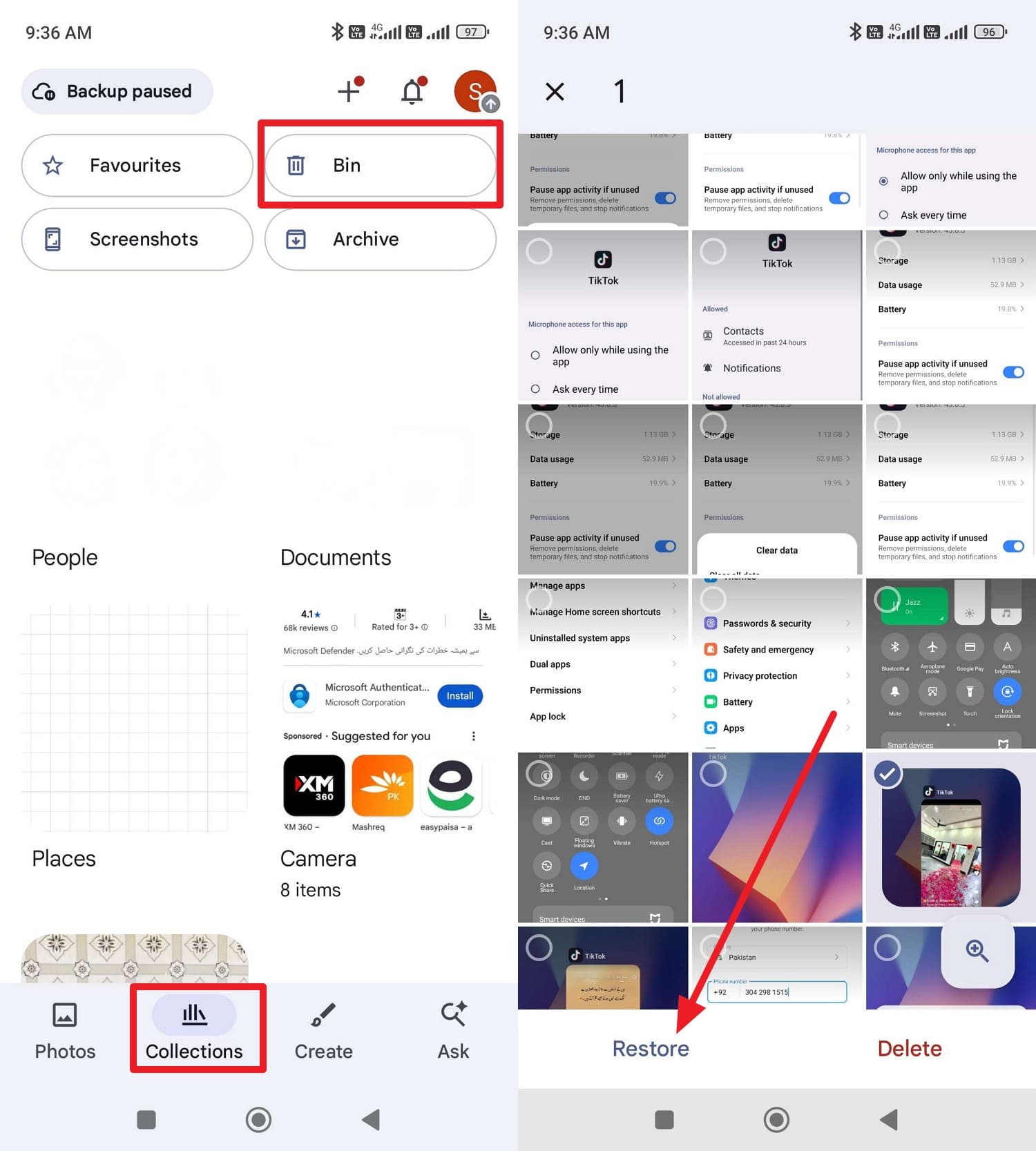
Instructions: On the "Collection" tab, choose the "Bin" option and seek the lost Instagram original post. After that, maintain hold of it and choose the "Restore" option to repost it.
For iPhone (iCloud.com)
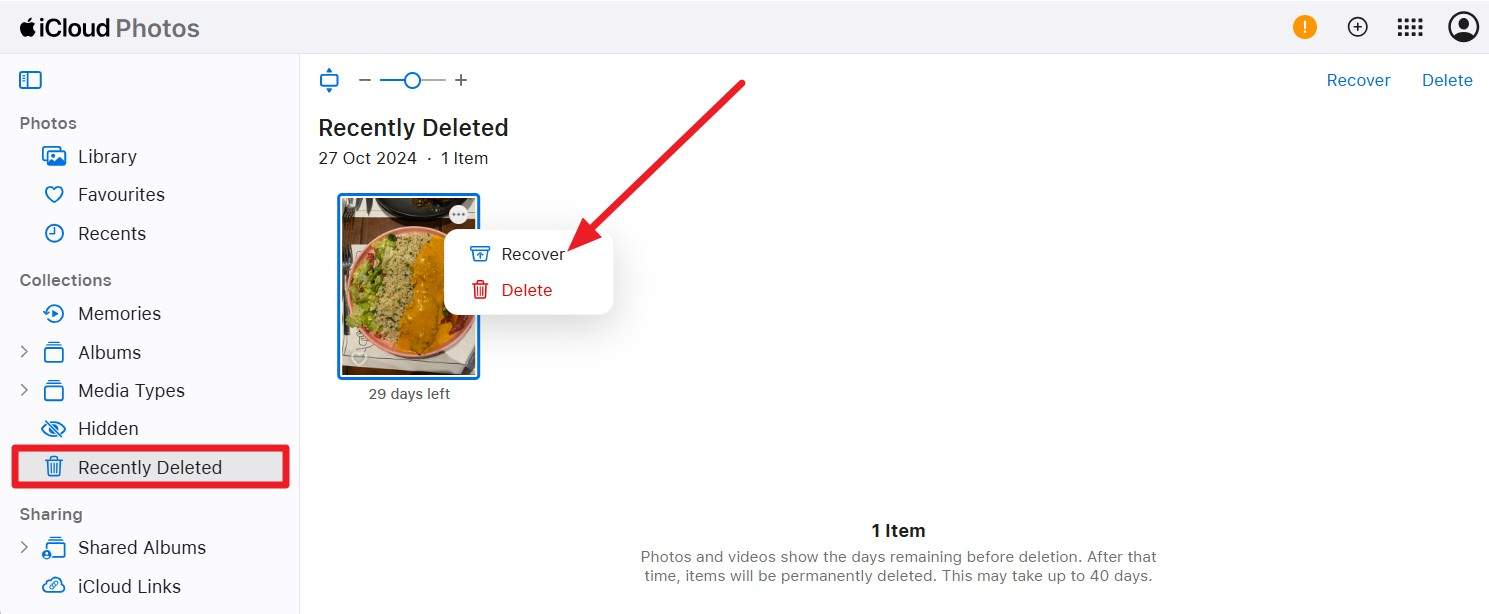
Instructions: As you search for iCloud.com, head to the Photos section and navigate the "Recently Deleted Folder." There, tap the "Three Dots" icon on the Instagram image and tap the "Recover" option.
Way 3. Recover via Account Data Download (For Copies, Not In-App Post)
On the quest to learn how to bring back deleted posts on Instagram, opt for the "Download your information" option. The download file includes photos, videos, stories, profile data, and comments, so you can recover more than one item at once. Most of all, this method stays safe since it uses Instagram's own system and is guided ahead:
-
Step 1
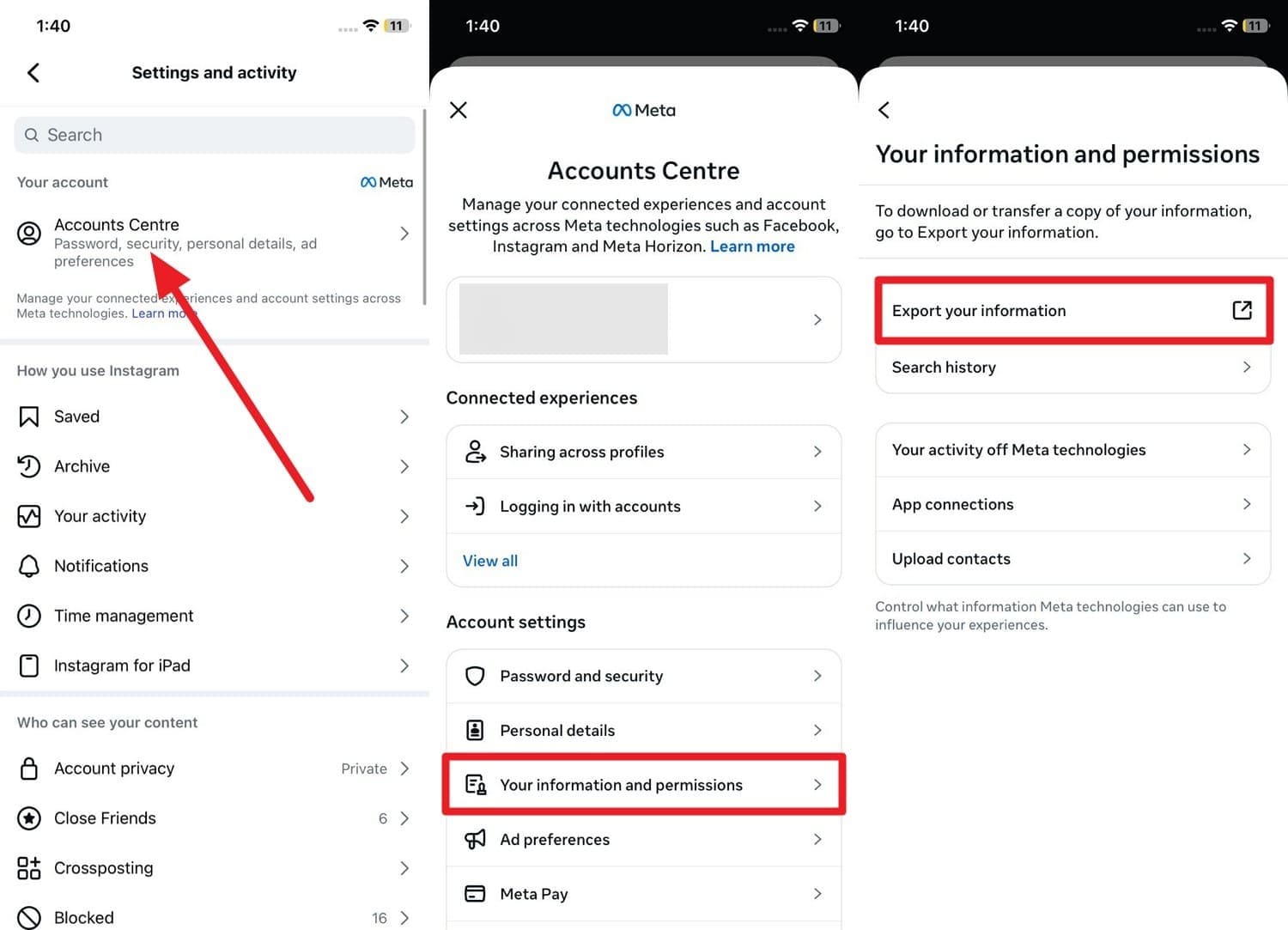
Choose the "Account Center" section after selecting the "Hamburger" icon in the profile section. There, tap on the "Your Information and Permissions" option and choose the "Export Your Information" option.
-
Step 2
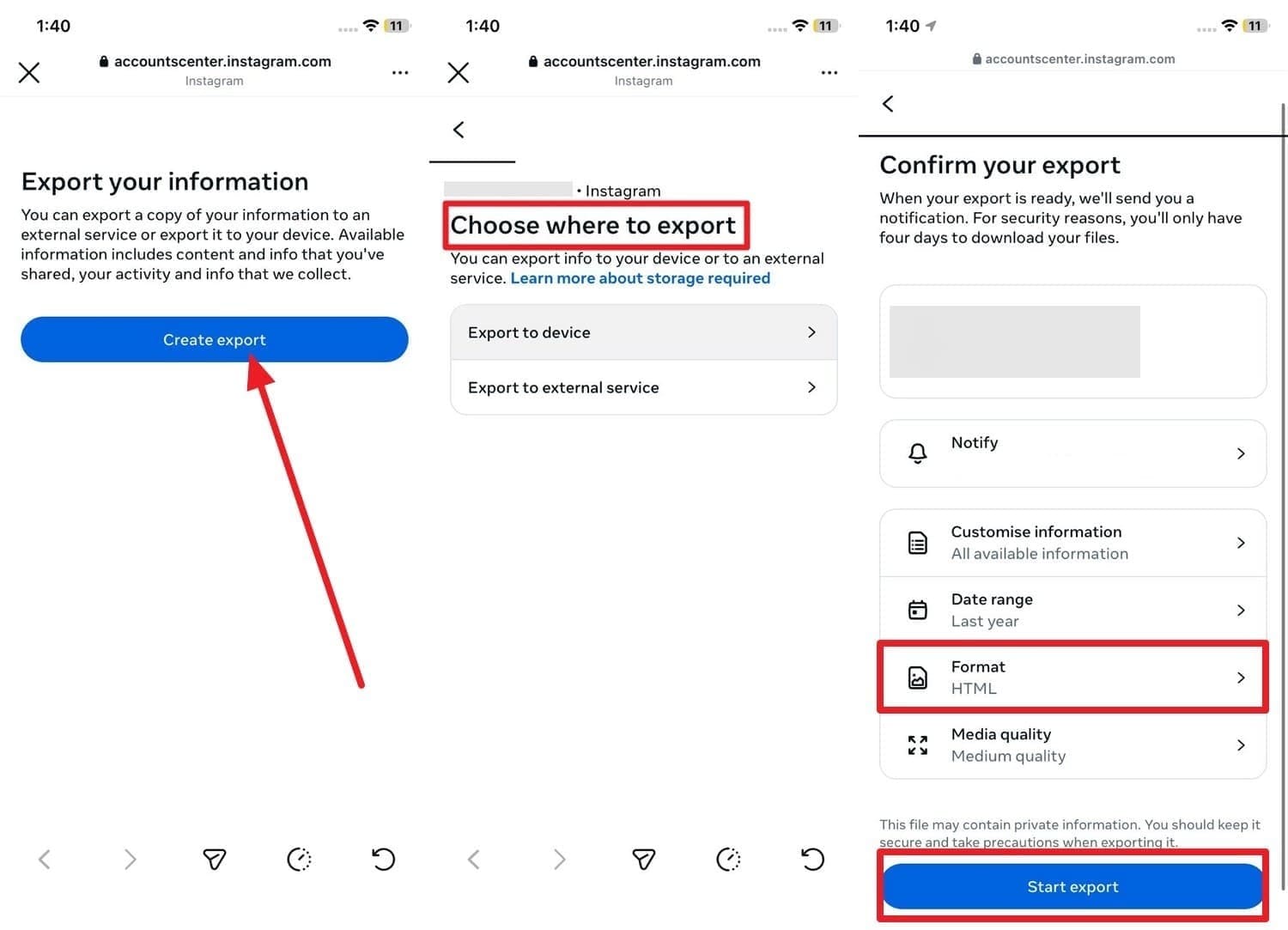
Continue the process by tapping the "Create Export" option, choosing where to export the data, and picking a format along with other settings. After that, tap on the "Start Export" button to commence the process.
-
Step 3
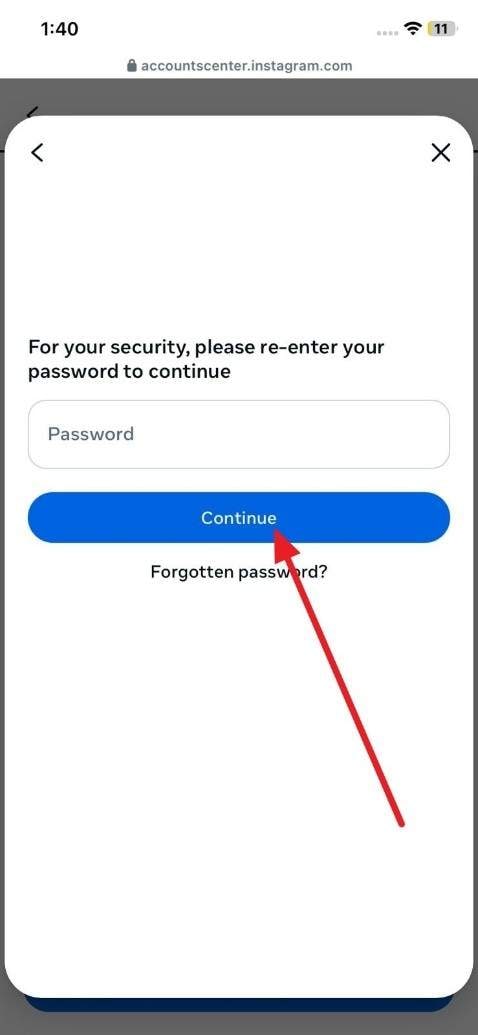
Add the Instagram account details and choose the "Continue" button. Wait for an email from Instagram with a download link, then open it and download the ZIP file on your phone or computer. After that, unzip the file and check the "Photos" folder to find your Instagram images and save or use them again.
Way 4. Ask Others Who Might Have the Photo
This gives a chance to recover the image when all other methods fail. Friends may also send the original high-quality photo from their gallery, chats, or emails. Furthermore, it can work even if your account or phone no longer has the file. A quick message to someone who shared the photo or was present in it can often solve the issue of how to find a deleted Instagram post simply.
Way 5. Use Third-Party Recovery Tools Like Dr.Fone [One-Click Solution]
When you try all the methods on how to find deleted Instagram pictures and still fail, it's time to use data recovery software. To that end, you can use Dr.Fone - Data Recovery to recover 35+ data types from iPhones and 14+ from Androids. Unlike other options, this intuitive and versatile solution has the highest success rate and ensures 100% local data recovery.
It can help you recover deleted original Instagram posts images from over 6000 Android models and iOS 26 & iPhone 17 Series. No matter whether your Android device is broken, data is still retrievable without root access or USB debugging, even via iTunes and iCloud, without overwriting. Most of all, you can filter the selected Photos data types after the tool's read-only scan and choose to preview later.
 Scan Android phones and tablets directly.
- Preview and recover only what you want.
- Supports WhatsApp, photos, videos, contacts, and more.
- Works with 6000+ Android devices.

Guide to Recover Instagram Original Images/Videos
Without limiting yourself to a 30-day limit, learn how to recover deleted Instagram photos in 3 simple steps with Dr.Fone:
-
Step 1 Choose the Advanced Android Data Recovery Tool
Tap the "Recover Android Data" option after accessing the "Data Recovery" tool for Android, then connect the device when prompted.

-
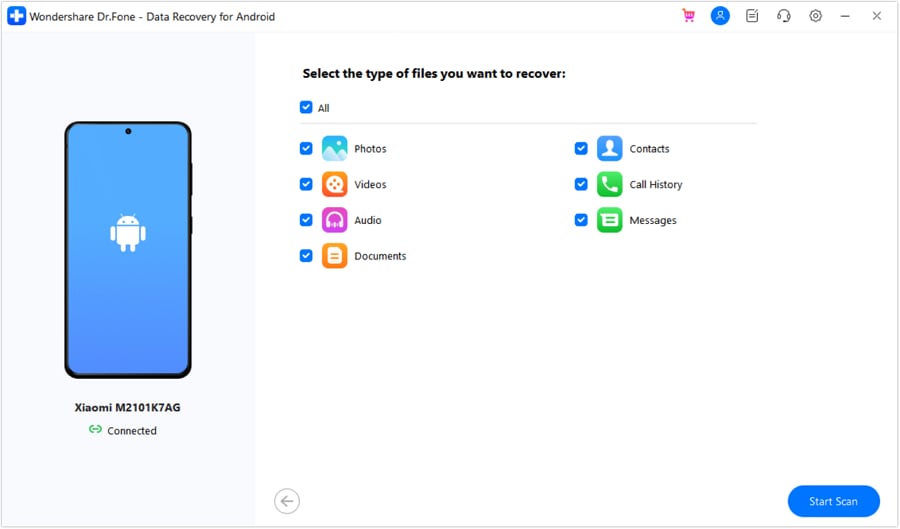
Step 2 Pick Photos to Start Scan
After that, choose "Photos" from the data types list of 14+ options and press the "Start Scan" button.
-
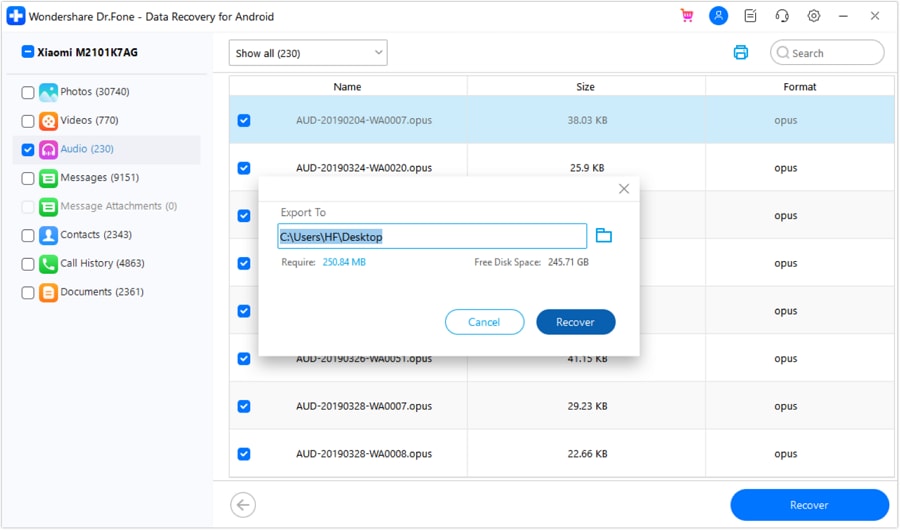
Step 3 Filter Images and Recover to the Device
As the read-only scan ends, expand the "Show All" menu and choose the lost Instagram original image. Then, press the "Recover" button, choose the "Export To" location, and tap on the "Recover" button again.




Conclusion
To sum up, if you want to know how to find a deleted Instagram post, this guide is the detailed answer for you. From learning how to recover posts/images before and after 30 days to picking the best options, you have been guided with all the details here.
As the foremost choice, Dr.Fone - Data Recovery is recommended. This is because the tool does not bind you to a 30-day window and can recover multiple data types, regardless of when they were lost.
FAQs
-
1. Can screenshots help recover a deleted post?
Yes, screenshots help a lot because friends may still have saved copies in their phone gallery. So, you can ask them and get the image again even after Instagram removes the original post. -
2. Can deleted posts still affect my profile?
No, deleted posts usually stop affecting your profile because likes and comments are removed with them. Moreover, old engagement data may not remain visible in insights after deletion. -
3. Does Instagram remove posts from servers immediately?
Instagram does not always remove posts from servers immediately after deletion by users. When you delete content, it disappears from public view right away, but it may stay in Instagram systems for a short time before full removal. -
4. Can repost culture help recover deleted content?
Yes, repost culture helps because users often share posts across other Instagram accounts. So, you can find your deleted content through reposts on pages, stories, or feeds.
 Add Wondershare Dr.Fone as a preferred source on Google



