Recover photos, messages, WhatsApp, and more — no backup
needed.
Recover photos, messages, WhatsApp, and more — no backup
needed.

 100% Security Verified | No Subscription Required | No Malware

 :
: 
 ChatGPT
 Perplexity
 Gemini
 Claude
 Grok
Grok
The golden era of the internet was heavily defined by the old MySpace days, a time filled with nostalgic memories, customized profiles, and personal moments shared online. Fast forward to 2026, and many people now want to revisit those vintage pictures but struggle significantly to locate them across the revamped platform. It is common to feel a sense of digital loss when old MySpace pictures seem to be missing forever. These images capture fleeting youth moments, shared smiles, and crucial digital stories that still hold immense sentimental value today. Moreover, finding them can feel increasingly confusing because the platform's layout has drastically changed, legacy accounts have been migrated, and server access has become highly limited.
This ultimate 2026 guide thoroughly explains how to find old MySpace photos using straightforward steps that anyone can follow, regardless of their technical expertise. Whether you are driven by nostalgia or simply want to archive your past, you will learn exactly how to retrieve and carefully protect your digital memories for the future. If you discover that your photos are genuinely no longer accessible on the MySpace servers due to past data wipeouts, advanced tools like Dr.Fone provide a highly reliable alternative to restore lost pictures from your older iOS or Android devices.




In this article
Part 1. How to Find Old MySpace Photos (Start Here)
Before assuming your digital memories are gone forever, there are a few built-in platform checks and manual methods designed to help you locate and recover your old MySpace photos. This crucial starting section will walk you through the three most effective strategies to learn how to find old MySpace pictures directly from the platform.
1-1. Use Mixes to Find Old MySpace Photos
The 'Mixes' section acts as the most direct and reliable way to explore what remains of your legacy MySpace memories. During the platform's major visual overhaul, MySpace gathered legacy classic photo albums into centralized playlist-style folders, preserving album names and image counts. By checking your Mixes, you can trace older uploads that survived the notorious site updates. Specifically, the 'Classic My Photos' mix is known to store the majority of original profile picture uploads from earlier account periods. Follow the instructions below to understand how to find old photos on MySpace using this native tool:
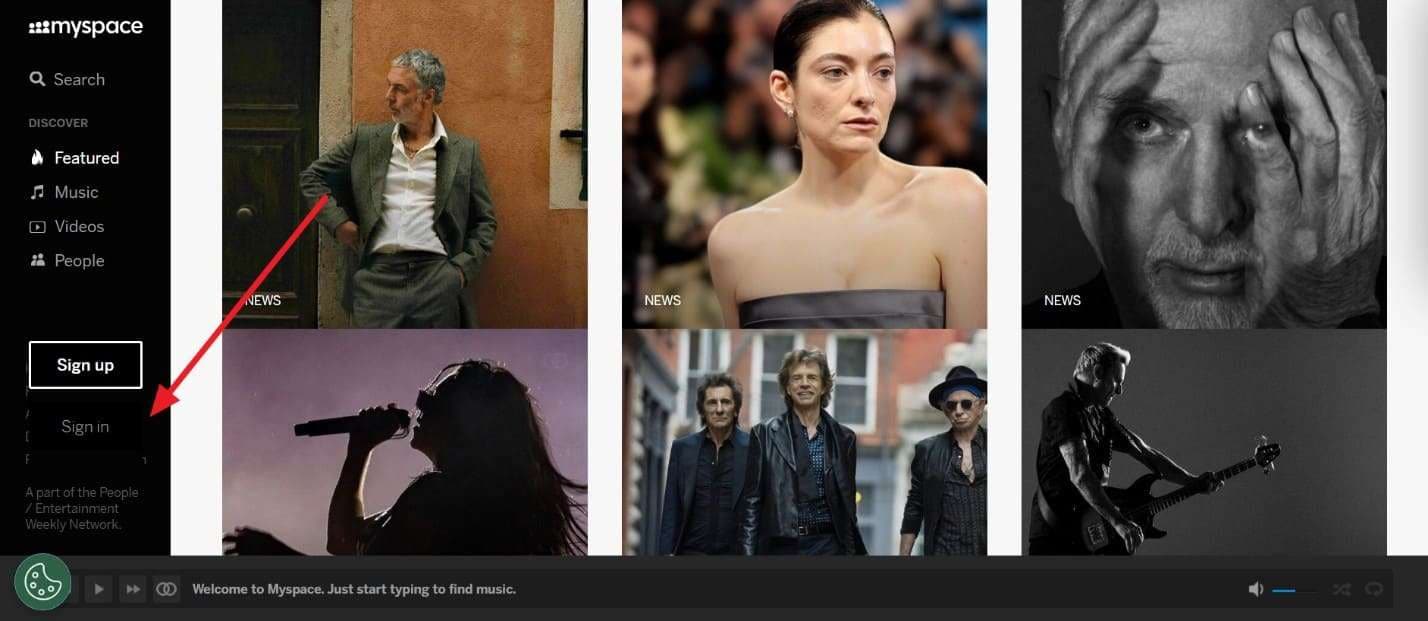
Step 1 Sign in to Your Legacy Account
Navigate to the official MySpace homepage via your desktop browser. Click the 'Sign In' button at the top left to log in with your original email credentials or legacy username.
Step 2 Navigate to the Mixes Category
Once your profile dashboard loads, head directly over to the 'Mixes' tab on the left-hand navigation menu. Scroll down through your generated playlists to locate and extract the old classic image mixes.

1-2. Search the Name to Get Old MySpace Photos
If you cannot remember your login details, this alternative method utilizes the global MySpace search bar to locate forgotten public profiles. Interestingly, you can conduct this search without being logged into a current account, though using a standard desktop computer browser usually yields far better filtering results. This directory search allows you to locate old profiles by typing exact names, known aliases, or email addresses associated with past accounts. By exploring these familiar profiles or checking tagged connections, you might successfully uncover hidden and old MySpace photos that were left public. Let's explore how you can recover pictures through this direct search technique:
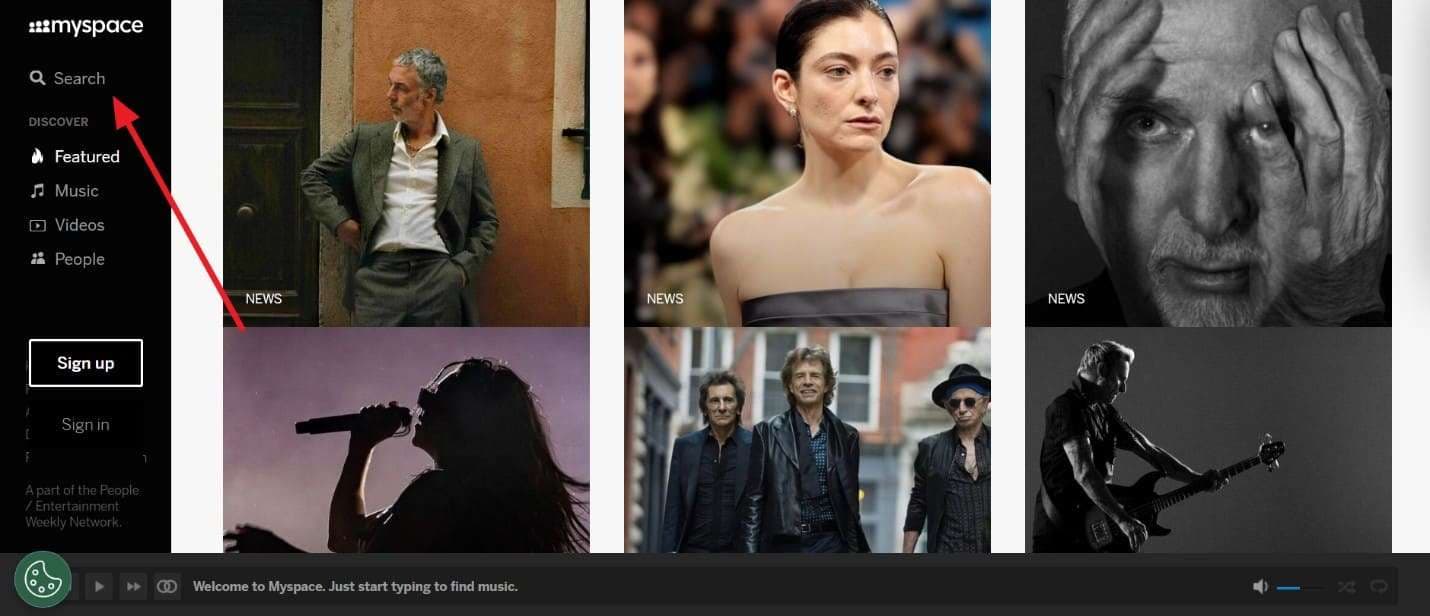
Step 1 Access the Global Search Bar
Upon accessing the main MySpace website, locate and click the 'Search' section, typically represented by a magnifying glass icon located prominently on the left menu pane.
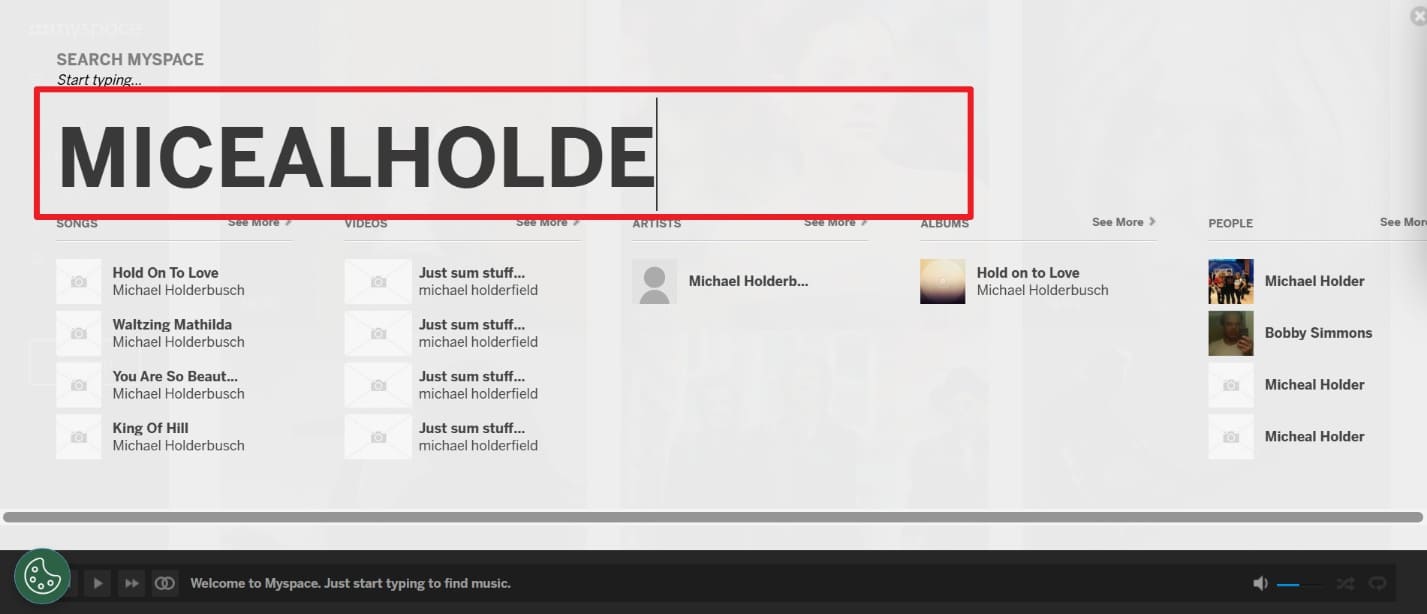
Step 2 Enter Identifying Legacy Information
In the search field, carefully type your full name exactly as you formatted it back then, such as 'First Last' or utilizing your iconic scene moniker like 'First [Nickname] Last.' After executing the search, filter by 'People' to locate, access, and view your old MySpace account grid.
1-3. Use the Upload Tab to Find Old MySpace Photos
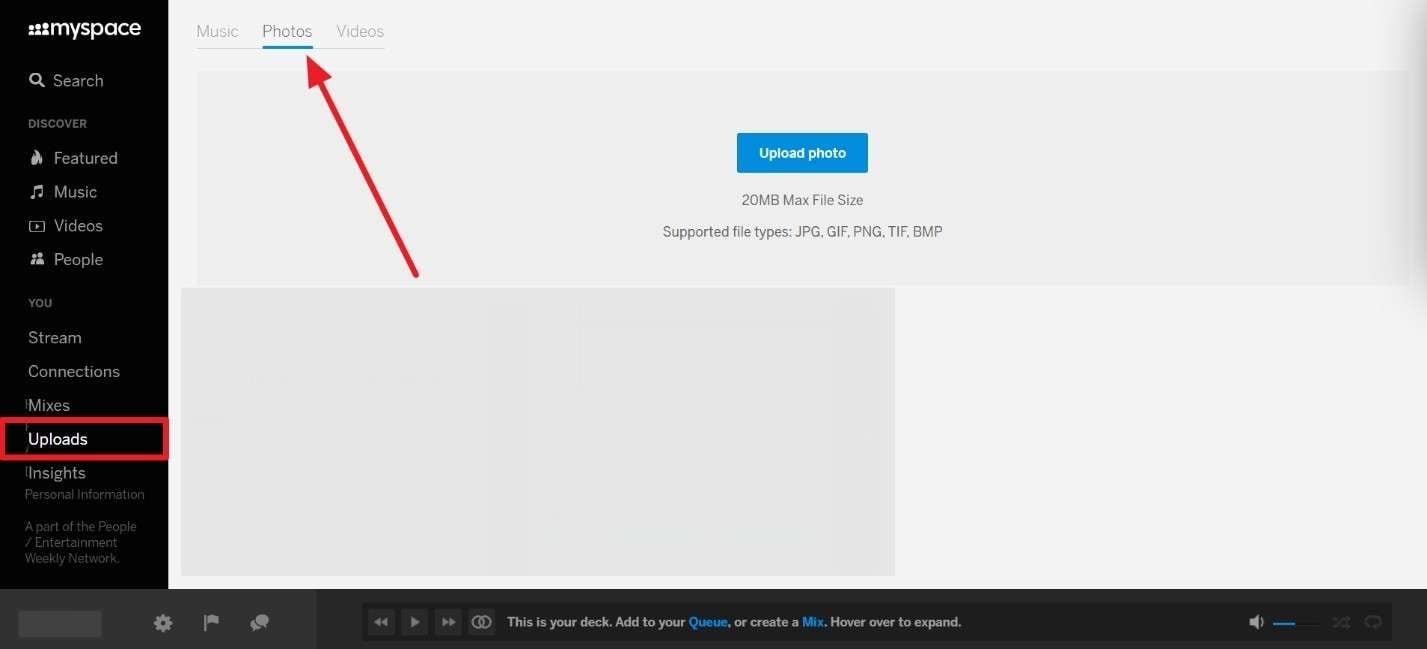
Alternatively, users can utilize the generic Uploads tab on their MySpace profile to revisit their scattered posted content. This interface may still display random standalone pictures uploaded immediately after major platform architectural changes or partial data loss events. Keep in mind that mostly content existing after the 2016 reconstruction phase appears here, as heavily corrupted missing items cannot be returned through this standard interface. However, this option works exceptionally well for checking your remaining single-image uploads without performing advanced directory searching. Take guidance from the steps below to systematically recover MySpace photos:
Instructions: After successfully signing in to your active MySpace account, navigate straight to the 'Uploads' tab on the sidebar. Following that, access the dedicated 'Photos' sub-section and continuously scroll through all historical pages of your Uploads. The system loads older items progressively as you go further down the list.
Part 2. Why You Can't See Your Old MySpace Pictures
Many times, even after diligently trying every native platform method, your old MySpace photos may still frustratingly not appear. This tragic outcome usually happens due to well-documented historical data loss events or deep technical problems connected to your specific profile generation. Below, you will find the critical reasons explaining why you can't see and recover MySpace photos online:
- Massive 2019 Data Loss: MySpace suffered a catastrophic data loss during a highly publicized server migration in 2019. An estimated 12 years of content (including over 50 million songs and countless photos uploaded prior to 2015) disappeared permanently, making it practically impossible to recover pictures from that era directly from their servers.
- Missing Legacy Servers: Some vintage photos are completely gone because they no longer exist on any active MySpace server racks. In cases where no residual file fragment remains stored online, the platform cannot dynamically restore the image rendering.
- Broken Third-Party Links: Back in the day, countless MySpace users customized their profiles by storing pictures through external third-party hosting sites like Photobucket, ImageShack, or Tinypic. When those external services eventually deleted free accounts, changed domain structures, or shut down entirely, the HTML links embedded in MySpace broke, and the pictures instantly disappeared.
- Incomplete Account Syncing: Profiles that were not properly migrated or authenticated to the modernized MySpace version post-2013 may have lost their relational album database. Meanwhile, unlinked or duplicated multiple accounts can hide your precious images under forgotten emails or obscure old usernames you no longer check.
- Irreversible File Corruption: In some instances, the actual image file containers exist on the server but cannot be successfully opened due to profound storage sector issues. Besides, deep database mapping errors or severely faulty legacy image formats make the modern platform interface entirely unable to display the photos.
Part 3. How to Recover Old MySpace Photos When They're No Longer on MySpace
When none of the native MySpace retrieval methods work due to server wipes, you still have a highly reliable secondary recovery solution. If the photos are no longer hosted on the internet, they might still reside as deleted cache files or lost data on the old smartphones or hard drives you used back then. In such scenarios, Dr.Fone – Data Recovery for Android and iOS devices offers a trusted and technologically advanced path forward.
Dr.Fone delivers one of the highest data recovery success rates available in the consumer market today. The comprehensive software flawlessly supports over 6000 Android models and all major iOS iterative versions, including the latest Android releases. Utilizing its deep-scan engine, you can effortlessly recover almost all historical file types, including deeply embedded photos, legacy videos, and lost documents.
Even if you strictly lack an organized cloud backup, this robust toolkit can still extract and restore localized lost photos efficiently from the device's internal storage sectors. For iOS users, it confidently brings back over 35 distinct data types directly from aging iPhones and iPads. Its powerful selective scanning interface lets you preview media files precisely before initiating the recovery, saving you significant time and preventing storage bloat. By scanning your old devices, this data recovery software can successfully retrieve local copies of old MySpace photos long after accidental deletion or systemic file corruption.
 Scan Android phones and tablets directly.
- Preview and recover only what you want.
- Supports WhatsApp, photos, videos, contacts, and more.
- Works with 6000+ Android devices.

Guide to Recover Old MySpace Photos via Dr.Fone - Data Recovery
If you still have the legacy smartphone where you originally saved or took your MySpace photos, you can systematically review the following operational guide to learn how to retrieve old MySpace photos straight from your Android hardware:
Step 1 Choose the Android Data Recovery Tool
After downloading and launching the Dr.Fone software on your computer, navigate to the main 'Toolbox' tab and head straight to the 'Data Recovery' module. Afterward, specifically opt for 'Android' as your target device OS, and then click the dedicated 'Recover Android Data' feature.

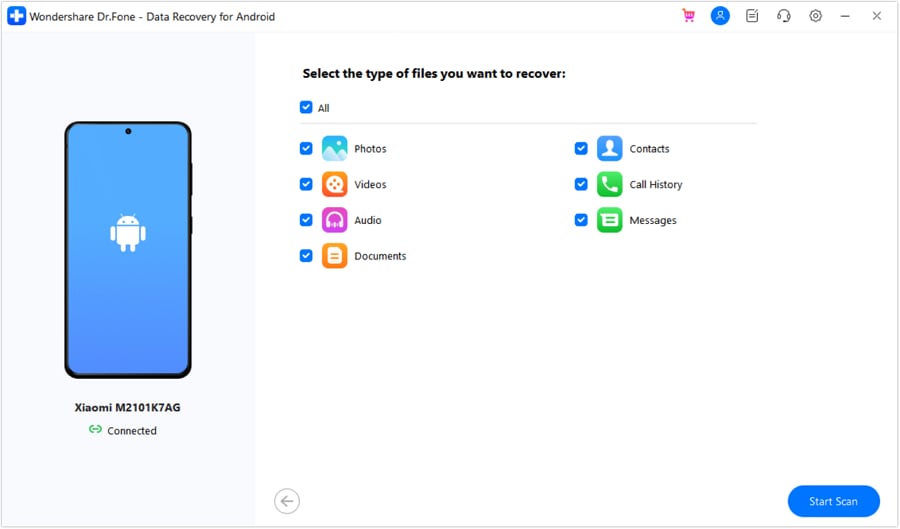
Step 2 Select the Photos Option to Initiate Scanning
At this stage, you need to securely link your legacy Android smartphone to the PC via a compatible USB cable. As soon as your mobile phone is properly connected and recognized by the software interface, check the 'Photos' data type checkbox and firmly press the 'Start Scan' button to begin the deep memory extraction.
Step 3 Preview and Export the Old MySpace Photos
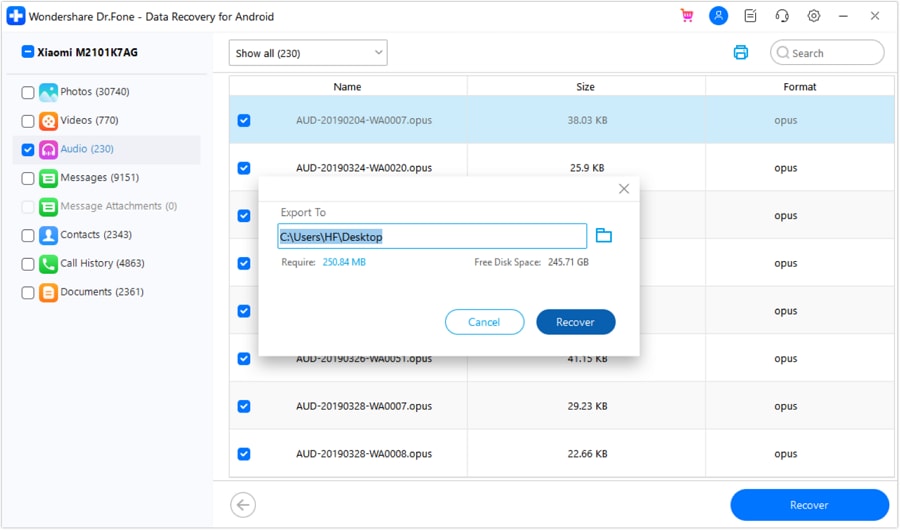
When the scanning program meticulously retrieves your deleted or hidden photos, scroll through the generated visual list to find and selectively mark your cherished old MySpace images. Subsequently, hit the 'Recover' icon located at the bottom right, carefully choose your preferred secure output folder location on your PC, and finalize by clicking the confirmation 'Recover' button.
Part 4. How to Protect Your Social Media Photos in the Future
Actively safeguarding your modern social media photos is utterly essential to permanently prevent future loss or repeating historical inaccessibility issues. Implementing strict backup routines directly answers widespread user concerns like why can't I see my pictures on MySpace? Thus, the following section will provide critical digital protection tips and foundational archiving tricks to keep your digital images unconditionally safe:
- Implement the 3-2-1 Backup Rule: Always save your highly important photos on at least two completely different physical storage types for baseline safety. Keep one redundant copy geographically away from home by utilizing trusted and encrypted online storage services.
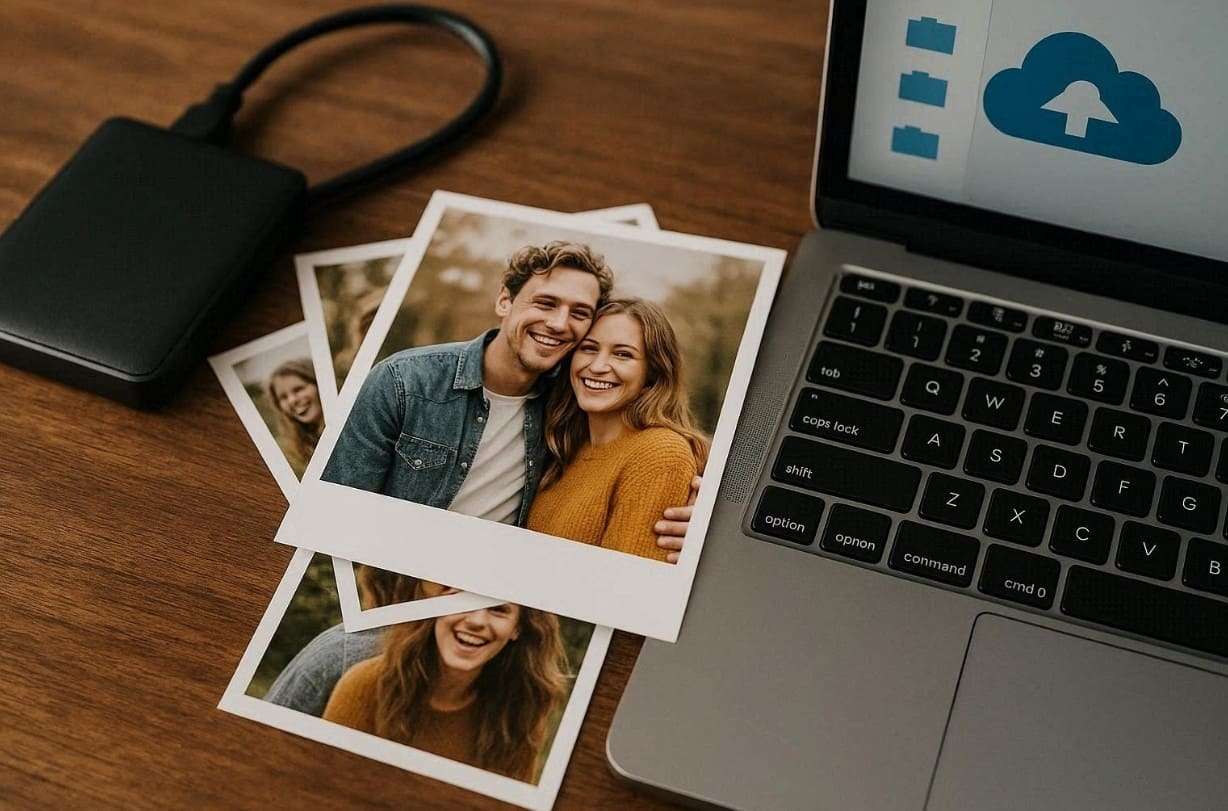
- Schedule Regular Data Downloads: Take the initiative to download your aggregated social media data regularly by using the official export or privacy backup tools provided by platforms like Facebook, Instagram, or X. This habit ensures you always have high-resolution extra versions safely saved locally in case sudden platform algorithms fail or accounts are banned.
- Maintain a Dedicated Master Library: Professionally create a heavily centralized folder on your primary computer dedicated strictly for storing raw, original HD photo versions before they undergo social media compression. Organize this offline folder meticulously by date and location so you can effortlessly locate past pictures when urgently needed.
- Invest in an External Drive: Leverage a high-quality external hard drive or a durable solid-state drive (SSD) to schedule recurring automatic photo backups via software like Time Machine or File History. This offline physical backup adds a much-needed robust safety layer if your synchronized online cloud copies unexpectedly become inaccessible due to server outages.
- Adopt Encrypted Cloud Storage: Choose an industry-reputable cloud backup solution like Google Drive, OneDrive, or Dropbox for automated background protection. Commercial cloud storage inherently ensures your irreplaceable pictures stay securely synced and safe, even during catastrophic scenarios like hardware theft, house fires, or irreversible device loss.
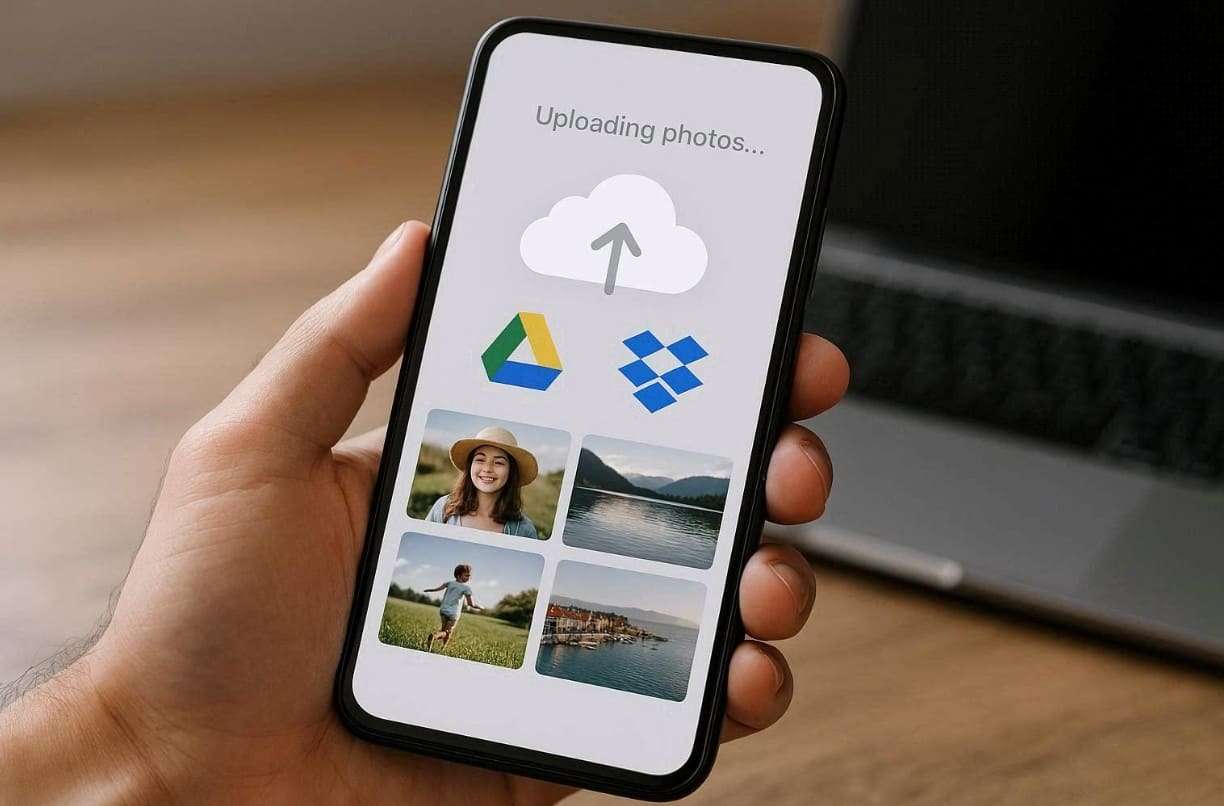
- Enforce Smart File Organization: Systematically sort your raw photos chronologically by year, month, or specific event names for immediate, quick identification and long-term structural consistency. Keeping highly uniform folder architectures across all your electronic devices vastly simplifies both future batch recovery procedures and manual visual searches without any resulting confusion.
- Strengthen Security Measures: Consistently utilize complex, unique passwords paired alongside robust Two-Factor Authentication (2FA) protocols to fiercely protect your valuable social media accounts from unauthorized hijacking. This critical barrier drastically reduces the severe chances of malicious third-party access resulting in the permanent, irreversible deletion of your photo galleries online.
Conclusion
In conclusion, recovering your cherished old digital memories can initially feel tricky and deeply frustrating, but implementing careful, informed steps makes it entirely possible. This comprehensive guide has distinctly explained how to find old MySpace photos directly on the platform and exactly how to navigate around notorious server wipeouts. Even if your vintage pictures are currently missing from public view, several trusted legacy solutions can still help manually restore them. Remember to permanently protect your evolving digital memories by backing them up regularly in multiple offline locations for guaranteed long-term access. If absolutely nothing works online, utilizing powerful desktop software like Dr.Fone – Data Recovery can securely and effectively retrieve your lost or deleted local photos from old mobile devices without any technical hassle.
FAQ
1. Are private MySpace photos still available?
Private legacy photos may appear inaccessible initially if your old account privacy settings strictly restrict public visibility. Logging in with your exact original credentials might instantly reveal the hidden archived albums for your private viewing. However, if they remain entirely missing after a successful login, those particular photos were unfortunately likely deleted or irrecoverably lost during the massive 2019 server migration incident.2. Does MySpace customer support help in recovering old photos?
No, modern MySpace customer support no longer actively restores deleted or lost multimedia content from its deprecated older database and historical archives. The vast majority of older uploads were systematically removed or irreparably corrupted after profound structural platform updates and massive data migrations years ago. You can only view and recover what is currently visible within your active, logged-in account framework or the dedicated Mixes tab.3. Can I restore MySpace photos saved on an old phone?
Yes, you can meticulously check any old physical storage devices, including legacy smartphones and vintage SD cards, carefully. Look deeply in old forgotten folders or standard image gallery storage directories historically linked with earlier accounts or downloaded via outdated mobile browsers. If the cache files were locally deleted, utilizing a robust tool like Dr.Fone - Data Recovery can successfully recover those lost image fragments from heavily supported Android or classic iOS devices.4. Why do some of my old MySpace pictures have broken links?
During the peak popularity of MySpace, countless users relied heavily on third-party image hosting platforms (such as Photobucket, ImageShack, or TinyPic) to embed customized graphical layouts and photos onto their profiles. Over the past decade, as many of these external hosting services shut down entirely, drastically altered their domain routing, or simply purged free inactive accounts, the connected HTML links remaining on MySpace immediately broke, causing the images to render as permanent blank squares.
 Add Wondershare Dr.Fone as a preferred source on Google