Recover photos, messages, WhatsApp, and more — no backup
needed.
Recover photos, messages, WhatsApp, and more — no backup
needed.

 100% Security Verified | No Subscription Required | No Malware

 :
: 
 ChatGPT
 Perplexity
 Gemini
 Claude
 Grok
Grok
Imagine you are staring at your phone screen because you deleted the crucial client thread on WhatsApp Business. Whether it was a confirmed order, a contract detail, or a year's worth of networking, losing WhatsApp Business chats can feel like a professional disaster. However, the deleted data is not gone forever, as there are multiple ways to recover deleted WhatsApp Business messages on Android. From leveraging Google Drive Backups to local storage, to using recovery tools like Dr.Fone, this guide explains all the solutions. While reviewing the detailed instructions, consider each method's limitations to determine whether Dr.Fone is the best choice.
In this article

Part 1. How to Recover Deleted WhatsApp Business Chats on Android Using Backup
For WhatsApp Business data recovery Android, Google Drive backup is the safe, official option. Since WhatsApp Business does not store messages on its server for recovery, backup allows users to restore chats if they were created before the chats were deleted. According to WhatsApp, you can only restore chats if you verify the same phone number and Google account during setup, as guided ahead:
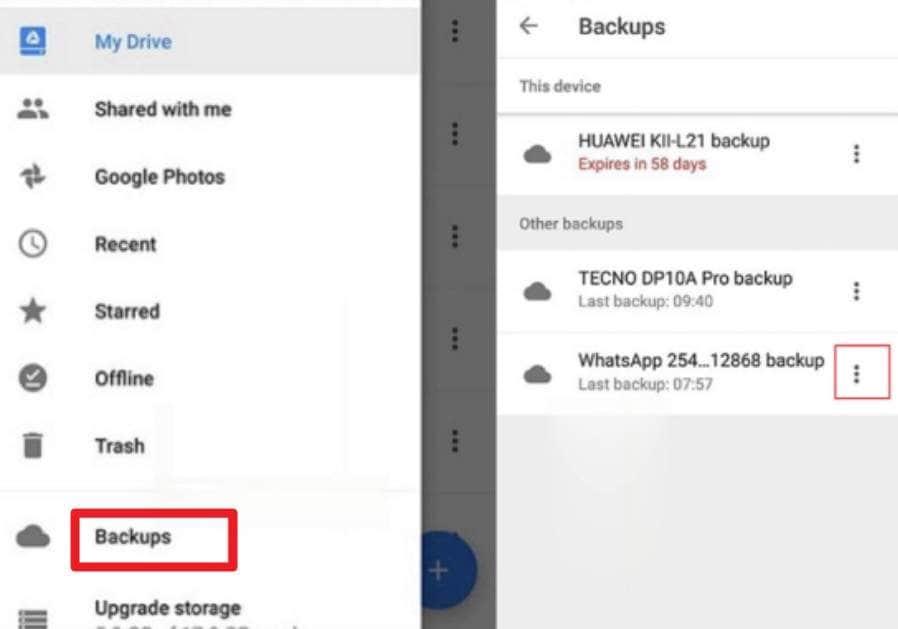
Confirm the Backup
Option 1: In the Google Drive app, tap the "Hamburger" icon, then select "Backup" to check whether a backup exists.
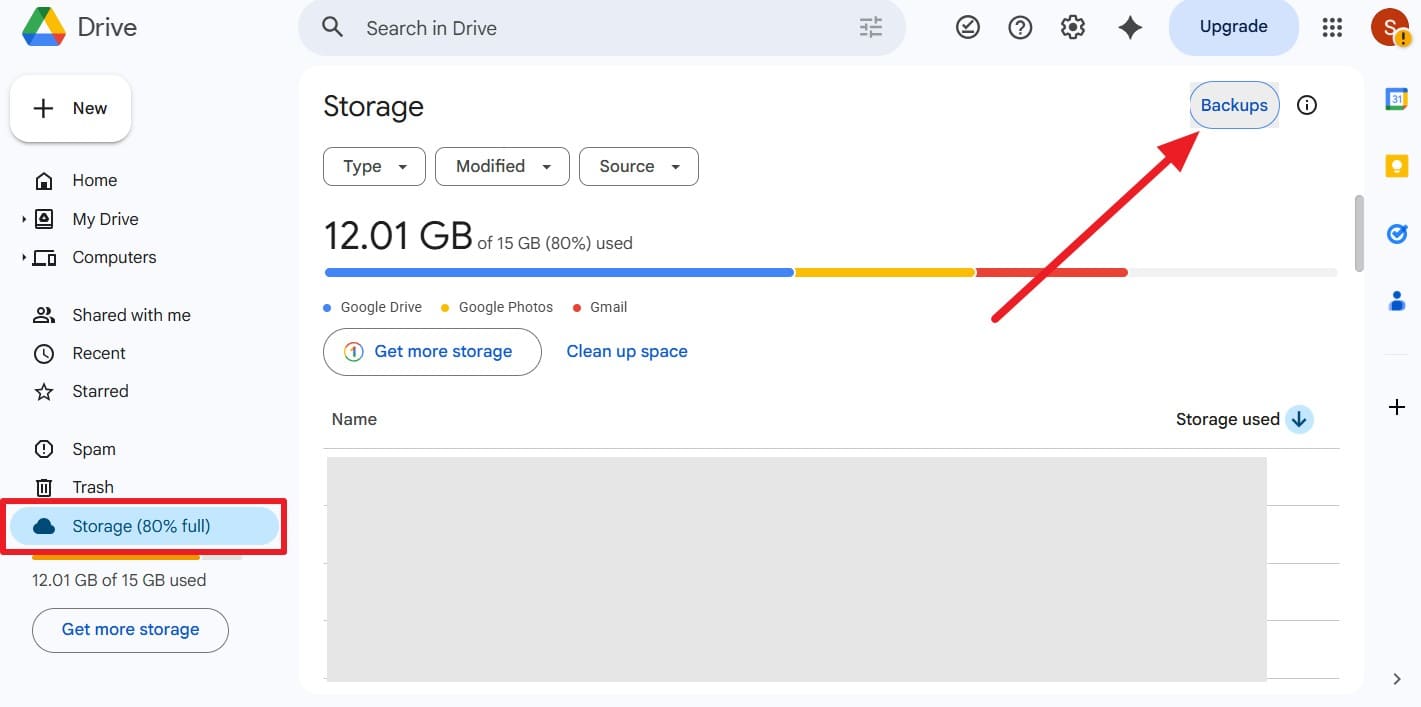
Option 2: Access Google Drive on the browser and go to the "Storage" tab to choose the "Backup" option. After that, locate the Android Backups section to see whether it was made before the chat deletion.
Restore Google Drive Backup:
-
Step 1
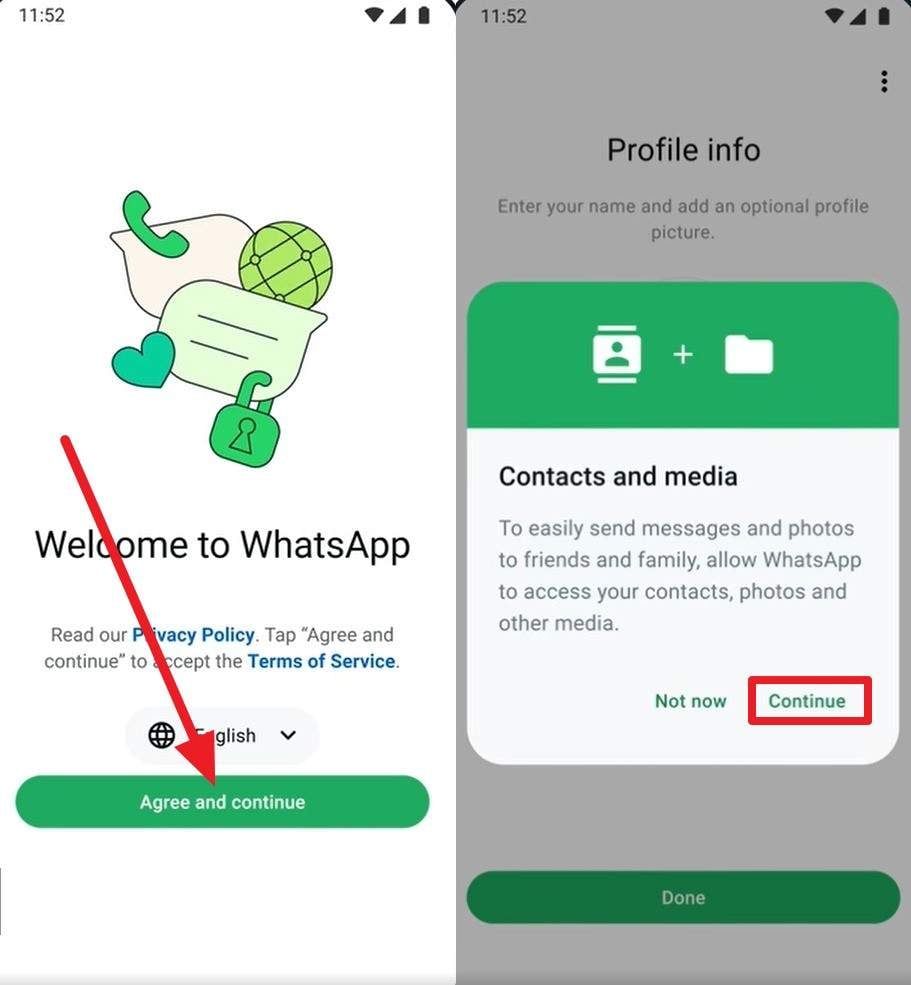
Uninstall and reinstall the WhatsApp Business application, then on the setup screen, select the "Agree & Continue" button. After that, enter the phone number details, add the passcode received on the SIM, verify the account details, and select the "Continue" and "Allow" options.
-
Step 2
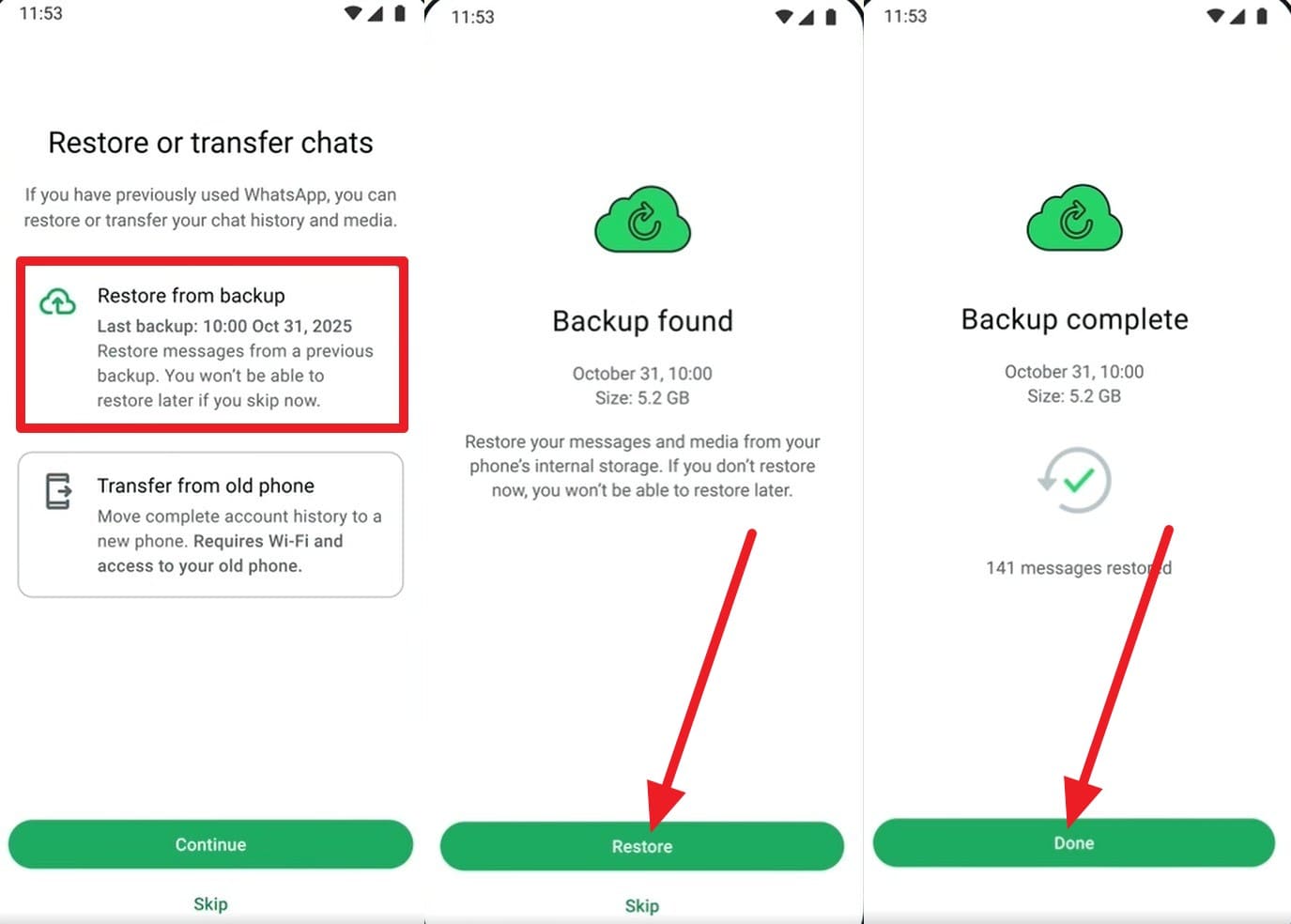
Then, choose the "Restore from Backups" option and on the automatically detected backup, press the "Restore" button. As it completes, choose the "Done" button, and your lost WhatsApp Business chats will be displayed with a "Restoring Media" progress bar showing.
Limitations
- Google Drive keeps only one backup per number; older backups are overwritten.
- Deleted or overwritten backups cannot be recovered by WhatsApp Business or Google.
- Restore replaces all correct data; selective chat recovery is not possible.
- The same phone number and Google account are required to restore the backup.
Part 2. Can You Recover WhatsApp Business Chats on Android Without Cloud Backup?
As another method to recover deleted WhatsApp Business data Android, use the phone's local backup files. On Android, WhatsApp saves an encrypted backup file daily, so you may still have access to recent data even if Google Backup was off or failed. Overall, this method is safe, requires no downloads, and gives more control, since you can copy backup files to a PC or an SD card, as guided below:
-
Step 1
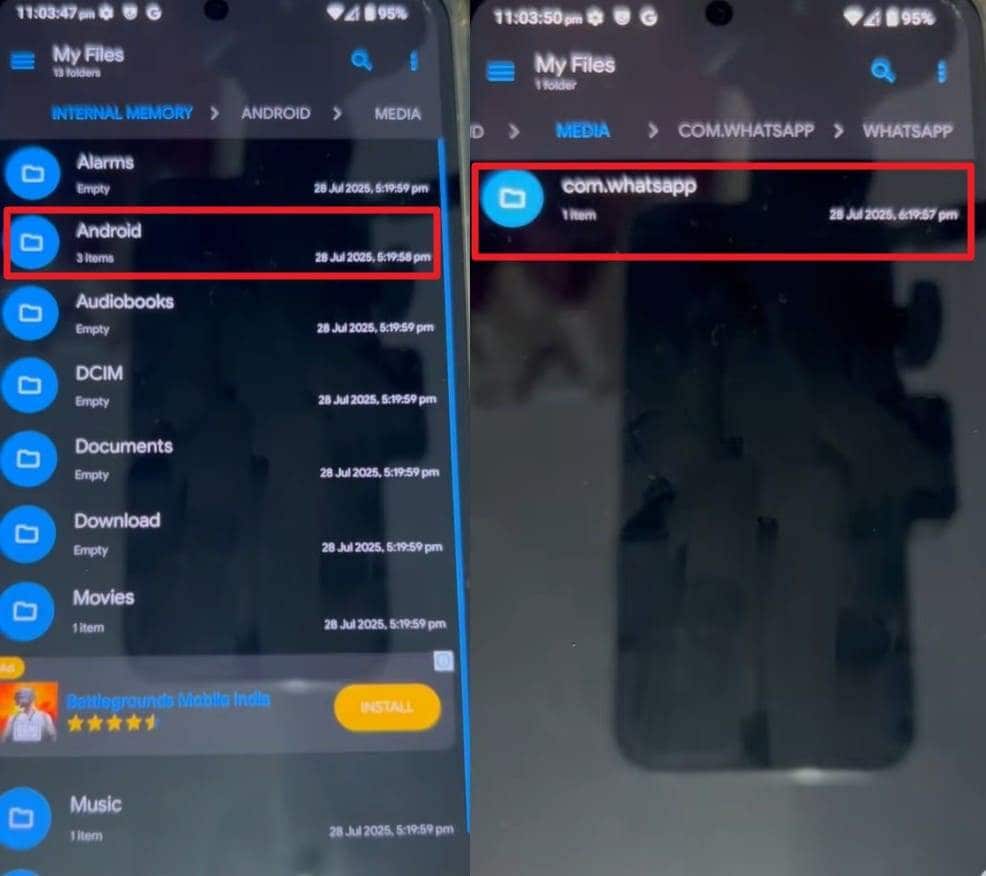
As you access the File Manager on the app, navigate to "Internal storage > Android > media > com.whatsapp.w4b > WhatsApp Business > Databases." Look for the folder "msgstore-YYYY-MM-DD. db.crypt14" and choose the backup from the day before chats were deleted.
-
Step 2
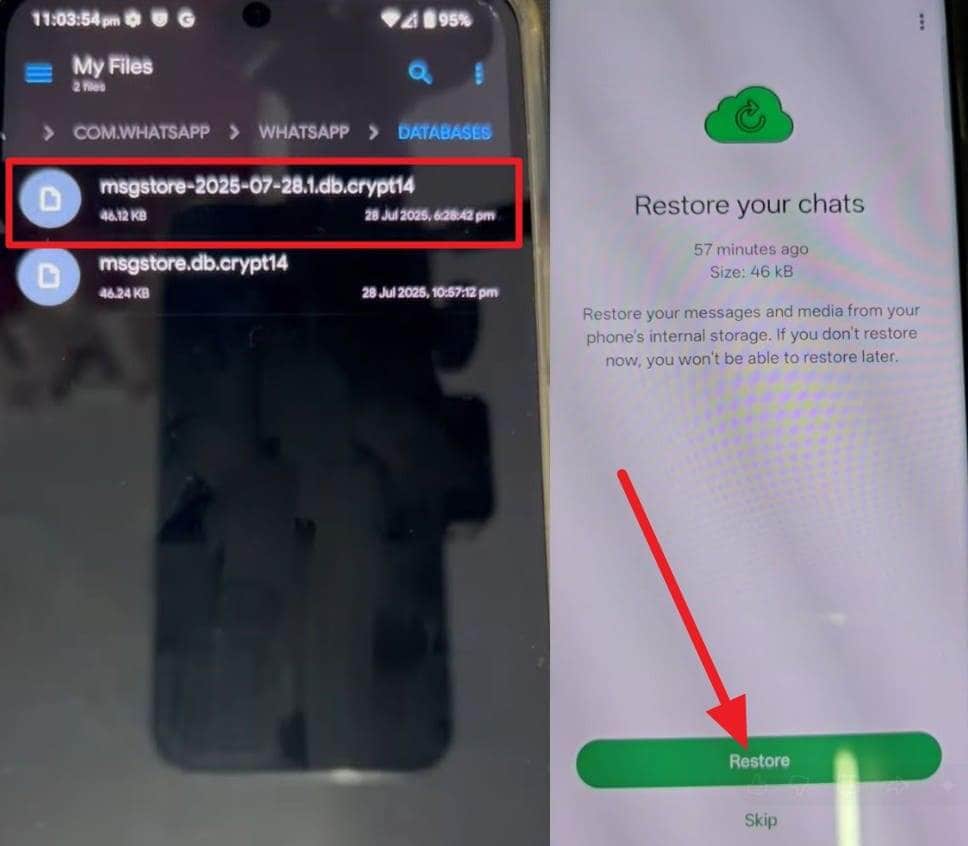
Then, rename the file to "msgstore.db.crypt14" and reinstall the WhatsApp Business app. On the setup screen, as this file is detected, choose the "Restore" button.
Limitations
- Wrong folders or old files may not be detected by the app.
- Setting up and renaming steps are tricky; mistakes can delete files.
- Backup files may get corrupted or fail to restore.
Part 3. What to Do If WhatsApp Business Messages Are Accidentally Deleted?
Since the above-mentioned methods can baffle amateurs, they might seek seamless ways to recover WhatsApp Business chats Android without backup. In this case, recovery tools like Dr.Fone - Data Recovery allow you to recover WhatsApp Business data from a non-backup, broken device. Additionally, the tool performs a read-only scan to keep the chats and media in their original quality during restoration.
Users can also preview the restored chats and selectively save them to the PC or export them to HTML and CSV files. Since such recovery tools offer better control and a clear guide, they can be an ideal choice for beginners and professionals. Users can easily retrieve lost WhatsApp Business chats in 2-3 simple steps on most devices, as the tool supports 6,000+ Android brands.
 Scan Android phones and tablets directly.
- Preview and recover only what you want.
- Supports WhatsApp, photos, videos, contacts, and more.
- Works with 6000+ Android devices.

Guide to Recover Lost WhatsApp Business Chats via Dr.Fone
For those who want to know how to use this tool, this section provides a test of its use. So, review the mentioned guide and determine the success rate and chat recovery claims:
-
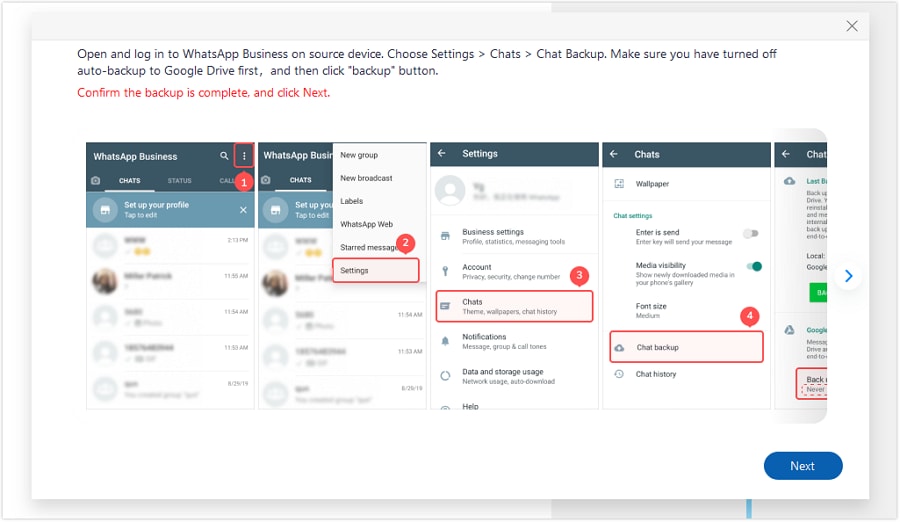
Step 1Launch the WhatsApp Business Recovery Tool for Android
For WhatsApp Business deleted messages recovery Android, access the Data Recovery tool for Android in Dr.Fone toolbox. After that, press the "Recover WhatsApp Business Data" option and press the "Next" button to see the chat backup status.
-
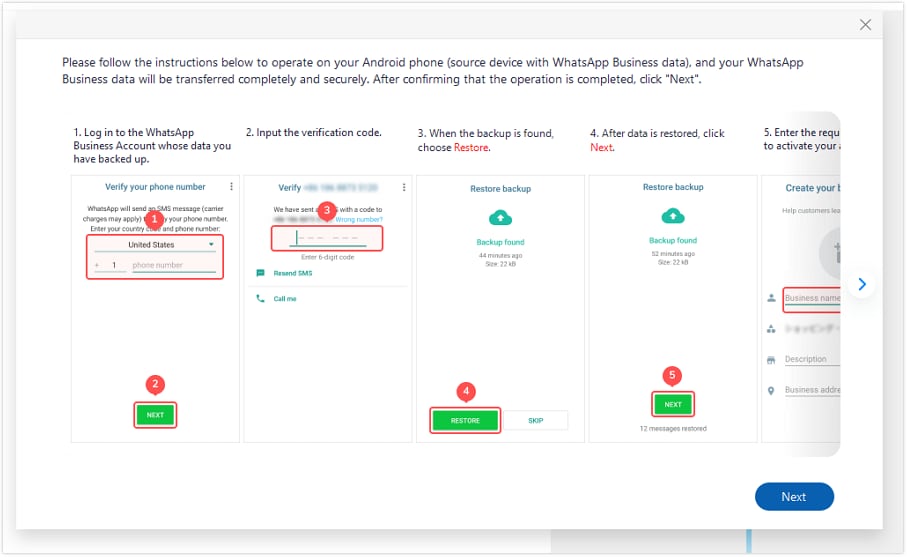
Step 2Follow Instructions and Enable the Storage Option
After that, enable storage access in the WhatsApp Business app, then tap the "Restore" button and follow the instructions.
-
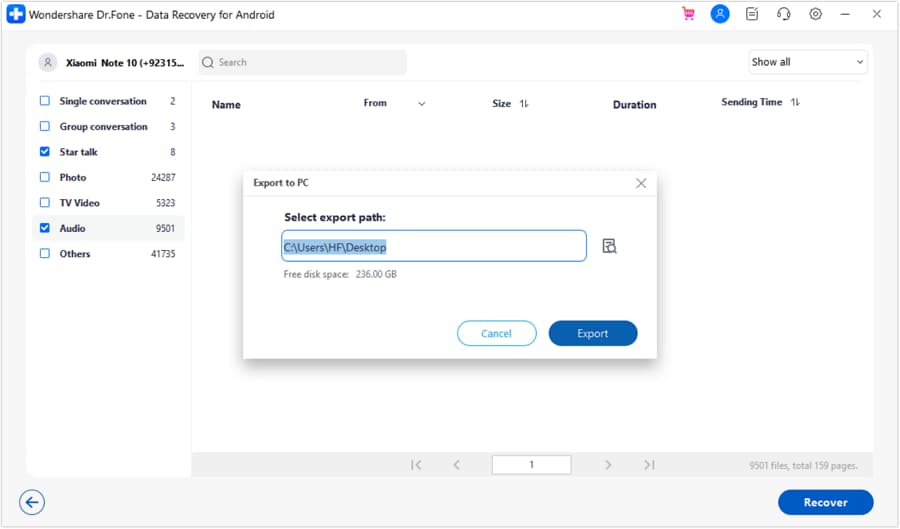
Step 3Preview and Export the Recovered Chats
As the tool detects and displays the recovered chats, preview them, and press the "Recover" button. On the popup menu, select "Select Export Path," then choose the "Export" button to save the retrieved chats.




Part 4. How to Prevent WhatsApp Business Data Loss
Many user face the situation where their WhatsApp Business messages accidentally deleted on Android, as they say:
Last week, I accidentally deleted all my WhatsApp chats, and I had no backup. I've been searching for a way to recover them without a backup. Any real advice would help. - r/whatsapp
To save you from the restoration hassle again and again, follow the 5 simple tips given below:
| Category | Tips | Action Steps |
|---|---|---|
| Automation | Enable Daily Backups | Go to Settings > Chats > Chat backup and set "Back up to Google Account" to Daily. |
| Security | Use Encrypted Backups | Enable end-to-end encrypted backup with a password or 64-digit key to prevent unauthorized access by cloud providers. |
| Redundancy | Create Local Copies | Periodically use the "Export Chat" feature to email crucial threads to yourself as .txt files for offline access. |
| Verification | Test Restoration | Occasionally, test your backup by ensuring the "Last Backup" timestamp in settings is current and accurate. |
| Compliance | Integrate with CRM | For larger operations, use the WhatsApp API to sync messages directly to a CRM (like Salesforce or Zoho) for permanent archiving. |
| Account Safety | Enable 2FA | Activate two-step verification to prevent account hijacking, which is a leading cause of permanent data loss. |
Conclusion
As losing WhatsApp Business chats can be stressful, it's important to know how to recover deleted WhatsApp Business messages on Android. Therefore, this guide has explained how users can use Google Drive Backup and local backup files to restore the chats. Since they are prone to corruption and technical errors, using recovery tools like Dr.Fone - Data Recovery is recommended to selectively recover chats.
FAQs
-
Will restoring a backup delete my recent messages?
Yes, when you restore a backup from a previous date, any messages sent or received after that backup was created will be overwritten and lost. Therefore, it's suggested to export your current important chats before performing a restore. -
Can I recover WhatsApp Business chats on a PC or WhatsApp Web?
No, this is because WhatsApp Web and Desktop are mirrors of your phone. They do not store an independent database, so you cannot perform a recovery or backup directly from a computer browser. -
What if I forgot my 64-digit End-to-End Encryption key?
If you enabled encrypted backups and lost both your password and the 64-digit key, the backup is permanently inaccessible. Neither WhatsApp nor Google can reset this for you, as they do not hold the keys.
 Add Wondershare Dr.Fone as a preferred source on Google