Recover photos, messages, WhatsApp, and more — no backup
needed.
Recover photos, messages, WhatsApp, and more — no backup
needed.

 100% Security Verified | No Subscription Required | No Malware

 :
: 
 ChatGPT
 Perplexity
 Gemini
 Claude
 Grok
Grok
Have you ever seen your friends play pool on iMessage and wondered how they do it?
GamePigeon 8 Ball turns your standard iMessage application into a fully functional, competitive pool game. You can quickly download the app and challenge a friend to a match in just a few seconds. The only core requirement is that both players must be using Apple devices with iMessage actively enabled. The game installs rapidly, allowing you to dive into the action immediately.
If you don’t know where to get this game or how to master its mechanics, you are in the right place.
This comprehensive guide covers everything from the initial installation process to advanced spin techniques and precise cue ball control. Additionally, you will discover what steps to take if you accidentally delete your important game conversations and need to retrieve them.
In this article
Part 1. What Is GamePigeon 8 Ball?
GamePigeon is an incredibly popular, free iMessage extension application that offers a diverse collection of over 20 multiplayer games. It is most famous for being the developer behind the viral imessage pool game known as 8 Ball.
The gameplay is completely turn-based and operates directly within your regular Messages app interface. First, you align and execute your shot, which sends a quick update to your friend. Then, you simply wait for their reply containing their subsequent shot. The beauty of this system is that you do not need to create a separate account or navigate through public lobbies. The 8 ball imessage gameplay is instant and seamless.
The digital version rigorously follows standard professional pool rules. Your primary objective is to pocket all your assigned balls—which are designated as either stripes or solids based on the first pocketed ball. Once you have cleared your specific set, you secure the victory by successfully sinking the black 8 ball. Missing a shot or committing a foul immediately transfers the turn back to your opponent.
Part 2. How to Get iMessage 8 Ball
Installing the 8 ball game pigeon extension on iMessage is a swift process that takes less than a minute. Everything is handled entirely inside the native Messages environment, meaning you don't even have to leave your chat to get started.
Follow these detailed steps to install the game:
-
Step 1 Open an Active Conversation
Launch your Messages app and open an active text thread with a friend. Ensure that the recipient is using an iPhone or iPad, as the game requires the Apple ecosystem to function.
-
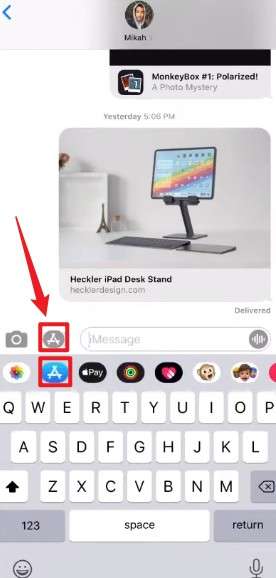
Step 2 Access the iMessage App Store
Locate the App Store icon positioned next to the text input field. It typically resembles a small gray "A". Tap this icon to reveal the app drawer, then select the blue App Store button to browse available iMessage extensions.
-
Step 3 Download GamePigeon
Use the search function to look for "GamePigeon" and tap the "Get" button. The application will download almost instantly. Depending on your security settings, you may be prompted to authenticate the download using Face ID, Touch ID, or your Apple ID password.
Part 3. How to Play 8 Ball on iMessage
Once you successfully get GamePigeon 8 Ball on your device, initiating a match is straightforward. The entire experience happens synchronously within your chat window.
-
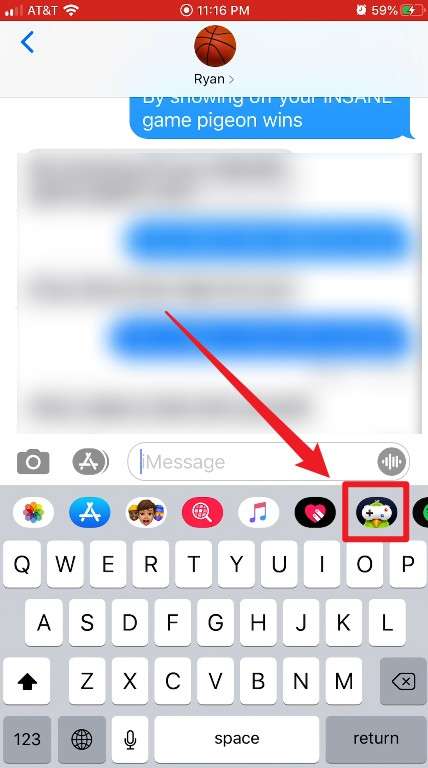
Step 1 Launch the Game from the Drawer
Navigate to your chosen iMessage chat. Tap the newly installed GamePigeon icon located in the horizontal app drawer below the typing area.
-
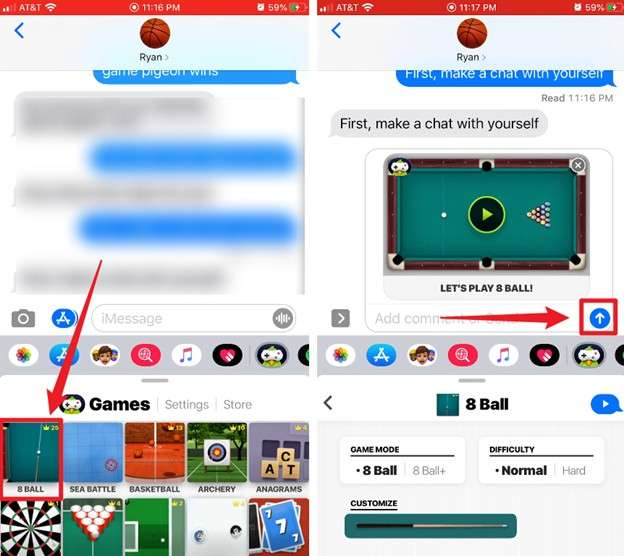
Step 2 Select 8 Ball and Send Invite
Browse through the available mini-games, select "8 Ball," and tap the send arrow to officially challenge your friend to a match.
-
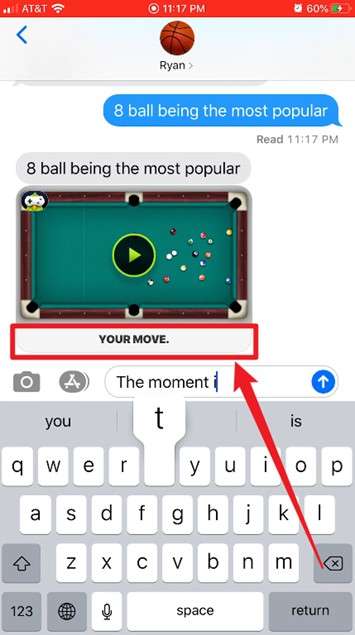
Step 3 Take Your Turns
Your opponent will receive a playable invitation block. After they complete their break or shot, the iMessage interface will update, displaying a "Your Move" notification. Tap it to load the table and continue the back-and-forth competition until a winner emerges.
Mastering Basic Gameplay Mechanics
The control scheme for the imessage pool game is highly intuitive. You use your finger to drag the cue stick radially to set your aim. Once aligned, pull back on the stick to determine your shot's power, and release to strike the cue ball. Familiarize yourself with these foundational rules:
- The player who receives the initial game invitation is granted the opening break.
- The first player to successfully pocket a designated ball type (stripes or solids) claims that category for the remainder of the game.
- You retain your turn as long as you continue to pocket your assigned balls without committing a foul.
- A missed shot or a technical foul instantly transfers the turn to your opponent.
Available Game Modes
| Game Mode | Description | Best Suited For |
|---|---|---|
| 8 Ball | The standard, classic game played with a rack of 15 balls. | Quick matches and casual gaming sessions with friends. |
| 8 Ball+ | Features double the amount of balls, resulting in a much denser table and longer gameplay. | Advanced players looking for a prolonged, strategic challenge. |
Additionally, GamePigeon allows players to select between Normal and Hard difficulty settings. Normal mode displays helpful aim-assist guidelines, whereas Hard mode removes them entirely—forcing you to rely purely on your spatial awareness and visual angles.
Part 4. How to Win in 8 Ball iMessage Games
Securing consistent victories in gamepigeon 8ball boils down to three core competencies: intelligent shot selection, masterful cue ball control, and avoiding catastrophic scratches. Applying these advanced techniques will elevate your win rate.
Master the Break
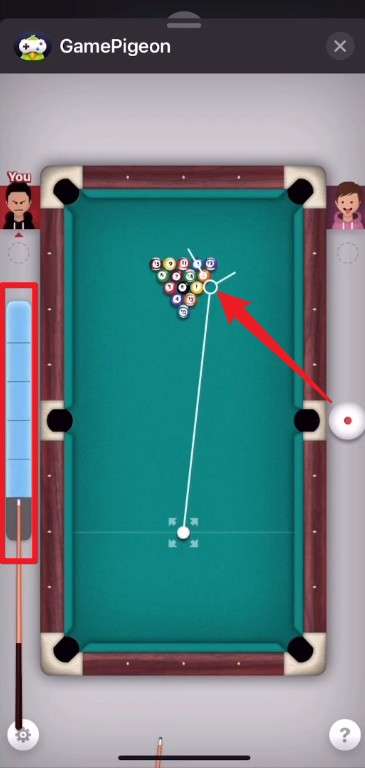
A strong break sets the tempo for the entire match. Instead of hitting the front ball head-on, aim your cue stick for the second ball situated from the back of the triangular rack. Apply maximum power combined with a slight top-right spin. This specific setup mathematically increases the probability of pocketing at least one ball on the break while simultaneously spreading the remaining cluster effectively.
Use Spin Effectively
Spin manipulation is arguably the most underutilized mechanic in 8 ball imessage. You can adjust the spin by tapping the cue ball icon located on the upper right side of your screen. A red targeting dot will appear, allowing you to pinpoint where the cue tip will strike. Understanding spin dynamics is crucial:
| Spin Type | How to Apply It | Gameplay Effect |
|---|---|---|
| Backspin | Tap significantly below the center line. | Forces the cue ball to rapidly roll backward immediately after impacting the target ball, preventing scratches. |
| Topspin | Tap above the center line. | Causes the cue ball to maintain forward momentum and follow through the target ball's path. |
| Left / Right Spin | Tap to the left or right of the center point. | Alters the reflection angle drastically when the cue ball bounces off the table rails. |
Integrating spin transforms you from a reactive player into a proactive strategist who can comfortably run the table.
Think Two Shots Ahead
Elite players do not just focus on the immediate shot; they meticulously plan their next move. You might easily pocket a ball, but if the cue ball deflects into a congested dead zone, your turn will quickly end. Always visualize where you want the cue ball to come to rest, and modulate your stroke power and spin to achieve that exact positioning.
Part 5. 8 Ball Pool Tips and Tricks
To dominate your friends in 8 ball game pigeon, you need to employ strategies that go beyond basic aiming.
The Ruler Method
While it may sound unconventional, utilizing a physical straightedge against your phone screen can drastically improve your accuracy on tight angles. Alternatively, you can take a screenshot while aiming, open the native markup tools, and draw a straight line from the cue to the target. This reveals the precise trajectory, guaranteeing a perfect shot execution.
Power Control Matters
Hitting the ball with maximum force is rarely the optimal choice. Softer, controlled strokes provide superior command over the cue ball's final resting place. Overpowered shots may look dramatic, but they introduce erratic bounces that often result in unfavorable table positioning.
Play Defense When Needed
If you find yourself without a viable offensive shot, pivot to a defensive mindset. Focus on lightly tapping the cue ball to hide it behind your opponent’s balls or trapping it against the rail. Forcing your opponent into an impossible long-distance shot is a highly effective way to reclaim control of the table.
Watch The Timer
GamePigeon enforces a strict time limit for every shot. Overthinking your geometry will result in a timeout penalty. Assess the table quickly, commit to your chosen strategy, and execute the shot before the timer expires, otherwise, you automatically forfeit your turn.
Part 6. Common Mistakes to Avoid
Even seasoned players can fall victim to fundamental errors. Avoid these common pitfalls to maintain your winning streak:
- Don’t scratch on the 8 ball: Sinking the 8 ball alongside the cue ball results in an instant loss. Always utilize backspin or soft power to prevent the cue ball from following the 8 ball into the pocket.
- Avoid hitting your opponent’s balls first: Striking the wrong color not only grants your opponent an advantage but is also a foul. Pay close attention to the visual cross mark that appears when you aim incorrectly.
- Deal with clusters early: Neglecting clumped balls until the end of the game restricts your mobility. Use your mid-game shots to break up problematic clusters intentionally.
- Skip the flashy trick shots: Digital physics can be unforgiving. Attempting low-percentage bank shots when a simpler alternative exists usually ends poorly. Prioritize consistency and high-probability plays.
Part 7. Bonus Tip: Recover Lost iOS Messages with Dr.Fone
Have you ever accidentally deleted a crucial conversation mid-game? iMessages containing intense GamePigeon sessions can vanish due to accidental swipes, interrupted iOS updates, or aggressive storage cleanup routines. However, these digital memories are not permanently destroyed.
Using Dr.Fone - Data Recovery (iPhone), you can securely scan your Apple device for deleted text threads and instantly restore them. The software is designed to extract precise data fragments from local storage, iCloud, or iTunes backups without risking the overwriting of your current files.
This powerful utility is universally effective across virtually all data loss scenarios, including catastrophic system crashes or sudden device failures. Beyond gaming logs, Dr.Fone - Data Recovery (iOS) possesses the capability to retrieve over 35 distinct file formats, encompassing lost photos, contact lists, and vital WhatsApp chat histories.
 Recovers data after deletion, crashes, or device damage.
- Supports photos, messages, contacts, WhatsApp, and more.
- Supports all major iPhone, iPad, and iPod models.
- Preview and recover only what you need.

Steps to Recover Lost iOS Messages with Dr.Fone
-
Step 1 Launch the Data Recovery Tool
Begin by downloading and installing Dr.Fone on your desktop computer. Launch the main interface, navigate to the "Toolbox" menu situated on the left panel, and select the "Data Recovery" module.

-
Step 2 Choose Your Operating System
When prompted to select your device's environment, click on "iOS" and subsequently opt for the "Recover Data from iOS device" feature.
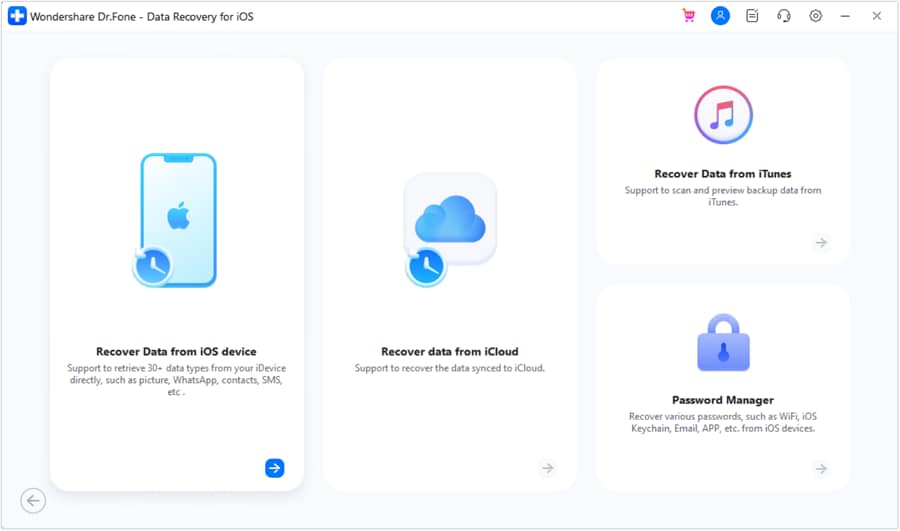
-
Step 3 Connect Device and Select File Types
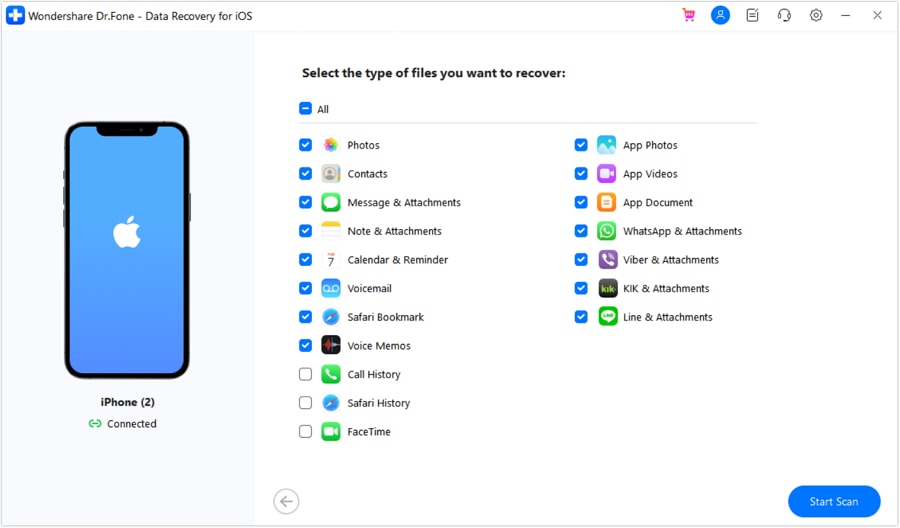
Physically connect your iPhone or iPad using a secure USB cable. Once the system detects your hardware, you will be presented with a comprehensive list of recoverable data categories. Check the box specifically labeled "Message & Attachments" to target your GamePigeon threads.
-
Step 4 Initiate the Scanning Process
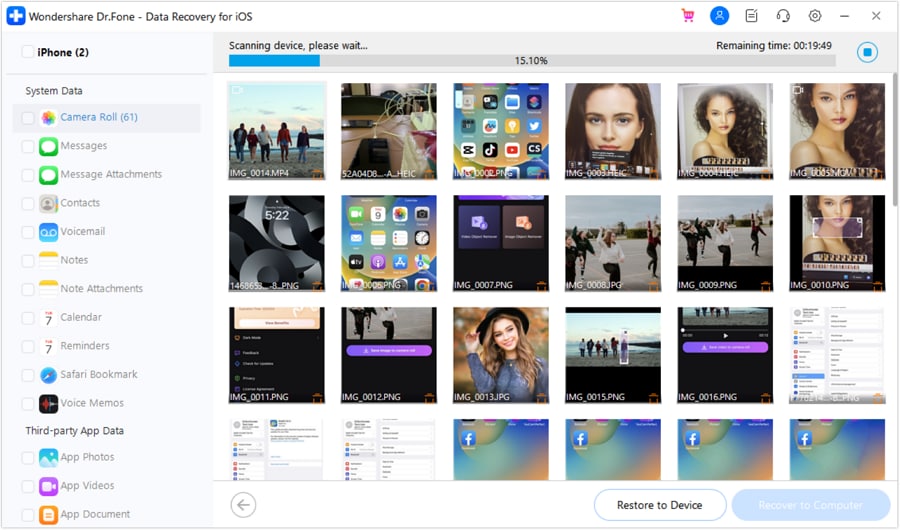
Dr.Fone will commence a deep scan of your device’s internal storage architecture. During this phase, you can monitor the progress and observe real-time previews of the extracted information.
-
Step 5 Review and Select Desired Messages
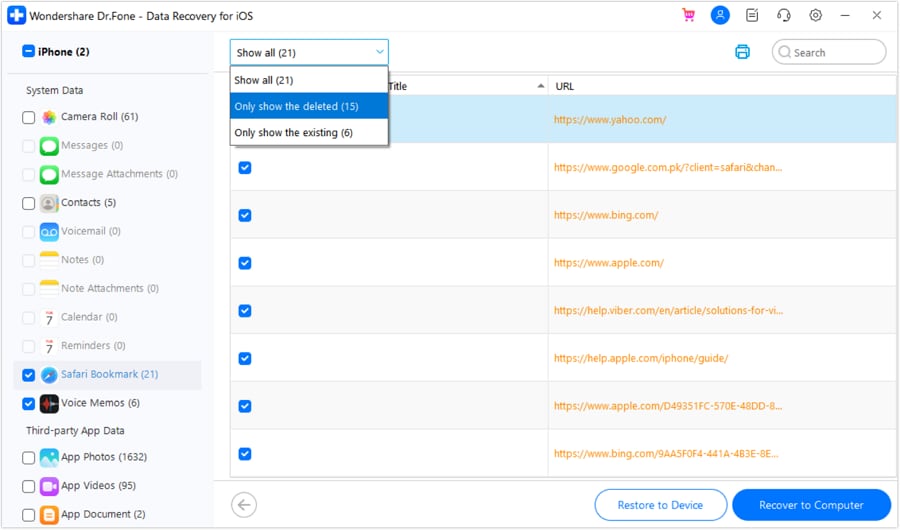
Upon completion, utilize the integrated filtering options at the top menu to isolate the specific text threads you wish to rescue. Highlight the necessary files and click the "Restore to Device" button.
-
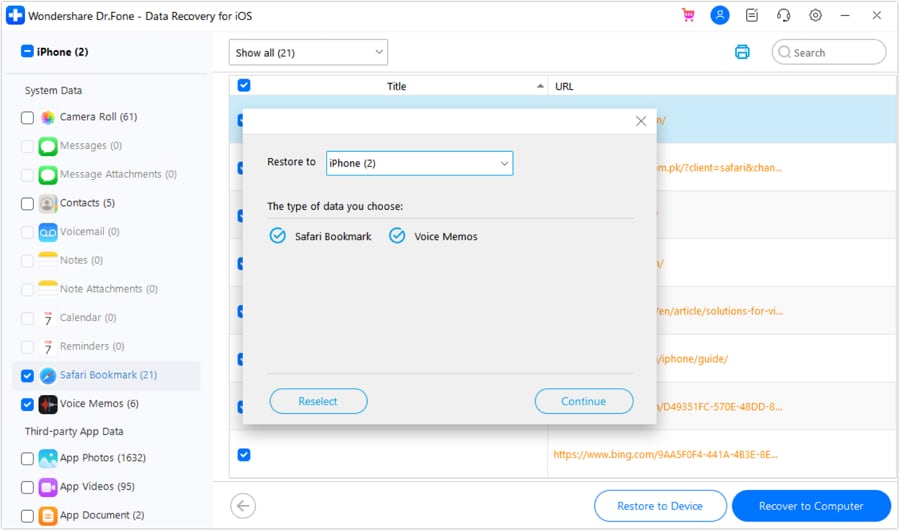
Step 6 Confirm the Target Device
A confirmation dialogue will appear. Verify that the correct connected hardware is selected as the destination, and confidently click "Continue."
-
Step 7 Complete the Restoration
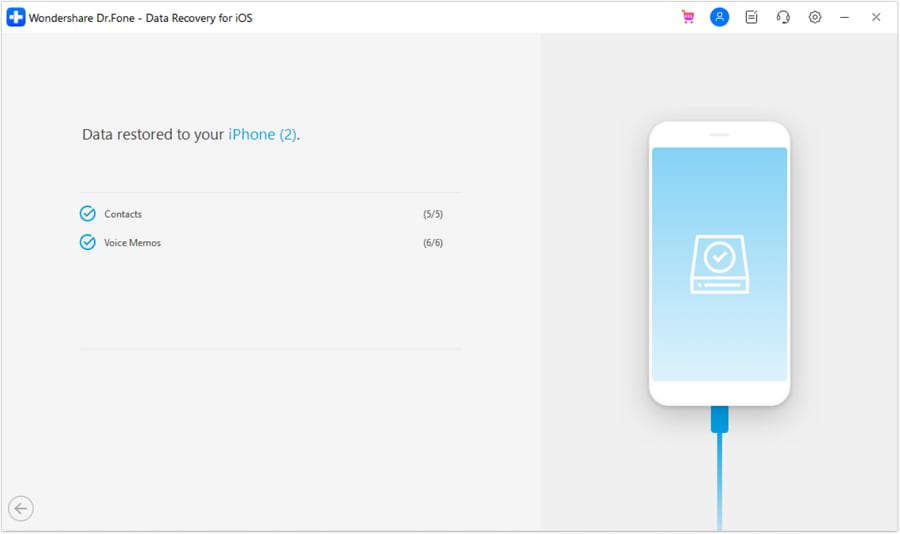
Ensure that the "Find My" security protocol is temporarily disabled within your iPhone’s settings menu, then click "OK." The software will meticulously inject the recovered data back into your messaging application, culminating in a detailed success prompt.
If you frequently encounter severe iOS instability or disruptive boot loops while operating heavy applications, Dr.Fone also features an advanced System Repair module capable of resolving deep-rooted firmware anomalies without jeopardizing your personal data.
Conclusion
Engaging in a match of GamePigeon 8 Ball is remarkably accessible, yet mastering the nuanced physics engine requires dedication and strategic foresight. By rigorously managing your cue ball trajectory, strategically implementing spin techniques, and consciously planning ahead, you can swiftly elevate your gameplay and consistently outperform casual opponents.
Furthermore, should you ever experience the unfortunate loss of critical game histories or vital communications, utilizing specialized recovery tools ensures that your digital footprint is never permanently erased. Act decisively, maintain your composure, and enjoy dominating the digital felt.




FAQ
-
1. Why isn't GamePigeon showing up in my iMessage?
If you cannot locate the application, it usually indicates that your iMessage protocol is disabled or you are attempting to text a non-Apple device (indicated by a green chat bubble instead of blue). Navigate to Settings > Messages to verify that iMessage is actively toggled on, and ensure your recipient is also operating within the iOS ecosystem. -
2. Can you play GamePigeon 8 Ball on Android devices?
No, you cannot. GamePigeon is an exclusive iMessage extension and fundamentally relies on Apple's proprietary messaging infrastructure to function. Both participants must utilize an iPhone or iPad, as there is absolutely no compatible framework available for Android operating systems. -
3. What are the consequences of pocketing the 8 ball early?
Pocketing the black 8 ball before successfully clearing all of your assigned designated balls (stripes or solids) results in an immediate automatic loss. You must meticulously clear your entire set first and leave the 8 ball as your absolute final, game-winning shot. -
4. Is there a reliable way to cheat at GamePigeon 8 Ball?
There are no legitimate hacks or cheat codes integrated into the software. However, highly competitive players sometimes utilize physical rulers against their device screens or activate digital screenshot overlay tools to calculate exact geometric angles. Ultimately, dedicated practice and mastering spin mechanics remain the most effective methods for securing victories.
 Add Wondershare Dr.Fone as a preferred source on Google