Recover photos, messages, WhatsApp, and more — no backup
needed.
Recover photos, messages, WhatsApp, and more — no backup
needed.

 100% Security Verified | No Subscription Required | No Malware

 :
: 
 ChatGPT
 Perplexity
 Gemini
 Claude
 Grok
Grok
One tap can remove photos, notes, videos, or work files from your phone. It happens fast. Many people think the file is gone forever. That is not always true. In many cases, the data still sits in storage until new data replaces it. That little sliver gives you a genuine ability to do something.
The following guide provides viable methods that allow you to recover deleted files from Android internal storage with built-in features, cloud backup, and trusted desktop software. We will also look into the pitfalls of deleted internal storage on Android, what to skip, and when recovery is no longer possible. It is the safest way to know how to recover internal storage on Android.
In this article
- Part 1. Recover Deleted Files from Android Internal Storage No Root No Backup
Needed
 Part 1. Recover Deleted Files from Android Internal
Storage No Root No Backup Needed
Part 1. Recover Deleted Files from Android Internal
Storage No Root No Backup Needed
- Part 2. Restore Deleted Files from Android Internal Memory Without a PC From Backup
- Method 1. Use the Gallery Recycle Bin
- Method 2. Recover Deleted Files from Android Internal Storage via Cloud Backup Apps
- Method 3. Recover Photos from Google Photos
- Method 4. Restore Lost Files from Google Drive
- Method 5. Recover Files from OneDrive
- Method 6. Restore Deleted Photos from Dropbox
- Method 7. Restore a Local Backup from Settings
Part 1. Recover Deleted Files from Android Internal Storage No Root No Backup Needed
Certain recovery apps available on the Play Store prompt users to root the phone before they try to scan internal memory. That can be risky. WARNING: Rooting may cause your warranty to be void, weaken the security of notifications you haven't thought about (yet), or introduce new problems. For a more secure route, you can use PC software for computer users.
One well-known choice is Dr.Fone - Data Recovery (Android). It is designed to help with Android internal memory recovery when files were deleted by mistake or lost during phone changes, cleanup, or system issues. The tool supports recovery from Android devices without requiring root in many cases. It also helps when no backup is available, which makes it useful for urgent internal storage recovery needs.
A key benefit is control. Select file type, Preview scan result, and Recover what you want. It also saves time and avoids a random file mess. For people searching for data recovery software for an Android phone's internal memory, this type of guided desktop tool is often more reliable than basic mobile apps.
 Recovers files from iTunes, iCloud, or directly from phone.
- Recovers data after device damage, crash, or accidental deletion.
- Fully compatible with all popular iOS devices and models.
- Quickly restore specific data types without full data load.

-
Step 1 Open The Recovery Tool
Install and launch Dr.Fone on your computer. Enter the Toolbox area and choose Data Recovery. Then select Android as the device type.

-
Step 2 Connect Your Phone
Connect the Android phone to the computer via USB cable. And you have to wait some from the software detecting too.
-
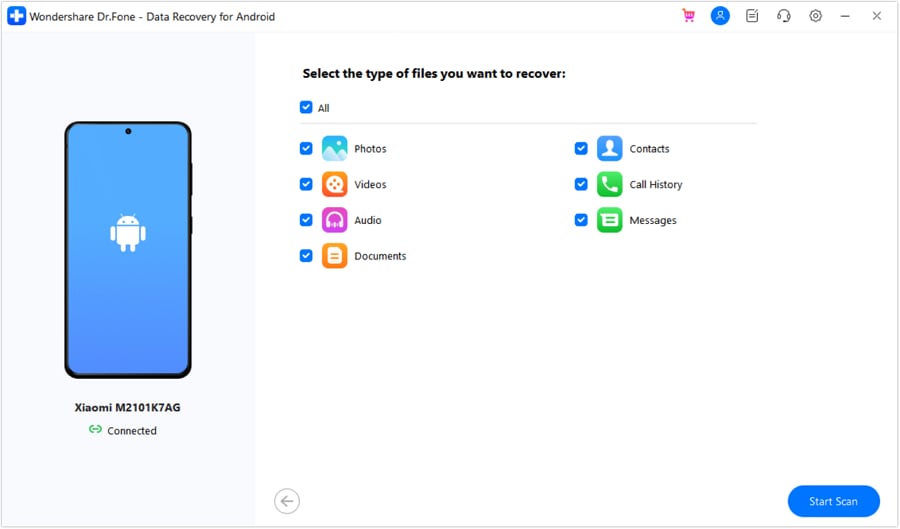
Step 3 Choose What To Scan
Choose file types you want to recover from, such as photos, videos, messages or documents. Then start the scan.
-
Step 4 Preview Found Files
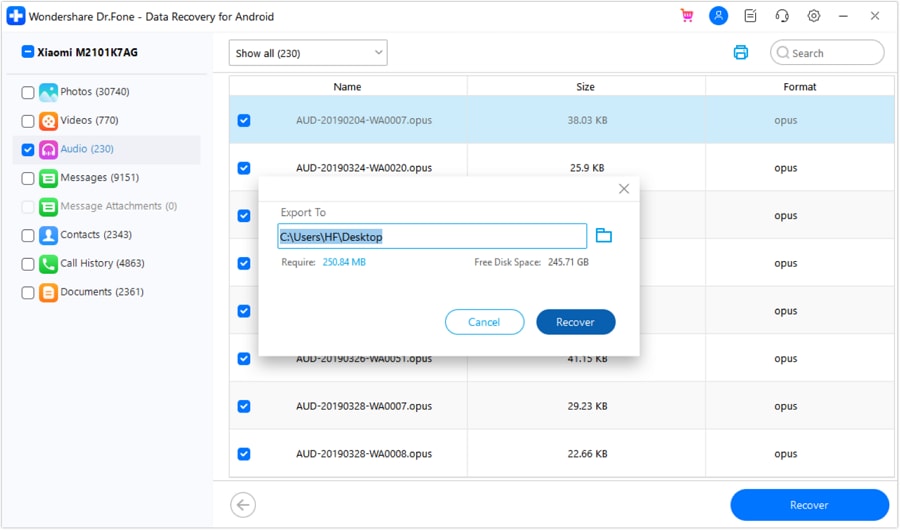
After scanning, review the results on screen. Use filters if needed to sort the files and find important items faster.
-
Step 5 Recover to the computer
Select the files you want. Click Recover and choose a save location on your computer. This completes the Android internal storage data recovery process.




Part 2. Restore Deleted Files from Android Internal Memory Without a PC From Backup
If your phone has a backup, recovery is much simpler. You do not need to scan the device or use advanced tools. Instead, you can restore saved copies from the phone gallery, cloud storage, or local backup settings. This method works best when the lost files were backed up before deletion. It is a safer option for Android internal storage data recovery because you are bringing back stored copies, not searching live memory.
Method 1. Use the Gallery Recycle Bin
Most Android phones store recently deleted photos in the Gallery recycle bin for a while. Of course, this depends on how long ago they removed the files. This method helps restore deleted photos that were moved to the phone's gallery bin instead of being removed forever. It is one of the quickest ways to handle deleted internal storage Android problems.
-
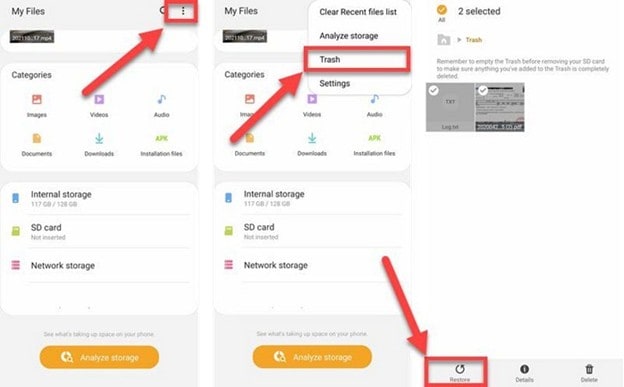
Step 1 Launch the Gallery app on your mobile.
-
Step 2 Swipe down on the three vertical, spaced dots in the top right corner.
-
Step 3 Open Settings and select Recycle Bin.
-
Step 4 Check the deleted photos stored there.
-
Step 5 Select the files you would like and click on restore.
Method 2. Recover Deleted Files from Android Internal Storage via Cloud Backup Apps
Even if they just erased it from their phone, the cloud backup helps to keep those files. Provided that photos, videos, and documents were synced before being deleted, it should take you minutes to restore. This method is often easier than scanning device memory because you are recovering saved copies from your account. For users looking for ways to recover deleted files on Android internal storage options without extra tools, cloud apps are one of the smartest places to start.
Method 3. Recover Photos from Google Photos
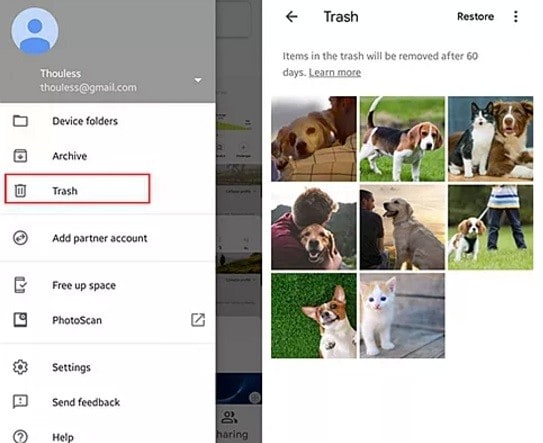
The Trash folder in Google Photos may store synced photos and videos temporarily after deletion.
-
Step 1 Open Google Photos on your Android phone.
-
Step 2 Open the menu and go to Trash.
-
Step 3 Review the deleted photos shown there.
-
Step 4 Select the files you want back.
-
Step 5 Restore them to your phone.
Method 4. Restore Lost Files from Google Drive
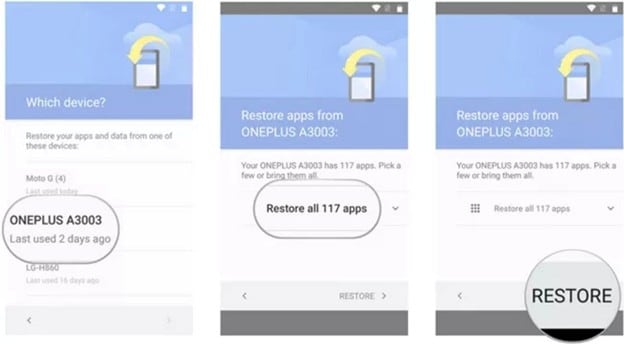
Google Drive can help if the missing files were uploaded or backed up earlier. It gives you a direct way to look through saved content linked to your account. This method is useful when you want a free way to get back files from cloud storage instead of trying deep internal storage recovery on the device itself.
-
Step 1 Open Google Drive on your Android phone and sign in with the account connected to the device.
-
Step 2 Check the backup or saved files linked to the phone where the data was lost.
-
Step 3 Look through the available items and find the files you want to bring back.
-
Step 4 Choose the deleted or missing files.
-
Step 5 Restore them or save them back to your device if that option appears.
Method 5. Recover Files from OneDrive
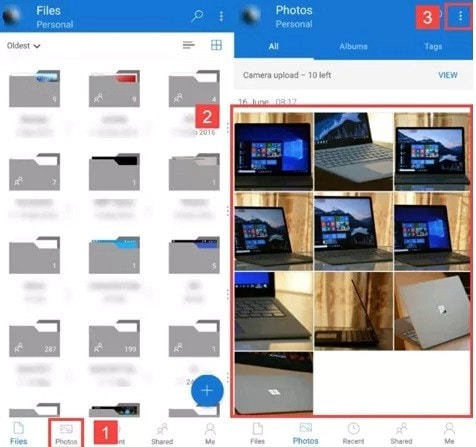
OneDrive is another helpful choice if your files or photos were synced to your Microsoft account before they were removed from the phone. This is a practical option for how to recover internal storage on Android when your missing files still exist in cloud backup.
-
Step 1 Open OneDrive on your phone.
-
Step 2 From the bottom menu, go to the Photos section.
-
Step 3 Find your saved images and reselect the ones you'd like to retrieve.
-
Step 4 In the top right, tap the three dots.
-
Step 5 Choose Save so the selected files return to your device.
Method 6. Restore Deleted Photos from Dropbox
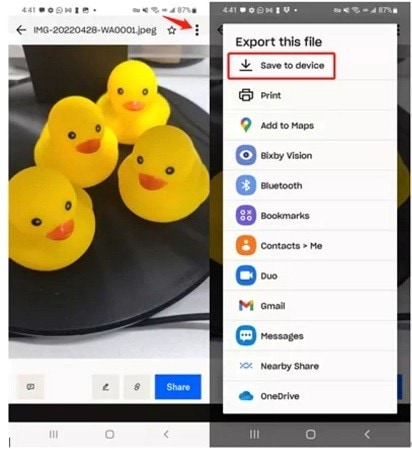
Dropbox can also help if your pictures were uploaded there earlier. Many users find their lost media inside the folder used for automatic camera uploads. This method supports recovering data from an Android phone's internal memory by restoring copies that still exist in your Dropbox account.
-
Step 1 Open Dropbox on your Android device.
-
Step 2 Go to the Camera Uploads folder or another folder where your photos were stored.
-
Step 3 Find and select the files you want to recover.
-
Step 4 Tap the three-dot menu for the selected item.
-
Step 5 Choose Save to Device to place the file back on your phone.
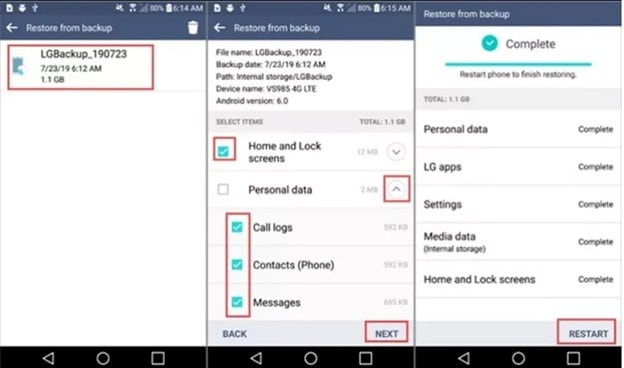
Method 7. Restore a Local Backup from Settings
Many Android devices come with a built-in backup and restore option. If you established a backup some time ago, it could be possible to recover unrecognized files directly from the system settings. This method restores saved copies from a previous phone backup.
-
Step 1 Access Settings on an Android device.
-
Step 2 Navigate to General and then click Backup.
-
Step 3 Click on Backup and Restore, followed by Restore.
-
Step 4 Pick the backup you want to use.
-
Step 5 Choose the file types you want to recover and continue.
-
Step 6 Allow the process to run its course and have the files end up returning back in their original spot.
Conclusion
Start with the easy wins. The Gallery bin can save recently deleted photos. Cloud backups help when sync is already on. Local backups are useful when your phone stored an older copy. These types of routes are very straight forward, and safe so worth doing early on. If it does not yield, the job requires a more precise one. Dr.Fone - Data Recovery (Android) fits that moment well. Instead of sending you through endless menus, it focuses on finding what is still there and showing it clearly. You choose what returns. For harder Android internal storage data recovery needs, that kind of calm control can matter when recovering deleted files on Android internal storage starts to feel urgent.
 Add Wondershare Dr.Fone as a preferred source on Google