Recover photos, messages, WhatsApp, and more — no backup
needed.
Recover photos, messages, WhatsApp, and more — no backup
needed.

 100% Security Verified | No Subscription Required | No Malware

 :
: 
 ChatGPT
 Perplexity
 Gemini
 Claude
 Grok
Grok
It's a sinking feeling: your Samsung phone slips, and the screen shatters. Many users assume their precious photos, contacts, and important files are lost forever. Fortunately, that's often not the case. Modern recovery methods make it possible to perform a Samsung broken screen data recovery, even if the display is black, unresponsive, or completely shattered on a Galaxy Fold or Z Flip model.
Samsung devices offer a variety of recovery pathways, including Smart Switch, Samsung Cloud, and Google backups, which gives you more options than many other Android brands. This guide will walk you through the essential steps and tools to safely retrieve your data. Whether your screen is just cracked or totally dead, there's a solution waiting for you.
Before starting any recovery process, ensure your phone is adequately charged and, if possible, turned on. While some methods require USB debugging to be enabled beforehand, others can work even without it. This article simplifies the process, providing clear instructions on how to recover data from broken screen Samsung devices, so anyone can get their digital life back on track.
In this article
- Part 1: Assess Your Samsung's Screen Damage First
- Part 2: Simple Methods for Samsung Broken Screen Data Recovery
- Part 3: Advanced Techniques to Recover Data from Broken Samsung Screens
- Part 4: Special Guide for Samsung Foldable Phones (Z Fold & Z Flip)
- Part 5: What to Do When Your Samsung Screen is Completely Black or Dead
Part 1: Assess Your Samsung's Screen Damage First
Before attempting to recover data from a broken screen on your Samsung phone, it's crucial to identify the type and extent of the damage. Different scenarios require different recovery strategies. A clear diagnosis will help you choose the most effective and safest method to get your files back.
The table below provides a quick overview of common Samsung screen damage types and the corresponding recovery approaches you can take.
| Type of Damage | Description | Recommended Recovery Path |
|---|---|---|
| Cracked Screen with Partial Display | The screen has visible cracks but still shows some content, and touch input may partially work. | This is the most straightforward scenario. You can likely unlock the phone and use Smart Switch, Cloud backups, or a direct PC connection. |
| Black Screen, But Phone is On | There is no display, but you can feel vibrations, hear notifications, or see indicator lights. | Try using an OTG mouse to navigate blindly, or use advanced software like Dr.Fone. Smart Switch may work if you can approve the connection. |
| Visible Display, Unresponsive Touch | You can see everything on the screen perfectly, but it does not respond to any touch gestures. | The best solution is an OTG adapter connected to a USB mouse or keyboard, which allows you to control the device externally. |
| Damaged Inner Screen on Fold/Flip | The large, flexible inner screen is broken, but the smaller outer cover screen is still functional. | Use the cover screen to unlock the phone, enable backup options, and initiate data transfer to a PC or cloud service. |
Part 2: Simple Methods for Samsung Broken Screen Data Recovery
If the damage isn't too severe, you can often retrieve your data using standard tools provided by Samsung. These basic methods are a great starting point for all users.
Method 1: Samsung Smart Switch (Best for Full Phone Recovery)
Samsung Smart Switch is the official tool for transferring data between Galaxy devices. It's the most reliable way to perform a full backup from a broken Samsung phone to a computer, which you can then restore to a new device.
How to Back Up Data with Smart Switch
-
Step 1 Install Smart Switch
Download and install the Samsung Smart Switch application on your Windows or Mac computer.
-
Step 2 Connect Your Phone
Use a compatible USB-C data cable to connect your broken Samsung phone to the computer. You may need to tap "Allow" on a pop-up on your phone's screen if it is still responsive.
-
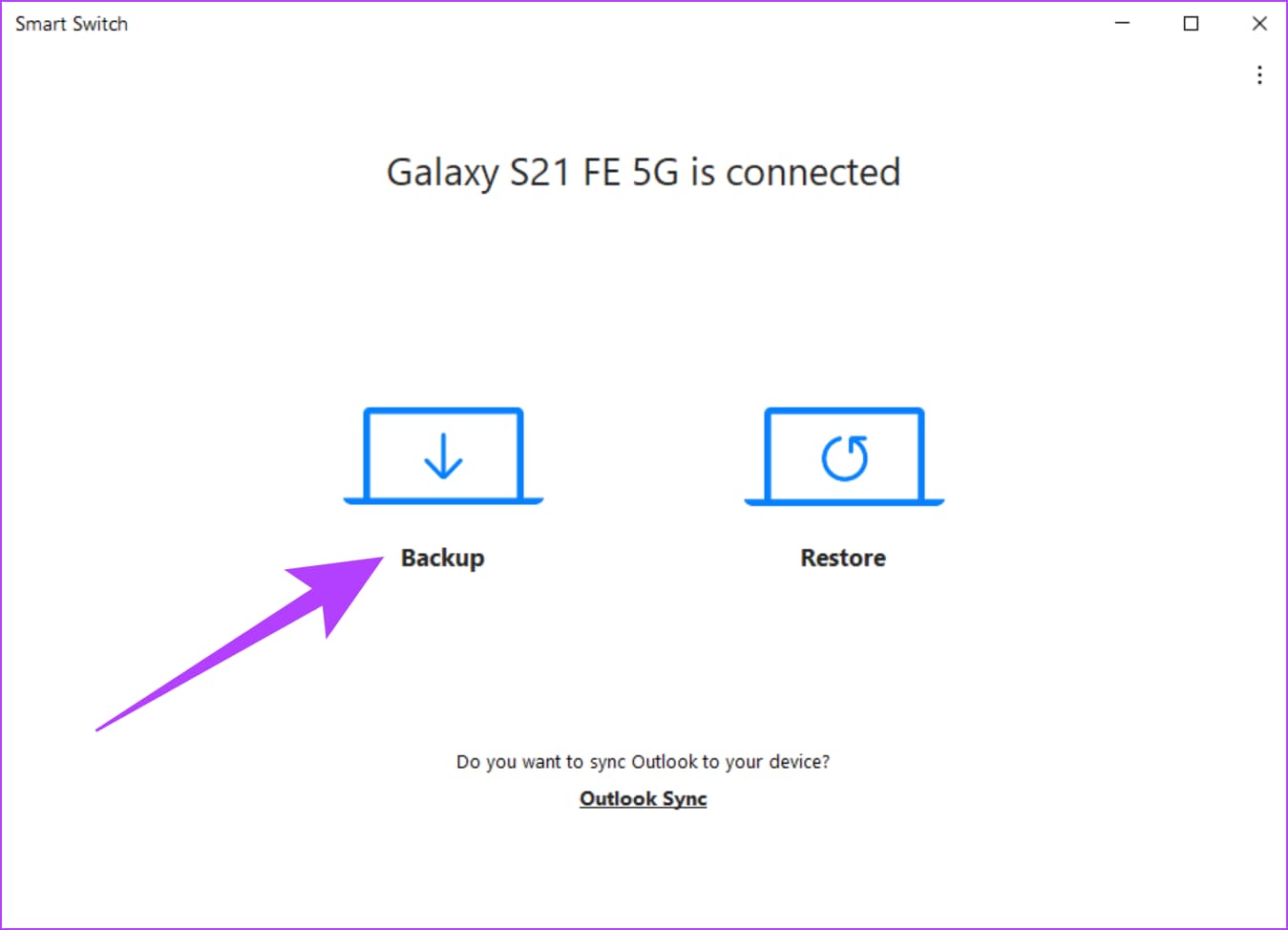
Step 3 Initiate the Backup
Once Smart Switch recognizes your device, click the "Backup" button in the application window.
-
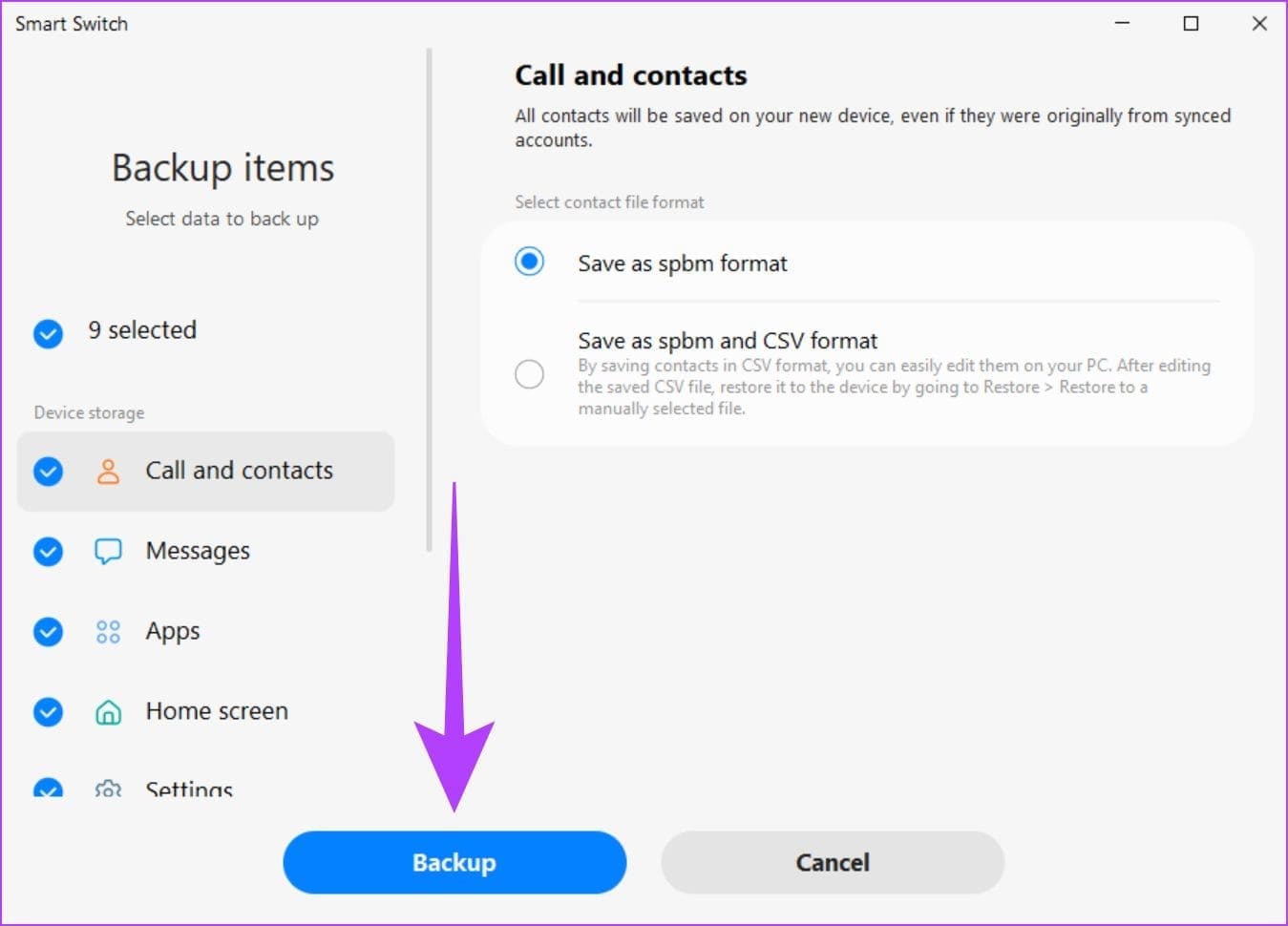
Step 4 Select Data and Start
Choose the types of data you wish to back up (by default, everything is selected). Click "Backup" again to begin the process.
-
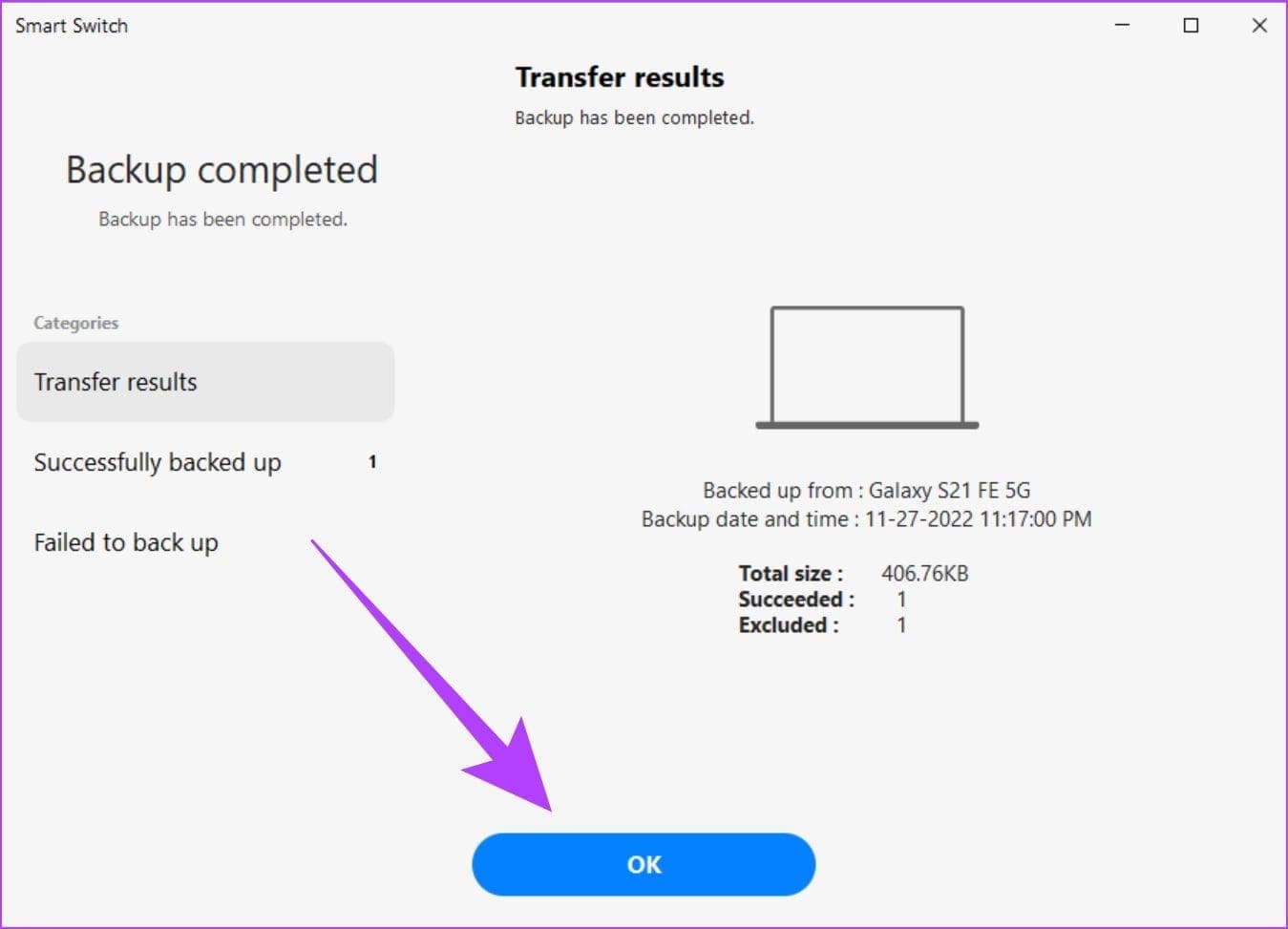
Step 5 Complete the Process
Wait for the backup to finish. The duration depends on the amount of data. Click "OK" once it's complete.
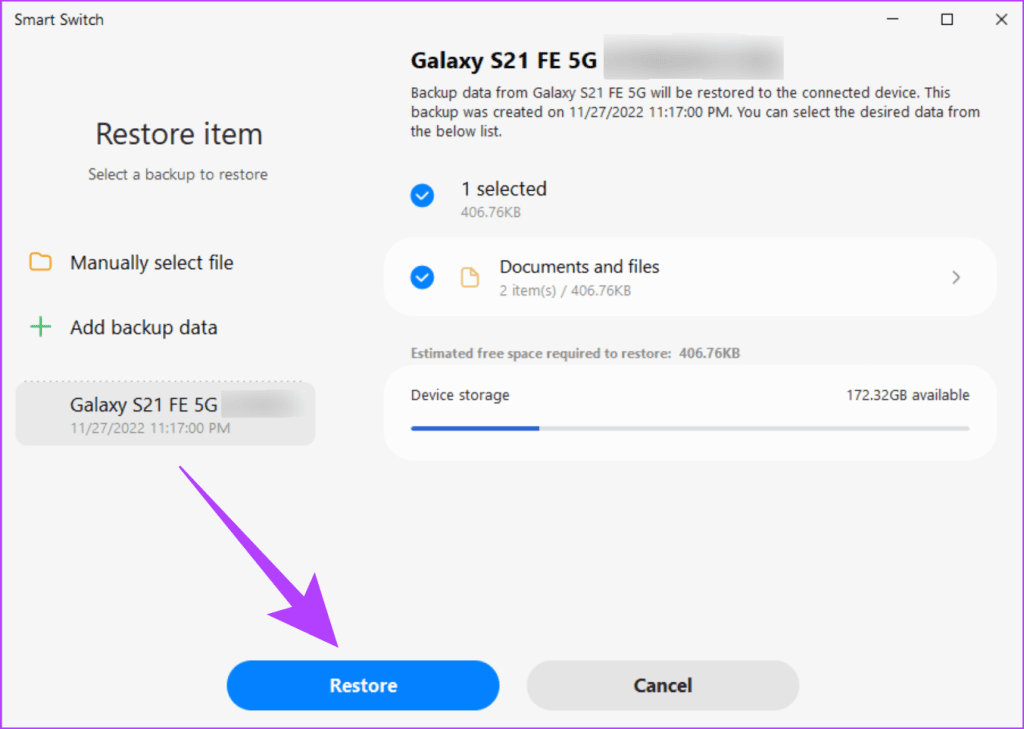
Restoring the Backup to a New Device
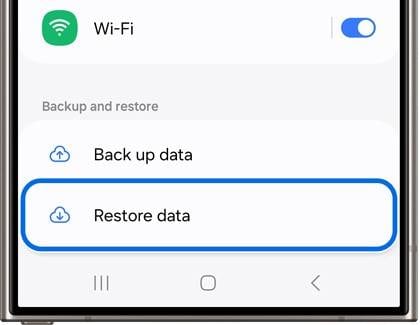
To restore your data, connect your new Samsung phone to the same computer, open Smart Switch, and select "Restore." Choose the backup file you just created and follow the on-screen prompts to transfer all your information.
Method 2: Samsung Cloud & Google Backup (Fast & Automatic)
If your Samsung's screen is partially operational and you can still navigate the interface, you can use built-in cloud services to secure your data wirelessly. This is ideal if you had auto-backup enabled before the accident.
1. Using Samsung Cloud
-
Step 1 Access Settings
Navigate to "Settings" > Tap on your Samsung account name > Select "Samsung Cloud."
-
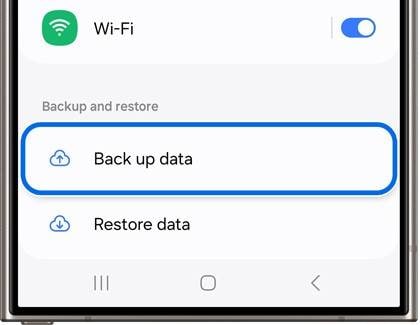
Step 2 Back Up Data
Choose the data categories you want to save and tap "Back up data." You can also check if "Auto backup" was previously active.
2. Using Your Google Account
-
Step 1 Navigate to Backup Settings
Go to "Settings" > "Accounts and backup" > "Back up data" under the Google Drive section.
-
Step 2 Start the Backup
Tap "Back up now" to sync your data with your Google account. Ensure you are connected to Wi-Fi.
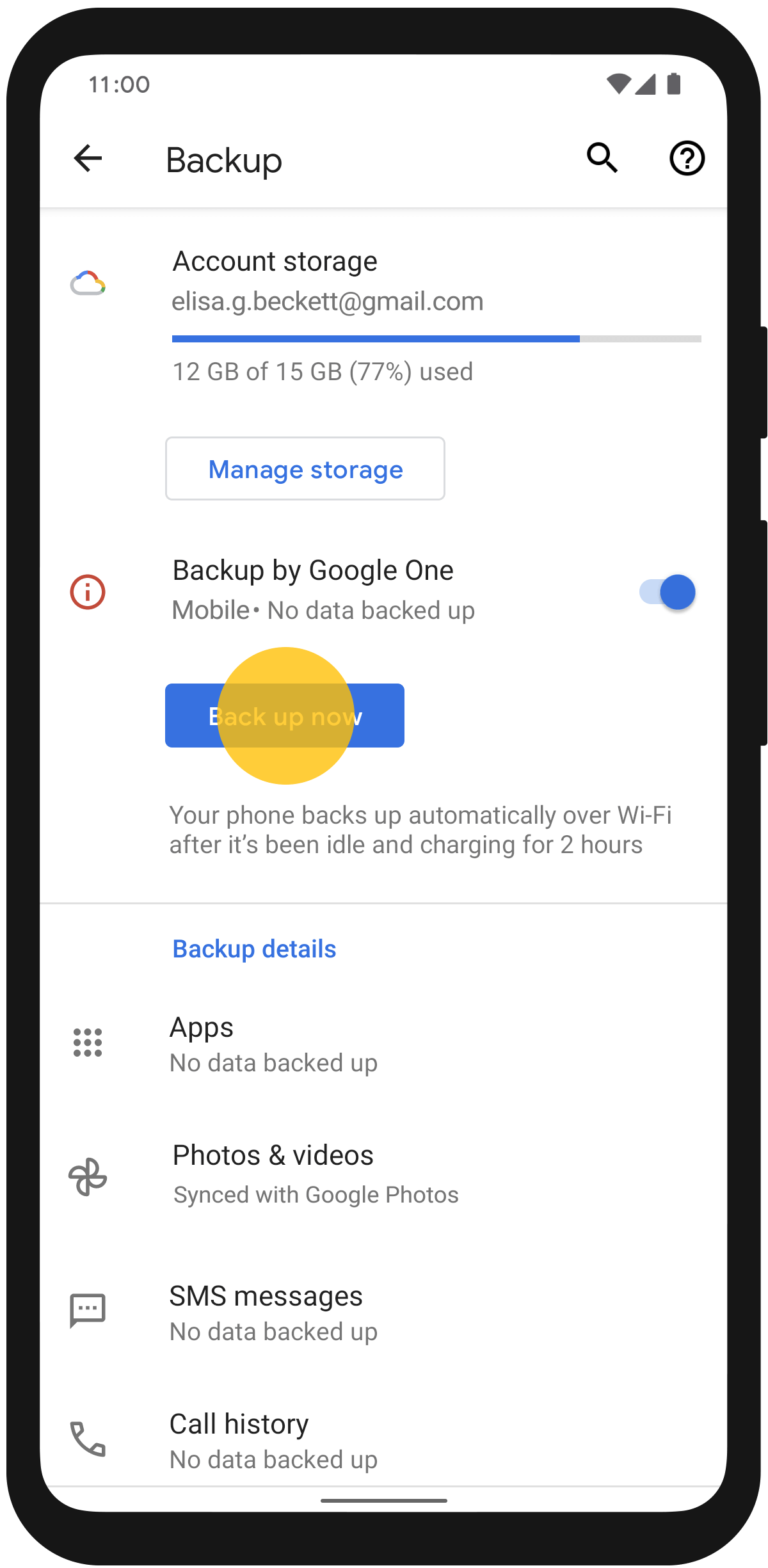
To restore, simply sign in to your Samsung or Google account on your new phone during setup, and you'll be prompted to restore from your most recent backup.
Method 3: Direct USB File Transfer to PC (If File Transfer Mode Is Enabled)
This method is a simple drag-and-drop solution, but it has a key requirement: your phone must have been previously set to "File Transfer" or "MTP" mode when connected to a PC. If not, this won't work without screen access.
-
Step 1 Connect Your Phone
Use a USB cable to connect your Samsung device to your computer.
-
Step 2 Access Storage
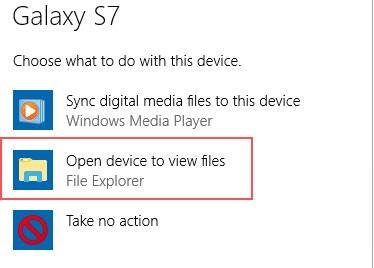
On your PC, open File Explorer (or Finder on Mac). Your phone should appear as a connected device. Click on it to view the internal storage.
-
Step 3 Copy Your Files
Browse through the folders (like DCIM for photos and Documents for files) and copy them to a safe location on your computer.
Method 4: OTG Adapter with a USB Mouse (If Touch Fails)
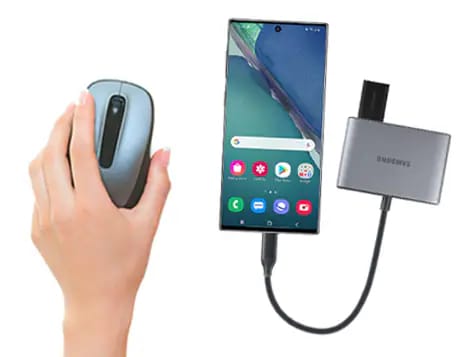
If your screen is visible but doesn't respond to touch, an On-The-Go (OTG) adapter is a lifesaver. This small accessory lets you connect a standard USB mouse to your phone, giving you a cursor to navigate the interface.
-
Step 1 Connect the Hardware
Plug the OTG adapter into your Samsung phone's charging port, then connect a USB mouse to the adapter.
-
Step 2 Unlock Your Phone
A cursor should appear on your screen. Use the mouse to enter your PIN or pattern lock to unlock the device.
-
Step 3 Back Up Your Data
With full control of your phone, you can now navigate to settings and initiate a backup to Samsung Cloud or Google Drive. Alternatively, you can enable File Transfer mode and connect it to a PC to copy files directly.
Part 3: Advanced Techniques to Recover Data from Broken Samsung Screens
When basic methods are not enough—especially if the screen is black or completely unresponsive—it's time to turn to more powerful solutions. These advanced techniques provide greater control and can often succeed where others fail, helping you perform a Samsung broken screen data recovery even in dire situations.
Method 5: Dr.Fone - Data Recovery (Broken Android)
Dr.Fone - Data Recovery is a leading solution designed to recover data from broken screen Samsung devices. It excels in situations where the screen is black, the system has crashed, or the touch input is non-functional. Crucially, it can often access your device's data even if USB debugging was not enabled beforehand, a common roadblock for other methods.
As one of the industry's first and most reliable Android recovery tools, Dr.Fone allows you to preview recoverable files before restoring them, ensuring you only save what you need. It supports a wide range of data loss scenarios, including accidental deletion, water damage, and of course, physical screen damage. Its Broken Android Data Extraction feature lets you control and retrieve files from your phone via your PC when the screen is useless.
 Scan Android phones and tablets directly.
- Preview and recover only what you want.
- Supports WhatsApp, photos, videos, contacts, and more.
- Works with 6000+ Android devices.

Data Recovery with Dr.Fone in 4 Steps
-
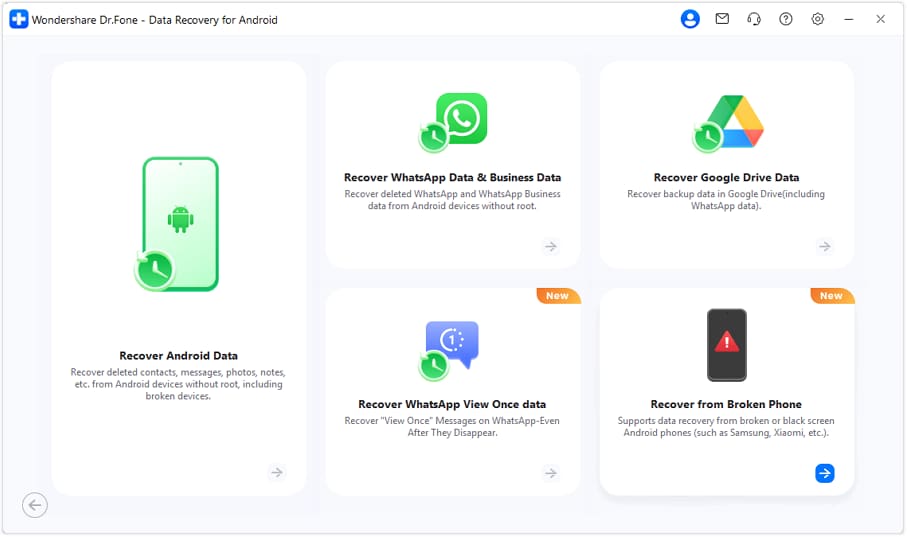
Step 1 Launch Dr.Fone
Start the Wondershare Dr.Fone software on your computer. From the main dashboard, navigate to "Toolbox > Data Recovery" and select "Android."
-
Step 2 Select Recovery Scenario
Choose the option that matches your phone's condition. For a broken screen where the display is still visible but unresponsive, select that scenario. This mode is compatible with all Android devices.
 Note: While Dr.Fone offers modes for black/broken screens (limited to older Samsung models), the "Screen On but Unresponsive" recovery option is compatible with all Android phones.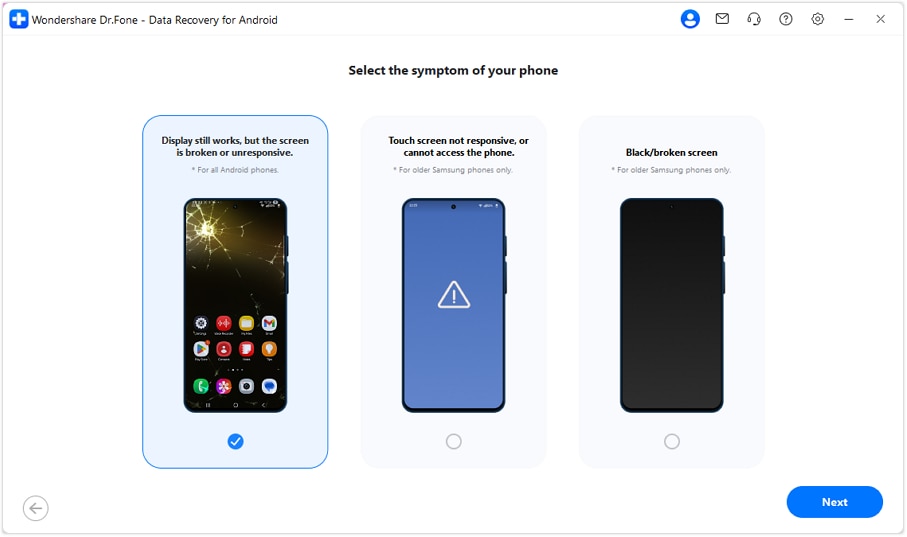
-
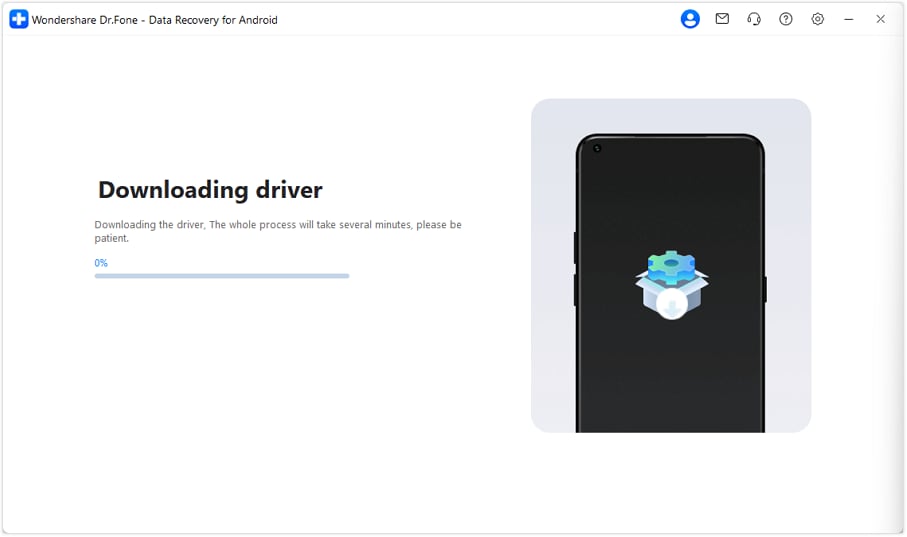
Step 3 Install Necessary Drivers
The software will automatically detect your device and begin downloading the required drivers to establish a connection. Wait for this process to complete.
-
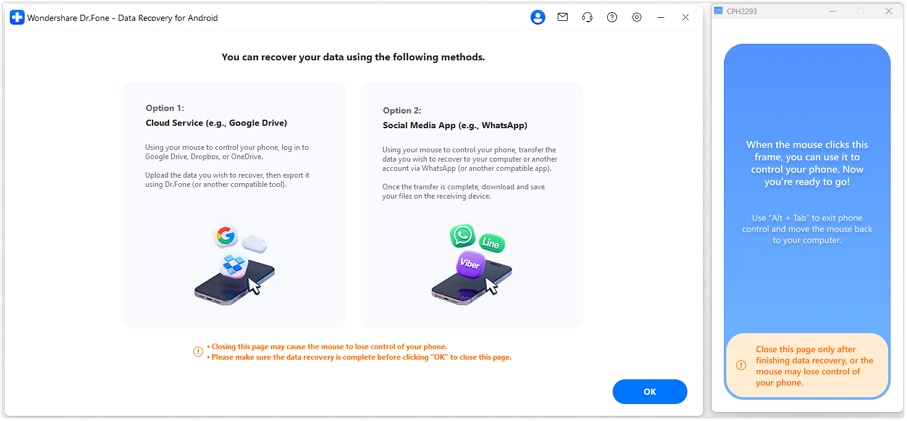
Step 4 Access and Recover Data
Once connected, Dr.Fone will display your phone's data on your computer screen. You can now preview files, select what you need, and save them directly to your PC or transfer them to another device.
Method 6: SmartThings Find (Find My Mobile)
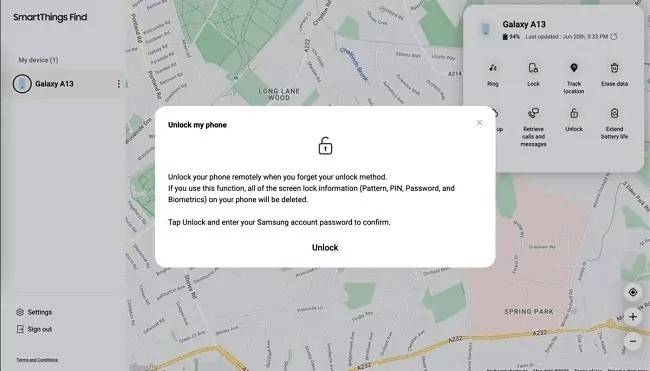
If your touch screen is broken but the phone is on and connected to the internet, you can use Samsung's SmartThings Find service (formerly Find My Mobile) to unlock it remotely. Once unlocked, you can connect it to a PC to back up your data.
-
Step 1 Visit the Website
On a computer, open a web browser and go to the SmartThings Find website.
-
Step 2 Log In
Sign in using the same Samsung account that is logged into your broken phone.
-
Step 3 Unlock Remotely
From the list of registered devices, select your phone. On the right-hand panel, click the "Unlock" option. This will remove the screen lock, allowing you to access it via other methods like Smart Switch or a direct USB connection.
Method 7: Samsung DeX for PC Control
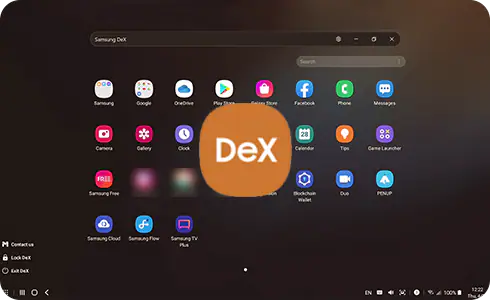
Samsung DeX turns your phone into a desktop-like experience on a PC or monitor. If your screen displays content but touch is broken, DeX lets you use a mouse and keyboard on your computer to control your phone and transfer files.
-
Step 1 Connect to PC
Connect your Samsung phone to your computer using a USB-C cable. Make sure you have the Samsung DeX application installed on your PC.
-
Step 2 Launch DeX
The DeX application should launch automatically. If not, open it manually. A notification may appear on your phone; if you can see it, you may need to approve the connection.
-
Step 3 Transfer Files
Your phone's screen will now be mirrored on your PC. Use your computer's mouse to open the "My Files" app, browse your data, and simply drag and drop files to your desktop to save them.
Part 4: Special Guide for Samsung Foldable Phones (Z Fold & Z Flip)
Recovering data from a broken Samsung Fold or Z Flip presents unique challenges due to their dual-screen design. The key is to determine which screen is still functional, as this will guide your recovery strategy.
1. Outer Screen Broken, Inner Screen Works
If the small cover screen is shattered but the large main display is fine, simply unfold your device. You can then use the main screen to perform all standard recovery methods: initiate a backup with Smart Switch, sync to Samsung Cloud or Google, or transfer files directly to a PC via USB.
2. Inner Screen Broken, Outer Screen Works
This is a more common scenario for the broken Samsung Fold. Keep the device folded and use the smaller, functional cover screen. From here, you can unlock the phone, enable backup services in settings, or connect it to a computer to launch Smart Switch for a full data transfer.
3. Both Screens Are Broken or Unresponsive
When both displays are out of commission, you must rely on advanced methods that do not require screen interaction. Your best options are:
- Dr.Fone - Data Recovery: Use its Broken Android Data Extraction feature to access files directly from a PC.
- SmartThings Find: Remotely unlock the device to enable access via a computer.
- OTG Adapter + USB Mouse: Attempt to navigate blindly if you can guess where to click to enable backups or file transfer.
These techniques provide a powerful way to retrieve your data even when both screens have failed.
Part 5: What to Do When Your Samsung Screen is Completely Black or Dead
A completely black or seemingly dead screen is alarming, but data recovery is still possible. Before giving up, follow these diagnostic steps to determine the phone's true status.
-
Step 1 Charge the Device
A dead battery can mimic a broken screen. Connect your phone to a reliable charger for at least 30 minutes. If it doesn't show any signs of life, try a different charging cable and power adapter to rule out faulty accessories.
-
Step 2 Test Connection to a Computer
Plug the phone into your PC via USB. Listen for a connection sound or feel for a vibration. Check your computer's Device Manager or File Explorer to see if the device is recognized. If it is, the phone is still working internally, and data recovery is highly likely.
-
Step 3 Attempt Advanced Recovery
If the phone is recognized by your PC but the screen remains black, it's time for advanced tools:
- Dr.Fone - Data Recovery: This is the ideal tool for black screen scenarios, as it's designed to extract data without any screen input.
- Smart Switch: This will only work if the phone was previously unlocked and permission was granted.
- SmartThings Find: Try to remotely unlock it, which might enable a connection to Smart Switch.
-
Step 4 Seek Professional Help
If none of the software solutions work, the issue may be more severe, such as a damaged motherboard or fried NAND chip. In this case, the only option is a professional data recovery lab. While this can be costly, it's the final resort for retrieving irreplaceable files from a physically failed device.
Conclusion
A broken phone screen Samsung device doesn't have to mean permanent data loss. From simple solutions like Smart Switch and cloud backups to advanced tools like an OTG mouse, Samsung DeX, and Dr.Fone - Data Recovery, a wide array of methods are available to you. These tools empower you to save your important files, even when faced with an unresponsive touch interface or a completely black screen.
By first assessing the damage and then choosing the appropriate method, you can safely transfer your data and recover photos, contacts, videos, and more. This guide demonstrates that even in what seems like the worst-case scenario, there is almost always a reliable path to getting your digital life back.




FAQ
-
1. Can I recover data if the touchscreen is completely unresponsive?
Yes, you can. The best method is to connect a USB mouse via an OTG adapter to control the phone. Alternatively, Samsung DeX allows you to control the phone from a PC. For more severe cases, Dr.Fone - Data Recovery can extract data directly without needing touch input. -
2. Is USB debugging necessary for Samsung data recovery?
It depends on the method. Direct file transfer and some third-party tools require USB debugging to be enabled. However, methods like Samsung Smart Switch (if the connection can be approved), cloud backups, and specialized software like Dr.Fone's Broken Android Data Extraction can often work even if USB debugging was never turned on. -
3. What is the easiest recovery method if I already have a new Samsung phone?
The easiest and most comprehensive method is using Samsung Smart Switch. First, use Smart Switch on a PC to create a full backup of your broken phone. Then, connect your new Samsung phone and use the "Restore" function in Smart Switch to transfer everything over seamlessly. -
4. What should I do if my Samsung phone won't turn on at all after being dropped?
First, try charging it for at least 30 minutes with a known working charger to rule out a dead battery. If it still doesn't turn on or isn't recognized by a computer, it likely has a severe hardware failure, such as a damaged motherboard. At this point, your only option is to consult a professional data recovery service.
 Add Wondershare Dr.Fone as a preferred source on Google