Recover photos, messages, WhatsApp, and more — no backup
needed.
Recover photos, messages, WhatsApp, and more — no backup
needed.

 100% Security Verified | No Subscription Required | No Malware

 :
: 
 ChatGPT
 Perplexity
 Gemini
 Claude
 Grok
Grok
Imagine a scenario where you are relaxing by the pool or busy in the kitchen, and your iPhone accidentally takes a dive into the water. Immediate panic sets in as the screen flickers black or the speakers begin producing distorted, muffled sounds. Water creeping into the delicate internals of an iPhone can rapidly short-circuit the logic board and irreversibly damage crucial components. When faced with this heart-stopping situation, many users feel entirely overwhelmed and unsure of the critical first steps to take.
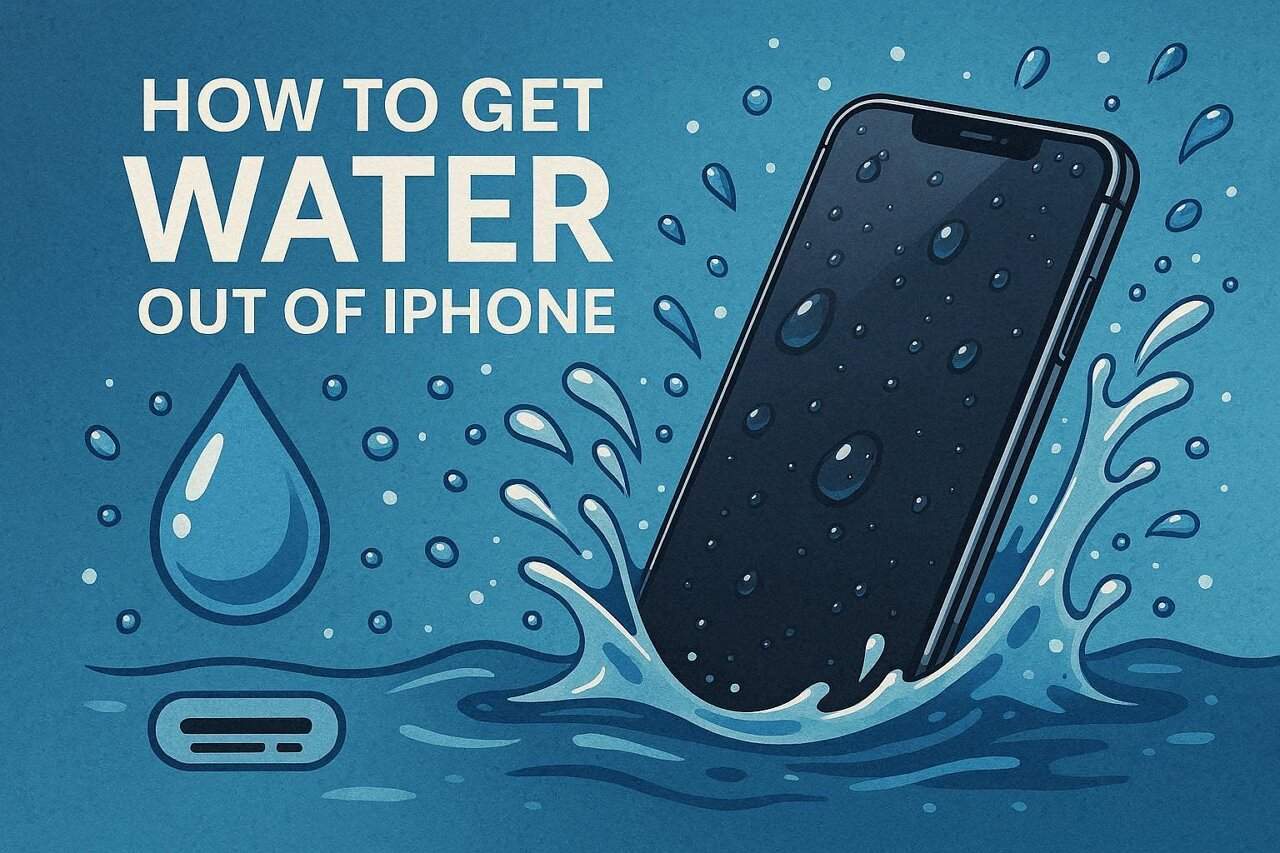
Fortunately, saving your device is entirely possible if you act swiftly. This comprehensive guide will detail exactly how to get water out of an iPhone using proven, fast-acting techniques and safe digital workarounds. Follow these simplified, step-by-step instructions to mitigate liquid damage, and discover how utilizing Dr.Fone - Data Recovery can be your ultimate safety net if your wet phone refuses to power back on.




In this article
Part 1. How Do You Get Water Out of an iPhone: What to Do Immediately
For users frantically searching for answers on how do you get water out of an iPhone, the first few moments dictate whether your device survives. Execute the following emergency steps instantly to maximize your chances of a full recovery:
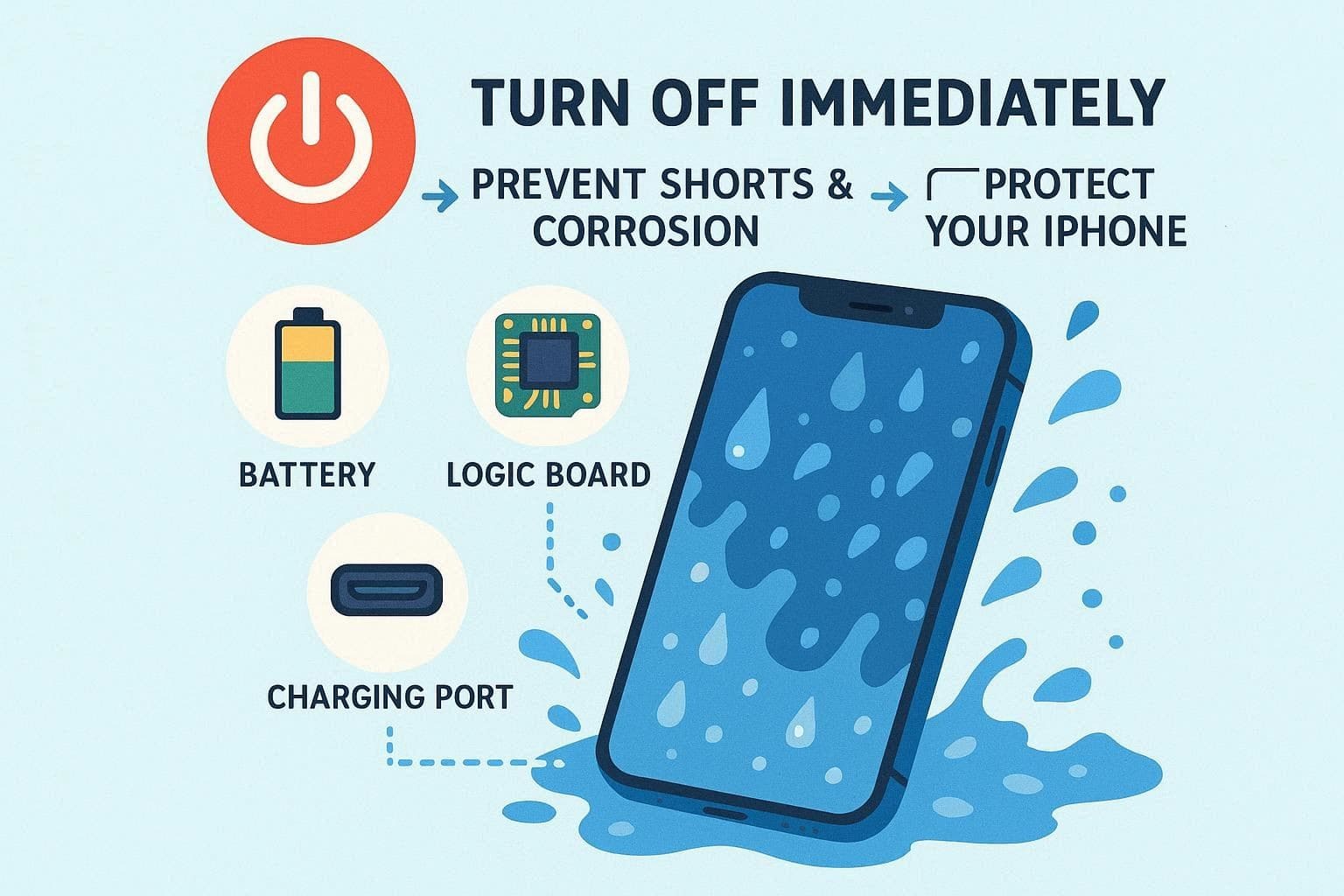
1. Power Off the Device Instantly
The golden rule of electronics recovery is severing the power supply. Turning the iPhone off immediately stops the active flow of electricity through the wet circuitry. This dramatically reduces the risk of a fatal short circuit, slowing down the aggressive corrosion process on the tiny internal metal contacts. Powering down shields the battery, logic board, and delicate charging arrays from frying.
2. Remove the Case and SIM Card
If you need to figure out how to get water out of charger port iPhone, start by stripping the phone bare. A phone case traps hidden liquid directly against the chassis, forcing moisture to seep into ports and buttons. By quickly removing the protective cover and popping out the SIM card tray, you create open ventilation channels, allowing trapped water to escape and saving your SIM data in the process.
3. Completely Dry the Exterior
With the accessories removed, meticulously dry the exterior using a highly absorbent, lint-free cloth. Focus heavily on wiping water away from the display, the volume buttons, the speaker grilles, and the charging port. Drying these boundaries prevents existing droplets from being pushed deeper inside. This simple wipe-down drastically cuts the risk of short-circuiting exposed metal terminals like those found in the SIM slot.
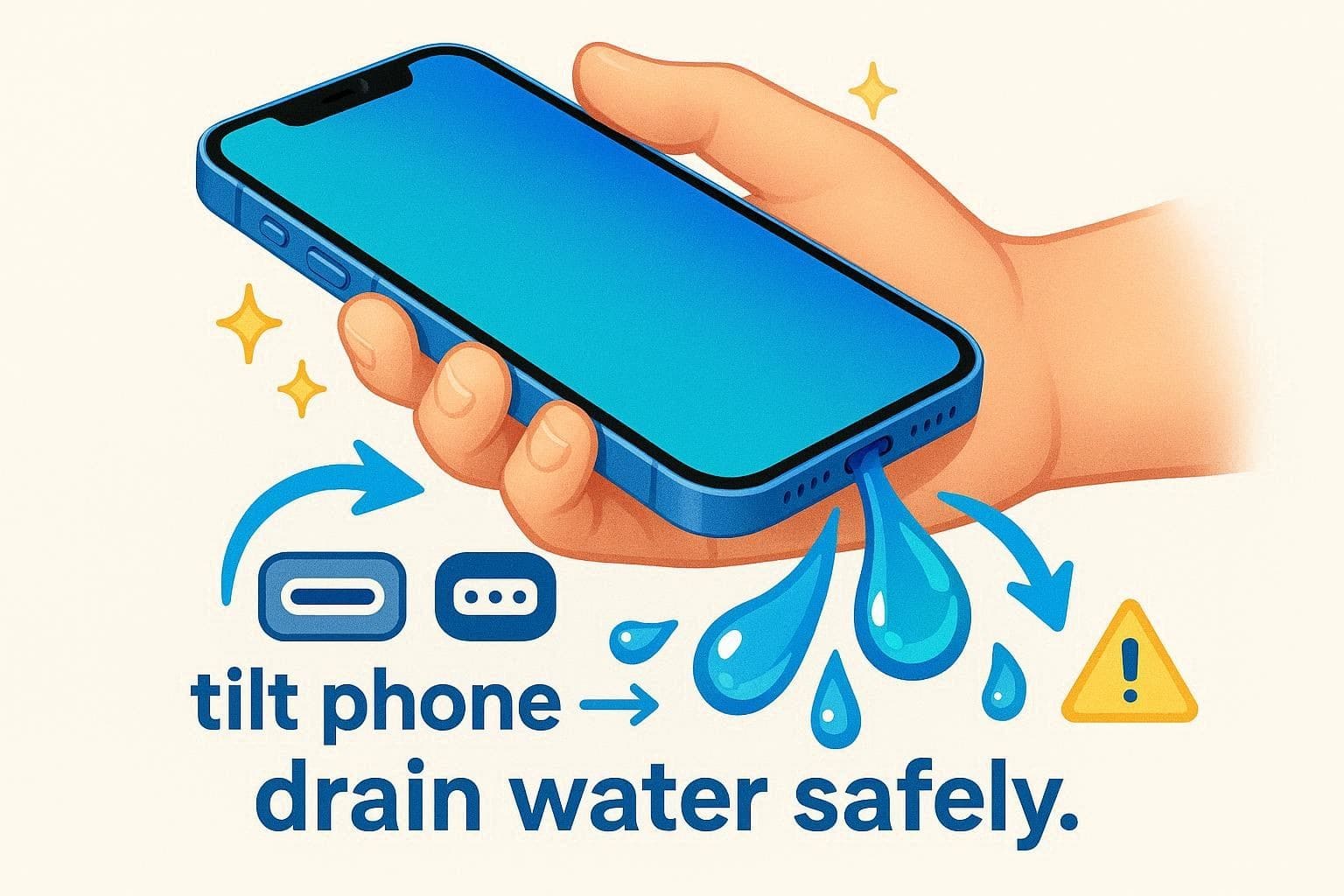
4. Tilt the Phone to Let Gravity Drain It
If you are actively trying to solve how to get liquid out of charger port, gravity is your best friend. Gently tilt the phone and tap it softly against the palm of your hand with the Lightning or USB-C port facing downward. This encourages the liquid to flow out rather than retreating further into the chassis. Adjust the angle slightly to coax out stubborn droplets clinging to internal corners and tight internal mesh gaps.
5. Allow It to Air-Dry in a Safe Location
Once you have physically extracted as much moisture as possible, place the iPhone in a cool, dry, and exceptionally well-ventilated spot to air-dry. Avoid direct sunlight. This controlled environment allows deep, trapped water vapor to evaporate safely through the speaker holes and structural seams. Even if the phone looks dry on the outside, microscopic droplets lurk inside; you must leave it completely untouched for at least 24 to 48 hours.
6. Contact Professionals if the Issue Persists
Even after learning how to get water out of iPhone speaker and performing all home remedies, sometimes internal damage is unavoidable. If the iPhone remains unresponsive after two full days of drying, contact Apple Support or a certified repair technician. Professionals utilize ultrasonic cleaners and specialized thermal drying chambers to safely eradicate microscopic moisture you cannot reach, often salvaging the logic board before permanent corrosion sets in.

Part 2. How Do I Get Water Out of iPhone Charging Port and Speakers?
Because severe liquid exposure can void warranties and cause long-term electrical headaches, you may need targeted techniques on how to get liquid out of charging port or how to revive muffled speakers. The methods detailed below provide advanced, tested shortcuts for removing stubborn droplets effectively.
How to Get Liquid Out of Charger Port?
If your device is displaying a charging error, follow these specific guidelines to address how to get liquid out of charger port:
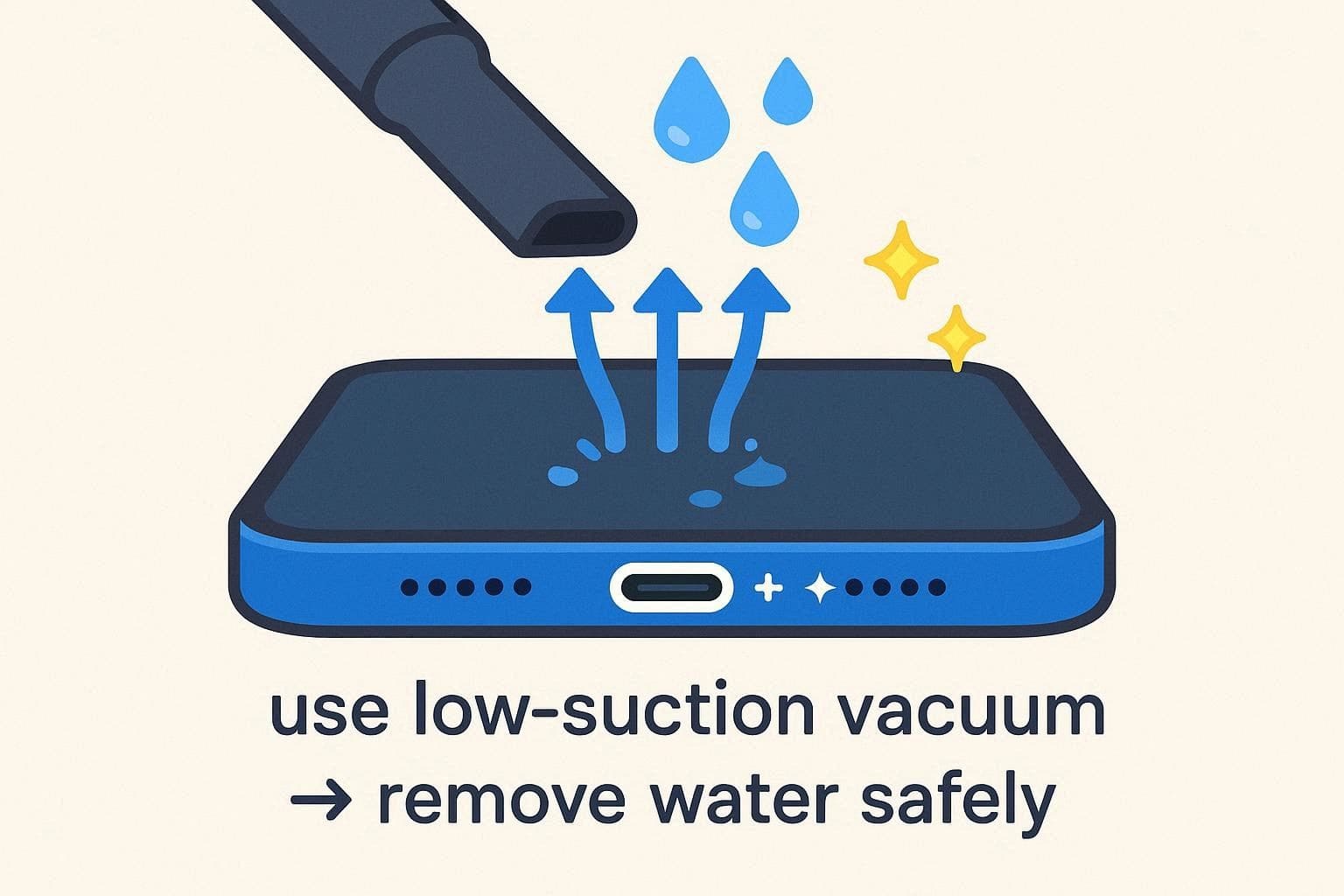
- Use a Low-Suction Vacuum: A vacuum set to the lowest possible suction can safely draw out lingering moisture and droplets from the delicate charging pins. Unlike blowing into the port—which dangerous pushes liquid deeper into the device—a low-suction vacuum actively extracts the hazard away from sensitive internal components.
- Seal with Silica Gel Drying Packs: Forget the rice trick. Instead, submerge your iPhone in an airtight container filled with pure silica gel packets. Silica gel is a powerful desiccant designed to pull intense humidity from the air. This rapid drying environment forces the water inside your phone to evaporate into the gel rather than clinging to metal circuits.
How to Get Water Out of an iPhone Speaker?
If your audio sounds crackly and muted, here are the most innovative digital methods for how to get water out of an iPhone speaker:
1. The Water Eject iOS Shortcut
This community-developed shortcut utilizes specialized low-frequency soundwave generation. By forcing the internal speaker to vibrate intensely, it literally spits microscopic water droplets out through the mesh. Because it only targets the acoustic components, it won't push water into the battery or overheat your logic board.
-
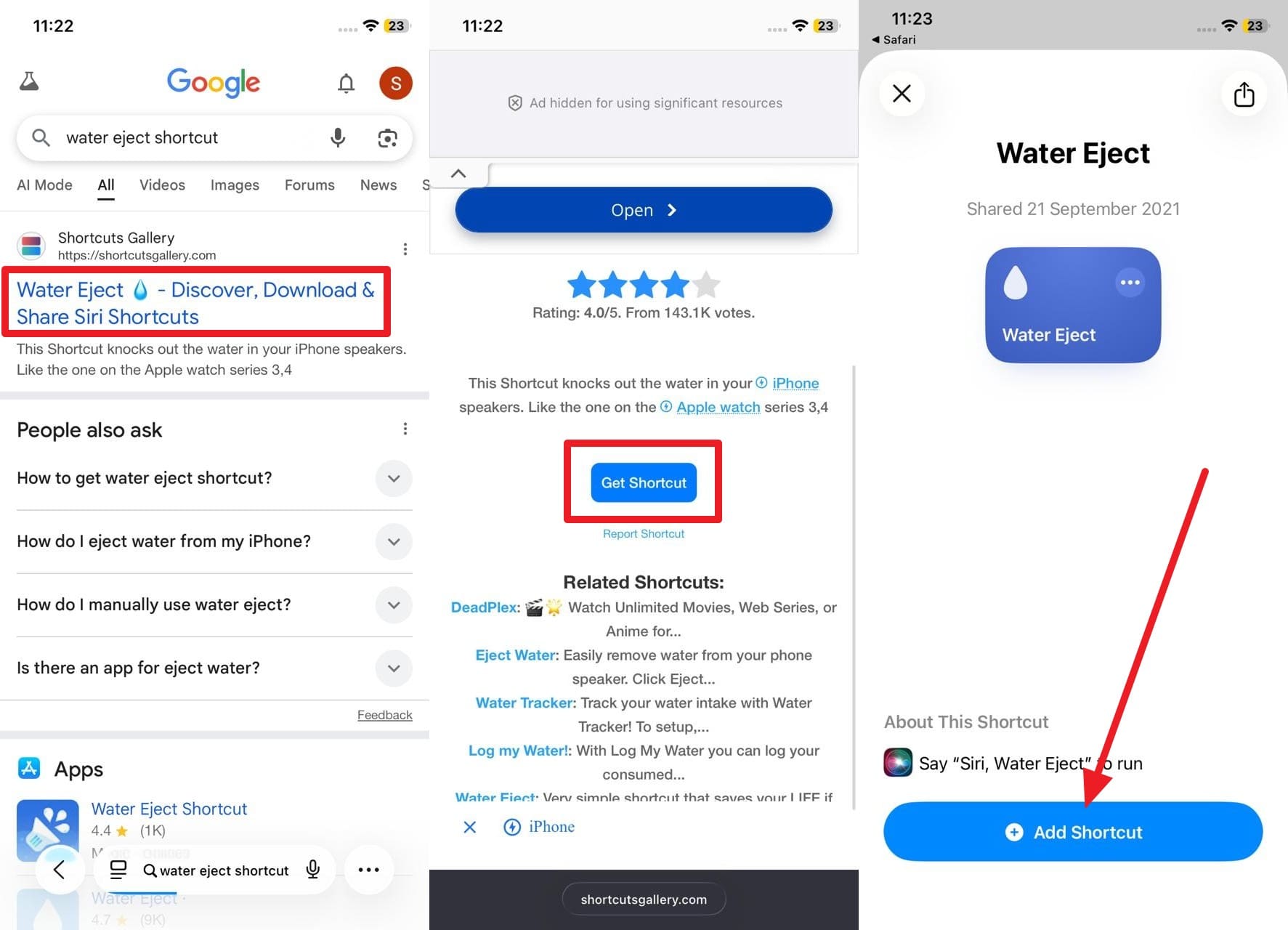
Step 1 Install the Shortcut
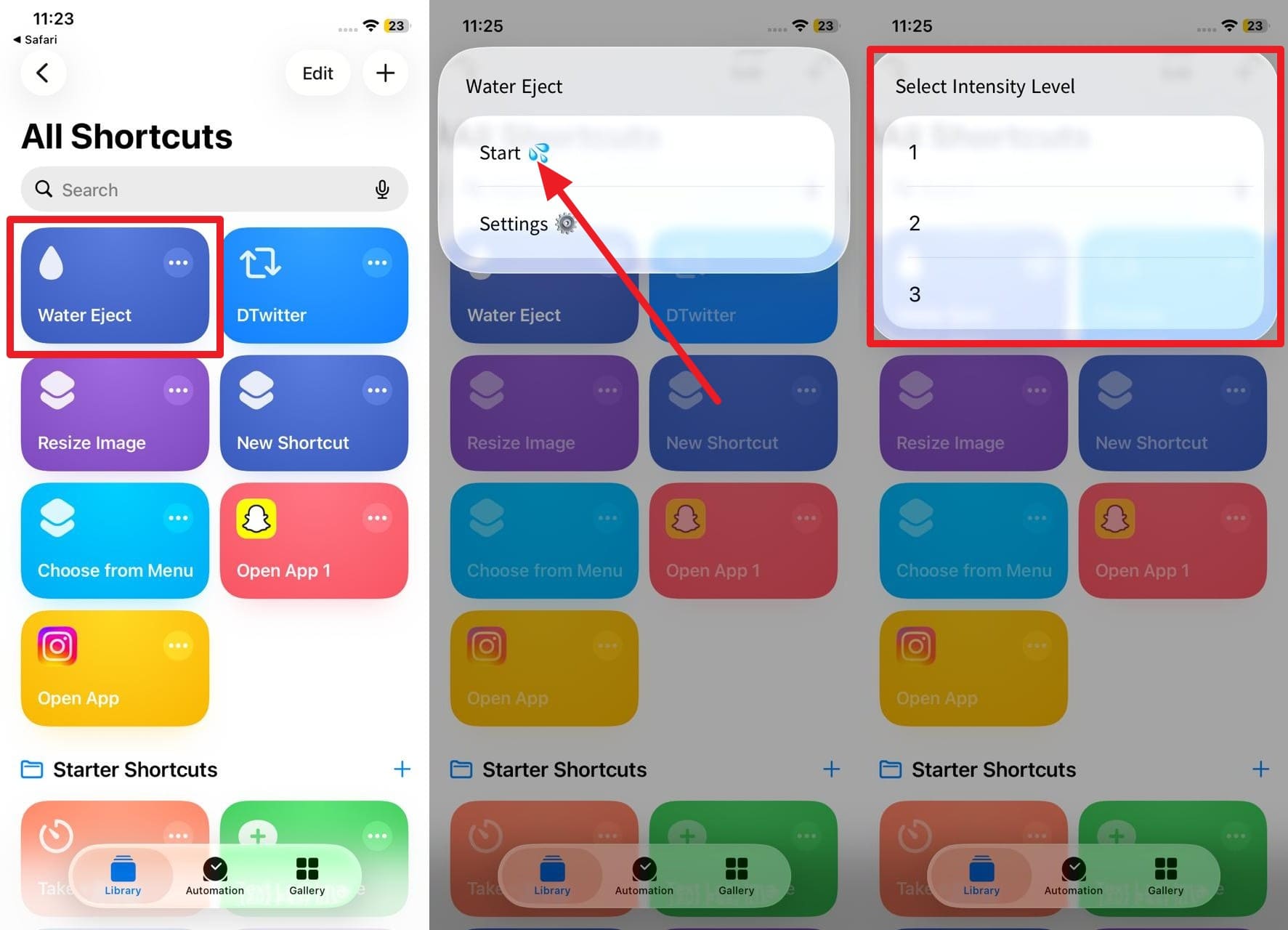
If your touch screen is fully responsive, open Safari and search for "Water Eject Shortcut". Tap a reputable link, select "Get Shortcut", and officially add it to your iOS Shortcuts library.
-
Step 2 Activate the Ejection
Open your Shortcuts app, tap the Water Eject tile, and press "Start". Choose the maximum intensity level. A distinct humming vibration will begin to safely blast the trapped water outward.
2. Fixmyspeakers.com
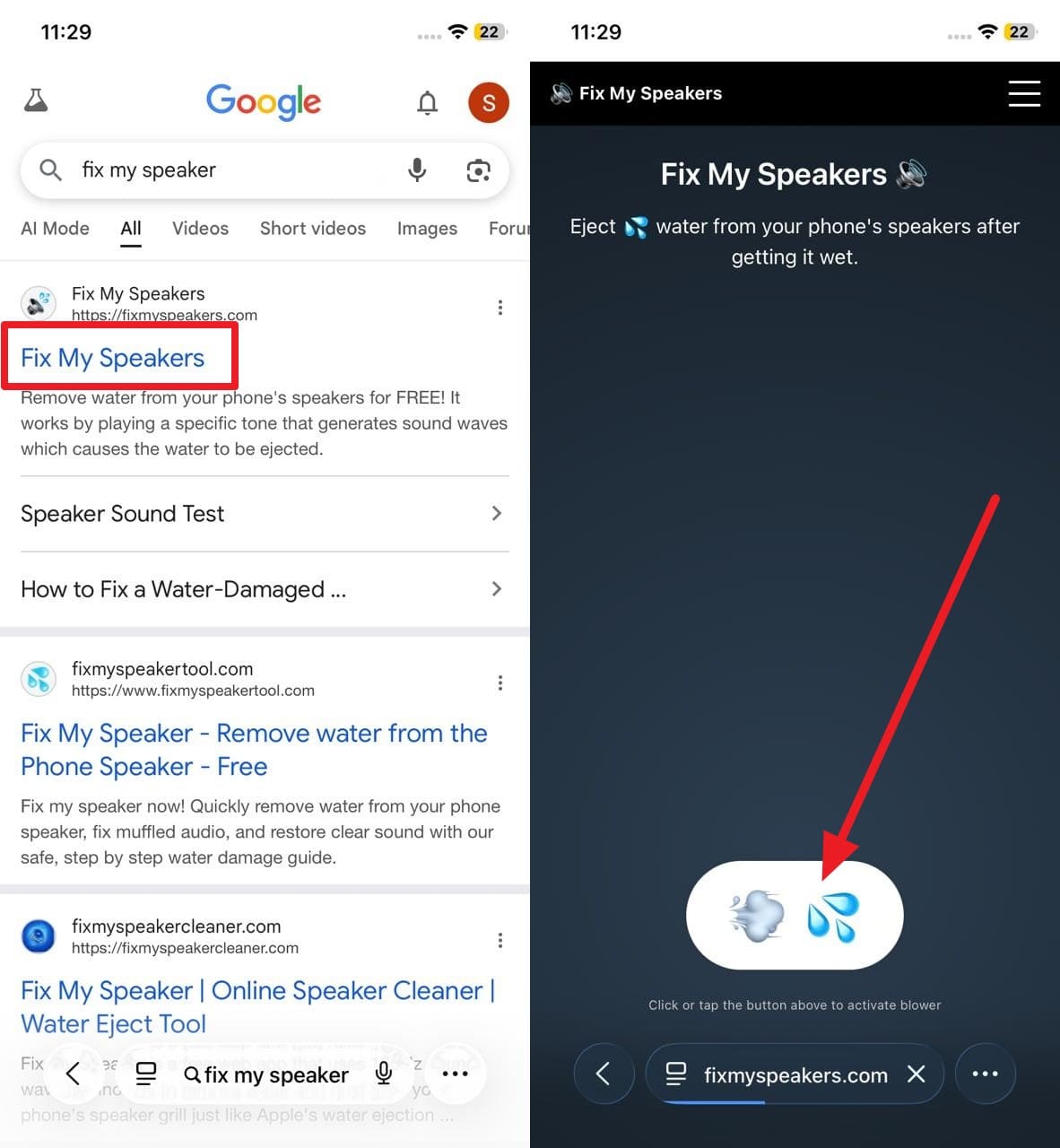
After figuring out how to get water out of charging port, you can use Fixmyspeakers.com to clear any remaining speaker blockage. This intuitive web application functions similarly to the eject shortcut, playing an extremely specific tone to rattle water droplets out of their hiding spots.
Instructions: Navigate to the website on your iPhone. Tap the large button adorned with water droplets. Hold your phone with the speaker ports facing downward to aid gravity. Allow the intense audio tone to play continuously for 10-15 seconds. Repeat the process until the grilles are dry.
3. The Sonic App
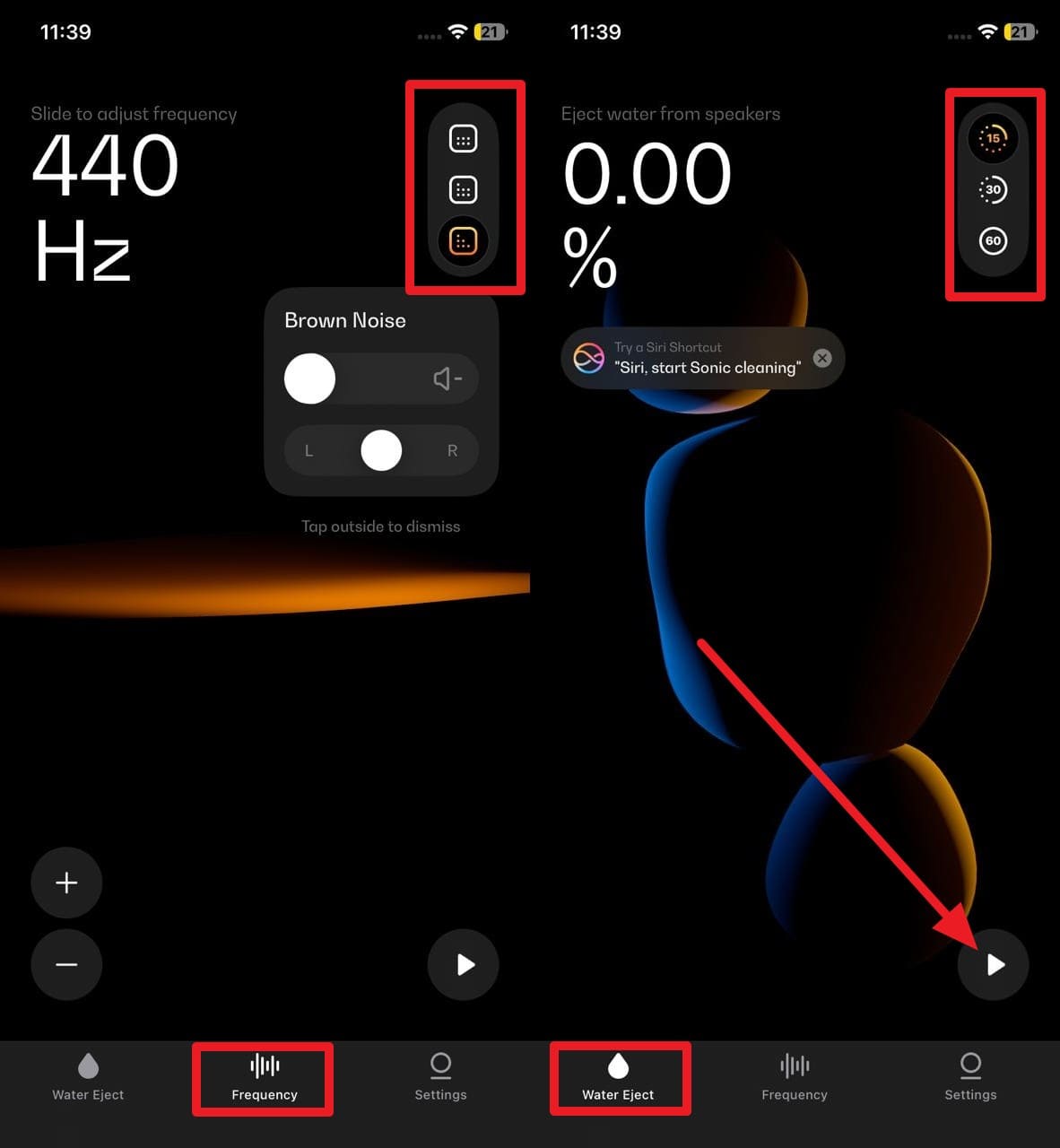
If you prefer a dedicated application, the Sonic Tone Generator app grants you manual control over the exact audio frequency pumped through your speakers. Users can dial in the precise Hz range (typically around 165Hz) to maximize the water-expelling vibrations.
Instructions: Place your wet iPhone face up on a highly absorbent towel. Open Sonic, navigate to the frequency dial, and tap the "Play" button. Alternatively, use the app's dedicated "Water Eject" tab. Let the sound run until your audio returns to crystal clarity.
4. Mandatory Post-Ejection Air-Drying
Remember that even after successfully executing all tips on how to get water out of iPhone speaker, residual invisible moisture will remain on the fragile internal acoustic coils. You must still subject the phone to a prolonged air-drying phase to ensure every microscopic vapor particle is completely gone before heavy usage.
Part 3. When Can You Charge a Wet iPhone Without Damaging It?
Apple strictly warns against attempting to charge a wet Lightning or USB-C port, as pushing an electrical current through a damp connection leads directly to severe pin corrosion and permanent motherboard failure. If your iPhone took a major plunge, wait a minimum of 5 hours. However, for total peace of mind, experts recommend waiting at least 24 hours in a well-ventilated space before attempting to plug it in. If a "Liquid Detected in Port" warning flashes upon connection, unplug it immediately and resume drying.
Part 4. What If Your iPhone Won't Turn On After Water Damage?
Sometimes, despite perfectly executing every strategy on how to get water out of iphone, the device may stubbornly refuse to turn back on. In these dire scenarios, test these final diagnostic solutions to figure out if your data can still be salvaged:
1. Perform One Careful Test Restart
After waiting the absolute maximum drying period (ideally 48 hours), attempt a single restart. This isolated test will reveal if the phone just suffered a temporary blackout or if deep hardware corrosion has occurred. If the screen flickers to life, perform a full backup immediately before secondary corrosion causes it to permanently fail.
2. Rescue Your Files Using Dr.Fone - Data Recovery
If your screen remains entirely black but the phone still registers when plugged into a computer, your data is likely intact. By utilizing Dr.Fone - Data Recovery, you can securely bypass a broken display and extract your precious memories. This premium software supports the latest iOS versions, offering deep scans that pull files directly from the device's internal storage, iTunes, or iCloud backups with an incredibly high success rate.
 Recovers data after deletion, crashes, or device damage.
- Supports photos, messages, contacts, WhatsApp, and more.
- Supports all major iPhone, iPad, and iPod models.
- Preview and recover only what you need.

Because it offers advanced selective recovery, you can preview specific photos, WhatsApp chats, contacts, and videos without having to restore an entire corrupted backup. The platform is designed with an incredibly intuitive, beginner-friendly interface that simplifies complex recovery into just three easy steps.
Simplified Guide to Recover iPhone Data via Dr.Fone Data Recovery:
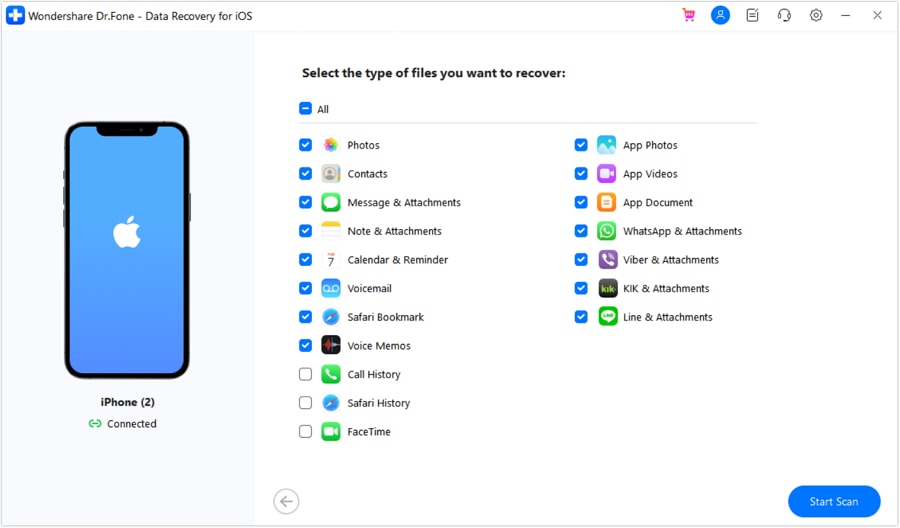
Connect your liquid-damaged iPhone to your computer using a trusted cable. Launch the software and select the "Recover Data from iOS Device" module. Choose the specific file categories you wish to salvage and hit "Start Scan". Once Dr.Fone meticulously unearths your hidden data, simply select the desired items and export them safely to your local computer drive.
3. Look for Hidden Signs of Life
Before giving up on the device completely, plug it in and search for subtle physical cues. Does the internal motor vibrate? Do you hear faint notification chimes? Is the screen's backlight glowing slightly even if the image is black? These hints confirm the logic board is somewhat alive, giving you hope for data extraction.
4. Try Charging with a Certified Apple Cable
If you followed all directions on how to get liquid out of the charger port but still have power issues, verify that your charging brick and cable aren't at fault. Use a known-good, MFi-certified Apple cable to safely test charging. A damaged accessory can easily mimic a damaged phone port.
5. Consult a Professional Repair Technician
Ultimately, when water damage heavily compromises the hardware, it's out of your hands. Take the iPhone to an Apple Store or a reputable, independent repair shop. Skilled technicians have the authorization to disassemble the casing, meticulously inspect the logic board under a microscope, and physically clear out the corrosive buildup.
Conclusion
Experiencing a sudden spill or an accidental drop into a pool is terrifying, but understanding exactly how to get water out of an iPhone empowers you to take decisive action. By immediately powering down, utilizing smart soundwave tools for the speakers, and relying on proper desiccant drying methods, you significantly lower the chances of catastrophic device failure.
If the worst occurs and the hardware succumbs to liquid damage despite your best efforts, your memories are not necessarily lost forever. By implementing Dr.Fone - Data Recovery, you can securely scan your damaged device to retrieve highly sensitive files, photos, and messages before securely wiping it for professional repairs or trading it in.
FAQ
-
1. Can I use rice to dry my iPhone?
While putting a wet phone in rice is a popular myth, it is highly discouraged. Rice absorbs moisture far too slowly and can lodge fine dust particles and starch directly into the iPhone's delicate charging port, causing even more damage. Utilizing commercial silica gel packets or simply air-drying the device in a well-ventilated room are exponentially safer and more effective methods. -
2. Is it safe to put a wet iPhone in the freezer?
Absolutely not. Freezing a wet iPhone forces the trapped water to expand into solid ice, which can easily crack the screen, warp the internal battery, and fracture the motherboard. Once the ice thaws, the condensation will coat every component, resulting in total, irreparable failure. Always allow the phone to dry naturally in a cool, shaded environment. -
3. Will turning on the iPhone while it's wet cause permanent damage?
Yes, turning on a wet iPhone is incredibly dangerous. Introducing active electrical current into a circuit board bridged by conductive water instantly causes catastrophic short circuits. This fries essential components, meaning you must keep the device fully powered down until you are absolutely certain that all moisture has evaporated. -
4. Can I use a hairdryer to speed up the drying process?
No, using a hairdryer—even on a cool setting—can be highly detrimental. The intense airflow can physically push surface droplets much deeper into the internal acoustic coils and circuitry where they wouldn't normally reach. Furthermore, excessive heat from the dryer can easily melt the waterproof adhesives and warp internal plastics.
 Add Wondershare Dr.Fone as a preferred source on Google