Recover photos, messages, WhatsApp, and more — no backup
needed.
Recover photos, messages, WhatsApp, and more — no backup
needed.

 100% Security Verified | No Subscription Required | No Malware

 :
: 
 ChatGPT
 Perplexity
 Gemini
 Claude
 Grok
Grok
Photos freeze moments in time that can never be recreated in time or space. A simple tap, a failed sync, or a device switch can erase everything. iCloud offers multiple recovery paths, but most users do not know where to start. Many users struggle because iCloud stores photos across several different systems at once. Therefore, understanding those systems is the first step toward recovering your lost memories.
This guide covers methods to learn how to retrieve photos from iCloud. Along with that, for cases where standard methods fail, this guide also covers tools like Dr.Fone - Data Recovery as an option.
In this article
- Where Are Your Photos Actually Stored in iCloud?
- What Should You Check Before Recovering Photos From iCloud?
- How Do You Recover Photos From iCloud Step-by-Step?
- Method 1. Recover From Recently Deleted on iPhone/iPad/Mac
- Method 2. Recover Photos From iCloud.com (Download to Device)
- Method 3. Recover Photos from Another Synced Apple Device
- Method 4. Restore Photos From an iCloud Backup (Full Device Restore)
- Method 5. Recover Photos From iCloud Backup Without Resetting Your iPhone

- What to Do if Your Photos Are No Longer Available in iCloud
Part 1. Where Are Your Photos Actually Stored in iCloud?
Photos in iCloud are stored across multiple services based on your settings. Moreover, the recovery of deleted photos varies depending on the type of storage. This confusion often leads users to ask, "How can I recover photos from iCloud?" To clarify this, the next sections explain each storage type and recovery role:
iCloud Photos vs iCloud Backup vs iCloud Drive
Each iCloud system serves a different purpose and stores your photos in a different way. The table below compares their storage behavior and recovery possibilities:
| Feature | iCloud Photos | iCloud Backup | iCloud Drive |
|---|---|---|---|
| Primary Mechanism | Continuous background synchronization | Scheduled system state capture | Manual document and file storage |
| File Structure | Original image formats and metadata | Compressed, system-wide data blocks | Independent directory folder trees |
| Deletion Behavior | Deletes from all synced devices | Preserves data until backup overwrites | Retains files in specific app folders |
| Storage Consumption | Dynamically updates storage usage | Varies by the overall size of the device | Consumes space per uploaded file |
| Best Recovery For | Accidentally deleted recent images | Restoring missing historical libraries | Recovering exported standalone media |
Which iCloud System Can Help Recover Your Photos?
Not every system supports photo recovery in the same way or timeframe. Here are the 3 iCloud systems and how each one helps recover your photos:
- iCloud Photos: This system keeps deleted photos in Recently Deleted for up to 30 days. You can restore them without resetting or losing any other device data.
- iCloud Backup: It restores photos only if they were not already synced with iCloud Photos. However, restoring it replaces all current device data with the older backup version.
- iCloud Drive: This only helps if you manually save exported photos there beforehand. Those files can be downloaded without erasing files on your device from the website or app.
How to Check Whether Your Photos Were Synced or Backed Up
Your device settings reveal which iCloud service holds your data before recovery attempts. If it is enabled, your device is uploading photos to the cloud. This is because each photo is reflected from all your connected devices. Yet, if syncing is turned off but iCloud Backup is enabled, your photos are being backed up instead.
Alongside that, backups save your photo library periodically at a particular time. Knowing this difference helps you choose the correct recovery method later. It improves accuracy when deciding how to get photos back from iCloud.
Part 2. What Should You Check Before Recovering Photos From iCloud?
Before starting recovery, checking key settings helps avoid data loss or errors. These checks clarify how to recover photos from iCloud backup and guide the next steps:
1. Check If iCloud Photos Is Turned On or Not
Checking this setting is the first step in understanding how to restore photos. When it is enabled, your entire camera roll syncs continuously to the cloud. This toggle also confirms whether your deleted photos are recoverable. It improves your chances when learning how to restore photos from iCloud. So, adhere to the steps given below to check if this feature is currently turned on:
-
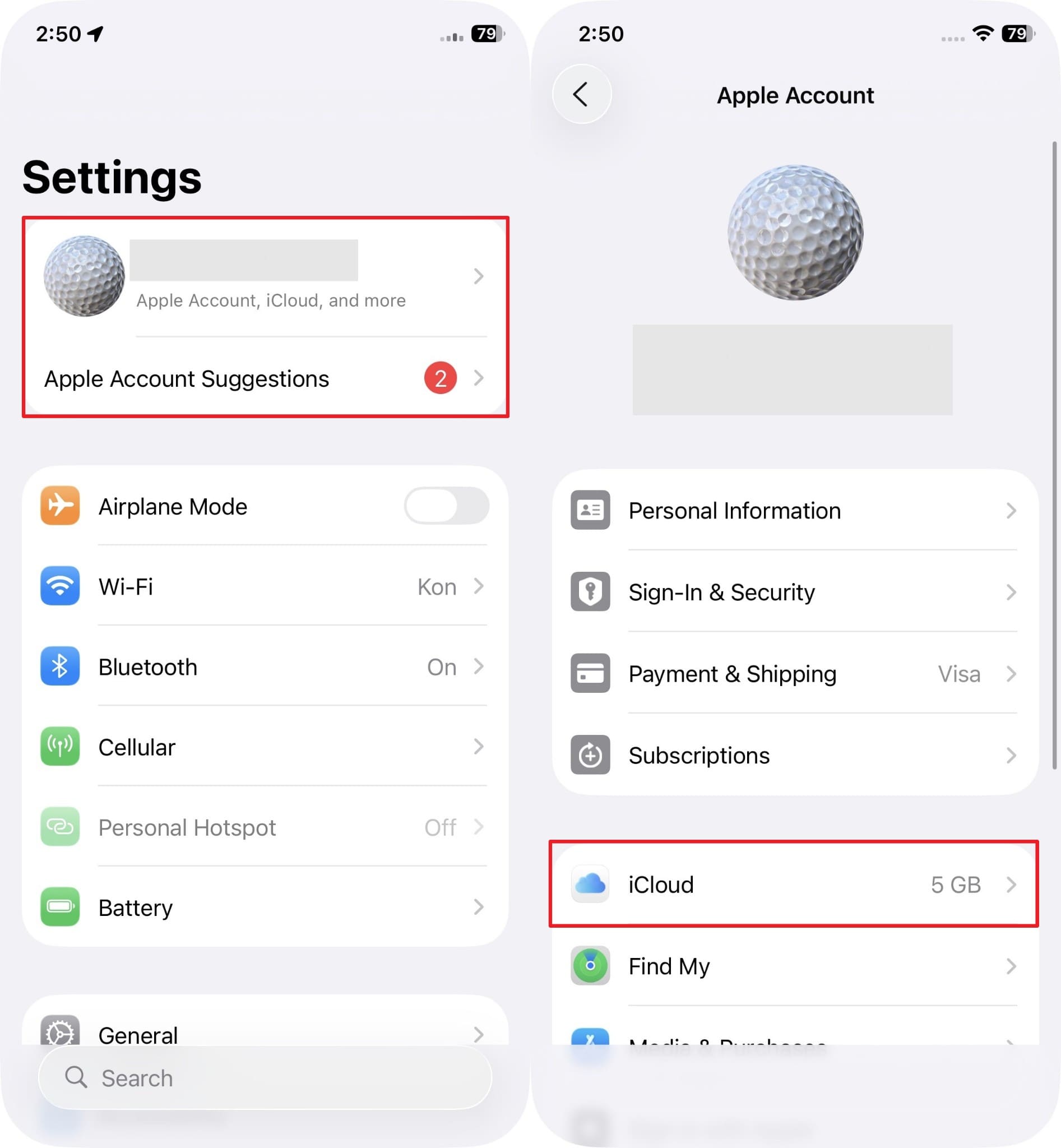
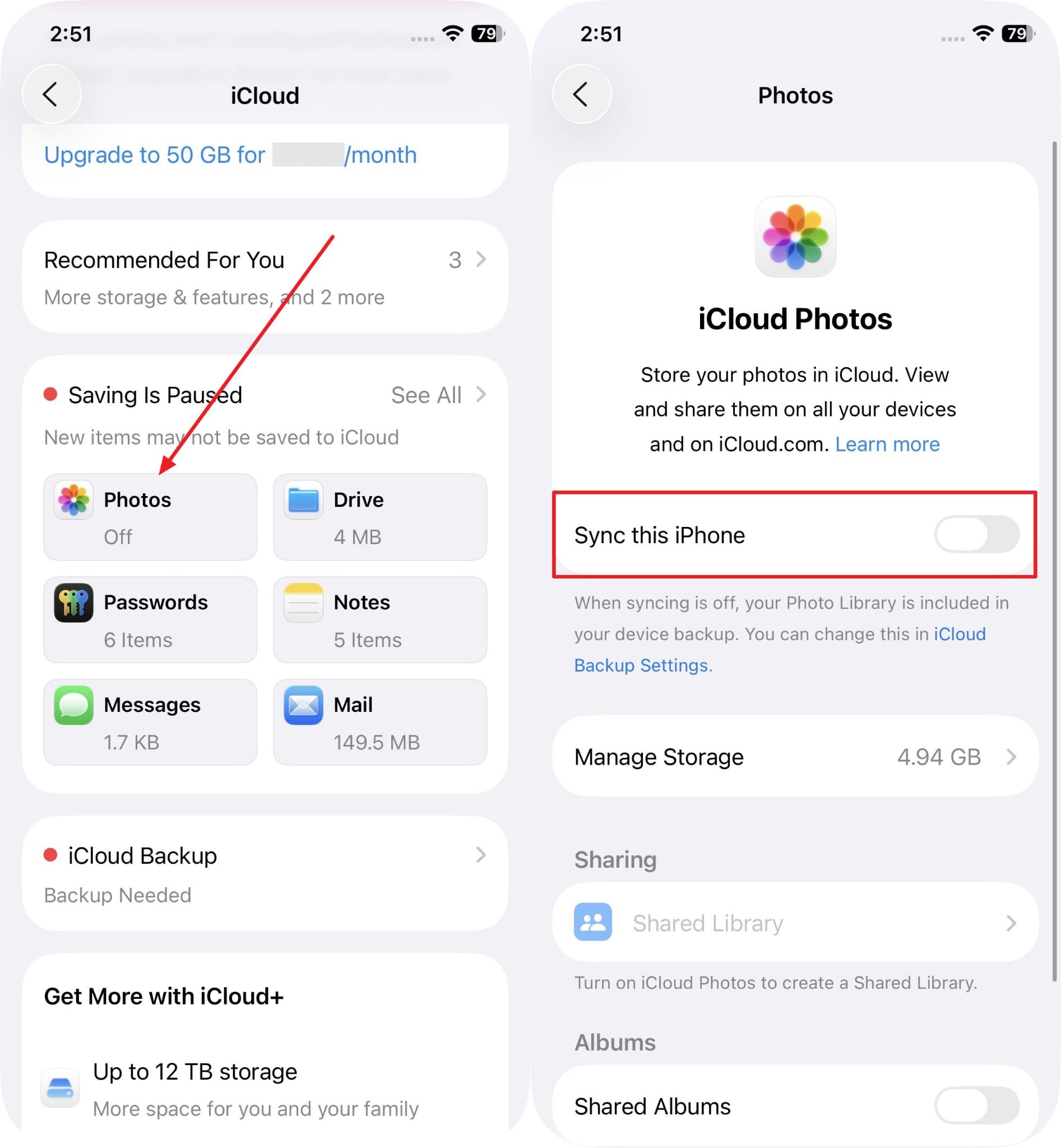
Step 1 When you launch "Settings," tap your "Apple Account" and access "iCloud."
-
Step 2 Navigate to the "Photos" section and check the sync toggle. In case the "Sync This iPhone" toggle is on, it means that your photos are syncing.
2. Check the Recently Deleted Album and Remaining Days
The Recently Deleted album is the fastest answer to how do I recover photos from iCloud. This native album holds deleted photos for 30 days before permanent removal occurs. It displays each photo alongside the exact number of remaining recovery days. You can selectively restore individual photos without affecting any other part of your library.
Review the guide to check your Recently Deleted album and remaining recovery days:
-
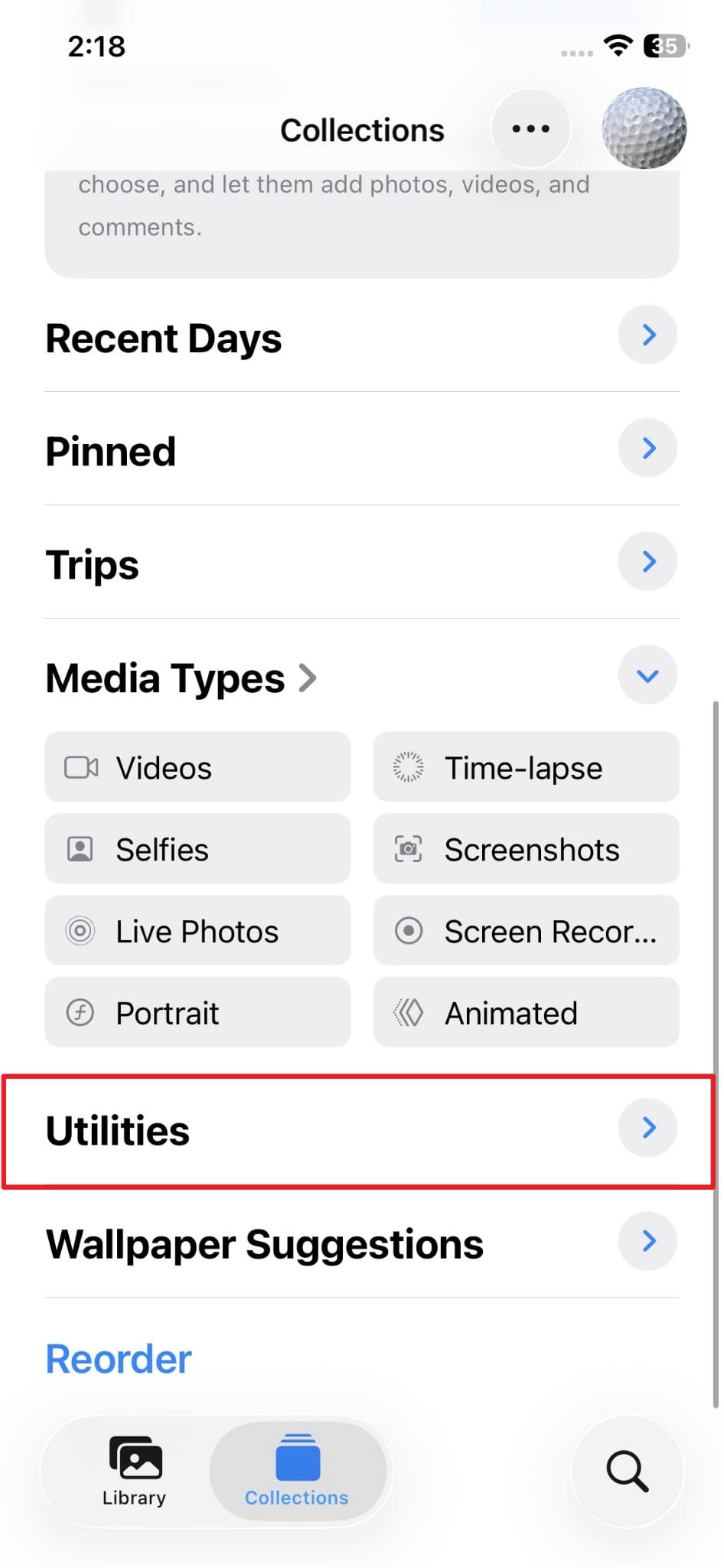
Step 1 From the "Photos" app, navigate to the "Utilities" section.
-
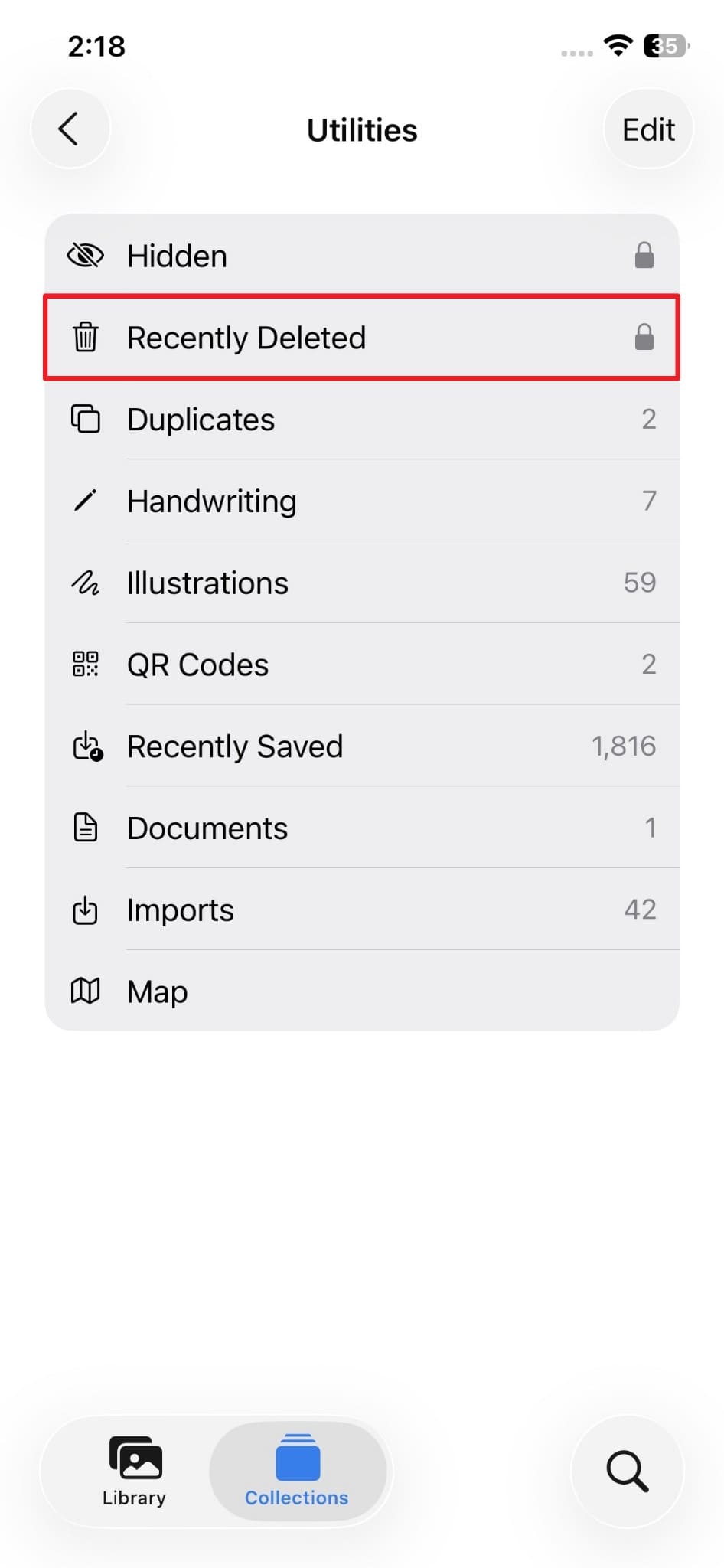
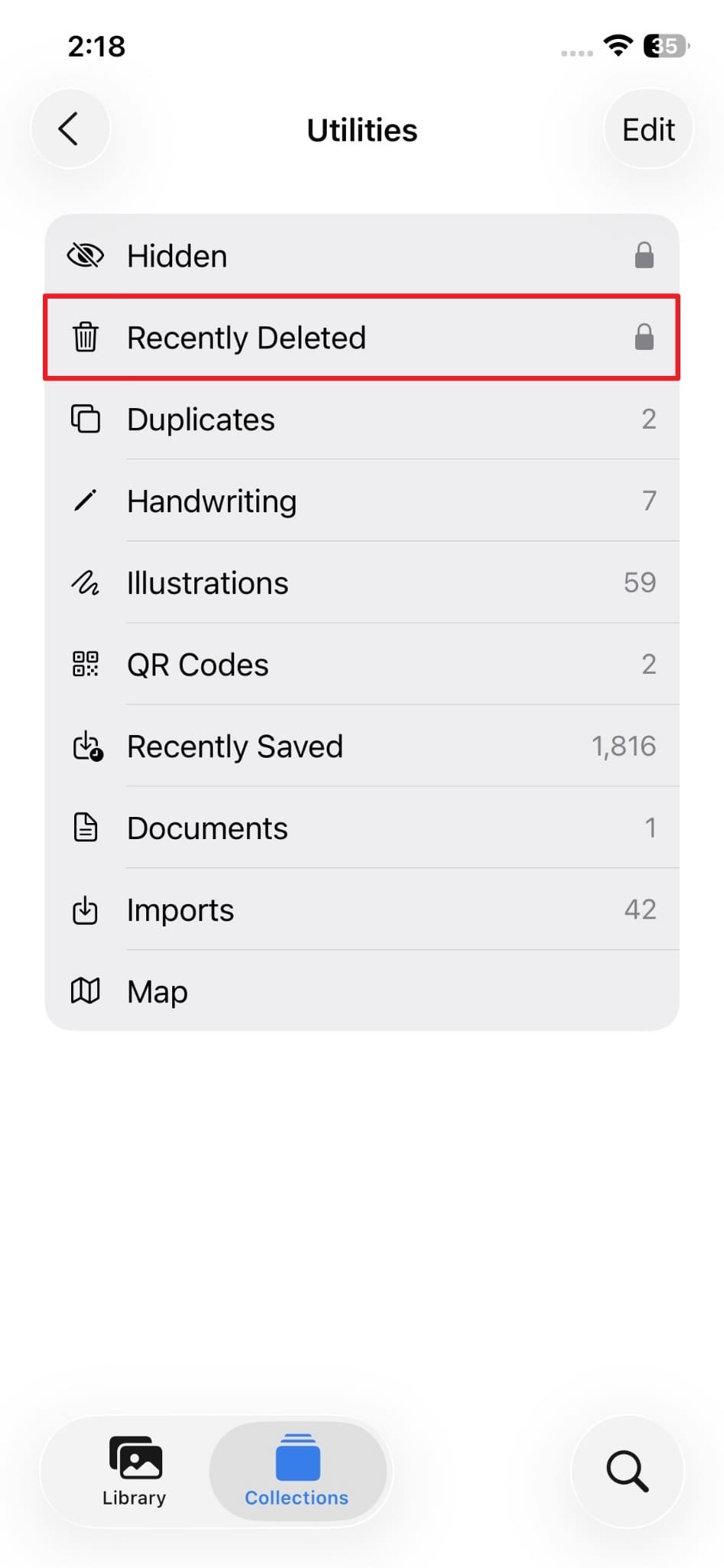
Step 2 On the upcoming display, you need to access the "Recently Deleted" folder.
-
Step 3 Going ahead, you will then see deleted media files along with their deletion dates.

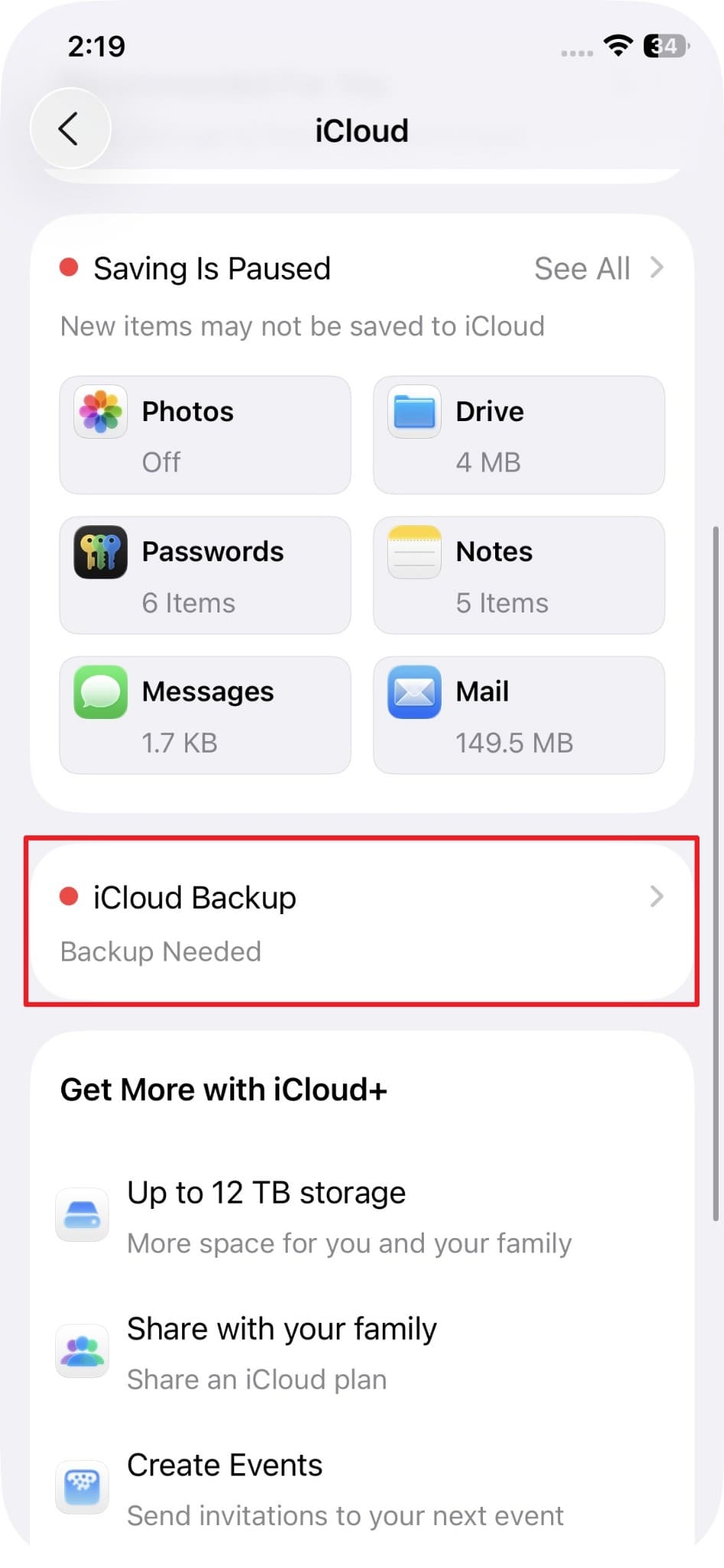
3. Verify If You Have Created an iCloud Backup Before Deletion
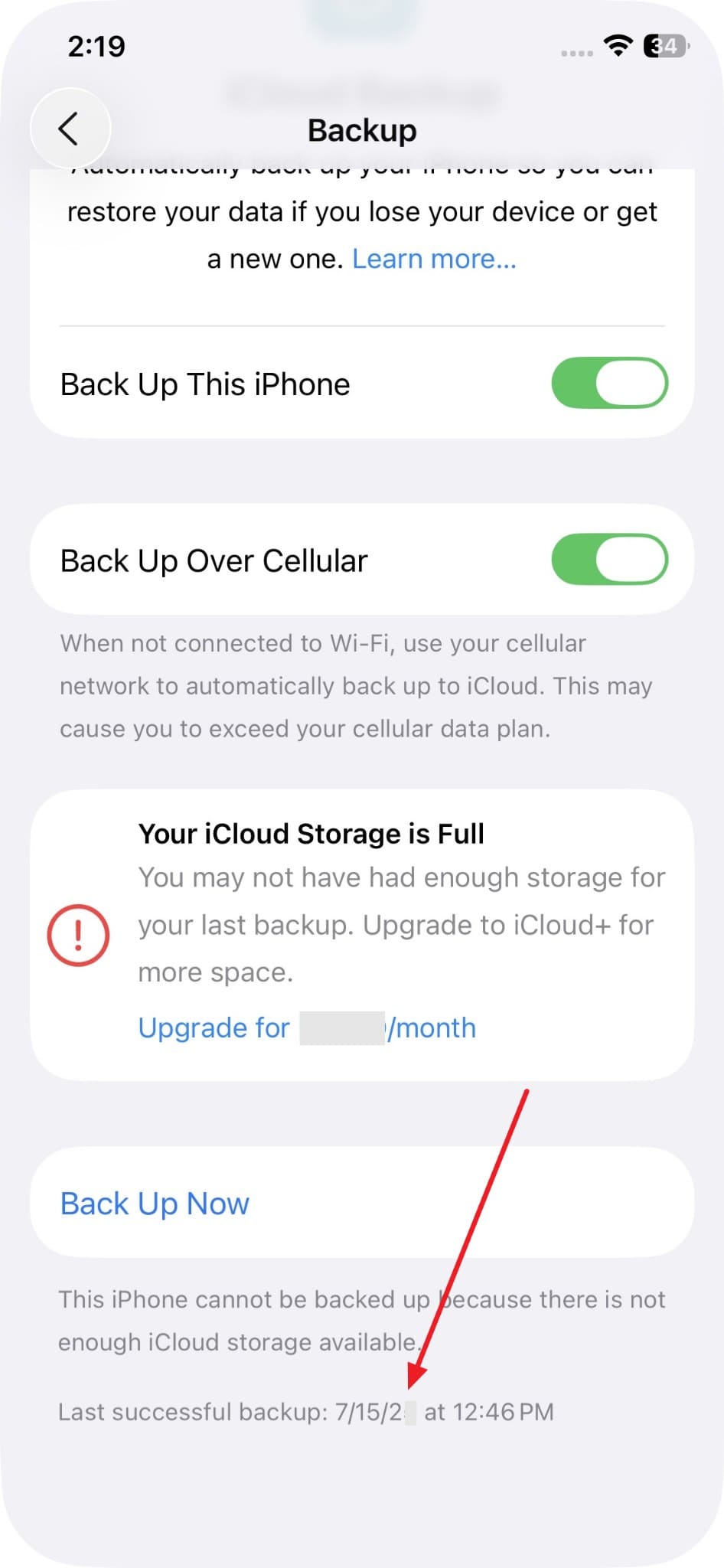
Verifying your backup history is essential before attempting how can I restore photos from iCloud. It records the exact date and time your last device backup was created. Real-world test cases show that old backups save missing phone records. According to ORDR, 96% of targeted ransomware attacks attack backup repositories.
Adhere to the steps below to verify whether a backup exists before your deletion:
-
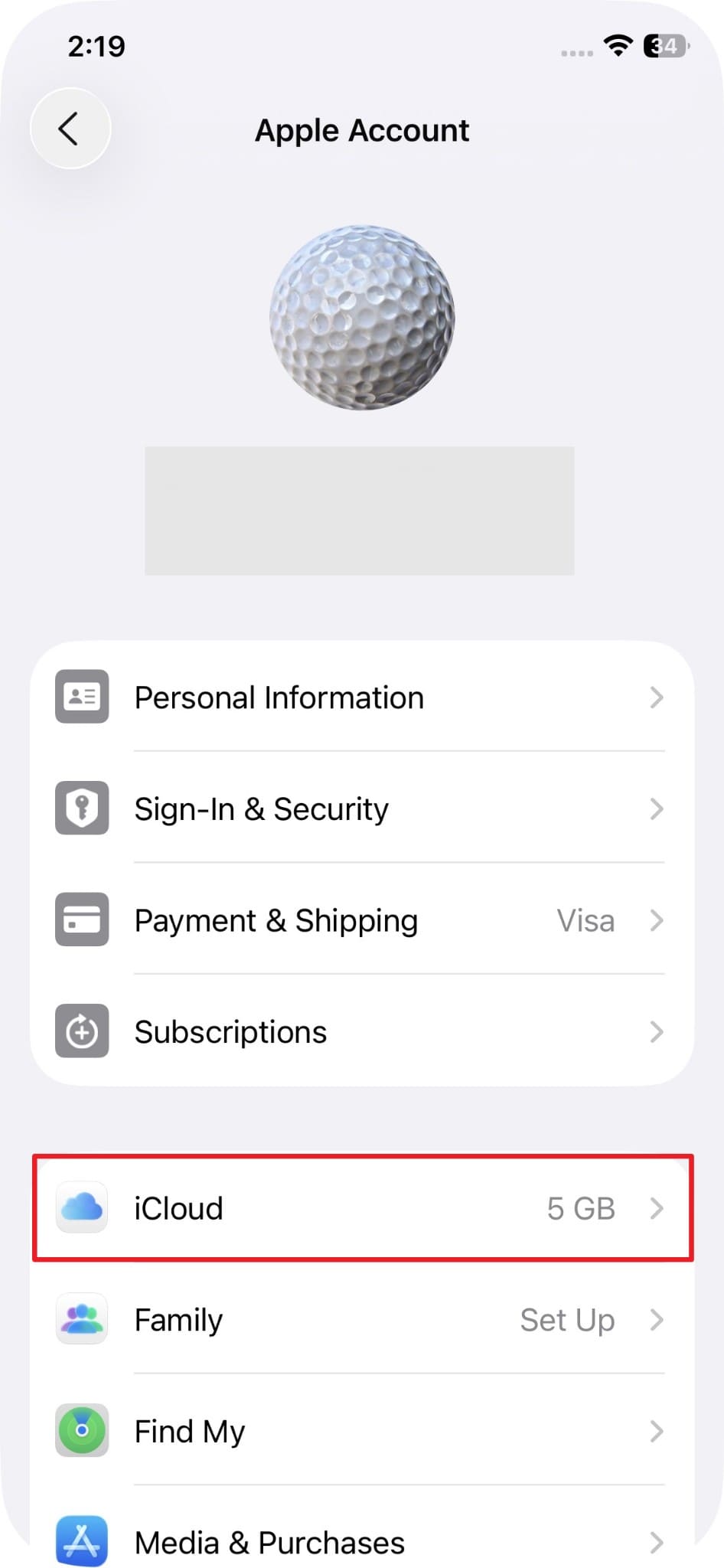
Step 1 As you access the "Apple Account" from your phone settings, tap "iCloud."
-
Step 2 Once you access the new screen, head to the "iCloud Backup" section.
-
Step 3 Then, swipe up till the end to see the last time your device backed up.
Part 3. How Do You Recover Photos From iCloud Step-by-Step?
Executing specific restoration methods resolves data loss errors on your device. Thus, explore the following 5 recovery techniques to learn how to recover photos from iCloud.
Method 1. Recover From Recently Deleted on iPhone/iPad/Mac
The Recently Deleted album is the fastest native photo recovery option available. It automatically holds every deleted photo and video for a full 30-day period. You can recover multiple photos at once without needing any external tools. This method works consistently across devices through the Photos app.
Hence, review the sequential instructions below to restore your images from this folder:
-
Step 1 From the "Utilities" folder inside your "Photos" app, tap "Recently Deleted."
-
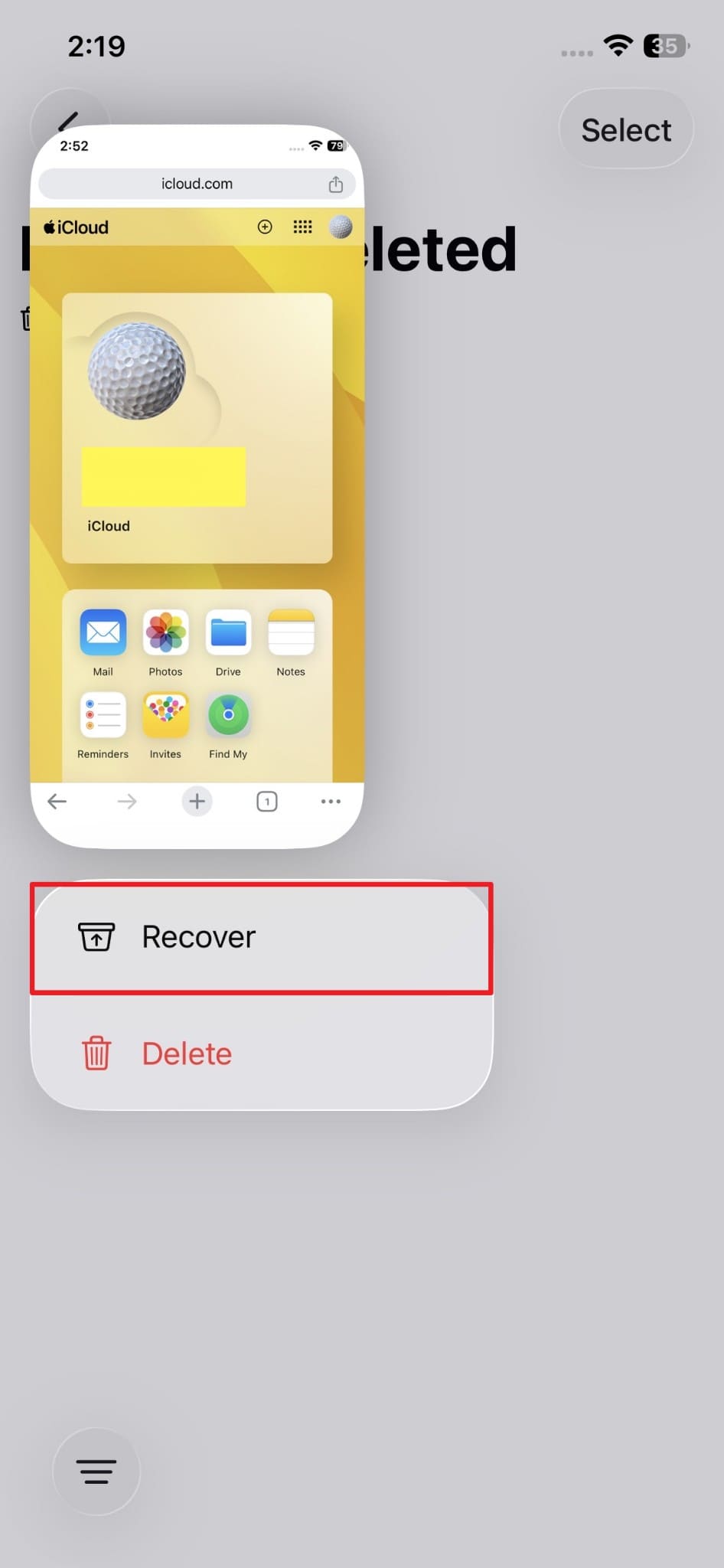
Step 2 Choose the deleted photo you want to restore and opt for "Recover."
Method 2. Recover Photos From iCloud.com (Download to Device)
Browsing the web browser platform offers direct entry into central remote database systems. This standalone online connection reveals cloud photos missing from your offline phone storage. A localized device deletion might not sync if network connectivity errors happen.
Therefore, this cloud browser access reveals how to get my photos back from iCloud. So, take guidance from the steps to recover your photos via browser:
-
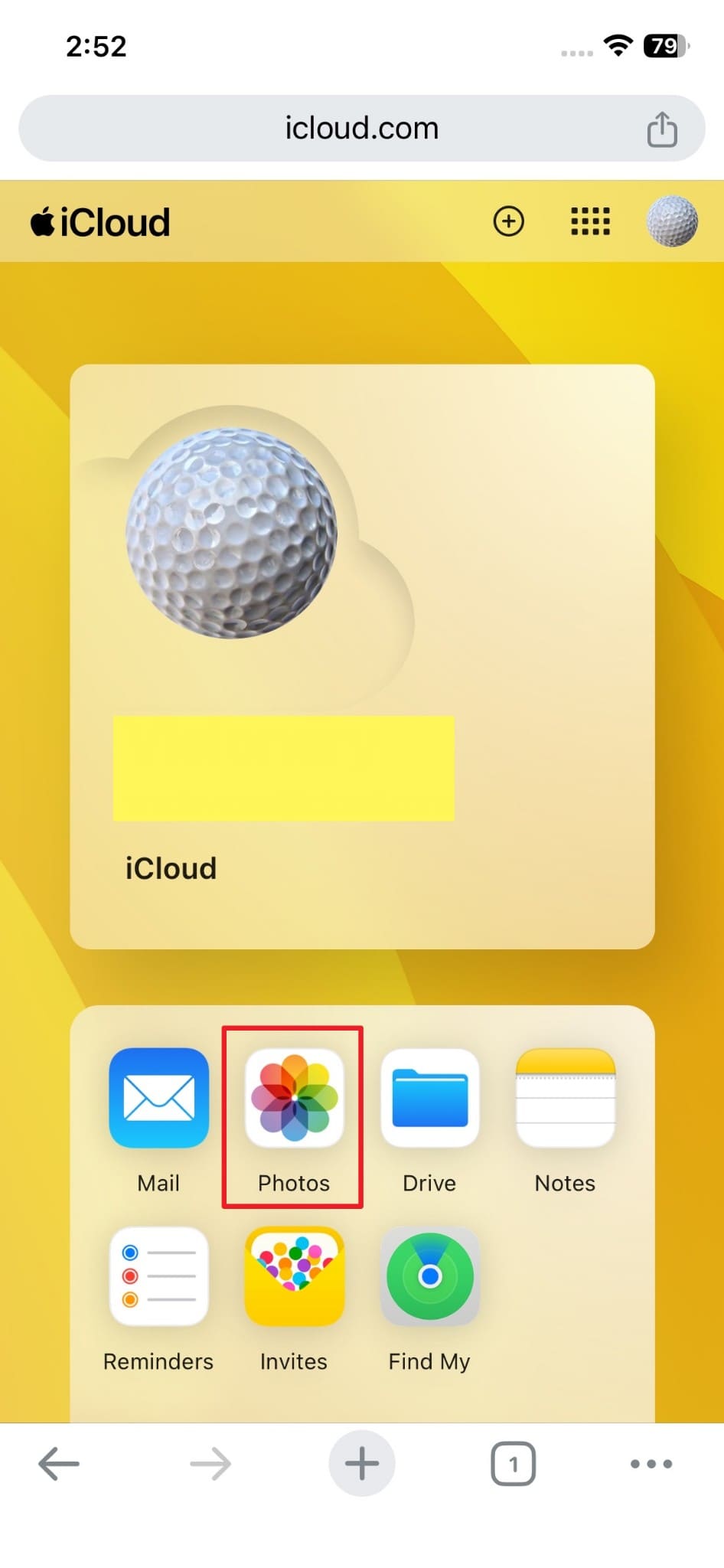
Step 1 Access "iCloud.com" on another device and sign in with the same account to choose "Photos."
-
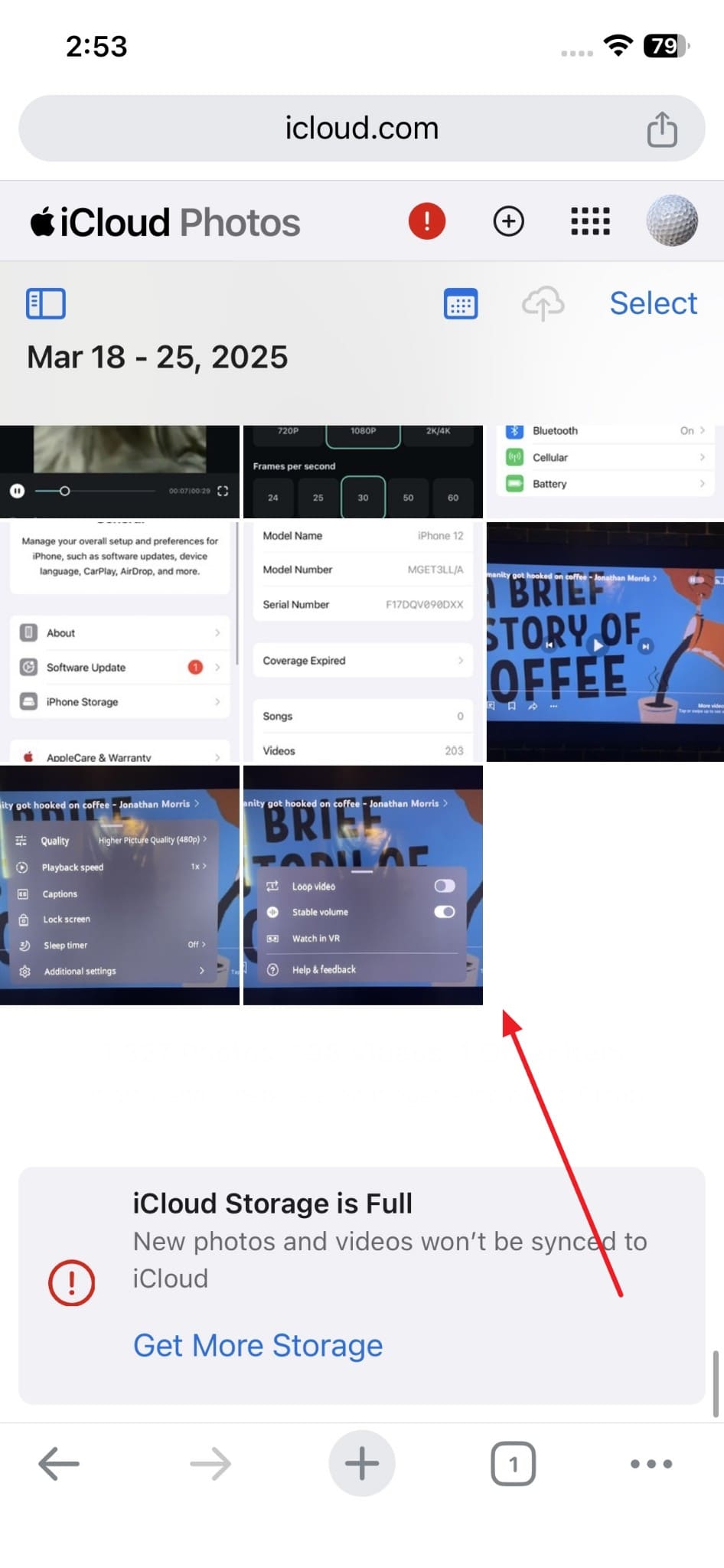
Step 2 Following this, locate your deleted photo from your offline device and choose it.
-
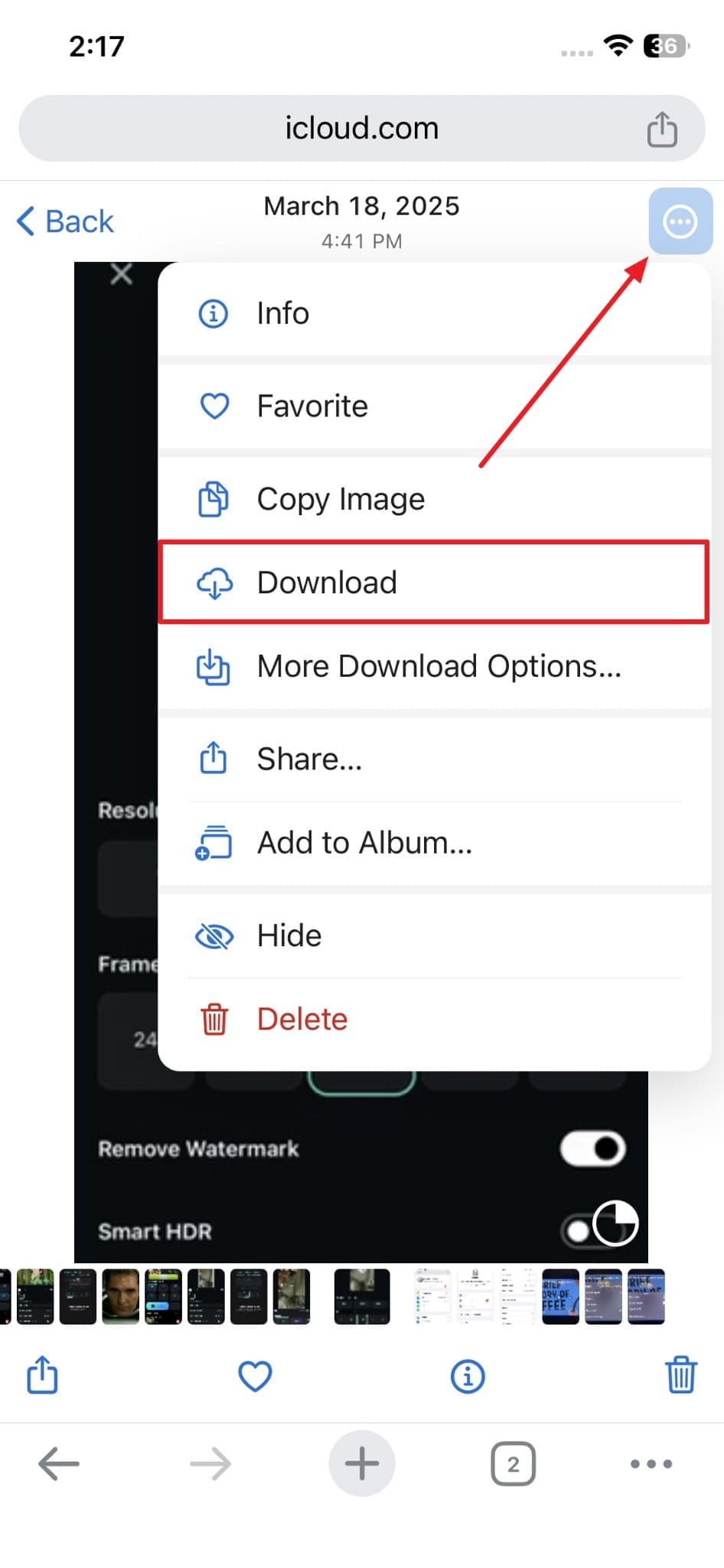
Step 3 Subsequently, opt for "Download" from the menu upon tapping the "Three Dots" icon.
Method 3. Recover Photos from Another Synced Apple Device
On Reddit, a user said that if photos vanished after syncing changes, another device may still hold them. Our test also shows that a photo deleted offline on an iPhone may still appear on your iPad or Mac. It is because the deletion had not yet synced across all connected devices.
Thus, checking another device requires no tools. Follow the steps below to recover your photos from another synced device:
-
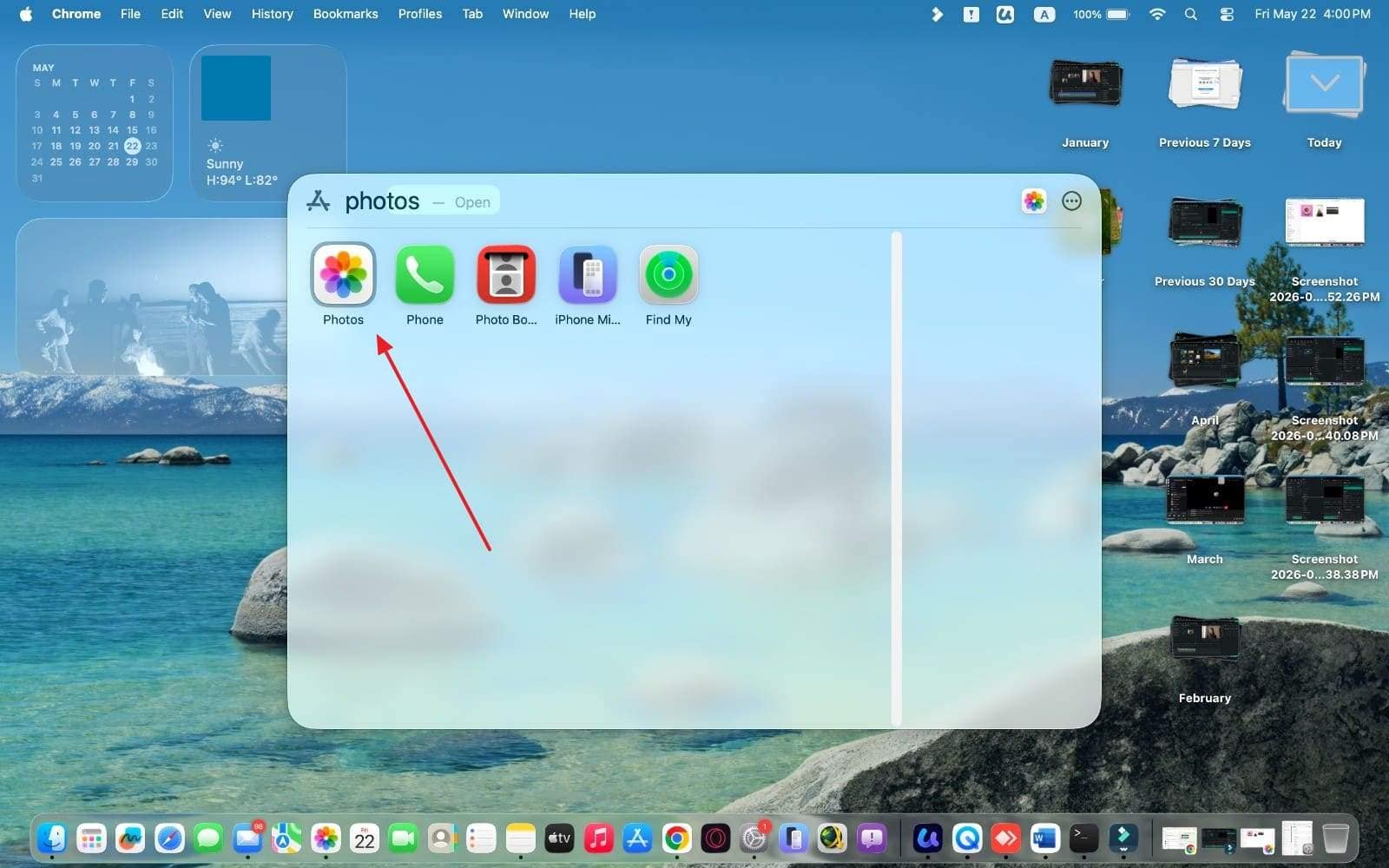
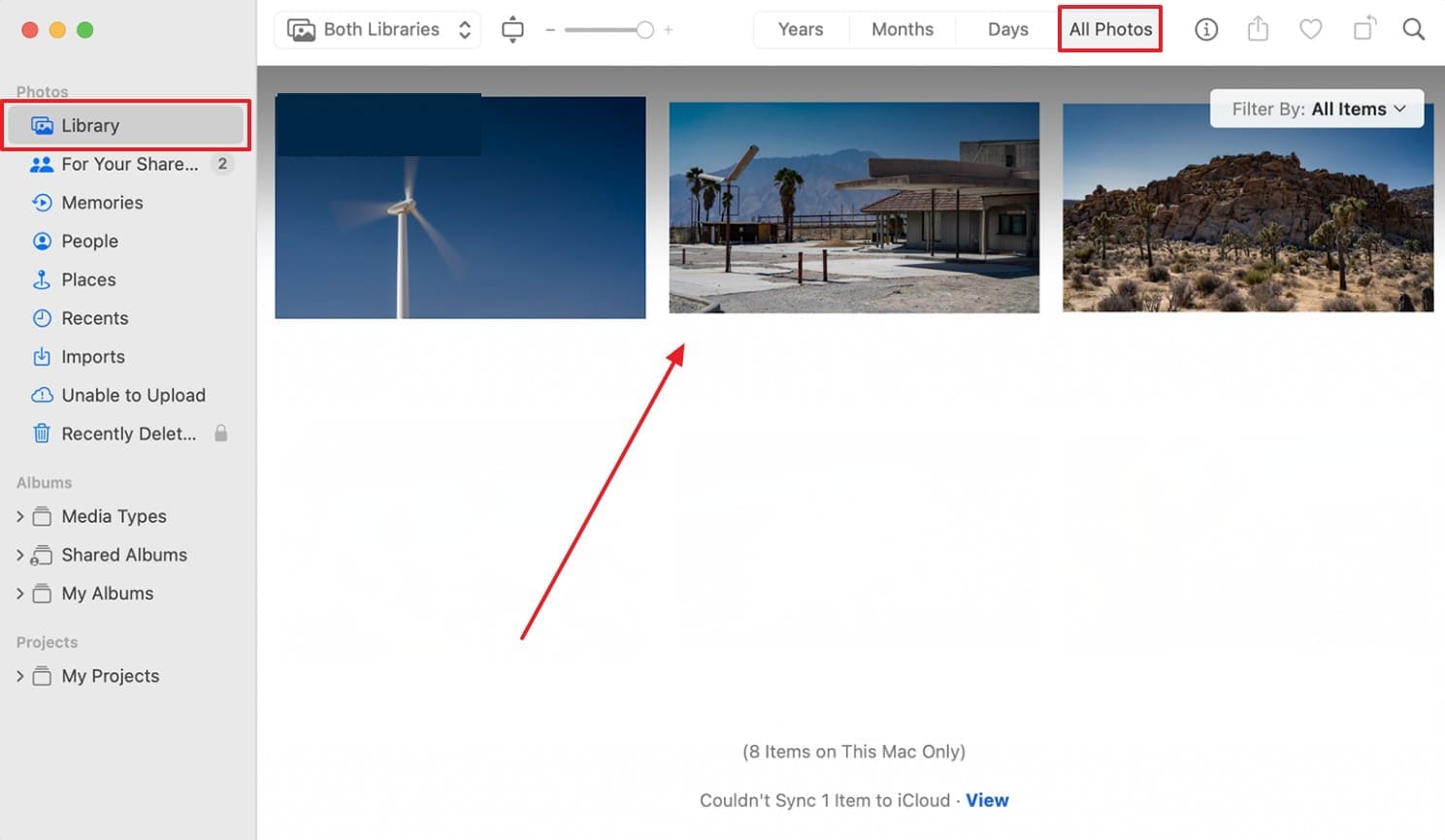
Step 1 Access another Apple device like a "Mac" and open the "Photos" app.
-
Step 2 Moving forward, go to the "Library" tab and scroll through "All Photos" to find your desired photo.
Method 4. Restore Photos From an iCloud Backup (Full Device Restore)
Full device restore lets you learn how to retrieve photos from iCloud backup. This method recovers your entire photo library from a saved backup point. It will restore all data from the device while deleting the existing data on it. However, photos added after the backup date will be permanently lost through this approach.
Hence, the following steps explain how to use this approach to retrieve your photos:
-
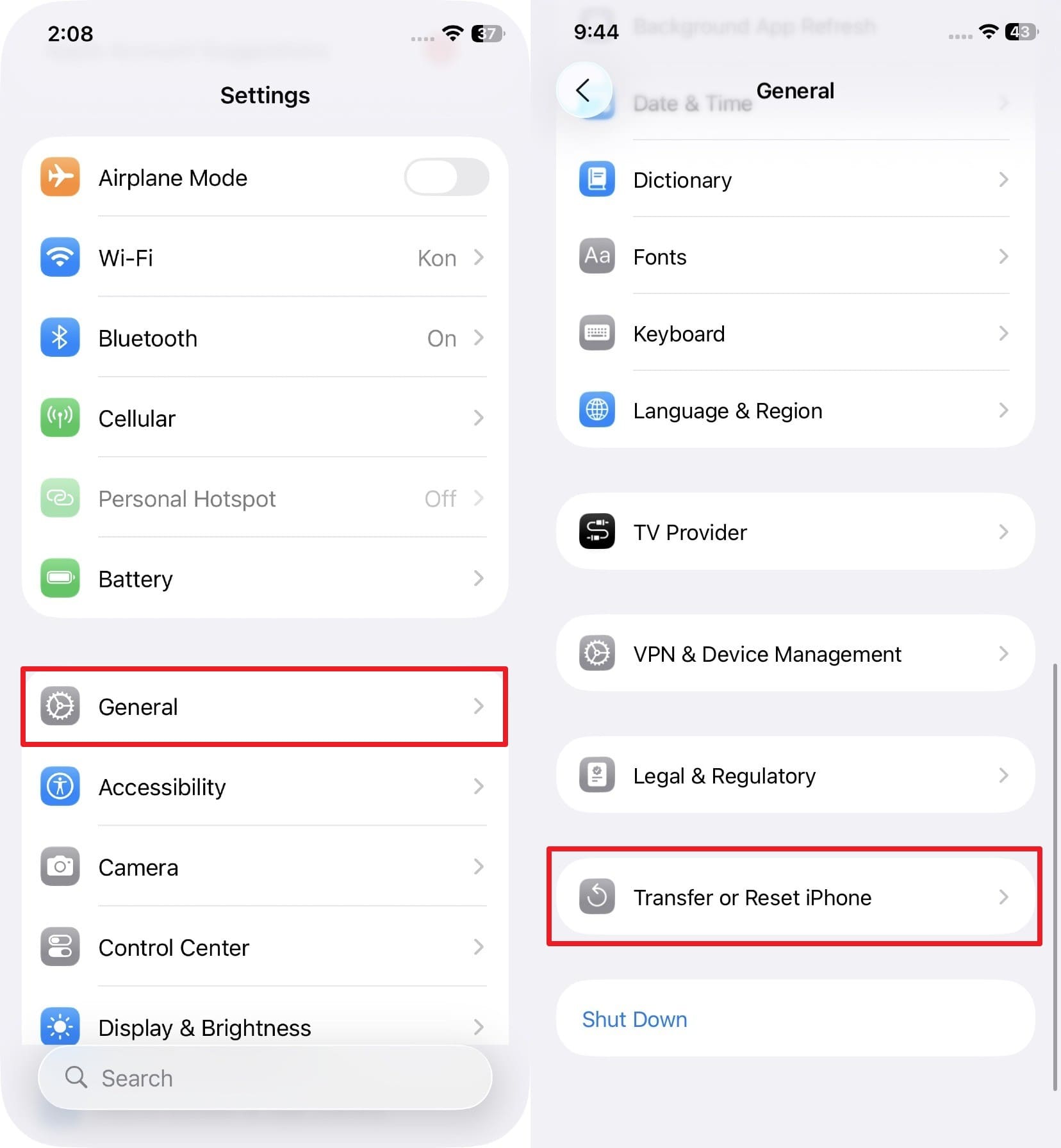
Step 1 After you select "General," swipe up to opt for "Transfer or Reset iPhone."
-
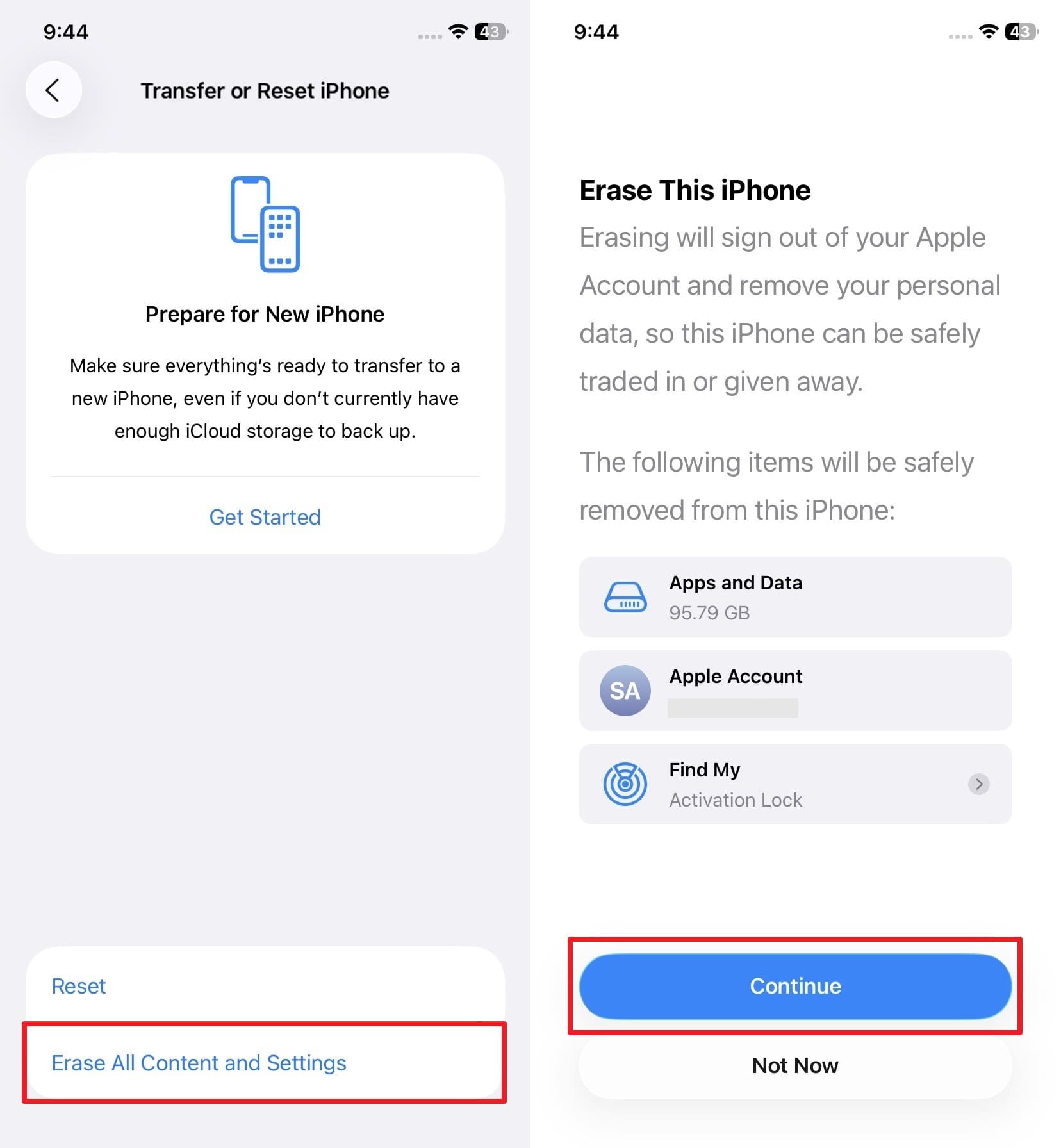
Step 2 From the upcoming screen, tap "Erase All Content and Settings" and press "Continue."
-
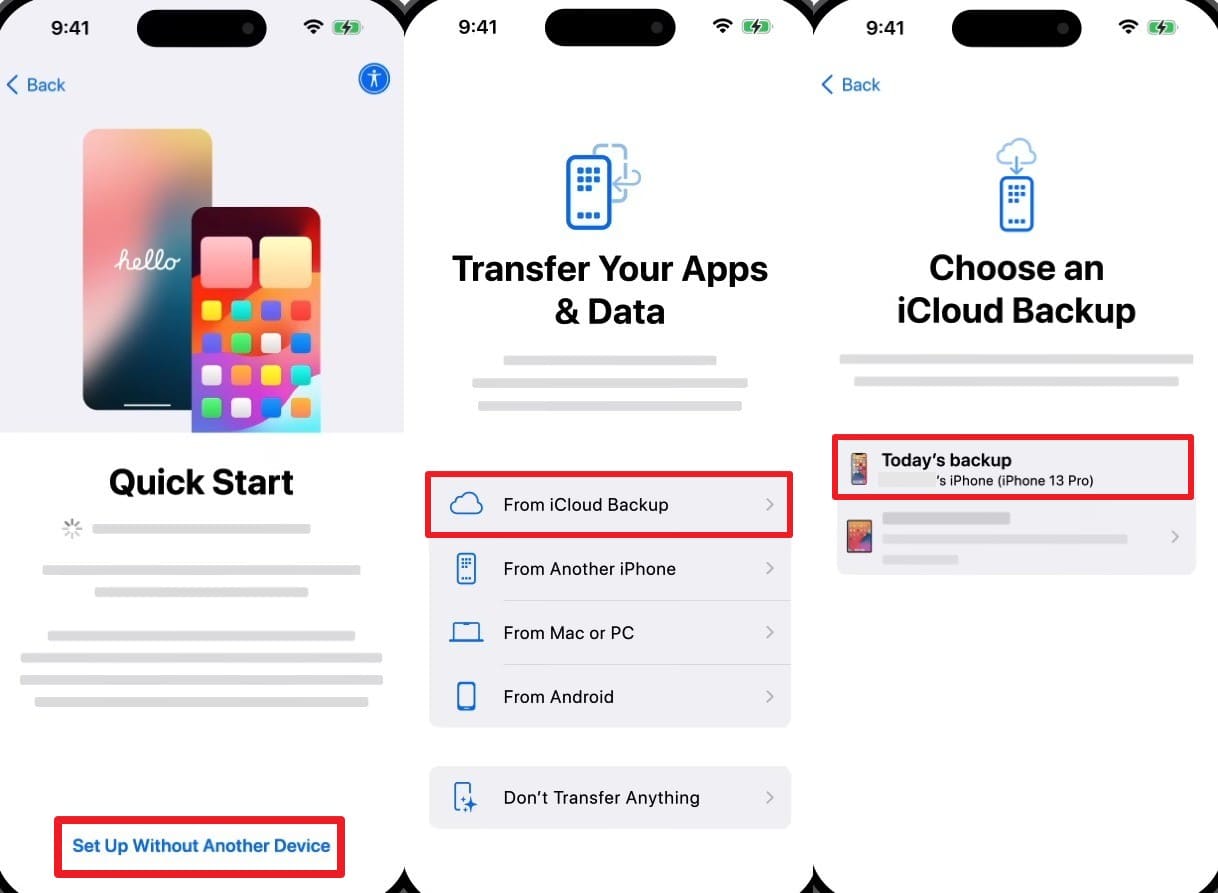
Step 3 While setting up your phone, press "Set Up Without Another Device" on the "Quick Start" screen. Then, opt for "From iCloud Backup" and sign in to your account. Next, adhere to the visual prompts and then select the recent backup to restore it.
Method 5. Recover Photos From iCloud Backup Without Resetting Your iPhone
In some cases, the complete device restore process can have more disadvantages than advantages. You lose all recent data, and the entire reset process takes considerable time. This is where tools like Dr.Fone - Data Recovery become a recovery choice. It shows how to recover photos from iCloud backup without any device reset.
The program also lets you access your iCloud backup and preview all recoverable photos first. It works with the recovery of several types of files, such as photos and videos. You can restore individual photos that you want to restore, but not all of them. The tool works with all iOS and iPadOS 26 devices without compatibility issues. It also supports two-factor authentication for secure iCloud account access during recovery.
 Recovers data after deletion, crashes, or device damage.
- Supports photos, messages, contacts, WhatsApp, and more.
- Supports all major iPhone, iPad, and iPod models.
- Preview and recover only what you need.

Tutorial to Recover Photos From iCloud Backup Without Resetting Your iPhone
We personally test this tool to recover specific data from the cloud backup. So, you can go through the following guide to recover photos from your cloud backup:
-
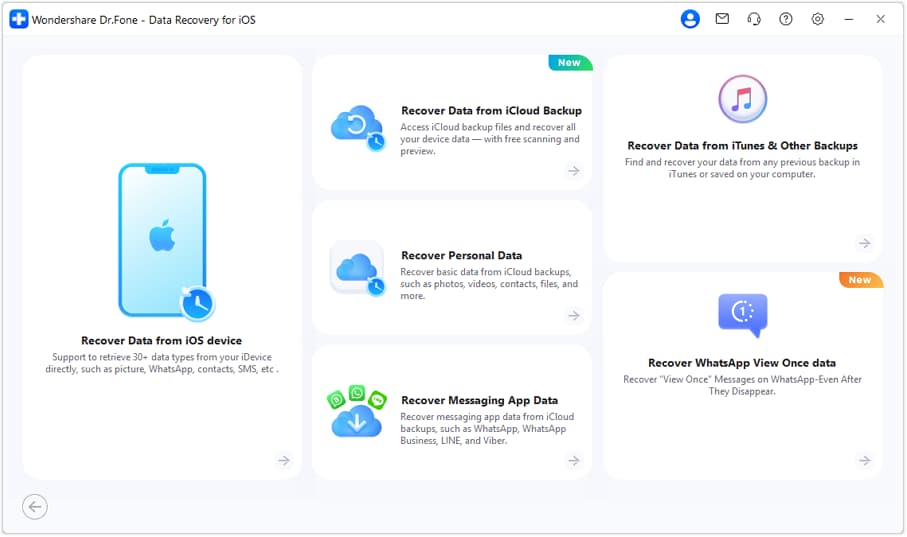
Step 1 Access the iCloud Recovery Module
Choose the "Data Recovery" features from the "Toolbox" area and opt for "iOS." Continue by selecting the "Recover Data From iCloud Backup" mode.
-
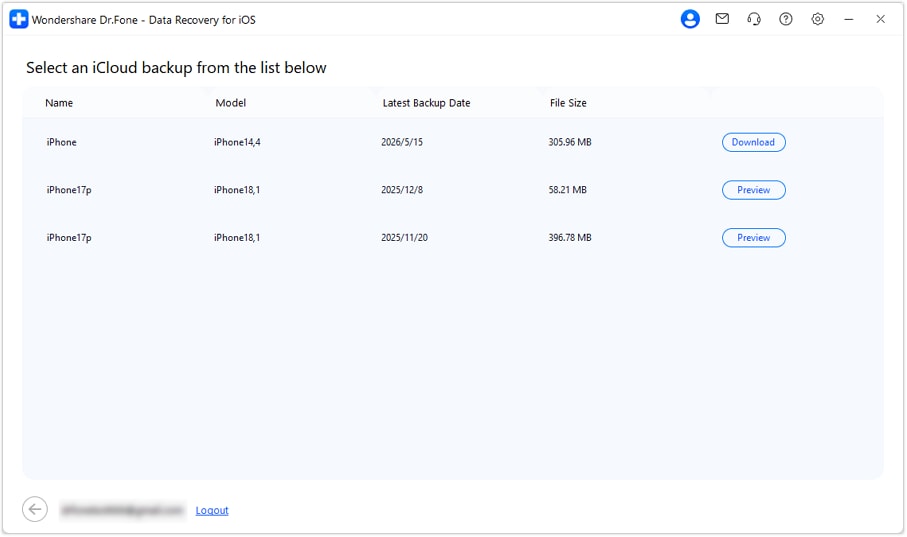
Step 2 Sign In and Download an iCloud Backup
Subsequently, log in using your cloud account details and complete the 2FA process. After verification, the program will display all available iCloud backups. You will then need to opt for the backup you want and click "Download."
-
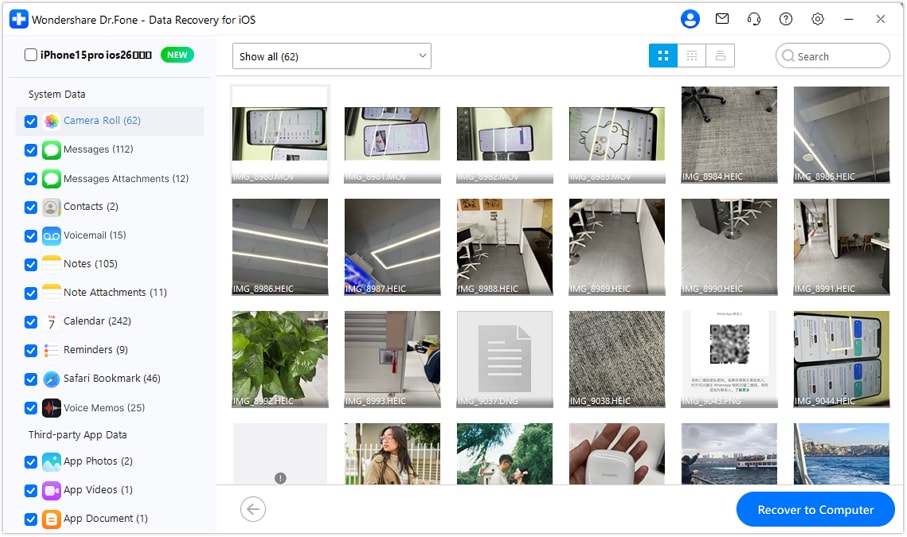
Step 3 Preview and Restore Your Files
Once the backup content is loaded, browse through the media categories to preview the files. Select the photos you want to restore and hit "Recover to Computer" to save them to your device.




Part 4. What to Do if Your Photos Are No Longer Available in iCloud
Sometimes, photos disappear entirely, and learning how to restore photos from iCloud becomes impossible. The following alternative sources may still help you locate those missing photos:
1. Check Shared Albums
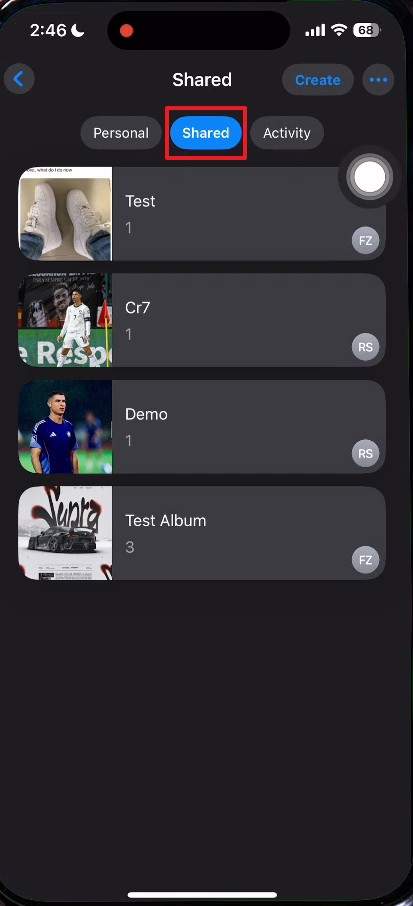
Shared Albums store photos that other Apple users have shared with you. These albums exist separately from your personal iCloud photo library storage. Photos deleted from your library may remain inside a shared album untouched. You can access shared albums even when your main photo library appears completely empty.
Hence, follow these steps below to check your shared albums for any missing photos:
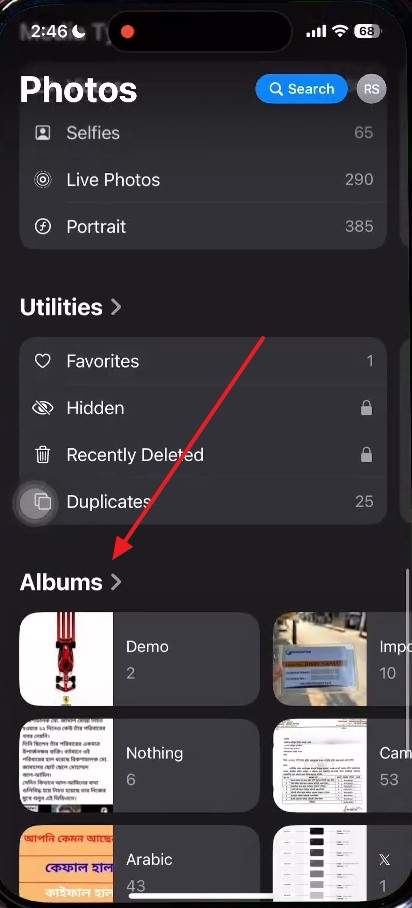
-
Step 1 Upon running the "Photos" app, swipe up and head to the "Albums" section.
-
Step 2 After that, access the "Shared" tab, and you will be able to check the shared albums.
2. Check Other Cloud Services
Some users may also back up photos to multiple cloud platforms simultaneously. Cloud services like Google Photos or Dropbox often run in the background on devices. Your missing photos may already be safely stored in one of these services.
TechRadar Insider also shows that only 1/3 of active users utilize cloud backups regularly. Thus, checking these services costs no money and requires only your existing login credentials.
Conclusion
In summary, losing photos feels stressful, but iCloud offers several reliable recovery paths. This guide explained how to retrieve photos from iCloud using multiple methods. The Recently Deleted album works best for photos deleted within the last 30 days. Shared albums and other cloud services can help when iCloud options run out. In case you can't recover photos using native methods, try iCloud recovery tools such as Dr.Fone - Data Recovery.
FAQs
-
Q1. Will turning on iCloud Photos delete photos already on my iPhone?
Enabling this feature will sync your existing device photos directly to the cloud. It does not delete them but merges your library across all connected Apple devices. Any future deletions on one device will automatically reflect across all synced devices, too. -
Q2. How much iCloud storage do I need to back up my photos?
The storage needed depends entirely on the total size of your photo library. Apple provides only 5GB of free cloud storage to every account by default. You may need to upgrade your iCloud plan if your library exceeds that free limit. -
Q3. Can I recover photos from an old iCloud backup without losing new data?
A standard iCloud backup restore will erase all current data on your device. This means any photos taken after the backup date will be permanently lost forever. Nonetheless, tools like Dr.Fone can help you extract specific photos without performing a full reset. -
Q4. Why are some iCloud photos showing a download icon instead of loading?
This icon means the photo exists in iCloud but is not downloaded to your device. This is the system that Apple automatically saves data on your iPhone to free up local storage. Thus, tap the icon to download the full version, straight from the cloud storage.
 Add Wondershare Dr.Fone as a preferred source on Google