Recover photos, messages, WhatsApp, and more — no backup
needed.
Recover photos, messages, WhatsApp, and more — no backup
needed.

 100% Security Verified | No Subscription Required | No Malware

 :
: 
 ChatGPT
 Perplexity
 Gemini
 Claude
 Grok
Grok
Imagine opening your iPhone calendar only to discover that crucial appointments, meetings, or birthdays are nowhere to be found. Discovering that calendar events disappeared on iPhone can lead to significant stress and confusion, especially when you depend heavily on digital reminders to navigate your daily schedule. In most instances, you haven't permanently lost your data. Often, these events are missing due to account synchronization glitches, accidental deletion, software bugs, or misconfigured calendar settings.
In many cases, the appointments are still stored on your device but remain hidden under an inactive calendar or a disconnected email account. This comprehensive guide will explore situations where iphone calendar appointments disappeared or became hidden. Should your data be truly lost, we will demonstrate how the Dr.Fone - Data Recovery tool provides a secure and rapid retrieval solution for iOS users in 2026.




 safe & secure
In this article
Part 1. Calendar Events Disappeared on iPhone? Try These Quick Fixes First
When you notice that your iphone calendar appointments disappeared unexpectedly, it is usually a temporary glitch. Before diving into complex troubleshooting, here are some highly effective quick solutions you should try to restore them to your planner immediately:
Fix 1: Restart Your iPhone
Time: 1–3 minutes | Difficulty: Easy
A straightforward device restart is frequently enough to resolve minor software bugs and refresh background calendar services. Executing this step gives the Calendar app a clean slate, and your scheduled events will often return without any data loss. It is a completely safe procedure that does not negatively impact your calendars, contacts, photos, or other applications. Here is the best way to execute a force restart when events disappeared from iphone calendar:
-
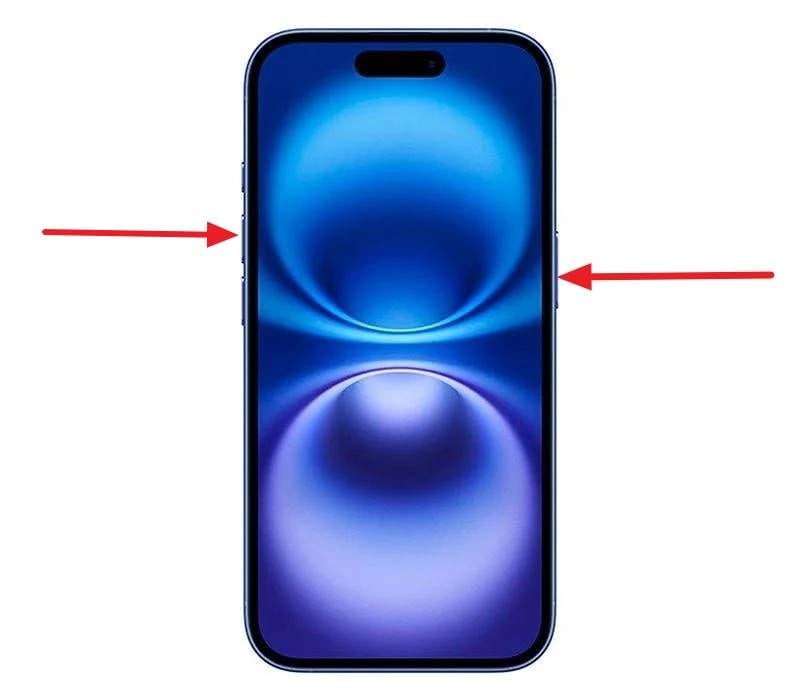
Step 1 Initiate the Power Off Sequence
Press and hold the "Power" button alongside the "Volume Up" button simultaneously. Keep holding them until you see the power slider appear on the screen.
-
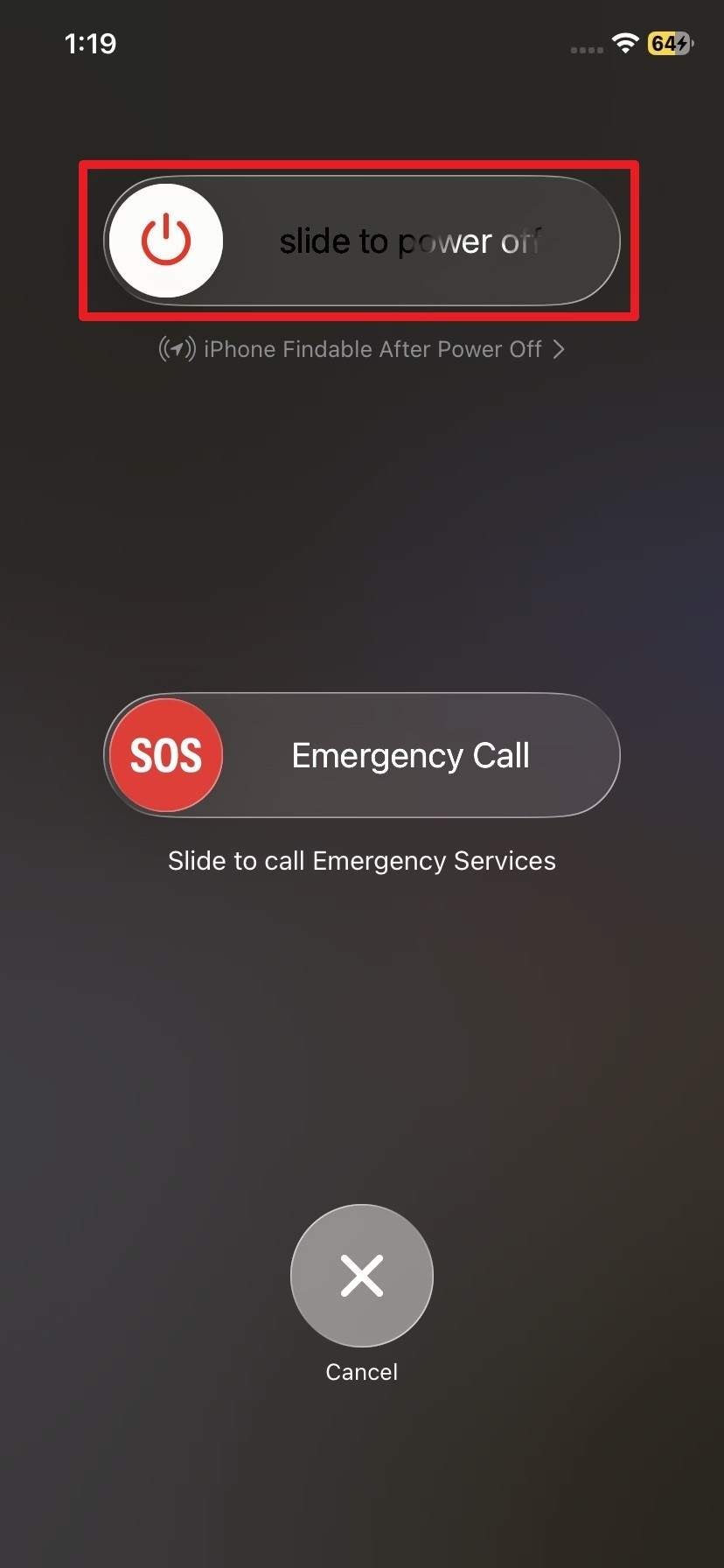
Step 2 Restart and Verify Calendar
Drag the "Slide to Power Off" switch to the right and wait for the screen to turn completely black. After a brief pause, press and hold the "Power" button again until the Apple logo displays. Once booted up, launch the Calendar app to verify your appointments.
Fix 2: Check The Internet Connection
Time: 1–2 minutes | Difficulty: Very Easy
If you utilize cloud-based calendars like iCloud, Google Workspace, or Microsoft Outlook, your iPhone requires an active, robust internet connection to fetch the most recent data. Consequently, if your Wi‑Fi or cellular data is deactivated or experiencing a weak signal, newly added or synchronized events will not appear on your local device. Ensure your phone is connected to a reliable network to allow the Calendar app to properly update.
Fix 3: Turn iCloud Calendar Off and On
Time: 2–4 minutes | Difficulty: Easy–Medium
If you are still confronting the iphone calendar events missing dilemma, toggling the iCloud calendar settings can serve as a powerful reset. This action forces your iPhone to sever and re-establish the connection, prompting it to download a fresh copy of your schedule directly from iCloud servers. Doing so resolves sync hangups without requiring a full device restore.
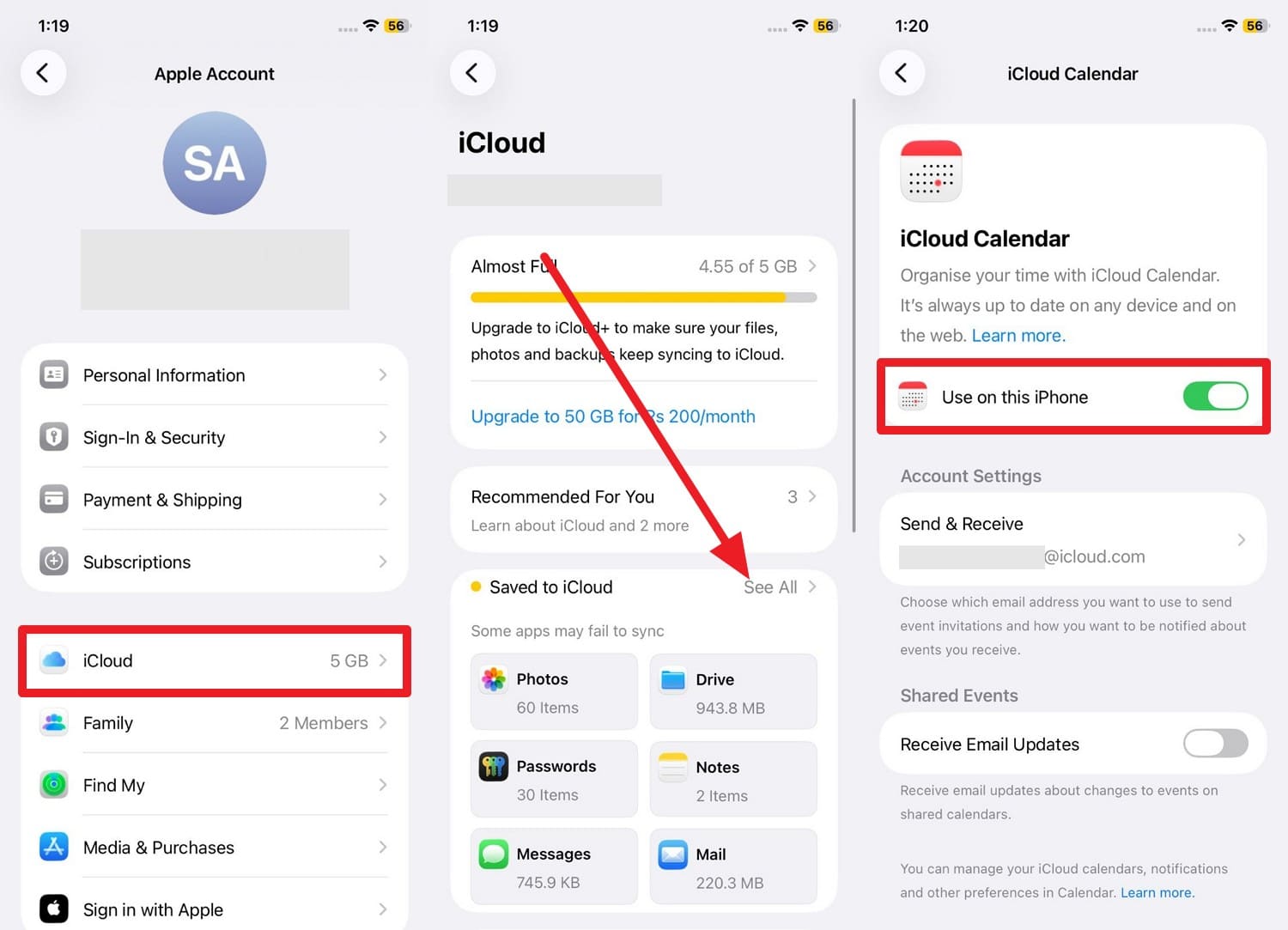
Instructions: Navigate to your iPhone Settings and tap on your Apple ID banner at the top. Select "iCloud", then expand the "See All" menu to locate the iCloud Calendar. Toggle the switch next to "Use On This Phone" off, wait a few moments, and switch it back on to trigger a resync of all events.
Part 2. How to Fix iPhone Calendar Events Missing (7 Proven Solutions That Work)
If the preliminary quick fixes fail to recover the missing calendar events on iphone, it implies a deeper synchronization error or possible deletion. Do not worry; here are seven advanced, proven methods to help you retrieve your missing schedule:
Fix 1: Use Dr.Fone - Data Recovery (iOS) to Restore Calendar Events in a Single-Click
Time: 5 minutes max, if the tool is already installed | Difficulty: Easy and Reliable
For individuals relying on the latest iOS software and iPhone models in 2026, Dr.Fone - Data Recovery stands as the premier solution to seamlessly restore lost calendar entries and critical reminders. The software efficiently scans your local device storage, iTunes, and iCloud backups to extract lost events without risking current data overwrite. Its highly intuitive interface ensures that the recovery process is fully guided, making it completely accessible even for beginners.
Beyond its user-friendly design, the retrieval process is executed locally on your computer, guaranteeing that your personal data remains 100% secure and private. Furthermore, users retain total control over the recovery process, enabling selective retrieval of specific events to a designated folder. Additionally, Dr.Fone is a versatile utility capable of recovering various data types, including photos, videos, and WhatsApp chats.
 Recovers data after deletion, crashes, or device damage.
- Supports photos, messages, contacts, WhatsApp, and more.
- Supports all major iPhone, iPad, and iPod models.
- Preview and recover only what you need.

Simple Guide to Recover iOS Calendar and Reminders via Dr.Fone
If you discover that your events on iphone calendar disappeared, you can utilize this professional utility in two straightforward steps:
-
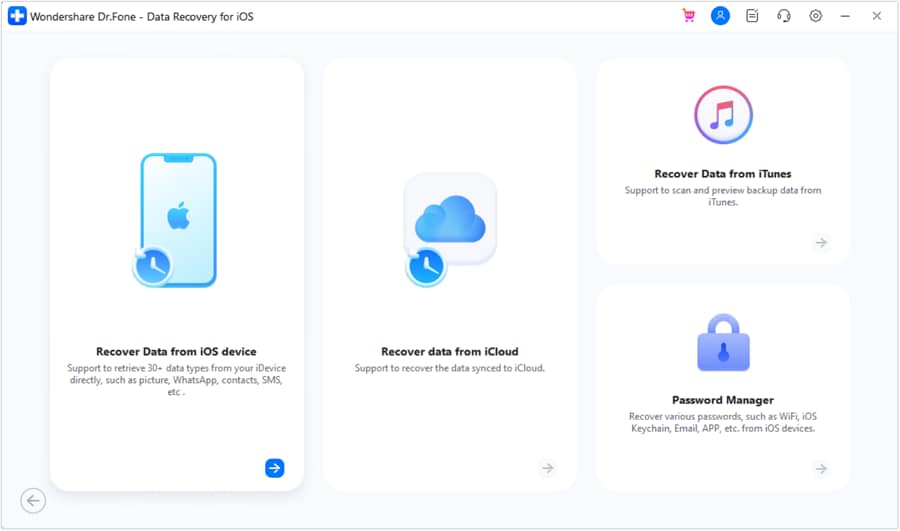
Step 1 Choose the Data Recovery Tool for iPhone
Launch the application on your computer and select the "Recover Data From an iOS Device" option from the main dashboard to initiate the retrieval workflow.
-
Step 2 Select Calendar & Events and Export to Device
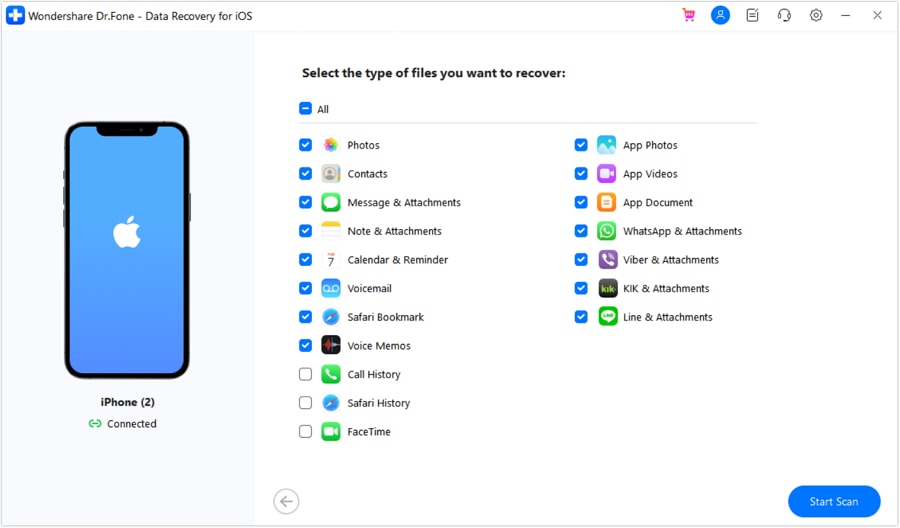
Connect your iPhone to the computer using a certified cable. Select the "Calendar & Reminder" category from the available data list and hit "Start Scan." Once the software displays the missing events, select the items you wish to keep and choose either "Recover to Device" or "Recover to Computer" to finalize the export.
safe & secureFix 2: Check Calendar Settings and Default Account
Time: 3–5 minutes | Difficulty: Easy–Medium
If you frequently face an iphone calendar missing scenario, the root cause might lie within your Calendar app's configuration. Often, events are properly synced but associated with a hidden calendar group or an unselected default account. It is crucial to verify that accounts like iCloud, Google, Outlook, or the local "On My iPhone" calendar are active and visible. Modifying the synchronization range to display past events can also bring back items you thought were lost.
Check Accounts
-
Step 1 Access Calendar Accounts
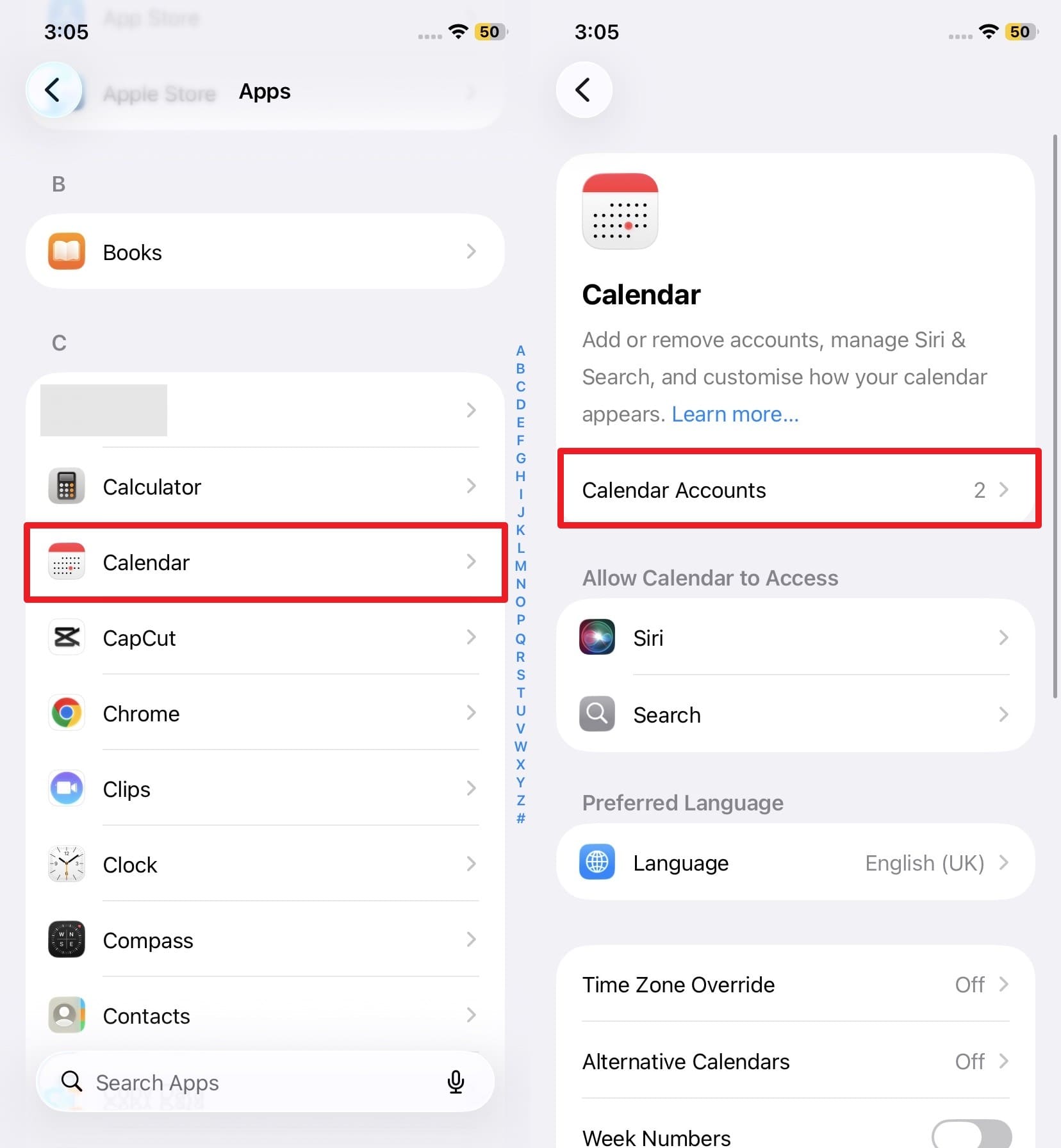
Open the Settings app, search for "Calendar," and navigate to the "Accounts" section to view all linked emails and cloud services.
-
Step 2 Enable Calendar Sync
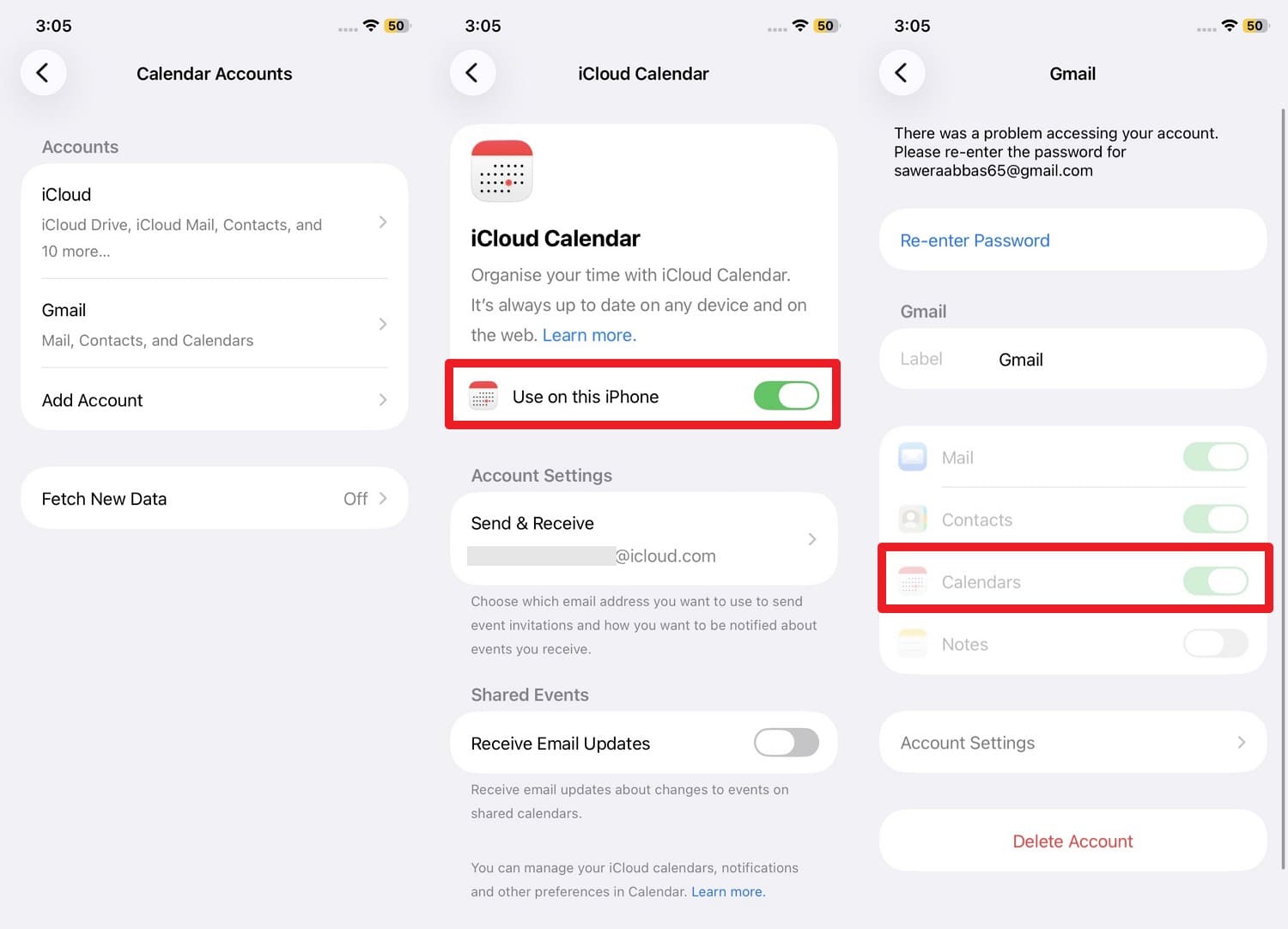
Tap into each relevant account (such as iCloud or Gmail) and ensure the toggle switch next to "Calendars" is illuminated green, indicating active synchronization.
Set Default Calendar
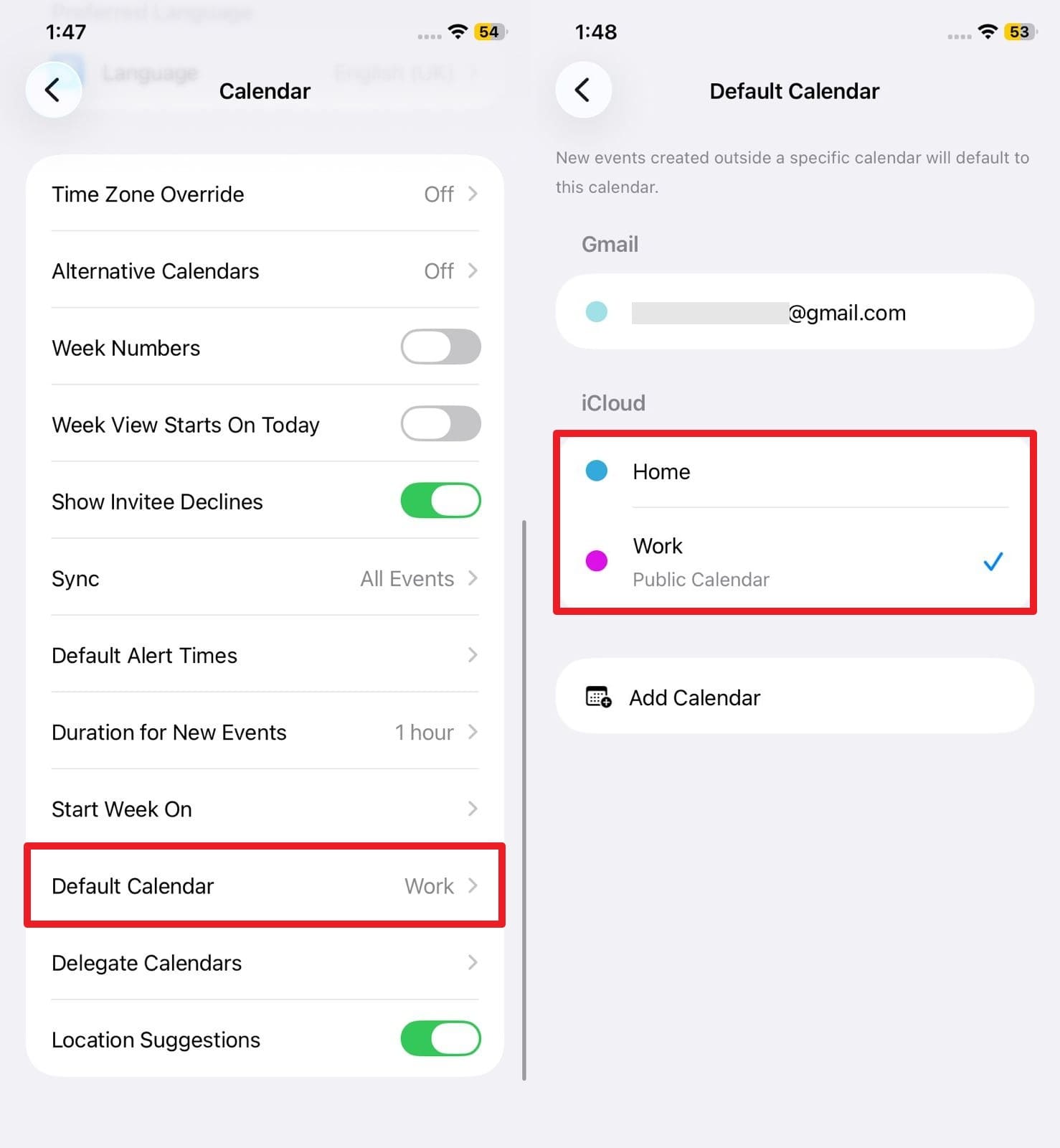
Instructions: Scroll down within the Calendar settings menu, tap on "Default Calendar," and select the primary schedule you utilize daily, whether it is for Work or Personal use.
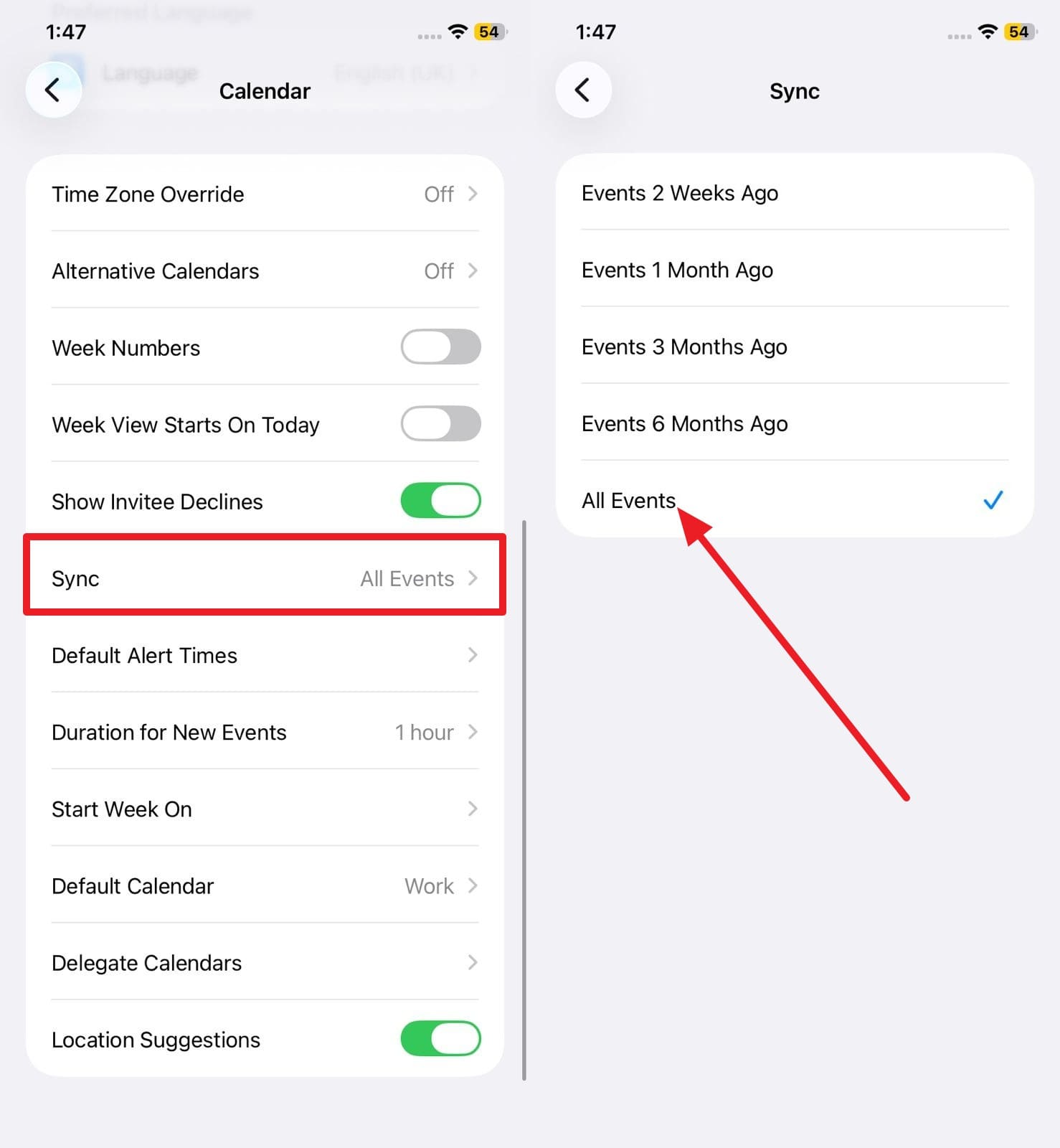
Set All Events
Instructions: Within the same Calendar settings panel, locate the "Sync" parameter and change the timeframe to "All Events." This ensures older appointments are not automatically hidden after a specific period.
Fix 3: Re-Sync iCloud or Other Calendar Accounts
Time: 5–10 minutes (Per account) | Difficulty: Medium
If adjusting the view settings proves ineffective and the calendar disappeared from iphone problem persists, forcing a comprehensive re-sync is recommended. By temporarily disabling and re-enabling the calendar feature within connected accounts (like Google Workspace or Microsoft Exchange), you instruct your iPhone to dump the local cache and download a pristine copy of your schedule from the respective cloud servers.

Fix 4: Remove & Re-Add Email/Calendar Accounts
Time: 5–15 minutes | Difficulty: Medium
Sometimes, an account's authentication token expires, or its sync profile becomes corrupted, leaving you feeling like your calendar is gone from iphone. Erasing the problematic account entirely and setting it up anew is a potent troubleshooting step. It establishes a fresh, secure connection, fetching all server-side events from scratch. This method also helps declutter duplicate profiles.
-
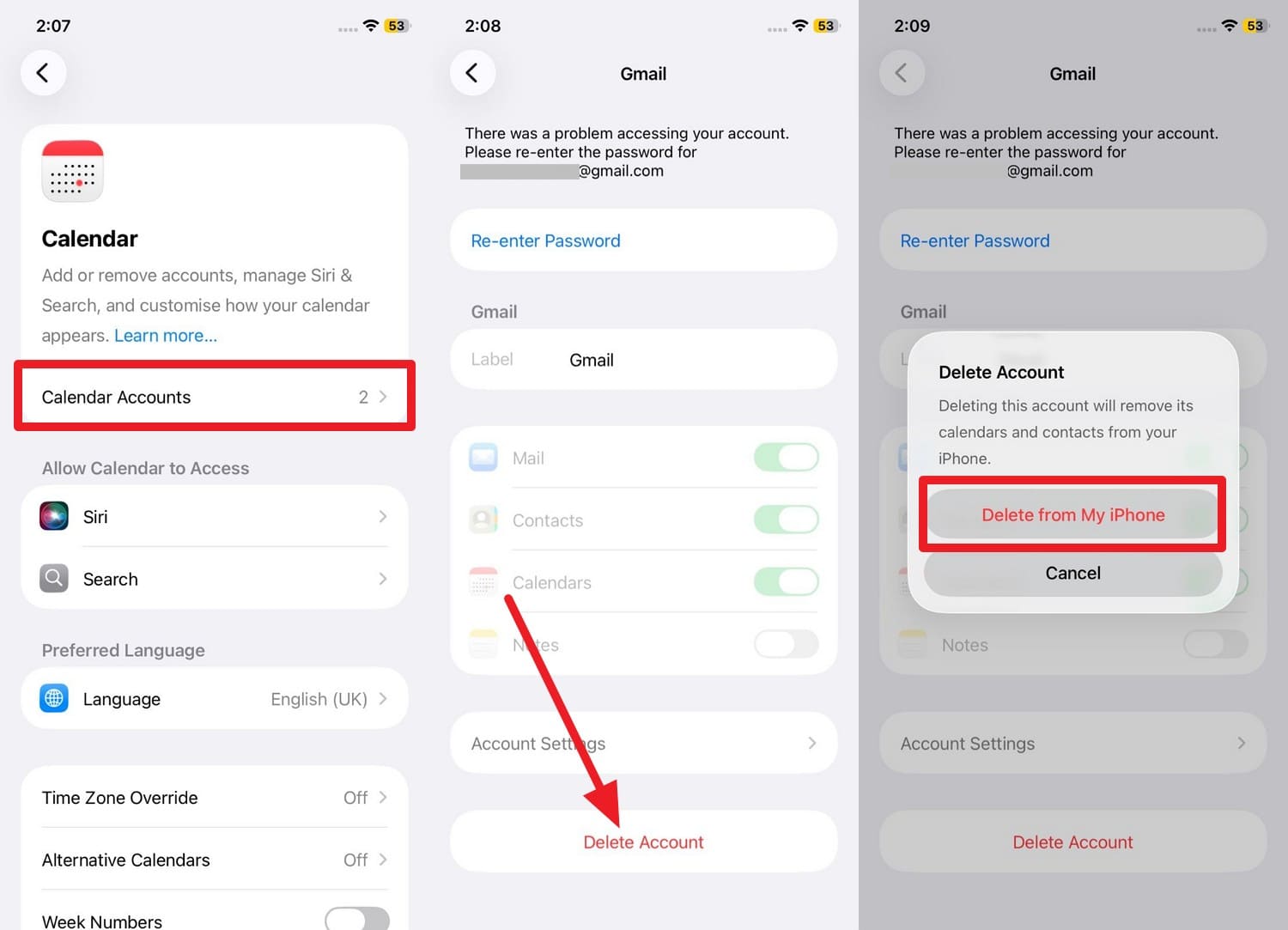
Step 1 Delete the Troublesome Account
Navigate to Settings > Calendar > Accounts. Select the misbehaving account, tap "Delete Account," and confirm by tapping "Delete from My iPhone."
-
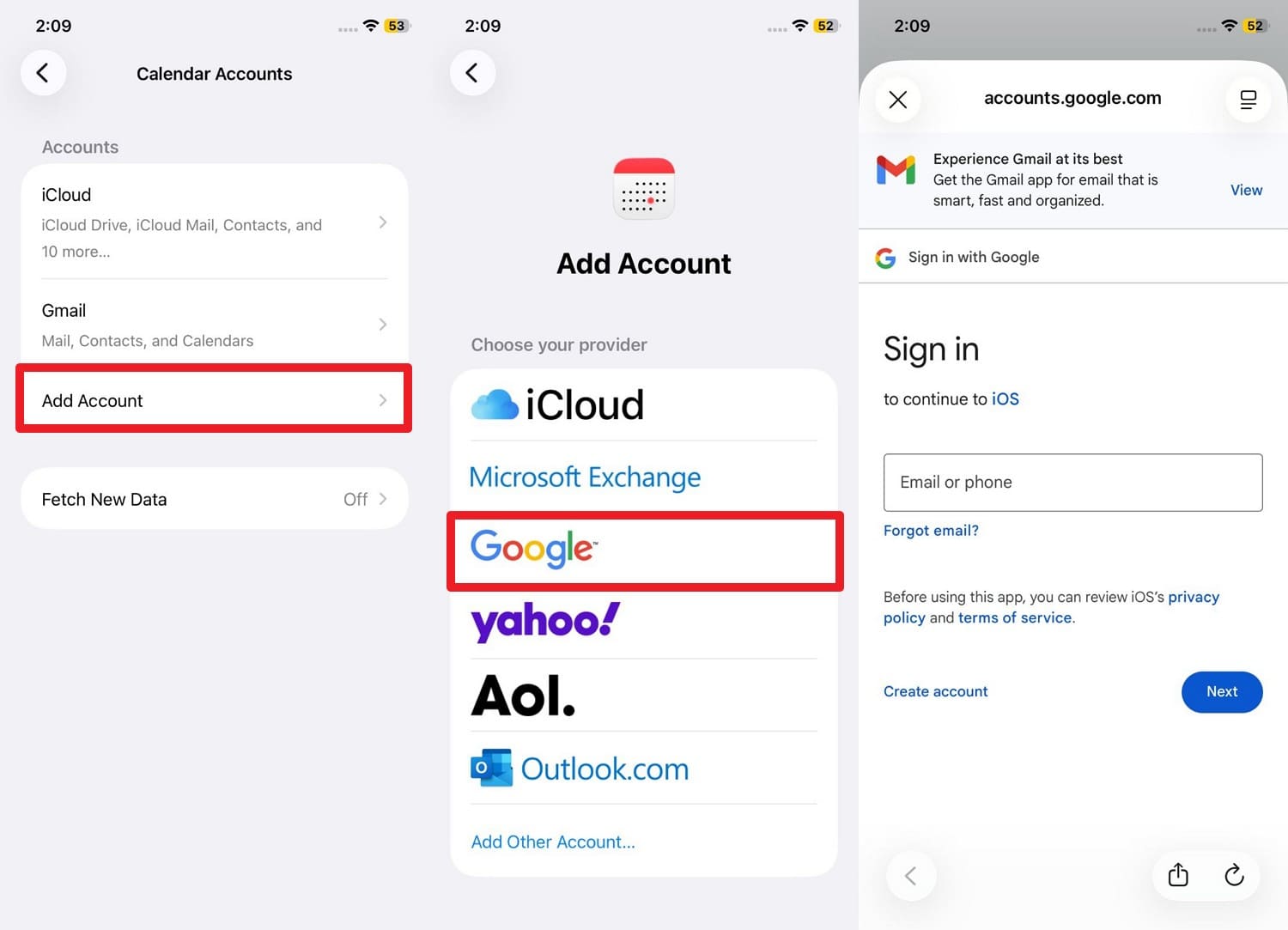
Step 2 Re-integrate the Account
Return to the Accounts menu and tap "Add Account." Select your provider (e.g., Google or Outlook), authenticate via the browser prompt, toggle the "Calendars" switch on, and hit "Save" to finalize.
Fix 5: Update Your iOS Firmware
Time: 10–30 minutes | Difficulty: Medium
If you find yourself wondering, "why my calendar disappeared from my iphone," it could be attributed to deep-seated iOS bugs affecting background sync frameworks. Apple consistently releases firmware updates that patch these specific iCloud and third-party calendar integration issues. Updating your operating system revitalizes system processes and ensures optimal compatibility with modern cloud protocols.
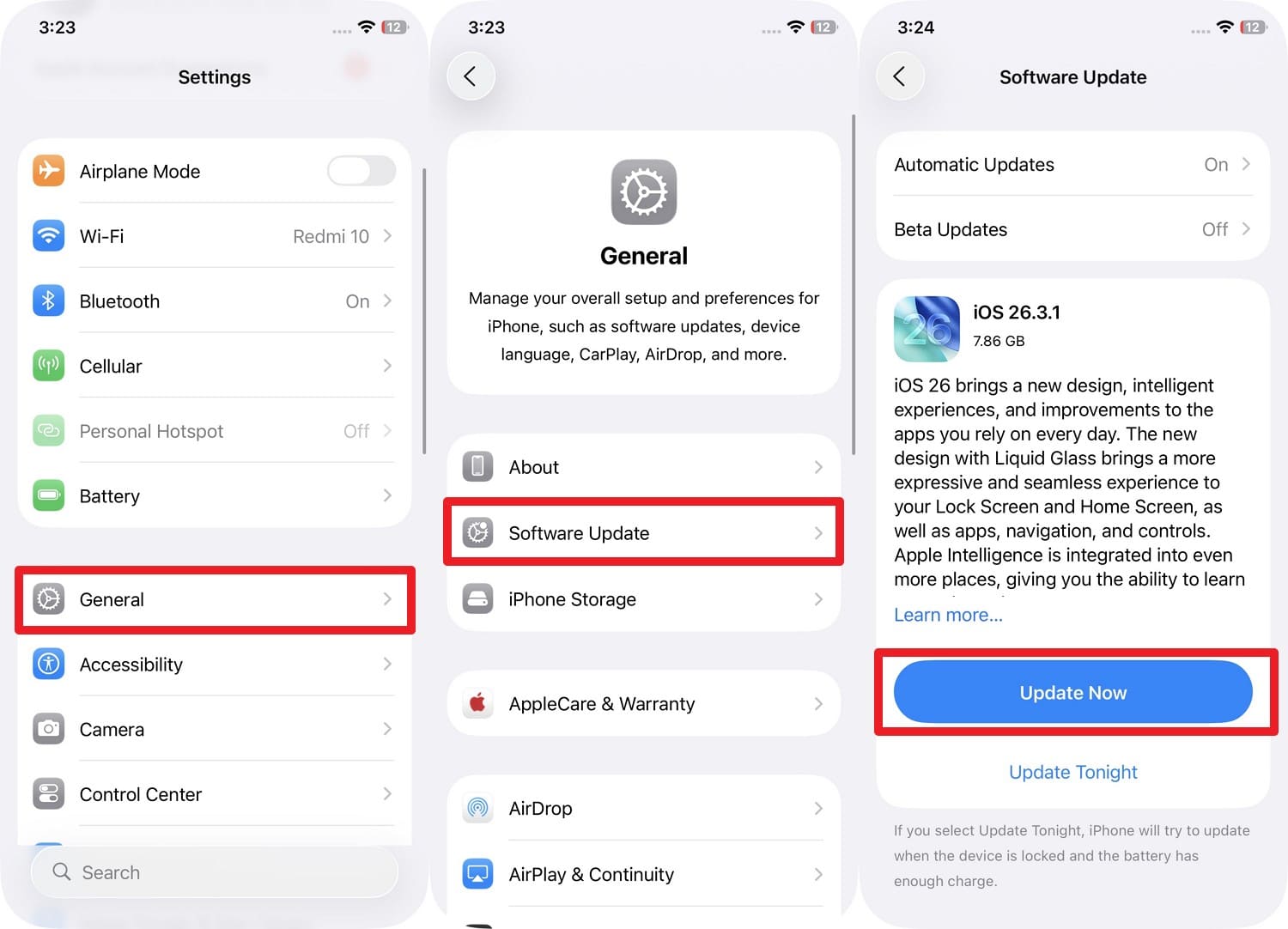
Instructions: Access the "General" tab within Settings, tap "Software Update," and press "Update Now" to install the latest available iOS version.
Fix 6: Check iCloud.com (or Web Calendar) to Confirm Data
Time: 3–5 minutes | Difficulty: Easy
Whenever you ask, "why my calendar disappeared on my iphone," the first diagnostic step should be checking the web interface of your calendar provider (like iCloud.com). Confirming that your appointments still exist on the server brings immense peace of mind, proving the issue is localized to your iPhone's syncing mechanism rather than permanent data loss.
If the web calendar is empty, you will likely need to employ backup restoration methods. Here is how to quickly verify your iCloud data:
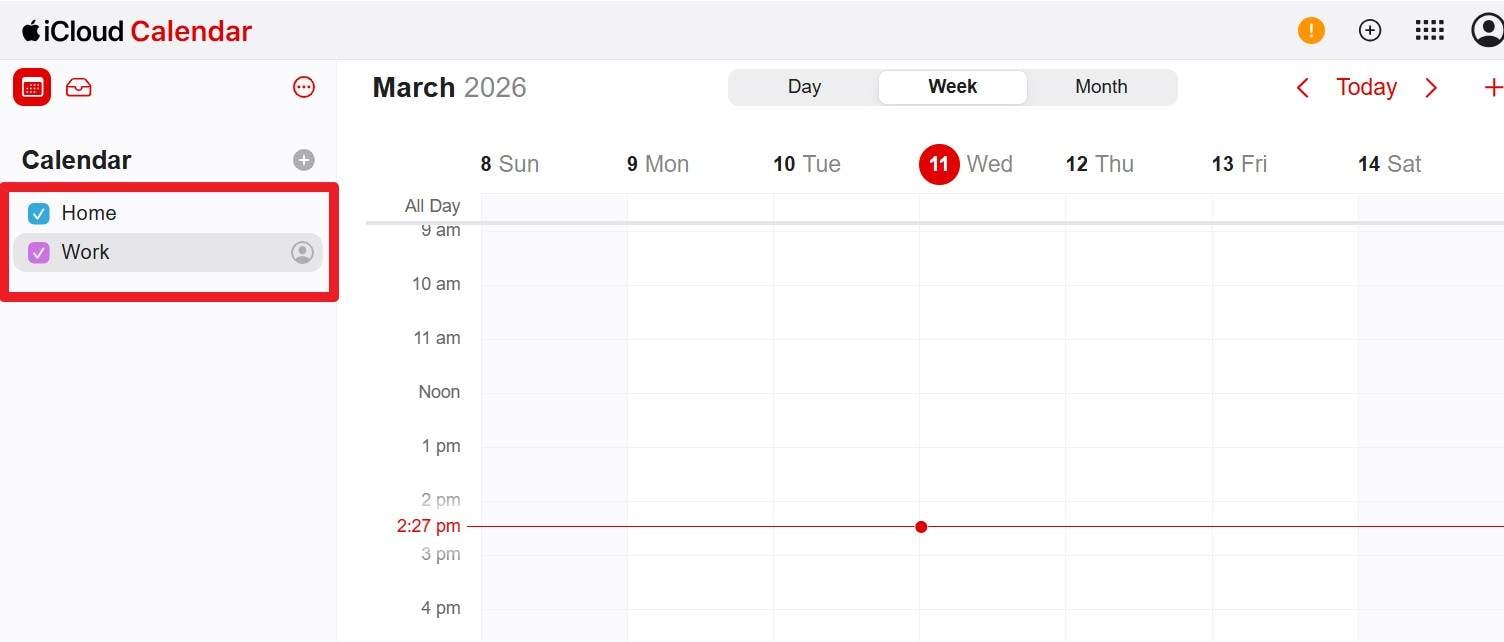
Instructions: Use a computer browser to log into iCloud.com, open the Calendar web application, and meticulously check your specific tabs (e.g., "Home" or "Work") to verify the presence of your events.
Fix 7: Check iCloud or Other Account Backups
Time: 5–15 minutes | Difficulty: Medium
As a definitive resolution to a "my calendar is missing on my iphone" crisis, inspect iCloud's built-in data recovery features. iCloud routinely maintains archives of your calendar state. By reverting to an older snapshot created before the events vanished, you can seamlessly recover your schedule.
-
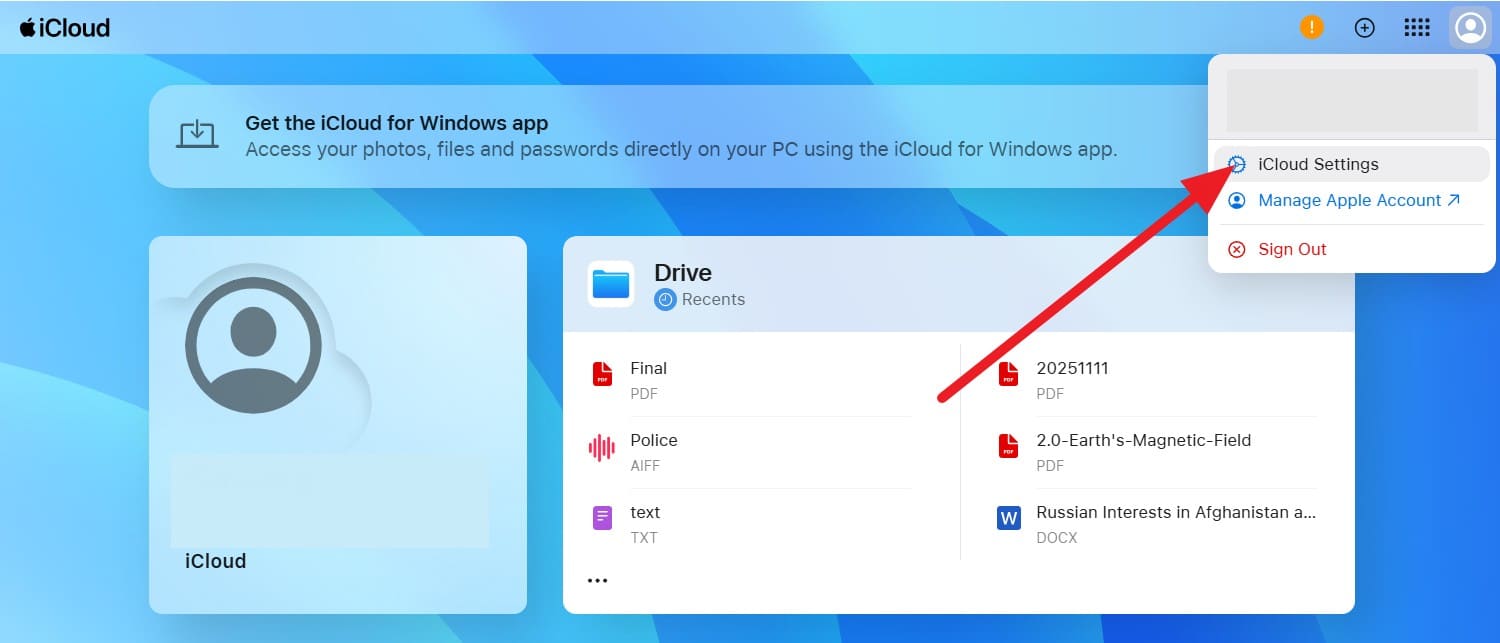
Step 1 Access iCloud Recovery Settings
After logging into iCloud.com, click on the grid menu or your profile icon at the top right, and select "Data Recovery" from the available options.
-
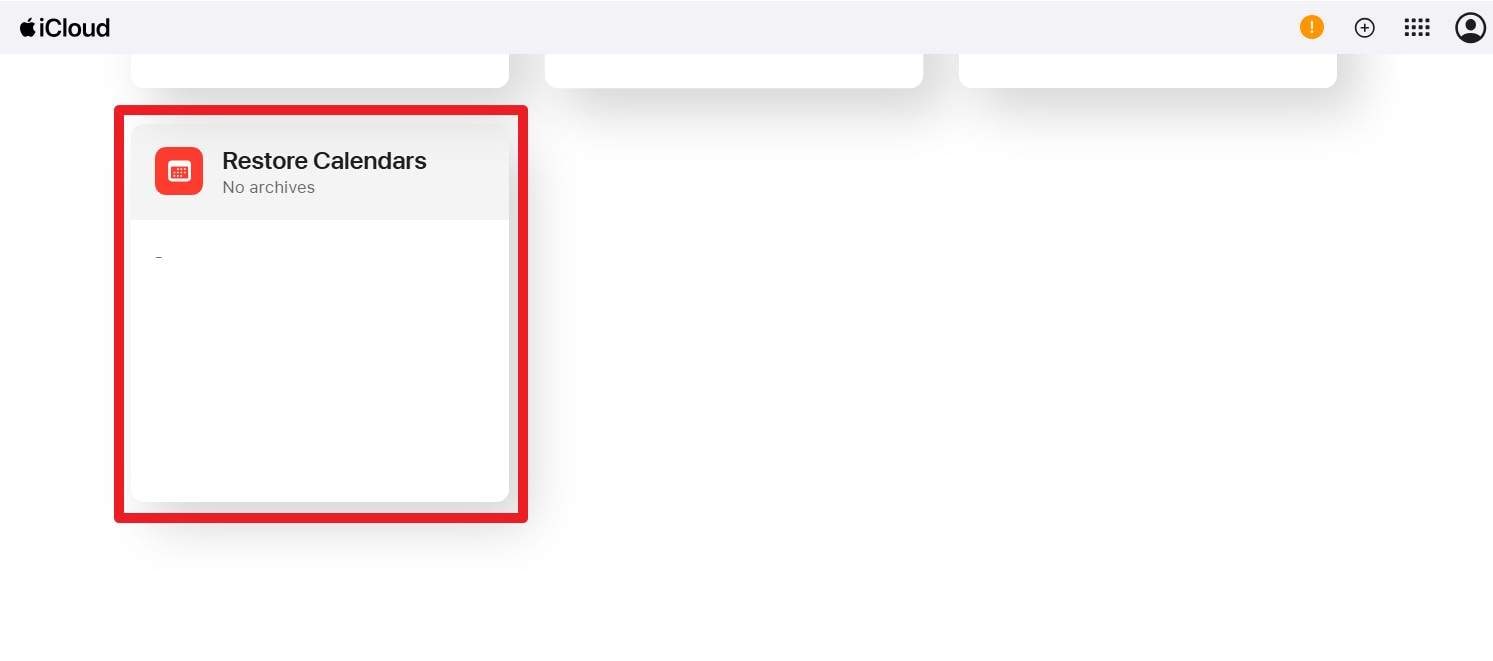
Step 2 Restore the Calendar Archive
Navigate to the "Restore Calendars" segment. Review the available archives, choose a date prior to the data loss, and click "Restore" to push those events back to your connected devices.
Part 3. 5 Tips to Prevent iPhone Calendar Events from Disappearing
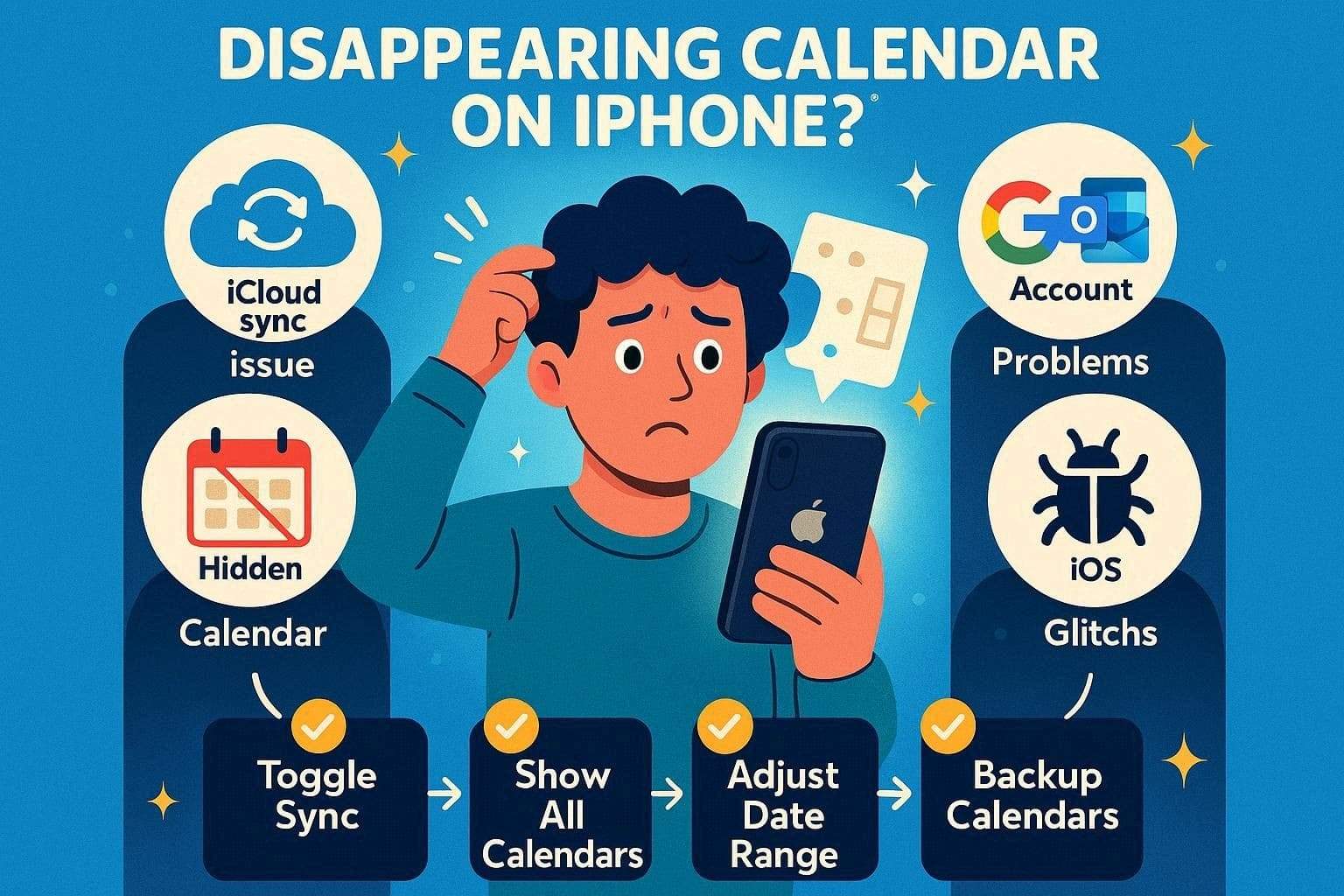
Instances of calendar events disappearing on iPhone are overwhelmingly caused by misconfigured settings, network dropouts, or account authorization failures rather than genuine digital deletion. When your Apple device struggles to communicate with Google, Outlook, or iCloud servers, it fails to fetch the necessary scheduling data. Additionally, events might be accidentally logged under a hidden group, or the device might be programmed to auto-hide historical entries.
System updates can occasionally introduce bugs that obfuscate data, and hastily deleting email profiles will instantaneously wipe associated calendars from your view. To immunize your digital planner against accidental deletion or sudden invisibility, implement these proactive strategies:
| Preventative Tip | Actionable Strategy |
|---|---|
| Maintain a Primary Cloud Ecosystem | Select a unified platform (like iCloud or Google Workspace) for your primary scheduling and stick to it consistently. |
| Curate the Default Calendar | Regularly review the "Calendars" tab in the app to ensure your critical personal and professional schedules remain visible and active. |
| Expand the Synchronization Window | Navigate to Settings > Calendar and adjust the Sync timeframe to "All Events" to prevent older appointments from vanishing. |
| Manage Accounts with Caution | Before deleting an old email or iCloud profile from your device, verify which specific calendars and contacts are tied to it. |
| Execute Pre-Update Backups | Always generate a comprehensive iCloud or local PC backup before initiating major iOS firmware upgrades. |
Conclusion
In summary, discovering that calendar events disappeared on iPhone can be alarming, but it is rarely a catastrophic loss. Instead of succumbing to panic, systematically apply the straightforward, proven troubleshooting steps detailed in this guide. By verifying account syncs, adjusting app settings, or restoring archives, you can easily reclaim your schedule. For scenarios involving genuine data deletion, utilizing a professional utility like Dr.Fone - Data Recovery offers the most reliable, rapid, and user-friendly path to full recovery in 2026.
safe & secureFAQ
-
1. Can switching Apple ID remove calendar events?
Yes, when you alternate or switch your Apple ID, any calendars specifically tied to the previous account will no longer populate on your iPhone. However, the data safely persists within that cloud account. Signing back into the original ID will instantly restore those events. -
2. Are deleted calendar events gone forever?
Not necessarily. Even after accidental deletion from your iPhone, the events might still be retrievable from an iCloud archive or a third-party server backup. However, if they are permanently purged from the cloud and no local backups exist, recovery becomes highly challenging without specialized software. -
3. Can storage problems affect calendar events?
Absolutely. When an iPhone reaches maximum storage capacity, background processes like calendar synchronization are forcefully halted. This prevents new events from downloading and might cause existing ones to glitch, even though the data remains perfectly intact in the cloud. -
4. Why do older iPhone calendar events disappear?
By default, iOS might be configured to sync only events from the past 30 or 90 days to conserve storage and processing power. To view older historical appointments, you must navigate to the Calendar settings and change the synchronization parameter to "All Events".
 Add Wondershare Dr.Fone as a preferred source on Google