Recover photos, messages, WhatsApp, and more — no backup
needed.
Recover photos, messages, WhatsApp, and more — no backup
needed.

 100% Security Verified | No Subscription Required | No Malware

 :
: 
 ChatGPT
 Perplexity
 Gemini
 Claude
 Grok
Grok

My iPhone screen is completely shattered and won't turn on. How can I retrieve photos from a broken iPhone without a recent backup?
Common User Query
Accidentally dropping your device or experiencing severe water damage can lead to a broken iPhone, leaving you worried about losing all your valuable pictures and memories. The immediate question for most users is, "How to recover photos from broken iPhone efficiently and without technical hurdles?"
This comprehensive guide will walk you through the step-by-step process of recovering photos from a damaged iPhone. Whether your screen is shattered or the system is completely unresponsive, you will learn the most effective tips, techniques, and tools to safely extract your pictures and restore your digital life.
In this article
- Part 1: Is It Possible to Restore Photos from a Broken iPhone?
- Part 2: Easy Methods on How to Recover Photos from a Broken iPhone
- Way 1. Recover Photos Using iCloud
- Way 2. Get Pictures from Backups Saved on iTunes or Finder
- Way 3. Connect to a Trusted Computer for Photo Retrieval
- Way 4. Retrieve Photos via Email or Messaging Apps
- Way 5. Choose External Photo Recovery Programs
- Way 6. Overall Best Recovery Tool: Dr.Fone - Data Recovery (iOS)
- Conclusion
Part 1: Is It Possible to Restore Photos from a Broken iPhone?
Yes, even if your device appears completely dead or the screen refuses to respond, you can still retrieve photos from a damaged iPhone. In most physical damage scenarios, the internal memory and motherboard remain intact, meaning your data is still securely stored inside the device.
Here are the primary avenues you can explore to restore photos from a broken iPhone:
- iCloud Sync: If you enabled iCloud Photos before the incident, your snapshots are safely stored on Apple's cloud servers.
- Local Backups: Earlier syncs with iTunes or macOS Finder contain a comprehensive backup of your photo collection.
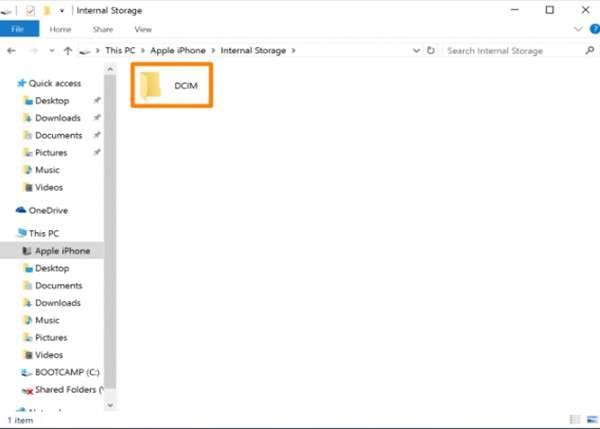
- Internal Storage Access: By linking your phone to a previously paired computer, you might bypass screen locks and directly access the DCIM storage folder.
- Third-Party Apps: Images shared through messaging platforms or emails remain accessible from other devices.
- Professional Recovery Tools: Specialized software can communicate with the iOS file system to extract data directly from the hardware.
Part 2: Easy Methods on How to Recover Photos from a Broken iPhone
Way 1. Recover Photos Using iCloud
If you had iCloud Photos turned on, figuring out how to get photos from broken iPhone becomes incredibly straightforward. This built-in Apple feature automatically uploads and saves your pictures across your linked devices and the web.
Follow these effective steps to get back your precious memories remotely:
-
Step 1 Log in to iCloud from Any Device
To access your cloud storage, visit www.icloud.com using a web browser on your computer, iPad, or another smartphone. Enter the exact Apple ID and password associated with your broken iPhone to log in.
-
Step 2 Navigate to the Photos Application
Once you have successfully signed in to the iCloud dashboard, click on the Photos icon. This dedicated section will display every picture and video that was successfully synced from your damaged device.
-
Step 3 Select and Download Your Pictures
Browse through your iCloud gallery and select the images you wish to recover. Click the download icon in the upper-right corner to securely store these files onto your computer's local drive.


Way 2. Get Pictures from Backups Saved on iTunes or Finder
If you regularly back up your device to your computer, restoring that backup is a viable way to copy your complete data collection—including photos—onto a new or working iOS device.
-
Step 1 Connect a Working iPhone to Your PC or Mac
Use an original or MFi-certified USB cable to link an operational iPhone to your computer. Ensure this replacement device has sufficient storage capacity to accommodate the entire backup archive.
-
Step 2 Launch iTunes or macOS Finder
If you are using a Windows PC or a Mac running macOS Mojave (or earlier), open the iTunes application. If you are operating macOS Catalina or a later version, launch Finder.
-
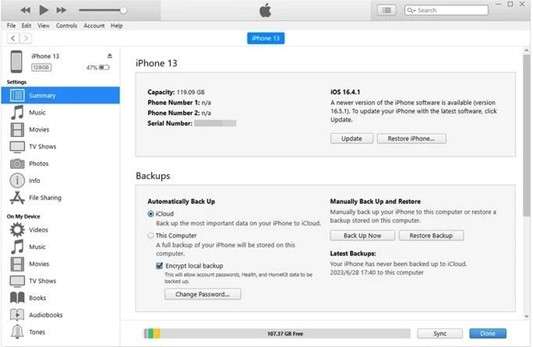
Step 3 Select the Latest Backup File
Locate your connected iPhone icon within the iTunes interface or the Finder sidebar. Navigate to the Summary or General tab, click on "Restore Backup," and carefully choose the most recent backup file containing your photos.
-
Step 4 Wait for the Restoration to Complete
Confirm the action and allow the system to transfer your data onto the new iPhone. Once the process is fully complete, open the Photos app on the device to verify that your images have been successfully restored.
Way 3. Connect to a Trusted Computer for Photo Retrieval
If your device screen is severely damaged but the underlying hardware still functions, connecting it to a computer it previously trusted can bypass security blocks. This is a practical method if you are wondering how can I retrieve photos from a broken iPhone without third-party software.
-
Step 1 Gather the Necessary Equipment
You will need a reliable Lightning-to-USB cable and the specific Mac or Windows PC that you have previously connected your iPhone to and marked as "Trusted."
-
Step 2 Establish the USB Connection
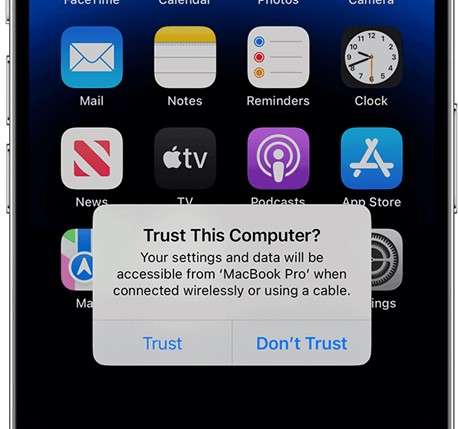
Plug your damaged iPhone into the trusted computer. If your screen is cracked but still partially responds to touch, carefully input your passcode and tap "Trust" if the prompt appears. If the screen is completely dead, the computer may still recognize it automatically due to the pre-existing trust relationship.
-
Step 3 Locate Your iPhone on the System
For macOS (Catalina and newer): Open a new Finder window and look for your iPhone listed under "Locations" in the left-hand sidebar.
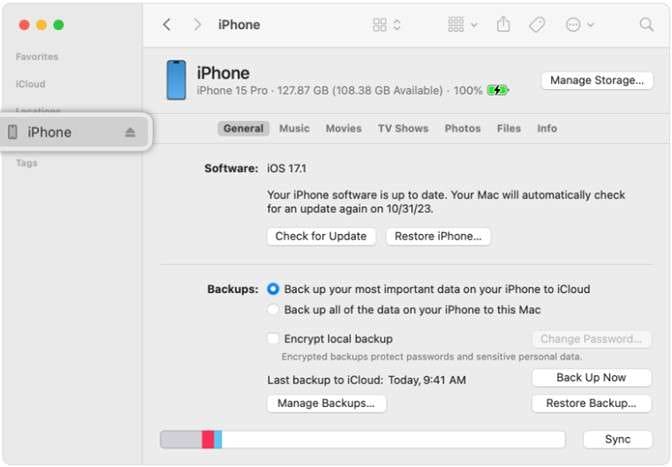
For Windows or older macOS: Open "This PC" (or "My Computer"). Your iPhone should appear as a connected portable device under the list of external drives.
-
Step 4 Access the Internal DCIM Directory
Double-click the Apple iPhone icon to enter its internal storage. Look for a folder named "Internal Storage," and within it, locate the DCIM (Digital Camera Images) folder. This is where the iOS operating system stores all captured photos and saved video files.
-
Step 5 Copy and Transfer Your Media
Open the internal subfolders (labeled 100APPLE, 101APPLE, etc.) inside the DCIM directory.
- On Windows: Highlight the images, right-click to select "Copy," and paste them into a secure folder on your desktop.
- On Mac: Simply drag the desired image files from the DCIM window and drop them into a newly created folder on your Mac.
-
Step 6 Verify the Copied Files
Once the transfer is complete, open a few photos on your PC to ensure they are not corrupted. As a best practice, immediately back these files up to an external hard drive or a cloud platform like Dropbox.
Way 4. Retrieve Photos via Email or Messaging Apps
If hardware access fails, consider the photos you have shared with others. Email services and messaging apps like WhatsApp or iMessage retain chat histories and media attachments on their respective servers, providing a convenient alternative for photo recovery.
-
Step 1 Identify the Apps Used for Sharing
Think about which communication apps you used frequently on your broken iPhone. Services like Gmail, iMessage, WhatsApp, and Telegram often synchronize data across multiple platforms, meaning your shared photos might still be accessible elsewhere.
-
Step 2 Log in on a Secondary Device
Open the corresponding application on a computer, tablet, or another smartphone. Enter your credentials to log in. For WhatsApp, you can restore a recent chat backup on a temporary phone to access the media.
-
Step 3 Search and Filter for Images
For Email Platforms: Use the search bar to filter for terms like "photos," "images," or check attachments sent to specific contacts. Browse through your Sent folder as well.
For Messaging Services: Navigate to the media section of individual chat threads. In apps like WhatsApp, tap a contact's name and select "Media, Links, and Docs" to view a centralized gallery of all shared pictures.
-
Step 4 Download and Save Your Media
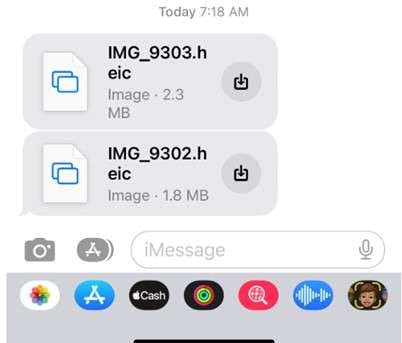
Manually select the photos you want to keep. In emails, right-click and choose "Save Image As." In messaging apps, open the picture in full screen and tap the download or "Save to Photos" button to store it on your current device.
Way 5. Choose External Photo Recovery Programs
When native methods like iCloud or trusted computers fall short, leveraging specialized external software becomes essential. Dedicated third-party data recovery programs are designed to deeply scan an iPhone's logic board and extract data even when the iOS interface is entirely inaccessible. These tools are strongly recommended when you have no recent backups and urgently need to retrieve photos from damaged iPhones.
Way 6. Overall Best Recovery Tool: Dr.Fone - Data Recovery (iOS)
If you are looking for the most reliable software solution, Dr.Fone - Data Recovery (iOS) stands out as an industry leader. It empowers users to securely recover photos from broken iPhone models regardless of the severity of the damage. By utilizing advanced memory scanning algorithms, Dr.Fone can bypass a non-functional screen and extract internal files seamlessly.
Key Advantages of Using Dr.Fone:
- Direct Storage Access Without Backups: It securely reads data straight from the iPhone's NAND flash memory, acting as the ultimate lifesaver when you need to get photos off from a broken iPhone without an iCloud archive.
- Comprehensive Damage Support: Effectively handles devices with shattered screens, severe water damage, black screens of death, or iPhones stuck in an infinite boot loop.
- Selective Preview Functionality: Generates a full gallery preview of recoverable items, allowing you to handpick the exact pictures you wish to extract rather than forcing a full data dump.
- Universal Compatibility: Works flawlessly with all iOS iterations and iPhone models, from vintage editions to the latest flagship releases.
 Recovers data after deletion, crashes, or device damage.
- Supports photos, messages, contacts, WhatsApp, and more.
- Supports all major iPhone, iPad, and iPod models.
- Preview and recover only what you need.

Step-by-Step Guide to Recover Photos Using Dr.Fone:
-
Step 1 Install and Launch Dr.Fone
Download Dr.Fone - Data Recovery (iOS) from the official Wondershare website and install it on your Windows PC or Mac. Launch the program and click on the "Data Recovery" module from the main dashboard.

-
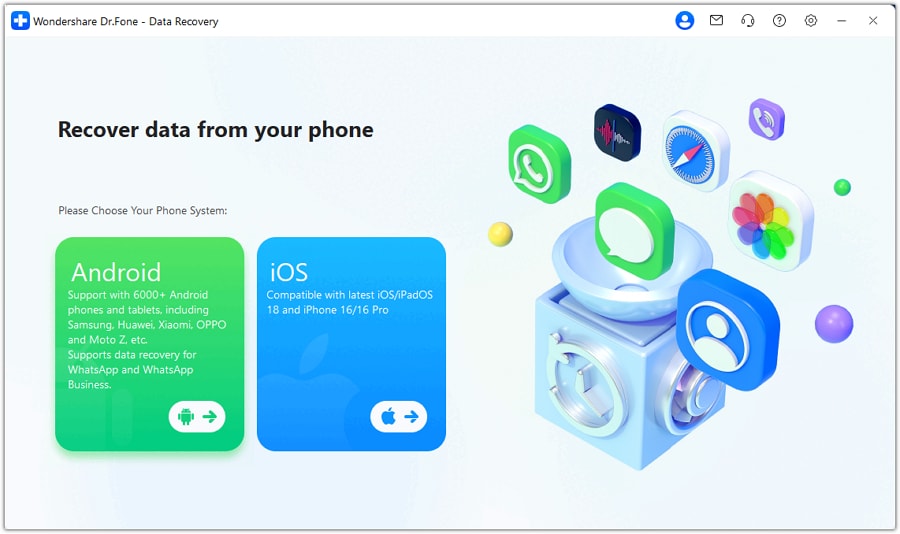
Step 2 Choose the Operating System
On the subsequent screen, select the "iOS" option to specify that you are attempting to recover data from an Apple device.
-
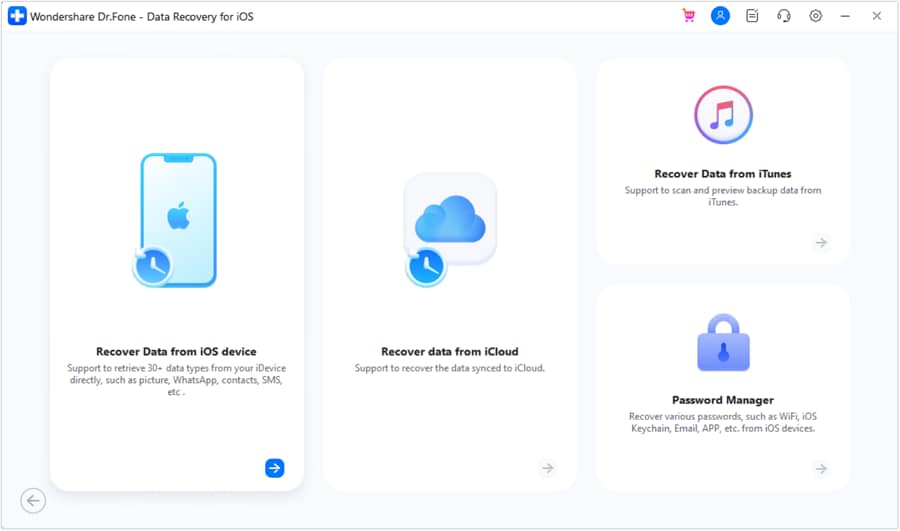
Step 3 Select the Recovery Mode
From the left-hand panel, select the "Recover from iOS Device" option. The software interface will adapt to show scanning options for internal hardware recovery.
-
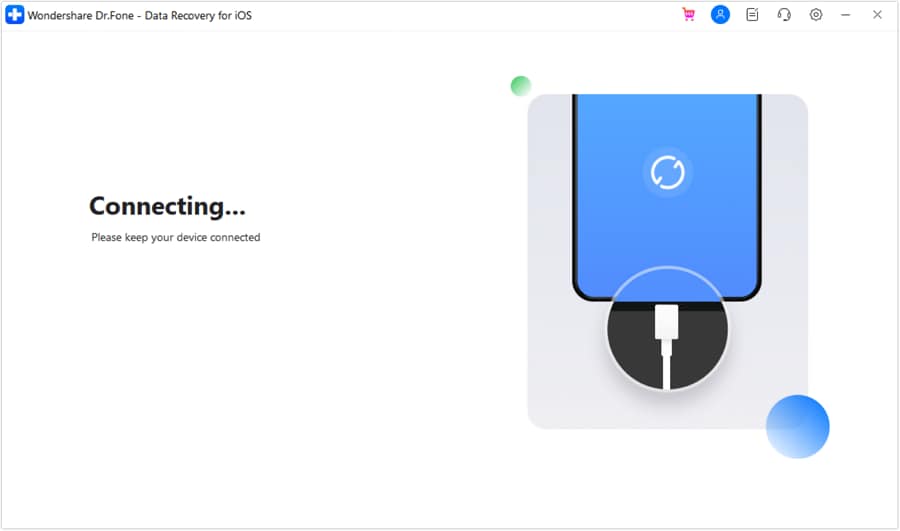
Step 4 Connect the Broken iPhone to the Computer
Use an authentic USB or Lightning cable to firmly connect your damaged iPhone to the computer. Ensure the connection is stable throughout the procedure.
-
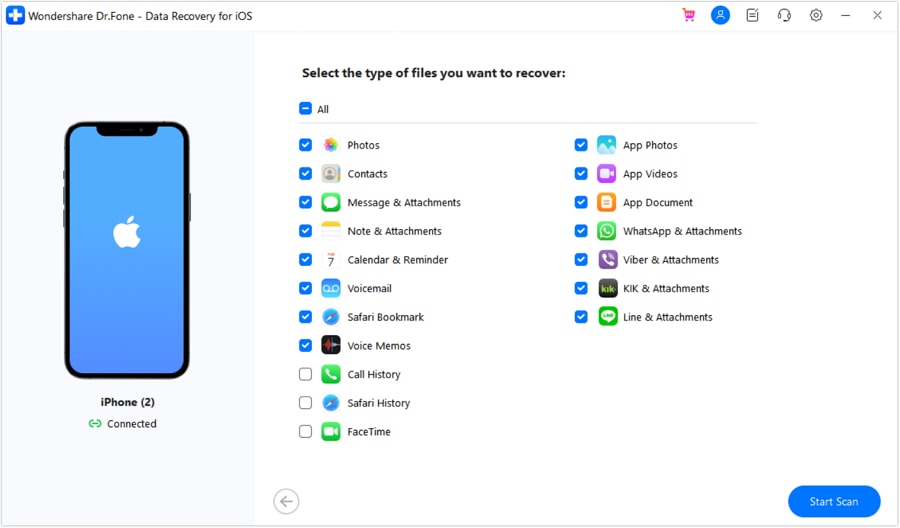
Step 5 Specify File Types for Retrieval
Once Dr.Fone successfully detects the iPhone, it will present a comprehensive list of supported file categories. Check the box next to "Photos" or "App Photos." You can uncheck other data types to speed up the scanning time. When you are prepared, click Start Scan at the bottom right.
-
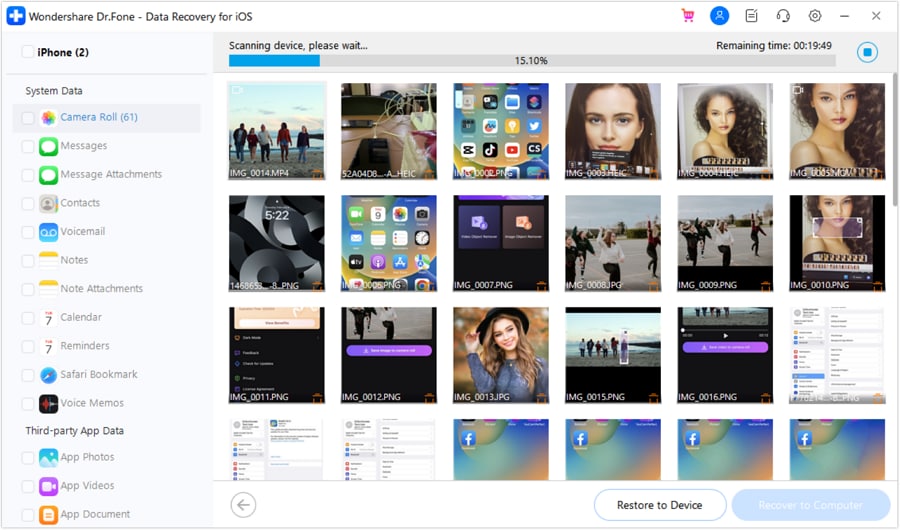
Step 6 Initiate the Deep Scan
The application will now thoroughly inspect your iPhone’s logic board for existing and deleted images. Depending on the storage size, this process may take several minutes. You can monitor the progress bar as recoverable files populate the screen.
-
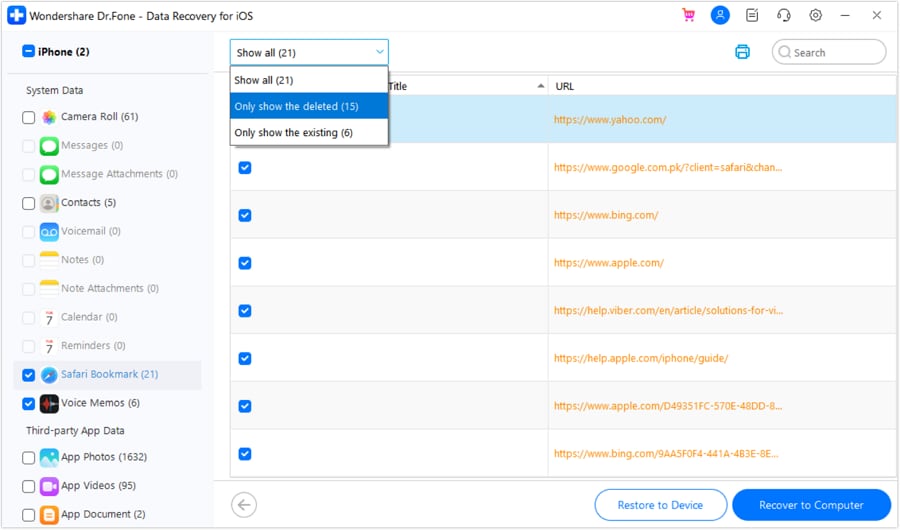
Step 7 Preview and Handpick Your Images
Upon completion of the scan, navigate to the Photos section in the sidebar. The main window will display high-quality thumbnails of your retrieved pictures. Select the specific images you wish to save by checking the small box next to each file.
-
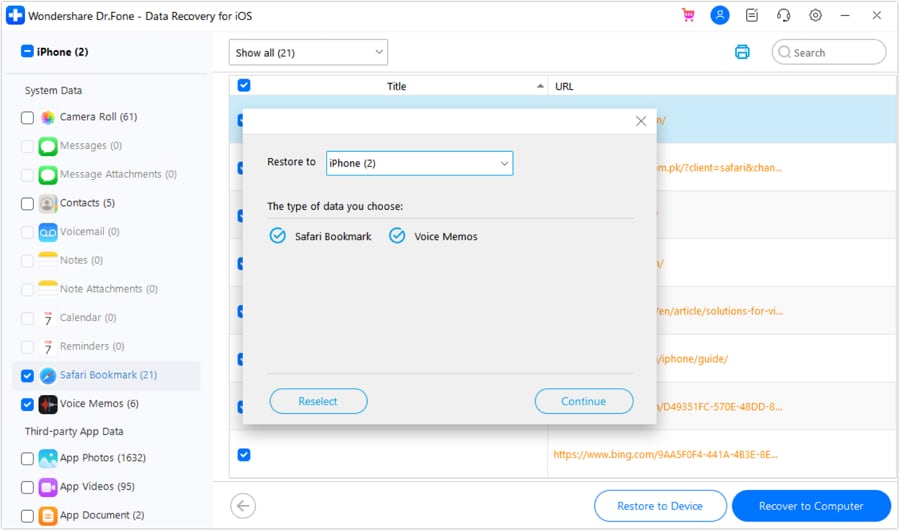
Step 8 Select the Desired Restoration Target
Clicking the recovery button will prompt a dialogue box asking where you want to route the extracted files. You can choose to restore them directly to another connected iOS device or save them locally. Click Continue to move forward.
-
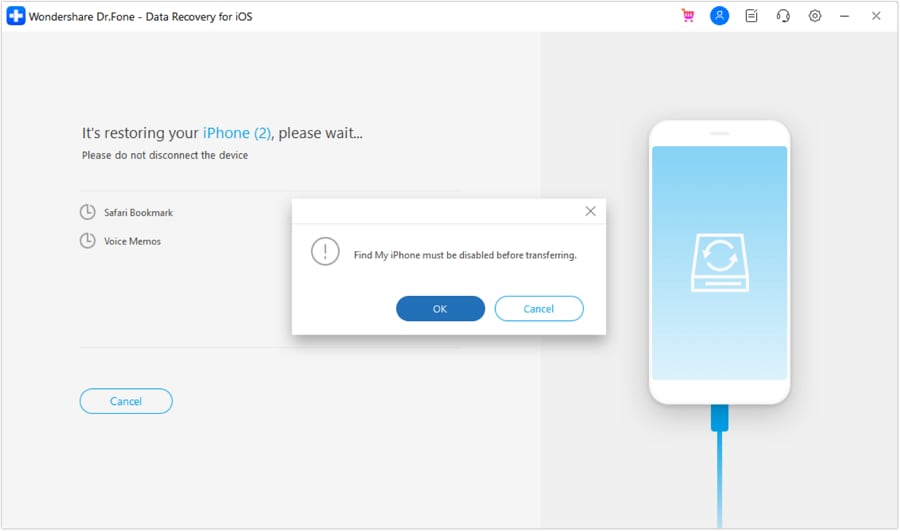
Step 9 Disable Find My iPhone (If Restoring to a Device)
If you opted to push the photos to a new iPhone, the software will require you to temporarily turn off "Find My iPhone" on the target device to bypass Apple's security protocols. After disabling it, click OK.
-
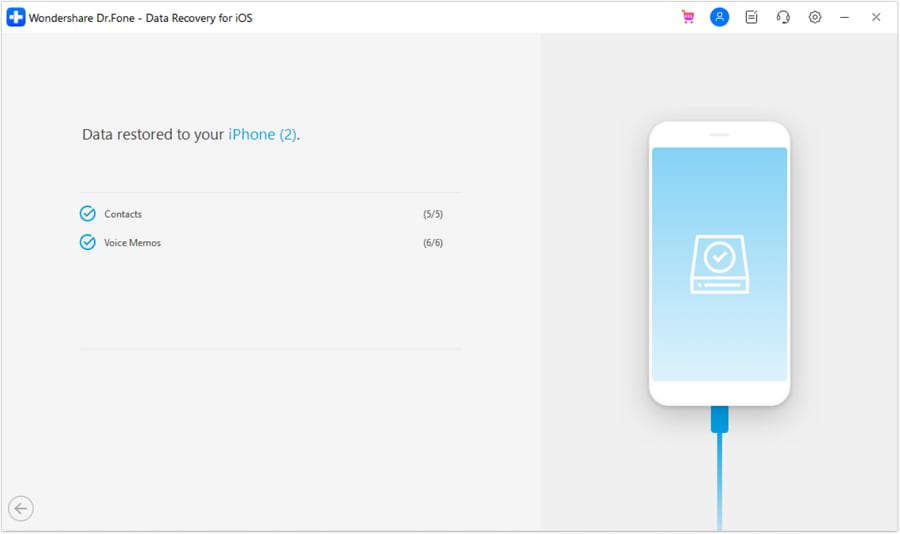
Step 10 Complete Device Restoration
Dr.Fone will compile the selected data and inject it into the destination iPhone. Keep the device connected until a "Restore Completed" message appears on your computer screen.
-
Step 11 Export the Photos to Your PC or Mac
For ultimate safety, it is recommended to click Recover to Computer instead. Choose a designated backup folder on your hard drive and click "Recover" to instantly save all chosen photos locally.
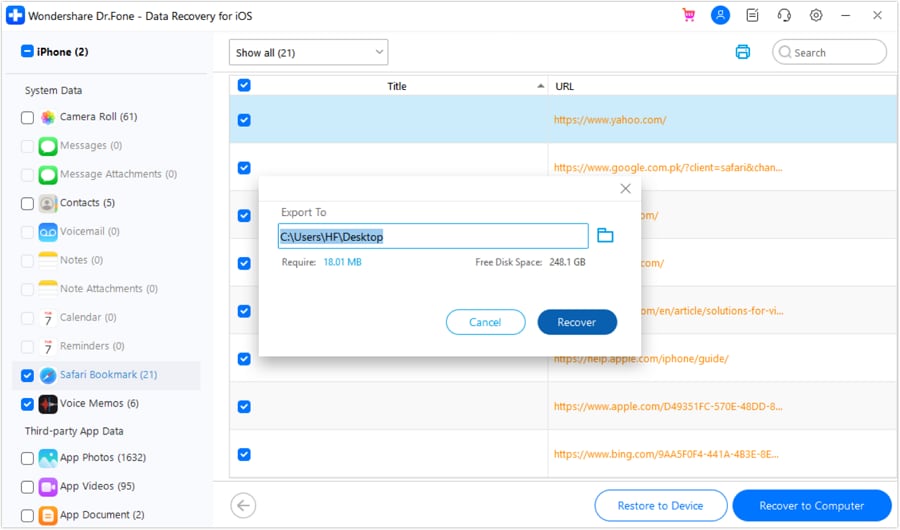
For standard users struggling with physical device damage, Dr.Fone consistently delivers optimal outcomes. Its unique capability to safely extract high-resolution pictures by completely bypassing Apple's restrictive iCloud and iTunes prerequisites makes it the definitive choice for resolving how to recover photos from a damaged iPhone.
Conclusion
Experiencing a devastating smartphone accident can induce panic, but utilizing the right technical strategies ensures that a broken iPhone doesn't mean the permanent loss of your memories. As detailed in this guide, you can successfully bypass physical hardware damage by retrieving data from iCloud and iTunes archives or by meticulously accessing internal storage via a previously trusted computer connection.
However, when standard protocols fail or recent backups are non-existent, leveraging professional desktop software is paramount. Dr.Fone - Data Recovery (iOS) excels in deeply scanning damaged internal storage logic boards, offering a lifeline for those needing to extract images from severely compromised hardware. If you are struggling with how to retrieve photos off a broken iPhone, systematically applying these robust solutions will empower you to fully restore your vital data and reclaim your irreplaceable digital snapshots.




 safe & secure
FAQ
-
1. Can I recover photos from an iPhone that won't turn on?
Yes. If your iPhone is completely dead and refuses to boot, your primary option is to retrieve photos from a previously created iCloud or iTunes backup. If no backup exists, a specialized third-party data recovery service or tool might be able to extract files from the motherboard, provided the internal storage chips are not physically destroyed. -
2. How do I get photos off a broken iPhone with a black screen?
If the display is black but the phone is still powered on and recognized by a computer, you can connect it to a Mac or PC it has trusted in the past. Open Finder or Windows Explorer to access the internal DCIM folder and manually copy your photos to the desktop. -
3. Will Apple store employees recover data from my broken iPhone?
Generally, Apple Store technicians do not perform data recovery services on broken devices. They focus on hardware repairs and replacements. They will typically advise you to restore your data from an existing iCloud or Mac backup onto a new device. -
4. Do I need to enter my passcode to recover photos via USB?
Yes. Apple's iOS security requires you to unlock the device and confirm "Trust This Computer" the first time you connect via USB. However, if you are connecting to a computer that you previously paired and trusted before the screen broke, it may bypass this requirement, allowing you to access the DCIM folder immediately.
 Add Wondershare Dr.Fone as a preferred source on Google