 Recover photos, messages, WhatsApp, and more — no backup
needed.
Recover photos, messages, WhatsApp, and more — no backup
needed.

 100% Security Verified | No Subscription Required | No Malware

 :
: 
 ChatGPT
 Perplexity
 Gemini
 Claude
 Grok
Grok
Suppose you open your app only to discover a crucial conversation has mysteriously vanished. If you are wondering how to see deleted messages on Discord, you are not alone. Countless users on both PC and mobile devices frequently encounter missing texts, leading to confusion or concern about what was abruptly removed from the chat history.
Fortunately, it is possible to safely uncover what was retracted depending on your specific device setup, app version, and server permissions. This comprehensive 2026 guide will walk you through multiple reliable techniques to view removed content, alongside powerful data retrieval solutions to combat accidental data loss.





In this article
- Part 1. Can You See Deleted Messages on Discord?
- Part 2. How to See Deleted Discord Messages Using Bots (Most Effective Way)
- Part 3. How to View Deleted Messages on Discord Without Bots (Limited Success)
- Part 4. How to Find Deleted Messages on Discord With Third-Party Tools (High Risk)
- Part 5. What If Discord Messages Disappeared Due to Device Data Loss?
- Part 6. Best Practices to Prevent Losing Discord Messages
Part 1. Can You See Deleted Messages on Discord?
Before you learn how to see deleted message in discord, it is crucial to understand the platform's native capabilities and privacy architecture. Officially, deleted messages in Discord cannot be viewed within the regular application because the developers purposely omitted a mechanism to restore them. Once a user removes a message in a server, Direct Message (DM), or group chat, it immediately vanishes for everyone involved.
Discord prioritizes user privacy. While they might retain short-term technical copies strictly for backend backup or abuse investigation, regular users have absolutely no access to these archives. There is no hidden "trash bin" or "archive screen" natively available, even for users with highest administrative permissions. The server audit log will merely disclose who deleted a specific message, without revealing the actual text content.
Alternative Ways To See Deleted Messages (With Limits)
Despite these strict native limitations, if you are figuring out how to see deleted Discord message logs, there are a few external methods available. These tactics do not restore data directly on Discord's servers; rather, they capture copies that a bot, system cache, or script intercepted right before the deletion event. The table below outlines these methods alongside their functional constraints and privacy considerations:
| Method | Key Limitations | Privacy Concerns |
|---|---|---|
| Phone Notification History (Android) | Functions exclusively if activated prior to deletion. Displays short previews, not complete long conversations. | Anyone possessing the unlocked device can read notifications, reducing overall privacy protection. |
| Logging Bots (Servers) | Must be pre-installed and active before the deletion occurs. Cannot fetch messages retroactively. | Server moderators can read logged personal content, and standard users might be completely unaware of logging. |
| Client Mods / Plugins | Expressly violates Discord's Terms of Service. Highly likely to result in account suspension or a permanent ban. | Accesses local computer data directly. Carries severe risks of malware insertion or data harvesting. |
| Monitoring Apps | Demands prior setup and background running. Utterly incapable of retrieving older, unlogged messages. | Raises potential legal and consent issues, often exposing highly sensitive personal conversations. |
Part 2. How to See Deleted Discord Messages Using Bots (Most Effective Way)
If you have decided to genuinely learn how to check deleted messages on Discord for a community server, employing a logging bot is remarkably effective. A dedicated Logger bot supplies administrators with solid evidence for reports and appeals, accurately tracks user behavior (such as mutes and bans), and builds internal trust through transparent, uneditable records.
It is important to remember that only users with sufficient server permissions can integrate these tools. Members should ideally be notified that their communications are being logged to maintain ethical transparency. Follow the steps below to properly set up a logging bot for your server:
-
Step 1 Locate the Bot
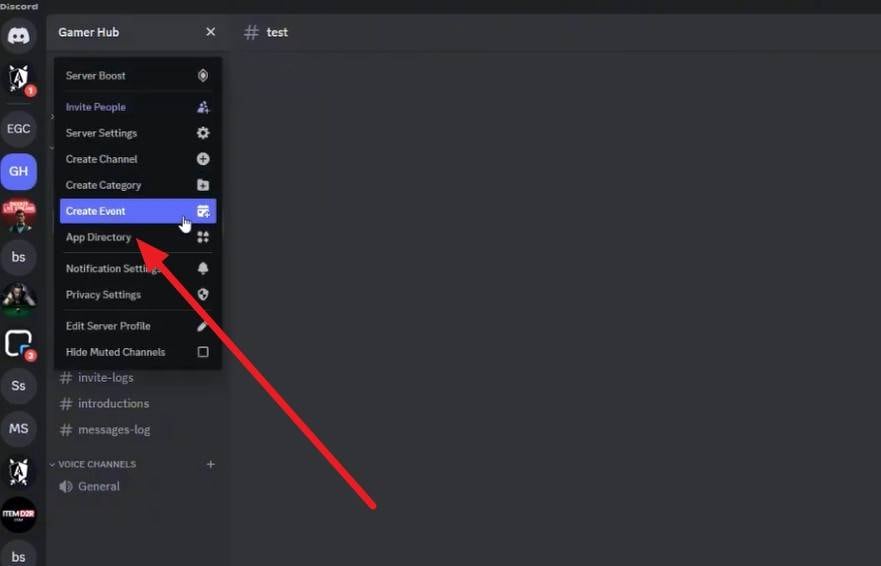
Navigate to your Server settings, access the "App Directory," and utilize the search bar to look for a trusted Logger bot.
-
Step 2 Add to Server
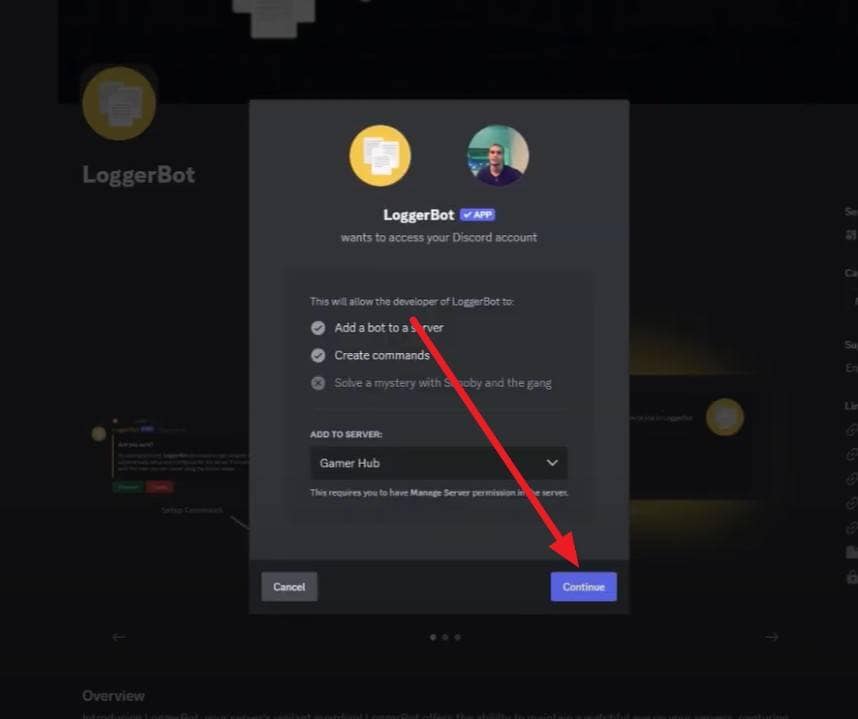
Click the "Add Bot" button. When prompted with the authorization pop-up, press "Continue" to successfully grant the application the necessary server viewing and logging permissions.
-
Step 3 Finalize Configuration
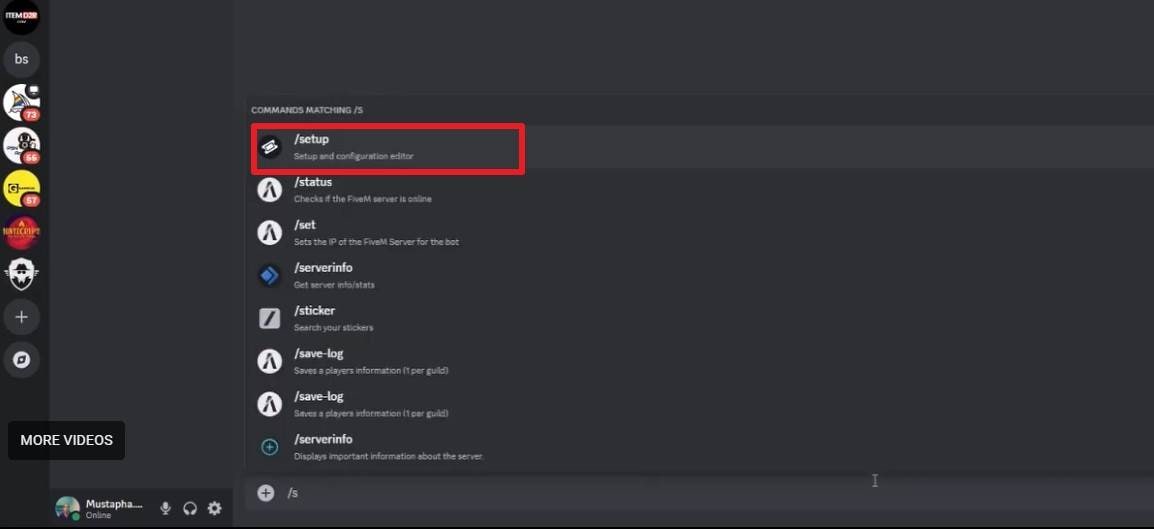
Once successfully added, simply type "/setup" into any command-supported chat channel and hit "Proceed." The bot will automatically generate a dedicated "Logs" category complete with specialized channels. If any member deletes a text, the exact content will now secretly funnel into the "message-logs" channel for staff review.
- Allows staff to easily detect ghost pings, spam, and covert harassment.
- Succeeds where native audit logs fail by visibly recording the actual deleted content.
- Storing user content long-term without explicit notice may violate local data laws.
- Demands ongoing technical setup, stringent security limits, regular cleanup, and a clear transparency policy.
Part 3. How to View Deleted Messages on Discord Without Bots (Limited Success)
If utilizing bots introduces unacceptable security risks or requires permissions you lack, there are alternative strategies. Below are methods detailing how to find deleted messages on Discord safely if a copy already exists temporarily on your personal device.
1. Act Fast Using Screenshots
If you anticipate a message will be retracted rapidly after being sent, immediately capturing your screen is the absolute safest approach. This manual tactic works best during intense DMs or concentrated group chats where you are actively staring at the app window without relying on hazardous third-party tools.
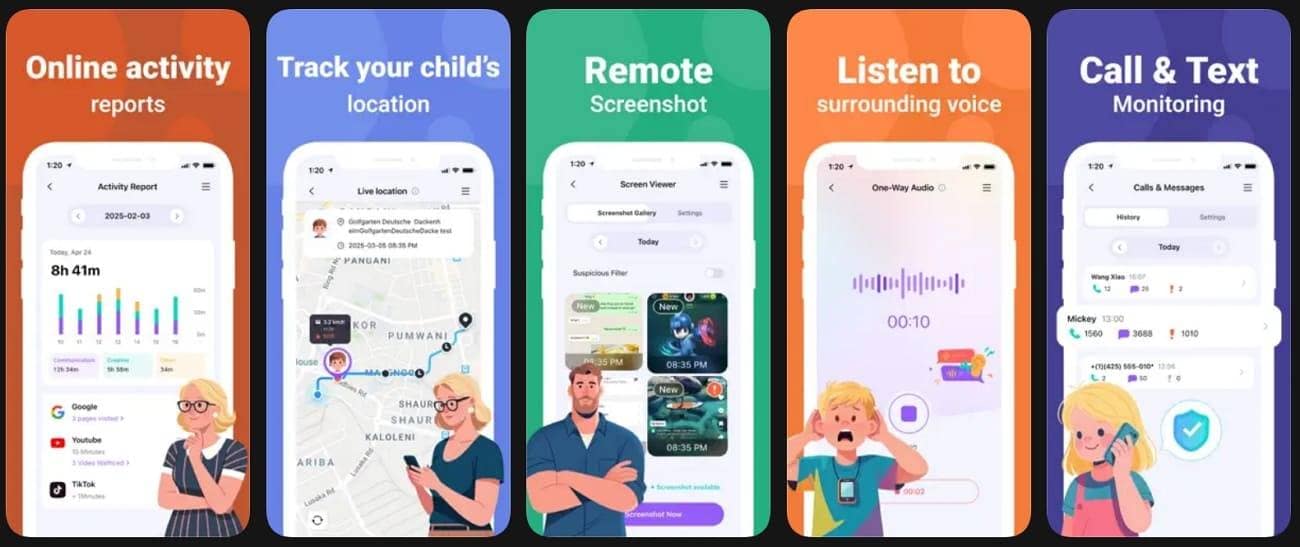
For parental control contexts, specialized monitoring applications like FamiSafe can assist you in figuring out how to view deleted messages on Discord on a minor's device. These tools programmatically screenshot suspected messages at specific intervals, preserving a visual log securely.
2. Check Your Phone's Notification History (Android Only)
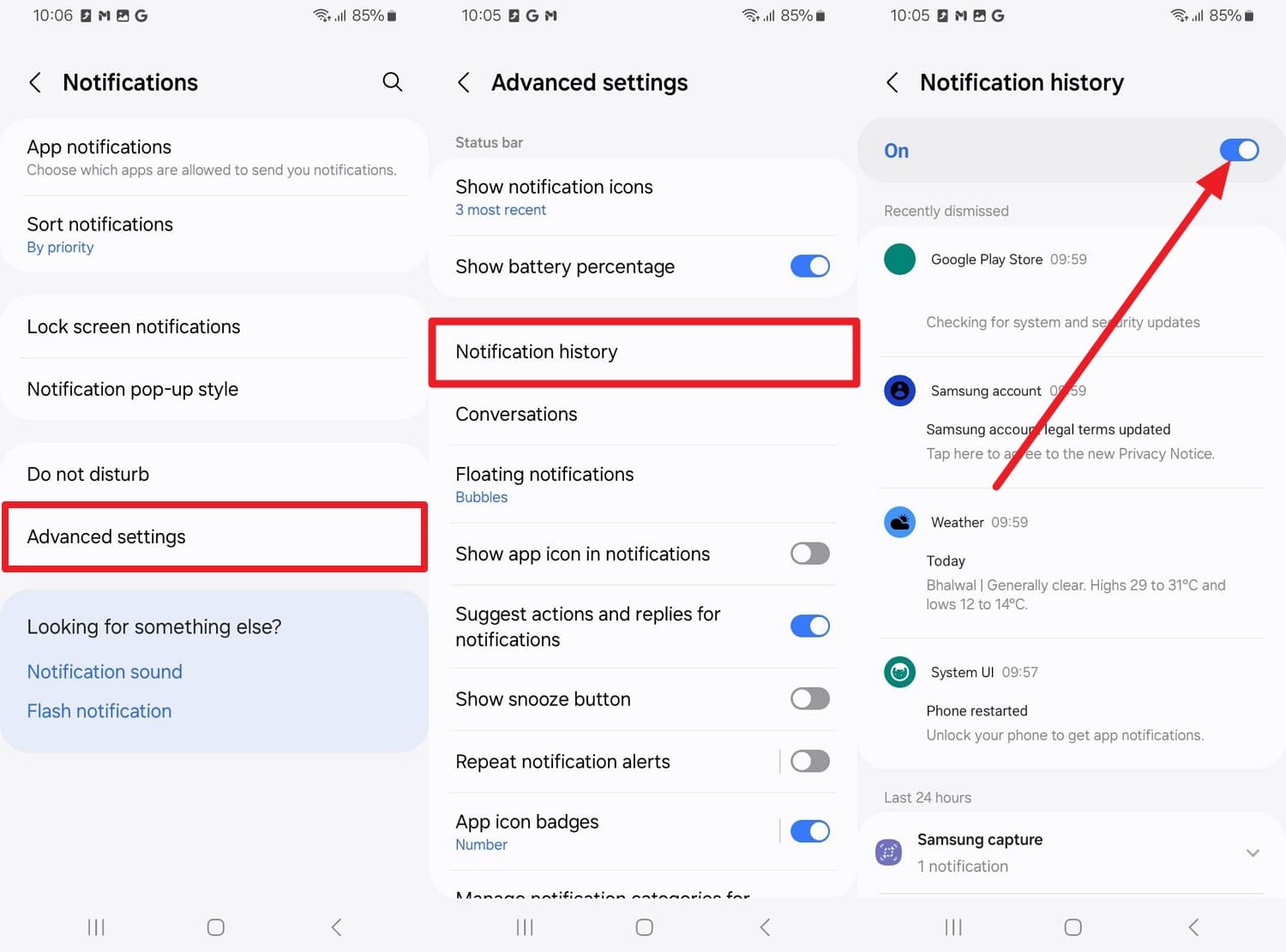
Android devices boast a powerful feature that captures system alerts. If the Discord notification pushed through right before the sender deleted the text, Android might have saved a temporary duplicate within the Notification History logs. Be aware that iOS does not offer this identical raw log capability.

Step-by-Step Instructions: To understand how to see deleted messages on Discord utilizing this feature, simply open your Android "Settings" and tap on "Notifications." Navigate to "Advanced Settings" (or similarly named menus depending on your brand) and turn on "Notification History." You can scroll through this menu to locate recent Discord pings, uncovering text snippets even if they vanished in the app.
3. Analyze Desktop Cache Files
Another technical avenue exploring how to see deleted messages in Discord involves diving into your Windows desktop cache files. This deeply technical workaround relies on leftover files that briefly store images and raw text. It strictly functions only if your app successfully loaded the message onto your screen beforehand. Be prepared: these files are frequently fragmented and highly unintuitive to decode.
-
Step 1 Open Run Command
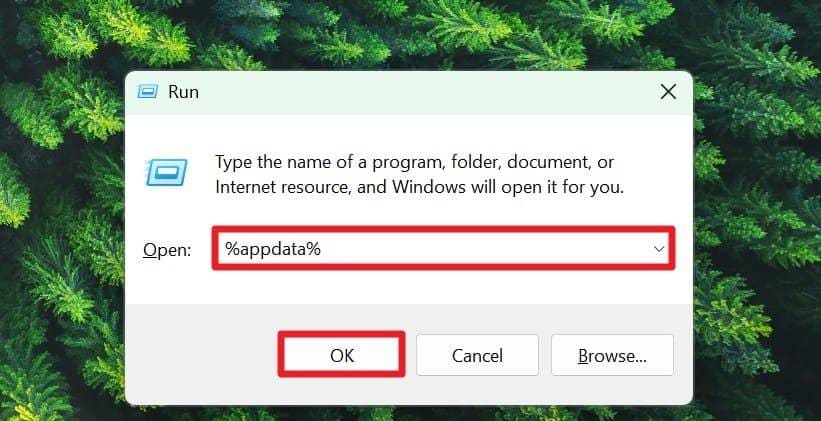
Press the "Windows key + R" simultaneously on your keyboard. Type exactly "%appdata%" in the small text box and press "Enter" or click "OK".
-
Step 2 Navigate to Cache Directory
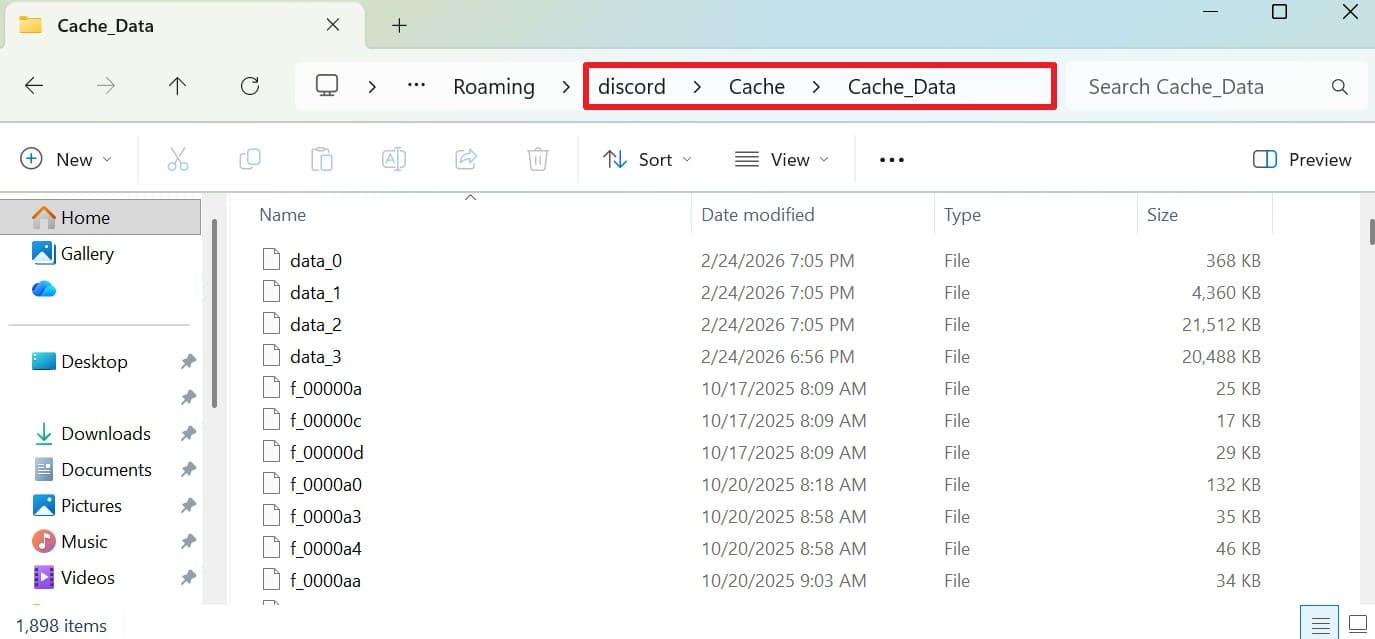
Inside the sprawling File Explorer window, locate the folder specifically named "discord" and open the subfolder labeled "Cache".
-
Step 3 Examine Files in Notepad
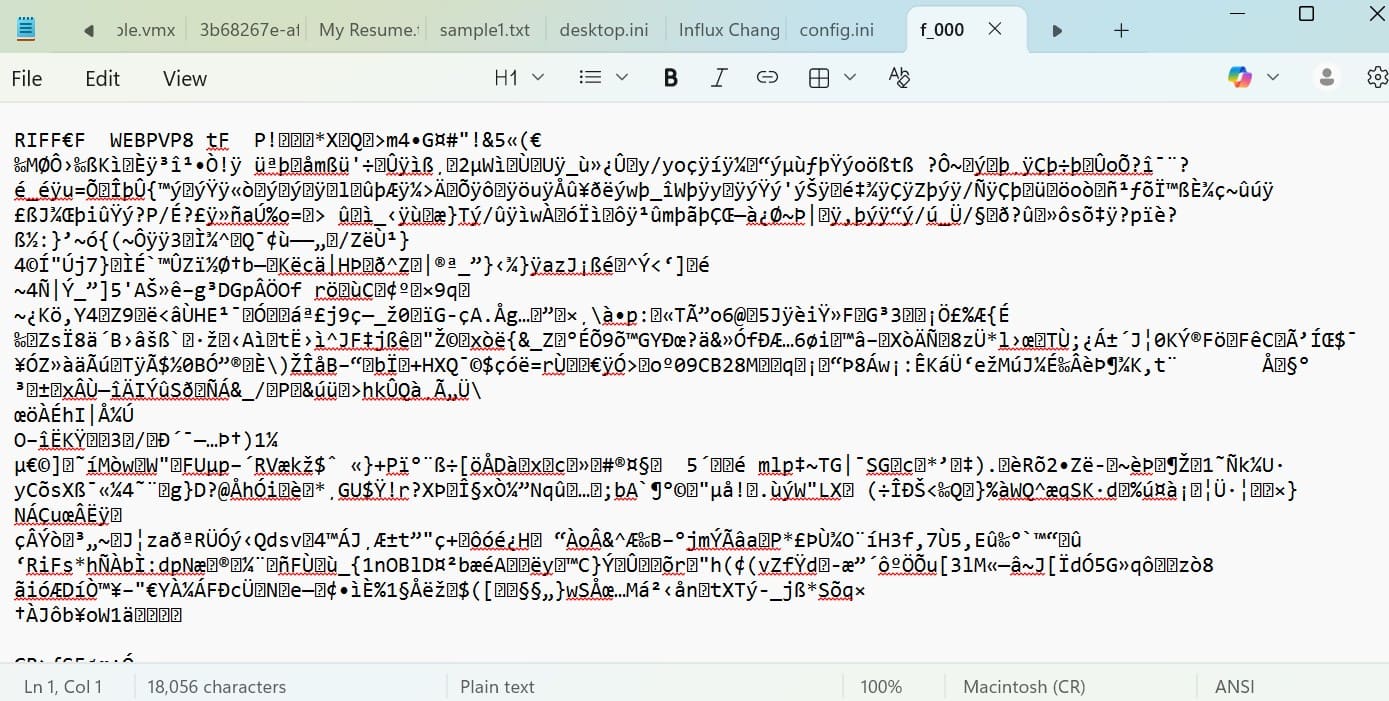
Sort the files by recent modifications, select the suspicious cache file, right-click, and choose "Open with Notepad". Be warned that standard file names will not coherently match usernames, and the data inside will mostly look like corrupted gibberish intertwining fragments of text.
4. Deploying Third-Party Scripts (Tampermonkey)
If you primarily use the web-browser iteration of the platform, you can learn how to see deleted Discord messages leveraging browser extensions like Tampermonkey alongside community scripts like "DiscordSaveDeleted". This script forces your browser to log wiped chats dynamically. Follow these steps carefully:
-
Step 1 Install Tampermonkey
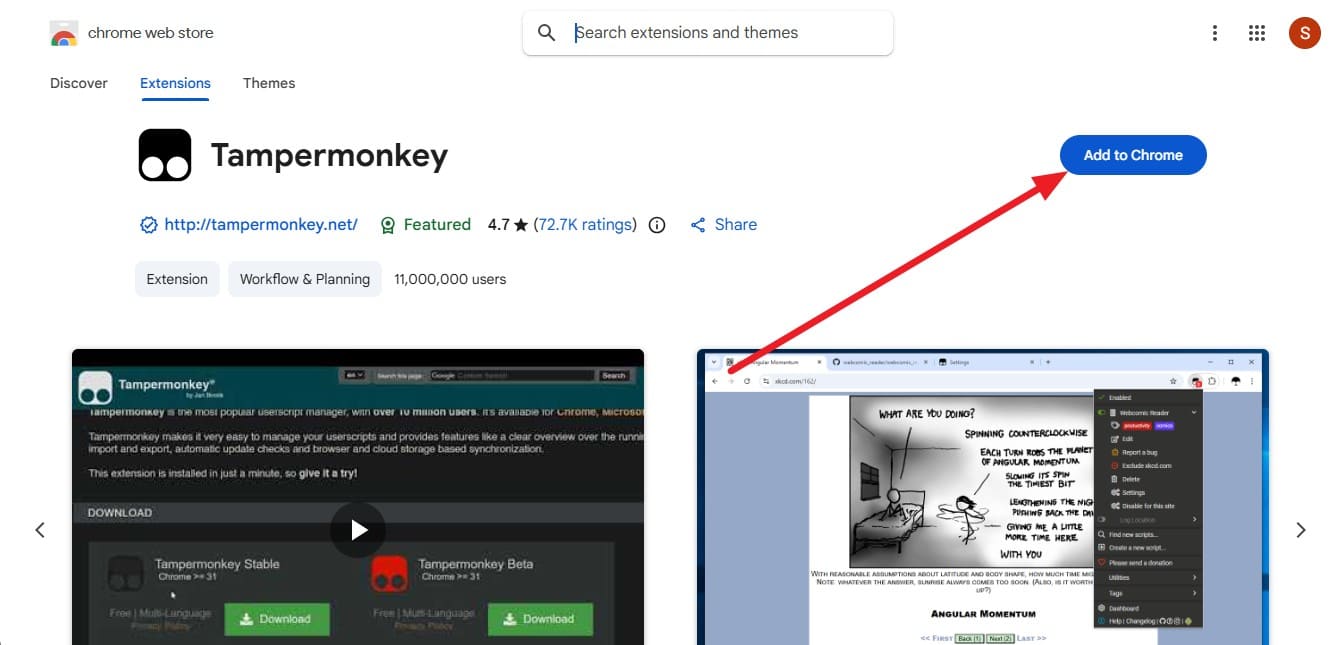
Download and activate the Tampermonkey extension for your preferred browser (e.g., clicking "Add to Chrome" on the Web Store).
-
Step 2 Hunt for the Script
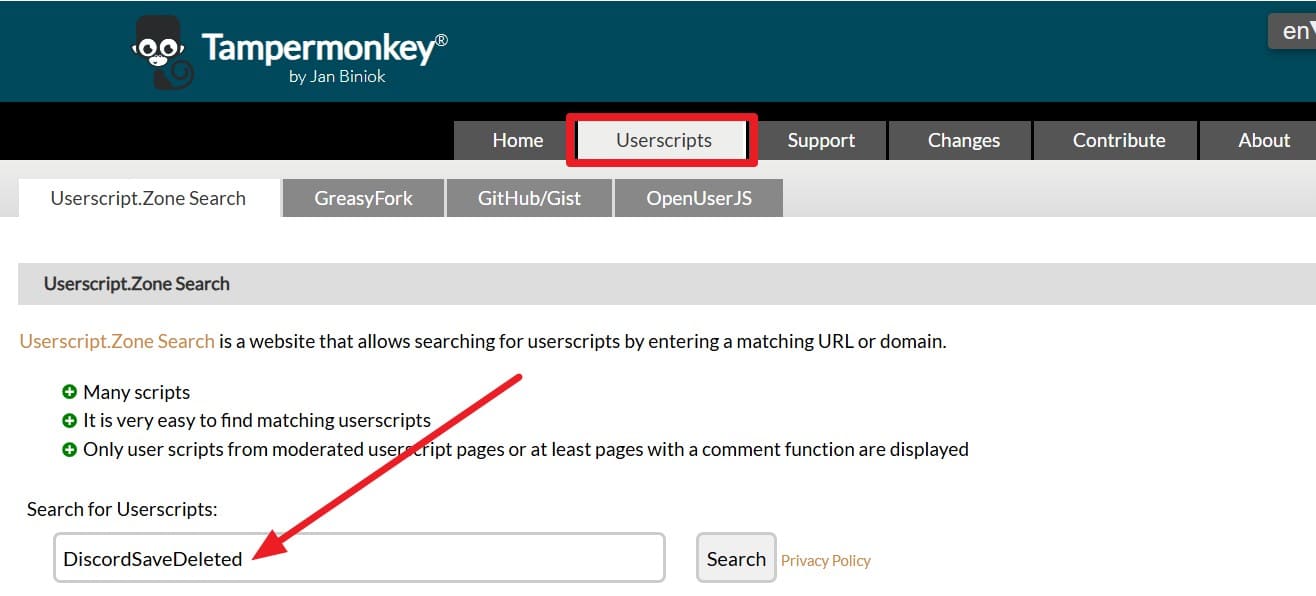
Browse dedicated script databases looking for "DiscordSaveDeleted" which is strictly coded for message interception.
-
Step 3 Verify the Source
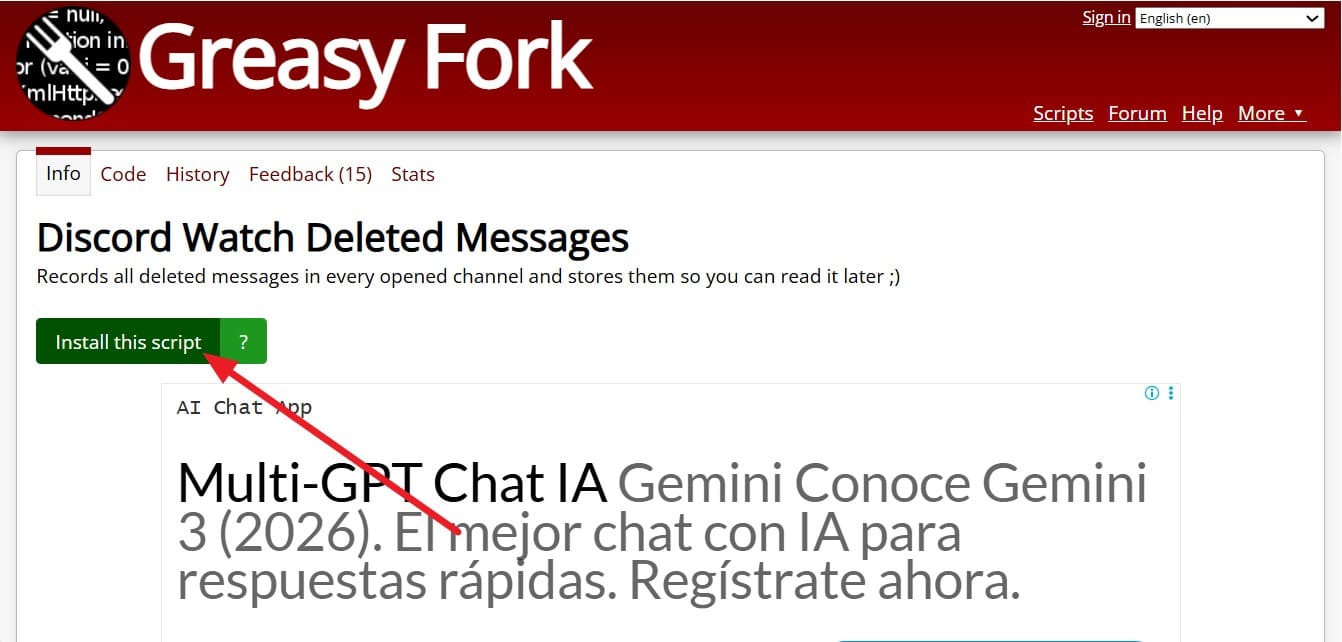
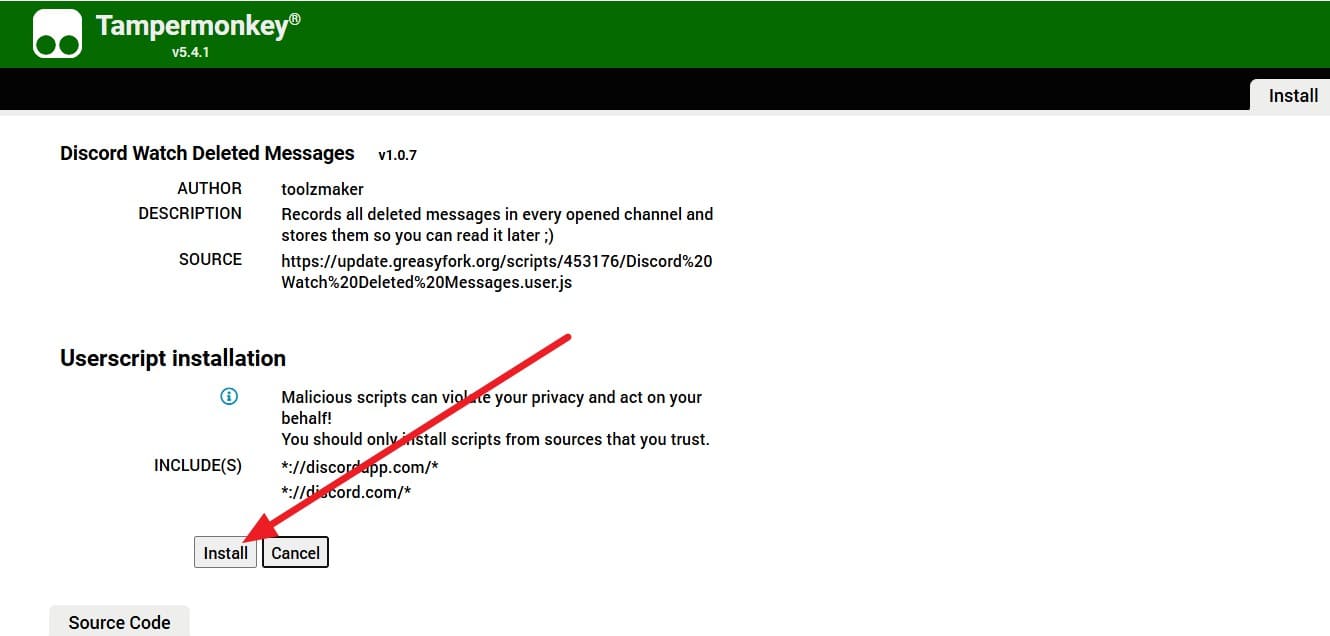
Trusted repositories like Greasy Fork or GitHub are ideal places to locate these. Once verified, hit the "Install the Script" button.
-
Step 4 Finalize and Monitor
Confirm the final injection by clicking "Install" inside Tampermonkey's dashboard. Refresh your Discord web tab. A newly appended "Trash" icon should materialize near the top-right corner, storing locally logged text deletions moving forward.
Part 4. How to Find Deleted Messages on Discord With Third-Party Tools (High Risk)
On your dedicated search exploring how to find deleted messages on Discord, BetterDiscord frequently emerges as a highly discussed, albeit controversial, third-party avenue. Integrating plugins such as MessageLogger, this modified client visually restores retracted content directly inside your UI. It seamlessly uncovers ghost pings, spam, and quickly edited typos across DMs, group chats, and open servers.
Because these logs are stored purely locally on your hard drive, the response time is practically instantaneous. However, you must recognize the immense risk: using modified clients fundamentally violates Discord's Terms of Service and could permanently terminate your account. Proceed entirely at your own risk with these instructions:
-
Step 1 Obtain BetterDiscord
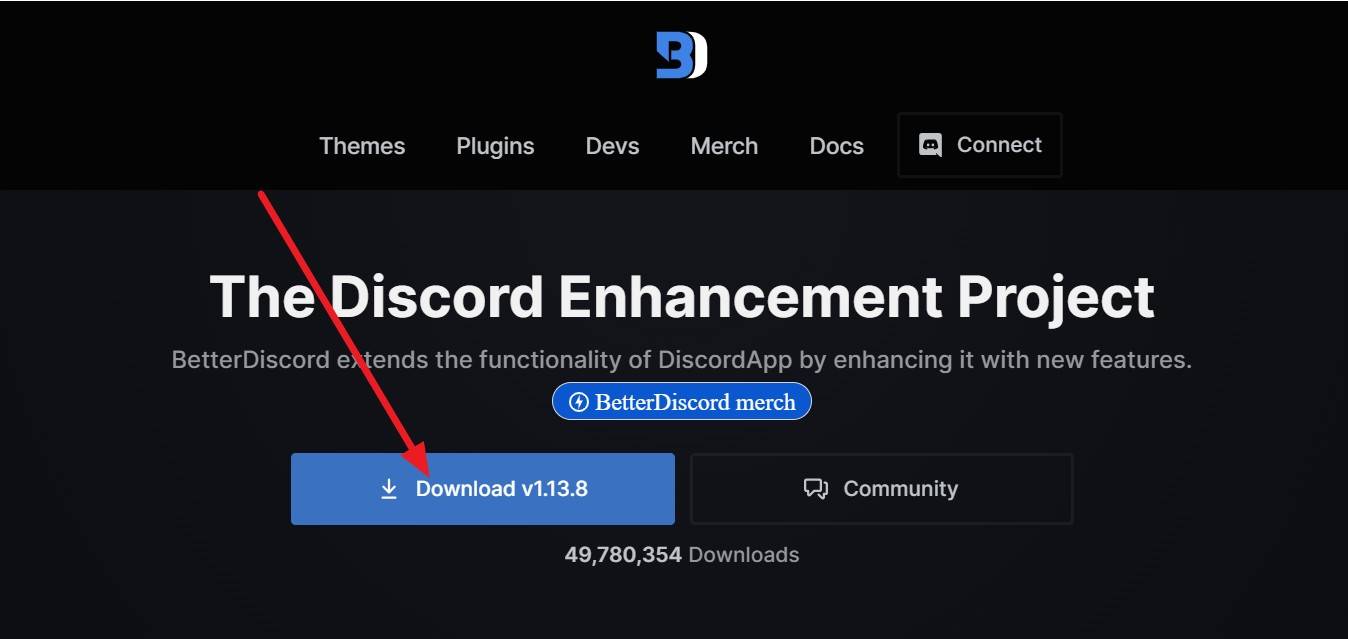
Navigate to the official BetterDiscord website and hit the prominent "Download (Versions)" button prominently displayed on the homepage.
-
Step 2 Agree and Install
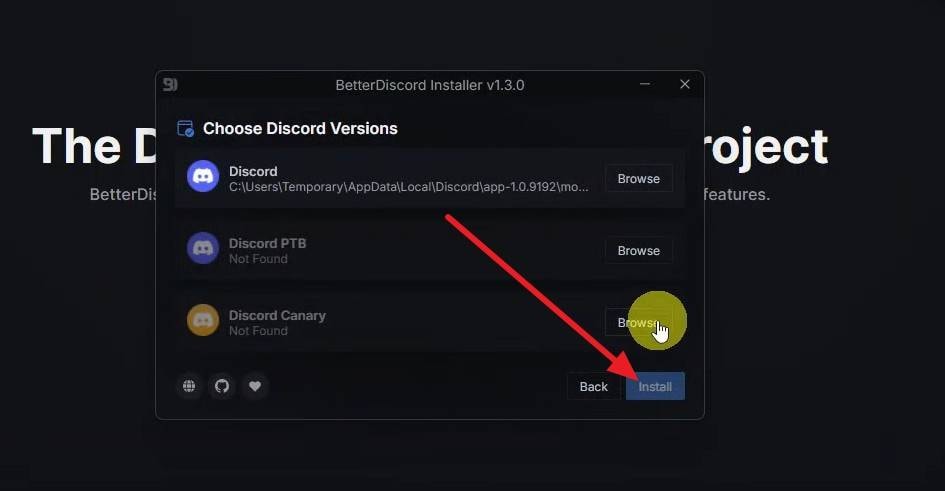
Carefully read and accept the provided license agreement, select your current Discord installation path from the resulting menu window, and finalize by clicking "Install".
-
Step 3 Download the Plugin
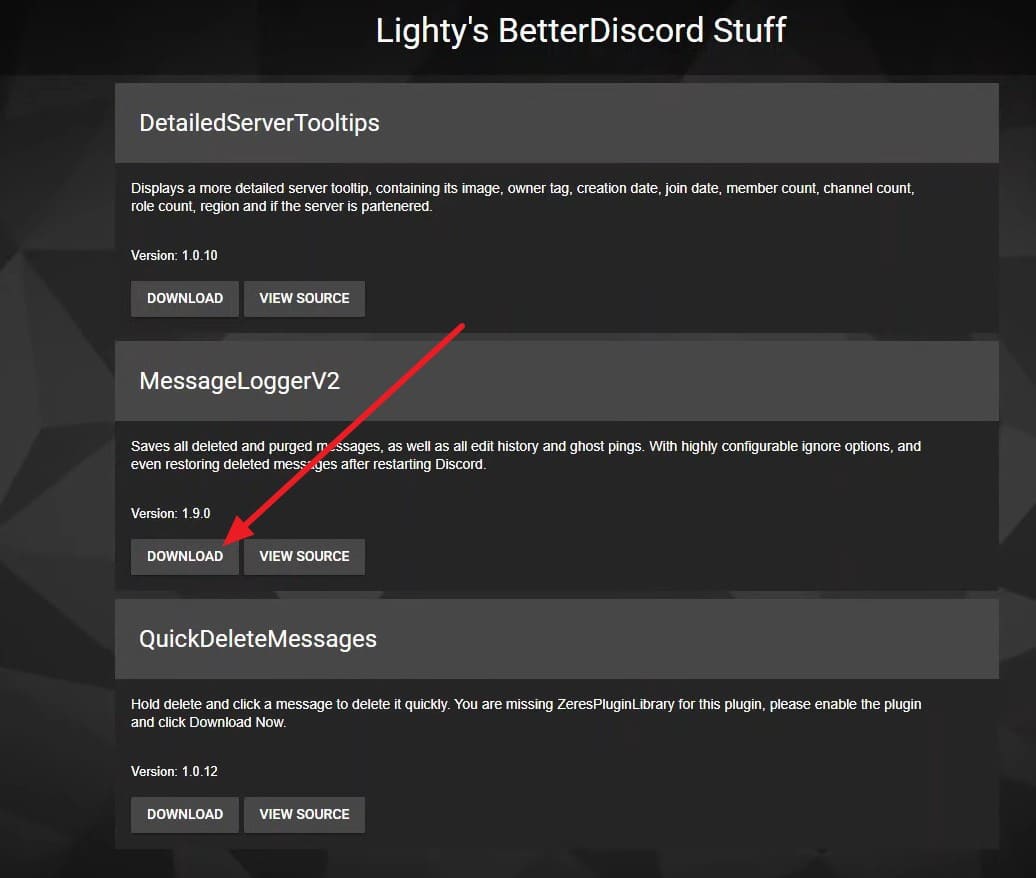
The installation will forcefully reboot your client. Next, open your web browser, search specifically for "Lightly Glitlab," and click "Download" to securely pull the required MessageLogger plugin script.
-
Step 4 Transfer to Plugin Folder
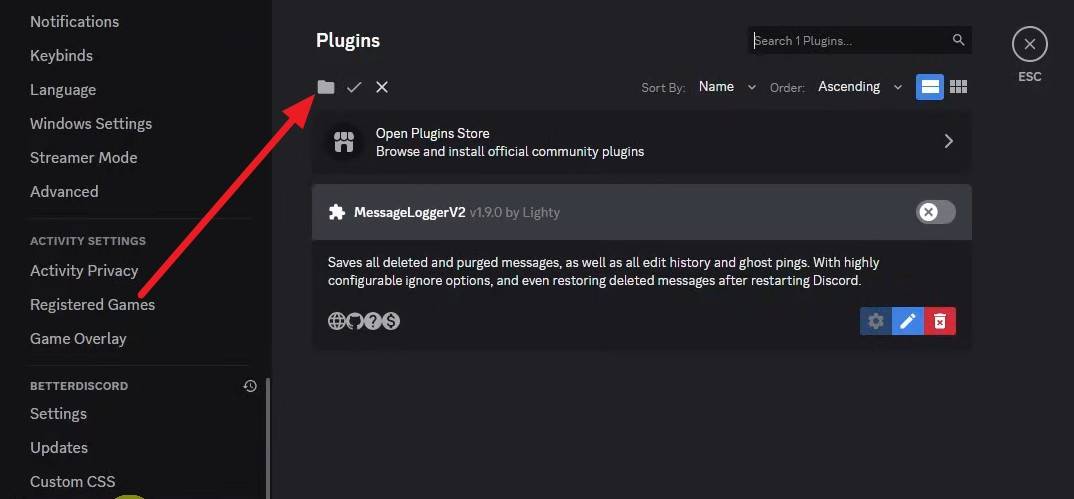
Inside the newly rebooted Discord, enter your standard "User Settings," scroll to locate the brand-new "Plugins" tab on the left sidebar, click "Open Plugins Folder," and simply drag-and-drop the downloaded MessageLogger file inside.
-
Step 5 Enable Dependencies
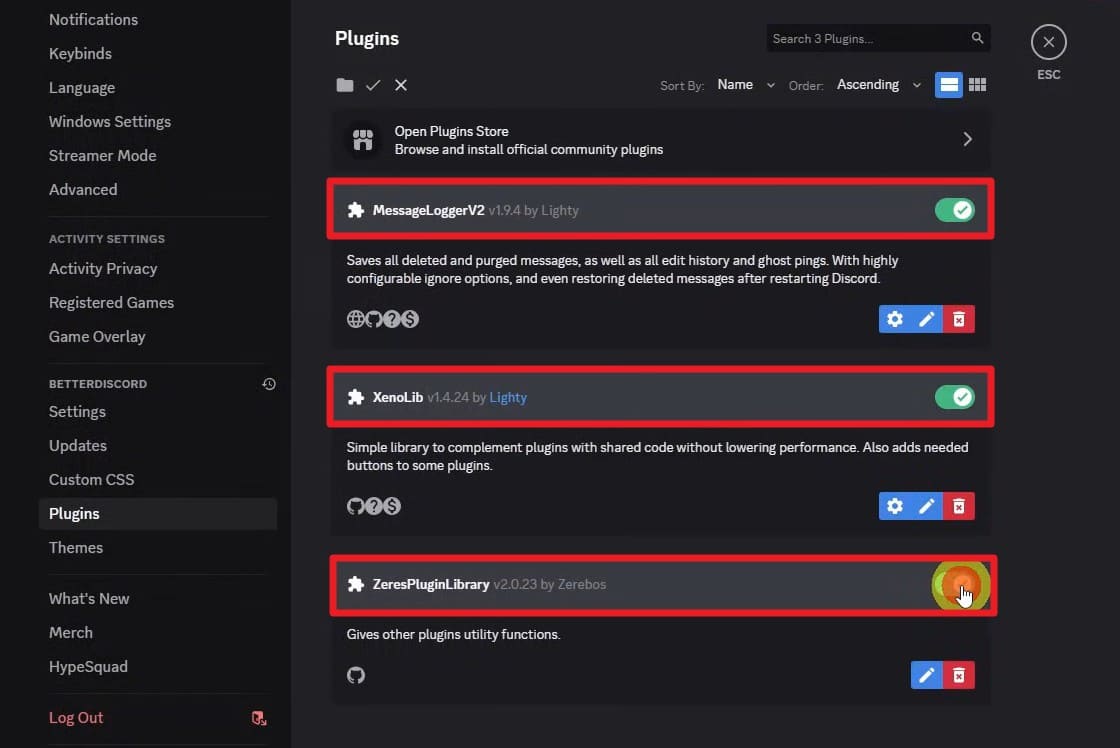
Once injected, slide the toggle switch to activate "MessageLogger". You might be prompted to automatically download core dependencies like "XenoLib" and "ZeresPluginLibrary". Enable those toggles simultaneously for maximum stability.
-
Step 6 View Highlighted Content
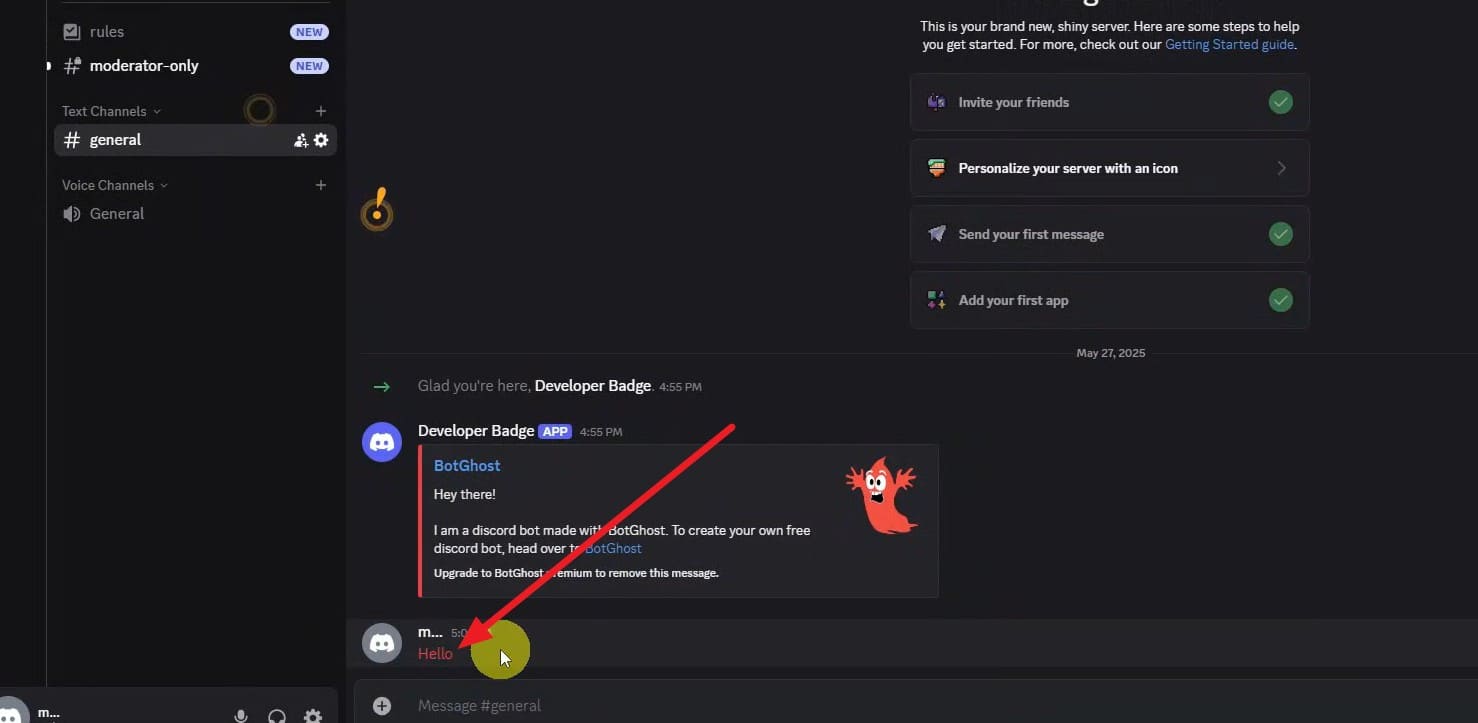
With the setup fully operational, whenever a user retracts a text, it will stubbornly remain on your screen brightly highlighted in red font, ensuring you never miss critical information again.
Part 5. What If Discord Messages Disappeared Due to Device Data Loss?
While diving deep into how to see deleted Discord messages, a completely different scenario emerges: what happens if critical texts vanish because your smartphone crashed, reset abruptly, or accidentally uninstalled the application? In such disastrous cases, your local storage cache might still hold fragments of the lost conversations.
To rescue this data, the Dr.Fone – Data Recovery ecosystem for Android and iOS is exceptionally reliable. This highly specialized toolkit meticulously scans your device's internal storage partitions for remnant app data—such as deleted text files, audio clips, images, and chat caches—that have not been permanently overwritten by new system files.
For Android enthusiasts, the software can resurrect over 14 distinct data types. For Apple users, it flawlessly retrieves deleted messages, irreplaceable photos, video files, and third-party app data. Compatible with over 6,000 distinct Android models and fully optimized for iOS 26 alongside the latest iPhone 17 series, Dr.Fone grants you granular control. You can selectively preview the salvaged files on a PC monitor before confirming the recovery process, securing optimal accuracy without massive data dumps.
 Scan Android phones and tablets directly.
- Preview and recover only what you want.
- Supports WhatsApp, photos, videos, contacts, and more.
- Works with 6000+ Android devices.

Guide to Recover Deleted Messages of Discord Android via Dr.Fone - Data Recovery
If you are desperate to understand how to view deleted messages on Discord following an unexpected device wipe or physical crash, adhere to this streamlined protocol using Dr.Fone:
-
Step 1 Launch the Data Recovery Tool
Access the main "Toolbox" interface within Dr.Fone and seamlessly select the "Data Recovery" module designed for Android systems. Opt for "Recover Android Data" and connect your affected phone precisely when prompted by the software.

-
Step 2 Filter and Scan the Messages
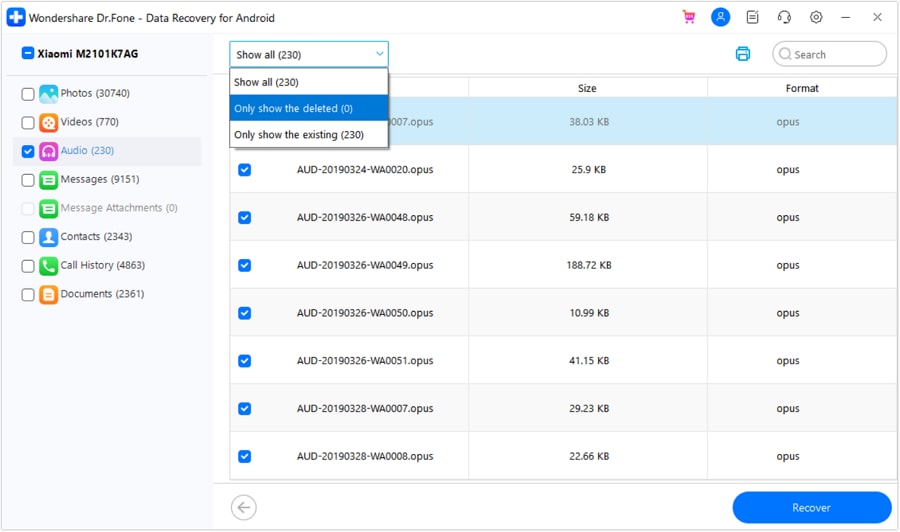
Check the explicit box corresponding to "Messages" or "App Data" among the available file formats and decisively click "Start Scan." Once the deep scan concludes, utilize the dropdown "Show All" filter to highlight the exact message files you are eager to retrieve, then firmly click "Recover."
-
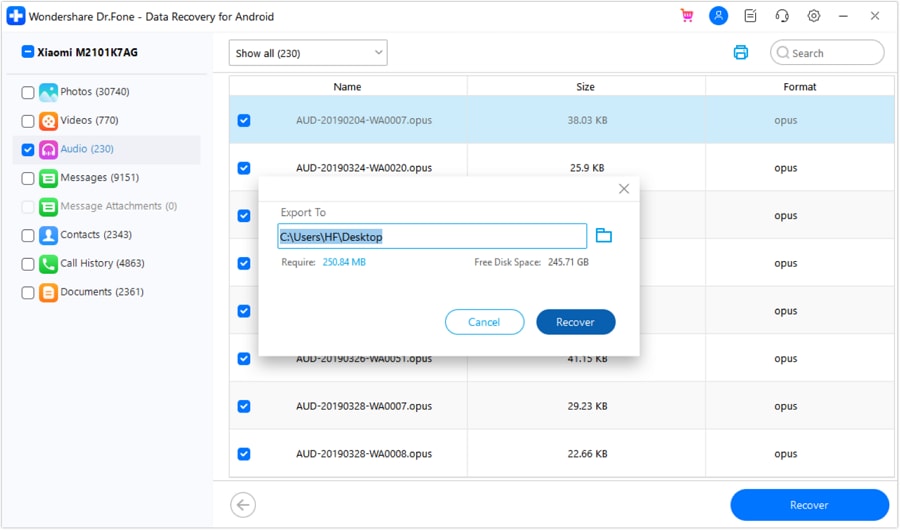
Step 3 Determine Export Path
Finally, direct the extracted files to a secure "Export To" location directory on your local computer hard drive and finalize the procedure by pressing the active "Recover" button.
Part 6. Best Practices to Prevent Losing Discord Messages
By now, you have heavily evaluated numerous techniques to determine how to see a deleted Discord message accurately. Since constantly utilizing unstable third-party workarounds severely jeopardizes your core account standing under Discord's strict moderation policies, taking proactive steps is objectively superior. Implement the robust defensive measures outlined below to permanently dodge unrecoverable message losses moving into the future.
| Essential Practices | Actionable Steps to Take | Primary Benefit |
|---|---|---|
| Deploy Logging Bots | Integrate fully trusted moderation bots inside sensitive organizational channels. | Securely archives controversial deleted or edited texts for mandatory administration reviews. |
| Screenshot Aggressively | Take manual imagery of vital agreements, threatening behavior, or critical IDs instantly. | Maintains absolute local visual evidence that cannot be erased by remote server wipes. |
| Utilize OS Features | Activate comprehensive notification histories directly via Android OS settings. | Grants passive, risk-free visibility into short chat previews even after severe deletion. |
| Maintain Offline Backups | Migrate incredibly important server details straight into a local notes application or text document. | Completely unlinks vital information from the unpredictable lifespan of random digital servers. |
| Shun Modified Clients | Absolutely refuse to download unsafe unauthorized injection mods or sketchily coded plugins. | Dramatically reduces your ban susceptibility alongside mitigating devastating malware infections. |
Conclusion
To conclude this comprehensive tutorial, figuring out exactly how to see deleted messages on Discord poses steep native obstacles, yet this guide has highlighted diverse strategies. While specialized scripts and advanced third-party modifications promise access, they uniformly demand massive security compromises and gamble with your account standing.
Conversely, for users mourning lost discussions specifically spawned by catastrophic device failures, utilizing the industry-leading Dr.Fone – Data Recovery software provides a uniquely safe, offline pathway to salvage local application caches and recover indispensable conversational fragments comprehensively.
FAQ
-
1. Do deleted messages strictly disappear for absolutely everyone?
Yes, whenever a Discord text is properly removed, it immediately vanishes globally for all chat participants. From that split-second onward, no standard member possesses the native capability to pull up the original text unless external tools were previously configured. -
2. Can a Discord server admin uncover my deleted Direct Messages?
No. Direct Messages operate strictly independent of server logs. Server owners only wield authority and potential logging capabilities within the definitive boundaries of their own distinct server channels. Your private DMs remain secure against third-party server administrators. -
3. Does Discord's internal support staff restore deleted messages upon request?
Absolutely not. Discord's official privacy doctrine confirms that regular user message deletions instantly instruct their server databases to eradicate the information. Their customer support representatives cannot—and will not—retrieve lost conversations for you. -
4. Can utilizing BetterDiscord essentially guarantee my account gets banned?
While utilizing BetterDiscord allows you to intercept deleted text, it unambiguously breaches Discord's Terms of Service protocol. Though unverified masses use it silently, if Discord's automatic backend security flags your client's modification patterns, your account faces extreme suspension risks.
 Add Wondershare Dr.Fone as a preferred source on Google



