Recover photos, messages, WhatsApp, and more — no backup
needed.
Recover photos, messages, WhatsApp, and more — no backup
needed.

 100% Security Verified | No Subscription Required | No Malware

 :
: 
 ChatGPT
 Perplexity
 Gemini
 Claude
 Grok
Grok
When you unlock your device, open the application, and instantly realize your iphone notes disappeared, the feeling can be incredibly overwhelming. You are suddenly met with a blank screen instead of the critical to-do lists, daily schedules, passwords, or work ideas you rely on. Panic usually sets in immediately as you think to yourself, "All my iPhone notes have disappeared without a trace!"
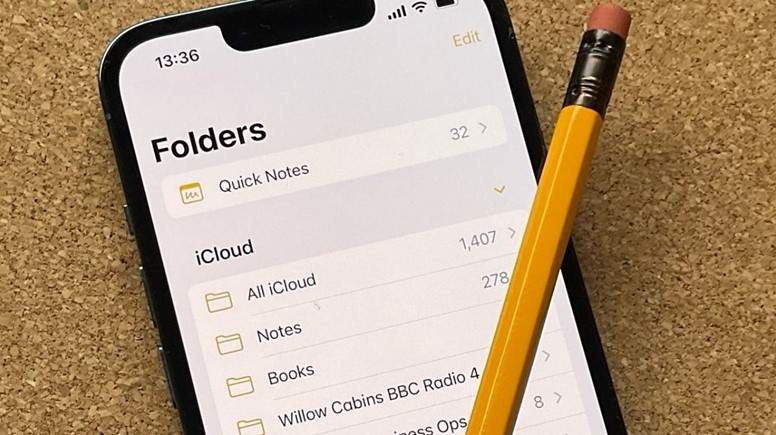
Do not panic. This stressful situation is significantly more common than most users realize, and the data is rarely gone permanently. Often, your precious memos are simply hidden away, experiencing a temporary iCloud synchronization failure, or linked to a logged-out email account. In this comprehensive guide, we will first diagnose the root causes behind missing notes. Then, we will walk you through proven, step-by-step methods to seamlessly recover your iPhone notes, ensuring they remain protected from unexpected glitches in 2026 and beyond.
In this article
Part 1. iPhone Notes Disappeared? Check If They Are Hidden or Truly Lost
Before rushing into complex recovery procedures, it is highly recommended to perform a quick diagnostic check. Understanding why your data seems to have vanished can dictate which recovery method will be most effective. Let us explore the two main scenarios.
Scenario A: Notes are hidden or facing sync issues (Most Common)
In the vast majority of cases, your files are simply invisible due to misconfigured settings or full storage. Typical culprits include:
- Incorrect folder or account view: You might accidentally be viewing the "On My iPhone" local storage folder instead of your primary iCloud database, or checking the wrong linked email account (like Gmail or Yahoo).
- Exhausted storage capacity: If your device's internal storage or your Apple iCloud storage limit is reached, the background synchronization protocol will crash, preventing notes from loading properly.
- Account credential errors: If your data is actively linked to iCloud but you have recently logged out or changed your Apple ID password, the live sync will pause instantly.
- The "iPhone notes app disappeared" illusion: Sometimes, a user accidentally removes the app icon from the Home Screen. The app is merely sitting in the App Library. This creates the frightening illusion that all notes on iphone disappeared, even though the application and its contents remain fully intact.
Scenario B: Notes are genuinely missing or deleted
On rarer occasions, data loss is literal. Notes can be wiped due to user error or catastrophic system failures:
- Accidental deletion or archiving: A swift, unintended swipe gesture can effortlessly move a vital memo into the "Recently Deleted" bin without you noticing.
- Software glitches or iOS update bugs: Upgrading to a new beta version of iOS or experiencing unexpected device reboots can occasionally corrupt application cache files, taking your notes with them.
Even if you find yourself in Scenario B, rest assured that sophisticated iCloud backups and third-party extraction tools can typically salvage the files.
Part 2. Fix iPhone Notes Disappeared Issues (No Data Loss Solutions)
Are you currently dealing with the nightmare where all notes on my iphone disappeared? Before attempting intensive system restores, begin with a simple force-quit of the Notes app and a hard reboot of your iPhone. This clears minor RAM errors. If a reboot fails, proceed with the following non-destructive methods.
Method 1: Thoroughly Check All Folder Locations
Your notes are highly likely resting in a secondary folder or the Apple safety bin. Investigating the app's internal hierarchy is the safest initial step.
-
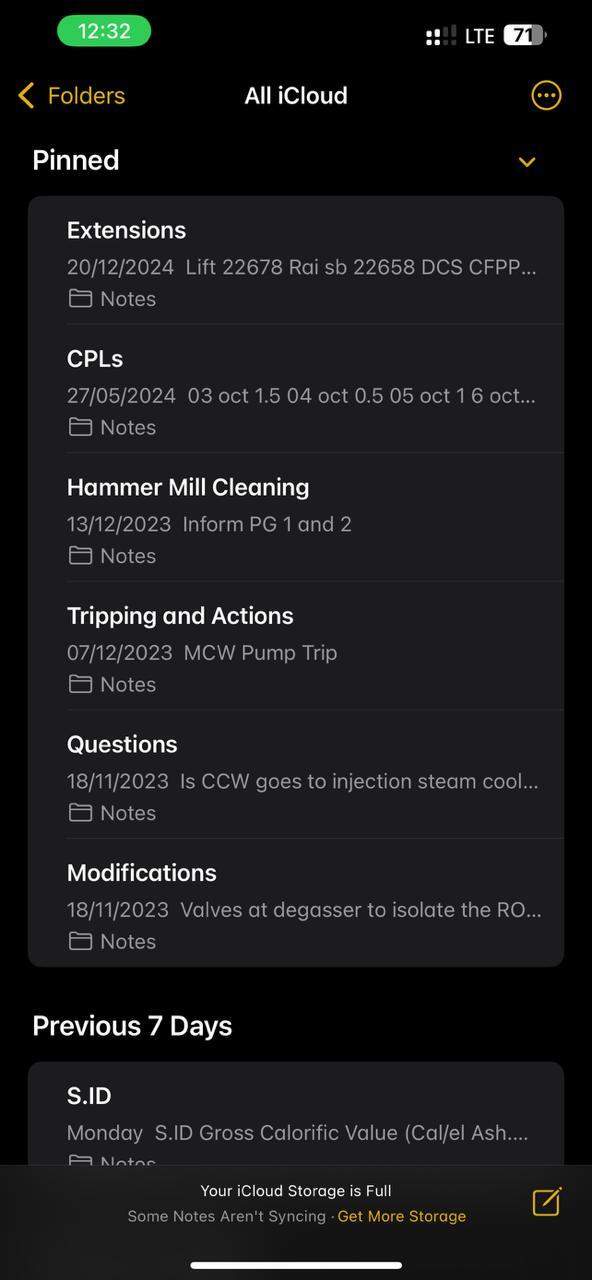
Step 1 Access the main directory
Launch the Notes application. Tap the back arrow (<) or the "Folders" button in the top-left corner repeatedly until you land on the highest-level "Folders" or "Accounts" screen.
-
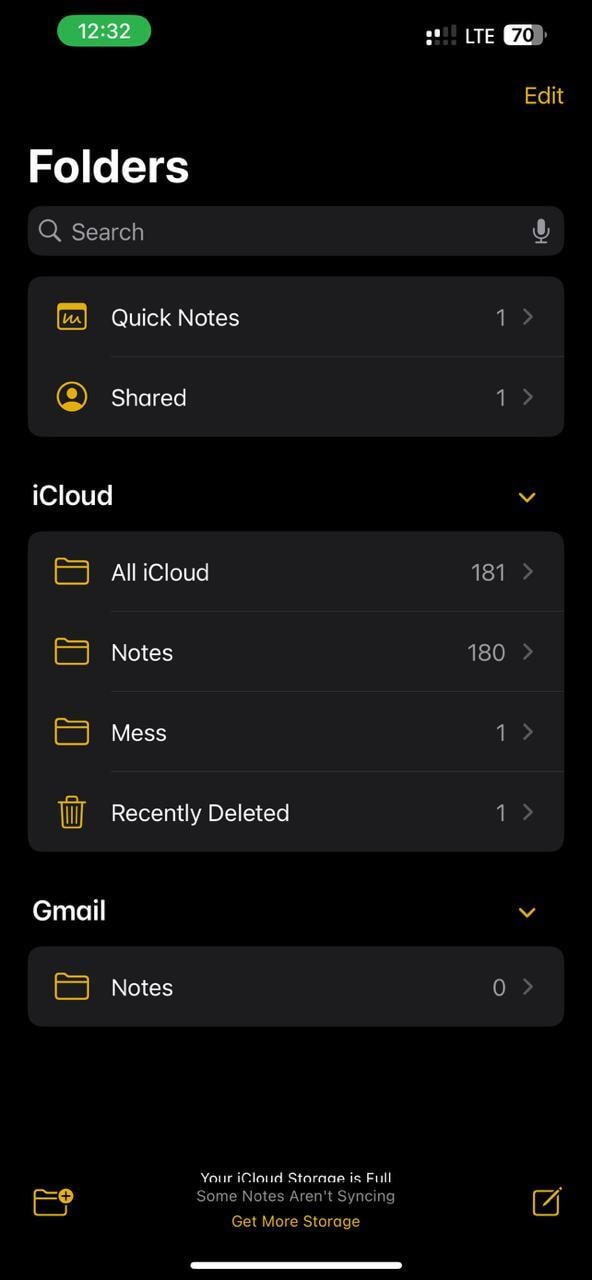
Step 2 Inspect the "Recently Deleted" folder
Locate the "Recently Deleted" folder. Apple generously retains any deleted note in this specific folder for a full 30 days before permanently purging it. If you spot your missing files here, simply select them and move them back to your main folder.
Method 2: Verify iCloud Sync Settings
A disrupted iCloud connection is a notorious trigger for missing data. Reactivating the sync can instantly flood your device with your lost text.
-
Step 1 Navigate to iCloud configurations
Open your device's Settings app. Tap on your Apple ID banner [Your Name] at the very top, then select iCloud. Choose "Show All" under the Apps Using iCloud section.
-
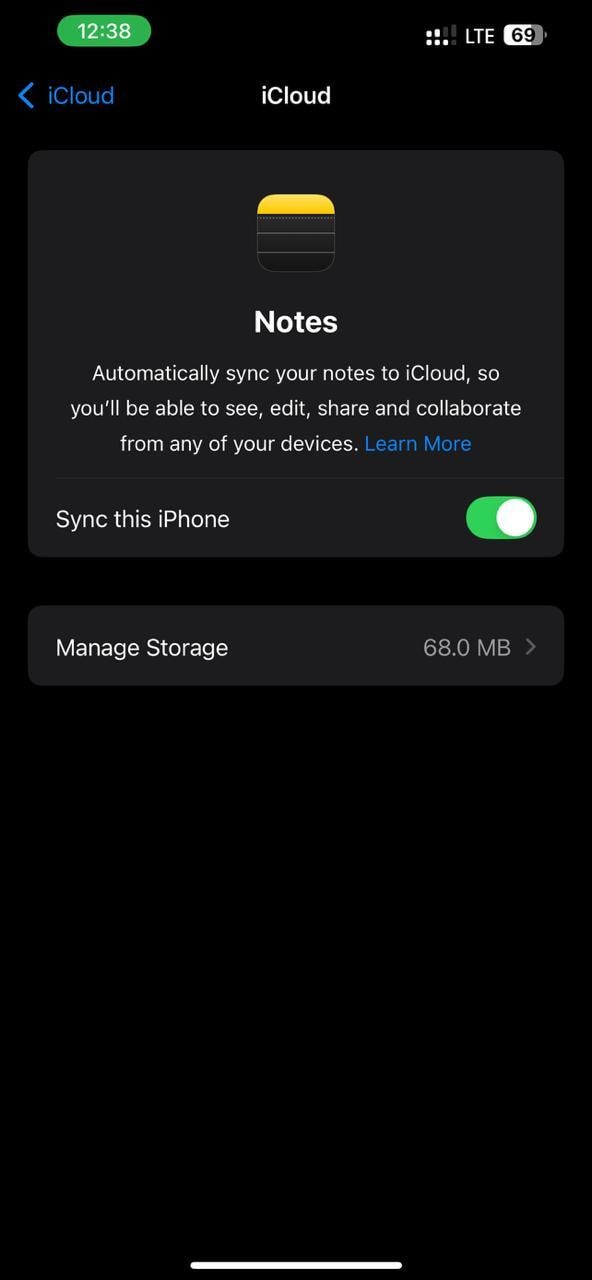
Step 2 Toggle the Notes sync
Find "Notes" in the list. If the toggle is switched off, turn it on immediately. If it is already on, try toggling it off and on again to force a server refresh. Allow a few minutes with a stable Wi-Fi connection for the data to populate.
-
Step 3 Confirm the default saving account
Go to Settings > Notes > Default Account. Ensure iCloud is selected rather than a secondary email provider, guaranteeing all future notes are properly backed up to the Apple ecosystem.
Method 3: Recover via the iCloud.com Web Portal
If your device is acting erratically, bypassing the local hardware and checking Apple's cloud servers directly is a brilliant workaround.
-
Step 1 Access the online portal
Open a web browser on a desktop or laptop computer. Navigate securely to iCloud.com and sign in with your primary Apple ID credentials.
-
Step 2 Open the Notes web app
Click on the Notes application icon. This displays the raw data currently stored on Apple's servers, independent of your iPhone's local glitches.
-
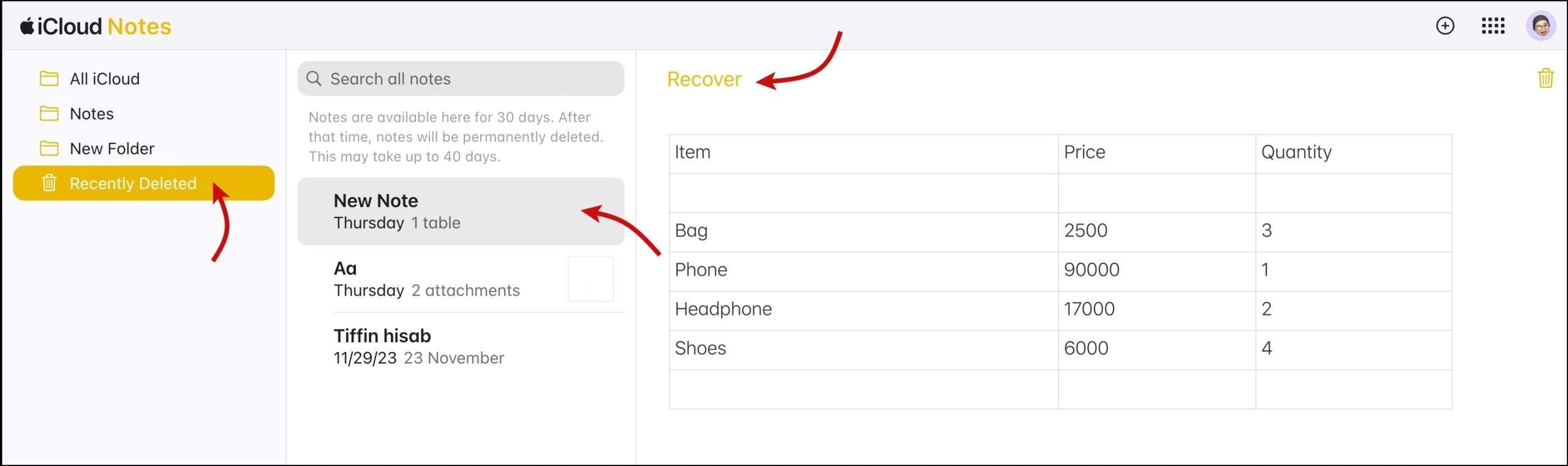
Step 3 Retrieve from web archives
Look for the "Recently Deleted" tab on the left-hand sidebar. Select any critical notes you need and click "Recover." The system will push these restored items back to your smartphone.
Method 4: Cross-Check Other Synced Apple Devices
Sometimes, the issue is strictly localized to one piece of hardware. If you own an iPad or a Mac logged into the identical Apple ID, unlock them and open the Notes app. If the text is perfectly visible there, you know the data isn't permanently erased. You can easily air-drop the files, copy them manually, or force an iCloud sync on the problematic iPhone to pull the visible data over.
Method 5: Execute an iCloud Account Re-Login
When software logic gets tied in knots, completely signing out of your Apple ID and signing back in clears corrupted authentication tokens. Go to Settings > [Your Name] > Sign Out. Choose to keep a copy of your data locally to be safe. Once signed out, restart the device and sign back in. This massive refresh is known to force Apple's servers to re-download the entire Notes catalog.
Part 3. Recover Lost or Deleted iPhone Notes When Standard Methods Fail
For missing notes on an iPhone 18, this guide to recover deleted notes on iPhone 18 helps you distinguish missing account folders from actual deletion. It covers Recently Deleted, account sync checks, and direct device recovery when those checks do not return the notes.
If you have exhausted all basic troubleshooting and your files remain vanished, it is time to deploy advanced data retrieval tactics. These methods dig into hidden system archives or previous backup states to extract your lost information.
Method 1: Restore from a Legacy iTunes/Finder or iCloud Backup
If your iPhone notes have disappeared completely and cannot be synced, falling back on an older, comprehensive system backup is a powerful final resort. Caution: Restoring a previous backup will permanently overwrite any new photos, messages, or settings created after the backup's date. Only proceed if the lost notes are worth sacrificing recent device changes.
-
Step 1 Determine your backup source
Decide whether you will use a local computer backup (via iTunes or Mac Finder) or an over-the-air iCloud backup.
-
Step 2 Initiate the device restore
For iTunes/Finder: Connect the smartphone to your PC/Mac using a certified cable. Open the software, click your device icon, and select "Restore Backup."
For iCloud: Navigate to Settings > General > Transfer or Reset iPhone > Erase All Content and Settings. During the fresh setup phase, choose "Restore from iCloud Backup."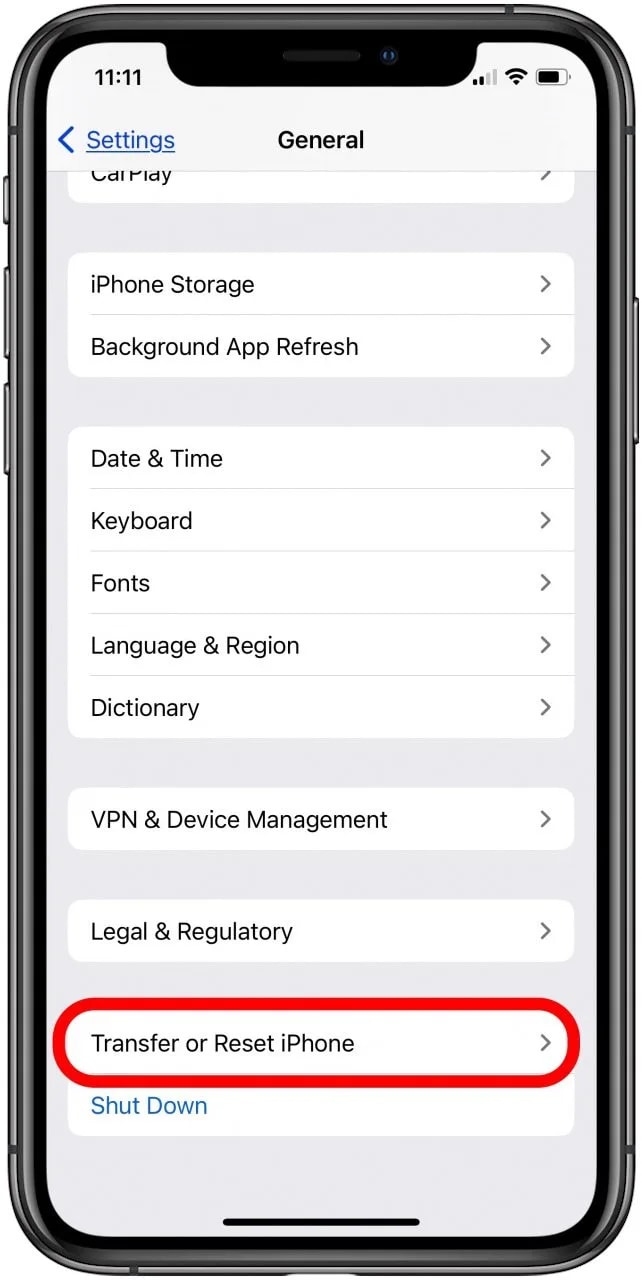
-
Step 3 Complete the extraction
Ensure you select a backup timestamp from exactly when you know the notes were still present. Wait for the loading bar to finish and check your Notes app post-reboot.
Method 2: Extract Deleted Notes Using Dr.Fone - Data Recovery (iOS)
When conventional Apple backups fall short, or if you refuse to wipe your device to restore an old backup, utilizing specialized extraction software is your optimal choice. Tools like Dr.Fone - Data Recovery (iOS) offer a surgical approach. This highly rated software deeply scans the iPhone's NAND flash memory sectors, pulling up hidden or "deleted" fragments that iOS normally prevents you from seeing, safely returning them without overwriting your current data.
 Recovers data after deletion, crashes, or device damage.
- Supports photos, messages, contacts, WhatsApp, and more.
- Supports all major iPhone, iPad, and iPod models.
- Preview and recover only what you need.

Step-by-Step Guide to Recovering Notes with Dr.Fone
-
Step 1 Install software and link device
Download, install, and launch Dr.Fone on your computer. Navigate to Toolbox > Data Recovery. Connect your iPhone securely using a data-transfer USB cable. The interface will instantly recognize your connected iOS device.

-
Step 2 Configure scan parameters
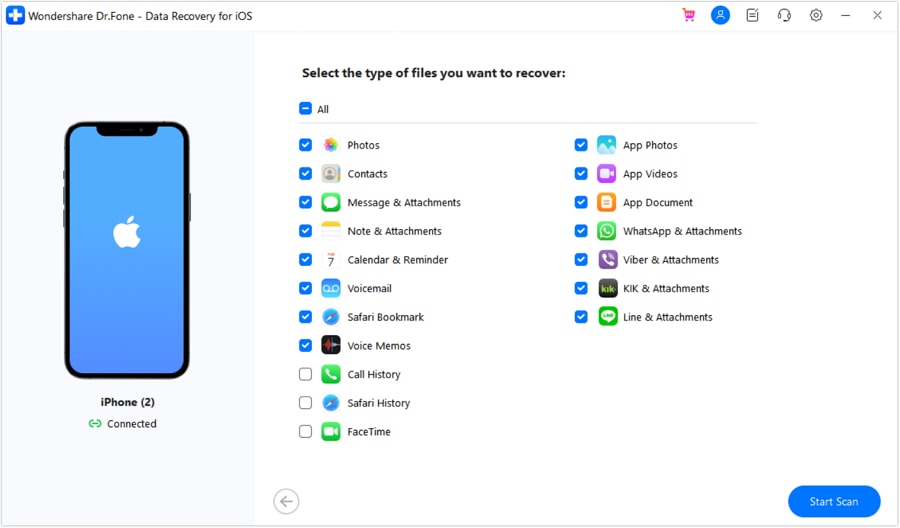
You will be presented with a vast array of recoverable file types. Select the checkbox next to "Notes" (and any other files you wish to rescue), then press "Start Scan." Dr.Fone's proprietary engine will dive into the device's unallocated storage sectors.
-
Step 3 Preview extracted information
Once the exhaustive scan concludes, Dr.Fone will generate a detailed preview list. You can utilize built-in filters to exclusively view "deleted items," allowing you to physically read the contents of the notes before committing to the recovery.
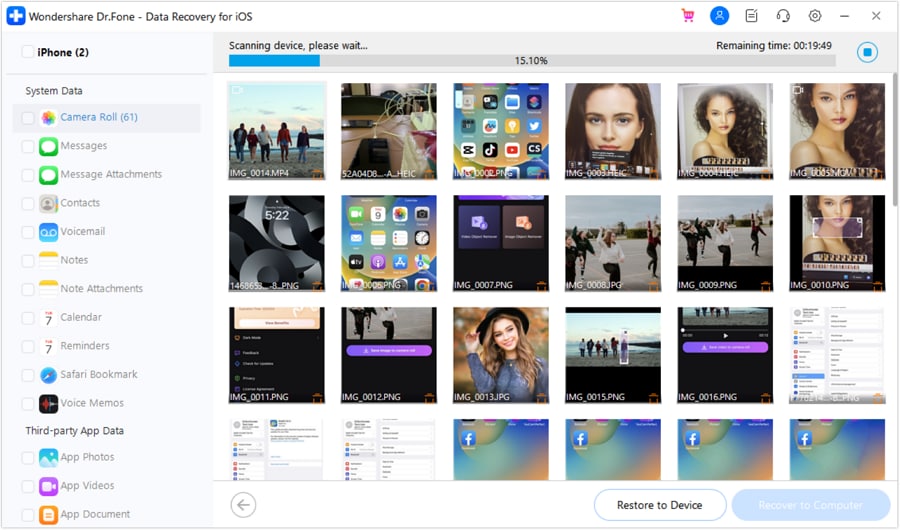
-
Step 4 Finalize the recovery
Select all the essential notes using the checkboxes. Choose "Restore to Device" to dynamically push them back into your iPhone's native Notes app, or click "Recover to Computer" to export them safely as readable documents on your PC or Mac.
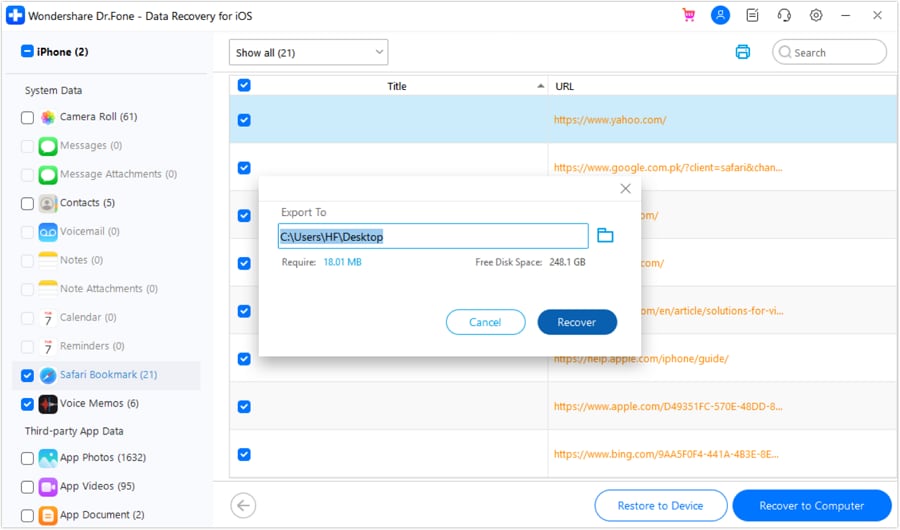




Part 4. How to Prevent iPhone Notes from Disappearing Again
After enduring the stress of recovering your sensitive information, implementing proactive safeguards is essential. Follow these best practices to ensure your digital memos remain permanently protected:
- Strictly enforce iCloud syncing: By far the easiest fail-safe, ensuring Settings > [Your Name] > iCloud > Notes remains toggled on guarantees that every keystroke is mirrored safely on Apple servers.
- Maintain redundant local backups: Do not rely entirely on the cloud. Form a habit of securely connecting your device to iTunes or Mac Finder monthly to generate an encrypted, offline local backup of your internal storage.
- Embrace meticulous folder organization: Creating dedicated, clearly named folders inside the "iCloud" section of the Notes app dramatically prevents accidental filing into local un-synced folders.
- Export high-value documents: For incredibly critical data—such as financial details or legal passwords—routinely use the "Export as PDF" feature or manually email a copy to a secondary inbox as a hardcoded backup.
Conclusion
Experiencing the sheer panic when your iphone notes disappeared is undoubtedly distressing, but as demonstrated, your valuable data is rarely gone forever. By methodically identifying the root cause and applying structured recovery techniques—ranging from verifying hidden iCloud folders to resetting sync configurations or deploying robust extraction suites like Dr.Fone—you are highly equipped to recover your important files with zero hassle. To avoid future headaches, maintain healthy backup routines, and always keep your iCloud synchronization active.
FAQ
-
1. Where do deleted iPhone notes go?
When you delete a note on your iOS device, it is automatically transferred to a specialized "Recently Deleted" folder within the Notes app. The Apple system is designed to retain these items for exactly 30 days before permanently purging them from the device's internal memory and iCloud servers. During this window, you can freely restore them without any specialized tools. -
2. Can I recover iPhone notes that were deleted months ago?
If the 30-day "Recently Deleted" grace period has expired, you cannot recover the notes through standard app settings. However, you can retrieve them if they were captured in a legacy iTunes, Mac Finder, or iCloud backup created prior to the deletion. Alternatively, specialized data recovery software like Dr.Fone may locate hidden fragments in your device's unallocated storage if they haven't been overwritten. -
3. Why did my iPhone notes app disappear from the Home Screen?
If the Notes app icon vanishes, it is highly likely you accidentally deleted it from the Home Screen. The application and all your sensitive data typically remain untouched in the App Library. Simply swipe to the rightmost screen of your iPhone to access the App Library, search for "Notes," press and hold the icon, and select "Add to Home Screen" to restore visibility. -
4. Will erasing and resetting my iPhone restore missing notes?
A factory reset will completely wipe all current data on your device. It will only restore your missing notes if you follow up the reset by immediately restoring from an older iCloud or computer backup that explicitly contains the lost notes. Please be aware that choosing this path will permanently sacrifice any new data, photos, or messages created after the date of that specific backup.
 Add Wondershare Dr.Fone as a preferred source on Google