 Recover photos, messages, WhatsApp, and more — no backup
needed.
Recover photos, messages, WhatsApp, and more — no backup
needed.

 100% Security Verified | No Subscription Required | No Malware

 :
: 
 ChatGPT
 Perplexity
 Gemini
 Claude
 Grok
Grok
Many Instagram users, when they check their DMs, face the disturbing situation of finding that their chats or messages have mysteriously disappeared. This problem can manifest itself in various ways, at times, an entire conversation is missing, at other times, messages disappear after being viewed, or the "Instagram messages disappeared" issue may occur suddenly without any warning.
This article includes a discussion of why Instagram messages disappear most of the time, and it also gives detailed instructions on how to recover them. It will cover other recovery methods, such as using data recovery software, so that you can retrieve your lost conversations whenever possible.
In this article
- Why Did My Instagram Messages Disappear?
-
Quick Fixes for Instagram Messages Disappeared
- Fix 1 — Check Vanish Mode
- Fix 2 — Update Instagram App
- Fix 3 — Log Out and Log Back In
- Fix 4 — Check Hidden Message Requests
- Fix 5 — Clear Cache (Android)
- Fix 6 — Reinstall Instagram
- Fix 7 — Check Internet Connection
- Fix 8 — Request Your Instagram Data Archive
- Fix 9 — Check If Account Was Hacked
- Fix 10 — Contact Instagram Support
- Bonus Tip: Recover Deleted Data with Dr.Fone — Data Recovery

- How to Prevent Instagram Messages from Disappearing
- Conclusion
Part 1. Why Did My Instagram Messages Disappear?
There are multiple reasons why your Instagram messages are missing. Let's explore a few:
1. Vanish Mode is enabled
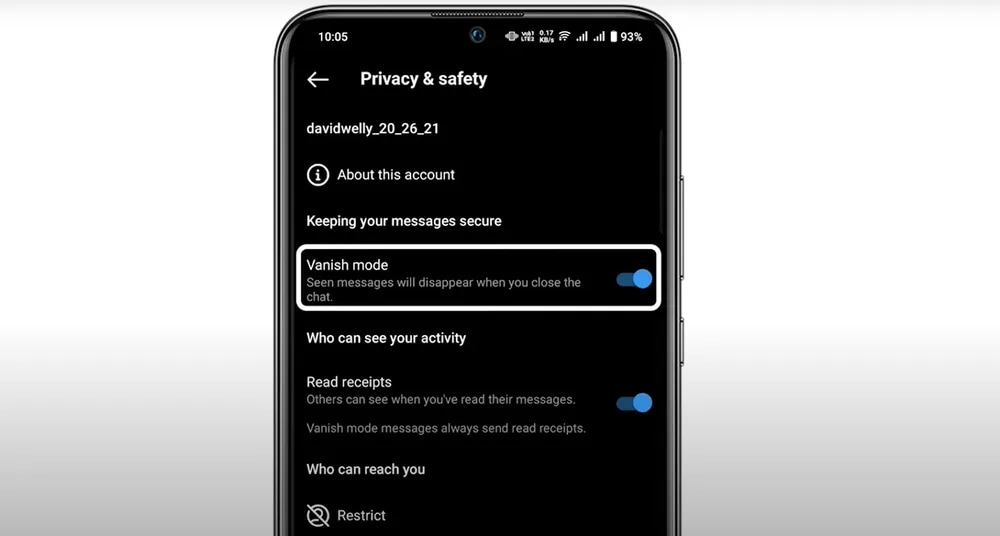
Wondering what is vanish mode on Instagram? Vanish Mode is a setting that makes messages vanish after coming into sight and getting away from the chat. When it's enabled, a conversation may appear blank or messages can be lost, which often confuses people.
2. Chat got deleted manually
You can delete messages or the whole conversation. If one of the parties removes the chat, it disappears from your inbox forever.
3. Instagram app bugs or glitches
At times, missing messages are a result of technical difficulties, for example:
- App bugs
- Damaged cache or app data
- Server-side problems or downtime
Such issues can make chats vanish even though they are still stored on the server.
4. Account issues or login changes
You might think your messages are missing if:
- You switched to a different account
- Your account was hacked
- Your account is locked or disabled for some time
In this situation, DM history might not reload.
5. Messages were unsent
It is possible for the sender to "unsend" the messages. This will result in removal of the messages from the conversation on both ends. Also, the chat may vanish if the other person blocks you or deletes his/her account.
6. Message request was declined or filtered
If you don't see a message in your main inbox, it might be because it:
- Was sent as message requests
- Was declined/ignored
- Was filtered into request folders
7. Messages archived or moved to Hidden Requests
Instagram can automatically shift some messages to "Message Requests" and "Hidden Requests" folders, in other words, these messages are not completely deleted but only removed from the view by filtering.
Part 2. Quick Fixes for Instagram Messages Disappeared
Fix 1 — Check Vanish Mode
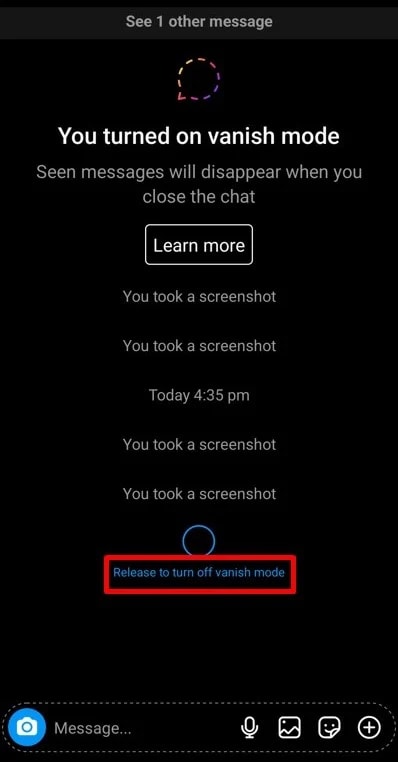
Knowing what is vanish mode in Instagram will solve the problem. A typical misconception among users is that chats are deleted when Vanish Mode is enabled. Actually, in this mode, the messages that you send will automatically disappear one by one after the receiver sees them. In fact, chats are just hidden due to this setting. Turning off Vanish Mode restores the usual chat visibility.
-
Step 1 Open Instagram and go to your DMs.
-
Step 2 Open the affected chat and swipe up on the screen.
-
Step 3 Turn off Vanish Mode and recheck your messages.
Fix 2 — Update Instagram App
Are your Instagram DMs disappeared? Sometimes, outdated versions of an app cause bugs like disappearing messages. Updating the app will ensure you get bug fixes along with better performance which might restore your chats.
-
Step 1 Open the App Store or Google Play Store.
-
Step 2 Search for Instagram.
-
Step 3 Tap Update, then reopen the app and check your DMs.
Fix 3 — Log Out and Log Back In
Sometimes sessions won't sync properly, which can cause messages to disappear or not be loaded. When you log out and then back in, you kind of refresh your connection to your account. That might restore the chats that had gone missing.
-
Step 1 Open Instagram and go to your profile.
-
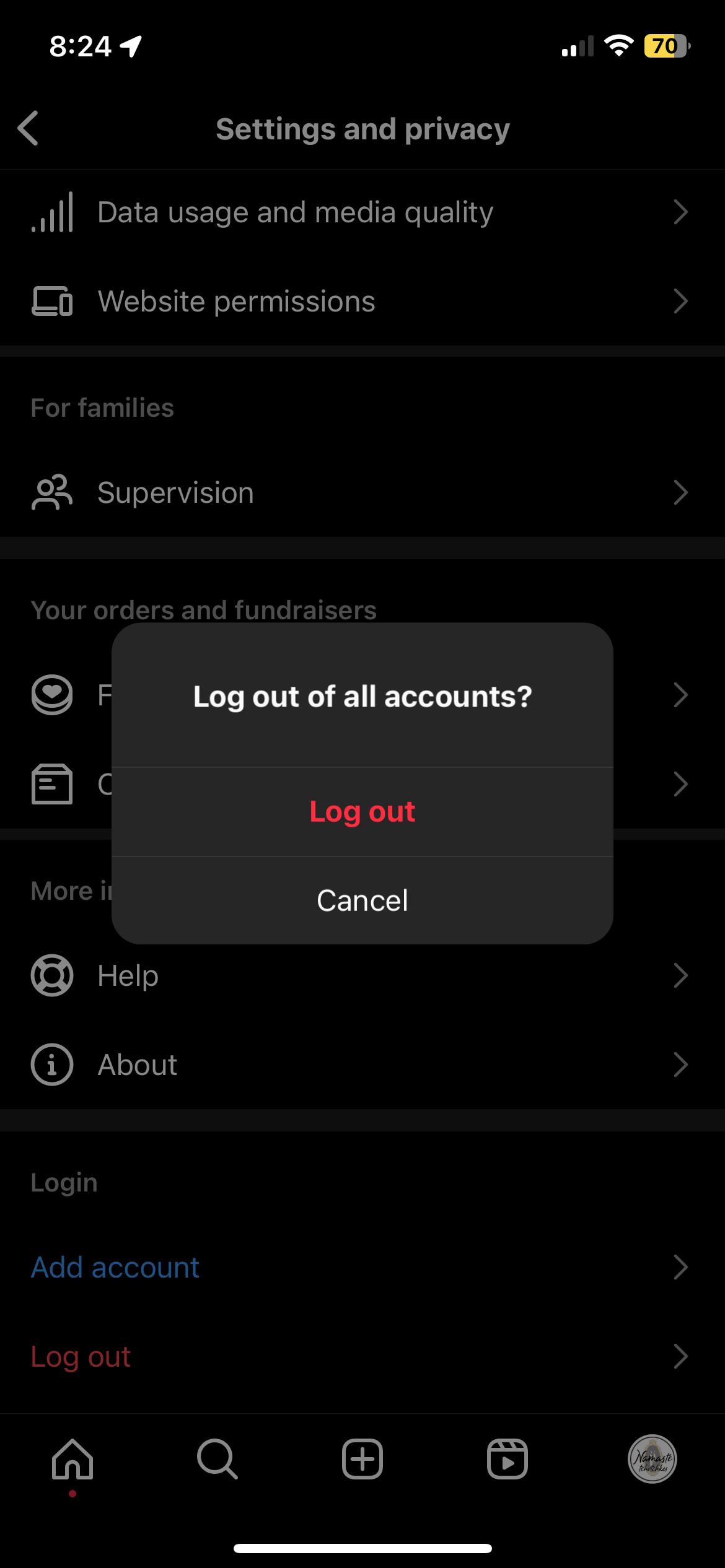
Step 2 Tap the menu (☰) > Settings > Log out.
-
Step 3 Log back in with your credentials and check your messages.
Fix 4 — Check Hidden Message Requests
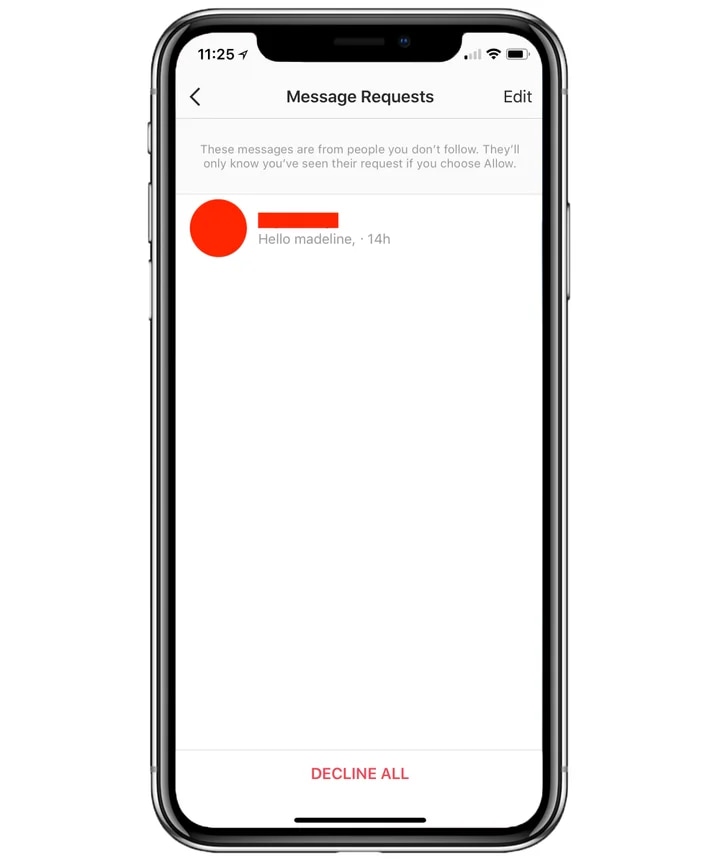
Instagram filters quite a few messages into "Message Requests" or "Hidden Requests," especially those from unknown users. These messages won't be in your main inbox, so it might seem like they are missing.
-
Step 1 Open Instagram and go to your DMs.
-
Step 2 Tap Requests at the top right.
-
Step 3 Open Hidden Requests and review your messages.
Fix 5 — Clear Cache (Android)
Cache data corruption can sometimes cause display issues like messages disappearing. Clearing the cache will refresh the app without deleting your account data.
-
Step 1 Go to Settings > Apps > Instagram.
-
Step 2 Tap Storage & Cache.
-
Step 3 Tap Clear Cache, then reopen the app and check your DMs.
Fix 6 — Reinstall Instagram
If your app data gets corrupted or the installation process is not done properly, it might cause the disappearance of messages, or they will not be loaded properly. Getting the app clean version by reinstalling often is the solution to the troubled situations.
-
Step 1 Remove Instagram from your device.
-
Step 2 Visit the App Store or Google Play Store and do the installation again.
-
Step 3 Sign in once more and see if your messages are back.
Fix 7 — Check Internet Connection
The main reason why Instagram is not provisioning your messages properly and displaying them as lost can be a bad or unstable internet connection. You may consider changing from Wi-Fi to mobile data or the other way around, or once again connecting through a stable network. Then, after that, reload your DMs and confirm whether, in the end, your conversations come back.
Fix 8 — Request Your Instagram Data Archive
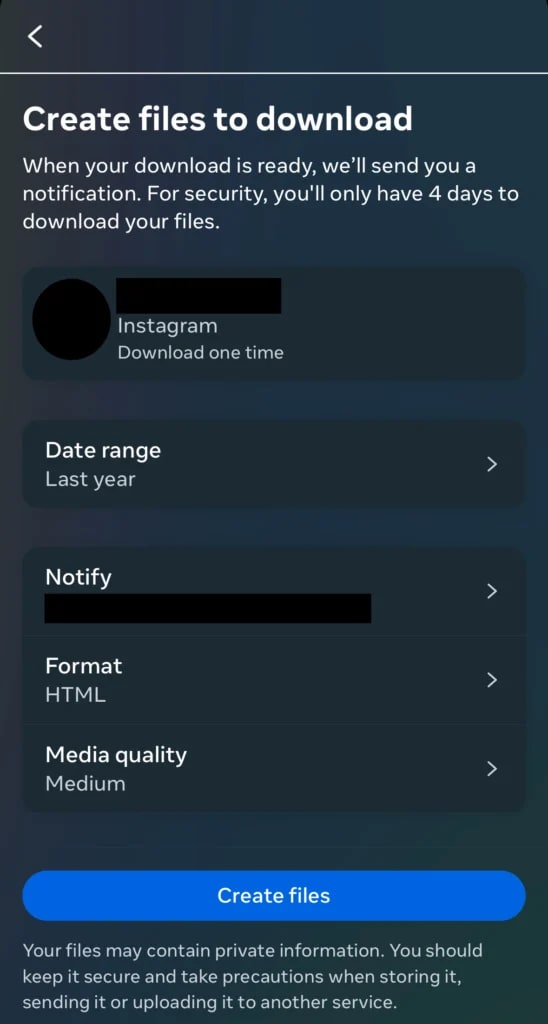
It is possible that the messages have been deleted permanently. You can ask Instagram for a copy of your data which includes the chat environment. The archive may help you in getting back the important talks that are no longer visible in the messenger.
Fix 9 — Check If Account Was Hacked
It is possible that someone else has gained access to your account without your knowledge and has deleted or changed the messages. Try to find any unexpected logins or changes made to your account and you should also change the password to your Instagram account.
Fix 10 — Contact Instagram Support
You should contact Instagram support if none of the solutions have worked. You can report the problem from the Help feature of the app, tell them that your messages have disappeared, and then wait for their reply about whether there is a way to recover the messages or if there are any technical issues.
Bonus Tip: Recover Deleted Data with Dr.Fone — Data Recovery
If none of the Instagram methods help you, a very trusted third-party tool such as Dr.Fone - Data Recovery can help you get back deleted messages from your device. The tool works with both iOS and Android, enabling you to do a scan of your phone's internal memory even if you don't have a backup, and it can recover lost messages, photos, videos, and app data with a high degree of success.
The thing that makes Dr.Fone different is that it offers free scanning and previewing features that allow you to check which messages can be recovered before you restore them. It can handle 35+ types of data, including social app data like WhatsApp conversations, and it has various modes of recovery, direct device recovery, iCloud, or iTunes backups.
 Recovers data after deletion, crashes, or device damage.
- Supports photos, messages, contacts, WhatsApp, and more.
- Supports all major iPhone, iPad, and iPod models.
- Preview and recover only what you need.

Steps to recover deleted messages using Dr.Fone — Data Recovery:
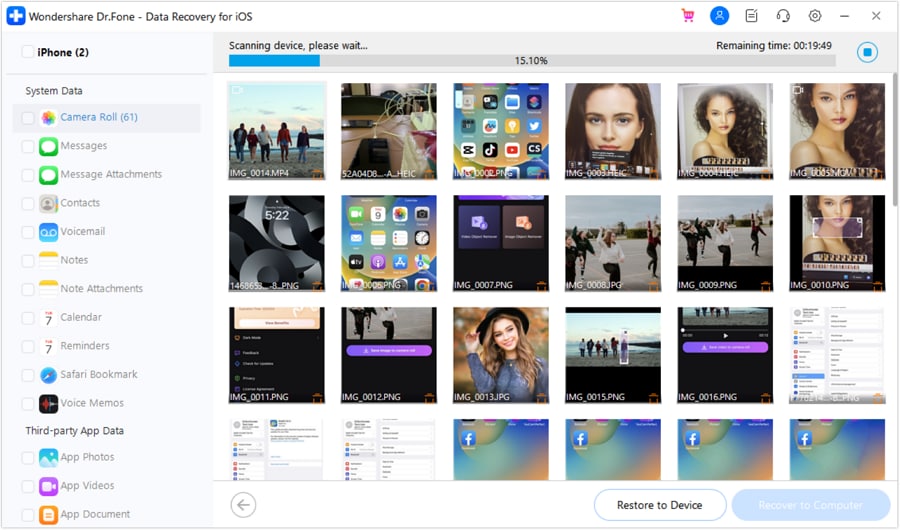
Launch Dr.Fone on your computer and click Toolbox > Data Recovery. Choose "Recover Data from Device". Select the file types (e.g., Messages), and click Start Scan. After scanning, preview the results, select the messages you want, and click Restore to Device or Recover to Computer to complete the process.




Part 3. How to Prevent Instagram Messages from Disappearing
To prevent experiencing "Instagram messages disappeared" problem again, it is very necessary to take a few simple measures while using Instagram:
- Be very cautious while swiping in chats because this action might turn on Vanish Mode which means messages will be deleted automatically after viewing.
- Make a habit of asking for and downloading your Instagram data at regular intervals so that you have a backup of key conversations.
- Make it a point to always have the latest version of Instagram installed so that you can avert bugs and syncing problems.
- Normally, once a message is unsent or a chat is deleted, it can't be recovered via the app, so make sure to rethink before you go ahead with it.
Conclusion
"Instagram messages disappeared?" The issue can be resolved most of the time by taking some basic actions, such as verifying Vanish Mode, upgrading the application, looking through message requests, or re-logging into the account.
But if normal solutions don't bring back your conversations, you might have to go for a newer recovery method. Here, Dr.Fone - Data Recovery comes in very handy as it can perform a device scan for deleted data and let you preview and restore your lost messages.
FAQs
-
Why did my Instagram messages disappear suddenly?
The messages can vanish on Instagram if Vanish Mode is on, the app faces a bug, sometimes the user switches the account, the messages get unsent, or the Instagram servers could be down. -
Can I recover Instagram DMs that disappeared?
Yes, in most situations you will be able to get them back if you know the reason. Look at your hidden requests, try to get into your account again, or get a copy of your Instagram data. If the messages were deleted or replaced, then recovery software such as Dr.Fone, Data Recovery can be used to scan and recover lost files from your device! -
Are vanished messages permanently deleted?
When the Vanish Mode is activated, the messages disappear automatically after being viewed and once the user leaves the chat.
 Add Wondershare Dr.Fone as a preferred source on Google



