Recover photos, messages, WhatsApp, and more — no backup
needed.
Recover photos, messages, WhatsApp, and more — no backup
needed.

 100% Security Verified | No Subscription Required | No Malware

 :
: 
 ChatGPT
 Perplexity
 Gemini
 Claude
 Grok
Grok
What if you step out of the stadium and notice that some of your World Cup images and videos are gone? May you have tapped the wrong button or lost a file during the failed transfer during the match. In this situation, don’t panic yet; there are ways to recover deleted World Cup photos and videos from your phone.
Thus, this guide will explain those options and their associated time limits so that you can take quick action. For users who notice this media loss after some days, learn how Dr.Fone - Data Recovery (iOS) can help you recover your World Cup memories.
In this article
- Part 1. Why World Cup Photos and Videos Get Deleted?
- Part 2. What Happens When You Delete Photos/Videos on iPhone or Android
- Part 3. First Place to Check Before Recovery Tools
- Part 4. Best Ways to Recover Deleted World Cup Photos and Videos [ After 30 Days]
- Part 5. Why Recovery Software Works After Permanent Deletion
- Part 6. How to Avoid Losing World Cup Photos Next Time - 5 Tips
Part 1. Why World Cup Photos and Videos Get Deleted?
Before you learn how to recover deleted football videos from your phone, review the mentioned reasons to know why the data gets lost:
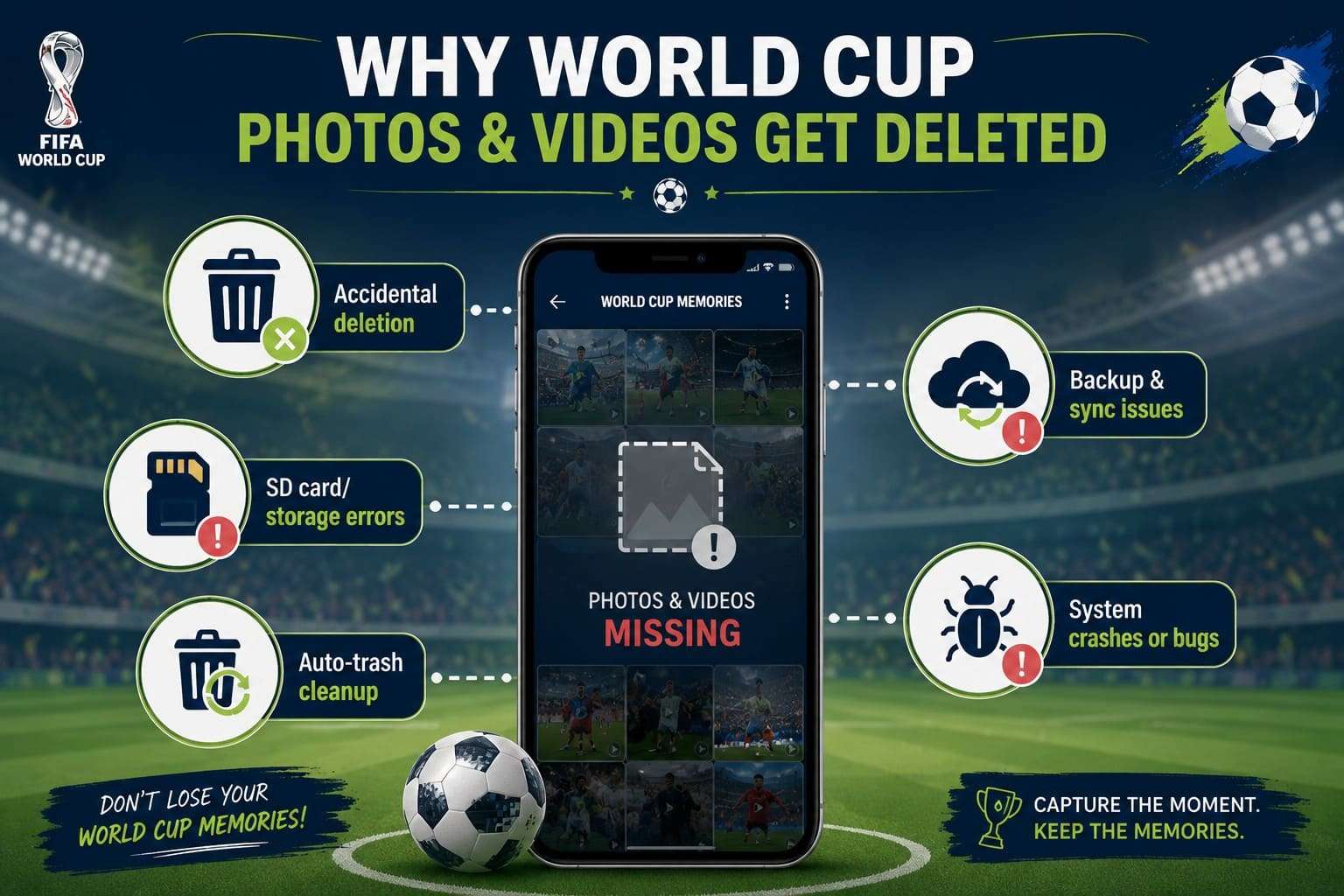
- Accidental Deletion: When you try to free space in World Cup matches, you may accidentally delete important photos and videos. This is common when you select multiple media in the Photos/Gallery app and get confused by similar thumbnails.
- SD Card or Storage Errors: If the media was saved on an SD card, corruption or formatting errors can cause the files to disappear suddenly. In addition, a damaged card or incorrect storage action may erase entire World Cup folders.
- Auto-Deleted by Apps: Photos/Gallery, Cloud, and Messaging applications have a trash folder with automatic cleanup rules. So, if the media stays in the trash for too long, it may be permanently removed without notice.
- Backup or Sync Problems: Cloud services can delete files across all locations/devices if the sync settings are configured correctly. Furthermore, photos and videos may be lost if a backup fails or never completes uploading.
- System Crashes or App Bugs: Phone crashes, software updates, overheating, and recording interruptions can corrupt media files. Thus, World Cup photos and videos may disappear or become invisible in the Gallery/Photos app.
Part 2. What Happens When You Delete Photos/Videos on iPhone or Android?
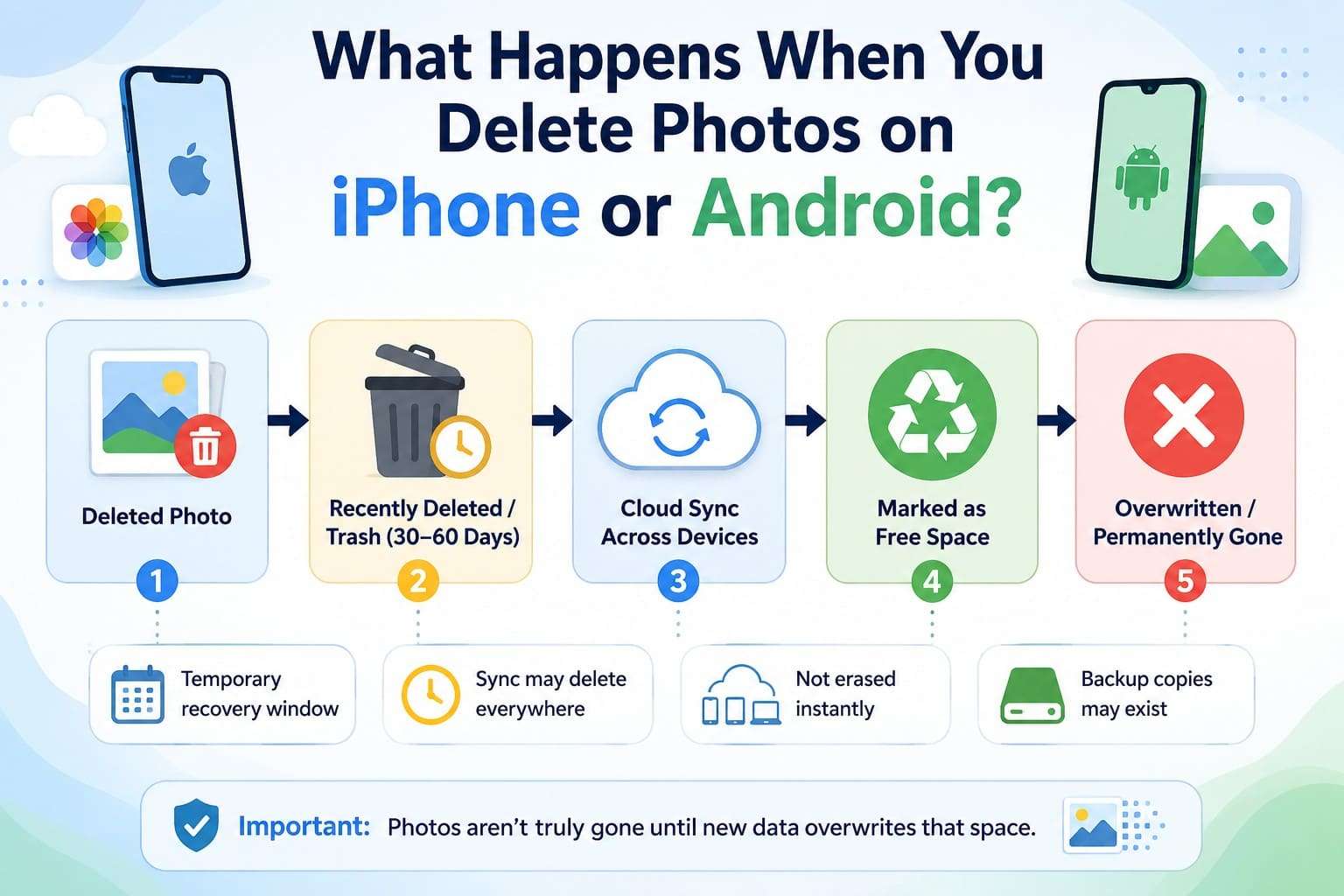
To restore travel photos after the stadium trip, note that deleted photos and videos on iPhone and Android aren't permanently removed right away. Instead, the media files are moved to the “Recently Deleted” folder on iPhone and the “Trash or Bin” on Android for 30-60 days. If cloud services such as iCloud Photos or Google Photos are enabled, deletions may also sync across your other devices.
Even after permanent deletion, the data is often only marked as free space rather than erased instantly. This is why recovery may still be possible as long as new files do not overwrite it. In some cases, copies may also remain in cloud backups, messaging apps, or other storage locations.

Part 3. First Place to Check Before Recovery Tools
Now that you know the basics, you might want to get back deleted match videos on iPhone and Android within 30 days. Thus, follow the mentioned methods for both devices to recover the selective, lost World Cup media:
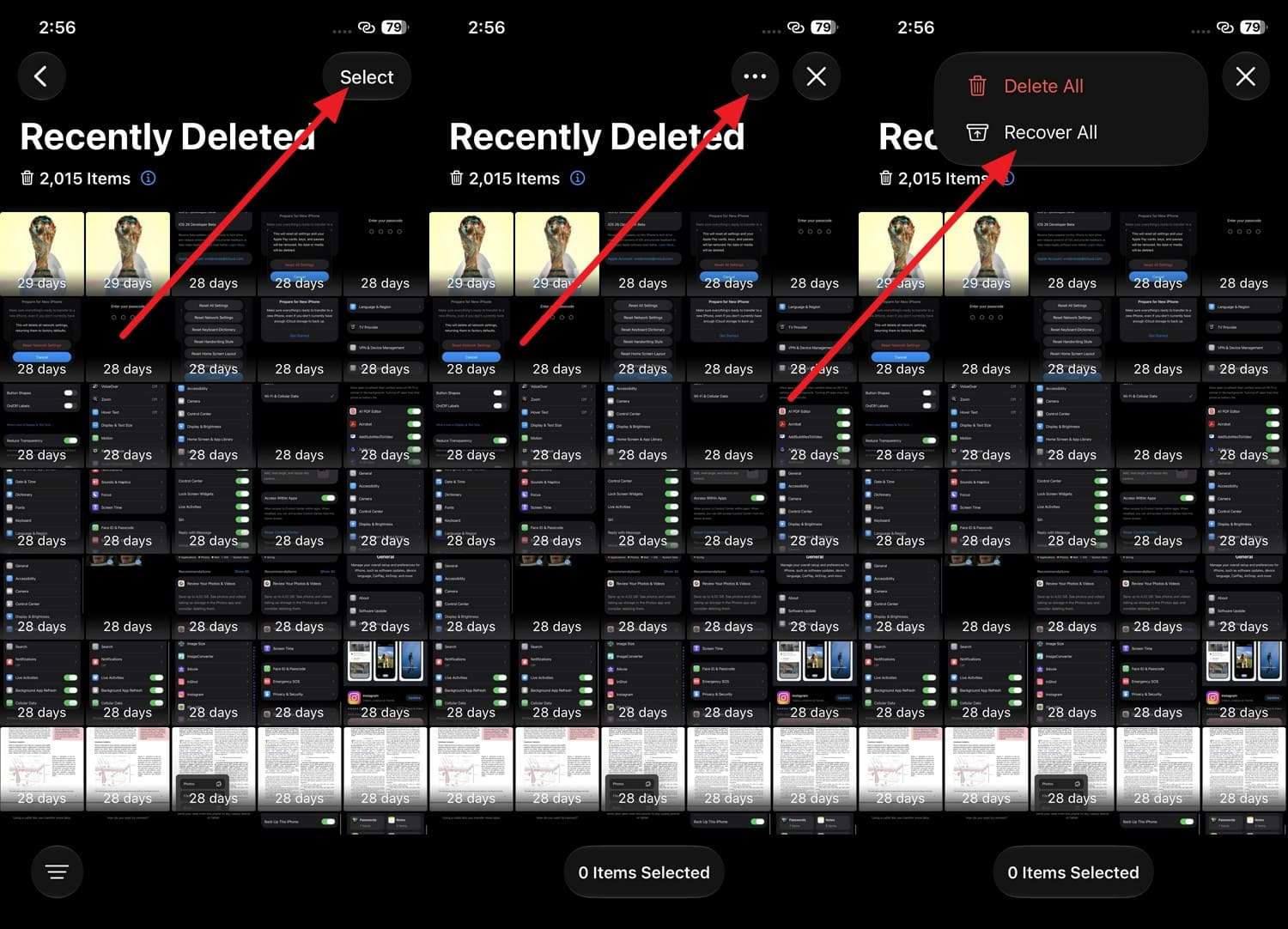
1. iPhone “Recently Deleted” Album
As the first and most reliable recovery method, you can get your images and videos back with their original quality intact. Since it does not need a computer or software, here is how it's accessible on all iOS versions:
-
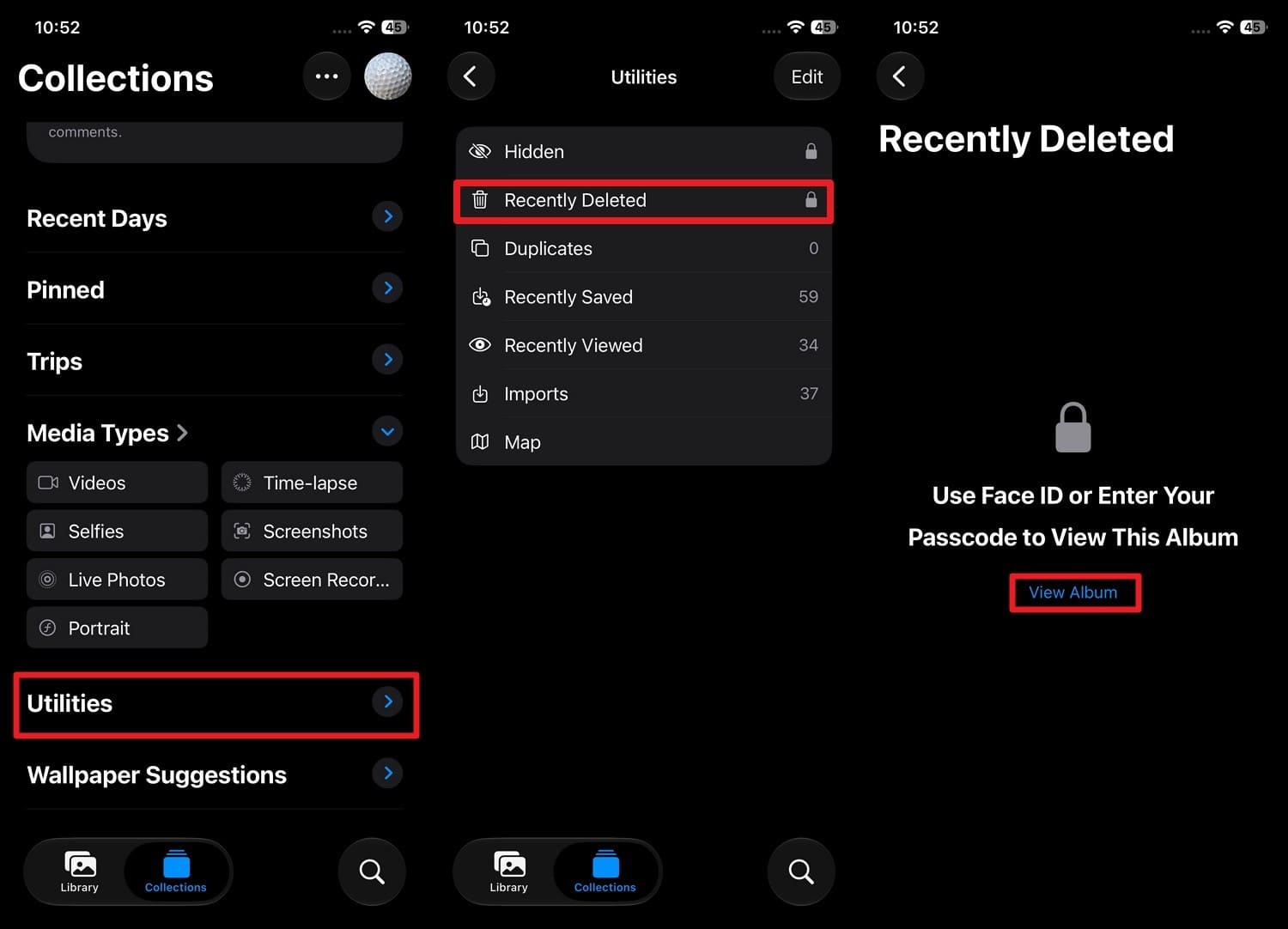
Step 1 In Photos App’s Collections tab, choose “Utilities > Recently Deleted > View Folder” and authenticate with Face ID or passcode.
-
Step 2 Choose the World Cup media as tap “Select > Three Dots > Recover All” options.
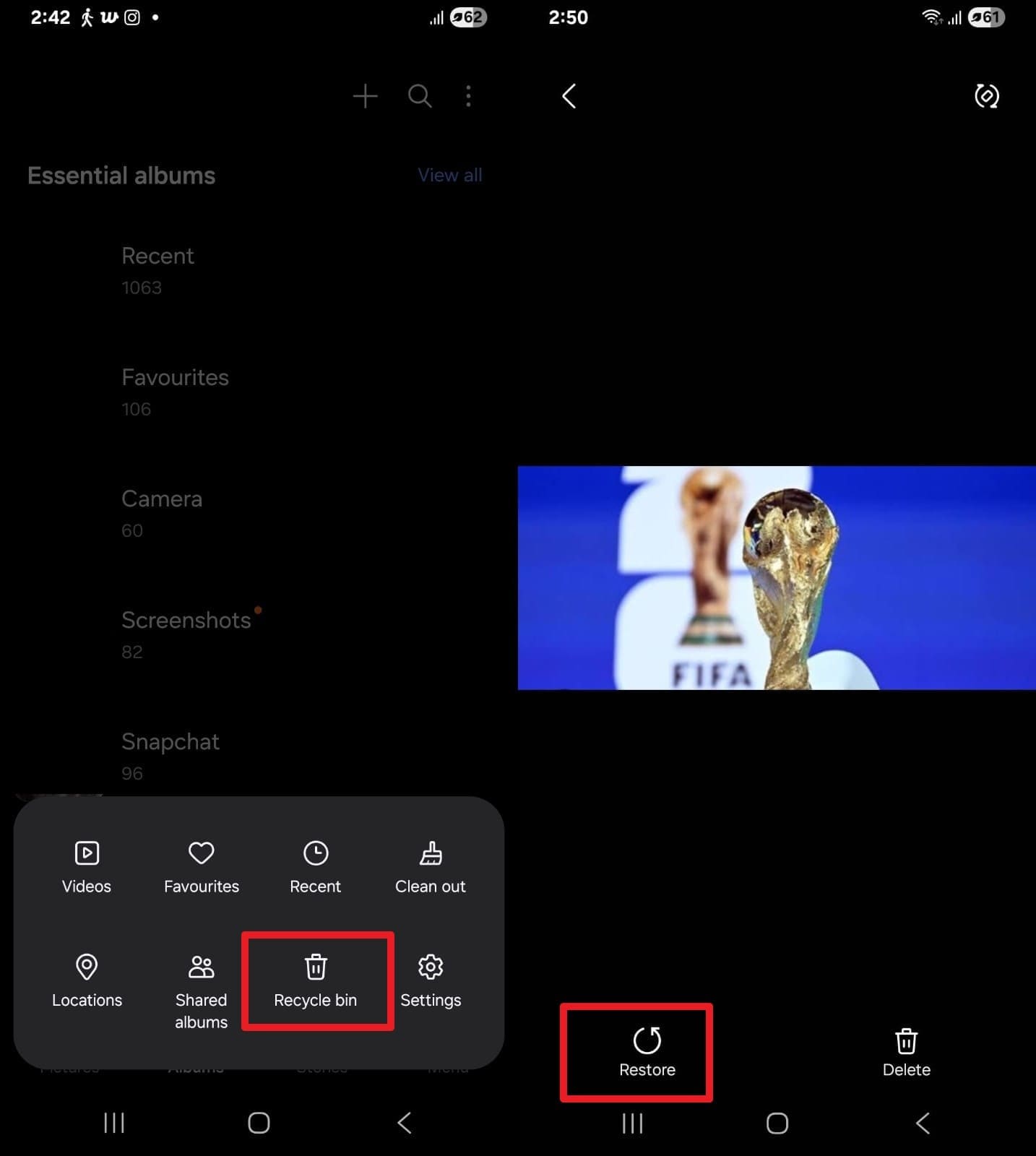
2. Restore Media Files from Android Trash
To recover deleted World Cup photos and videos on Android, use this method without using any software. Since this avoids the risk of data overwriting, the mentioned steps show how it's done:
Instructions. In the Gallery, choose “Menu > Recycle Bin” option and tap “Restore” to recover the selected World Cup media.
3. Check Google Photos/iCloud Photos Trash Folder
As built-in recovery options, Google Photos and iCloud Photos can restore recently deleted items for a limited time. If deletion syncing has not finished, the World Cup media may still appear on iCloud.com and remain recoverable. However, unbacked-up items deleted from Google Photos on Android are permanently removed after 30 days, and here is the guide for both devices:
Google Photos
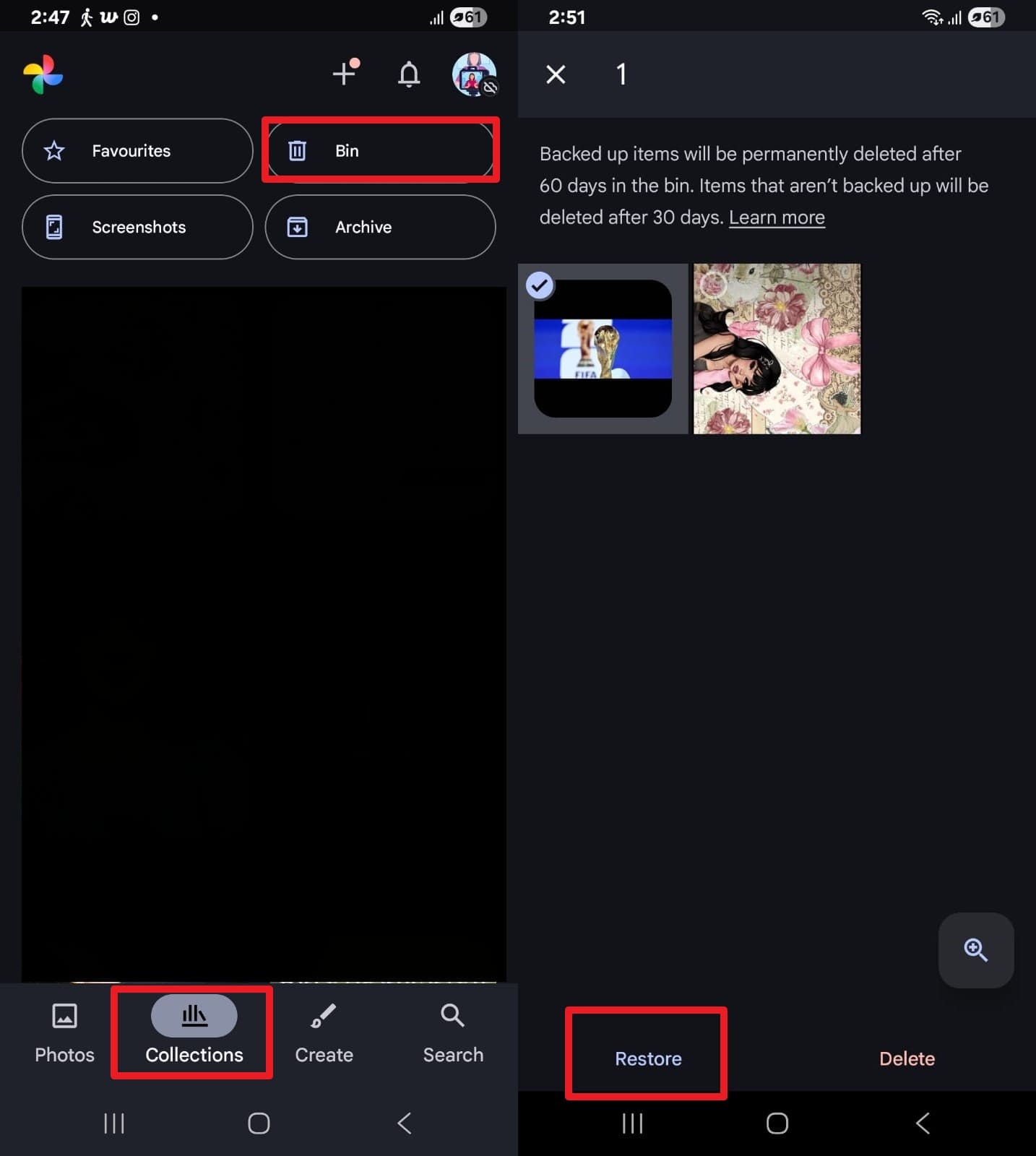
Here is how you can use Google Photos to restore travel photos after a stadium trip on Android and iPhone:
For Android
Instructions. In the collections tab, locate the “Bin” option, choose the World Cup media, and press the “Restore” option.
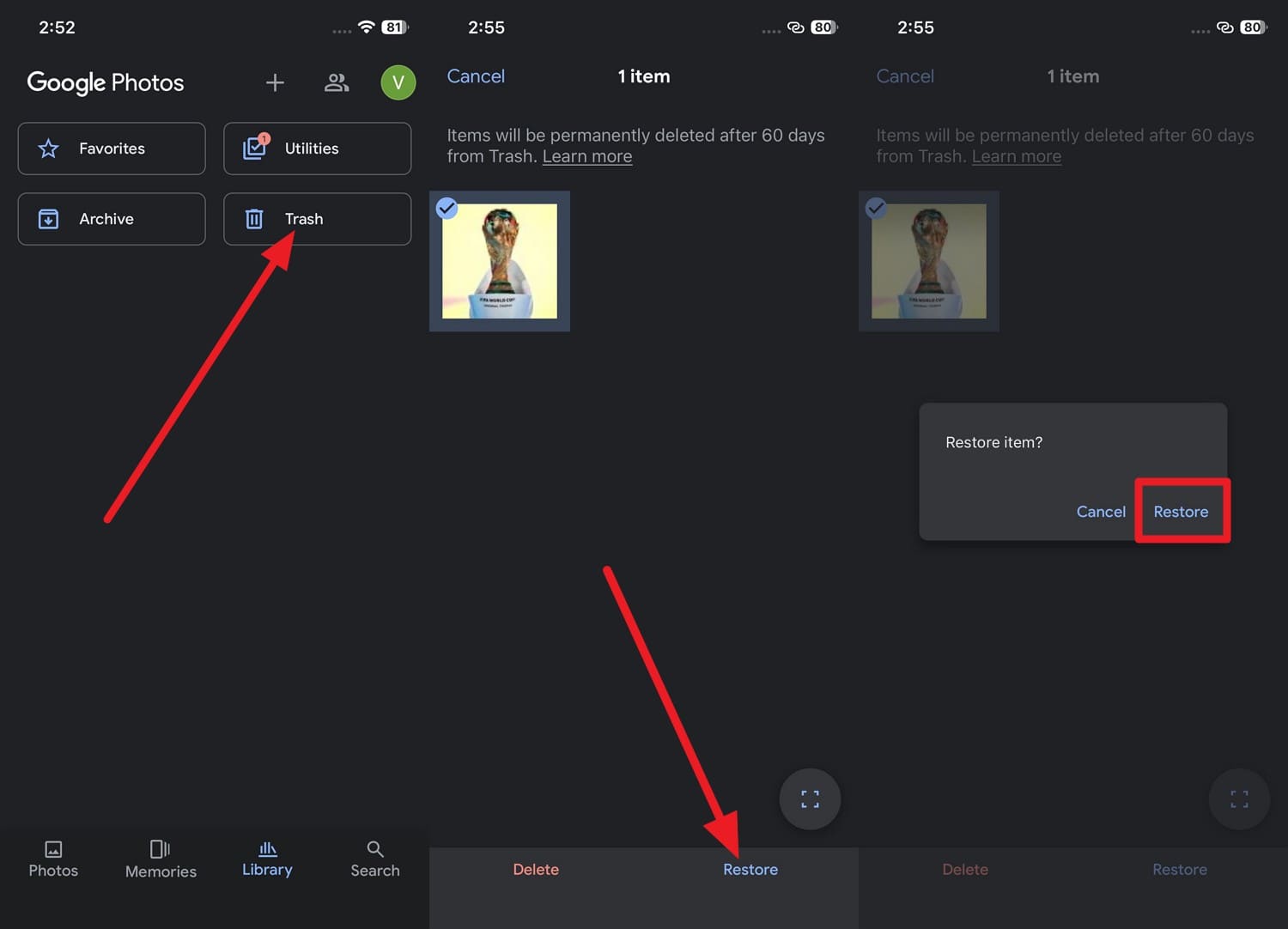
For iPhone
Instructions. Go to “Library > Trash > Select the World Cup media > Tap Restore > Confirm Restore.”
iCloud Photos
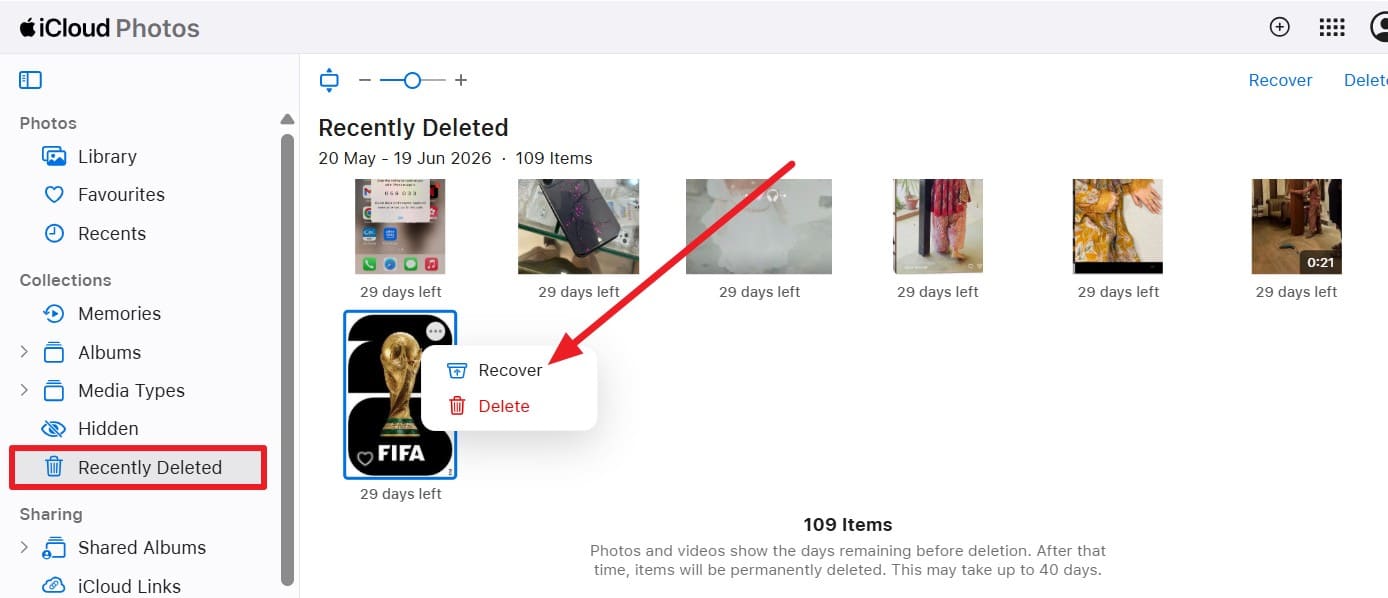
To get back deleted match videos on iPhone via the Web, perform the following actions in detail:
Instructions. On iCloud.com, go to “Photos > Recycle Bin > Choose World Cup media > Tap Three Dots > Press Restore.”
4. Check Cloud Backups like Google Drive
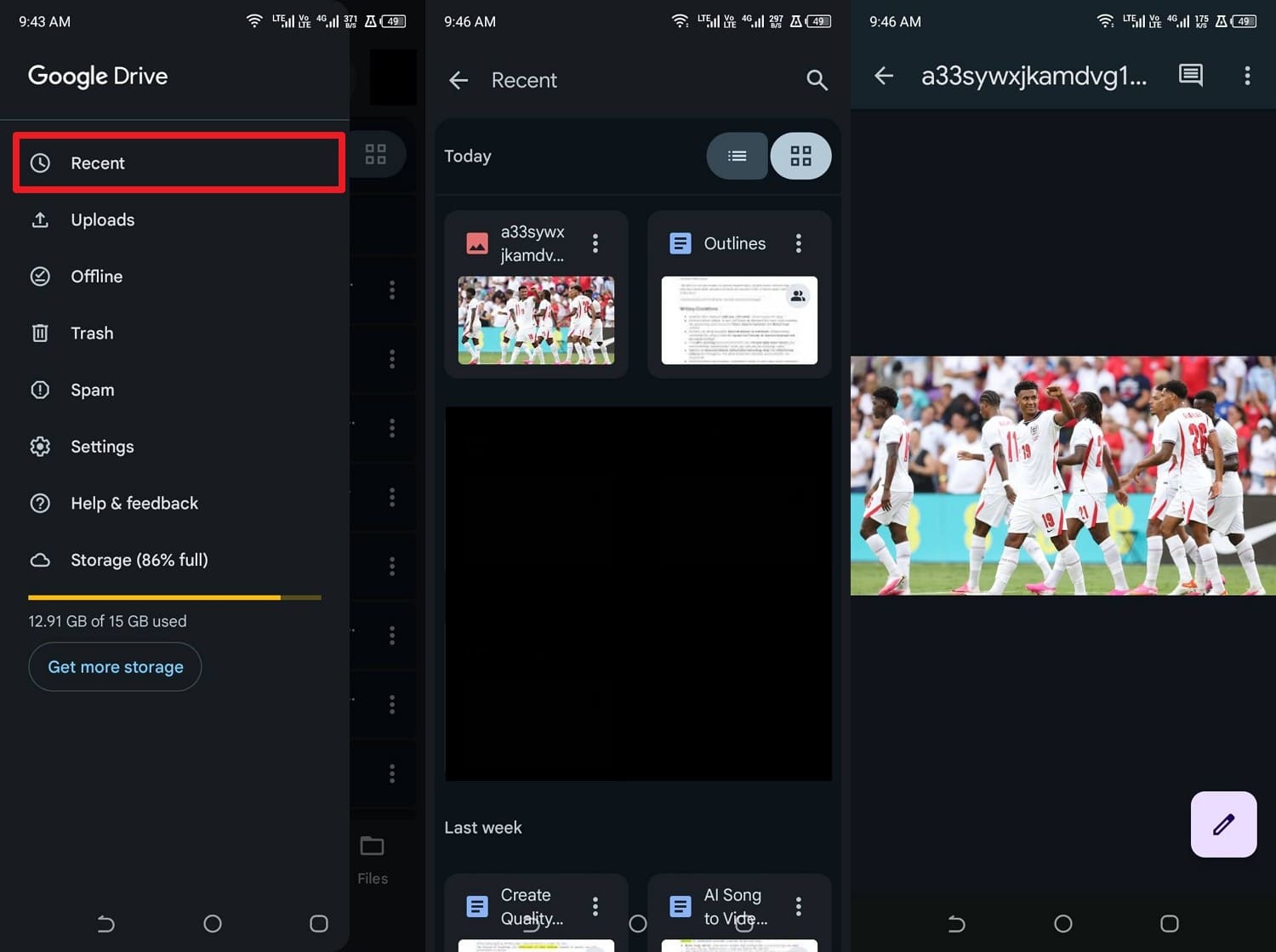
Google Drive may already contain safe copies of your lost files that you can restore quickly and easily. It brings back complete, original-quality files instead of the partial or damaged results, and here is how you can locate your World Cup data:
Instructions. In the Google Drive app, tap the “Hamburger” icon, then in the “Recent” tab, locate the World Cup images and videos you have uploaded.
Part 4. Best Ways to Recover Deleted World Cup Photos and Videos [After 30 Days]
For those who want to recover deleted football videos from their phone after 30-60 days, try the 3 mentioned ways:
1. Use One-Click Professional Data Recovery Software Like Dr.Fone
If the data is not overwritten, you can scan the phone's storage to recover World Cup media with Dr.Fone - Data Recovery (Android). iPhone users can retrieve 35+ data types from device, iCloud, iTunes, or local backups and export them to the phone and PC. In addition, they can recover lost World Cup photos and images shared on Viber, WhatsApp, LINE, Kik, and WhatsApp Business.
On the contrary, Android users can recover 14+ data types, including WhatsApp & Business and WhatsApp View Once Media. Even after 30-60 days, this tool can use a read-only scan to restore the data and keep the existing one safe from being overwritten. Regardless of the device, data can also be retrieved from locked, broken, or unresponsive devices with a claimed 100% success rate.
 Recovers files from iTunes, iCloud, or directly from phone.
- Recovers data after device damage, crash, or accidental deletion.
- Fully compatible with all popular iOS devices and models.
- Quickly restore specific data types without full data load.

Guide to Recover Android World Cup Data from the Device
To recover deleted World Cup photos after they are removed from the device, follow the steps mentioned to scan the phone storage:
-
Step 1 Choose to Recover FIFA World Cup Android Data
Choose the “Recover Android Data” option from the "Data Recovery" tool for Android and connect devices when prompted.

-
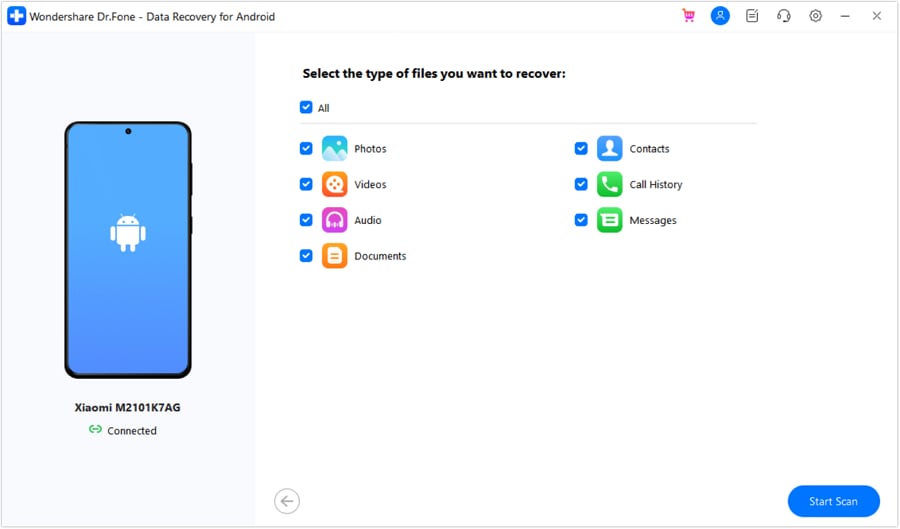
Step 2 Pick FIFA World Cup Photos and Videos
Select “Photos” and “Videos” from the 14+ data types and press the “Start Scan” button to extract the World Cup data.
-
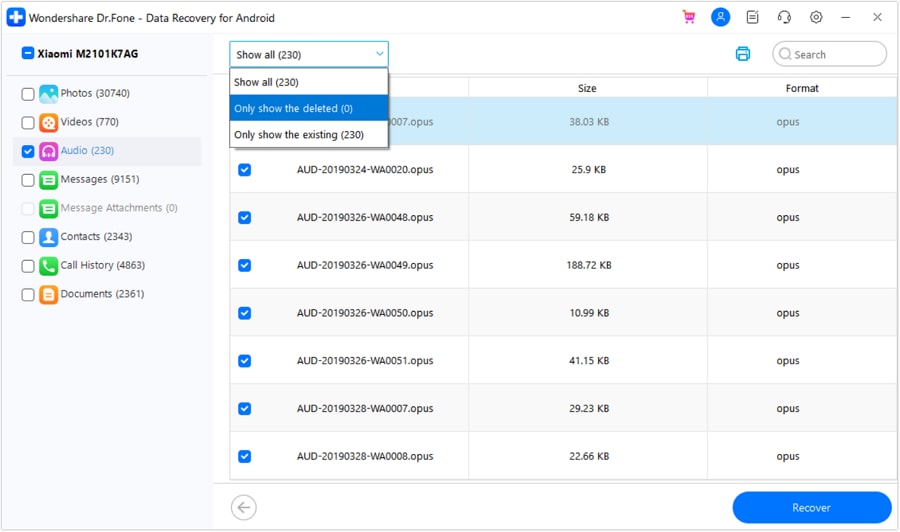
Step 3 Filter the Recovered FIFA World Cup Data
When the lost data is displayed, filter it from the “Show All” menu and pick the given export options to save.
2. Restore from iCloud Backup on iPhone
If the iPhone was previously backed up to iCloud, you can get World Cup data during setup or after a device reset. In addition, you will need to have a stable Wi-Fi connection and the same Apple ID you created backup on to restore data via the mentioned guide:
-
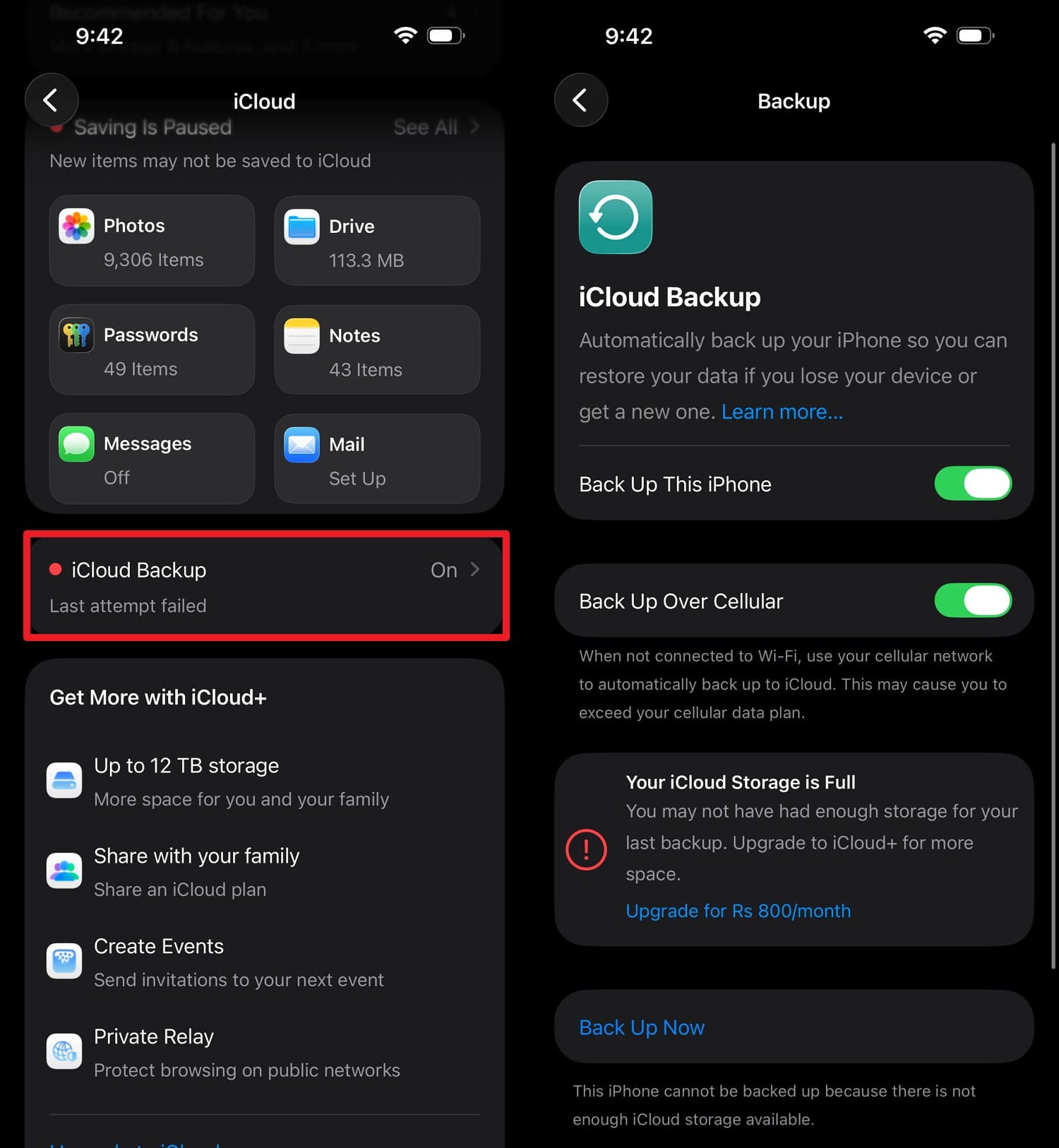
Step 1 In iPhone settings, go to “Apple ID > iCloud > iCloud Backup” to check the last backup.
-
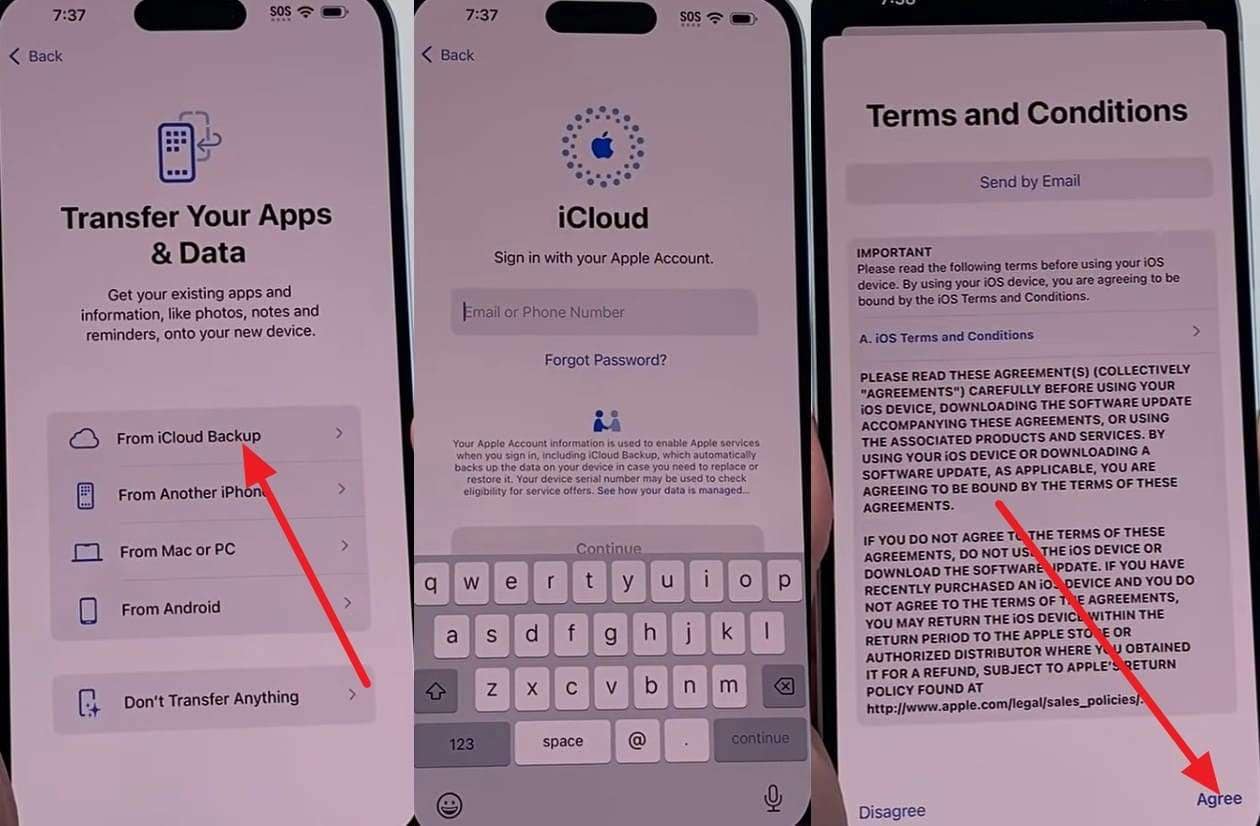
Step 2 Continue to set up the new or reset device and pick the “From iCloud Backup” option to add the Apple ID and press “Agree” to the terms.
-
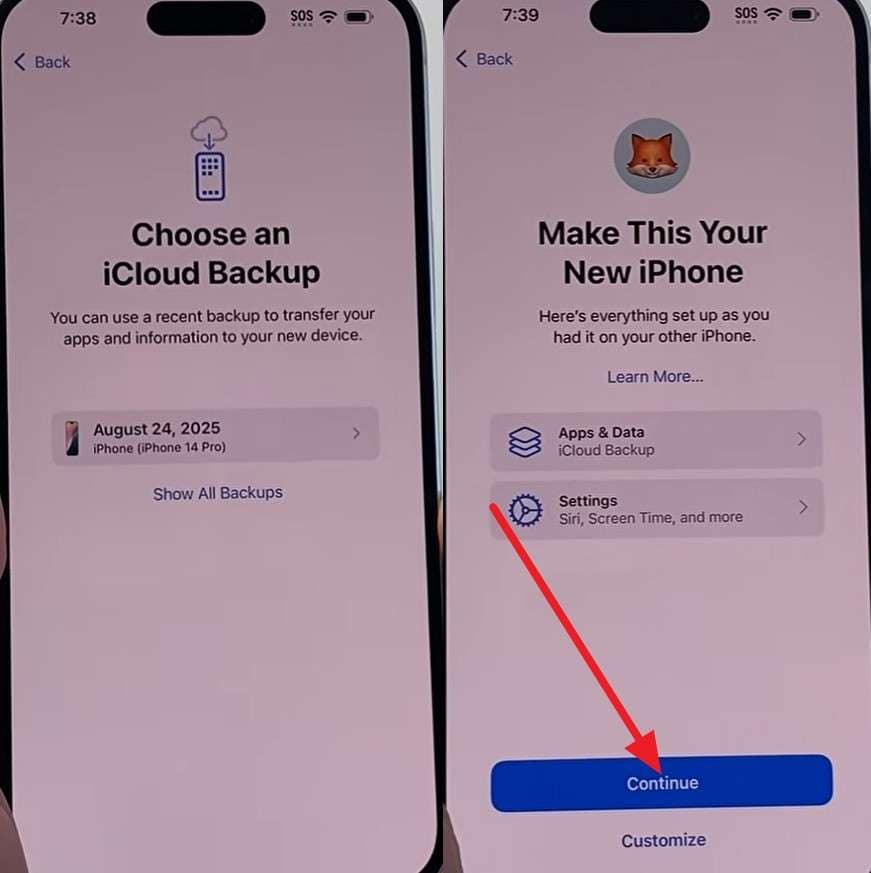
Step 3 Choose the backup created before the World Cup, then press the “Continue” button to restore travel photos after the stadium trip.
3. Restore from Google Account Backup on Android
To recover deleted football videos from your phone, you can restore the media files to their original quality if you have a backup and the same Google account details. This can work if the phone is lost, damaged, or reset, and is guided ahead in detail:
-
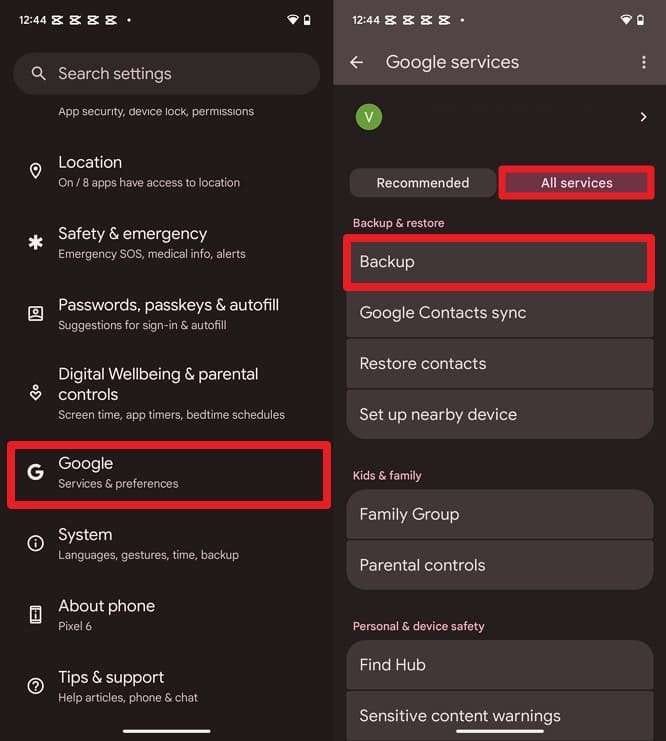
Step 1 Ensure you created the backup via “Settings > Google > All Services > Backup.”
-
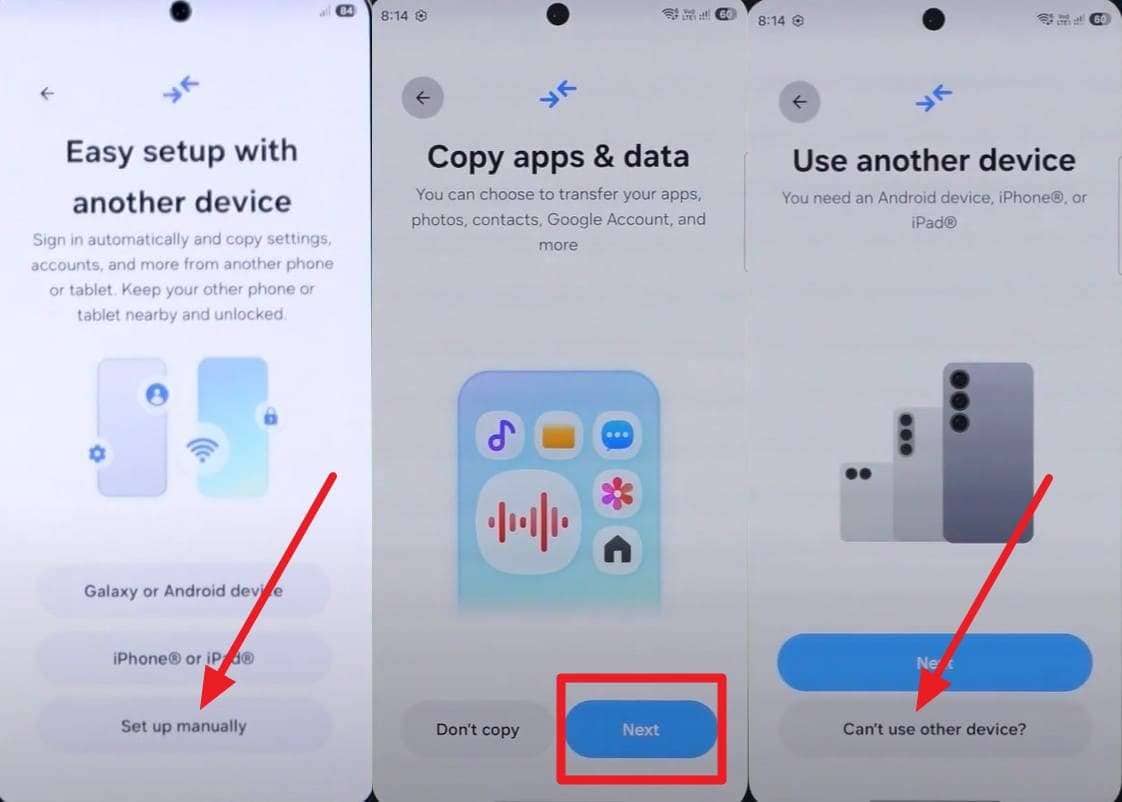
Step 2 Start to set up the new Android and pick the “Can’t Set Up Manually” option to choose “Next > Can’t Use Other Device?”
-
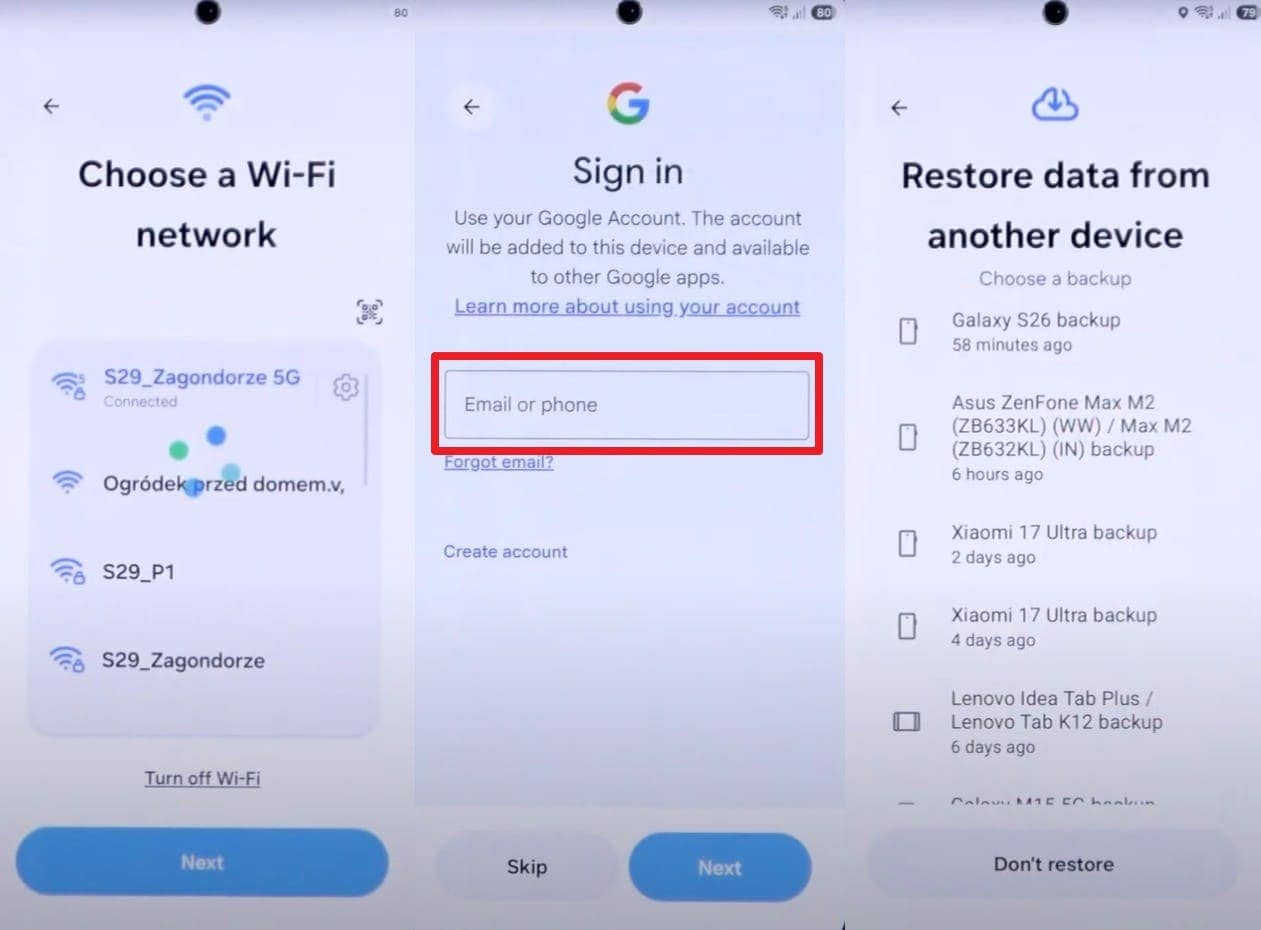
Step 3 Now, choose Wi-Fi, add the Google account details, and select the World Cup backup to restore media files.
Part 5. Why Recovery Software Works After Permanent Deletion
Of all the methods to get back deleted match videos on iPhone or Android when the time limit is passed, the recovery tool is the foremost choice. Dr.Fone - Data Recovery (Android & iOS) requires no setup or reset and does not limit Android and iPhone users to a connection. Users just have to connect the device, and the tool uses a Read-Only scan to restore and keep the existing data from being overwritten.
Nonetheless, the process is way easier than the setup option because Dr.Fone comes with detailed graphical guides. With its access to 1-5 devices and 2 PCs, it's by far the most affordable and intuitive choice for amateurs to retrieve World Cup data. Most of all, it's not an “All or Nothing” approach; you can choose which files to keep or skip, and save them to your phone and PC.
Part 6. How to Avoid Losing World Cup Photos Next Time - 5 Tips
So far, you know how to restore travel photos after a stadium trip within or after the time limit. Follow the 5 mentioned tips and learn how to avoid World Cup data loss next time:
| Tip | Action | Why It Helps |
|---|---|---|
| Turn On Auto Backup | Settings > Photos > Turn on iCloud Photos / Google Photos Backup | Photos stay safe even if the phone is lost or damaged |
| Check Trash Regularly | Photos/Google Photos > Trash/Recently Deleted > Restore | Easy recovery before permanent deletion |
| Save in Multiple Places | Upload to Google Drive/OneDrive + keep on device | Extra safety if one backup fails |
| Use Stable Wi-Fi For Sync | Connect Wi-Fi > Open Photos app > Wait for backup to complete | Prevents missing or incomplete backups |
| Don’t Rely On One Device | Sign in to the same account on phone + laptop + cloud apps | Access photos even if one device is lost |
Conclusion
During or after the World Cup, Android and iPhone users are eager to learn how to recover deleted World Cup photos and videos. Hence, this guide has explained the perks and limitations of the 30-60 day time limit, along with detailed instructions. Since recovery after this time may depend on backups or remaining recoverable data, Dr.Fone - Data Recovery (iPhone) & Dr.Fone - Data Recovery (Android) is recommended.
The tool lets you recover 35+ data types on iPhone and 14+ on Android from the device and local or cloud backups. In addition, you can choose what to keep and where once the World Cup data is restored.




FAQ
-
1. Can I recover World Cup photos and video without a backup?
If the files have not been overwritten by the existing data, you can recover World Cup photos and videos without a backup. To make it selective and controlled, you can use Dr.Fone - Data Recovery (Android & iOS) and leverage its read-only scan. -
2. Will recovering deleted photos or videos overwrite my current data?
Recovery itself does not overwrite current data. However, continuing to use the phone after deletion may overwrite recoverable files. To reduce this risk, use Dr.Fone - Data Recovery (Android & iOS), which performs a read-only scan and does not write data to the source storage during recovery. -
3. Can WhatsApp or social media copies help recover my World Cup photos?
If you have shared World Cup photos and videos via these messaging applications, copies will be present in the chats. Since most methods need you to reinstall or set up the app, Dr.Fone - Data Recovery (Android & iOS) is the suggested choice.With this, you can get back World Cup shared data on Viber, WhatsApp, LINE, Kik, and WhatsApp Business, including WhatsApp View Once media files that other solutions can’t provide.
 Add Wondershare Dr.Fone as a preferred source on Google