Recover photos, messages, WhatsApp, and more — no backup
needed.
Recover photos, messages, WhatsApp, and more — no backup
needed.

 100% Security Verified | No Subscription Required | No Malware

 :
: 
 ChatGPT
 Perplexity
 Gemini
 Claude
 Grok
Grok
It's pretty easy to delete contacts from your iCloud, however, many users wonder what exactly happens after that. Are the contacts going to be removed from all the Apple devices? And does deleting a contact mean turning off the iCloud Contacts sync? Since iCloud enables contacts to be synchronized between the devices using the same Apple ID, one really needs to know how it works before changing anything.
Here is the guide on how to delete contacts from iCloud using a variety of devices, how to keep contact syncing without losing any data, and methods of restoring deleted contacts from iCloud if necessary. Finally, you will be able to figure out the safest way of handling your iCloud contacts without any difficulties.
In this article

Part 1. What Happens When You Delete Contacts from iCloud?
If you delete a contact from iPhone, it gets removed from iCloud. Since iCloud is used to sync contacts across the devices that are set up with the same Apple ID, the change is made automatically on your iOS devices.
Deleting a contact on one device will delete it from the others as well, after they sync if you use the same Apple ID on all the devices.
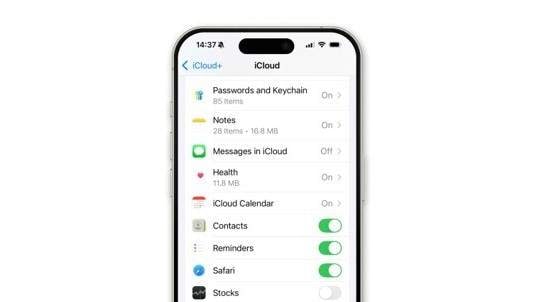
Difference Between Deleting a Contact and Disabling Contact Sync
These two actions are different:
Deleting a contact
- It is a permanent deletion of the contact from iCloud.
- The contact will be removed on all devices that have the same Apple ID, and the contact is synced across those devices.
Switching off iCloud Contacts
- It means that the device with switched-off iCloud Contacts is not syncing contacts with iCloud anymore.
- The contacts are still saved in iCloud.
- Whether your device rolls back a local copy of the contacts or deletes them from the device only depends on your decision.
Part 2. How to Delete Contacts from iCloud
Deleting contacts from iCloud doesn't just remove them from the cloud—it also syncs the change across all devices signed in with the same Apple ID. Before deleting any contacts, it's important to understand how iCloud syncing works and take a few precautions to avoid accidental data loss.
What happens when you delete contacts from iCloud?
- The contact is totally wiped out from iCloud.
- The updating spreads to all the Apple ID devices.
- The contacts that are deleted on iCloud.com will vanish from your iPhone, iPad, and Mac once they sync.
What not to do
- Don't turn off iCloud Contacts if you are planning to remove contacts from iCloud. This only stops syncing on that device.
- Don't remove a huge number of contacts without backing up first.
Before you start
- Make sure that you're logged in to the right Apple ID. In case you are deleting large number of contacts, first back up them.
Wondering how do you recover contacts from iCloud? Let's get started.
Method 1 — How to Delete Contacts from iCloud on iPhone
This is the simplest method of deleting one or two contacts only from iCloud using your iPhone. It should be noted that if you have enabled iCloud Contacts syncing, the removed contacts will be deleted not only from your iPhone but also from other devices. Here's how to delete iCloud contacts from iPhone:
Best for: Deleting one or a few contacts directly from your iPhone.
What you need: An iPhone with iCloud Contacts sync enabled.
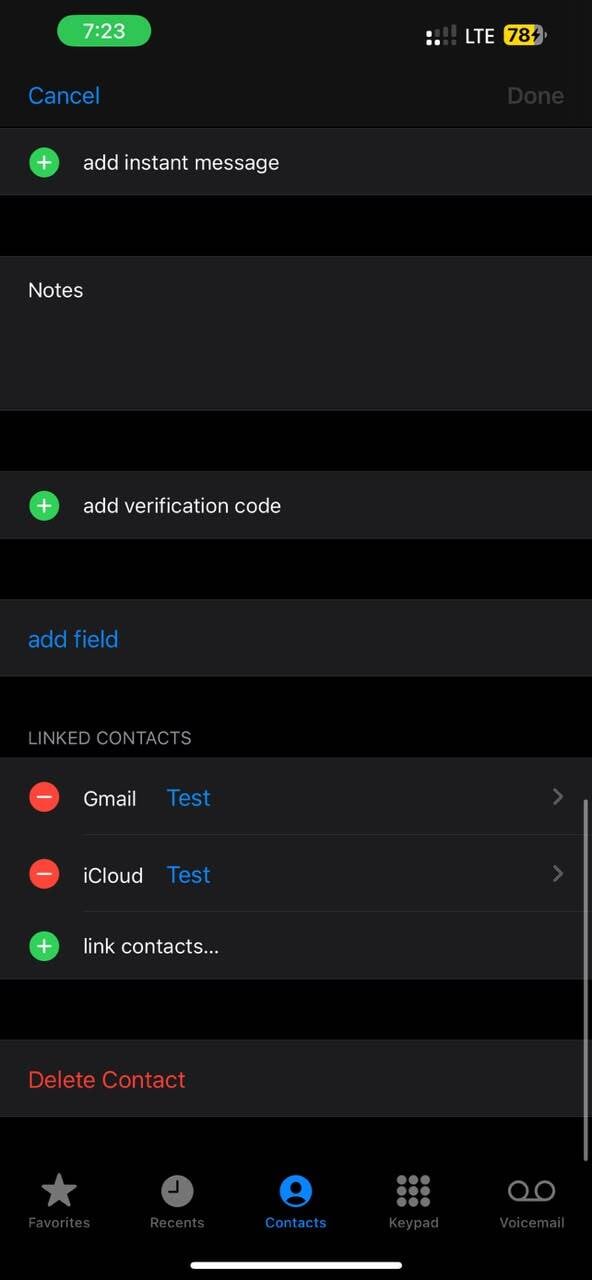
Delete a single contact
Step 1 Launch the Contacts app (or Phone > Contacts) method and highlight the contact you wish to get rid of.
Step 2 Press the Edit feature, afterward scroll down and tap the Delete Contact option.
Step 3 Confirm the deletion by pressing the Delete Contact button.
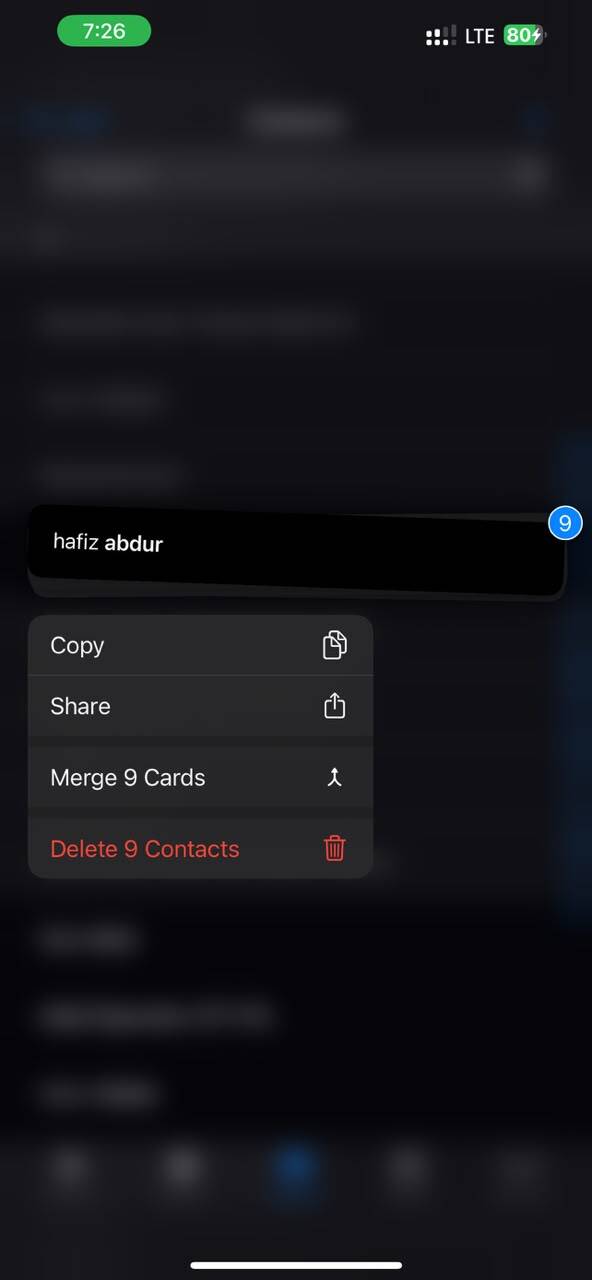
Delete multiple contacts (iOS 16 and later)
Step 1 Launch the Contacts app. Use two fingers to swipe the contacts up or down to select multiple ones.
Step 2 When the contacts are highlighted, press and hold one of the selected contacts.
Step 3 Press the Delete button and agree to the action to erase all the selected contacts.
Method 2 — How to Delete iCloud Contacts from iCloud.com
iCloud.com allows you to do more than just the local iPhone app when it comes to your contacts. For instance, with only a few clicks, it is possible to select and remove a single contact, a few of them, or even the entire contact list. The updated information will be synchronized to the devices with the same Apple ID.
Best for: Deleting contacts from a browser (PC or Mac)
What you need: Browser, Apple ID & password
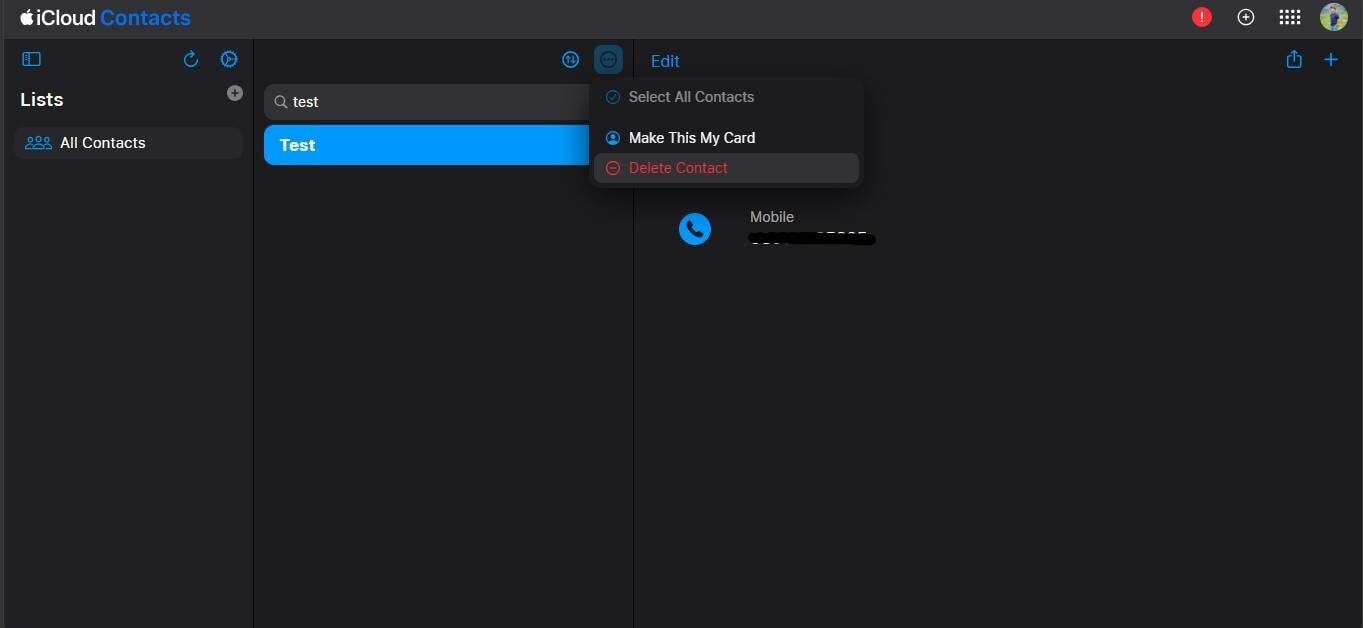
Delete one or multiple contacts
Step 1 Visit iCloud.com, login with your Apple ID, and launch Contacts.
Step 2 Highlight the contact you want to remove. To pick several contacts, keep holding down Ctrl (Windows) or Command (Mac) keys.
Step 3 Press the gear icon and select Delete Contact, then confirm.
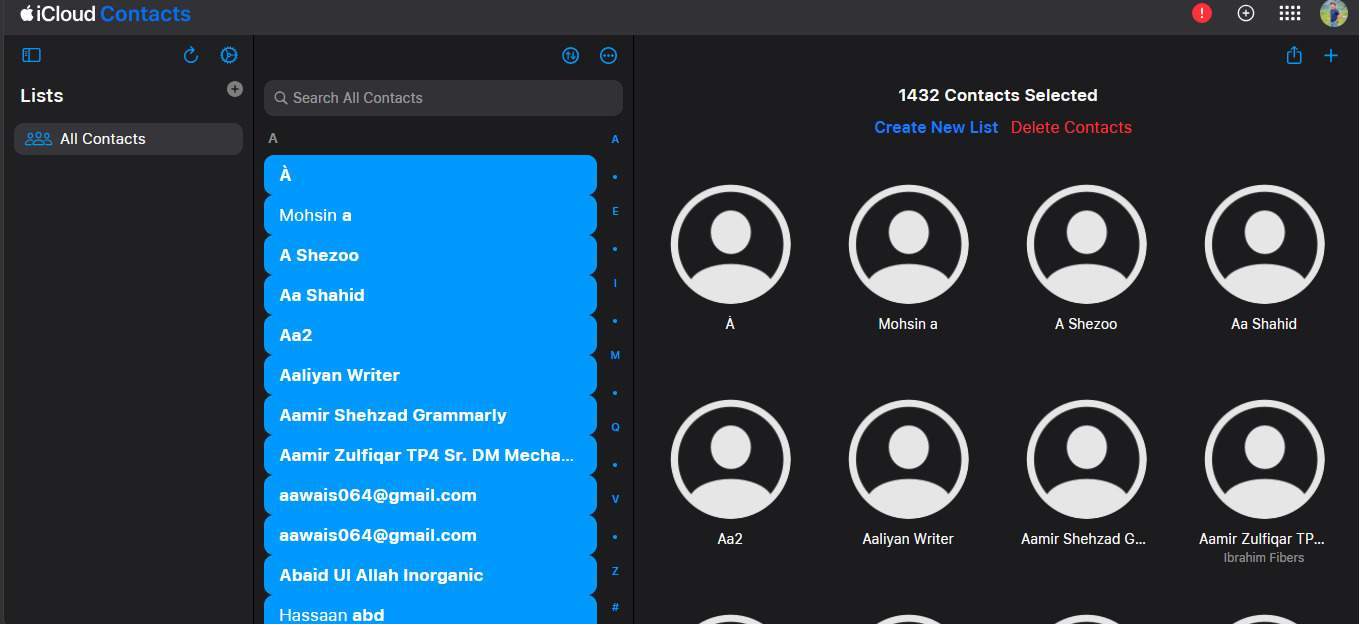
Delete all contacts
Step 1 Launch Contacts on iCloud.com and select any contact.
Step 2 Use Ctrl + A (Windows) or Command + A (Mac) shortcut to select all the contacts.
Step 3 Click on Delete Contacts and confirm.

Method 3 — How to Delete Contacts from iCloud on Mac
When you use a Mac, the Contacts app enables you to handle your iCloud contacts on a bigger screen with the convenience of multi-selection. Changes made by you are directly synchronized to your other Apple devices.
Best for: Managing contacts from a Mac.
What you need: A Mac signed in with your Apple ID and iCloud Contacts enabled.
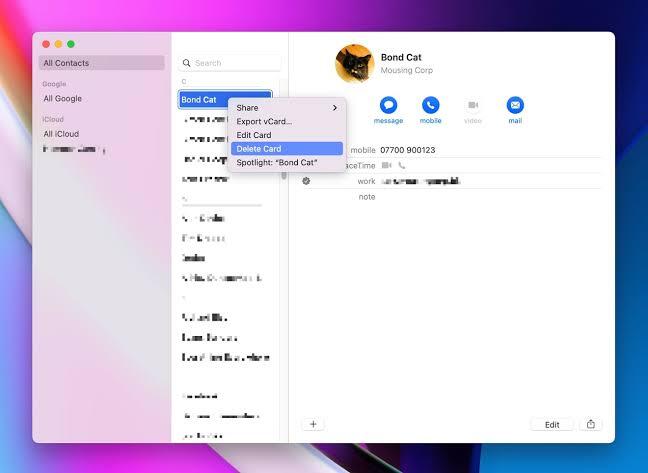
Remove a single contact
Step 1 Launch the Contacts app and tap on the contact you wish to delete.
Step 2 Right-click the contact and select Delete Card or simply hit the Delete key.
Deleting several contacts at once
Step 1 Open the Contacts app, select one contact, then continue holding Command (⌘) and choose other contacts.
Step 2 Use the Delete key or do a right-click and select Delete Cards.
Step 3 Confirm the action.
Method 4 — How to Delete Duplicate Contacts from iCloud
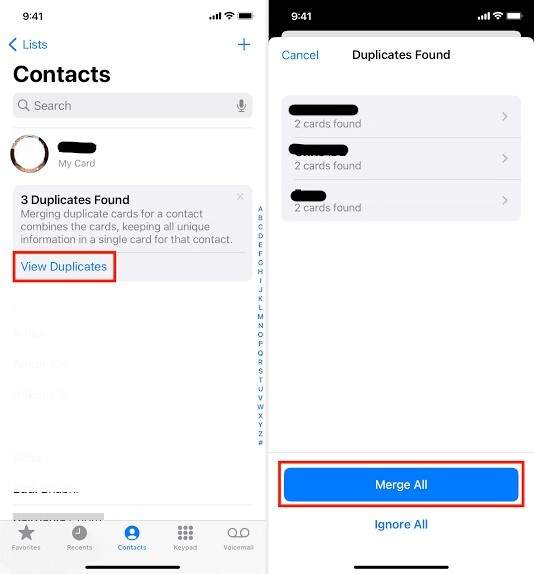
If your contact list has duplicates after changing devices or syncing accounts, you can get rid of them with the help of the merging feature that is already inside the iPhone. This merging feature does not delete duplicates individually but rather combines them into one contact. Here's how to delete duplicate contacts in iCloud:
Best for: Fixing duplicate contacts caused by sync issues or device migration.
Step 1 Launch the Contacts. If there are duplicate entries, a "Duplicate Contacts Found" banner will appear.
Step 2 Press the View Duplicates option, then select Merge All.
Method 5 —Delete Contacts From iPhone Without Deleting Them From iCloud
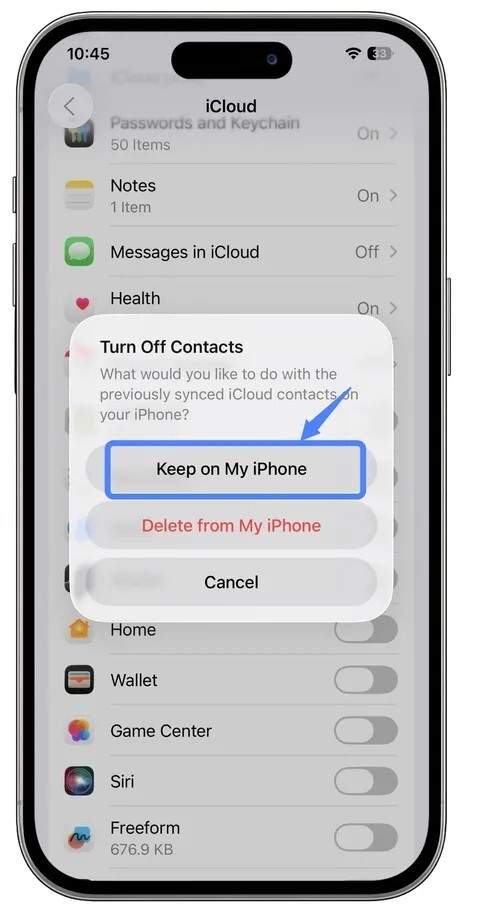
If you want to have the contacts saved in your iCloud account, but you don't wish to view them on your phone, then switching off syncing Contacts will be right for you rather than erasing your contacts.
Step 1 Go to Settings > Apple ID > iCloud. Turn off the Contacts switch.
Step 2 You will be given the options Keep on My iPhone or Delete from My iPhone when a prompt appears.
Part 3. How to Recover Accidentally Deleted Contacts from iCloud
Did you accidentally delete an important contact? In case you have done it very recently, there is a great chance that you can restore it. Here are the best ways to get back deleted iCloud contacts, with the first one being Apple's official method.
Method 1. Quick Native Recovery via iCloud.com (30-Day Window)
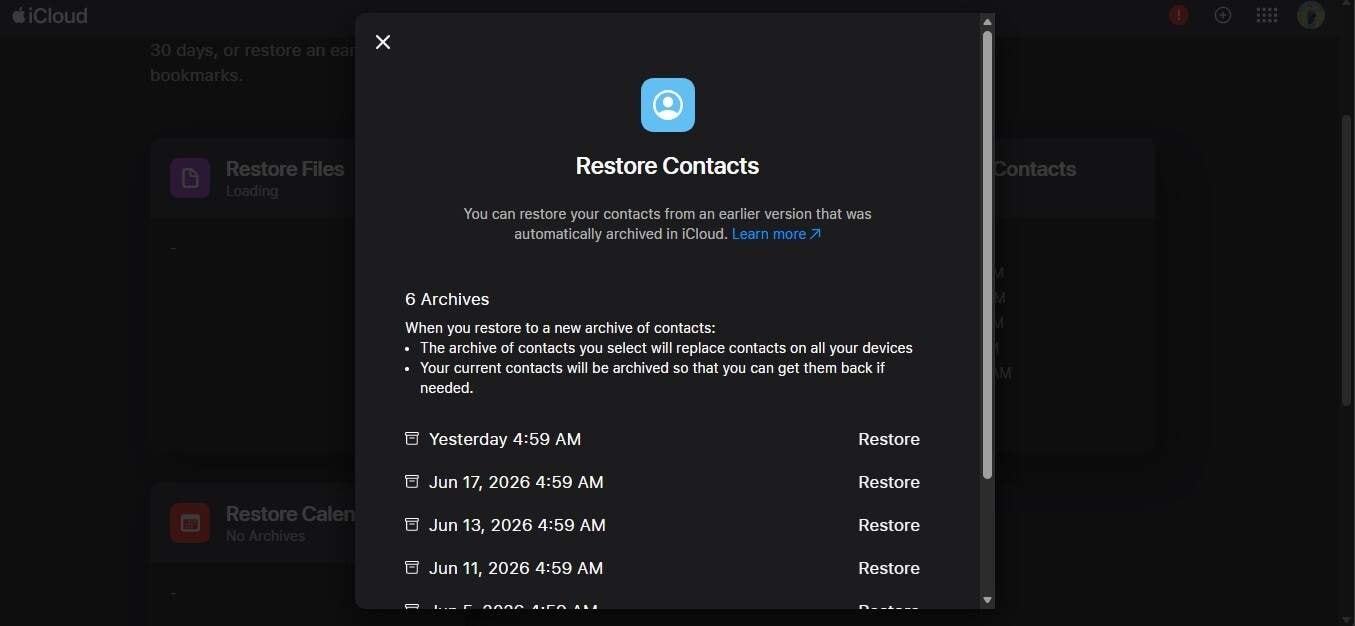
Deleted the wrong contact? Don't panic! Apple will let you restore a previous version of your iCloud contacts up to 30 days.
Here's how to restore contacts from iCloud:
Step 1 Go to iCloud.com and log in with your Apple ID.
Step 2 Tap on the Quick Access button (top-right corner) and choose Data Recovery.
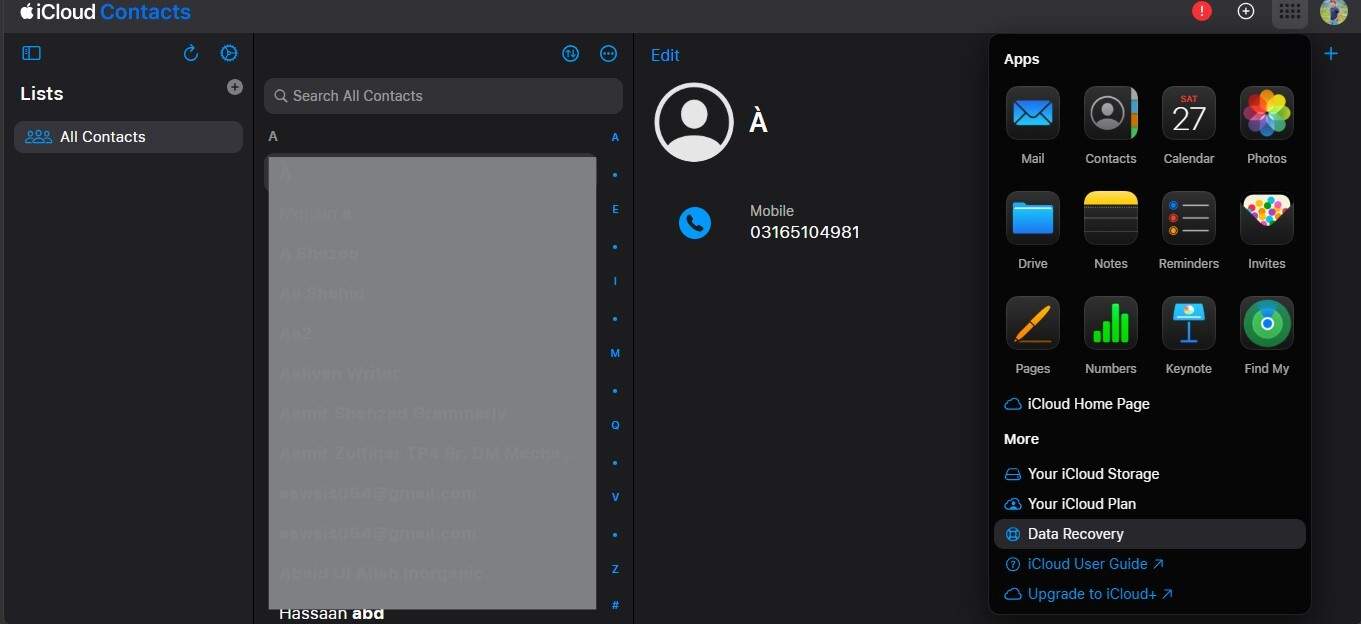
Step 3 Pick a backup dated contact before you lose your contacts and press Restore.
Method 2. Recover Contacts from iCloud Backup Using Dr.Fone
If recovering your contacts through the built-in recovery functionality of iCloud is not working for you, Dr.Fone - Data Recovery is a solution giving you more options. You can retrieve deleted contacts from your iPhone directly, or from your iCloud Backup, iCloud Sync or iTunes backups without having to reset the whole device. Besides the ability to preview the contacts which can be retrieved for free, you also only restore the contacts you want without any risk of overwriting your current data and even recover without backup in some cases. Besides supporting the latest iOS versions, it also performs read-only local scans to ensure your data is safe.
 Recovers data after deletion, crashes, or device damage.
- Supports photos, messages, contacts, WhatsApp, and more.
- Supports all major iPhone, iPad, and iPod models.
- Preview and recover only what you need.

Steps to recover contacts from an iCloud backup with Dr.Fone
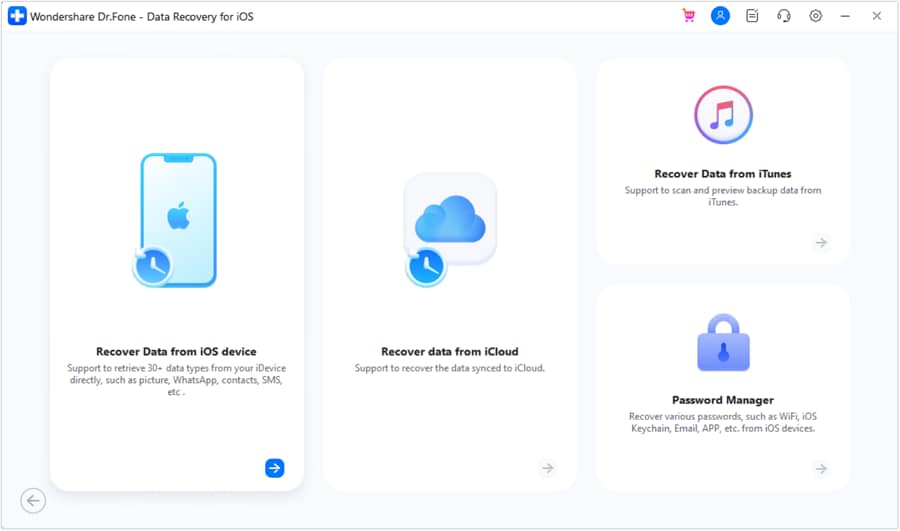
Step 1 Download and install Dr.Fone on your PC. Choose Toolbox > Data Recovery, then iOS, and finally Recover Data from iCloud Backup.
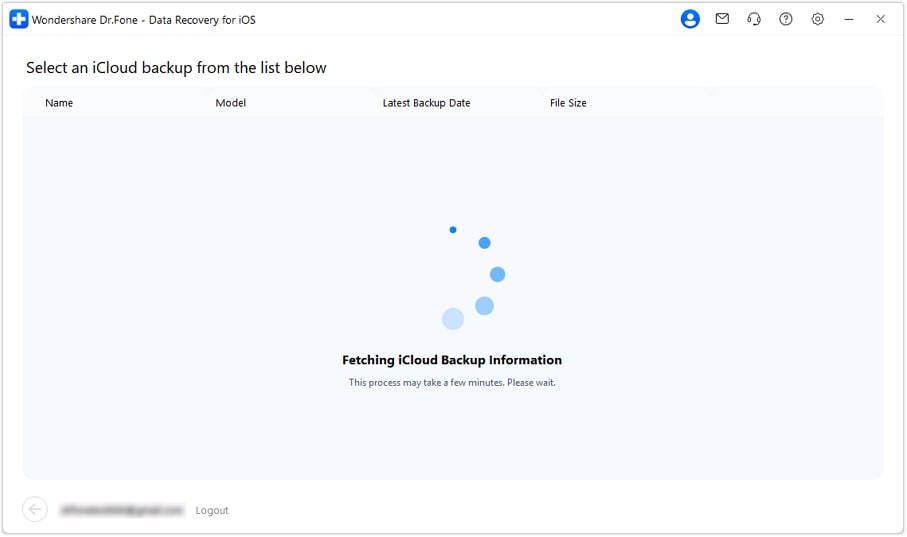
Step 2 Sign in using the Apple Account that you have linked to your iCloud backup.
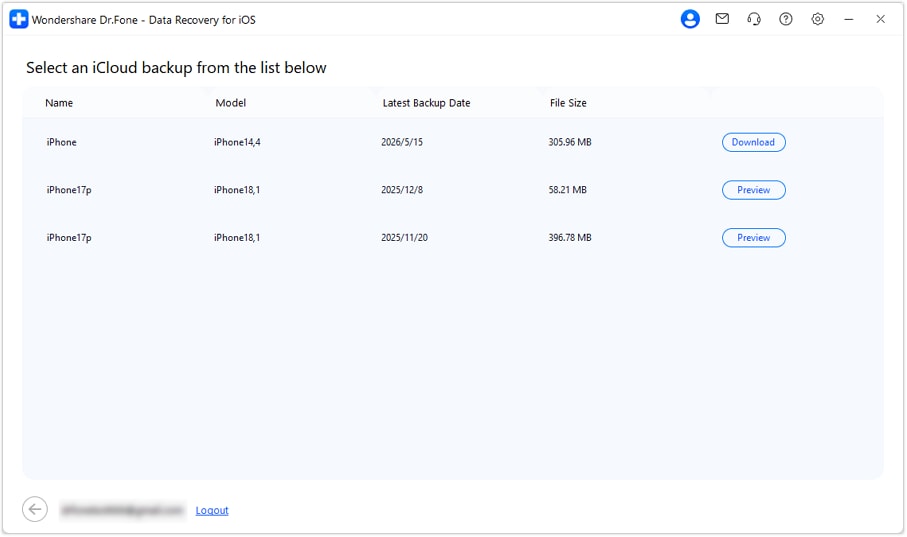
Step 3 Select the backup that contains your lost contacts and click Download. Once the backup is processed, Dr.Fone will display all recoverable data categories.
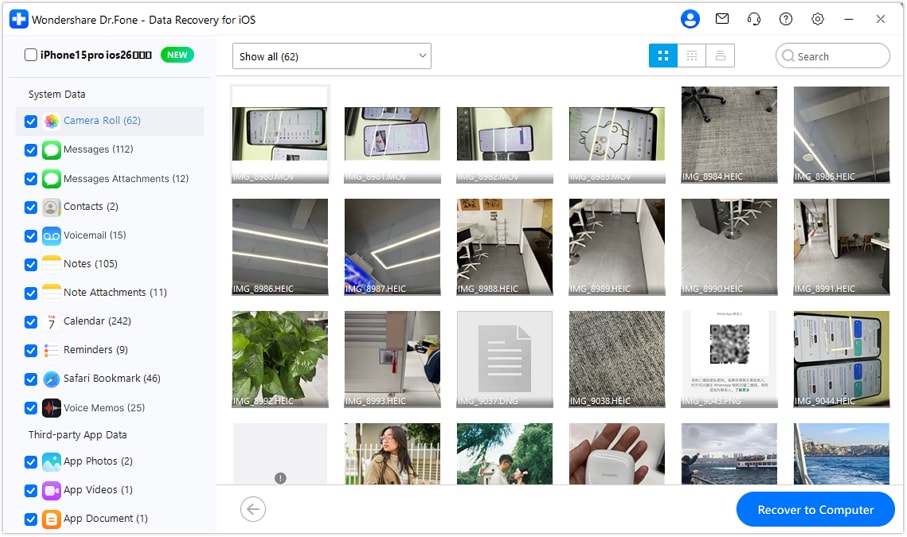
Step 4 Select the Contacts category. First, you can see which contacts can be recovered. After that, mark the contacts you want to get back and click on the Recover to Computer button.
When should you use this instead of the native method
- It's been over 30 days since you've deleted the contacts.
- If your aim is to only recover certain contacts rather than restoring your entire contacts list.
- The contacts you deleted are saved in an iCloud or device backup, not in the current iCloud sync data.




Part 4. Troubleshooting: Contacts Not Deleting from iCloud
Here are few issues and their common fixes:
| Issue | Cause | Fix |
|---|---|---|
| Contacts still appear after deletion | iCloud sync delay | Wait and ensure iCloud Contacts is enabled |
| Deleted on iPhone but still on Mac | Sync issue | Sign out/in iCloud or toggle Contacts sync |
| Contacts keep coming back | Other account syncing (Google/Exchange) | Disable or remove extra accounts |
| Duplicates reappearing | Multiple synced accounts | Turn off one account's contact sync |
| Can't delete (greyed out) | Read-only contact source | Edit from original account (Google/LinkedIn) |
Conclusion
iCloud contacts management is not complicated if you really get it how the syncing function stands between Apple devices. So, if you are removing unwanted contacts, resolving duplicates, or recovering contacts removed by mistake, all these ways from this guide will allow you to operate and manage your contact list efficiently.
In case you require an advanced recovery option, especially when it comes to iCloud deleted contacts that are no longer in the Recently deleted folder, getting only specific ones, or tools that can restore from a backup, Dr.Fone - Data Recovery is the software that can give you extra features and help you do just that, i.e., restore only the contacts you want in a very simple way.
FAQs
-
Can I delete contacts from iCloud without deleting them from my iPhone?
Yes. Turn off iCloud Contacts in Settings > Apple ID > iCloud and choose to keep a copy on your iPhone. This removes iCloud contacts from that device without deleting them from your iCloud account. -
Can I recover contacts deleted from iCloud after 30 days?
Apple's built-in recovery only works for a limited time. If more than 30 days have passed, a tool like Dr.Fone – Data Recovery (iOS) may help recover contacts from your iPhone, iCloud backups, or iTunes backups without requiring a full device restore.. -
Why are my deleted contacts coming back?
This usually happens because another account, such as Google or Exchange, is syncing the same contacts. Check Settings > Contacts > Accounts and disable contact sync for the account you no longer want to use. -
What happens if I delete contacts from iCloud?
Deleting contacts from iCloud removes them from iCloud and all linked devices that have iCloud Contacts enabled. It is a permanent deletion unless restored from a backup. -
Can I delete duplicate contacts from iCloud?
Yes, use the built-in merge feature in the Contacts app on your iPhone or iCloud.com to combine duplicates into one entry.
 Add Wondershare Dr.Fone as a preferred source on Google