Recover photos, messages, WhatsApp, and more — no backup
needed.
Recover photos, messages, WhatsApp, and more — no backup
needed.

 100% Security Verified | No Subscription Required | No Malware

 :
: 
 ChatGPT
 Perplexity
 Gemini
 Claude
 Grok
Grok
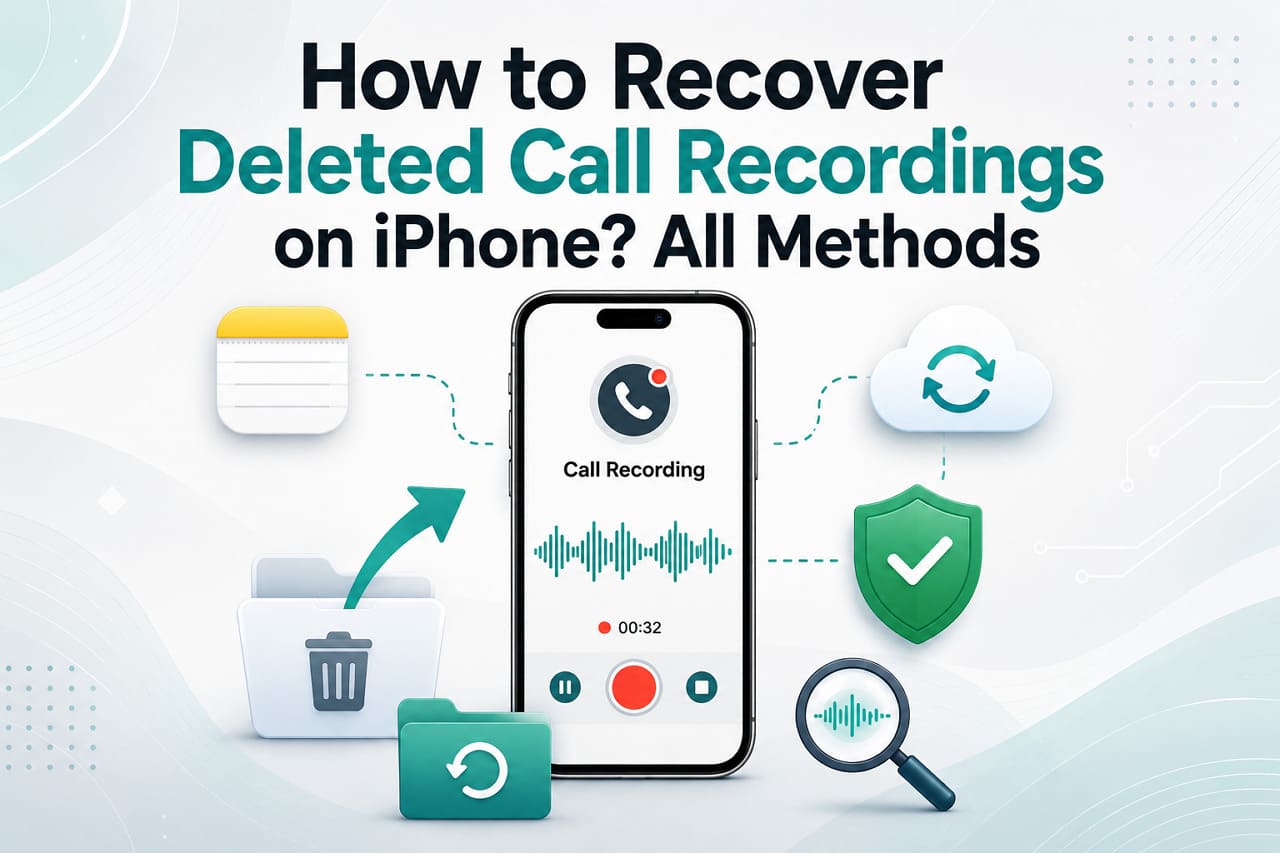
You might have accidentally deleted an important call recording on the iPhone, or you can't locate the one you saved a few days ago. This can be due to accidental deletion, storage cleanup, or other issues, but recovery is possible in most cases. Hence, this guide will explain how to recover deleted call recordings via official ways or Dr.Fone - Data Recovery to extract data from the device, iTunes, iCloud, or local backups.
In this article

Part 1. Can You Recover Deleted Call Recordings on iPhone?
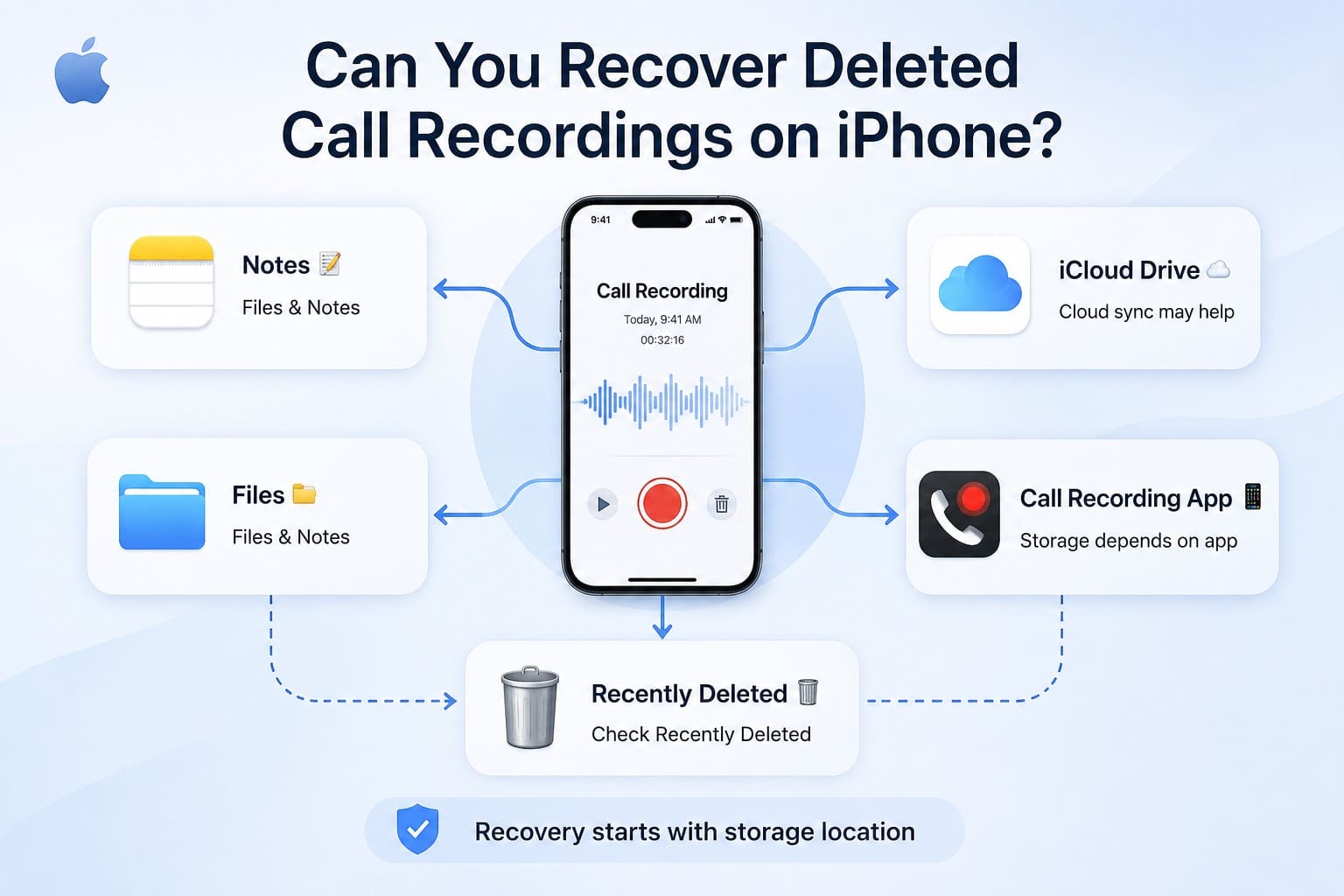
For those who question how to recover deleted call records, know that it depends on where they are stored. In addition, recovery depends on whether you have a backup or a Recently Deleted option in the app that records them. To learn about the saved location and the factors that affect call record recovery, review this section in detail.
Where Call Recordings Are Usually Stored
According to Apple Support and Think Tutorial, your call recordings are stored in the Notes app on the latest iOS versions. However, third-party apps like TapeACall or Rev either save files within the app or sync to a linked account.
Some are also stored in the Files app or in cloud storage services such as iCloud Drive, Google Drive, or OneDrive. Since most of these apps have Recently Deleted folders, it's best to check where the recordings are stored originally.
Factors That Affect Recovery Success
On the quest to learn how to recover the deleted call recorder, review the mentioned details to know what factors can affect the success rate:
- Deletion Type: If the recording is in the Trash or the Recently Deleted folder in Notes or third-party apps, recovery is possible. From the Notes, you can recover within 30 days, and until the TapeACall subscription expires and they haven't been deleted, says TapeACall Support.
- Time Since Deletion: The sooner you try to recover the call records, the better your chances of recovery. This is because if you save new files or use your iPhone heavily, it can overwrite the deleted data and reduce the success rate.
- Available Backups: If the recording was included in an iCloud or iTunes/Finder backup or the app's cloud backup, you can only recover it. Nonetheless, this will replace the newer data, your device will revert to the previous state, and you will not have the selective restoration option.
- Recording App Features: Some call recording apps have a Recently Deleted or Restore feature that makes the call records easy to recover. However, others permanently remove them and leave backups as the only recovery option.
- Recovery Software: There are some professional recovery tools that can help recover data that has not been overwritten. Still, their success depends on how quickly you act after the recording is deleted, so you can retrieve it from the device, the cloud, and local backups.
Common Reasons Call Recordings Get Deleted on iPhone
Now that you know the basics of how to recover call recording, let's see what causes this deletion on the iPhone:
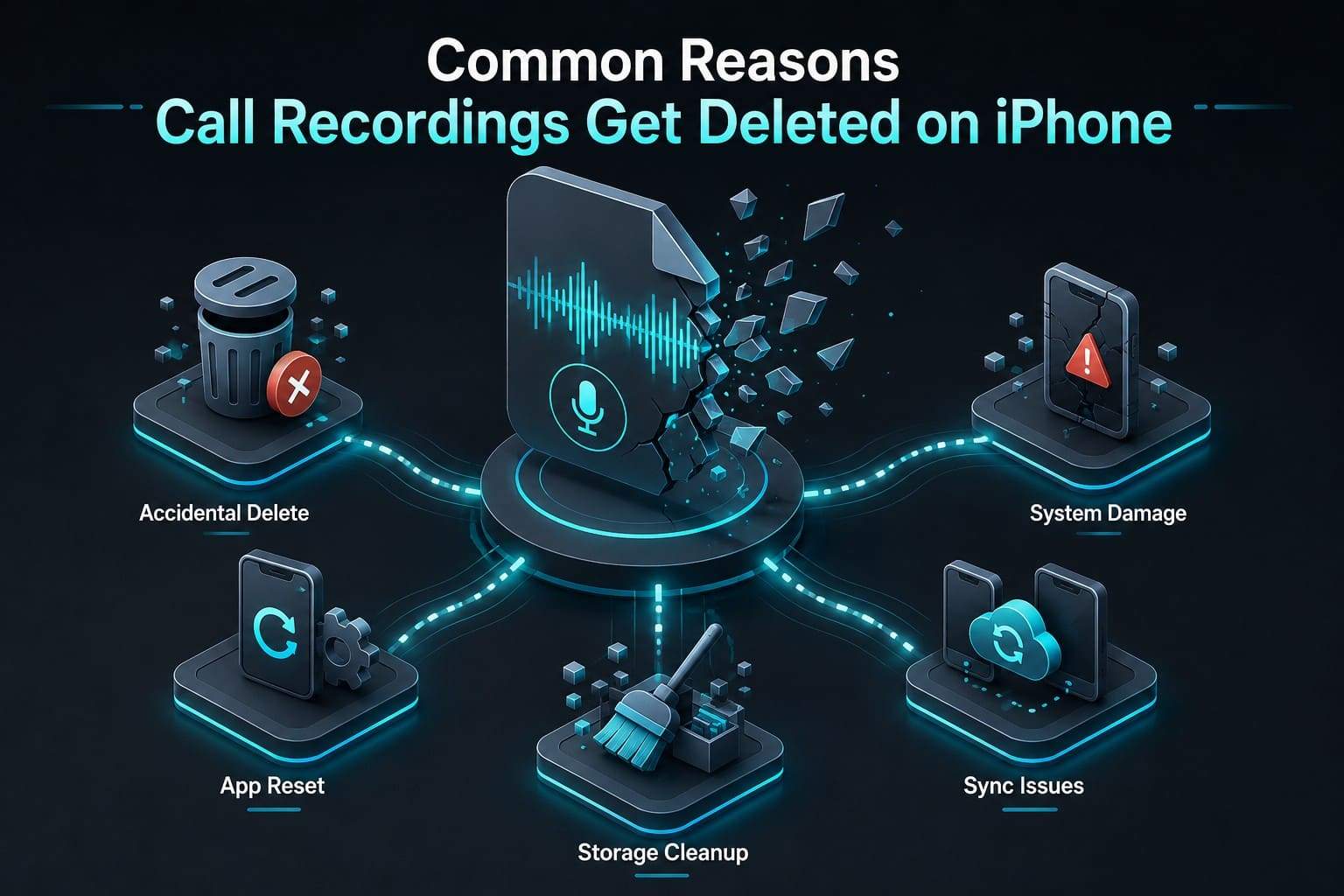
- Accidental Deletion: When you use Notes, Files, or Voice Memos, you can lose call records upon accidental deletion. If you delete a note or memo, it can also remove the attached call recording, and some apps don't clearly warn about that.
- App Reset or Update: Resetting the iPhone or deleting the call recording app without a backup can also delete the records. In most cases, app bugs or update issues can also cause recordings to disappear or become corrupted.
- Storage Cleanup: Users who try to free up space may also accidentally delete call recordings. In addition, iPhone users sometimes use cleaner apps or remove the files from the iCloud Drive, which also erases recordings saved on the iPhone or synced to iCloud.
- Sync Issues: Note that when you delete call recordings from Notes or Voice Memos on one Apple device, they are also removed from the other synced devices. Furthermore, new data can override the deleted recordings over time and make recovery much more difficult.
- System Errors or Device Damage: Malware, app crashes, or sudden shutdowns can damage or delete the call records. Any physical damage to your iPhone may also make audio files inaccessible or permanently lost.
Part 2. How to Recover Deleted Call Recordings on iPhone: Official Ways
Adhere to the 3 official methods provided below to know how to recover call records from the app or cloud, and local backups:
Method 1. Recover Recordings from Recently Deleted Folders
The option in Notes, Voice Memos, Files, or other apps keeps the copy safe for a limited duration. Within that time, you can restore them without any iCloud or iTunes/Finder backup needed. In addition, it's seamless, and the steps to recover all records for most of these apps are listed ahead:
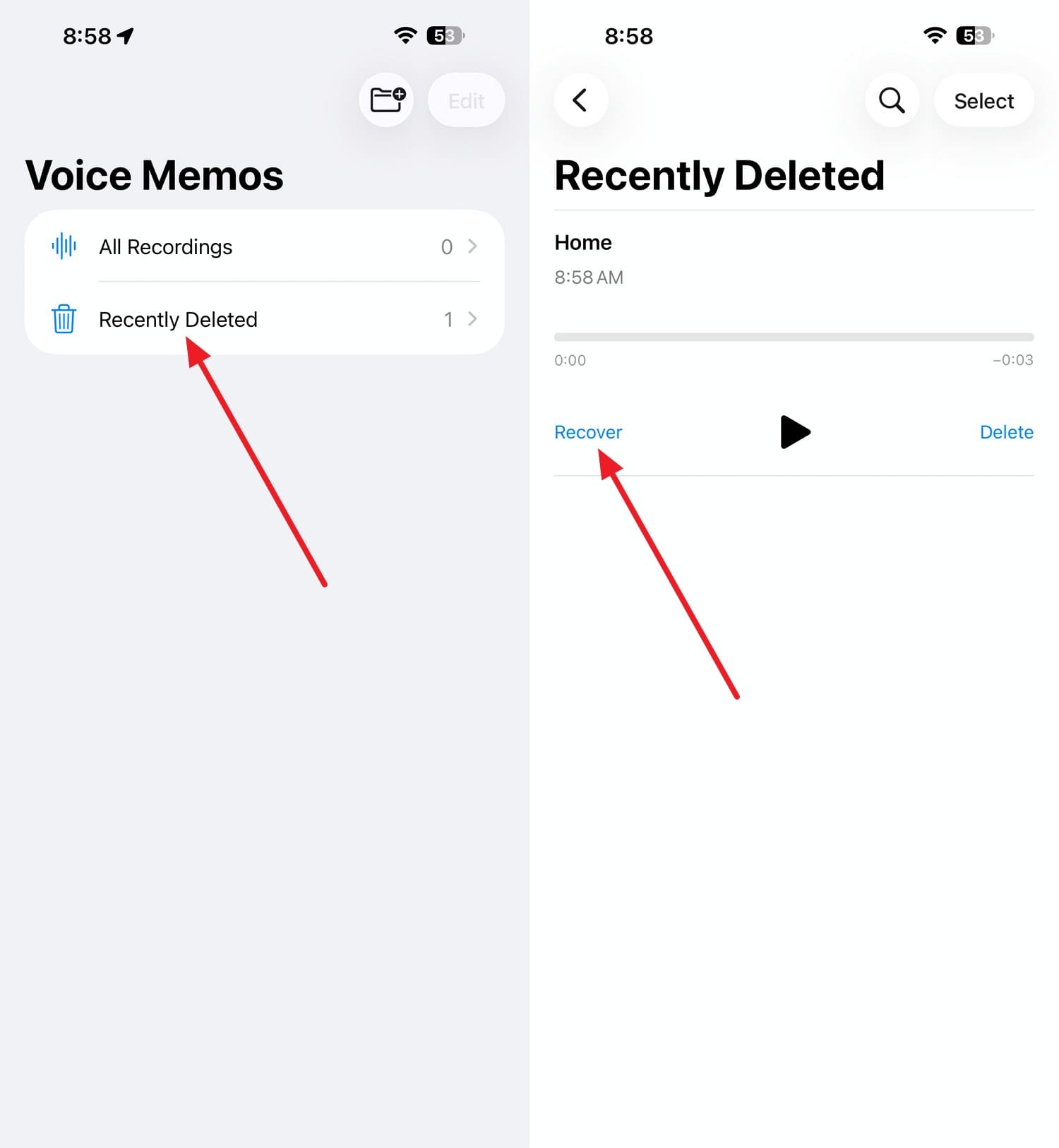
Check the Native Voice Memos App
Instructions: If you recorded a call using a workaround that saved audio to Voice Memos, go to Voice Memos > Recently Deleted > Tap on the call recording > Press "Recover."
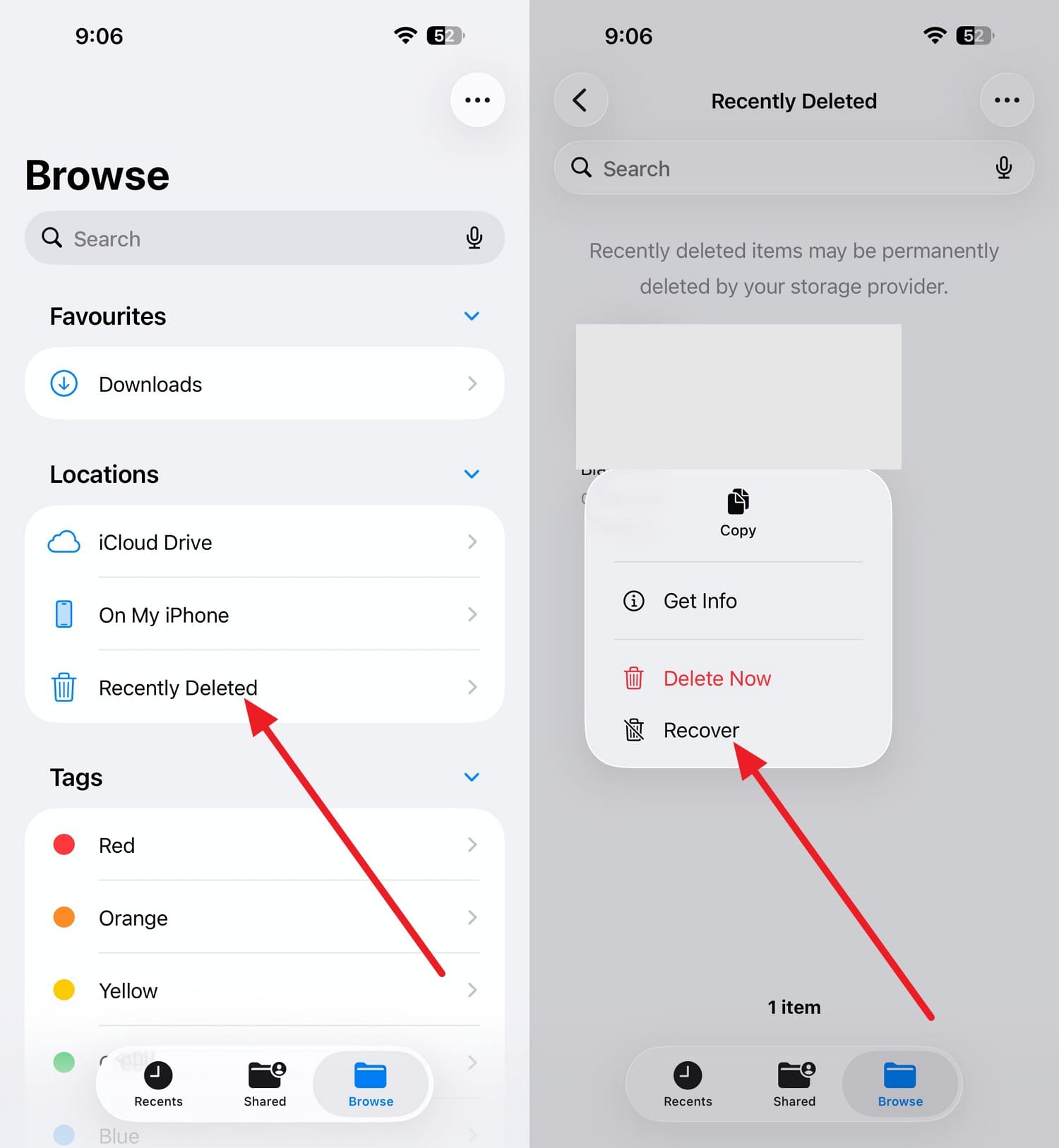
Check the Files App
Instructions: If your backup call recordings are deleted from the Files app, choose the "Browse" tab, access Recently Deleted > Long-press the call recording > Tap "Recover."
Check the Notes App
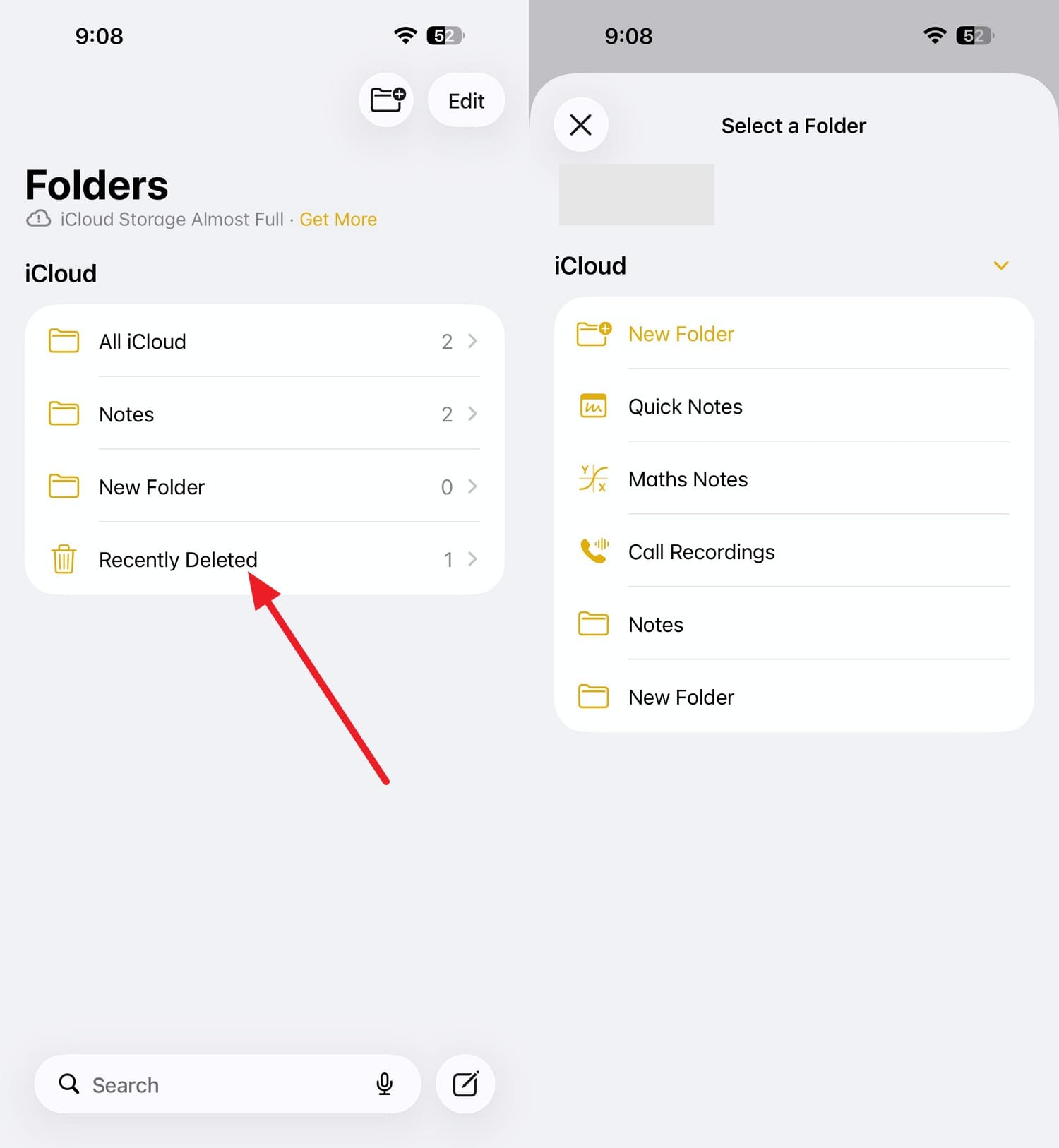
Instructions: Go to the Folders > Recently Deleted > Pick the call recordings > Press "Move" > Choose the location on the Notes app where you want to save call recordings.
Check Third-Party Call Recorder Apps (TapeACall)
Note: TapeACall automatically syncs your recorded audio to its cloud servers. If you delete a file from your device, you can often pull it back up by refreshing the app, restarting your phone, or using the Restore Purchase option.
Cons
- The recovery window is limited to 30 days.
- Voice Memos cannot capture live phone calls directly.
- TapeACall does not offer a built-in restore option.
- The Files app path varies across different iOS versions.
Method 2. Restore Call Recordings from iCloud Backup
As another method on how to find deleted call recordings, use this method because it saves a copy of your iPhone's data. You can use this method if the backup was made before deletion, but it will erase all your recent data, and is guided below:
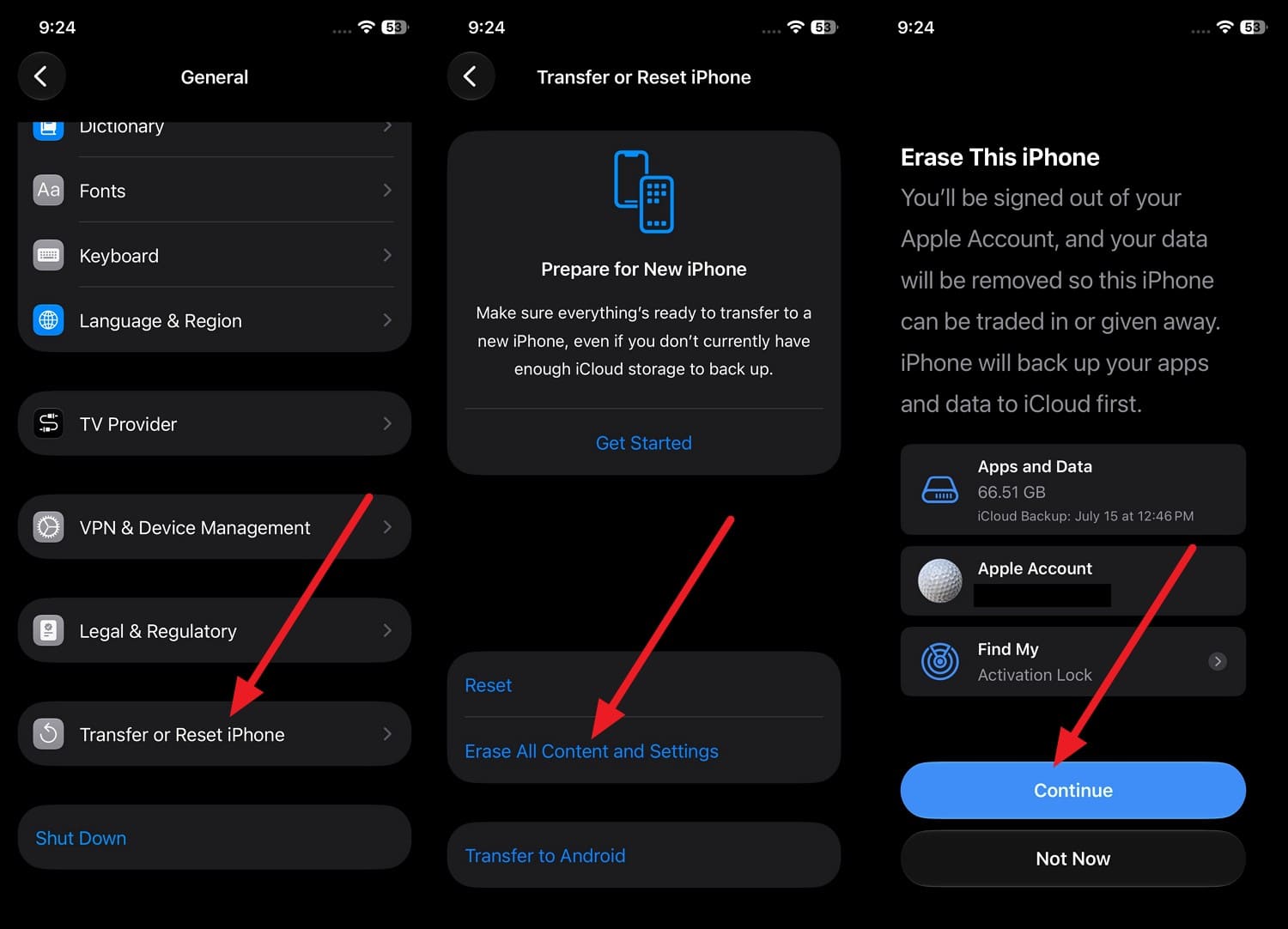
Step 1 Reset the iPhone via "Settings > General > Transfer or Reset iPhone > Erase All Content and Settings > Continue" to restore iCloud Backup.
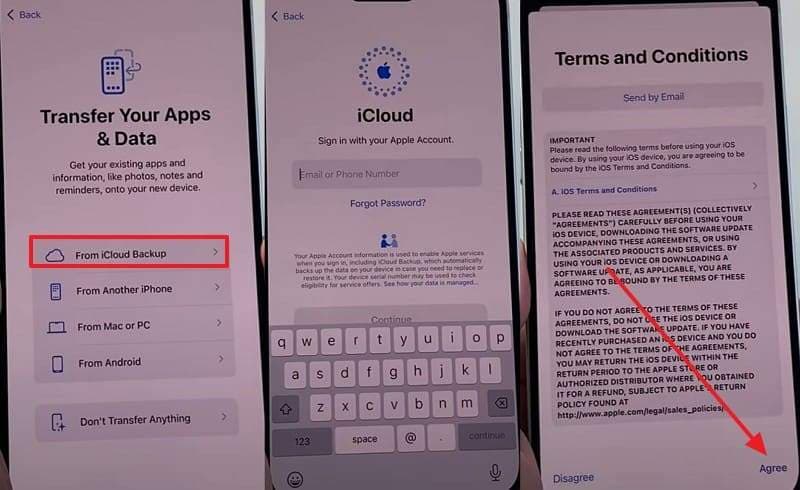
Step 2 Continue setting up the phone, and in the "Apps & Data" interface, select "Restore from iCloud Backup > Sign In > Agree to the terms."
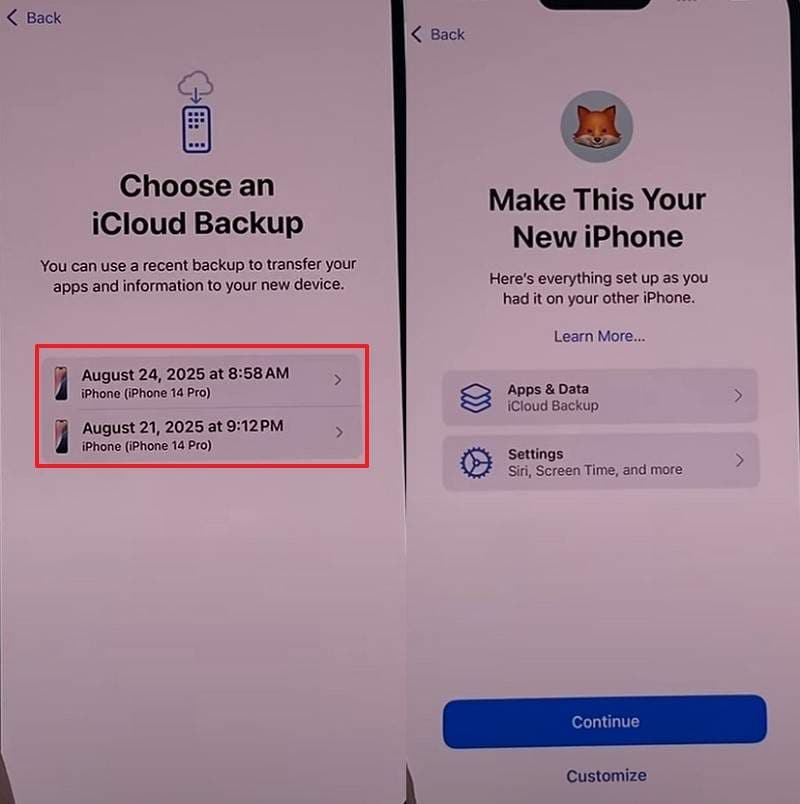
Step 3 Pick the backup that contains your call recordings and tap "Continue" to restore the backup.
Cons
- The restore process is lengthy and takes too much time.
- No way to restore only the recording selectively.
Method 3. Recover Recordings from Finder or iTunes Backup
In the official methods, you can use iTunes/Finder on Mac or Windows to learn how to download deleted call recordings. As the local backups, the method works through a USB connection and can restore the entire backup using Apple's method, as shown:
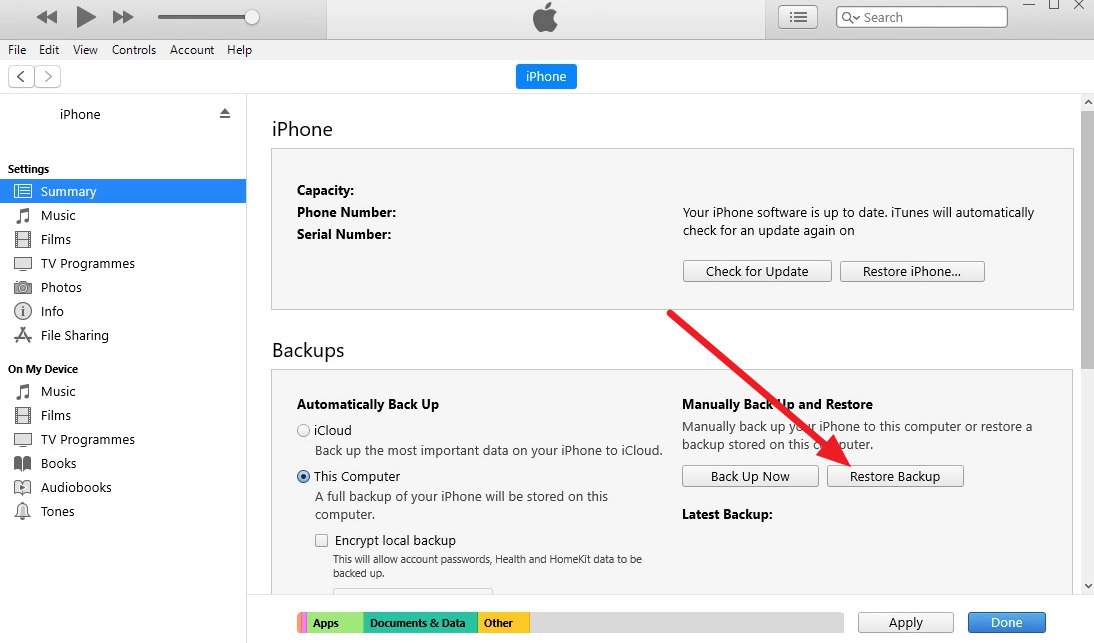
Step 1 Connect devices > Pick "Trust" on iPhone > Tap on the "Phone" icon on iTunes and go to the "Summary" tab. In the "Backups" section, choose the "Restore Backups" option to pick the backup that contains your call recordings.
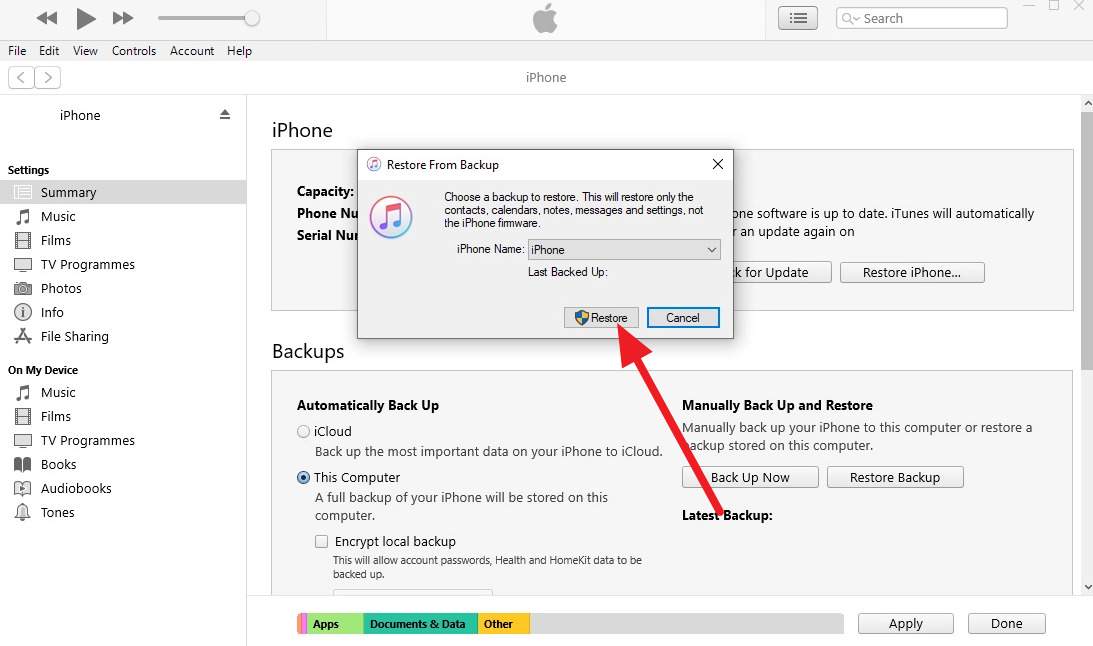
Step 2 Following this, press the "iPhone Name" menu, choose the required backup, and press "Restore" to start the backup restoration.
Cons
- All data added after the backup date gets permanently erased.
- Restores the entire device, not just the deleted recording.
Part 3. Recover Deleted Call Recordings Without Restoring Your Entire Backup
So far, you know how to recover deleted call records, but the iCloud and iTunes/Finder options give no selective restoration and take too long. In addition, they depend on the pre-deletion backups, and all the new data is lost when one is restored. Likewise, there is no native recovery option for iPhone call recordings, and the Recently Deleted folders expire after 30 days.
Recover Just the Recording, Not Your Entire Phone
When you get confused with separate recovery steps for apps or fail to preview backups, Dr.Fone - Data Recovery steps in. With this tool, you can choose to recover call recordings from the device, iCloud, iTunes, and local backups in just 2-3 steps. In addition, you can check recoverable call recordings and other 35+ data types for free by performing a read-only scan to secure the existing data.
This tool can also help when the phone is damaged or unresponsive, and you can preview the call recordings when the free scan ends. Since you can control call recordings recovery, you can save them on your phone and PC upon retrieval. Furthermore, no steep learning curve is needed, and users can access this tool on 1-5 devices and 2 PCs without any reset required for the iCloud Backup method.
 Recovers data after deletion, crashes, or device damage.
- Supports photos, messages, contacts, WhatsApp, and more.
- Supports all major iPhone, iPad, and iPod models.
- Preview and recover only what you need.

How to Recover Deleted Call Recordings on iPhone Without Losing Recent Data
For those who want to know how to recover deleted call recorder selectively from the iPhone, follow the mentioned steps to perform real-world tests:
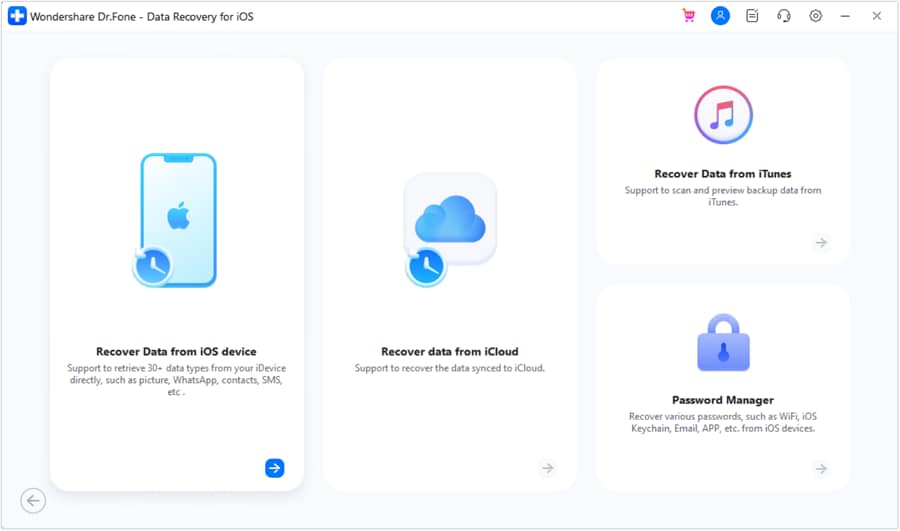
Step 1 Choose to Recover Call Recordings from iOS
To recover call recording, take iPhone 17 as an example and pick the "Recover Data from iOS Device" feature from the Data Recovery for iPhone to connect the device when prompted.
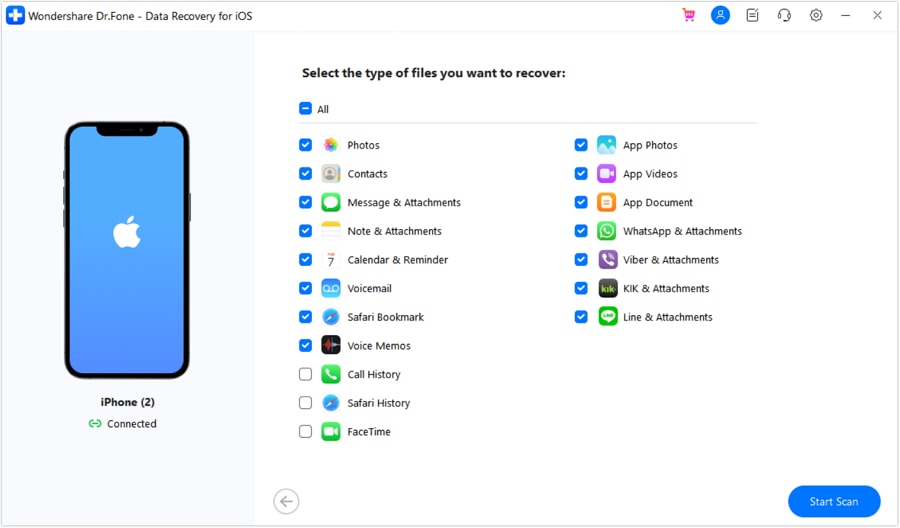
Step 2 Pick Voice Memos or Notes App on Dr.Fone
From the available data types, tick the "Voice Memos" or "Notes & Attachments" options and click the "Start Scan" to scan the iPhone 17 storage.
Step 3 Recover and Export the Voice Memos/Recordings
When you get the list of recordings, filter and preview them, and finally select the "Restore to Device" or "Restore to Computer" option.
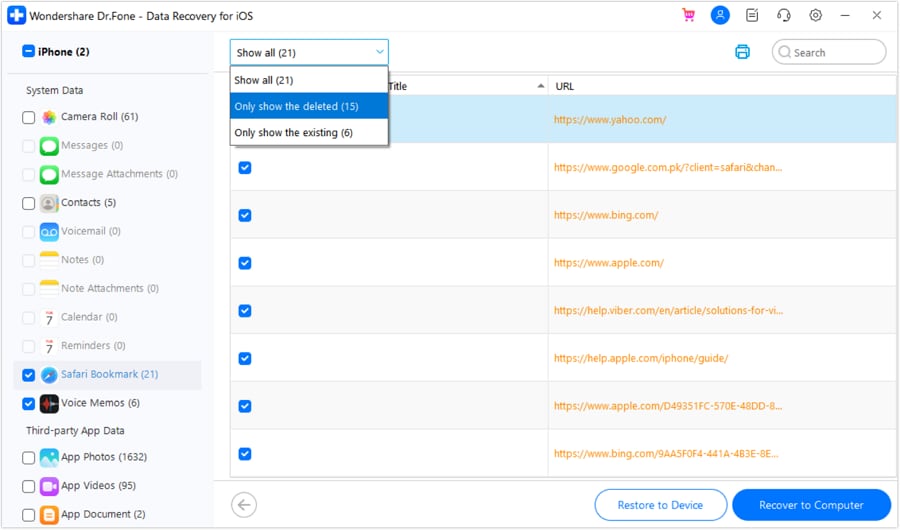
Notes: In addition to the device, users can also recover call recordings from iTunes and iCloud backups. For the iCloud Backup, follow this Guide or choose to recover from iTunes via this Guide.




Part 4. 5 Tips to Prevent Call Recordings Loss on iPhone
Now, you know how to recover deleted call recorders, and which option is suitable in terms of selective restoration. For extra safety, follow the mentioned ways and secure the call recording on iPhone in the future:
| Tips | What To Do |
|---|---|
| Enable Automatic iCloud Backup | Turn on iCloud Backup via Settings > [Your Name] > iCloud > iCloud Backup > Enable this feature. |
| Export Recordings Immediately After Saving | Share recordings to Google Drive, OneDrive, or email right after the call. |
| Check App Auto-Delete Settings | Review retention/storage settings in TapeACall, Rev, or your recorder app. |
| Maintain Sufficient iCloud Storage | Upgrade iCloud plan or free up space to ensure backups are complete. |
| Never Uninstall Recorder Apps Without Exporting | Always export or back up recordings before deleting any call recorder app. |
Conclusion
Many users want to learn how to recover deleted call recordings when they are deleted from the cloud storage or the Files and Notes app on the iPhone. Hence, this guide has uncovered some official routes and their limitations to make the right choice.
Since they lack preview and selective call recording recovery, experts say Dr.Fone - Data Recovery is the most dependable choice. This tool can recover 35+ data types, along with call recordings from the device, iCloud, and iTunes backup, so that you can save them to your phone or PC.
FAQs
-
Can I recover call recordings if my iPhone is broken or water-damaged?
As long as the device successfully syncs to the cloud or the internal storage chip remains intact, you can recover call recordings. If the damage is severe and the phone is locked and unresponsive, you can use Dr.Fone - Data Recovery (iOS) to recover call recordings and other app data from the device, cloud, and local backups. -
Do call recordings get deleted when I switch to a new iPhone?
No, your call recordings won't be deleted when you switch to a new iPhone if they are backed up to iCloud and iTunes. If they get lost and you seek to recover them from the device, iCloud, or iTunes, you can rely on Dr.Fone - Data Recovery (iOS). -
Why can't I find my TapeACall recordings after reinstalling the app?
This is because your call recordings are tied to your specific TapeACall account, not to the local device's app cache. So, if you cannot find them, you have either logged in to a different account or your device needs a restart or app refresh.
 Add Wondershare Dr.Fone as a preferred source on Google