Recover photos, messages, WhatsApp, and more — no backup
needed.
Recover photos, messages, WhatsApp, and more — no backup
needed.

 100% Security Verified | No Subscription Required | No Malware

 :
: 
 ChatGPT
 Perplexity
 Gemini
 Claude
 Grok
Grok
You unlock your iPhone to call someone, but then you find out that your entire list of contacts is gone. It can be due to various reasons: changing a device, upgrading to a new version of iOS or an iCloud sync problem.
In this article, you're going to discover how to restore contacts from iCloud through several methods that have been checked by many people, including Apple features to Dr.Fone selective recovery, so you will be able to get your crucial contact numbers in no time.
In this article

Part 1. Quick Checks Before Restoring Contacts
Don't rush to recover your contacts. Take few minutes to see if they are really gone. Very often, no contacts are deleted, and they just do not show because of some sync or settings issue.
- Are iCloud Contacts Enabled? Go to Settings > [Your Name] > iCloud and check that the Contacts button is green.
- Use the correct Apple Account: If you have recently signed in with a different Apple Account, your contacts could have been synced to another account.
- Check whether contacts are hidden or not: Press Lists or Groups in the Contacts app to verify all contact groups.
Part 2. How to Restore Contacts from iCloud
Don't want to lose your contacts? No worries! You can always restore contacts from iCloud on your iOS device.
Wondering how do you restore contacts from iCloud? Here are few methods you can try.
Method 1 — Restore Contacts from iCloud.com (iCloud-Synced Data)
You might be able to get your contacts back without wiping your whole iPhone if your contacts were synced with iCloud before they disappeared. iCloud.com will be your point of access to see your synced contacts, and you can also restore an older contact backup made automatically by Apple, if you need to.
Best for: Contacts that were recently deleted but were previously synced to iCloud.
What you need: A web browser, your Apple Account (Apple ID), and password.
Here's how to restore contacts from iCloud:
Step 1 Head to iCloud.com through your browser and log in with your Apple ID.
Step 2 Select Contacts to check if your lost contacts are still there. If they are, turn on iCloud Contacts on your iPhone to get them back synced.
Step 3 If no contacts are found, tap on the Quick Access button (top-right corner) and choose Data Recovery.
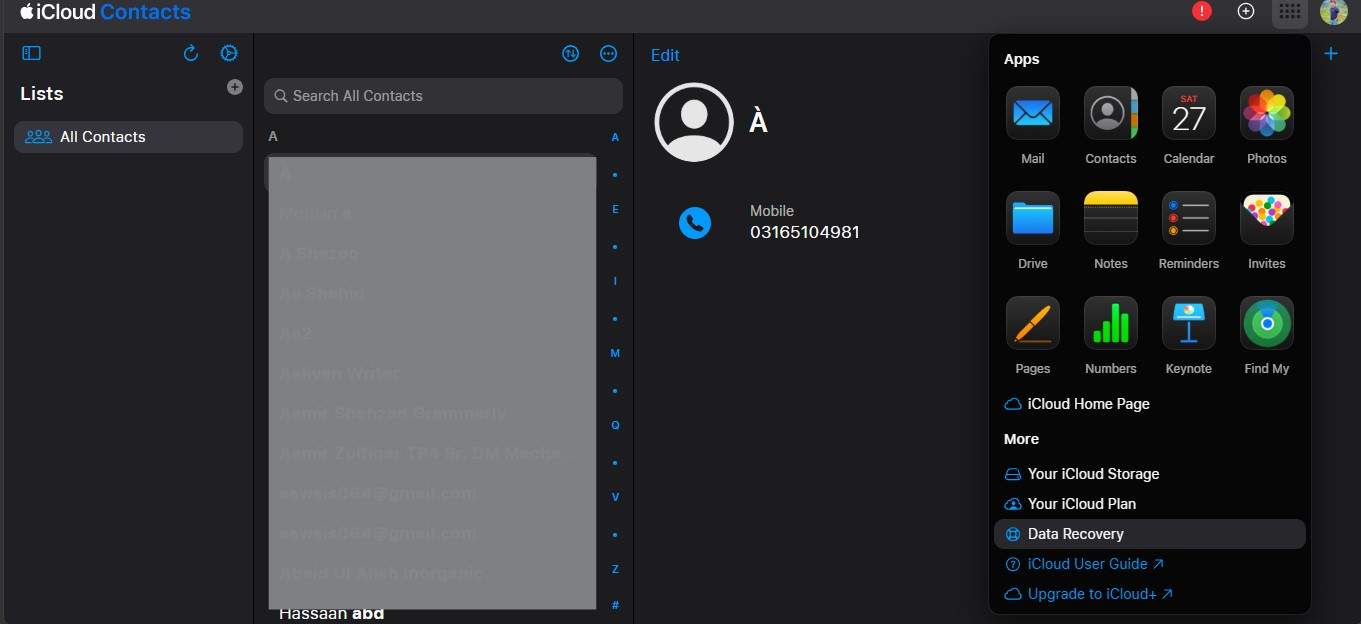
Step 4 Pick a backup dated contact before you lose your contacts and press Restore.
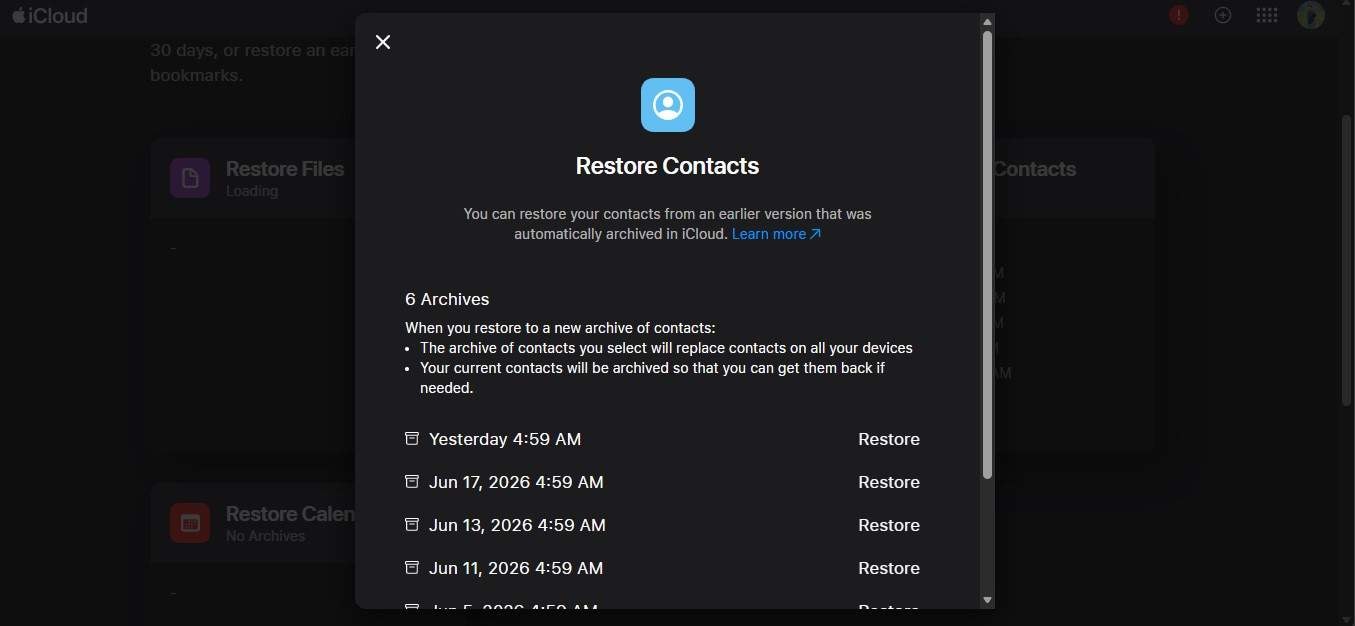
Step 5 After the restoration process is done, your recovered contacts will be updated across all devices connected with the same Apple Account.
- It is good to keep in mind that restoring a contact archive will replace your existing contact list with the version that is restored. If you have only added a few new contacts, you could consider exporting them as vCard first to prevent data loss.
- Unfortunately, this technique is only effective if the iCloud Contacts feature was turned on before your disappearance of contacts.
- After the restoration, the changes you have made will be reflected on all the devices logged in with your Apple Account, as the contacts will be kept in sync automatically.
Method 2 — Restore Contacts via iPhone Settings (Re-enable Sync)
Sometimes your contacts may not have been deleted; they might just have failed to get synchronized with your device. For instance, if by mistake you turn off iCloud Contacts or if you have just signed out from your Apple Account, then all you need to do is to enable iCloud Contacts once again and your contacts will be restored in only a few minutes.
Best for: Contacts that disappeared after iCloud Contacts were turned off or after signing out of your Apple Account.
What you need: An iPhone or iPad.
Wondering how to retrieve contacts from iCloud via iPhone? Follow the steps below:
Step 1 Launch the Settings app and click your Apple Account at the top.
Step 2 Click iCloud and then tap See All.
Step 3 Switch the Contacts toggle to ON if it is currently off.
Step 4 If asked, select Merge so that the contacts kept on your iPhone will be combined with those in iCloud.
Step 5 Allow some time for your contacts to be synced. Then unlock the Contacts applications to see if your missing contacts came back.
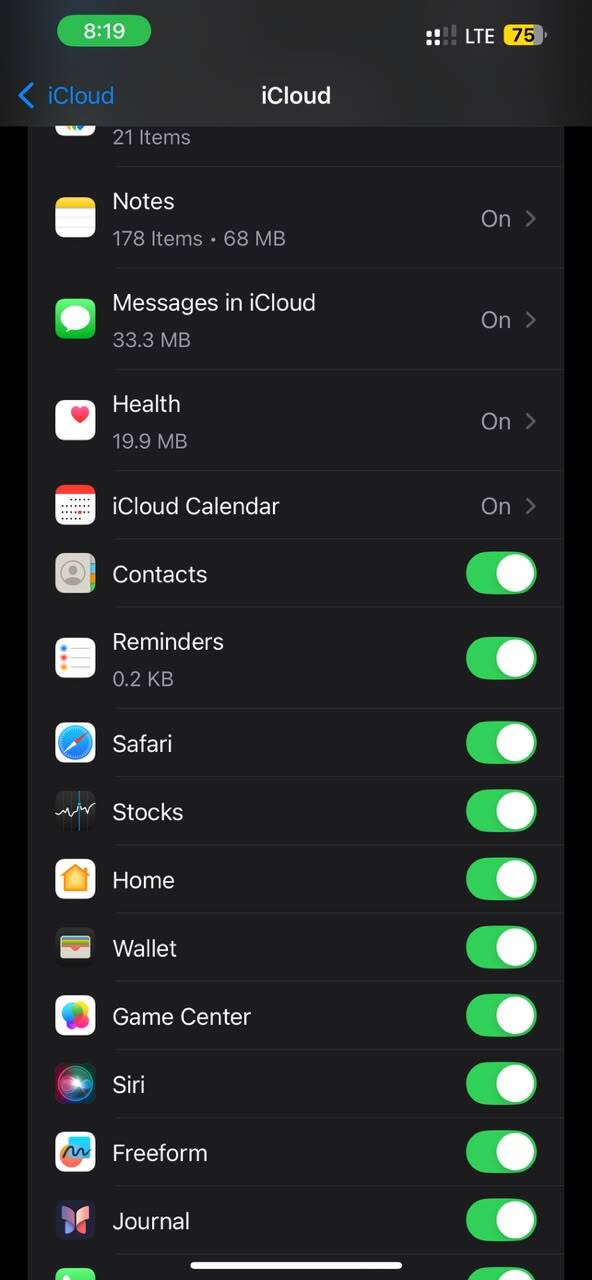
- When you enable iCloud Contacts once more and a prompt shows up, you will have to choose Merge. However, if you go for Delete from My iPhone, it will only erase the contacts that were stored on your phone.
- The only way this method can restore contacts is if they are still present in your iCloud account. If the contacts have been deleted from iCloud already, you will have to use a different recovery method.
Method 3 — Selective Contacts Recovery from iCloud Backup with Dr.Fone
Best for: Contacts that are lost after a device reset to factory settings, a damaged phone, or accidental deletion, provided that they are stored in an iCloud backup.
In case you have contacts in the iCloud backup rather than iCloud sync, Apple's own restore function will require you to erase your phone and then completely restore it from the backup. You must be wondering how can I retrieve my contacts from iCloud then?
Dr.Fone - Data Recovery offers a much easier way. It helps you log in to your iCloud account, scan and preview the backup for free, and restore only the contacts you want without factory resetting your iPhone or erasing existing data. Apart from iCloud backups, it can also recover data from iCloud Sync, iTunes backups, and even directly from iOS devices, which makes it a very versatile choice for various kinds of data loss situations.
 Recovers data after deletion, crashes, or device damage.
- Supports photos, messages, contacts, WhatsApp, and more.
- Supports all major iPhone, iPad, and iPod models.
- Preview and recover only what you need.

Steps to recover contacts from an iCloud backup with Dr.Fone
Step 1 Download and install Dr.Fone on your PC. Choose Toolbox > Data Recovery, then iOS, and finally Recover Data from iCloud Backup.
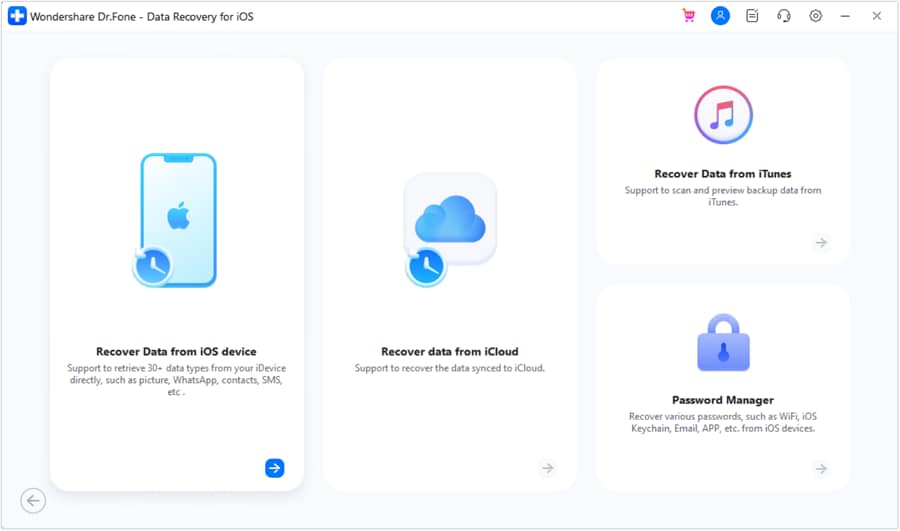
Step 2 Sign in using the Apple Account that you have linked to your iCloud backup.
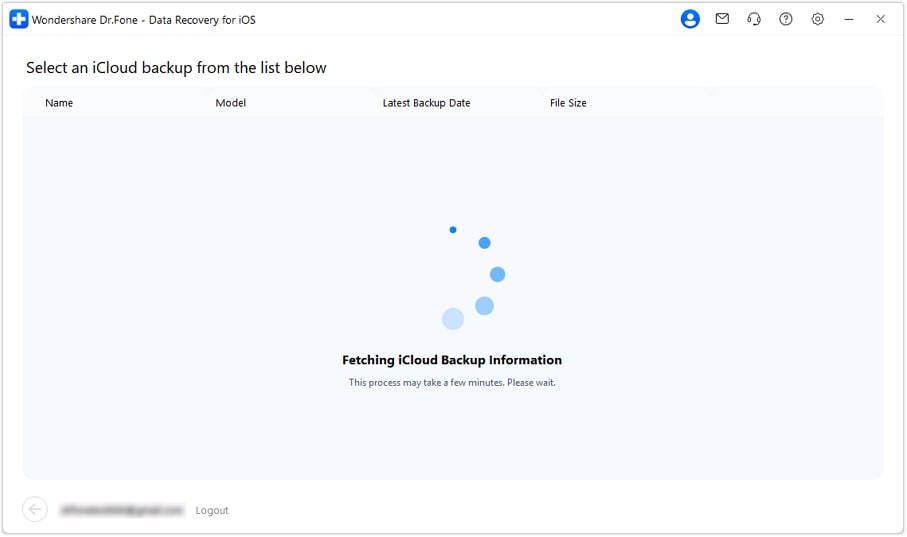
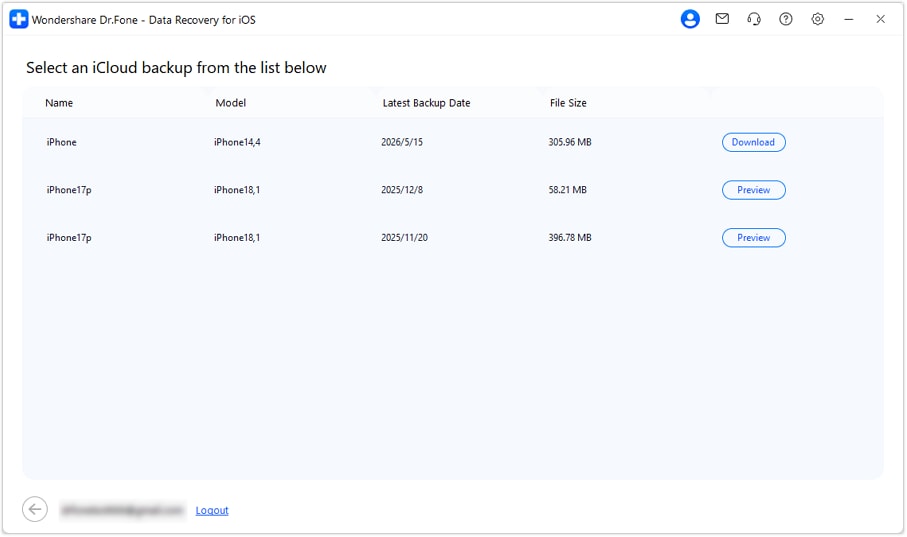
Step 3 Select the backup that contains your lost contacts and click Download. Once the backup is processed, Dr.Fone will display all recoverable data categories.
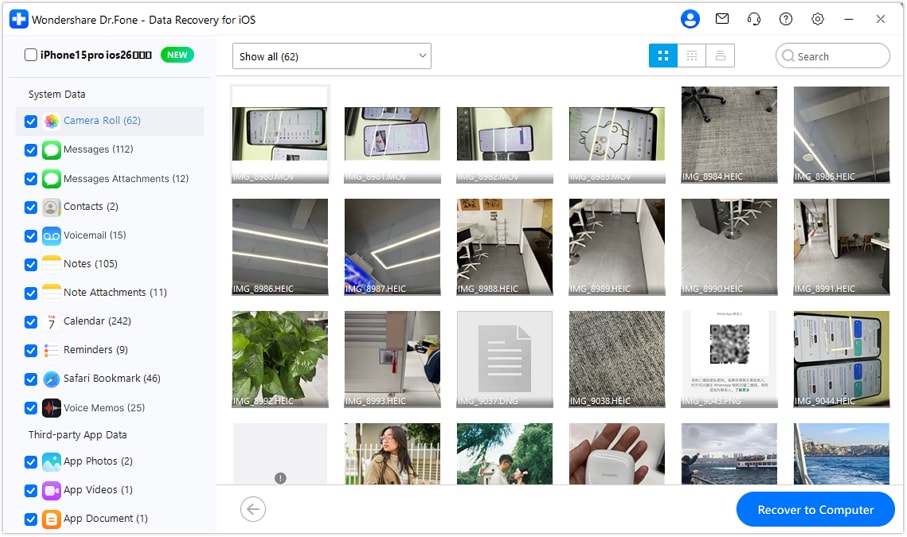
Step 4 Select the Contacts category. First, you can see which contacts can be recovered. After that, mark the contacts you want to get back and click on the Recover to Computer button. This way, your contacts will be saved even without restoring the whole backup.




Method 4 — Restore an Entire iCloud Backup on a New or Reset iPhone
Best for: The best time to use this option is when your contacts are part of your iCloud backup, and either you are a newbie to the iPhone, or you have just reset your iPhone and want to restore the whole backup.
What is needed: iPhone, a Wi-Fi connection, Apple ID credentials, and an iCloud backup.
So, if it turns out your contacts have been included in one of the iCloud backups, then you have the option to restore the whole backup when you are setting up your iPhone.
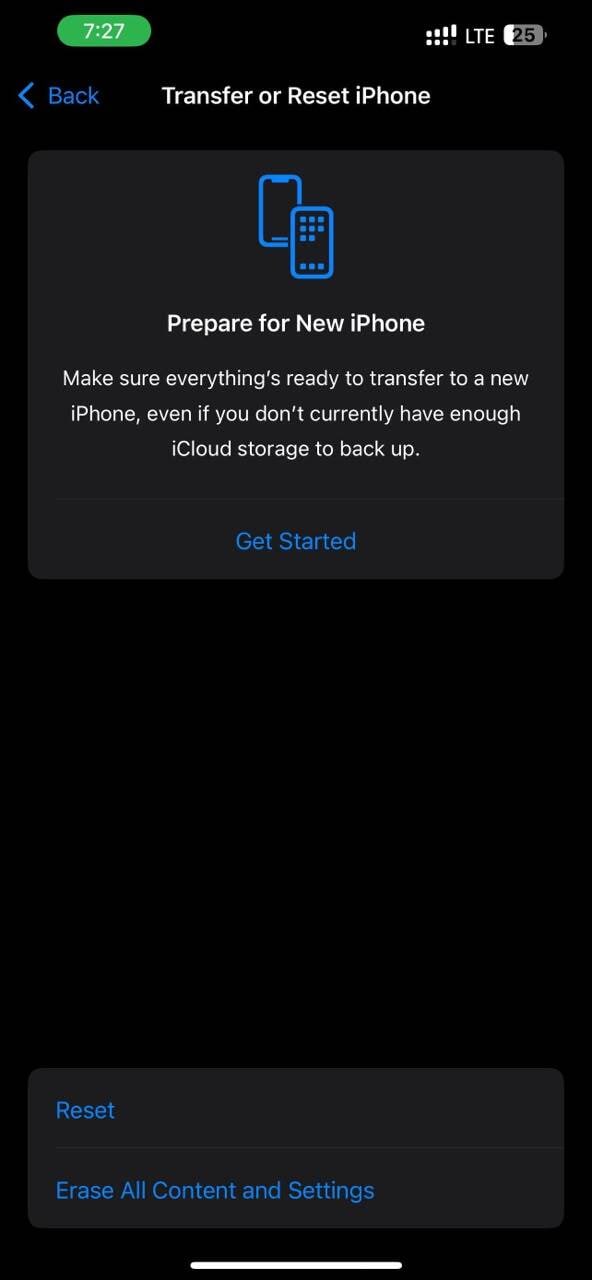
Step 1 In case you have done the setup of your iPhone already, then you may erase it through Settings > General > Transfer or Reset iPhone > Erase All Content and Settings. As for an unused iPhone, just continue with the setup procedure.
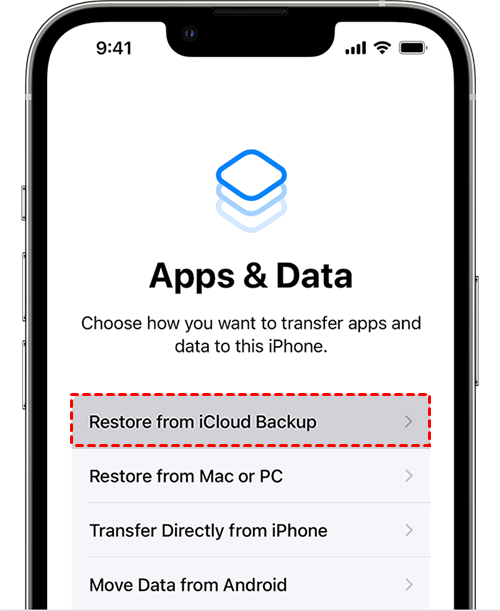
Step 2 Follow on-screen instructions. On Apps & Data screen, tap on Restore from iCloud Backup.
Step 3 Use your Apple Account to log in, pick the backup where your contacts are, and let the restoration begin.
- You must restore the entire iCloud backup if you go with this method selective contacts recovery is not available.
- If the iPhone is already up and running, it will need to be erased completely before a backup can be restored.
- Unless separately backed up, any data generated after the date of the backup chosen will not be included.
Part 3. Troubleshooting: Why Are My Contacts Still Missing?
| Problem | Quick Fix |
|---|---|
| Wrong Apple Account | Sign in with the Apple Account that originally stored your contacts. |
| iCloud Contacts sync was off | Check your iCloud backup instead. Dr.Fone can recover contacts from an iCloud backup without resetting your iPhone. |
| iCloud storage was full | Go to Settings > [Your Name] > iCloud > Manage Account Storage and verify your latest backup completed. |
| Contact archive expired | iCloud.com typically keeps contact archives for about 30 days. |
| Contacts were saved locally | These contacts won't appear in iCloud unless they were synced or backed up first. |
| Two-factor authentication | Complete Apple ID verification before accessing your iCloud data. |
Part 4. Tips to Prevent Losing Contacts in the Future
You can recover lost contacts, but it is best to stop data loss before it happens. The easiest and best way is to cultivate simple habits that will not only keep your contacts safe but also help you recover your contacts quickly in case of mishaps.
- Always keep enabling iCloud Contacts. Simply go to Settings > [Your Name] > iCloud and check that the Contacts sync is ON.
- Allow automatic backup using iCloud. Go to Settings > [Your Name] > iCloud > iCloud Backup and activate automatic backups so your updated data is stored at regular intervals.
- Looking at your backup is a good idea before any major changes. Prior to updating iOS, performing a factory reset on the iPhone, or switching devices, you should ensure the latest backup to iCloud has been done successfully.
- Try Dr.Fone for an extra layer of security. Dr.Fone is a good tool for backing up important data and restoring contacts selectively when required. In that way, you will not have to erase your iPhone or restore an entire backup just to get a few contacts back.
- Save a copy of your contacts by exporting them. Log in to iCloud.com, and you can export your contacts as a .vcf (vCard) file. This is an offline backup.
Conclusion
If you're also one of those who wonder how can I get my contacts back from iCloud, this article is the answer. Don't panic if your contacts suddenly disappear because most likely you could still retrieve them. Depending on your mode of losing, you may restore your contacts by iCloud syncing, iCloud.com, or iCloud backup. To have the most adaptable recovery, Dr.Fone - Data Recovery is a very good choice because it gives you the ability to view and selectively retrieve contacts from iCloud backup without resetting the iPhone or erasing the existing data. It is an easy and trustworthy method of obtaining your key contacts while maintaining your present data.
FAQs
-
Can I restore only my contacts without restoring my entire iPhone?
If your contacts are synced to iCloud, you can restore by using iCloud.com. If you have any contacts in an iCloud backup, Dr.Fone Data Recovery will let you recover these contacts. -
How long does iCloud keep deleted contacts?
If you go through Restore Contacts at iCloud.com, the contact archive is kept by Apple usually for 30 days. After that, you may not be able to recover your contacts unless you have a different backup. -
Why didn't my contacts come back after restoring iCloud?
In most cases, the reason for this is that you logged in with a different Apple Account, or Contact sync was off before losing the contacts, or the backup you picked didn't have your contacts. So, take a look at your sync settings again and pick the right backup before you go restore.
 Add Wondershare Dr.Fone as a preferred source on Google