Recover photos, messages, WhatsApp, and more — no backup
needed.
Recover photos, messages, WhatsApp, and more — no backup
needed.

 100% Security Verified | No Subscription Required | No Malware

 :
: 
 ChatGPT
 Perplexity
 Gemini
 Claude
 Grok
Grok
Lots of iPhone users assume that by just signing into iCloud.com, they will be able to view all their text messages. The thing is that iCloud is not set up that way. Even though Messages in iCloud can keep your conversations up to date on all your Apple devices, there is no iCloud.com web page where you can check your messages.
Whether your intention is to get back deleted chats, see text messages on another Apple gadget, find out if Messages in iCloud are properly syncing, or get back old SMS and iMessages after changing your iPhone, the truth is that there are multiple ways to accomplish these tasks.
This guide will cover how to see messages on iCloud, open synced conversations on your Apple devices, view iCloud backup, as well as recover messages in case they are lost.
In this article

Part 1. Understand Where Your Messages Are Stored on iCloud
It is important to figure out how Apple keeps your messages in iCloud before you go ahead and start looking at them. So, your messages can be saved in two entirely different ways and quite differently from each other. Once you understand how to check text messages on iCloud, you can also recover them.
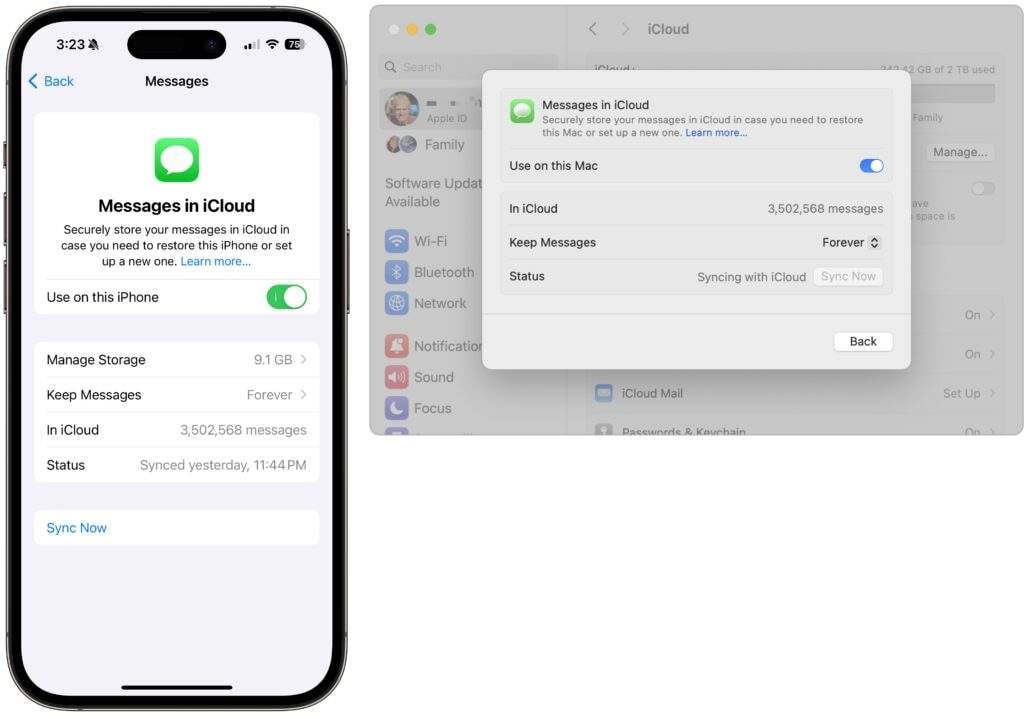
Messages in iCloud (iCloud-Synced Data)
Turning on Messages in iCloud means that your SMS and iMessages will be synced between different Apple devices.
- New messages will be received on all the devices that have been synced.
- Removing a message on one device will lead to its deletion on other devices as well.
- Your conversations will be constantly refreshed without any manual intervention on your iPhone, iPad, or Mac.
- You will not be able to access these messages on iCloud.com as Apple does not provide any web interface for the Messages.
Messages Stored in an iCloud Backup
An iCloud backup is not the same as Messages in iCloud. Rather than syncing data, it makes an image of your device at a certain time.
- Only those messages that were there at the time of creating the backup will be included.
- The backup is also a container of other device data, settings, and app information.
- You won't be able to look through or open messages from an iCloud backup.
- If you want to get to those messages, you will need to do a backup restore or a backup viewer.
Is iCloud Drive Used to Store Messages?
No. iCloud Drive is where you keep your files like documents, PDFs, and folders from apps. Your Messages, therefore, are not stored or synced through iCloud Drive.
You must be wondering how can I view messages on iCloud? Let's start with the guide.
Part 2. How to View Messages Synced with iCloud
If you use Messages in iCloud as your way to sync, then seeing your chats is as simple as opening the Messages app on any Apple device logged in with the same Apple ID.
Before You Start
Prior to implementing the following steps, confirm that:
- Your Apple ID is the same one used for signing in on all devices.
- The device that you are using presently is connected to the internet.
- Messages in iCloud option has been switched on.
Here's how to see messages on iCloud:
Step 1. Enable Messages in iCloud
On iPhone or iPad
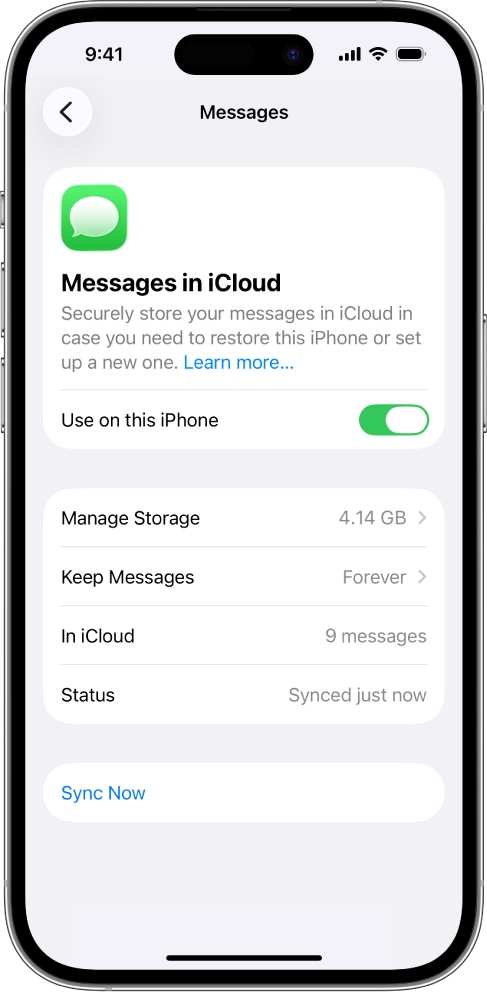
Go to the Settings app. Tap [Your Name] > iCloud. Select Messages. Enable the "Use on this iPhone" switch and tap on the Sync Now.
On Mac
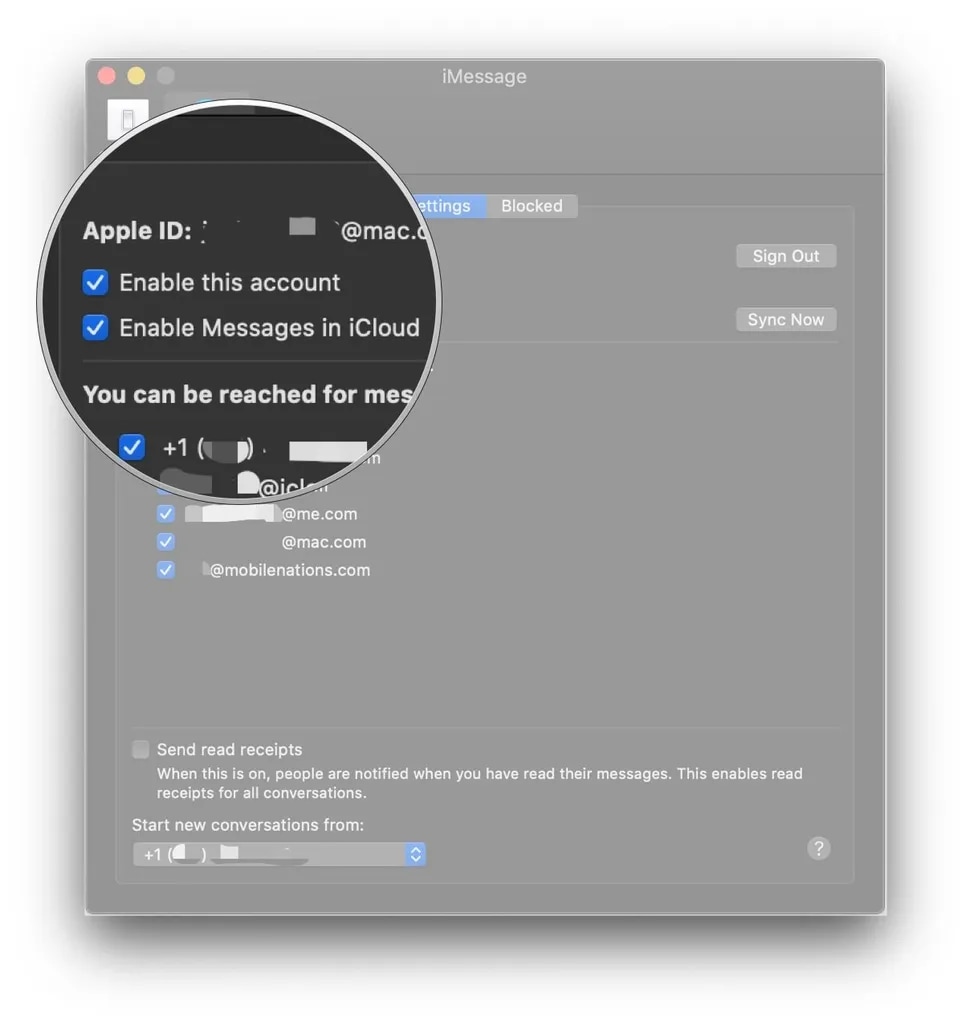
Open the Messages application. From the bar, choose Messages > Settings (or Preferences for the older macOS versions). Click on the iMessage tab. Check the box next to Enable Messages in iCloud.
Step 2. Open the Messages App
Launch the Messages app on your iPhone, iPad, or Mac. Your thread of conversations saved in iCloud will be shown here after the synchronization is complete.
Step 3. Wait for Messages to Sync
In case you have only now activated Messages in iCloud or for the first time you are using a device, synchronizing can last a few minutes.
Part 3. How to View Messages Stored in an iCloud Backup
If your iMessages are not syncing through Messages in iCloud, they could be stored in an iCloud backup. This often occurs when you delete conversations, get a new iPhone, or disable Messages in iCloud before the backup is generated.
Different from synced messages, ones that are kept in an iCloud backup cannot be seen directly. To get to those messages, you either must do a restoration of the backup or resort to a backup viewer.
3.1 Apple's Standard iCloud Backup Restore
In case your messages had been part of an old iCloud backup, retrieving that backup might recover them for you. Though, do note that this method is effective only if the backup dates prior to the deletion of messages because iCloud backups get updated regularly. Also, if you have enabled Messages in iCloud, the deleted chats go to the Recently Deleted folder and remain there for 30 days.
How it works
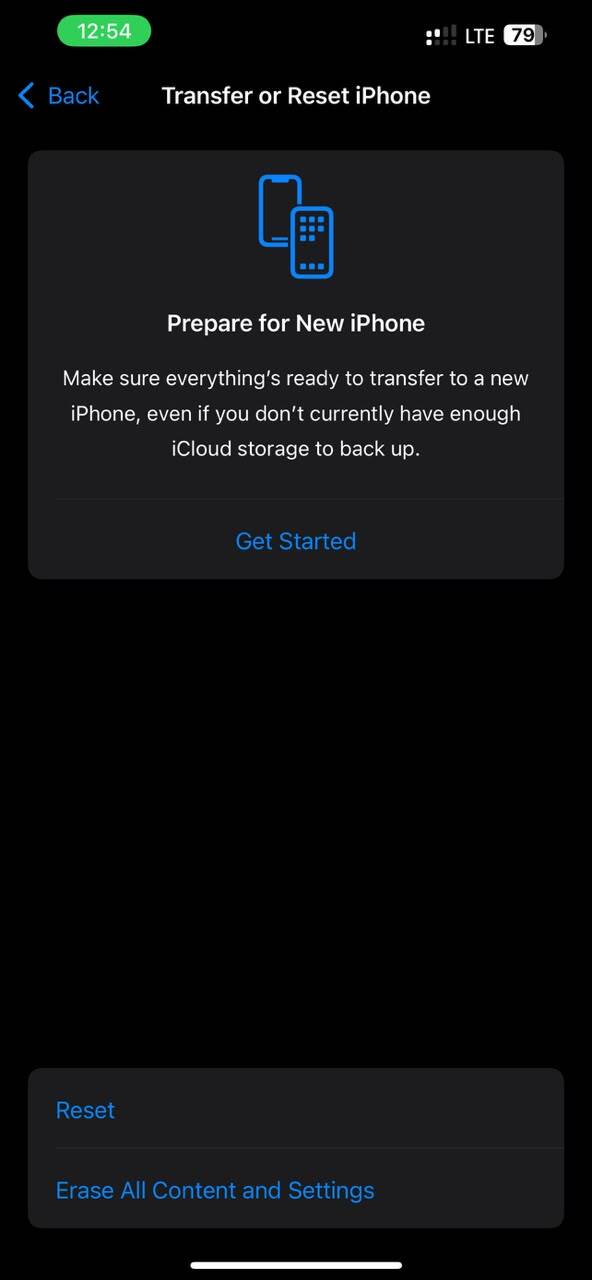
Step 1 Navigate to Settings > General > Transfer or Reset iPhone and choose Erase All Content and Settings.
Step 2 Follow the on-screen instructions on your iPhone.
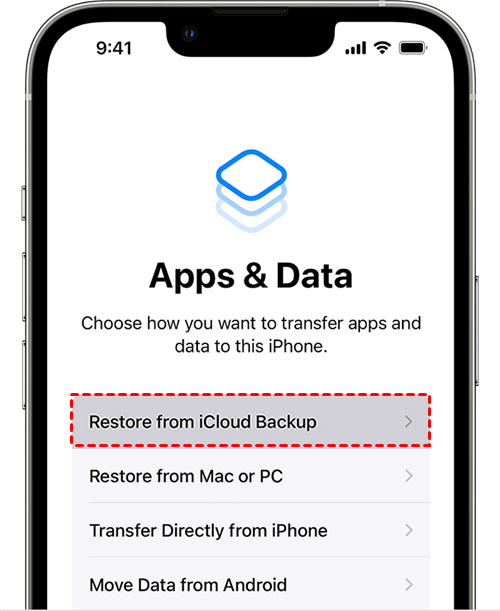
On Apps & Data select Restore from iCloud Backup, enter your Apple ID, and pick the backup.
Step 3 When the restoration is done, launch the Messages app to see if your chats have been brought back.
Limitations
- Require erasing your iPhone first.
- Restores the entire backup, not just messages.
- May overwrite your current data.
- Doesn't let you preview messages before restoring.
3.2 How to Recover Messages from an iCloud Backup Without Resetting Your iPhone
Dr.Fone - Data Recovery is an excellent tool to access messages that are saved in an iCloud backup. With this software, you can log in to your iCloud account, download a backup, preview what's inside, and only recover the messages you want, no need to restore the entire backup.
Moreover, this tool supports selective recovery, so your current data are not affected. Besides iCloud backups, it may recover the data from iPhone, iTunes backups, and iCloud-synced data. It is compatible with 35+ data types such as messages, photos, contacts, notes, WhatsApp chats, and documents, and it uses local, read-only scans to protect your privacy and to prevent overwriting the existing data.
 Recovers data after deletion, crashes, or device damage.
- Supports photos, messages, contacts, WhatsApp, and more.
- Supports all major iPhone, iPad, and iPod models.
- Preview and recover only what you need.

Here's how to view text messages on iCloud and recover them via Dr.Fone:
Step 1 Donwload Dr.Fone Data Recovery (iOS) and install it. Navigate to Toolbox > Data Recovery and choose iOS.
Step 2 Click on "Recover Data from iCloud Backup" button. Enter your Apple ID credentials.
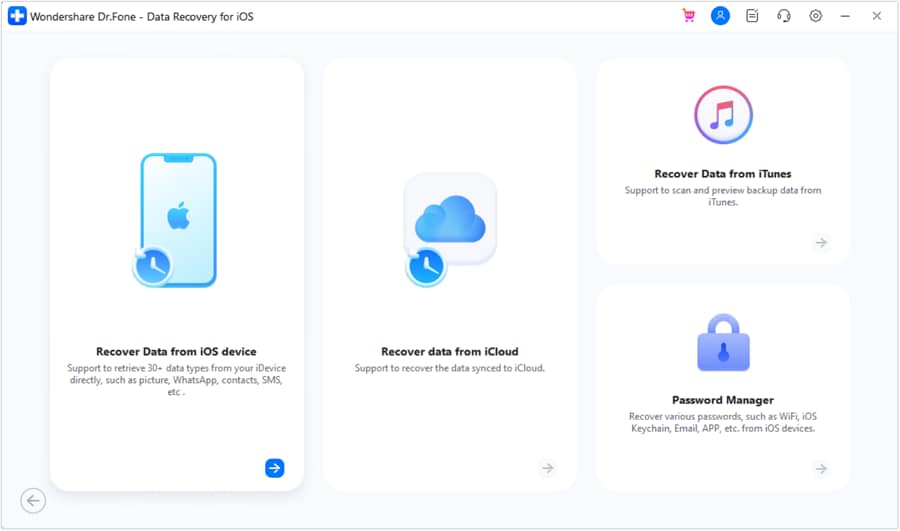
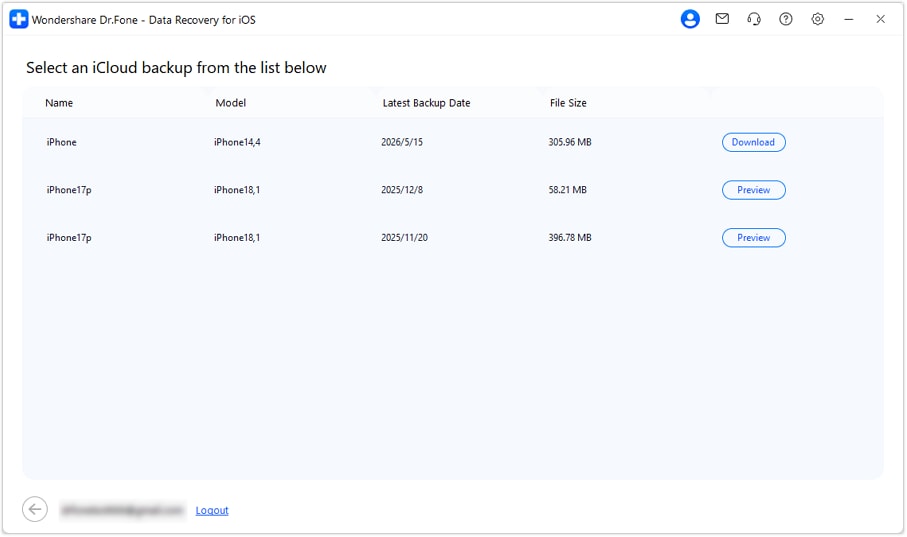
Step 3 Pick the iCloud backup that has your messages and press Download. After the backup is analyzed, Dr.Fone will list all the data types that can be restored.
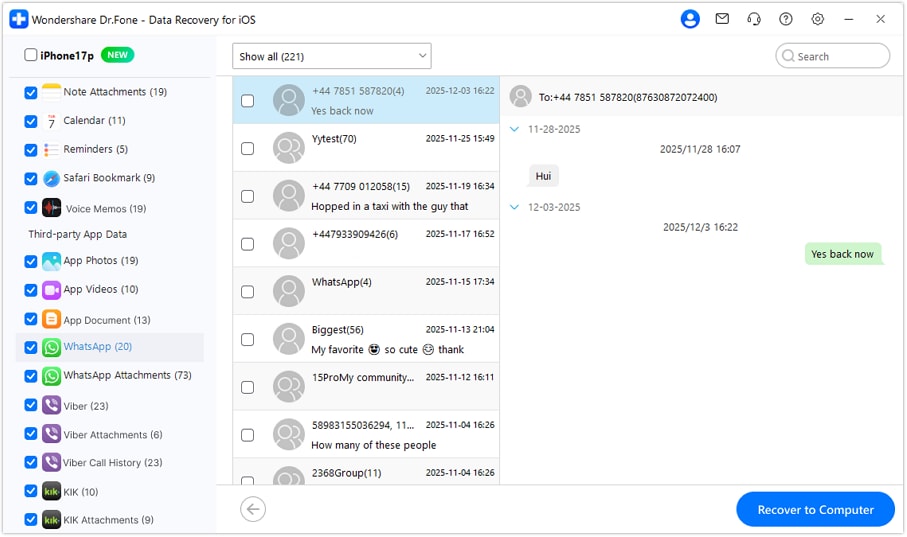
Step 4 Click on the Messages category to view your chat records. After you pick up the messages, just hit Recover to Computer to export them without doing a reset on your iPhone or overwriting your current data.




Part 4. Why Can't I See My Messages on iCloud?
Messages not appearing are generally a syncing setting or an iCloud backup problem. These are the usual issues and ways to deal with them.
Messages are still being downloaded
Turning on Messages in iCloud or getting a new iPhone recently might mean that your messages are not fully downloaded yet. Connect your iPhone to Wi-Fi and allow it some time to complete syncing.
iCloud does not have your messages
You can recover only the messages that were synced or backed up to iCloud. Always check Recently Deleted folder before recovering data.
Messages are not syncing
If the Messages in iCloud feature is not enabled, the exchanges won't be reflected across your different Apple devices. Go to Settings > [Your Name] > iCloud > Messages and enable the Sync this iPhone option.
Network or iCloud storage problems
Messages syncing can be interrupted by a weak internet connection or a full iCloud storage. To connect to a proper Wi-Fi network and to check for sufficient available iCloud storage, you should do the following.
Conclusion
You cannot open your text messages on iCloud.com directly but can always check the messages on iCloud if you use Messages in iCloud feature as all your conversations are automatically synced via Apple ID. Signing in to the device with the same Apple ID will bring up all the messages that have been synced.
Meanwhile, if you are backing up your messages through iCloud, restoring the backup or using a tool like Dr.Fone - Data Recovery which lets you view and recover certain messages without having to perform a factory reset on your device becomes necessary.
FAQs
-
Can one view messages on iCloud website?
No. You cannot see your text messages on the iCloud.com website. Apple only syncs messages for the devices that have the feature enabled, so you will require an Apple device. -
How can I view messages from an iCloud backup?
There is no way to open an iCloud backup and access its contents. To look at the messages in an iCloud backup, you either have to restore the backup to your iPhone or you could use Dr.Fone – Data Recovery which lets you see and recover only the messages you want. -
Are Messages in iCloud the same as iCloud Backup?
No, there is a big difference between these two features. Messages in iCloud is a service that keeps your conversations always synchronized across your devices. iCloud Backup, on the other hand, is a storage that captures your device's conditions at a moment and helps you restore your iPhone especially after a data loss or when you are setting up a new device. -
How to read text messages from iCloud after replacing my phone?
Log in using your Apple ID on your new iPhone. If you have turned ON Messages in iCloud, your chats should be updated. However, if your messages are only saved in an iCloud backup, restore that backup while setting up your phone or employ Dr.Fone — Data Recovery to get your messages without wiping your iPhone.
 Add Wondershare Dr.Fone as a preferred source on Google