Recover photos, messages, WhatsApp, and more — no backup
needed.
Recover photos, messages, WhatsApp, and more — no backup
needed.

 100% Security Verified | No Subscription Required | No Malware

 :
: 
 ChatGPT
 Perplexity
 Gemini
 Claude
 Grok
Grok
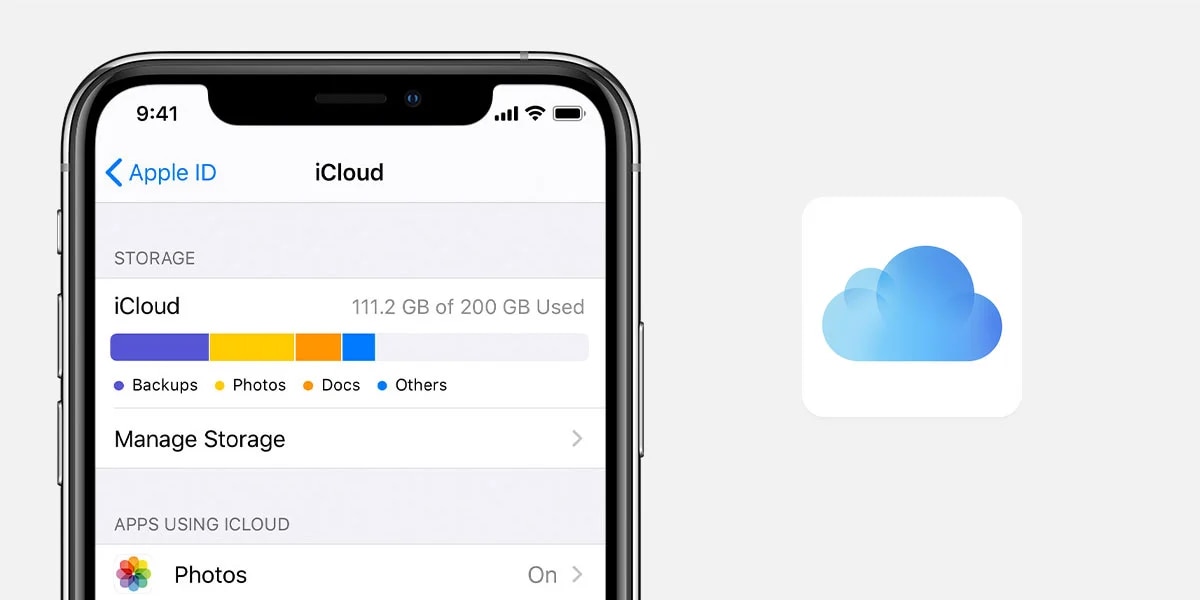
Don't know what to do when your iCloud storage space is running out and you desperately want some free storage? Clean up the clutter by deleting iCloud files to save iCloud storage space. Whether it's to delete a previous draft, or clear a section of confidential data on iCloud, you should start by learning iCloud file deletion management.
Most users ask questions like: if I delete something from my iCloud, does it disappear from my other Apple devices? How to remove files from iCloud? How to recover iCloud sync files? And is deleting a file in iCloud the same thing as deleting an iCloud backup? The answers are all based on the way the files were synced and stored.
This article will cover how to delete files from iCloud on iPhone, iPad, Mac, Windows, and the web without accidentally losing files.
In this article

Part 1. Understand How iCloud File Storage Works
First thing's first: where is your information stored in the iCloud? If you didn't know it already, there's iCloud Drive and there's iCloud backup. Delete one, and that won't delete the other so before you press any buttons it might be useful to know where all your precious information is kept.
Where Are Your Files Stored?
| Feature | iCloud Drive | iCloud Backup |
|---|---|---|
| What it stores | Documents, folders and files | A snapshot of your iPhone or iPad, including settings, app data, and device configuration |
| Can you delete individual files? | Yes. You can remove specific files | No. You can't delete individual files from a backup. You can only delete the entire backup. |
| What happens after deletion? | The file is removed from iCloud Drive and synced across all devices using the same Apple Account. | Deleting a backup removes that saved device backup only. It doesn't delete the files currently stored on your device. |
| Best for | Managing documents, photos saved to Files, PDFs, and other everyday files | Restoring your device after a reset or when switching to a new iPhone or iPad |
How iCloud Sync Affects File Deletion
The primary purpose of iCloud Drive sync is that your files are the same on all the devices signed in with the same Apple account. When you delete a file from iCloud Drive on any device, that deletion is also reflected across all your other devices, and vice versa. Unfortunately, if the file you have deleted on iCloud Drive only resided locally on your computer, then that deletion will have no bearing on the iCloud Drive data, because it wasn't on there in the first place.
Part 2. How to Delete Files from iCloud
Wondering how do I delete files in iCloud? Want to manage iCloud's storage and remove any files that are no longer useful? Here's how to do it:
Before You Start
Here are a few things you should consider before you start deleting data from iCloud account:
- Verify that you are properly logged into the intended Apple account.
- Make sure you download or duplicate the important files to somewhere safe, such as another drive on your device or a folder elsewhere on your Mac or PC.
- When the files are deleted, they typically are moved into the Recently Deleted section.
Option 1. Delete a Single File
Here's how to delete a single file on different iOS devices.
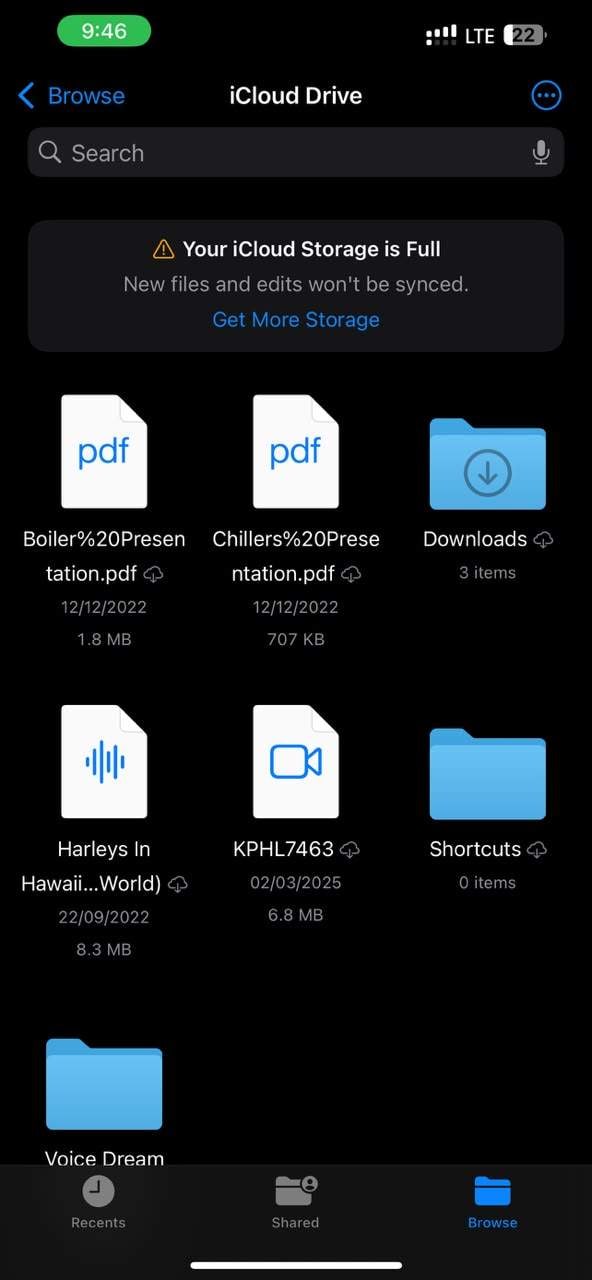
On iPhone or iPad
- Open the Files app. Tap Browse and select iCloud Drive.
- Find the file you want to delete.
- Touch and hold the file, then tap Delete.
On Mac
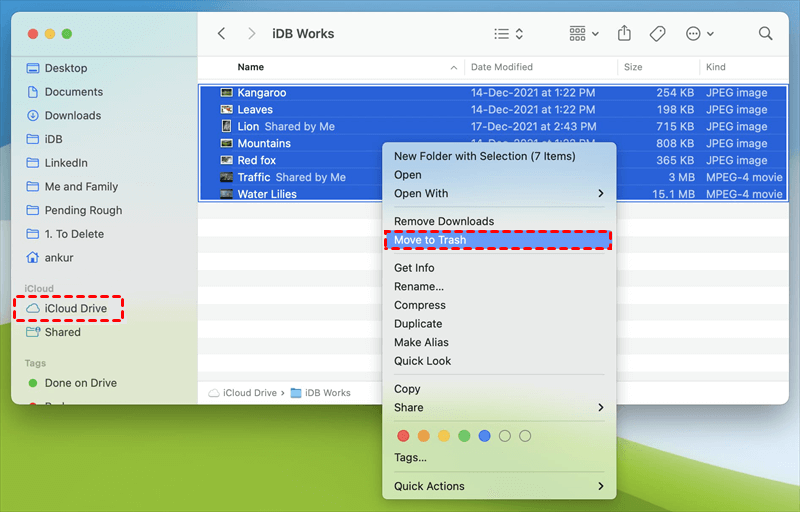
- Open Finder. Click iCloud Drive in the sidebar. Select the file you want to remove.
- Right-click it and choose Move to Bin.
On Windows
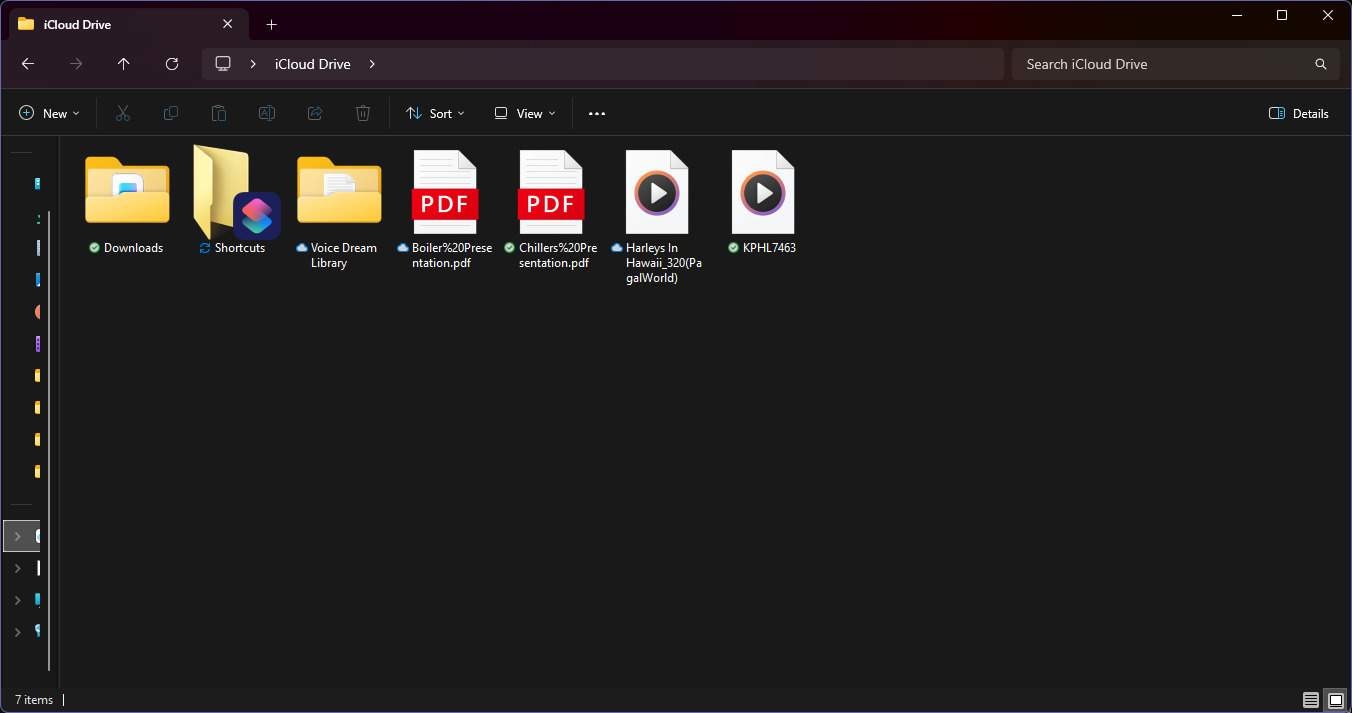
- Open File Explorer.
- Select iCloud Drive from the navigation pane.
- Find the file you want to delete.
- Right-click it and choose Delete or press the Delete key.
On iCloud.com
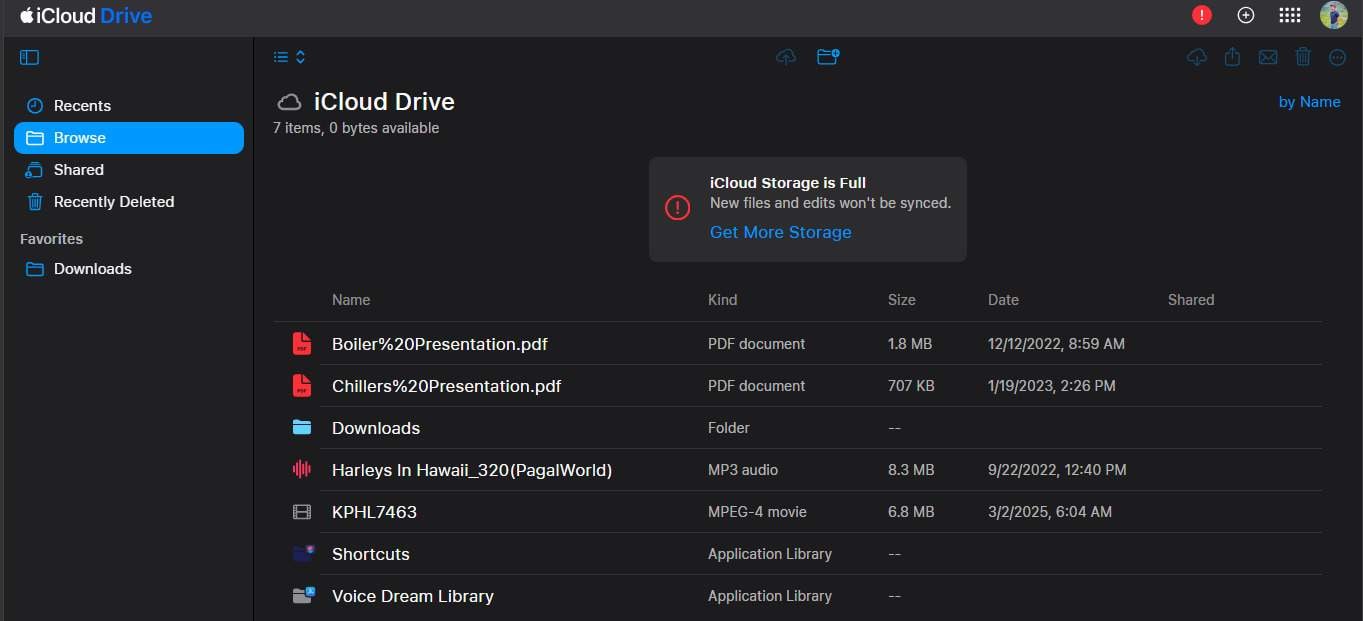
- Sign in to iCloud.com.
- Open Drive.
- Select the file you want to delete.
- Click the Delete (trash) icon and confirm if prompted.
Option 2. Delete Multiple Files or Folders
Need to Delete multiple items at the same time? Select one or more files or folders as it saves you a lot of time.
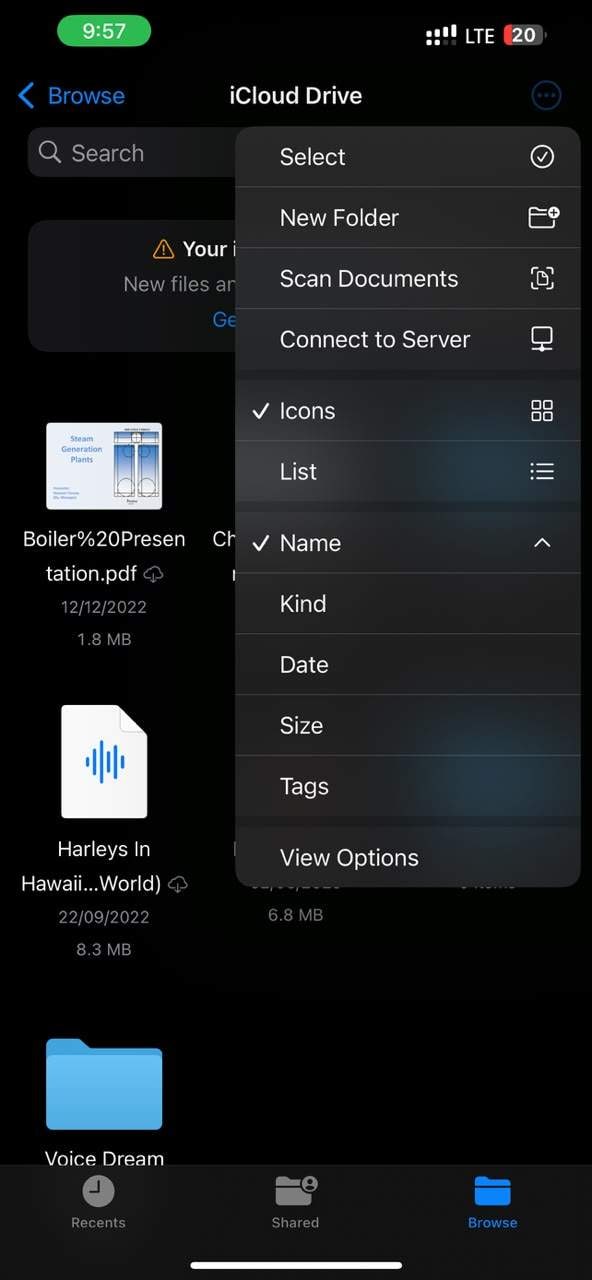
- On your iPhone: In the Files app, tap Browse > iCloud Drive, tap the More menu, tap Select, and Delete.
- On your PC: In iCloud Drive, press and hold the Control key as you select files and folders, then press the Delete key.

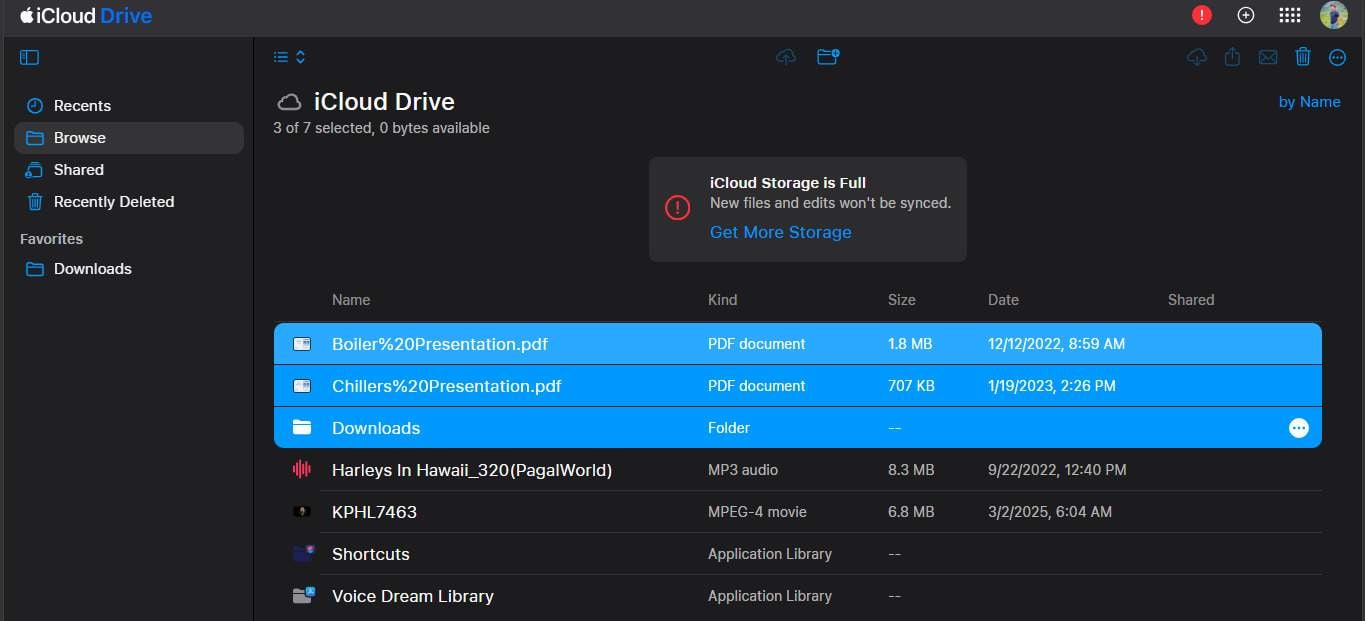
- On iCloud.com: Select one or more files or folders by holding the Ctrl key (Windows) or the Command key (Mac), then click the Delete icon.
Option 3. Permanently Remove Files from Recently Deleted
When you delete a file, it is not erased right away. It goes into Recently Deleted for a certain time so you can restore it.
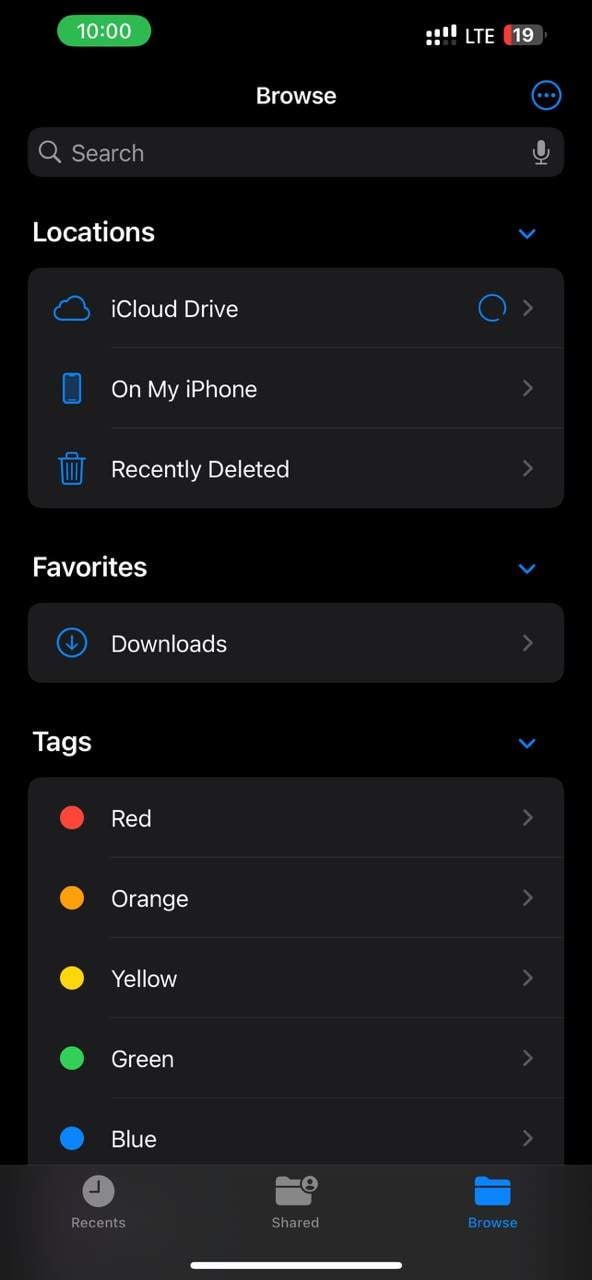
- On iPhone/iPad – Go to Files, choose Browse > Recently Deleted, tap the More, choose Select, select the file you want to delete, and tap Delete Now.
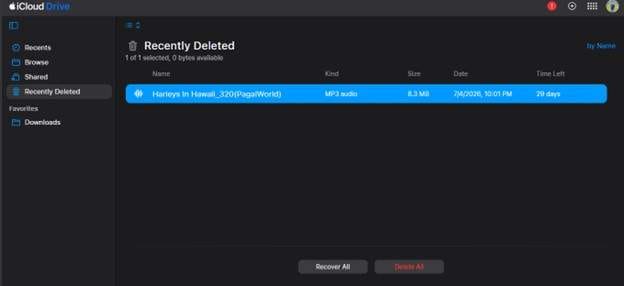
- On iCloud.com – Visit Drive > Recently Deleted, select the files you want to delete, and then click Delete All.
Bonus Tip: Accidentally Deleted an Important iCloud File? Here's How to Recover It
You've cleaned out your iCloud Storage and accidentally deleted something you need? Before you hit panic mode, know that in most cases it's possible to get your files back – particularly if the files weren't permanently deleted from your storage.
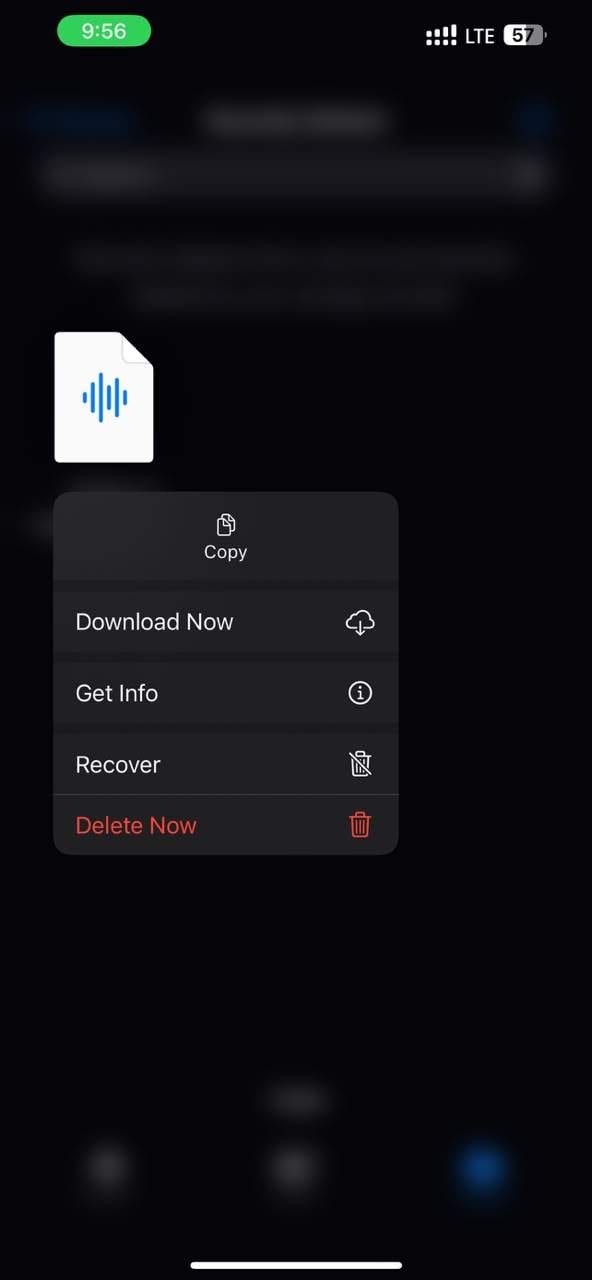
Option 1. Check the Recently Deleted Folder First
Try the Recently Deleted folder first. Almost everything you deleted from your iCloud Drive goes to this folder, where you'll have a limited amount of time to undelete it.
Step 1 Open the location where your iCloud files are stored:
- iPhone/iPad: Open the Files app.
- Mac: Open Finder (or the Bin if the file was recently deleted).
- Windows: Open iCloud Drive or the Recycle Bin, depending on how the file was deleted.
- iCloud.com: Sign in and open iCloud Drive.
Step 2 Go to Recently Deleted.
Step 3 Select the file you want to restore. Click or tap Recover to restore it.
Option 2. Recover Synced Files with Dr.Fone - Data Recovery
If you fail to find the file in Recently Deleted, you could try another solution provided by Dr.Fone - Data Recovery, which is the "Recover from iCloud Sync" mode. Recover from iCloud Sync mode can access supported data which has been synced with your iCloud account, like iCloud Drive, some other iCloud-sync contents, etc. Unlike the Recover from iCloud Backup mode, this feature does not restore data from an iCloud backup. Instead, it securely signs in to your Apple Account and lets you access supported data that has been synced with iCloud without resetting your iPhone or iPad.
Additionally, it provides 35+ file formats that it can restore, covering files in iCloud Drive, videos, photos, contacts, text messages, WhatsApp, LINE, Viber, the Safari browsing history, Apple's iWork file types, and more. Preview your data for the recovered files before restoring and then restore the items that you want or just export them.
 Recovers data after deletion, crashes, or device damage.
- Supports photos, messages, contacts, WhatsApp, and more.
- Supports all major iPhone, iPad, and iPod models.
- Preview and recover only what you need.

How to Recover Data from iCloud Sync Using Dr.Fone: Step-by-step guide
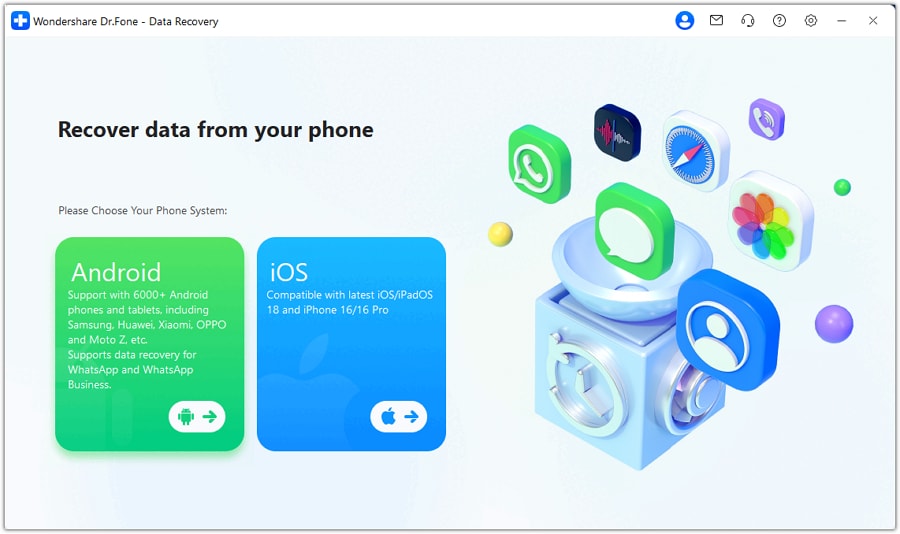
Step 1 Install and open Dr.Fone and navigate to "Toolbox > Data Recovery", then click on iOS as your device type.
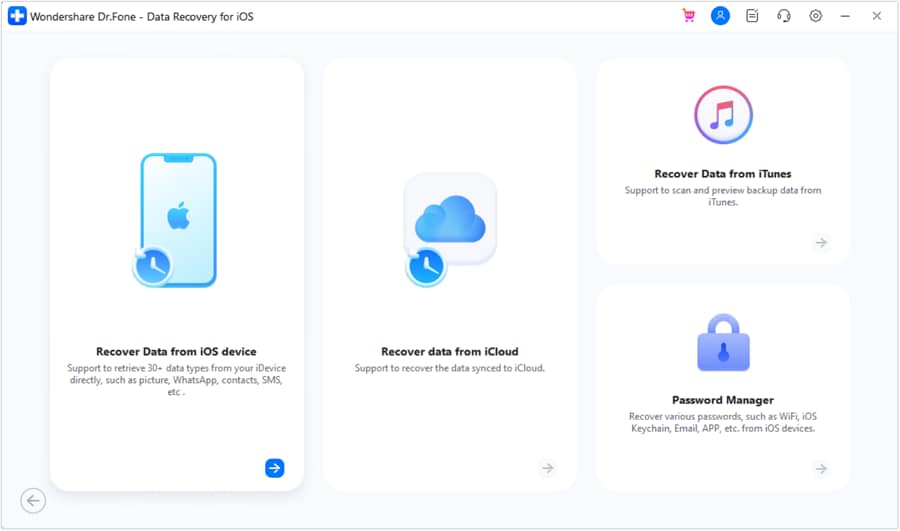
Step 2 Select "Recover Data from iCloud", then you need to sign in to your Apple account with your Apple ID and two-factor authentication enabled (if necessary) so that Dr.Fone can get access to your iCloud data.
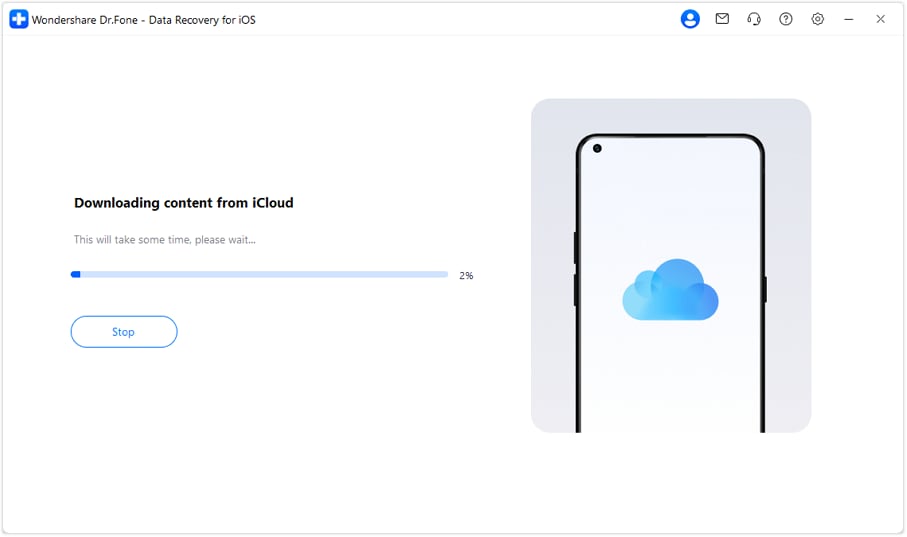
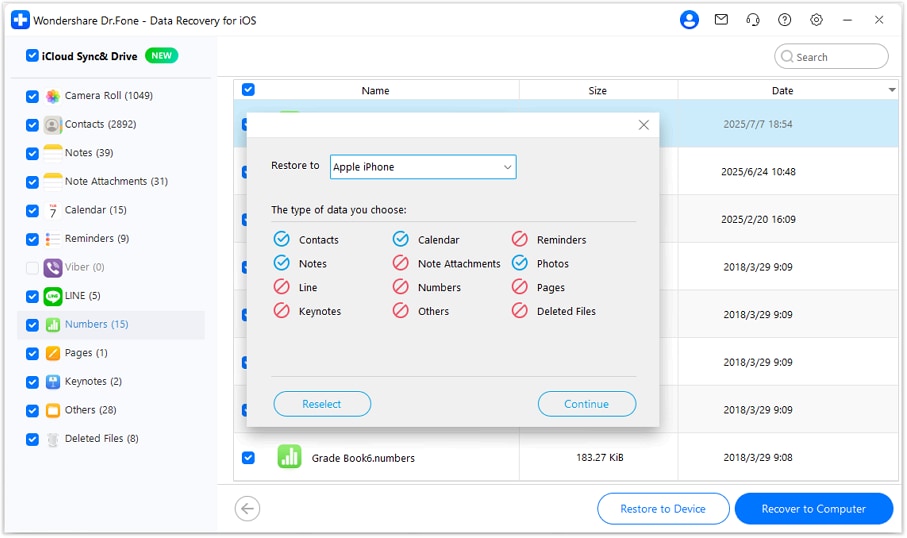
Step 3 Choose the types of files you'd like to recover from iCloud, and Dr.Fone will begin downloading your supported synced iCloud data and iCloud Drive files for scanning.
Step 4 Once the scanning is finished, preview the scan results and then select the file(s) you wish to restore and click "Restore to Device" or "Recover to Computer". Also, you are free to select some file(s) only instead of all the files for restoring.




Part 3. Common Problems When Deleting Files from iCloud
If deleting files from iCloud causes some kind of storage or syncing issue, you might run into any of these usual scenarios. Read through the following and apply fixes for a seamless deleting process.
Deleted Files Keep Reappearing
If a file comes back after you delete it, iCloud may not have finished syncing the change.
Possible causes
- iCloud sync is still in progress.
- Your internet connection was interrupted during deletion.
- Another device synced an older version of the file back to iCloud.
Solutions
- Wait a few minutes and let iCloud finish syncing.
- Make sure all your devices have a stable internet connection.
- Check that you're signed in with the same Apple Account on all devices.
- Restart the affected device and try deleting the file again.
Storage Doesn't Update Immediately
You may notice that your available iCloud storage doesn't increase right after deleting files.
Why it happens
iCloud must take some time to delete your files and update this across Apple's servers, including your devices. If files have been moved to Recently Deleted, they are still being counted as taking up storage.
Can't Delete Certain Files
Some files can't be deleted immediately because of how they're shared or managed.
Possible reasons
- The file belongs to an app that manages its own data.
- The file is inside a shared iCloud folder that you don't own.
Files Have Disappeared from All Your Apple Devices
This is a normal occurrence if all your Apple devices – iPad, iPhone, Mac – show that a deleted file disappeared. The files that are kept on your iCloud Drive are synchronized on all the other Apple devices linked to your Apple account, since it is one and the same. Hence, deleting your iCloud-synchronized file will eventually eliminate it from all your devices.
Conclusion
Deleting files from iCloud helps you free up space and manage your cloud space in an efficient way. The files on iCloud Drive are synchronized with all the devices connected to your Apple account; therefore, when you delete a file on iCloud, the file on other devices will be deleted simultaneously as well. If you've accidentally deleted some files and they are not in the Recently Deleted section anymore, with the help of Dr.Fone - Data Recovery, you can try recovering those deleted files without restoring the entire device.
FAQs
-
How can I delete files from iCloud?
From the Files app, Finder, File Explorer, or iCloud.com, click on the trash icon for those files that you want to delete. All files that you delete will be kept in the "Recently Deleted" folder until they are automatically deleted forever. -
How can I delete files from iCloud on iPhone?
On your iPhone, navigate to the Files section. Once there, go to Browse > iCloud Drive, press and hold the file, then tap Delete icon. -
How to delete files from iCloud permanently?
After you have deleted from iCloud, your files moved into the "Recently Deleted" folder. To get rid of it, go to your iCloud "Recently Deleted" folder and tap "Delete Now" after you select the files. -
How do I remove files from iCloud without deleting them from device?
To delete files from iCloud without removing them from your device, just copy them over to a folder on the local storage of your device and then delete them from your iCloud Drive. -
Can iCloud files which have been deleted be restored?
Of course, you will be able to recover iCloud deleted files very easily if the files are kept in your iCloud "Recently Deleted" folder. Using "Recover from iCloud Sync" mode, Dr.Fone - Data Recovery tool could help recover your support iCloud synced files, and the iCloud Drive deleted files.
 Add Wondershare Dr.Fone as a preferred source on Google