Recover photos, messages, WhatsApp, and more — no backup
needed.
Recover photos, messages, WhatsApp, and more — no backup
needed.

 100% Security Verified | No Subscription Required | No Malware

 :
: 
 ChatGPT
 Perplexity
 Gemini
 Claude
 Grok
Grok
Many recovery tools promote the number of file types they support, but fewer clearly identify the apps included. That distinction matters when recovering Snapchat conversations. This comparison focuses on documented app support rather than broad recovery claims.
The best iPhone data recovery software for these two apps names them as supported categories and scans the one place their data actually lives. Review this guide and get to know why Dr.Fone - Data Recovery (iOS) is the complete data recovery solution for both apps.
In this article
- Part 1. Can iPhone Recovery Software Restore Snapchat and Gmail Data?
- Part 2. How We Evaluated the Snapchat and Gmail Recovery Software
- Part 3. Best iPhone Recovery Software for Snapchat and Gmail
- Part 4. Snapchat and Gmail Recovery Software Comparison
- Part 5. How to Choose the Right Recovery Software
- Part 6. How to Improve the Recovery Chance
Part 1. Can iPhone Recovery Software Restore Snapchat and Gmail Data?
Software recovery rarely succeeds because both providers delete data from servers first. iPhone backups do not store local copies of Snapchat or Gmail content. Snapchat deleted Memories are erased from its servers as quickly as possible, and Snapchat Support cannot restore them. My Eyes Only is stricter still, since resetting a forgotten passcode deletes everything behind it for good.
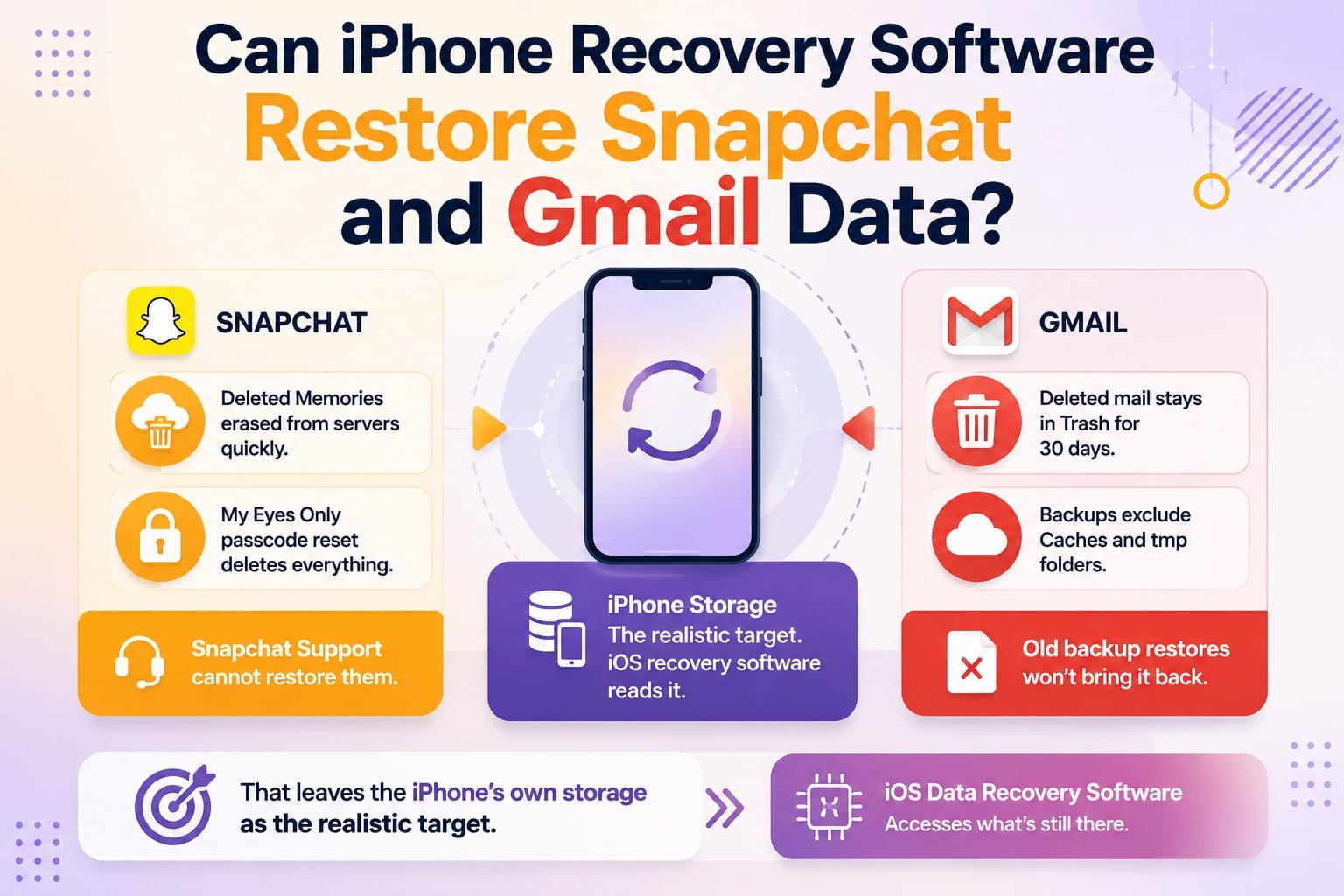
Gmail keeps deleted mail in Trash for 30 days before permanent deletion. Apple excludes caches and tmp folders from iCloud, iTunes, and Finder backups by design. Cloud apps like Snapchat and Gmail store messages and media there, so old backup restores fail. That leaves the iPhone's own storage as the realistic target, and reading it is exactly what iOS data recovery software is built to do:
| What You Lost | Where a Copy May Exist | Reachable by Software? |
|---|---|---|
| Saved Snapchat Chats | App storage on the iPhone | Yes, while the data survives |
| Snapchat Media Inside the App | App storage on the iPhone | Yes, subject to overwriting |
| Snaps Saved to Camera Roll | Photos, which backups do cover | Yes, as ordinary photo recovery |
| Deleted Gmail Past 30 Days | Cached mail in app storage | Sometimes, depending on overwriting |
| My Eyes Only After a Passcode Reset | Deleted by Snapchat's own design | No, and no tool changes this |
| Unsaved Snaps That Expired | Snapchat servers until automatic deletion | No, once Snapchat deletes them |
Part 2. How We Evaluated the Snapchat and Gmail Recovery Software
To understand how the iPhone recovery software options in this guide were selected, review the criteria in the table below:
| Criterion | What We Looked For |
|---|---|
| Dedicated Snapchat Recovery Support | Snapchat is specifically listed in the tool’s supported data types. |
| Dedicated Gmail Recovery Support | Gmail or relevant email data is specifically supported for recovery. |
| Direct iPhone Scanning | Scans available data directly from the connected iPhone. |
| Deleted Data Filtering | Separates deleted results from existing files where supported. |
| File Preview | Lets users inspect recoverable content before exporting it. |
| Selective Recovery | Allows individual files or categories to be selected for recovery. |
| Scan Safety | Scans the device without intentionally modifying existing user data. |
| iOS Compatibility | Supports current iOS versions and recent iPhone models. |
| Pricing and Free Preview | Shows whether users can scan or preview results before purchasing. |
Part 3. Best iPhone Recovery Software for Snapchat and Gmail
To dive into the details of the best iPhone recovery program, go through this section in detail.
Tool 1. Dr.Fone – Data Recovery (iOS)
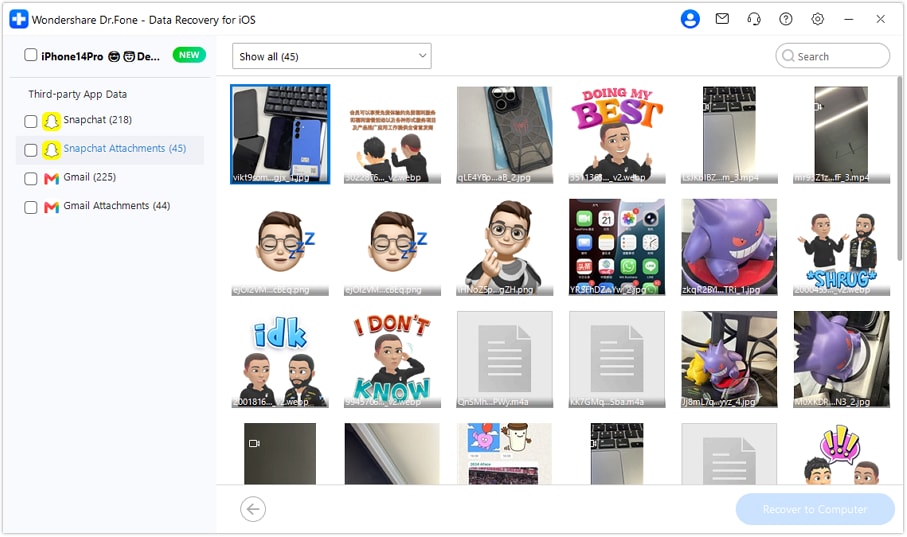
Recovering app-specific data requires software that can recognize individual app records instead of treating them as generic files. Dr.Fone – Data Recovery (iOS) lists both Snapchat Chats & Attachments and Gmail Chats & Attachments within its Third-Party App Data category. This dedicated classification makes it easier to select and scan specifically for the app data you need.
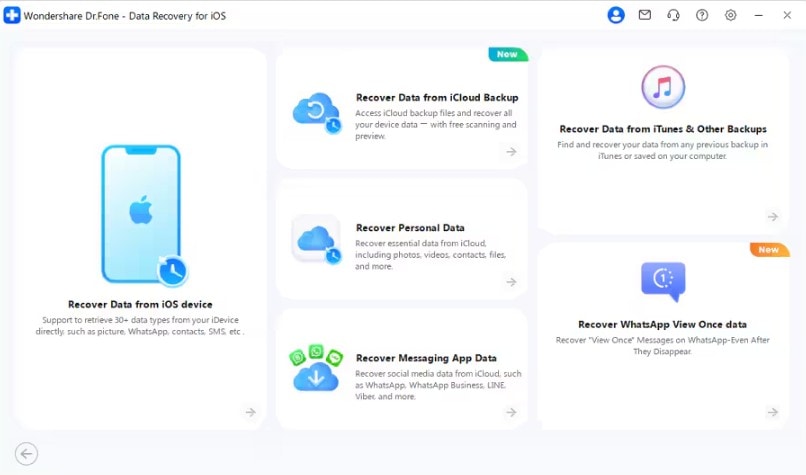
 Recovers data after deletion, crashes, or device damage.
- Supports photos, messages, contacts, WhatsApp, and more.
- Supports all major iPhone, iPad, and iPod models.
- Preview and recover only what you need.

Your Snapchat conversations and their media are parsed as a recognized type rather than surfacing as unlabeled fragments. Scanning stays read-only, processing runs on your computer, a filter isolates deleted items, and preview is free. Additionally, you get free weekly updates and support for recovering 35+ data types through a simple 3-step process.
How to Run a Snapchat and Gmail Scan with Dr.Fone – Data Recovery (iOS)
To know how this iPhone recovery program works, test all its claims through the given 3-step guide:
-
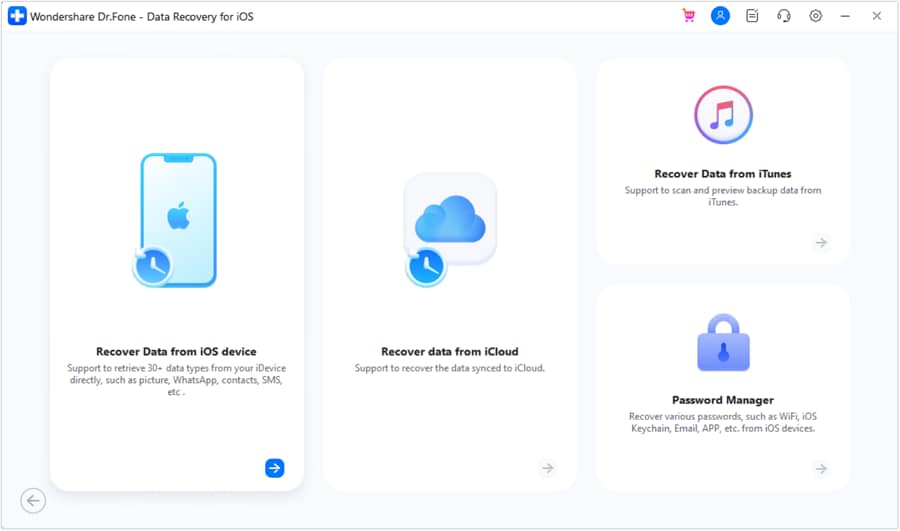
Step 1 Select Data Recovery Tool for iPhone
Once you choose the Data Recovery tool for "iOS" in Dr.Fone’s Toolbox, click on the “Recover Data from iOS Device” mode and continue.
-
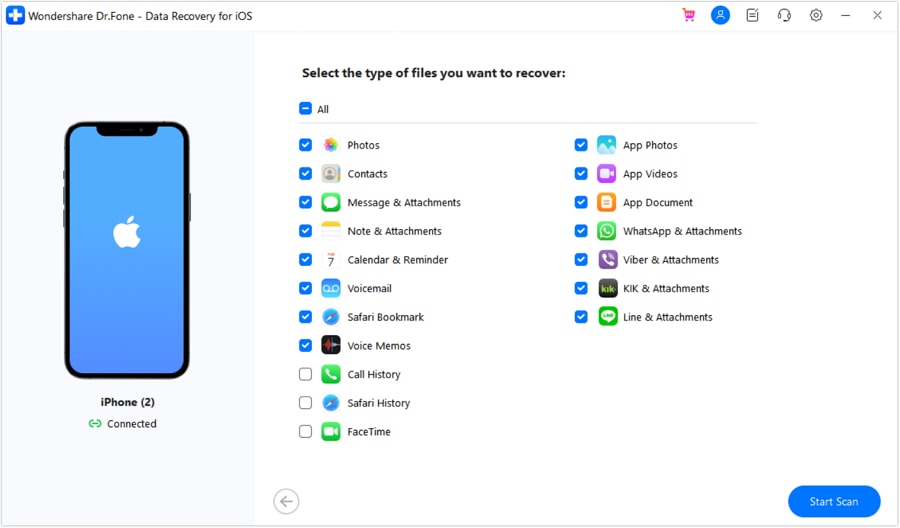
Step 2 Tick Snapchat, Gmail, and App Data
Connect the device and select the Snapchat and Gmail categories plus app documents and app media. Then, tap on the “Start Scan” button and wait until the process ends within 10 minutes.
-
Step 3 Check the Preview and Recover
Filter deleted items, open a few to confirm they're the right ones, then export your selection to the computer by pressing the “Recover to Computer” option.




Limitations
- Snapchat and Gmail recovery is available for iPhone 16 and earlier models.
- Full recovery and file export require a paid license after the free scan and preview.
Tool 2. Gbyte Recovery
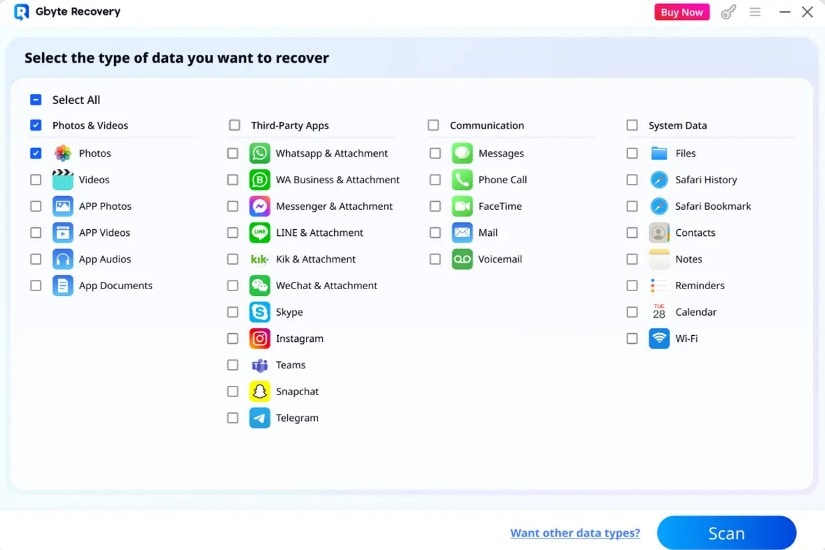
Where Dr.Fone spans both mobile platforms, Gbyte narrows deliberately and puts that effort into how it reads the iOS file system. You get a free scan and preview across 30 data types and 26+ apps, and device scans run without an existing backup. Preview comes before payment in this iPhone data recovery tool, and the scan leaves current data alone.
Limitations
- This software supports Apple only, so Android devices need different tools.
- It tracks 10 messaging apps, far fewer than rival data recovery tools.
Tool 3. Tenorshare UltData
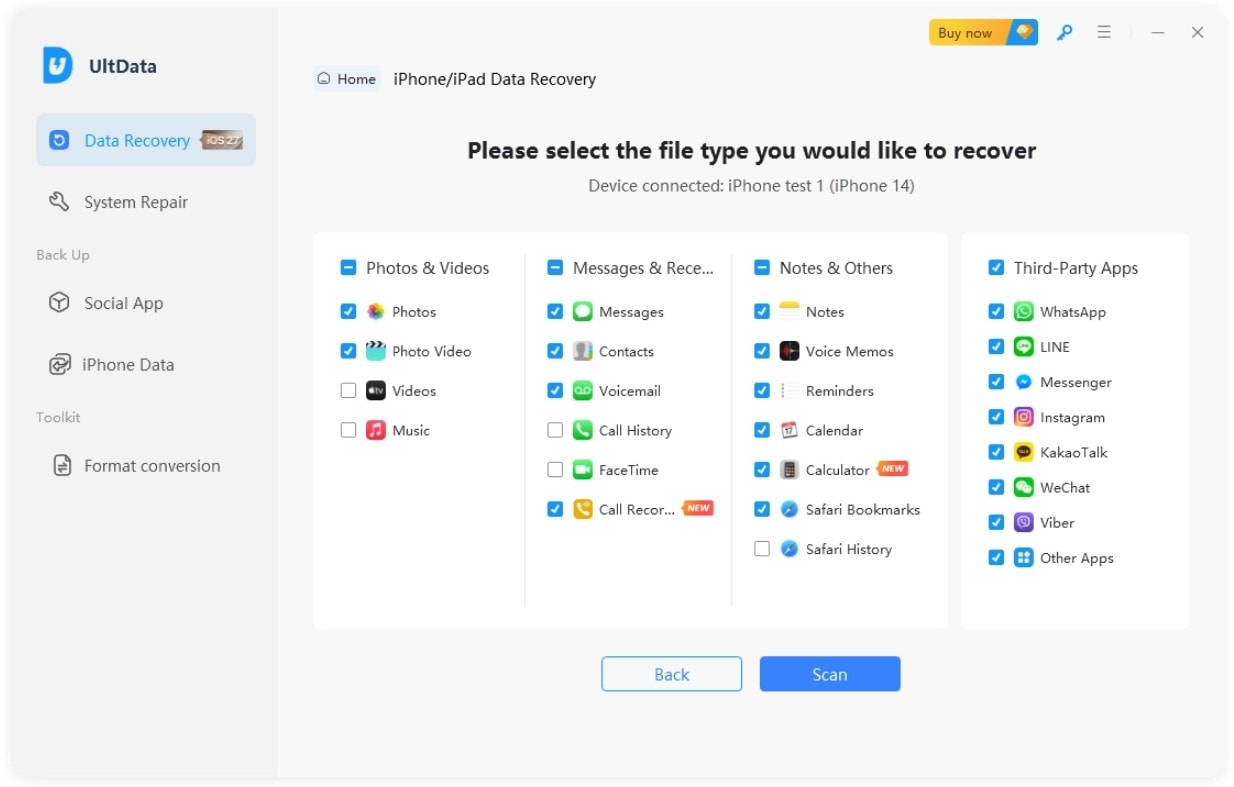
UltData is the broadest iPhone data recovery performer, though its published list has a specific gap. 3 recovery modes cover your device, iTunes, and iCloud across more than 35 data types, from photos and messages to call history and Safari data. Its named chat coverage runs to WhatsApp, Instagram, Kik, LINE, Messenger, Viber, WeChat, and KakaoTalk, with preview-based selective recovery throughout.
Limitations
- No Snapchat category exists, so Snapchat cache content stays unsupported.
- Contacts and messages can be restored to the iPhone, while other recovered data is exported.
Tool 4. iMyFone D-Back
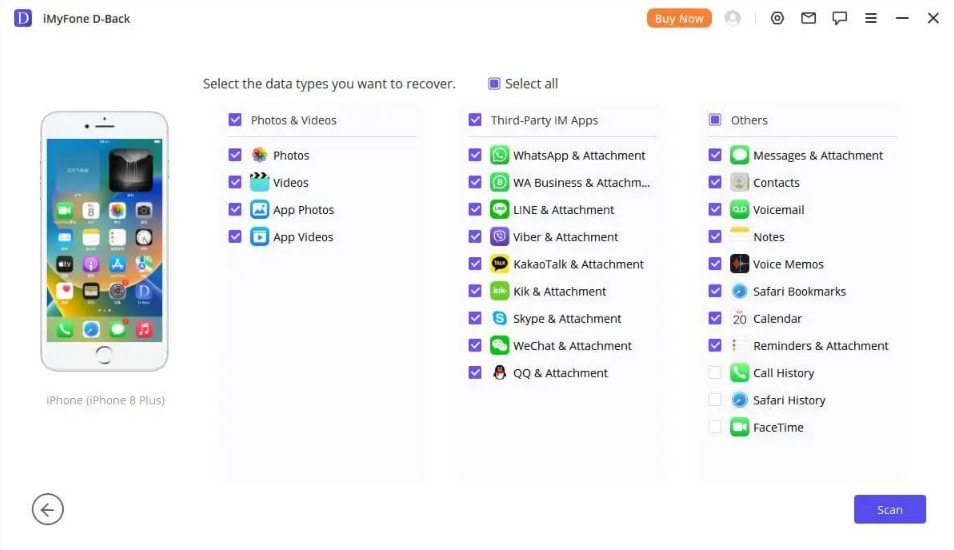
This iOS data recovery software trades category breadth for workflow, pulling every source into one window rather than making you pick a mode first. It reads the device, iTunes backups, and iCloud from a single interface and performs well on messages and media. A bundled repair tool clears the iOS faults that stop a scan from starting, and a free backup feature captures the phone first.
Limitations
- Supported apps exclude Snapchat and Gmail, which fall outside the list.
- Reviews show stronger backup extraction than deep scan recovery.
Tool 5. EaseUS MobiSaver
Predictability is MobiSaver's selling point, and it's why this iPhone data recovery software has stayed in repair-shop kits for years. Direct device scanning sits alongside iTunes and iCloud extraction, with contacts, messages, photos, videos, and WhatsApp, LINE, and Kik chats among the supported types. Preview runs before export and the workflow walks you through each stage, which suits anyone who'd rather be guided than configure things.
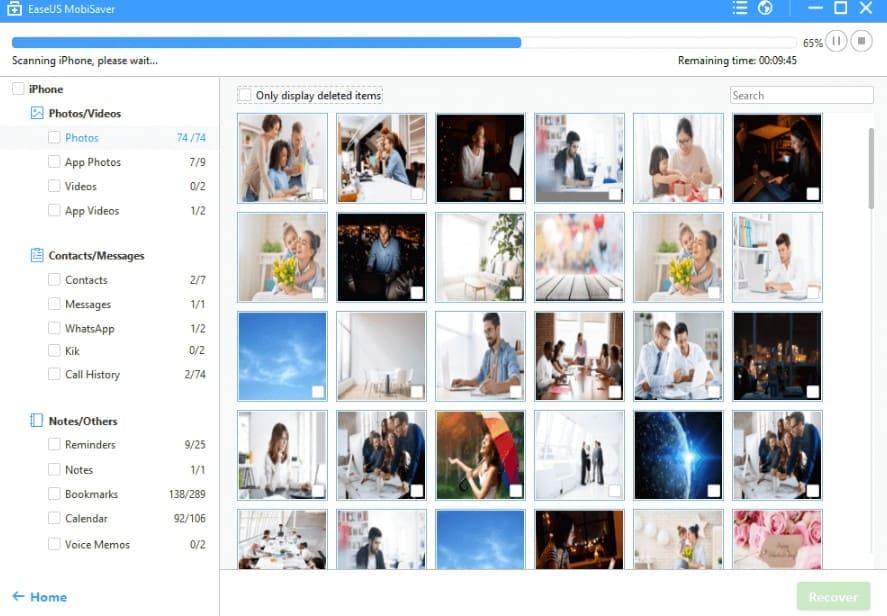
Limitations
- Documented chat support covers WhatsApp, LINE, and Kik, not Snapchat.
- Deep scan runs slow, and its lifetime tier costs the most.
Tool 6. PhoneRescue
PhoneRescue answers a different question: not which app data it reaches, but whether it can reach a phone that barely works. The iPhone recovery software targets extraction from iPhones that never reach the home screen, covering recovery mode and non-booting cases where your standard scan can't begin. The usual device, iTunes, and iCloud sources sit alongside that, so you're not wasting it on a working handset.
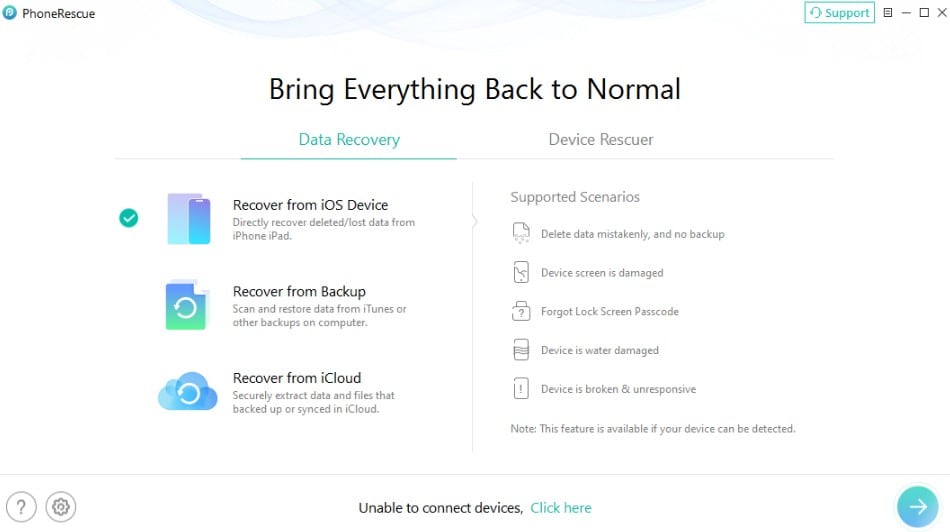
Limitations
- Supported chat apps exclude Snapchat and Messenger completely.
- The iCloud feature syncs account data and alters settings.
Part 4. Snapchat and Gmail Recovery Software Comparison
To pick the best iPhone data recovery software, this section compares all 6 options for you.
| Metrics | Dr.Fone – Data Recovery (iOS) | Gbyte Recovery | Tenorshare UltData | iMyFone D-Back | EaseUS MobiSaver | PhoneRescue |
|---|---|---|---|---|---|---|
| Best For | Snapchat and Gmail recovery | iOS-only specialization | Broad social app support | Simplified recovery workflow | Guided recovery process | Non-booting iPhones |
| Snapchat Support | Chats and attachments | App media, not named | Not in published list | Not in published list | Not in published list | Not supported |
| Gmail Support | Emails, chats, and attachments | App documents | Not named | Not named | Not named | Not named |
| Device Scan | Yes | Yes | Yes | Yes | Yes | Yes |
| Recovery Modes | Device, iTunes, iCloud | Device and cloud | Device, iTunes, iCloud | Device, iTunes, iCloud | Device, iTunes, iCloud | Device, iTunes, iCloud |
| Preview | Free, with deleted filter | Yes | Yes | Yes | Yes | Yes |
Verdict: For Snapchat and Gmail recovery, Dr.Fone is the clear pick. It supports Snapchat alongside Gmail emails and attachments, allowing both types of app data to be identified during the recovery process rather than appearing as generic files.
Recovery still depends on what data remains available on the iPhone. Deleted Snapchat or Gmail content may become harder to retrieve as new data is written, so scanning the device as early as possible can improve the recovery chance.
Part 5. How to Choose the Right Recovery Software?
Documentation settles the choice for iPhone data recovery software faster than reviews do, so run these 6 checks before paying:
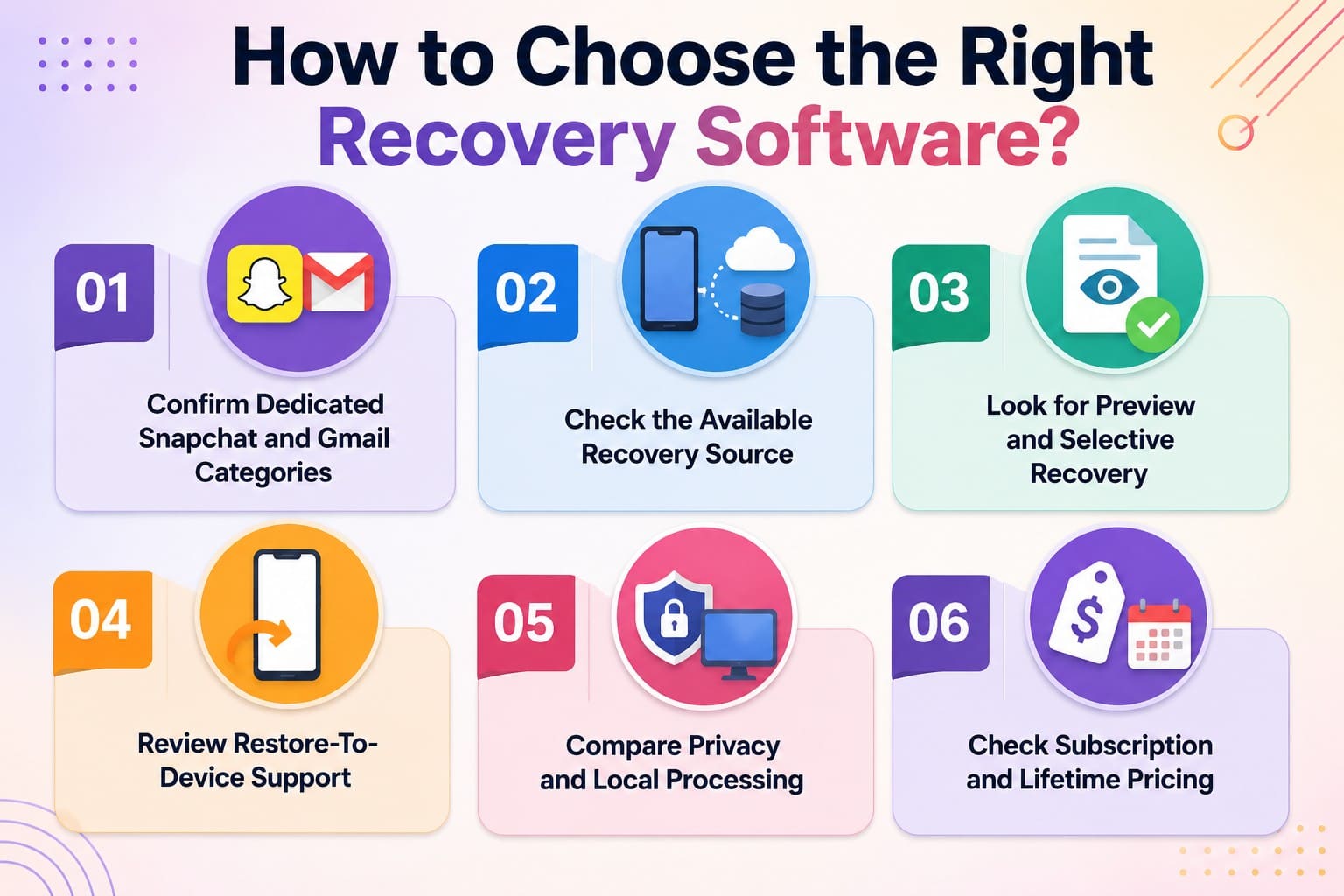
- Confirm Dedicated Snapchat and Gmail Categories: Open the vendor's supported-data list and look for the app by name. A tool listing only "photos" will surface camera images and miss app storage entirely.
- Check the Available Recovery Source: Device scanning is the only route to app caches, while backup extraction still helps for photos, messages, and contacts.
- Look for Preview and Selective Recovery: Seeing the actual file beats reading a filename, and selective export keeps results manageable.
- Review Restore-To-Device Support: Several tools write back only contacts and messages, so confirm before assuming everything returns to the phone.
- Compare Privacy and Local Processing: Scanning that runs on your own computer keeps recovered conversations off someone else's servers.
- Check Subscription and Lifetime Pricing: A one-off emergency suits a short plan, while repeat use makes a lifetime license cheaper. Read the refund terms, since a scan finding nothing is a real outcome.
Part 6. How to Improve the Recovery Chance?
Your choice of iPhone data recovery tool matters, but acting quickly is equally important because deleted Snapchat and Gmail data can become overwritten during continued iPhone use.
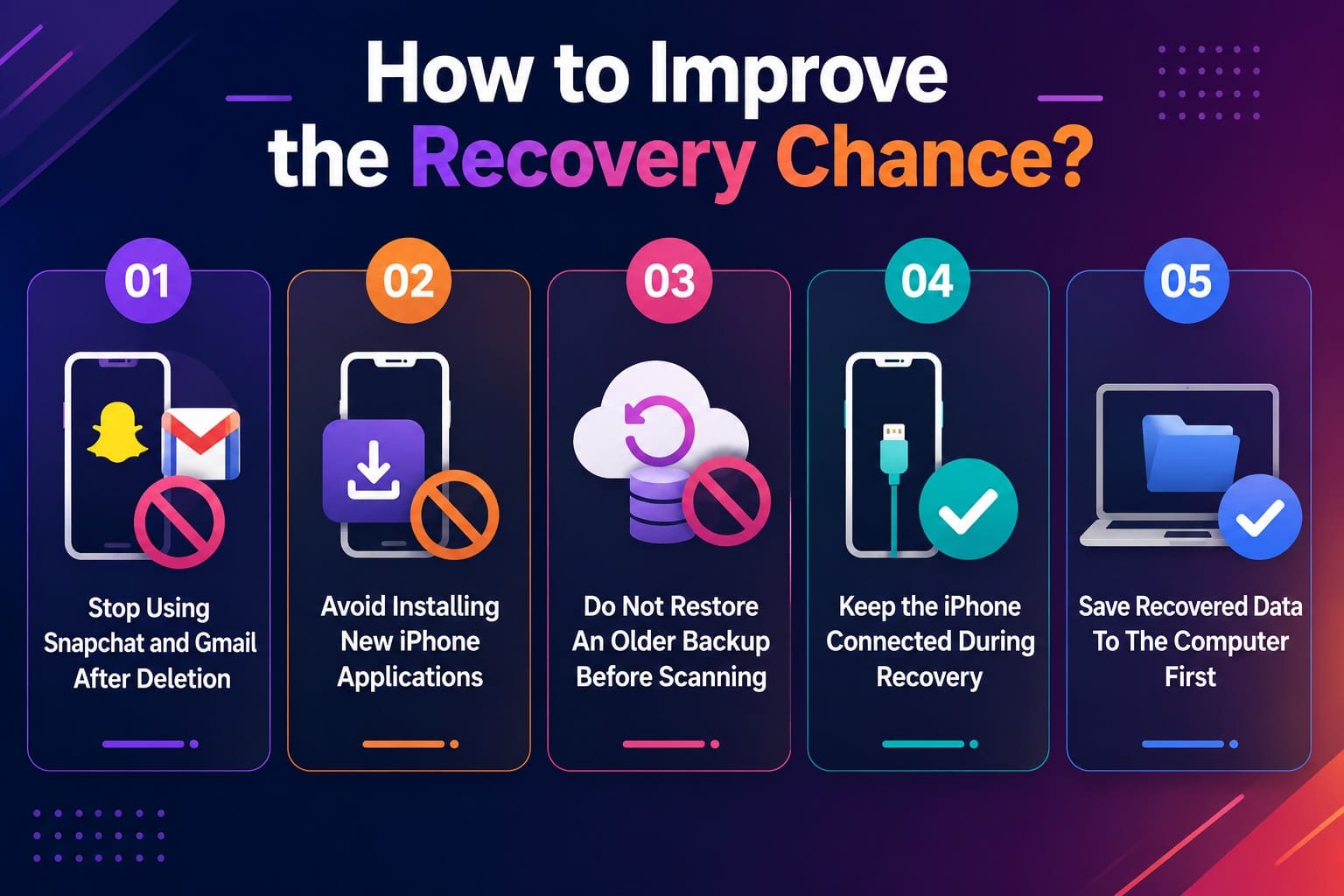
- Stop Using Snapchat and Gmail After Deletion: Both apps write cache constantly, and each new message shrinks what a scan can still find.
- Avoid Installing New iPhone Applications: An install claims free storage blocks, which is exactly where deleted fragments are waiting. System updates write far more than a single app.
- Do Not Restore an Older Backup Before Scanning: A restore overwrites the current device state. That destroys the app data a direct scan could have read.
- Keep the iPhone Connected During Recovery: A dropped cable mid-scan means starting over, and repeated attempts waste time you don't have.
- Save Recovered Data to the Computer First: Exporting to your desktop avoids writing to the phone while other items remain unrecovered.
Conclusion
Snapchat and Gmail delete server-side, and iOS keeps their cached content out of your backups. The iPhone itself is the only place left to look. That single fact should decide how you shop for the best iPhone data recovery software. Check the vendor's supported-data list for the app by name, confirm a free preview exists, and scan early.
Dr.Fone - Data Recovery (iOS) stands out as the primary recommendation for this specific task. It explicitly documents Snapchat Chats & Attachments alongside Gmail Chats & Attachments as supported categories.
Frequently Asked Questions
-
1. Can Dr.Fone recover Snapchat and Gmail data during one scan?
Yes, both appear as named categories in its supported-data list, so you can tick Snapchat Chats & Attachments and Gmail Chats & Attachments before one scan. Filter to deleted items afterward to separate them from what's still on the phone. -
2. Does recovery software overwrite current application data?
Reputable tools scan read-only, so the pass itself changes nothing. The risk comes from restoring results directly to the device, which is why exporting to a computer first is the safer order. -
3. Which recovery source provides the highest recovery chance?
For Snapchat and Gmail, a direct device scan is the only realistic source, because iOS keeps app caches out of backups. Backup extraction still wins for photos, messages, and contacts, which backups do preserve. -
4. Why might recovered chats appear without every attachment?
Chat text and media are stored separately, and media files are larger, so they get overwritten sooner. Readable conversations with missing photos are a normal result rather than a failed scan.
 Add Wondershare Dr.Fone as a preferred source on Google