Recover photos, messages, WhatsApp, and more — no backup
needed.
Recover photos, messages, WhatsApp, and more — no backup
needed.

 100% Security Verified | No Subscription Required | No Malware

 :
: 
 ChatGPT
 Perplexity
 Gemini
 Claude
 Grok
Grok
Snapchat Memories saves your photos instead of auto-deletion. When years of saved snaps disappear, or thumbnails fail to load, the sudden loss feels odd. Your ability to recover deleted Snapchat memories depends on where each item existed. Snaps reside on Snapchat servers, local device storage, or incomplete cloud transfers. Each scenario requires a distinct solution, and the app shows which path to take.
Review this guide and explore the method to recover memories while you know the basics. Understand how Dr.Fone - Data Recovery (iOS) is the right and effective choice to retrieve Snapchat memories and data.
In this article
Part 1. Where Are Snapchat Memories Stored?
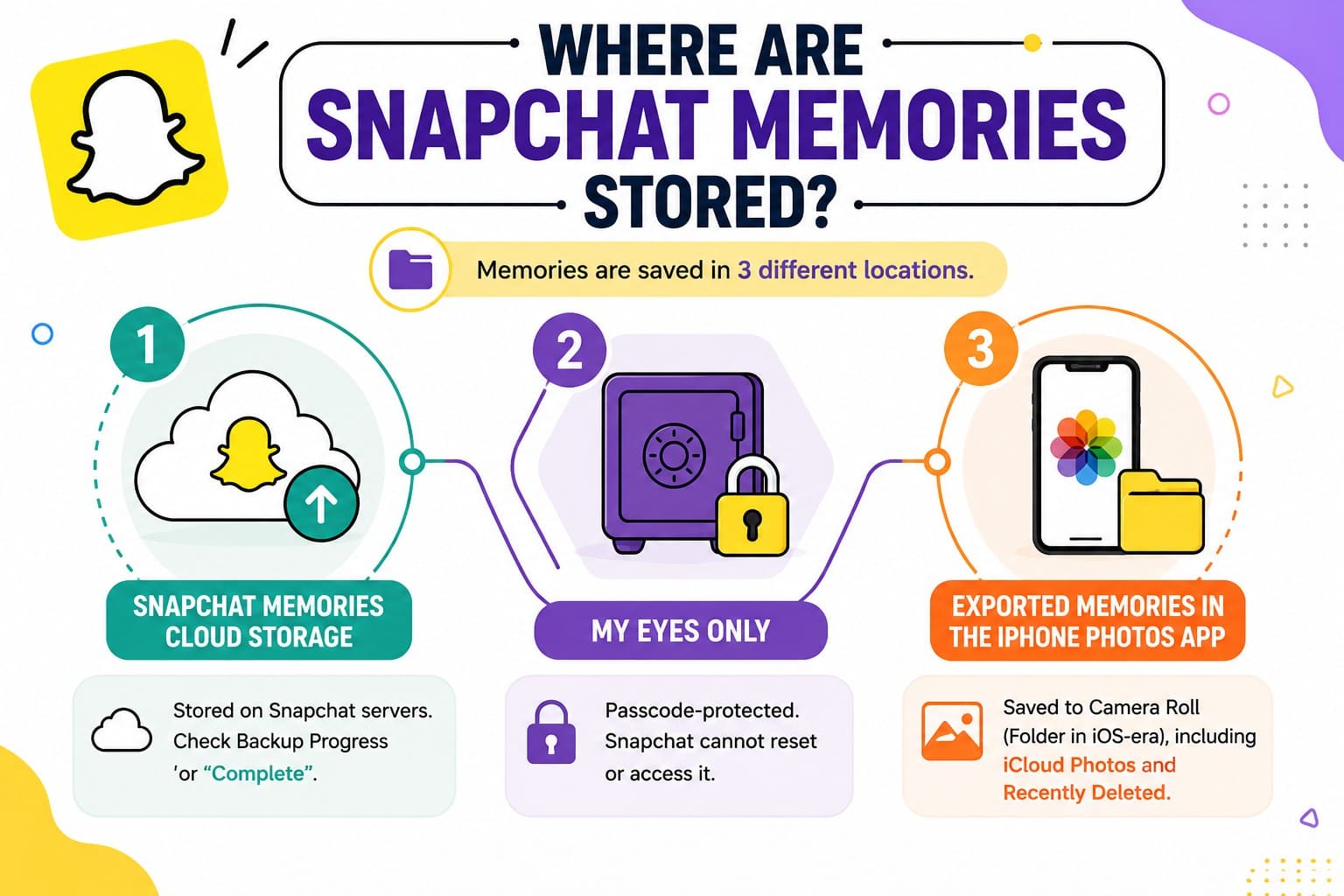
Memories spread across 3 locations, and each one is subject to different rules. Knowing which holds your missing item decides everything that follows.
Snapchat Memories Cloud Storage
Your primary library exists on Snapchat servers, so it transfers automatically when you log into a new device. However, fresh snaps queue up first, and unfinished items show a backup icon until complete. To verify your cloud status, open "Settings > Memories > Backup Progress" and confirm it says Complete. This step ensures an easy path to restore Snapchat memories when you switch phones or clear cache.
My Eyes Only
My Eyes Only is passcode-protected and separate from everything else. Snapchat holds no copy of that passcode, so the content behind it is unreachable without the code you set. In addition, there's no reset that unlocks it and no support route around it. The section also stays invisible in the main grid, whether or not you remember putting something there.
Exported Memories in the iPhone Photos App
Saving a Memory to your Camera Roll converts it into a standard photo. Apple's rules take over from there. It shows up in your library, rides along with iCloud Photos when that's switched on, and drops into Recently Deleted if you remove it.
Backed-Up vs Exported Snapchat Memories
Those first two locations produce copies that sound alike and behave differently, which decides which method below applies for Snapchat memories recovery:
| Copy/Status | Where It Exists | How to Check | Recovery Route | Key Limitation |
|---|---|---|---|---|
| Backed-Up Memory | Snapchat account/cloud | Backup Progress = Complete | Sign in/My Data | Deleted Memories aren't recoverable by Snapchat |
| My Eyes Only | Protected Memories section | Open My Eyes Only | Enter existing passcode | Forgotten passcode cannot recover protected Snaps |
| Saved to Camera Roll | Apple Photos | Check Photos | Photos/Recently Deleted/iCloud Photos | Recently Deleted lasts 30 days |
| Not Yet Backed Up | Pending Snapchat backup | Backup icon/Snaps Remaining | Complete backup while still available | Lost unbacked Memories cannot be recovered by Snapchat |
Part 2. Can You Recover Deleted Snapchat Memories on iPhone?
Yes, and it turns on how the item disappeared rather than how long ago. Items that vanished from view because of a sync fault return with a refresh, and exported copies sit in Photos untouched by anything Snapchat does. What doesn't come back is content you deleted from the cloud library on purpose. Snapchat states that deleted Memories are removed from its servers, and its team cannot restore Snapchat memories.
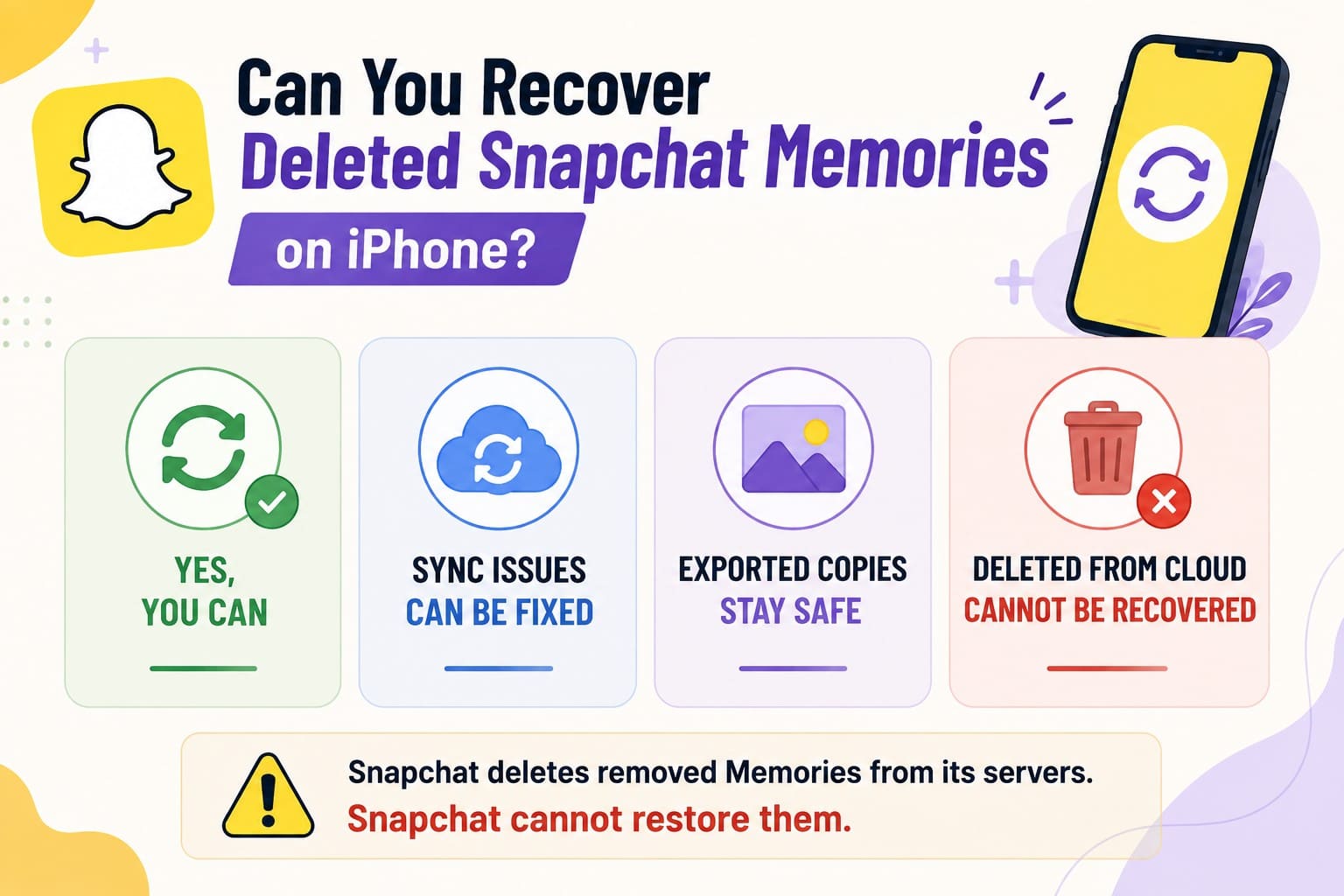
Backup Progress serves as a key diagnostic tool. Access it from "Settings > My App > Memories." A "Complete" status confirms a successful cloud sync. If the screen shows "# Snaps Remaining", "No Network Connection," or a backup icon on an item, the process remains unfinished. Snapchat explicitly warns that unbacked snaps are permanently lost if erased.
Part 3. How to Recover Deleted Snapchat Memories on iPhone
With the diagnosis settled, review this section in detail to retrieve deleted Snapchat memories. Start with the top options, as these free methods resolve most issues in under a minute.
Method 1. Refresh and Resync Missing Snapchat Memories
The library loads from Snapchat's servers each time you open it, and a failed sync shows up as an absence rather than an error message. That's why items reappear hours later with no explanation. Nothing here deletes anything, which makes it safe to run first. Three checks rule out sync faults and are mentioned below:
-
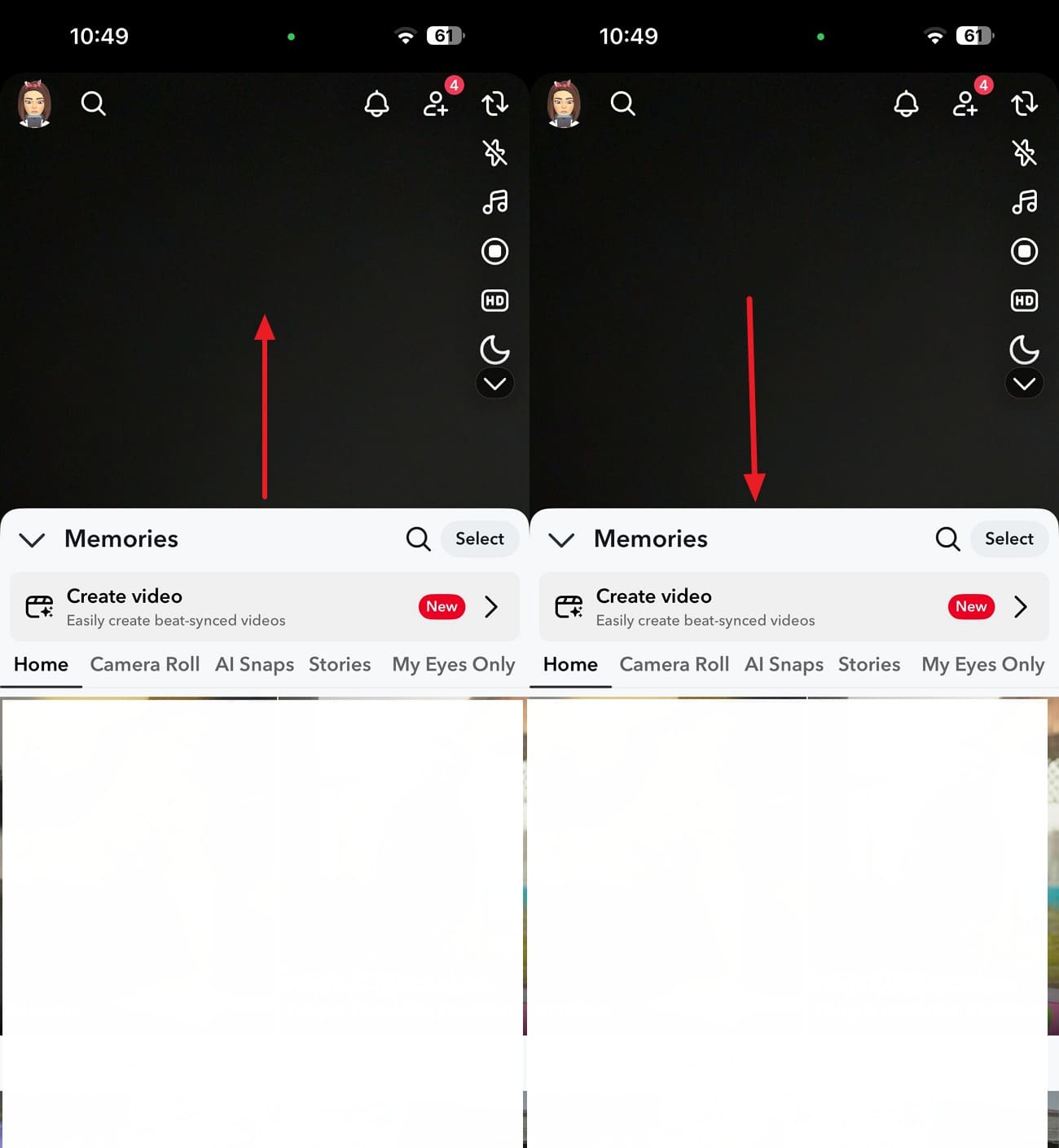
Step 1 Refresh the Memories Grid
Instructions. From the camera view, swipe upward to open Memories, then drag the grid downward to trigger a reload.
-
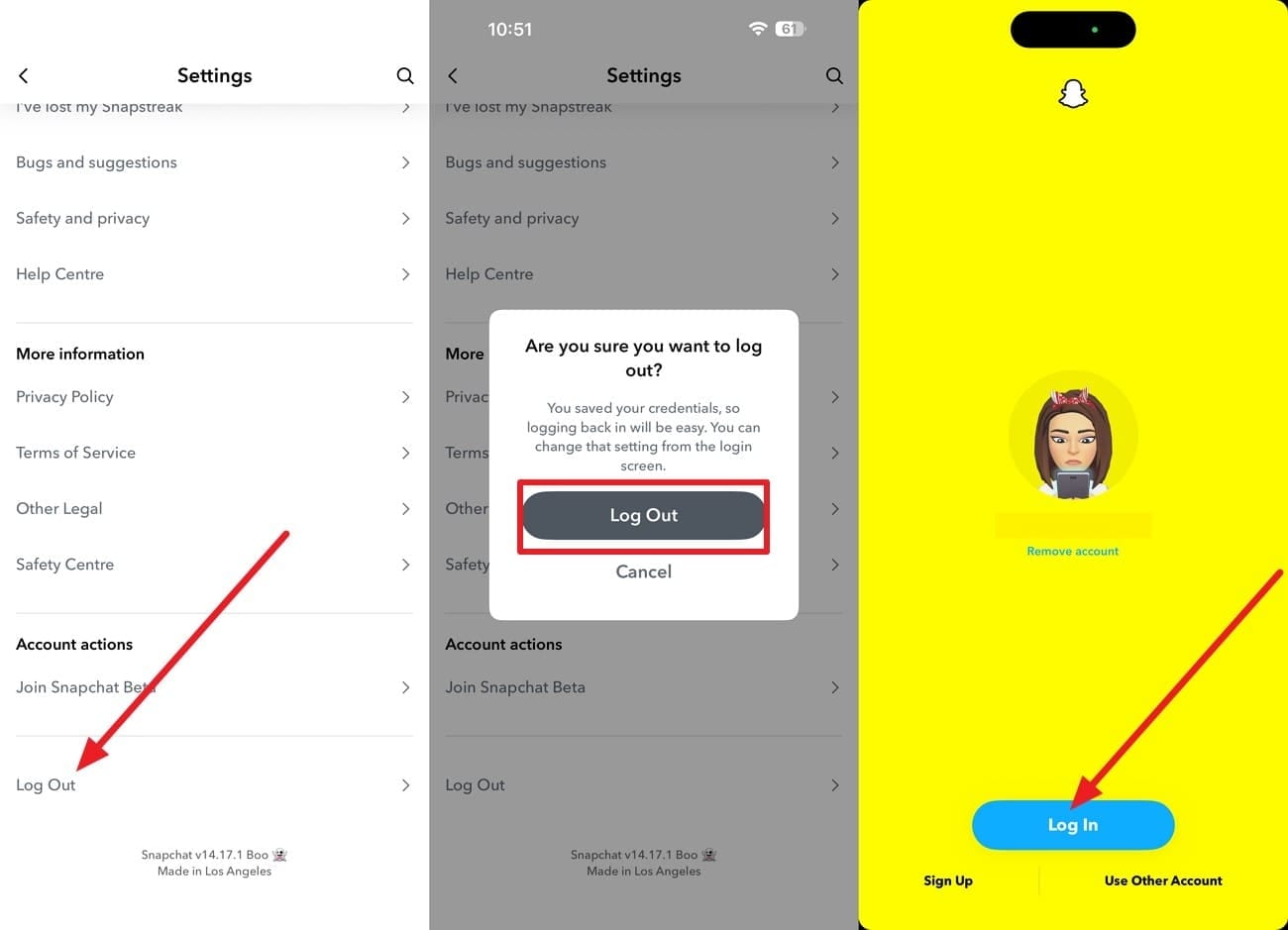
Step 2 Rebuild the Library
Instructions. Go to Snapchat settings > Scroll down > Choose "Logout > Logout." After that, tap the "Log In" option, which rebuilds the library from scratch.
-
Step 3 Check Each Storage Tab
Instructions. Check the Snaps, Stories, and Camera Roll tabs separately, since items sort into different ones.
Method 2. Check My Eyes Only for Hidden Memories
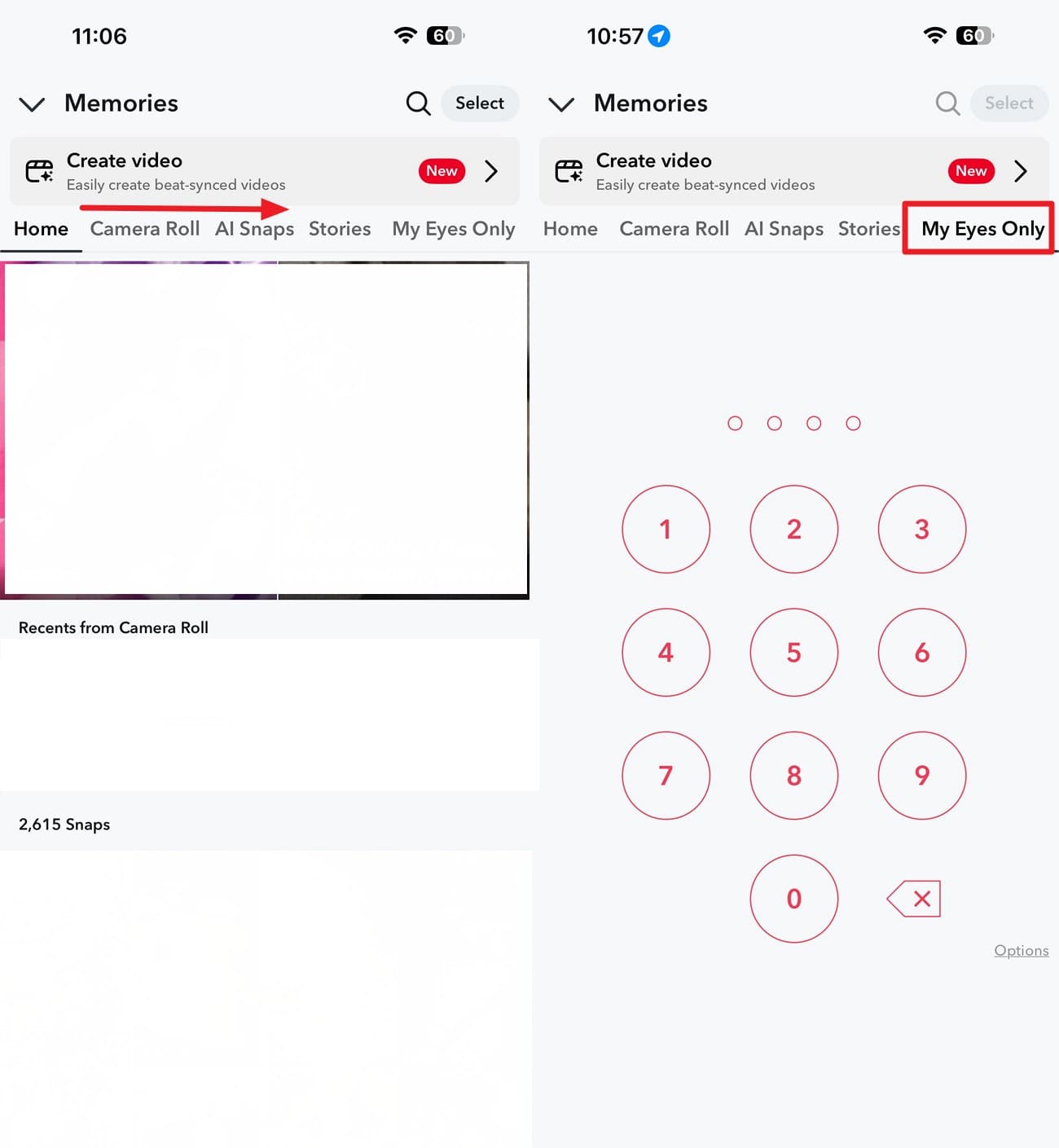
When a basic refresh fails, the snap may sit in a hidden folder rather than vanish. Move an item into My Eyes Only, and it disappears from your main grid entirely. Two quick taps unlock the folder, which offers a simple way to recover deleted Snapchat memories that were just misplaced. So, follow the mentioned directions and see if you can get memories back:
Instructions. Access "Memories" > Swipe left till the end of the row to go to the "My Eyes Only" tab. Add the passcode and browse the contents before assuming anything was deleted.
Method 3. Download Available Memories Through Snapchat My Data
If the app shows nothing, Snapchat's own export reveals what its servers actually hold. The archive reflects the account rather than your handset, so it still works after a reinstall or on a replacement iPhone. This list view displays your library by date rather than a tile grid, which speeds up search.

-
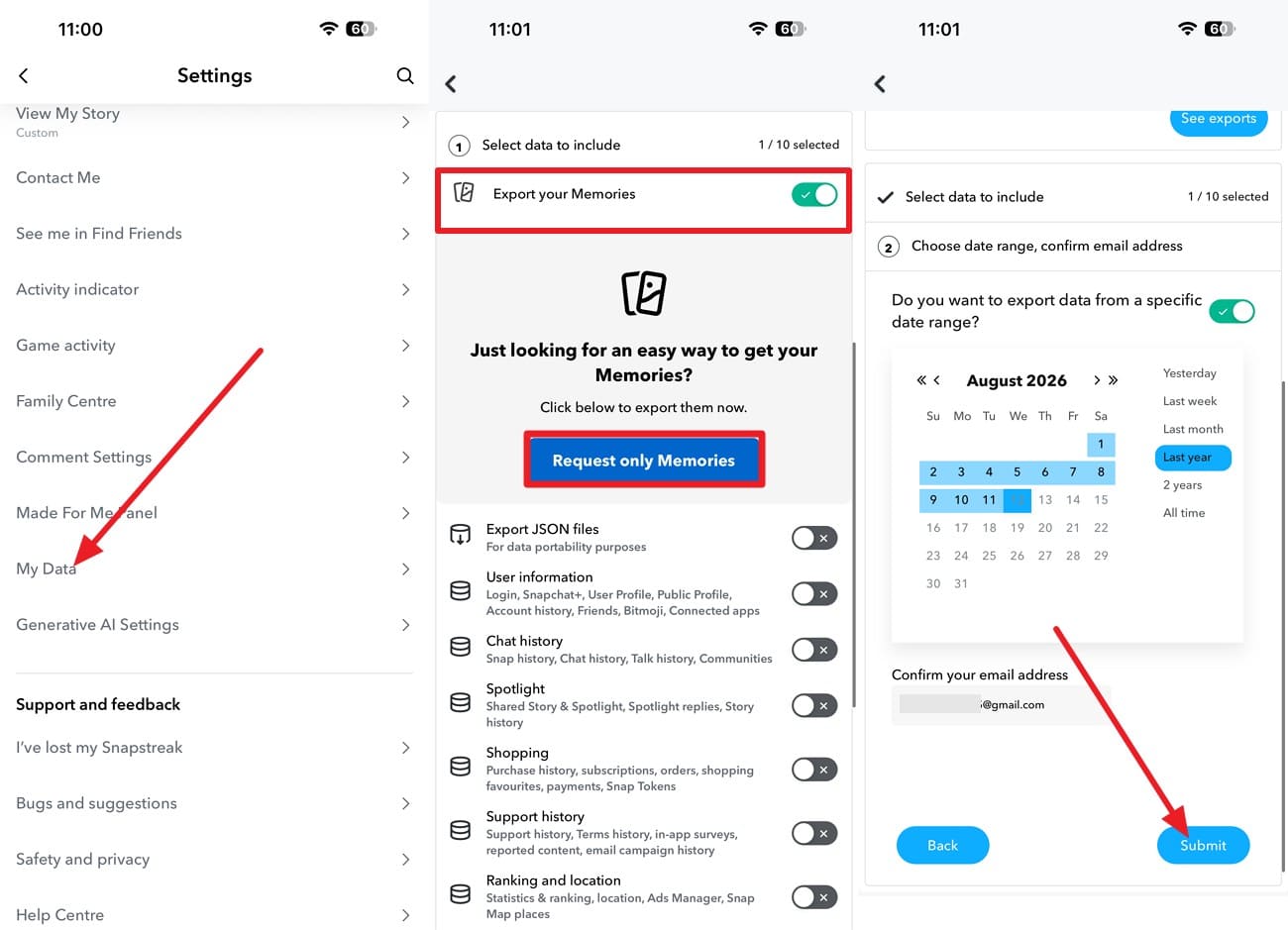
Step 1 Request Data Export
Open Snapchat Settings, choose "My Data > Export Your Memories > Request Only Memories." After that, pick the time range, confirm your email address, and tap on "Submit."
-
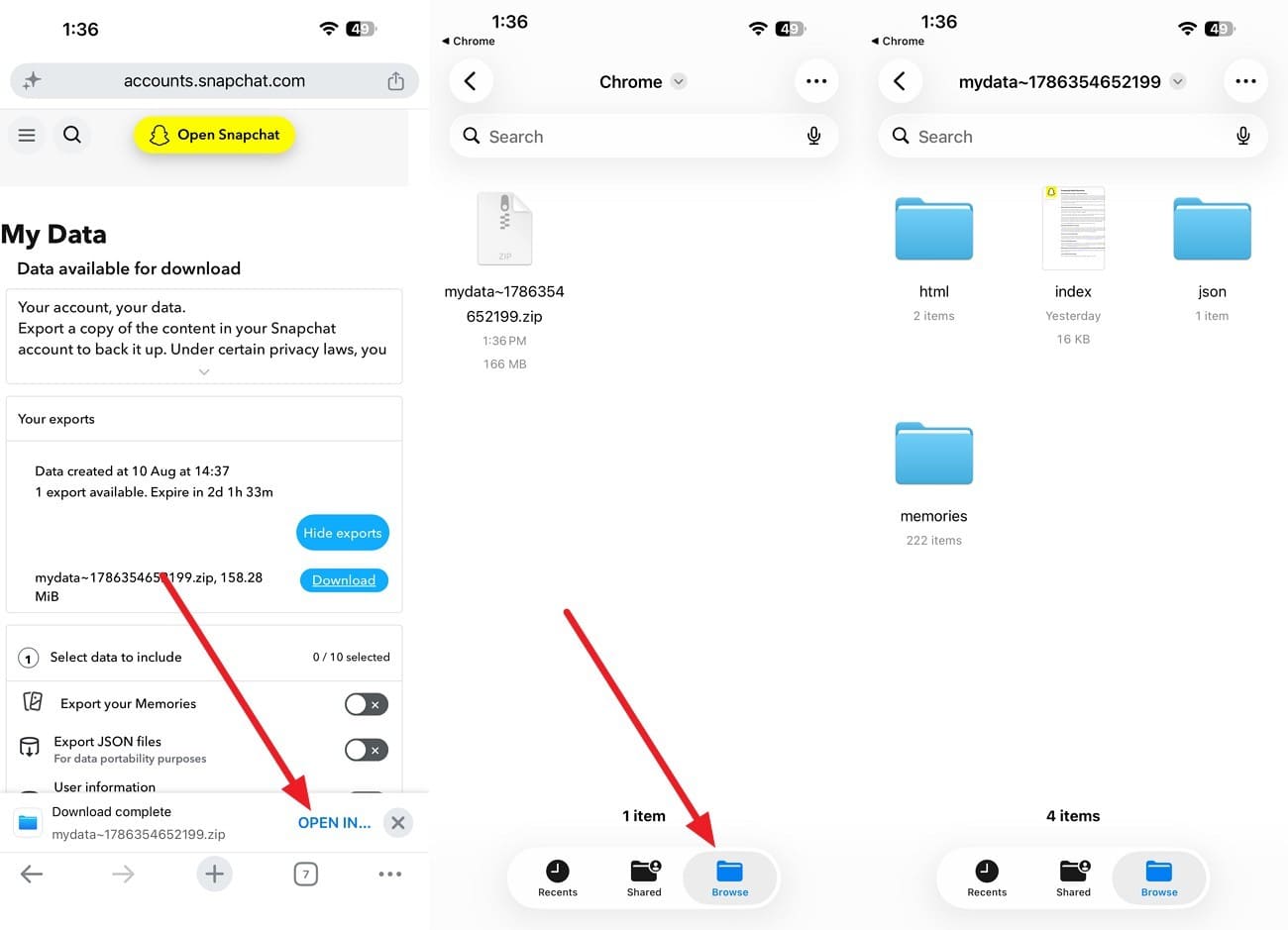
Step 2 Download the File
When the email arrives, tap "See Export > Download > Open In ... > Go to Files App.
-
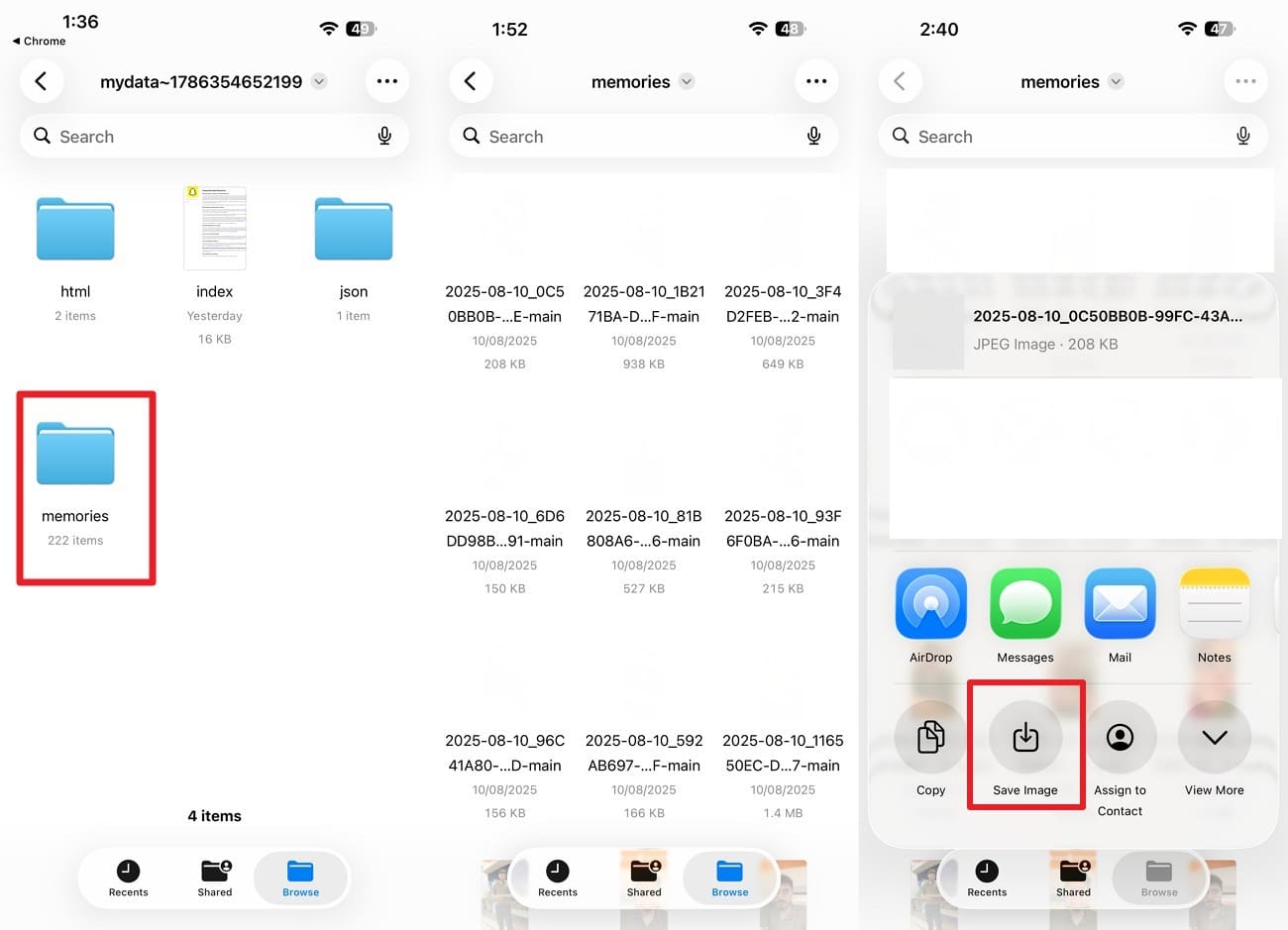
Step 3 Save the Memories
Tap the file to unzip it > Pick "Memories" > Choose the image, press "Save > Save Image" for Snapchat memories recovery.
Method 4. Recover Local Snapchat Chats and Attachments with Dr.Fone - Data Recovery (iOS)
Every route so far has asked Snapchat a question. This one asks the phone instead, which matters for content the cloud never finished receiving. The app keeps a local temporary copy, which requires desktop software to access since iOS blocks direct internal file inspection. As a safe choice, use Dr.Fone - Data Recovery (iOS) and leverage the Snapchat Chats & Attachments category on iPhone 16 and earlier.
This iPhone data recovery tool performs a free, read-only scan to fetch the Snapchat data you saved in the desired location. This scan guarantees no data overwrites, and you can later preview the data without any cost. Additionally, you can filter the files for quick exports and recover other 35+ data types. Since this makes Dr.Fone versatile, the overall recovery takes 3 steps without any learning curve.
 Recovers data after deletion, crashes, or device damage.
- Supports photos, messages, contacts, WhatsApp, and more.
- Supports all major iPhone, iPad, and iPod models.
- Preview and recover only what you need.

How to Scan an iPhone for Local Snapchat Content
To restore Snapchat memories that may remain in local app storage, here is how you can scan your iPhone using this intuitive tool:
-
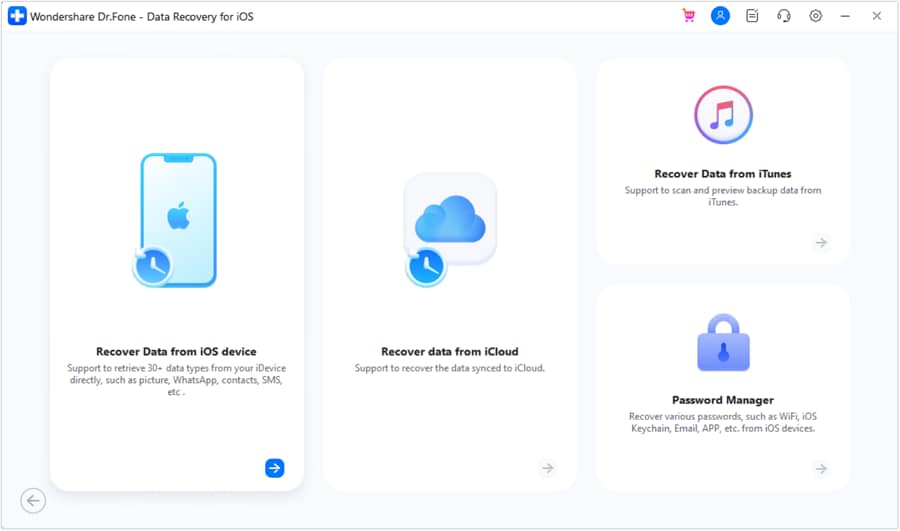
Step 1 Open Data Recovery and Connect the iPhone
Choose the "Restore Data from iOS Device" mode on the Data Recovery iOS tool and connect the iPhone when prompted.
-
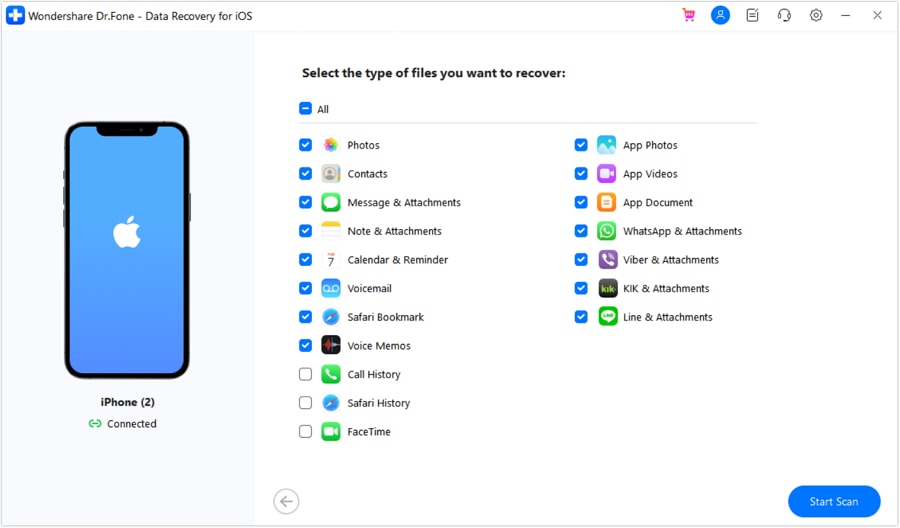
Step 2 Select Snapchat from Data Types
Once the software detects your iPhone, select only "Snapchat" and click "Start Scan" to search for available Snapchat data.
-
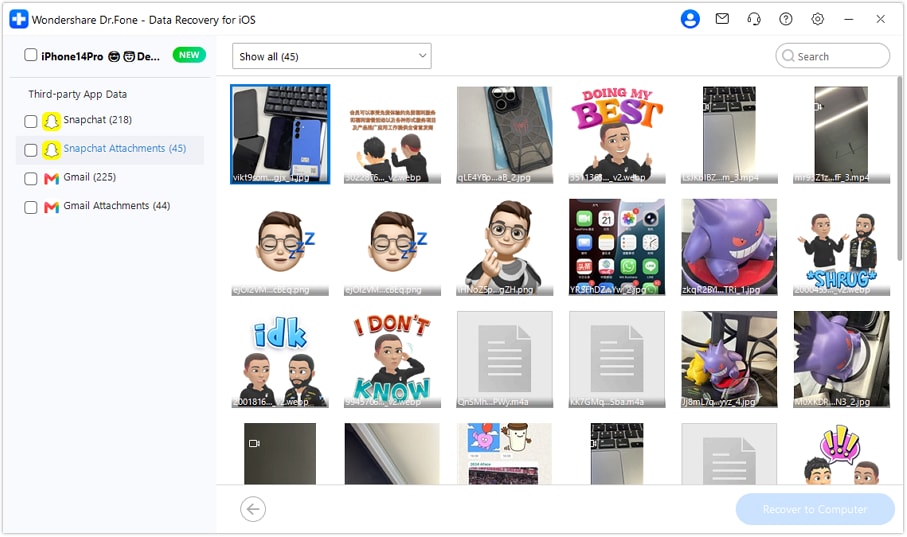
Step 3 Preview and Save the Snapchat Data
Once the scan finishes, filter the results to show deleted Snapchat data, review the available entries, and click "Recover to Computer" to save them.




Method 5. Recover Exported Memories from Recently Deleted
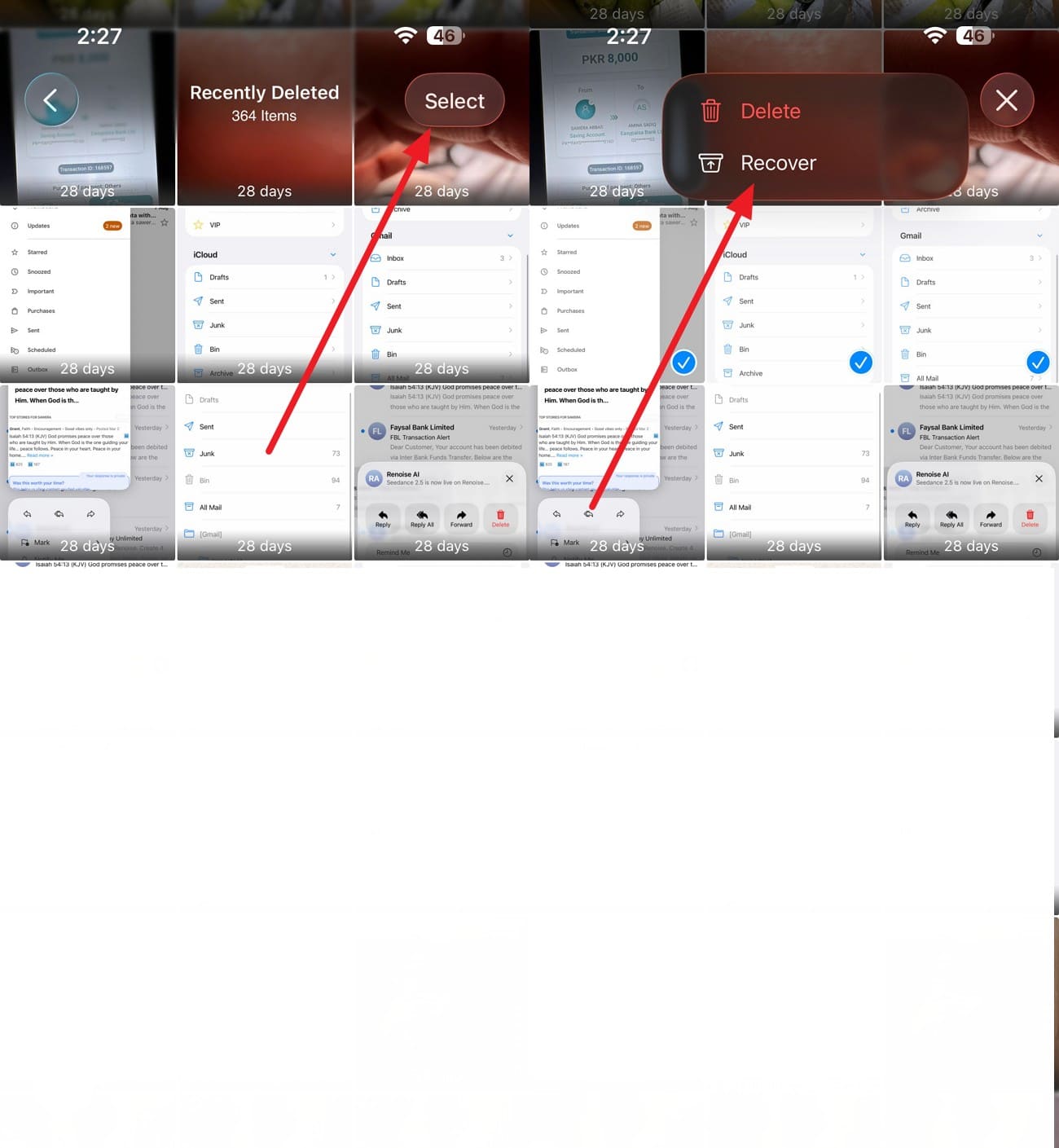
Anything you saved out of the app is a separate story, and an easier one. A Memory that reached your Camera Roll answers to Apple, so deleting it relocates the file instead of destroying it. The system keeps it for another month. To restore Snapchat memories that were saved and deleted in the Photos app, follow these directions:
-
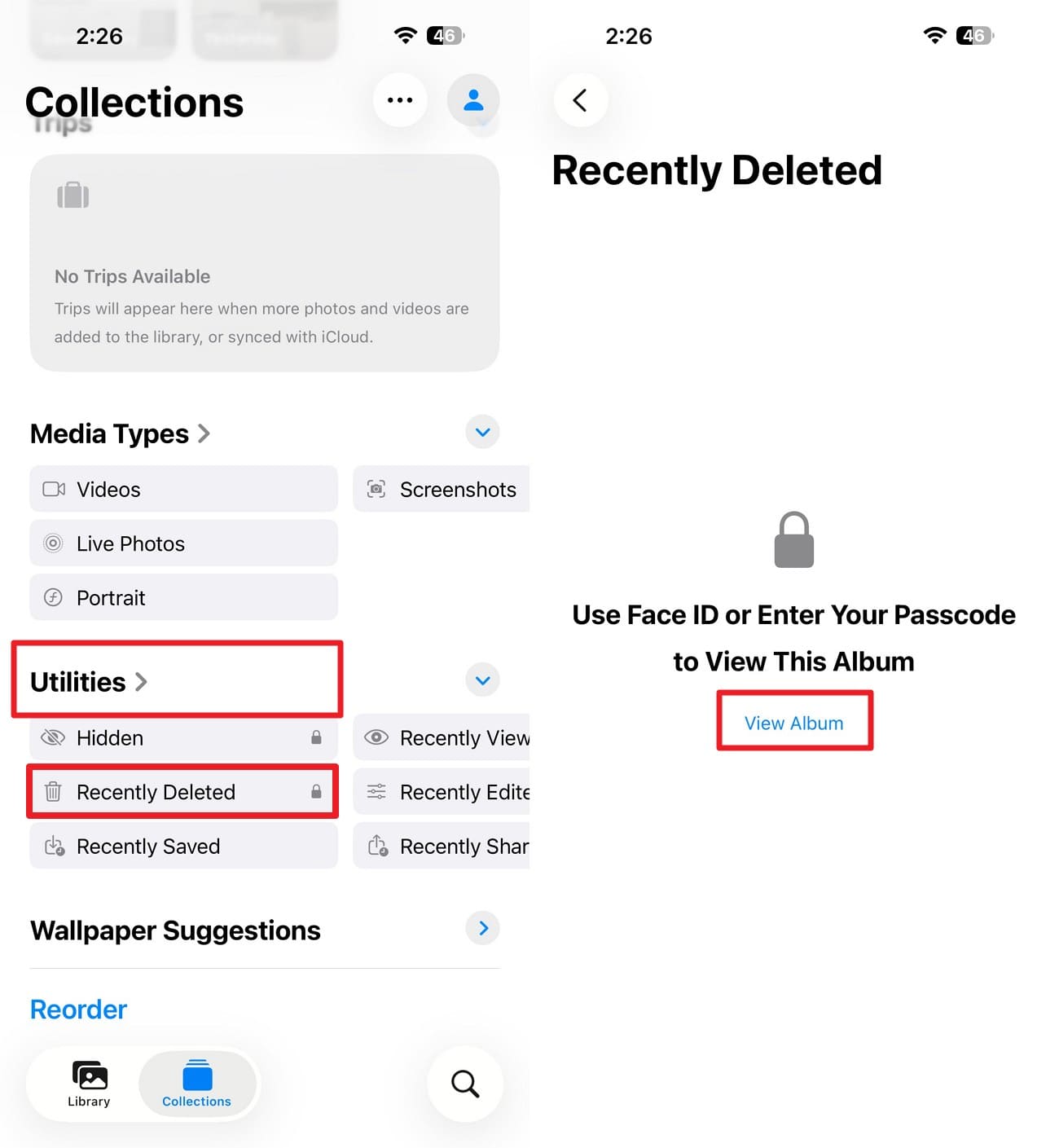
Step 1 Access Recently Deleted Folder
In the Photos app, go to "Collections > Utilities > Recently Deleted > View Folder" and add Face ID or passcode.
-
Step 2 Recover the Memories
Press the "Select" button, choose Snapchat memories media files, tap "Three Dots," and select "Recover."
Method 6. Restore Exported Snapchat Memories from iCloud Photos
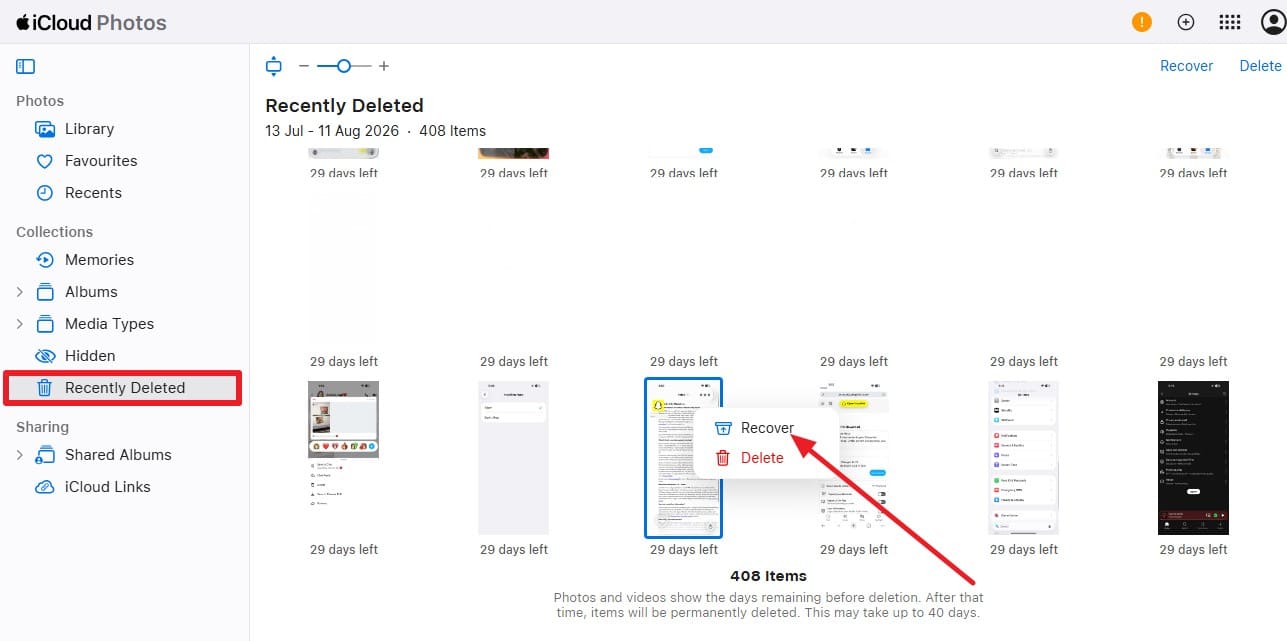
Where those 30 days have run out, a synced copy may have outlived the local one. iCloud Photos mirrors your library across every device on the account, and deletions normally sync too. The exception is a device that was offline or signed out when you permanently deleted, since it never received the instruction. Follow the mentioned guide and learn how to recover deleted Snapchat memories with this method:
Instructions. Sign in at iCloud.com > Choose "Photos > Recently Deleted" > Select the image > Tap "Three Dots > Recover."
Part 4. Can You Recover Permanently Deleted Snapchat Memories?
To learn more about when Snapchat memories recovery is not possible, review this section in detail.
Why Snapchat Cannot Restore Permanently Deleted Cloud Memories
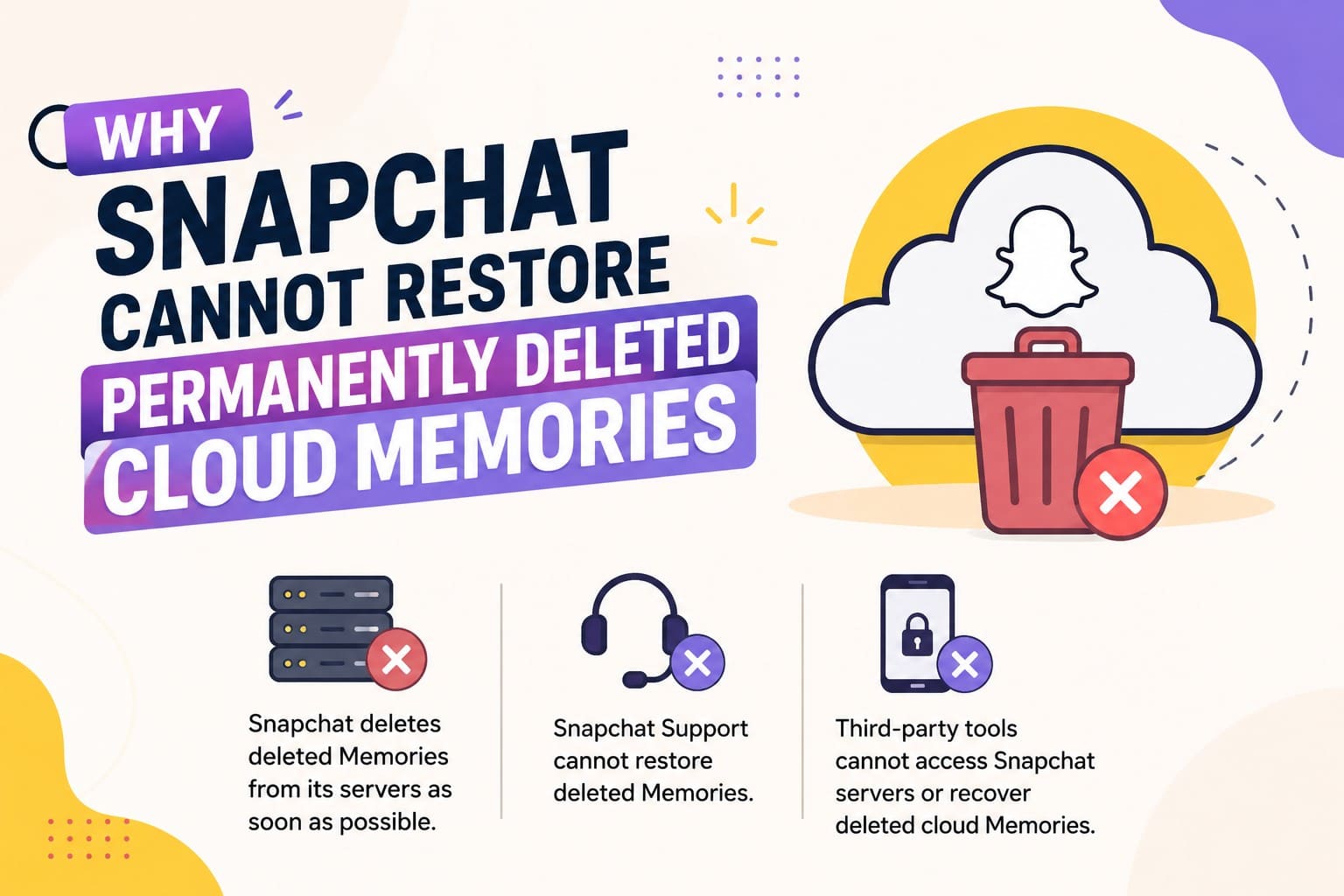
Start with the cloud library, since that's where most people expect a safety net. Snapchat states that its servers are designed to erase a deleted Memory Snap as soon as possible. Once that happens, Snapchat Support cannot restore it.
This distinction matters when evaluating recovery options. Third-party iPhone recovery tools do not have access to Snapchat's servers, so they cannot retrieve a Memory that Snapchat has already removed from its cloud storage.
Can Deleted Memories Remain on the iPhone?
A local device scan proves useful in specific situations. Items queued for upload exist locally first, and temporary cache fragments can remain long after the app hides them. This scenario marks the sole instance where local storage contains data the cloud never received. However, these temporary traces vanish as soon as new photos, apps, or system updates overwrite that storage space.
When Snapchat Memory Recovery Is No Longer Possible
The following 3 situations explain when you cannot restore Snapchat memories:
- A Reset My Eyes Only Passcode: Snapchat confirms that resetting a forgotten passcode deletes everything stored behind it. That erasure is permanent and applies the moment you confirm the reset.
- Uninstalling Before the Backup Finished: Removing the app destroys its local storage, so anything still sitting in the upload queue disappears with it.
- Overwritten Device Storage: After fresh files occupy those blocks, nothing a scan does will bring the originals back.
Part 5. 5 Tips to Protect Snapchat Memories
After you retrieve deleted Snapchat memories, follow the given practical tips to keep them safe:
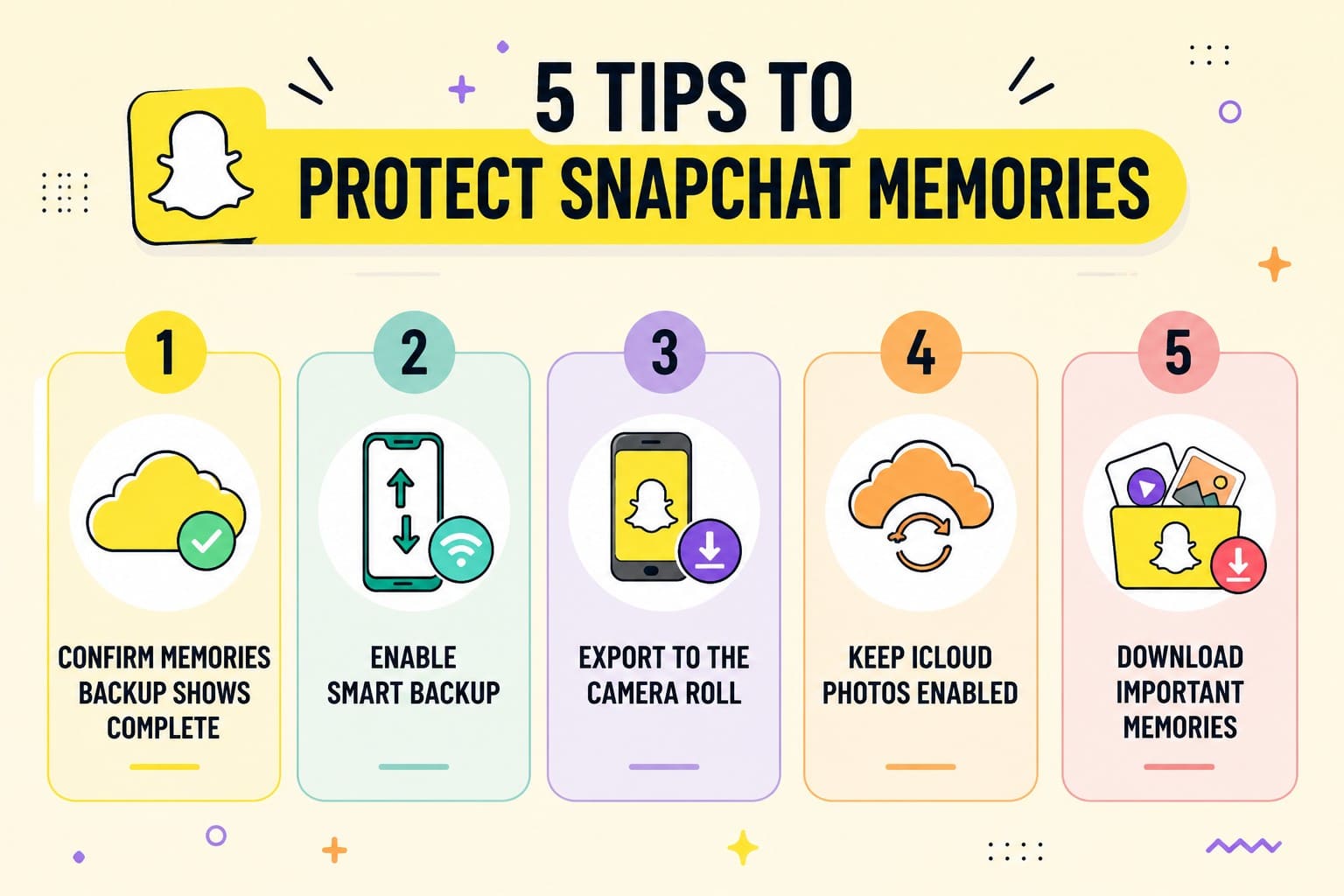
- Confirm Memories Backup Shows Complete: Make this a habit rather than an emergency check. A stalled backup gives no warning, and Snapchat suggests freeing device storage when one refuses to finish.
- Enable Smart Backup: Smart Backup lets Memories upload over mobile data when Wi-Fi isn't available. That stops the queue stalling for days at a time.
- Export to the Camera Roll: A second copy sitting in Photos survives account problems entirely. It's also the only version an iCloud backup captures, since the app's own storage sits outside what iOS backs up.
- Keep iCloud Photos Enabled: Keeping iCloud Photos enabled syncs exported Memories across your Apple devices, so losing one iPhone does not mean losing those saved copies.
- Download Important Memories: Snapchat warns against logging out, switching devices, or uninstalling until the backup finishes. Snaps still waiting in the queue are lost at that moment.
Conclusion
Snapchat Memories recovery comes down to where the copy existed when it went missing. Cloud items return through a simple sign-in or a data export. Camera Roll copies restore through the Photos app, while unbacked fragments require a direct device scan.
Check Backup Progress first to identify your specific recovery path. For locally stored traces and cached app files, Dr.Fone - Data Recovery (iOS) offers an easy desktop solution to preview and recover deleted Snapchat memories data before overwrites occur. Enable Smart Backup afterward to secure your files and prevent future data loss.
FAQ
-
1. Does clearing the Snapchat cache delete Memories?
Clearing the cache removes temporary files rather than your library, so backed-up Memories stay on Snapchat's servers and reappear as the app reloads them. The risk sits with anything not yet uploaded, since those items exist only in local storage. -
2. Will reinstalling Snapchat restore missing Memories?
Reinstalling pulls down whatever the servers hold, which returns backed-up Memories but nothing else. It also wipes local storage, so anything still queued is destroyed rather than restored. Confirm Backup Progress reads Complete before you remove the app. -
3. Can you recover My Eyes Only without the passcode?
No, Snapchat keeps no copy of that passcode and offers no bypass, and resetting it erases the contents instead of unlocking them. Outside software can't get in either, because the section is encrypted on the handset itself.
 Add Wondershare Dr.Fone as a preferred source on Google