Recover photos, messages, WhatsApp, and more — no backup
needed.
Recover photos, messages, WhatsApp, and more — no backup
needed.

 100% Security Verified | No Subscription Required | No Malware

 :
: 
 ChatGPT
 Perplexity
 Gemini
 Claude
 Grok
Grok
Search for a Gmail recovery tool, and you'll find dozens promising to bring back anything, from any account, at any age. Almost none of them tell you where they stop. That's the one detail that matters when your mail has just vanished.
6 options are worth your time on an iPhone, and each reaches a different part of your data. Some talk to Google. Others read the phone. This guide covers what each tool reaches and why Dr.Fone - Data Recovery (iOS) is the dependable choice.

In this article
Part 1. What Can a Gmail Recovery Tool or Method Recover?
Gmail email recovery isn't one job, which is why no single product covers it all. Your mail is spread across 3 separate places, and matching the loss to the right layer is what saves you from buying the wrong thing.
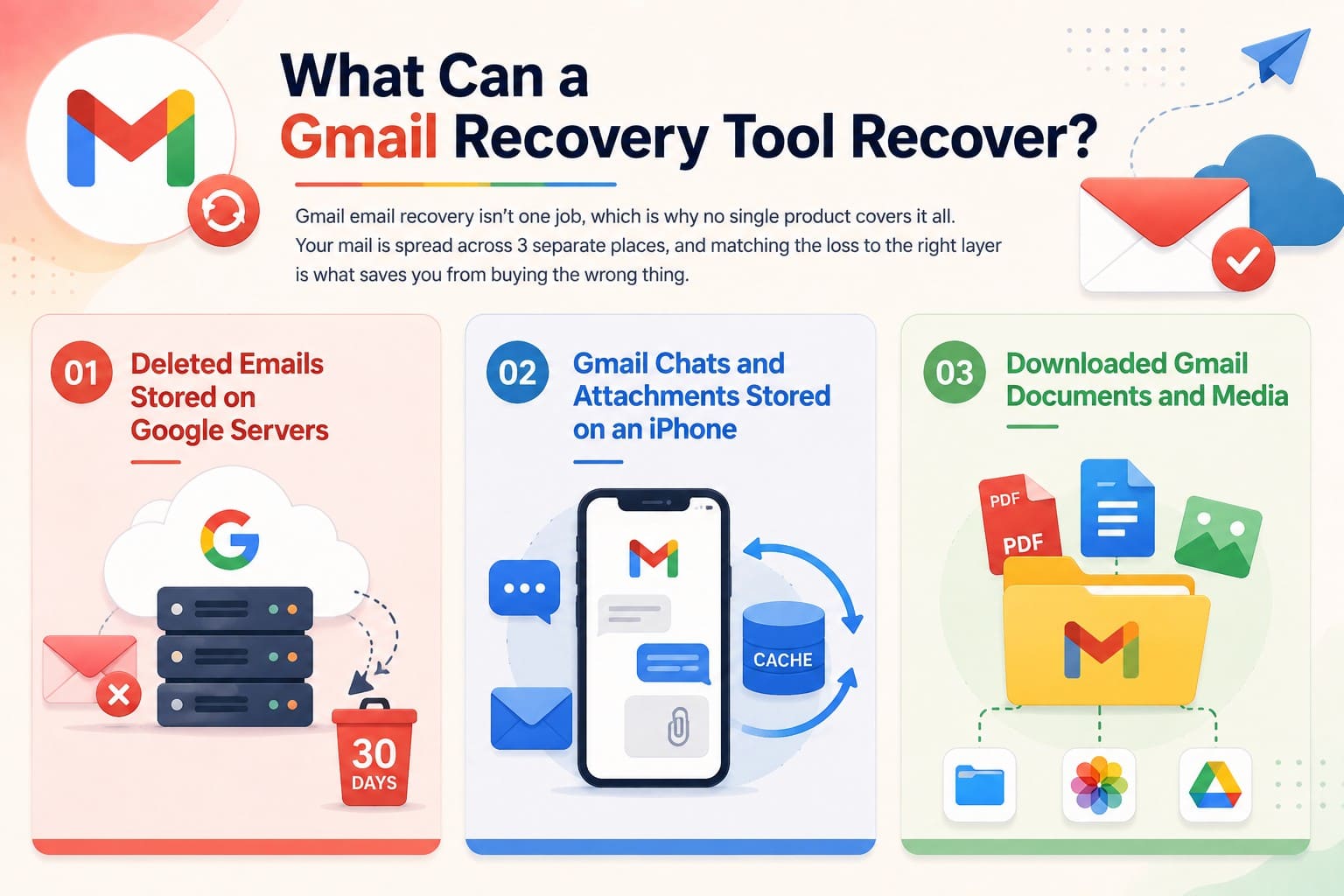
Deleted Emails Stored on Google Servers
The message belongs to Google; deleting it clears the server copy. That's why the same email disappears from your laptop and your phone at once. Going through Google is the only route that returns one intact.
For Gmail users, deleted messages normally remain in Trash for up to 30 days. Whereas for eligible Google Workspace accounts, administrators may have an additional 25-day window to restore permanently deleted Gmail data.
Gmail Chats and Attachments Stored on an iPhone
Gmail keeps its own cache on the handset, which is what lets the app work offline. That cache holds message bodies, attachments, and internal app records, which may not clear immediately when Google removes its server-side copy.
This is the layer most people never think to check, and it's what makes device-side email recovery possible at all. A tool reading that cached data can sometimes rebuild the content of a deleted message well after the mailbox has stopped showing it. How much survives depends on how much fresh data has claimed the same storage since.
Downloaded Gmail Documents and Media
Files deliberately saved from a message function as standard documents. A contract placed in Files, a photo saved to Photos, or a PDF exported to another app survives after email deletion. These local files follow standard device recovery rules rather than Gmail expiration timers, which makes a device scan a vital step alongside server-side recovery options.
Part 2. How We Evaluated Gmail Recovery Tools and Methods
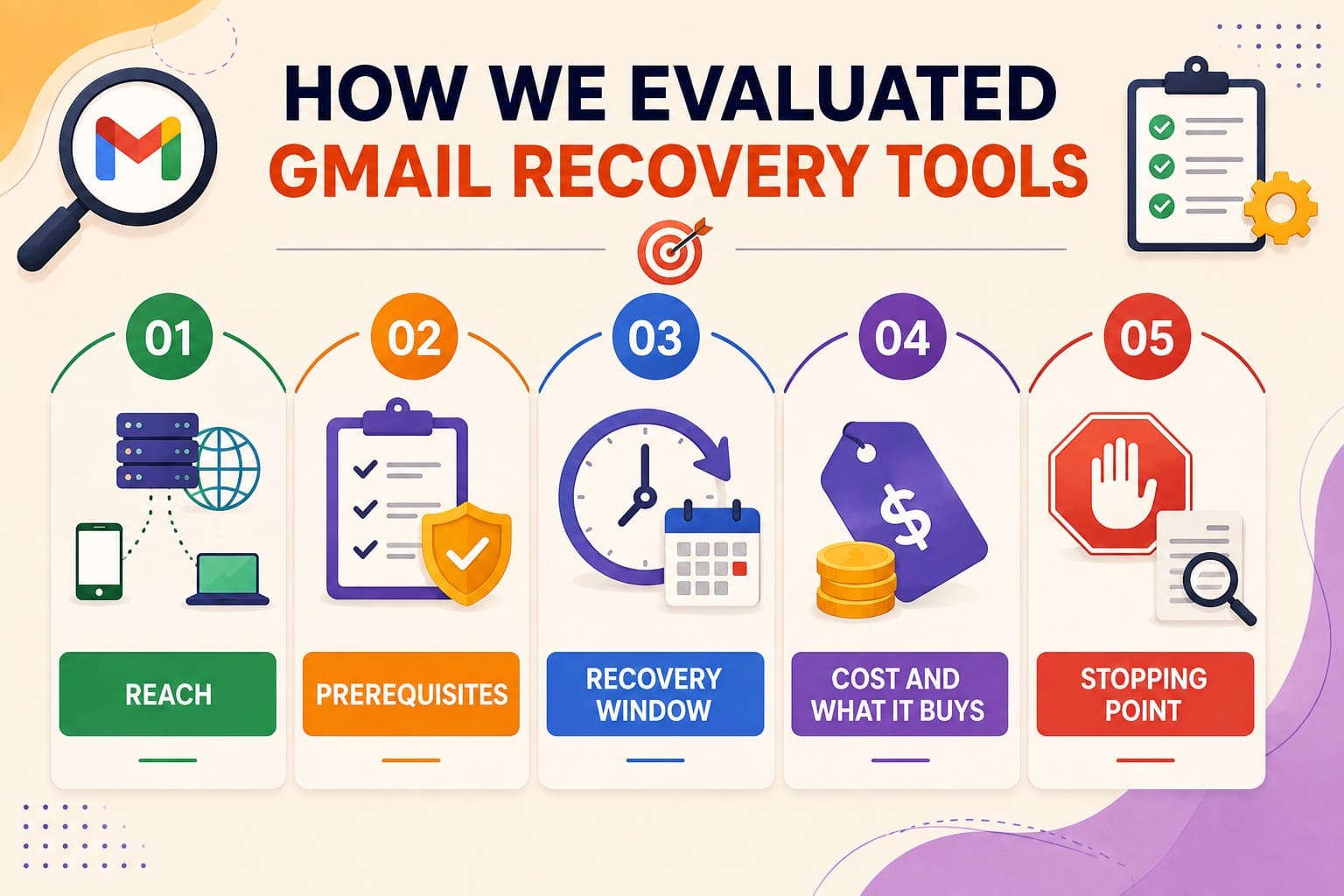
To know how each Gmail recovery tool or method is ranked in Part 3, go through these metrics:
-
1 Reach
Server recovery and device scans target different data layers, so treating them as interchangeable can lead to the wrong recovery method.
-
2 Prerequisites
Each recovery path has specific requirements. Some options depend on an available backup, retention rule, account type, or administrator access.
-
3 Recovery Window
Recovery periods usually begin when data is deleted, not when the loss is discovered. Once the window expires, that route becomes unavailable.
-
4 Cost and What It Buys
Some methods are free, while others require payment. Paid options should provide recovery capabilities that free methods cannot offer.
-
5 Stopping Point
Each method has limits on what it can recover, which should be checked against official documentation before choosing an option.
Test Setup
To verify Gmail email recovery claims under consistent conditions, the tools and methods were tested using the same recovery scenario:
| Test Factor | Test Condition |
|---|---|
| Test Environment | iPhone 16 running iOS 26.0 |
| Test Scenario | Deleted Gmail attachment / locally stored Gmail-related data. |
| Recovery State | Tested before and after removal from Gmail Trash. |
| Result Measured | Detected, viewable, exportable, or unrecoverable. |

Part 3. 6 Best Gmail Recovery Tools and Methods for iPhone
Ordered by how deep they reach, the 6 tools and methods run from a device-level scan through to Google's administrative routes. Review these techniques to recover deleted Gmail emails and learn which one suits your needs:
1. Dr.Fone – Data Recovery (iOS)
Best For: Deleted email content, saved files, and app data the iPhone hasn't overwritten yet.
An empty Trash folder seems like a total loss, so most give up. Yet phone storage can retain data, as local offline cache operates outside server timetables. This path alone bypasses the need for Google's authorization. Dr.Fone - Data Recovery (iOS) reads that leftover layer on a supported handset, including cached data the system has stopped showing you. If enough of it survives, the tool can rebuild deleted email content.
Preview is free, allowing users to check recoverable data before proceeding. Results can then be recovered to a computer or supported device. Dr.Fone supports all iPhone models, while this direct Gmail recovery feature is available on iPhone 16 and earlier. Its selective recovery feature also lets users choose specific detected data instead of recovering everything at once.
 Recovers data after deletion, crashes, or device damage.
- Supports photos, messages, contacts, WhatsApp, and more.
- Supports all major iPhone, iPad, and iPod models.
- Preview and recover only what you need.

Guide to Run a Device-Level Gmail Scan with Dr.Fone
To test the claims of this Gmail email recovery tool, review the following step-by-step guide in detail:
-
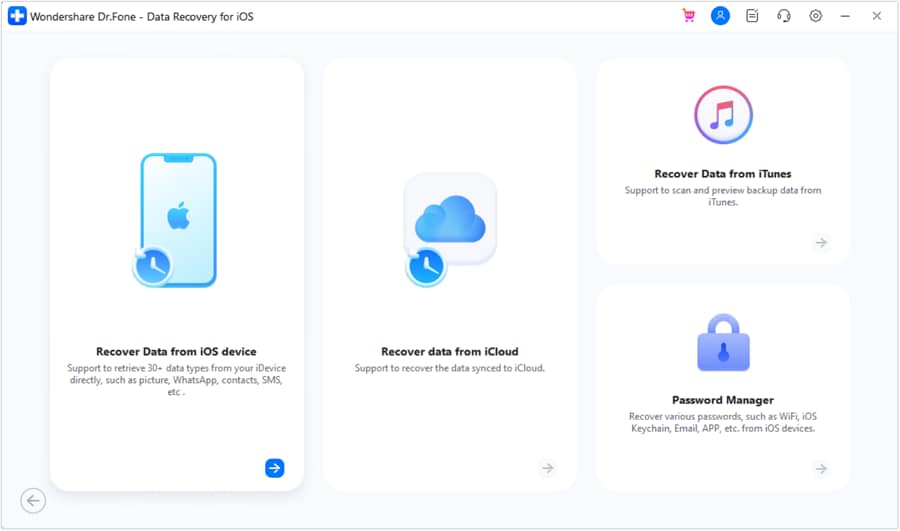
Step 1 Connect the iPhone and Pick a Source
With Dr.Fone running on a Mac or PC, head to the “Toolbox” tab, select the “Data Recovery” tool for iOS, and choose the "Recover Data from iOS Device" feature.
-
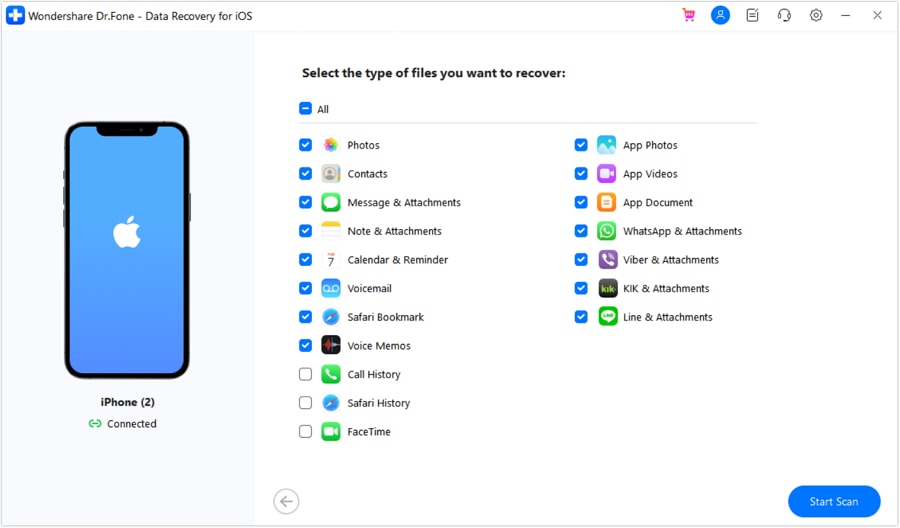
Step 2 Choose What to Look For
Connect the iDevice when prompted, select “Gmail” from the available data categories, and press “Start Scan” to begin the recovery scan.
-
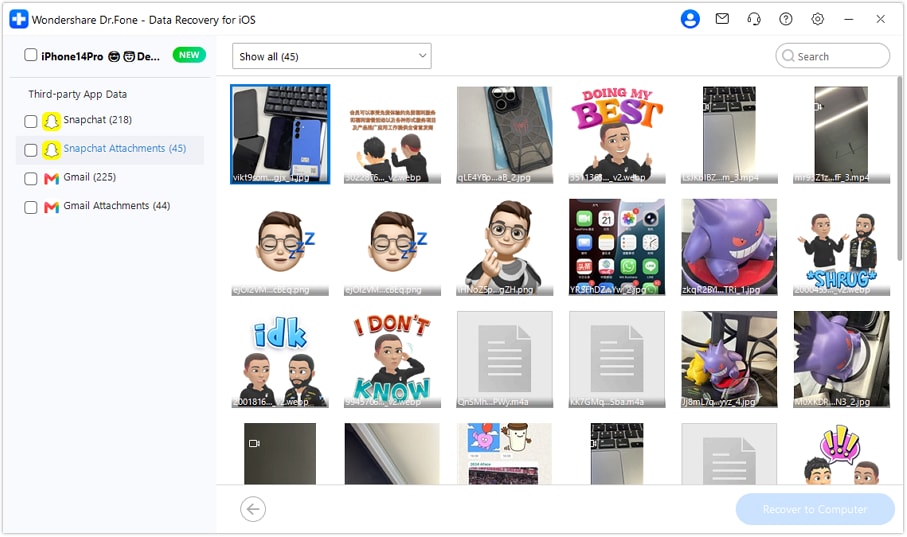
Step 3 Preview & Export Your Gmail Data
Switch to deleted items, preview the recovered Gmail data, select what you need, and click “Recover to Computer” to save it.
Limitation
- Scan fast before new data overwrites your deleted phone storage.
2. Gmail Trash
Best For: Anything deleted in the past 30 days, on any account type.
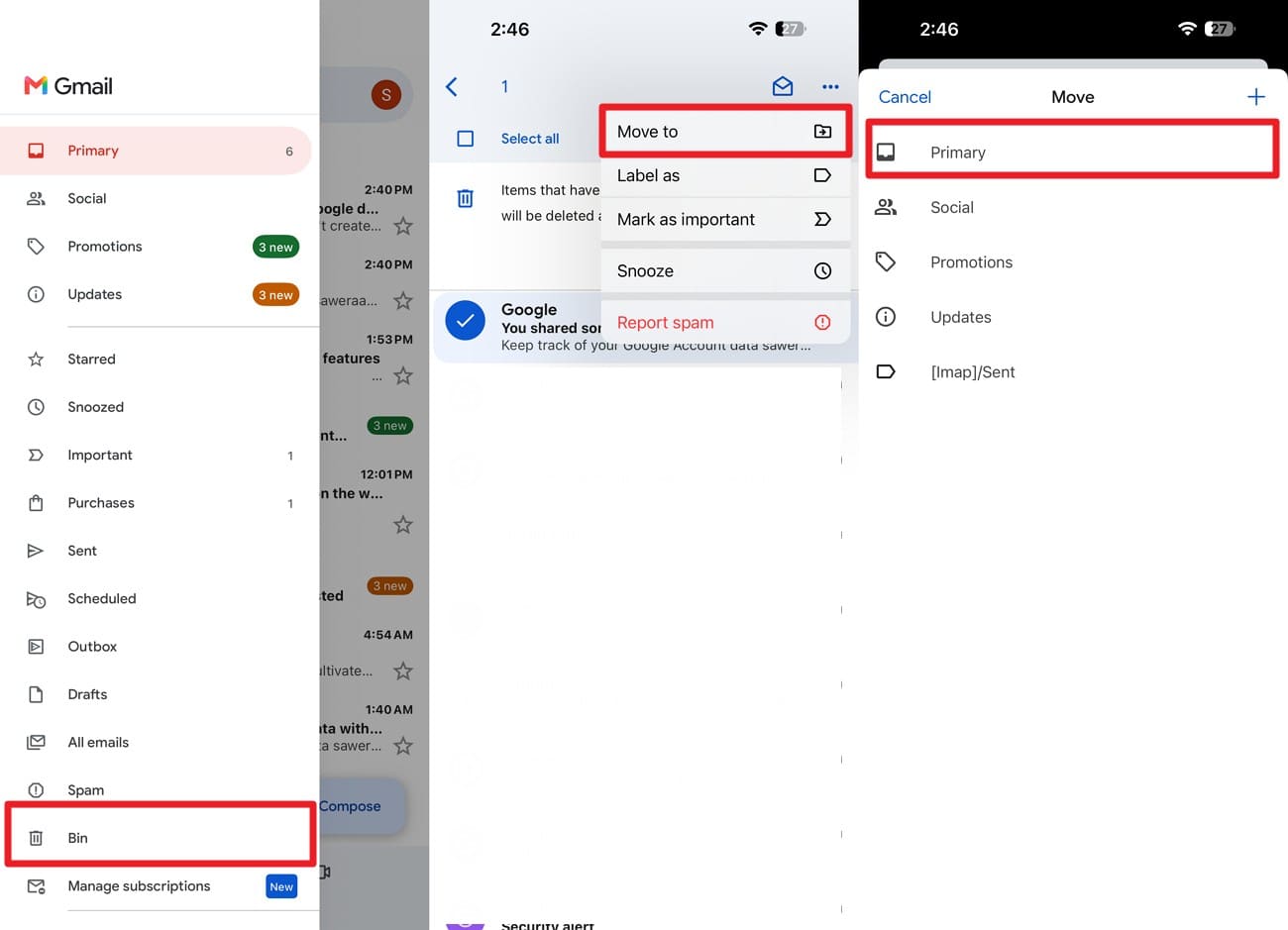
While it lasts, the free route outperforms everything you could pay for. It's the only option that hands a message back complete, labels and threading included, instead of as a file you reimport. The Spam folder empties on that identical schedule, so search both. Google's instructions cover the iPhone app directly, so follow the provided guide:
Instructions. Press the “Hamburger” icon on the Gmail app > Choose “Bin” > Press the mail you seek to recover > tap “Three Dots” and “Move To” > Choose a location to save.
Limitation
- The 30 days start at deletion, and manual clear ends it.
3. Gmail Message Recovery Tool
Best For: Personal accounts where an intruder, not the owner, did the deleting.
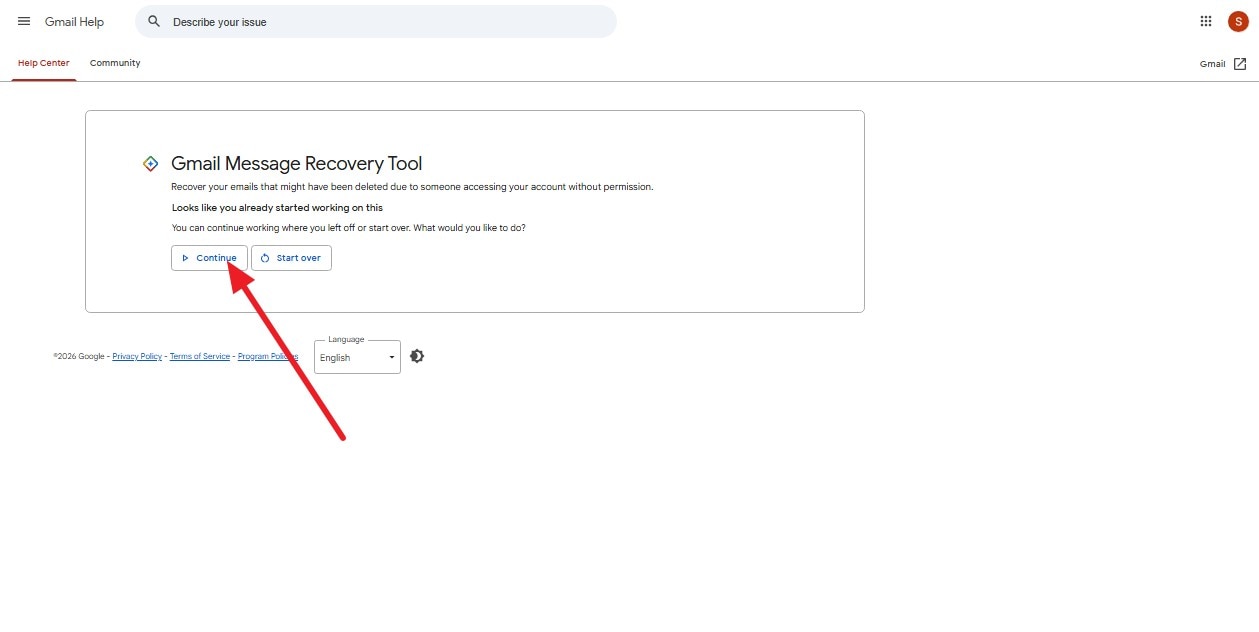
A request form exists for consumer Gmail, aimed at mail that vanished because an intruder reached the account. Once Trash has cleared, it's the last server-side avenue a personal account has left. Submitting costs nothing, and the steps to recover deleted Gmail emails are given below:
-
Step 1
Access Google’s Gmail Message Recovery Tool > Login > Tap “Continue.”
-
Step 2
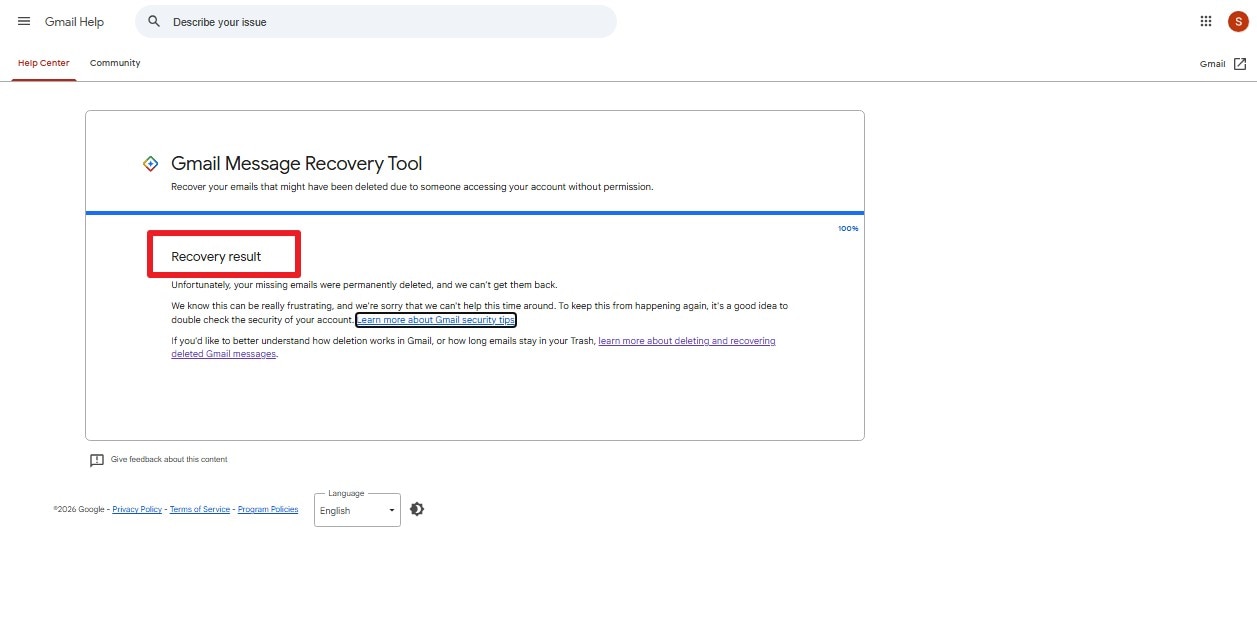
Check for a confirmation message detailing whether any emails were recovered.
Limitation
- No status updates exist, as this form targets hacked accounts.
4. Google Workspace Admin Console
Best For: Work or school accounts within roughly 55 days of the deletion.
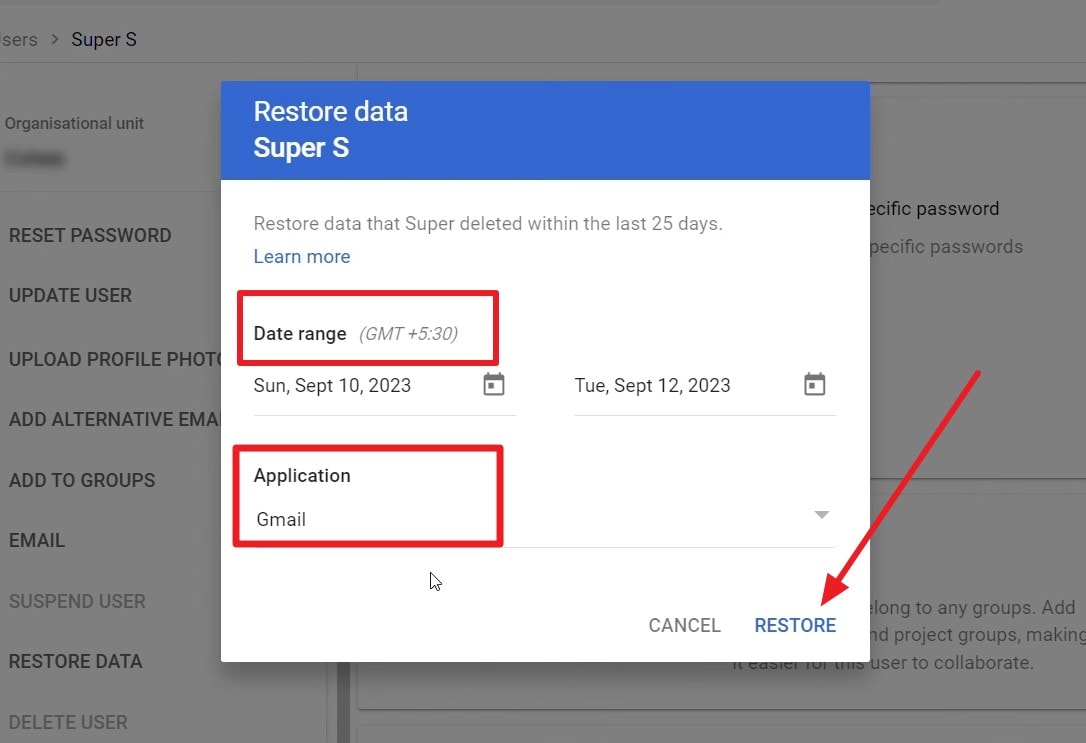
A domain-managed mailbox gets a second chance no personal account will ever see. Administrators hold a further 25 days beyond the point where Trash gives up. The mail returns straight into the user's mailbox rather than as a download. Only a super administrator can start it:
-
Step 1
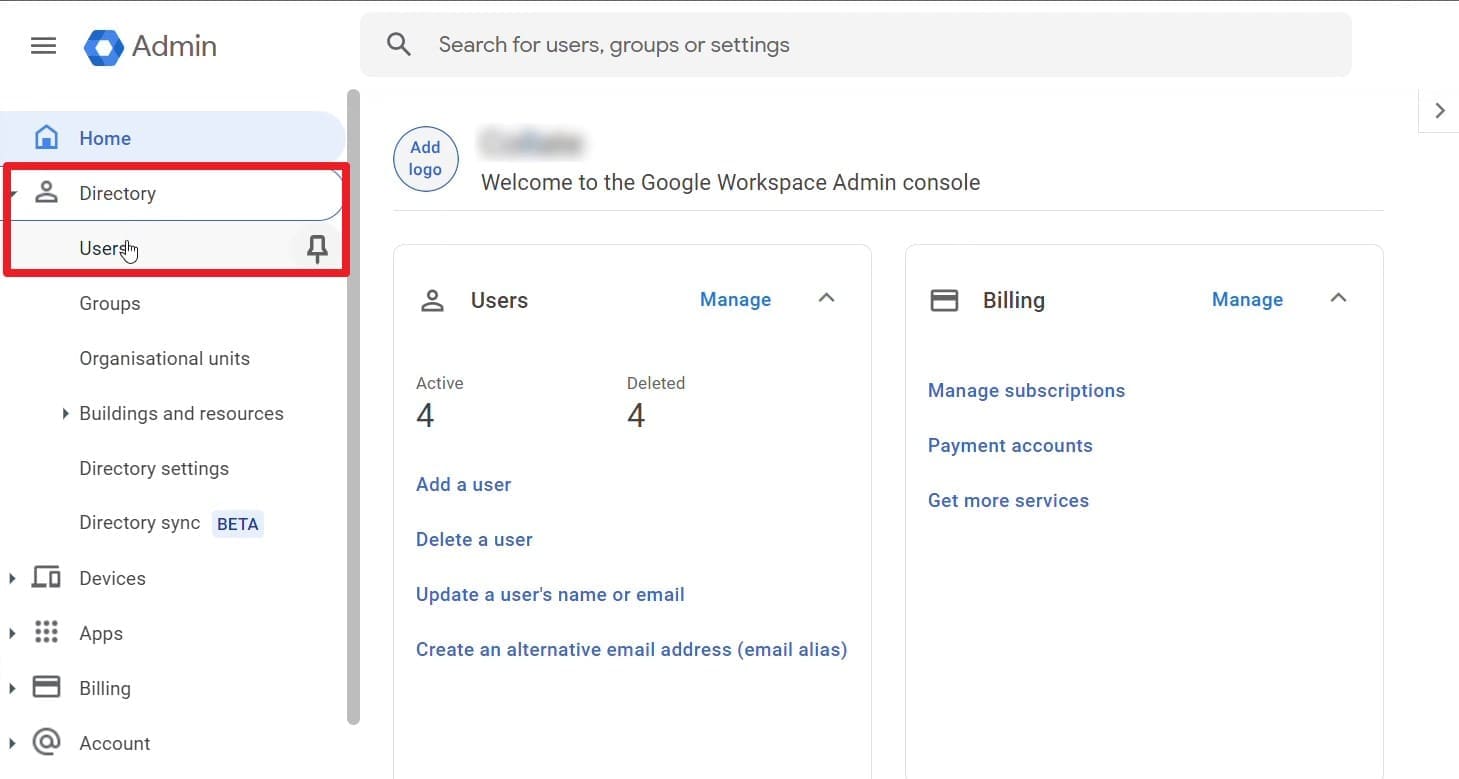
Your administrator signs into the Admin console and works through to “Directory > Users.”
-
Step 2
They scroll in the “Organizational Unit” section and tap on the “Restore Data” option.
-
Step 3
The dialog asks to choose the “Date Range > Application” > Choose “Gmail > Restore.”
Limitation
- Drafts and old mail sit outside; large restores cannot stop.
5. Google Vault
Best For: Organizations that configured retention rules before the data went missing.
Vault is a governance and eDiscovery product rather than a recovery button, and that distinction catches people out. It holds mail beyond the normal deletion windows, but only where a retention rule or legal hold already covered that data. It also sits on higher Workspace tiers, so not every organization has it:
-
Step 1
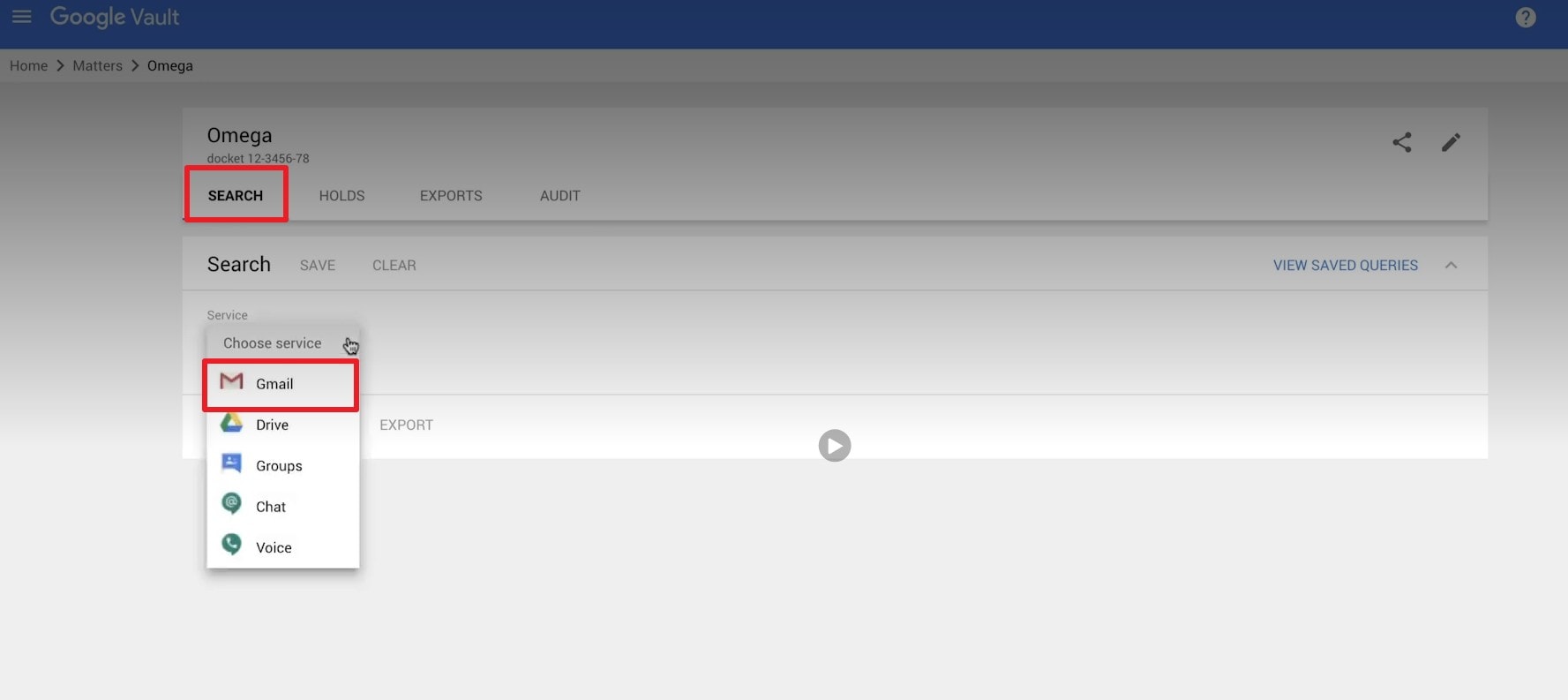
Sign in at vault.google.com > Choose “Matters” > Find the matter > Go to “Search” and choose “Gmail.”
-
Step 2
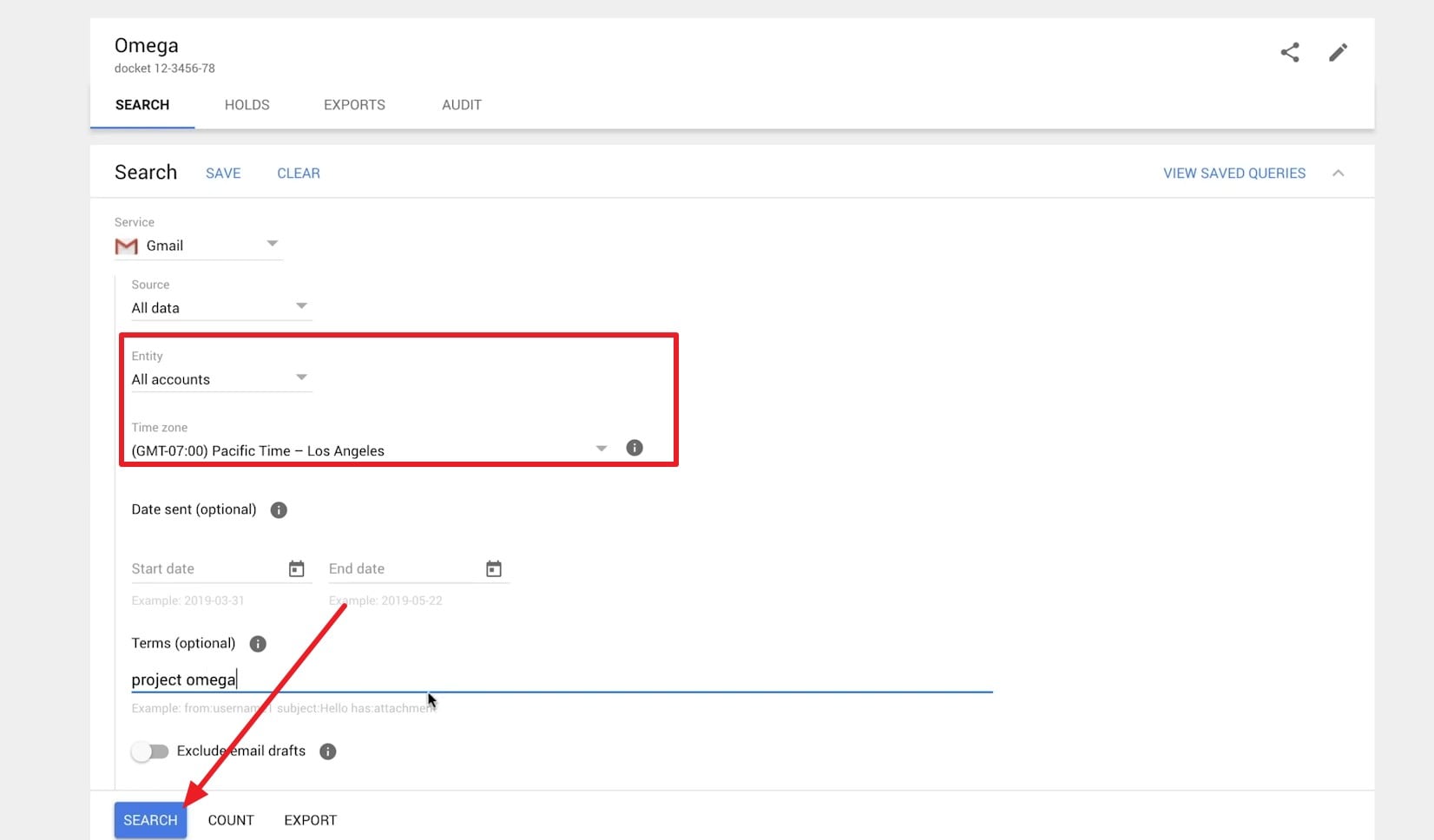
Pick the “Entity” and “Time Zone” and click on the “Search” option.
-
Step 3
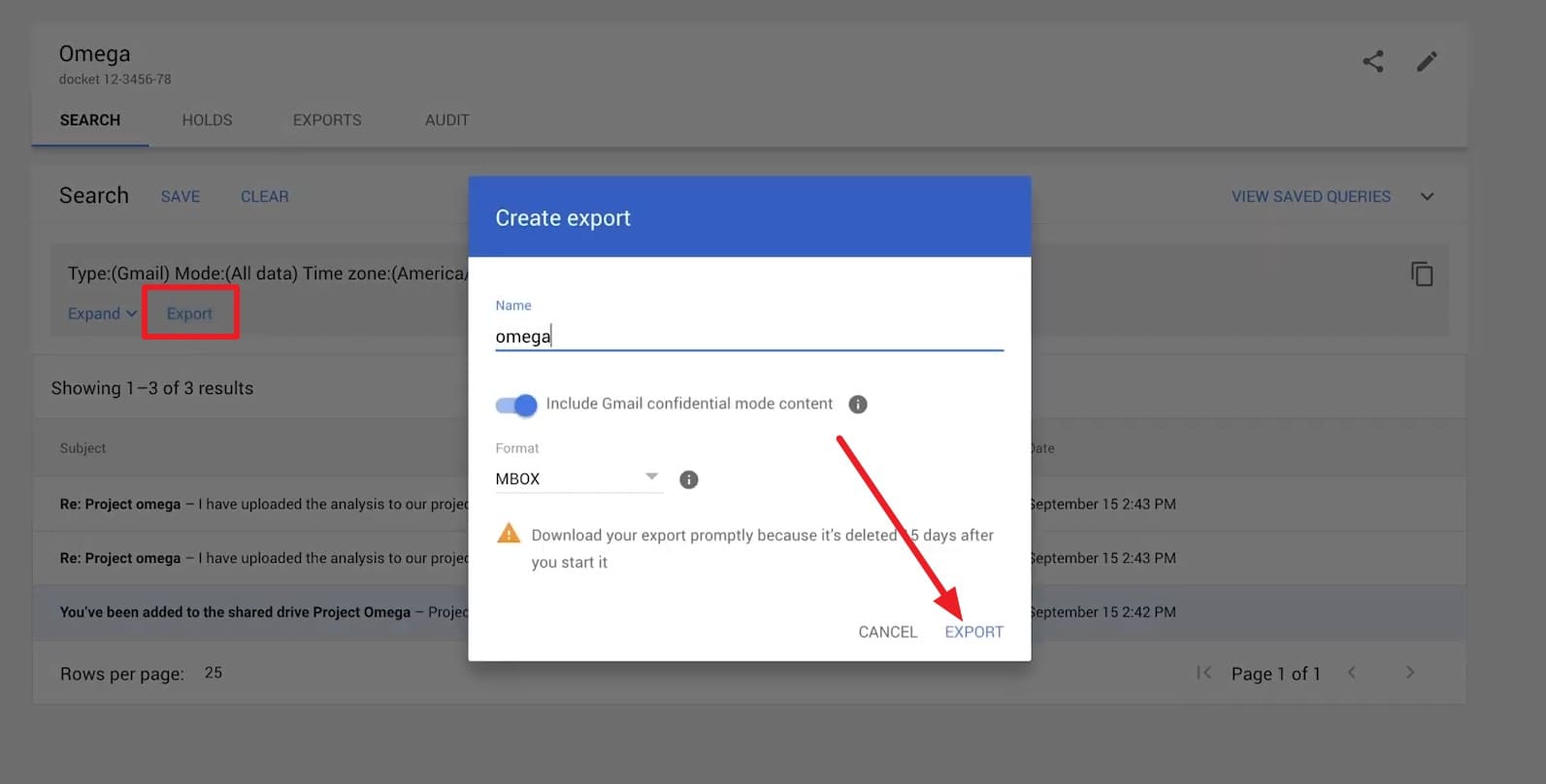
Review the results > Tap on “Export” > Add the “Name” and click on “Export.”
-
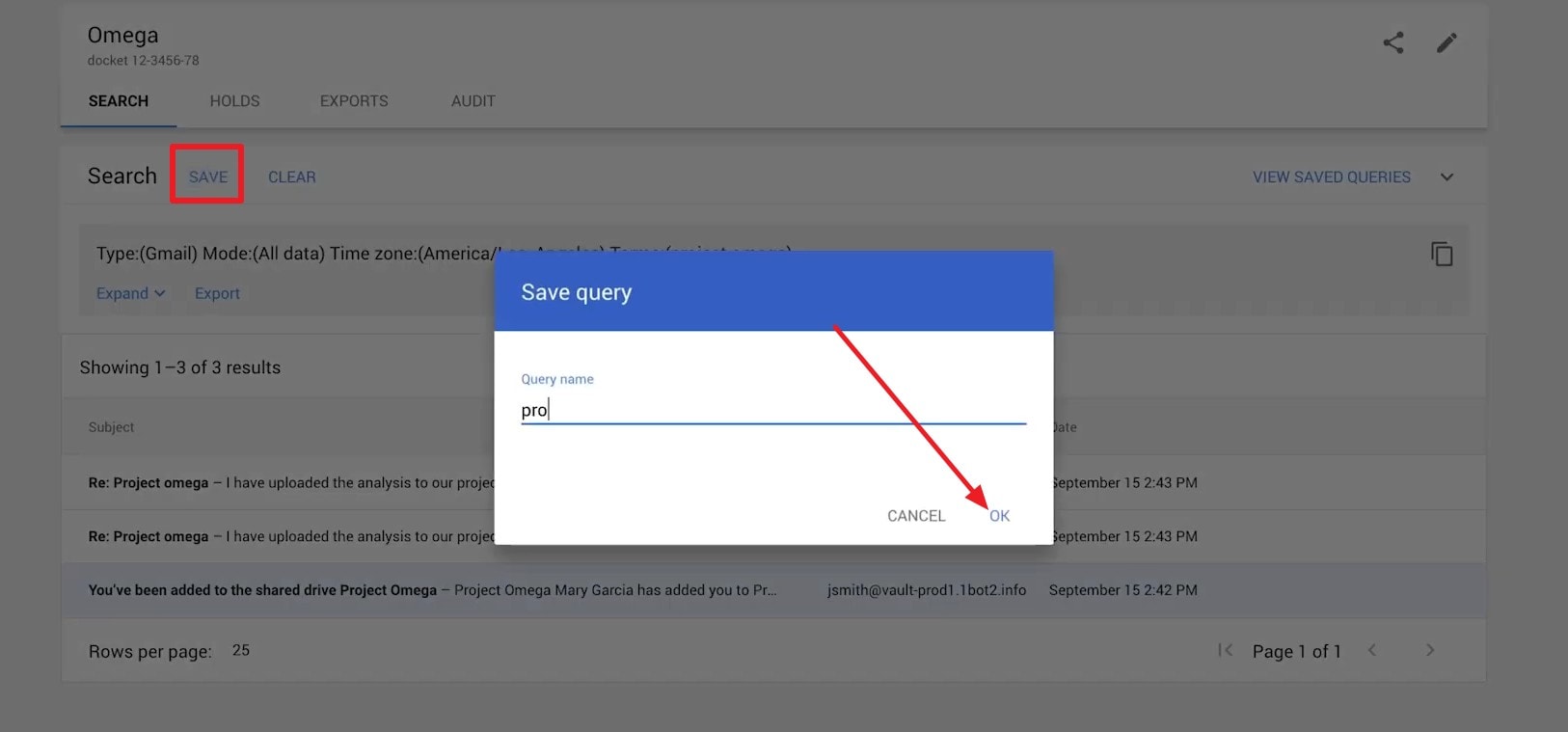
Step 4
Choose the “Save” option > Enter the “Query Name” and press the “OK” button.
-
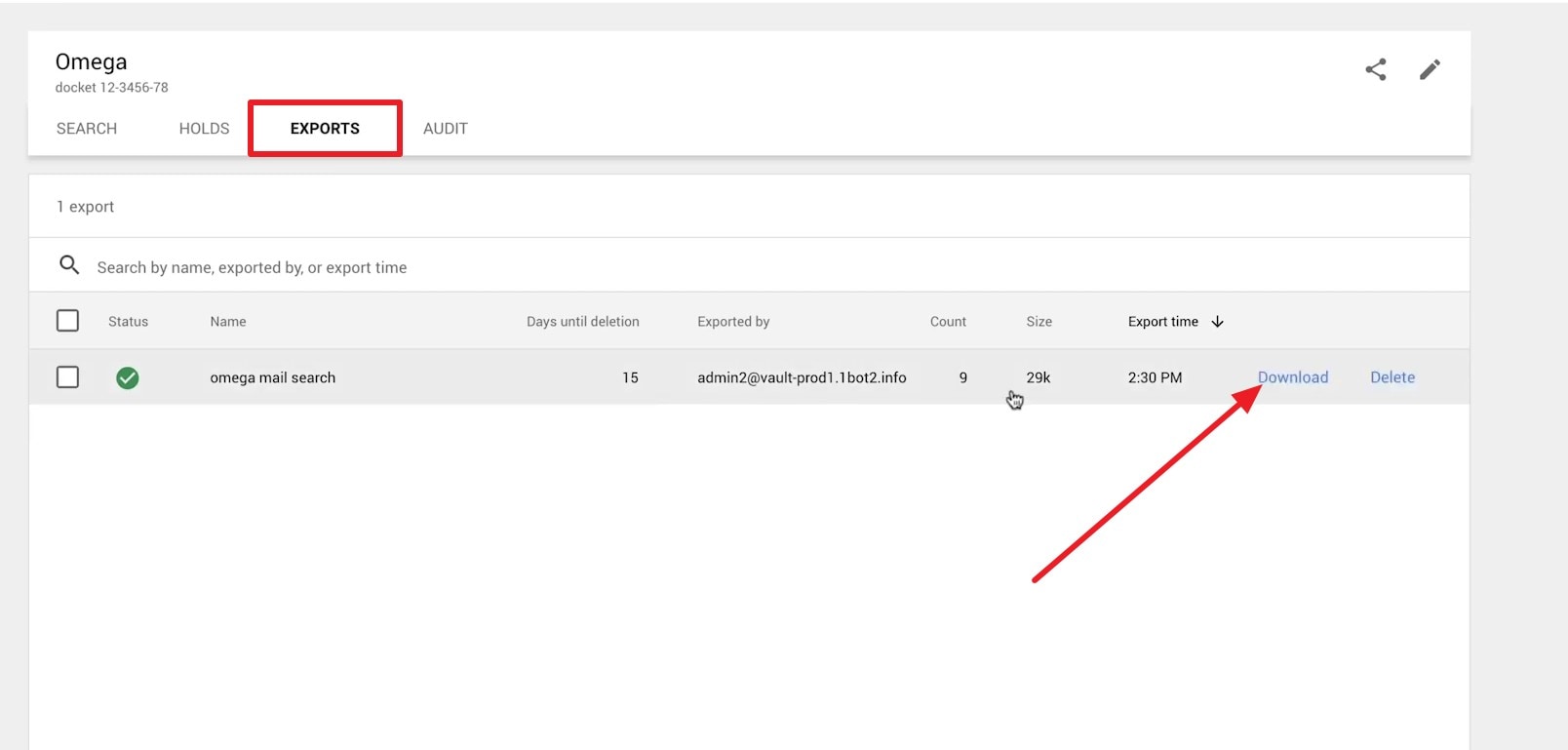
Step 5
At this point, the export process is completed. Go to the “Export” tab > Choose the mail > Click “Download” and the “OK” button.
Limitation
- Vault exports data instead of restoring it, and downloads expire after 15 days.
6. Apple Mail
Best for: Gmail accounts also configured in the iOS Mail app.
Configuring Gmail inside Apple Mail leaves a duplicate mailbox on the phone, and it runs a trash folder of its own. Now and then that folder still lists something Google has wiped, particularly if the phone spent time offline. The account has to have been set up there before the loss, and here is how this Gmail recovery method works:
-
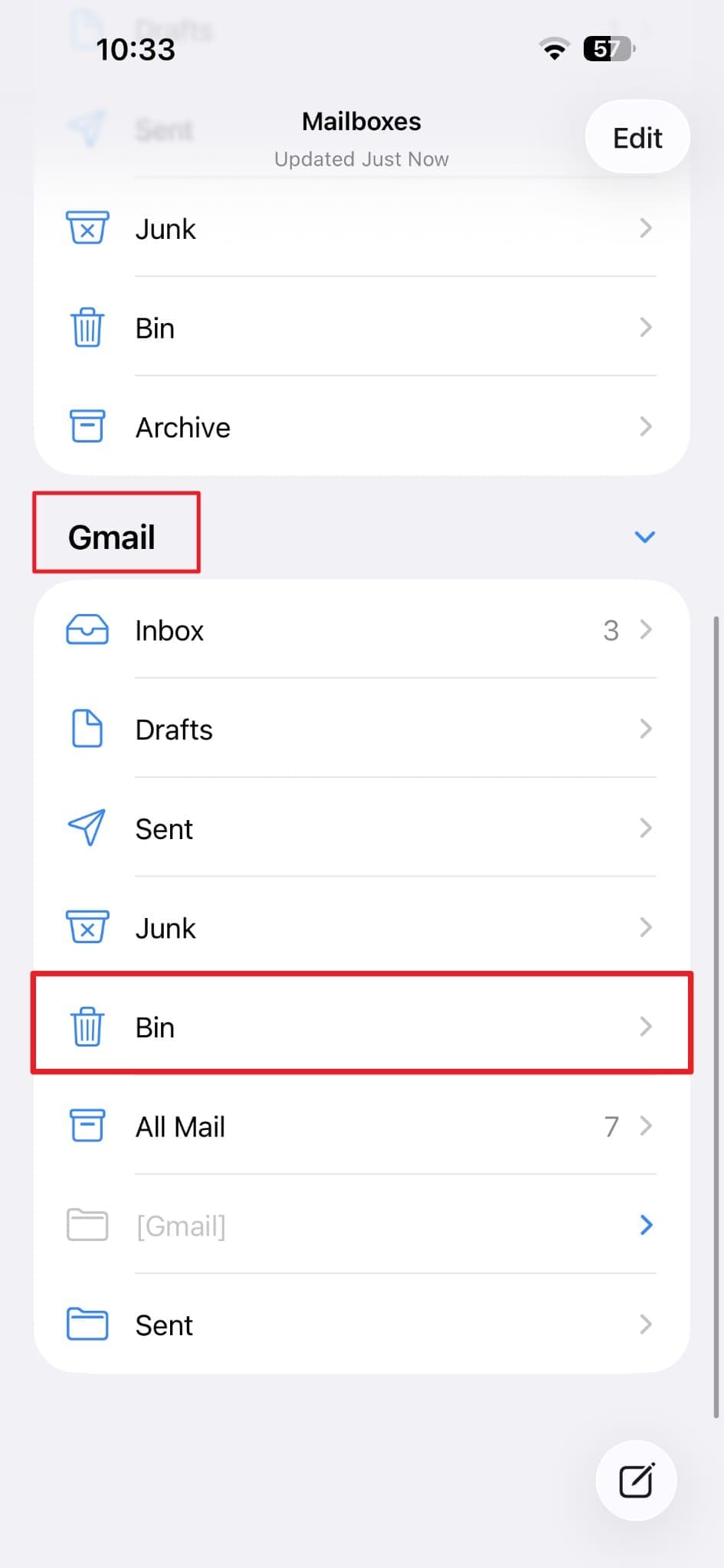
Step 1
Under “Mailboxes” in the Mail app, access the Gmail account, then “Bin.”
-
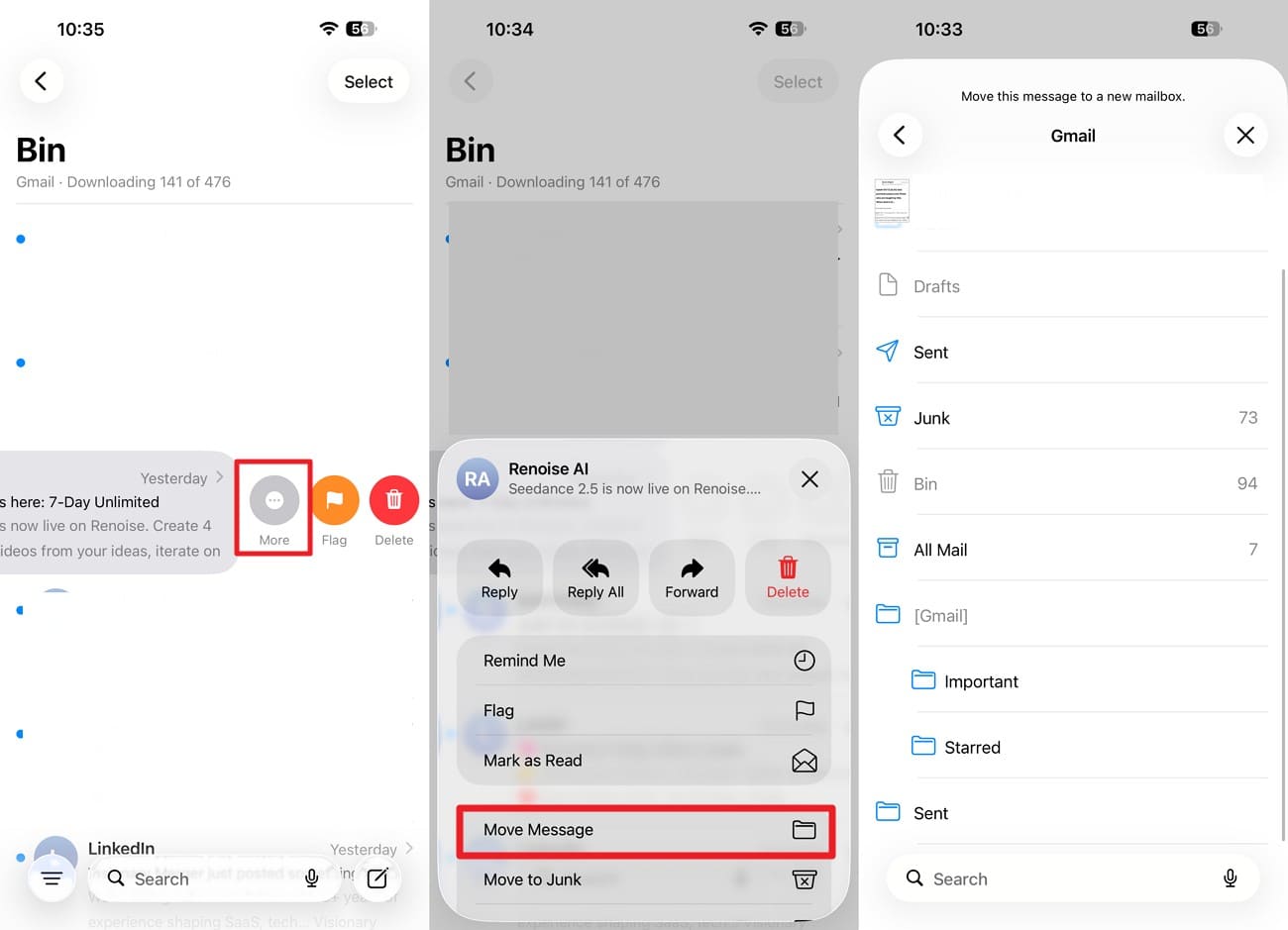
Step 2
Swipe left on the mail you want to recover > Choose the "Move" and "Move Messages" options to restore.
Limitation
- It shows prior syncs, and Gmail deletion removes this copy.
Part 4. Gmail Recovery Tools and Methods Comparison
To pick the right Gmail email recovery tool or method, compare all 6 options side by side.
| Tool | Best For | Recoverable Data | Direct Scan | Backup Required | Cost | Main Limitation |
|---|---|---|---|---|---|---|
| Dr.Fone – Data Recovery (iOS) | On-device Gmail residue | Cached email content, attachments, app data | Yes | No | Paid, free preview | Depends on surviving cache/data |
| Gmail Trash | Recent deletions | Full Gmail messages | No | No | Free | Hard 30-day limit |
| Message Recovery Tool | Compromised accounts | Recoverable Gmail messages | No | No | Free | Recovery not guaranteed |
| Workspace Admin Console | Managed accounts | Permanently deleted Gmail data | No | No | Included | Limited admin recovery window |
| Google Vault | Retained organization data | Messages, attachments, metadata | No | Retention/hold required | Workspace-dependent | Exports rather than restores |
| Apple Mail | Unsynced Gmail changes | Gmail messages still present before sync | No | No | Free | Disappears once deletion syncs |
Verdict: Dr.Fone – Data Recovery (iOS) is the pick among these 6 for anything the server routes can no longer reach. It's the only entry that reads the iPhone itself instead of asking Google. That leaves it standing after Trash has emptied and the admin windows have closed.
Treat it as the device-side specialist rather than a universal fix. It works from the cached data Gmail leaves on the handset, so what comes back depends on how much has been overwritten since.
Part 5. Which Gmail Recovery Tool or Method Should You Choose?
Feature lists alone rarely decide success. Account type, deletion timing, and prior setup determine your options. These Gmail recovery methods or tools can also complement one another.
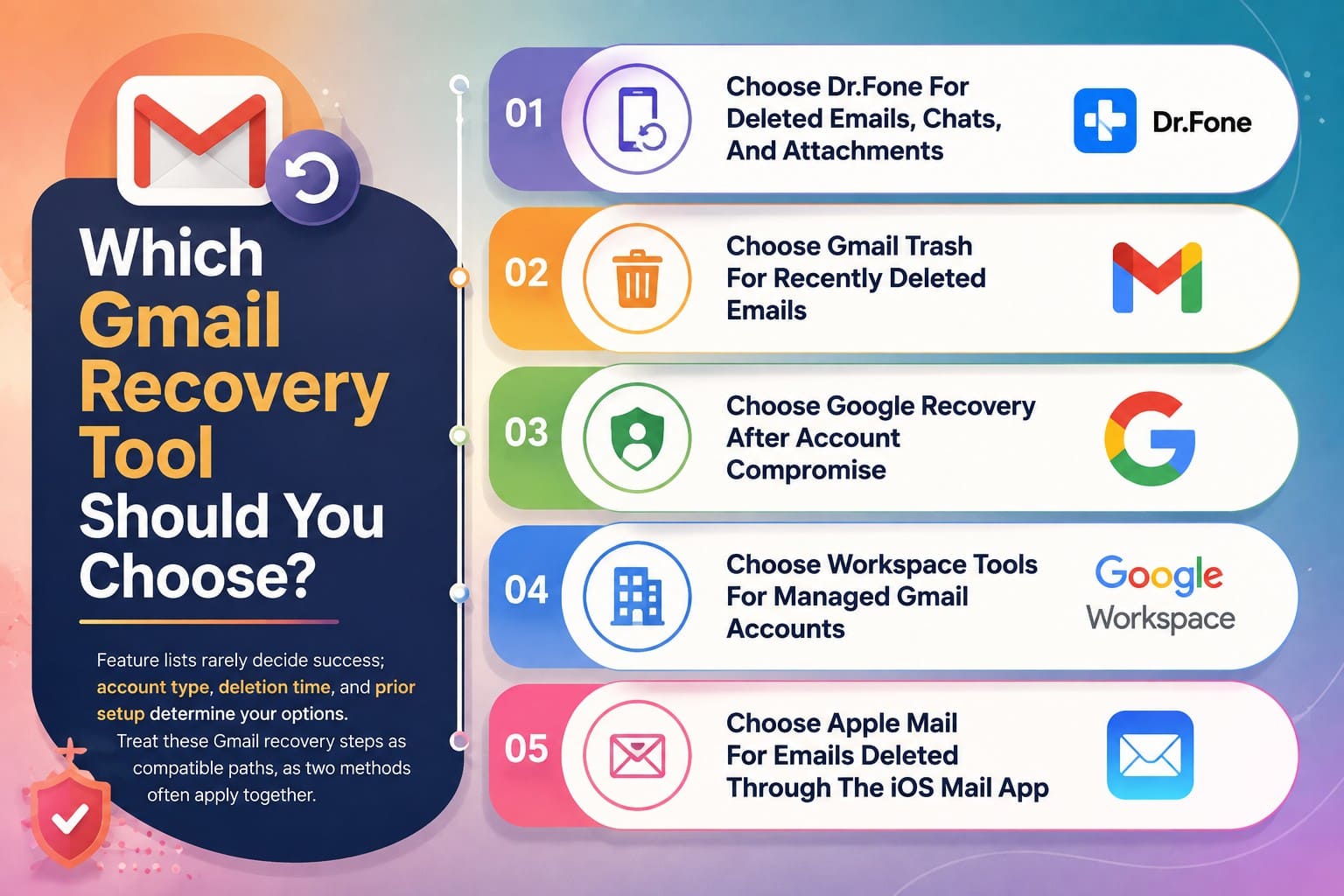
- Choose Dr.Fone for Deleted Emails, Chats, and Attachments: Use it when mailbox recovery routes run out. A scan may recover cached email content, attachments, and app data that still survives on the iPhone.
- Choose Gmail Trash for Recently Deleted Emails: Try this first for recent deletions. It is free, takes seconds, and restores the complete message directly to your mailbox.
- Choose Google Recovery After Account Compromise: Use the Message Recovery Tool when emails disappear after suspicious account activity or unauthorized access. Recovery, however, is not guaranteed.
- Choose Workspace Tools for Managed Gmail Accounts: The Admin Console covers eligible recent deletions, while Vault can retrieve older organizational data preserved through applicable retention rules or holds.
- Choose Apple Mail for Emails Not Yet Synced: Check Apple Mail when Gmail was already configured there. A deleted message may remain temporarily if the server-side deletion has not yet synchronized.
Gmail Recovery Scams to Avoid
Desperation drives users to click risky Gmail email recovery options, and software vendors exploit this behavior. 4 red flags mentioned help identify deceptive tools in this market before you try to recover deleted Gmail emails:
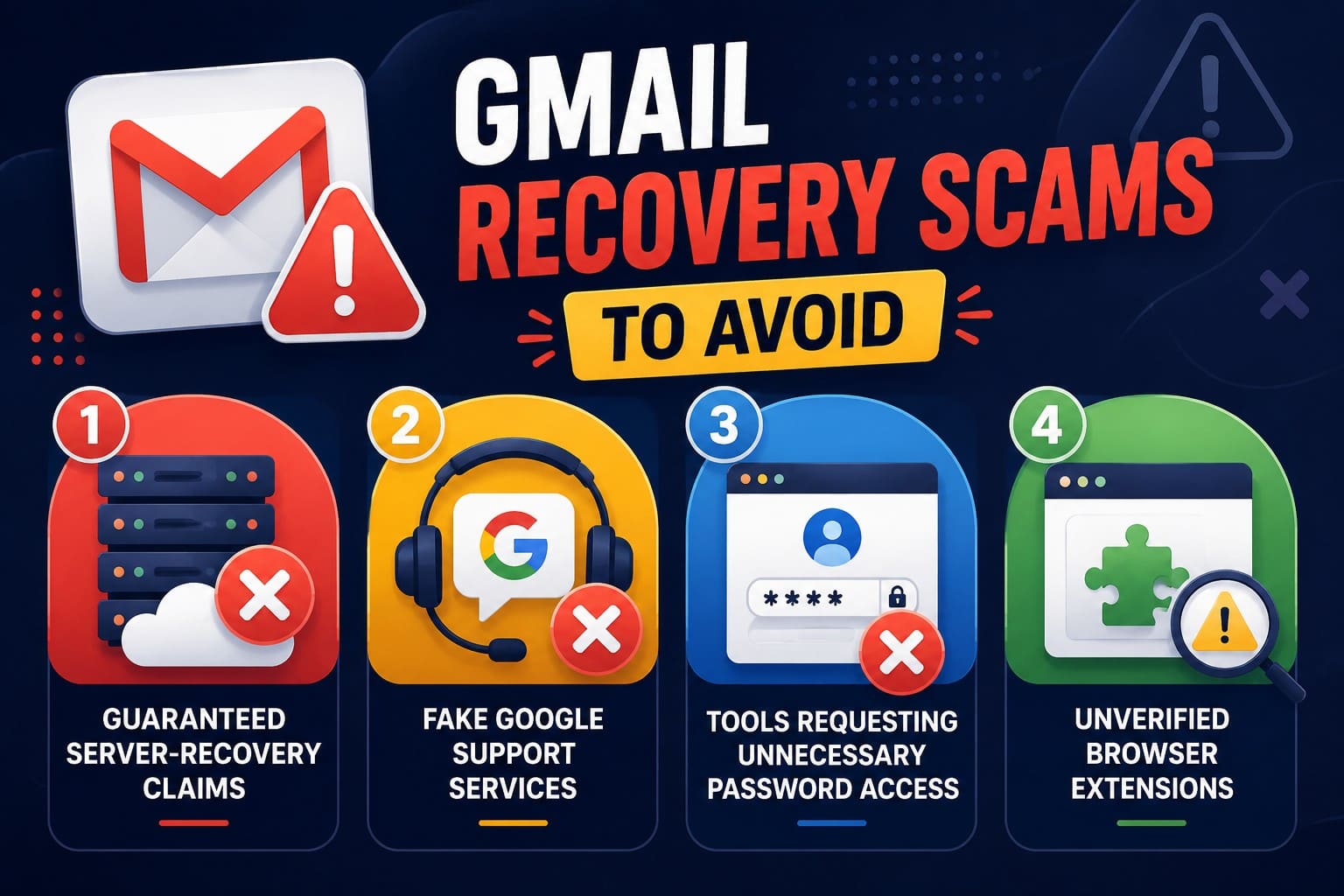
- Guaranteed Server-Recovery Claims: No product can promise mail back from Google's servers, because nobody outside Google can reach them. A guarantee is the clearest sign a tool is overselling.
- Fake Google Support Services: Google offers no phone line or support email for consumer Gmail, so any number claiming otherwise belongs to somebody else. Help comes through the Help Center and community forums.
- Tools Requesting Unnecessary Password Access: Legitimate services authenticate through Google's own sign-in screen. A tool asking you to type your Gmail password into its own form is collecting credentials.
- Unverified Browser Extensions: An extension that reads and changes all your mail is a serious permission. Check the developer and install count before granting it, and remove anything you no longer use.
Conclusion
The best Gmail recovery tool or method is the one that reaches your layer in time. To recover deleted Gmail emails intact, Trash covers the first 30 days free. Google's administrative routes extend that for managed accounts, and Vault only helps if somebody planned ahead.
When those close, the iPhone becomes the last place worth looking. A device scan with Dr.Fone – Data Recovery (iOS) works whatever the Gmail cache and your saved files left behind. This is a different question entirely from what Google still holds.




FAQ
-
1. Which Gmail recovery tool works without an iPhone backup?
Dr.Fone – Data Recovery (iOS) scans the device itself, so no prior backup is needed. Gmail Trash and the Workspace console recover data through Google’s server-side recovery options. -
2. Can a free Gmail recovery scan confirm whether data is recoverable?
Yes, and it's the sensible first move. A preview scan lists what it found before any payment, which tells you whether the data survived instead of asking you to gamble on it. -
3. Can Gmail recovery tools scan an unresponsive iPhone?
An unresponsive iPhone can be scanned if a computer still recognizes it. If the device cannot connect or be detected, direct scanning is unavailable. -
4. Is it safe to authorize a third-party Gmail recovery tool?
Check what access the tool requests before authorizing it. Avoid software that asks for your Gmail password directly or requests unnecessary mailbox permissions.
 Add Wondershare Dr.Fone as a preferred source on Google