Recover photos, messages, WhatsApp, and more — no backup
needed.
Recover photos, messages, WhatsApp, and more — no backup
needed.

 100% Security Verified | No Subscription Required | No Malware

 :
: 
 ChatGPT
 Perplexity
 Gemini
 Claude
 Grok
Grok
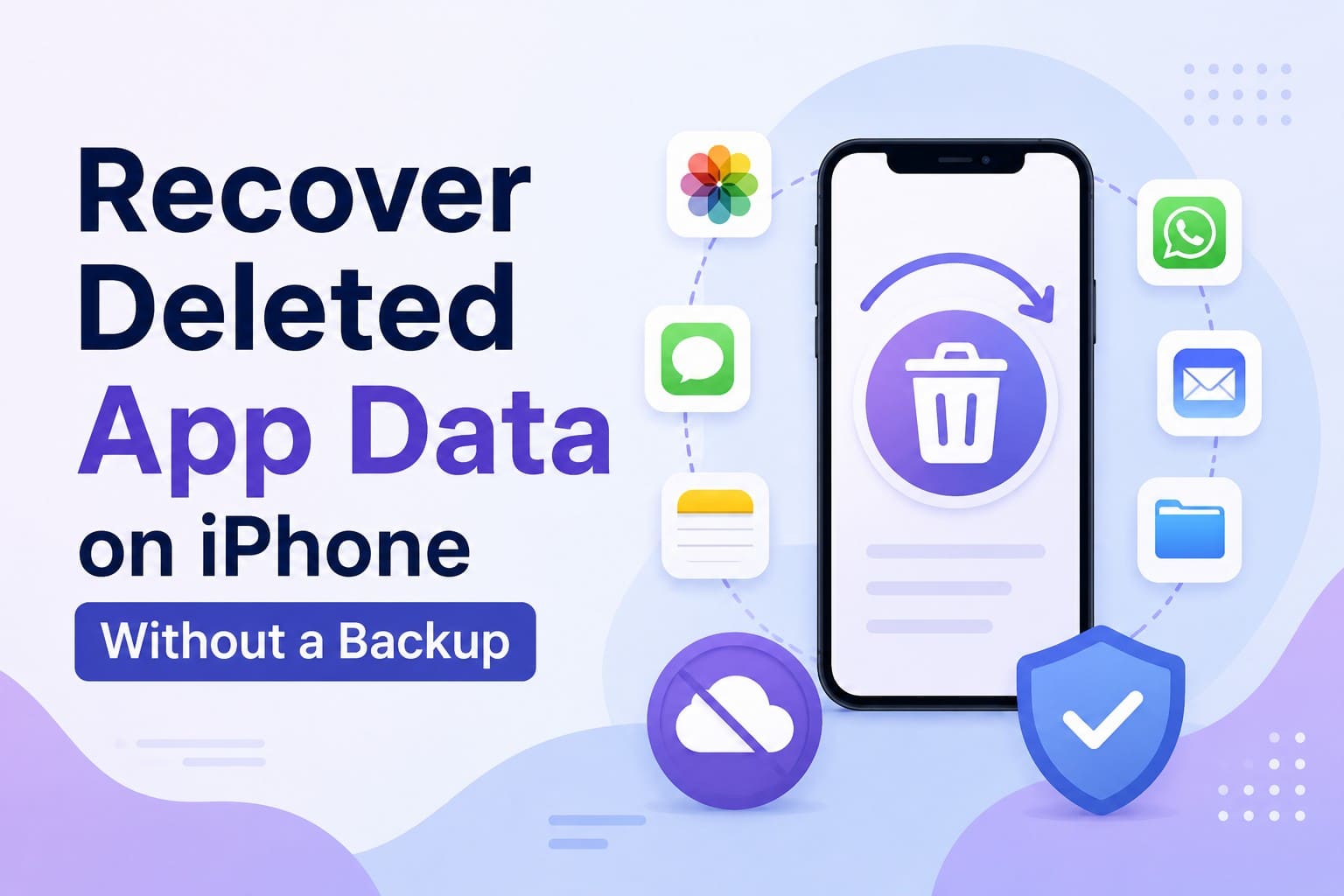
App data disappears in 3 different ways, and people treat all as one problem. An app gets removed, a conversation clears itself, or a file vanishes from inside an app that still works fine. iPhone app data recovery means something different in each case. Each has a different answer, and only one genuinely needs software.
What decides it is where the app kept your data. Some hold a copy on their own servers, and some store everything on the handset. Sometimes iOS has simply set the app aside without touching a thing. Learn how to recover app data and when to use Dr.Fone - Data Recovery (iOS) as the ultimate solution.
In this article
- Part 1. Can You Recover Deleted App Data on iPhone Without a Backup?
- Part 2. How to Recover Snapchat and Gmail App Data Without a Backup
- Part 3. Before You Try to Recover Deleted App Data
- Part 4. Other Methods to Recover Deleted App Data on iPhone Without a Backup
- Part 5. Which App Data Recovery Method Should You Use?
- Part 6. Tips to Avoid Losing App Data Again
Part 1. Can You Recover Deleted App Data on iPhone Without a Backup?
Often, a missing iPhone backup does not mean your app data vanished forever. Many apps store information within online accounts, sync independently through iCloud, or hold local files directly on the handset. Apple confirms that compatible apps sync cloud data separately from standard device backups. Account-based items often reappear as soon as you sign back in or reactivate sync settings.
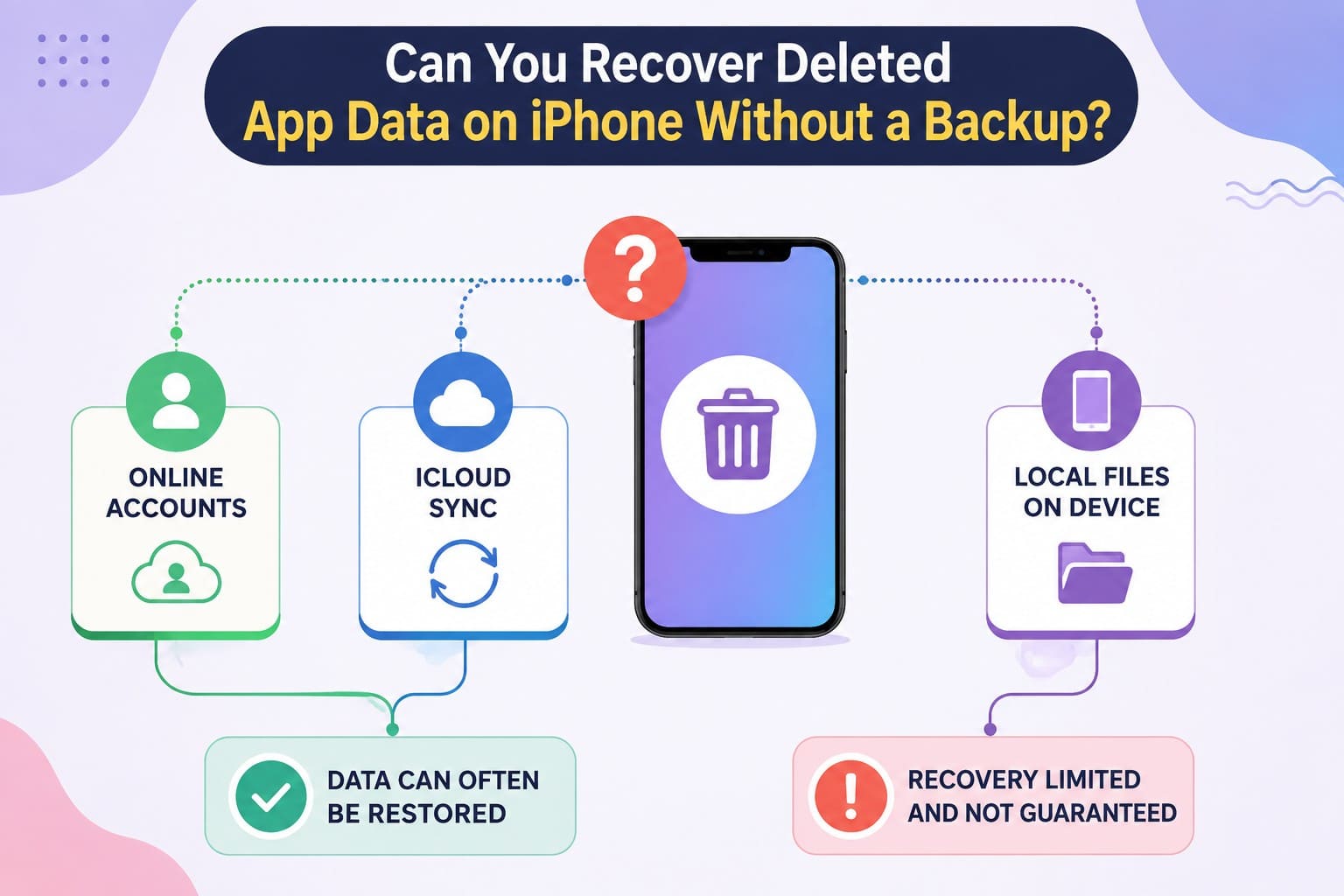
Your overall iPhone app data recovery path depends on file location rather than simple backup status. Local-only data presents a bigger challenge: once erased without a synced duplicate or secondary copy, successful recovery on a modern iPhone remains limited and unguaranteed. Always identify where the app saves files before you assume total loss.
Part 2. How to Recover Snapchat and Gmail App Data Without a Backup
Snapchat and Gmail sit at opposite ends of the spectrum, which makes them a useful pair for showing how iPhone data recovery without backup works. Gmail keeps almost everything server-side, while Snapchat is built to delete. Start with the device scan if the data was local, then work the account routes below.
One-Click Solution to Recover Snapchat, Gmail, and Other Apps Data Without a Backup
Start here when the data never leaves the phone. Account options only retrieve data stored on company servers. Data kept solely in local app storage requires a desktop computer for analysis. So, you can use Dr.Fone - Data Recovery (iOS) to recover data since it features 8 total recovery modes. Among its 35+ supported categories, it supports Snapchat Chats & Attachments and Gmail Chats & Attachments.
App media and document types sit alongside them, and a free read-only scan helps with retrieval in 3 steps. No prior backup is needed because it scans data directly from a connected iPhone. You can preview detected results before recovery, while free updates and detailed recovery guides make the process easier for new users.
 Recovers data after deletion, crashes, or device damage.
- Supports photos, messages, contacts, WhatsApp, and more.
- Supports all major iPhone, iPad, and iPod models.
- Preview and recover only what you need.

How to Recover App Data with a Direct iPhone Scan
If you wonder how to recover deleted app data on iPhone with this method, review the following steps in detail:
-
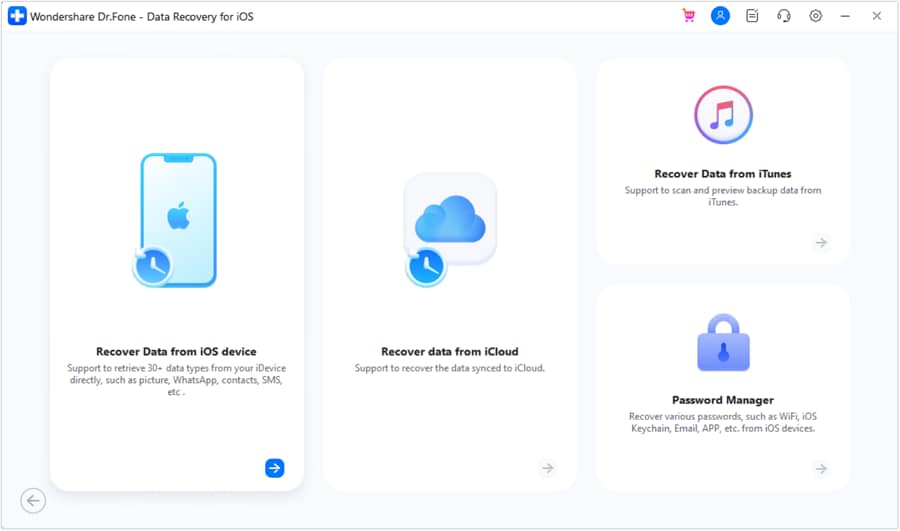
Step 1 Open the Data Recovery Tool and Connect
Access Dr.Fone’s Toolbox to choose the Data Recovery tool for “iOS” and “Recover Data from iOS Device” mode.
-
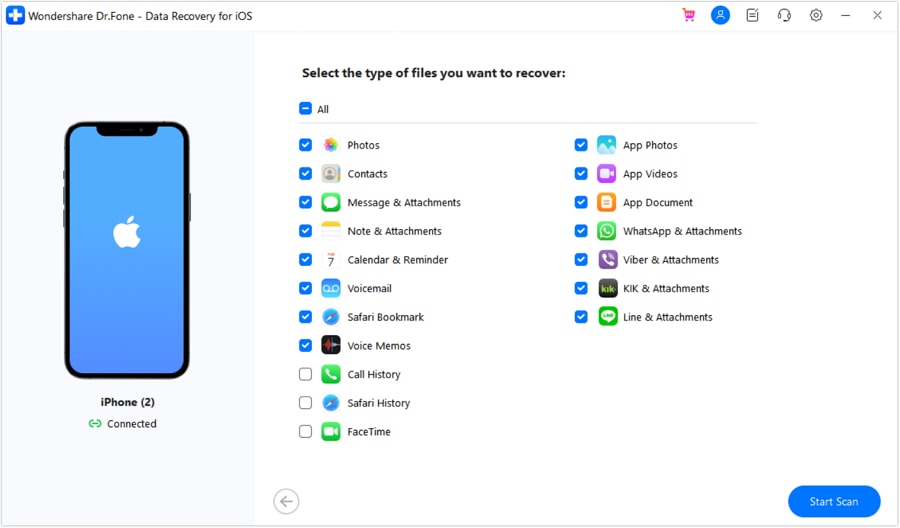
Step 2 Select the App Categories
Connect the iPhone and choose “Snapchat” and “Gmail” data types from 35+ options, and click on “Start Scan.”
-
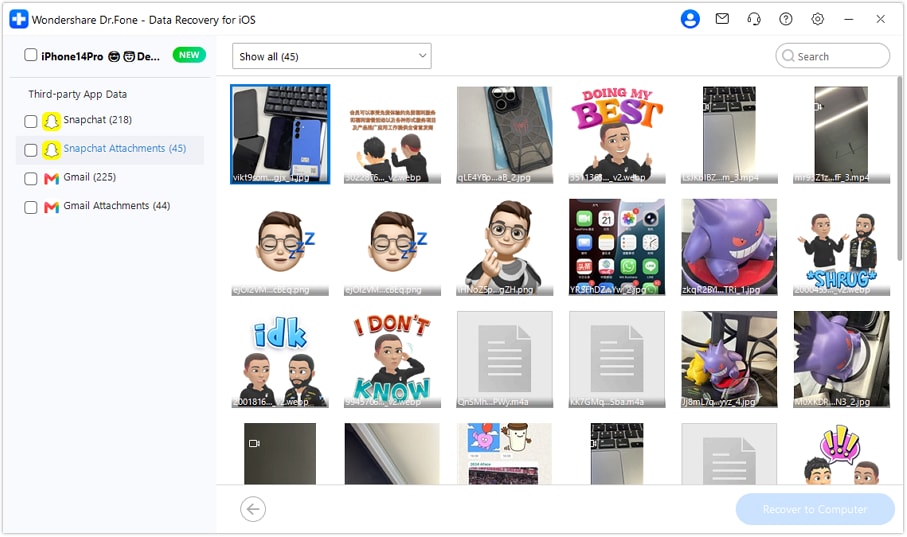
Step 3 Preview and Export Gmail/Snapchat Data
Once the scan finishes, filter the results to show deleted data and preview the relevant Gmail or Snapchat items. Select what you need, then click “Restore To Computer” to save the recovered data.




Recover Snapchat Data Without an iPhone Backup
Snapchat deletes by design, so the account routes here reach far less than Gmail's. Snapchat states that once a Snap has been opened or has expired, nobody can recover it from its servers. 3 checks cover what's left and are mentioned below for Snapchat iPhone app data recovery:
Method 1. Check Saved Chats and Snapchat Memories
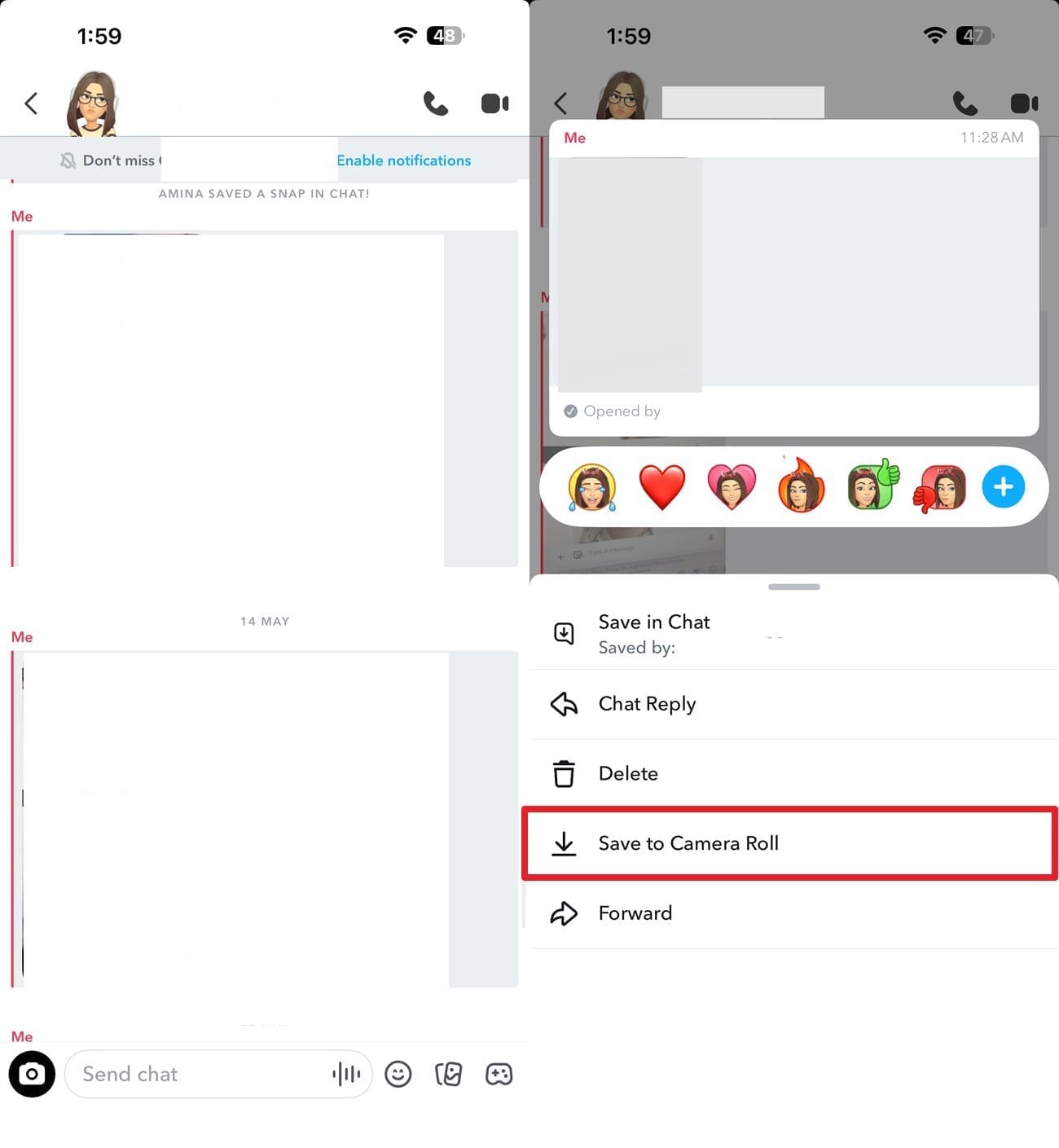
Saving is what pulls content out of Snapchat's delete timer, and saved items survive independently of your handset. The gray background applies to both people in a conversation, so either side can confirm whether something was saved. Two places are worth checking:
Check Saved Messages in Chat
Instructions. Open the chat and look for the “Gray Background.” > You can save them if you want to. Press the chat > Choose “Save to Camera Roll.”
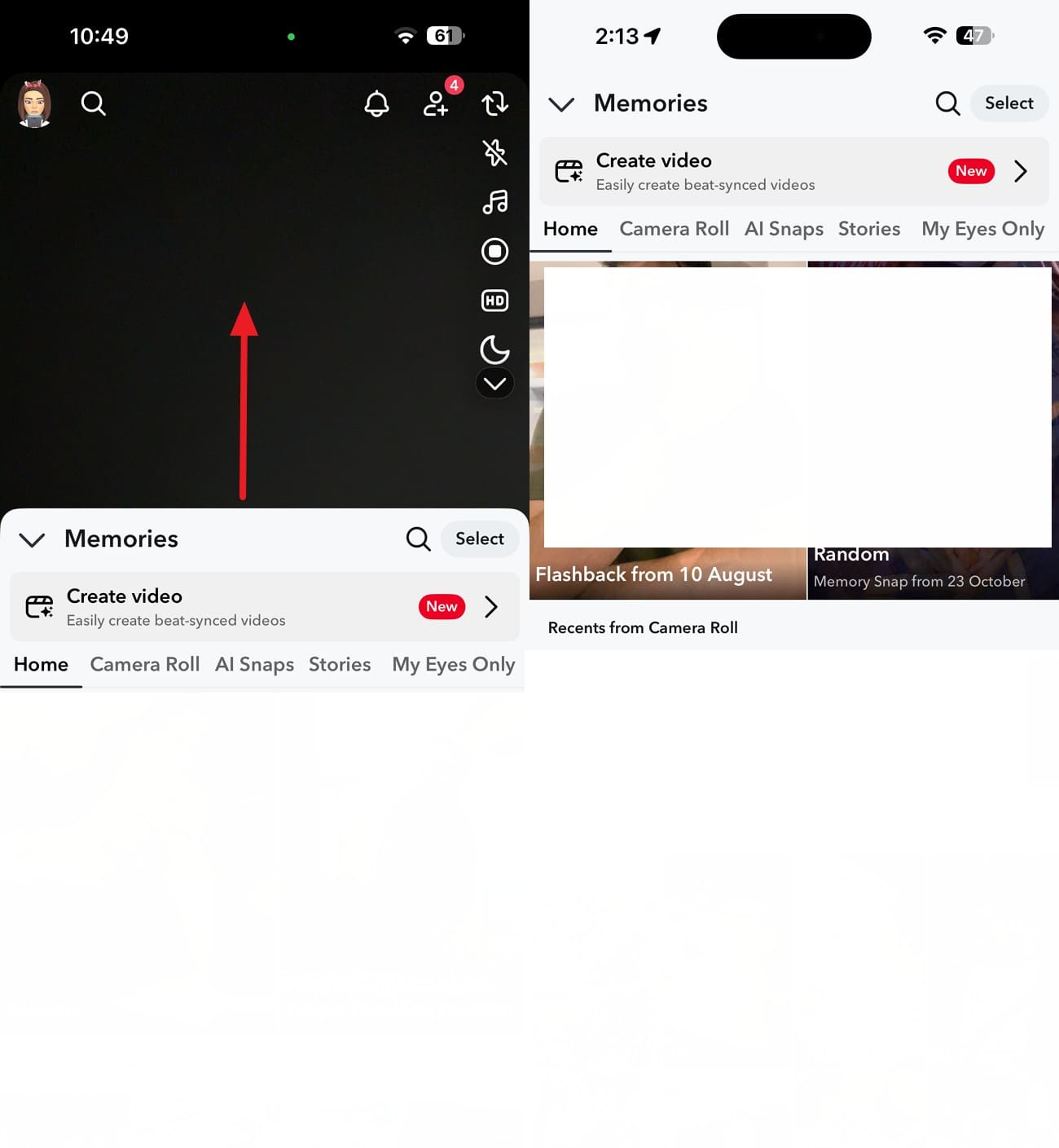
Check Snapchat Memories
Return to the Camera screen and swipe “Up” to open Memories > Look through your saved Snaps and Stories.
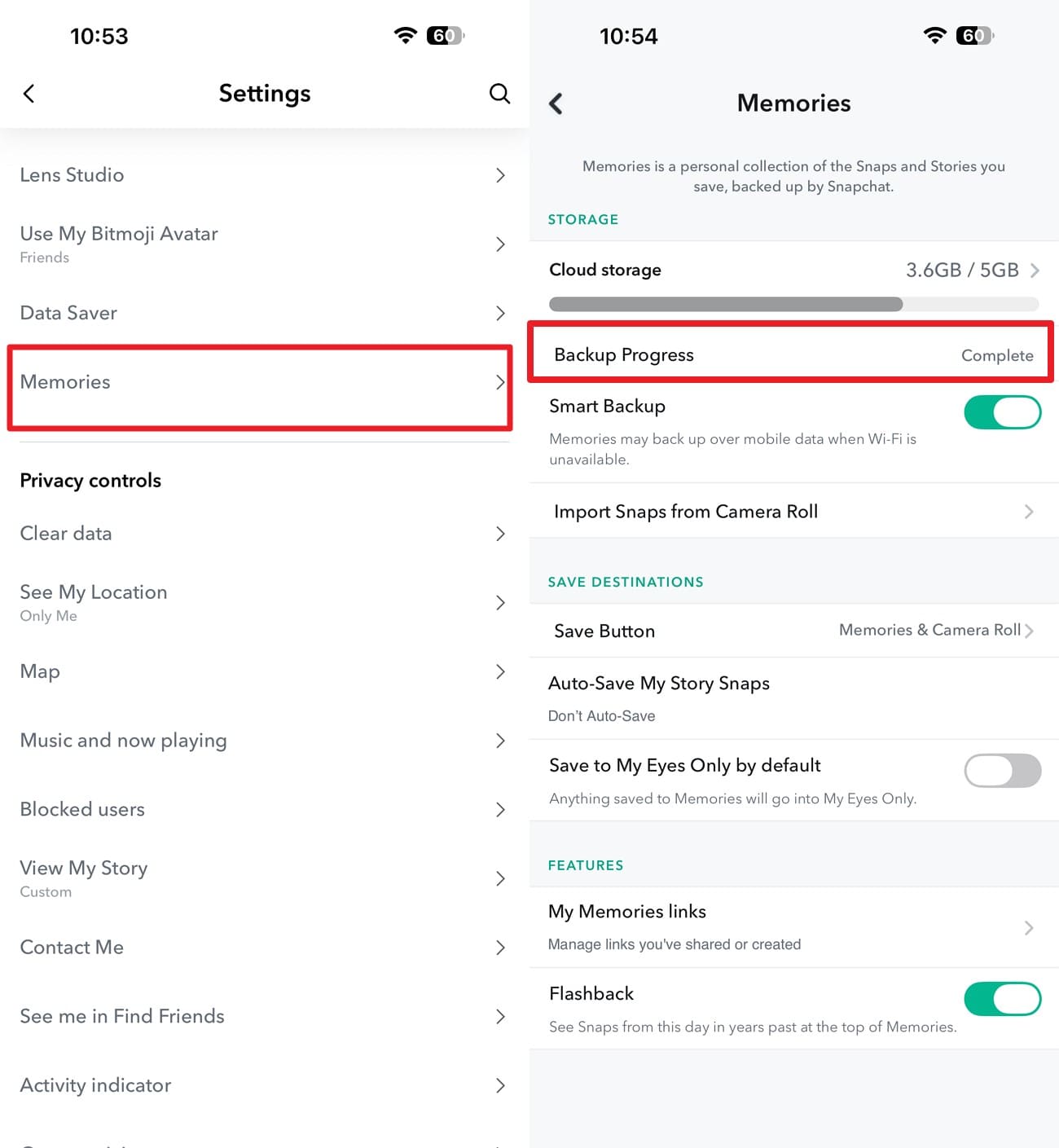
Method 2. Download Your Snapchat My Data Archive
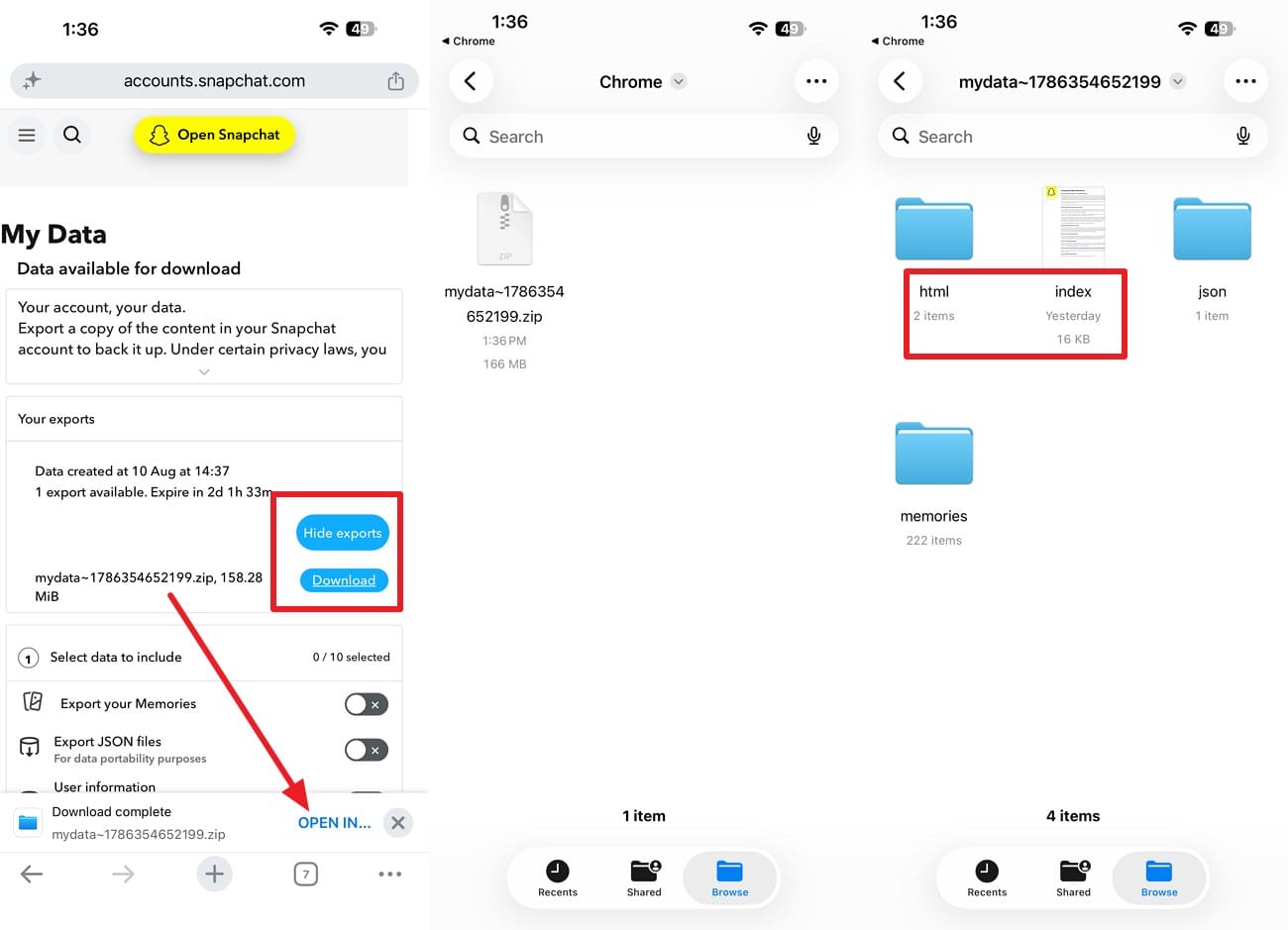
When the app itself shows nothing, that archive returns Snapchat's own server copy, so it works even on a replacement handset. Unsaved conversations never reach the archive, and your Memories appear as links back to Snapchat instead of actual files. So, to recover app data without backup, follow these steps.
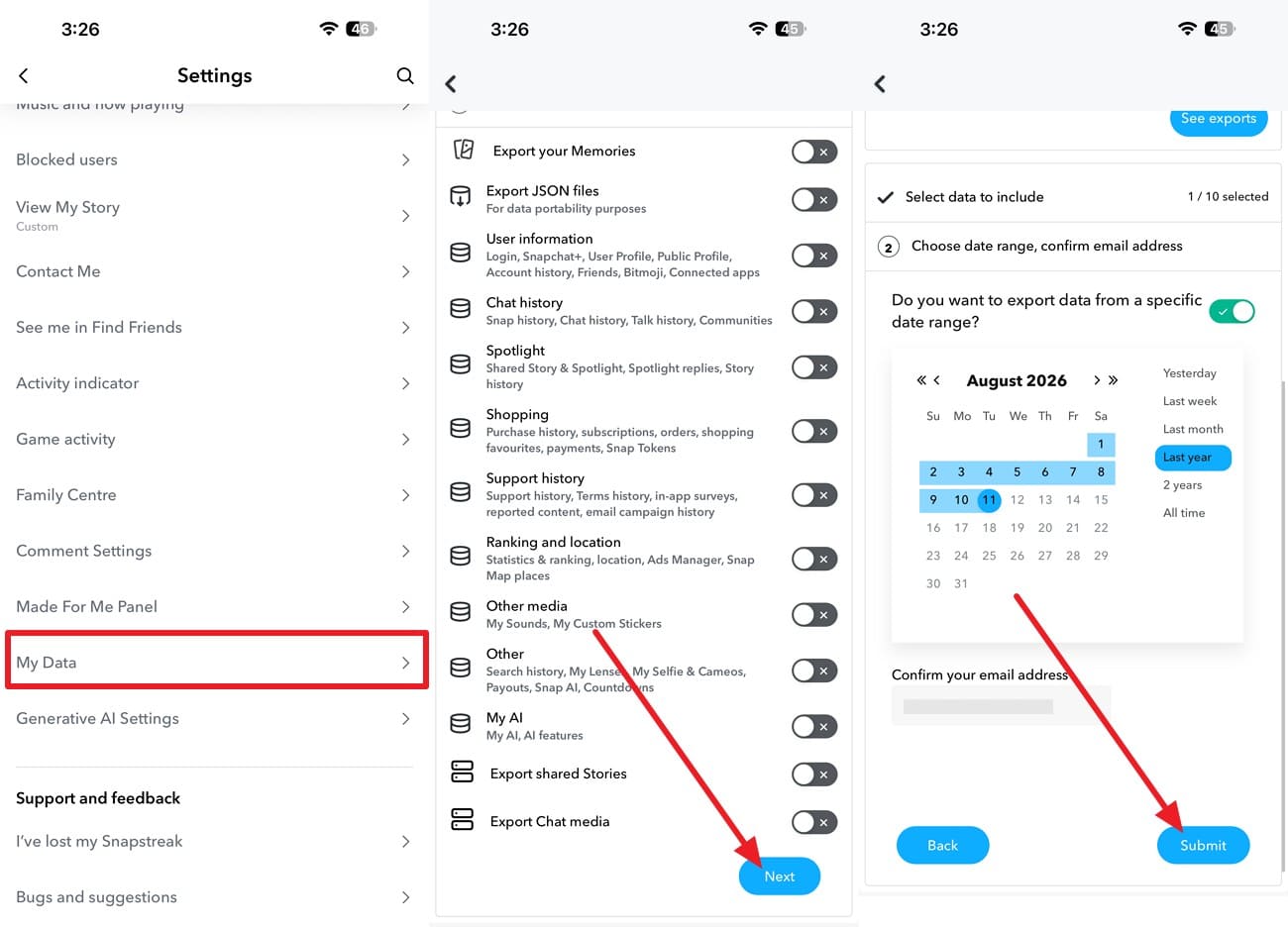
-
Step 1
Go to Settings > “My Data” > Choose what to export > Pick the timeline > Verify email > Press “Submit.”
-
Step 2
Open the email, tap “See Export > Download > Open In …” > Go to Files > Press to unzip > Access “html” or “index” files.
Method 3. Check the iPhone Photos App for Saved Snaps
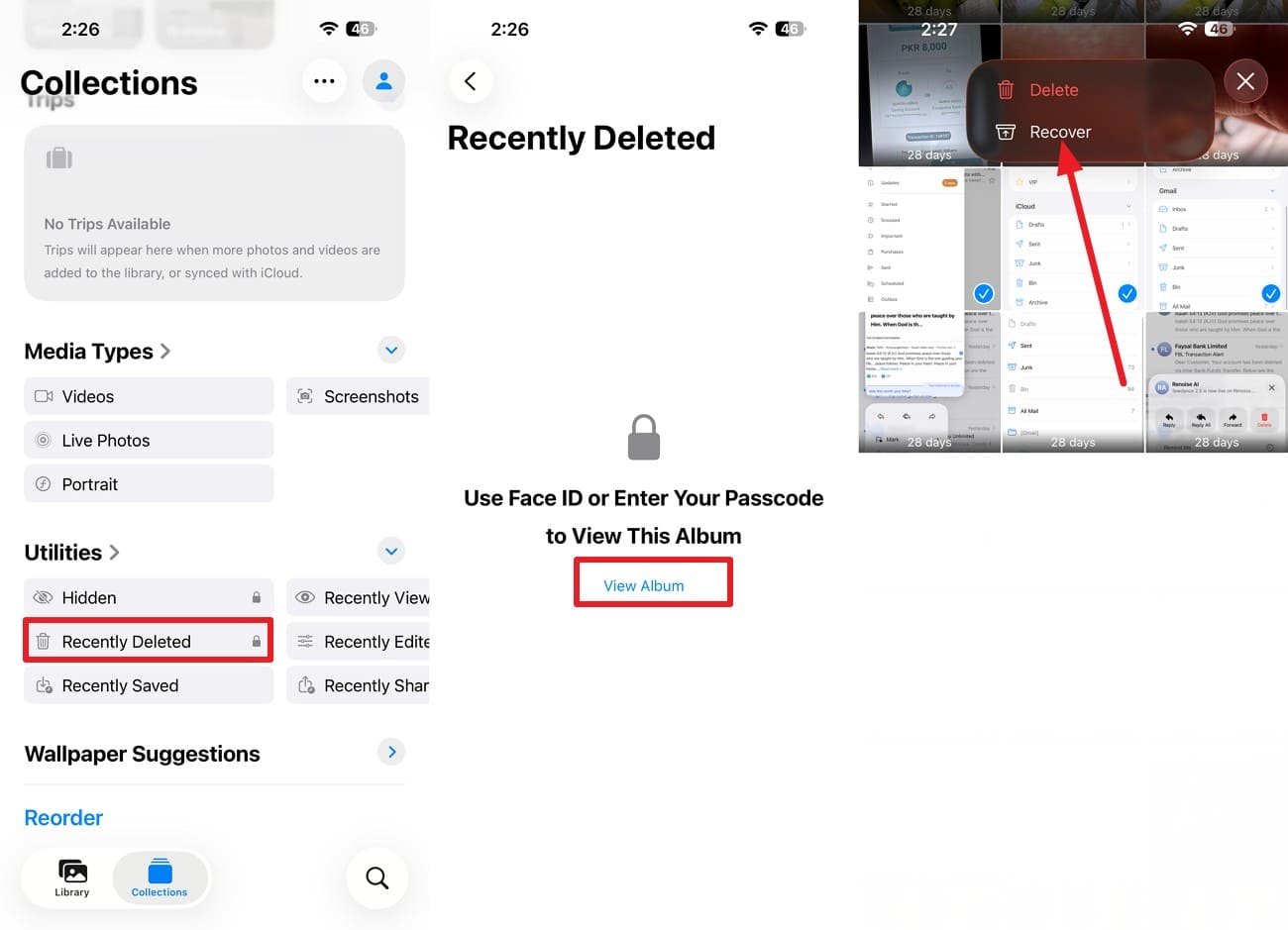
A snap you exported stopped adhering to Snapchat's rules the moment it landed in your library. This category offers the easiest recovery path, as iOS retains deleted items for 30 days before permanent erasure. To use this method for Snapchat iPhone app data recovery, review these steps.
Instructions. In the Photos app, go to “Collections > Utilities > Recently Deleted > View Album > Use Face ID or passcode.” Choose the Snapchat media files, press “Three Dots > Recover” to save.
Recover Gmail Data Without an iPhone Backup
Gmail keeps account data on Google servers, not your iPhone. These 4 simple routes contact Google directly for access. Deleted mail waits 30 days before the servers clear it, which is the window that matters most.
Method 1. Restore Emails From the Gmail Trash Folder
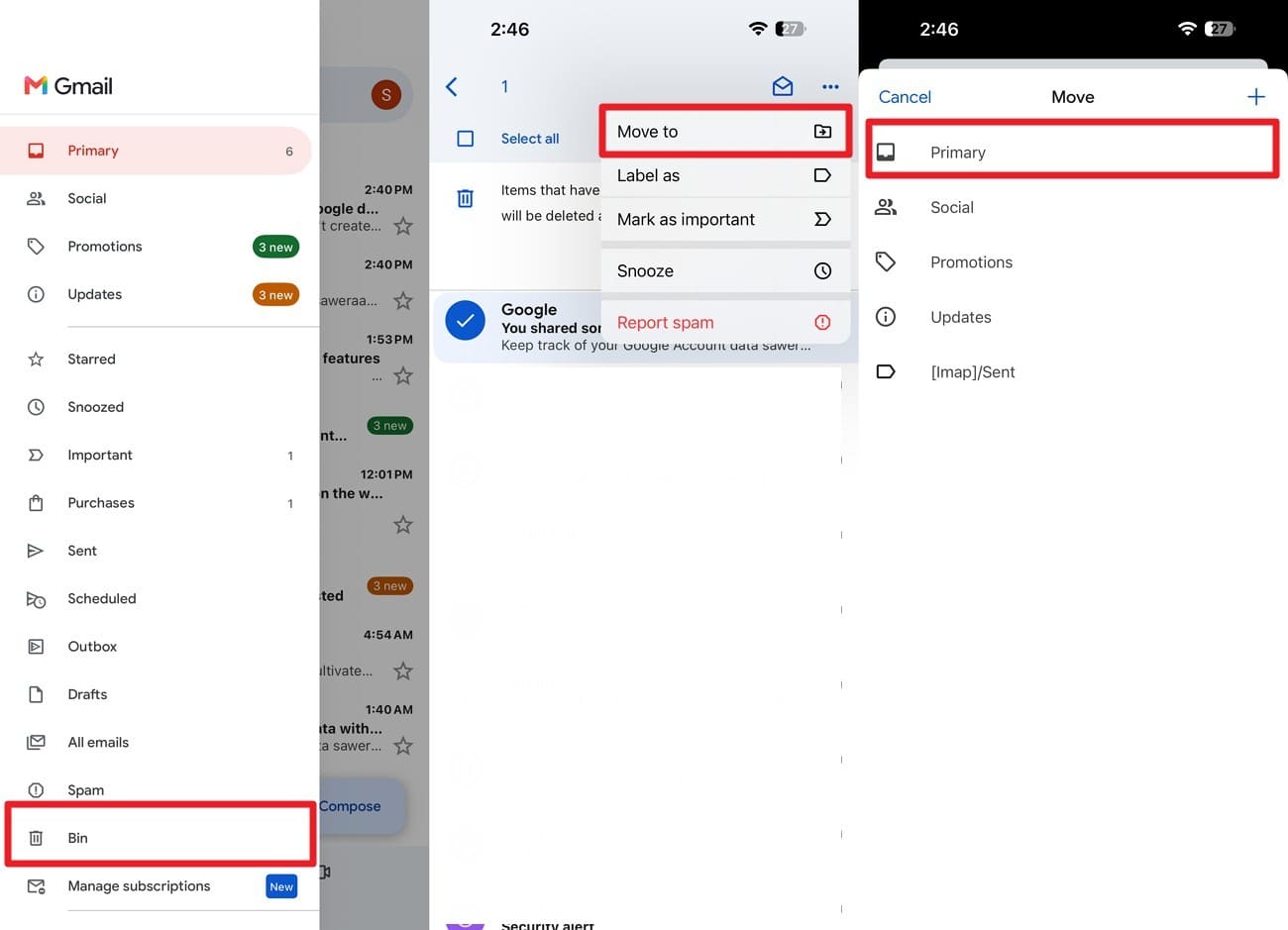
That 30-day window is the easiest recovery, and most people never check it. So, learn how to recover deleted app data on iPhone Gmail app via the mentioned directions:
Instructions. Press the "Hamburger" icon > Go to "Bin" > Choose the mail > Press "Three Dots > Move To > "Primary."
Method 2. Check All Mail, Spam, and Archived Messages
If Trash is empty, the message may never have been deleted. Archived mail leaves the inbox but stays in your account, which explains a lot of false alarms. Type “in:anywhere” plus a keyword into the search, which sweeps every folder at once. Failing that, open “All Mail” from the menu and work through it by sender.
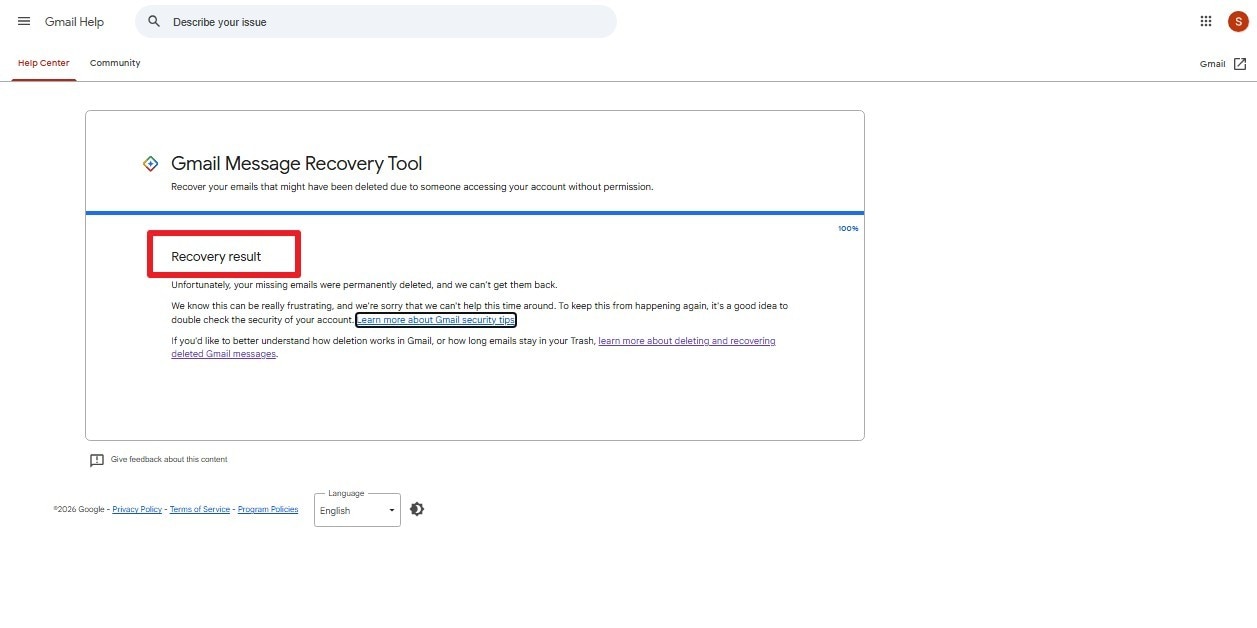
Method 3. Use Google's Gmail Message Recovery Tool
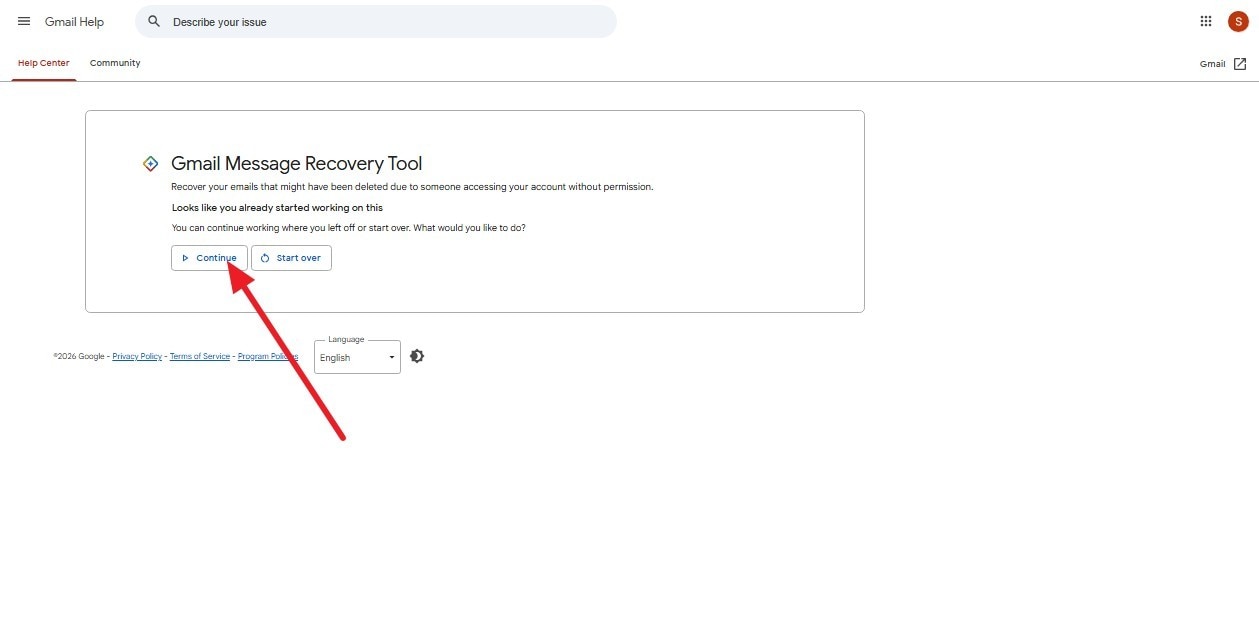
If emails disappeared after someone accessed your Gmail account without permission, try Google's official Gmail Message Recovery Tool. Nothing is promised here, and below are the steps to recover app data without backup:
-
Step 1
Open Google’s Gmail Message Recovery tool, sign in, and tap on “Continue.”
-
Step 2
Complete the recovery check and review the result Google provides to see whether any missing messages could be restored.
Method 4. Export Existing Gmail Data With Google Takeout
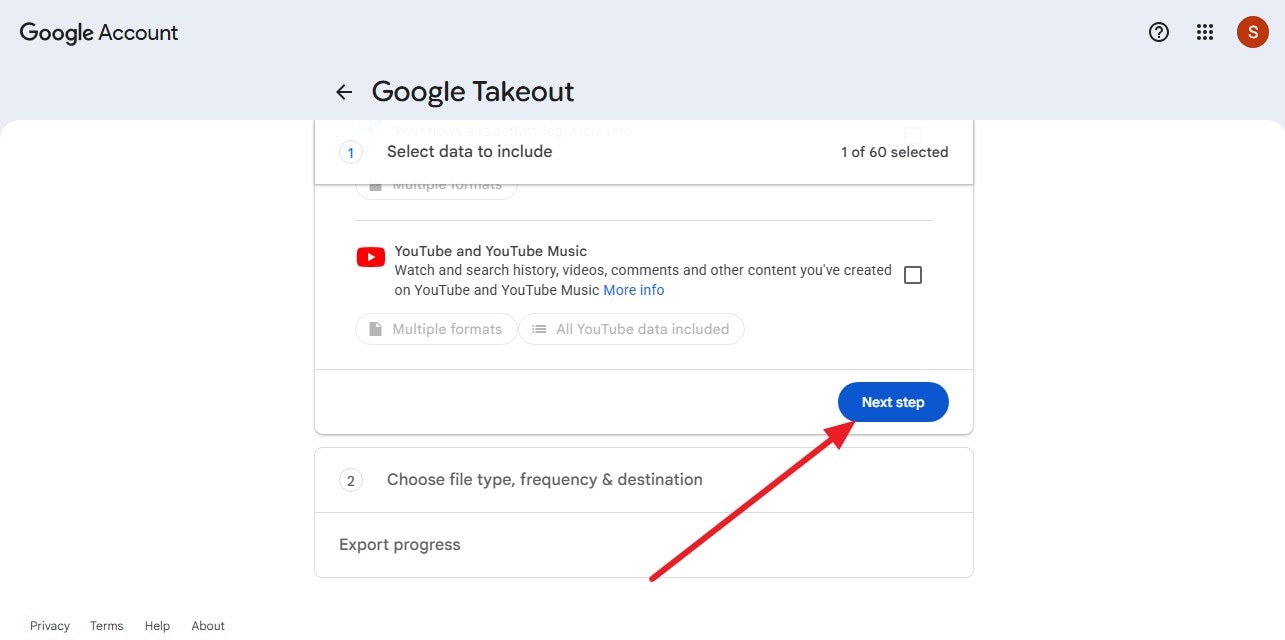
Takeout copies what your account currently holds, so anything already deleted stays absent from the archive. For Gmail iPhone data recovery without backup through this step, the simple process is mentioned ahead:
-
Step 1
Visit takeout.google.com > Deselect All > Choose “Mail” and click on “Next Step.”
-
Step 2
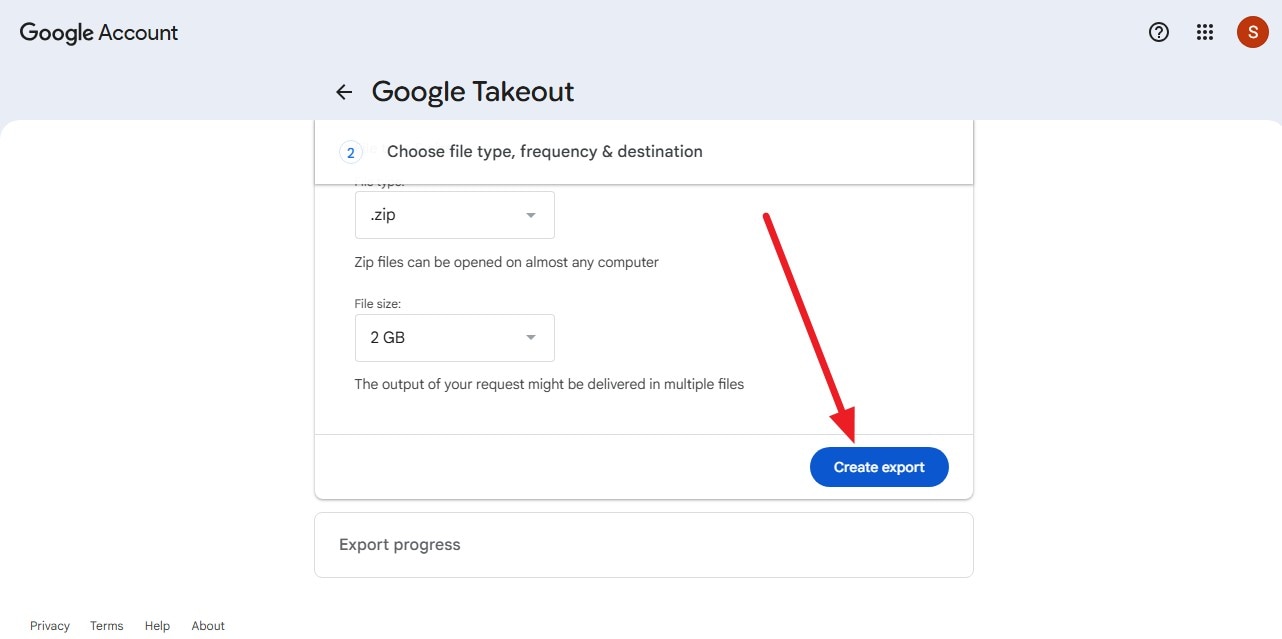
Select the “Transfer To” option along with other settings and tap on “Create Export.”
Part 3. Before You Try to Recover Deleted App Data
While you learn how to recover deleted app data on iPhone for Gmail or Snapchat app, perform these actions first:
| Check | What to Do | Why It Matters |
|---|---|---|
| Limit iPhone Use | Avoid unnecessary downloads, updates, or app installs. | Reduces changes to device storage while you investigate local-only data. |
| Deleted vs. Offloaded App | Check Settings > General > iPhone Storage. | Offloading removes the app but keeps its documents and data. Deleting removes the app and related data. |
| Correct App Account | Sign in with the email or account originally used. | Account-based or cloud-stored content may reappear without device recovery. |
| Cloud Sync | Check the app's account or cloud-sync settings. | Synced data may still exist outside the iPhone even without a device backup. |
| Recently Deleted / Trash | Check the app's recovery folders before doing anything else. | Photos, Notes, Files, and Gmail can retain certain deleted items temporarily. Retention periods vary by app. |
| Avoid Unnecessary Recovery Apps | Don't install random recovery utilities on the affected iPhone. | Recovery capabilities vary by app and data type. Avoid changing device storage unnecessarily. |
Part 4. Other Methods to Recover Deleted App Data on iPhone Without a Backup
Those checks usually point to a specific recovery path. These four cover cases where the data may still exist but is no longer accessible from your handset, offering practical options for iPhone data recovery without backup.
Method 1. Reinstall the App and Sign Back Into Your Account
Server-stored content restores automatically once you sign back into social apps. However, app deletion permanently wipes local files unless a cloud copy exists. Reinstall from the App Store, then open it and sign in with the original credentials. Once you're signed in, give it a few minutes to pull your content down before deciding anything is missing.
Method 2. Restore Data Through the App's Cloud Sync
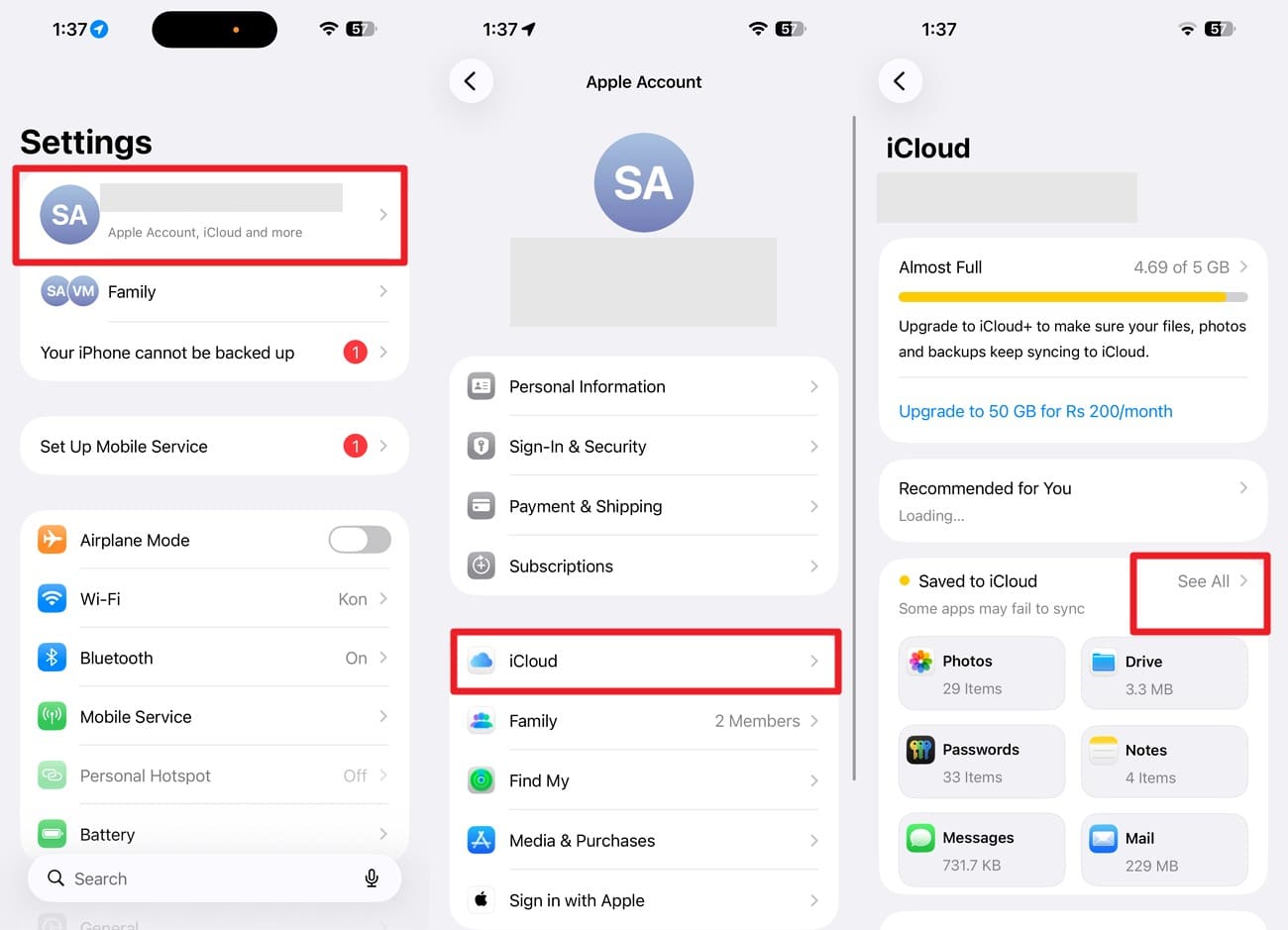
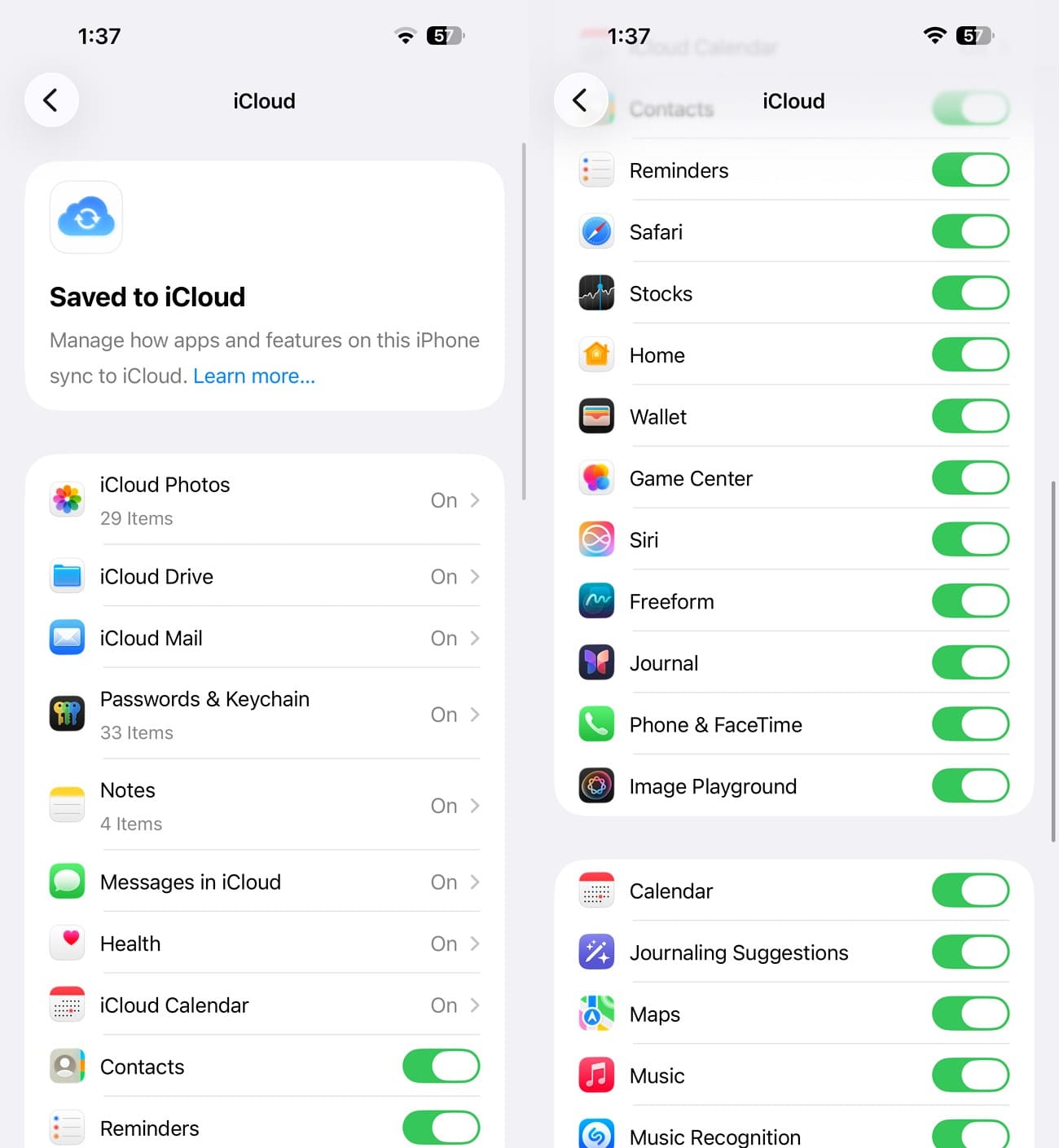
Some apps sync to iCloud rather than their own servers, and that switch may be off. So, for iPhone app data recovery, learn how to restore data via the mentioned guidelines:
-
Step 1
Open Settings, tap your name, then “iCloud”, and select “See All” under saved apps.
-
Step 2
In that list, confirm the app's toggle is on, then reopen it and allow time for the sync to finish.
Method 3. Check the App's Trash or Recently Deleted Folder
Before assuming anything is gone, check whether the app kept it. Open the app and look for a Trash, Bin, Archive, or Recently Deleted section in its menu. Restore whatever's inside promptly, since most of these folders clear themselves after 30 days.
Method 4. Use the App's Data Download or Export Feature
When the app's own screens show nothing, its export might. Many services offer their own archive, which reaches the account rather than the phone. Like Takeout, it captures the current state rather than the deleted past, making it a record for the future.
Part 5. Which App Data Recovery Method Should You Use?
Of all the methods to recover app data without backup, it's important to know when to use each. Review the following table and see the recommended answer and results for each approach below:
| Recovery Situation | Recommended Method | Expected Result |
|---|---|---|
| Data Remains in the App Account | Reinstall and sign in | Available account data may return |
| Data Is Available in a Trash Folder | Restore from inside the app | Full return if still within the recovery window |
| The App Supports Cloud Syncing | Enable sync and wait | Synced content may reappear |
| An Earlier Device Backup Exists | Use Dr.Fone to scan the available backup | Recoverable data depends on what the backup captured |
| Data Was Stored Locally on the iPhone | Scan the iPhone with Dr.Fone | Recover supported data that remains accessible |
| The iPhone Is Damaged or Not Detected | Use Dr.Fone to scan an available backup | Recovery is limited to data stored in the backup |
| The App Uses Encrypted Storage | Contact the app's support team | Recovery may be limited by app-level encryption |
Part 6. Tips to Avoid Losing App Data Again
Once you know how to recover deleted app data on iPhone, follow these tips to prevent data loss in the future:
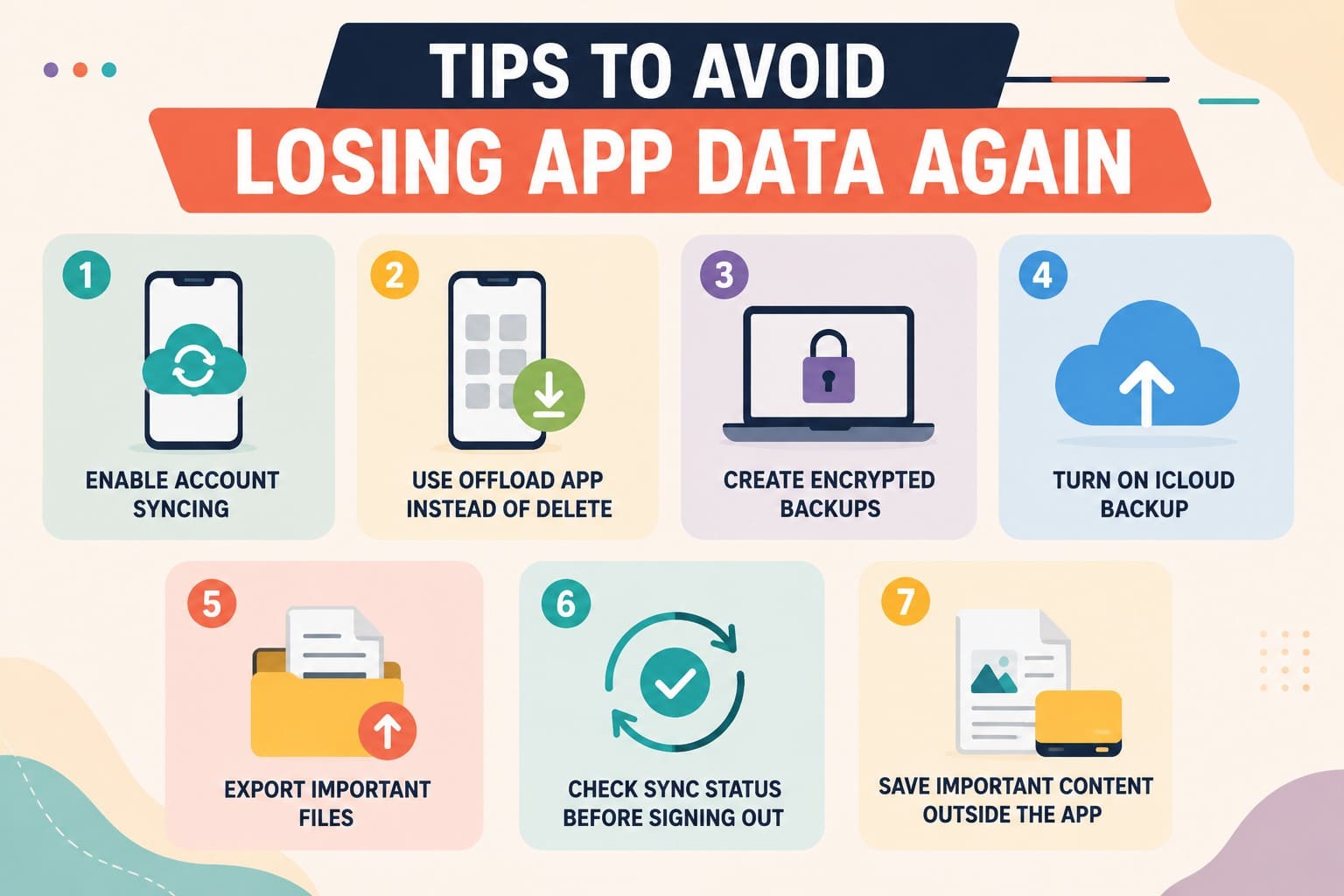
- Enable Account Syncing in Important Apps: Keep supported apps synced to their cloud services. Signing in on another device can restore data already stored in your account.
- Use Offload App Instead of Delete App: Offloading removes the app while preserving its documents and data. Reinstalling can reconnect the app with that retained information.
- Create Encrypted Computer Backups: Encrypted Finder, Apple Devices, or iTunes backups include additional information such as saved passwords, Health data, and Wi-Fi settings.
- Turn On iCloud Backup: Automatic backups occur when the iPhone is locked, connected to power, and using Wi-Fi. Supported cellular networks may also allow backup over mobile data.
- Export Important Files Before Deleting an App: Move important photos, documents, and other files to separate storage first. An independent copy remains available after the app is deleted.
- Check Sync Status Before Signing Out: Make sure recent changes have finished syncing before signing out. This reduces the chance of losing information that exists only on the device.
- Save Important Content Outside the Original App: Keep long-term files in another reliable location. This protects important content from app deletion, account changes, and service-specific retention policies.
Conclusion
Every iPhone app data recovery situation comes down to where the lost files originally lived. Simple account sign-ins, native app trash folders, and app reinstalls easily bring back server-stored or offloaded items without special tools.
When lost data exists strictly inside local iPhone storage, direct hardware scans serve as the primary option. Dr.Fone - Data Recovery (iOS) provides a reliable way to scan, preview, and retrieve deleted files before new system activity permanently overwrites those local traces.
Frequently Asked Questions
-
1. Can Apple Support recover deleted third-party app data?
No, Apple has no access to what third-party apps store, whether on their servers or inside their sandboxed folders on your iPhone. Support can help with iCloud and Apple's own apps, but recovering another company's data isn't something they can do. -
2. Is Google Takeout a deleted-email recovery tool?
No, and this catches people out. Takeout exports what your account holds right now, so anything already deleted won't appear in the archive. It's a backup tool for protecting current data rather than a way to retrieve the past. -
3. Does offloading an iPhone app preserve its data?
Yes, and that's the whole point of the feature. Offloading removes the app while leaving its documents and settings on the device, so reinstalling restores everything. Deleting the app removes both together.
 Add Wondershare Dr.Fone as a preferred source on Google