Recover photos, messages, WhatsApp, and more — no backup
needed.
Recover photos, messages, WhatsApp, and more — no backup
needed.

 100% Security Verified | No Subscription Required | No Malware

 :
: 
 ChatGPT
 Perplexity
 Gemini
 Claude
 Grok
Grok
Google Messages Disappeared or Deleted? How to Recover Missing Texts
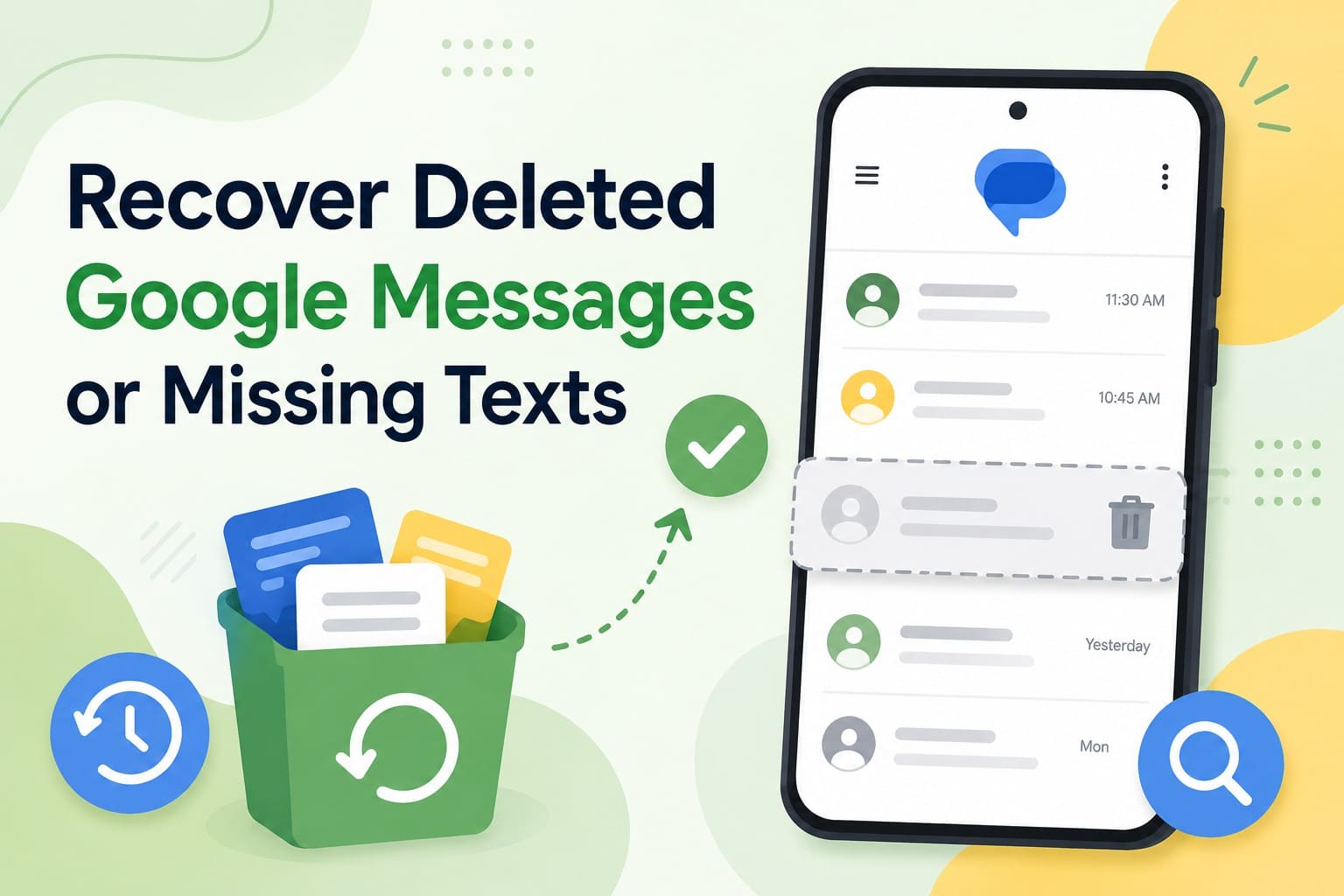
Sudden text disappearance can spark panic, but lost chats do not always mean permanent damage. Learn how to recover deleted Google Messages by separating accidental deletion from display glitches. Android stores SMS and MMS through its system messaging provider, while RCS data is handled differently. Deleted conversations may enter Trash, while interface issues can hide existing data.
Diagnostic tests and proper fixes can help identify both scenarios quickly. When built-in recovery and backup options fail, desktop utilities like Dr.Fone - Data Recovery (Android) can scan supported devices for recoverable lost messages.
In this article
- Part 1. Deleted vs Missing Google Messages: What Happened to Your Texts?
- Part 2. Best Ways to Recover Deleted Google Messages
- Part 3. Fix Google Messages That Suddenly Disappeared
- Part 4. If Google Messages Are Really Deleted and No Usable Backup Exists
- Part 5. How to Prevent Google Messages from Disappearing Again
Part 1. Deleted vs Missing Google Messages: What Happened to Your Texts?
Before you start with Google Messages recovery, check if the chat was deleted or just hidden from the main list. The correct fix depends on whether the text went to Trash, moved to Archive, saved to Google backup, or vanished entirely.
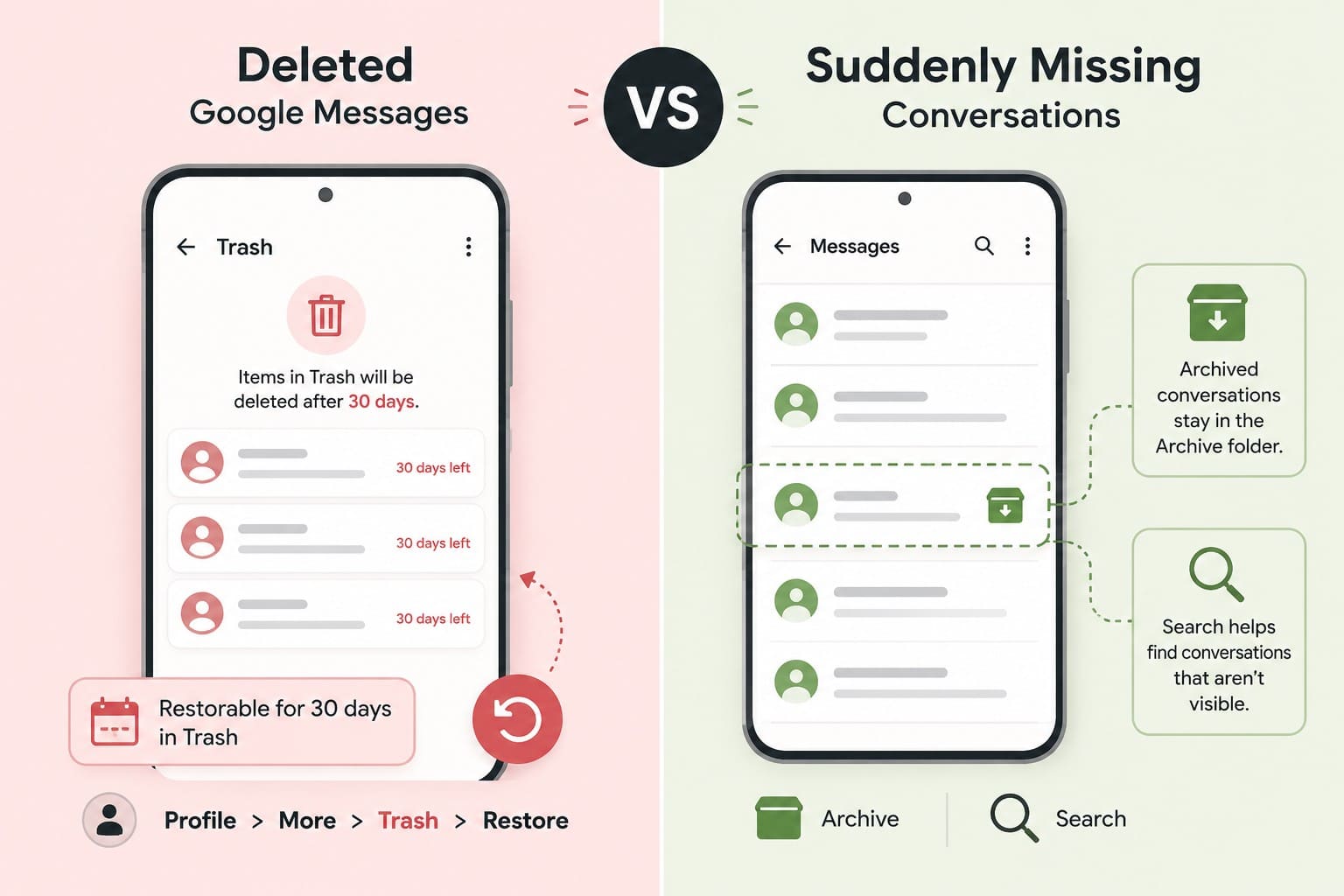
Deleted Google Messages vs Suddenly Missing Conversations
Deleted chats are threads you intentionally removed. Current versions hold deleted chats in a Trash folder for 30 days before permanent removal. Users can restore these items by tapping their Profile > More > Trash > Restore, within that window. Hidden threads often stem from other causes. Archived conversations leave the main screen but stay inside the Archive folder. Furthermore, the built-in search tool helps locate chats that fail to show up on the primary list.
| What You See | Possible Explanation | First Check |
|---|---|---|
| You Deleted The Conversation | It may be in Trash | Check Trash |
| Conversation Disappeared From Home | It may be archived | Check Archived |
| Search Finds The Conversation | The conversation is still accessible | Open it from Search |
| Messages Disappeared After a Reset | A backup or device-transfer issue may be involved | Check your Google backup |
| Conversation is Missing Everywhere | Data may have been deleted or not restored | Check Trash, backup, and old device |
Common Reasons Google Messages Disappear
After understanding the Google Messages basics, go through the given causes and know why Google Messages disappeared or were deleted:
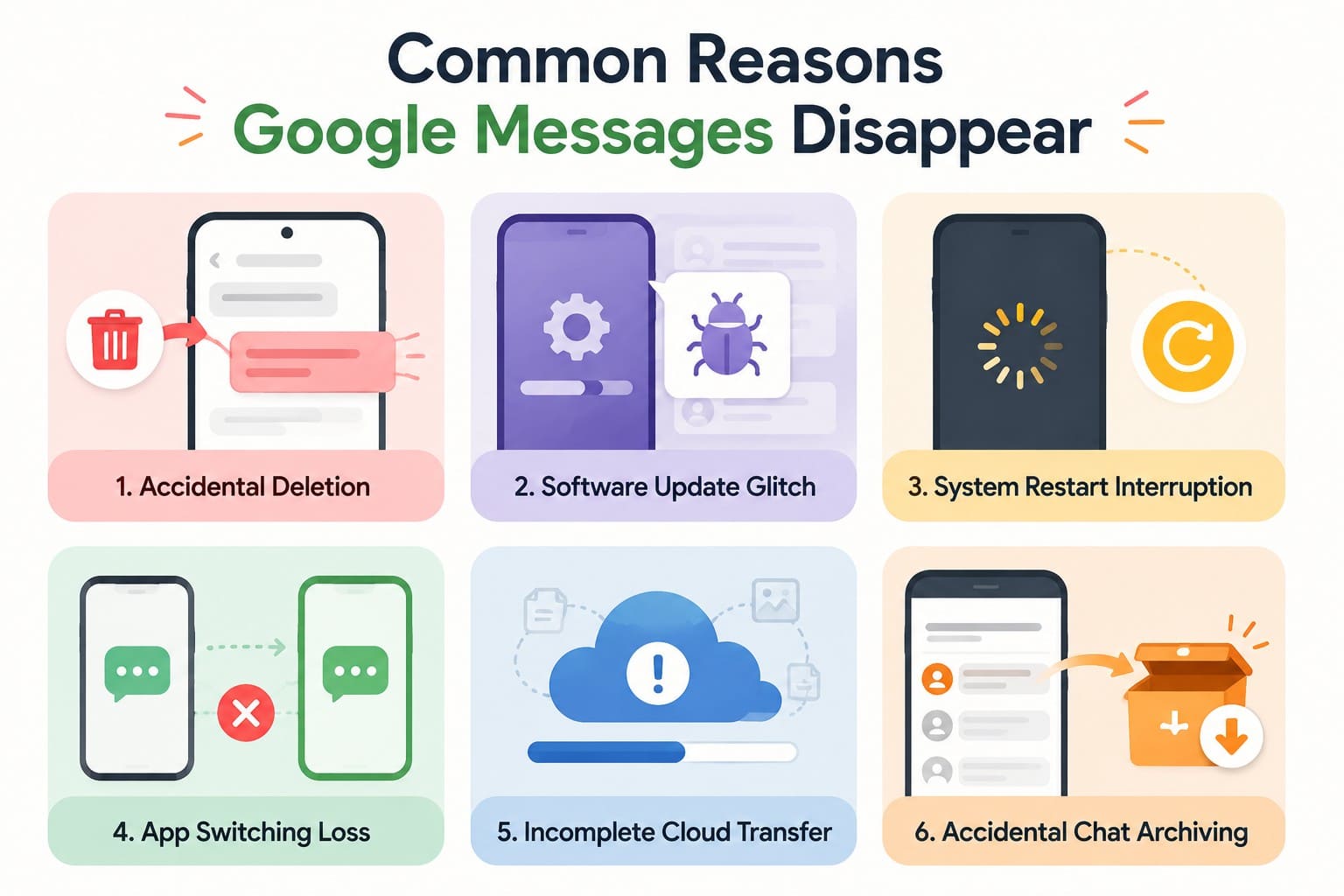
- Accidental Deletion: A swipe action or confirmation tap can delete a conversation while cleaning your inbox. Deleted conversations move to Trash, where they remain temporarily recoverable.
- Software Update Glitch: An app or system update can occasionally cause Google Messages to display conversations incorrectly. Existing threads may appear missing even though they were not actually deleted.
- Temporary App Glitch: Google Messages can occasionally fail to load or display conversations correctly after an app or device restart. Reopening Messages or restarting the phone may restore their visibility.
- Messaging App Switching: SMS and MMS use Android's system messaging provider, while RCS works differently. Changing the default messaging app can therefore affect how conversations and RCS features appear.
- Incomplete Device Restore: Messages may be missing when a new-device setup or backup restore does not restore all supported messaging data. These gaps can appear similar to actual message deletion.
- Accidental Chat Archiving: Swiping a conversation can archive it when that swipe action is configured. Archived conversations disappear from the main conversation list but remain accessible under Archived.
Part 2. Best Ways to Recover Deleted Google Messages
If your Google Messages are deleted, try these 3 recovery methods to see whether your conversations can still be restored:
Method 1. Restore Messages from Google Messages Trash
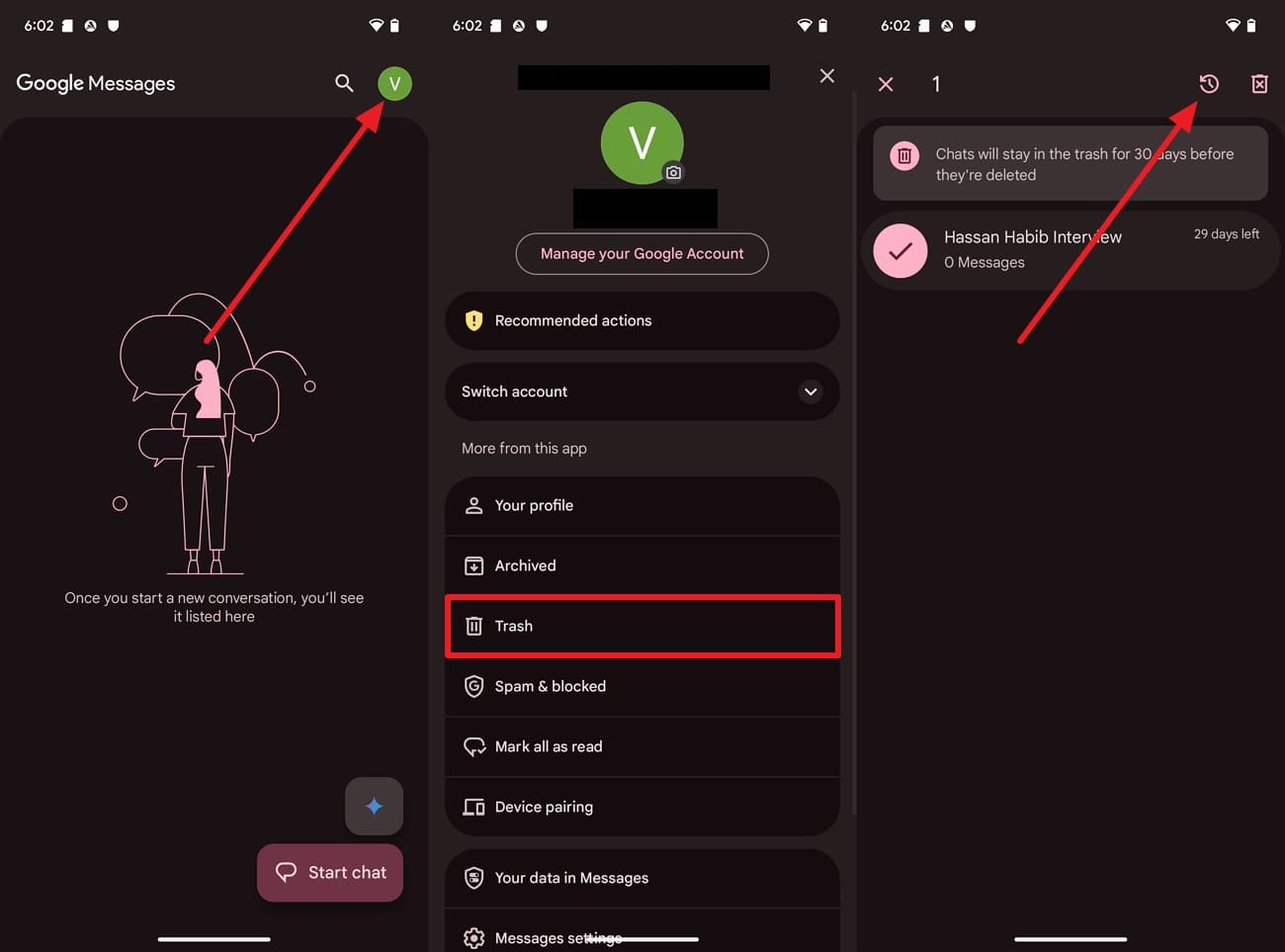
Trash holds deleted conversations for 30 days and 7 days on Android Go devices. However, note that emptying trash by hand ends that window immediately. Bearing this in mind, here is how you can recover the deleted messages from trash in a few taps:
Instructions. Tap the "Profile" icon in Google Messages and choose the "Trash" option. Long-press the message you want to restore, then tap the "Restore" icon.
Method 2. Restore Messages from an Android Backup
If the Trash folder is empty, check Google Account cloud backups next. Android restores saved messages during new phone setups or after full factory resets. Android 17 and later supports additional post-setup data-transfer options. Nonetheless, wiping your phone erases all current data. Save important files elsewhere first if you need a factory reset to restore your setup, and follow these steps:
-
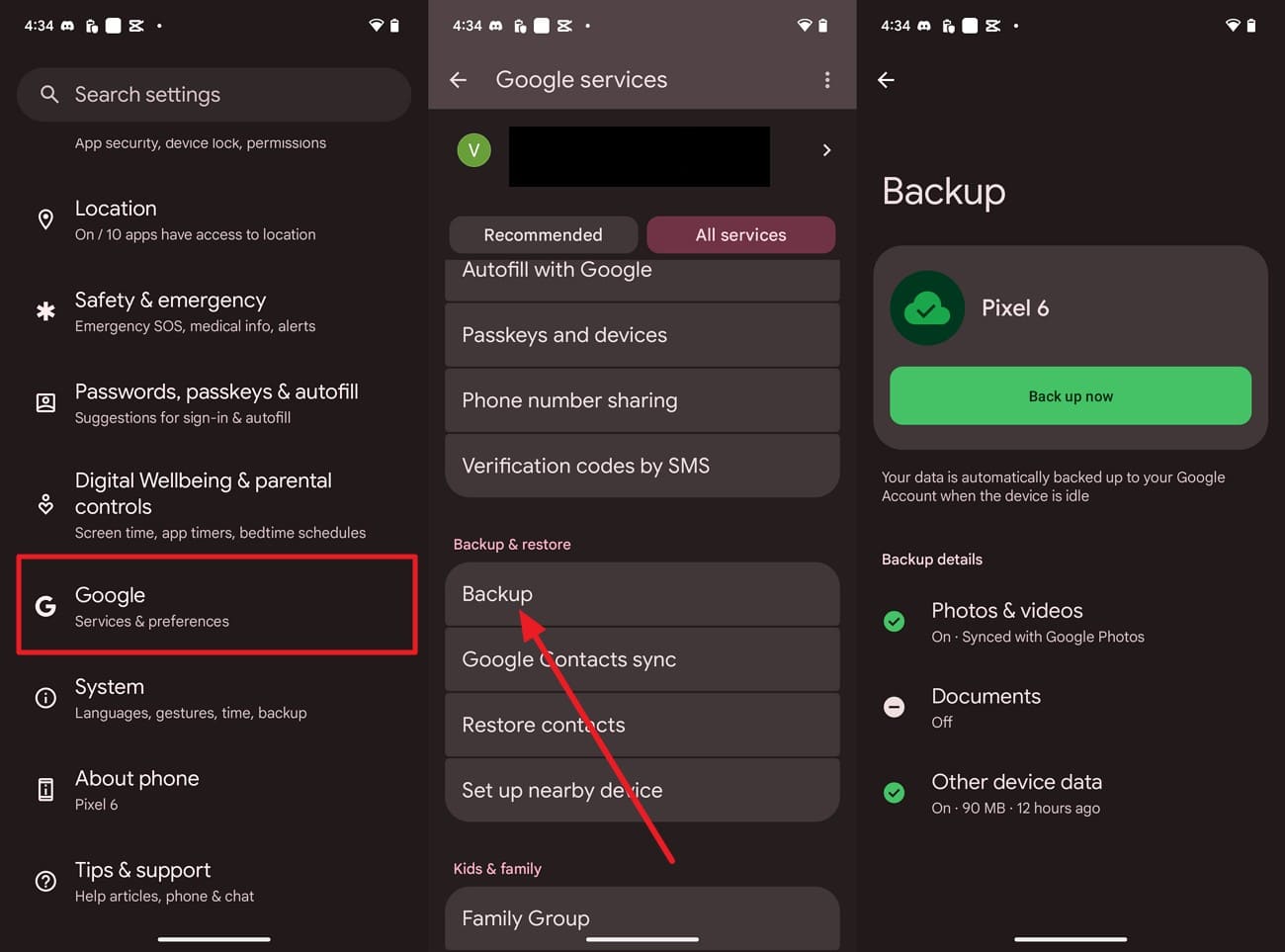
Step 1 Check Backup Status
Before you recover Google Messages, go to "Settings > Google > All Services > Backup" and check if it was backed up.
-
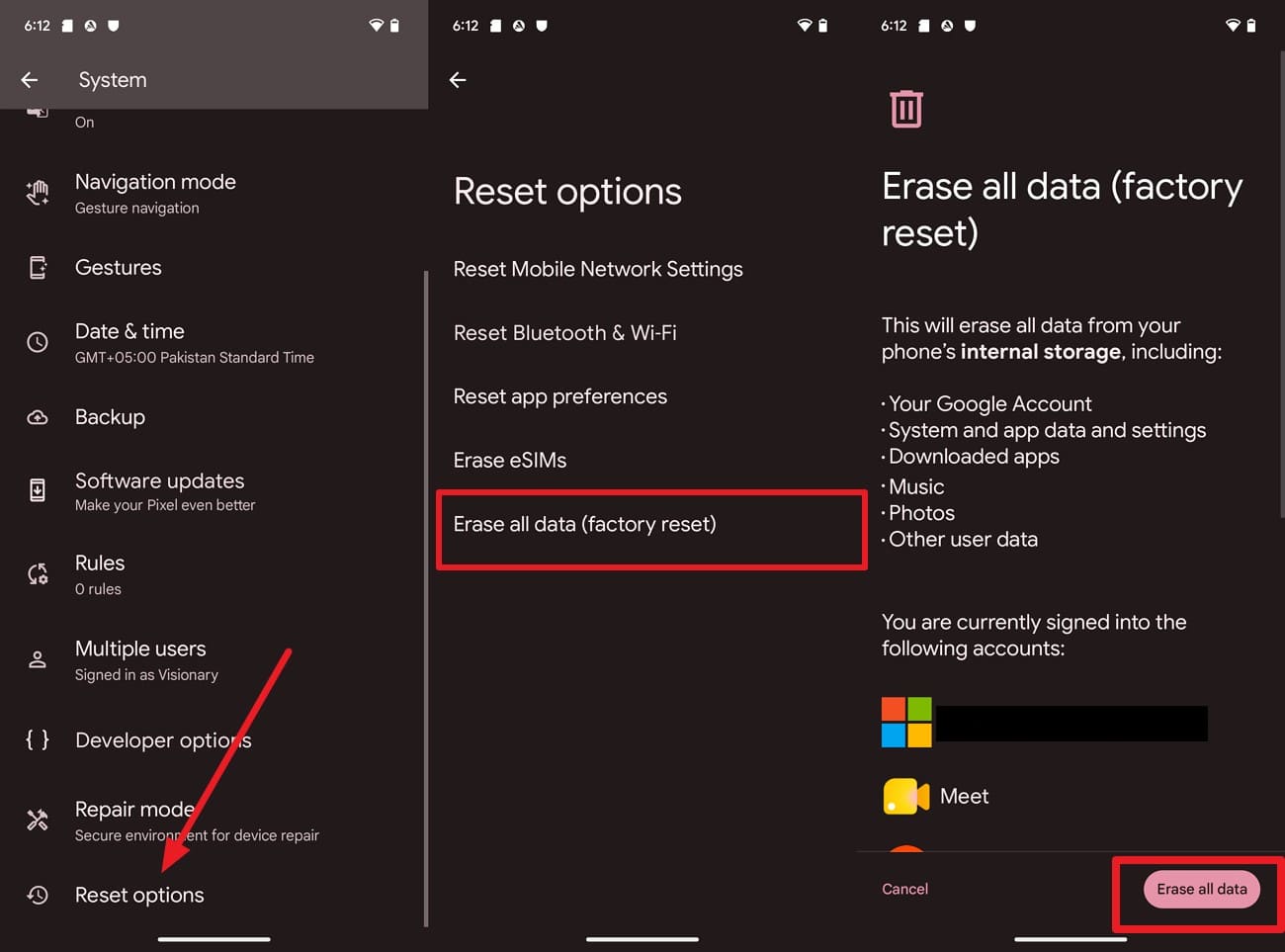
Step 2 Factory Reset the Phone
Reset the phone as you head to "Settings > System > Reset Options > Erase All Data (Factory Reset) > Erase All Data."
-
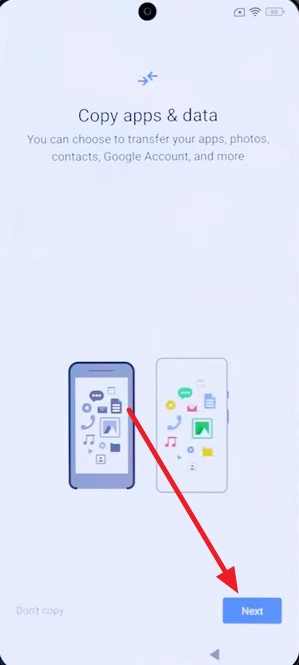
Step 3 Set Up and Add Account
Connect the phone to Wi-Fi > Access the "Copy Apps and Data Screen" interface and choose "Next." Tap on the "Can't Use Old Device" option and add the Google account you used for backup.
-
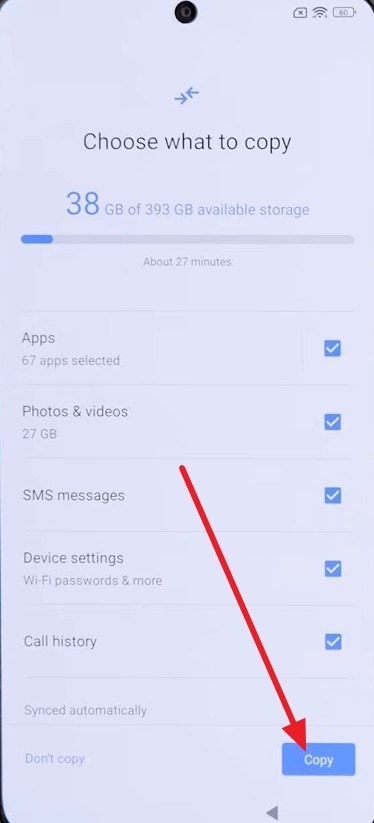
Step 4 Restore Messages
Pick the recent backup > Add the passcode if asked > Select "Messages" in data types and press "Copy."
Method 3. Check Messages on the Previous Phone
Check your previous phone for the missing conversation. Google Messages may still contain messages that were not transferred to the new device. If they remain available, use Android's device-to-device transfer during setup or a supported post-setup transfer option. Google supports transferring SMS, MMS, and RCS messages from an old Android device using a cable or Wi-Fi.
Part 3. Fix Google Messages That Suddenly Disappeared
When Google Messages disappeared, try these 5 troubleshooting fixes to locate missing conversations and restore their visibility:
Fix 1. Restart Your Android Phone
A reboot can clear temporary app or system glitches that prevent Google Messages from loading conversations correctly. If missing threads reappear afterward, the issue was likely temporary rather than actual deletion. To try this fix, follow these simple steps:
-
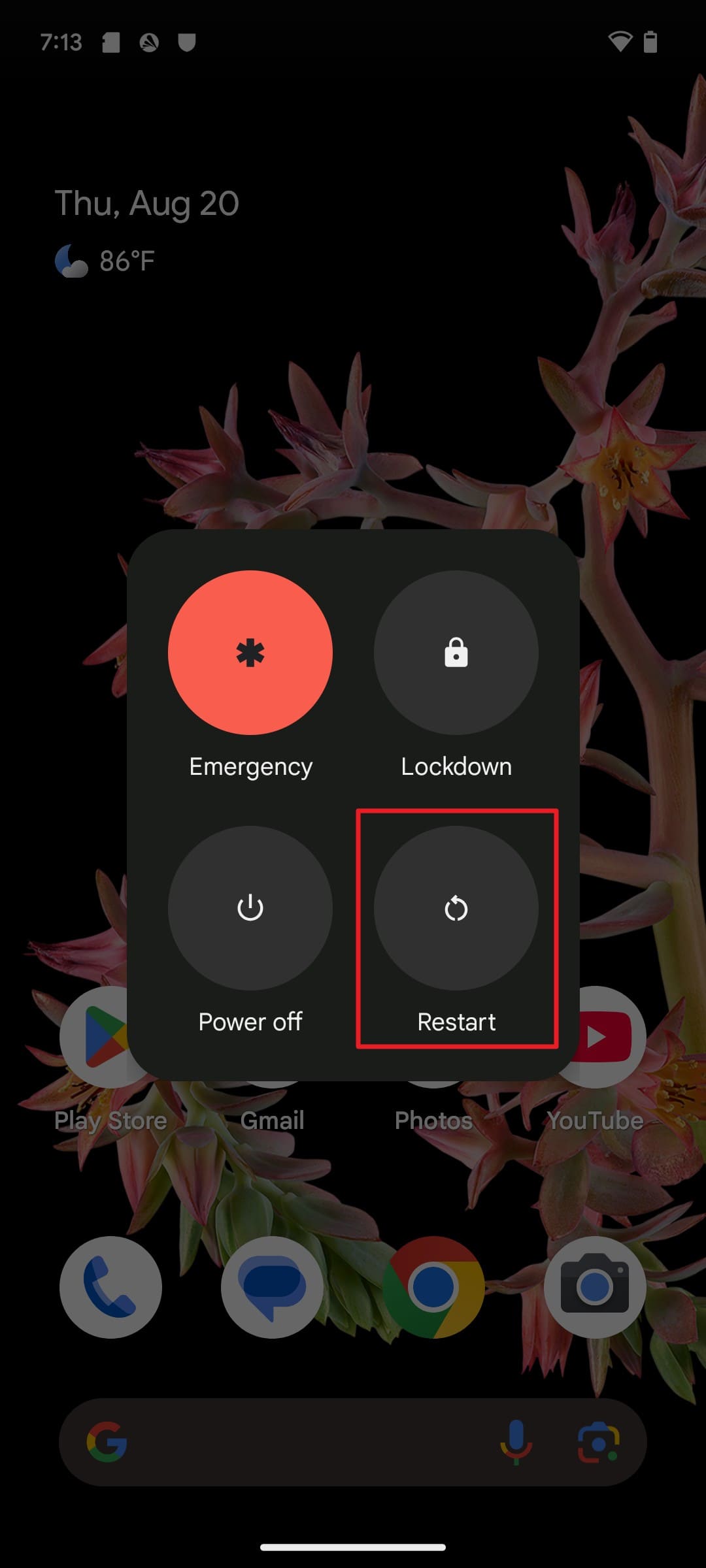
Step 1 Restart the Device
Hold the Power button, choose "Restart," and wait for the phone to boot fully.
-
Step 2 Check Messages
Once it's turned on, open Messages and wait for it to load.
Fix 2. Update Google Messages to the Latest Version
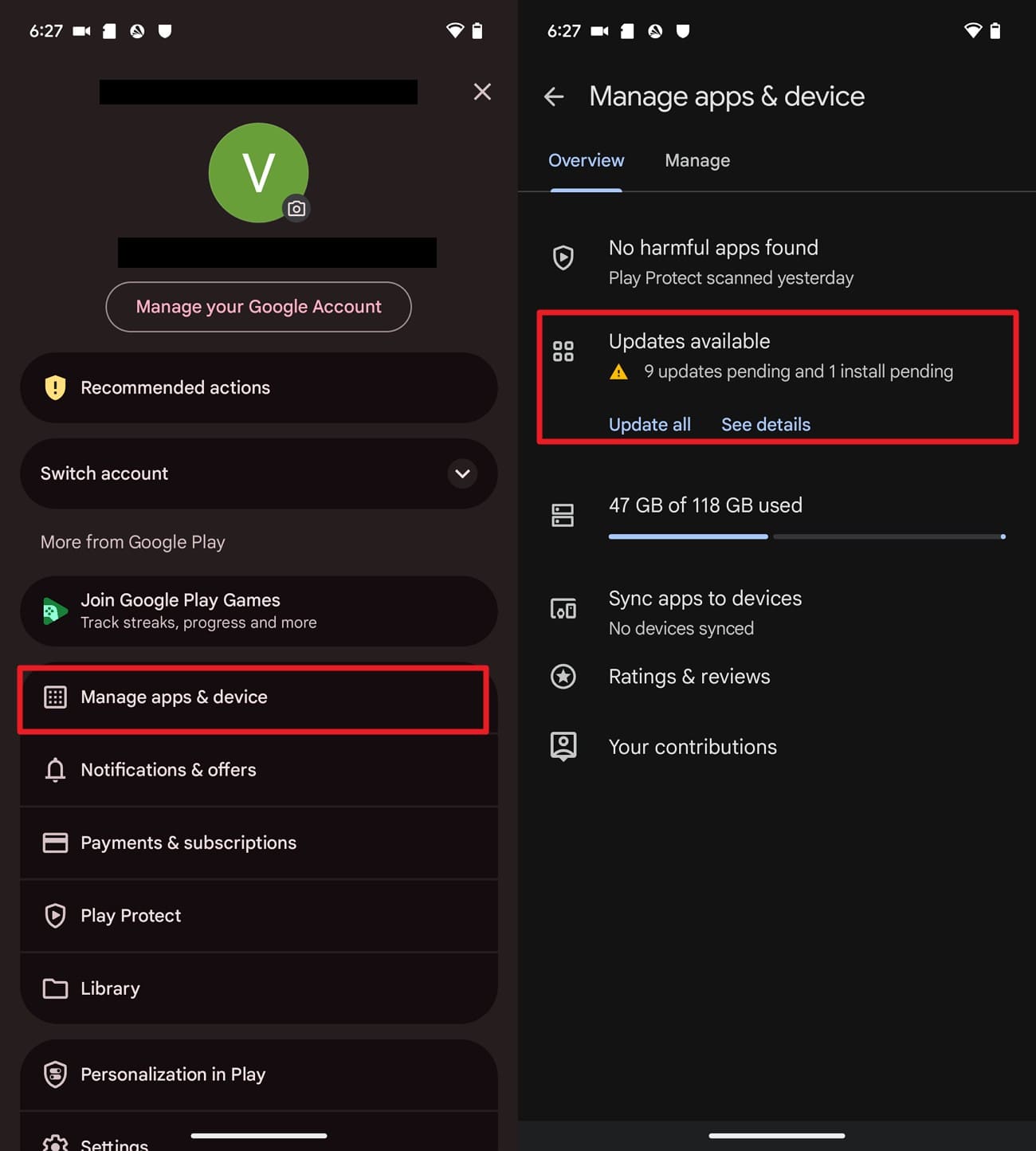
Older Google Messages versions may contain bugs or compatibility issues that affect how conversations appear. Updating the app installs the latest fixes and improvements from Google. If restarting your phone did not help, try this Google Messages recovery fix using these simple steps:
-
Step 1 Check for Updates
Open the Play Store, tap your "Profile Picture," and go to "Manage Apps & Device > Updates Available > See Details."
-
Step 2 Install Update
Find Messages under available updates and install it, then reopen the app to check the list.
Fix 3. Set Google Messages as the Default SMS App
An updated Google Messages app showing no conversations may indicate that another app is set as the default SMS app. Android limits certain messaging-provider operations based on the default SMS role. Set Google Messages as your default SMS app using these directions:
-
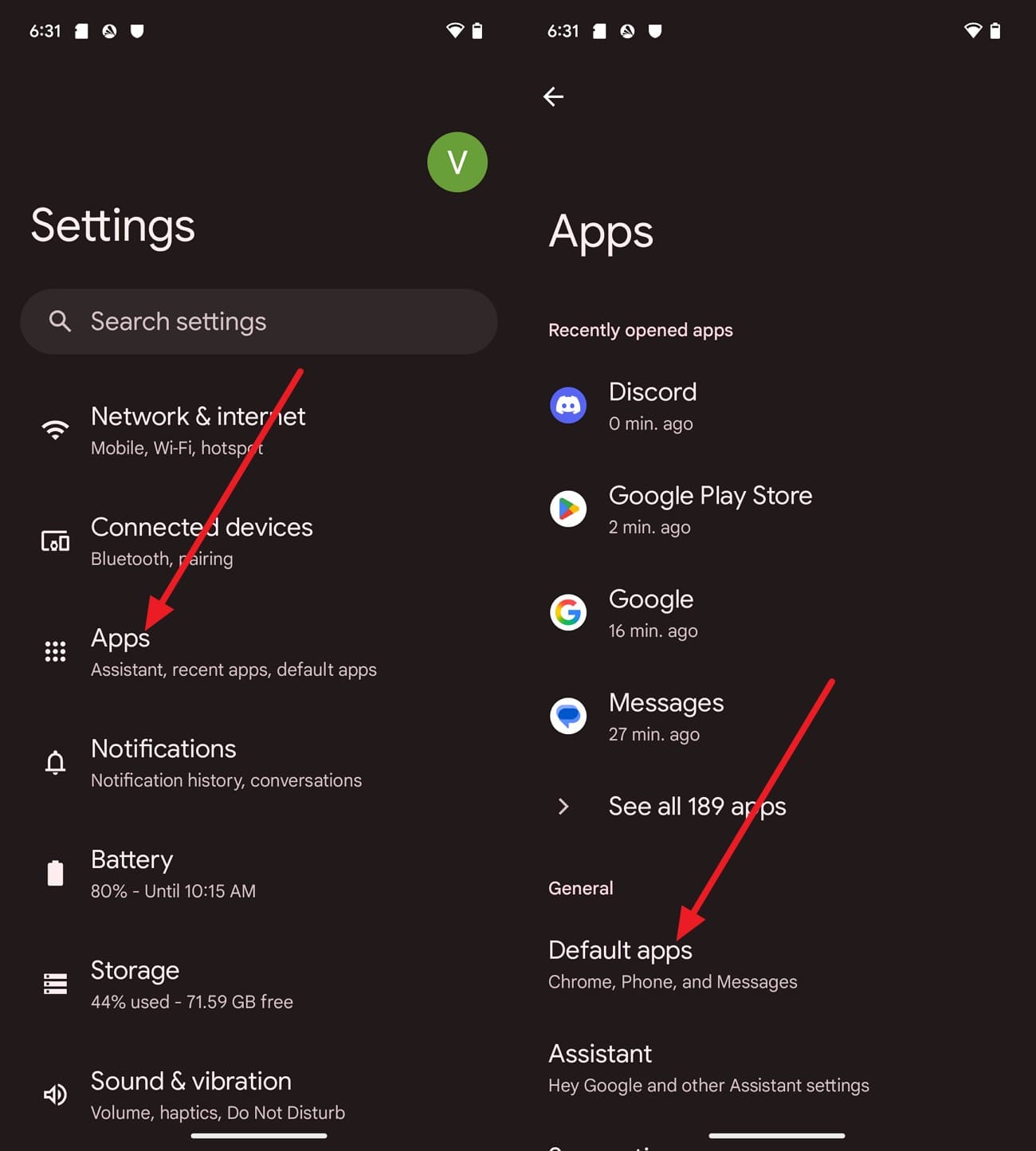
Step 1 Access Default Apps
Open settings and go to "Apps" and "Default Apps" to recover Google Messages.
-
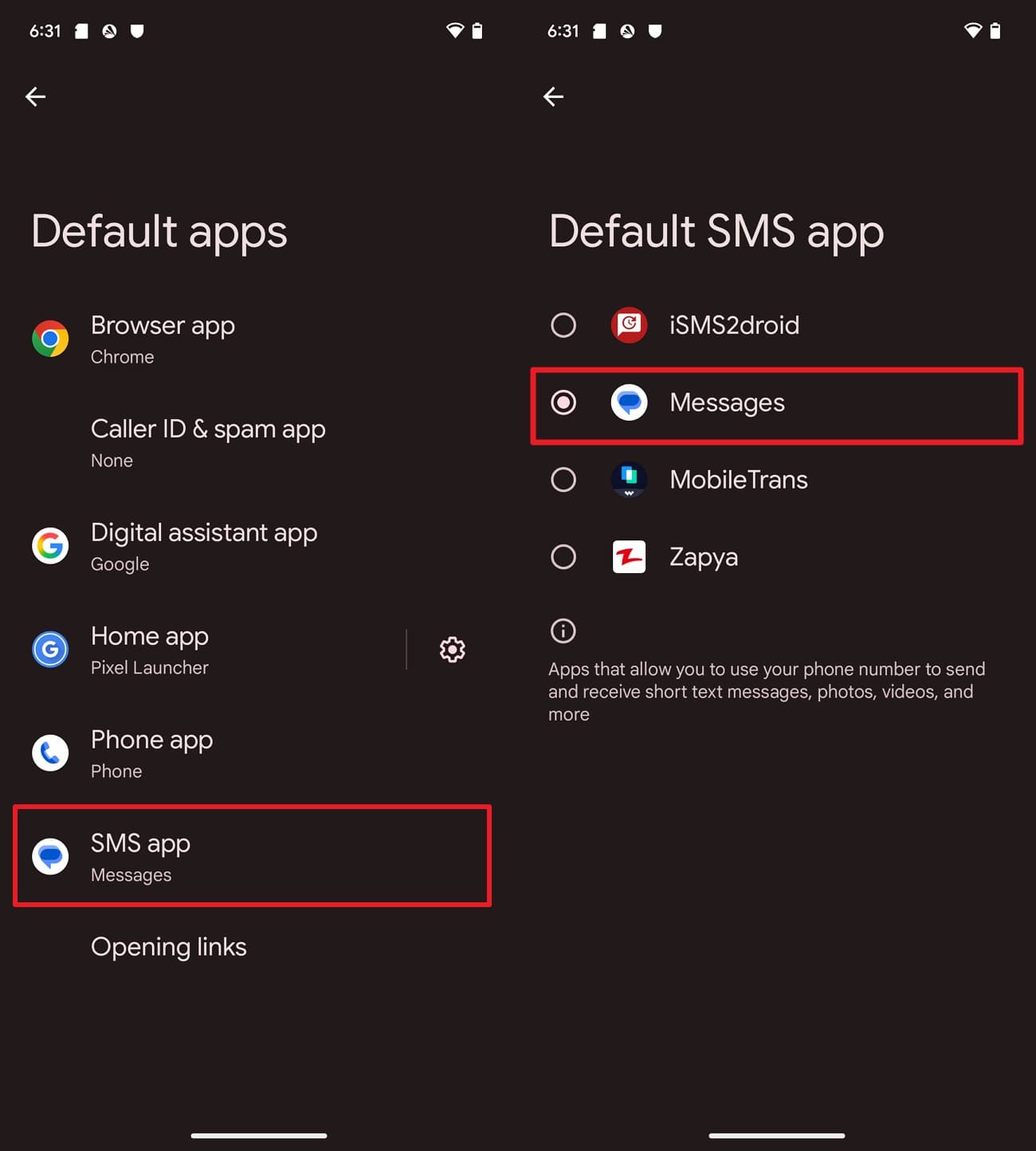
Step 2 Set as Default
In the list, select the "SMS App" option and set it to "Google Messages." Reopen the Google Messages app and let the threads reload.
Fix 4. Clear the Google Messages Cache
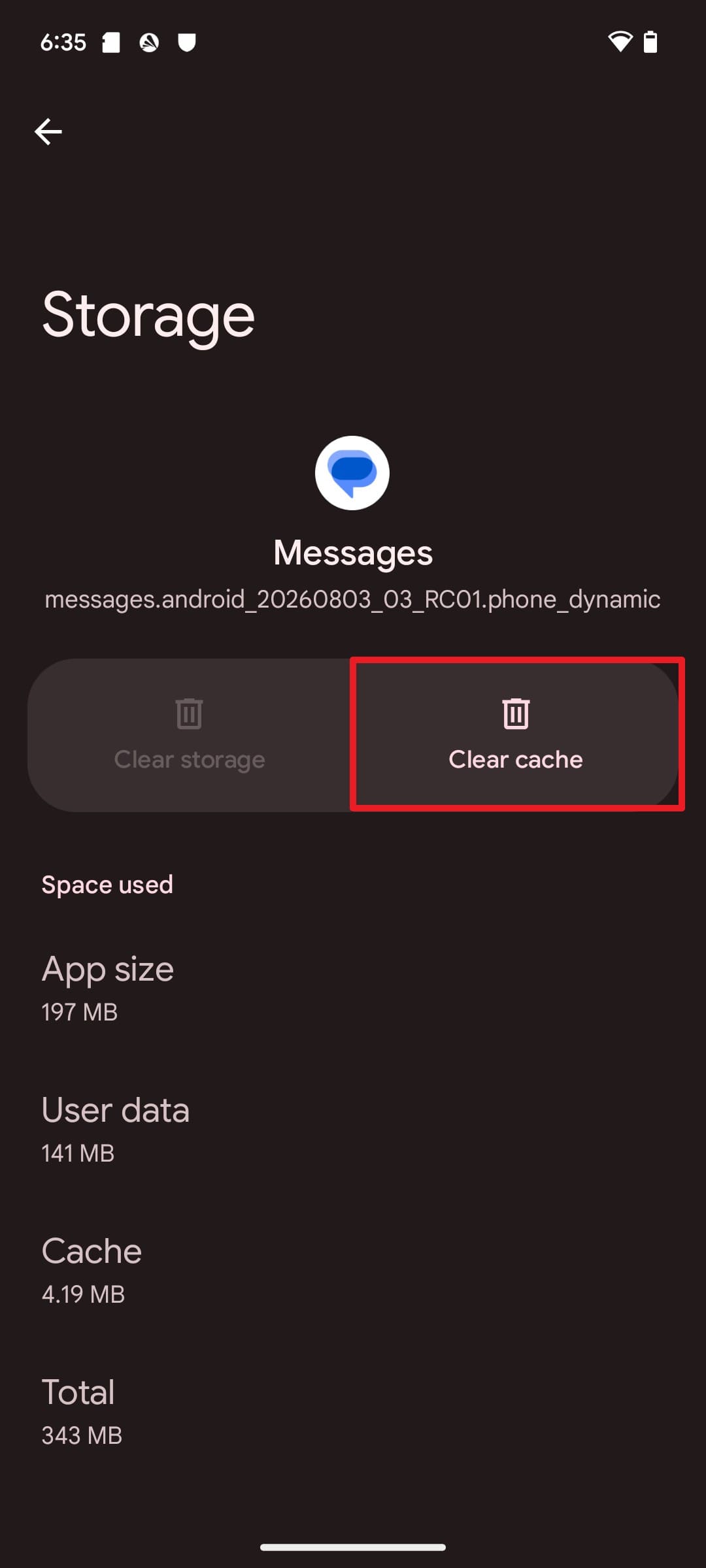
With Google Messages set as the default SMS app, clearing its cache is another useful troubleshooting step. Cached temporary files can sometimes affect how the app loads or displays conversations. Clearing the cache does not delete your SMS or MMS messages. For Google Messages disappearance issues, follow these simple steps:
-
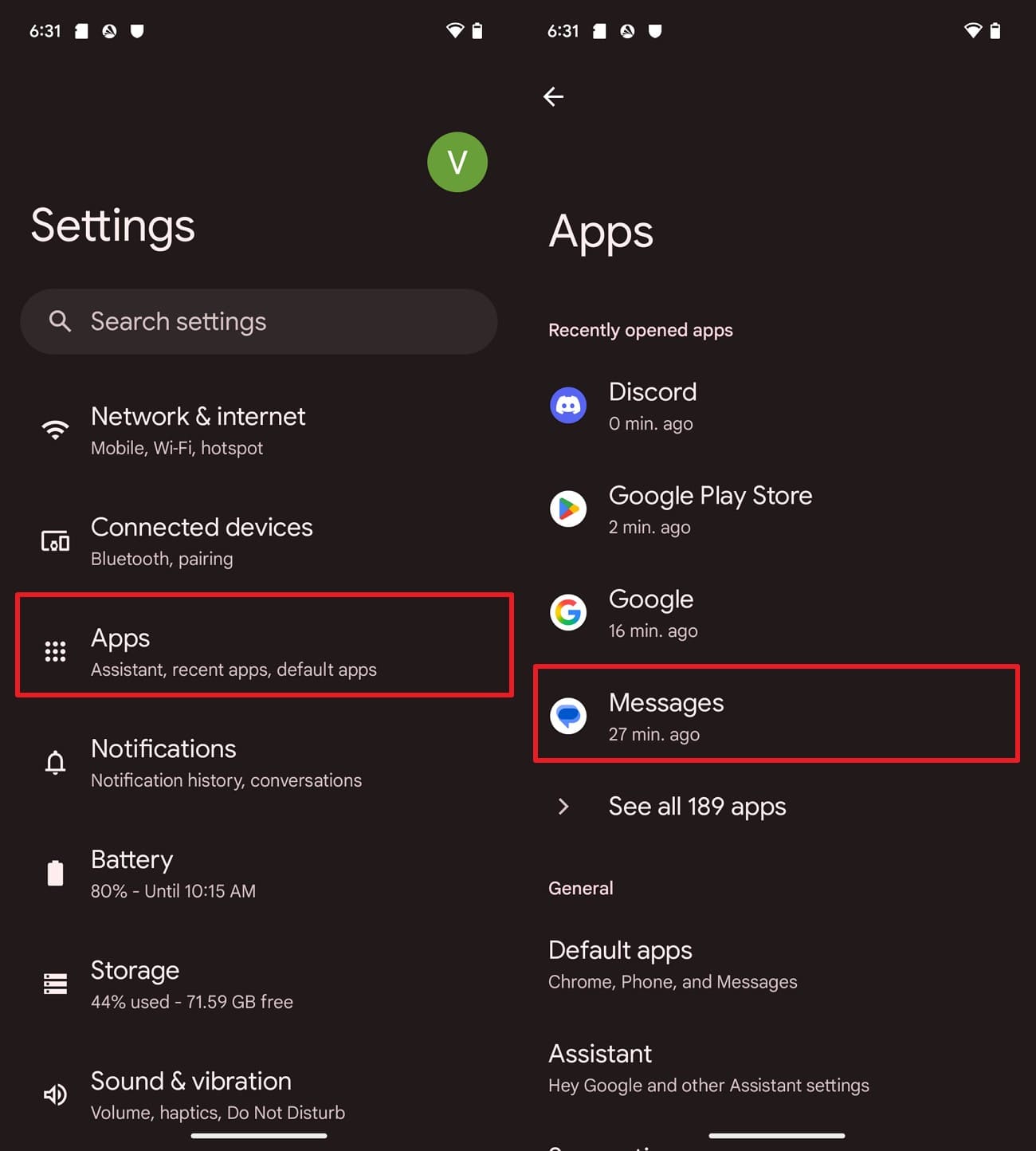
Step 1 Open App Storage
Go to "Settings > Apps > Messages" and choose the "Storage & Cache" option.
-
Step 2 Clear Cache
Tap "Clear Cache" for the Google Messages app and see if that helps.

Fix 5. Reinstall Google Messages Updates and Update Again
When clearing the cache changes nothing, reinstalling Google Messages updates can help resolve app-related issues. On supported phones, uninstalling updates returns the app to its factory version before you update it again. SMS and MMS remain stored through Android's system messaging provider. To use this fix to recover Google Messages, follow these guidelines:
-
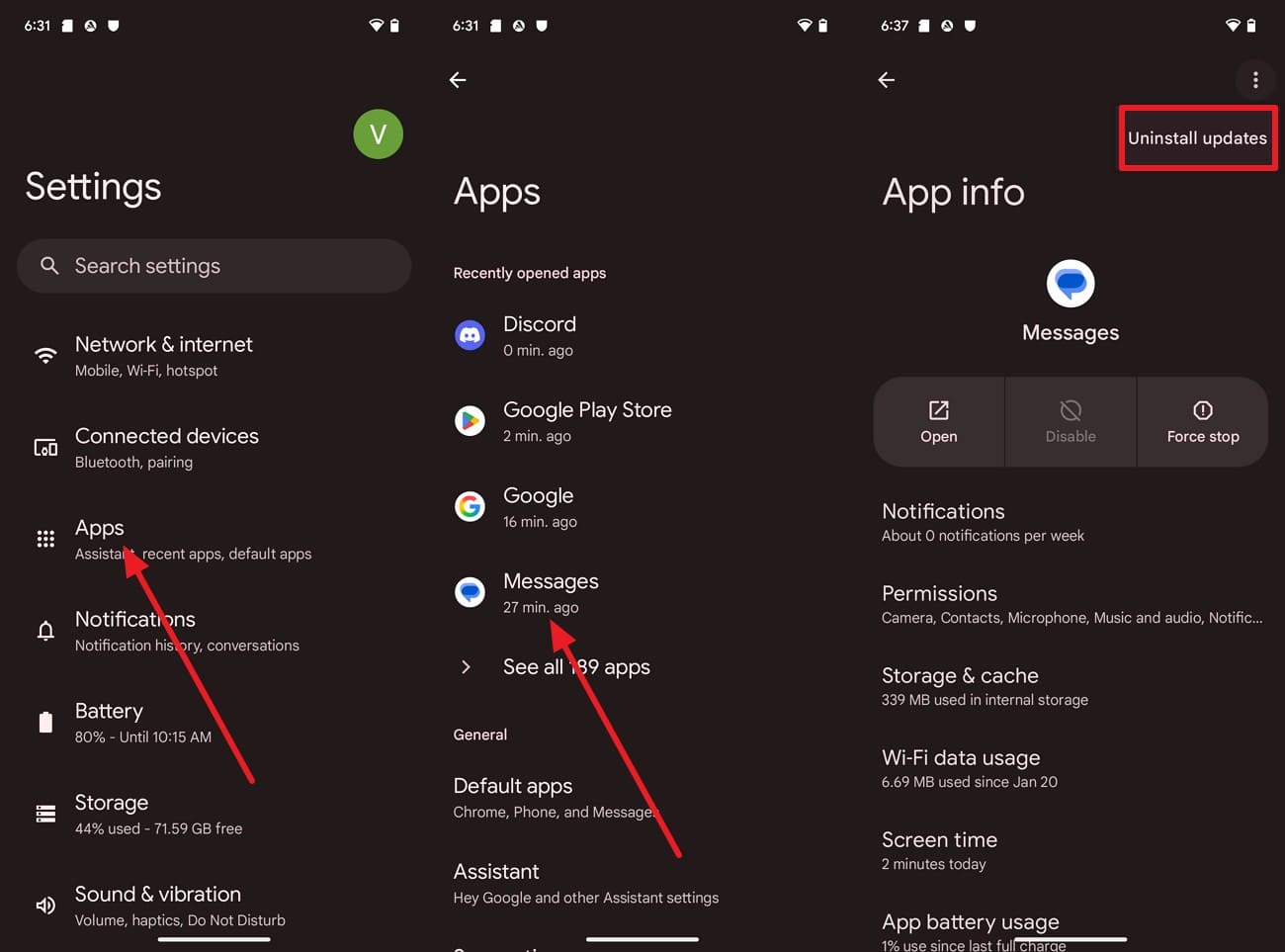
Step 1 Uninstall Updates
Open "Settings > Apps > Messages," tap the "Three Dots" menu, and choose "Uninstall Updates."
-
Step 2 Reinstall Updates
Return to the Play Store, update Google Messages to the latest version, then set it as the default SMS app again if needed.
Part 4. If Google Messages Are Really Deleted and No Usable Backup Exists
Trash folders expire, cloud backups can be unavailable, and factory resets can remove local data. When those official options fail, Google Messages recovery may still be possible using specialized recovery software. Dr.Fone - Data Recovery (Android) scans supported Android devices for recoverable messages while helping preserve existing data. It supports Samsung, Xiaomi, OPPO, Vivo, Motorola, and other major brands.
A filter helps narrow scan results to deleted data, making large result sets easier to review. When a supported Google backup exists, the software can also access backed-up data for recovery. After previewing the available results, you can select individual messages for recovery or export. Both device and Google backup recovery provide flexible options when built-in recovery methods are insufficient.
 Scan Android phones and tablets directly.
- Preview and recover only what you want.
- Supports WhatsApp, photos, videos, contacts, and more.
- Works with 6000+ Android devices.

Guide to Scan the Device for Google Messages Recovery
The scan takes minutes, but what it finds depends entirely on timing. Avoid using the phone and follow Dr.Fone's guide to recover Google Messages:
-
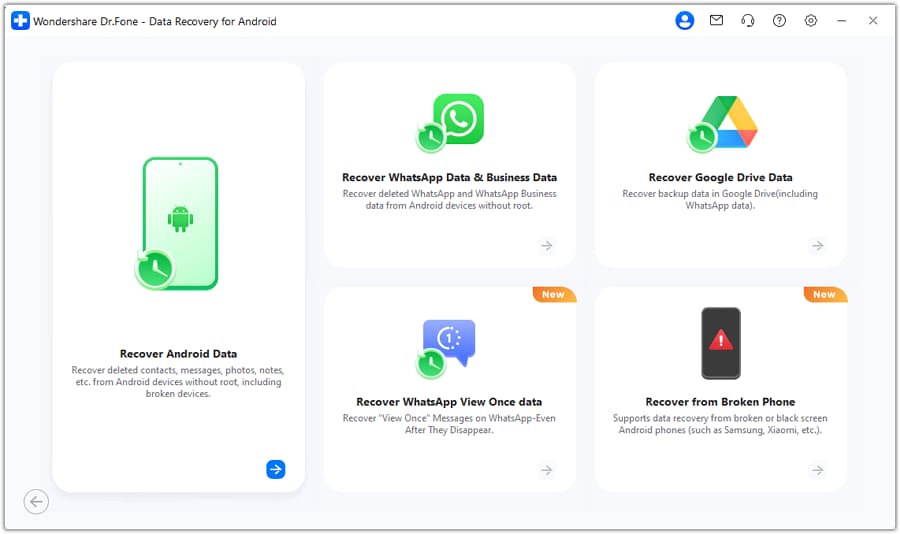
Step 1 Launch the Data Recovery Toolkit & Select Android
On the Data Recovery tool for Android, choose "Recover Android Data" and connect the device when prompted.
-
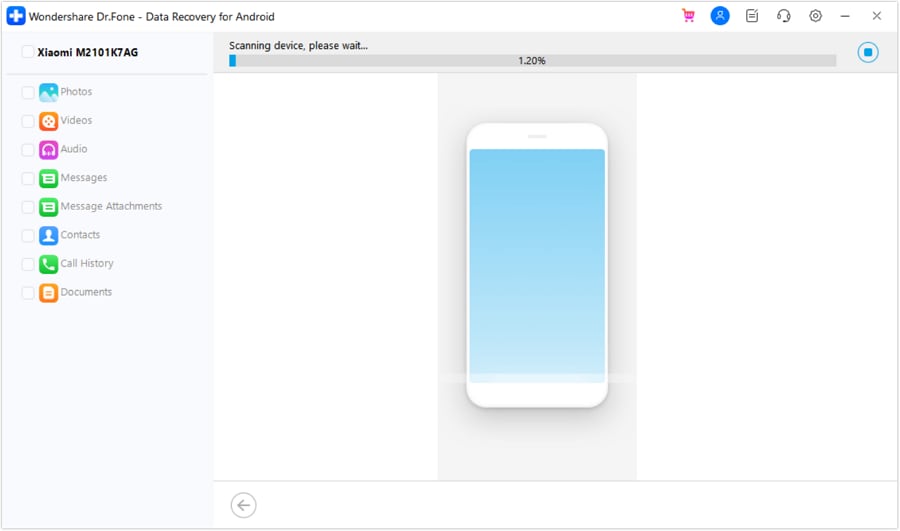
Step 2 Select the Messages Option
Select "Messages" from the 7 supported data types, click "Start Scan," and wait for the scanning process to complete.
-
Step 3 Review Findings and Save Them
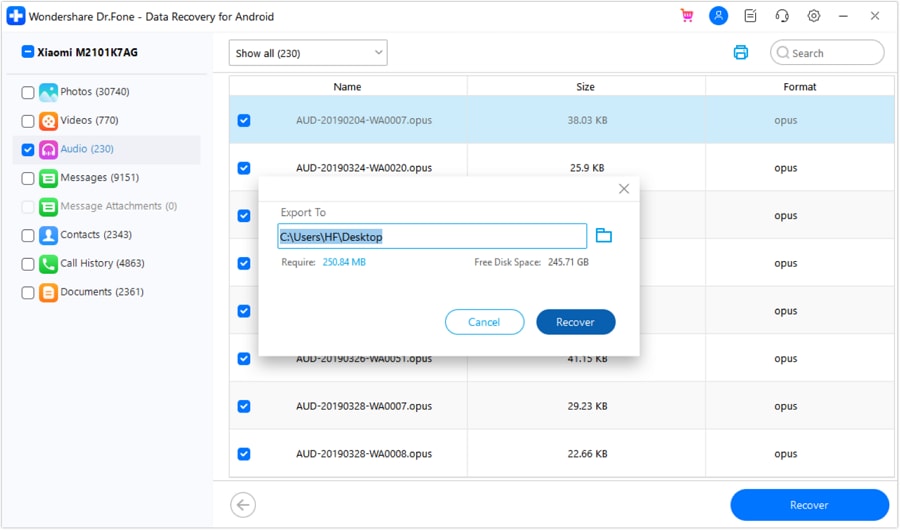
Filter the messages you want to retrieve and click the "Recover" button. Choose the desired "Export To" location from the pop-up, then click "Recover" to save them.




Part 5. How to Prevent Google Messages from Disappearing Again
Once you recover Google Messages, follow these 7 tips to protect your conversations and reduce the risk of losing messages again:
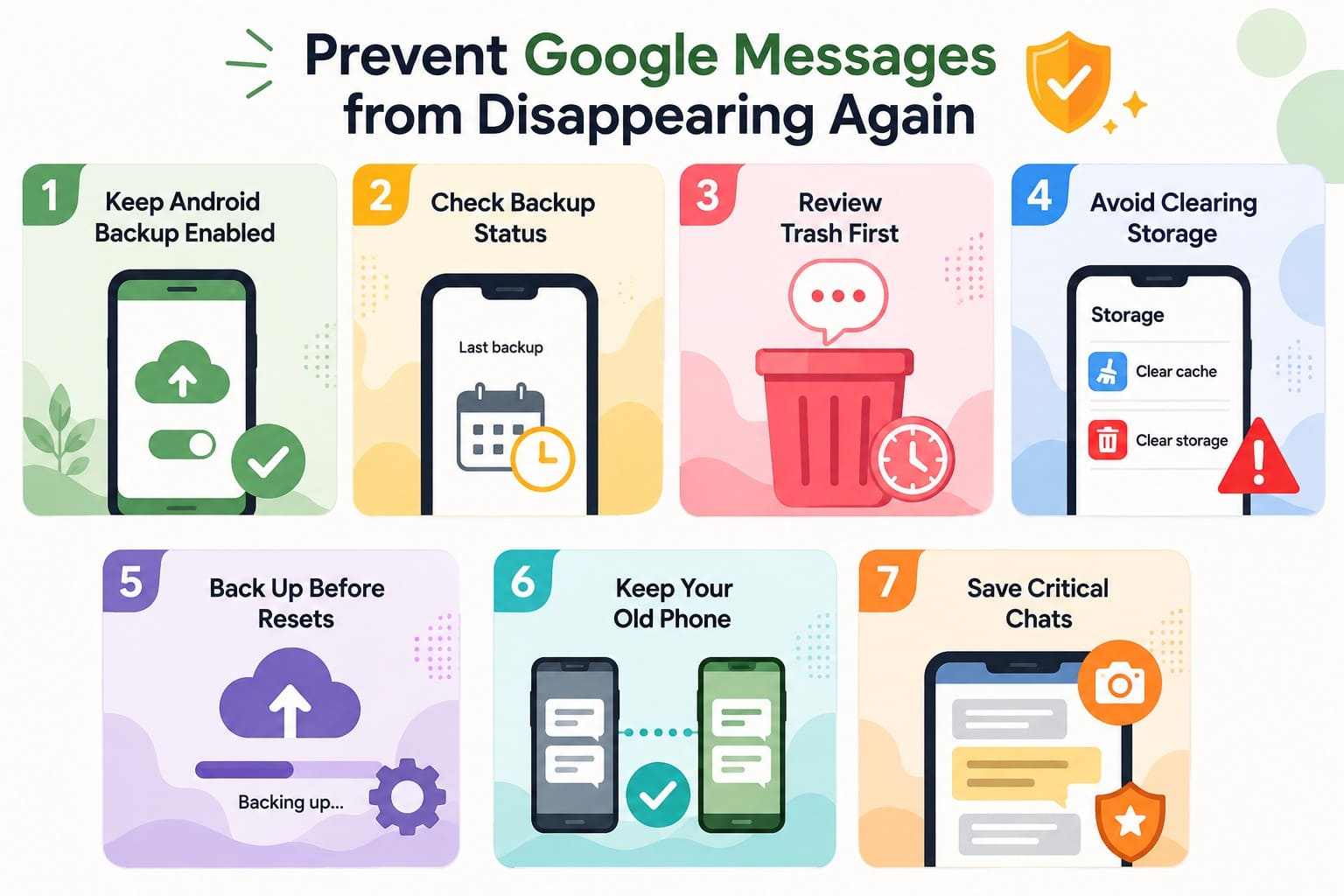
- Keep Android Backup Enabled: Keep Android backup enabled to protect supported messages automatically during regular device backups. Turning it on helps preserve future SMS, MMS, and RCS data.
- Check Backup Status: The date listed under your system backup settings shows when the latest backup completed. Messages newer than that timestamp may require another backup to be protected.
- Review Trash First: Emptying the Trash folder manually removes conversations before the 30-day retention window expires. Review deleted chats carefully rather than clearing them out of routine habit.
- Avoid Clearing Storage: Clearing app cache removes temporary files without deleting SMS or MMS, but clearing storage resets app data. These two options perform significantly different actions.
- Back Up Before Resets: Trigger a manual backup and wait for it to finish before resetting. Check the latest backup status to confirm supported data was backed up successfully.
- Keep Your Old Phone: Scroll deep into older conversation threads on your new device before wiping anything. Only clear your previous handset once you confirm every important chat transferred successfully.
- Save Critical Chats: Screenshot important booking references, addresses, or account numbers. Storing vital details outside your messaging app provides another copy if conversations disappear or get permanently deleted.
Conclusion
Always search your inbox and check the Trash folder before attempting any major troubleshooting steps. When messages are truly gone, work outward through your options: restore from a cloud backup, check your previous device, or use Dr.Fone - Data Recovery (Android) to scan storage. Since recovery depends on storage conditions and device usage, acting quickly can improve your chances of successfully recovering deleted Google Messages.
Frequently Asked Questions
-
1. Can mobile carriers recover deleted Google Messages?
Carriers keep billing records showing numbers and timestamps, not message content, and they won't hand those logs over on request. Retained content typically requires legal process to release, which puts it outside ordinary customer support. -
2. Can I recover only one deleted Google Message?
Trash restores whole conversations rather than individual texts, so a single message returns as part of its thread. Dr.Fone - Data Recovery (Android) can selectively recover messages from both Android device storage and supported Google backups, while Android's native backup restore provides no per-message option. -
3. Are deleted RCS chats recovered the same way as SMS and MMS?
SMS and MMS live in Android's shared system database that default messaging apps can read, while RCS conversations belong to Google Messages itself. Therefore, switching apps carries standard texts across but can leave RCS history behind. -
4. Does Google Messages keep a cloud copy that I can view online?
No, Messages for web mirrors conversations from your phone rather than storing a separate archive, so it cannot restore messages deleted from the handset. Android backups are not directly browsable either, since they are designed for restoring backed-up data rather than viewing individual messages.
 Add Wondershare Dr.Fone as a preferred source on Google