Recover photos, messages, WhatsApp, and more — no backup
needed.
Recover photos, messages, WhatsApp, and more — no backup
needed.

 100% Security Verified | No Subscription Required | No Malware

 :
: 
 ChatGPT
 Perplexity
 Gemini
 Claude
 Grok
Grok
WhatsApp Messages Disappeared? How to Restore Missing Chats
A conversation can suddenly disappear from your chat list, making it seem permanently lost. However, archived or locked chats may simply be hidden from the main view. Checking these locations first helps determine whether recovery is actually necessary.
WhatsApp states that it cannot restore your chat history from its servers. This guide covers 5 recovery methods for the WhatsApp messages disappeared issue, including restoring available backups and transferring chats from an old device. If standard options fail, Dr.Fone – WhatsApp Data Recovery offers another way to recover available WhatsApp data.
In this article
Part 1. Why Did My WhatsApp Messages Disappear?
WhatsApp chats disappeared for several common reasons, but not every case means permanent loss. Review these 6 possible causes before trying recovery methods:
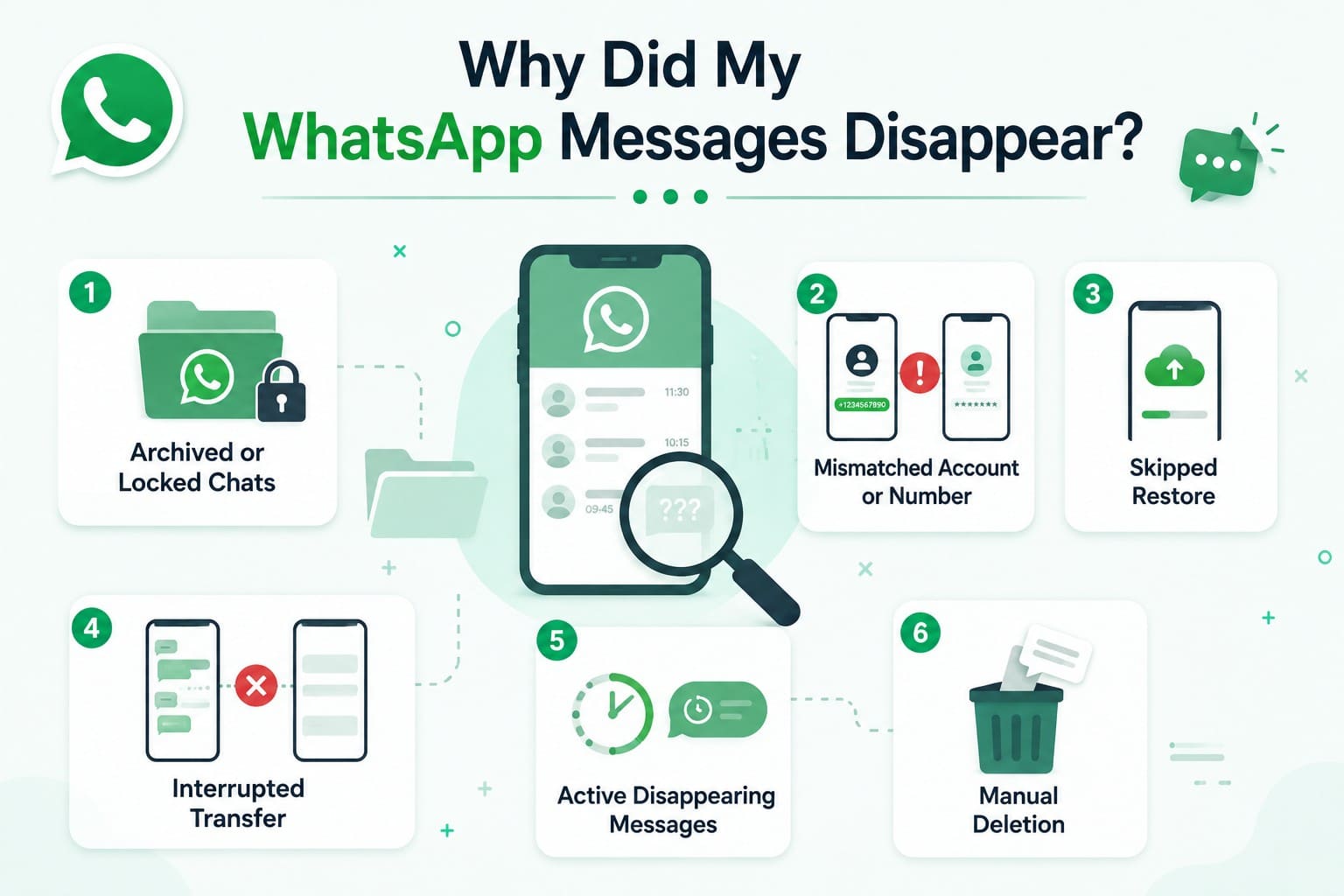
- Archived or Locked Chats: These features hide conversations from the main chat list without deleting them. Locked chats require device authentication, such as a passcode or biometric verification, to access.
- Mismatched Account or Number: Restoring chats requires the phone number associated with the backup. Android also requires the correct Google Account, while iPhone requires the appropriate iCloud account.
- Skipped Restore: Skipping the restore option during setup can leave previous chat history unavailable. You may need to restart WhatsApp setup to access the restore option again.
- Interrupted Transfer: Device migrations can fail before completion, leaving the new phone without some chat history. Google recommends checking the old phone when transferred WhatsApp data is missing.
- Active Disappearing Messages: When enabled, new messages can disappear after 24 hours, 7 days, or 90 days. Existing chats are not automatically deleted when the feature is enabled.
- Manual Deletion: Deleted chats may be recoverable if they exist in an available backup. WhatsApp confirms that restoring old history replaces newer history instead of merging both.
Part 2. Find WhatsApp Chats That May Still Be Available
Before restoring anything, check whether your WhatsApp chats missing from the main list are simply hidden or still available elsewhere. Perform these 4 checks before trying more advanced recovery methods.
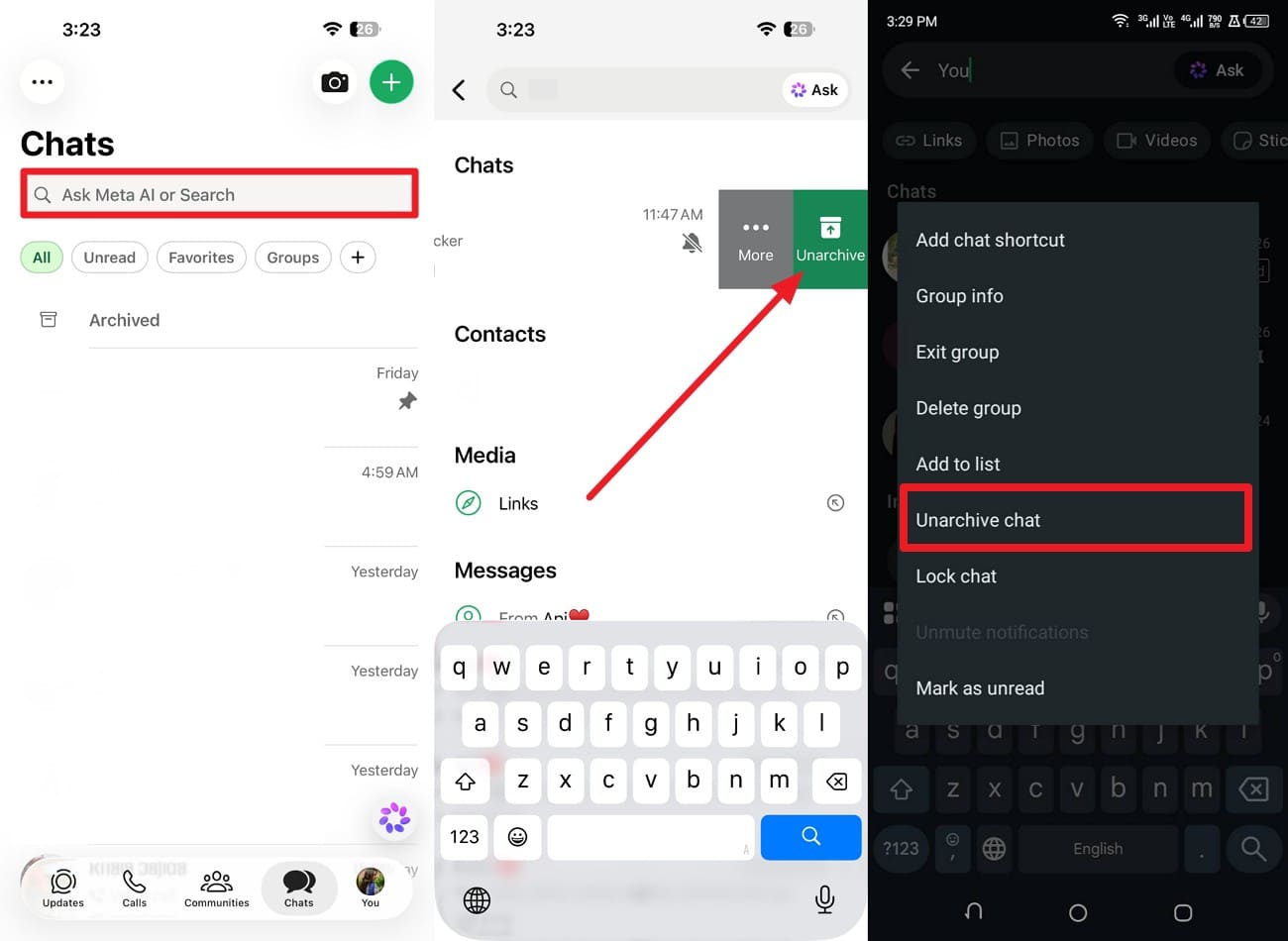
Search and Unarchive Missing Chats
Search for the contact or group instead of scrolling through the main chat list. Additionally, an archived conversation is hidden from the main list but remains available in WhatsApp. WhatsApp includes a Keep Chats Archived setting.
Active status keeps archived chats hidden even when new messages arrive. Disabling this option forces chats back to the main list when you receive new messages. For WhatsApp chats missing from the main list, follow these steps to check whether the conversation is archived and restore it to the chat list:
Instructions. Tap on the “Search” field and type the contact's name. If the chat appears, long-press on Android and iPhone, then tap the “Unarchive” or “Unarchive Chat” button. You can also swipe left on the iPhone to get this option.
Open Locked Chats with Chat Lock or Secret Code
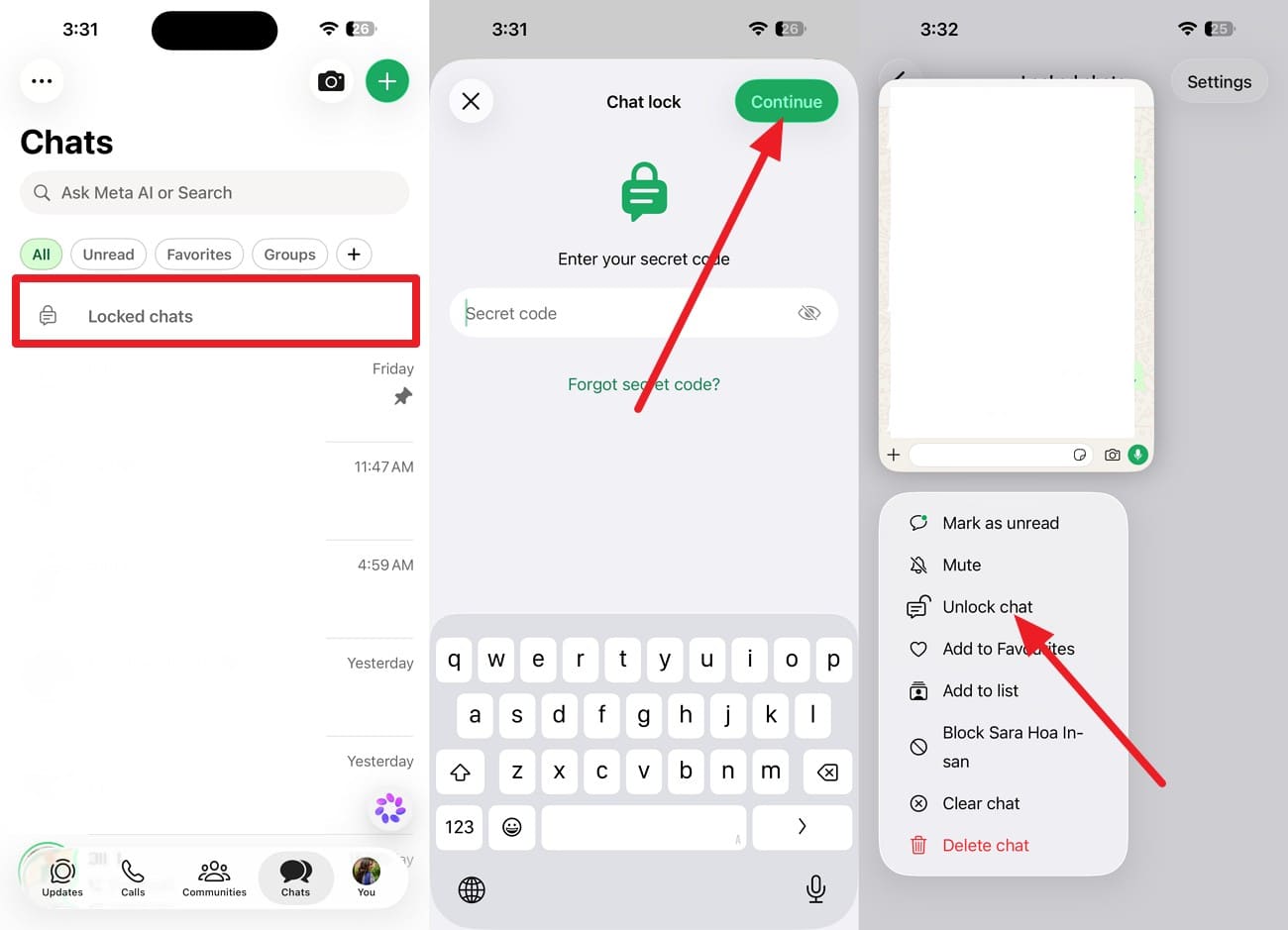
If the chat does not appear in search, it may be protected by Chat Lock, causing the WhatsApp chats disappearing issue. Locked conversations remain hidden from the main chat list. Check the Locked Chats folder and use your device authentication or Secret Code to access them:
On iPhone
Instructions. Swipe down in the “Chat” section and tap on the “Locked Chats” folder. Enter the code or Face ID > Tap “Continue” > Long-press the chat and select “Unlock Chat.”
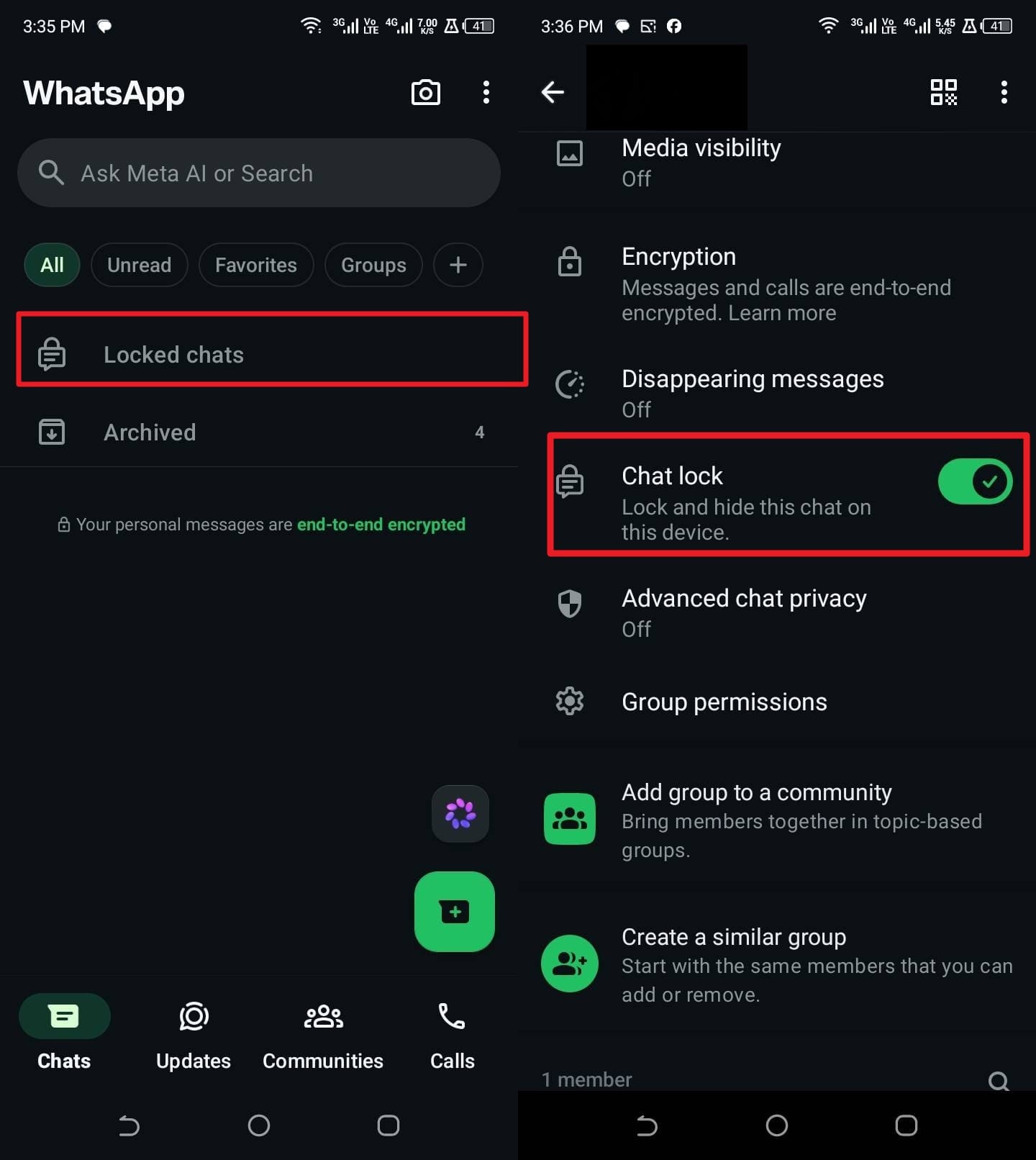
On Android
Instructions. Open the “Locked Chats” folder > Enter your PIN or authenticate your identity > Open the chat > Tap the contact or group name > Disable “Chat Lock.”
Check the Old Phone for Missing Chat History
Check the old phone for WhatsApp chats missing before making changes on the new device. The older phone may still contain recent chat history or a newer backup. Google recommends checking the old phone when WhatsApp data is missing after restoration. Open WhatsApp and confirm whether the missing conversation remains available. If found, create a fresh backup before attempting another transfer or restore.
Check Other Linked Devices for the Conversation
Check linked computers or Web browsers for missing WhatsApp chats because synchronized conversations may still appear there. Remember that Chat Lock protection extends to supported linked mobile devices, but it is not currently available on WhatsApp for Mac. Therefore, check each supported device separately when looking for conversations missing from your main chat list.
Part 3. 4 Ways to Restore Missing or Disappeared WhatsApp Chats
If those 4 checks do not help and you still face a WhatsApp messages missing issue, the chats may require recovery or transfer. Compare these methods and choose the one that matches your device and available data:
| Recovery Method | Best For | What You Need | Reinstall / Reset? | Key Limitation |
|---|---|---|---|---|
| Google Account / Local Backup | Missing chats on Android | Same phone number, correct Google Account, and available backup | No device reset. WhatsApp setup must be rerun | Restores only chat history contained in the available backup |
| iCloud WhatsApp Backup | Missing chats on iPhone | Same phone number, correct iCloud account, and available WhatsApp backup | WhatsApp must be reinstalled and set up again | Cannot restore messages created after the backup |
| Direct Phone-to-Phone Transfer | Moving chats from an old Android to a new Android | Both phones, same phone number, and old chat history available | No device reset. Transfer runs during WhatsApp setup | Existing new-phone WhatsApp history cannot merge with old history |
| Cross-Platform Transfer | Moving chats between Android and iPhone | Both phones, same phone number, and supported migration process | May require a device reset, depending on direction and setup status | Transfer requirements differ between Android-to-iPhone and iPhone-to-Android |
Method 1. Restore WhatsApp Chats from Google Account/Local Backup on Android
Before changing anything on Android, verify that a recent Google Account or local WhatsApp backup is available. The backup can restore chats and media saved before its creation. WhatsApp recommends checking the latest backup date first. Once confirmed, follow these steps to restore WhatsApp chats from the available backup.
-
Step 1
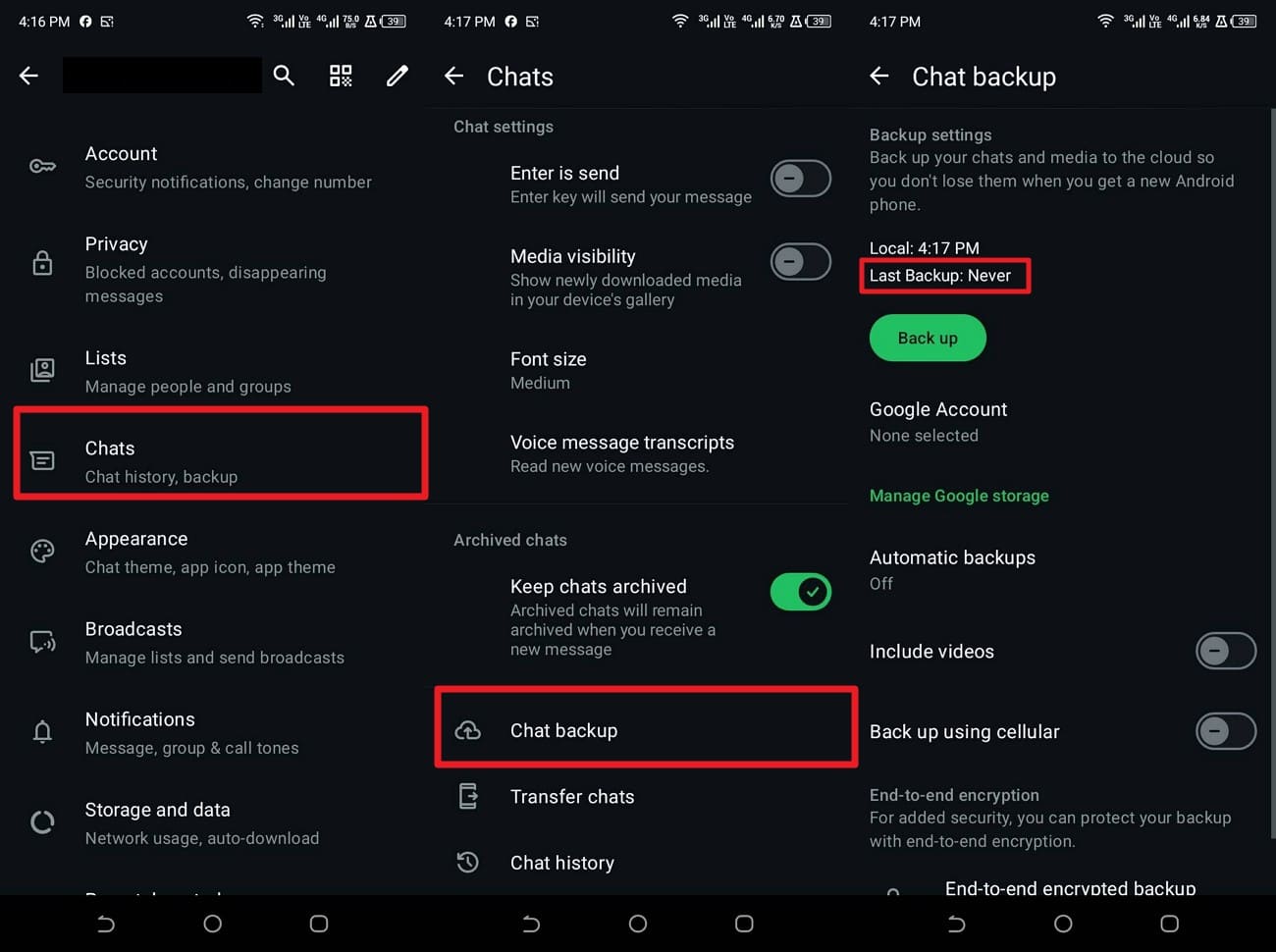
Go to “Settings > Chats > Chat backup” and check the Local backup time and Last Backup status. Confirm that a usable backup exists before continuing to fix the WhatsApp messages disappeared issue.
-
Step 2
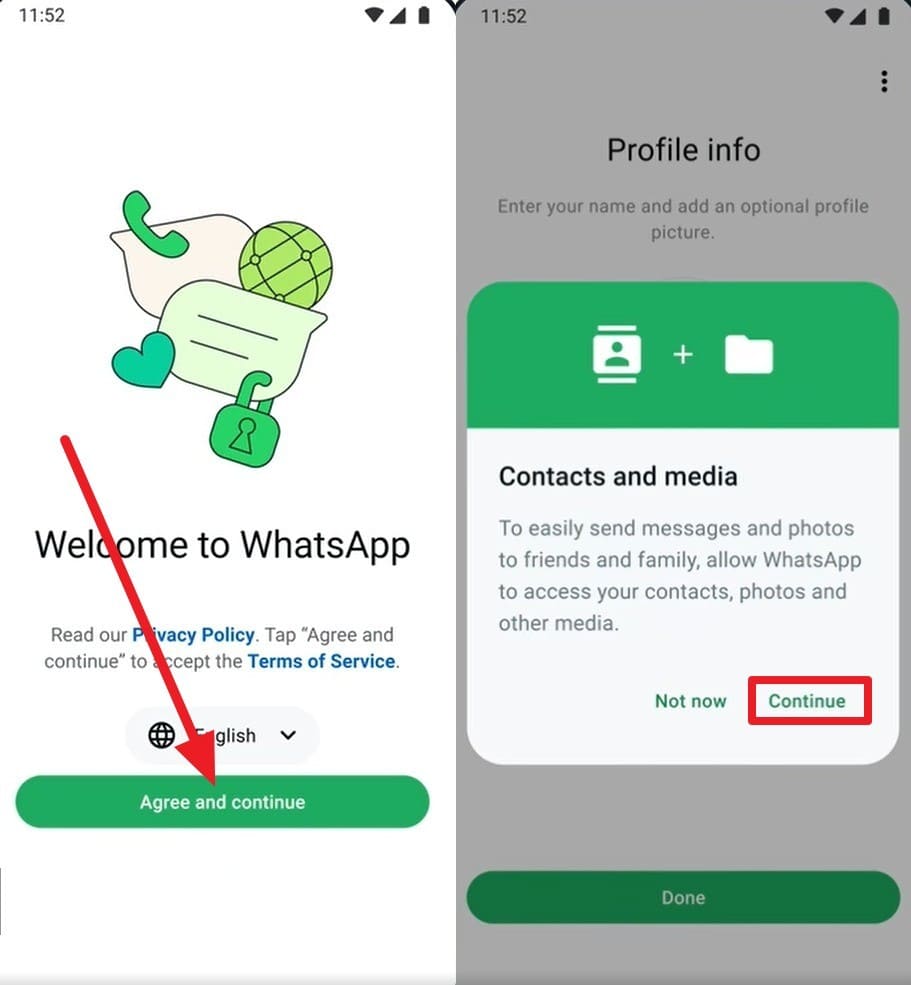
Uninstall WhatsApp, reinstall it from the Google Play Store, then tap “Agree & Continue.” Enter the same phone number, verify the code, and allow the required permissions.
-
Step 3
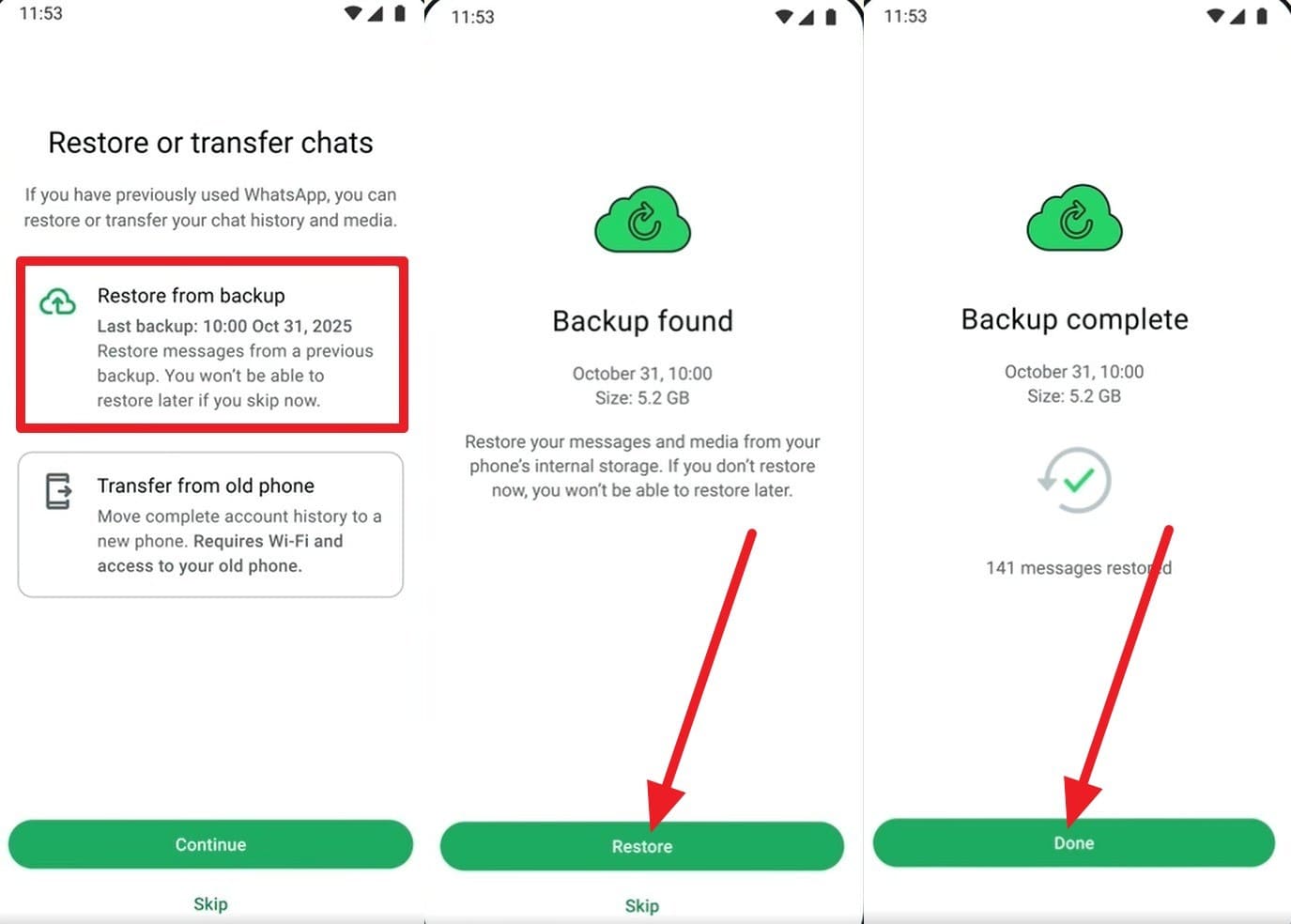
Opt for the “Restore from Backups” option and press “Restore” when the backup is automatically detected. Tap “Done” when it finishes, then check whether your chats are visible.

Method 2. Restore WhatsApp Chats from iCloud/iTunes/Finder Backup on iPhone
For the WhatsApp chats missing issue on iPhone, recovery may come from a WhatsApp iCloud backup or a full iPhone backup created with iTunes or Finder. iCloud restores WhatsApp chat history saved in WhatsApp’s own backup, while iTunes and Finder restore the device from an earlier iPhone backup. Since the steps below focus on WhatsApp’s iCloud method, first confirm that a suitable iCloud chat backup is available:
-
Step 1
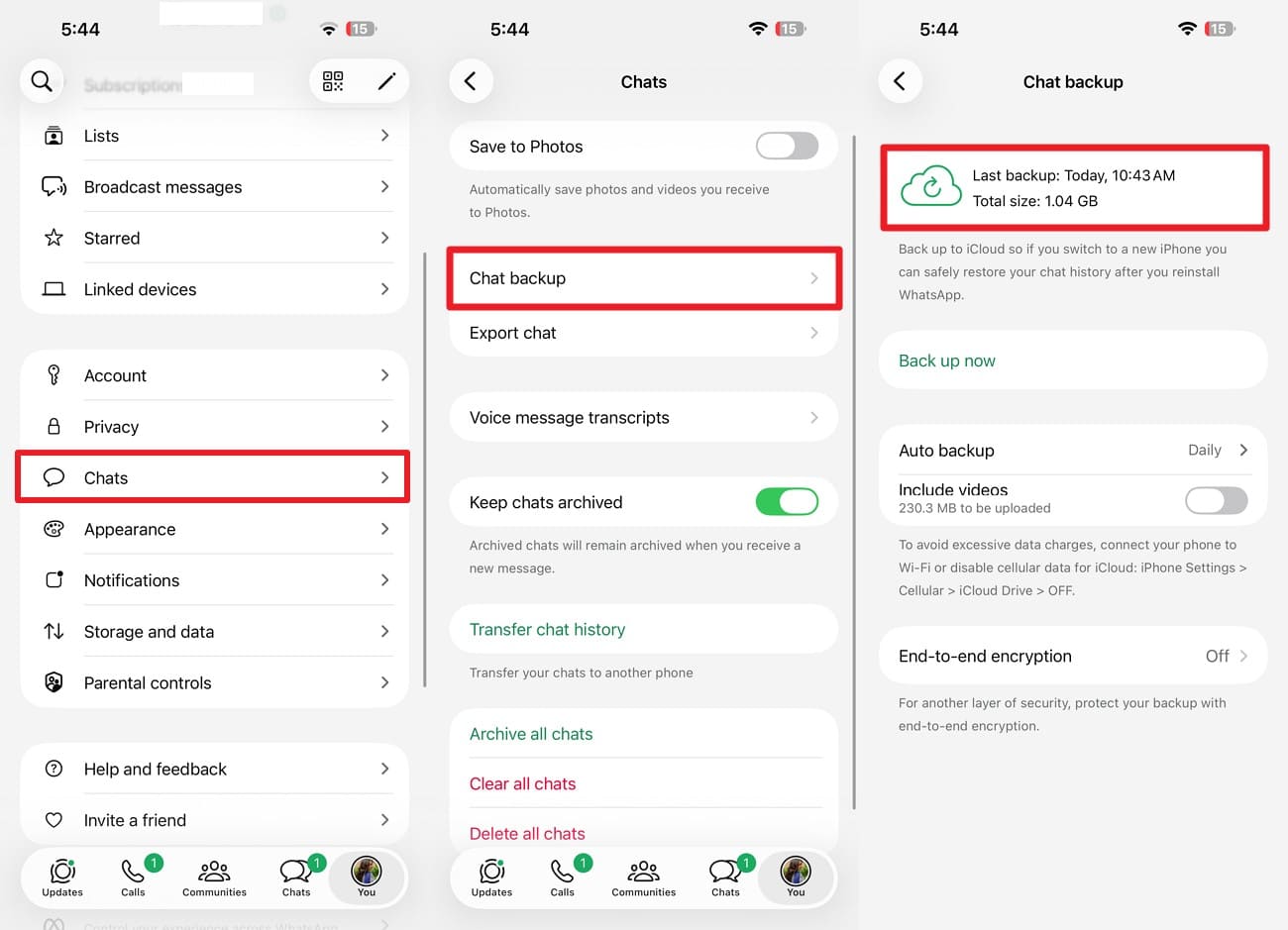
Check WhatsApp “Settings > Chats > Chat Backup” and note the last backup date and time.
-
Step 2
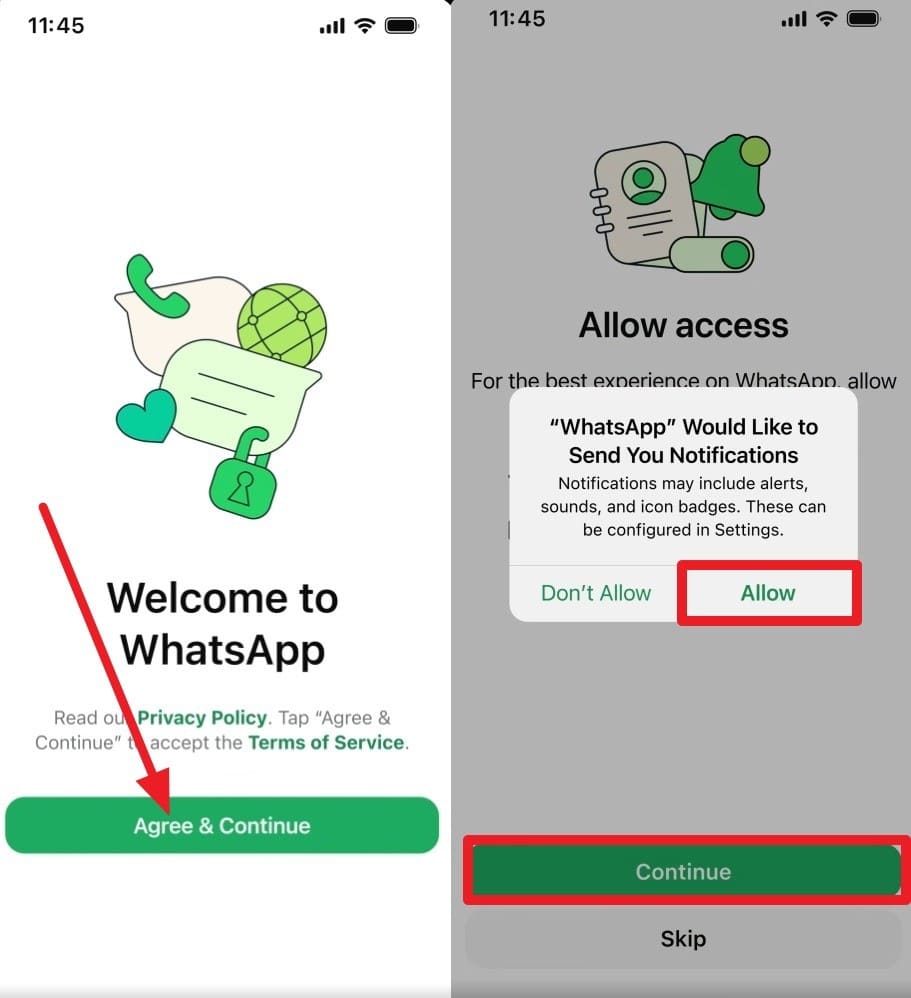
Delete WhatsApp, reinstall it, and tap “Agree & Continue” to add the same phone number. Press the “Next” button, add the code for verification, and choose the “Continue” and “Allow” options.
-
Step 3
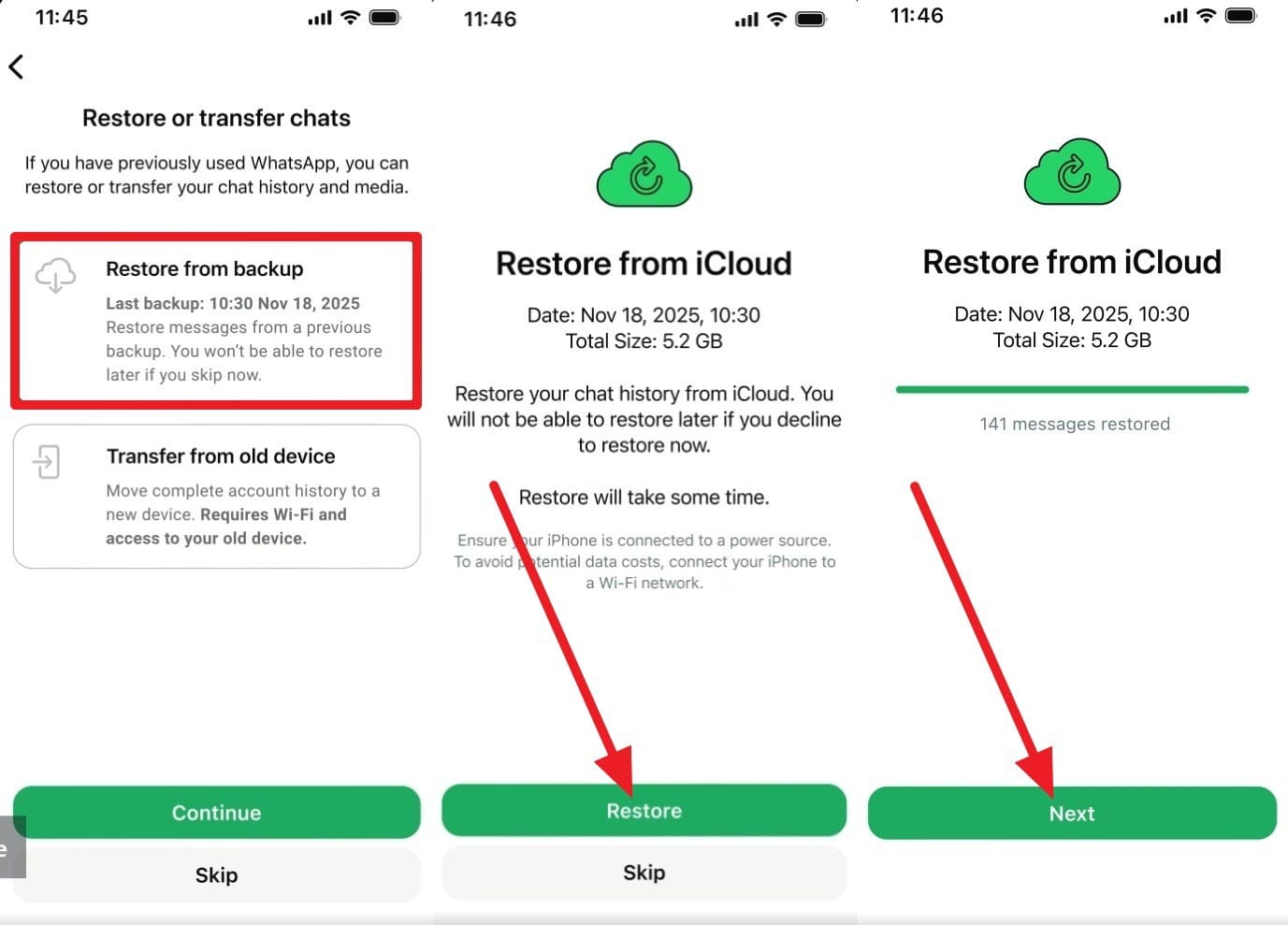
Select the “Restore from Backup” option, and when the backup is detected, press “Restore.” Choose the “Next” option, and when the chat restoration progress bar ends, locate the missing chat.
Method 3. Transfer WhatsApp Chats from the Same Old Phone
If your old phone still works and contains the missing chats, you may be able to transfer WhatsApp history directly to the new phone instead of relying on an older backup. WhatsApp supports chat transfer workflows for supported devices and platforms. This can help when WhatsApp messages missing on the new device are still available on the old phone. For an Android-to-Android WhatsApp transfer, follow these steps:
-
Step 1
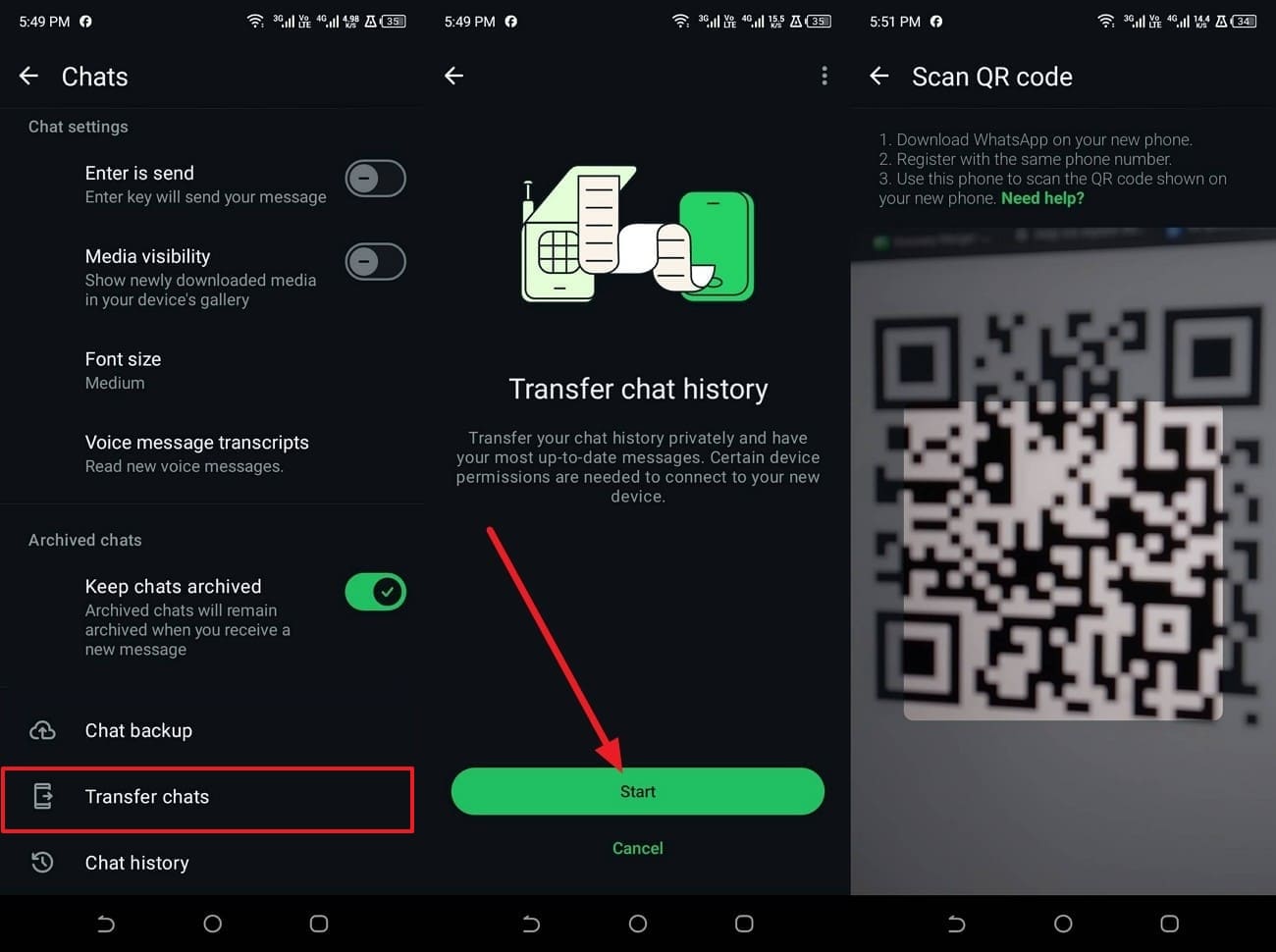
Go to “Settings > Chats > Transfer Chats > Start” and get the QR code scanner interface.
-
Step 2
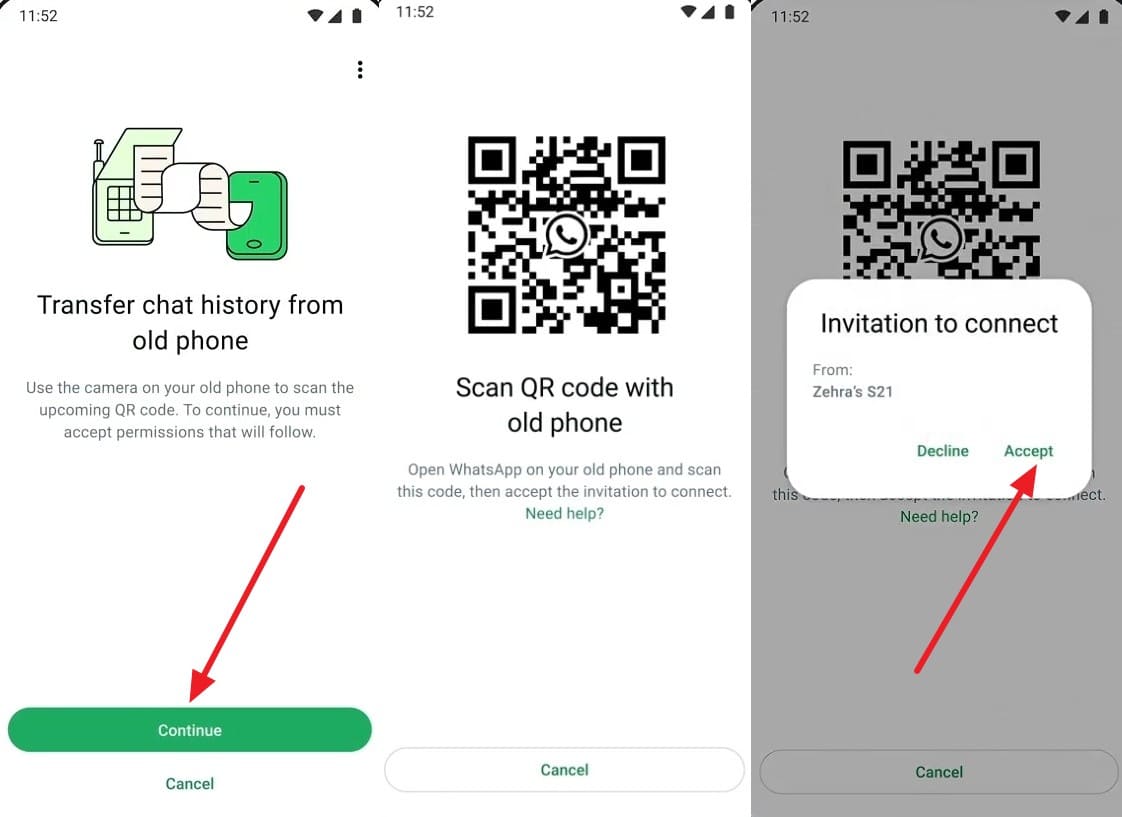
Install the app on the new phone > Choose “Agree & Continue” > Add phone number and code. Press the “Continue” button and get the QR code. Scan it with the old device, then tap “Connect” on the old phone and press “Accept” on the new phone.
-
Step 3
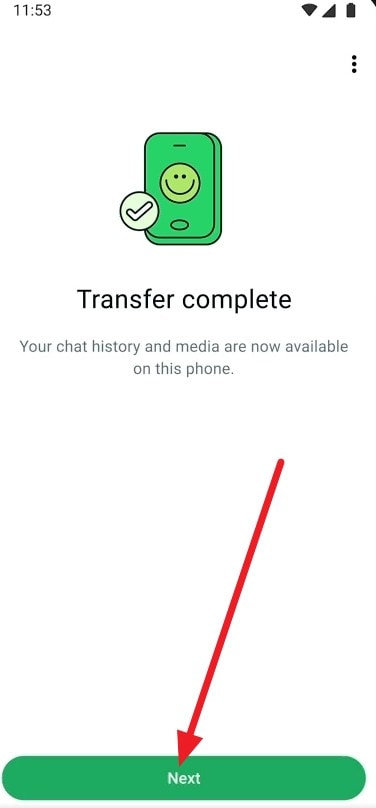
Press the “Next” option when the transfer ends. Open several older conversations and attachments on the new phone before erasing or resetting the old device.
Method 4. Complete a Supported Cross-Platform Chat Transfer
For the WhatsApp chats missing issue, moving chat history between iPhone and Android requires a supported cross-platform transfer method because Google Drive and iCloud backups are not interchangeable. For iPhone-to-Android transfers, WhatsApp supports an official QR-code workflow on compatible devices. Follow these steps to use the QR code method:
-
Step 1
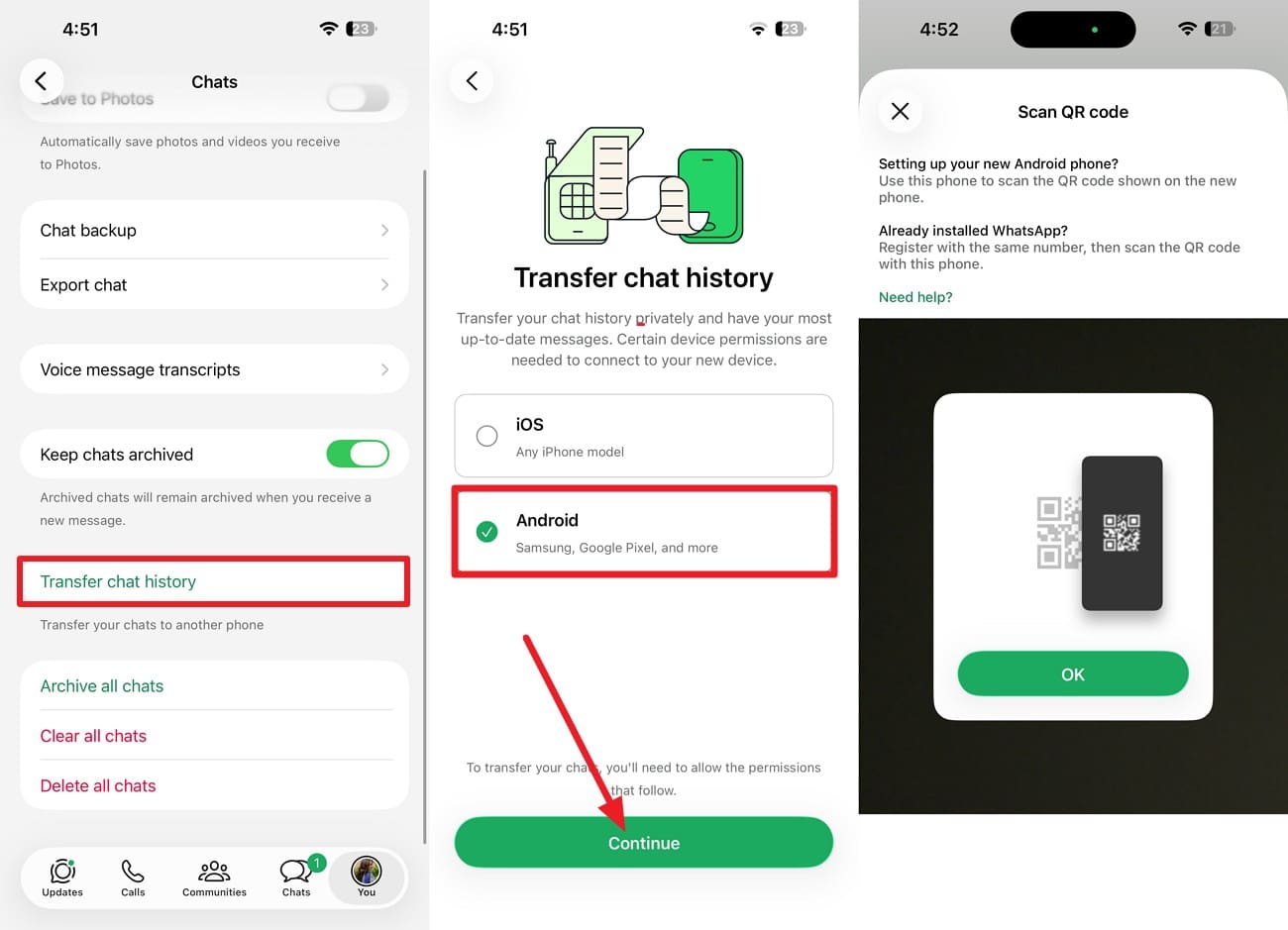
On the iPhone, go to “WhatsApp > Settings > Chats > Transfer Chat History.” Select “Android,” tap “Continue,” and allow the required permissions to open the QR code scanner.
-
Step 2
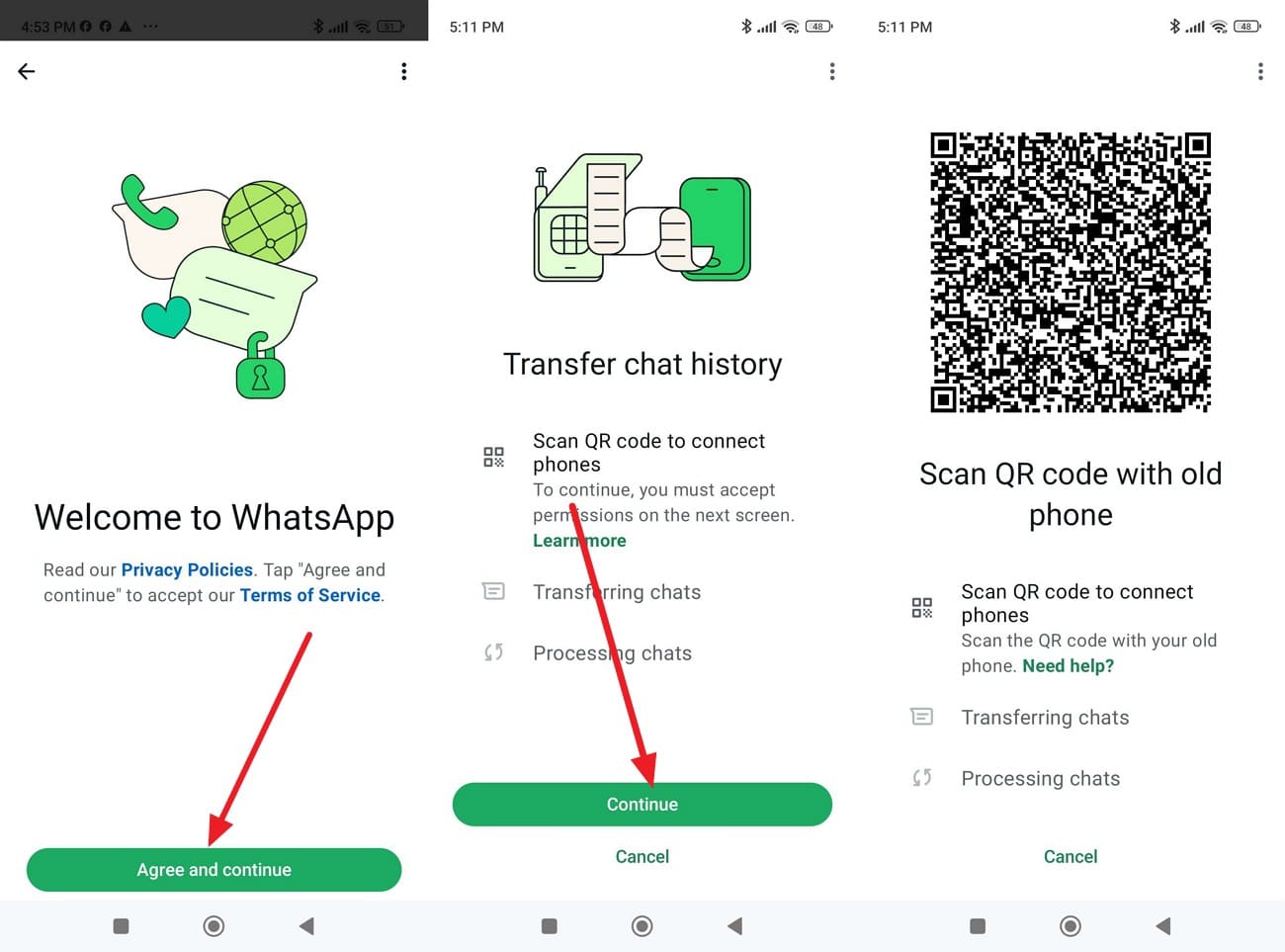
Install the app on Android > Select “Agree & Continue” > Add the phone number used on iPhone and enter the code to verify. Press “Continue” and access the QR code.
-
Step 3
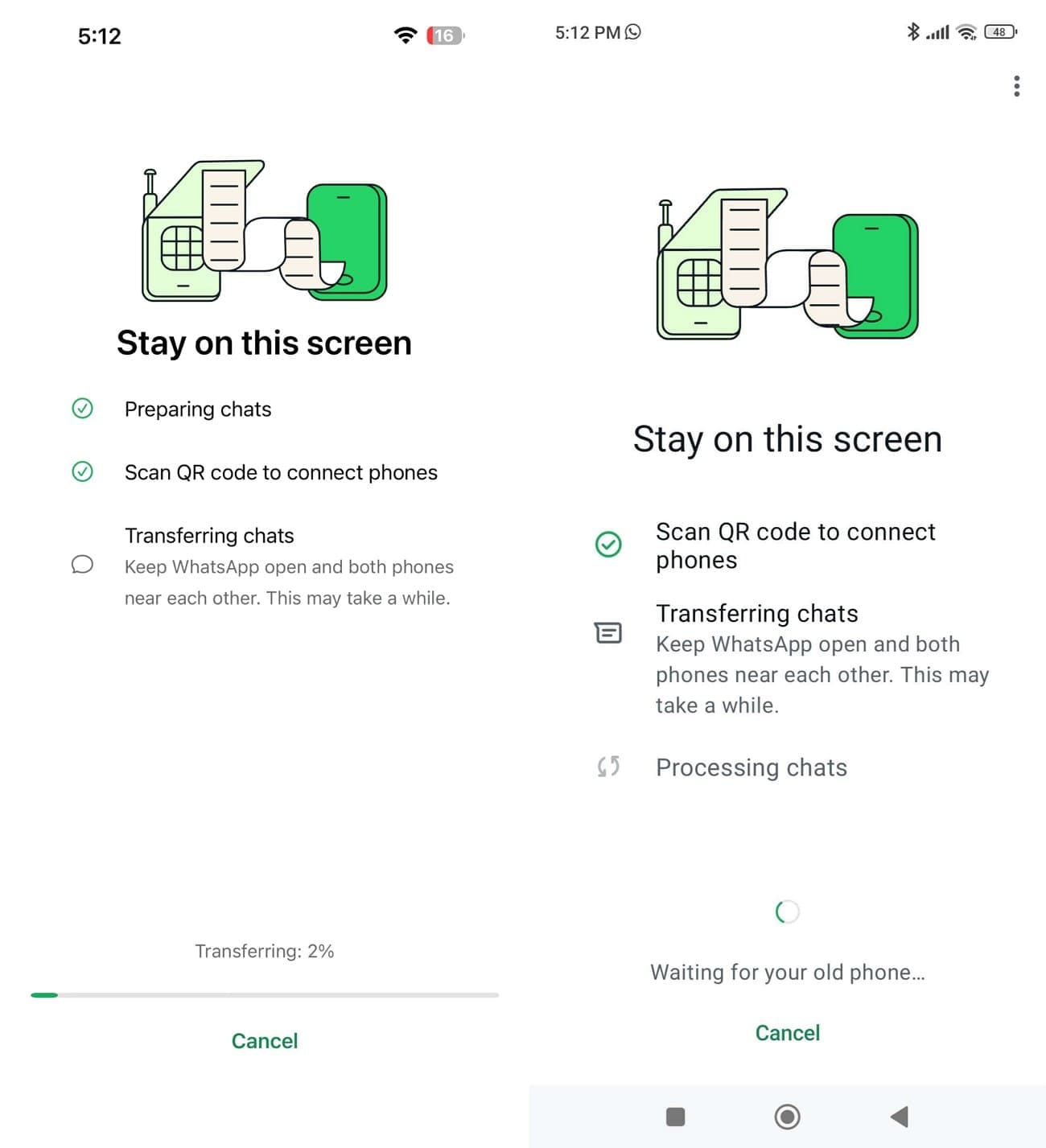
Scan the QR code and wait for the progress bar to finish on both phones. Once done, choose “Next” on Android and see if the missing chat is there.
Part 4. How to Recover Missing or Disappeared WhatsApp Chats Using Dr.Fone
Backup-based recovery depends on an existing backup and cannot restore messages created after it. Direct phone-to-phone transfers can recover newer chats when the old device still contains them. When WhatsApp chats disappeared without a usable backup or old-device copy, Dr.Fone - WhatsApp Data Recovery provides another recovery option for supported Android and iPhone devices.
This tool scans for recoverable WhatsApp chats, photos, videos, and attachments when standard restoration methods are unavailable. You can preview detected messages and media before choosing what to recover. It also supports WhatsApp Business data and View Once content, providing a dedicated option for retrieving available WhatsApp data from supported devices.
 Scan Android phones and tablets directly.
- Preview and recover only what you want.
- Supports WhatsApp, photos, videos, contacts, and more.
- Works with 6000+ Android devices.

Guide on How to Recover WhatsApp Content from an Android Phone
To resolve the WhatsApp messages missing issue on Android, use Dr.Fone and follow these steps to scan and recover available WhatsApp data:
-
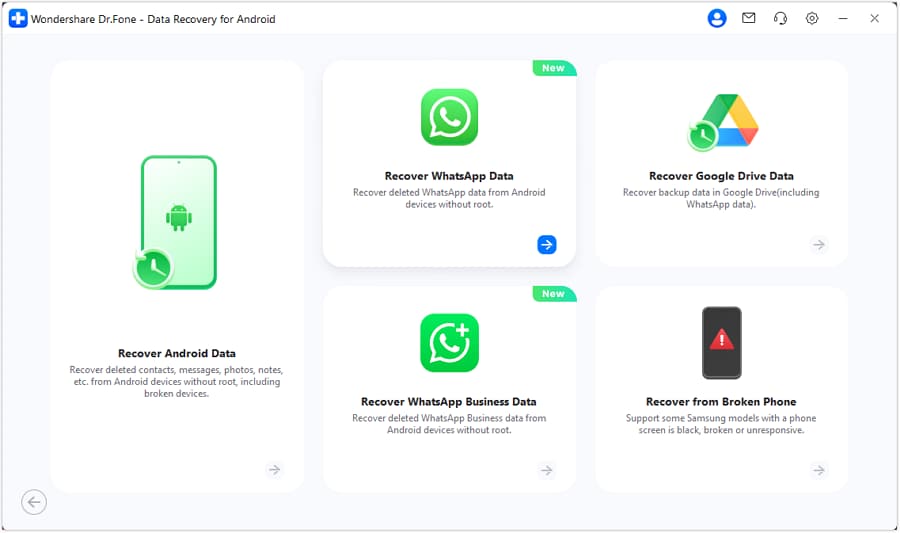
Step 1 Select the WhatsApp Data Recovery Option
Open the Data Recovery tool, select “Android,” and choose the “Recover WhatsApp Data” mode to begin the recovery process.
-
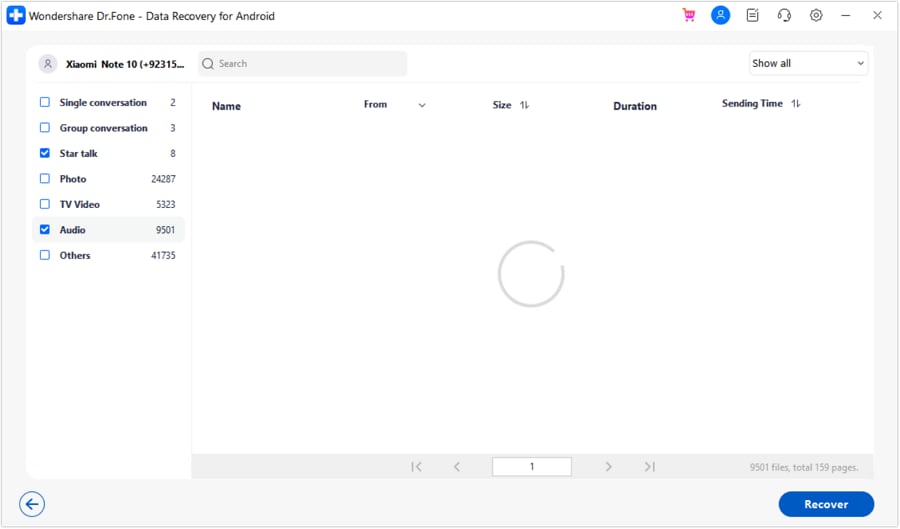
Step 2 Select WhatsApp and Start the Scan
Once the phone is detected, follow the on-screen instructions to back up the data. Press the "Next" button, choose the chats you want to restore, and tap "Recover."
-
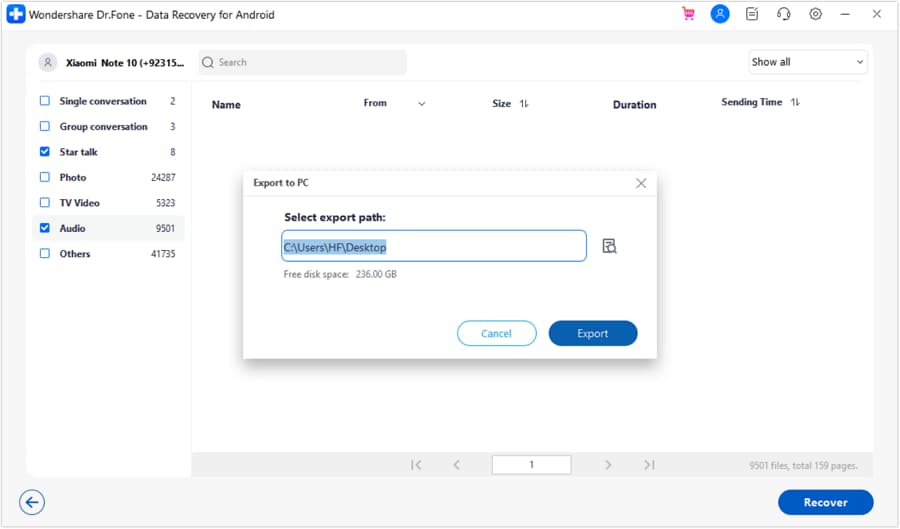
Step 3 Export the Recovered WhatsApp Data
Choose the desired export location in the pop-up window, then click the “Export” button to save the recovered WhatsApp data.




Part 5. Prevent WhatsApp Chats from Disappearing Again
To prevent WhatsApp chat disappearance issues in the future, follow these practical tips to protect your conversations and keep recent chat history available:
| Tip | What to Do |
|---|---|
| Enable Automatic Backups | Schedule regular WhatsApp backups to protect your recent conversations. |
| Check the Backup Date | Confirm the latest backup includes your recent chat history before relying on it. |
| Verify Before Reinstalling | Make sure a usable backup exists before uninstalling or reinstalling WhatsApp. |
| Complete Phone Transfers | Verify chats and media on the new phone before erasing the old device. |
| Review Disappearing Messages | Check whether a 24-hour, 7-day, or 90-day disappearing message timer is enabled. |
| Check Archived and Locked Chats | Search archived and locked conversations before assuming a missing chat was deleted. |
Conclusion
Rule out hidden chats before assuming they are permanently deleted. Check archived and locked conversations first, as the missing chat may still be available. When a chat is genuinely lost and available backups cannot restore it, a dedicated recovery option may help.
Dr.Fone - WhatsApp Data Recovery can scan supported devices for recoverable WhatsApp data, including messages and attachments. When WhatsApp messages disappear without a recent backup, it provides another option for finding and recovering available chat data.
FAQ
-
1. Can WhatsApp chats disappear without being deleted?
Yes. Archiving or Chat Lock can hide conversations without deleting their messages. A Secret Code can also hide the Locked Chats folder. Disappearing messages work differently, automatically removing new messages after the selected timer expires. -
2. Can I restore WhatsApp chats without reinstalling the app?
Yes, in some cases. You can transfer chats directly from an old phone without reinstalling WhatsApp. However, restoring an existing Google Account or iCloud chat backup generally requires running WhatsApp’s setup and restore process. -
3. Why are some WhatsApp chats missing after restoring the correct backup?
Some chats may remain missing because they were created after the backup or were not included when it was made. Media may also restore more slowly than messages, so allow time before assuming the restoration is incomplete. -
4. Can I recover WhatsApp messages newer than my latest backup?
Not through a backup restore, because it only recovers messages saved when that backup was created. Newer messages may still exist on the device and require another recovery method to retrieve them.
 Add Wondershare Dr.Fone as a preferred source on Google