Recover photos, messages, WhatsApp, and more — no backup
needed.
Recover photos, messages, WhatsApp, and more — no backup
needed.

 100% Security Verified | No Subscription Required | No Malware

 :
: 
 ChatGPT
 Perplexity
 Gemini
 Claude
 Grok
Grok
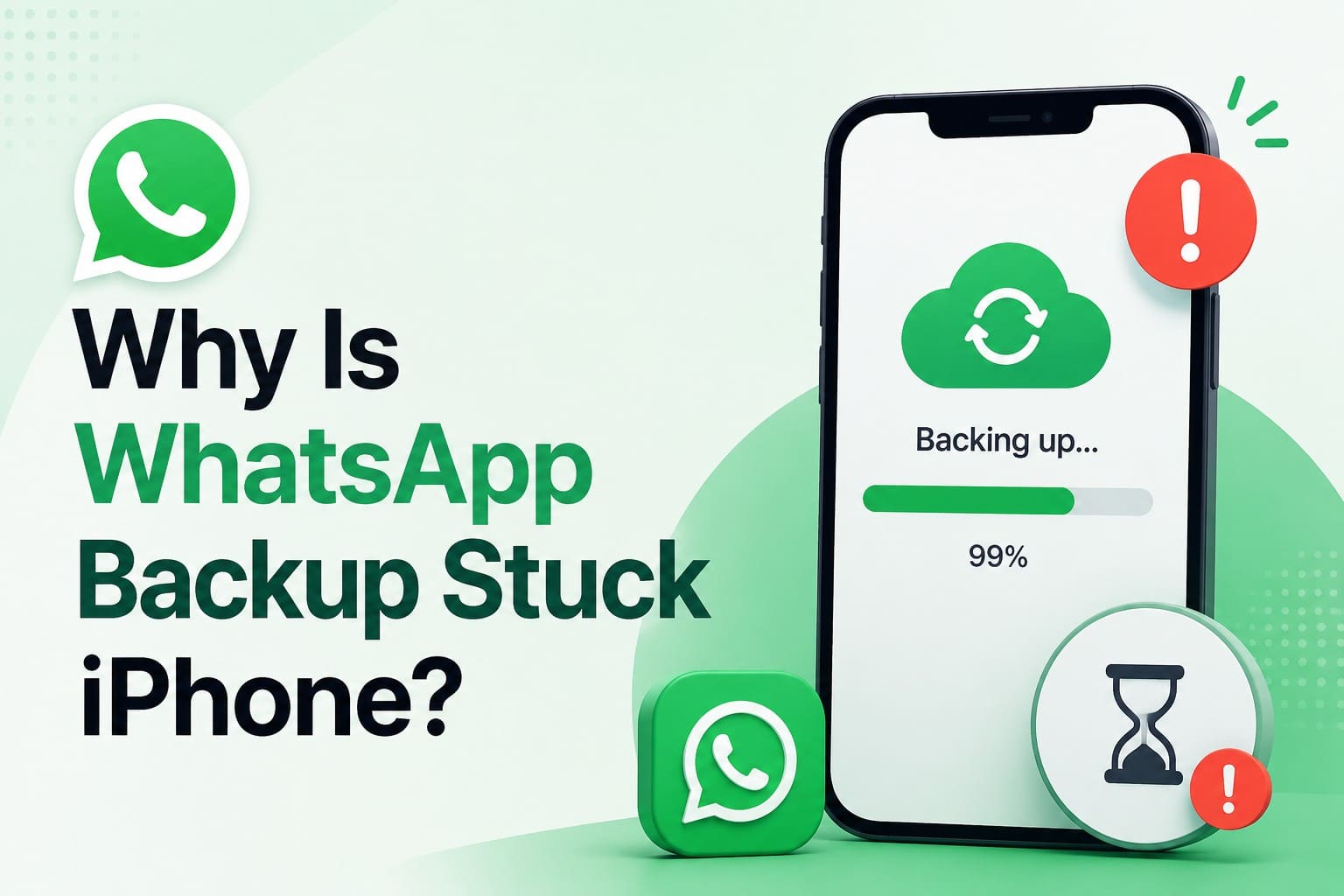
When your chat progress freezes at 99% or stays stuck on the preparation screen, a WhatsApp backup stuck iPhone issue can quickly become frustrating. The problem can stem from limited iPhone or iCloud storage, unstable Wi-Fi, incorrect iCloud settings, or temporary software issues. Identifying the likely cause first can help you avoid unnecessary changes that may put recent chats at risk.
This guide explains where your backup may be failing and walks you through 9 targeted fixes, from quick checks to more advanced solutions. You'll also learn how Dr.Fone - Data Recovery (iOS) can help retrieve missing WhatsApp messages if your backup fails and chats are already lost.
In this article
- Part 1. WhatsApp Backup Stuck on iPhone: Common Causes
- Part 2. 9 Fixes for WhatsApp Backup Stuck on iPhone
- Fix 1. Force Close and Reopen WhatsApp
- Fix 2. Restart Your iPhone
- Fix 3. Check the iCloud System Status and Retry Later
- Fix 4. Switch to a Stable Wi-Fi Connection
- Fix 5. Enable iCloud Drive and WhatsApp in iCloud
- Fix 6. Start a Manual WhatsApp Backup
- Fix 7. Exclude Videos to Reduce the Backup Size
- Fix 8. Free Up iPhone and iCloud Storage
- Fix 9. Update WhatsApp and iOS
- Part 3. What to Do Before Reinstalling WhatsApp or Deleting Anything
- Part 4. What If the Backup Failed and Your Chats Are Already Missing? Use Dr.Fone
- Part 5. Prevent WhatsApp Backup from Getting Stuck Again
Part 1. WhatsApp Backup Stuck on iPhone: Common Causes
Review the following points and learn the top causes for the WhatsApp not backing up issue on iPhone:
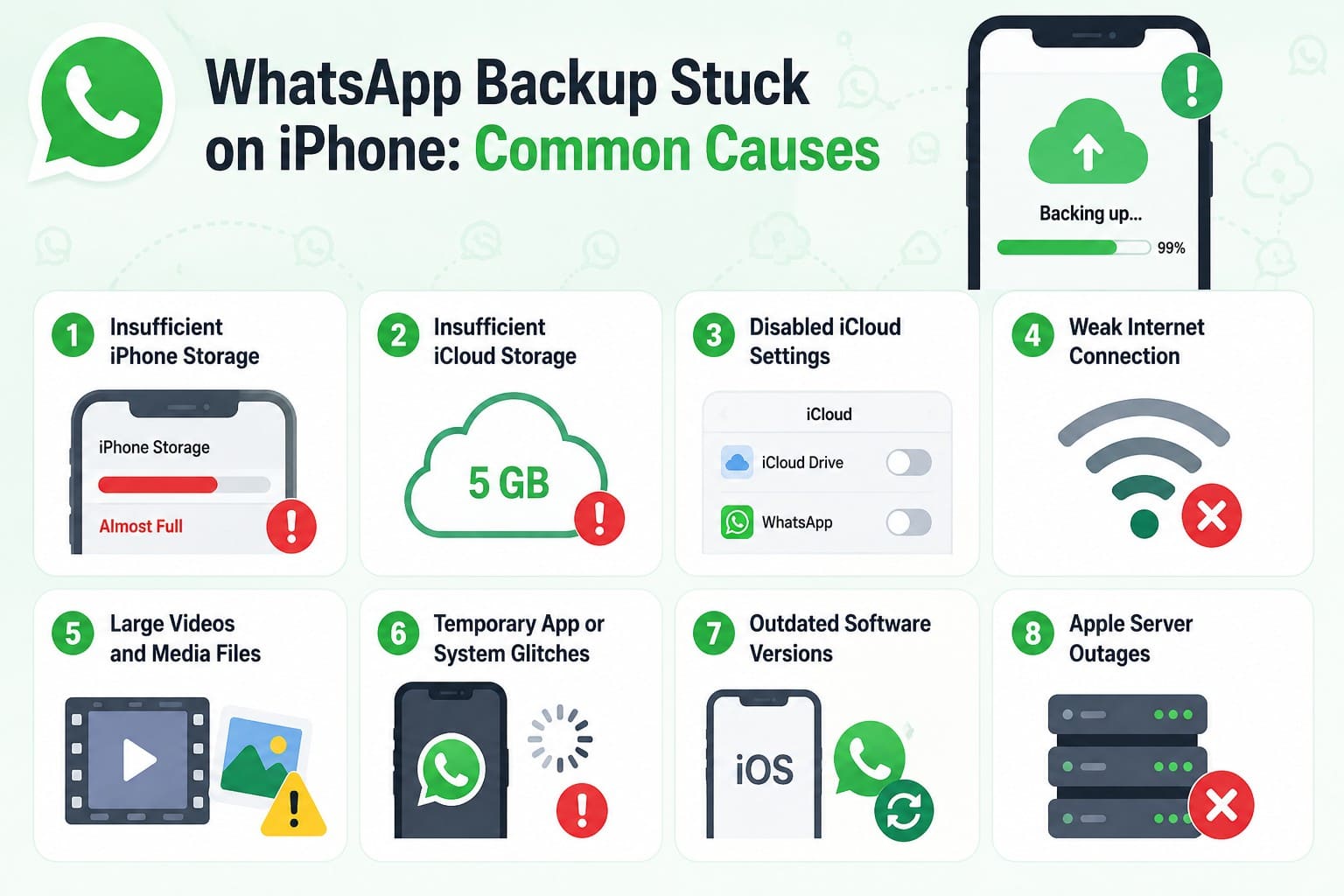
- Insufficient iPhone Storage: Limited free space on your iPhone can prevent WhatsApp from preparing a backup properly. WhatsApp requires sufficient local storage in addition to available iCloud space.
- Low iCloud Storage: Apple provides 5 GB of free iCloud storage, shared across backups, photos, files, and other iCloud data. Without enough available space, WhatsApp may be unable to complete a new backup.
- Disabled iCloud Settings: iCloud Drive must be enabled for WhatsApp backups, and WhatsApp needs permission to use iCloud. If the required settings are disabled, WhatsApp cannot successfully save its backup to iCloud.
- Weak Internet Connection: WhatsApp needs a stable internet connection to upload chat history and media to iCloud. Weak Wi-Fi or repeated connection drops can interrupt the upload and leave backup progress appearing stuck.
- Large Videos and Media Files: High-resolution photos and lengthy video attachments can significantly increase the total backup size. A larger backup takes longer to prepare and upload, increasing the likelihood of interruptions.
- Temporary App or System Glitches: Temporary WhatsApp, iOS, or background-process issues can interrupt an active backup unexpectedly. Such problems may cause the backup to stop progressing until the app or device is restarted.
- Outdated Software Versions: Running an outdated version of WhatsApp or iOS may introduce compatibility problems or leave known software bugs unresolved. Updating both can help maintain reliable WhatsApp and iCloud functionality.
- Apple Server Outages: Temporary problems affecting Apple's iCloud services can prevent WhatsApp from completing an iCloud backup. Check Apple System Status to see whether an affected iCloud service is currently unavailable.
Part 2. 9 Fixes for WhatsApp Backup Stuck on iPhone
Once you identify the likely cause, use the 9 fixes below to resolve the WhatsApp backup stuck issue. Check the table first to find the most relevant solution for your situation.
| What You See | Most Likely Cause | Start At |
|---|---|---|
| Stuck on "Preparing" | Insufficient iPhone storage | Fix 8 |
| Frozen at 99% | Unstable or interrupted connection | Fix 4 |
| "Estimating Time Remaining" | Large videos increasing backup size | Fix 7 |
| No Progress at All | iCloud Drive or WhatsApp access disabled | Fix 5 |
| Worked Yesterday, Not Today | Temporary iCloud service problem | Fix 3 |
Fix 1. Force Close and Reopen WhatsApp
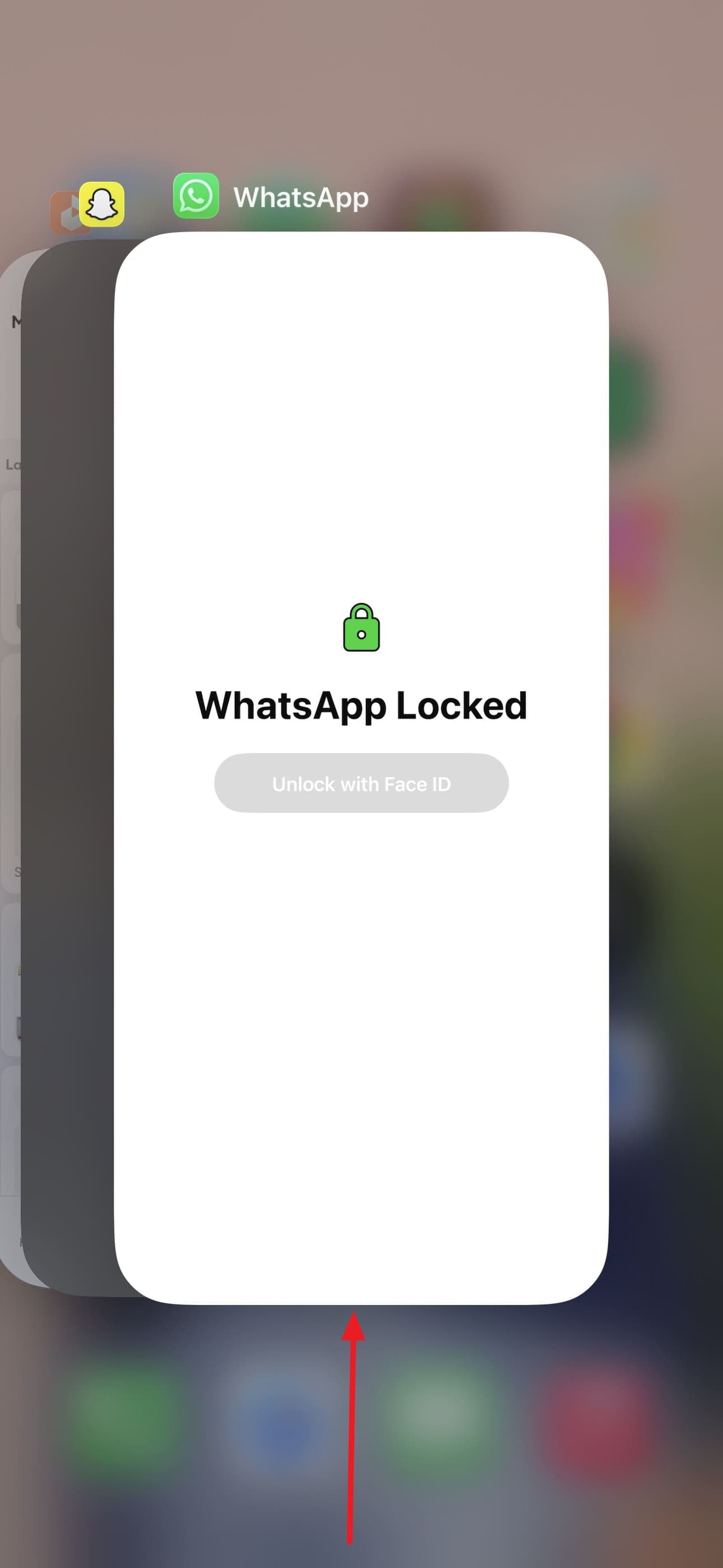
Force-closing WhatsApp ends the current app session and may clear a temporary hang affecting the backup process. Reopening the app also lets you retry the iCloud connection and check whether progress resumes. Since this is one of the quickest options, use it first when the WhatsApp backup not working issue appears.
Step 1. Swipe up from the bottom of the screen and pause, then swipe the "WhatsApp" upward.
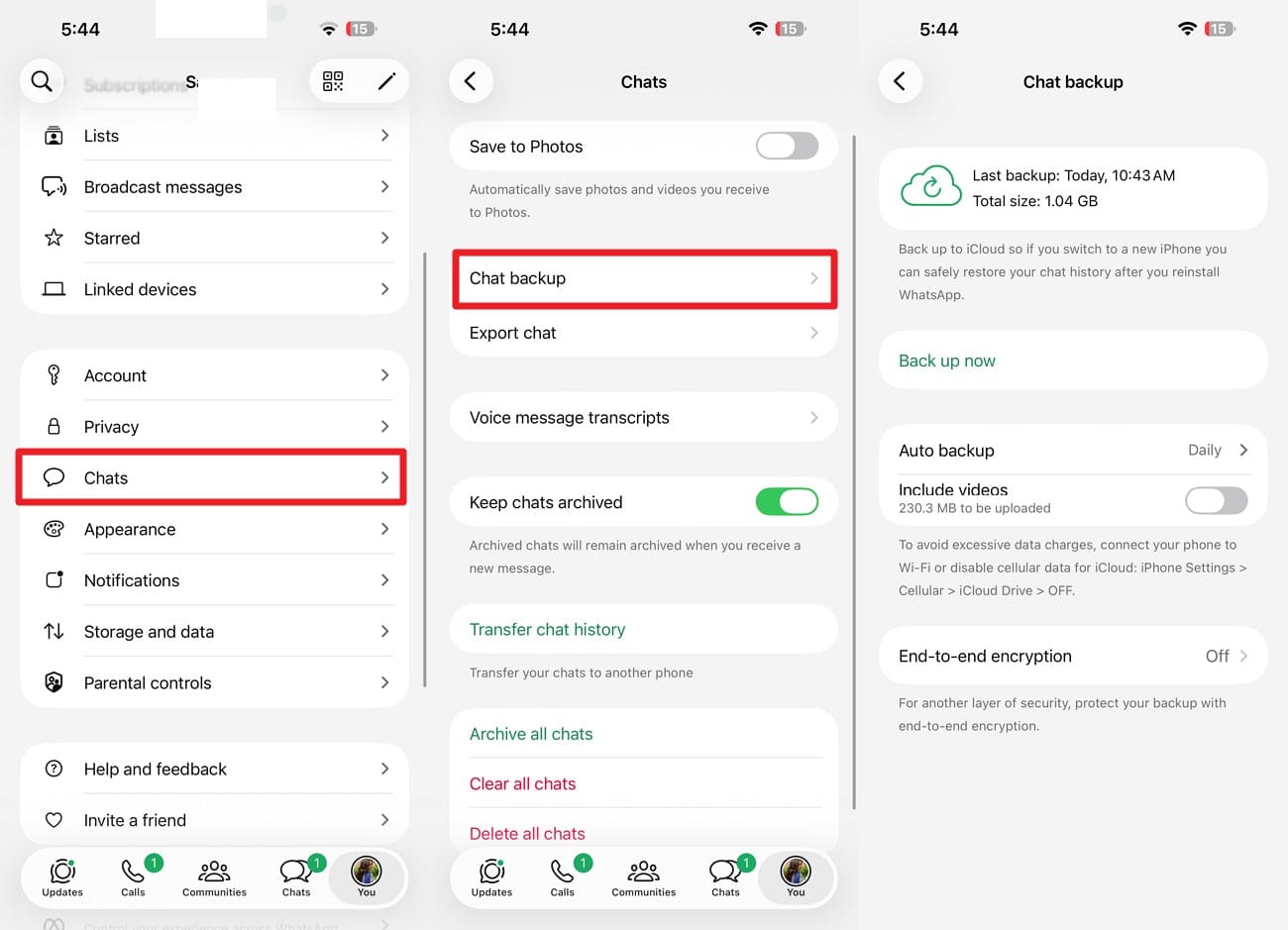
Step 2. Reopen WhatsApp, go to "Settings > Chats > Chat Backup," and check whether progress has moved.
Fix 2. Restart Your iPhone
If reopening WhatsApp does not help, restarting the iPhone can clear temporary system or network processes affecting the backup. It also gives iOS a fresh start before you try more advanced fixes. Try these steps to check whether the WhatsApp backup stuck issue clears after a restart:
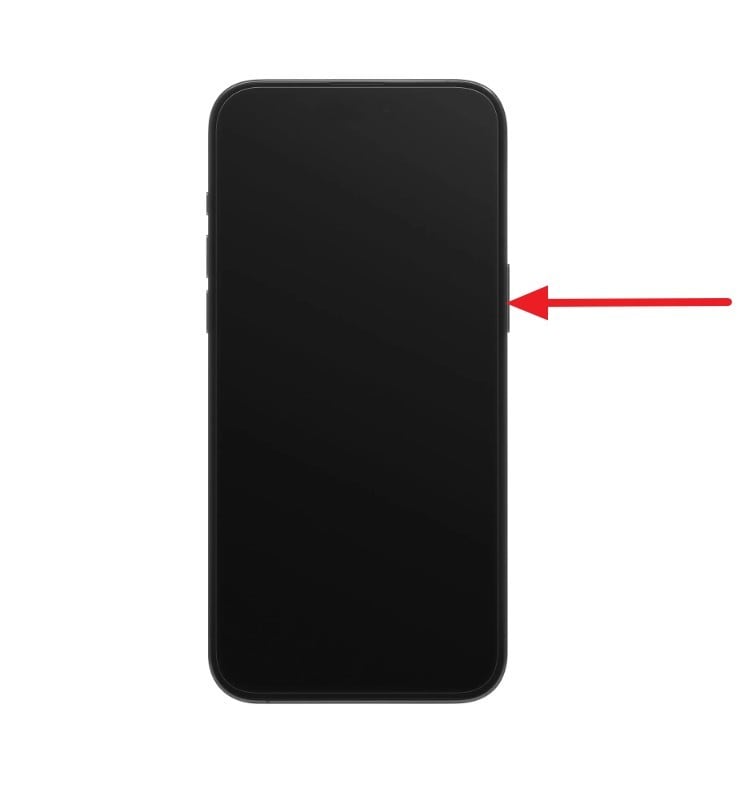
Step 1. Hold the "Power" and "Volume Up" buttons and slide the "Slide to Power Off" slider.
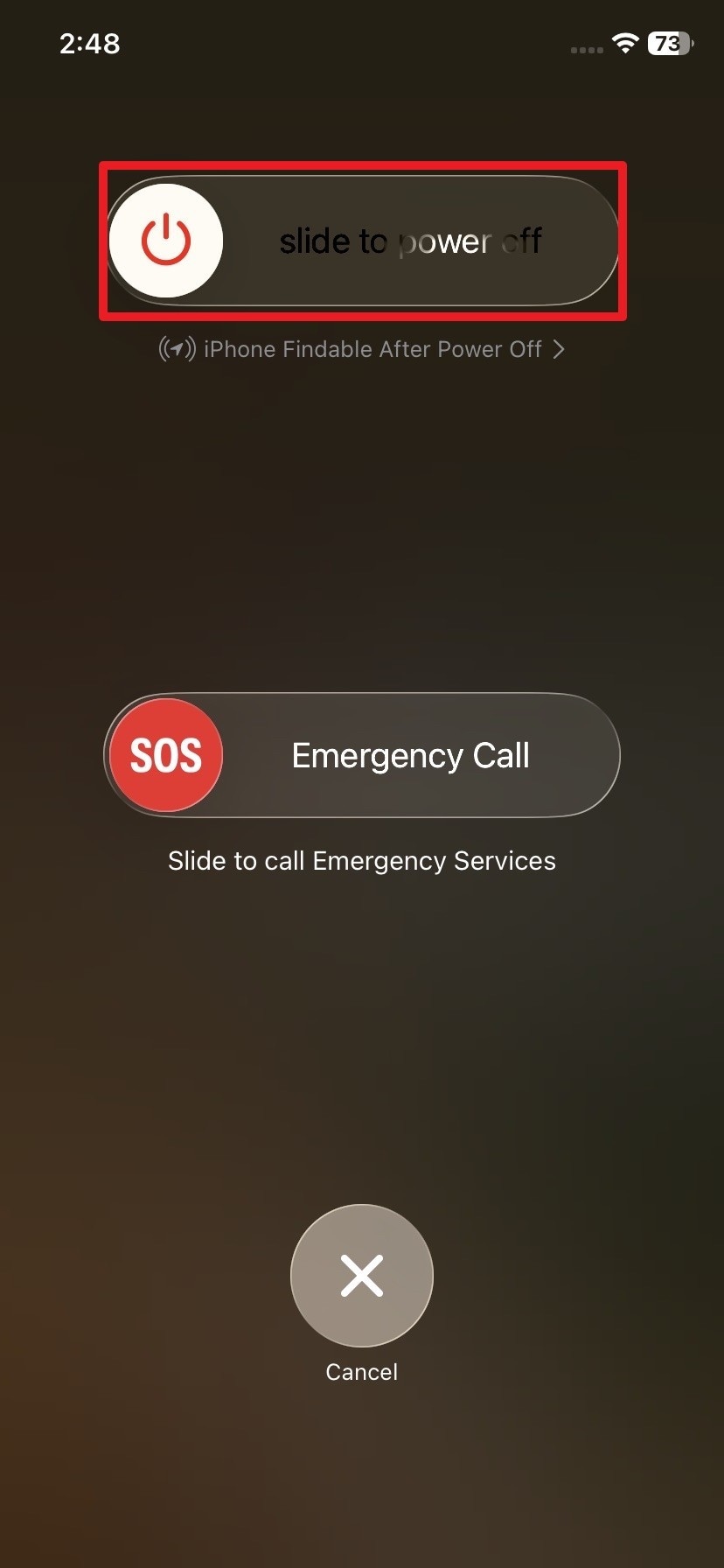
Step 2. After 30 seconds, press the "Power" button to power on the phone and check if the WhatsApp backup stuck iPhone issue persists.
Fix 3. Check the iCloud System Status and Retry Later
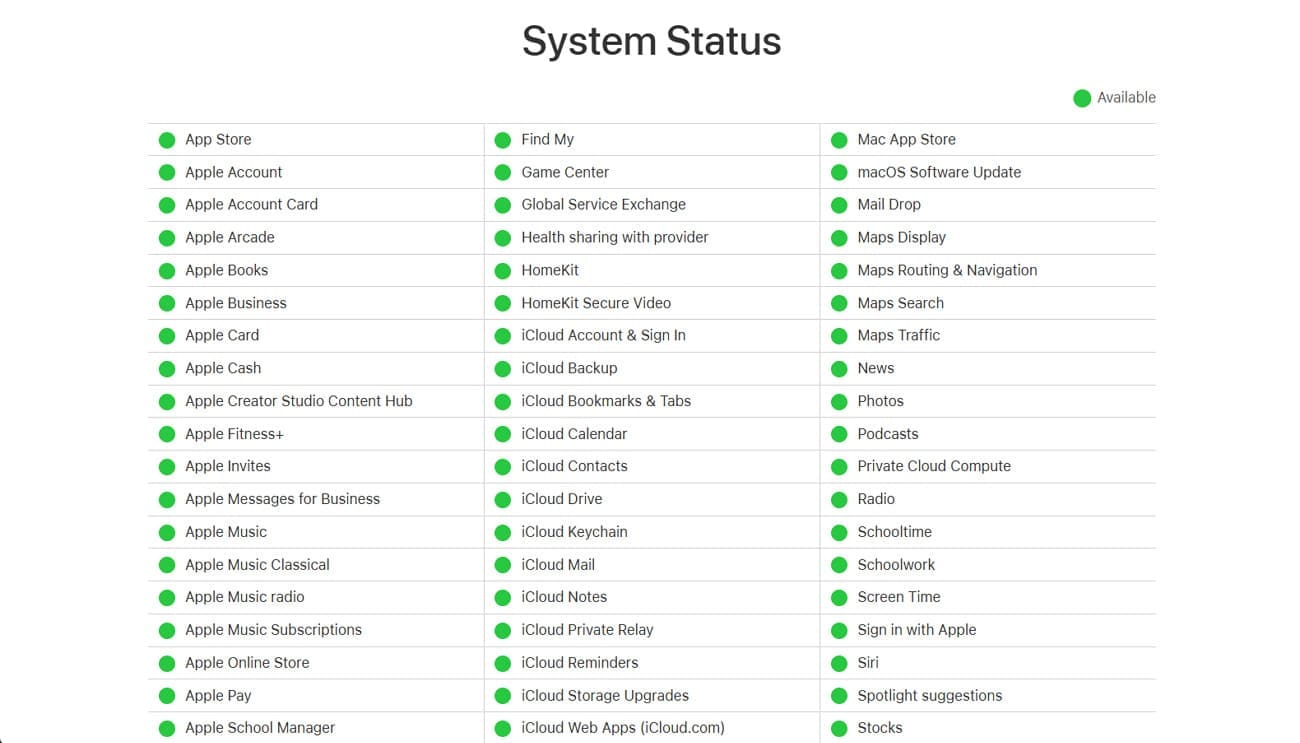
Before changing settings, check Apple's System Status page for iCloud Drive and iCloud Backup outages. If an active issue or maintenance event is reported, wait for service restoration before retrying your backup. This avoids unnecessary troubleshooting when the problem is temporarily on Apple's side.
Fix 4. Switch to a Stable Wi-Fi Connection
With Apple's services confirmed to be working, switch to a stable connection to resolve the WhatsApp backup not working problem. A reliable Wi-Fi network can reduce interruptions while large chats and media are uploaded to iCloud. Backup speed still depends on your connection quality and total backup size. Keep the iPhone connected to power during a lengthy backup.
Fix 5. Enable iCloud Drive and WhatsApp in iCloud
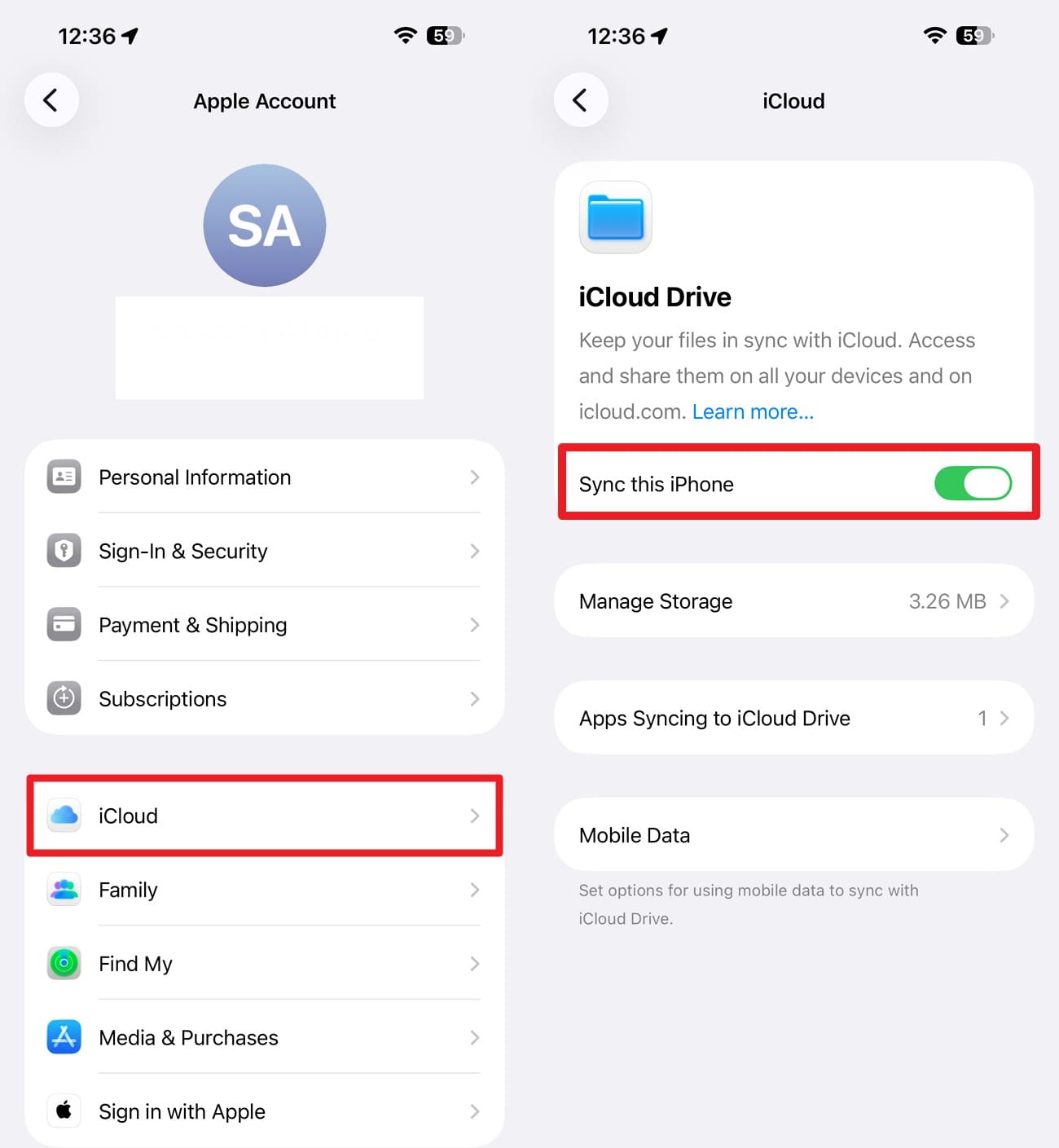
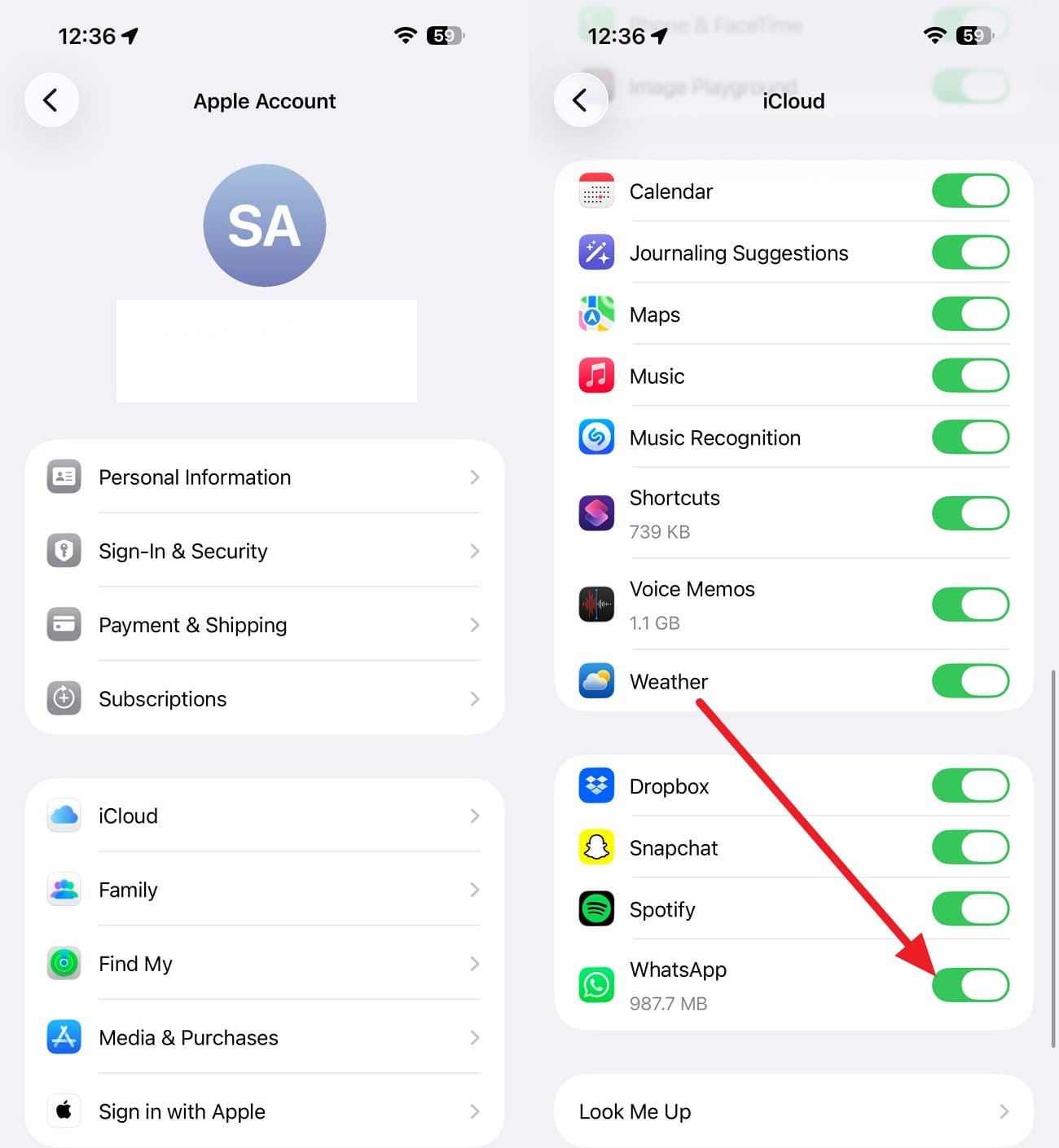
If iCloud Drive or WhatsApp access is turned off, backups may fail before any data reaches iCloud. Review both settings under your Apple account before retrying. Enabling the required options gives WhatsApp access to your iCloud storage. This allows chats and supported media to upload correctly during the next backup. Use the steps below to verify both settings before starting another backup:
Step 1. In the settings, tap on your name and choose "iCloud > See All > iCloud Drive" to ensure the "Sync This iPhone" option is enabled.
Step 2. Go back to the iCloud interface, scroll down, and toggle on the "WhatsApp" option.
Fix 6. Start a Manual WhatsApp Backup
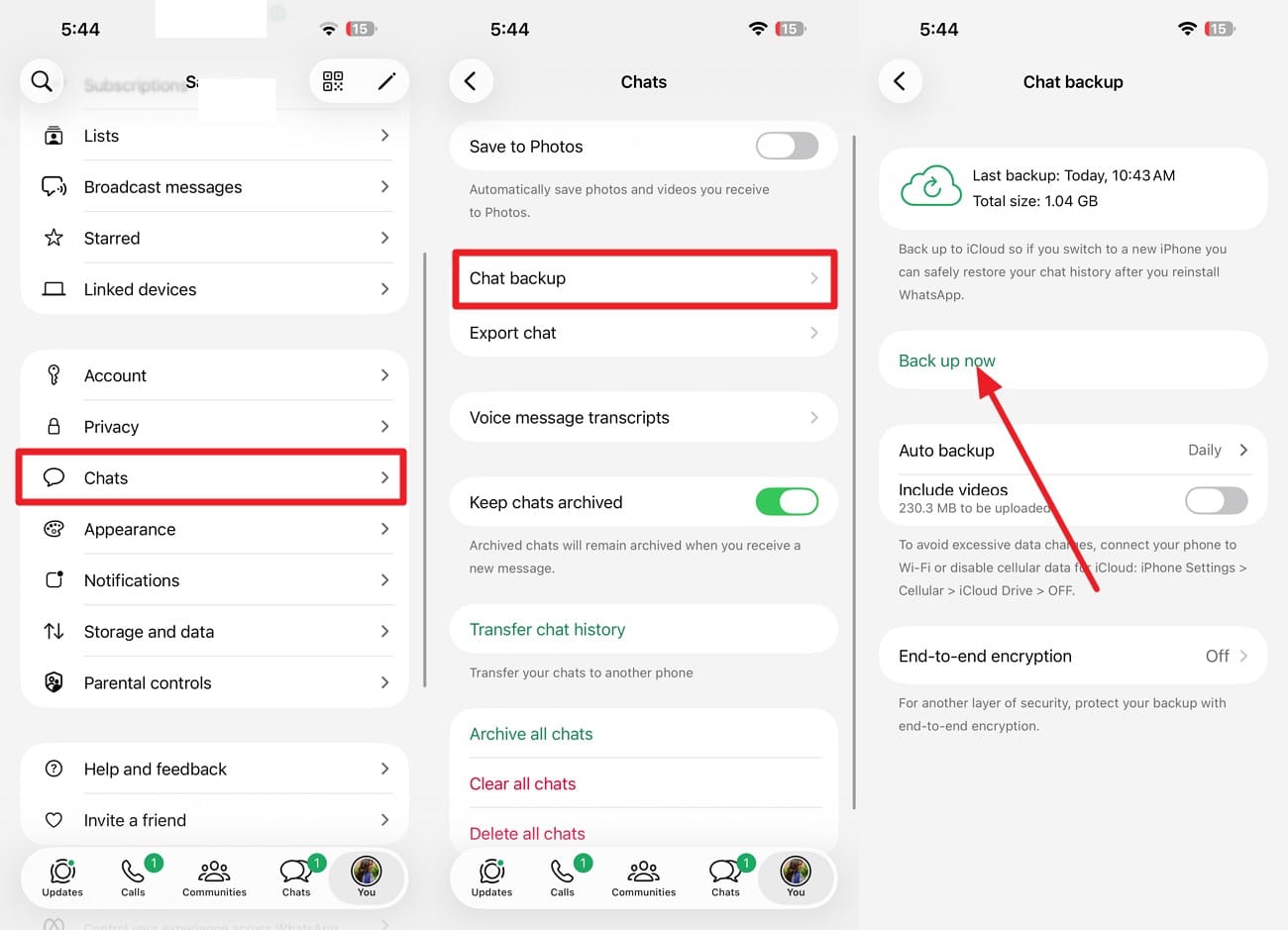
With the settings confirmed, a stalled automatic backup may simply need a fresh manual attempt. Starting one yourself also lets you monitor the progress directly. A successful manual backup does not always mean the automatic schedule caused the issue. Follow the instructions below to retry the WhatsApp not backing up process and check whether the backup completes normally:
Instructions. Go to WhatsApp settings, select "Chats > Chats Backup > Back Up Now."
Fix 7. Exclude Videos to Reduce the Backup Size
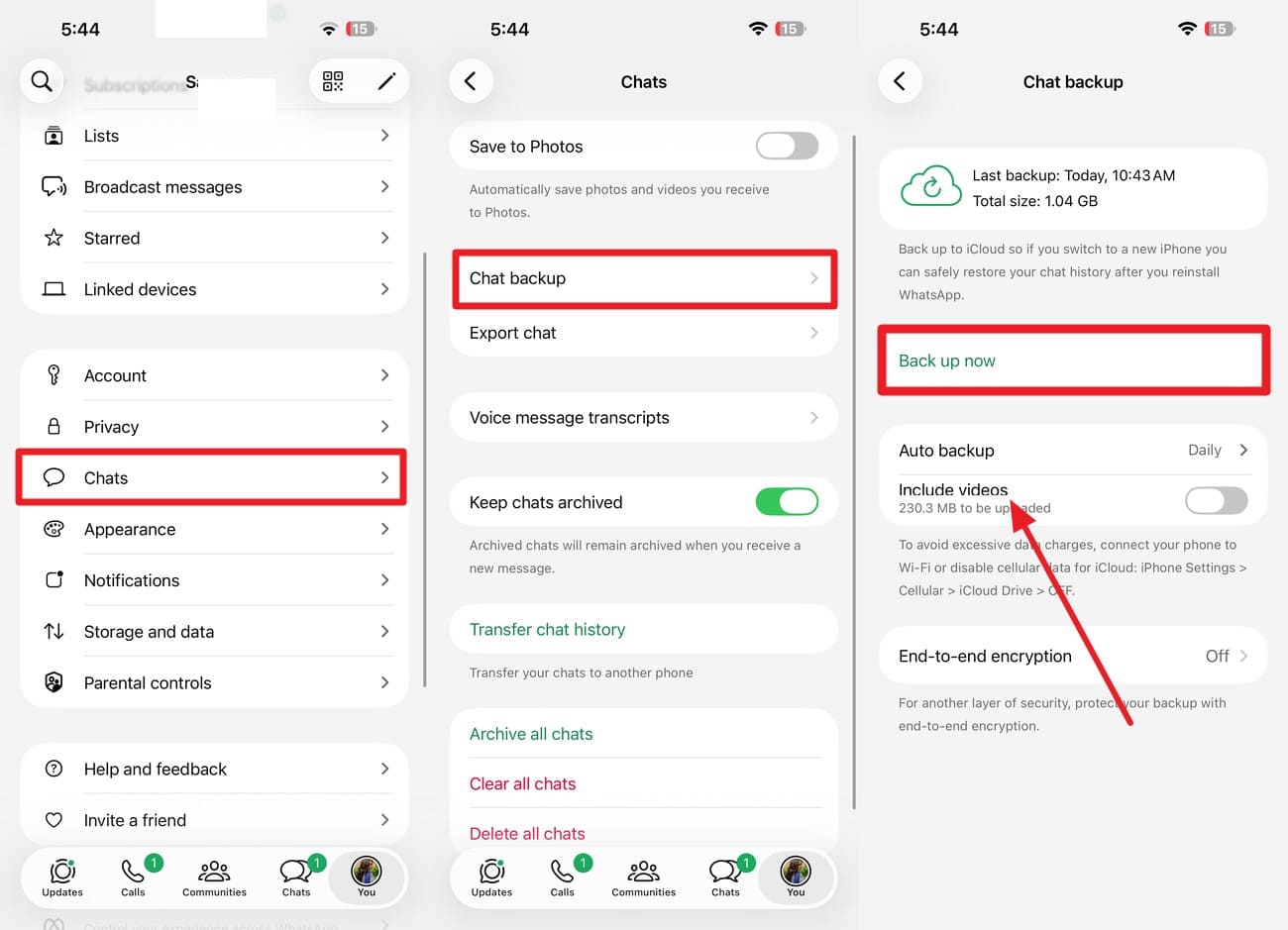
If the manual backup also stalls, a large backup size may be contributing to the problem. Removing videos can reduce the amount of data WhatsApp must prepare and upload. A smaller backup can also lower the risk of interruptions and use less iCloud storage. To address the WhatsApp backup stuck issue, use the option below to exclude videos before retrying.
Instructions. Choose "Chats > Chats Backup" in the WhatsApp Settings and toggle off the "Include Videos" option. Tap "Backup Now" again and compare the reported size with your previous attempt.
Fix 8. Free Up iPhone and iCloud Storage
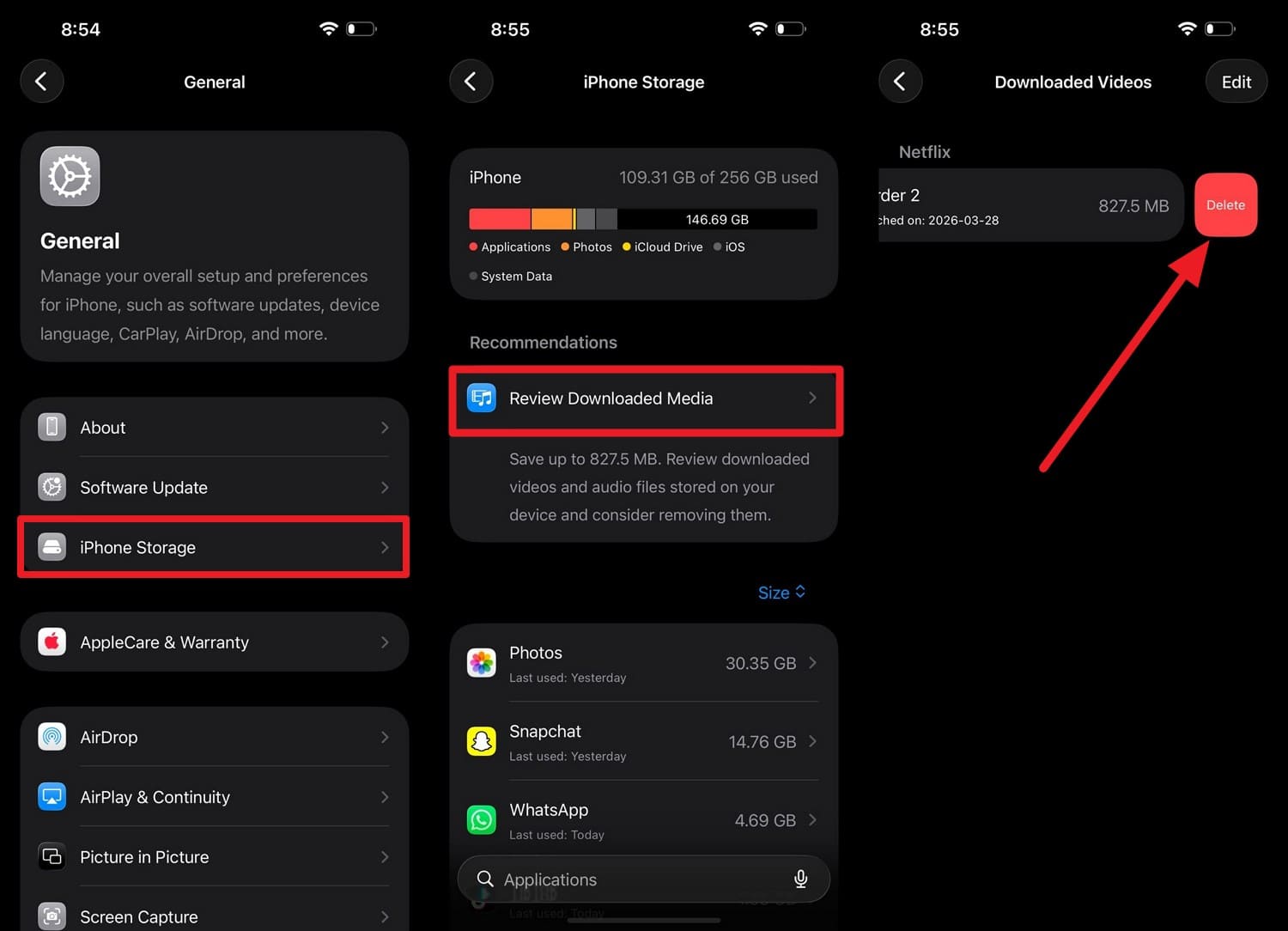
Apple confirms that iPhone and iCloud storage are managed separately. A WhatsApp backup may stall when either location lacks enough free space. Clearing unnecessary files can give WhatsApp room to prepare and upload your chat data properly. Check both storage locations and free up space where needed to resolve the WhatsApp backup stuck iPhone issue.
Step 1. Open "Settings > General > iPhone Storage" and review how much free space remains. Remove or offload unnecessary apps and files if storage is low.
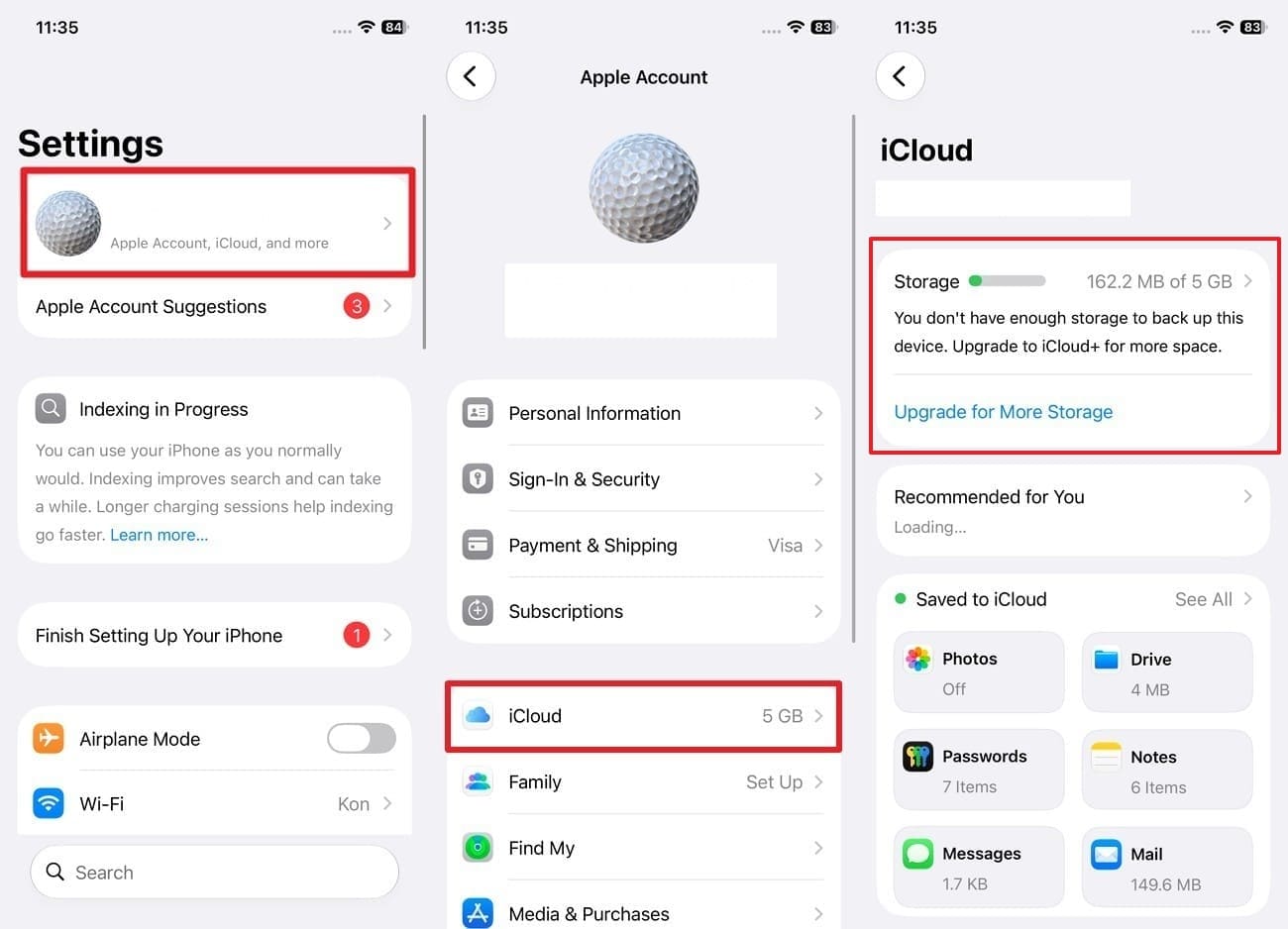
Step 2. Check your iCloud usage through "Settings > Your Name > iCloud > Storage." If space is limited, remove unnecessary iCloud Drive content or other data before starting the WhatsApp backup again.
Fix 9. Update WhatsApp and iOS
New iOS and WhatsApp versions can include bug fixes and compatibility improvements that affect backup reliability. Updating both may resolve software issues that interrupt or stall the process. It can also improve how WhatsApp works with current iCloud services. Use the update options below to address the WhatsApp backup stuck issue and retry the backup afterward.
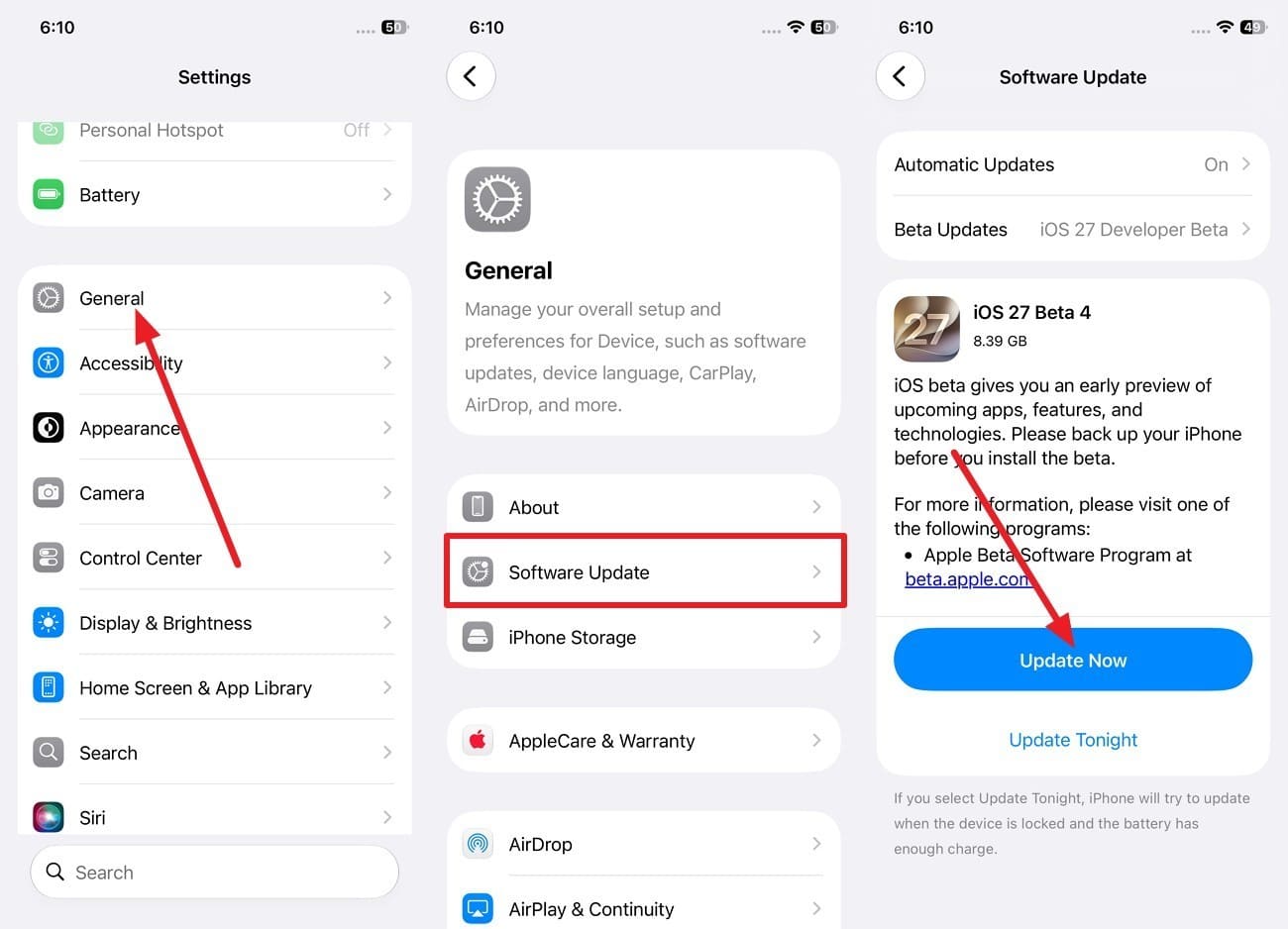
Update iPhone
Instructions. Go to "Settings > General > Software Update > Update Now" and follow the onscreen instructions.
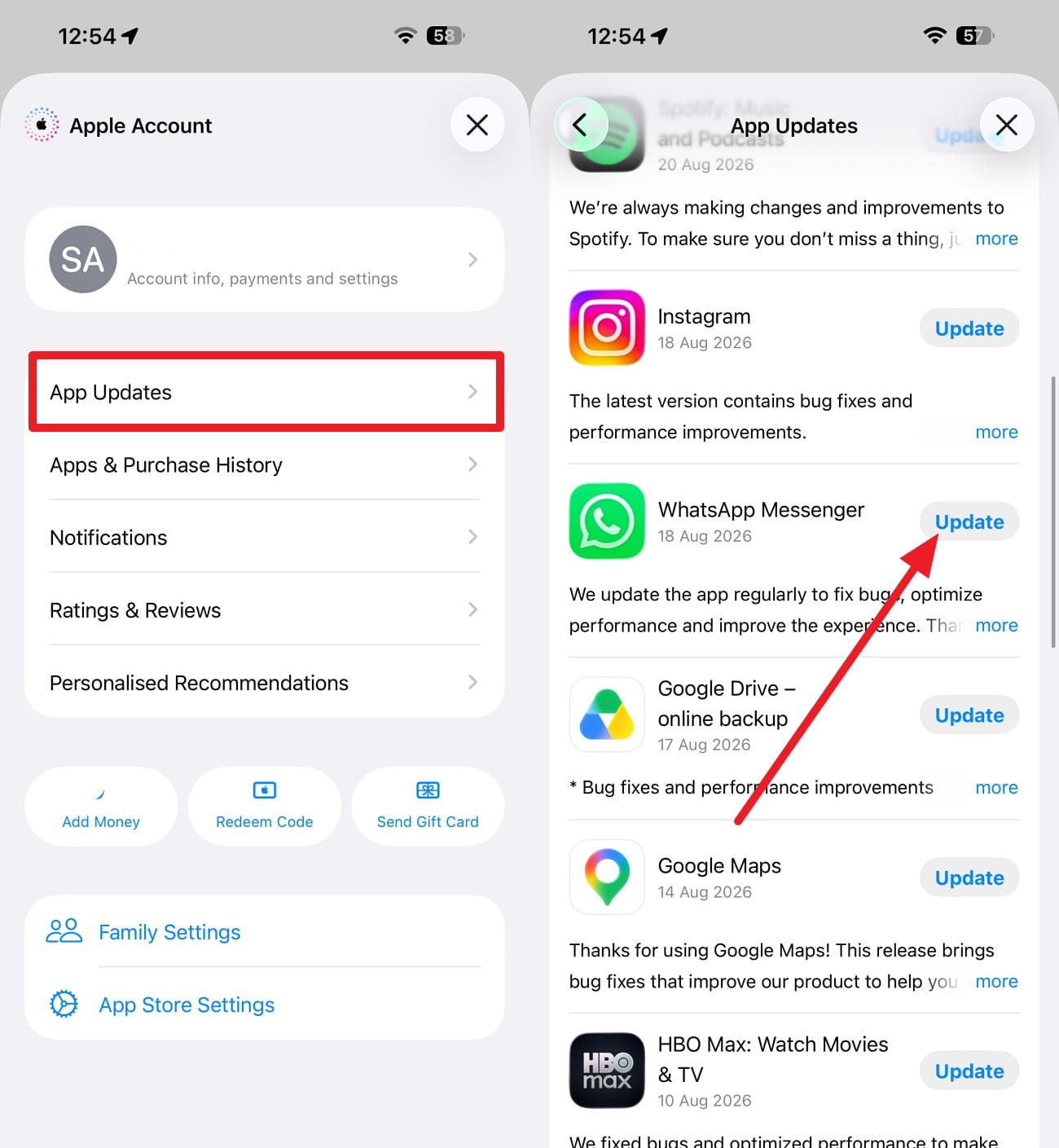
Update WhatsApp
Instructions. In the App Store, access "Profile > App Updates" > Search for "WhatsApp" and select the "Update" button.
Part 3. What to Do Before Reinstalling WhatsApp or Deleting Anything
When the WhatsApp backup not working issue persists, reinstalling the app may seem like the next step. Before doing that, follow these precautions to protect your chats and avoid unnecessary data loss:
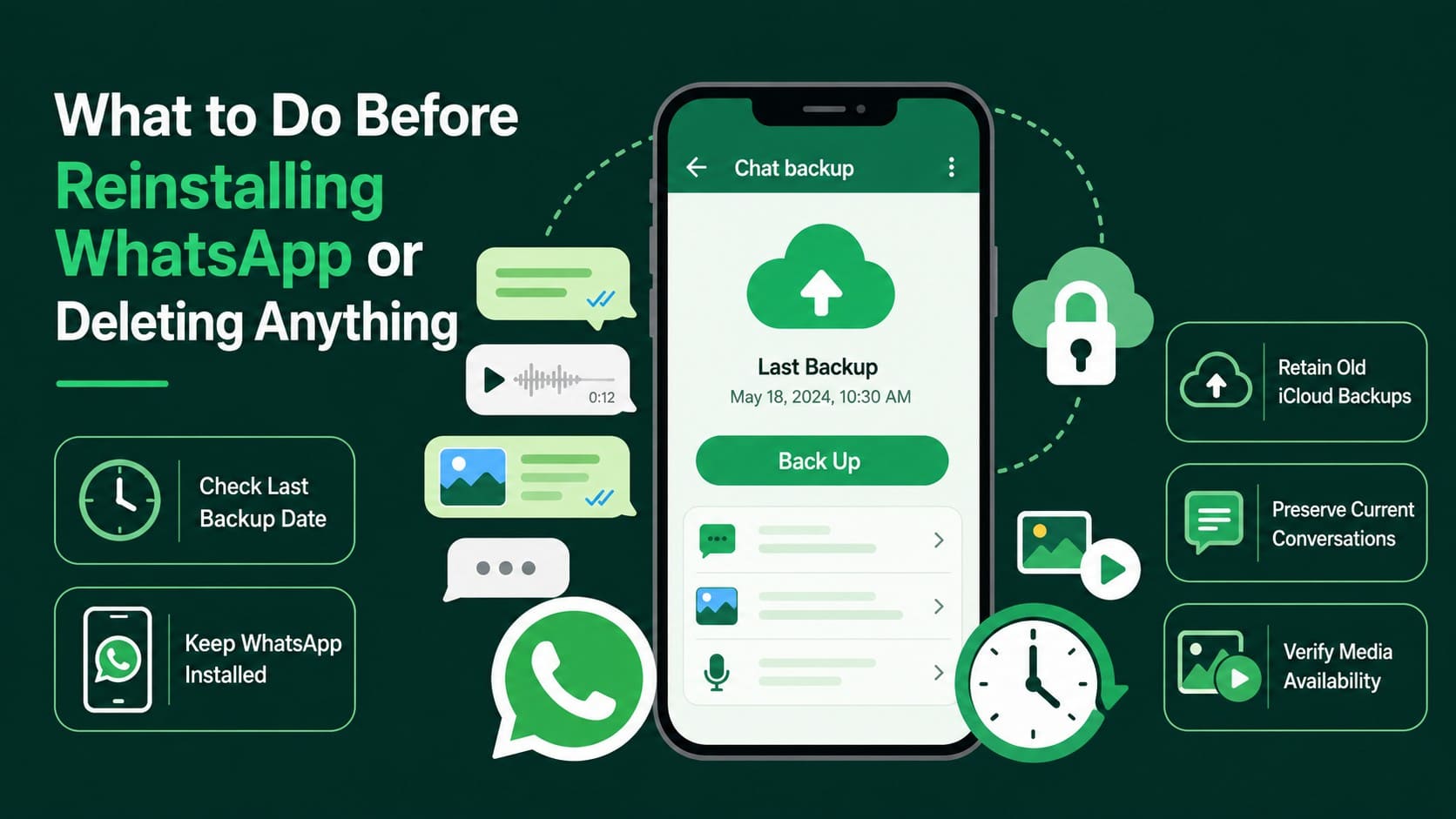
- Check Last Backup Date: Review the timestamp shown on the Chat Backup screen. If it predates your latest conversations, those newer chats are not included in that backup.
- Keep WhatsApp Installed: Avoid deleting WhatsApp until you have confirmed a recent backup. Removing the app can delete locally stored WhatsApp data that has not been backed up.
- Retain Existing iCloud Backup: Avoid deleting your current WhatsApp iCloud backup just to free up storage. Removing it eliminates an available restore point if a newer backup fails.
- Preserve Current Conversations: Do not delete active chats simply to reduce the backup size. Those conversations may not exist in your latest backup and could be permanently lost.
- Verify Media Availability: Open important chats and confirm that photos, videos, and other attachments still load correctly. A missing thumbnail may indicate unavailable, missing, or incompletely downloaded media.
Part 4. What If the Backup Failed and Your Chats Are Already Missing? Use Dr.Fone
If your chats disappear while dealing with a WhatsApp backup stuck issue, a failed iCloud backup does not always mean the data is gone for good. Dr.Fone - Data Recovery (iOS) can scan an iPhone for recoverable WhatsApp data and can also work with available iCloud or iTunes backup sources. This gives you multiple recovery paths when the usual WhatsApp restore process is no longer available.
 Recovers data after deletion, crashes, or device damage.
- Supports photos, messages, contacts, WhatsApp, and more.
- Supports all major iPhone, iPad, and iPod models.
- Preview and recover only what you need.

Instead of restoring an entire backup, Dr.Fone lets you preview detected content and choose the specific chats, attachments, or files you want to recover. It supports more than 35 data types, including WhatsApp, WhatsApp Business, Viber, LINE, and Kik data. This data recovery tool is also designed to support the latest iPhone models and current iOS releases, including iOS 27.
How to Scan an iPhone for WhatsApp Chats
If the WhatsApp backup not working issue has already resulted in missing chats, recovery should become the next priority. Use the process below to scan your iPhone and identify recoverable WhatsApp data:
-
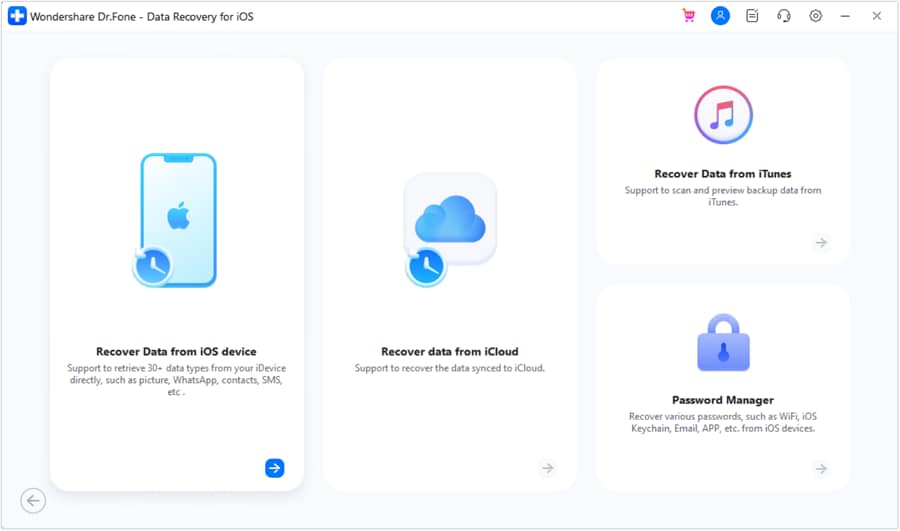
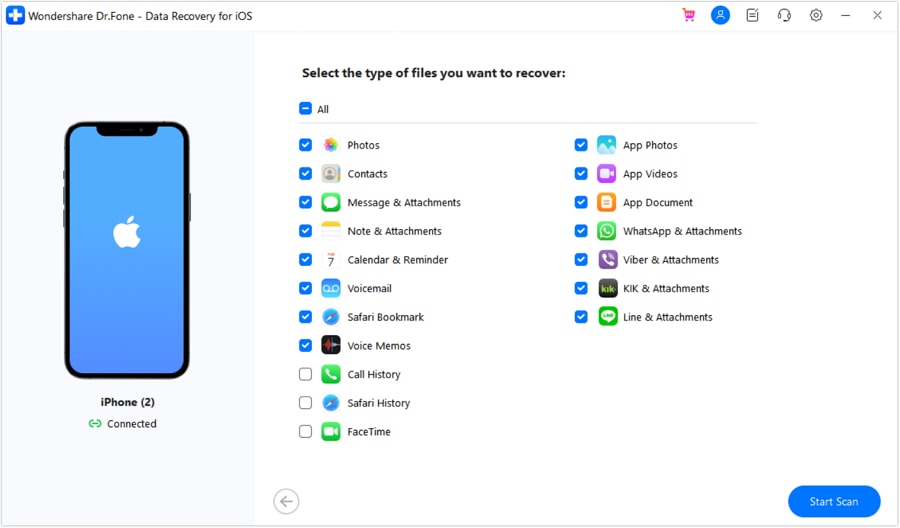
Step 1 Open the Data Recovery Toolbox for iPhone
From the "Toolbox" tab of Dr.Fone, choose the Data Recovery tool for "iOS" and select the "Recover Data from iOS Device" mode to connect the iDevice.
-
Step 2 Narrow the Scan to WhatsApp
With the iPhone detected, choose the "WhatsApp & Attachments" option and click the "Start Scan" button.
-
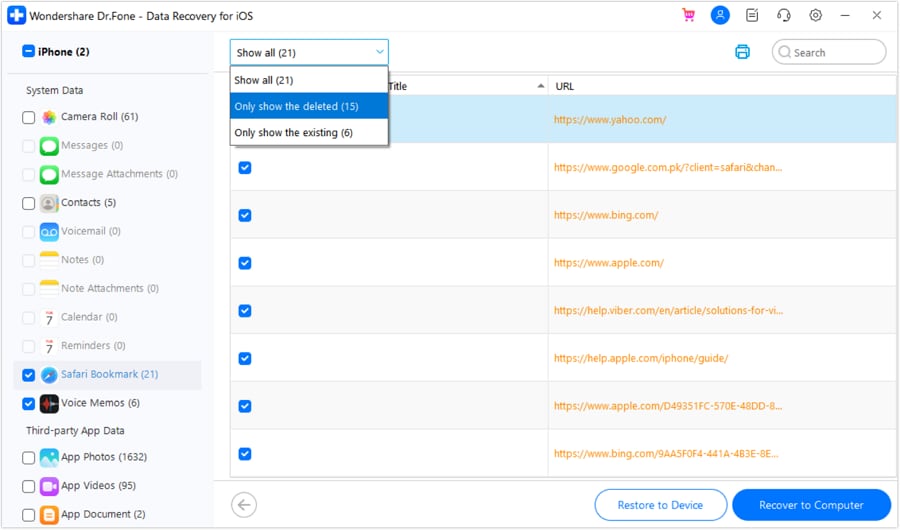
Step 3 Preview the Results and Recover Your Chats
After the scan finishes, select "Deleted Items" and preview the WhatsApp data you want to recover. Then choose "Recover to Computer" and select an export location.




Part 5. Prevent WhatsApp Backup from Getting Stuck Again
If the fixes above resolved the WhatsApp not backing up issue, follow these preventive measures to reduce the chances of your backups getting stuck again:
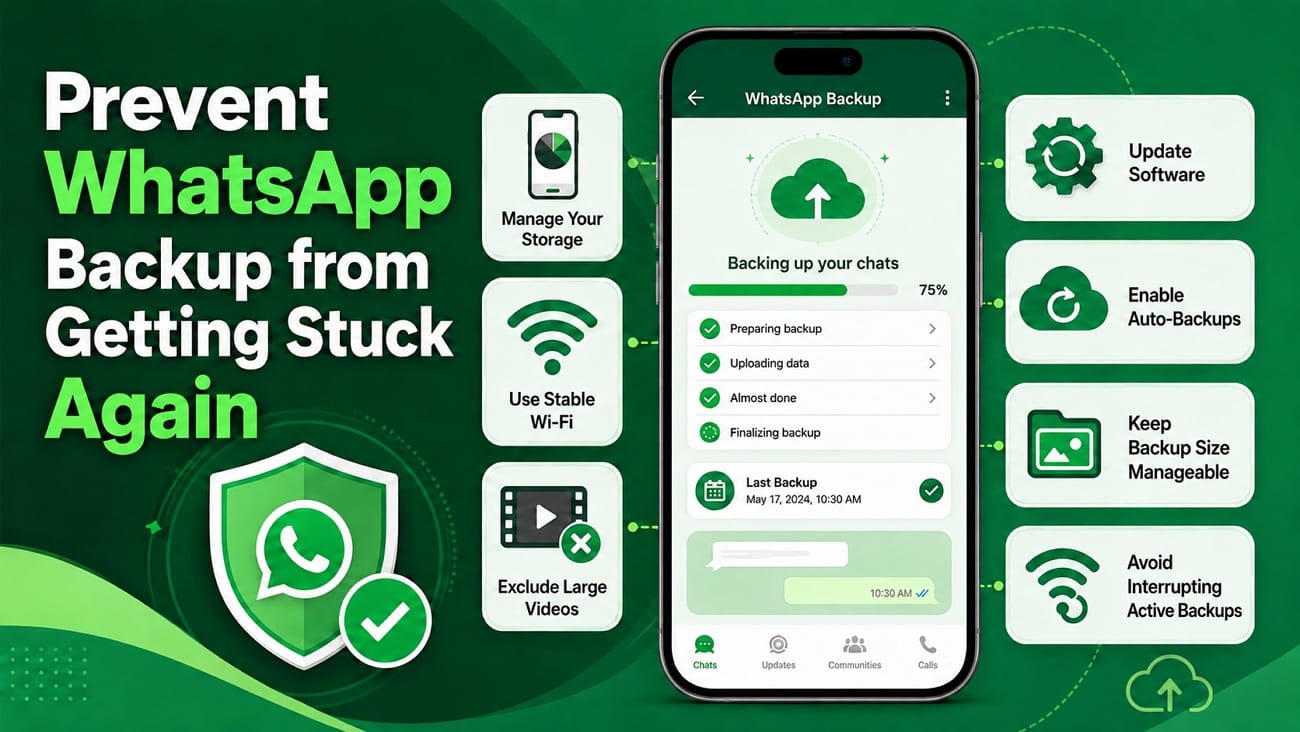
- Manage Your Storage: Regularly check both your iPhone and iCloud storage before space runs low. Keeping sufficient storage available reduces the chance of backups failing or getting stuck.
- Use Stable Wi-Fi: Use a reliable Wi-Fi connection when backing up large amounts of chat data. If progress stalls, check your connection or switch to a more stable network.
- Exclude Large Videos: Turn off the Include Videos option in WhatsApp Chat Backup if videos are unnecessary. This reduces the backup size and can shorten preparation and upload time.
- Update Software: Keep both iOS and WhatsApp updated to receive current compatibility improvements and bug fixes. Updated software can reduce issues that interfere with backup operations.
- Enable Auto-Backups: Configure WhatsApp to create automatic chat backups at regular intervals. Frequent backups reduce reliance on large manual backups and help keep your chat backup current.
- Keep Backup Size Manageable: Regularly remove unnecessary large media from chats you no longer need. A smaller WhatsApp backup requires less storage and generally takes less time to prepare and upload.
- Avoid Interrupting Active Backups: Keep your iPhone connected to a reliable network while WhatsApp is backing up. Avoid switching networks or restarting the device until the backup process finishes.
Conclusion
A WhatsApp backup stuck iPhone issue can often be resolved by checking storage, iCloud settings, network stability, and software updates. Taking the right precautions before reinstalling WhatsApp can also protect chats that are not yet backed up. If messages are already missing, Dr.Fone - Data Recovery (iOS) can scan for recoverable WhatsApp data and let you preview available chats and media before recovery.
FAQ
-
1. Why does WhatsApp need free iPhone storage when I have enough iCloud storage?
Because WhatsApp needs local space while preparing the backup before uploading it to iCloud. WhatsApp requires roughly 2.05 times the backup size available on both your iPhone and iCloud account for the backup to complete. -
2. Why is my WhatsApp backup stuck on Preparing or 99%?
A backup stuck on Preparing can indicate insufficient iPhone storage or difficulty processing the backup. Stalling at 99% may indicate an upload issue, so check your internet connection and available iCloud storage. -
3. Will upgrading iCloud storage fix every WhatsApp backup problem?
No. Extra iCloud storage only helps when cloud space is insufficient. WhatsApp backups can still stall because of limited iPhone storage, disabled iCloud Drive, network problems, or software issues. -
4. Can I protect my WhatsApp chats if iCloud backup keeps failing?
Yes. Export important conversations from individual chats to keep a separate copy outside WhatsApp. You can also create a computer backup of your iPhone as an extra precaution while troubleshooting iCloud backup issues.
 Add Wondershare Dr.Fone as a preferred source on Google