Recover photos, messages, WhatsApp, and more — no backup
needed.
Recover photos, messages, WhatsApp, and more — no backup
needed.

 100% Security Verified | No Subscription Required | No Malware

 :
: 
 ChatGPT
 Perplexity
 Gemini
 Claude
 Grok
Grok
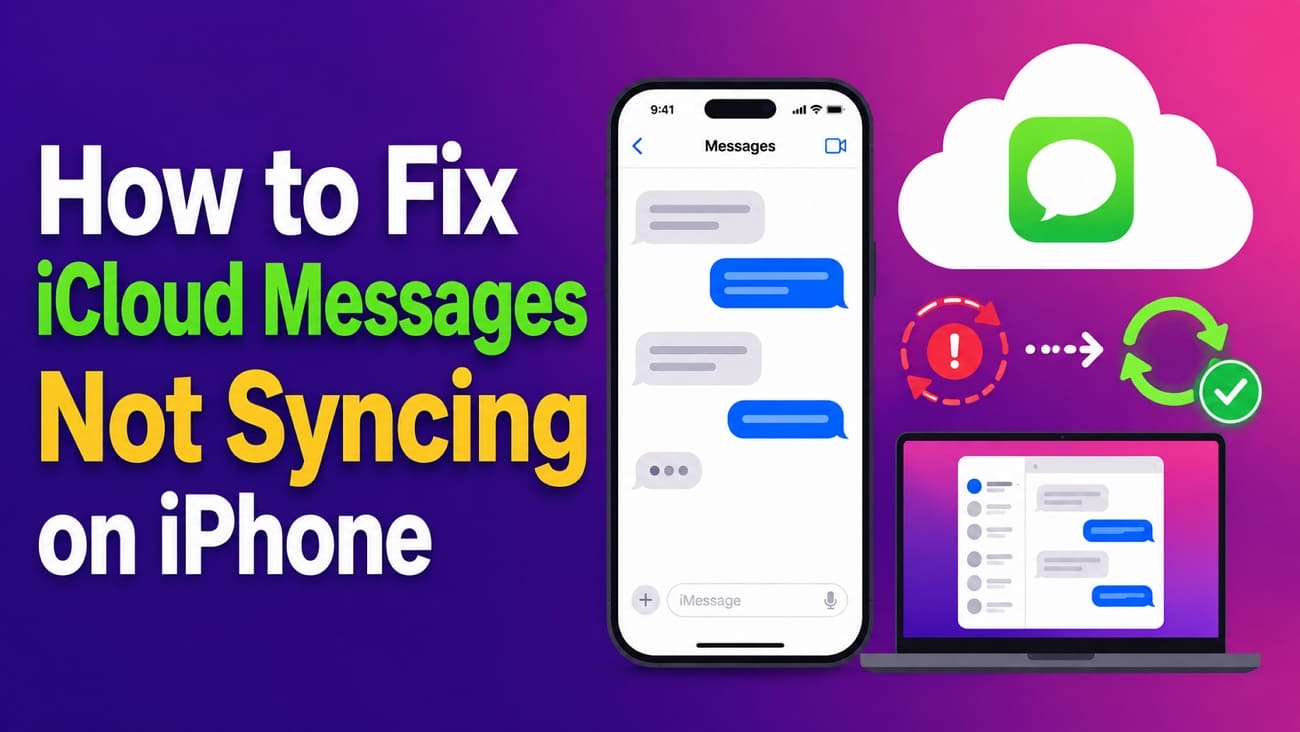
iCloud Messages Not Syncing? How to Fix and Recover Missing Texts
Threads that appear on your Mac but not your iPhone can indicate an iCloud Messages not syncing issue rather than lost messages. Messages in iCloud relies on several settings and account requirements to keep conversations updated across Apple devices. If one requirement is configured incorrectly, messages may stop syncing as expected.
Since the feature synchronizes changes, deleting a message can also remove it elsewhere once syncing occurs. This guide explains why iCloud message syncing fails and provides practical fixes for the problem. You will also learn how to check for missing conversations and use Dr.Fone - Data Recovery (iOS) when standard solutions cannot restore them.
In this article
- Part 1. Why Are Messages Not Syncing to iCloud?
- Part 2. 8 Best Fixes for iCloud Messages Not Syncing
- Part 3. How to Recover Messages Still Missing After iCloud Sync
- Part 4. Messages Still Missing After Sync and Recently Deleted Checks? Recover Them!
- Part 5. Tips to Keep Messages Synced Across Apple Devices
Part 1. Why Are Messages Not Syncing to iCloud?
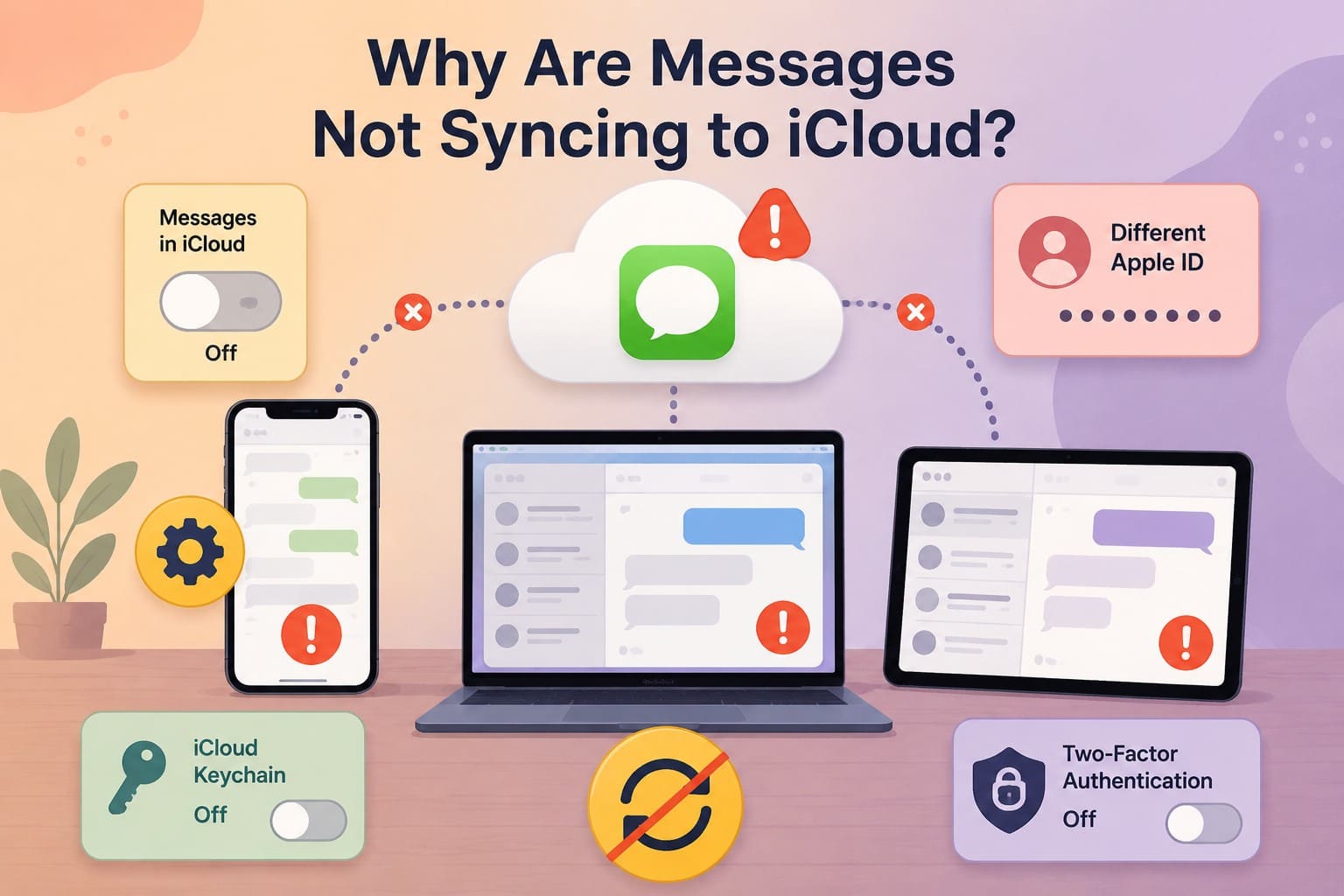
The iPhone Messages not syncing issue can occur when Messages in iCloud is disabled, devices use different Apple Accounts, or required settings are not configured correctly. Before troubleshooting, check whether messages are missing everywhere or only on one device.
Apple requires two-factor authentication and iCloud Keychain to use Messages in iCloud, along with the same Apple Account across your devices. Make sure Messages in iCloud is enabled on every device where you want your message history to stay synced.
How Does Messages in iCloud Sync Work?
Messages in iCloud stores your message history in iCloud and keeps it synced across supported devices signed into the same Apple Account. It syncs messages and attachments, along with changes such as sending, receiving, and deleting conversations.
Unlike a traditional backup archive, it keeps your message history updated across devices. When you delete a message on one device with Messages in iCloud enabled, that deletion also syncs to your other enabled devices.
iCloud Messages Not Syncing vs Messages Actually Deleted
The two situations can look identical on screen but require different responses. A sync failure may leave your messages available on another device, while an actual deletion can remove them from devices using Messages in iCloud. Review the differences between the two scenarios in the table below, then troubleshoot the Messages not syncing to iCloud issue accordingly.
| What to Check | Likely Sync Problem | Likely Deletion |
|---|---|---|
| Is the Conversation on Another Device? | It may appear on one device but not another | The deletion may have synced across enabled devices |
| Did You Recently Change Settings? | Problem appeared after sign-in, setup, or Messages in iCloud changes | Messages disappeared after being intentionally or accidentally deleted |
| What's Missing? | One device's message history is incomplete or outdated | Known messages or conversations are missing across synced devices |
| What Should You Do? | Check Apple Account and Messages in iCloud settings | Check Recently Deleted first |
How Can You Quickly Tell If iCloud Messages Aren't Syncing?
- Missing Chat on Another Device: Treat it as a likely sync issue and move to Part 2.
- Deleted Chat Disappearing Across Synced Devices: Check the Recently Deleted folder first.
- No Trace of the Conversation Anywhere: Check when it disappeared and whether a recoverable copy or backup exists before choosing a recovery method.
Part 2. 8 Best Fixes for iCloud Messages Not Syncing
This section covers 8 practical solutions to resolve the iCloud Messages not syncing issue and get your message history syncing properly across Apple devices.
Fix 1. Turn On Messages in iCloud
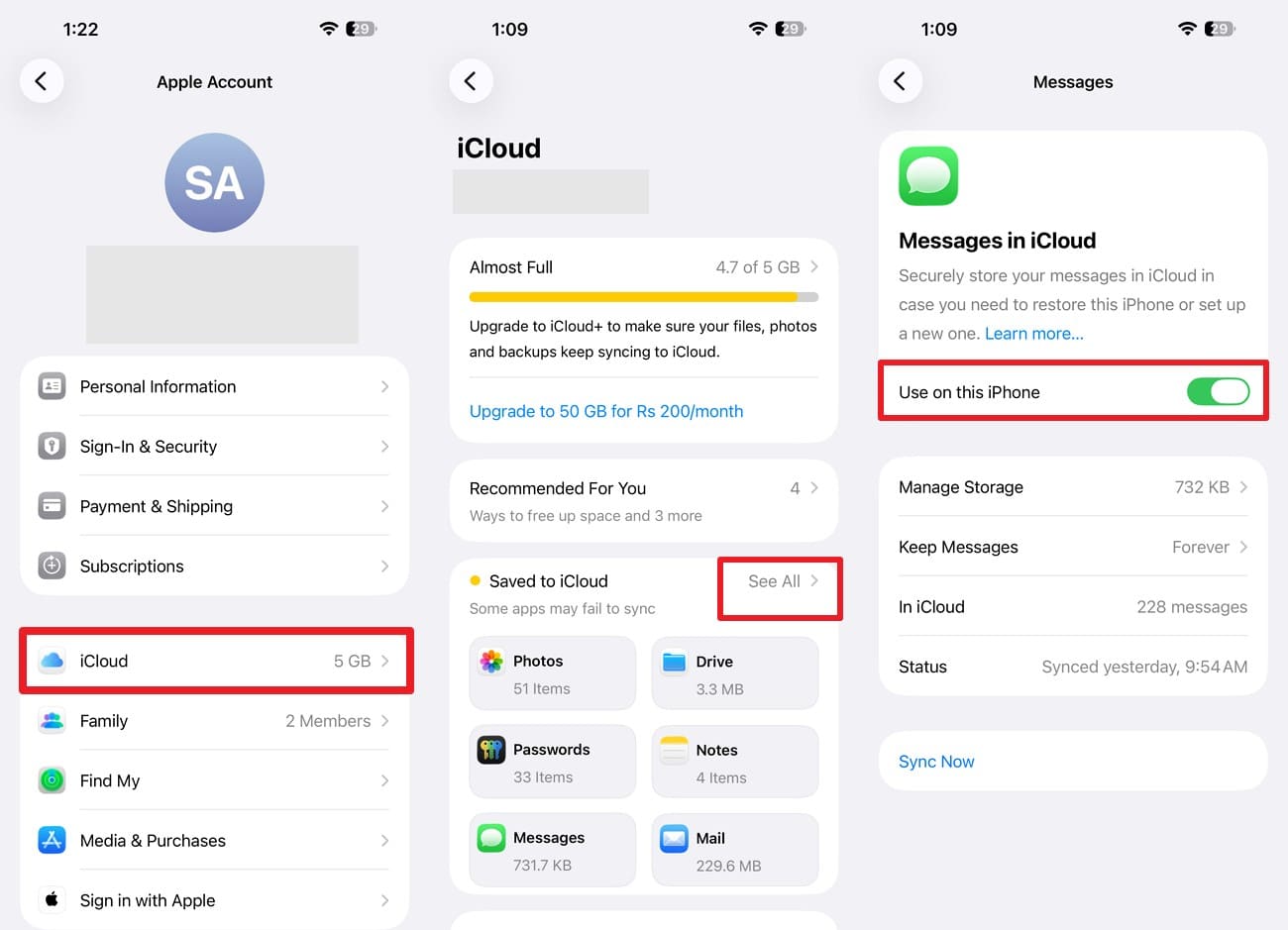
Messages in iCloud must be enabled on each device you want to keep synced. Its location and label can vary depending on the iOS version. Check this setting first, since the remaining fixes assume Messages in iCloud is already enabled. Follow the instructions below to verify it:
Instructions. In Settings, tap your Apple Account name and choose "iCloud > See All > Messages in iCloud" and toggle the "Use On This iPhone" option.
Fix 2. Use the Same Apple Account on All Devices
If Messages are not syncing to iCloud, make sure your devices use the same Apple Account. Apple requires the same Apple Account on devices using Messages in iCloud. A different account prevents that device from accessing the same synced message history.
On each iPhone or iPad, open Settings and tap your name at the top. Verify that every device you want synced is signed in to the same Apple Account.
Fix 3. Verify the iMessage Account Under Send & Receive
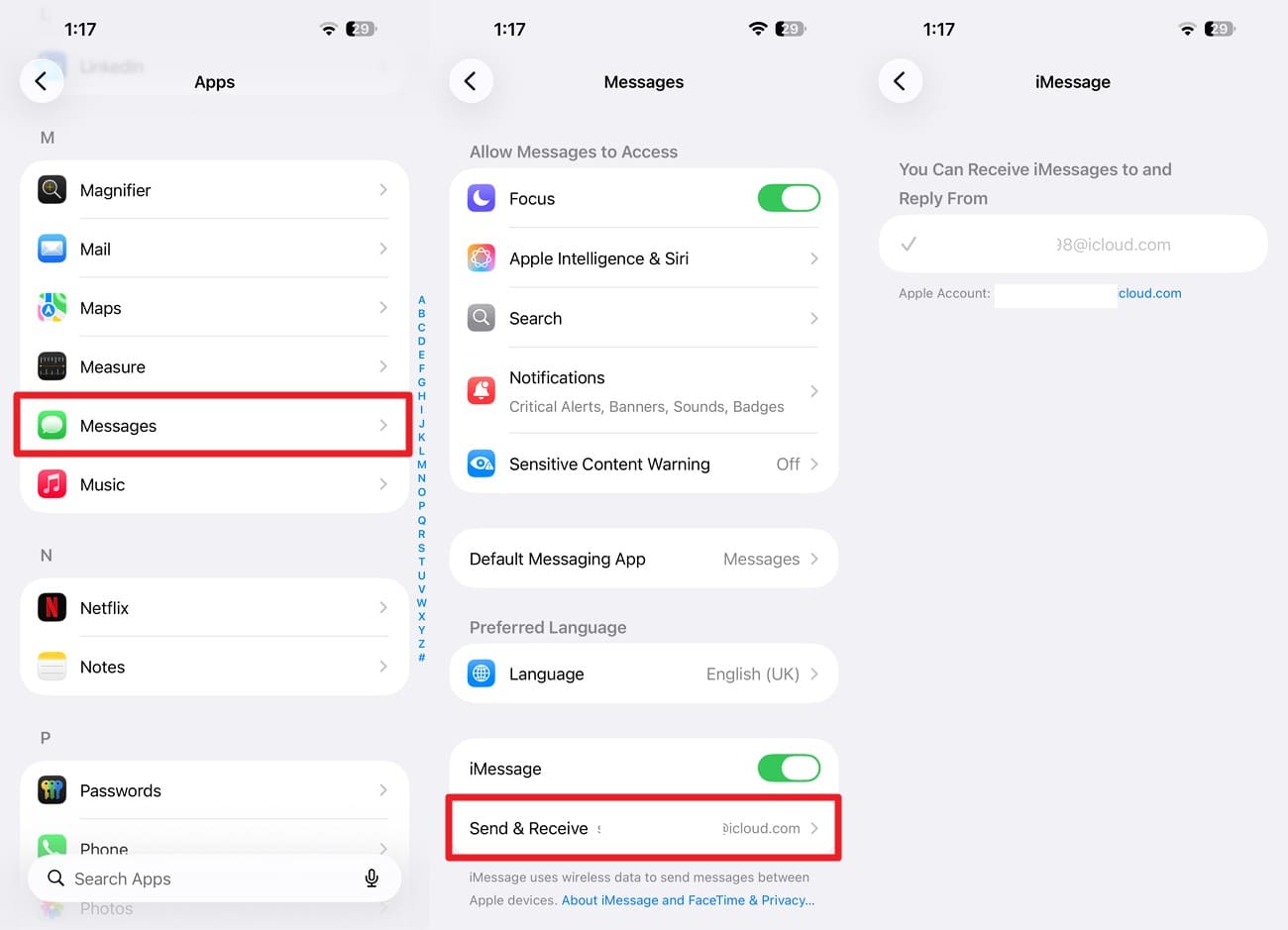
iMessage uses selected phone numbers and Apple Account email addresses for sending and receiving messages. Incorrect selections can make conversations appear differently across your Apple devices. Check these details to ensure the correct addresses are active and help resolve the iPhone messages not syncing issue:
Step 1. In the App settings, choose "Messages" and ensure the "iMessage" toggle is on.
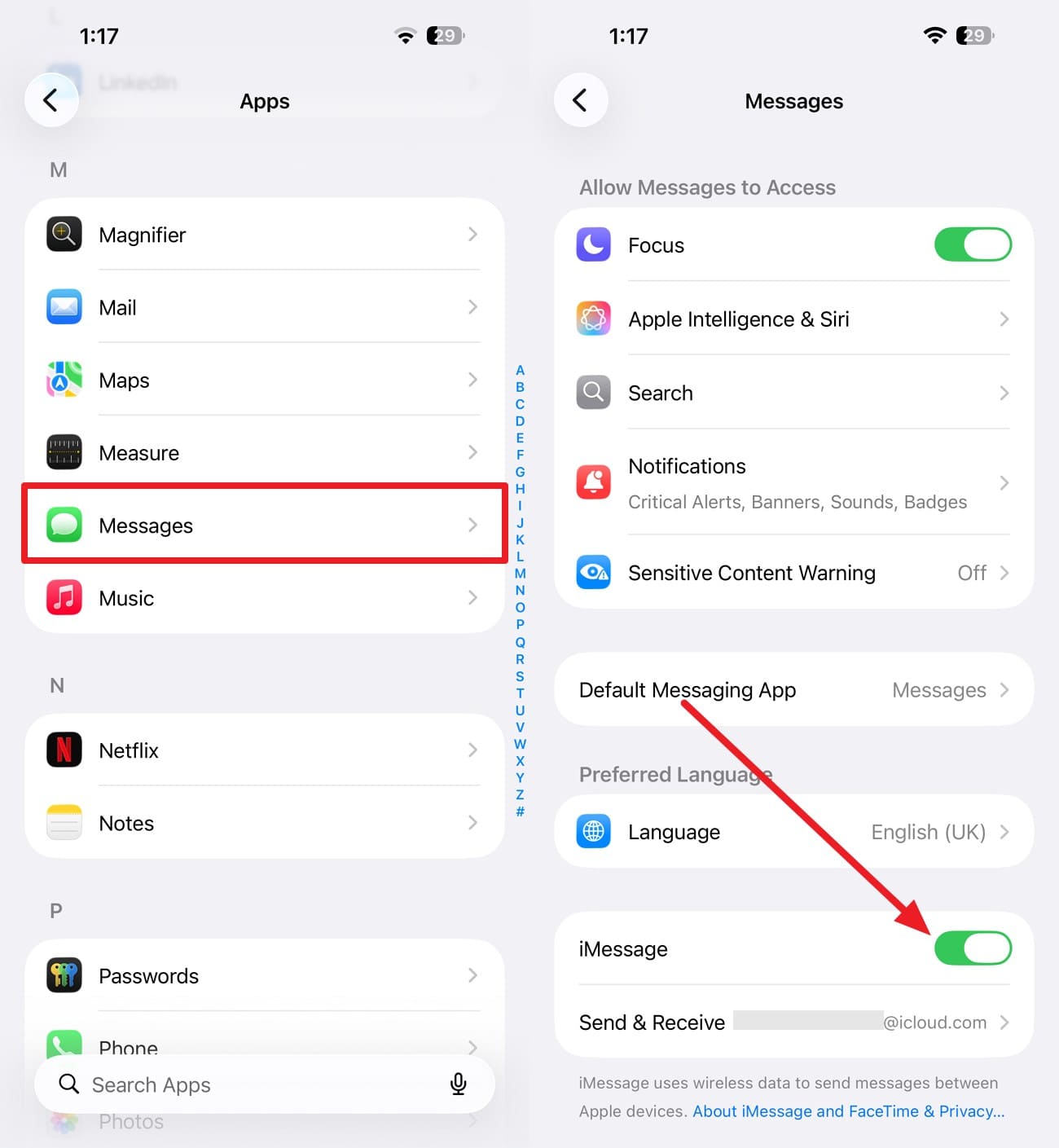
Step 2. Choose the "Send & Receive" option and confirm that your phone number and primary Apple Account email are checked.
Fix 4. Enable iCloud Keychain and Two-Factor Authentication
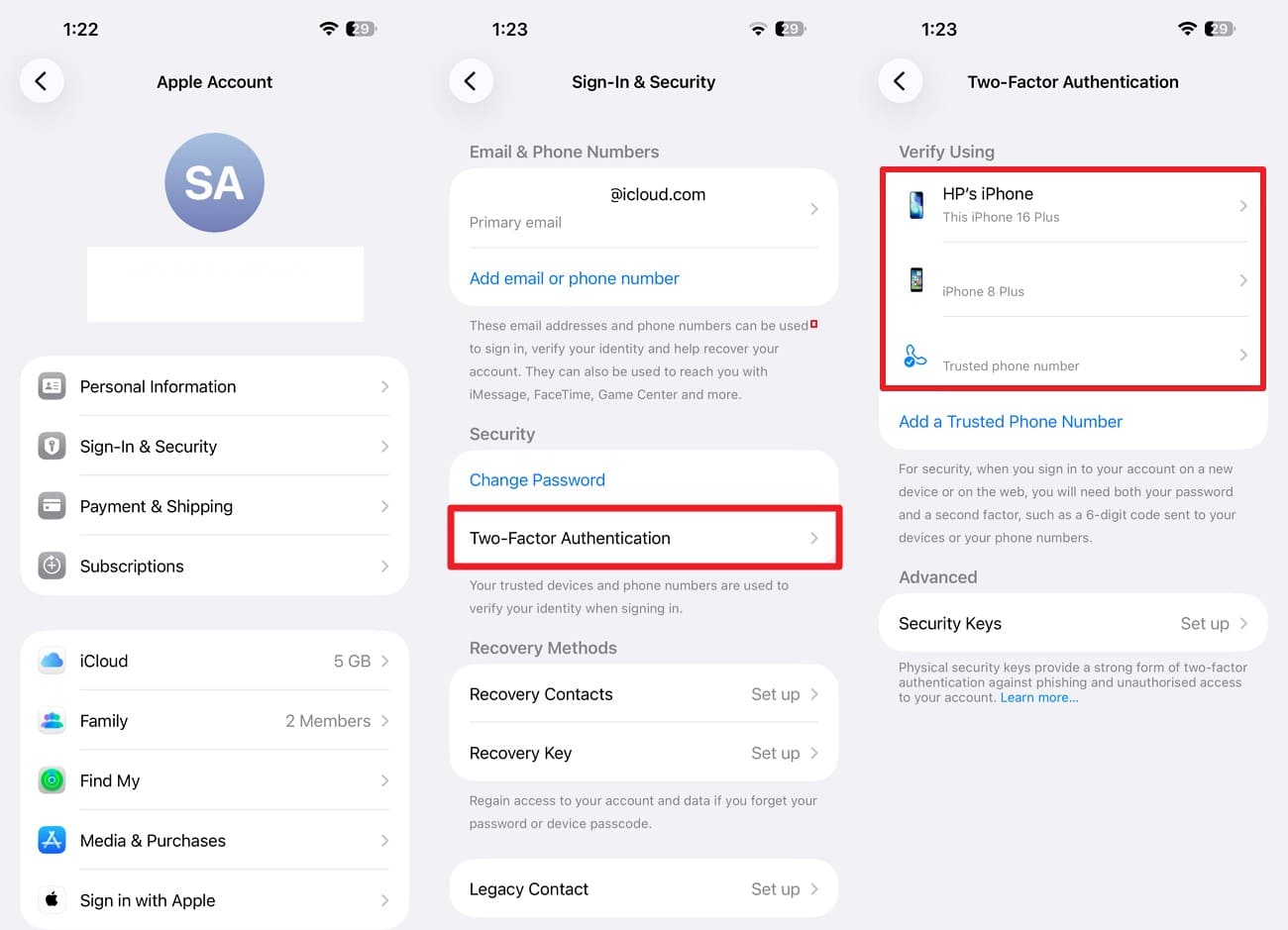
Apple requires iCloud Keychain and two-factor authentication (2FA) to use Messages in iCloud. Once configured, messages and attachments can stay updated across your enabled Apple devices as synchronization completes. 2FA also adds an extra layer of protection to your Apple Account. Follow the steps below to check both requirements:
Enable Two-Factor Authentication
Instructions. Tap your Apple Account at the top of Settings and choose "Sign-In & Security." Under Security, tap "Two-Factor Authentication" and confirm the trusted phone numbers or devices listed there.
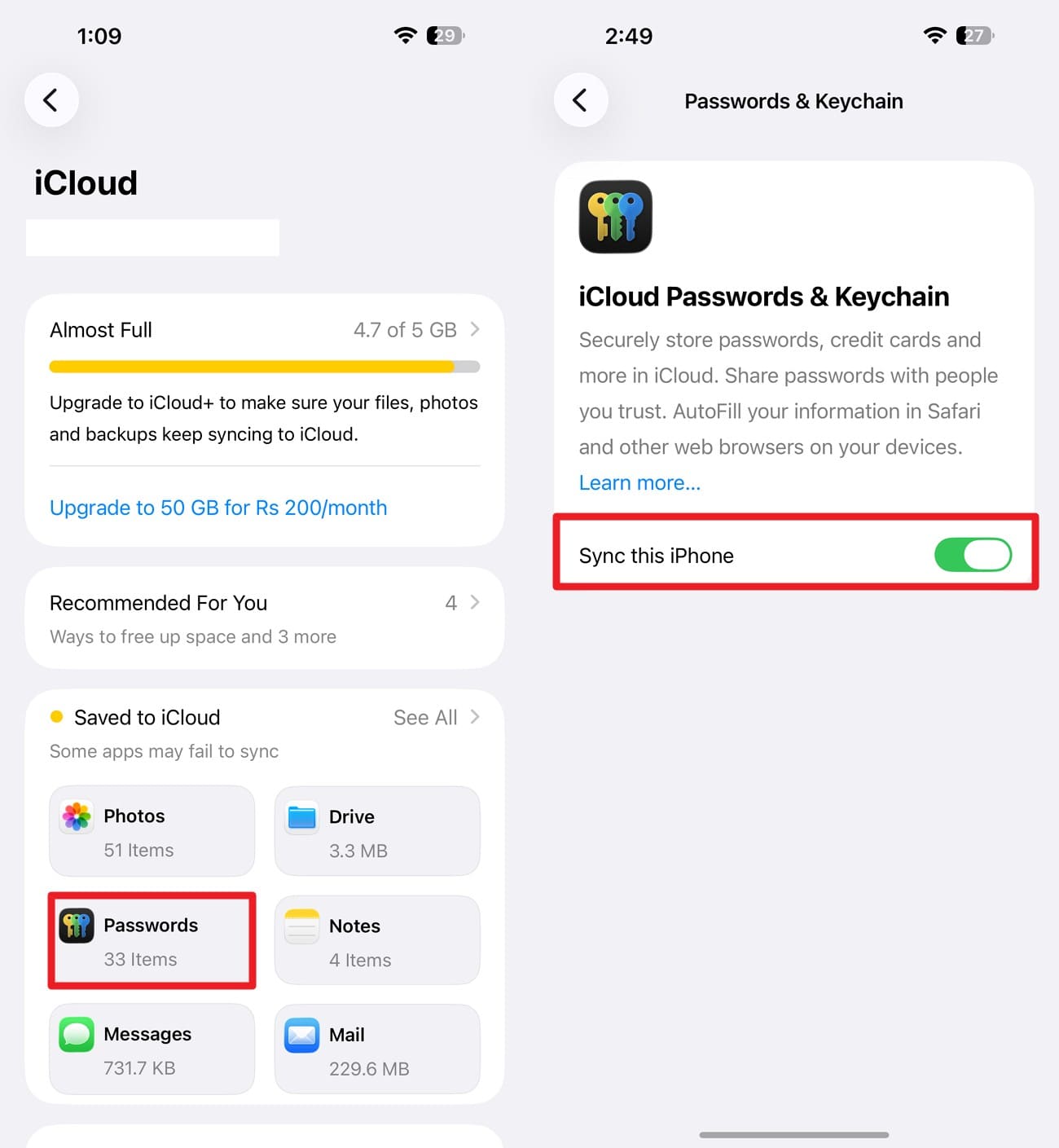
Enable iCloud Keychain
Instructions. Go to "Settings > Your Name > iCloud > Passwords" and toggle on the "Sync This iPhone" option.
Fix 5. Free Up iCloud Storage
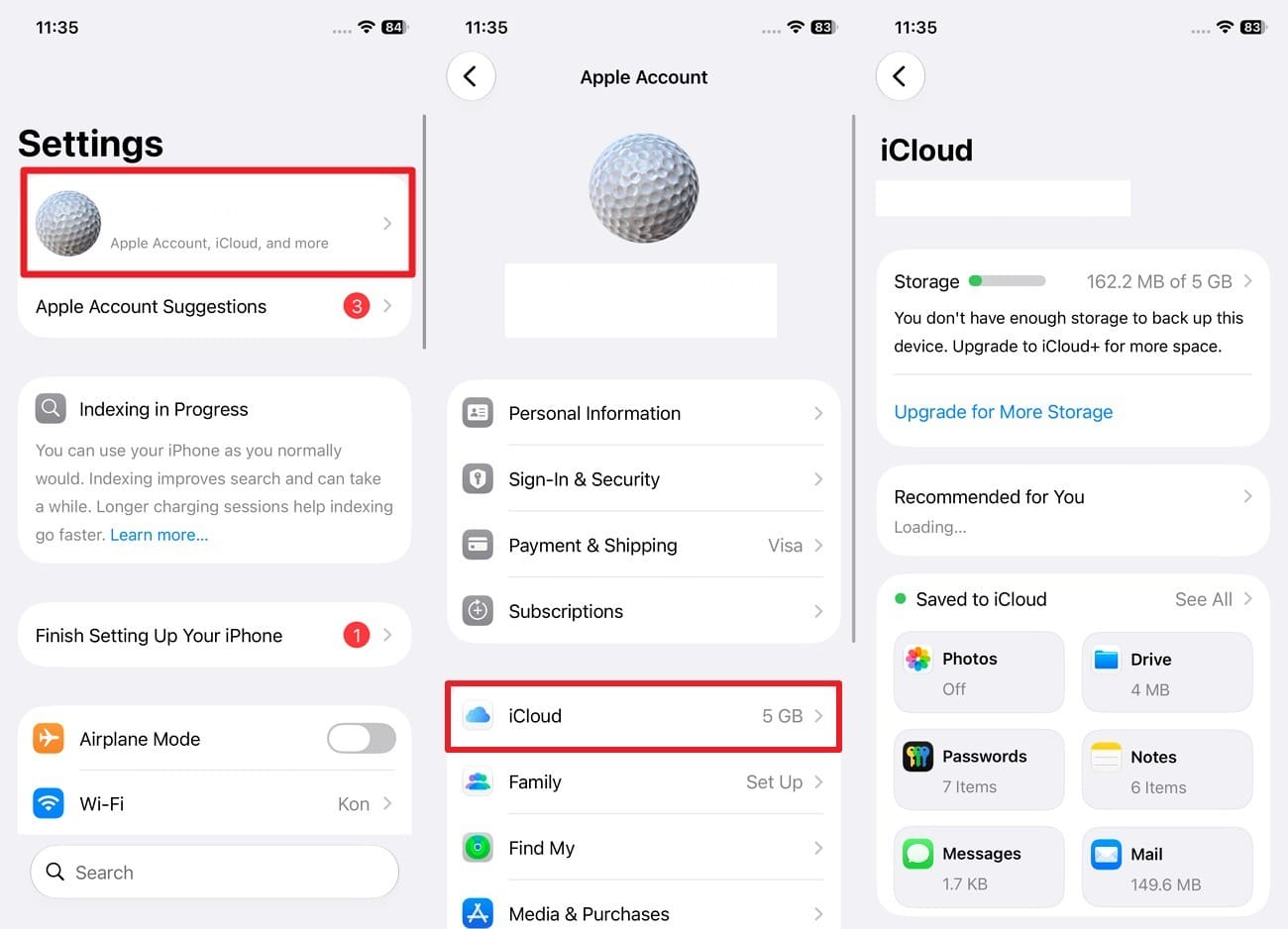
This can also help resolve the iPhone Messages not syncing problem if the previous checks changed nothing. When your iCloud storage is full, Apple states that iCloud data stops staying up to date. Freeing up storage gives Messages in iCloud enough space to resume syncing normally.
Step 1. In "Settings > Your Name > iCloud," check the storage bar to review the space.
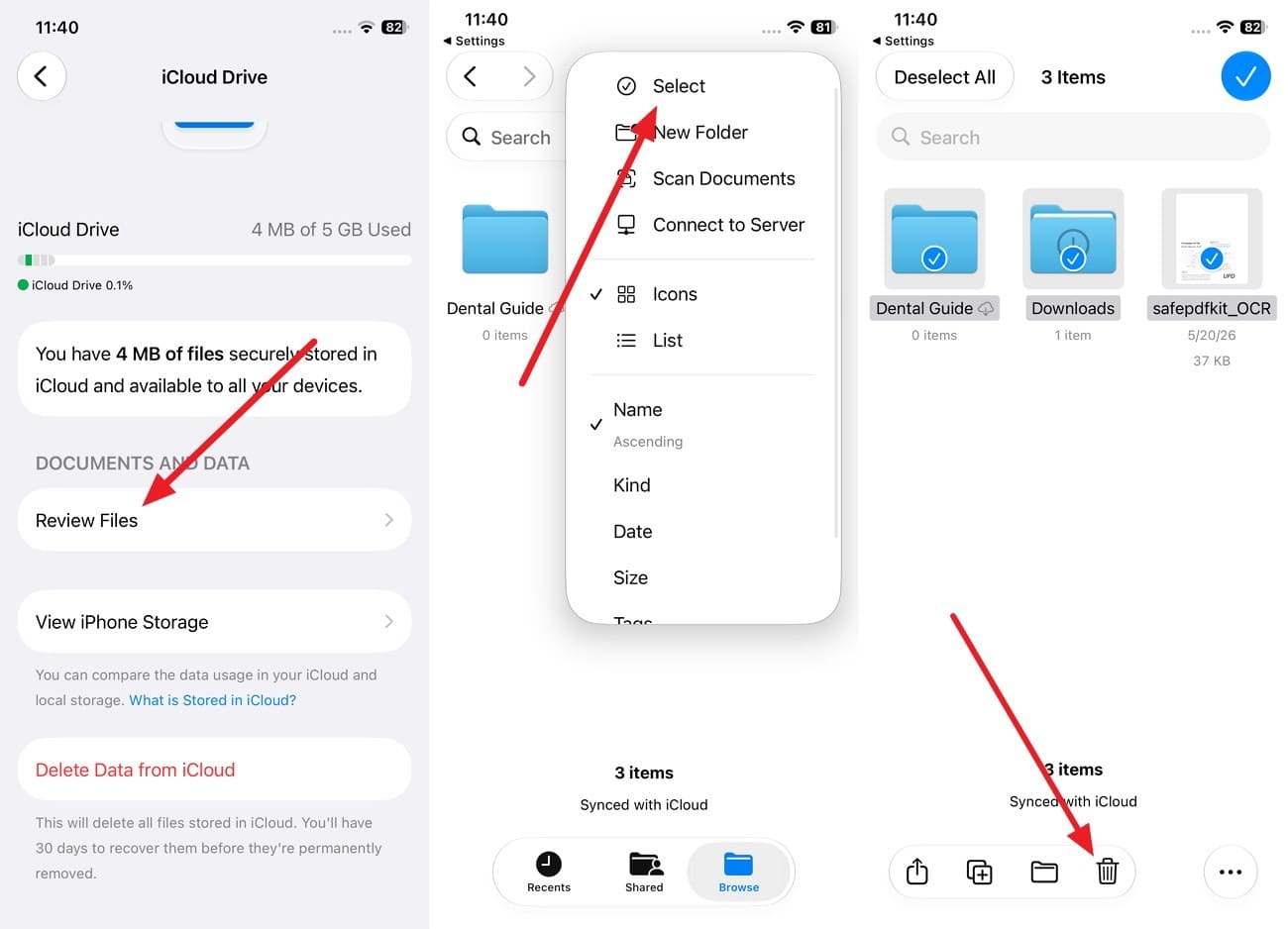
Step 2. To free up space, tap iCloud Drive, choose "Review Files > Three Dots > Select," choose the unwanted data, then tap "Delete."
Fix 6. Restart the iPhone and Reconnect to the Internet
If the issue persists after checking iCloud storage, refresh your iPhone and its internet connection. A temporary network or background syncing issue may prevent conversations from updating. Messages in iCloud needs a stable connection to synchronize changes across devices. Restarting your iPhone and reconnecting to Wi-Fi or cellular data can help syncing resume.
Restart Your iPhone
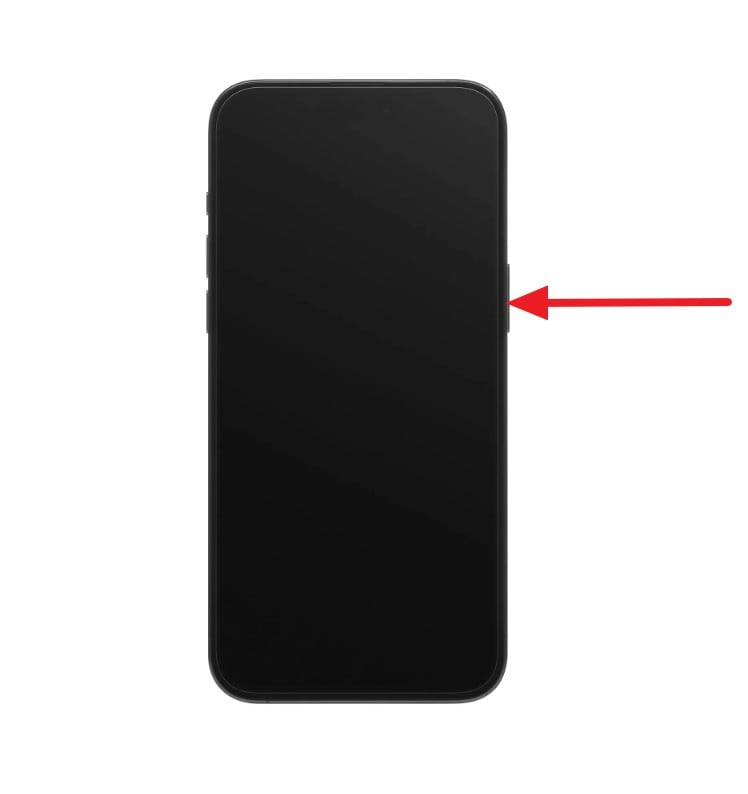
Step 1. Press and hold the "Power" and "Volume Up" buttons and slide the "Side to Power Off" slider.
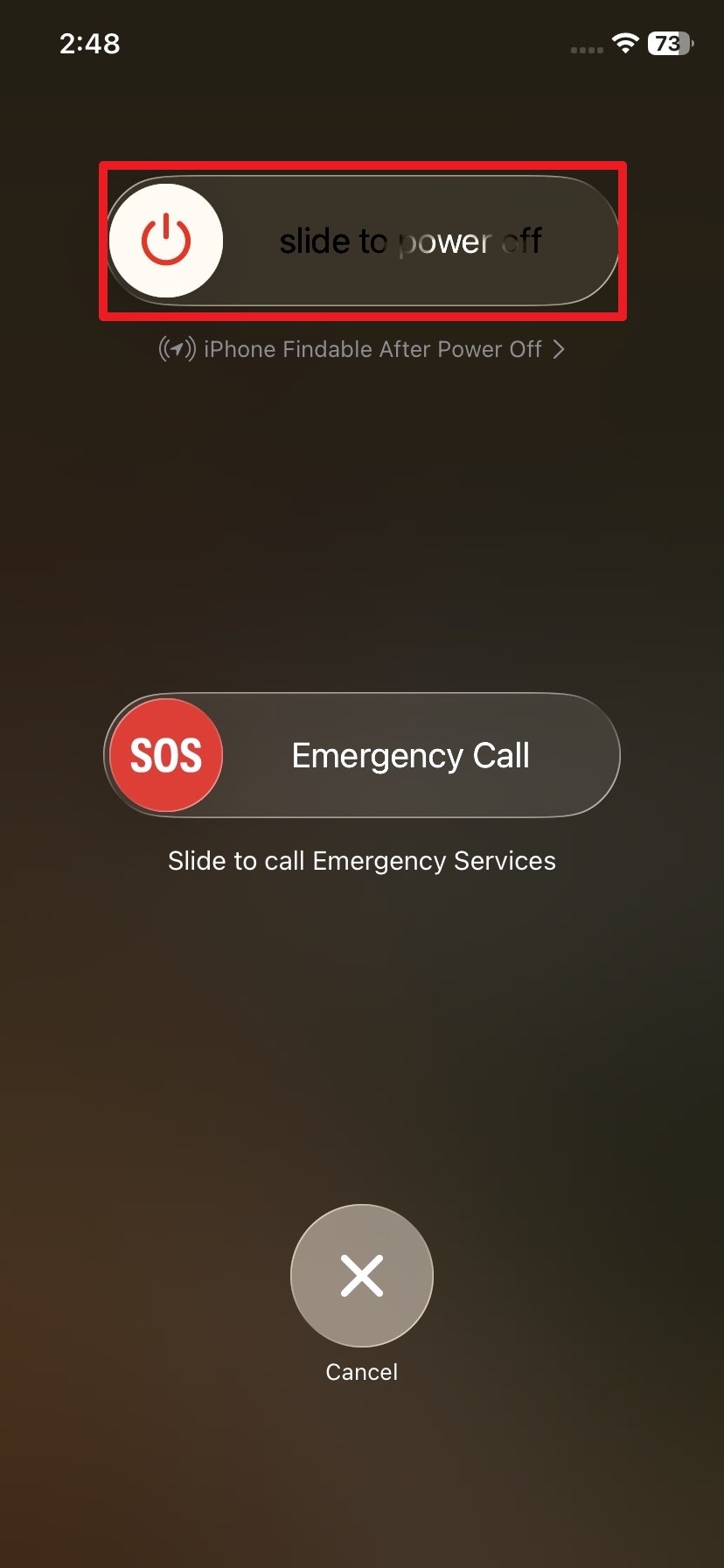
Step 2. Wait 30 seconds, then hold the "Side" button until the Apple logo appears to see if the iPhone Messages not syncing issue persists.
Reconnect to the Internet
Open "Control Center" and tap the "Airplane Mode" icon. Wait about 15 seconds, then turn it off. Reconnect to a stable Wi-Fi network or reliable cellular connection and check whether Messages in iCloud resumes syncing.
Fix 7. Update iOS to the Latest Version
Updating iOS is another useful step when the Messages not syncing to iCloud issue continues. Apple recommends keeping your device software updated for the latest fixes and improvements. You do not need matching OS version numbers across different Apple devices. Install the latest compatible update available for your iPhone using the steps below:
Step 1. Go to "General" settings and tap the "Software Update > Update Now" button.
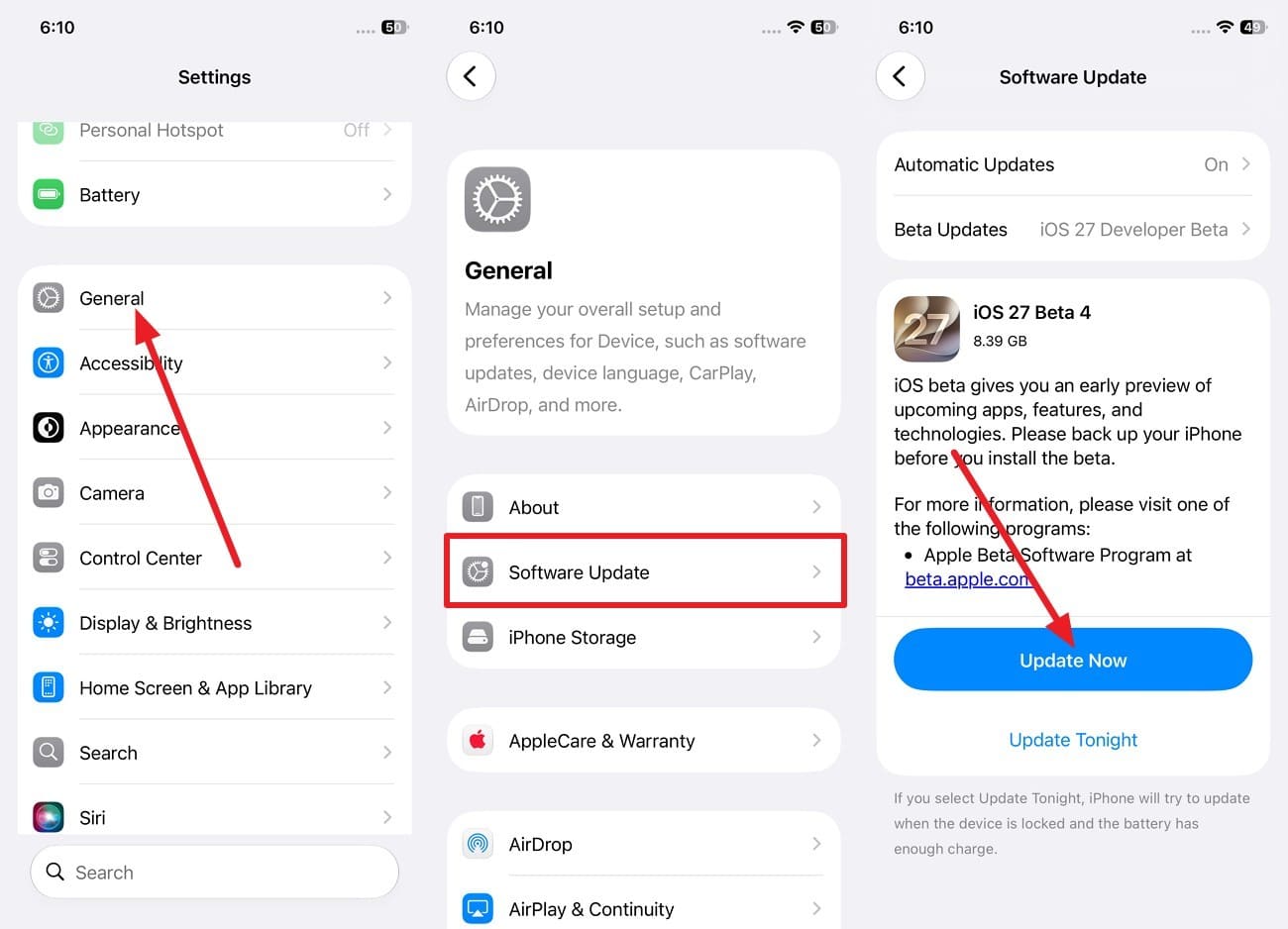
Step 2. Repeat on every device sharing the account, since one lagging device breaks the chain.
Fix 8. Let an Ongoing iCloud Restore or Sync Finish
Two different situations apply after setup or restoration. If Messages in iCloud was enabled, your message history syncs separately from iCloud Backup. Keep the iPhone connected to Wi-Fi and power while conversations and attachments continue downloading.
If Messages in iCloud was disabled when the backup was created, messages may instead be included in that iCloud Backup. A full restore can take hours or days, depending on backup size and network speed. Let the relevant process finish before checking whether the Messages not syncing to iCloud issue remains.
Step 1. Go to "Settings > Your Name > iCloud > iCloud Backup," and check whether an iCloud Backup restore is still running.
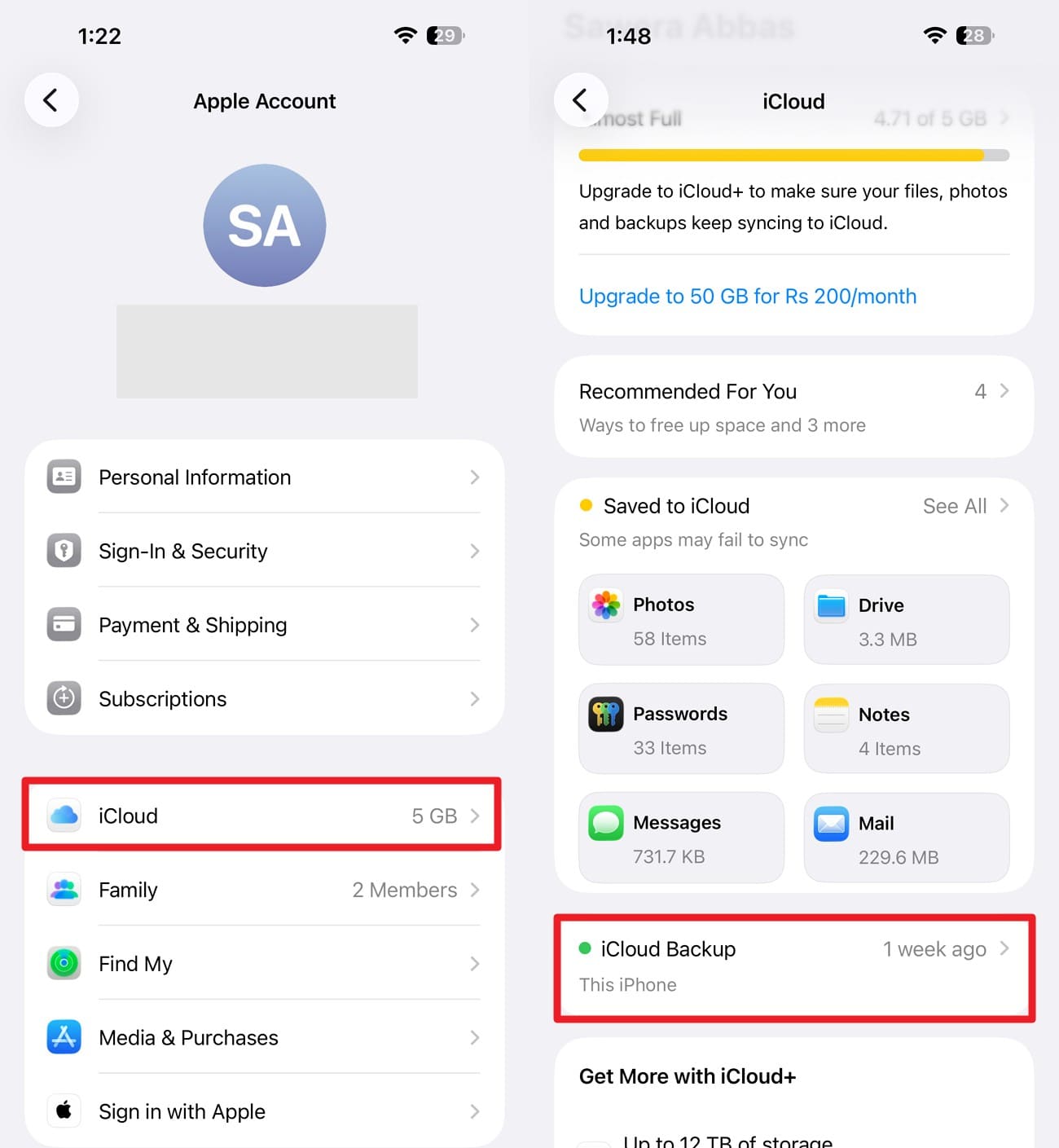
Step 2. After the restore finishes, reopen Messages and check whether the previously missing conversations have been downloaded. If they are still missing, continue with the other fixes for Messages not syncing to iCloud.
Part 3. How to Recover Messages Still Missing After iCloud Sync?
After checking the essential settings, review the following recovery methods to address the messages missing on iPhone issue and find conversations that still have not returned:
Check Other Apple Devices for Unsynced Message History
Start with the option that costs nothing. A Mac or iPad that stayed offline during the deletion may still hold the conversation locally. Open Messages while the device remains offline. Reconnecting may synchronize the deletion through iCloud and remove the remaining copy, so capture crucial messages or screenshots first.
Recover Actually Deleted Messages from Recently Deleted
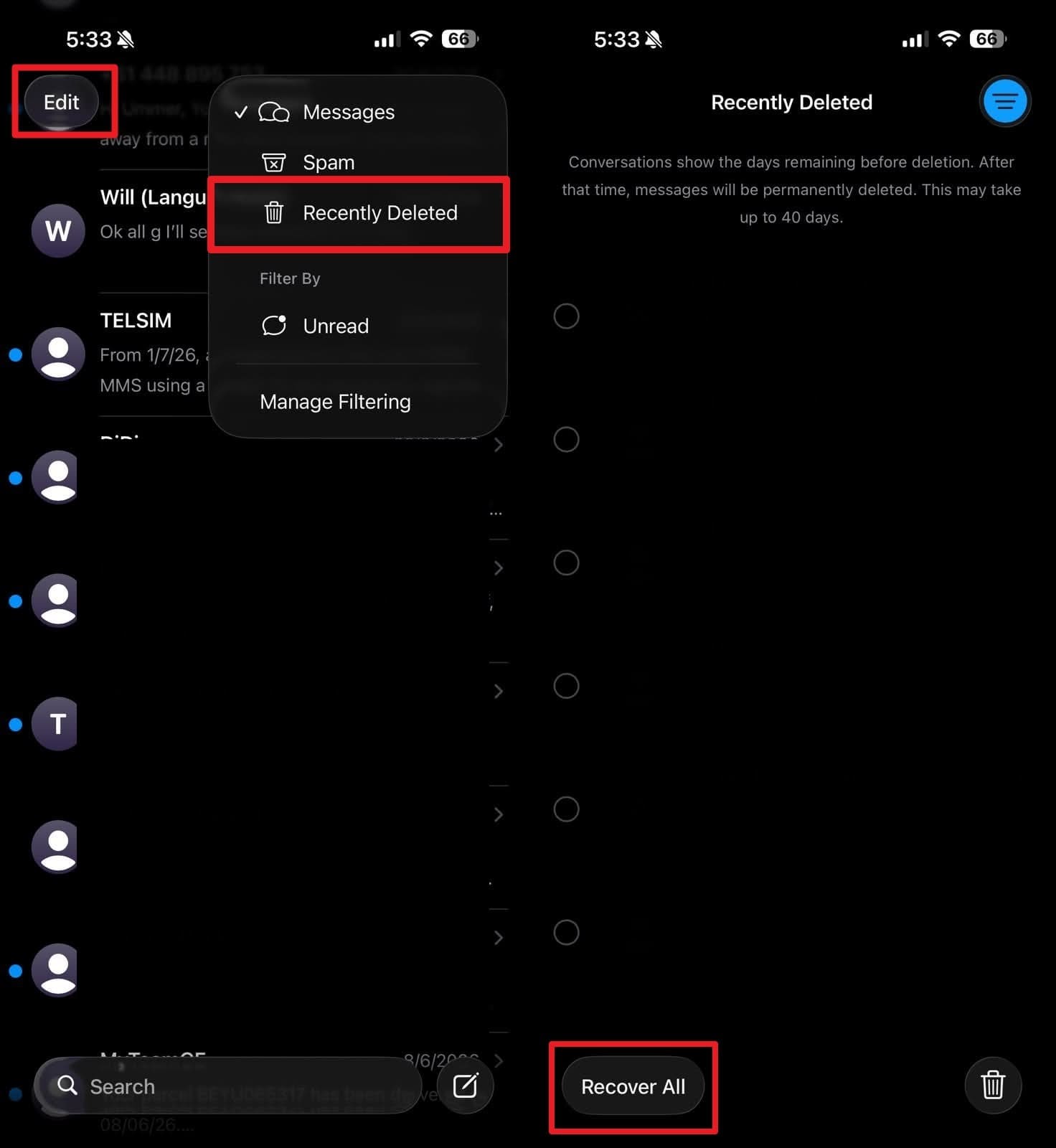
On iOS 16 and later, deleted messages and conversations remain recoverable in Recently Deleted for about 30 to 40 days. If messages disappear while resolving the iCloud Messages not syncing issue, check Recently Deleted using these instructions:
Instructions. Tap the "Edit" button in the Messages app and choose the "Recently Deleted" option. Select the chat you want back, then choose "Recover All" or "Recover" for a single thread.
Restore Missing Messages from an Available iCloud Backup
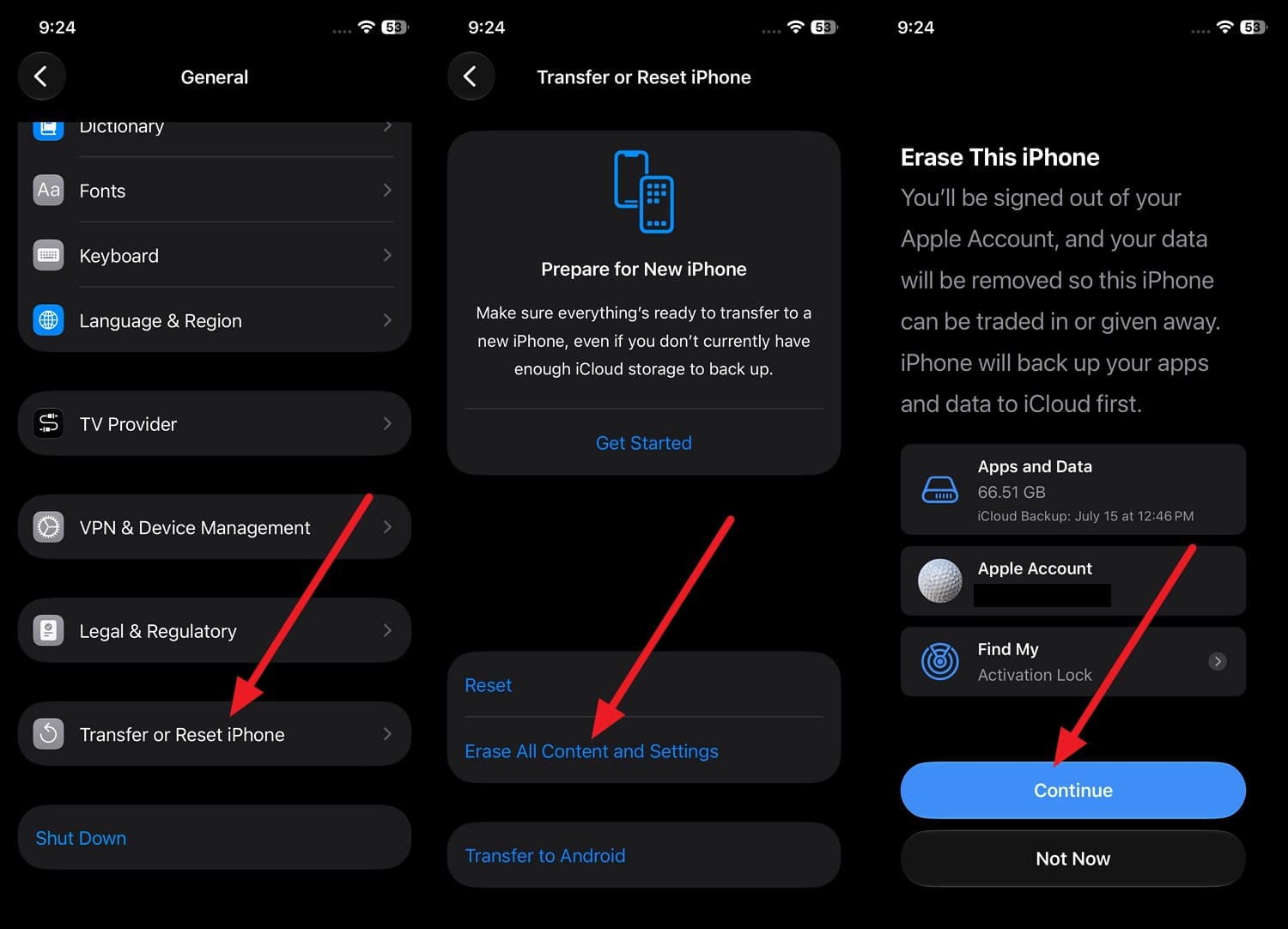
This method erases the iPhone and restores an available iCloud backup during setup, replacing its current data. Messages are included in the backup only if Messages in iCloud was disabled when the backup was created. Check the backup date under Settings > [Your Name] > iCloud > iCloud Backup, then follow these steps:
Step 1. If the backup predates the message loss, go to "Settings > General > Transfer or Reset iPhone > Erase All Content and Settings." Then, tap "Continue" to erase the iPhone and begin the restoration process.
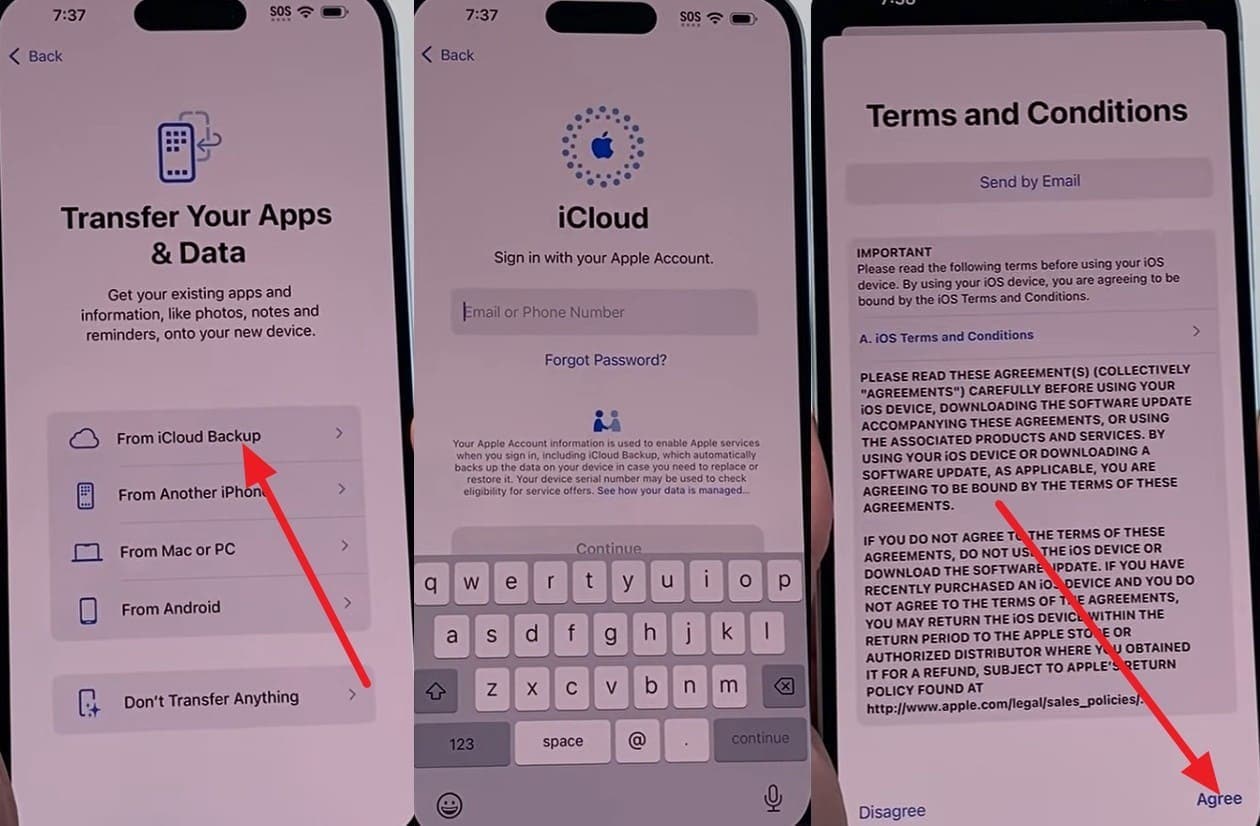
Step 2. Follow the steps until you see the Transfer Your Apps & Data screen. Choose "From iCloud Backup" > Sign in with your Apple Account > Press "Agree."
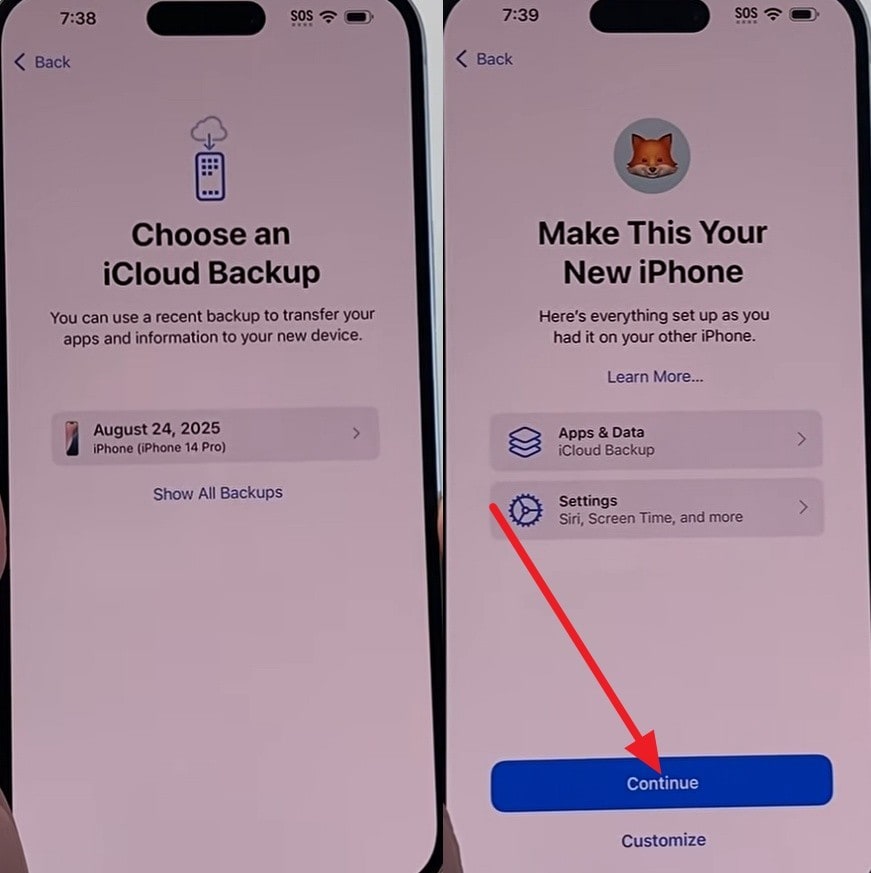
Step 3. Choose the specific backup file that contains your missing messages. Press "Continue" and stay connected to Wi-Fi until the progress bar finishes.
Restore Messages from a Computer Backup If Available
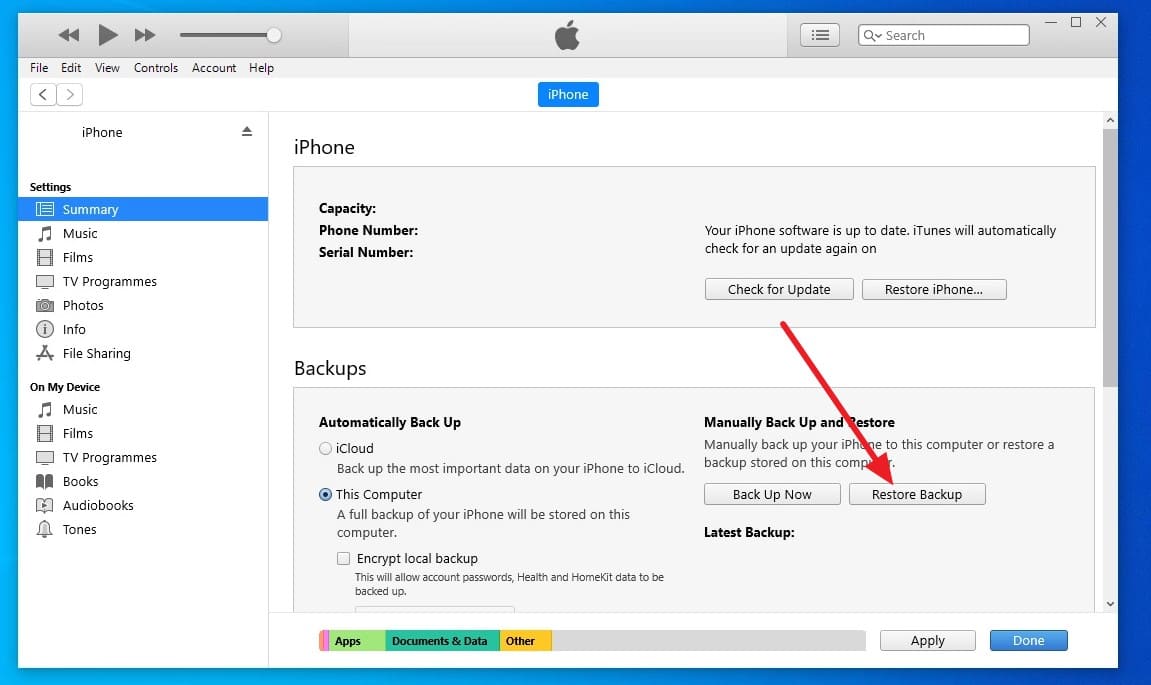
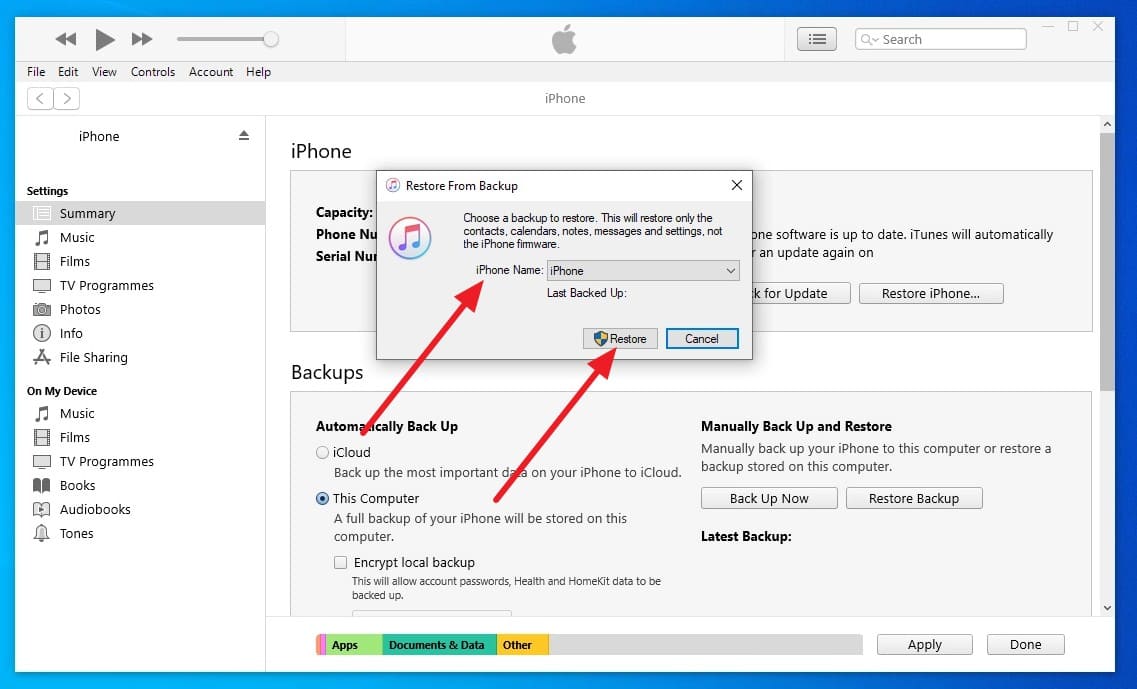
A Mac or PC backup may contain missing messages if Messages in iCloud was disabled when that backup was created. These backups can provide another recovery option when your messages are unavailable elsewhere. If messages are missing on iPhone, check for an eligible computer backup and restore it using the steps below:
Step 1. Connect your iPhone > Press "Trust" on iPhone > Choose the "Devices" icon in iTunes and go to the "Summary" tab > Click "Restore Backup."
Step 2. Choose the backup under "iPhone Name" and click on "Restore."
Part 4. Messages Still Missing After Sync and Recently Deleted Checks? Recover Them!
Both backup methods overwrite current iPhone data, and neither helps if the missing messages were never included. In such cases, Dr.Fone - Data Recovery (iOS) provides additional recovery options through a Windows PC or Mac. It can scan for 35+ supported data types and help address the messages missing on iPhone issue.
This iPhone data recovery tool supports recovery from an iOS device, iCloud Backup, iCloud synced data, iCloud Drive, and iTunes or Finder backups. You can review available backup information before selecting a source to scan or download. After scanning, preview the recoverable messages and attachments before choosing what you want to restore or export.
 Recovers data after deletion, crashes, or device damage.
- Supports photos, messages, contacts, WhatsApp, and more.
- Supports all major iPhone, iPad, and iPod models.
- Preview and recover only what you need.

Guide to Scan an iPhone for Deleted Messages Recovery
While you try to resolve the iCloud Messages not syncing issue, review this guide and recover deleted messages:
-
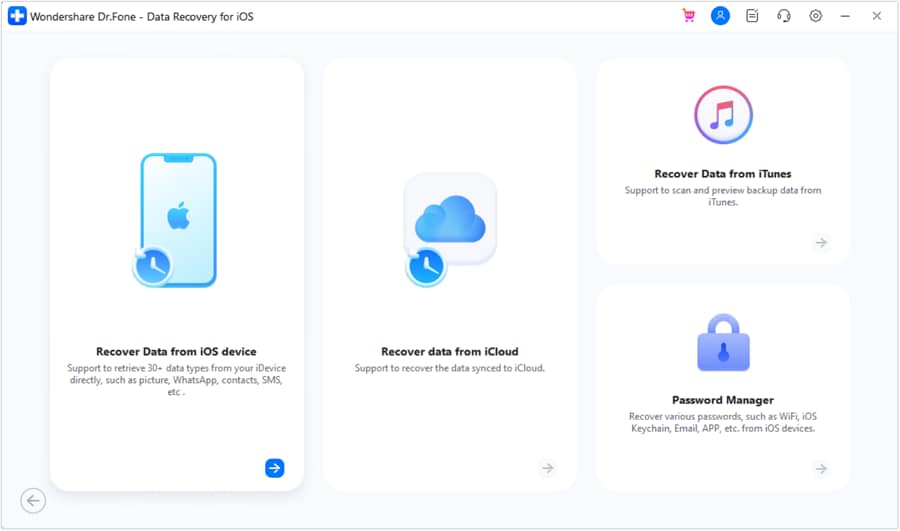
Step 1 Choose iOS Device Recovery
Open the "Data Recovery" tool and select "iOS." Choose "Recover Data from iOS Device," then connect your iPhone to the computer.
-
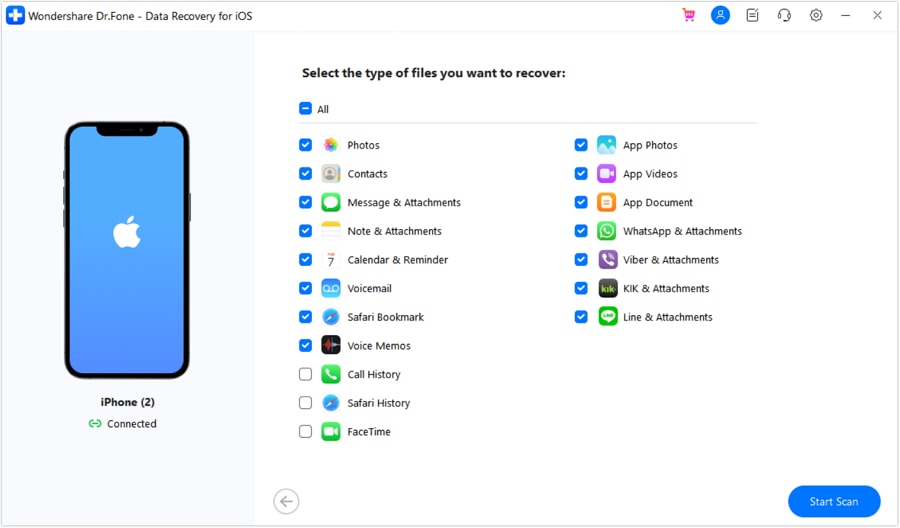
Step 2 Scan for Messages and Attachments
After Dr.Fone detects your iPhone, select "Messages & Attachments" from the available data types. Click "Start Scan" to begin searching for recoverable messages.
-
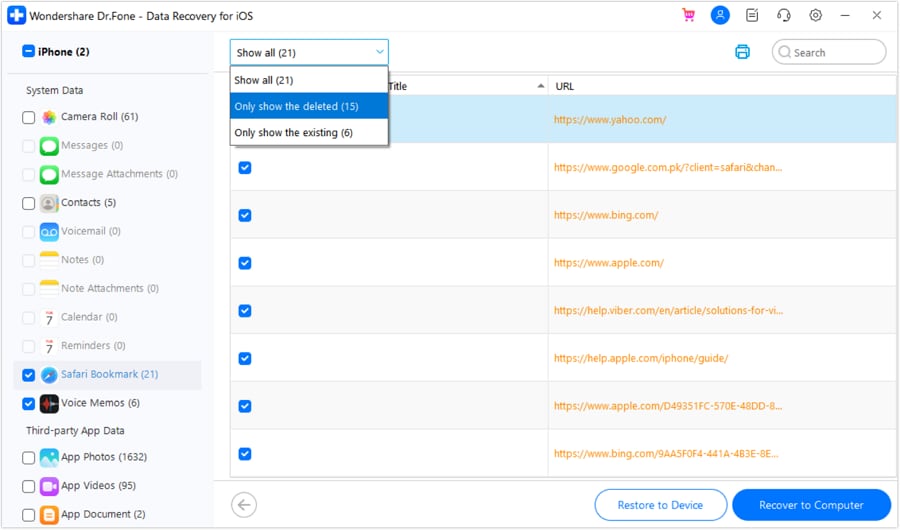
Step 3 Preview and Recover the Messages
Once the scan is complete, preview the detected messages and attachments. Select the items you want to recover, then choose the available recovery option.




Part 5. Tips to Keep Messages Synced Across Apple Devices
To prevent the Messages not syncing to iCloud issue from recurring, follow these best practices to keep your message history synchronized across Apple devices:
| Best Practice | What to Do |
|---|---|
| Keep Messages in iCloud On | Enable Messages in iCloud on every device you want to keep synced. |
| Use the Same Apple Account | Sign in with the same Apple Account on your iPhone, iPad, and Mac. |
| Keep iCloud Keychain On | Keep iCloud Keychain enabled when using Messages in iCloud. |
| Maintain iCloud Storage | Check Settings > [Name] > iCloud and free up or add storage when needed. |
| Keep Devices Updated | Install the latest compatible software updates available for your Apple devices. |
| Let Sync or Restore Finish | Keep your device connected to Wi-Fi and power while syncing or restoring data. |
| Verify Messages Before Erasing | Confirm important conversations and attachments transferred before erasing your old device. |
Conclusion
Verify the essential settings before trying more advanced solutions for the iCloud Messages not syncing issue. Make sure your devices use the same Apple Account, two-factor authentication, iCloud Keychain, and Messages in iCloud. Remember that Messages in iCloud synchronizes your message history rather than serving as a traditional backup.
Changes, including deletions, can sync across enabled devices. If messages go missing, check Recently Deleted, where eligible messages remain recoverable for about 30 to 40 days. When built-in recovery options cannot restore them, Dr.Fone can scan supported sources for recoverable messages.
FAQ
-
1. Can I view Messages stored in iCloud on iCloud.com?
No, Apple does not provide web access to Messages in iCloud like Photos, Notes, or Mail. Messages are available on supported Apple devices, so checking another synced device can help identify syncing issues. -
2. Why does one iPhone show fewer messages than my other Apple devices?
That device may have Messages in iCloud disabled or use a different Apple Account. Different addresses selected under Send & Receive can also cause conversations to appear differently across your Apple devices. -
3. Does deleting a message on one device remove it from all synced devices?
Messages in iCloud keep your message history synchronized across enabled devices, so deletions also sync between them. Treat deleted messages as affecting all devices using Messages in iCloud. -
4. Will Messages in iCloud sync when one of my Apple devices is offline?
An offline device may temporarily retain messages deleted elsewhere. Once it reconnects, Messages in iCloud synchronizes pending changes, so those conversations may then disappear from that device as well.
 Add Wondershare Dr.Fone as a preferred source on Google