Recover photos, messages, WhatsApp, and more — no backup
needed.
Recover photos, messages, WhatsApp, and more — no backup
needed.

 100% Security Verified | No Subscription Required | No Malware

 :
: 
 ChatGPT
 Perplexity
 Gemini
 Claude
 Grok
Grok
A missing chat, an unloadable Memory thumbnail, and a vanished Snap look identical, yet each follows a completely different system path. Snapchat provides no recycle bin or undo button, so a single restore method will not work for every situation. You must identify the exact type of loss first to successfully recover Snapchat data.
Review this guide to know which type of Snapchat data is recoverable through 5 simple methods. Among all, get to know why Dr.Fone - Data Recovery (iOS) is the effective solution yet.
In this article
Quick Answer: Is Snapchat Data Recoverable?
Some Snapchat data is recoverable, but the chances depend mainly on where the content was saved before it disappeared. Memories backed up to Snapchat, Chats or Snaps intentionally saved in Chat, and media exported to the iPhone Photos library have more recovery options. Unsaved Snaps are much harder to recover because Snapchat's servers are designed to delete most Snaps after they have been viewed or expired.
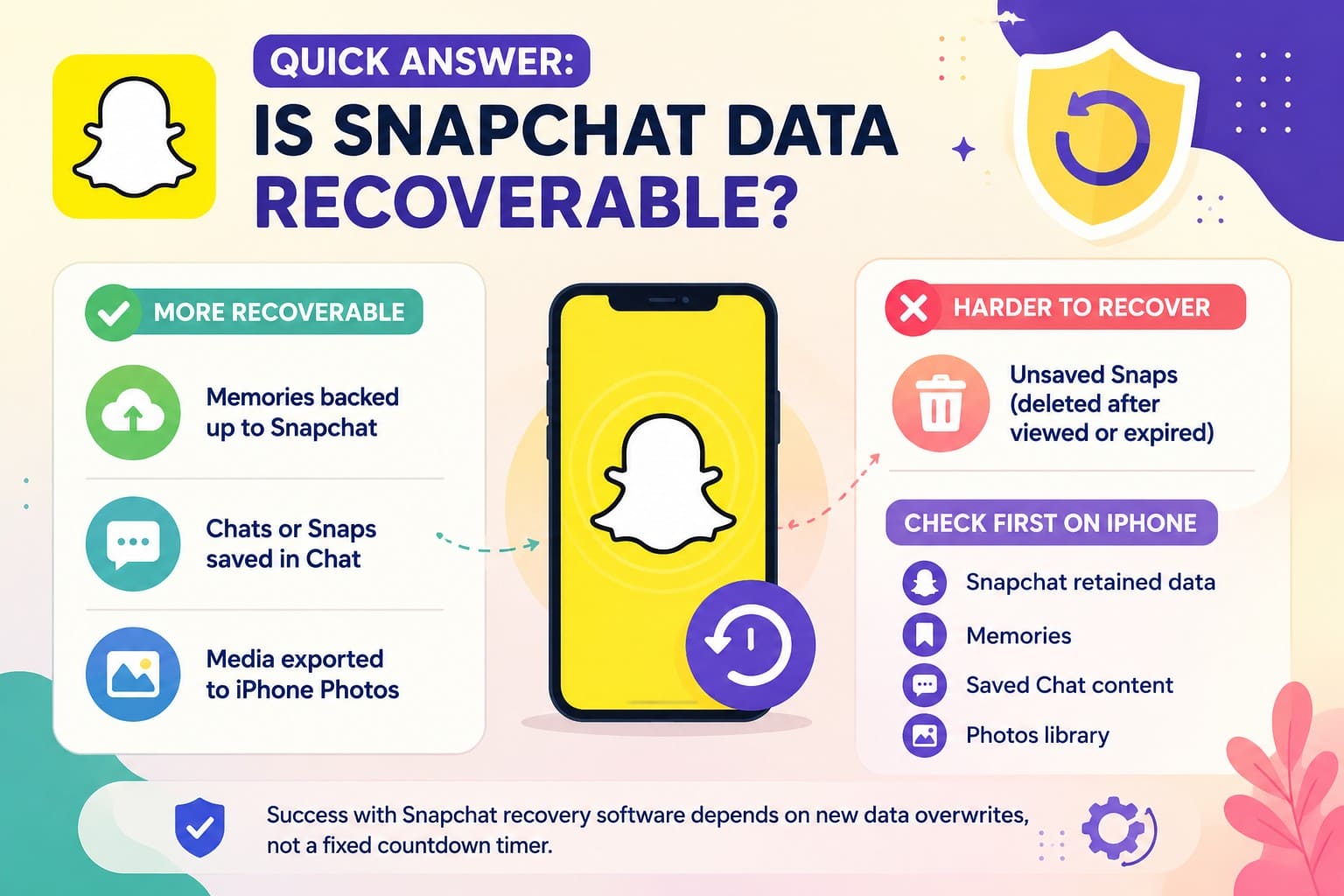
For iPhone recovery, first check Snapchat's retained data, Memories, saved Chat content, the Photos library, and existing backups. Your success rate with Snapchat recovery software depends on new data overwrites rather than a fixed countdown timer.
Part 1. What Snapchat Data May Be Recoverable?
Snapchat stores data across 3 locations. Servers hold Memories and saved chats, app storage holds offline caches, and the Photos library holds exported files. Each site follows distinct rules, so successful Snapchat recovery iPhone efforts depend on which location held the lost item. This table sorts them before you spend too much time on the wrong route:
| Snapchat Data | Where It Lives | Recovery Outlook |
|---|---|---|
| Chats Saved in a Conversation | Snapchat's servers, plus the handset. | Good, via an export or a desktop scan. |
| Memories | Snapchat's servers once uploaded. | Good, unless the upload never finished. |
| Snaps You Sent to Camera Roll | Your Photos library. | Good, Recently Deleted included. |
| Cached Chats and Media | Inside the app's private storage. | Possible, until new data claims that space. |
| Unsaved Snaps After Viewing | Cleared by Snapchat on purpose. | Very poor, though cached fragments may remain. |
| My Eyes Only Once The Passcode is Reset | Erased at the moment of the reset. | None whatsoever, by Snapchat's design. |

Part 2. What to Do Immediately After Snapchat Data is Deleted
Since that cache is the fragile part, the first few minutes matter more than the method you eventually pick. Perform the mentioned actions immediately to recover Snapchat data on iPhone. Each one simply stops the situation from getting worse while you decide:
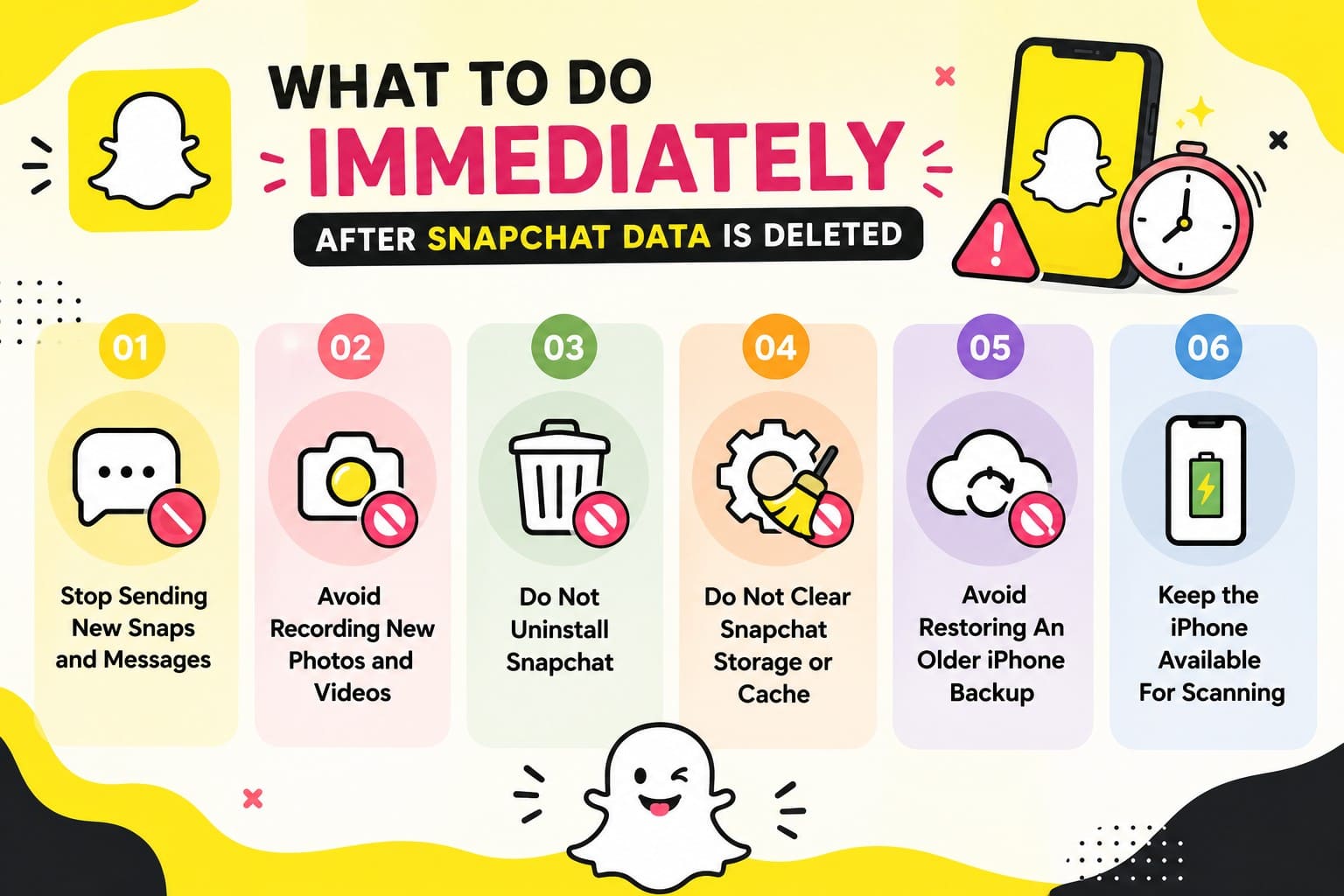
- Stop Sending New Snaps and Messages: Each one writes fresh data into the very area holding your deleted content. Even typing in a chat updates the app's database.
- Avoid Recording New Photos and Videos: Video does the most damage of anything on this list. A single minute of 4K claims more space than months of chat history.
- Do Not Uninstall Snapchat: Deleting the app dismantles its storage container and everything cached inside. Reinstalling builds an empty one, so this is the single most damaging thing you can do.
- Do Not Clear Snapchat Storage or Cache: The in-app clearing tool frees space by wiping precisely the fragments a scan hunts for. It sits under Settings, and it's tempting when storage warnings appear, which is exactly when people reach for it.
- Avoid Restoring an Older iPhone Backup: A restore rewrites the iPhone completely, taking the current cache down with it. You'd be trading a possible recovery for a guaranteed loss.
- Keep the iPhone Available for Scanning: Charge it, put it down, and borrow another phone if you can manage it. Airplane mode helps as well, since background syncing writes fresh data even when nobody touches the screen.
Part 3. How to Recover Snapchat Data on iPhone
5 methods target different storage layers for Snapchat recovery iPhone needs. Saved content can be recovered through account tools without handset access. Unsaved content may rely on recoverable device cache before new data overwrites it.
Method 1. Recover Snapchat Chats and Attachments with Dr.Fone - Data Recovery (iOS)
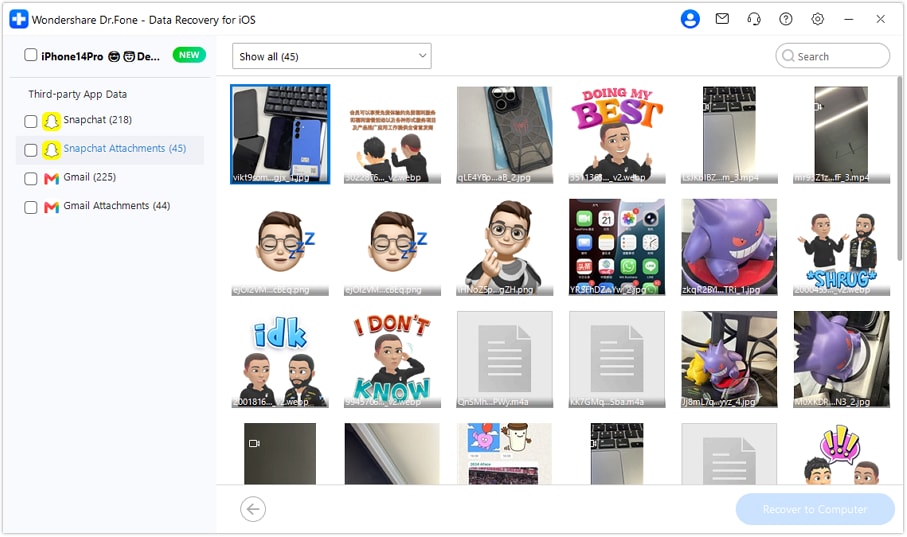
Once a snap is opened, Snapchat's servers keep nothing, leaving the app's private storage as the last place a cached conversation exists. Reading it needs data recovery software, because Apple blocks any app running on the phone from examining deleted data. On its published data-type list, Dr.Fone - Data Recovery (iOS) carries Snapchat Chats & Attachments as its own entry. Threads return labeled and readable rather than as unnamed app files.
The free read-only scan supports Snapchat data recovery on iPhone 16 and earlier models without overwriting existing data. You can also preview recoverable Snapchat chats and attachments, filter the scan results, select the required items, and export them to your computer.
 Recovers data after deletion, crashes, or device damage.
- Supports photos, messages, contacts, WhatsApp, and more.
- Supports all major iPhone, iPad, and iPod models.
- Preview and recover only what you need.

How to Scan an iPhone for Snapchat Data with Dr.Fone
To know how this Snapchat recovery software can help in data retrieval, go through the mentioned guide in detail:
-
Step 1 Set Up the Scan on Your Computer
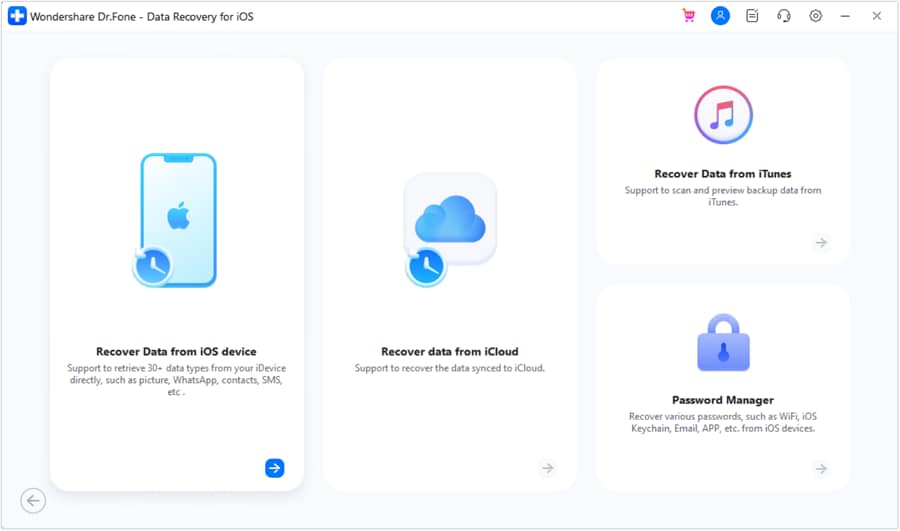
Run Dr.Fone on a Mac or PC, choose the Data Recovery module for "iOS" from the "Toolbox" tab, and click on the "Recover Data from iOS Device" tool.
-
Step 2 Choose Snapchat and Its Media
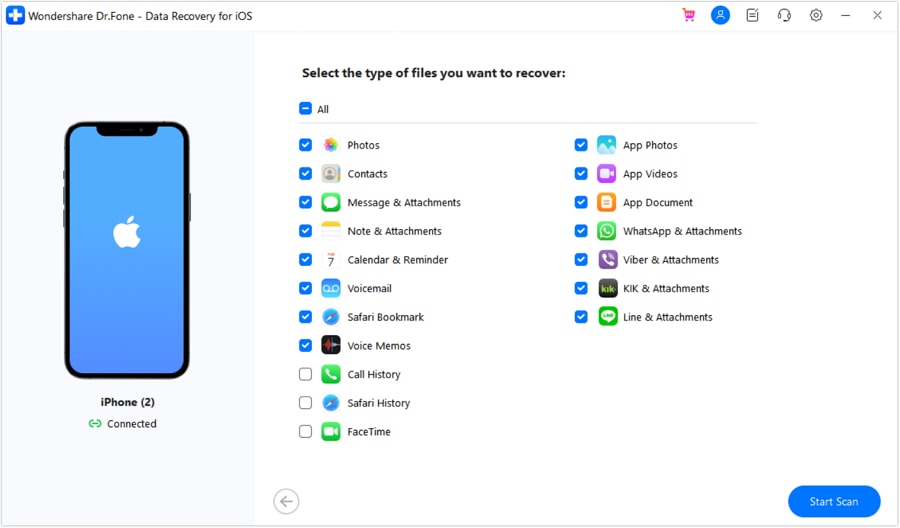
Connect the iPhone when asked and tick "Snapchat" as the data type, then press the "Start Scan" button.
-
Step 3 Preview and Save What Survived
Switch the results filter to deleted-only, preview the available Snapchat chats and attachments, select what you need, then click "Recover to Computer" to export the recovered data.




Method 2. Recover Missing Snapchat Memories
Memories are stored on Snapchat's servers, not the iPhone, so anything fully uploaded stays on your account even after a reinstall or a new phone. A missing one more often means the upload never completed than that anything was erased. 3 checks tell those apart and are provided below for the Snapchat recovery iPhone:
-
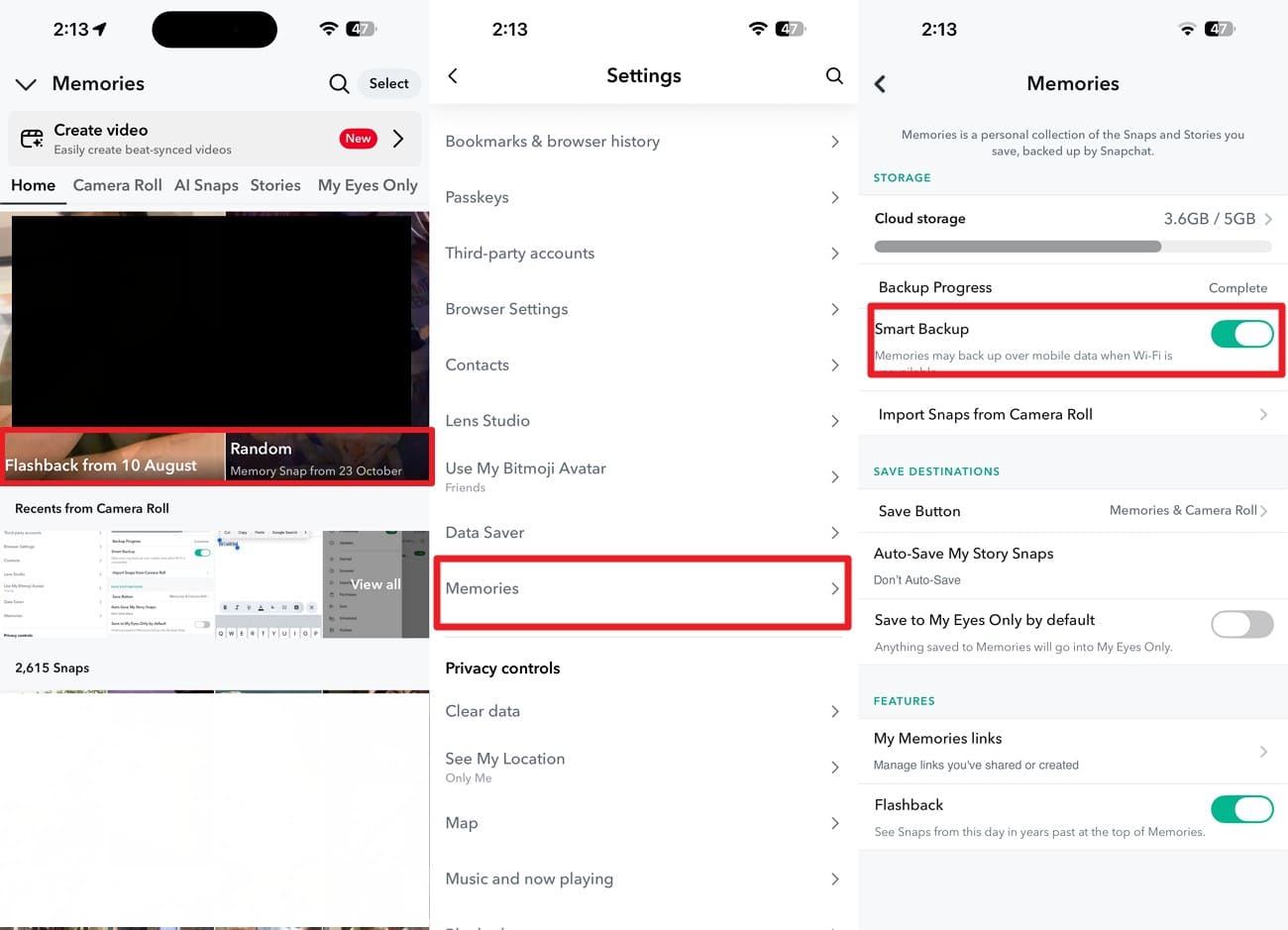
Check 1 Check Memories and Backup Status
Swipe up on the Snapchat main interface to "Memories" > Check whether the missing item appears. Confirm Memories backup is complete in Snapchat's settings > "Memories > Smart Backup."
-
Check 2 Troubleshoot Memories That Are Not Displaying
If the Memories appear as missing or grey, update Snapchat to the latest version. You can also sign out and back in if nothing changes, because a stale session is the usual cause of a blank or partial Memories tab.
-
Check 3 Protect Memories That Have Not Finished Backing Up
If the backup status isn't complete, do not log out, uninstall Snapchat, or switch devices yet. Keep the app connected and allow the backup to finish. Look for thumbnails with a backup icon to identify unsynced Memories, then export them immediately before taking other app actions.
Method 3. Download Snapchat Data Through My Data
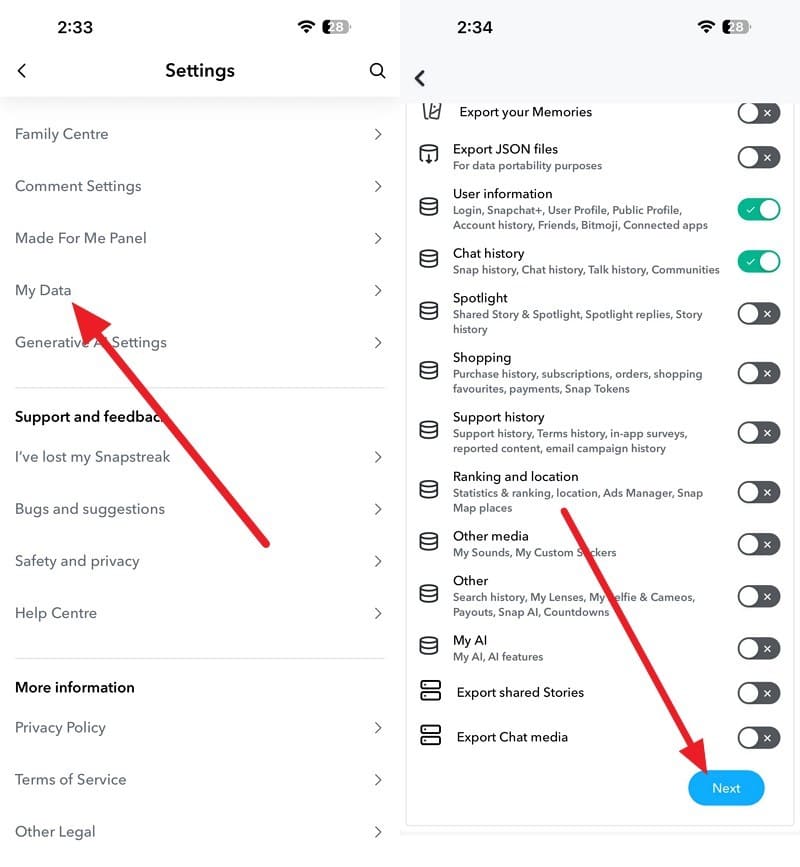
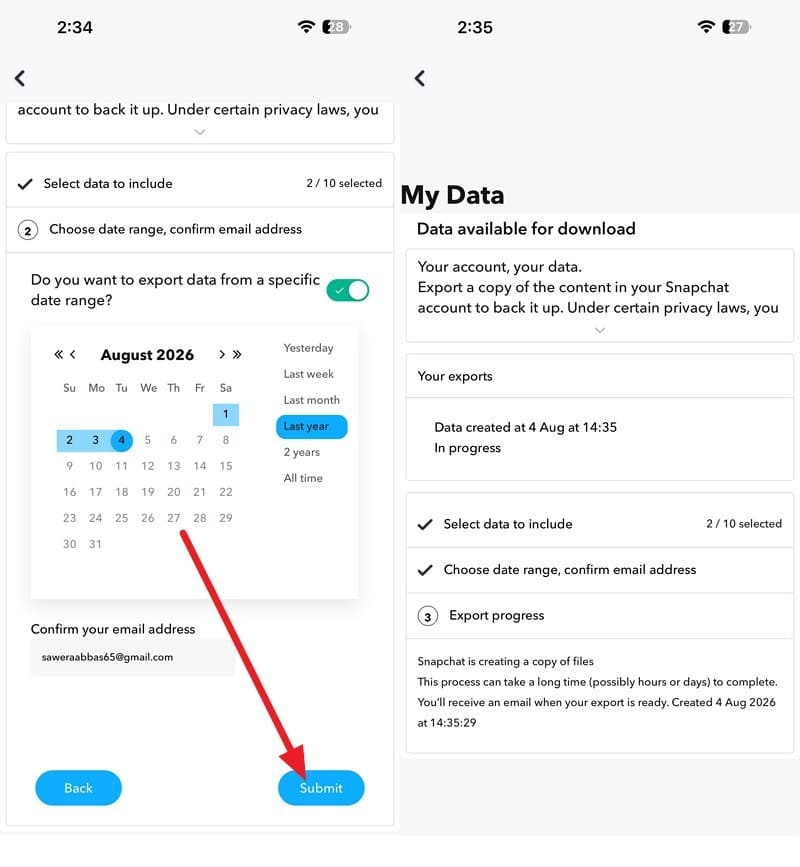
Snapchat My Data may help recover lost Snapchat data by providing account information and retained content. This method can be done on the web and iPhone and can take days. Processing runs from a few minutes to a day, so follow these steps to recover Snapchat data on iPhone:
On Web
-
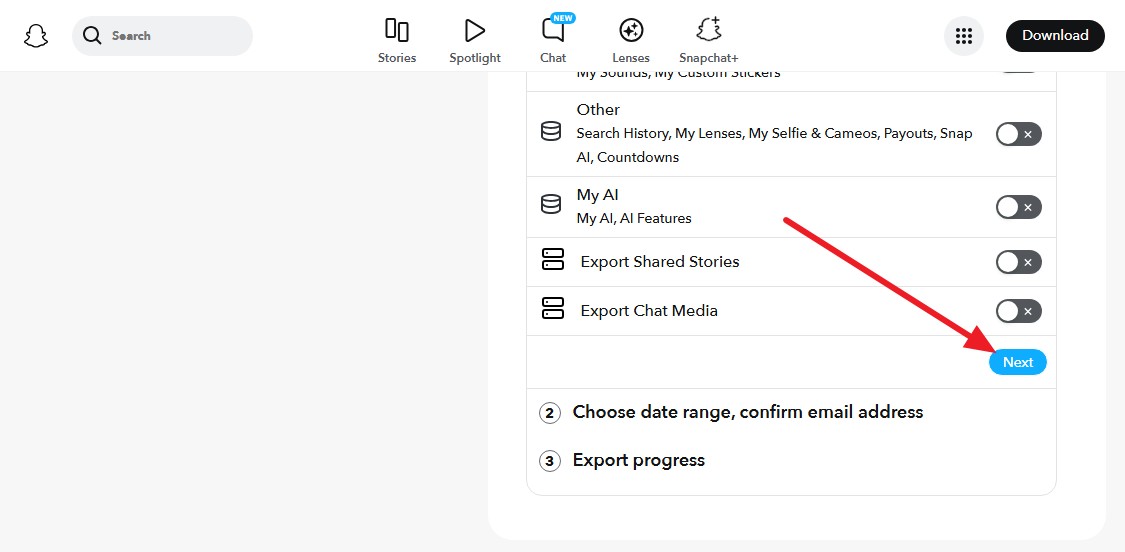
Step 1 Sign In and Choose Data
Sign in at accounts.snapchat.com > Go to "My Data" > Choose what to download along with memories > Tap on "Next."
-
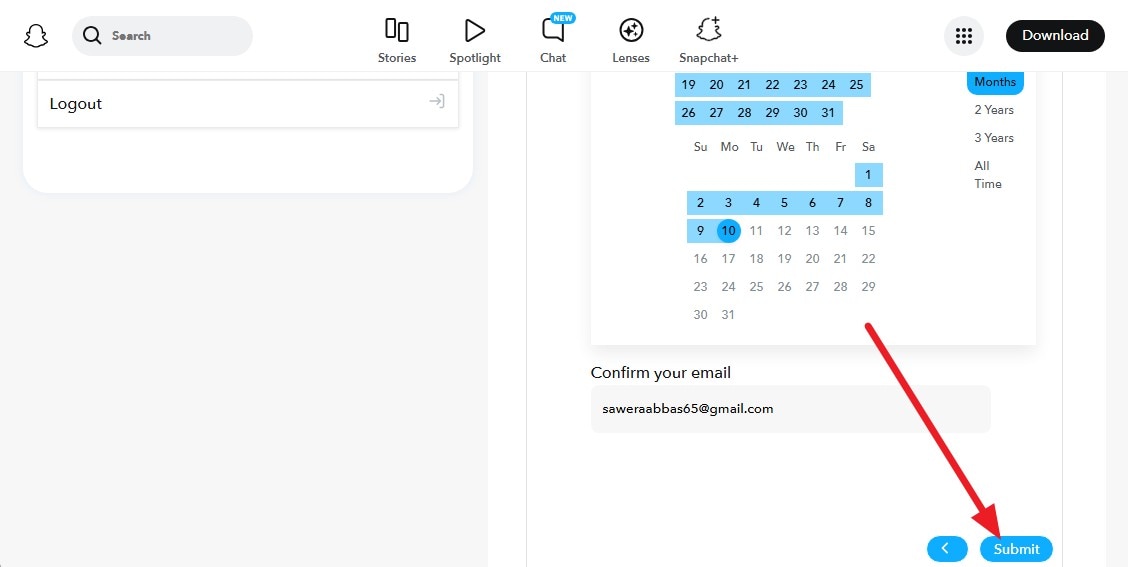
Step 2 Submit Request
Pick the data range > Confirm email and click on the "Submit" button to check the status on the "Export Progress" page.
On iPhone
-
Step 1 Access My Data Settings
Tap on Snapchat settings > Choose "My Data" to pick the data types > Press on "Next" to continue.
-
Step 2 Confirm and Monitor
Choose the data range and email > Press the "Next" button > Monitor the submission status.
After You Get the Email: Open the emailed link when the archive is ready, then download and unzip it. Save the export promptly, and use a computer if the archive is large.
Method 4. Recover Snapchat Photos and Videos From the iPhone
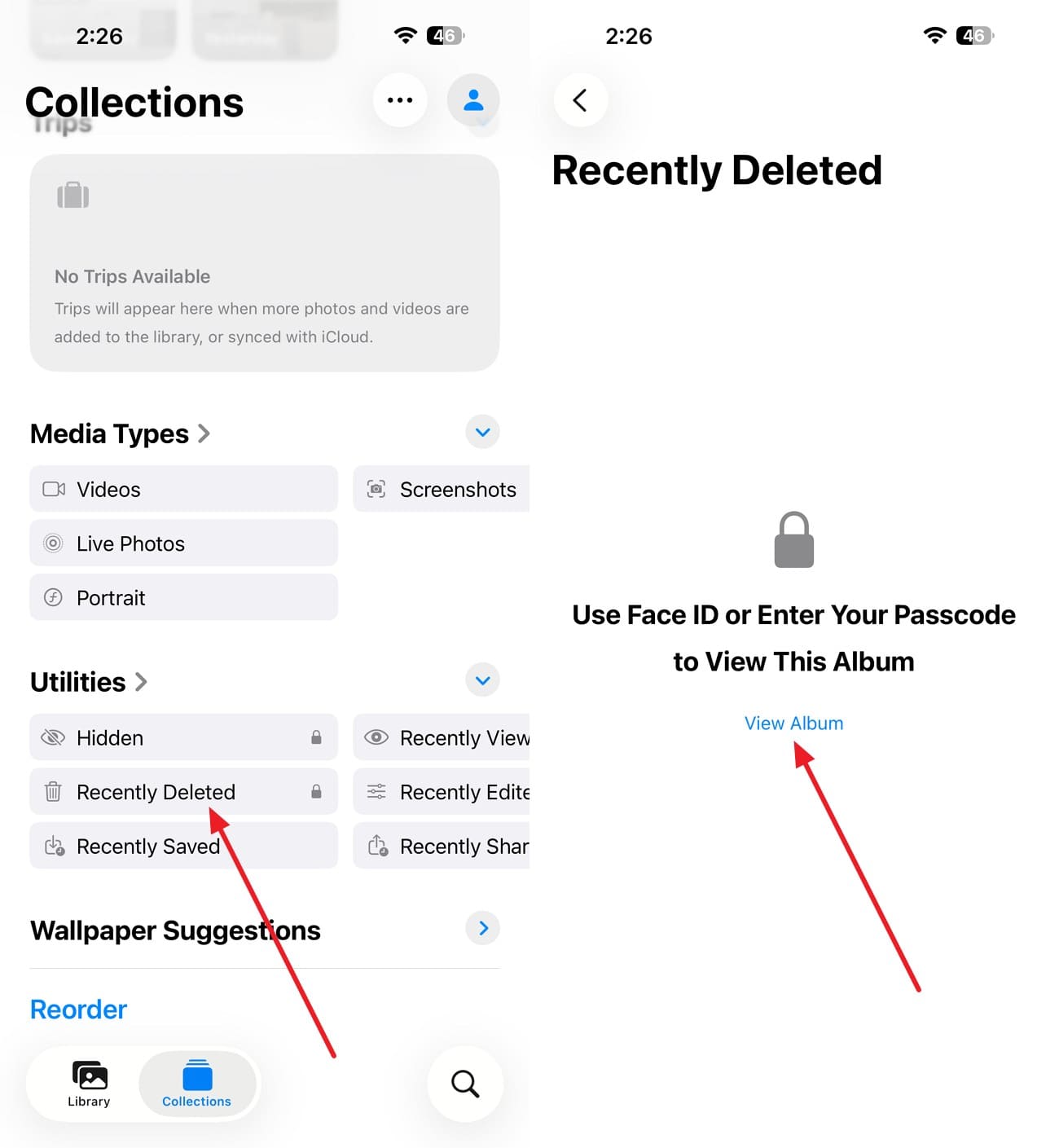
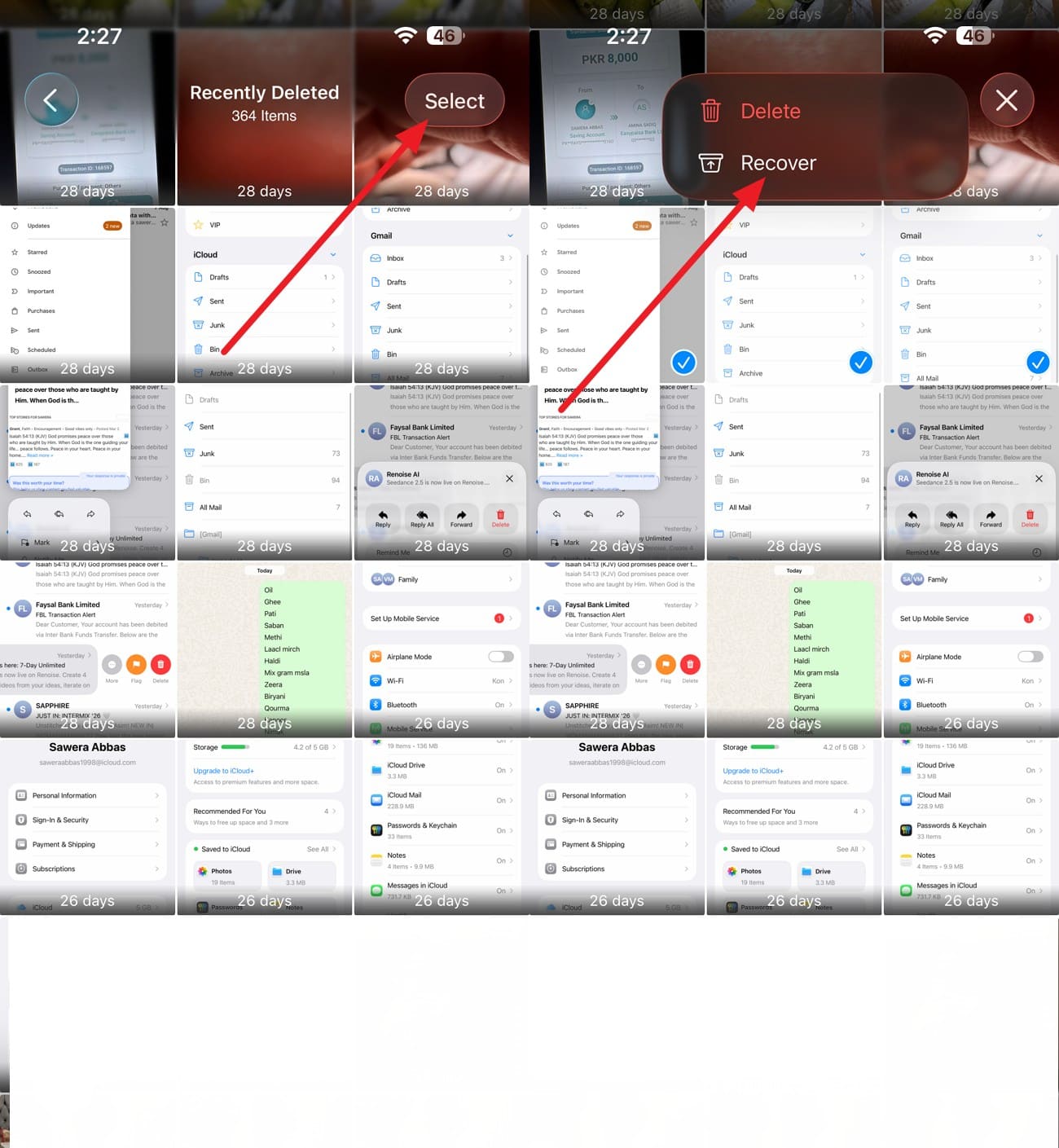
A snap saved to Camera Roll becomes an ordinary photo governed by the Photos app, so Snapchat's deletion rules no longer apply to it. Deleted items stay in Recently Deleted for 30 days before Photos permanently clears them. To learn how you can use this method to recover Snapchat data on iPhone, go through these steps:
-
Step 1 Access Recently Deleted
Go to the Photos App "Collections" tab > Choose "Utilities" > Recently Deleted" folder > "View Album" > Add Face ID or passcode.
-
Step 2 Recover the Snaps
Tap "Select," choose Snapchat saved images > Press "Three Dots > Recover."
Method 5. Extract Snapchat Data From an iPhone Backup
An iPhone backup stores the Snapchat data downloaded to the iPhone when it was running. That covers snaps in your Photos library. Dr.Fone - Data Recovery (iOS) opens that backup and lists its contents without restoring the phone. You can preview individual items and pull out only what you need. As for the guide for this Snapchat recovery software, follow these simple steps:
-
Step 1 Access the Tool and Recovery Mode
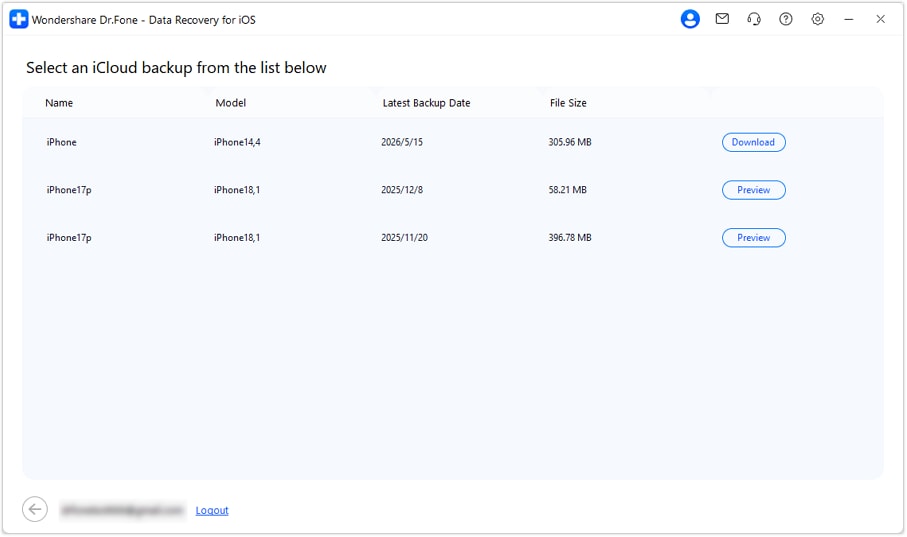
On the Dr.Fone Data Recovery tool for iOS, choose the "Recover Data from iCloud Backup" or "Recover Data from iTunes & Other Backups" feature.
-
Step 2 Sign In and Choose the Backup
Sign in and verify the iCloud account, and choose the "Download" button beside the backup that contains Snapchat downloaded data.
-
Step 3 Save the Snapchat Data to PC
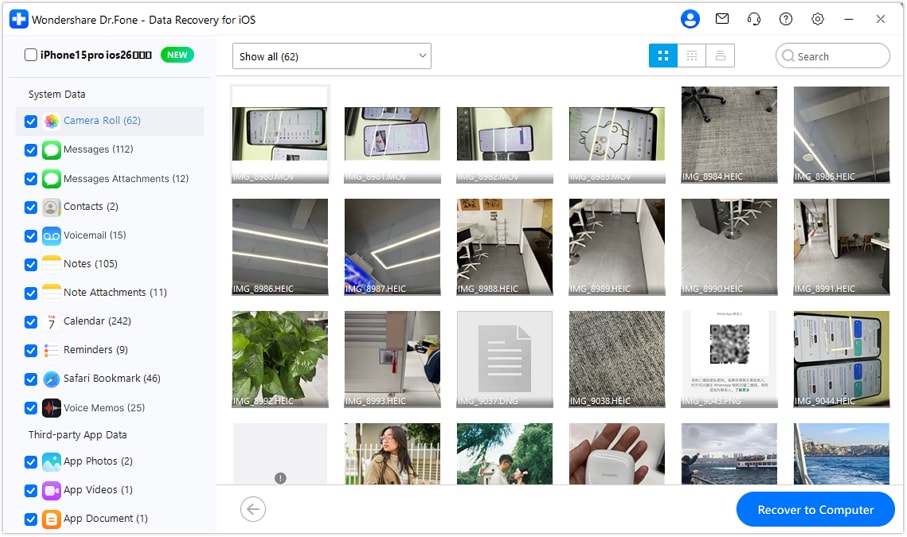
After the tool downloads the selected iCloud backup file, preview and select the data, and click on "Recover to Computer" to save.
Part 4. Why Snapchat Data Recovery May Be Incomplete
Failed Snapchat recovery iPhone attempts stem from predictable reasons set before software starts. The right method prevents wasted effort and avoids unnecessary scan costs.
| Data Scenario | Recovery Likelihood | Reason |
|---|---|---|
| Deleted Data Was Overwritten | Very low | New device data may overwrite recoverable cached fragments. |
| The Snap or Chat Was Never Saved | Low | Server copies may expire, but cached fragments can remain locally. |
| The Snapchat Cache Was Cleared | Very low | Clearing cache may remove locally stored recoverable fragments. |
| Snapchat Was Uninstalled | Very low | Uninstalling can remove Snapchat's locally stored app data. |
| The iPhone Was Factory Reset | Very low | A reset removes local data available for device scanning. |
| No Usable Backup Exists | Medium | Device cache, Snapchat account data, or Recently Deleted may remain. |
Conclusion
First, check whether the Snapchat content was saved, as its storage location determines the best recovery method on iPhone. Account tools handle server records, while Dr.Fone - Data Recovery (iOS) extracts local app cache files. Act fast before fresh device activity overwrites lost records, stop background app updates, and scan while data fragments remain.
FAQ
-
1. Can Dr.Fone recover unsaved Snapchat chats from an iPhone?
Yes, cached conversation fragments may still be recoverable if they have not been overwritten. Unsaved chats can disappear from Snapchat’s servers, while cached data may remain on the iPhone. Run the free preview first, as recovery may include only partial conversations. -
2. Can deleted My Eyes Only content be recovered?
No, Snapchat states that resetting the passcode deletes everything held behind it, and its own team cannot retrieve that content. The section is encrypted on the device, so no third-party tool reaches it either. Treat a forgotten My Eyes Only passcode as permanent. -
3. Can recovered Snapchat videos be restored to Camera Roll?
Yes, but route them through your computer before the phone. Writing directly onto the handset means disabling Find My, and it drops new data into storage you may still want scanned. Once every scan is finished, move the files back through Photos or AirDrop. -
4. Does uninstalling Snapchat reduce the recovery chance?
Severely, deleting the app removes its container along with every cached chat and media file inside. Reinstalling builds a fresh container rather than restoring the old contents.
 Add Wondershare Dr.Fone as a preferred source on Google