Recover photos, messages, WhatsApp, and more — no backup
needed.
Recover photos, messages, WhatsApp, and more — no backup
needed.

 100% Security Verified | No Subscription Required | No Malware

 :
: 
 ChatGPT
 Perplexity
 Gemini
 Claude
 Grok
Grok
How to Transfer Google Messages to a New Phone Without Losing Texts
Phone upgrades can become frustrating when Google Messages opens empty on a new device while important conversations remain on the old phone. Android offers several transfer and backup options, but choosing the right method helps prevent missing texts or media.
This guide covers essential checks and 3 proven ways to transfer Google Messages to a new phone safely. If conversations are missing afterward, Dr.Fone - Data Recovery (Android) can help recover available message data from the old phone before you erase it.
In this article
- Part 1. What to Check Before Transferring Google Messages
- Part 2. Best Ways to Transfer Google Messages to a New Phone
- Part 3. Common Google Messages Transfer Issues
- Part 4. Messages Missing After Transfer? Recover Them Before Erasing the Old Phone
- Part 5. Final Checks Before Resetting the Old Phone
Part 1. What to Check Before Transferring Google Messages
While you transfer Google Messages to a new phone, read this section first. Get to know what you need and what to confirm via these checks before you move Google Messages:
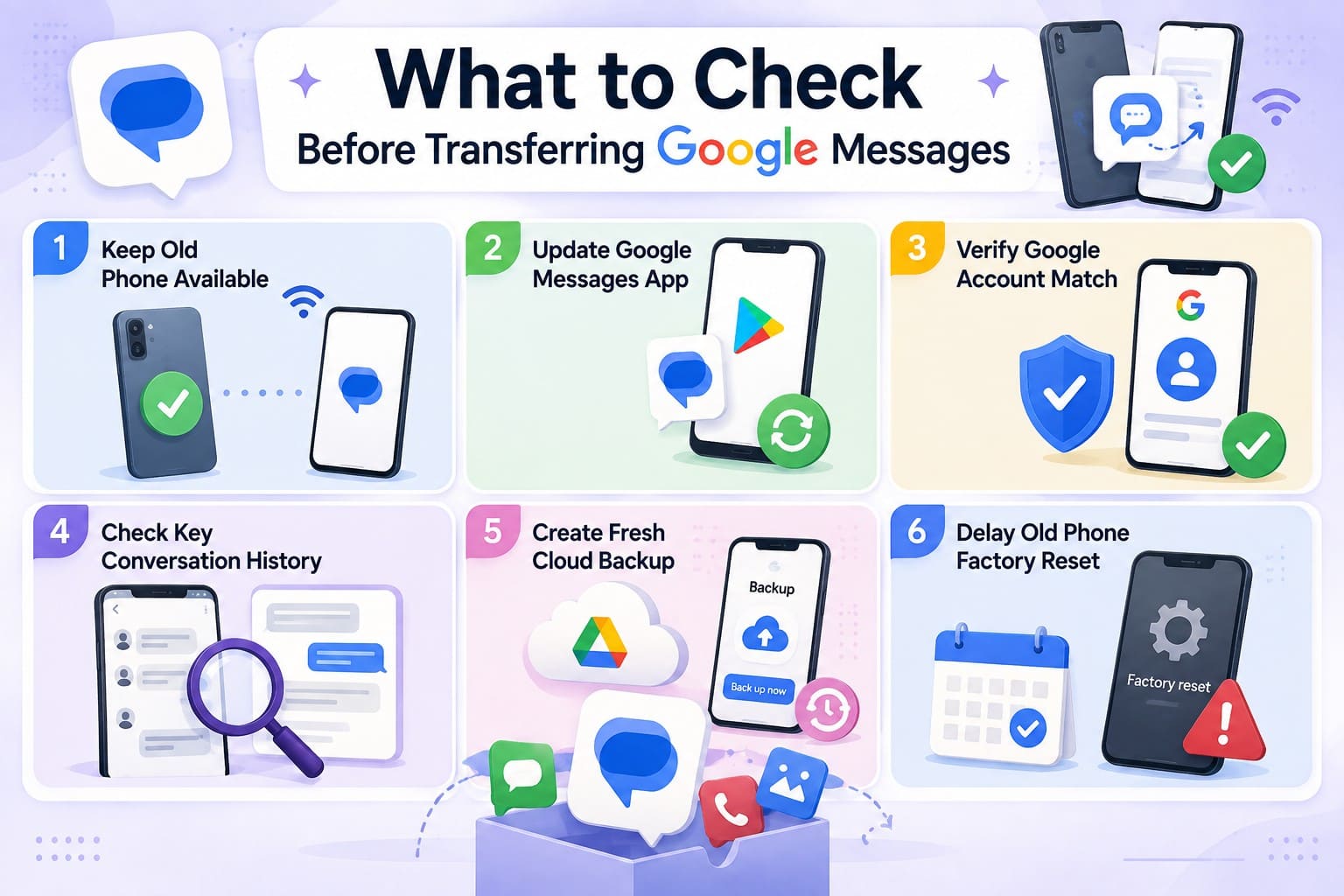
- Keep Old Phone Available: Do not erase or trade in your old Android device before the transfer is finished. Google lets you copy data directly via Wi-Fi or cable or restore from cloud backup.
- Update Google Messages App: Open the Google Play Store to install the latest available update for Google Messages. Keeping the app updated helps maintain compatibility and provides the latest messaging features.
- Verify Google Account Match: Confirm the exact Google Account linked to your existing cloud backup. You need the correct account credentials to restore backed-up data on new hardware.
- Check Key Conversation History: Open important chat threads before migration and note the oldest messages. This manual check gives you a baseline to confirm successful message transfer later.
- Create Fresh Cloud Backup: Go to Settings > Google > All services > Backup, then tap Back up now. Google says Android backup includes SMS and MMS, while RCS messages are backed up when using Google Messages. Backups take time, so verify completion before changing devices.
- Delay Old Phone Factory Reset: Leave your old handset intact until you verify messages on the new device. Some backed-up data restores during setup, while newer Android options support transfers after initial setup.
Part 2. Best Ways to Transfer Google Messages to a New Phone
When you are ready to transfer Google Messages to a new phone, compare the available methods first. Then, choose the option that suits your situation and follow its detailed steps.
| Metrics | Android Device-to-Device Transfer | Google Account Backup & Restore | Samsung Smart Switch |
|---|---|---|---|
| Best For | Moving directly from an old Android phone | Restoring messages when the old phone isn't available | Moving messages to a Samsung Galaxy |
| When You Can Use It | During setup or supported post-setup transfer | Primarily during initial setup or after a factory reset | During setup or after setup |
| Messages It Can Transfer | SMS, MMS, and supported RCS message data | Backed-up SMS/MMS. RCS is backed up when using Google Messages | Messages and other supported data selected in Smart Switch |
| Need to Reset a New Phone? | Not always. Supported devices allow post-setup transfer without resetting | Usually yes if setup is complete. Backup restore generally occurs during setup | No |
Which Method Should You Use?
Use device-to-device transfer to transfer Google Messages to a new phone when the old Android device is available. Restore a recent Google backup when direct transfer is unavailable. Samsung Galaxy users can move supported messages with Smart Switch during or after setup.
Method 1. Transfer Google Messages During Android Setup
The setup wizard copies directly between Android smartphones rather than pulling from the cloud. That makes it the most complete route available. It's also the only one that reliably carries MMS attachments alongside the text they belong to. You can transfer by cable or Wi-Fi, and Google says both methods support the same data.
-
Step 1
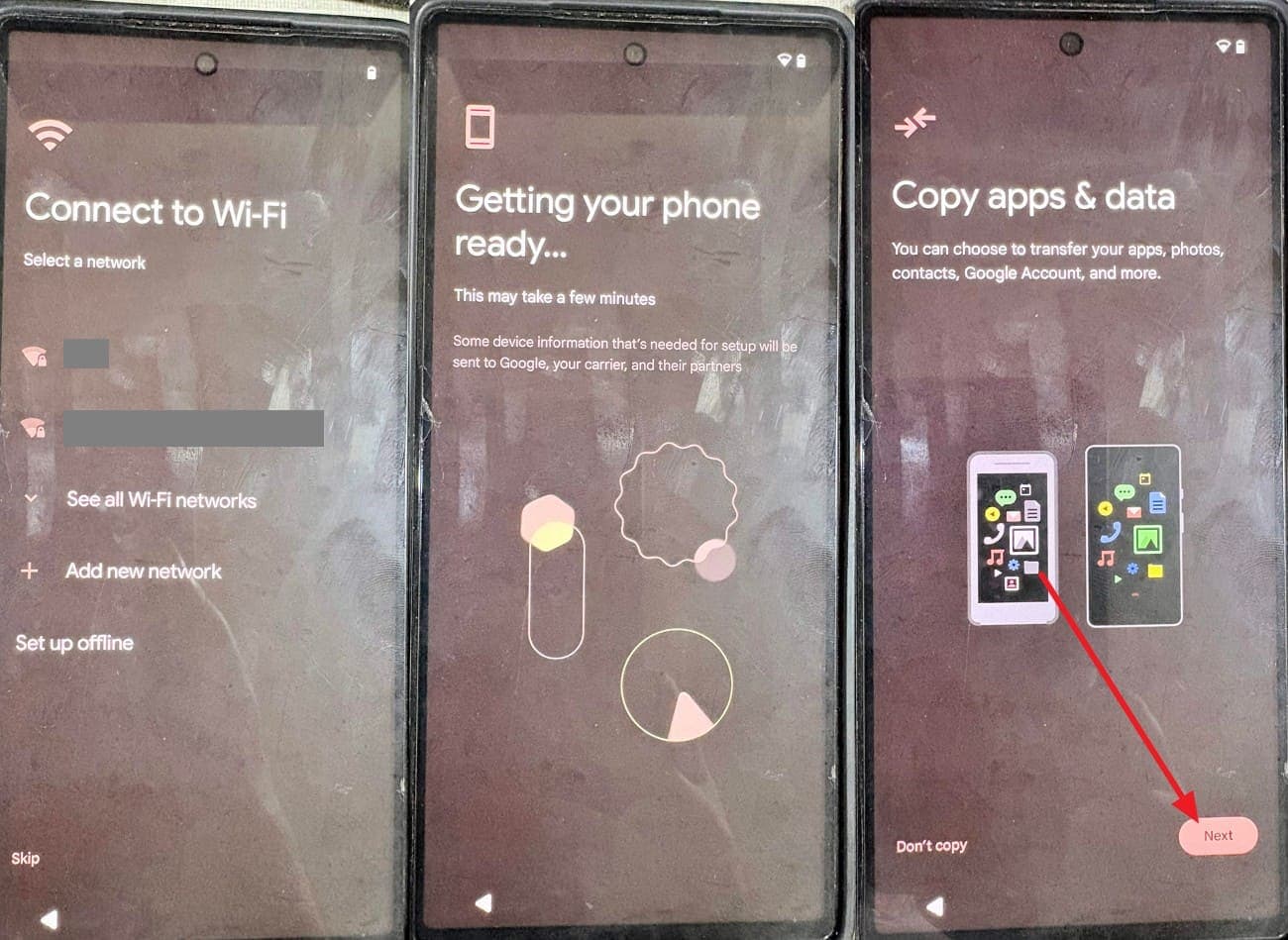
Turn on the new phone, connect it to Wi-Fi, and continue through setup until you reach the “Copy Apps & Data” screen.
-
Step 2
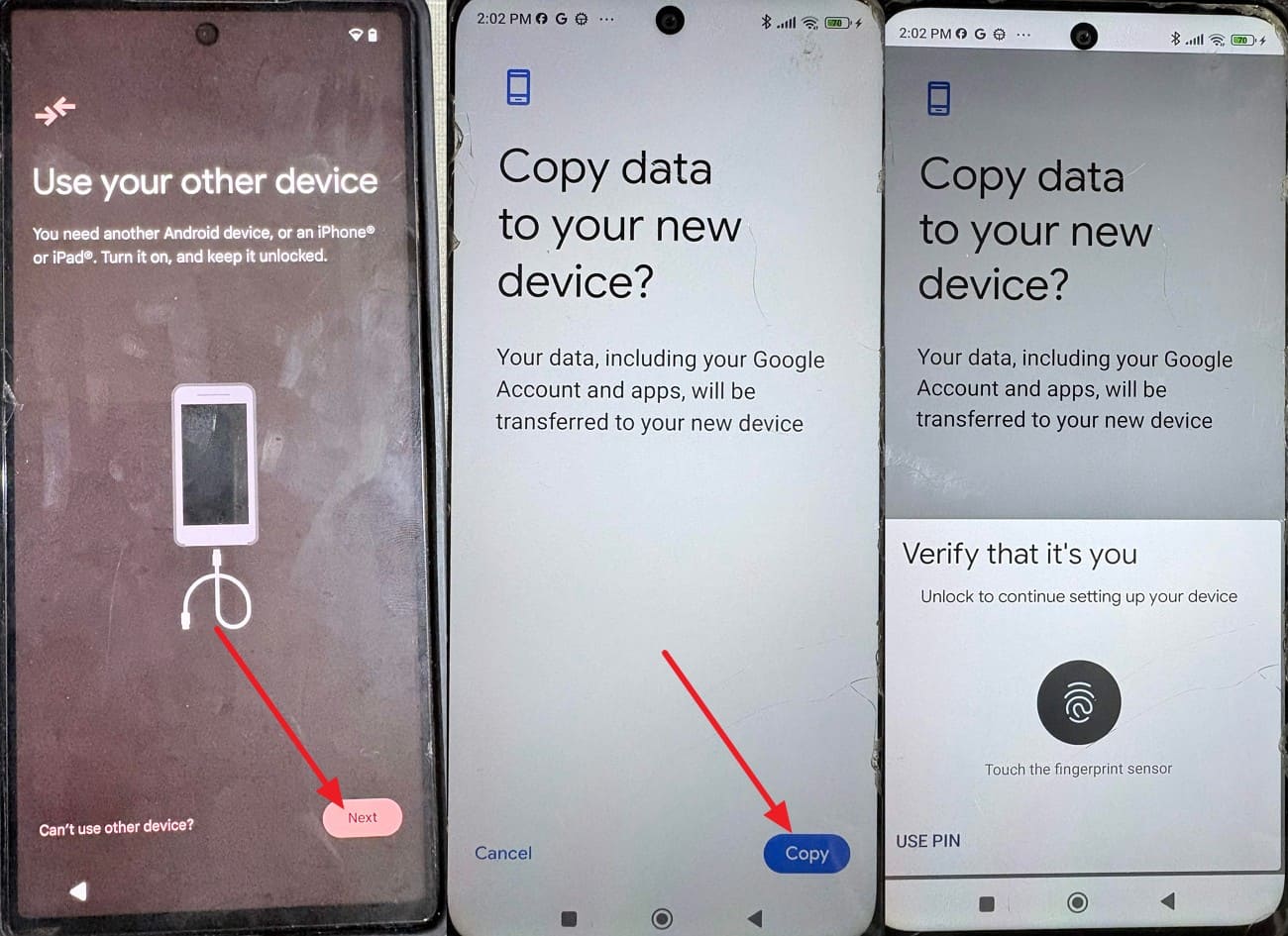
On “Use Your Other Device,” connect both phones with a cable and tap “Next.” On the old phone, tap “Copy” and verify your identity to continue.
-
Step 3
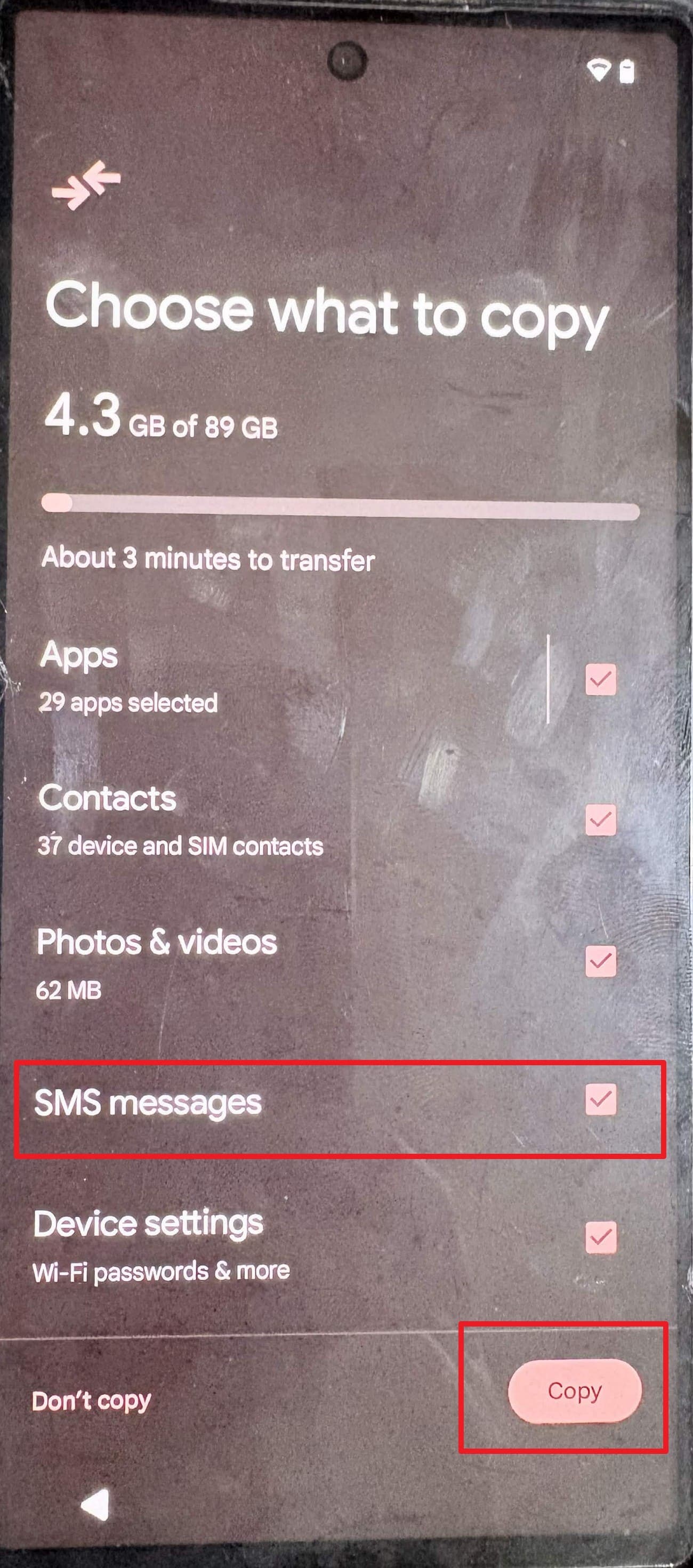
Access “Choose What to Copy,” select “SMS Messages,” and tap “Copy.” Keep both phones connected until copying finishes, then open Google Messages to verify the transferred conversations.
Method 2. Restore Google Messages from an Android Backup
Another way to transfer Google Messages to a new phone is to restore Google Messages during setup. The messages you recover depend on what the most recent completed backup includes. Backups made on newer Android software fail to restore on older system versions. Work profiles and company-owned corporate devices also block standard message backup restores. Follow these steps to restore your backed-up Google Messages on the new device:
-
Step 1
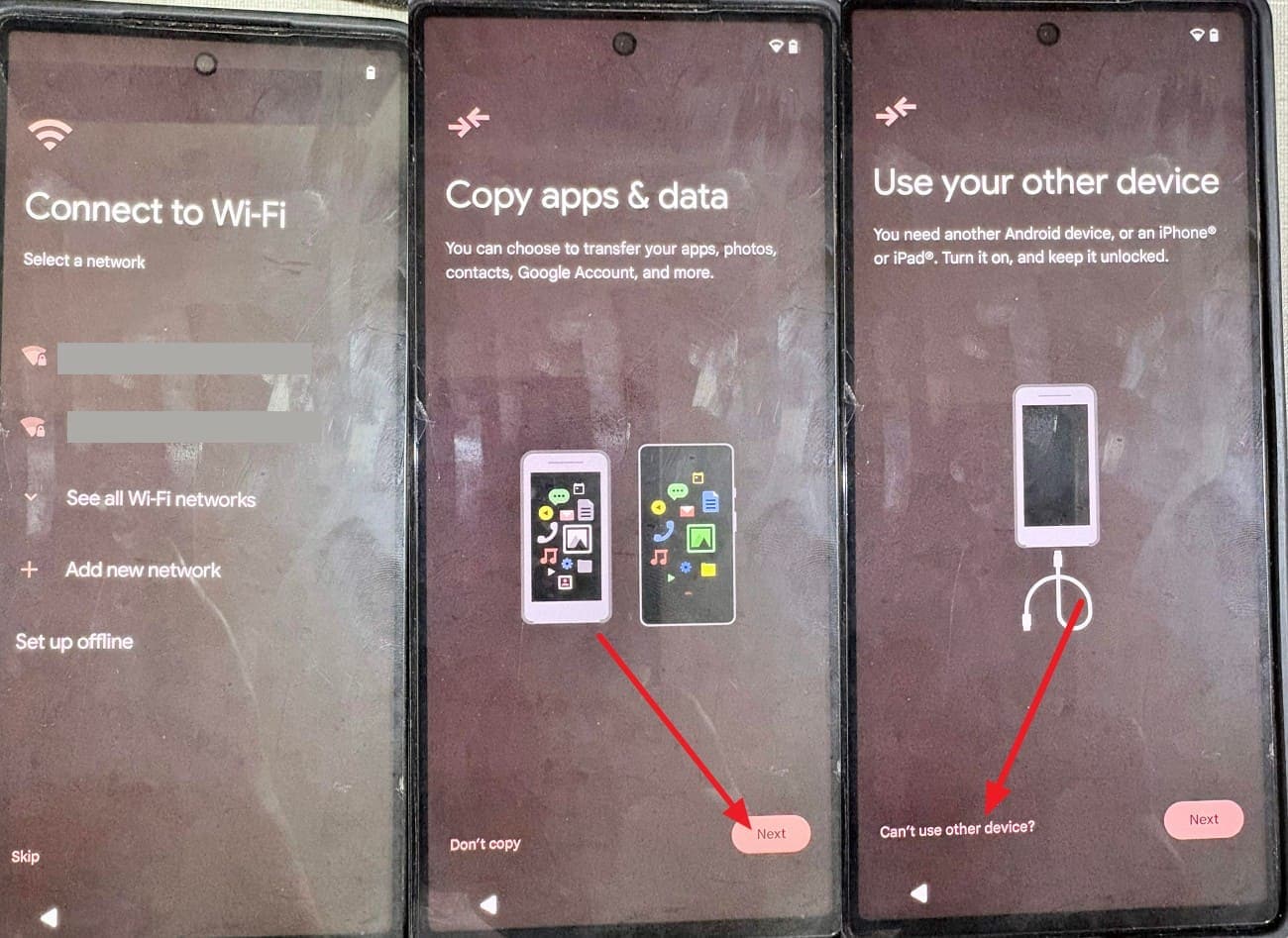
Connect the new phone to Wi-Fi and tap “Next” on the “Copy Apps & Data” screen. Choose the “Can’t Use Other Devices?” option and select “OK” in the popup.
-
Step 2
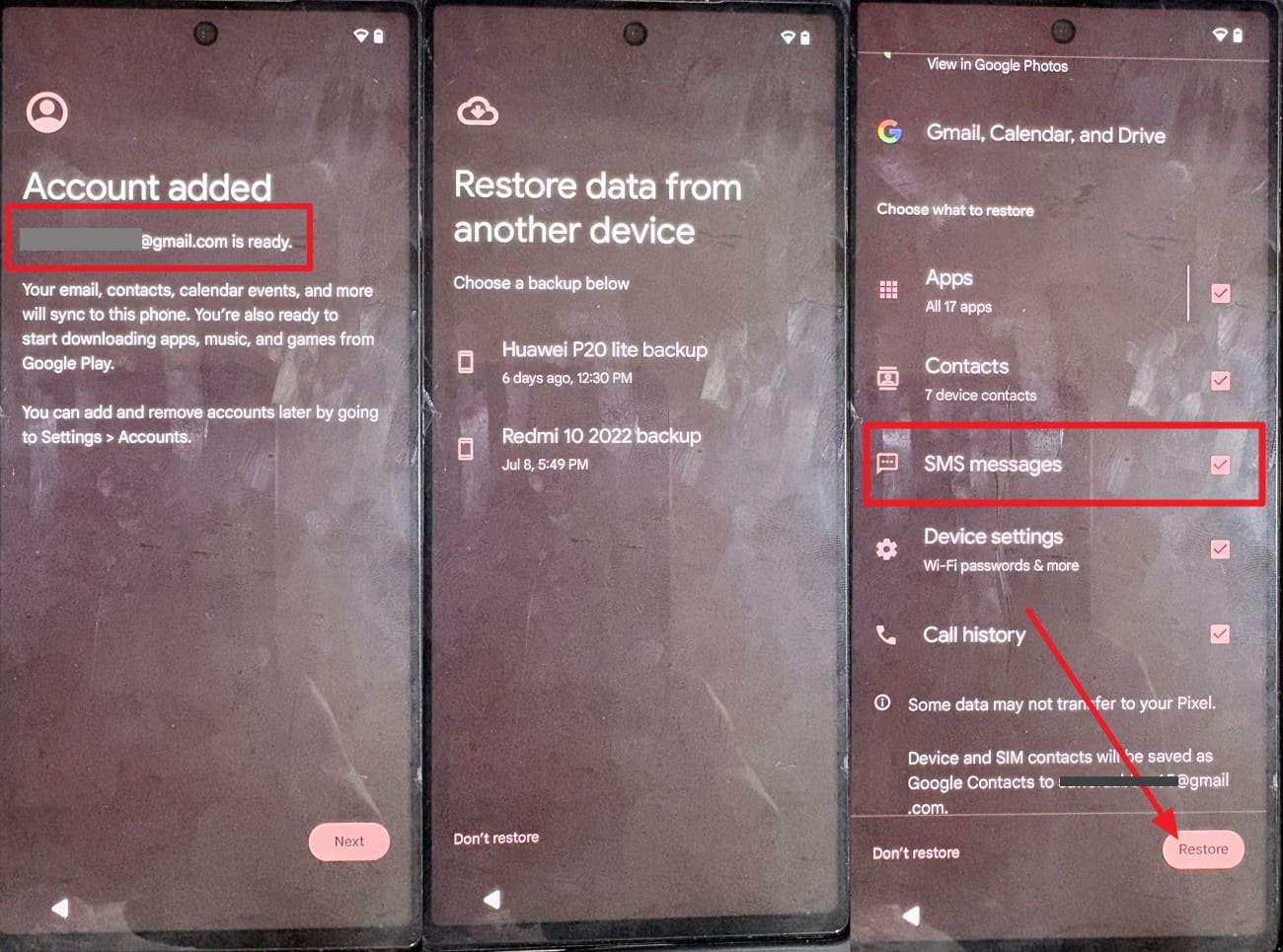
Sign in with the account that holds it, then choose the backup, select “SMS Messages,” and press “Restore.” Complete the remaining setup steps to restore your messages.
Method 3. Transfer Google Messages with Samsung Smart Switch
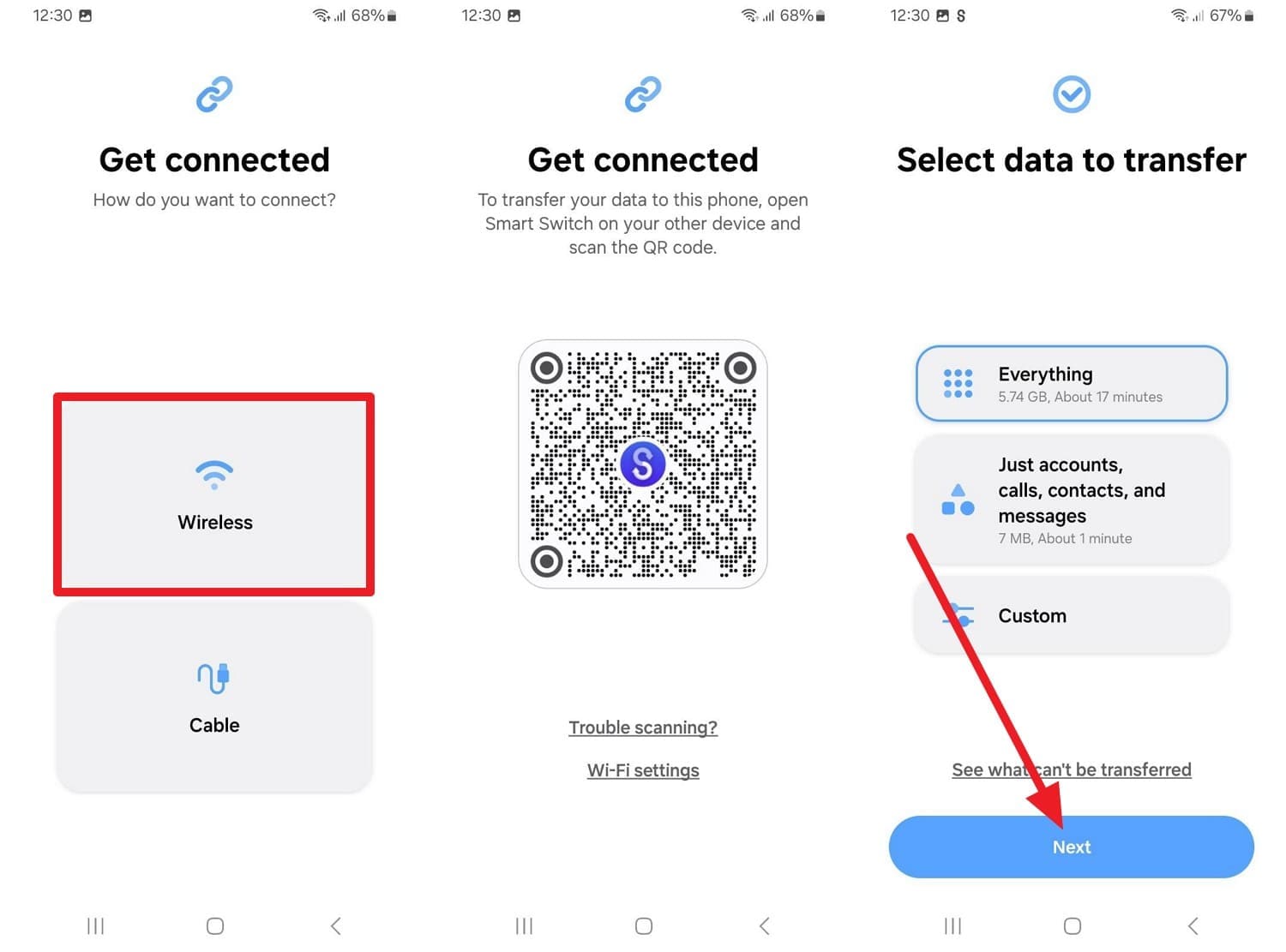
Samsung Smart Switch provides another way to transfer Google Messages to a new phone, including after initial setup. It can transfer supported data through Wi-Fi, cable, or external storage. Set Google Messages as the default messaging app on your new Galaxy device to access transferred conversations. Follow these steps to transfer your messages with Smart Switch:
-
Step 1
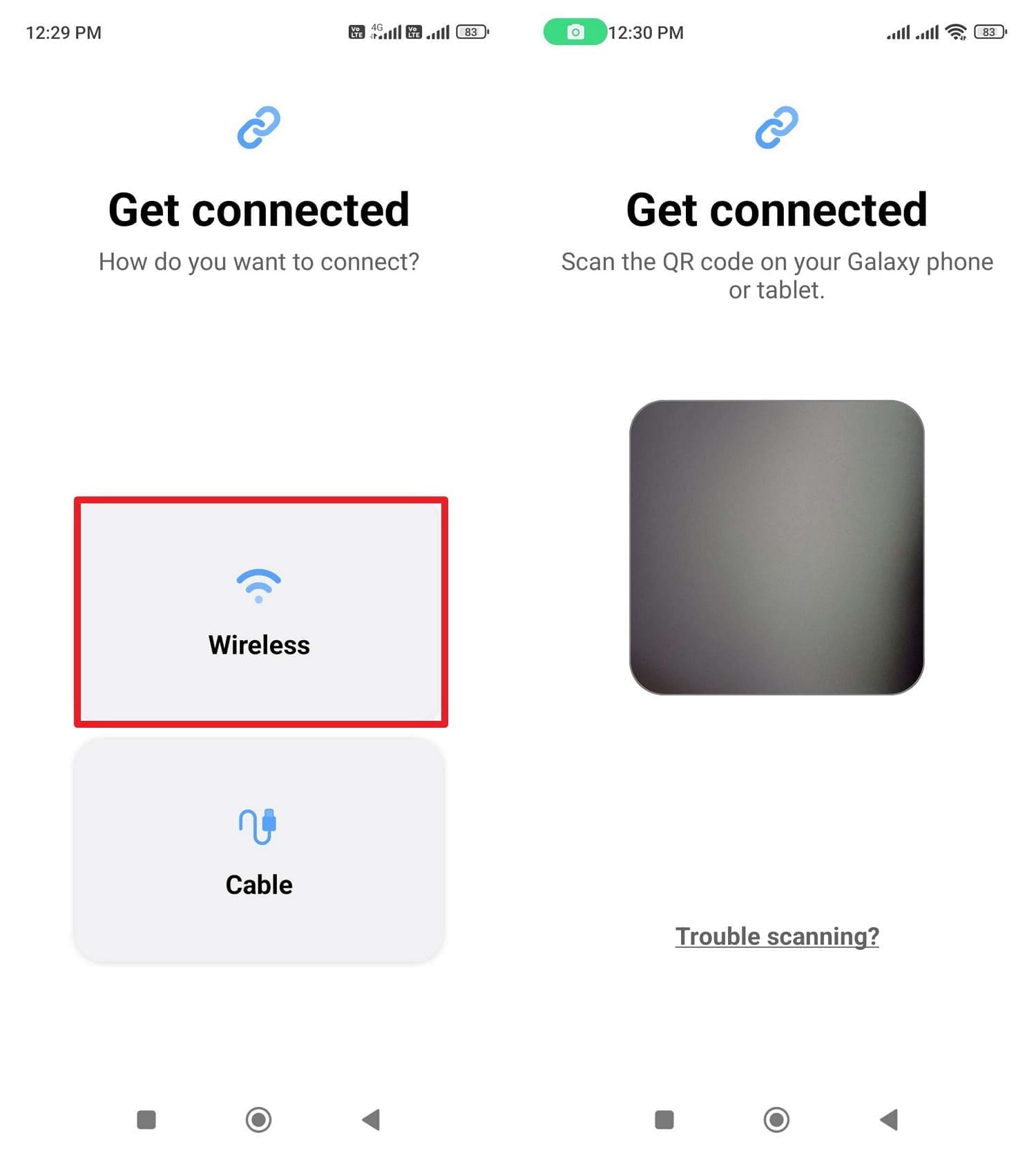
Install Smart Switch on both smartphones > Choose the “Wireless” option on the old device > Access the scanner screen.
-
Step 2
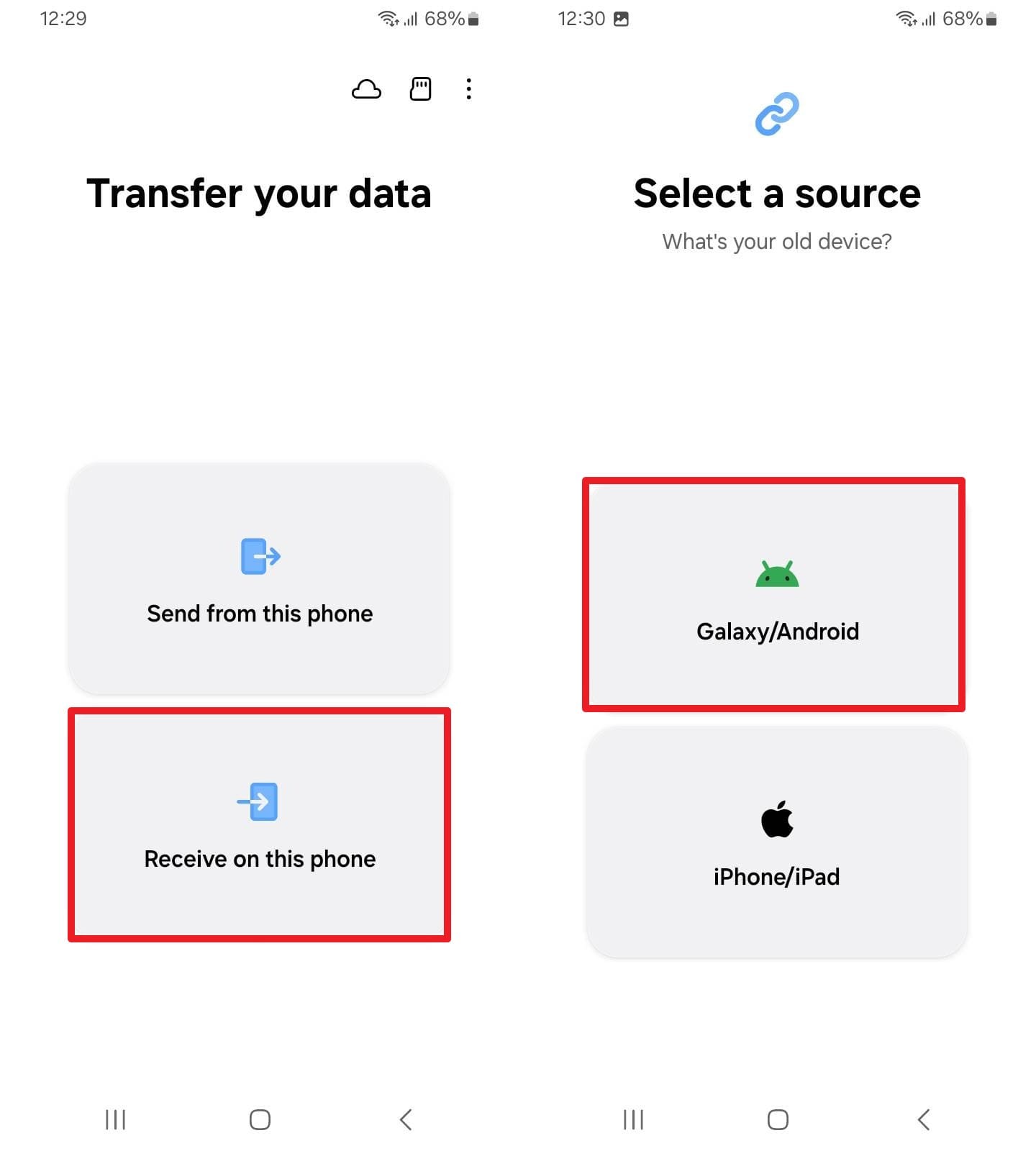
Select “Receive On This Phone” and the “Galaxy/Android” option on the new phone.
-
Step 3
Choose “Wireless” and scan the QR code to connect both phones. Select your preferred data transfer option, ensure messages are included, and tap “Next.”




Part 3. Common Google Messages Transfer Issues
You now know 3 practical ways to transfer Google Messages to a new phone. However, messages or attachments may still be missing after migration. The table below covers common transfer issues and their quick fixes:
| Issue | Possible Cause | Quick Fix |
|---|---|---|
| Messages Missing After Transfer | Backup may not include the missing messages | Check the backup date and old phone |
| Only Recent Messages Transferred | Older messages may not be in the backup | Check older threads on the old phone |
| Wrong Google Account or Backup Used | Another Google Account or backup was selected | Restore using the account holding the backup |
| Google Messages is Not the Default App | Another messaging app is set as default | Set Google Messages as default and reopen it |
| Smart Switch Missed Some Messages | Some message data was not transferred | Verify messages on the old phone and retry |
| Attachments or Older Threads Missing | Some messages or attachments were not transferred | Check the missing content on the old phone |
Part 4. Messages Missing After Transfer? Recover Them Before Erasing the Old Phone
Open the affected thread on the old handset and tap the missing attachment. If it opens there but not on the new phone, it likely did not transfer successfully. Keeping the old phone intact gives you another opportunity to retrieve content that did not reach the new device. Before erasing it, Dr.Fone - Data Recovery (Android) can recover available data from both an Android device and a Google Drive backup.
The tool supports major Android brands, including Samsung, Xiaomi, Motorola, and Google Pixel. It can scan the connected Android phone or access supported data from a Google Drive backup for recovery. You can preview available results, filter deleted items, and select specific messages for export. This provides another recovery option when conversations remain missing after you transfer Google Messages to a new phone.
 Scan Android phones and tablets directly.
- Preview and recover only what you want.
- Supports WhatsApp, photos, videos, contacts, and more.
- Works with 6000+ Android devices.

Guide to Recover Missing Messages with Dr.Fone - Data Recovery (Android)
Review the following straightforward guide and learn how this tool can help you recover missing messages in 3 steps:
-
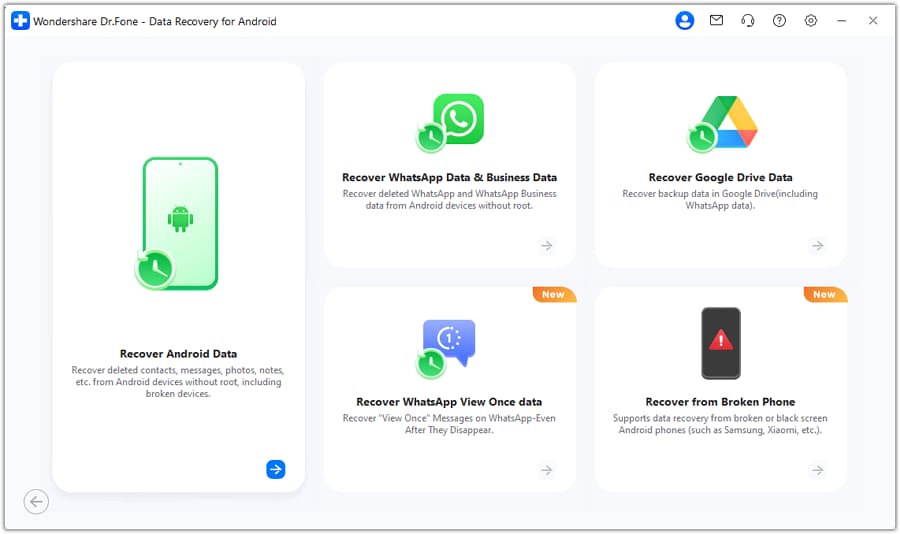
Step 1 Open the Data Recovery Tool for Android
Open Data Recovery and select “Android.” Choose “Recover Android Data,” then connect the old Android phone containing your Google Messages data.
-
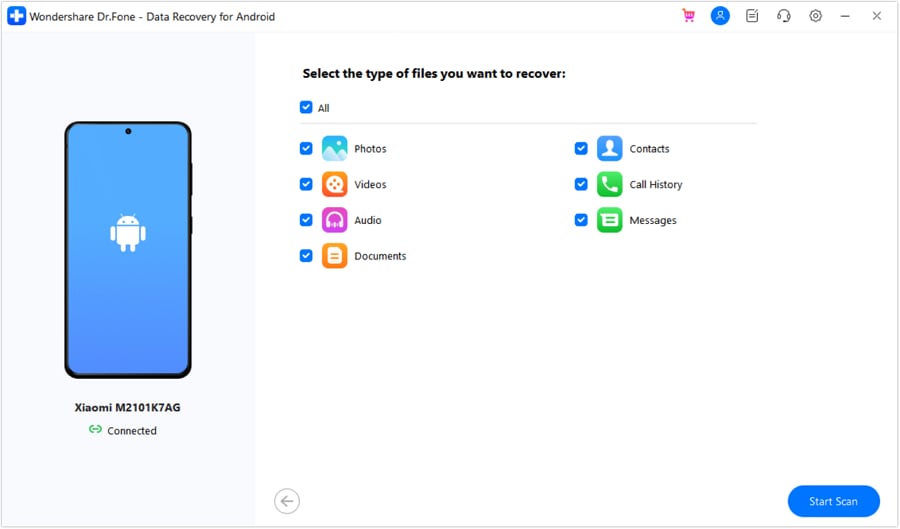
Step 2 Select Messages for Google Messages Recovery
Choose “Messages” from the available data types, then click “Start Scan” to search the Android phone for recoverable Google Messages conversations.
-
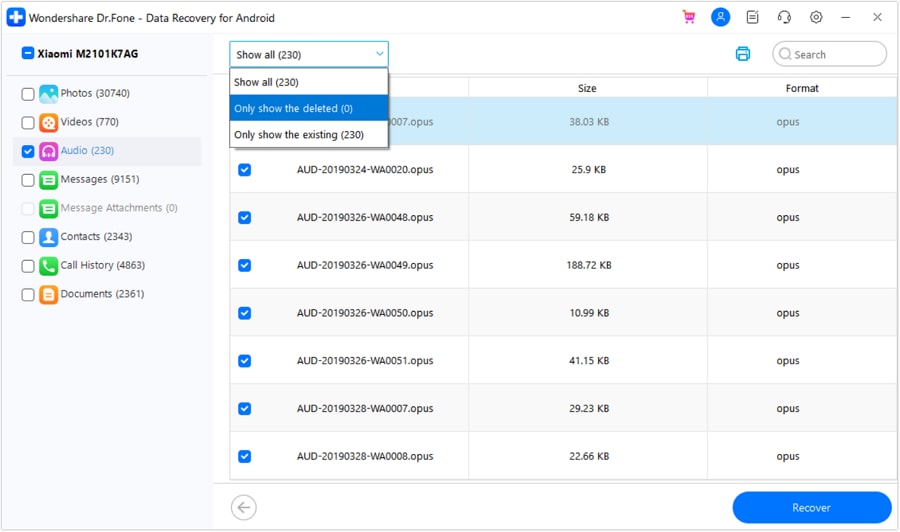
Step 3 Preview and Recover Google Messages
Filter the scan results to “Deleted Items” and preview the available messages. Select the conversations you need, then click “Recover” to export them.
Part 5. Final Checks Before Resetting the Old Phone
Recovery or not, everything remains reversible until you wipe the old phone, but little can be done afterward. Perform these 5 actions after you transfer Google Messages to a new phone:
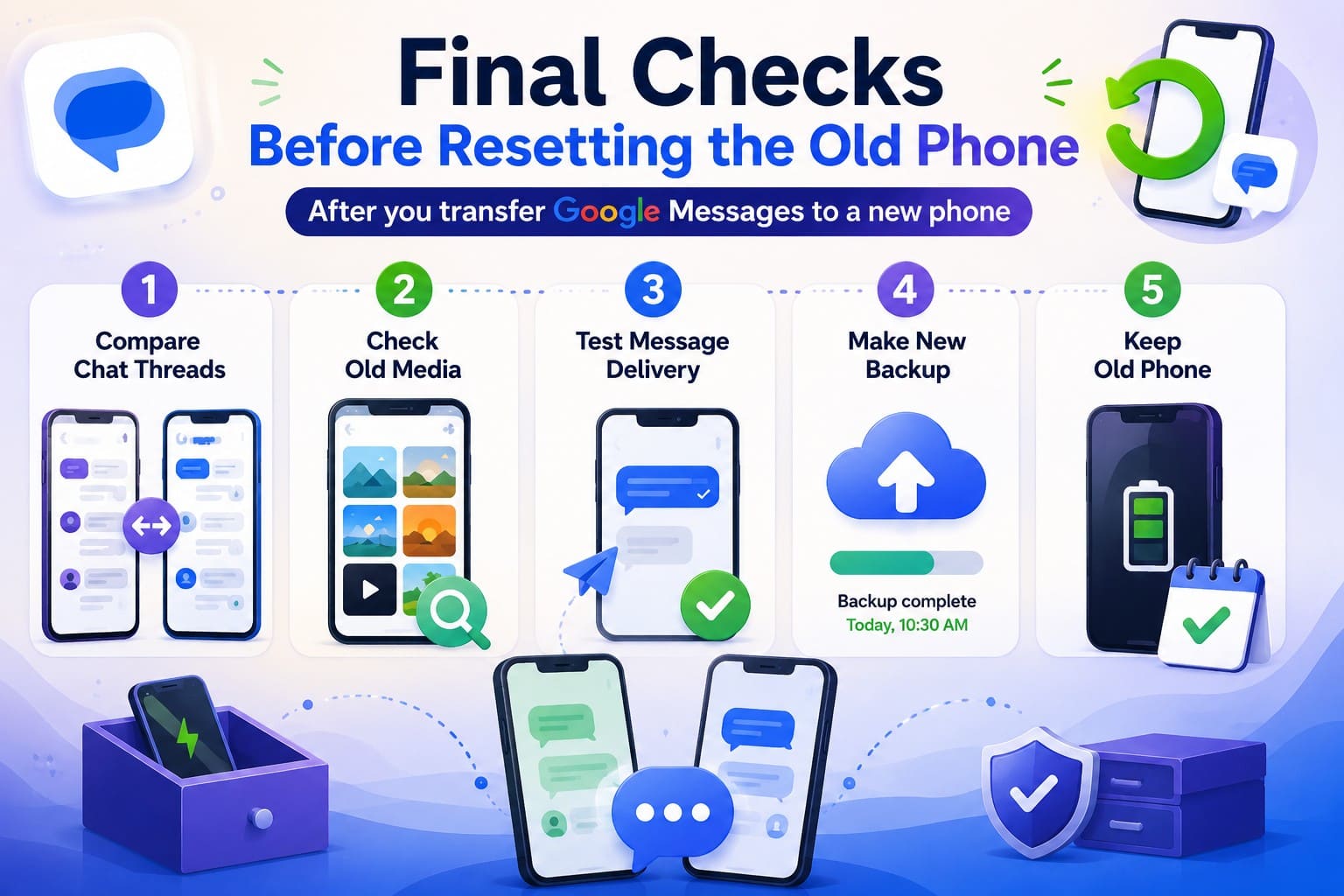
- Compare Chat Threads: Open important chat threads on both phones and compare older messages. Check several points in each conversation to confirm the message history transferred completely.
- Check Old Media: Scroll through older conversations and open several photos or MMS attachments instead of relying on thumbnails. Compare missing media with the old phone before resetting it.
- Test Message Delivery: Send yourself a test message and confirm it appears correctly in Google Messages. This helps verify that the new phone can send and receive messages normally.
- Make New Backup: Run a manual backup after confirming your messages arrived, then check that the backup date updates. This creates a current backup of the transferred message history.
- Keep Old Phone: Charge the old phone and keep it available for a week or two before resetting it. This gives you another chance to check anything you initially missed.
Conclusion
Complete the transfer of Google Messages to the new phone process safely by verifying your chat history and media before wiping the old handset. Check important conversations, open older attachments, and test messaging on the new device. If texts or media remain missing, Dr.Fone - Data Recovery (Android) can scan the accessible old phone for recoverable message data before you reset it.
FAQ
-
1. Can I transfer Google Messages after setting up my new phone?
Yes. Android backup restoration generally occurs during setup and may require resetting the device afterward. Samsung Smart Switch works post-setup on Galaxy phones, while recovery software can scan an accessible old phone for missing messages. -
2. Does moving the SIM card transfer Google Messages?
No. Android stores SMS and MMS in the phone’s messaging database rather than on the SIM card. Moving the SIM transfers your phone number and cellular service, but your Google Messages conversations require a separate transfer or backup restore. -
3. Can I transfer Google Messages without a SIM card?
Yes. Android device-to-device transfer and Samsung Smart Switch can transfer supported data without a SIM card. Connect the phones using the supported cable or wireless method, then insert or activate your SIM afterward for cellular messaging. -
4. Will blocked contacts and message settings transfer to the new phone?
Blocked numbers may transfer with Android backup, but some Google Messages settings may not. Check notification preferences, RCS features, and other app settings manually after setup, then verify your important conversations transferred correctly.
 Add Wondershare Dr.Fone as a preferred source on Google