Recover photos, messages, WhatsApp, and more — no backup
needed.
Recover photos, messages, WhatsApp, and more — no backup
needed.

 100% Security Verified | No Subscription Required | No Malware

 :
: 
 ChatGPT
 Perplexity
 Gemini
 Claude
 Grok
Grok
A quick swipe in the Gmail app takes half a second. Regret arrives 10 minutes later, right after a key receipt, contract, or confirmation vanishes from your inbox. Fortunately, a swipe rarely destroys data right away. Your odds depend on where the message resides and when it disappeared.
This guide outlines how to recover deleted Gmail emails through 5 direct routes. Among these options, learn why Dr.Fone - Data Recovery (iOS) is the most effective choice in 2025.
In this article
Part 1. Can Deleted Gmail Emails Be Recovered on an iPhone?
Yes, provided you move quickly for Gmail email recovery. On iPhone/iPad, Google says deleted Gmail messages remain in Trash for up to 30 days. During that period, users can move them out of Trash. After 30 days, or if Trash is manually emptied, the messages are permanently deleted from the user's Gmail account. Recovery after permanent deletion depends on the account.
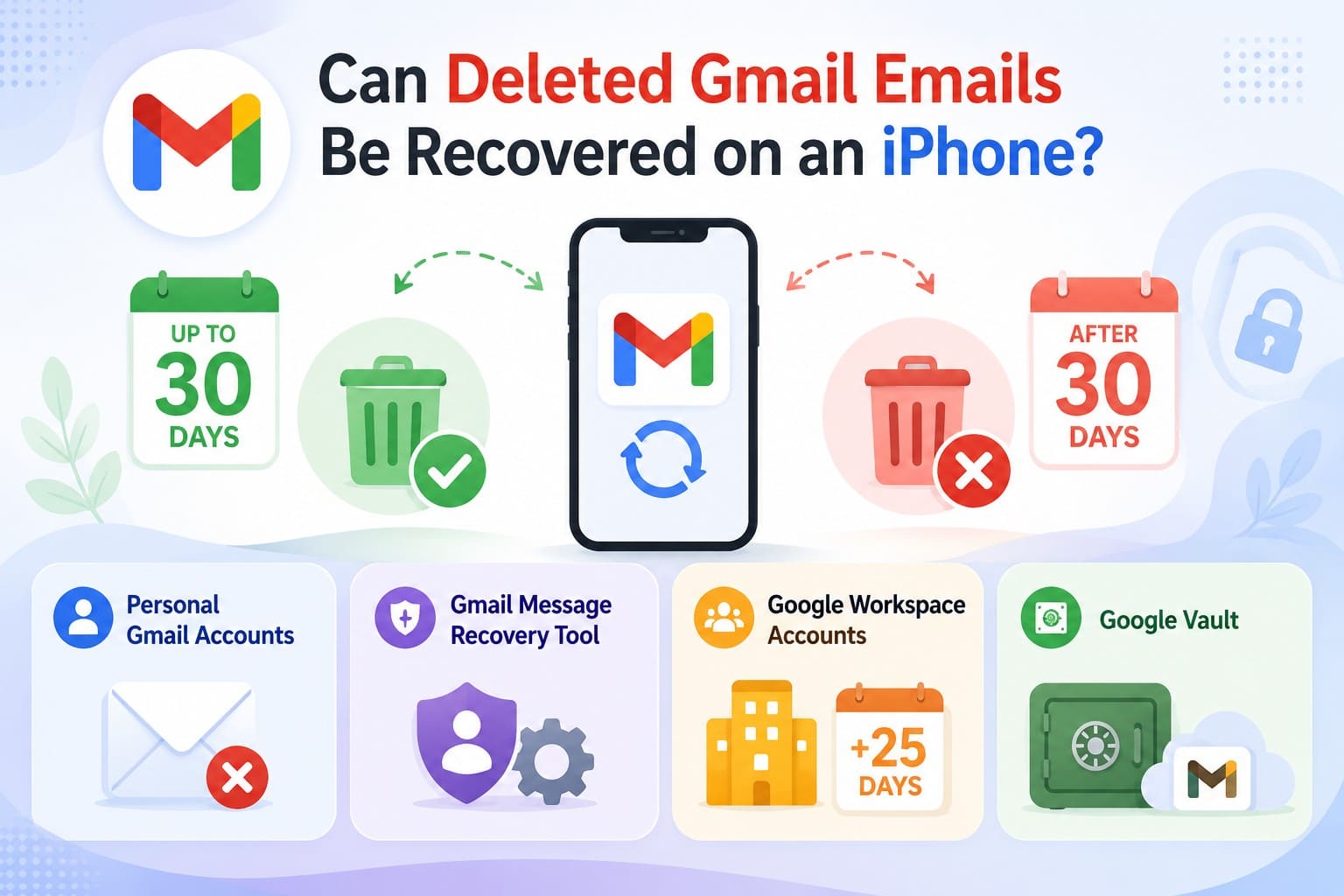
For personal Gmail accounts, permanently deleted messages generally can't be restored through the normal Gmail recovery process. Google's Gmail Message Recovery Tool is intended primarily for messages that may have disappeared because someone accessed your account without permission. Google Workspace administrators, meanwhile, may have an additional 25-day window to restore permanently deleted Gmail data. Organizations using Google Vault may also have retained copies under applicable retention rules or holds.
Gmail Emails vs Locally Stored Gmail App Data
Since Gmail is primarily a cloud-based email service, permanently deleted Gmail messages should not be treated like locally deleted iPhone photos or files. Locally saved attachments are different: if you previously downloaded an attachment to Files or Photos, that local copy may have its own recovery options.
To recover Gmail emails on iPhone, your recovery route depends on what you deleted and where the data resides. The table below breaks down cloud-stored Gmail content versus local iPhone files to show the best solution for each:
| What You Lost | Where It Actually Lives | Route That Can Reach It |
|---|---|---|
| Gmail Messages | Google's servers, plus cached copies on the phone | Trash, recovery tool, and admin restore. |
| Downloaded Attachments | iPhone storage, in Files or Photos | iPhone data recovery or a device backup. |
| Apple Mail Copies | iPhone storage, if Gmail runs in Apple Mail | The Apple Mail trash folder or a backup. |
| Discarded Drafts | Google's servers | Nothing, since Google discards them outright. |
Part 2. Check Whether the Gmail Data Is Actually Deleted
Many “deleted” messages are simply archived, filtered out, or trapped inside a different account. Before you try to recover permanently deleted emails from Gmail, run these 6 checks:
| Check | What to Do | What It Tells You |
|---|---|---|
| Correct Gmail Account | Tap your profile picture and search each signed-in Google account. | The email may be in another Gmail account, not deleted. |
| Search Everywhere | Search by sender, subject, date, or keyword. Add “in:anywhere” to search more Gmail locations. | Finds messages that aren't visible in the Inbox. |
| Check All Mail | Open Menu > All Mail and search for the missing email. | Archived Gmail emails remain in All Mail and aren't deleted. |
| Check Trash & Other Folders | Review Trash, Spam, Promotions, and Social for the missing message. | Filters or Gmail categories may have moved the email. |
| Check Gmail on the Web | Open Gmail in a browser and search for the message there. | If it appears online but not on iPhone, the problem is likely syncing rather than deletion. |
| Review Filters & Forwarding | In Gmail web settings, inspect Filters, Blocked Addresses, and forwarding settings. | A rule may be deleting, archiving, or forwarding incoming messages automatically. |
Part 3. How to Recover Deleted Gmail Data on iPhone
If those checks came up empty, the message really was deleted. Get to know how to recover deleted Gmail emails after 30 days or within via the mentioned 5 methods:
Method 1. Restore Recently Deleted Emails from Gmail Trash
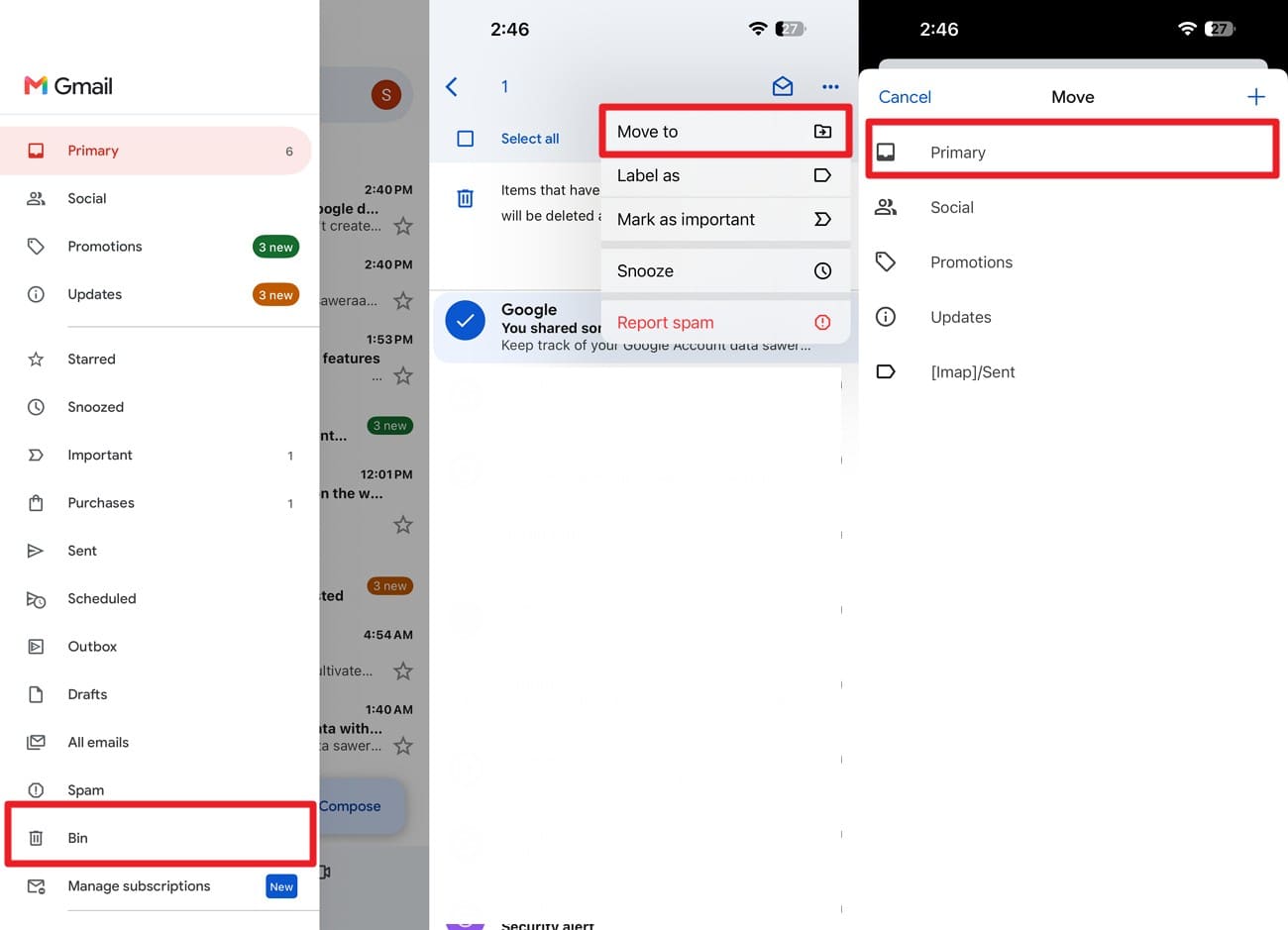
Anything deleted in the last 30 days is still sitting in Trash, no matter what the inbox looks like. Google documents this route for the iPhone app. A restored message returns to its original label, not always the inbox, and the mentioned steps show how:
Instructions. On the Gmail app, tap the “Hamburger” icon to choose the “Bin” option and choose the mail you want to get back. Press the “Three Dots” icon, pick “Move To” and choose “Primary” or other options.

Method 2. Recover Gmail Chats and Attachments with Dr.Fone - Data Recovery (iOS)
Server-side routes stop at the mailbox, and Gmail leaves more behind on the phone than most people expect. Cached message content, saved attachments, and the app's own database files all sit in iPhone storage. Once the Trash window has closed, that residue is often the only copy still within reach. Dr.Fone - Data Recovery (iOS) scans a compatible iPhone to recover Gmail emails on iPhone.
Where enough local data survives, it may identify or reconstruct deleted email content from cached or residual Gmail data still present on the iPhone. The scan is read-only, which guarantees it will not overwrite the existing data. Users can get a free preview, a 100% thumbnail preview, and 2 export options to save data on the phone or PC. The Gmail recovery feature support is limited to iPhone 16 and earlier models.
 Recovers data after deletion, crashes, or device damage.
- Supports photos, messages, contacts, WhatsApp, and more.
- Supports all major iPhone, iPad, and iPod models.
- Preview and recover only what you need.

Guide to Scan an iPhone for Recoverable Gmail Data
Stop using the iPhone the moment you notice the loss and follow the mentioned guide to recover deleted Gmail emails from iPhone storage:
-
Step 1 Open Data Recovery and Choose iOS
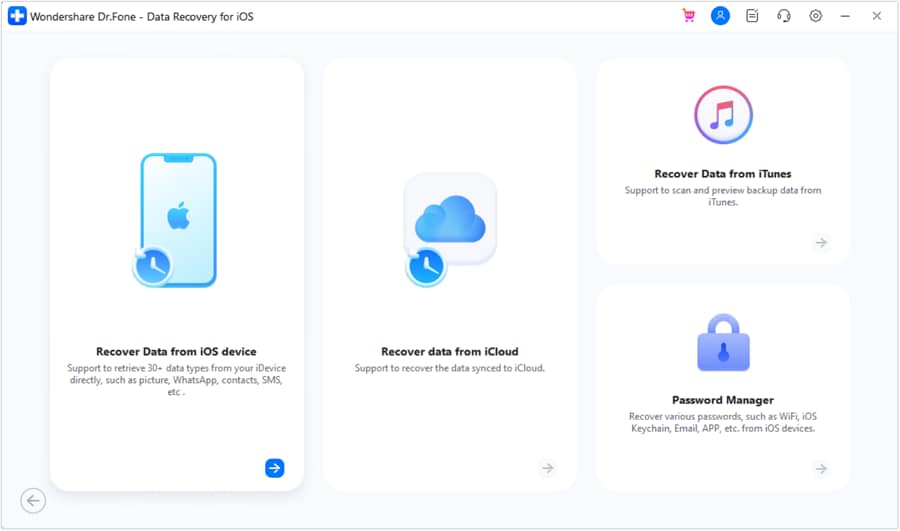
Go to the Dr.Fone Toolbox, choose the “Data Recovery” tool for iOS, and click on “Recover Data from iOS Device” mode.
-
Step 2 Select File Types and Scan
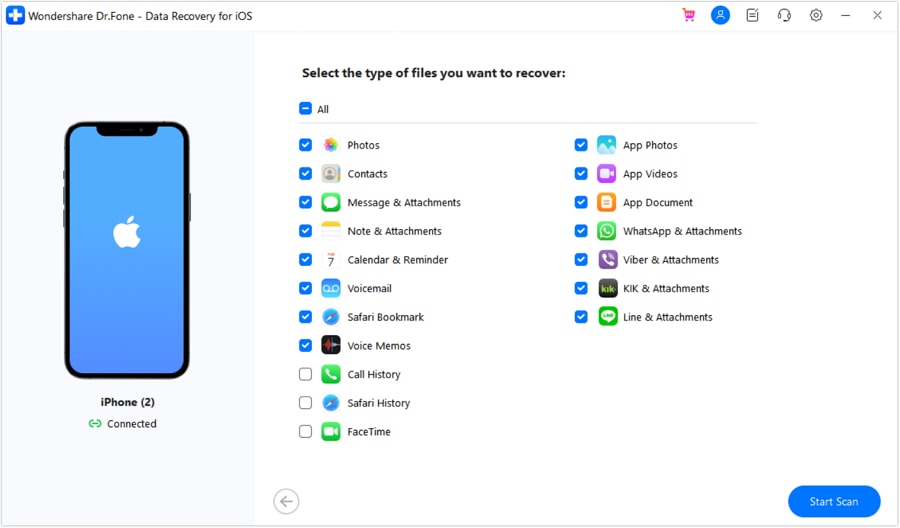
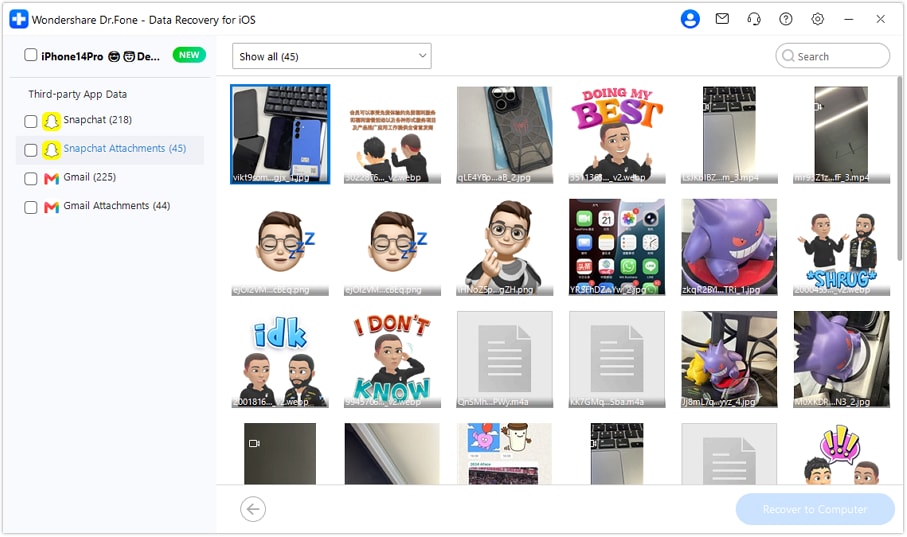
Select “Gmail” from the available data types, then click “Start Scan” to search the iPhone for recoverable Gmail data.
-
Step 3 Filter to Deleted and Save
Use the filter at the top to show deleted Gmail items only, preview what turns up, then click “Recover to Computer” to save it somewhere safe.




Method 3. Recover Gmail Emails Through Apple Mail
Back on the mailbox side, one more copy may exist without you realizing it. If Gmail was also set up in Apple Mail, that app keeps its own trash folder, which occasionally holds a message Gmail has already cleared. This is mainly another way to access messages that Gmail still retains. To know how this method assists in Gmail email recovery, go through these directions:
-
Step 1
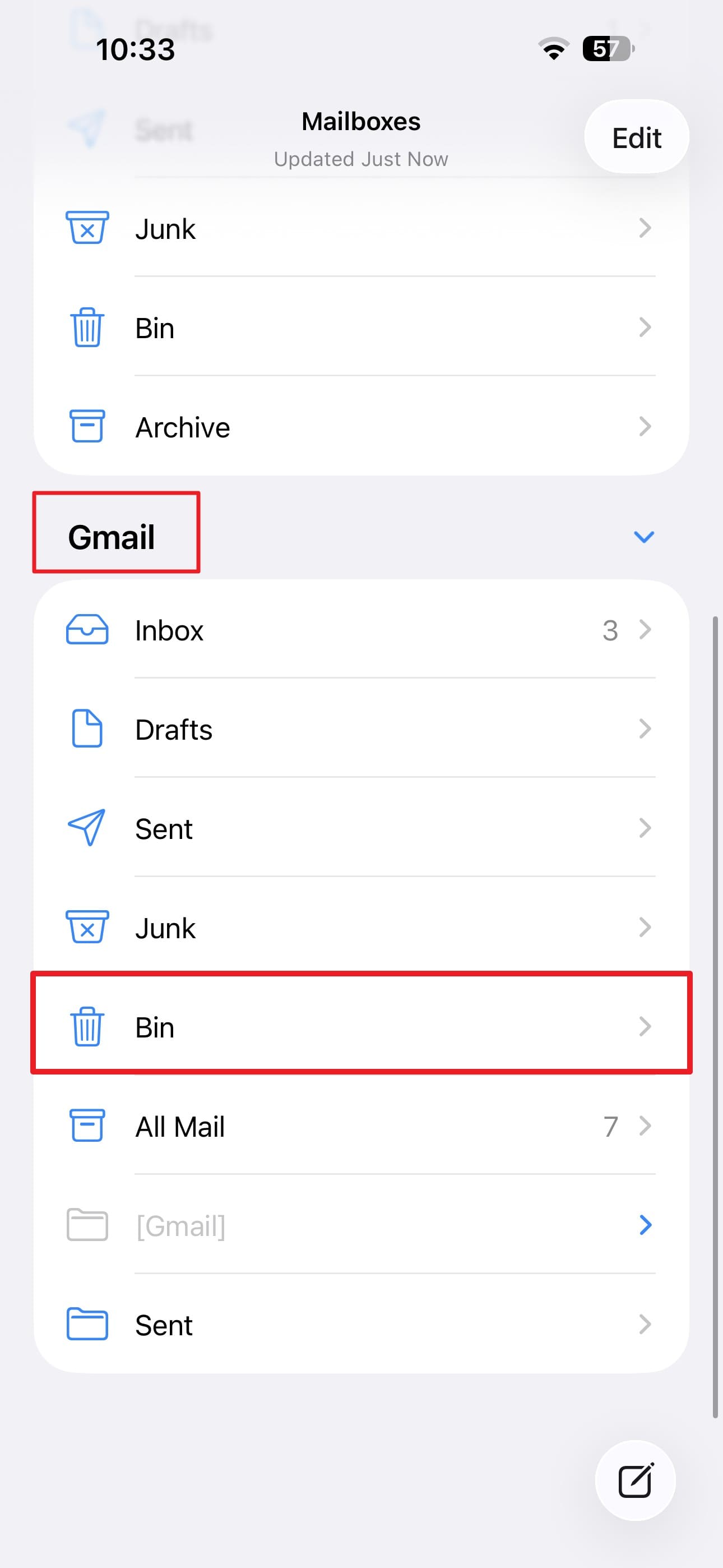
Open Apple Mail, tap “Mailboxes,” and select the Gmail account's “Bin.”
-
Step 2
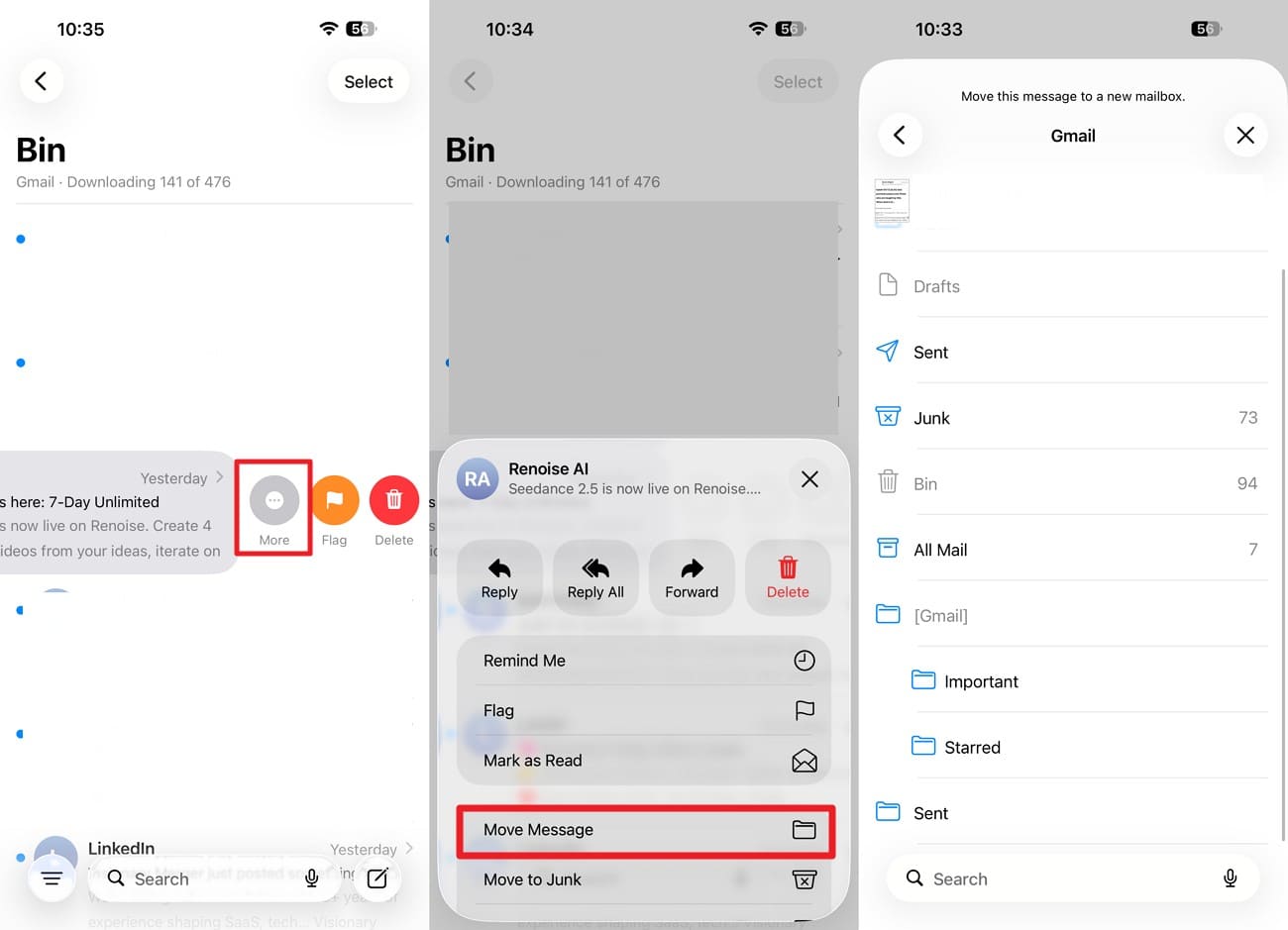
Swipe the mail you want to recover, choose “Move > Move Messages,” and select “Inbox” or other options.
Method 4. Use the Gmail Message Recovery Tool
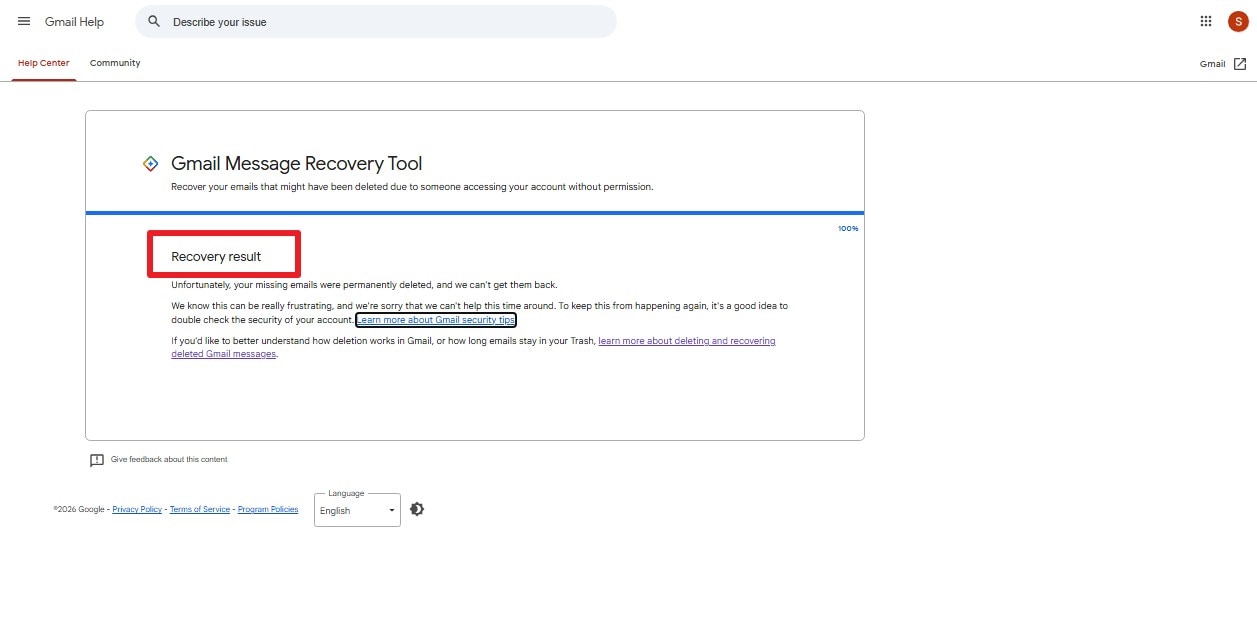
Google runs a request form for personal accounts to recover Gmail emails on the iPhone. Google built this tool for account hacks, but it sometimes recovers recent accidental deletions. Nothing is promised, and no status page exists, so submit once and leave it after you follow the given steps:
-
Step 1
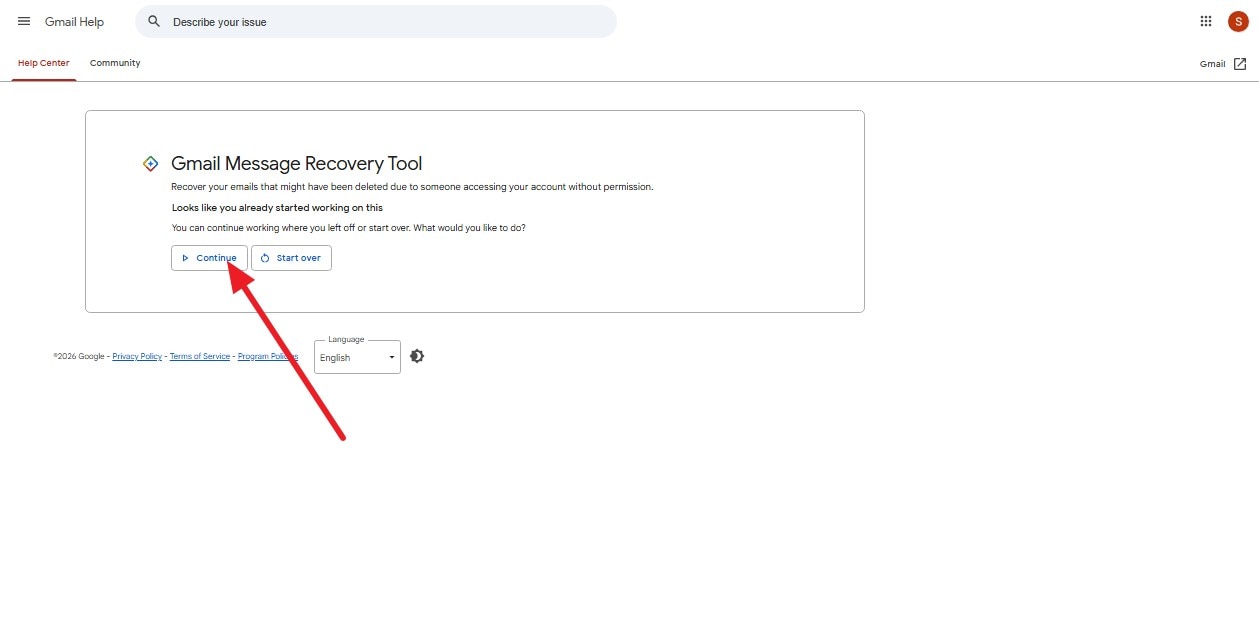
Open Google’s Gmail Message Recovery Tool in a browser on your iPhone or computer with your account logged in and click “Continue.”
-
Step 2
Wait for Google's reply, and treat any result as a bonus rather than an expectation.
Method 5. Recover Google Workspace Emails
Work and school accounts may permit administrator restoration after permanent deletion. Google gives administrators 25 extra days after the 30-day Trash period ends, roughly 55 days from the original deletion. Ask early to recover deleted Gmail emails after 30 days once you go through these steps:
-
Step 1
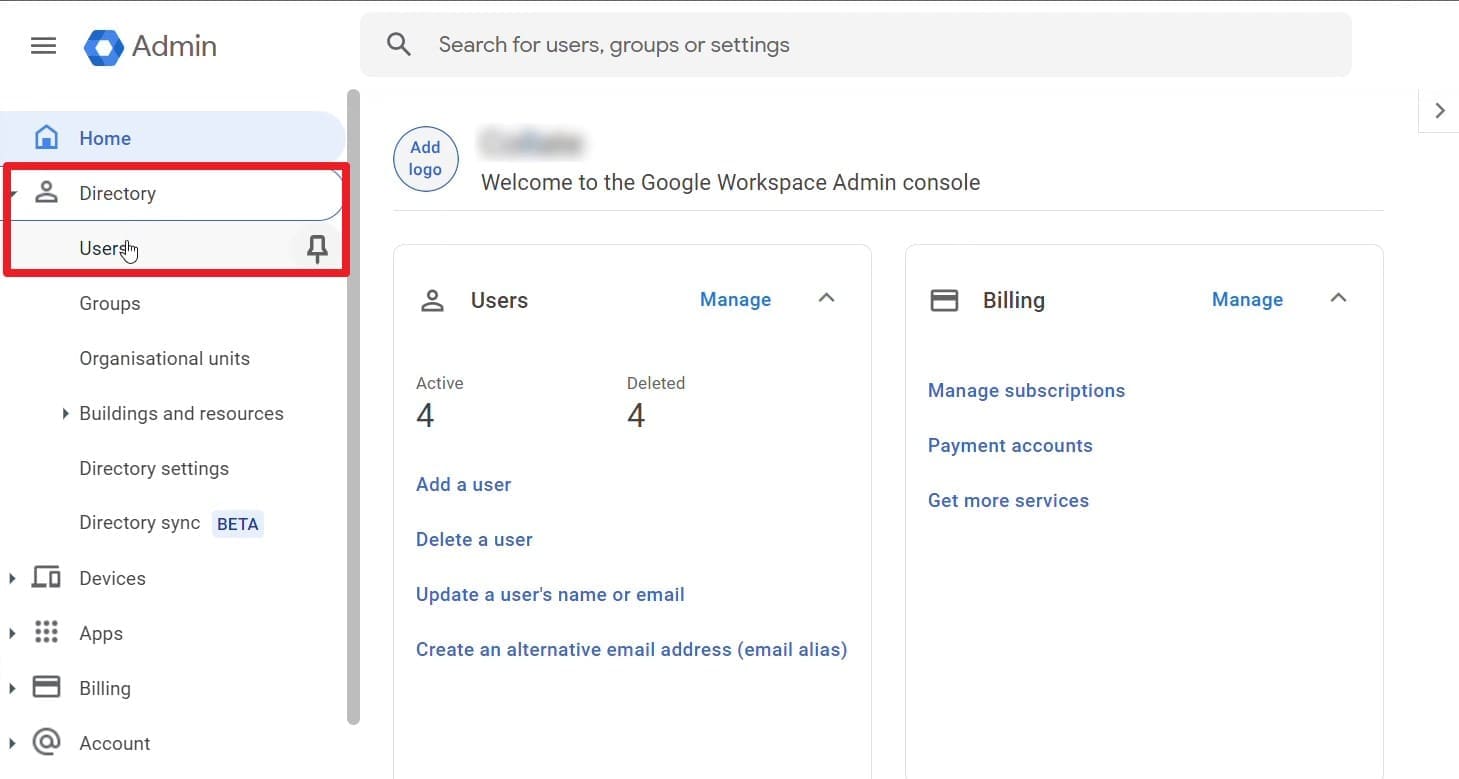
Ask your administrator to sign in at admin.google.com and open “Directory > Users.”
-
Step 2
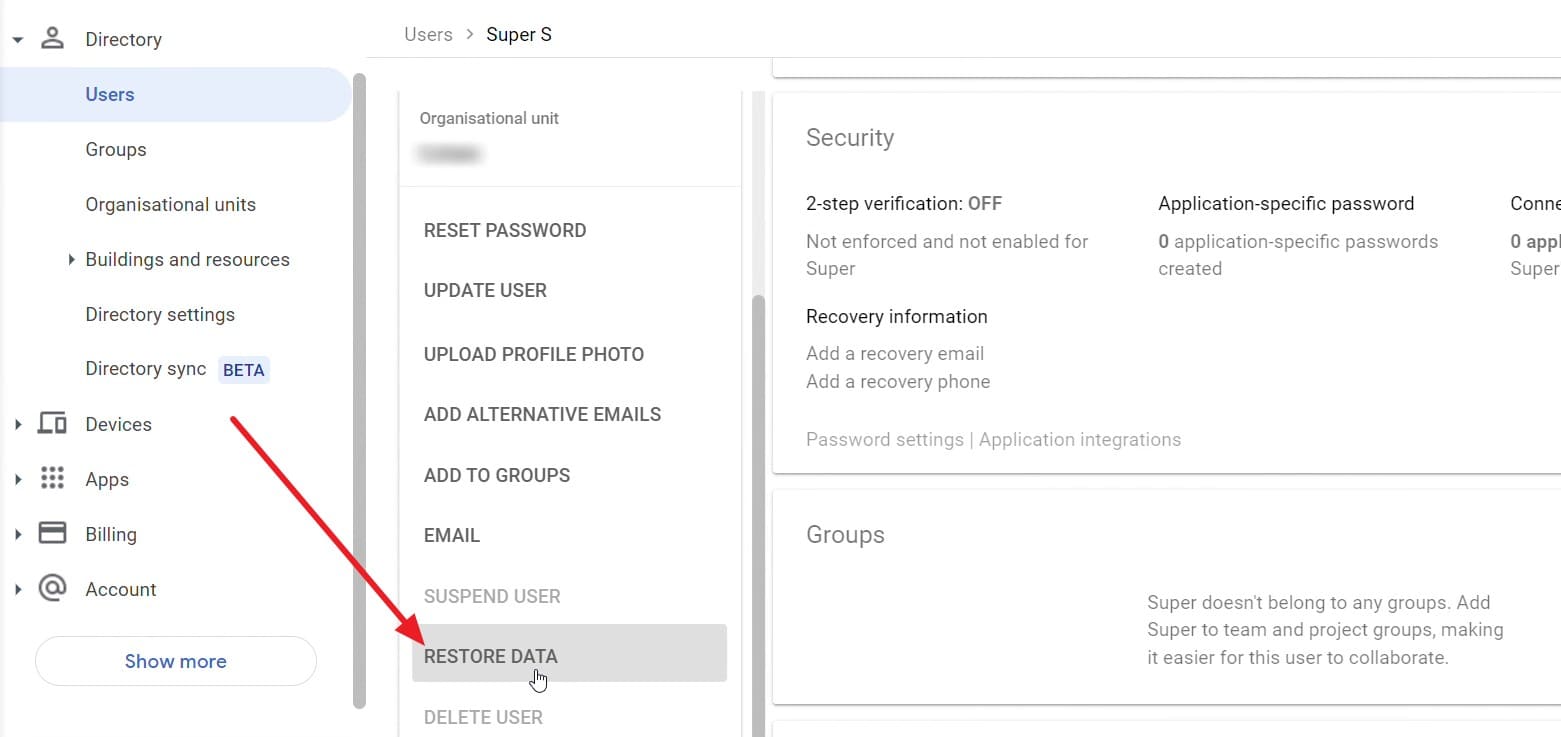
Have them select the affected user, scroll down in the “Organizational Unit” section, and choose “Restore Data.”
-
Step 3
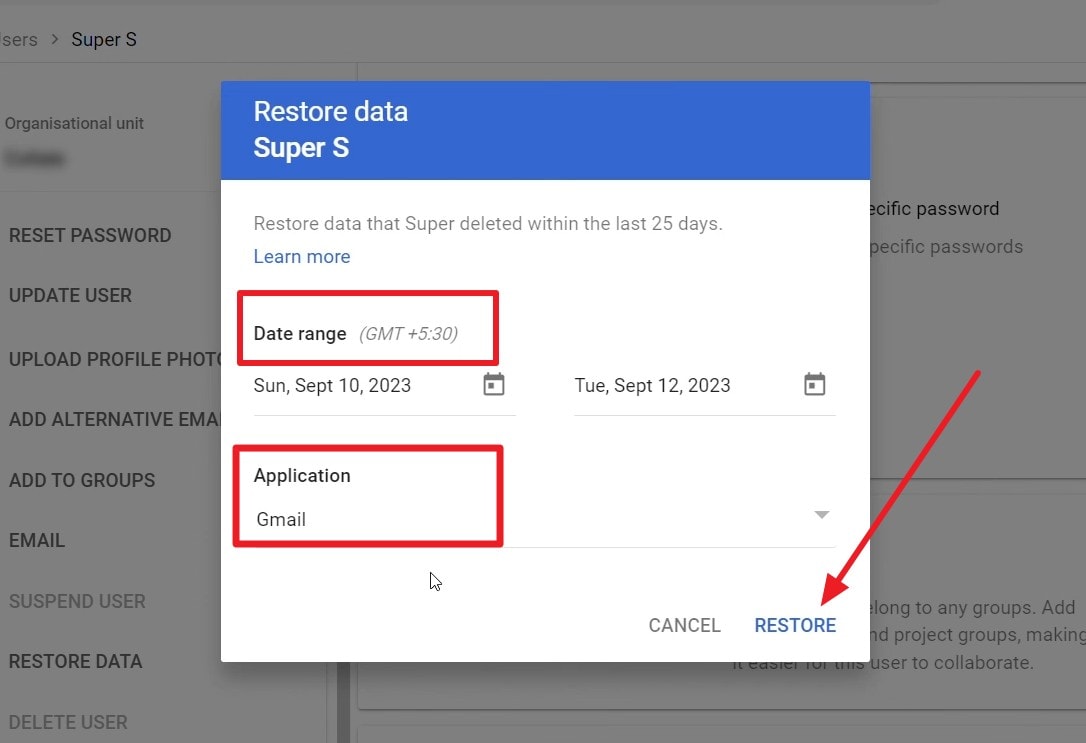
Set a “Date Range” and choose “Gmail” as “Application” before clicking on the “Restore” button.
Part 4. Why Gmail Data Recovery May Not Work
Review this section and learn why you cannot recover Gmail emails on iPhone and what to do instead:
| Reason | What It Means | What to Try Instead |
|---|---|---|
| Permanently Deleted from Google's Servers | Personal Gmail allows up to 30 days in Trash; Workspace may allow roughly 55 days total when both recovery windows fully apply. | Check other recipients for a copy or contact your Workspace administrator. |
| Local Gmail Cache Was Overwritten | Continued iPhone use may overwrite cached Gmail data or residual app files that some recovery tools attempt to scan. | Stop unnecessary phone use and scan promptly for any recoverable local Gmail traces. |
| No Recoverable Gmail Cache Remains | The message is gone from Google's servers, and no usable local Gmail traces remain on the iPhone. | Check other devices, recipients, forwarded copies, or previously downloaded attachments. |
| Gmail Sync Removed the Recovered Data | Server-side deletion may synchronize across devices connected to the same Gmail account. | Export any locally recovered content instead of relying on Gmail to restore it. |
| The Wrong Google Account Was Checked | A second account on the same iPhone may still hold the missing mail. | Repeat the search under each signed-in Gmail address. |
| The Attachment Was Never Downloaded | It only existed with the original message on Google's servers. | Search Gmail for the original message or ask the sender for another copy. |
All options follow one rule: recovery succeeds if a copy exists elsewhere, but fails if no trace remains. You can easily fix mistakes like an incorrect account check or an overwritten backup with a second careful attempt.
Part 5. How to Prevent Gmail Data Loss?
After you recover permanently deleted emails from Gmail, follow these practical tips to prevent Gmail data loss:
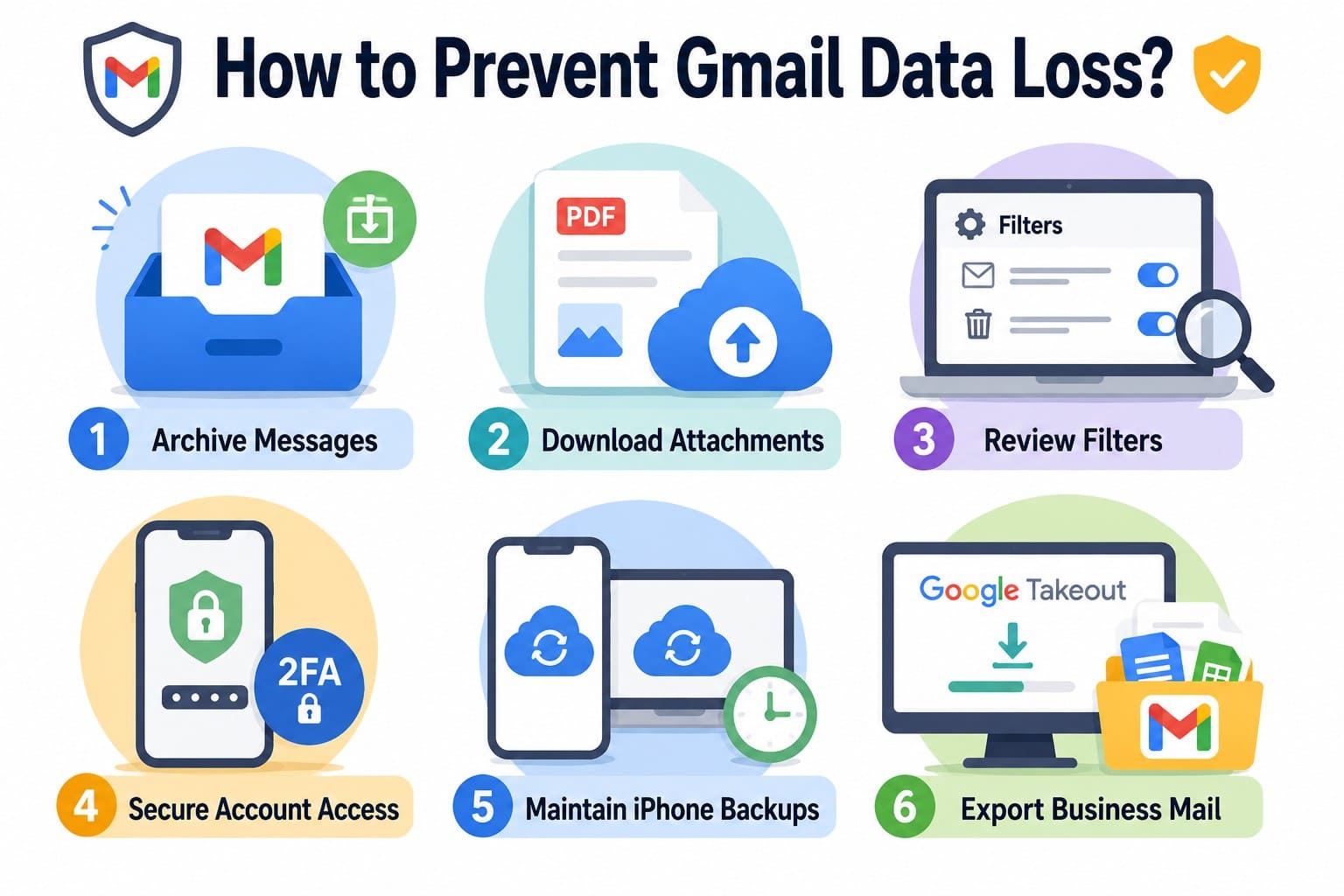
- Archive Messages: Archive actions clear the inbox while keeping messages in All Mail without the Trash folder's 30-day deletion window. Adjust Gmail swipe actions to archive messages instead of deleting them.
- Save Critical Attachments Separately: Download important contracts, receipts, and documents from Gmail to Files or another secure location. This creates an independent copy that does not depend on the original email remaining available.
- Review Filters: Inspect “Filters and Blocked Addresses” periodically for automated rules that delete or archive incoming mail. Regular checks can help prevent unexpected message loss caused by unwanted filtering rules.
- Secure Account Access: Set up two-step verification and keep your recovery information updated to reduce unauthorized account access. Also review unfamiliar devices and recent security activity regularly.
- Back Up Downloaded Files: Include important locally stored attachments in your regular iPhone backup routine. Eligible downloaded files may be protected through iCloud or computer backups for later device recovery.
- Export Important Mail: Use Google Takeout to export Gmail mailbox data into files under your control. Keeping an independent copy provides another safeguard for important messages and long-term records.
Conclusion
To recover deleted Gmail emails from Trash or after permanent deletion, fast action yields the best results. When Google's server routes fail, Dr.Fone - Data Recovery (iOS) stands out as the most effective tool to scan iPhone storage for cached data and attachments. Check your mailbox first, then run a device scan before new files overwrite lost data.
Frequently Asked Questions
-
1. Can Dr.Fone recover Gmail data after the Trash folder is emptied?
It can, provided recoverable data is still on the handset. The scan looks for cached Gmail content, attachments, and app files that outlived the deletion. It can reconstruct email content where enough of that residue remains. Nothing is guaranteed, since anything already overwritten by newer data is beyond reach. -
2. Can recovered Gmail attachments be restored directly to an iPhone?
Yes, if Dr.Fone finds recoverable Gmail attachments in local iPhone data or cache. Supported files can be restored to the device where available, while exporting them to a computer first provides another convenient recovery option. -
3. Does recovering Gmail data affect current emails?
No, restoring from Trash moves a message back to the inbox without touching anything else. On the other hand, a device scan is read-only, so existing mail and files stay exactly as they were. A Workspace admin restore is the one exception worth flagging, since a large job can take hours and can't be stopped once running. -
4. Can a deleted Gmail draft be recovered from an iPhone?
Possibly, but recovery is not guaranteed. Gmail does not provide a standard way to restore a discarded draft. However, if cached or residual draft data still exists locally on the iPhone, a recovery tool like Dr.Fone may find recoverable traces before they are overwritten.
 Add Wondershare Dr.Fone as a preferred source on Google