Recover photos, messages, WhatsApp, and more — no backup
needed.
Recover photos, messages, WhatsApp, and more — no backup
needed.

 100% Security Verified | No Subscription Required | No Malware

 :
: 
 ChatGPT
 Perplexity
 Gemini
 Claude
 Grok
Grok
Sudden phone upgrades or system resets often erase text message history, creating immediate stress. Set up a reliable Google Messages backup to prevent permanent data loss. This ensures text conversations, photos, and chat attachments stay safe in cloud storage.
This guide outlines every step needed to protect, manage, and restore message archives on Android devices. It also explains where Dr.Fone - Data Recovery (Android) helps when a backup falls short.

In this article
- Part 1. Google Messages Backup Explained: What Gets Saved and Where
- Part 2. How to Back Up Google Messages on Android
- Part 3. How to Restore Google Messages on Android?
- Part 4. Google Messages Backup or Restore Not Working? Try These Fixes
- Part 5. When Google Messages Cannot Be Restored from Backup
- Part 6. Best Practices to Keep Google Messages Safe
- Frequently Asked Questions
Part 1. Google Messages Backup Explained: What Gets Saved and Where
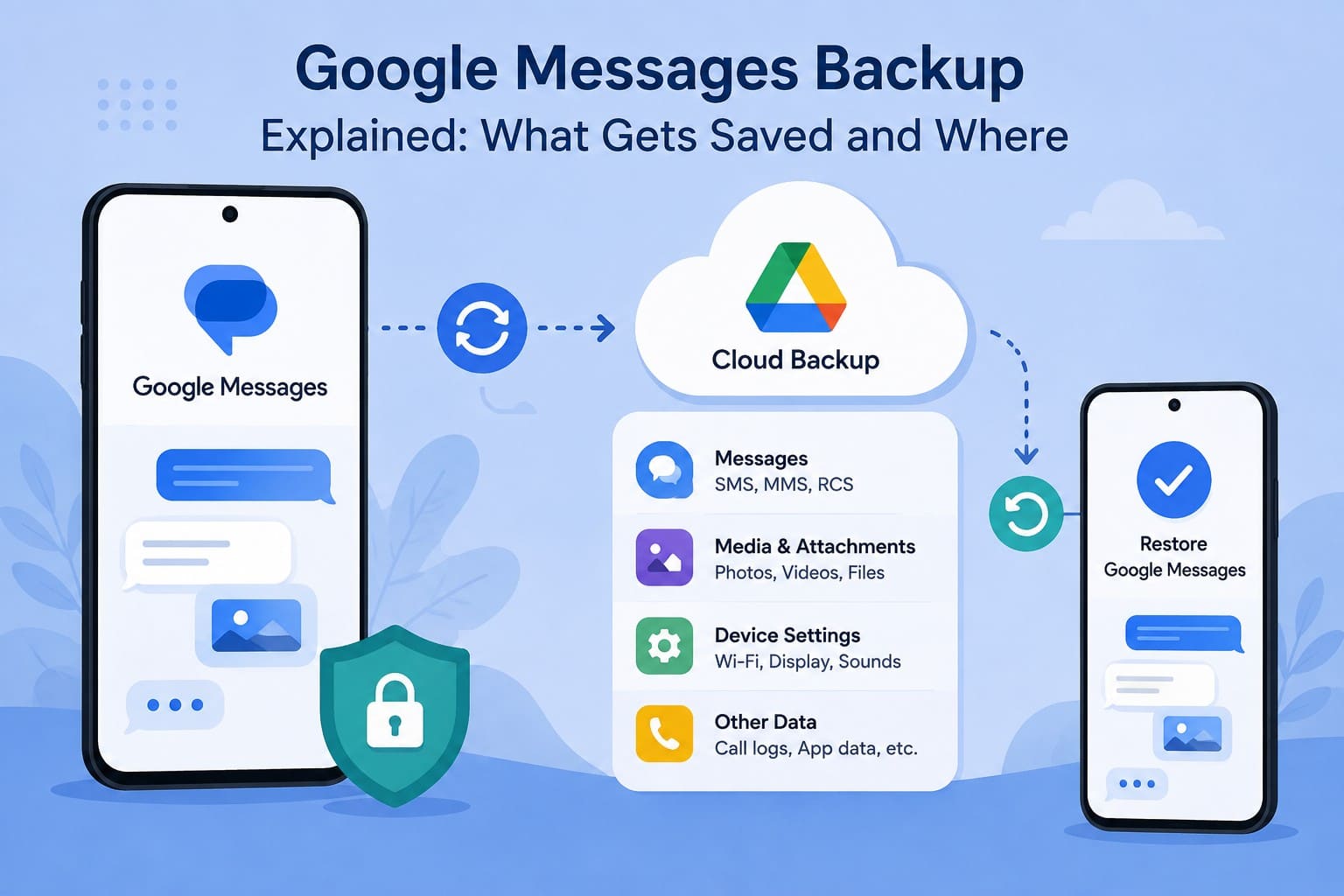
Google Messages lacks an independent backup feature inside the app. Instead, Android handles your text history by including supported messages in your overall device cloud backup. You can review status details or start a manual sync directly within your system backup menu. When device trouble strikes, knowing how to restore Google Messages from these archives helps you safely recover lost conversations.
What Data is Included in a Google Messages Backup?
The backup captures your SMS and MMS history, along with device settings, app data, and call logs. When you use Google Messages, RCS messages are also included as additional device data. Google notes that not all apps can back up or restore all settings and data. Backup is also unavailable for devices set up only with a work profile, company-owned devices, and other enterprise-managed devices.
Where are Google Messages Backups Stored?
Android uploads backups to your Google Account, which includes 15 GB of free storage, with additional space available through Google One. Google encrypts backup data while it is transferred and stored. Some data receives additional protection through your device’s screen lock PIN, pattern, or password, helping keep information secure during a Google Messages restore.
Google Messages Backup vs Google Messages Trash
Cloud backups and Google Messages Trash provide 2 separate ways to protect conversations. Android backup restores supported message data when setting up or transferring to a device, while Google Messages Trash temporarily stores conversations you delete. Understanding their different purposes helps you choose the right recovery option and avoid losing important chats.
To understand the difference between Google Messages backup and restore and Google Messages Trash, check the table below:
| Feature | Google Messages Backup | Google Messages Trash |
|---|---|---|
| Purpose | Restore supported message data | Recover recently deleted conversations |
| SMS/MMS | Included | Deleted conversations can be restored |
| RCS | Included with Google Messages | Deleted conversations can be restored |
| Retention | Managed through Android backup | 30 days |
| Android Go Trash | Not applicable | 7 days |
| Best For | Device replacement or reset | Accidental message deletion |
Google introduced the new Trash folder in 2026. You can access Trash from the Google Messages profile menu and restore conversations before the retention period expires.
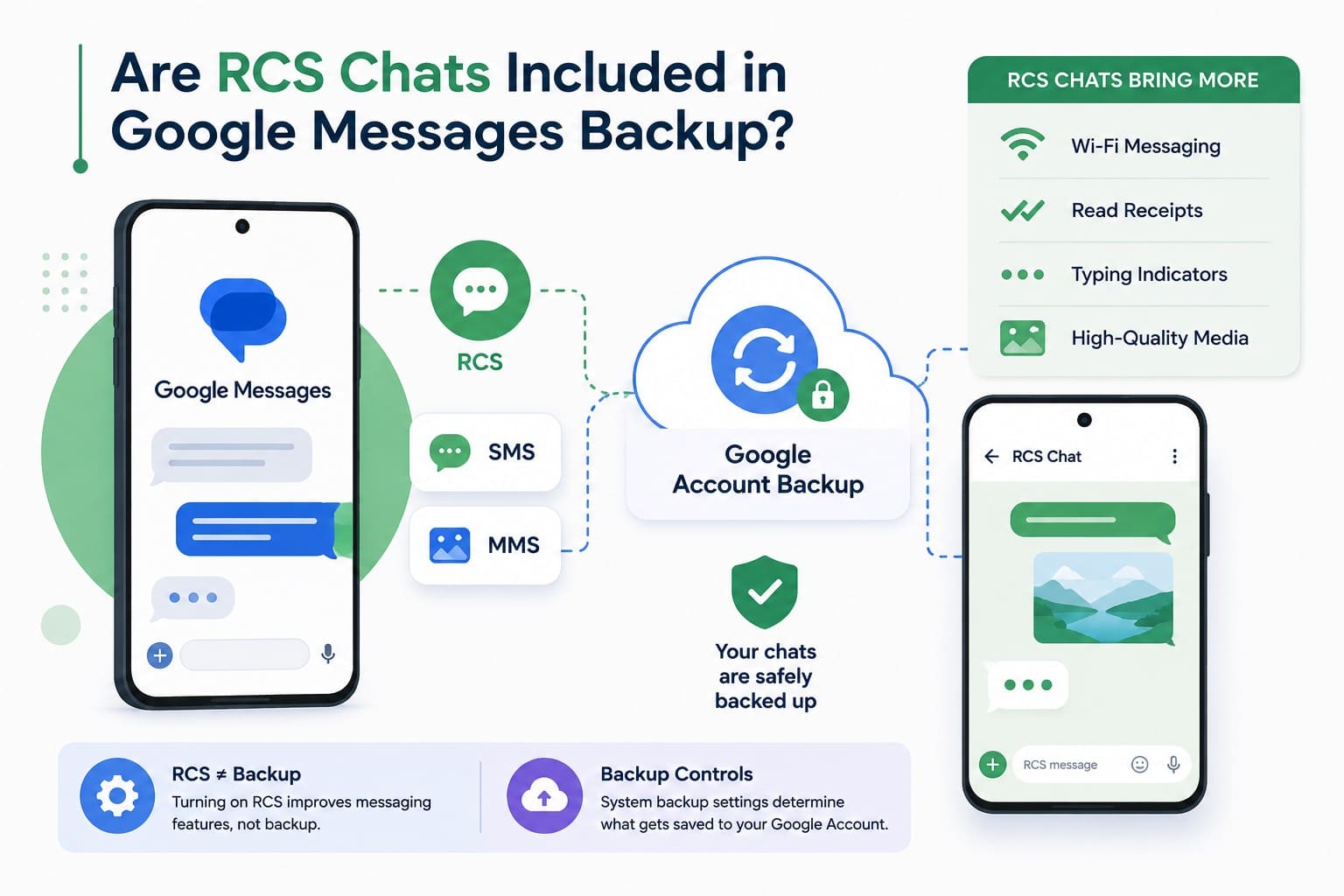
Are RCS Chats Included in Google Messages Backup?
Official Android backup documentation confirms that Google Messages includes RCS chats in cloud backups. These modern chats join standard SMS and MMS texts as part of your overall device backup package.
Activating RCS chats is entirely separate from enabling your device backup. RCS upgrades your messaging with Wi-Fi text delivery, read receipts, typing indicators, and high-quality media sharing. Meanwhile, system backup settings control whether your text history actually uploads to your Google Account.
Part 2. How to Back Up Google Messages on Android
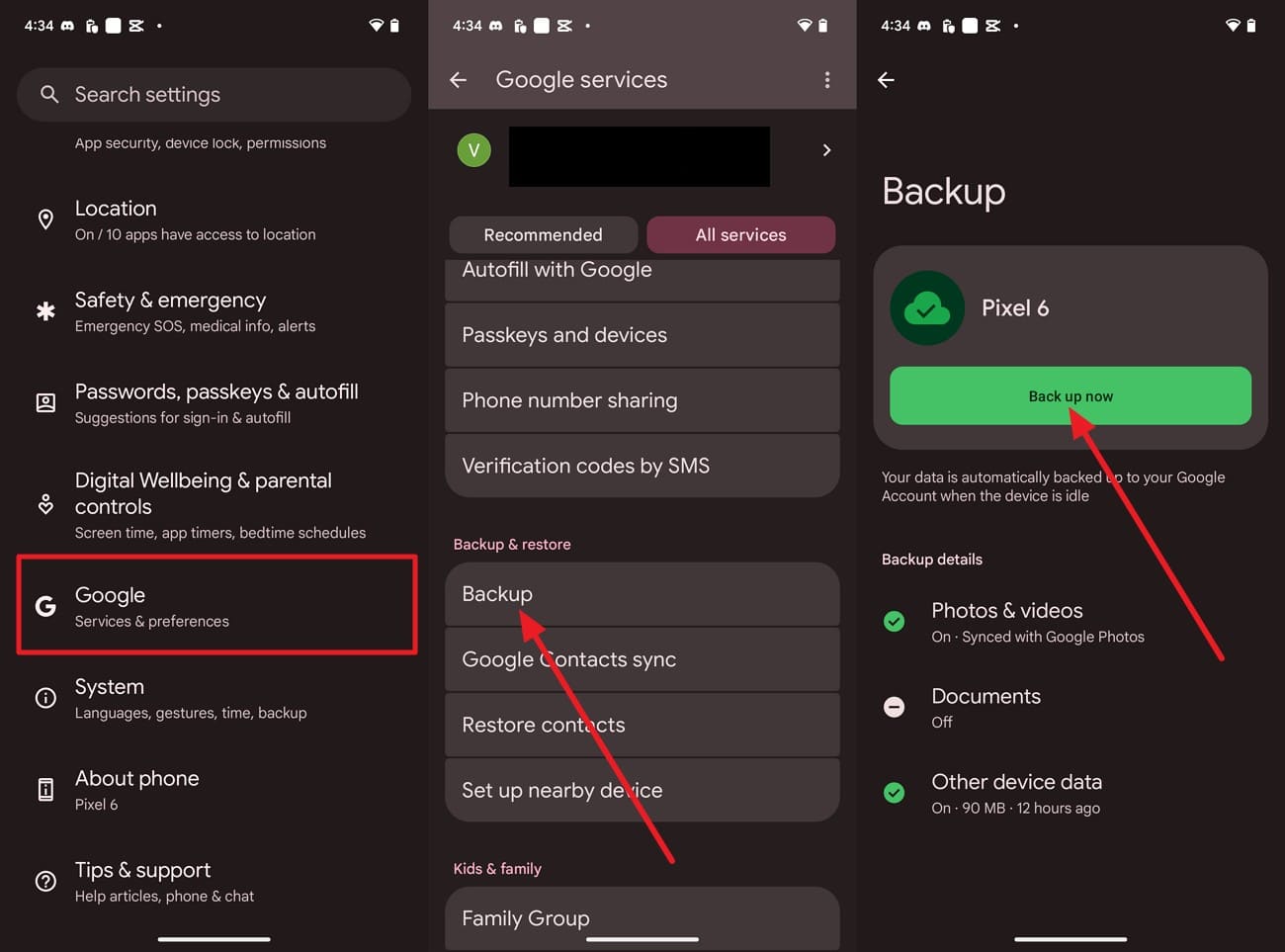
Since the control lives in system settings, a Google Messages backup starts entirely outside the app. The Backup screen shows the status of your device backup and when it was last completed. Before resetting or replacing your phone, run a manual backup and confirm it finishes successfully. To create a fresh backup, follow these steps:
Instructions. Go to Settings and choose the “Google > All Services > Backup” option. Tap “Back Up Now” and wait for it to finish. Activate “Backup by Google One” and complete the on-screen steps if this is your first time.

Part 3. How to Restore Google Messages on Android?
If your messages were included in an Android backup, you can restore them when setting up a new or factory-reset Android device. Google Messages can restore supported SMS, MMS, and RCS messages from the backup associated with your Google Account. So, here is how you can do this in a few taps:
-
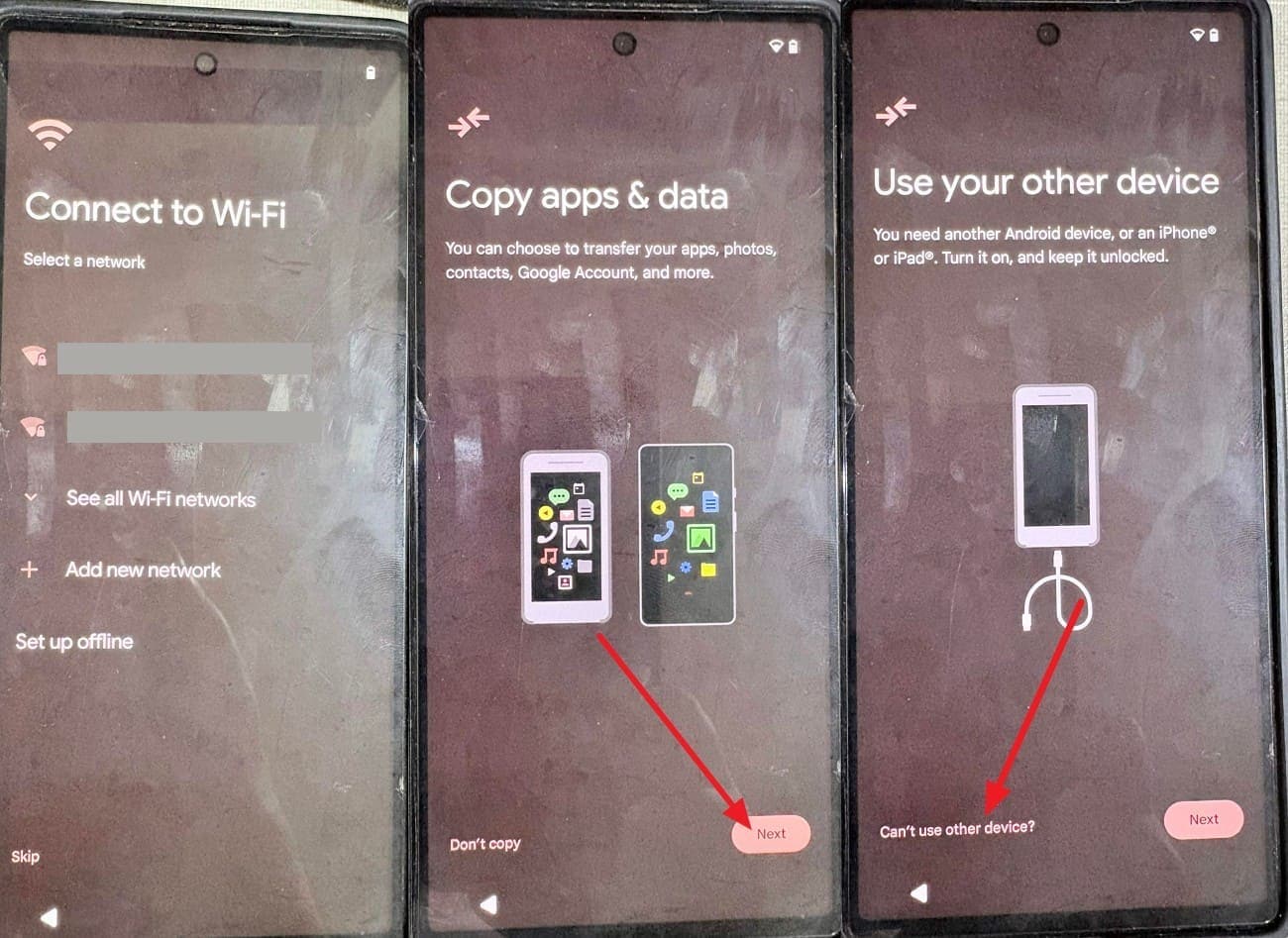
Step 1 Connect to a working Wi-Fi network
Connect to a working Wi-Fi network and tap “Next” on the “Copy Apps and Data Screen” during the setup. After that, select the “Can't Use Old Device” option and sign in with the same Google Account used to make the backup.
-
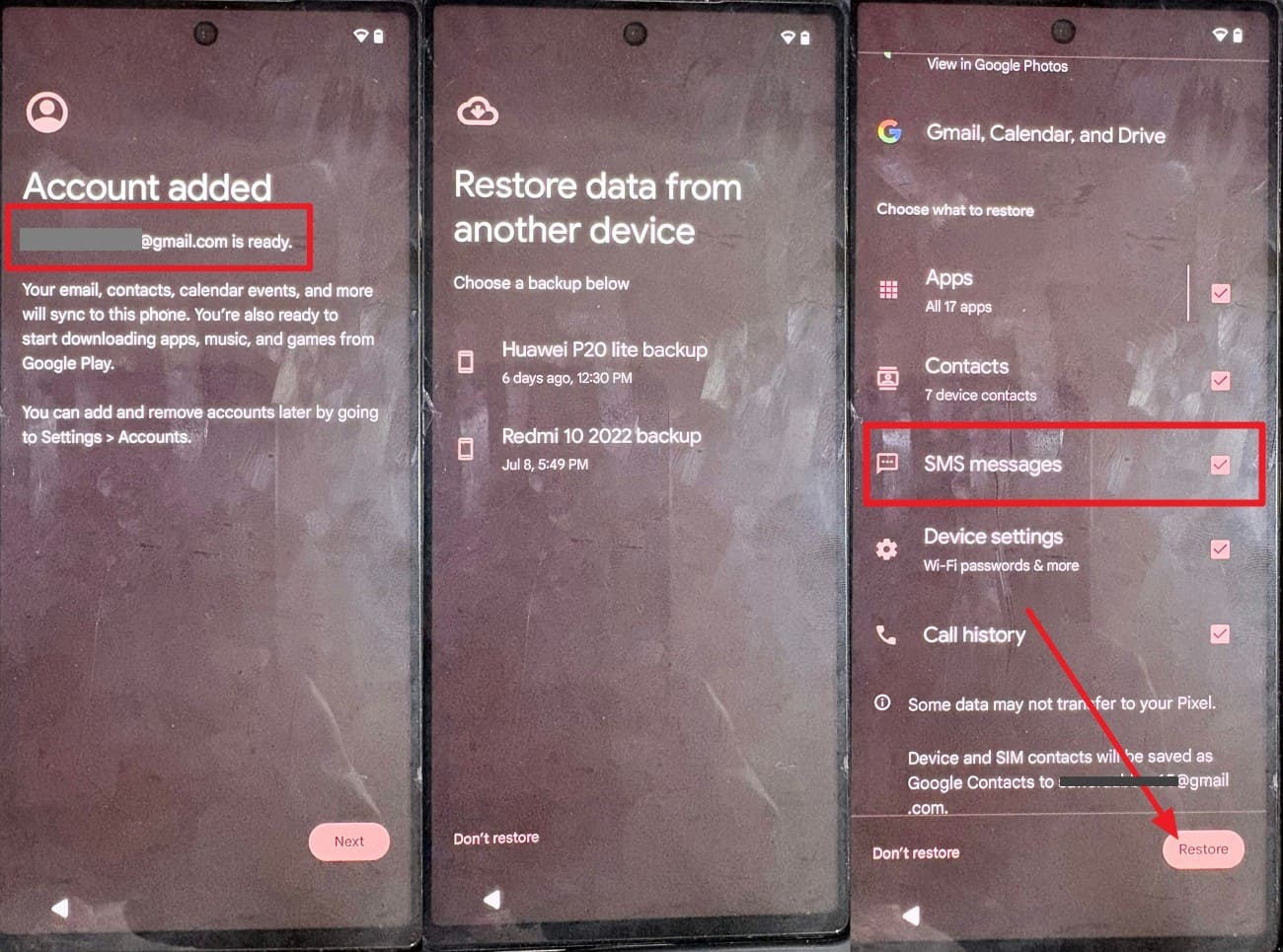
Step 2 Select the most recent backup file
Select the most recent backup file from the list and enter your old device's screen lock PIN or password if prompted. Select the items you want to keep and tap “Copy.”
Part 4. Google Messages Backup or Restore Not Working? Try These Fixes
Knowing where the Google Messages backup is stored and how the restore process works can help identify common failures. The table below covers 7 common backup and restore problems, their possible causes, and the recommended fixes:
| Problem | Possible Cause | Recommended Fix |
|---|---|---|
| Backup is Missing Entirely | Backup was never switched on | Enable backup now to save existing messages |
| Wrong Google Account is Selected | A different account holds the backup | Sign in with the account that holds the backup |
| Backup is Outdated | The last backup predates recent texts | Create a fresh backup before wiping anything |
| Messages Missing After Restore | Latest messages weren't included in backup | Check the backup status and restore again |
| Only Some Conversations Restored | Backup may be outdated or incomplete | Check Trash and verify the latest backup |
| Deleted Messages Gone from Trash | The retention period has expired | Trash cannot help, so move to Part 5 |
| Backup Won't Restore Selectively | Android cannot restore individual message threads | Use supported recovery software for selective recovery |
Part 5. When Google Messages Cannot Be Restored from Backup
Google Messages cannot recover every missing conversation. This section covers situations where Google Messages backup and restore may be unavailable or unable to recover the messages you need.
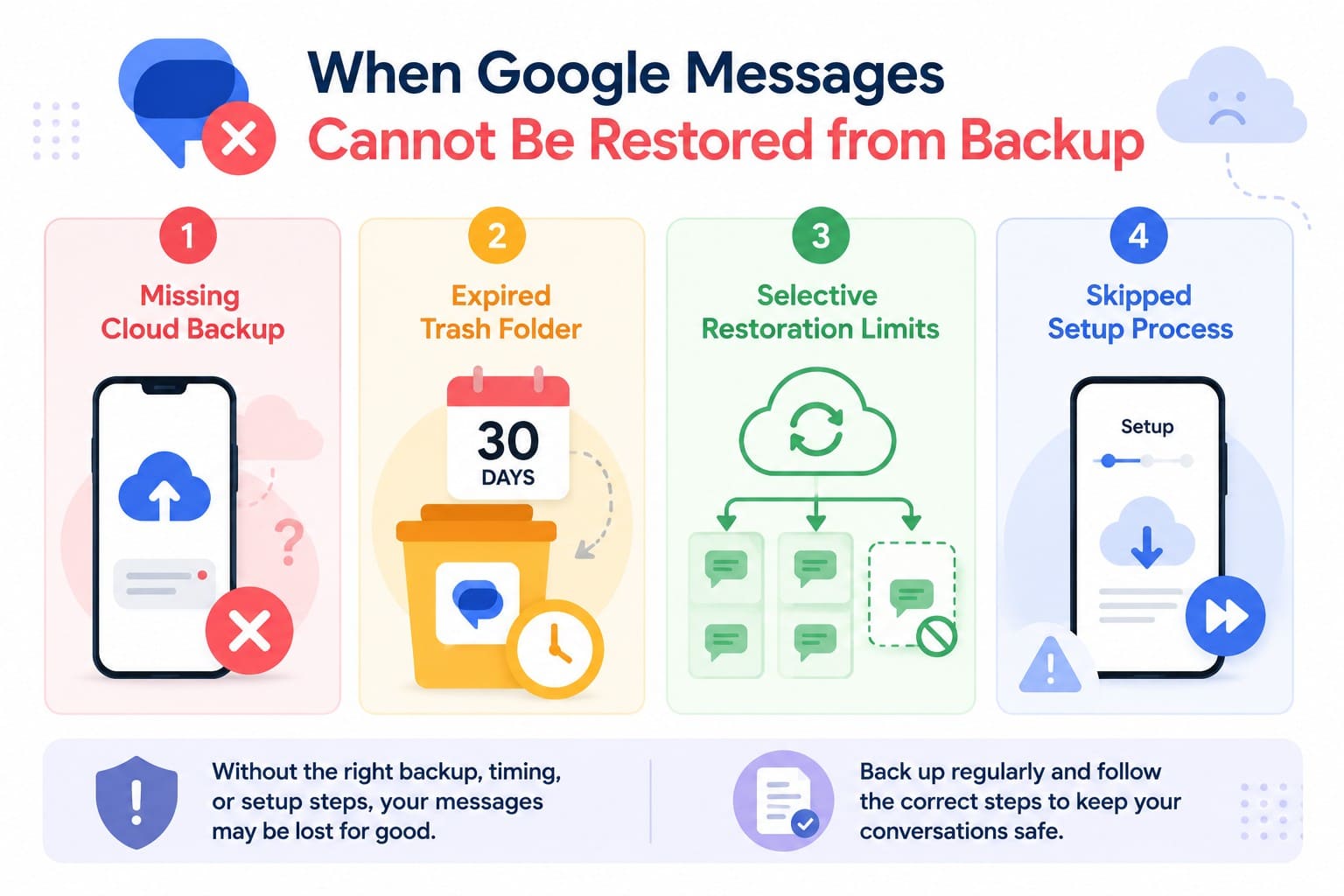
- Missing Cloud Backup: Messages cannot be restored if no backup existed before the device reset and the old phone is unavailable. Google cannot recover conversations that were never backed up.
- Expired Trash Folder: Deleted conversations remain in Trash for 30 days. Once this retention period expires, Google Messages permanently removes them from Trash.
- Selective Restoration Limits: Android backup does not let users restore a single conversation separately. Messages included in a device backup are restored through the supported Android restore process.
- Skipped Setup Process: Skipping the restore during setup can limit later recovery options. However, some supported devices offer a post-setup transfer, so a factory reset is not always necessary.
Recover Supported Messages with Dr.Fone - Data Recovery (Android)
When a Google Messages backup cannot restore the conversations you need, desktop recovery software offers another recovery path. Dr.Fone - Data Recovery (Android) supports more than 6,000 Android devices and provides 3 recovery modes. It can scan connected devices for recoverable messages, contacts, call history, photos, documents, and other supported data.
Its Google Drive recovery mode is especially useful when your messages exist in a cloud backup. After signing in, you can scan the backup and preview supported data before recovery. It supports 6 listed data types, including Messages, and lets you select the required conversations for export to your computer instead of restoring an entire device backup.
 Scan Android phones and tablets directly.
- Preview and recover only what you want.
- Supports WhatsApp, photos, videos, contacts, and more.
- Works with 6000+ Android devices.

How to Scan an Android Phone for Deleted Messages
Stop using the Android smartphone first, because new photos and app data overwrite deleted messages. If Google Messages backup cannot restore the required conversations, follow these steps to scan the device:
-
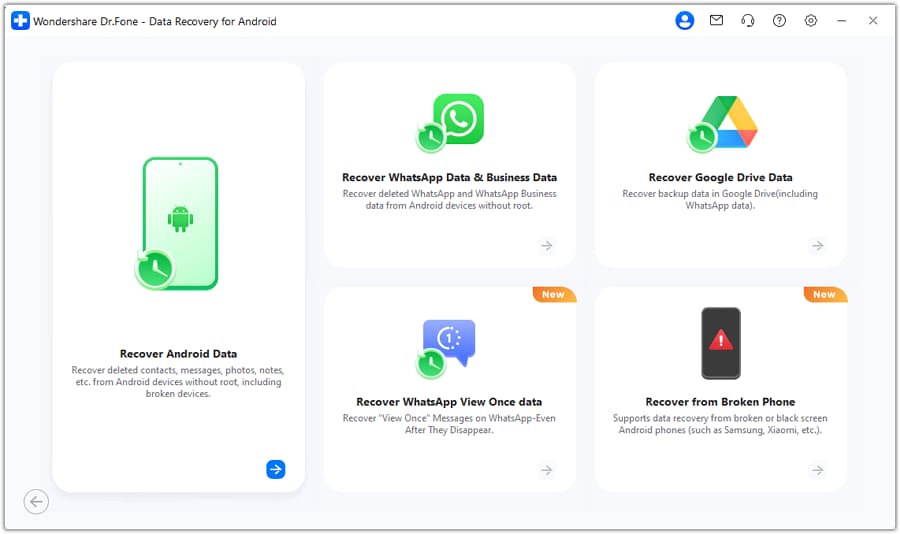
Step 1 Open Data Recovery and Pick Android
From the “Toolbox” tab, choose the “Data Recovery” tool for Android, and tap on “Recover Android Data.”
-
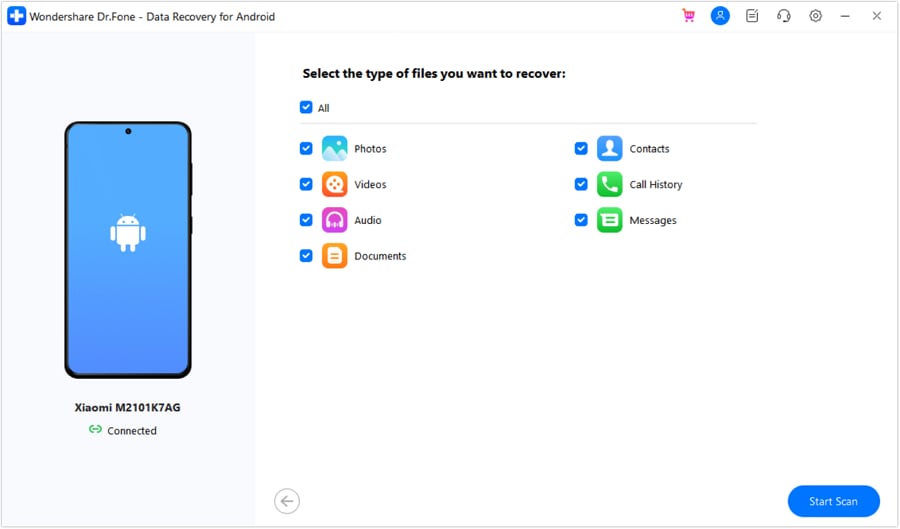
Step 2 Connect the Phone and Choose Messages
Connect the Android via USB and wait for it to be detected. Select “Messages” along with any other categories you need and start the scan.
-
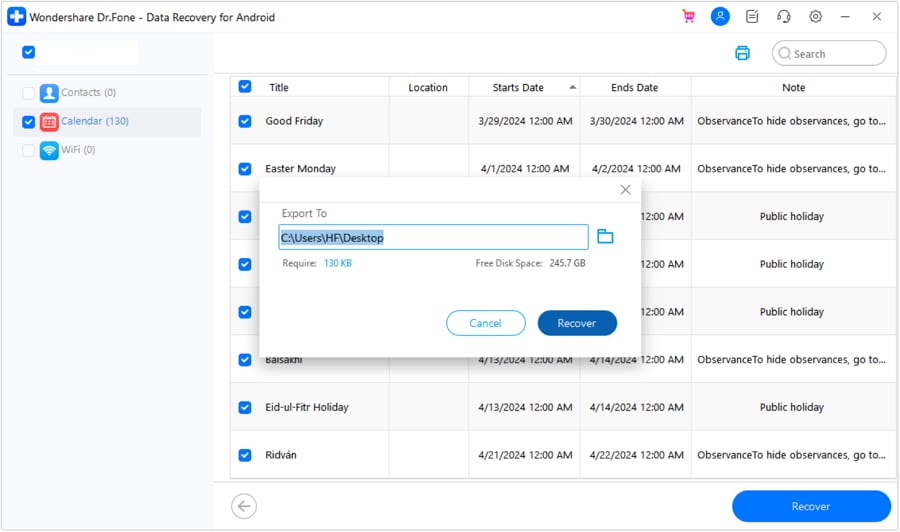
Step 3 Filter the Results and Export
After the scan finishes, select the messages you want to recover, then press the “Recover” button and choose the “Export To” location.




Part 6. Best Practices to Keep Google Messages Safe
Once you know the details of Google Messages backup and restore, this section is worth reading. Get to know how you can keep Google Messages safe by following these 7 practices:
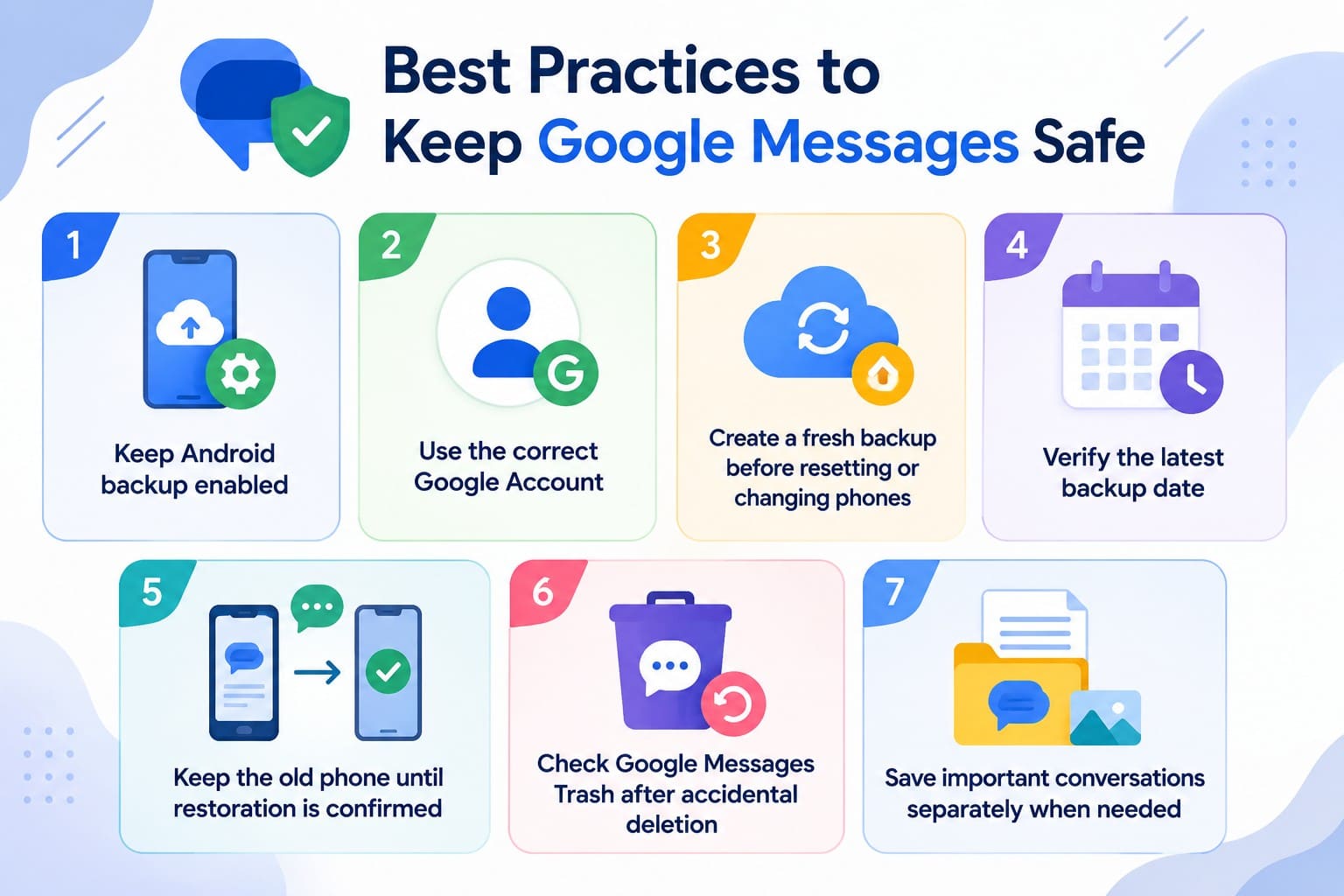
- Keep Android Backup Enabled: Check that Android backup stays active so supported messages and other device data are automatically protected in your Google Account.
- Use the Correct Google Account: Confirm the account shown in Backup settings because choosing another Google Account may prevent your saved message backup from appearing.
- Create a Fresh Backup Before Resetting: Tap “Back up now” before resetting or changing phones, then wait until the backup finishes before wiping your device.
- Verify the Latest Backup Status: Check that your latest backup has completed successfully and reflects recent device data before resetting or replacing your Android phone.
- Keep the Old Phone Until Restoration Is Confirmed: Review conversations and attachments on your new phone before erasing the old device or giving it away.
- Check Google Messages Trash After Deletion: Open Trash promptly after accidental deletion and restore required conversations before the applicable retention period expires permanently.
- Save Important Conversations Separately: Keep screenshots or other copies of critical information when needed, providing extra protection against future backup, deletion, or restoration problems.
Conclusion
A reliable Google Messages backup helps protect SMS, MMS, and RCS chats when resetting or switching devices. Check your latest backup before making major changes and verify restored conversations afterward. When a backup cannot recover needed messages, Dr.Fone - Data Recovery (Android) provides another option for scanning and recovering supported data.
Frequently Asked Questions
-
1. Can I view my Google Messages backup before restoring it?
Not through Android itself, since the backup sits in your Google Account with no readable file to open and no viewer built into the phone. On the other hand, Dr.Fone can read Google Drive backups and can preview the contents. That's the only practical way to check what a backup holds before committing to a restore. -
2. Can I restore Google Messages without factory resetting my phone?
Not with Android's built-in restore, which runs only during initial setup and offers no way back afterward. Extracting messages from a Google Drive backup using Dr.Fone is the alternative, since it pulls selected conversations without touching what's currently on the phone. -
3. How long do deleted messages stay in Google Messages Trash?
Deleted conversations remain in Google Messages Trash for 30 days on most devices and 7 days on Android Go. After this retention period expires, messages are permanently deleted and can no longer be restored from Trash. -
4. Can I save Google Messages to a computer?
Google Messages does not provide a built-in option to export conversations directly to a computer. You can save individual threads as screenshots or use Dr.Fone to export supported messages to your desktop.
 Add Wondershare Dr.Fone as a preferred source on Google