Recover photos, messages, WhatsApp, and more — no backup
needed.
Recover photos, messages, WhatsApp, and more — no backup
needed.

 100% Security Verified | No Subscription Required | No Malware

 :
: 
 ChatGPT
 Perplexity
 Gemini
 Claude
 Grok
Grok
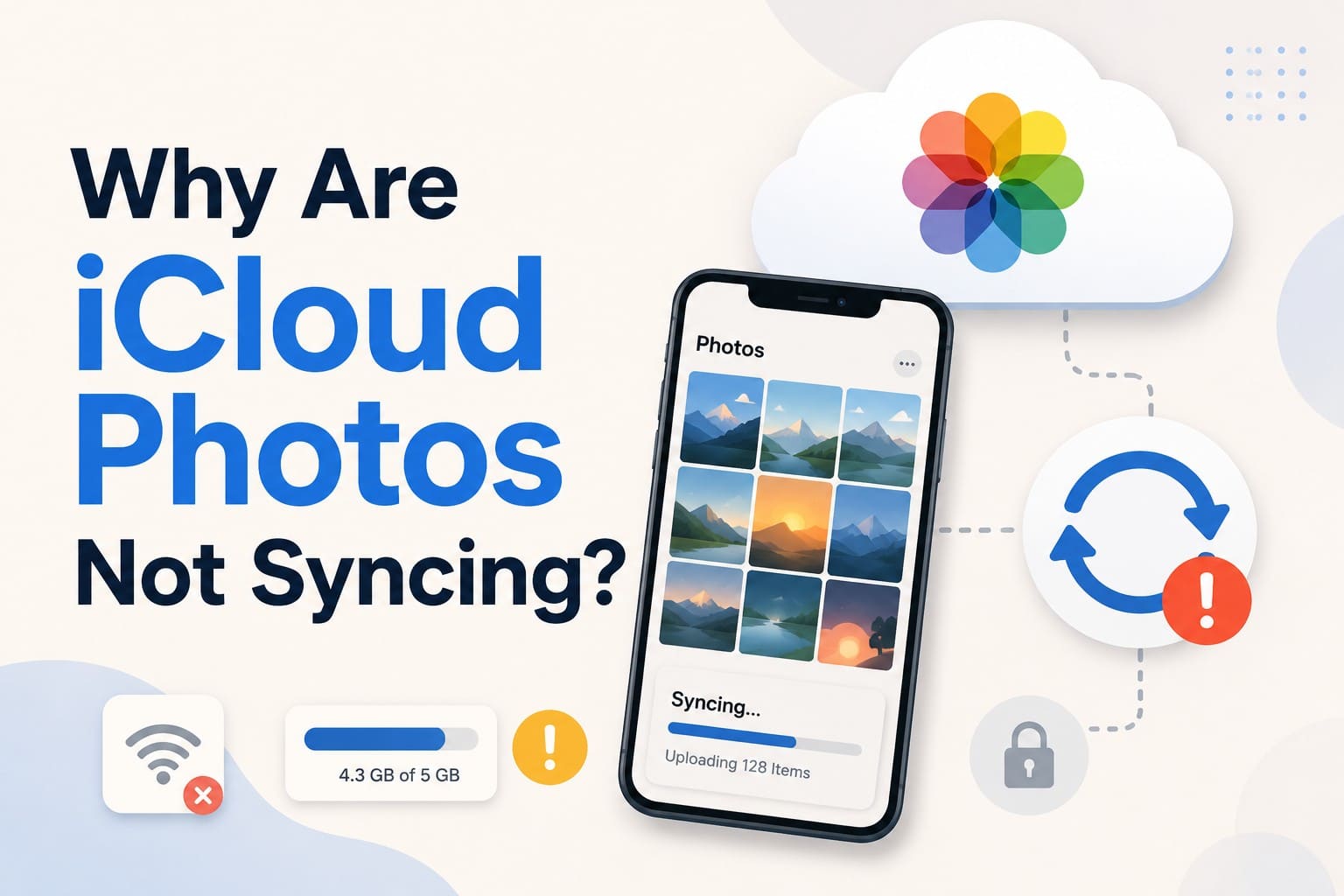
iCloud photos not syncing can leave your device with missing images and stalled upload counters. Avoid changing random settings, since some actions can interrupt syncing or affect stored photos. Apple displays a library status in the Photos app that can identify why syncing has paused.
This guide explains those status messages and provides 8 targeted fixes in a practical order. If photos are actually missing rather than waiting to sync, Dr.Fone - Data Recovery (iOS) can help scan available recovery sources and preview recoverable photos.
In this article
- Part 1. Why Are iCloud Photos Not Syncing on iPhone?
- Part 2. Best Fixes for iCloud Photos Not Syncing
- Part 3. Photos Still Missing After iCloud Sync Fixes? Check These Places
- Part 4. Photos Still Missing? Recover Them with Dr.Fone – Data Recovery (iOS)
- Part 5. Prevent Future iCloud Photo Sync Problems
Part 1. Why Are iCloud Photos Not Syncing on iPhone?
iCloud not syncing does not always mean iCloud has failed. Syncing can pause because of low battery, Low Power Mode, a weak network, high device temperature, or full iCloud storage. So, before changing any settings, check the library status in the Photos app. Apple documents each status message, helping you identify why syncing has paused and what action may be needed.
| iCloud Photos Status | Why Syncing Paused | What to Do |
|---|---|---|
| Low Power Mode | iPhone is conserving battery. | Turn off Low Power Mode or wait for normal operation. |
| Low Data Mode | Network data usage is restricted. | Turn off Low Data Mode or wait for syncing to resume. |
| Low Battery | Battery level is low. | Connect the iPhone to power. |
| Optimizing Battery Power | iOS temporarily paused syncing to manage power. | Tap Sync Now or wait for syncing to resume. |
| Optimizing System Performance | iPhone is prioritizing other system activity. | Tap Sync Now or wait for syncing to resume. |
| Poor Network Connection | Current network conditions have paused syncing. | Tap Sync Now or wait for the connection to improve. |
| [Device] Needs to Cool Down | iPhone is too warm. | Let the device cool down before trying again. |
| iCloud Storage Is Full | Your iCloud storage limit has been reached. | Free up iCloud storage or upgrade your storage plan. |
| Move Photos to Personal Library to Continue Syncing | The Shared Library owner's iCloud storage is full. | Move affected items to your Personal Library until storage becomes available. |
Keep the iPhone connected to power and Wi-Fi, as large libraries may need to sync overnight. Don't turn off iCloud Photos while iPhone Photos is not syncing, because Apple recommends checking the library status and allowing syncing to resume instead.
How to Check iCloud Photos Sync Status on iPhone?
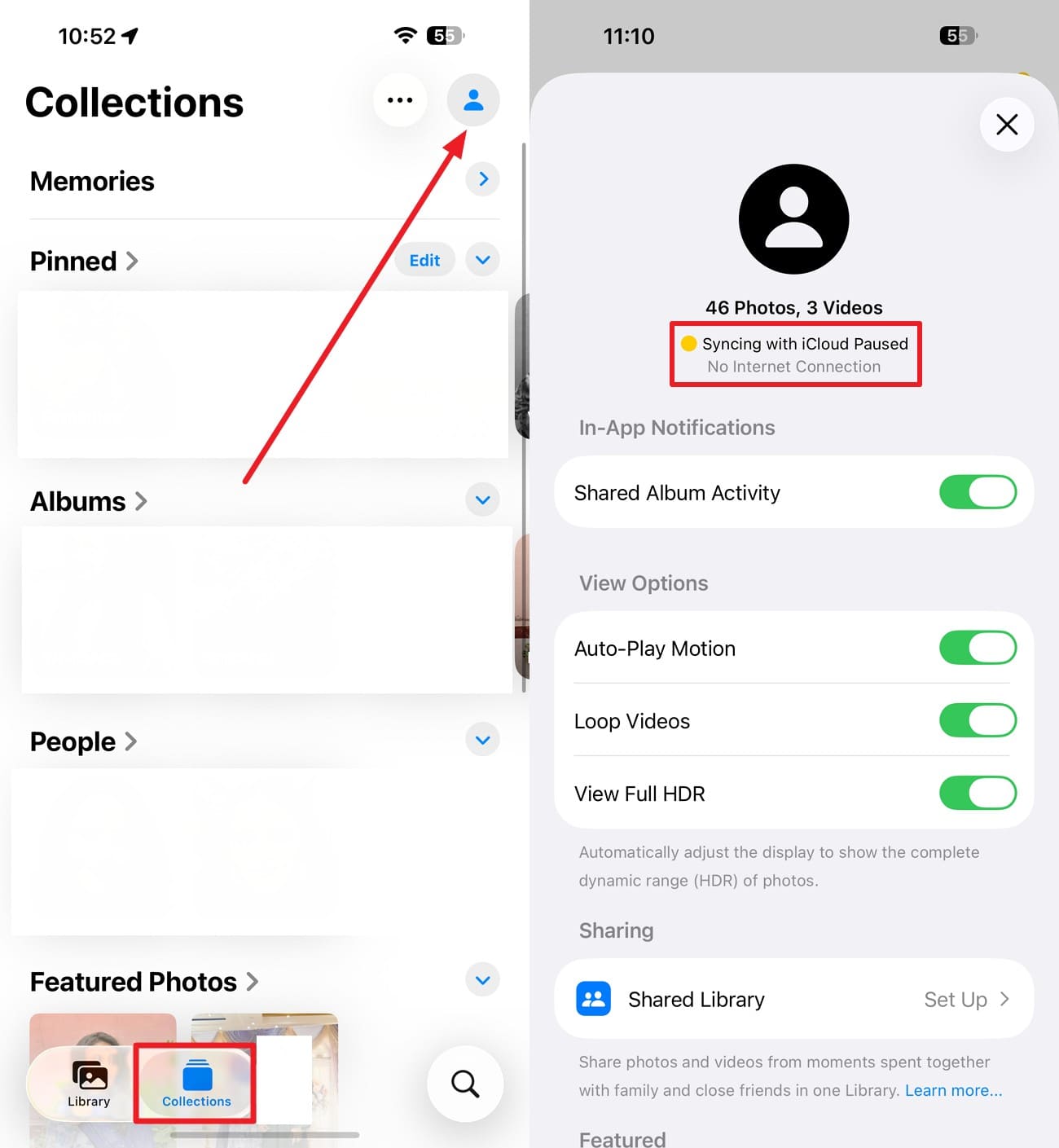
- On Current Versions of iOS: Open “Photos > Collections,” then tap your profile button in the upper corner. Your library status appears below your name and photo count.
- On iOS 17 or Earlier: Go to “Photos > Library > All Photos” and scroll to the bottom to see the syncing status.
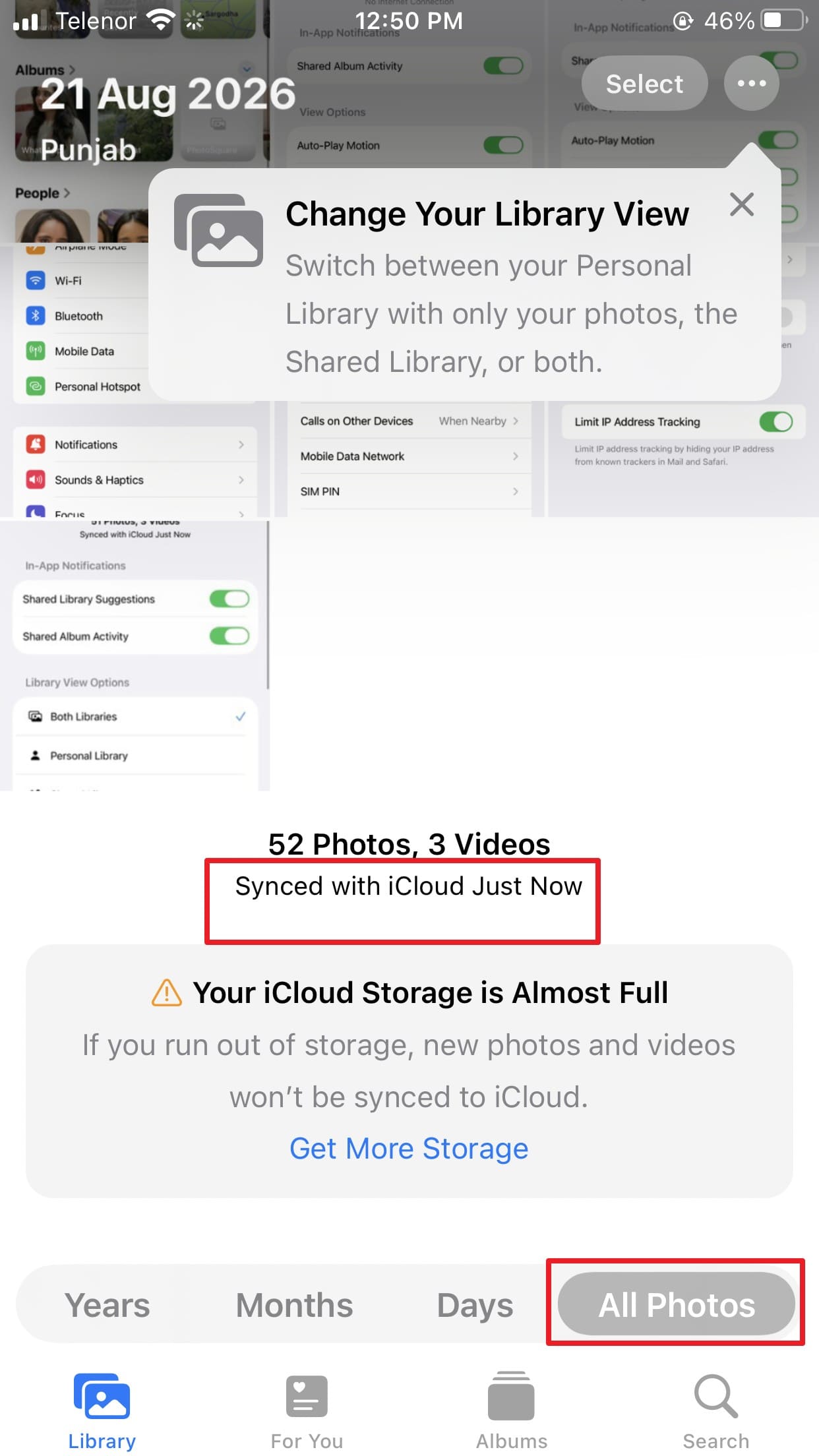
If no obvious pause message appears, check that the same Apple Account is signed in across your devices. Switch between Personal, Shared, and Both Libraries in the iCloud Shared Photo Library view. Photos moved to the Shared Library no longer appear when you view only your Personal Library.
iCloud Photos Not Syncing vs Photos Actually Missing
iCloud sync not working and missing photos are different problems. A sync issue usually means a photo exists in your library but has not synced to another device yet. Check the Photos library status, network connection, battery conditions, Apple Account, and iCloud storage to identify the cause.
If a photo is actually missing, check Recently Deleted, Hidden, Shared Library views, and the Apple Account currently signed in. You can also check iCloud.com Photos to confirm whether the photo still exists in your iCloud Photos library.
Part 2. Best Fixes for iCloud Photos Not Syncing
To fix the iCloud not syncing issue, try these 8 fixes first, then check for missing photos if they still don’t appear:
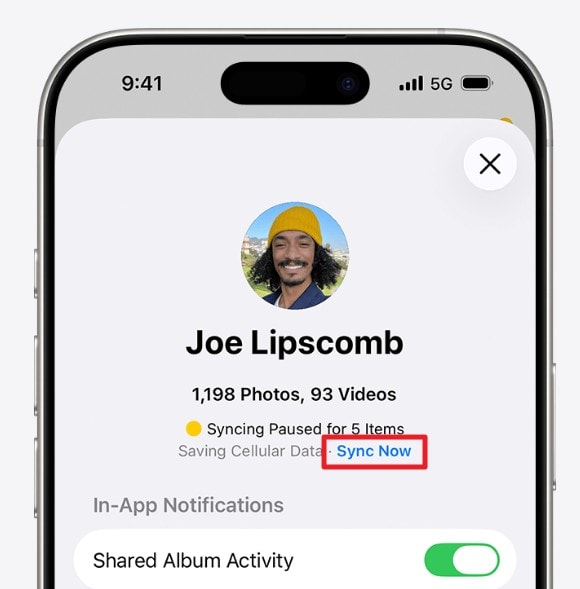
Fix 1. Check iCloud Photos Sync Status & Tap Sync Now
Check the iCloud Photos sync status to know why the sync was stopped. Apple displays specific messages for conditions such as Low Power Mode, Low Battery, Poor Network Connection, device temperature, and full iCloud storage. The simple directions are stated in Part 1, but here is what you need to do after you check the status:
Instructions. Read the library status message to find the cause of the sync stop. If the “Sync Now” option appears, tap on it and give the transfer a few minutes to restart.
Fix 2. Connect iPhone to Wi-Fi and Power
iOS can pause iCloud Photos syncing when the battery is low, or Low Power Mode is active. For large photo libraries, connect the iPhone to power and use a stable Wi-Fi connection when possible. Although iCloud Photos can also sync over cellular data when enabled, Wi-Fi can help avoid mobile data limits. Leave the iPhone connected, ideally overnight, to give a large library time to finish syncing.
Fix 3. Turn Off Low Power Mode and Low Data Mode
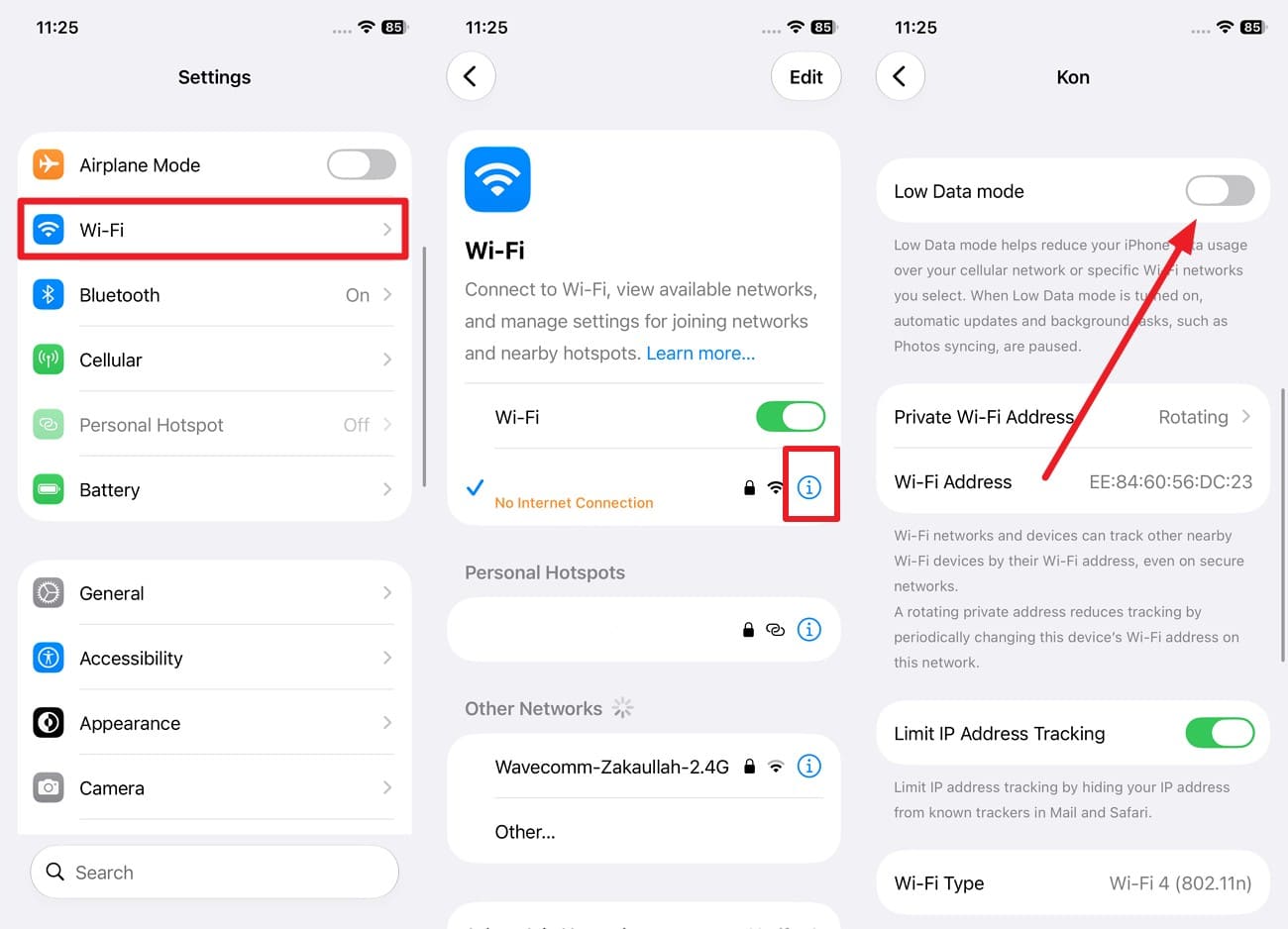
If the iPhone Photos not syncing issue persists, iCloud Photos has paused syncing to conserve battery power or reduce network usage. Apple says that Low Power Mode pauses iCloud Photos. Whereas Low Data Mode pauses photo updates and background network work. Turn both options off through these steps and restore instant photo uploads and downloads between your device and iCloud:
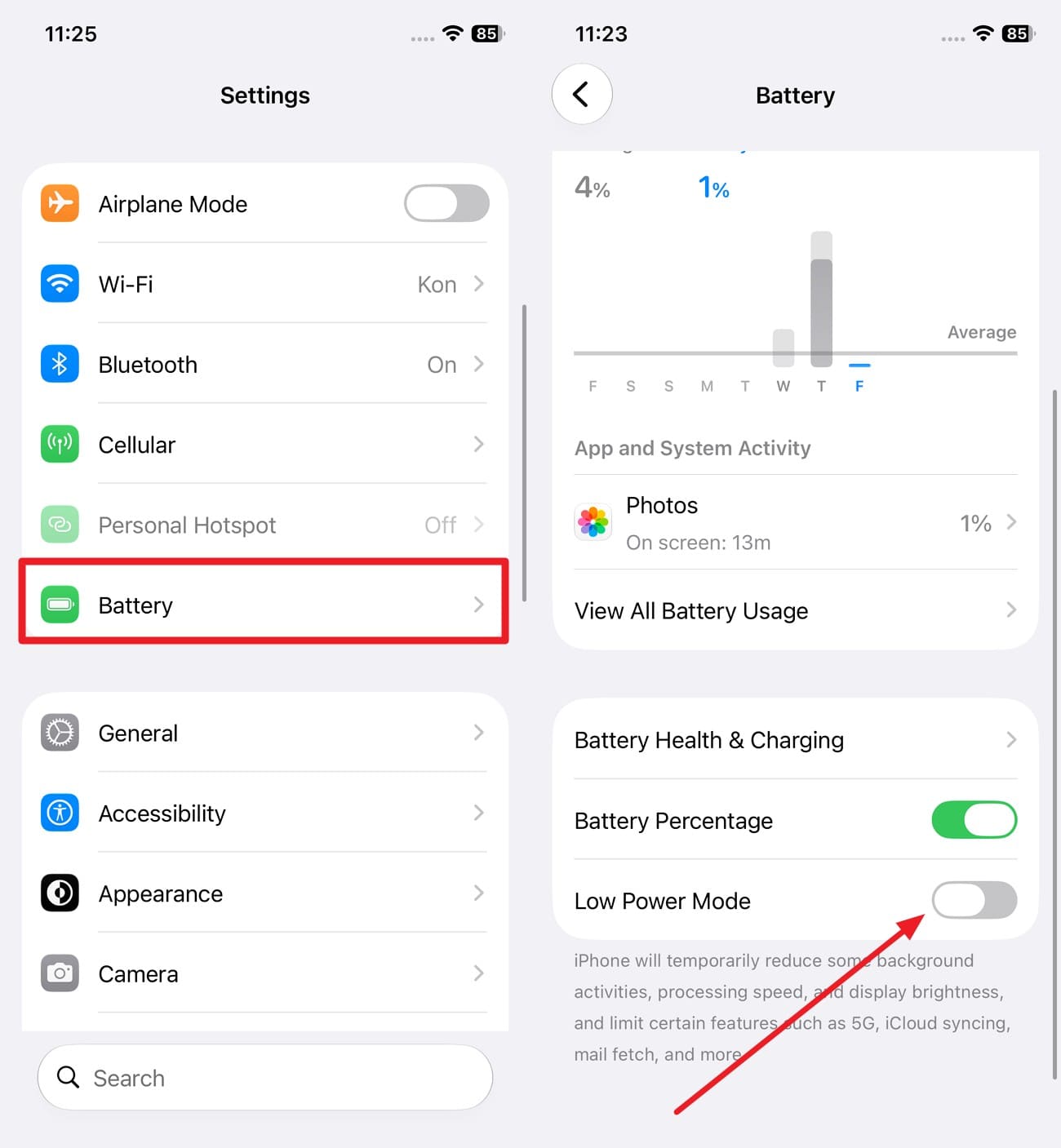
Turn Off Low Power Mode
Instructions. In "Settings," choose "Battery," scroll down, and toggle off "Low Power Mode."
Turn Off Low Data Mode (Wi-Fi)
Instructions. Go to “Settings > Wi-Fi” and tap the “i” icon next to your connected network name and turn off “Low Data Mode.”
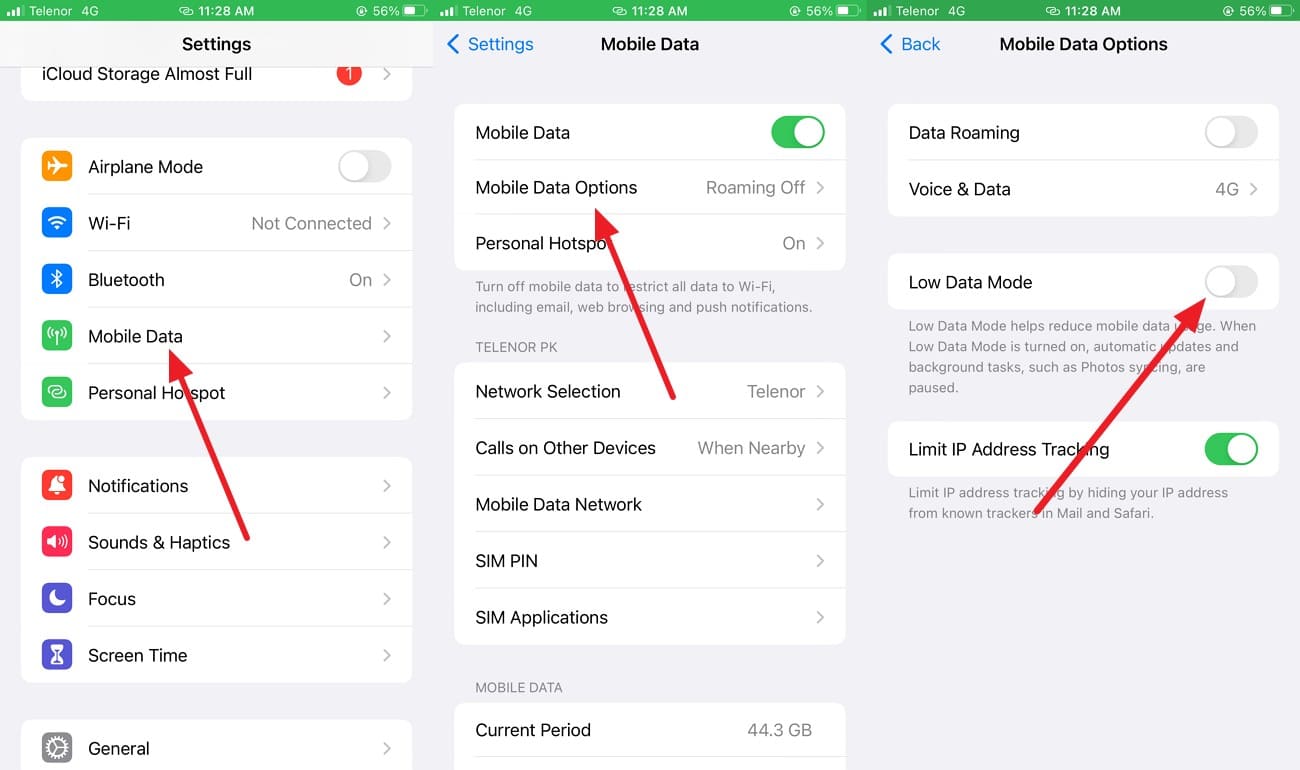
Turn Off Low Data Mode (Mobile / Cellular Data)
Instructions. Choose “Mobile Service” in settings to access “Mobile Data Options” and disable “Low Data Mode.”
Fix 4. Free Up iCloud Storage
You can also check your iCloud storage when the iCloud sync not working problem persists. Since every Apple Account includes 5 GB of free iCloud storage, large photo and video libraries can quickly fill the available space. If your iCloud storage is full, freeing up space or upgrading your plan can allow iCloud Photos syncing to resume. Follow these steps to check your available storage and make space if needed:
-
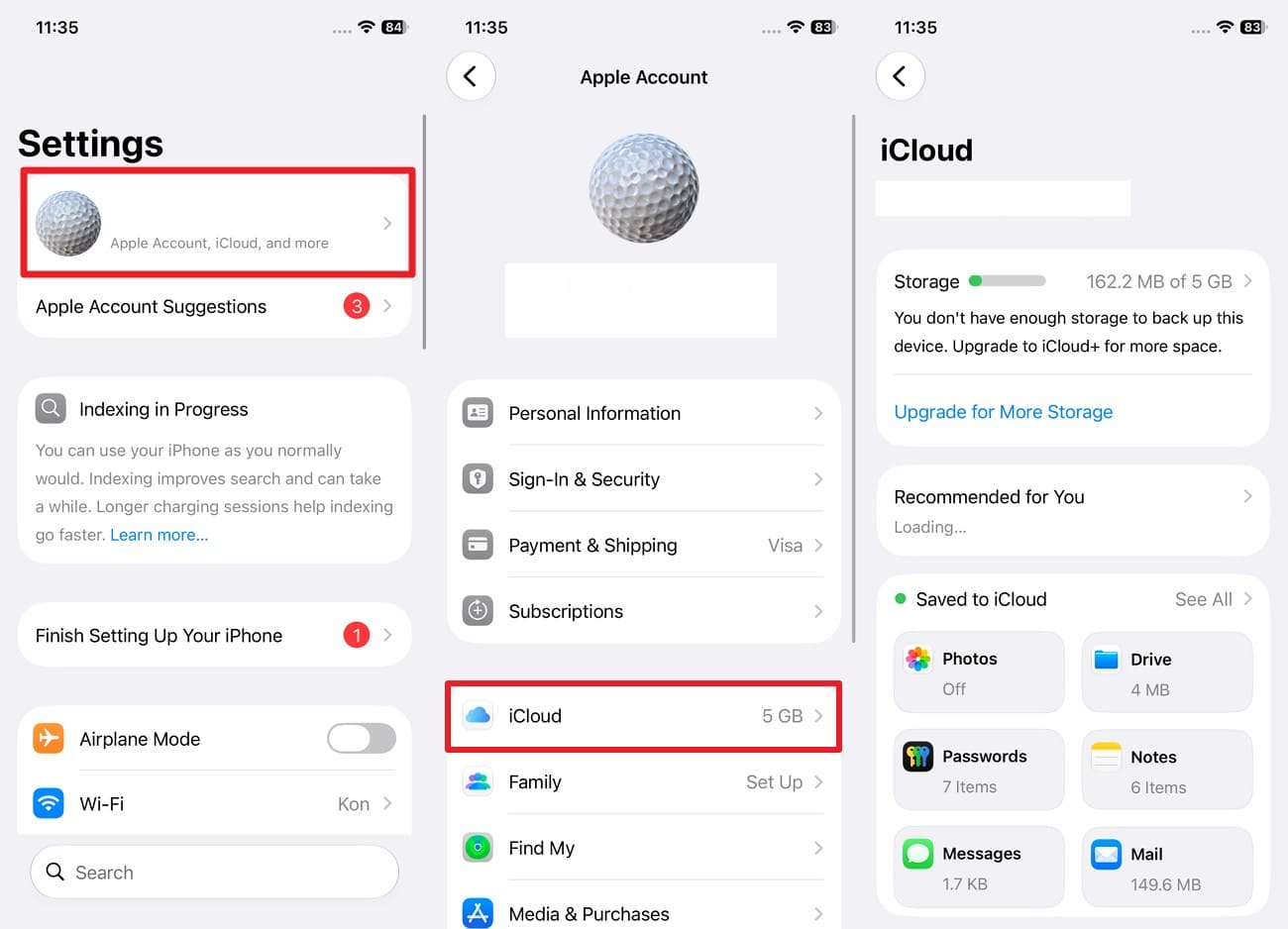
Step 1 Check Storage Summary
Head to “Settings > [Your Name] > iCloud” and check the storage summary to see how much space remains.
-
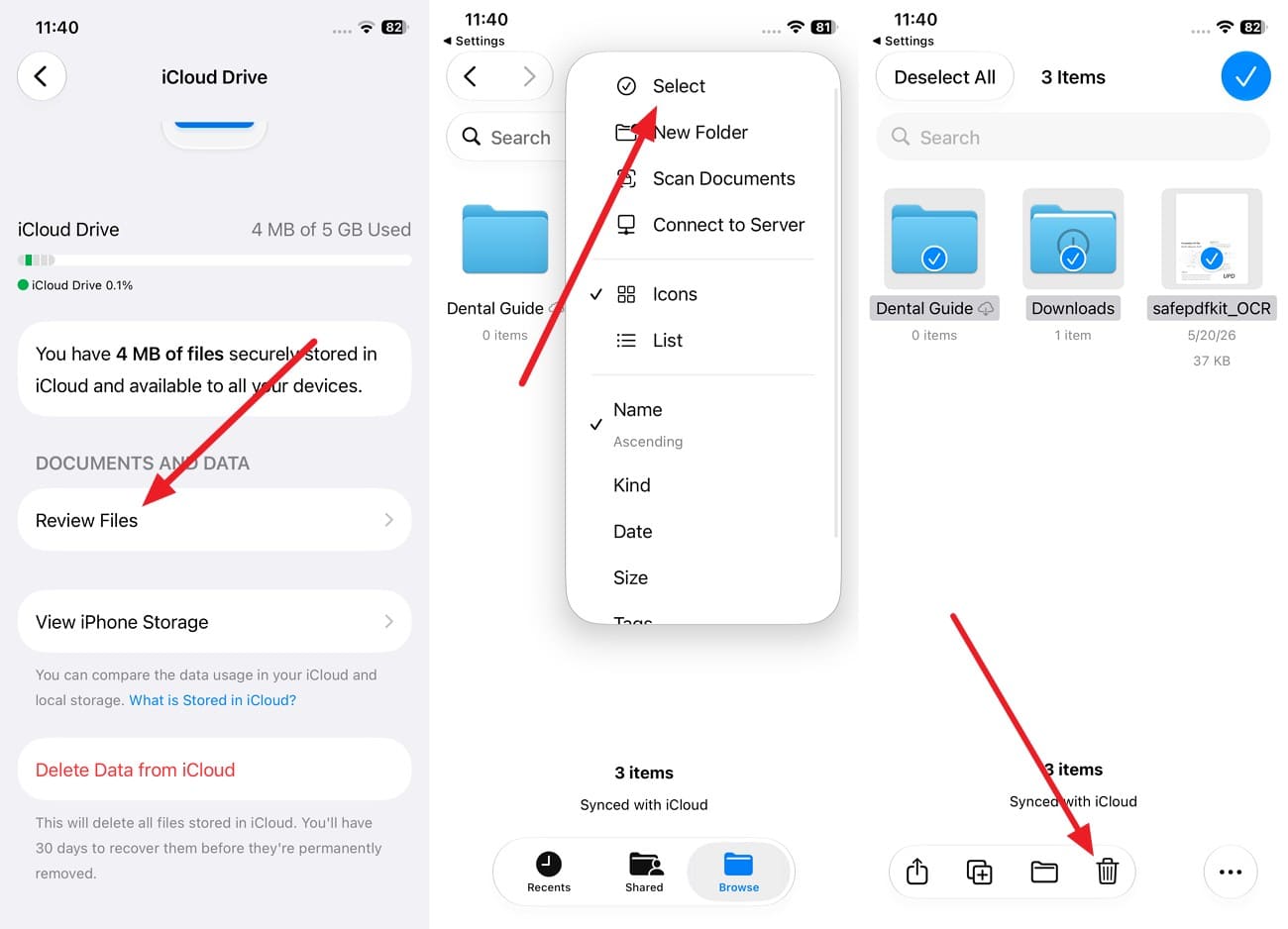
Step 2 Manage Storage
Go to the “Manage Storage" interface and choose the data you no longer need. For example, choose "iCloud Drive > Review Files > Three Dots > Select" > Choose extra files > "Delete."
Fix 5. Turn On Sync This iPhone and Verify the Apple Account
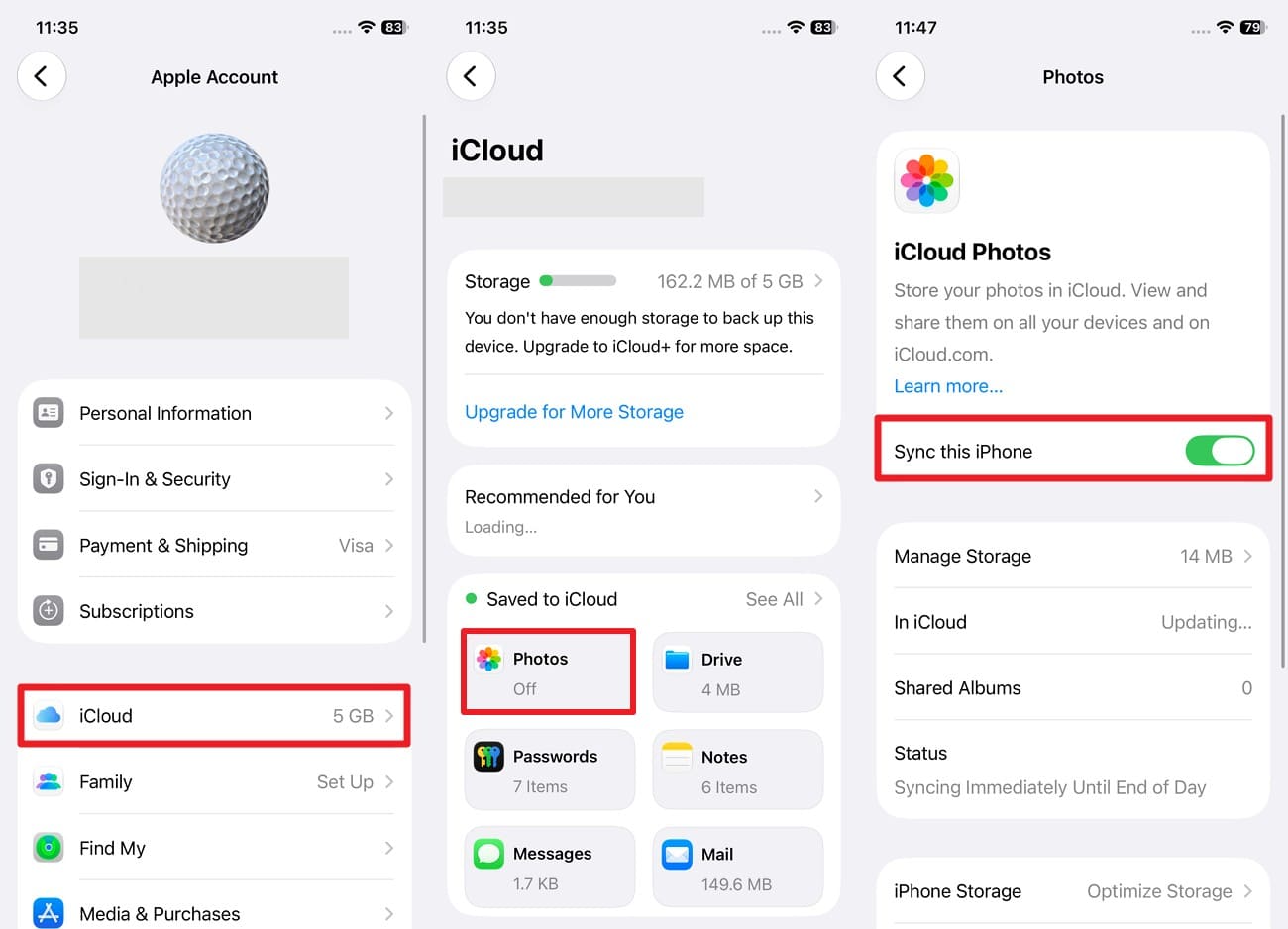
If nothing resolves the iPhone Photos not syncing alert, check that the feature is actually enabled and that every device uses the same Apple Account. Apple confirms that a device with iCloud Photos turned off, or one signed in to a different Apple Account, cannot access the same synced photo library. To enable this option, below are the detailed guidelines for you:
-
Step 1 Toggle on Sync This iPhone
From iPhone Settings, tap your name, choose the "iCloud > Photos" option, and toggle on "Sync This iPhone."
-
Step 2 Verify Apple Account
Next, open the Apple Account section on your other devices and compare the sign-in details to ensure they all use the same account for iCloud.
Fix 6. Check iCloud Shared Photo Library Settings
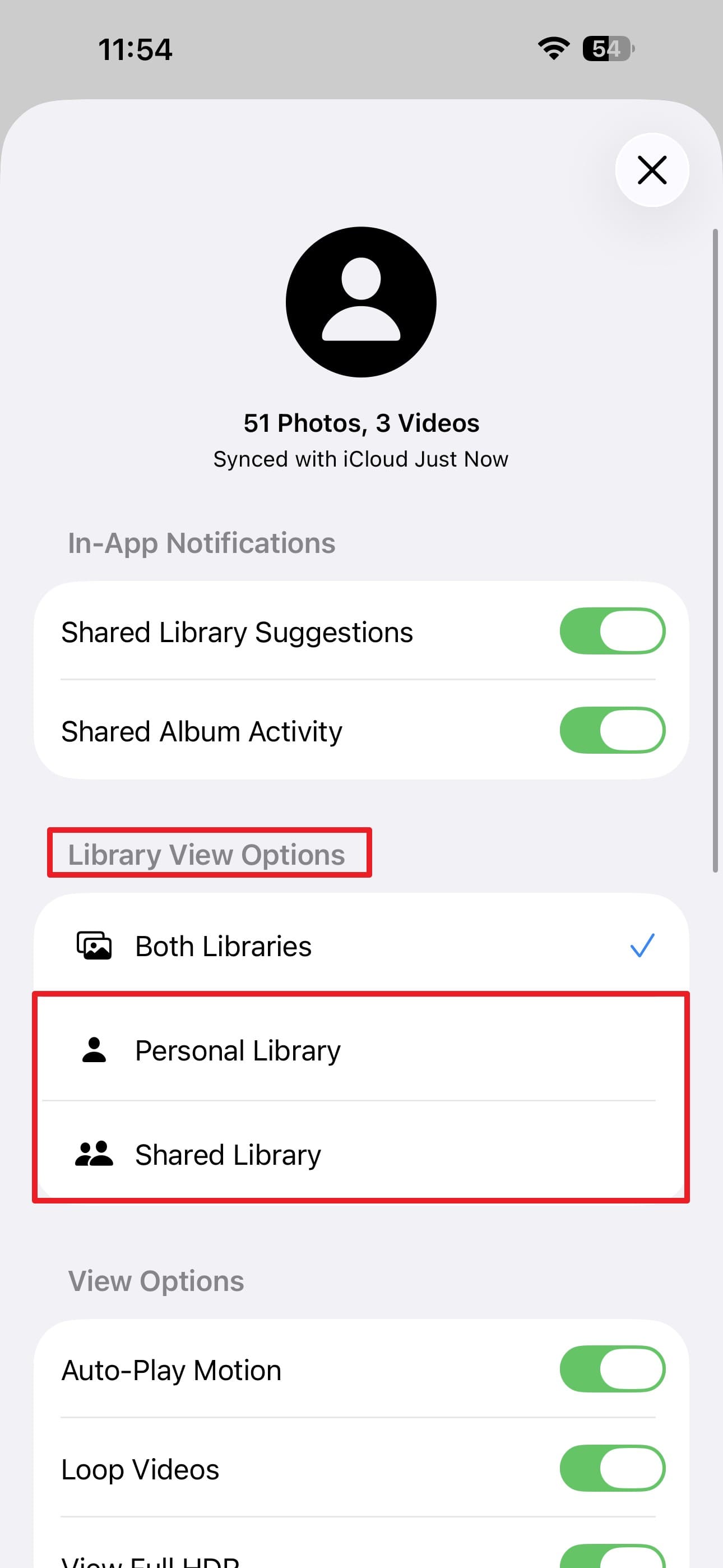
Once you resolve the iCloud photos not syncing issue, some images may still seem missing because of your iCloud Shared Photo Library settings. Photos moved to the Shared Library may not appear when viewing only your Personal Library. Switch between the available library views to locate them. Follow these steps to check where your missing photos are stored:
-
Step 1 Switch Library Views
Open Photos, tap “Profile” in “Collections,” and locate “Library View Options.” Switch between “Personal Library” and “Shared Library” to check where the missing photos are stored.
-
Step 2 Select Both Libraries
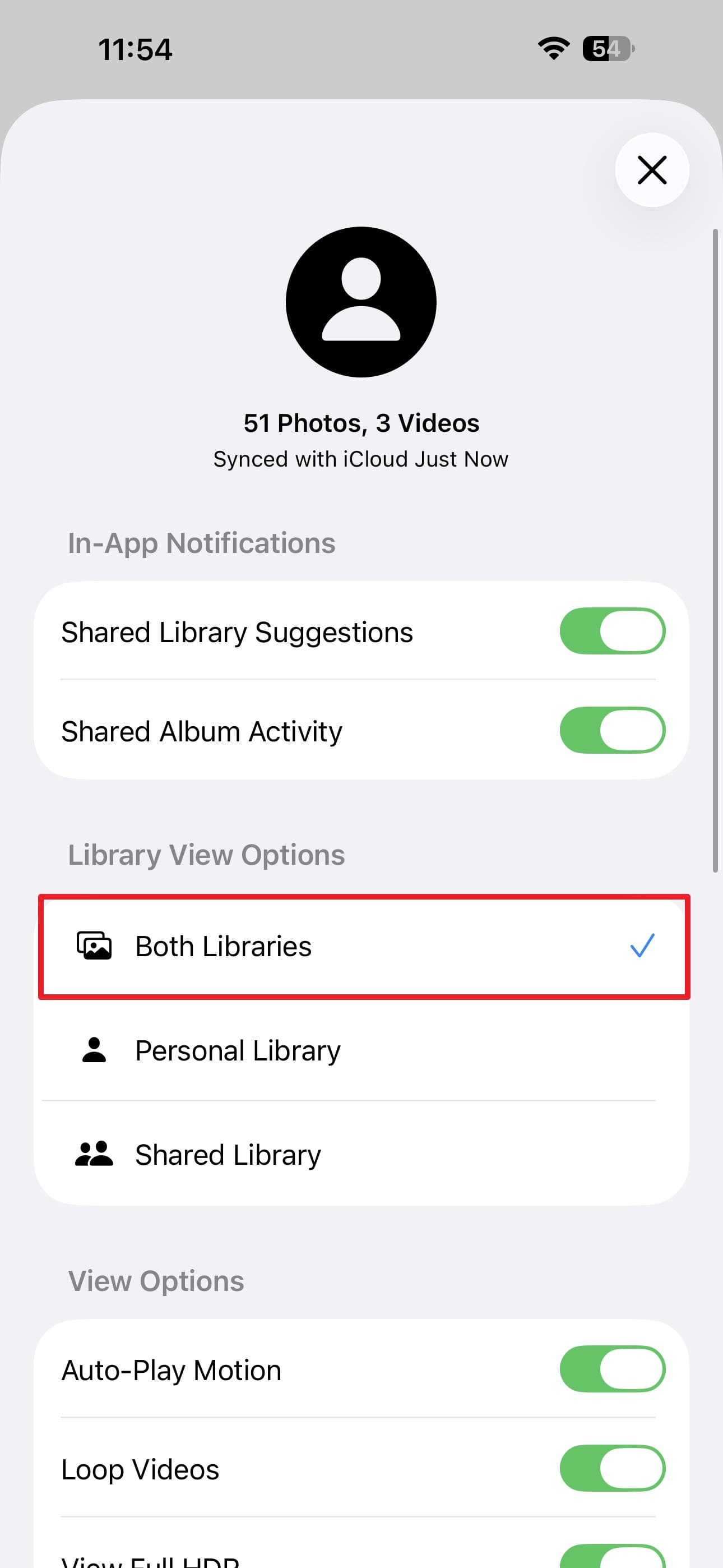
Select “Both Libraries” to display content from your Personal and Shared Libraries together.
Fix 7. Update iOS and Check Apple System Status
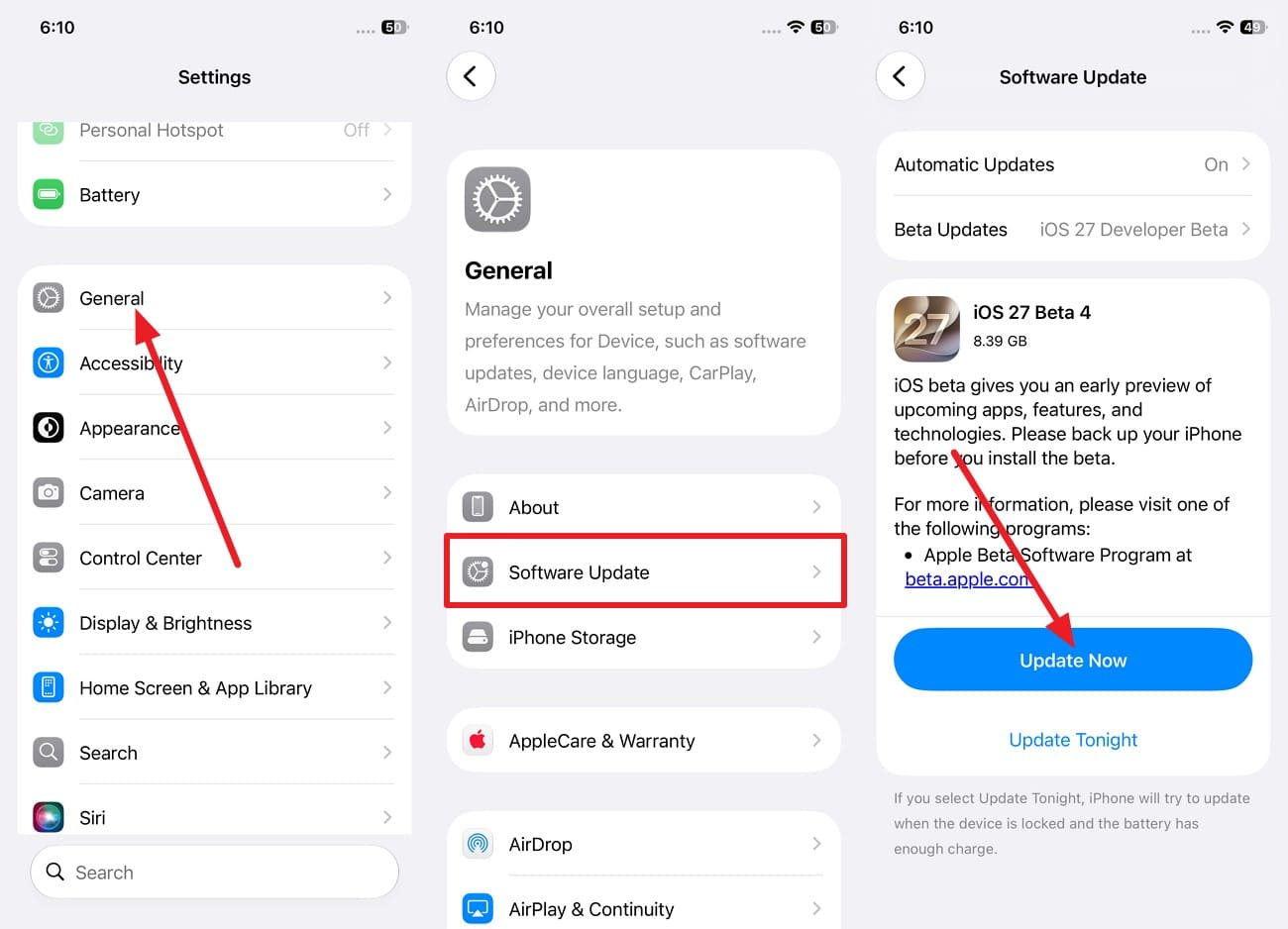
If your iCloud Photos settings look correct, the iCloud photos not syncing problem may involve outdated iOS software or a broader iCloud service issue. When syncing problems also affect other iCloud services, check Apple’s System Status page for reported disruptions. Installing available iOS updates can also provide important bug fixes and stability improvements. Follow these 2 steps to check both possible causes.
-
Step 1 Update iOS
Go to “Settings > General > Software Update.” If an iOS update is available, tap “Update Now” and follow the onscreen instructions.
-
Step 2 Check System Status
Test other iCloud apps like Mail, Contacts, or Messages. Check Wi-Fi connection and Apple System Status page if multiple iCloud services fail.
Fix 8. Resolve Photos in the Unable to Upload Album
When only a few photos or videos are not syncing to iCloud, check the Unable to Upload album in Photos. According to Apple, this album appears when specific items cannot sync and may show a “Couldn't Sync” message. Apple recommends exporting and re-importing these affected items. If iCloud not syncing persists for them, follow these steps to re-import the files:
-
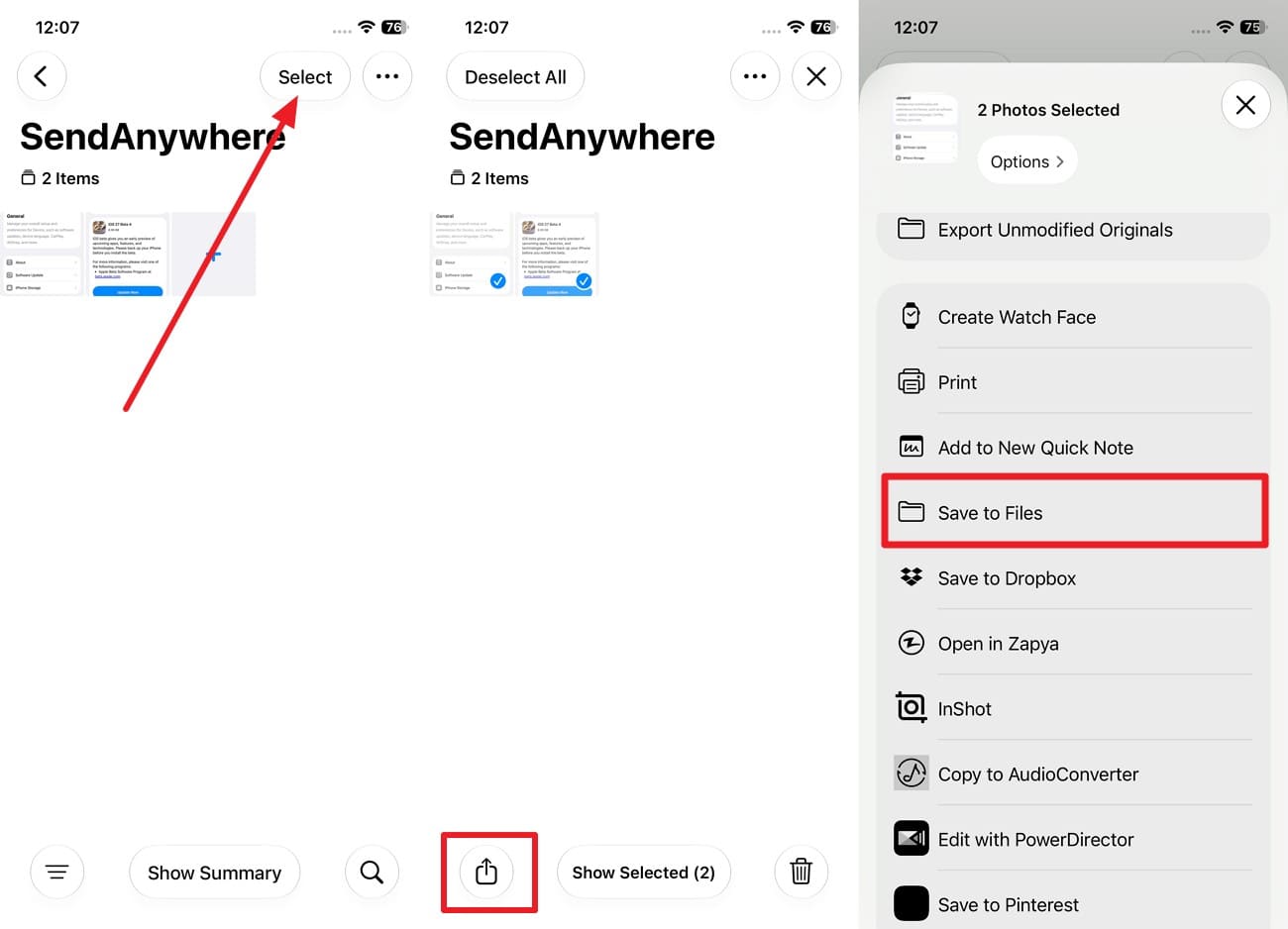
Step 1 Save to Files
In Photos, choose the “Unable to Upload” album. Tap “Select > Select All > Share > Save to Files” > Pick a folder on your device > Press “Save.”
-
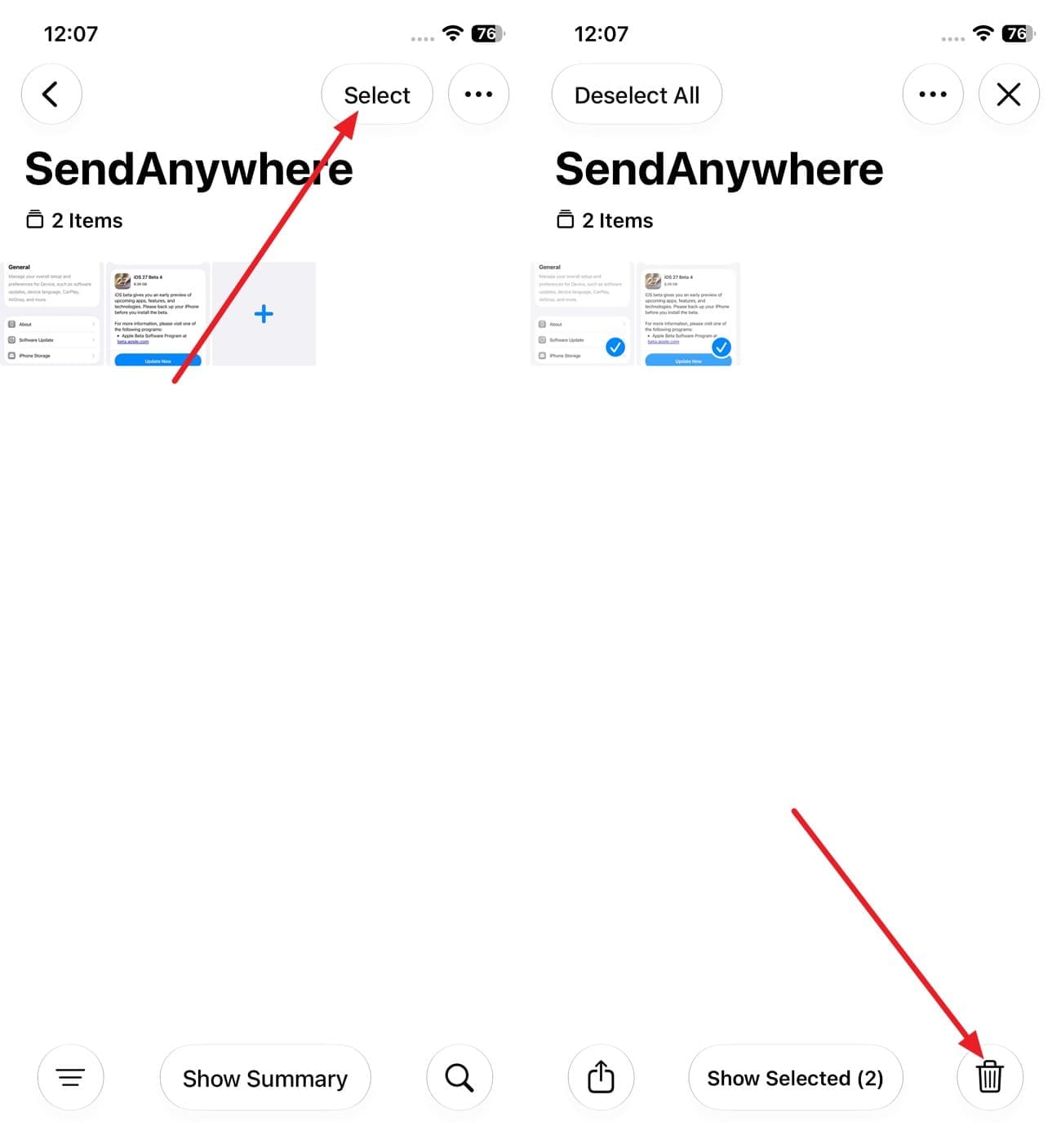
Step 2 Delete from Album
Go back to the “Unable to Upload” album > “Select > Select All” and tap on “Delete.” Remove them from Recently Deleted as well.
-
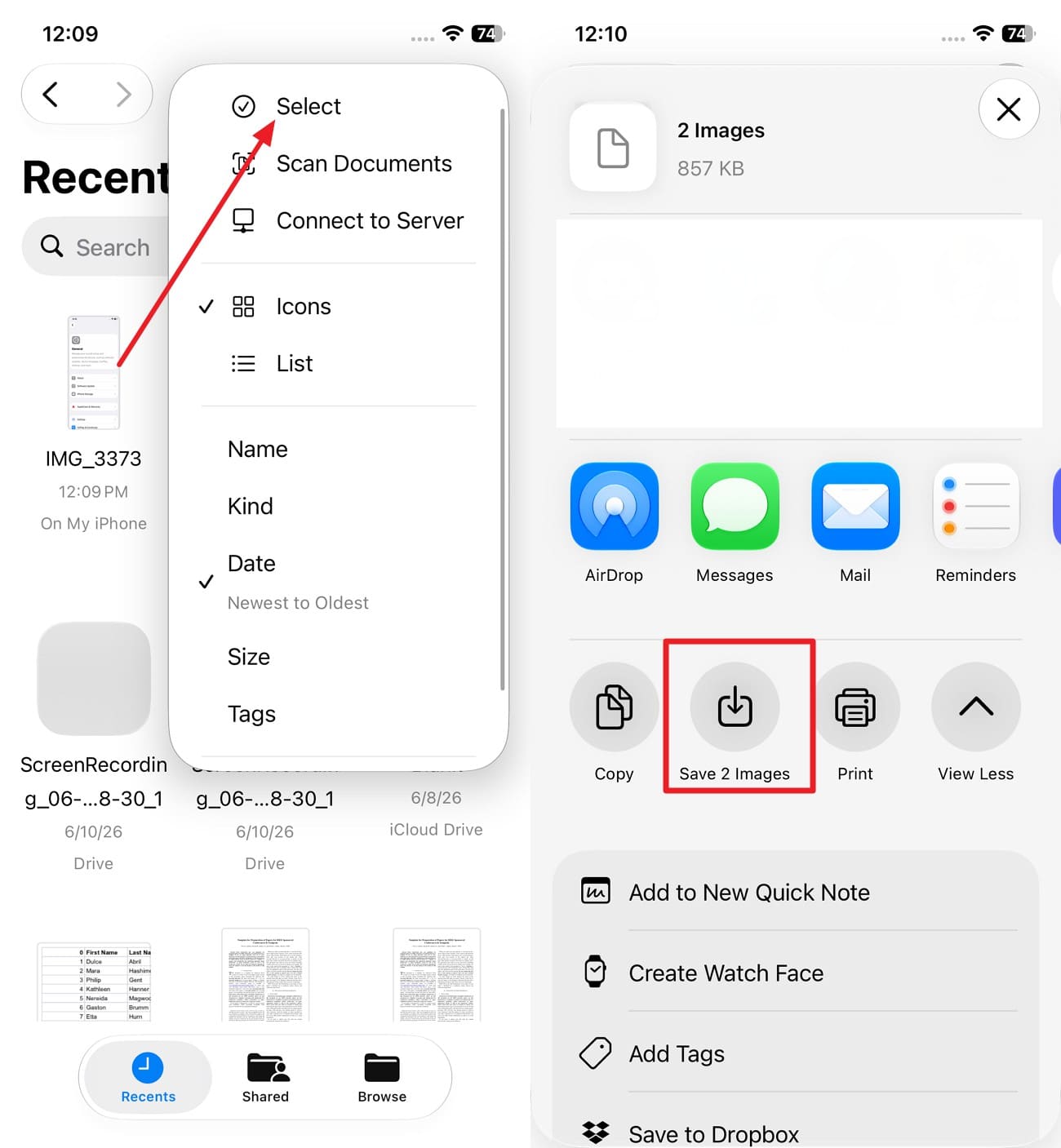
Step 3 Save Back to Library
Choose the “Recent” tab in the Files App > Press “Three Dots > Select.” Tap on “Share” and the “Save (-) Images” option to save them back to your library.

Part 3. Photos Still Missing After iCloud Sync Fixes? Check These Places
If photos remain missing after fixing the iPhone Photos not syncing issue, use these checks to determine where the images may still exist:
- Check Recently Deleted and Hidden Albums: Look in Recently Deleted for photos removed within the last 30 days. Check Hidden for images accidentally removed from the main library view.
- Switch Between Personal and Shared Library: View Personal Library, Shared Library, and Both Libraries separately. A missing photo may exist in a different library view without appearing in the current one.
- Check the Photos on iCloud.com: Sign in to iCloud.com and open Photos. Finding the image there confirms it remains stored in iCloud even if it is missing on your iPhone.
- Confirm iCloud Photos Is Enabled on All Devices: Check the device where the photo was originally captured or saved. If iCloud Photos was disabled there, the image may never have uploaded to iCloud.
- Verify the Same Apple Account Is Used Across Devices: Identify which Apple Account contains the missing photo library. Photos stored under another account will not appear in the iCloud library currently being viewed.
Part 4. Photos Still Missing? Recover Them with Dr.Fone – Data Recovery (iOS)
 Recovers data after deletion, crashes, or device damage.
- Supports photos, messages, contacts, WhatsApp, and more.
- Supports all major iPhone, iPad, and iPod models.
- Preview and recover only what you need.

When iCloud.com shows nothing and Recently Deleted has passed 30 days, Apple has removed the photos. What may remain is on the iPhone itself, in storage that iOS no longer displays. Dr.Fone - Data Recovery (iOS) reads that storage from a computer, covering photos, videos, messages, and app data across more than 35 categories. It supports recovery from 4 sources: the connected iPhone, iCloud backups, iCloud-synced data and Drive, and iTunes or Finder backups.
You can access free backup package information and choose the backup you want to download. The tool provides a free read-only scan, allowing you to preview exact items and restore only what you need. It can also recover lost chat histories and media attachments from WhatsApp, LINE, Viber, and Kik. Additionally, the tool offers free weekly updates to support upcoming iOS versions.
Guide to Scan an iPhone for Deleted Photos Using Dr.Fone
If the images are still missing after you have fixed the iCloud not syncing issue, go through this recovery guide:
-
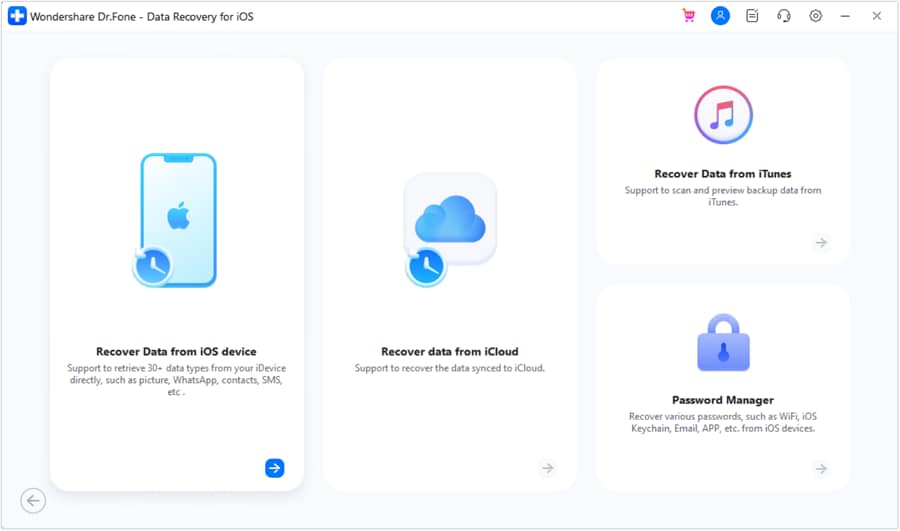
Step 1 Open Data Recovery and Select iOS
Open the Data Recovery tool, select “iOS,” and choose “Recover Data from iOS Device.” Then, connect your iPhone to the computer when prompted.
-
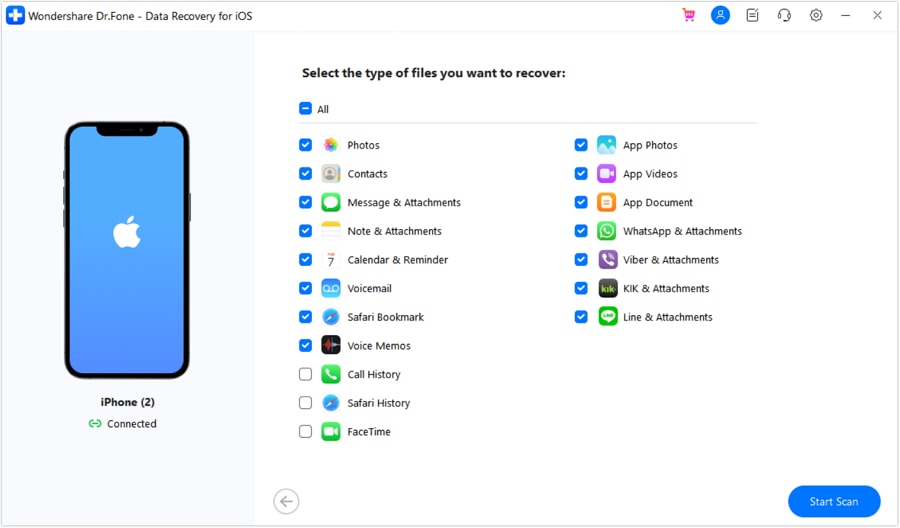
Step 2 Narrow the Scan to Photos
Select only the “Photos” category to focus the recovery scan on missing images. Then, click the “Start Scan” button to continue.
-
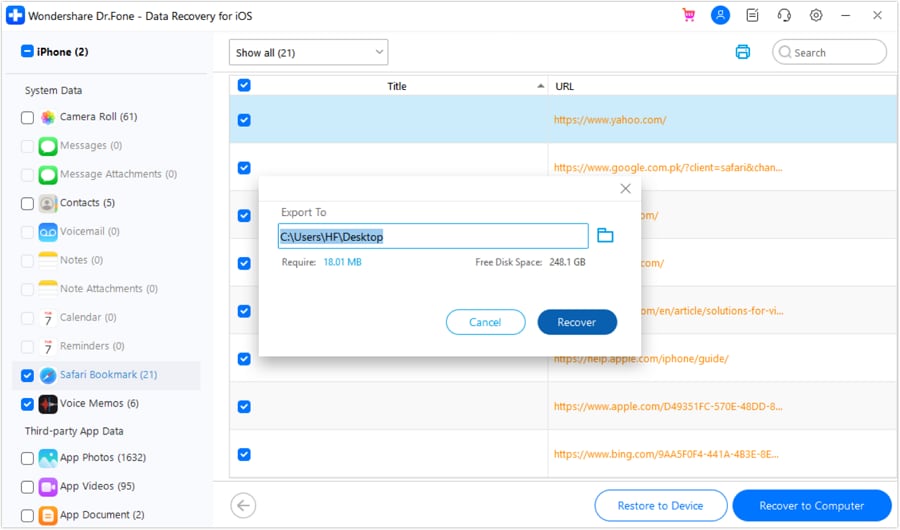
Step 3 Preview Recovered Photos and Export
Once the scan finishes, filter the results for deleted items and preview the photos you need. Select the required images, choose “Recover to Device” or “Recover to Computer,” and complete the recovery.




Part 5. Prevent Future iCloud Photo Sync Problems
To prevent the iPhone Photos not syncing issue from recurring, follow these 6 practical tips to keep your iCloud Photos library syncing smoothly:
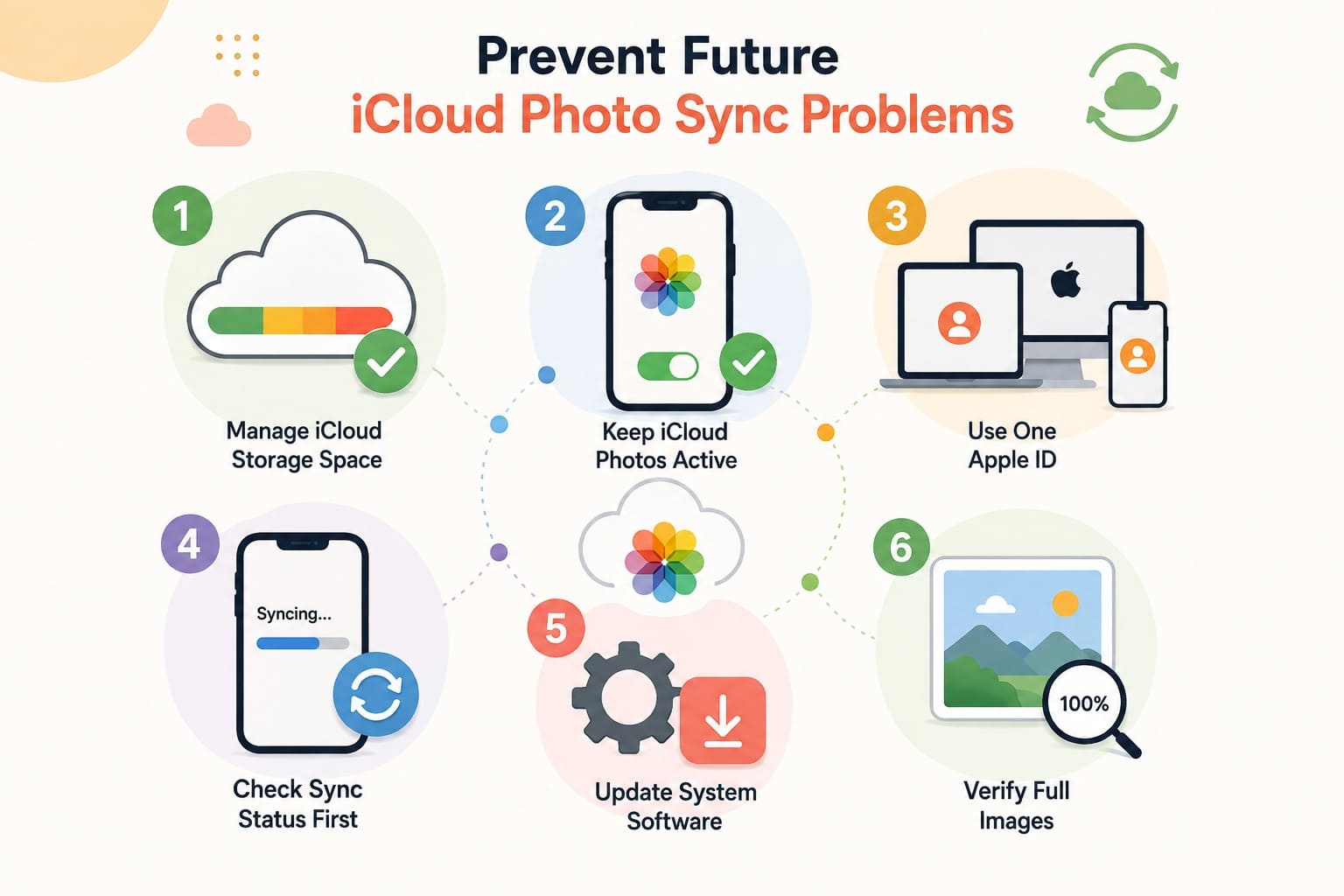
- Manage iCloud Storage Space: Check your cloud storage regularly to prevent unexpected sync interruptions. Free up space before your account reaches full capacity.
- Keep iCloud Photos Active: Leave the photo sync option enabled during troubleshooting. Turning it off can interrupt syncing and affect how photos are stored.
- Use One Apple ID: Sign in with the same account credentials across all connected devices. Different account logins create separate photo libraries that do not merge.
- Check Sync Status First: Confirm your photo library is fully synced before resetting your iPhone. Items still waiting to upload can be lost after erasing the device.
- Update System Software: Install the latest iOS updates to address photo syncing bugs. Staying current also provides fixes for known system performance issues.
- Verify Full Images: Open full-size photos instead of relying only on thumbnail previews. Confirm important files have finished uploading before deleting them from devices.
Conclusion
Fix the iCloud Photos not syncing issue by checking sync status instead of changing random settings. Review battery conditions, network connectivity, iCloud storage, and Apple Account details to restore normal photo syncing. If photos are actually missing rather than waiting to sync, check available recovery sources. Dr.Fone - Data Recovery (iOS) can then help scan for and recover eligible lost photos.
FAQ
-
1. Can iCloud Photos sync over cellular data instead of Wi-Fi?
Yes. iCloud Photos can sync over cellular data when enabled in Settings. However, large photo and video libraries may consume significant mobile data, so monitor your data allowance. -
2. Why are only some iPhone photos not syncing to iCloud?
Some photos may fail to sync because of unsupported formats or file issues. iCloud Photos supports common formats, while affected items may appear in the Unable to Upload album. -
3. Does Optimize iPhone Storage stop photos from syncing?
No. Optimize iPhone Storage keeps full-resolution originals in iCloud while storing smaller versions on your iPhone when needed. It does not stop iCloud Photos from syncing across devices normally.
 Add Wondershare Dr.Fone as a preferred source on Google