Recover photos, messages, WhatsApp, and more — no backup
needed.
Recover photos, messages, WhatsApp, and more — no backup
needed.

 100% Security Verified | No Subscription Required | No Malware

 :
: 
 ChatGPT
 Perplexity
 Gemini
 Claude
 Grok
Grok
LINE photos, videos, and attachments can disappear after accidental deletion, cache clearing, or expired media availability. Before assuming they are gone, check Photos, LINE Albums, Keep Memo, and any available backups for saved copies.
If these options do not help, another recovery method may be needed. This guide covers practical ways to recover LINE photos and explains how Dr.Fone - Data Recovery (iOS) can retrieve supported LINE media directly from an iPhone.

In this article
- Part 1. Check Existing Copies of Missing LINE Photos, Videos, and Attachments
- Part 2. Restore LINE Photos, Videos, and Attachments from an Available Backup
- Part 3. Recover Deleted LINE Photos, Videos, and Attachments with Dr.Fone Social Media Recovery
- Part 4. Why Deleted LINE Photos, Videos, and Attachments May Not Be Recoverable
- Part 5. Protect LINE Photos, Videos, and Attachments from Future Loss
Part 1. Check Existing Copies of Missing LINE Photos, Videos, and Attachments
Before you recover deleted LINE photos, check whether another copy is still available. Missing media may remain in Photos, Files, LINE storage, or an existing backup even after disappearing from the original chat.
Check LINE Photos and Videos Saved in the Photos App
Start with Photos, as LINE media saved earlier may remain on the iPhone even after disappearing from the chat. LINE’s iPhone help confirms that chat photos and videos can be saved to the device. Check Recents for missing media to recover deleted LINE attachments. For videos, go to Collections > Media Types > Videos to narrow the search.
Check Photos > Recently Deleted for Saved LINE Media
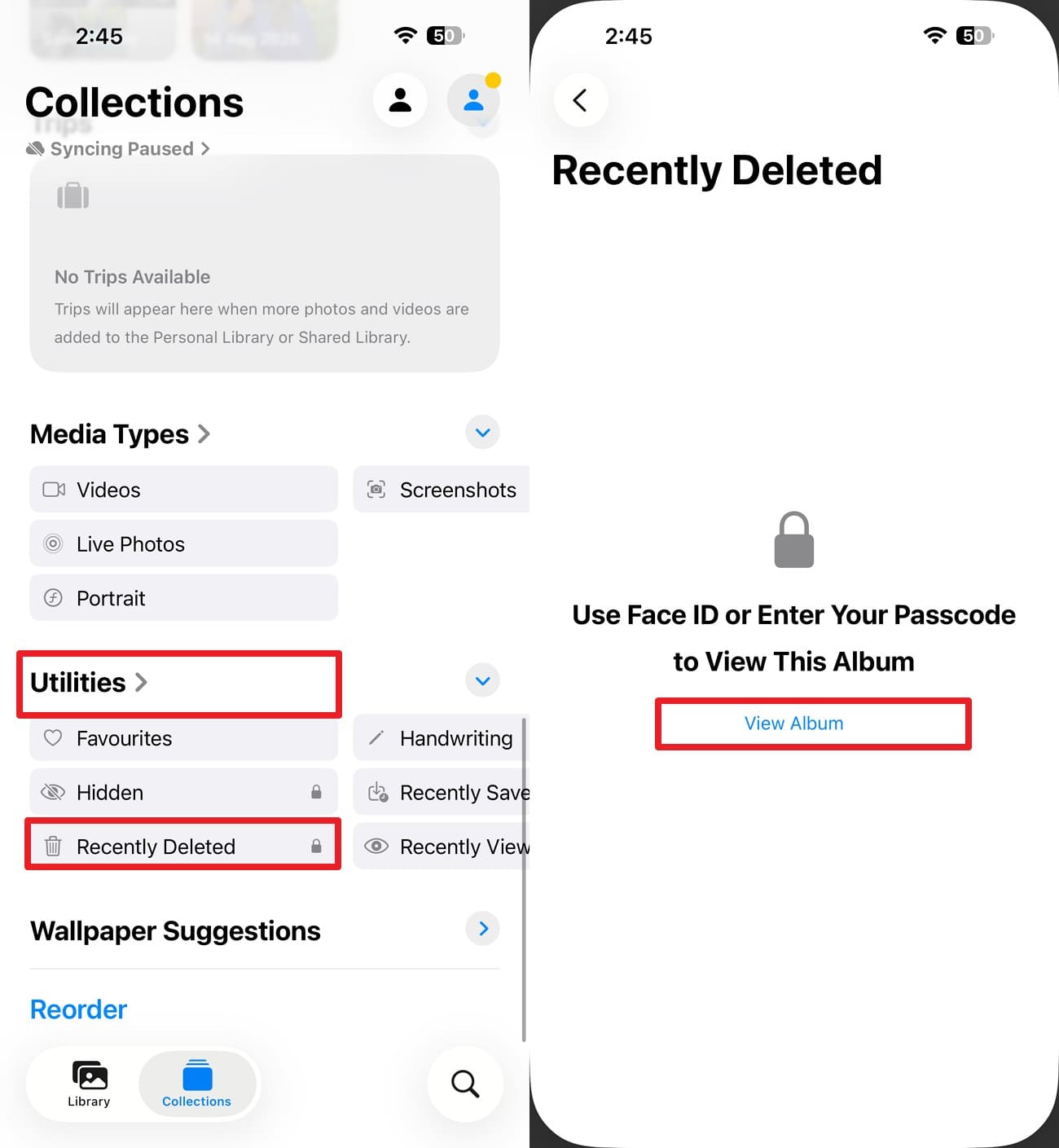
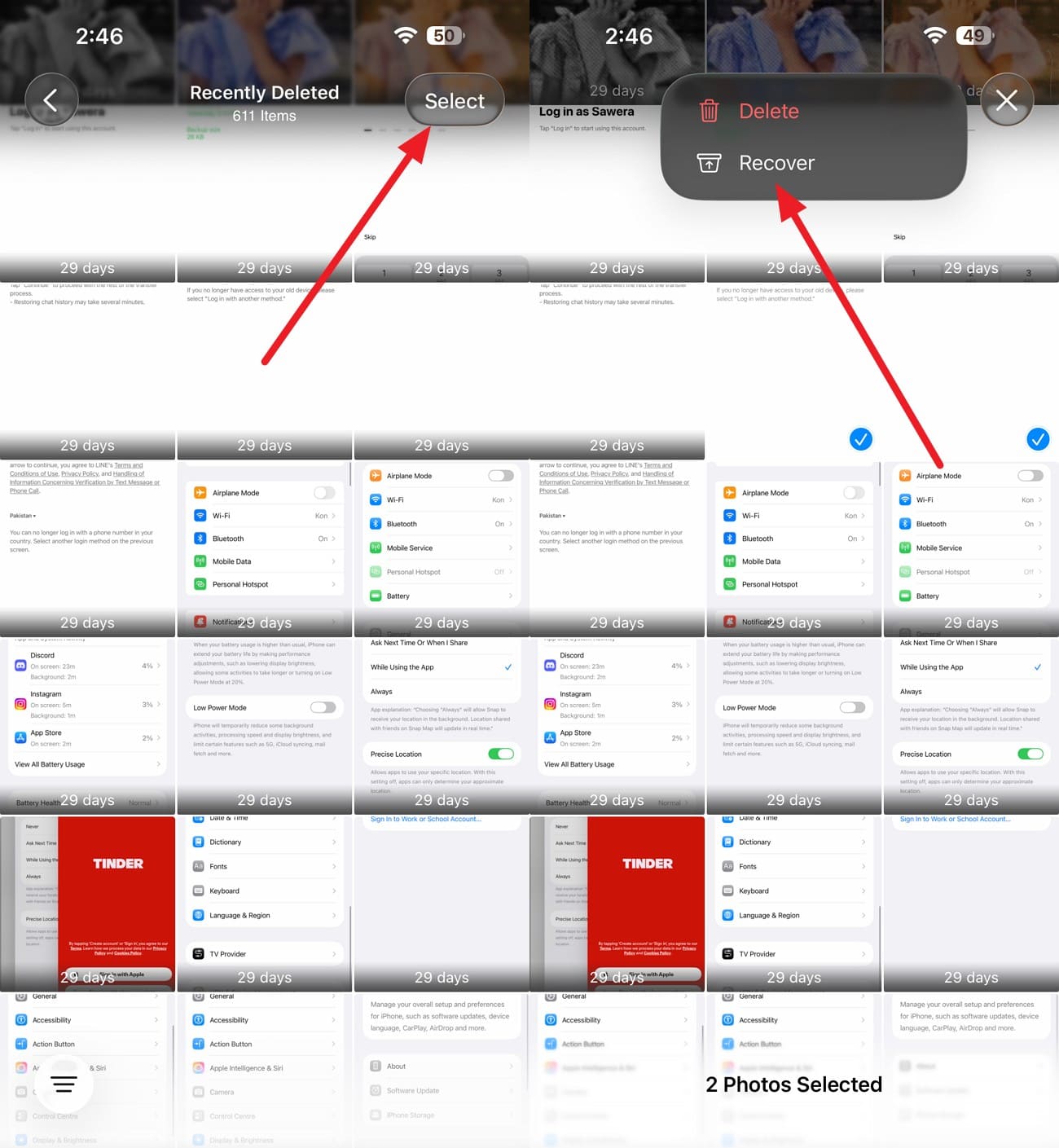
If you saved a LINE photo or video to Photos before deleting it, check the Recently Deleted album. Apple keeps deleted photos and videos there for 30 days. This provides a simple way to recover deleted LINE videos and photos. Follow these steps to restore the required media:
-
Step 1
In the Photos app, select “Collections > Utilities > Recently Deleted.” Tap “View Album” and enter your Face ID or passcode.
-
Step 2
Press the “Select” option, choose the photo or video, and press the “Three Dots > Recover” option.
Check Photos, Videos, and Files Still Available in the LINE Chat
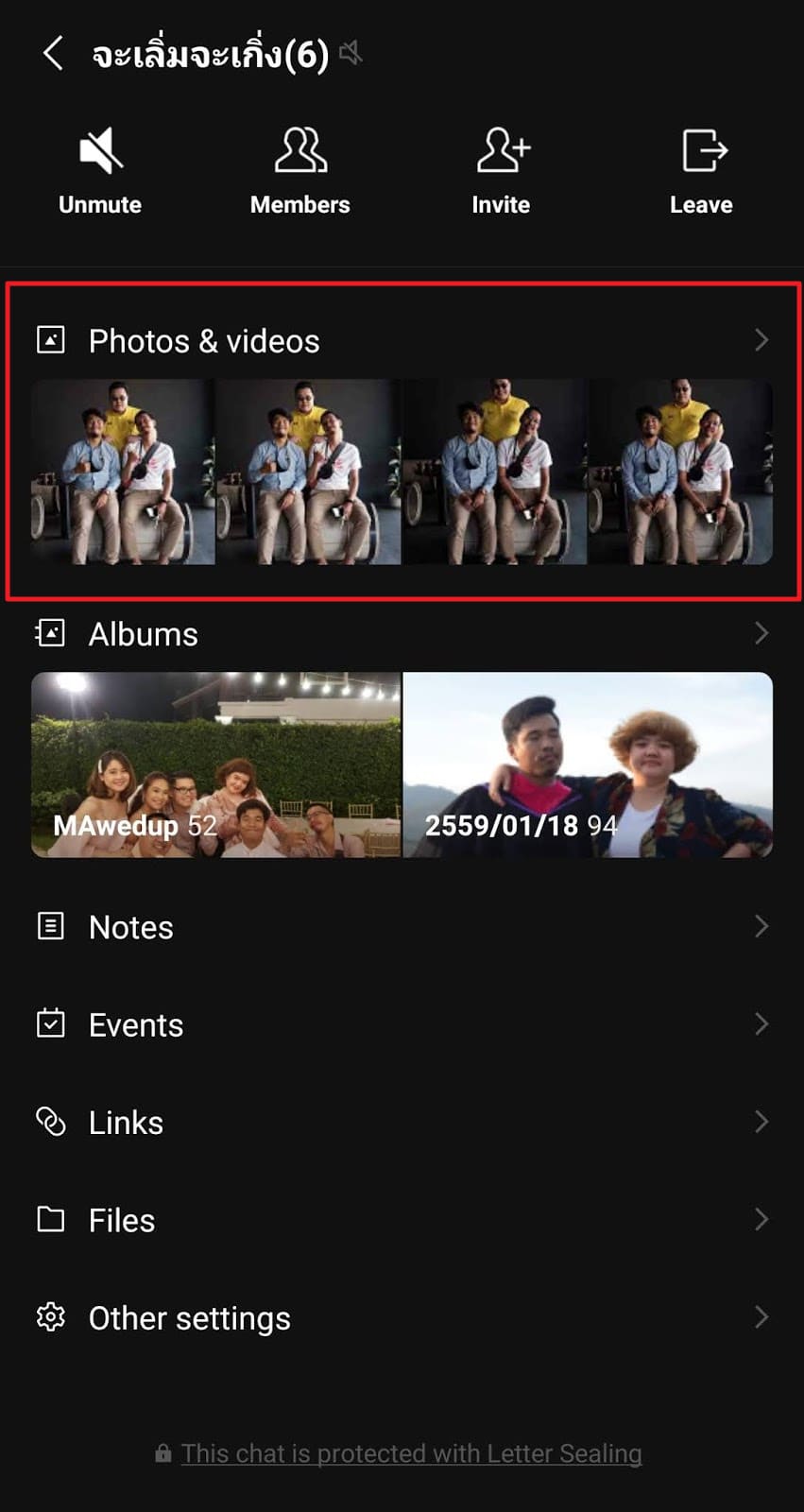
Before you recover LINE attachments, check whether the missing content is still available in the conversation. LINE provides a dedicated view for shared photos, videos, links, and files, so you do not need to scroll through the entire chat. Follow these steps to access and review the available media:
Instructions. Tap the “Menu” icon > Choose the “Photos & Videos” tab to check what is still available.
Check LINE Albums and Keep Memo
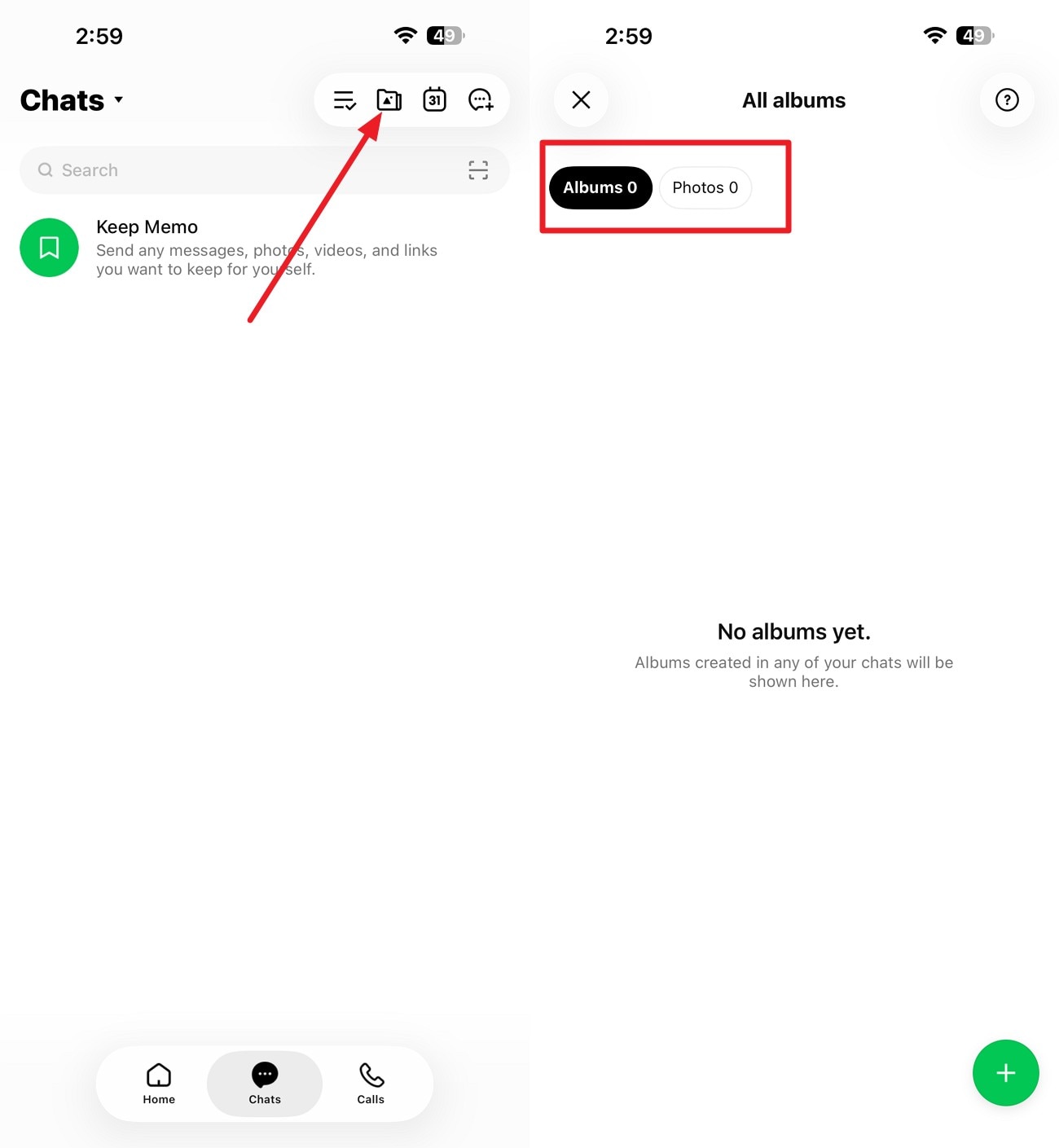
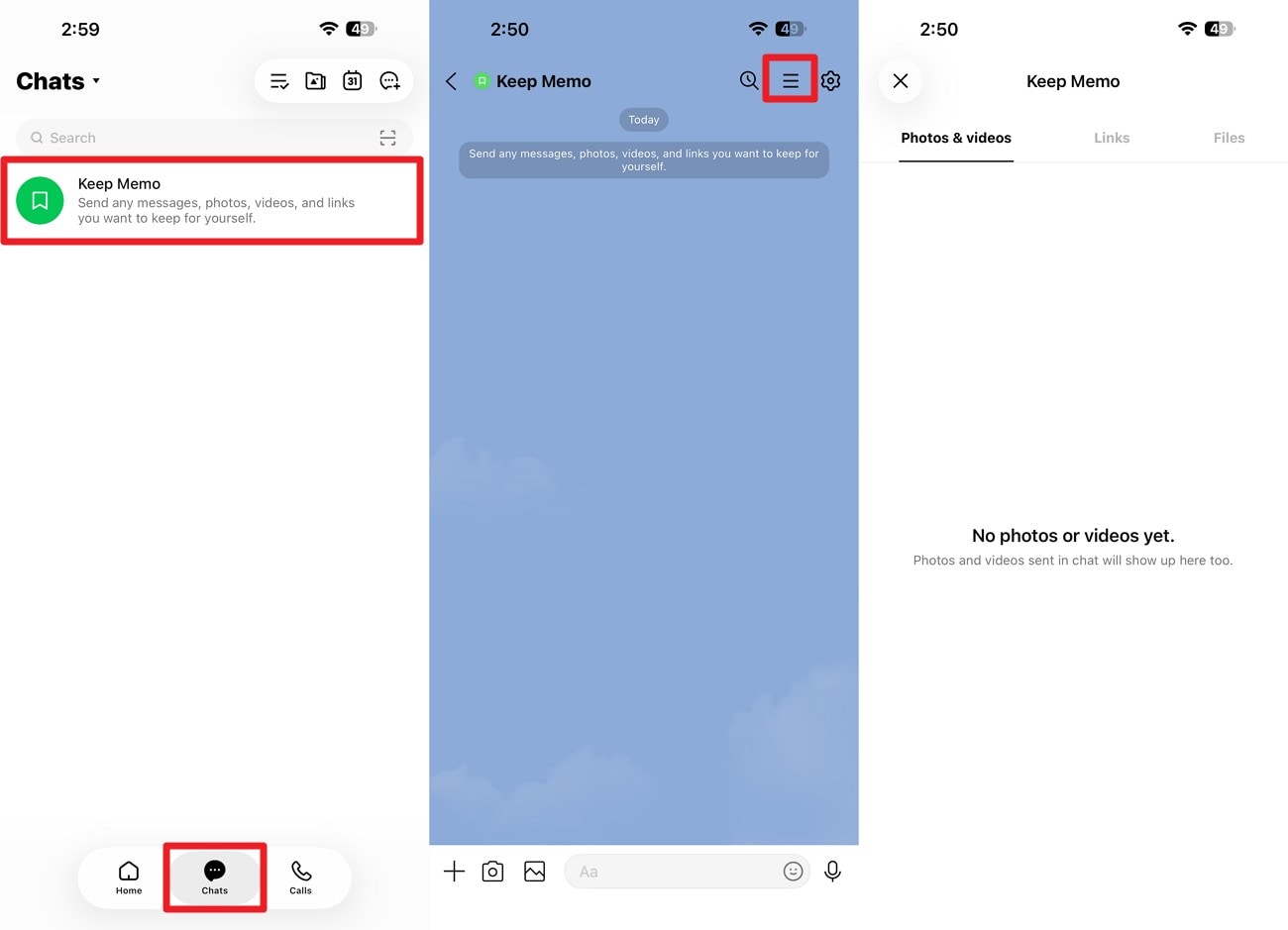
To recover LINE attachments, check Albums and Keep Memo before turning to a recovery tool. Keep Memo works as a private space for storing content you send to yourself. LINE also supports up to 100 albums per chat and 1,000 items in each album. Follow these steps to check both locations for missing attachments:
Check Album: Go to the “Chats” tab, tap the “Album” icon, and locate the media in the “Albums” or “Photos” sections.
Check Keep Memo: Within the chat tab, select "Keep Memo" > Choose the "Menu" icon and review saved photos, videos, files, or links.
Ask the Sender to Resend the Original Photo, Video, or File
If the sender still has the original photo, video, or file, asking them to resend it can be the easiest way to recover deleted LINE photos. After receiving the media again, save it to Photos or Files so you have a separate copy outside the LINE chat.
Part 2. Restore LINE Photos, Videos, and Attachments from an Available Backup
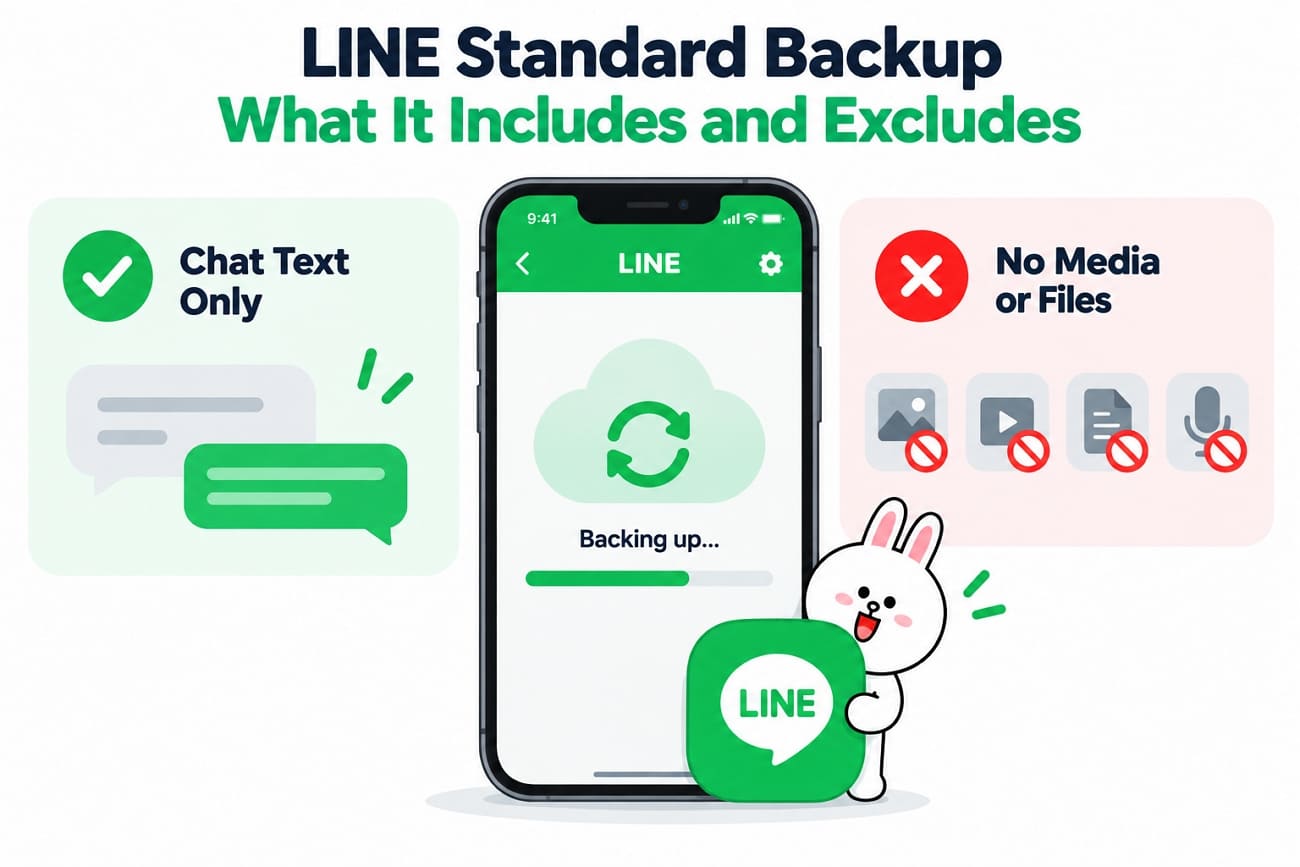
If the missing media is not saved elsewhere, check an existing backup to recover deleted LINE attachments. LINE offers Standard and Premium Backup options. Standard Backup primarily protects chat text, while Premium Backup can also include photos, videos, files, and voice messages.
Restore Supported LINE Attachments from Premium Backup
For LINE attachments, Premium Backup provides broader protection than Standard Backup. It can store chat text along with photos, videos, files, and voice messages. Premium Backup also supports restoring chat history when transferring between iOS and Android devices.
| Premium Backup Detail | What to Know |
|---|---|
| Backup Must Exist Before Deletion | Premium Backup cannot restore media that was already unavailable before a usable backup was created. |
| Regional Membership Is Required | Premium Backup is available through eligible paid LINE membership plans in supported regions. |
| Storage Is Capped at 100 GB | After storage reaches 100 GB, new media is no longer backed up, while text messages continue to be backed up. |
| Older Media May Be Missing | Media that had already expired or become unavailable before Premium Backup was enabled may not be included in the backup. |
If you seek a guide to recover deleted LINE photos and videos with this backup option, here are the steps:
-
Step 1
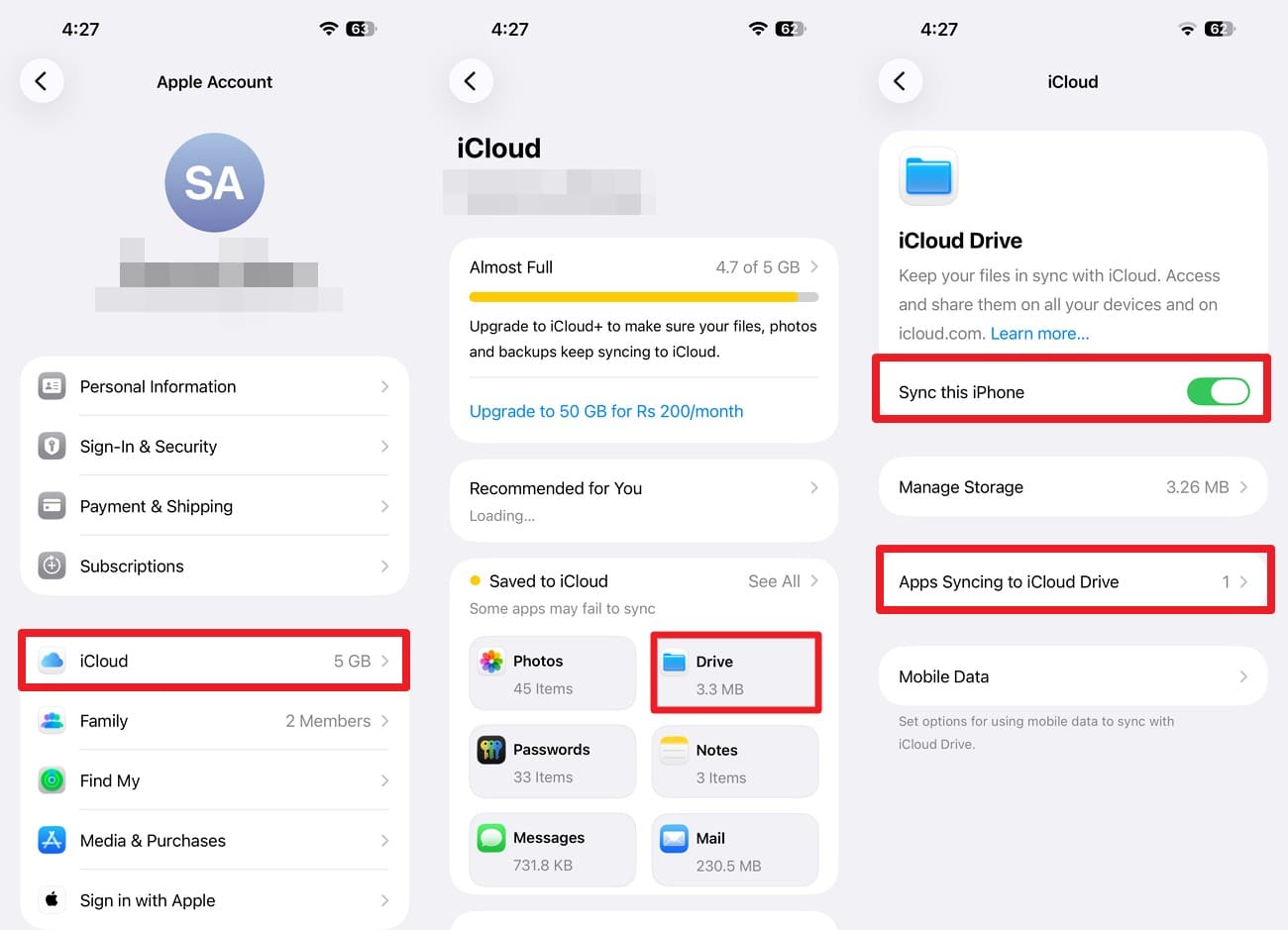
Go to iPhone Settings > Your Name > Choose “iCloud > iCloud Drive.” Enable the “Sync This Device” option > Select “Apps Syncing to iCloud Drive” and toggle on LINE.
-
Step 2
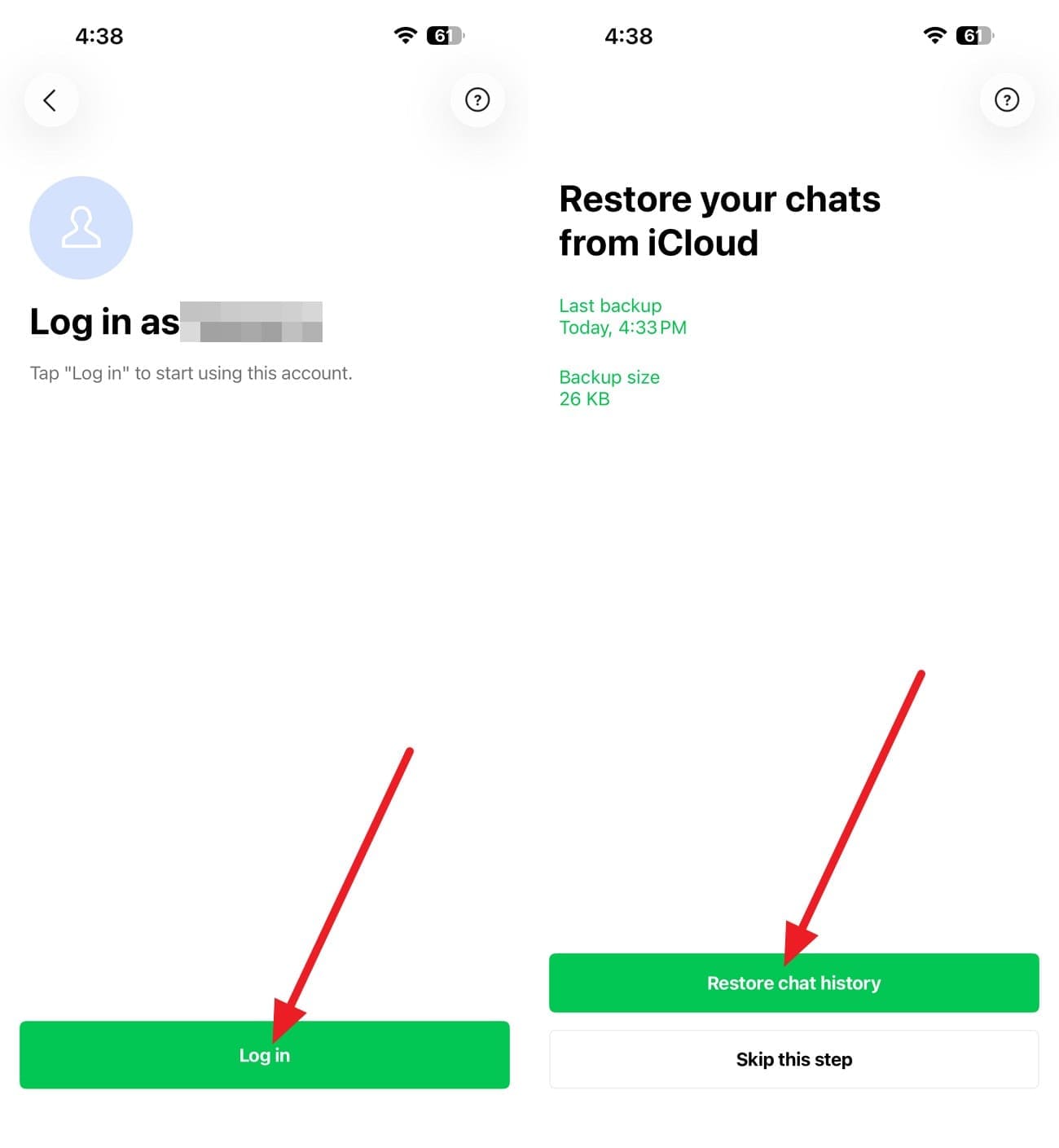
Reinstall the LINE app on your device > Log in > Select the “Restore Chat History” option. After restoration, check the relevant chats for the photos, videos, files, or voice messages you need.
Understand the Limits of LINE Standard Backup
Standard Backup is not designed to recover LINE photos because it primarily protects chat text. Photos, videos, files, and voice messages shared in chats are excluded from the backup. It can only restore supported chat messages included in an existing backup, while creating a new backup cannot recover content that has already disappeared. For missing media, you will need to rely on another available copy or recovery method.
Part 3. Recover Deleted LINE Photos, Videos, and Attachments with Dr.Fone Social Media Recovery
Check the iPhone itself to recover LINE attachments that never made it into a usable backup. Dr.Fone - Data Recovery (iOS) includes Advanced Recovery for LINE data and attachments. Its read-only scan looks for conversation records and related media, not just text. You can select LINE from the Social Media category and preview the recoverable data after scanning.
Dr.Fone can also retrieve deleted or lost data directly from supported iPhones without requiring a backup. Advanced Recovery supports LINE, Viber, Kik, Snapchat, and other selected app data. The scan can finish in less than 5 minutes and does not overwrite existing data. However, recovery results depend on what data remains recoverable on the iPhone.
 Recovers data after deletion, crashes, or device damage.
- Supports photos, messages, contacts, WhatsApp, and more.
- Supports all major iPhone, iPad, and iPod models.
- Preview and recover only what you need.

Guide to Recover Deleted LINE Photos, Videos, and Attachments
To recover LINE attachments using Dr.Fone - Data Recovery (iOS), follow these steps to scan your iPhone, preview the available LINE data, and recover the required content:
-
Step 1 Open Advanced Recovery for LINE Data
Launch Dr.Fone and open the “Data Recovery” tool for iOS. Choose “Recover Data from iOS Device,” connect your iPhone, and select “Advanced Recovery” to proceed with LINE recovery.

-
Step 2 Select LINE and Start the Scan
Under the “Social Media” category, select “LINE” and click “Start Scan.” Verify your Apple ID if prompted, trust the Dr.Fone DataLink app as instructed, and let the recovery scan complete.

-
Step 3 Preview & Recover the Required LINE Data
After the scan finishes, preview the available LINE photos, videos, and attachments. Review the results carefully and select the required LINE data you want to retrieve.




Part 4. Why Deleted LINE Photos, Videos, and Attachments May Not Be Recoverable
Even with the right approach, you may not always recover deleted LINE videos, photos, or attachments successfully. Several factors can affect whether the missing media remains recoverable. Here are the main reasons recovery may fail:
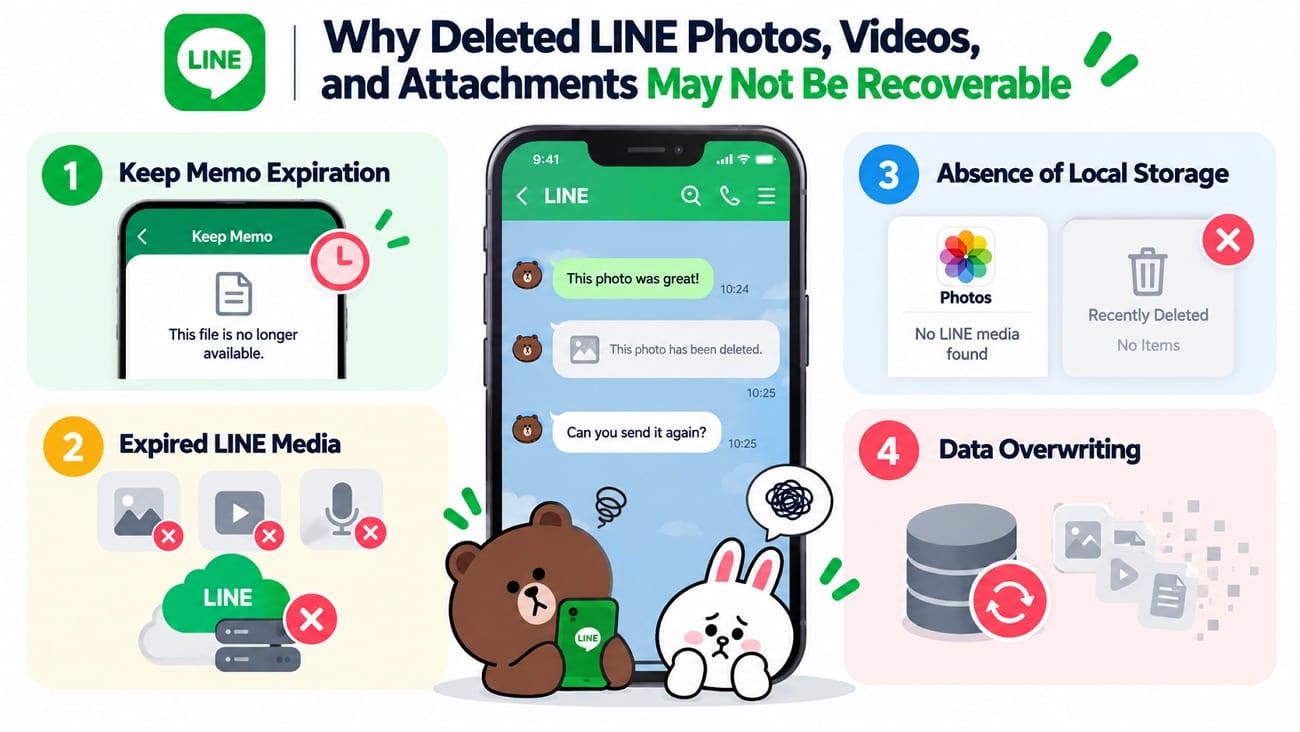
- Keep Memo Expiration: Files stored in Keep Memo may become unavailable after LINE’s applicable storage period expires, leaving nothing accessible through Keep Memo for recovery.
- Expired LINE Media: Photos, videos, and voice messages may become unavailable after LINE’s server storage period ends, especially if no separate copy was saved beforehand.
- Absence of Local Storage: If LINE media was never saved to the Photos app, it cannot be recovered through Photos or the Recently Deleted album.
- Data Overwriting: Continued iPhone use may overwrite deleted LINE data, reducing the chance that a recovery tool can successfully retrieve the missing photos, videos, or attachments.
Part 5. Protect LINE Photos, Videos, and Attachments from Future Loss
To avoid needing to recover LINE attachments later, keep important media in another location before it becomes unavailable. A few simple habits can help protect your photos, videos, and files from future loss:
| Best Practice | Why It Helps |
|---|---|
| Save Important Media Right Away | Save important photos and videos to the Photos app so they remain accessible even if the original LINE media becomes unavailable. |
| Use LINE Albums for Shared Media | Add important photos and videos to Albums when appropriate instead of relying only on media stored within individual chat messages. |
| Store Files Outside LINE | Save important documents to Files, iCloud Drive, or another storage location to maintain a separate copy outside LINE. |
| Use Premium Backup If Eligible | Premium Backup can protect photos, videos, files, and voice messages alongside chat text, unlike Standard Backup. |
| Save Media Before Reinstalling LINE | Keep separate copies of important media before reinstalling LINE or performing other actions that could affect locally available app data. |
Conclusion
Start with saved copies, LINE Albums, and available backups when trying to recover LINE photos, videos, or attachments. If these options fail, Dr.Fone Data Recovery (iOS) offers another way to retrieve supported LINE data directly from a compatible iPhone. Avoid unnecessary device use after data loss, as continued activity may reduce the chances of successful recovery.
FAQ
-
1. Can expired LINE photos and videos be recovered on iPhone?
Expired LINE media may no longer be available from the original chat. Check Photos, LINE Albums, Keep Memo, or Premium Backup first. If no copy exists, Dr.Fone can scan your iPhone for recoverable LINE photos and videos. -
2. Does LINE Standard Backup save photos, videos, and files?
No. LINE Standard Backup only backs up chat text, not photos, videos, files, or voice messages. To protect important media, save separate copies or use Premium Backup if available. -
3. Can I recover a LINE photo that was never saved to the Photos app?
Recovery may still be possible even if the photo was never saved to Photos. Dr.Fone - Data Recovery (iOS) can scan supported iPhones for recoverable LINE chats and attachments. However, results depend on whether recoverable data remains available on the device. -
4. Does clearing the LINE cache delete or make photos and videos unavailable?
Clearing LINE’s cache does not delete chat history. However, photos, videos, and voice messages may become unavailable if LINE’s server storage period has expired and no other accessible copy remains.
 Add Wondershare Dr.Fone as a preferred source on Google