Recover photos, messages, WhatsApp, and more — no backup
needed.
Recover photos, messages, WhatsApp, and more — no backup
needed.

 100% Security Verified | No Subscription Required | No Malware

 :
: 
 ChatGPT
 Perplexity
 Gemini
 Claude
 Grok
Grok
LINE offers several ways to manage a LINE chat backup on iPhone, but each serves a different purpose. Standard Backup saves chat history through iCloud Drive, while Premium Backup can preserve additional data, including supported media. Backup PIN and Easy Transfer QR Code provide other options when moving your LINE account. Choosing the right method depends on what you want to preserve and whether you still have the old iPhone.
This guide explains each LINE backup and transfer option, how to check your backup, and how to restore LINE chat history. It also covers where Dr.Fone - Data Recovery (iOS) can help when official backup or transfer options are not enough.
In this article
- Part 1. LINE Chat Backup on iPhone: Standard Backup, Backup PIN, and Premium Backup
- Part 2. How to Create and Check a LINE Chat Backup on iPhone
- Part 3. How to Restore LINE Chat History on iPhone?
- Part 4. No LINE Backup? Transfer Available Chat History with Other LINE Options
- Part 5. Recover Missing LINE Chat History When Backup and Transfer Options Do Not Work
Part 1. LINE Chat Backup on iPhone: Standard Backup, Backup PIN, and Premium Backup
The right LINE chat backup on iPhone depends on what you want to preserve, such as complete chat history, recent messages, or media. Understanding each option makes LINE chat backup and restore easier when transferring your account or changing devices.
| Option | What It Covers | Old Phone Needed? | Cross Platform? | Set Up in Advance? |
|---|---|---|---|---|
| Standard Backup | Chat text | No | No, same OS only | Yes |
| Backup PIN | Last 14 days of chats | No | Yes | Yes |
| Easy Transfer QR Code | Last 14 days without backup, or full history with a compatible backup | Yes | Yes | No, used during transfer |
| Premium Backup | Text, photos, videos, files, and voice messages | No | Yes | Yes, with eligible membership |
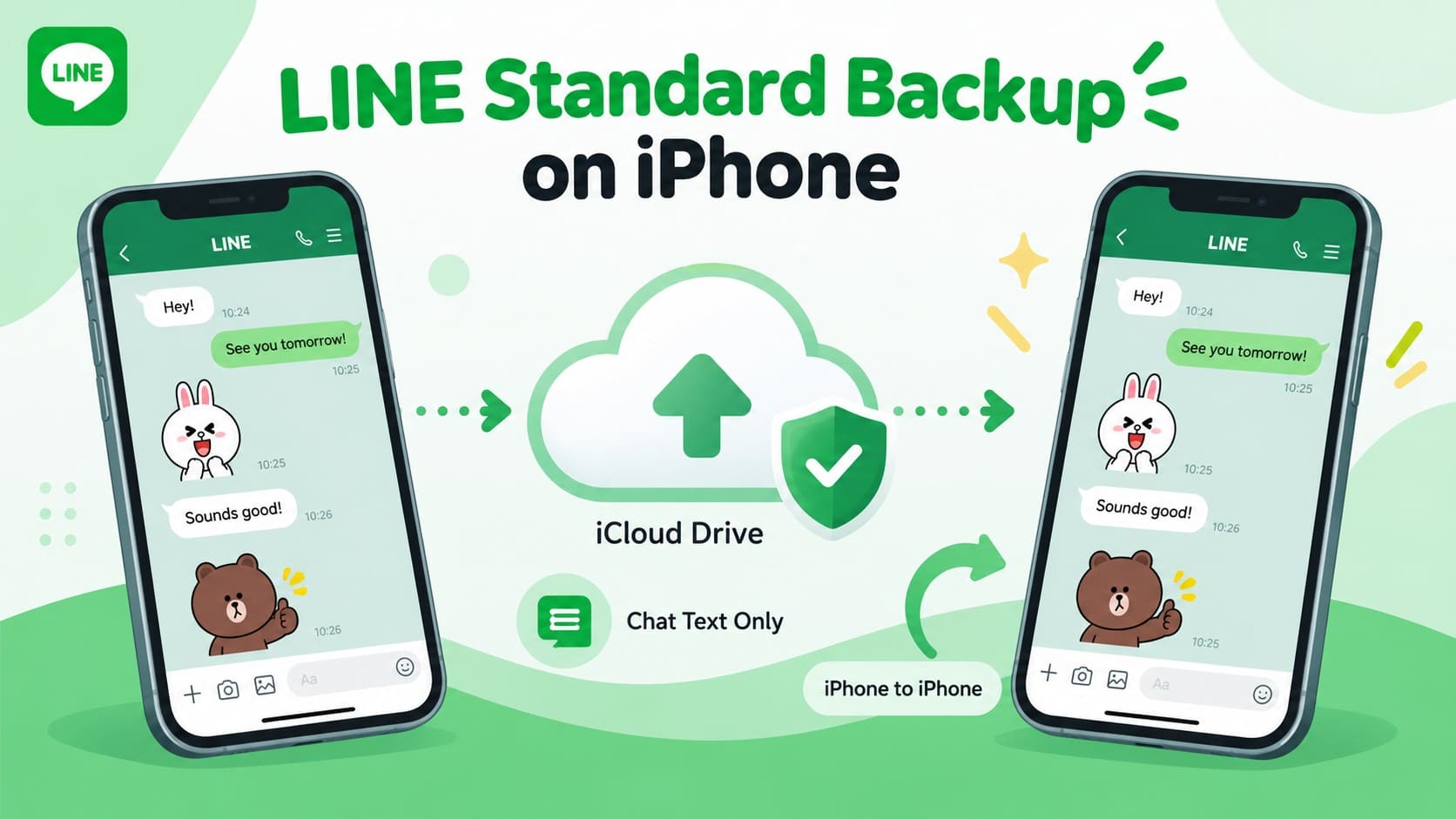
LINE Standard Backup on iPhone
For LINE chat backup on iPhone, Standard Backup is the primary option for saving chat history. It stores your LINE chat history in iCloud Drive and lets you restore it later on an iPhone. You need the same LINE account and Apple Account used for the backup. The restored history depends on the data included in your latest backup.
Standard Backup covers chat text but does not back up photos, videos, files, or voice messages shared within chats. LINE Standard Backups created on an iPhone are intended for transfers between devices running the same OS, so they cannot restore chat history directly to an Android device.
LINE Backup PIN
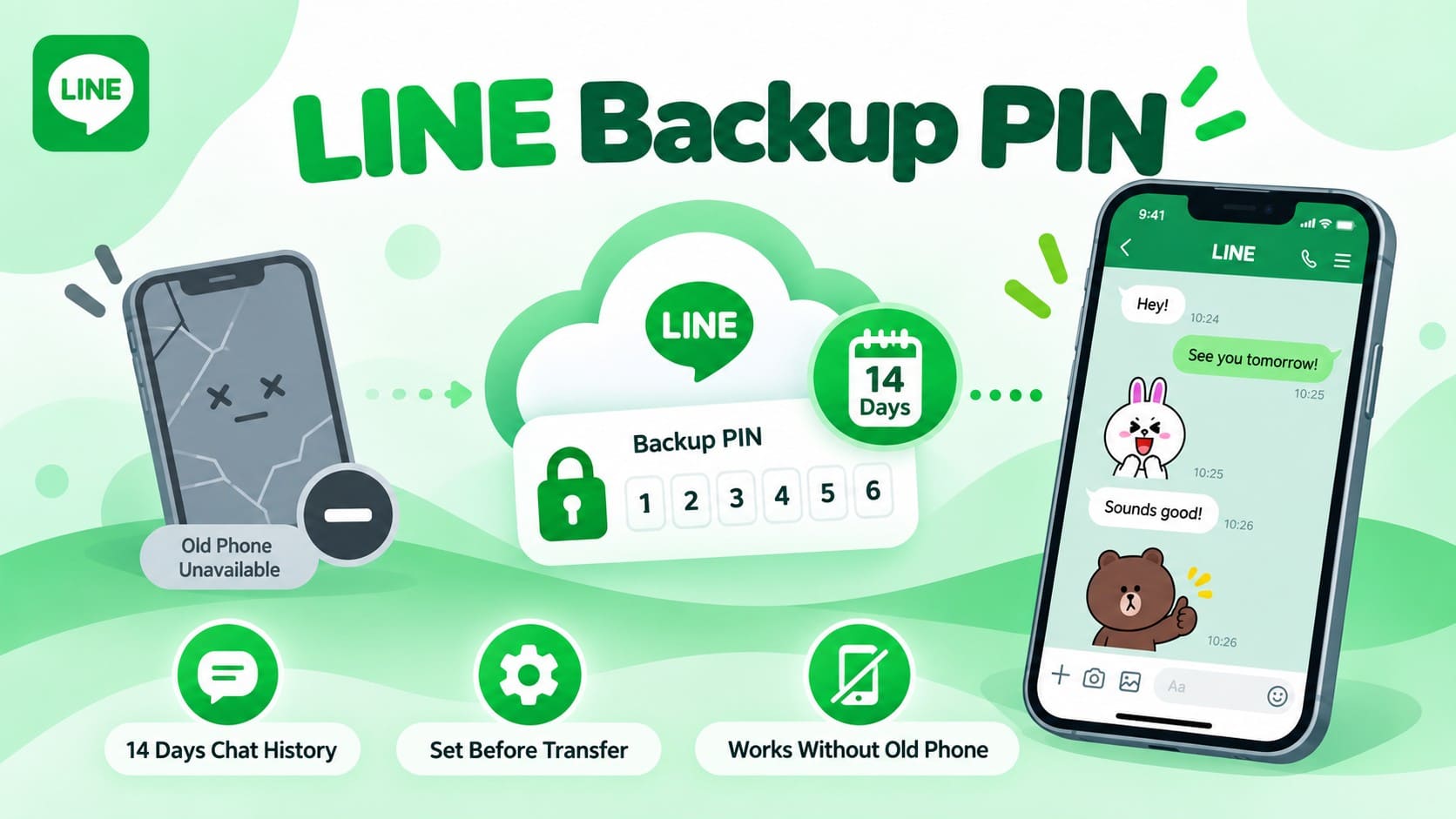
A LINE Backup PIN helps transfer recent chat history when you cannot access the old phone. If set up beforehand, it allows you to transfer the last 14 days of chats without a Standard Backup. To restore LINE chat history beyond this period, you need a compatible backup containing the older conversations.
The key requirement is preparation. Set the six-digit Backup PIN while you can still use your LINE account, so it is ready if the old device later becomes unavailable. Unlike Easy Transfer QR Code, this method does not require both phones during the account transfer.
LINE Premium Backup
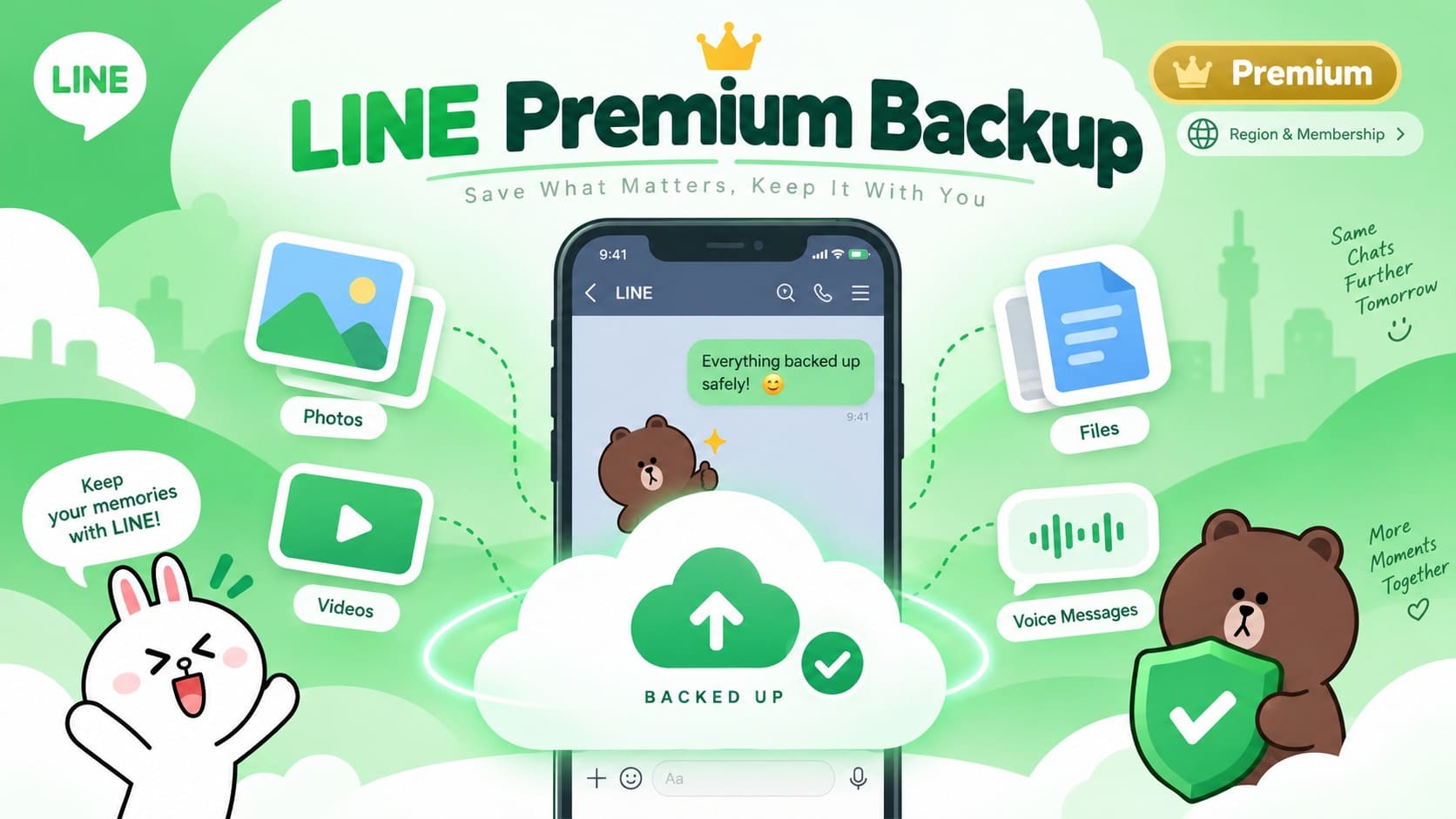
For users who need more than a text-only LINE chat backup iPhone solution, LINE Premium Backup expands what can be saved. Along with chat text, it backs up photos, videos, files, and voice messages, providing more complete protection for conversations containing important media.
Premium Backup can also support chat history transfers between different operating systems, unlike Standard Backup. However, availability depends on your region and an eligible LINE membership, so check whether the feature appears for your account before relying on it.
Part 2. How to Create and Check a LINE Chat Backup on iPhone
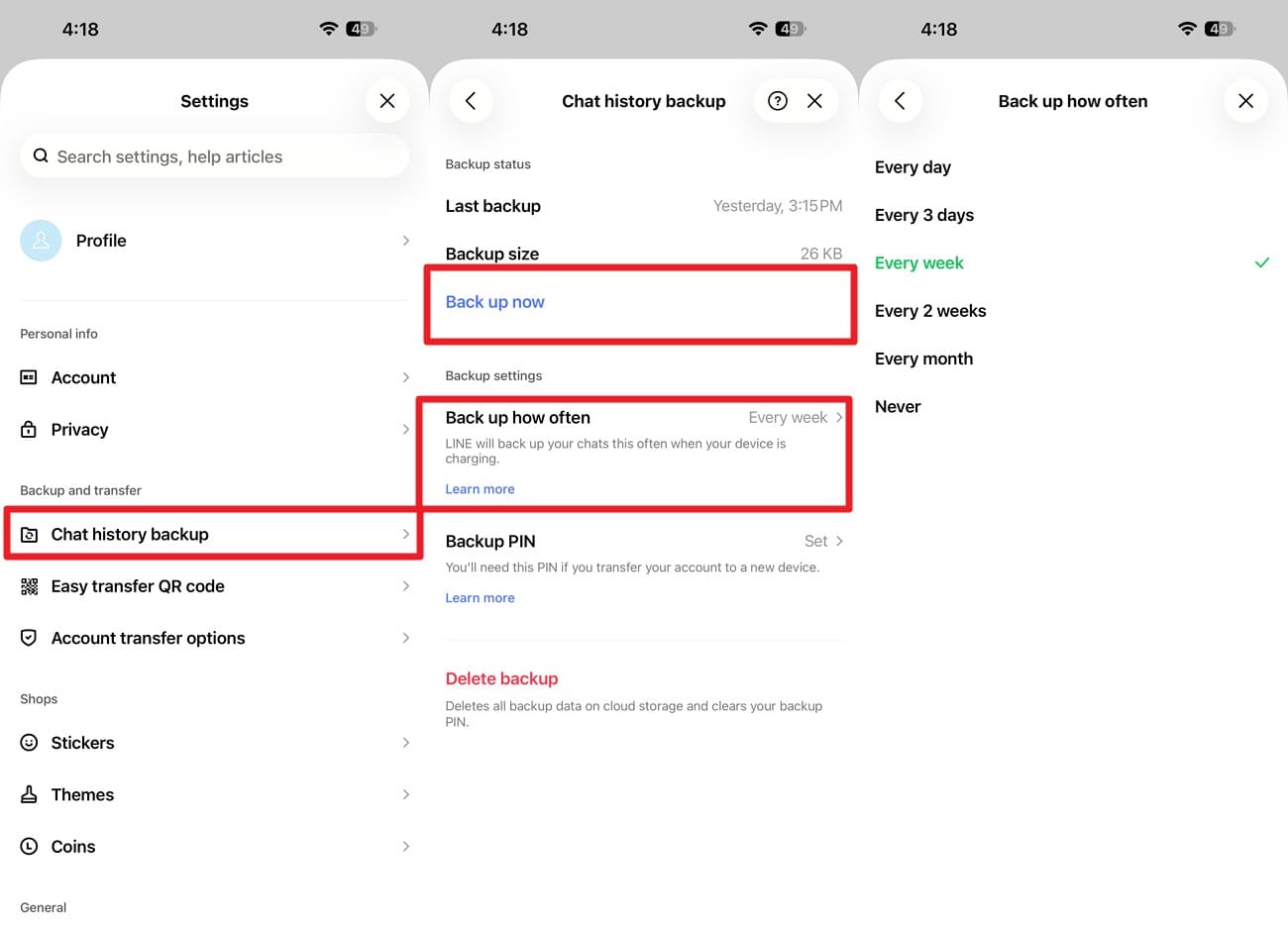
To restore LINE chat history on iPhone later, create a backup before transferring your LINE account to a new iPhone. LINE’s Standard Backup saves your chat history to iCloud Drive. LINE also recommends checking the latest backup date before transferring your account. Follow these steps to create and confirm your backup:
-
Step 1
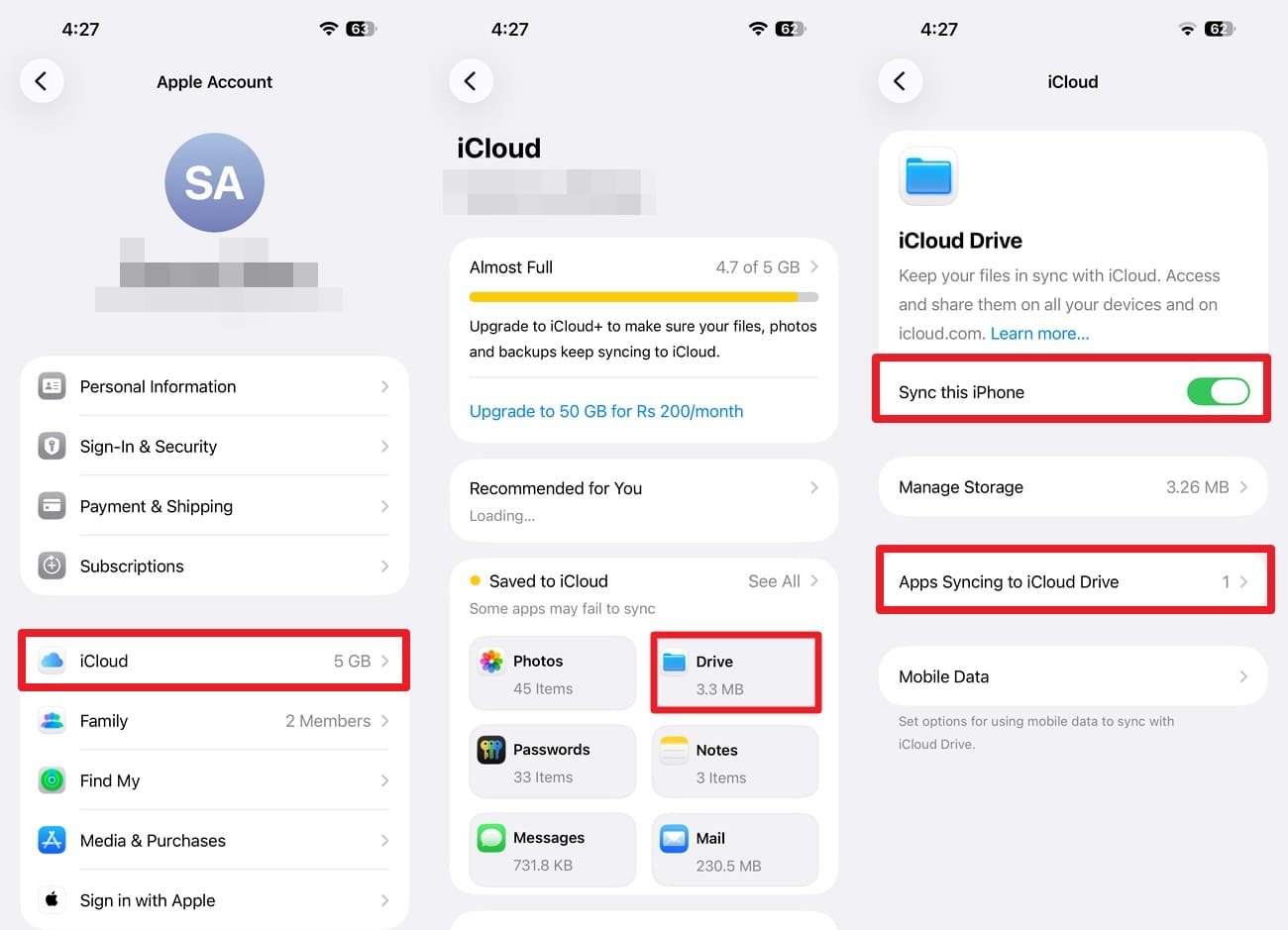
Go to iPhone Settings, choose "[Your Name] > iCloud > iCloud Drive," and toggle on "Sync This Device." Select "Apps Syncing to iCloud Drive" and enable "LINE."
-
Step 2
Access LINE settings and tap on “Chat History Backup > Chat History Backup” > Wait for the backup to finish. For automatic backups, open “Back Up How Often” and choose a schedule. Check the most recent backup information before reinstalling LINE or moving the account.
Part 3. How to Restore LINE Chat History on iPhone?
A backup can help restore chat history when transferring your LINE account or recovering older messages that are missing from the app. The restore LINE chat history process depends on having a usable backup, so check its date and account details before starting the restoration.
Restore LINE Chat History from Standard Backup
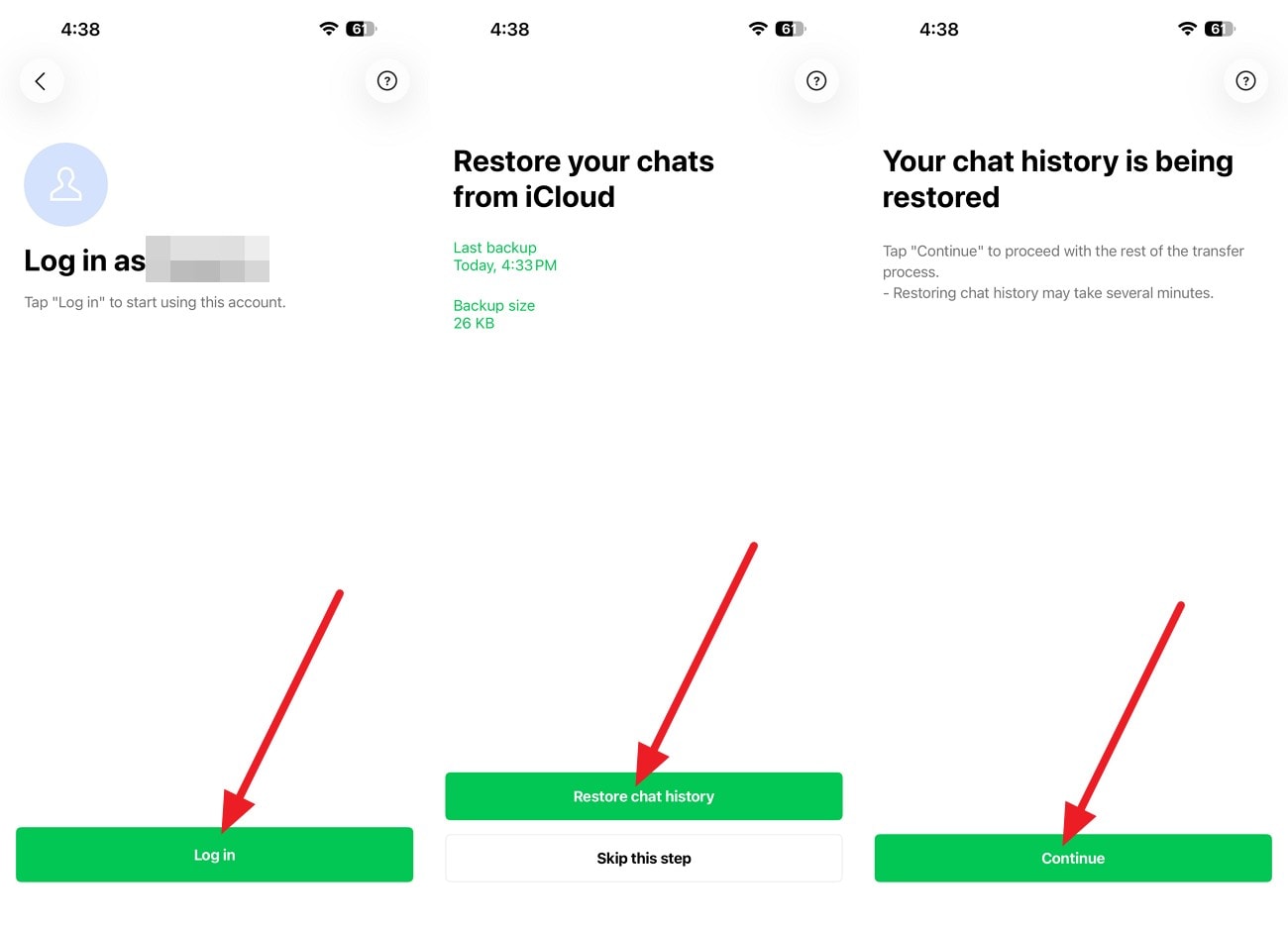
The backup is stored in iCloud Drive rather than directly on the iPhone. To restore LINE chat history on iPhone, use the same Apple Account linked to the original backup, make sure iCloud Drive is enabled, and follow these steps:
Instructions. Confirm iCloud Drive is enabled and LINE has permission to access it. Transfer your LINE account to the iPhone or reinstall and select the “Log in > Log in with Apple Account > Restore Chat History > Continue” option. The restore result depends on the backup available at the time of restoration.
Restore LINE Chat History from Premium Backup
Premium Backup uses a separate restore LINE chat history iPhone process and can restore chat text along with supported photos, videos, files, and voice messages. Before restoring, confirm that Premium Backup is active and the required chat history has been backed up. Availability depends on your region and eligible LINE membership.
Part 4. No LINE Backup? Transfer Available Chat History with Other LINE Options
A missing backup does not always mean your recent chats cannot be transferred. If a full LINE chat backup iPhone file is unavailable, LINE offers Backup PIN and Easy Transfer QR Code for transferring the last 14 days of chat history. The right option depends on whether you can still access the old device.
Transfer Recent LINE Chat History with a Backup PIN
A Backup PIN helps transfer recent chat history when the old phone is no longer available. If you set it up beforehand, LINE can transfer the last 14 days of chats without a Standard Backup. The PIN must already be configured before you lose access to the previous device. If you have one ready, follow these steps:
-
Step 1
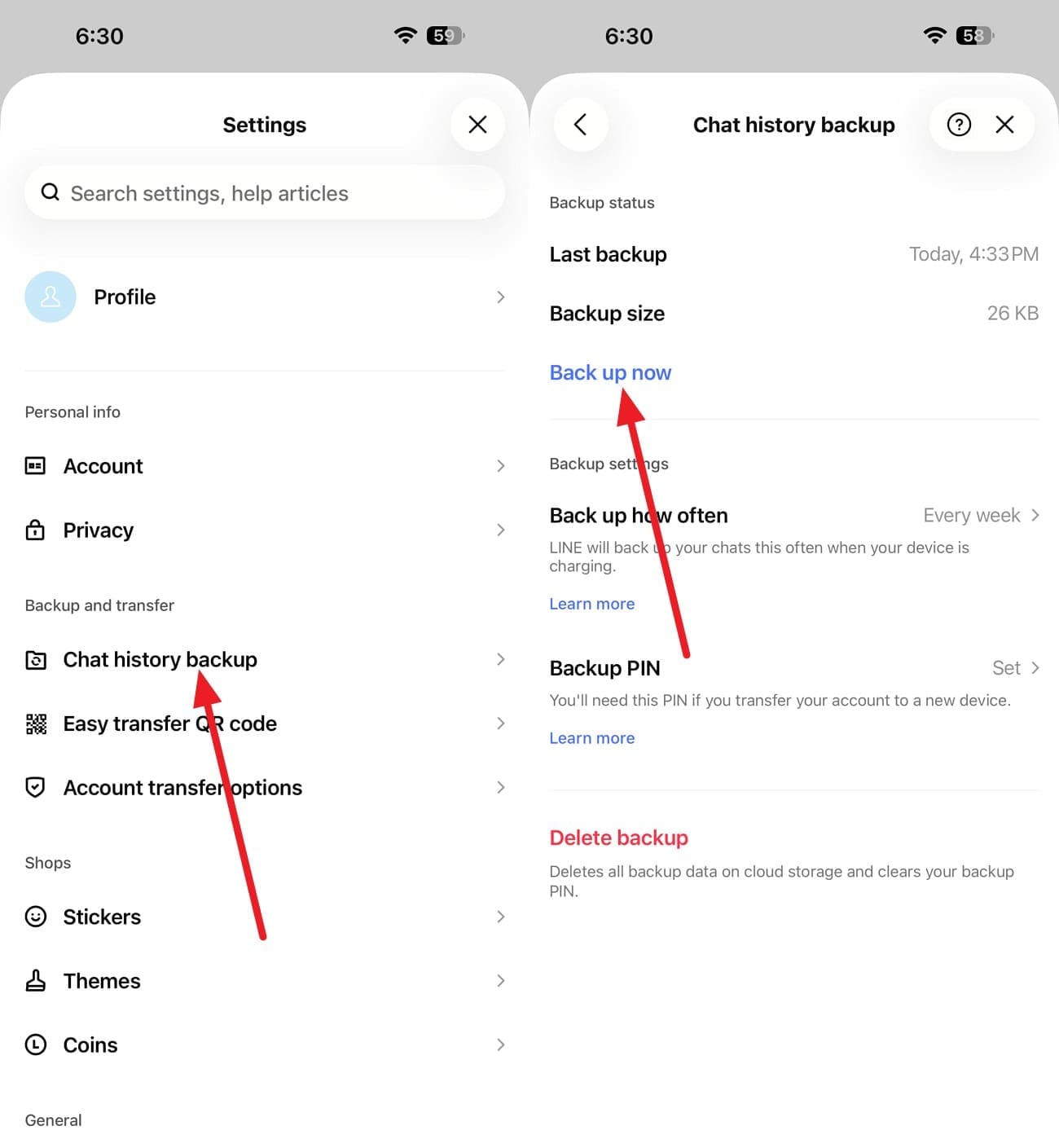
To create a Backup PIN on the old iPhone, choose “Settings > Chat History Backup > Back Up Now.” On the “Set Your Backup PIN” screen, enter a 6-digit PIN and continue.
-
Step 2
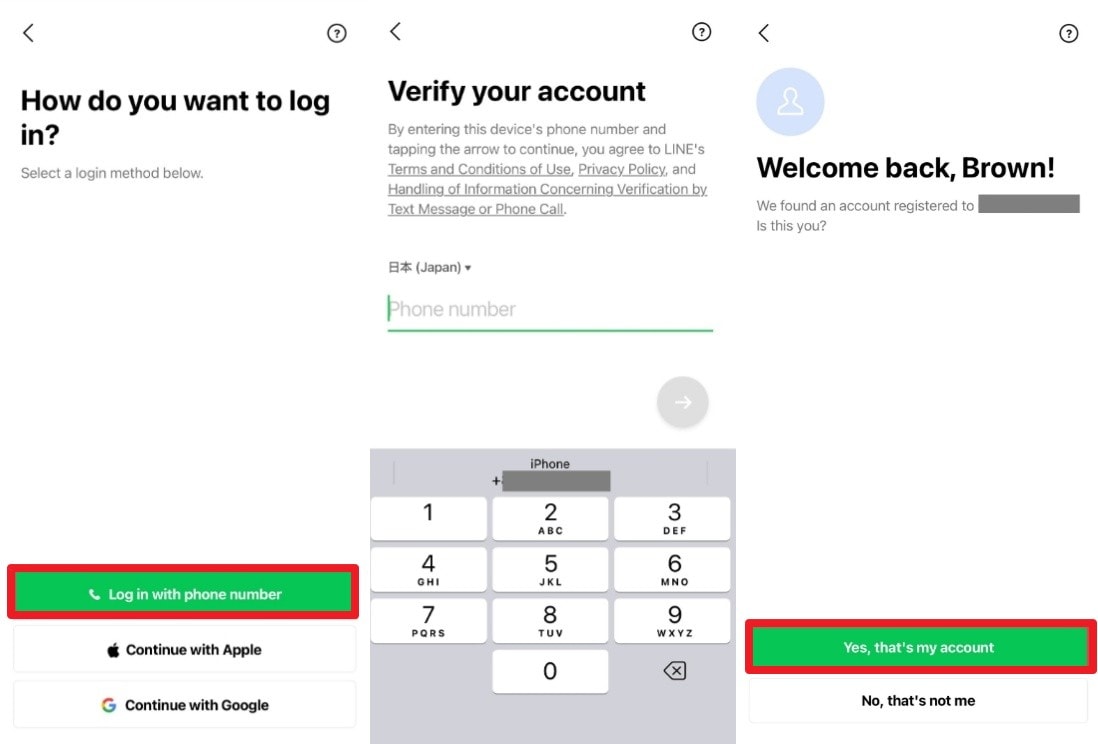
Move your LINE account to the new iPhone and choose “Login > Login with Another Method > Login with Phone Number.” Enter the phone number and verification code, then press “Yes, That's My Account.”
-
Step 3
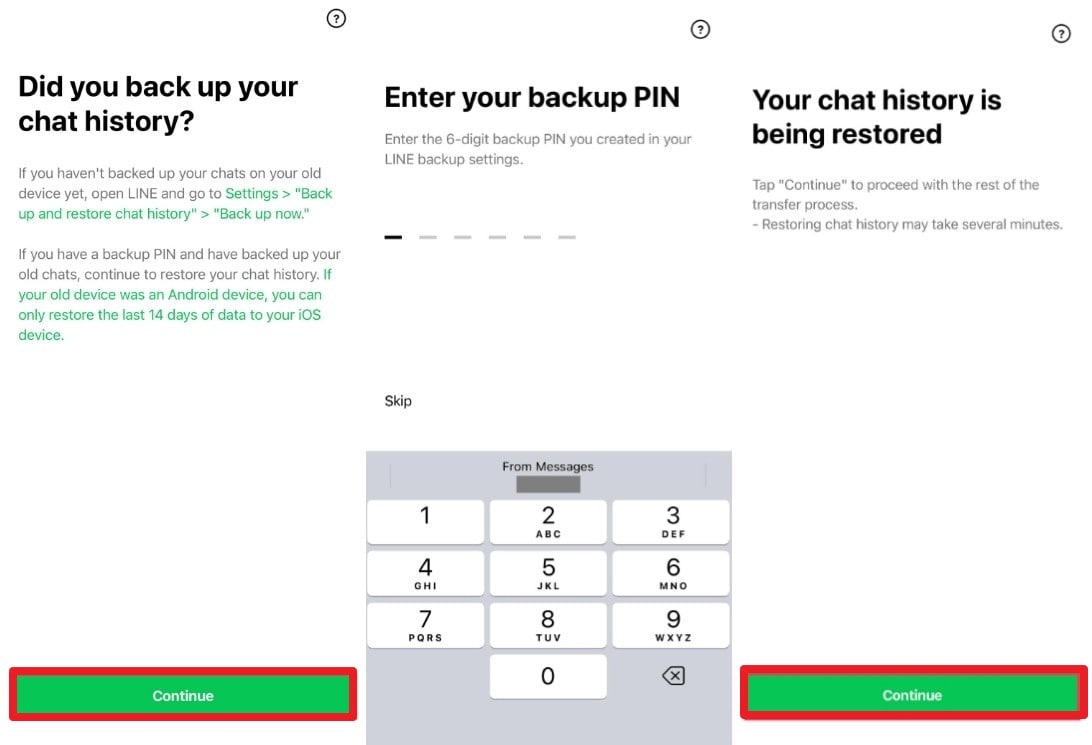
Add the old LINE passcode to log in > Select “Continue” on the “Did You Back Up Your Chat History?” screen > Add Backup PIN > “Continue.”
Use Easy Transfer QR Code When the Old iPhone Is Available
When both phones are available, restore is not the only option. Easy Transfer QR Code lets you transfer your LINE account directly without relying on an iCloud backup. Without a backup, it can transfer the last 14 days of chat history along with supported account information.
Keep the old iPhone available until the transfer is complete and confirm that the required chats appear on the new device. Since this method requires access to both devices, complete the process before deleting LINE or resetting the old iPhone. Follow these steps to use Easy Transfer QR Code:
-
Step 1
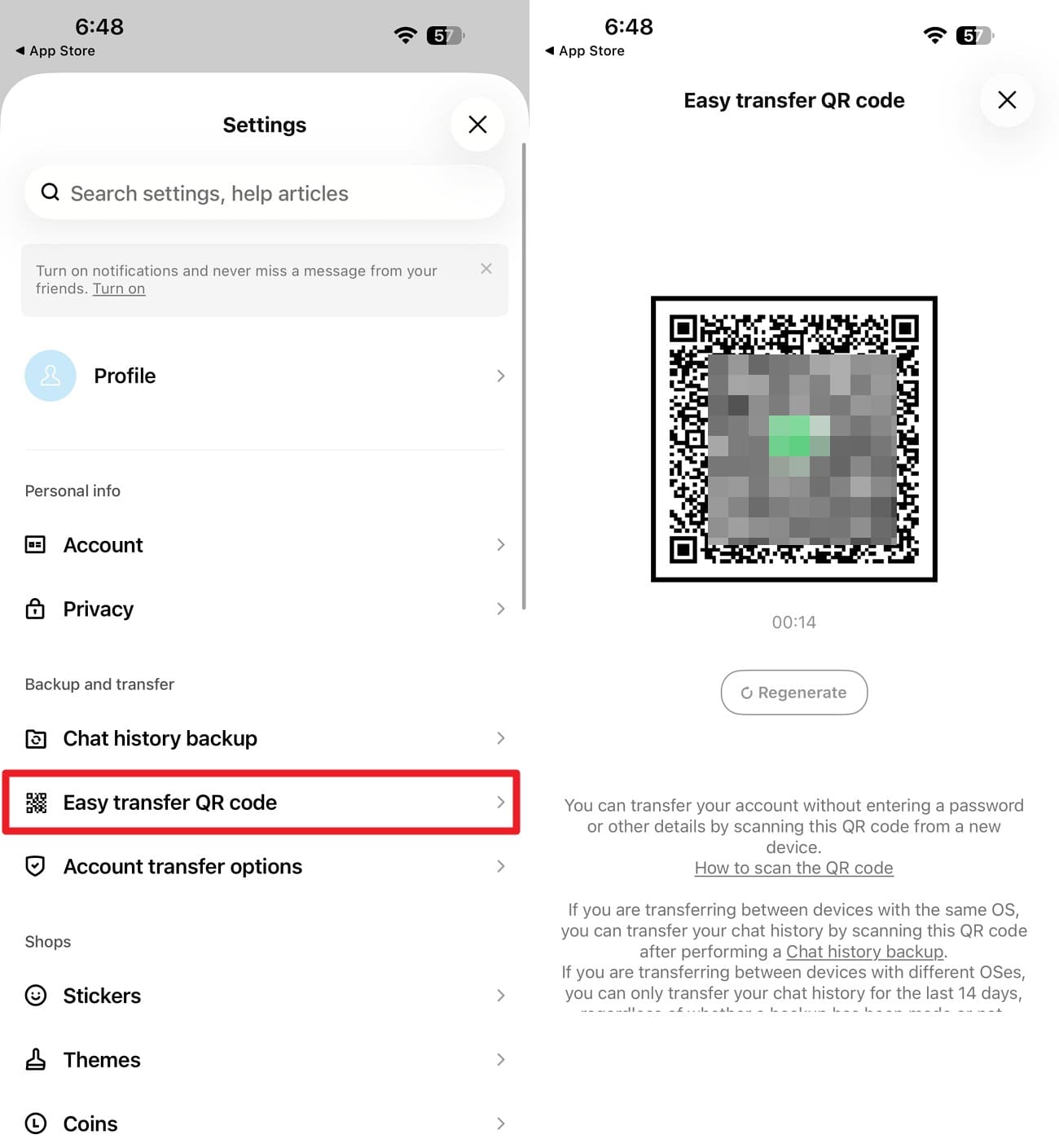
On the old iPhone, open LINE, go to “Settings,” and select “Easy Transfer QR Code” to access the QR code. Keep the QR code screen open, then install LINE on the new iPhone.
-
Step 2
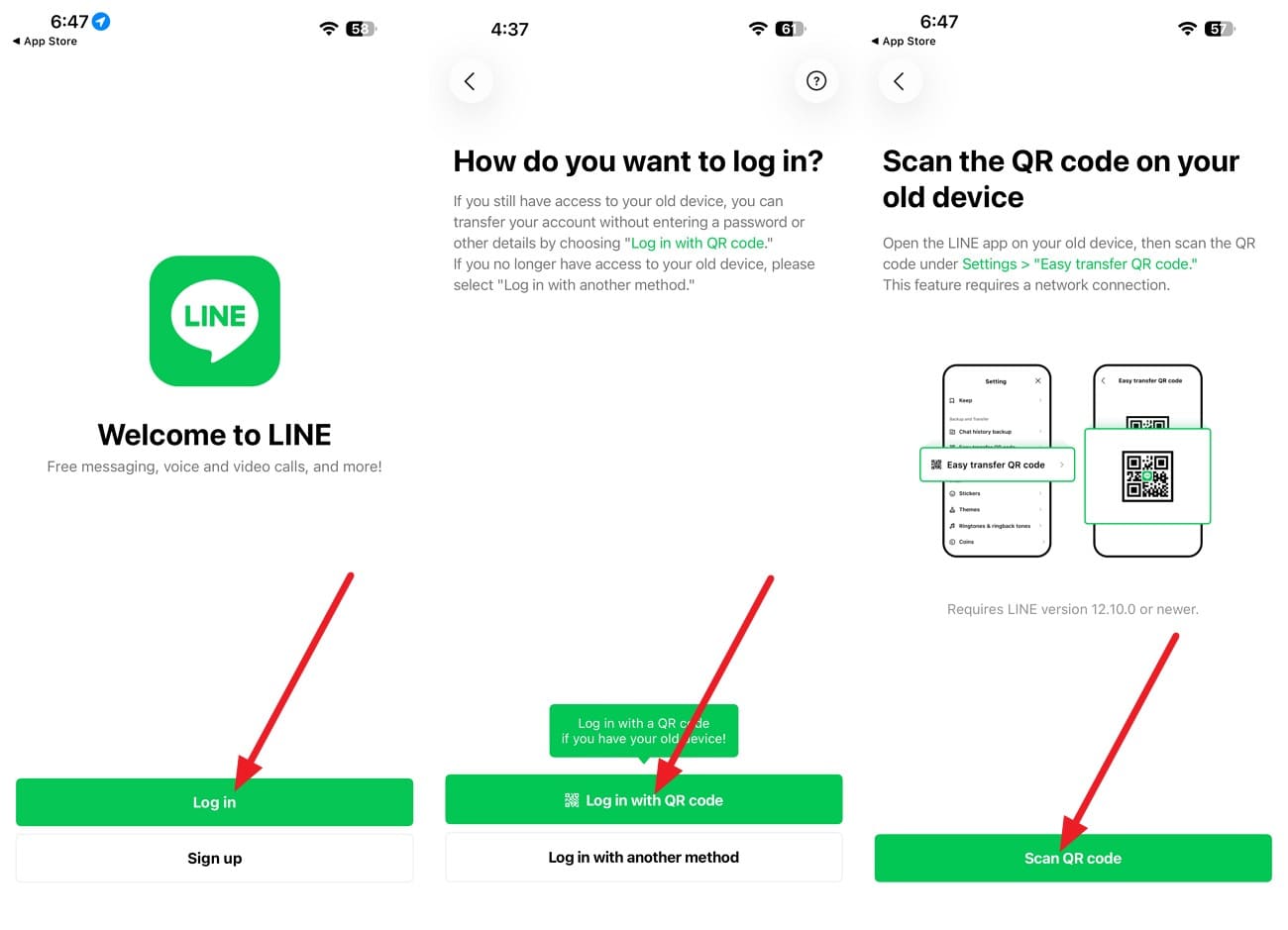
Tap “Log in > Log in with QR Code” and “Scan QR Code” on the new iPhone to scan the QR code.
-
Step 3
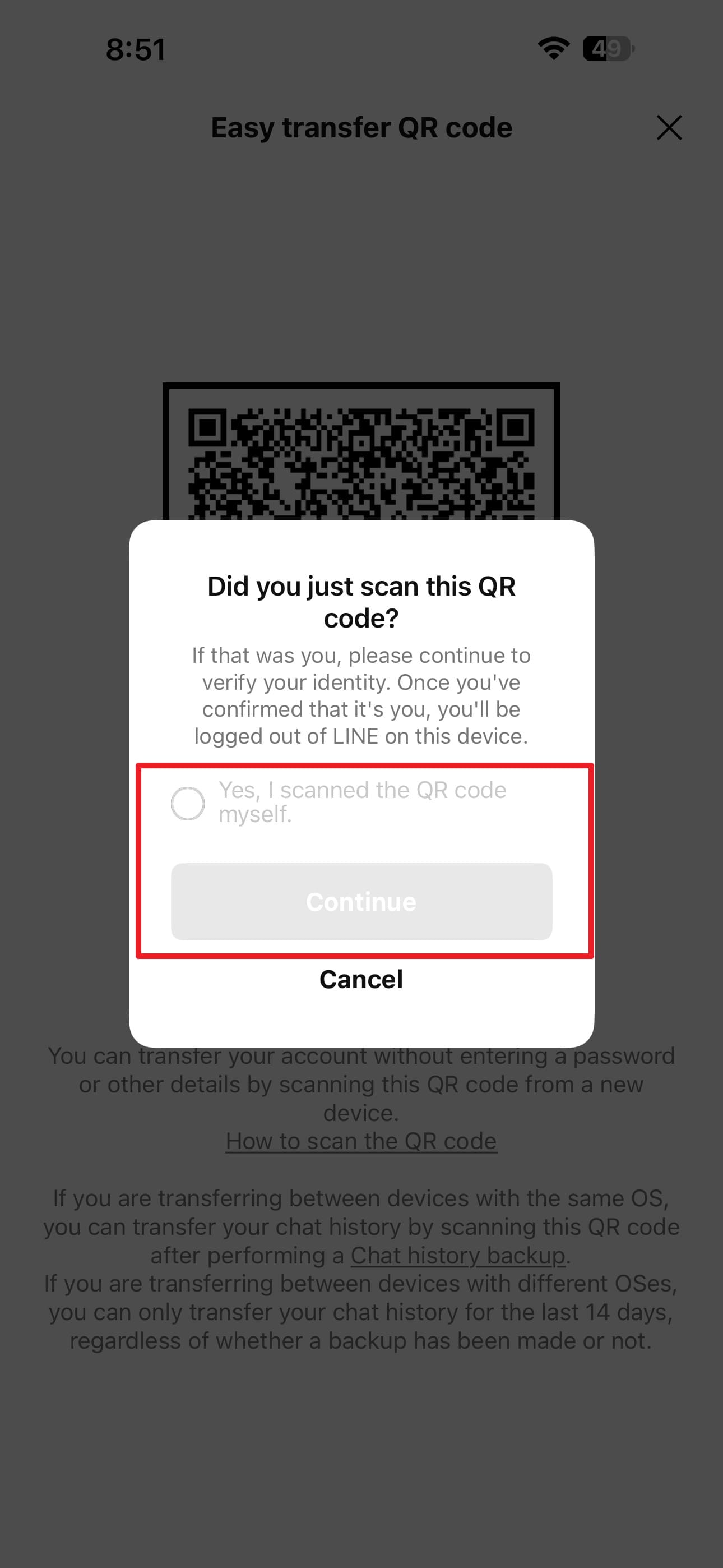
When the “Did you just scan this QR code?” pop-up appears on the old iPhone, tick “Yes, I Scanned the QR Code Myself” and tap “Continue.”
Understand the Limits of LINE Chat History Transfer
Before trying another LINE chat backup and restore method, understand the difference between transfer and recovery. LINE transfer options move chat history that is still available through your account, old device, or an existing backup. They cannot bring back conversations that were already deleted and are no longer available through these sources.
Creating a new backup after chats disappear does not restore the missing content. It only backs up the chat history currently available in LINE. To recover older deleted messages, you need a backup created before they disappeared or another recovery method.
Part 5. Recover Missing LINE Chat History When Backup and Transfer Options Do Not Work
When restore LINE chat history iPhone methods fail because no usable backup or transfer option exists, you can check for recoverable data on the device itself. Dr.Fone - Data Recovery (iOS) provides Advanced Recovery for LINE, which can scan supported iPhones for available conversations and attachments without requiring a previous LINE backup.
The recovery process uses a computer while the iPhone stays connected for scanning and data preview. Avoid adding unnecessary new data to the device before recovery, as it may affect recoverable content. Advanced Recovery also supports selected data from Viber, Kik, Snapchat, and Gmail, while WhatsApp and WhatsApp View Once recovery use their respective recovery workflows.
 Recovers data after deletion, crashes, or device damage.
- Supports photos, messages, contacts, WhatsApp, and more.
- Supports all major iPhone, iPad, and iPod models.
- Preview and recover only what you need.

Guide to Use Dr.Fone to Recover LINE Chat History
To see how Dr.Fone handles LINE chat recovery when regular restore options fall short, follow the steps below to scan for and retrieve the required chat data:
-
Step 1 Access Advanced Recovery for LINE
Open Dr.Fone and select “Data Recovery > iOS > Recover Data from an iOS Device.” Connect the iPhone as prompted, then choose “Advanced Recovery” to proceed with LINE recovery.

-
Step 2 Choose LINE in Social Media
Under the “Social Media” category, select “LINE” and choose “Start Scan.” Complete the Apple ID verification when prompted to continue with the recovery process.

-
Step 3 Trust Dr.Fone DataLink and Preview LINE Data
Follow the on-screen instructions to trust the Dr.Fone DataLink app and let the scan finish. Afterward, preview the available LINE chats and select the data you want to recover.




Conclusion
LINE offers several ways to manage LINE chat backup on iPhone, but each protects different types of chat history. Standard and Premium Backup can restore previously saved conversations, while Backup PIN and Easy Transfer QR Code support recent chat transfers. When the required messages are missing from these options, Dr.Fone - Data Recovery (iOS) can scan available device data for recoverable LINE chat history.
FAQ
-
1. Can I restore LINE chat history after already transferring my LINE account?
You can restore chat history after transferring your LINE account if a usable backup exists. Otherwise, Dr.Fone - Data Recovery (iOS) can scan available iPhone data to find and recover missing LINE chats. -
2. Can Easy Transfer QR Code transfer LINE chats without a backup?
Yes. Easy Transfer QR Code can transfer the last 14 days of LINE chat history without a backup. It requires access to both devices and transfers the LINE account directly between them. -
3. Can a LINE Backup PIN transfer more than the last 14 days?
A LINE Backup PIN transfers only the last 14 days of chat history. Older conversations require a Standard or Premium Backup that already contains the required chats. -
4. Does LINE Standard Backup include photos, videos, and files?
LINE Standard Backup only saves chat text, excluding photos, videos, files, and voice messages. Premium Backup supports these media types, although its availability depends on your region and eligible LINE membership.
 Add Wondershare Dr.Fone as a preferred source on Google