 Teleport your device anywhere instantly with one click.

 100% Security Verified | No Subscription Required | No Malware

 :
: 
 ChatGPT
 Perplexity
 Gemini
 Claude
 Grok
Grok
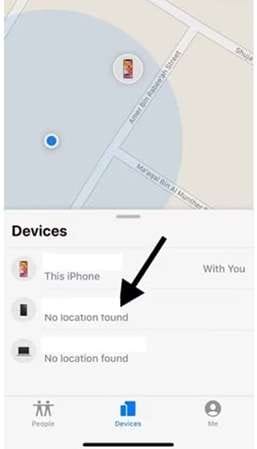
Seeing “No Location Found” after someone was visible minutes ago does not prove they blocked you or stopped sharing. Apple uses that message when a friend cannot be located and advises checking location sharing and Location Services. For a missing device, Apple says a dead battery may leave only the last known location, which can remain visible for up to seven days.
Reddit reports show another reality: the same message has appeared after iOS updates, phone transfers, a wrong “My Location” device, and privacy-setting faults, even when sharing was still enabled. So, no location found vs no location available is not a reliable test of someone’s intent. This guide separates verified causes from assumptions and shows what to check first.
In this article
Part 1. Quick Check: No Location Found vs No Location Available
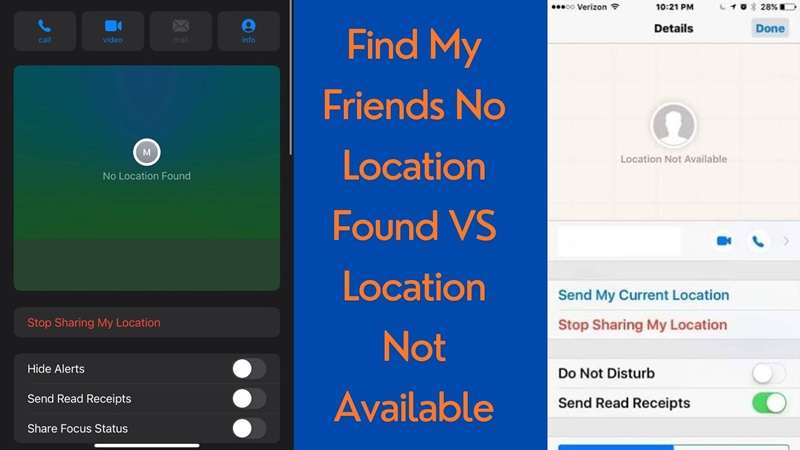
Apple says “No location found” appears when a device cannot be located. Find My may keep its last known place for up to seven days, then show this message. Apple gives no fixed definition for every “not available” phrase across People, Messages, and older screens.
Aspect No Location Found No Location Available
Connection: Find My cannot show the current place. Find My has no shared location it can display.
Primary cause: Device is off, offline, or unable to report. Sharing, permission, device-source, or app issue.
Frequency: Often short-term. May remain until a setting is fixed.
Implication: Usually a connection or reporting issue. It depends on the screen and setup.
Quick method: Check power, internet, and Location Services. Enable sharing, check permissions, and update iOS.
Part 2. What Does “No Location Found” Mean?
This is an important point in the no location found vs no location available comparison. The “No Location Found” message in Find My does not always mean that a person has stopped sharing their location. In many cases, location sharing is still active. However, the other iPhone cannot send fresh location data to the app.
The most common cause of this is a network, device, or system problem. For instance, the mobile phone may lose Wi-Fi & mobile services. It might be out of order for a while, too. As a result, Find My cannot show its current position.
| Why Does It Say “No Location Found”? | Several issues can cause this message: |
|---|---|
| ● The internet connection is weak: A slow or unstable network may delay location updates. | ● The other device is offline: Find My cannot receive new data when the phone has no internet access. |
| ● Location Services are turned off: The device cannot provide its position if location access is disabled. | ● The person signed out of iCloud: Find My may stop receiving location details when the Apple account is disconnected. |
| ● Airplane Mode is active: This can block cellular service and stop the phone from sending location data. | ● The battery is very low: A low-power battery may limit location updates. |
| ● Enable power-saving mode to save battery in your device. | ● “Find My” is having a temporary issue where the app may not load or update the location. |
| ● Another app is causing a conflict: A running app or system process may affect Find My. | Most of these causes are linked to the device, connection, or app. |
| How to Fix “No Location Found” | The “No Location Found” message often comes from a weak connection, poor GPS access, or a small software fault. Try the following fixes one by one. |
Fix 1: Check Your Internet Connection
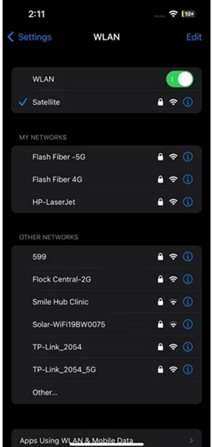
Find My needs an internet connection to update the phone’s position. Connect the iPhone to a strong wi-fi network and use cellular data.
Alternatively, you could flip your Wi-Fi and mobile data to refresh the connection. Reset your device’s network settings if the problem persists
Fix 2: Improve the GPS Signal
Various obstacles, like walls and tall buildings, can hinder GPS. Go to an open area where the phone has a better view of the sky.
Check nearby locations for anything that may be blocking the signal. Then open Find My again and wait for the location to refresh.
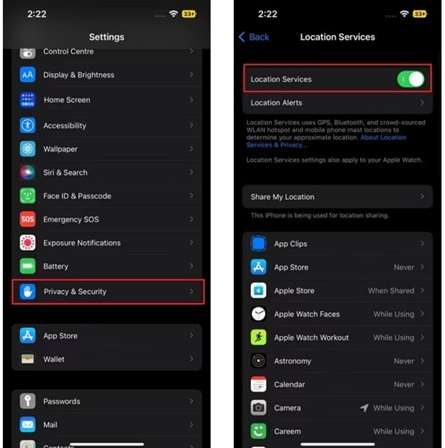
Fix 3: Turn On Location Services
Find My cannot show a current position when location access is disabled.
Adjust Privacy Settings in the Settings app of your choice. To enable Find My to locate your device, allow Location Services in settings.
Fix 4: Restart the iPhone
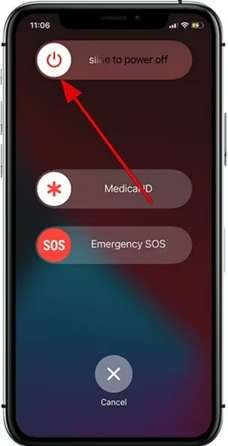
Restarting your device often fixes any minor system or app issues.
Check Options and Hit General. Click on the Shut down option. Make sure to power the iPhone off and wait a few seconds to power it back on again. Then check Find My.
Fix 5: Update the iPhone Software
An older software version may contain bugs that affect Find My.
Open Settings and tap General. Select Software Update and check for an available update. Install the latest version, then reopen Find My.
These steps can often solve the technical issues behind “No Location Found.” However, the meaning may change when Find My shows “No Location Available,” which the next section explains.
Part 3. What Does “No Location Available” Mean?
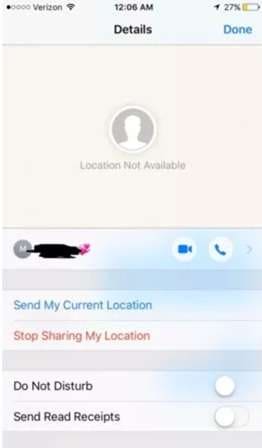
The “No Location Available” message appears when Find My cannot show another person’s current position. In some cases, that person may have stopped sharing their location with you. The message may also appear when their iPhone is turned off, or its GPS is not working as expected.
This difference matters when comparing no location found vs no location available. “No Location Available” is often linked to sharing settings, account access, or the device’s ability to send fresh location data.
| Why Does It Say “No Location Available”? | Several situations may cause this message: |
|---|---|
| ● Location sharing was turned off: The other person may have disabled sharing in the Find My app. | ● Sharing was paused: They may have selected the option to stop sharing their location. |
| ● You were removed from the sharing list: Their location will no longer appear for your contact. | ● The iPhone has no signal: Find My cannot update the location without a working connection. |
| ● The phone shuts down: The phone isn’t powered down for a while and it cannot send new data about its location. | ● Your Apple ID got signed out: After the account gets signed out Find My may stop updating. |
| ● Find My was disabled: The device cannot share its position when the feature is turned off. | ● The GPS is not working correctly: A GPS problem may prevent the phone from finding and sending its position. |
| ● How to Fix “No Location Available” | ● Try these methods in order to restore location sharing. |
Fix 1: Confirm Location Sharing Is Active
First, check whether the other iPhone is still sharing its location. If sharing is off, it must be enabled again in Settings or the Find My app.
The person should also confirm that your contact is still included in their location-sharing list.
Fix 2: Check Location Permissions
Find My requires access to the location of the iPhone.
Go to Privacy & Security in Settings. To enable Find My, tap Location Services and ensure that access is enabled.
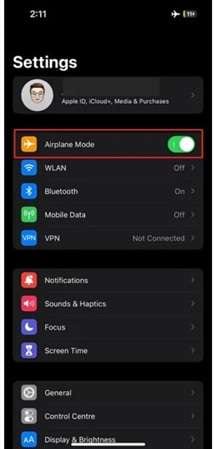
Fix 3: Turn Off Airplane Mode, VPNs, or Location-Masking Tools
Airplane Mode can block the phone’s connection. Turn it off and check Find My again.
A VPN or location-masking feature may also affect the location shown by the device. Disable these services for a short time and test the app again.
Fix 4: Update or Reinstall Find My
An old or damaged app version may cause the message to remain.
Check whether an update is available. If the problem continues, remove Find My and reinstall it. Then open the app and check the location.
Fix 5: Sign Out and Sign Back In
A syncing error may stop Find My from loading location data.
Sign out of the Apple ID on the iPhone, then sign in again. This refreshes the account connection and may restore location sharing.
If problems arise due to sharing and permission issues, or account syncing. Some users might want more control over who is shown their location. The next section explains how to manage iPhone tracking and change the location shown by the device.
Part 4. How to Handle Being Tracked on iPhone and Change Your Location )
After the “No Location Found” or “Location Not Available” fix, you may still want the ability to control the location shown on your phone. Hiding your location can be beneficial if you want to save your privacy, block your real location, and much more.
A virtual location tool can help with this. It changes the GPS position shown by your device without requiring you to travel there.
Change Your GPS with Dr.Fone – Virtual Location
Dr.Fone - Virtual Location works on both iOS and Android devices. It lets you choose another place on the map and use it as your phone’s current location.
The tool can be useful when you want to keep your real location private or send a different location to friends and family. It also gives you more control after dealing with no location found vs location not available issues in Find My.
 Set your map route to simulate GPS movement.
- Set your wanted movement speed.
- HD and large map view to check location.
- Fake GPS location to anywhere.
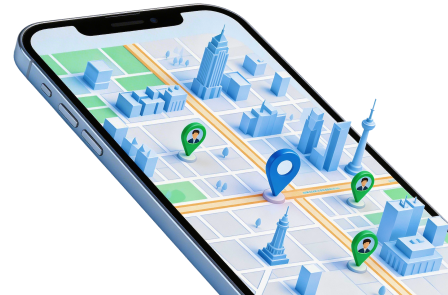
Key Features of Dr.Fone – Virtual Location
● Change location with one click: Select a place and move your GPS position there.
● Choose any place worldwide: Set your location to another city or country while staying at home.
● Simple computer controls: Change the phone’s location with a few steps on a Windows PC or Mac.
● Create virtual movement: Simulate travel between selected places.
● Control travel speed: Choose a walking, driving, or custom movement speed.
● Add stops along the route: Create pauses while the virtual journey is running.
● Supports iOS and Android: Use the tool with phones running either operating system.
● Works with location-based apps: It can be used with apps such as Find My, Snapchat, Instagram, Facebook, and Pokémon GO.
How to Change Your Location with Dr.Fone
Follow these steps to set a different GPS position.
-
Step 1 Open Virtual Location
Download and open Wondershare Dr.Fone on your computer. Select Virtual Location from the main screen.
Click Get Started to open the location map.
-
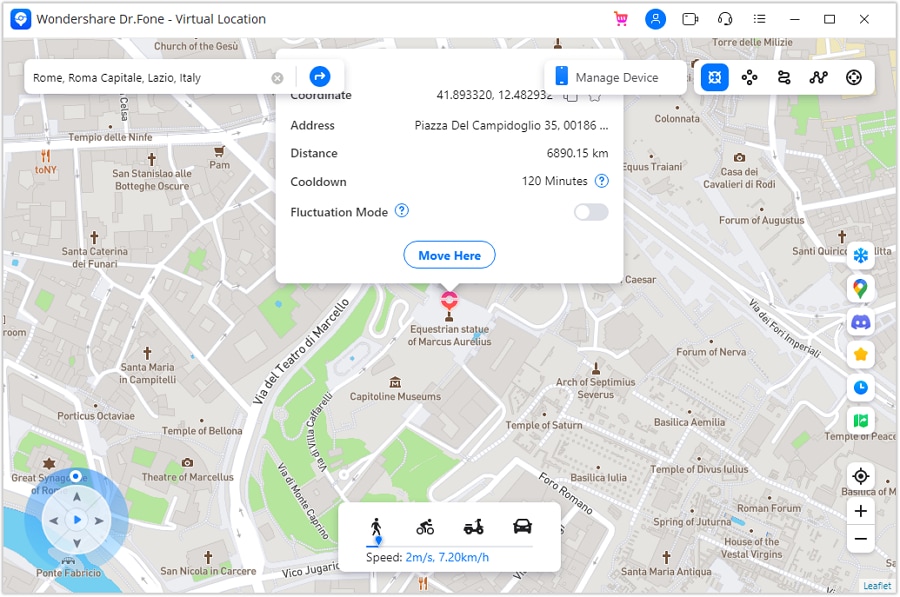
Step 2 Select Teleport Mode
Choose the first icon to activate Teleport Mode.
Enter the place you want to use in the search box. Click Go to find it on the map.
-
Step 3 Move to the New Location
Check the selected place and click Move Here.




Conclusion
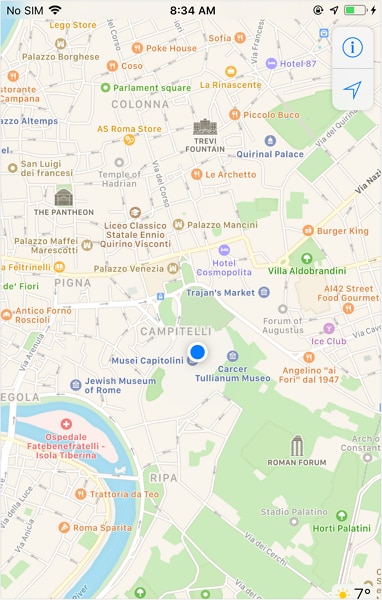
By understanding the difference between no location found and no location available, you can treat the alerts as technical clues, rather than proof that someone has deliberately stopped sharing. To begin with, check the power of the iPhone itself, the Internet connection, whether it’s on Airplane mode, Location Services, whether sharing is allowed, the date and time, and the latest version of iOS. The most frequent causes are caused by the device, network, account, and privacy settings. Here are some steps to attempt to fix your problem.
If every setting looks correct but Find My still fails, Dr.Fone - System Repair (iOS) can help fix a possible iOS issue. When the goal is privacy rather than repair, Dr.Fone - Virtual Location lets you set a different GPS position on iOS or Android with easy controls.
 Add Wondershare Dr.Fone as a preferred source on Google



