 Teleport your device anywhere instantly with one click.

 100% Security Verified | No Subscription Required | No Malware

 :
: 
 ChatGPT
 Perplexity
 Gemini
 Claude
 Grok
Grok
Snap Map can reveal more than your current position. Regular updates might additionally reveal your home address, workplace location, and the places where you go every day. Even if you have shared your location only with your trusted friends, you may want to appear at certain times. The Snapchat app doesn’t have an option to pause your location, but there are a few settings that can hide your location or stop its updates.
This guide explains how to pause Snapchat location, what happens to your last active and Live Location, and whether your friends may notice the change. It also covers how to pause Snapchat location without turning it off through Ghost Mode, phone permissions, Airplane Mode, and Dr.Fone - Virtual Location.
In this article
- Part 1: Can I Pause Location on Snapchat Without Turning It Off?
- Part 2: How To Pause Snapchat Location?
- A. Turn On Ghost Mode to Pause Snap Map Sharing
- B. Using Dr.Fone - Virtual Location Changer to Pause Snapchat Location[Flexible]
- C. Turn Off Snapchat Location Access to Stop Map Updates
- D. Use Airplane Mode to Pause Snapchat Location for a Short Time
- E. Limit Snapchat’s Location Permission Through Phone Settings
- Which Permission Should You Choose?
- Comparison of All Methods on Snapchat Location Pausing
Part 1: Can I Pause Location on Snapchat Without Turning It Off?
Yes. You can manage Snapchat’s location access without turning off location services for the entire phone.
Snapchat utilizes your mobile cellphone’s GPS to position you on Snap Map. It can also give your Snaps and Stories nearby places and landmarks using location data.
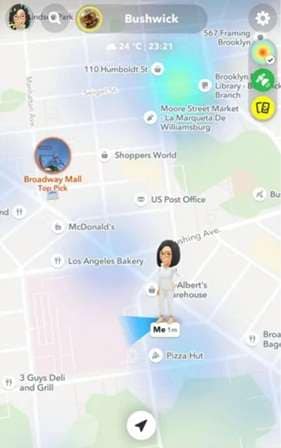
To pause Snapchat location, you can change settings:
- Inside the Snapchat app
- Through your phone’s location settings
- Without affecting other GPS-based apps
Before choosing a method, you should know which type of location Snapchat is sharing.
Types of Location Sharing
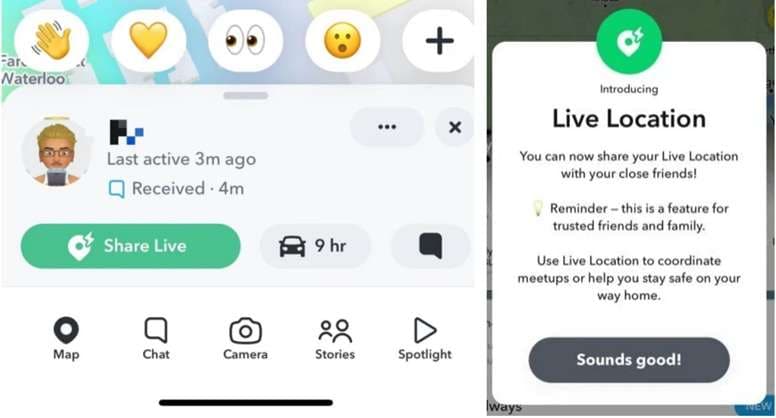
1. “Last Active” Location
How it works: Your location updates only when Snapchat is open.
After closing the app: Snap Map keeps showing your last recorded position.
What friends see: They see where you last used Snapchat, not your current movement.
Best for: People who want basic location sharing without constant tracking.
2. “Live” Location
How it works: Snapchat shares your real-time position with selected people.
After closing the app: Your location may continue updating.
What friends see: Trusted friends or family can follow your current movement.
Best for: Trips, meetups, or times when someone needs to track your progress.
Part 2: How To Pause Snapchat Location?
Snapchat gives you several ways to stop or limit location sharing. One of the quickest options is Ghost Mode.
A. Turn On Ghost Mode to Pause Snap Map Sharing
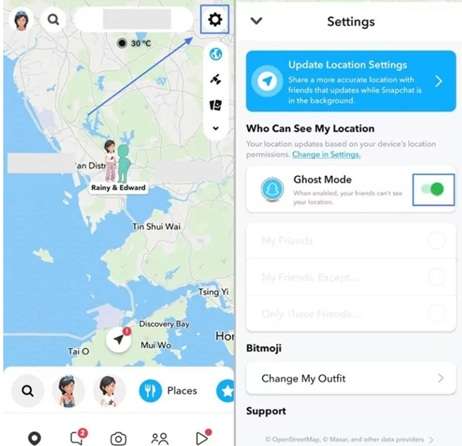
Ghost Mode is a built-in privacy feature on Snap Map. It stops your location from appearing to friends.
This matters because location sharing can create privacy risks. Snapchat’s Digital Well-Being Index reported that 81% of Gen Z teens faced some form of online risk in early 2025. This was slightly higher than the year before.
When Ghost Mode is active:
- Snapchat stops showing your position on Snap Map.
- Your location is no longer updated for friends.
- Your Bitmoji disappears from their map.
- Your online map activity becomes hidden.
How to Enable Ghost Mode
-
Step 1 Open Snapchat and tap Map.
-
Step 2 Tap the Settings icon in the top-right corner.
-
Step 3 Turn on Ghost Mode and choose how long you want it active.
Will Friends Know You Enabled Ghost Mode?
Ghost Mode may be more private than regular mode but it is still not fully discreet.
According to Griffith University, many young people see sharing your location with family and friends as caring and trustworthy. As a result, there can be pressure on certain users to show their location.
Once Ghost Mode is activated, your Bitmoji is hidden from Snap Map. Your friends won't be notified directly but they could still notice your location is hidden from them.
B. Using Dr.Fone - Virtual Location to Pause Snapchat Location[Flexible]
Ghost Mode hides your position, but it also removes your Bitmoji from Snap Map. This may make the change easy for friends to notice.
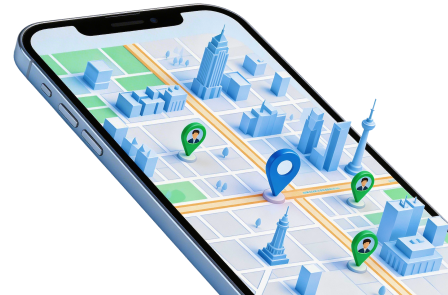
Dr.Fone - Virtual Location offers a more flexible option. It changes the GPS location shown by your device without requiring you to travel. You can pick almost any location in the world and set it as your present location.
The application is compatible with social applications Snapchat, Instagram, and WhatsApp. It can simulate movement in games based on locations like Pokémon Go. No iPhone jailbreak is required.
 Set your map route to simulate GPS movement.
- Set your wanted movement speed.
- HD and large map view to check location.
- Fake GPS location to anywhere.
Key Features of Dr.Fone - Virtual Location Changer
- Teleport your GPS: Change your device location to another place with one click.
- Simulate movement: Use a joystick to create virtual GPS movement.
- Share virtual locations: Send a selected location through supported social apps.
- No jailbreak needed: Change an iPhone location without modifying the device system.
- Manage several devices: Change the GPS location of up to five iOS devices from one computer.
How to Pause Snapchat Location With Dr.Fone
-
Step 1 To start, download and launch Dr.Fone – Virtual Location Changer on your computer. Use a USB cable or supported Wi-Fi connection to connect your iPhone.
-
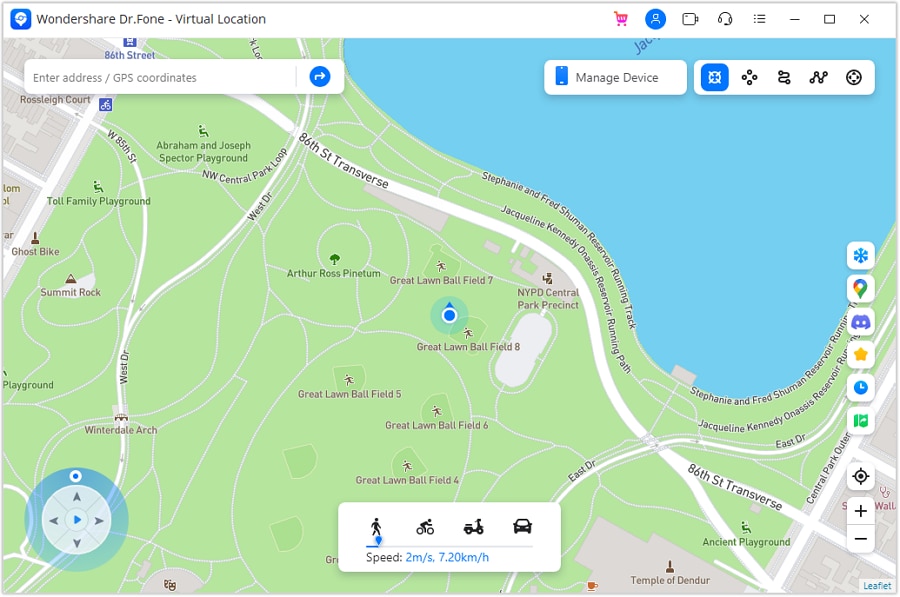
Step 2 Click on the teleport icon in upper right corner Go ahead and search for the location you want!
-
Step 3 Click Move Here to apply the new GPS point.
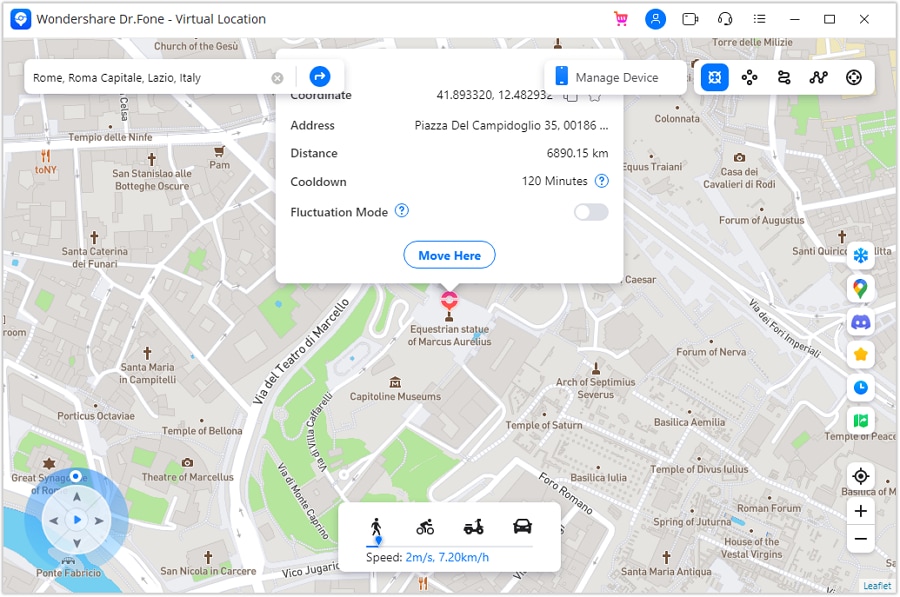
Snap Map will now show the selected virtual location instead of your real one. This makes Dr.Fone a useful option for how to pause Snapchat location without turning it off. Snapchat can remain active, and your Bitmoji does not need to disappear from the map.




C. Turn Off Snapchat Location Access to Stop Map Updates
Snap Map depends on your phone's location services. Snapchat cannot refresh your location when it cannot access your GPS.
As a result, Snap Map may keep showing your last saved location. This is a simple way to pause location on Snapchat through your phone settings.
On iPhone
-
Step 1 Navigate to the Settings application.
-
Step 2 Scroll to Apps option and pick Snapchat.
-
Step 3 Click Location and Select Never.
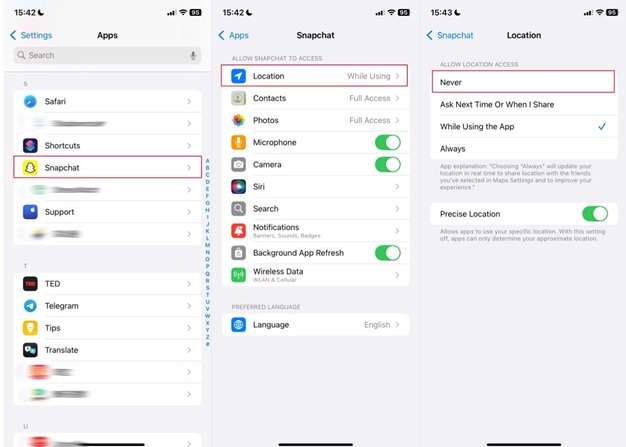
On Android
-
Step 1 Tap & Hold on the Snapchat Application icon. Next, launch app settings.
-
Step 2 Select Location under Permissions.
-
Step 3 Select Don’t allow to block Snapchat’s location access.
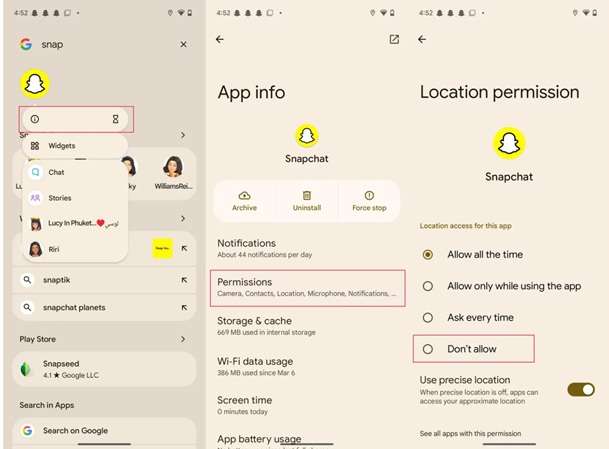
After changing the setting, the Snapchat app will not receive any new location data from your phone.
D. Use Airplane Mode to Pause Snapchat Location for a Short Time
Activating airplane mode on Snapchat disables its ability to send new location updates. It disables both Wi-Fi and the mobile data to make sure that the app doesn’t connect to the internet.
This method explains pausing the location on Snapchat for a short period without changing any privacy controls of the App.
How to Pause Snapchat Location With Airplane Mode
-
Step 1 First of all, Open the quick settings on your iPhone or Android phone. To switch on Airplane mode, choose the Airplane option. The primary Settings app is another option to enable it.
-
Step 2 Make sure to open Snapchat while on airplane mode. Earlier loaded content might be accessible but new data cannot be transmitted or received by Snapchat.
-
Step 3 Access Snap Map. It can either display your last known position or no current location. While phone is offline, your location will not be shared.
-
Step 4 When you want to begin connecting again, deactivate Airplane mode. When Wi-Fi or mobile data returns, Snapchat could update your location again.
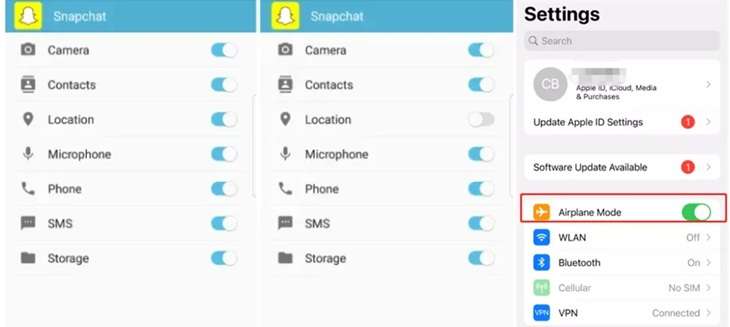
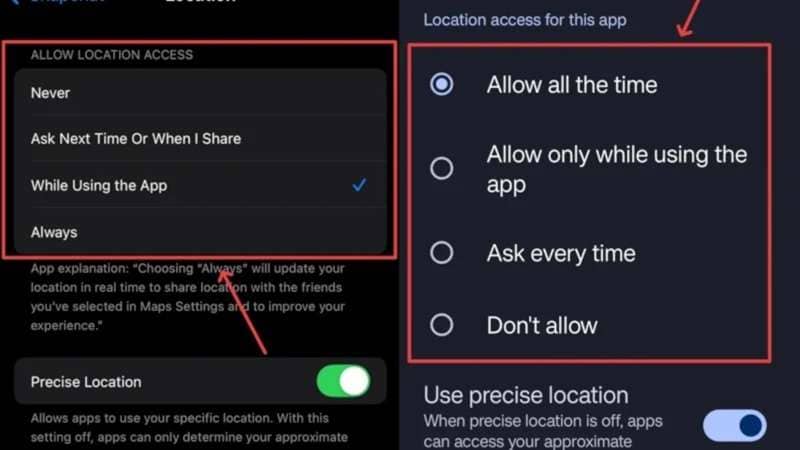
E. Limit Snapchat’s Location Permission Through Phone Settings
You can control how to pause location on Snapchat by changing its permission settings. This gives you more control than basic in-app options.
You can allow location only when Snapchat is open, make the app ask each time, or block access fully.
On Android
-
Step 1 Head over to the Settings on your Android phone.
-
Step 2 Head over to your app or app management.
-
Step 3 when Snapchat is found and select it.
-
Step 4 Select Permissions and then Location
-
Step 5 Choose from the options available.
- Allow all the time: Snapchat can track your location in the background.
- Allow only while using the app: Location updates occur only when Snapchat is open.
- Ask every time: Snapchat must request access each time.
- Don’t allow: Snapchat cannot access your location.
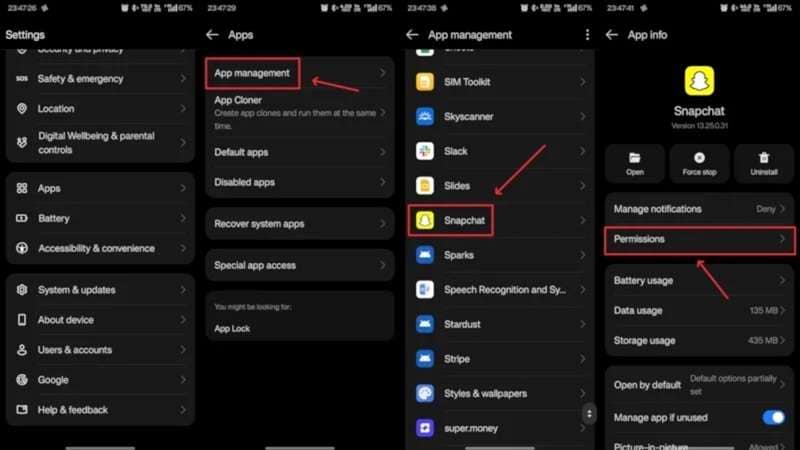
On iPhone
-
Step 1 Open the iPhone Settings app.
-
Step 2 Scroll down and tap Apps.
-
Step 3 Find and select Snapchat.
-
Step 4 Tap Location.
-
Step 5 Choose one of these settings:
- Never: Blocks Snapchat from using your location.
- Ask Next Time or When I Share: Snapchat must request permission again.
- While Using the App: Location access works only when Snapchat is open.
- Always: Snapchat can update your location in the background.
Which Permission Should You Choose?
While Using the App is an option that you should go for if you want Snapchat to update your location only when being used.
Select either Ask Every Time or Ask Next Time or When I Share when you want to allow each request.
Select Never on iPhone or Don’t Allow on Android if you wish to block Snapchat from always knowing your location.
Please remember that your location will not be updated for 24 hours on Snap Map, your profile icon will be removed. This can look similar to Ghost Mode.
Comparison of All Methods on Snapchat Location Pausing
Each method handles Snap Map in a different way. Some hide your profile. Others stop new updates or replace your real GPS position.
The table below helps you choose the right method based on privacy, app access, and visibility.
| Method | What Friends See | Snapchat Stays Online? | How Noticeable Is It? |
|---|---|---|---|
| Ghost Mode | Your Bitmoji and location disappear | Yes | Easy to notice if friends check Snap Map |
| Dr.Fone - Virtual Location | A selected virtual location | Yes | Less noticeable because your Bitmoji stays visible |
| Turn Off Location Access | Your last location may remain, then disappear | Yes | Friends may notice that your position stops updating |
| Airplane Mode | Your last synced location | No | Less noticeable for a short time |
| Restrict Location Permission | Location updates only when Snapchat is open | Yes | Usually less noticeable than Ghost Mode |
Quick verdict
- Best for instant privacy: Ghost Mode
- Best for keeping Snapchat active: Restrict Location Permission
- Best for showing another location: Dr.Fone - Virtual Location
- Best for a short offline pause: Airplane Mode
- Best for blocking Snapchat GPS access: Turn Off Location Access
Conclusion
Snapchat does not offer a direct pause button, but you have several ways to control what appears on Snap Map. Ghost Mode is best for instant privacy, while phone permissions can stop background updates or block location access fully. Airplane Mode works only as a short offline option.
If you want to keep Snapchat active while showing a chosen place, Dr.Fone - Virtual Location is the most flexible choice. It can replace your real GPS point without removing your Bitmoji. So, when deciding how to pause Snapchat location, choose the method that matches your privacy needs, app access, and visibility.
 Add Wondershare Dr.Fone as a preferred source on Google


