 Teleport your device anywhere instantly with one click.

 100% Security Verified | No Subscription Required | No Malware

 :
: 
 ChatGPT
 Perplexity
 Gemini
 Claude
 Grok
Grok
Find My is helpful when an iPhone goes missing, but constant location sharing can sometimes feel too open. A surprise visit, private appointment, or simple need for personal space may make you want to pause Find My location for a while. The catch is that Apple does not include a true pause button. Some settings stop updates, some show your last location, and others may affect calls, data, or location access for every app.
This guide explains what actually happens when you pause Find My, which free iPhone methods are worth using, and when a virtual location tool offers more control. You can then choose an option that protects your privacy without causing unnecessary problems.
In this article
Part 1. How does Find My iPhone work
The Find My app uses Location Services and internet connections to locate Apple devices linked to the same Apple ID. It shows each device’s current position on a map. If your iPhone is lost or stolen, you can also get directions to its location.
Before you decide to pause Find My location, you need to make sure the feature is set up correctly.
How to Turn On Find My iPhone
Open Settings. Go to Privacy & Security.
Tap Location Services and turn it on. Return to Settings and tap your name.
Select Find My. Turn on Share My Location if you want friends or family to see your position.
Tap Find My iPhone. Turn on the switch next to Find My iPhone.
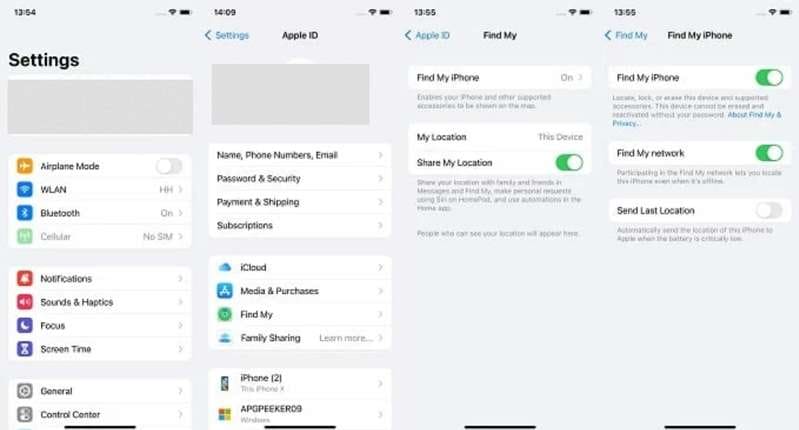
Find My also includes two useful options. Find My network can help locate your iPhone when it is offline. Send Last Location sends the phone’s position to Apple when the battery becomes very low.
Once the feature is active, open Find My > Devices to view your iPhone and other Apple devices. People added in Find My may also see the location you share with them.
But what happens when you no longer want your location to update? The next section explains whether you can truly pause Find My on an iPhone.
Part 2. Can You Pause Find My Location on iPhone? A Reality Check
Apple does not offer a direct “Pause” option in Find My. Instead, you can stop sharing your location or prevent your iPhone from sending new location updates.
When someone checks your location, they may see:
Your last known location
A message saying that you no longer share your location
Part 3: Why Should You Pause Find My Location on iPhone?
Pausing your iPhone location usually means stopping Location Services or location tracking. This limits access to your GPS data.
You may want to pause Find My location for three main reasons:
Privacy: It stops apps, friends, family members, or third-party services from seeing your exact position when you want privacy.
Security: Location data can be misused to track your movements. Pausing it may reduce the risk of unwanted monitoring.
Personal Space: Constant location sharing can feel intrusive. When you pause Find My, you can take a break, enjoy private time, and feel less connected.
Now, let’s look at the free ways to pause your location on an iPhone.
Free Ways to Pause Your Find My Location on iPhone
Your iPhone offers several built-in ways to control location sharing. Each method works differently. What others see also depends on the option you choose.
Method 1: Pause Find My Using a Second Apple Device
This is one of the best free ways to keep your shared location at one place. Find My can share your position from only one Apple device at a time.
You can select an old iPhone or iPad as your location device. Leave it at home while carrying your main iPhone. Your shared location will then stay where the second device is placed.
Steps to Use Another Apple Device
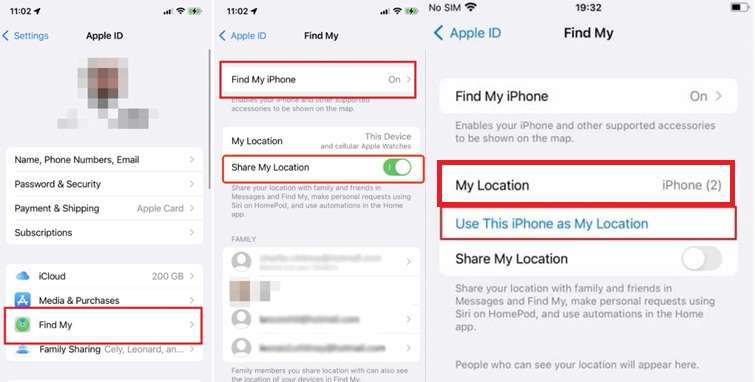
On your main iPhone, open Settings, tap your name, and select Find My.
Make sure Share My Location is turned on.
Tap Use This iPhone as My Location. It may already be selected.
On your second Apple device, open Settings, tap your name, and choose Find My.
Tap Use This iPad as My Location or Use This iPhone as My Location.
Leave the second device at home. Find My will now share its location instead of your main iPhone.
Key Outcome
No notification is sent when you switch the location device. Friends or family will continue to see the place where the second device remains. This method also avoids showing a “No location found” message.
Method 2: Turn Off Location Sharing in iPhone Settings
When Find My sharing stays active, other people may keep checking your location. They can also set alerts for when you arrive at or leave certain places.
To pause Find My location, you can disable location sharing in your iPhone settings.
Steps to Turn Off Share My Location
Open Settings on your iPhone and tap your name or phone number at the top.
Select Find My.
Turn off Share My Location.
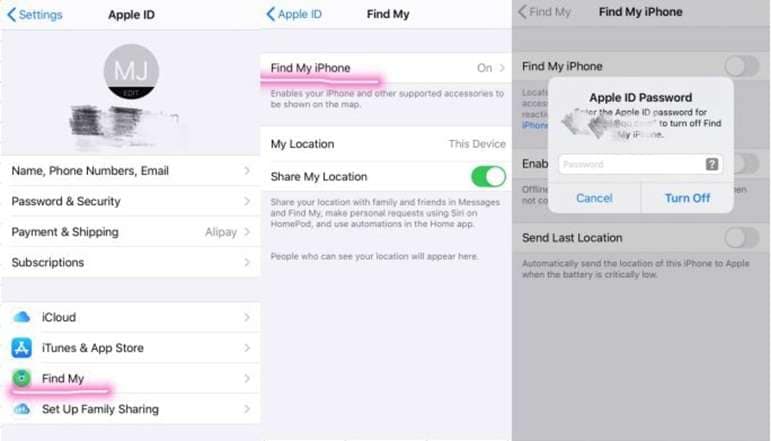
Once disabled, your iPhone will stop sharing your location with people through Find My.
Method 3: Pause Find My for One Person
This is the quickest way to stop sharing with one contact. Choose this method to pause Find My location for one person only when secrecy is not important.
Steps to Stop Sharing
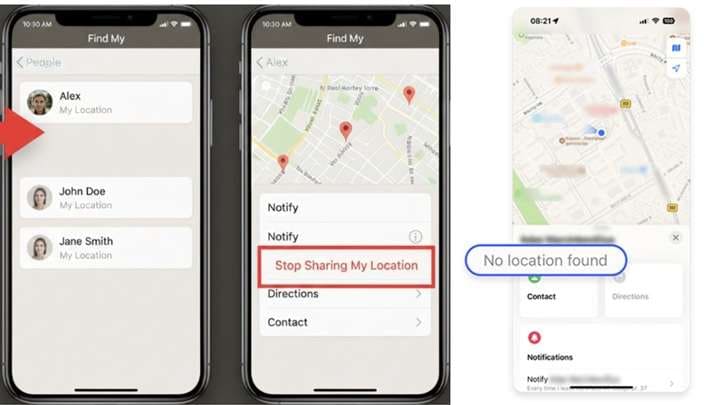
Open the Find My app.
Tap the People tab at the bottom.
Choose the person you want to remove.
Scroll down and tap Stop Sharing My Location.
Important Notice
The person may see a message in your iMessage chat saying that you stopped sharing your location. Find My may also show No location found for your profile.
Method 4: Pause Find My Location with Airplane Mode
Airplane Mode offers a quick way to stop location updates. It cuts off data sharing and can keep your position from changing in Find My and other apps.
Steps to Turn On Airplane Mode
Swipe down from the top-right corner of your iPhone screen to open the Control Center.
Tap the Airplane Mode icon to switch it on.
Method 5: Pause Find My Location by Disabling Location Access
Find My uses your iPhone’s Location Services to track and share your position. Setting its location access to Never can stop the app from receiving new location data.
Steps to Disable Location Access
Open Settings and select Privacy & Security.
Tap Location Services.
Find and select Find My from the app list.
Choose Never.
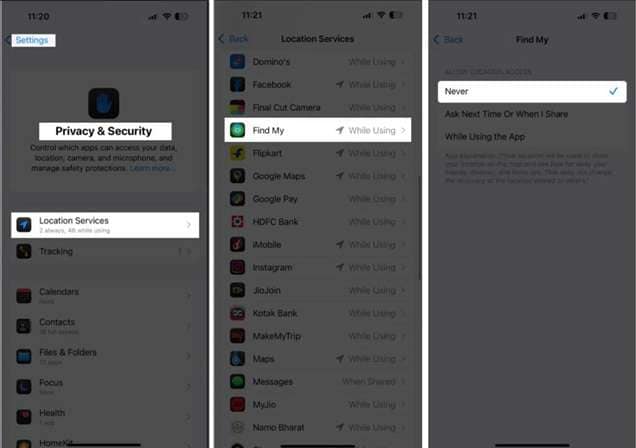
Until you turn location access back on, Find My may continue showing your last known position to the other person.
Part 5: An Advanced Way to Change Location Without Pausing Find My
Free methods may affect Wi-Fi, location services, or other phone features. When you do not want these limits, Dr.Fone - Virtual Location offers another option.
Instead of trying to pause Find My location, you can set a virtual GPS position on iOS 26 or Android 16. The tool can also simulate movement with a joystick or the Move feature.
 Set your map route to simulate GPS movement.
- Set your wanted movement speed.
- HD and large map view to check location.
- Fake GPS location to anywhere.
| Why Use Dr.Fone - Virtual Location? | Dr.Fone lets you: |
|---|---|
| Change your GPS location with one click | Teleport to another place worldwide |
| Create single or multiple movement routes | Set movement speed and stops |
| Control movement with a joystick | Use automatically created routes |
| Work with Pokémon GO, MH Now, Snapchat, Tinder, Instagram, and Facebook | Run the tool on Windows or Mac |
| Use it with both iOS and Android devices | This means you can show another GPS position without turning off Wi-Fi or affecting other device functions. |
| How to Change Find My Location with Dr.Fone | Rather than using settings to pause Find My, follow these two steps to apply a virtual location. |
-
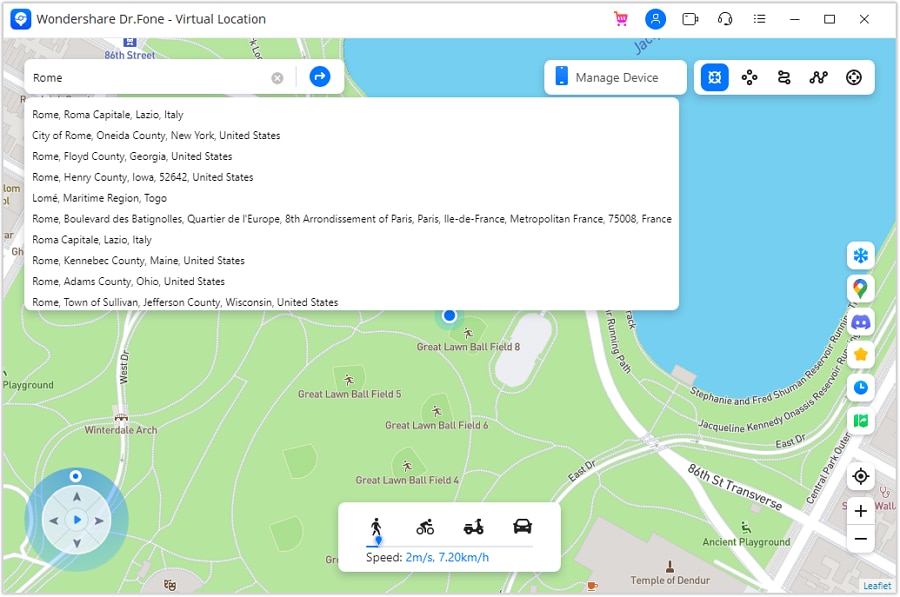
Step 1 Turn On Teleport Mode
Open the Virtual Location tool and select Teleport Mode. Search for the location you want to use. Then press the Enter key.
-
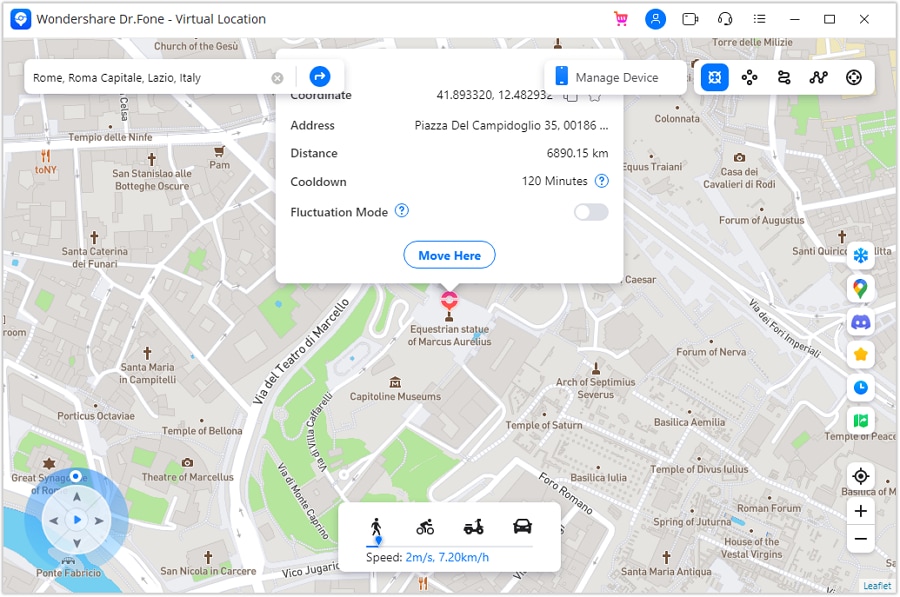
Step 2 Apply the Virtual Location
Check the selected place and click Move Here. Open the Maps app to confirm the new position. You can then share that location without pausing Find My.
Part 6: Which Method Fits Your Privacy Needs Best?
Each option affects your location and phone differently. Compare the key results, limits, and risks below before choosing the most suitable method.
| Method | What Others See | Discretion Level | Effect on Phone | Key Caution |
|---|---|---|---|---|
| Second Apple Device | Location of the second device | High | No effect on calls, Wi-Fi, or apps | Needs another Apple device left at one place |
| Turn Off Share My Location | Location sharing stops | Low | Phone works normally | Stops sharing with everyone |
| Stop Sharing with One Person | That person loses location access | Low | No effect on phone use | The person may notice when checking Find My |
| Airplane Mode | Old or unavailable location | Medium | Calls, mobile data, and Wi-Fi may stop | Not reliable for long-term use |
| Disable Location Access | Last known location may remain visible | Medium | Location-based apps may stop working | Maps and other GPS apps can be affected |
| Dr.Fone - Virtual Location | A selected virtual location | High | Calls, Wi-Fi, and apps stay active | Requires a computer and third-party software |




Conclusion
Apple does not offer a true button to pause Find My location, but you still have several ways to control what others see. A second Apple device is the strongest free choice when you want your shared position to stay in one place. Turning off sharing works better when privacy matters more than discretion. Airplane Mode and disabled Location Services are less practical because they can affect calls, data, Maps, and other apps.
When you need more control without switching off phone features, Dr.Fone - Virtual Location is an option for setting a GPS position and managing movement with flexibility.
FAQ
-
1. Can I pause Find My without notifying anyone?
Apple does not send a direct alert when you stop sharing with a person through Find My. However, that person may notice that your location is missing when they check the app. -
2. Will turning off Share My Location disable Find My iPhone?
No. Share My Location controls what selected people can see. Find My iPhone is a separate feature used to locate your own missing device. -
3. Can Dr.Fone change Find My location without jailbreaking?
Wondershare states that Dr.Fone - Virtual Location can change an iPhone’s GPS position without jailbreaking it. The iPhone must first be connected to a computer running the software. -
4. How do I return my iPhone to its real location?
Use the reset or restore-location option in Dr.Fone. Depending on the device and session, restarting the iPhone may also restore its actual GPS position.
 Add Wondershare Dr.Fone as a preferred source on Google



