Teleport your device anywhere instantly with one click.

 100% Security Verified | No Subscription Required | No Malware

 :
: 
 ChatGPT
 Perplexity
 Gemini
 Claude
 Grok
Grok
Find My is valuable when an iPhone goes missing, but its live location can also reveal more than you wish to share. A private trip, surprise plan, app test, or simple need for space may make you ask how to change location on Find My iPhone. The answer is not as direct as editing one setting.
Your GPS position, online region, Apple Account country, and shared Find My device are different parts of the system. Changing one may not affect the others. This guide clears up that confusion and explains what each option can and cannot change. You can then protect your privacy while keeping the useful safety features that Find My provides.
In this article
Part 1. What Is Find My iPhone?
Find My iPhone is part of Apple’s Find My app. Apple's Find My service is used to locate lost Apple devices.
You can use it to:
| ● View a device on a map | ● Play a sound |
|---|---|
| ● Get directions | ● Lock or erase it remotely |
| ● Find it offline through the Find My network | ● Through GPS, Wi-Fi, Bluetooth, and cellular data, Find My estimates location. Your Apple ID links the location, and it updates automatically. Apple does not offer a manual box where you can enter a new location. |
Part 2. Why Change Find My iPhone Location?
There are several reasons for changing your location on iPhone.
● Protect Your Privacy
You may not want family or friends to view your live location at all times.
● Prevent Unwanted Tracking
Changing the shown location may reduce the risk of someone misusing your location data.
● Access Regional Apps and Services
Some apps, features, and services are limited by location. A different location may help restore access.
● Check Other Prices and Deals
Travel sites, online stores, and streaming platforms may show different offers by region.
The right method depends on whether you want to change your shared device, online region, account region, or GPS position. The next section explains how to change location on Find My iPhone.
Part 3. How to Change Location on Find My iPhone
Apple does not let you edit GPS coordinates in iPhone settings. If you want to change location on Find My iPhone, it means you need another option. The correct decision depends on what you want to adjust and the gear you have.
Method 1: Change Find My iPhone Location Using Another Apple Device
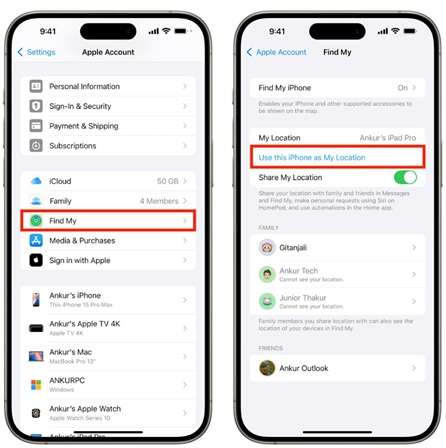
If two Apple devices have the same Apple ID, you can choose the location that they share. This is handy for anyone wanting to know how to change Find My iPhone location to iPad or iPhone
Complete Guide:
1. To ensure that the Apple ID on both devices is the same, sign in.
2. Open the Find My App on the different device.
3. Tap the Me tab.
4. Select Use This iPhone as My Location.
5. Find My will now share the location of that device.
Limitations
● You need a second Apple device.
● The shown location depends on where that device is placed.
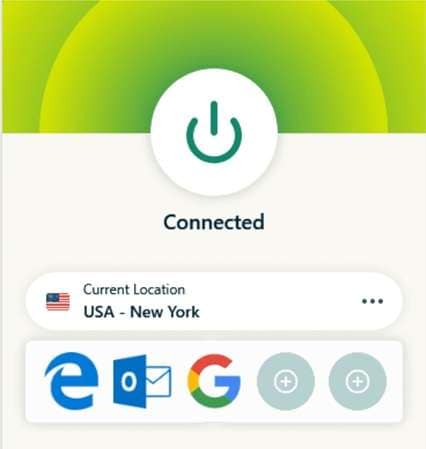
Method 2: Change Location on Find My iPhone With a VPN
A VPN changes your IP address and makes your internet connection appear to come from another region. Some apps use IP data to show local content.
However, a VPN does not directly change the GPS location used by Find My.
Step-by-Step Guide
1. Download a trusted VPN, such as ExpressVPN or NordVPN, from the App Store.
2. Open the VPN app.
3. Select a server in your preferred country or city.
4. Turn on the VPN connection.
5. Use an IP location website to check the new region.
Limitations
● Find My mainly uses GPS data.
● A VPN does not change GPS coordinates.
● It may affect some location-based content, but not the Find My map position.
Method 3: Change iPhone Region by Apple ID
You can change the country linked to your Apple ID from iPhone Settings. This may affect available apps, services, prices, and content. It does not change your exact GPS position in Find My.
Step-by-Step Guide
1. Open Settings and tap your name.
2. Select Media & Purchases, then tap View Account.
3. Choose Country/Region and tap Change Country or Region.
4. Select the new country and accept the terms.
5. Add the required payment and billing details to finish.
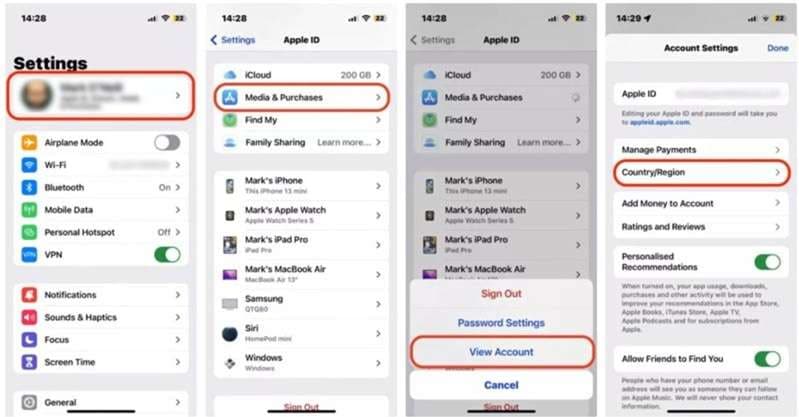
Before switching, use any remaining Apple ID balance and check active subscriptions. This method changes only the account region, not a city, address, or Find My map location.
Method 4: Use FMFNotifier to change the location on Find My iPhone (For Jailbroken Phone)
FMFNotifier is made for jailbroken iPhones. It can help users spoof Find My location by showing a selected place instead of the current one. It may also alert you when someone requests your location.
Step-by-Step Guide
1. Open FMFNotifier and enable Location Spoofer.
2. Create a label for the fake location.
3. Select the location you want to use and lock it.
4. When a location request appears, confirm the change.
5. Find My will then show the selected location.
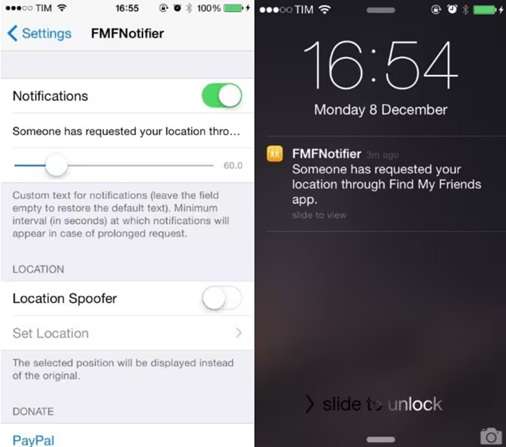
This method only works on a jailbroken iPhone.
Method 5: Use a Location Spoofer to Change Find My iPhone Location (Recommended)
FMFNotifier can change the shown location, but it only works on a jailbroken iPhone. That makes it unsuitable for many users. A safer and easier option is Dr.Fone - Virtual Location.
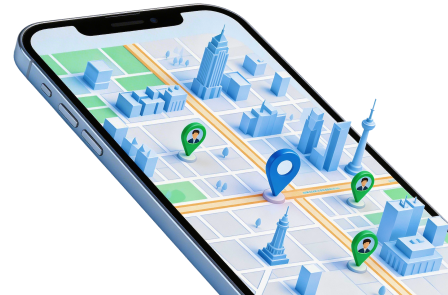
Dr.Fone - Virtual Location lets you change Find My iPhone location without jailbreaking the phone. It is compatible with both iOS and Android devices. With one click, choose a location on the map and move the GPS position there.
The tool can create a route between two or more locations as well. Your phone’s GPS can then move along that selected path. This makes it useful for privacy, social apps, location-based games, and other services that use phone location.
Why Dr.Fone - Virtual Location Stands Out
| ● Change GPS location with one click | ● Move to any place around the world |
|---|---|
| ● Create routes between two or more points | ● Hide your real location for better privacy |
| ● Work with Find My and other location-based apps | ● Support apps such as Snapchat, Instagram, Facebook, and Pokémon GO |
| ● Work on both iOS and Android devices | ● Available for Windows and Mac |
| ● No iPhone jailbreak is required | Step-by-Step Guide |
 Set your map route to simulate GPS movement.
- Set your wanted movement speed.
- HD and large map view to check location.
- Fake GPS location to anywhere.
Step-by-Step Guide
-
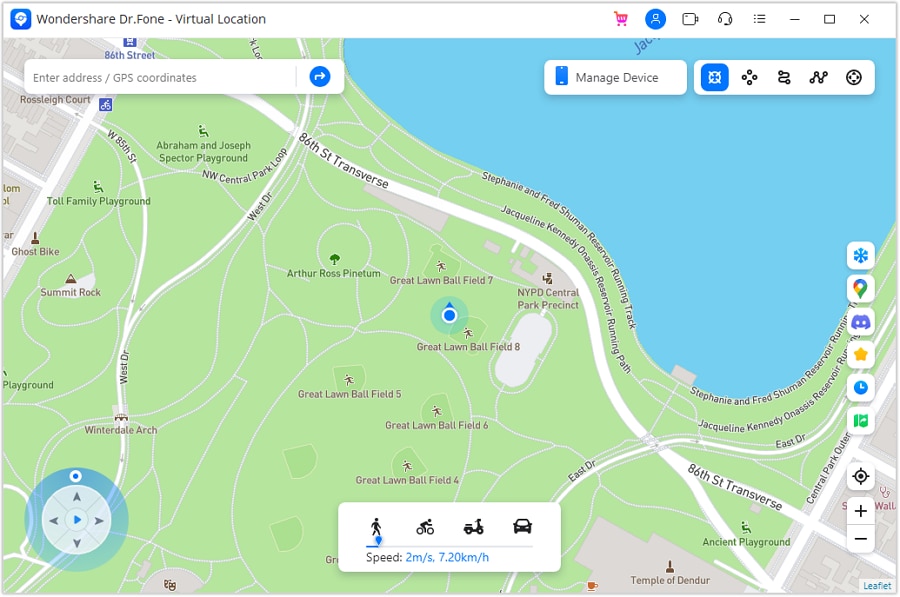
Step 1 Download and open Dr.Fone on your computer. Select Virtual Location, connect your iPhone, and click Get Started.
-
Step 2 Check your current position on the map. Click Center On if the map does not show it correctly.
-
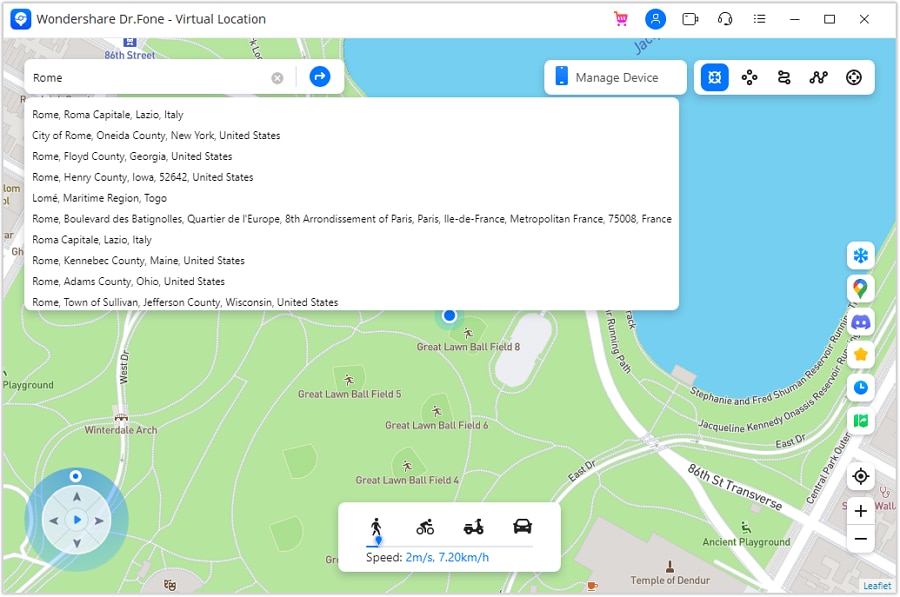
Step 3 Select Teleport Mode and enter the city, address, or place you want to use.
-
Step 4 Click Go, review the location shown on the map, and select Move Here.
-
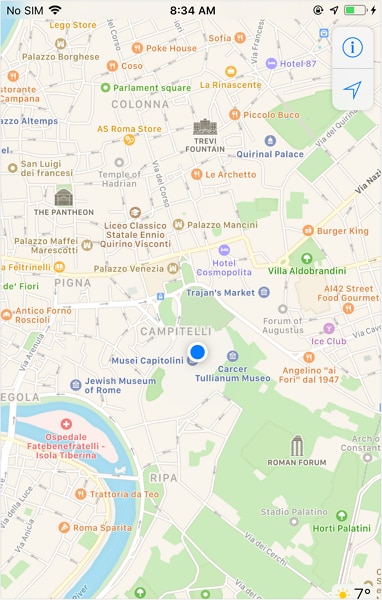
Step 5 Check your iPhone and supported location-based apps to confirm the new position.
Dr.Fone - Virtual Location offers a clear answer for users asking how to fake location on Find My without using a jailbroken device. Its simple map, one-click location change, route controls, and wide app support make it the most practical choice in this guide.




Comparison Table: Methods to Change Find My Location Device
| Method | Primary Use | Accuracy | Ease of Use | Security Risk |
|---|---|---|---|---|
| Another Apple Device | Shares your location from a second iPhone or iPad | High for location sharing. It shows the real position of the selected device, but it does not change your primary iPhone’s GPS. | Easy, but you need another Apple device signed in to the same account. | Low. It uses Apple’s built-in Find My setting. |
| VPN | Changes your IP address and online region | Very low for Find My. A VPN may change IP-based content, but Find My still uses GPS, Wi-Fi, cellular, and Bluetooth data. | Easy. Install the app, choose a server, and connect. | Low to medium. Choose a trusted provider because the VPN handles your internet traffic. |
| Apple ID Region | Changes App Store country, prices, payment options, and regional content | None for Find My GPS. It changes the account region, not the phone’s live map position. | Medium. You may need to cancel subscriptions, spend your balance, and add a new payment method. | Low, but some apps, purchases, or subscriptions may become unavailable. |
| FMFNotifier | Sends alerts when someone requests your Find My Friends location | Low and outdated. The archived version was made for iOS 9 to 9.3.3 and is not confirmed as a reliable location spoofer for current iPhones. | Hard. It requires a compatible jailbroken device. | High. Jailbreaking can cause security gaps, crashes, battery drain, service problems, and update failures. |
| Dr.Fone - Virtual Location | Changes GPS coordinates and creates virtual routes | High when the iPhone and iOS version are supported. The new point should be checked in Find My or Maps after use. | Easy to medium. Connect the iPhone to a computer, choose a location, and select Move Here. | Low to medium. It does not require jailbreaking, but users should download it from the official source and check app rules before spoofing. |
Conclusion
Changing location on Find My iPhone depends on what you need to adjust. A second Apple device can replace the source shared in Find My. A VPN changes the online region, while an Apple Account update affects regional apps, prices, and billing. FMFNotifier remains an option for compatible jailbroken devices, though it needs extra care.
When direct GPS control is the goal, Dr.Fone - Virtual Location offers the most complete approach. It offers the ability to move your phone to a specific location, simulate routes, and more – all without the need to jailbreak your device. Select the method that suits your purpose and verify the location after every change.
 Add Wondershare Dr.Fone as a preferred source on Google